

In This Article
Samsung Galaxy M33 5G arriving in India soon, listed on Amazon

The Samsung Galaxy M33 5G will make its debut in India soon. The company has created a new microsite for the upcoming handset to tease the arrival. The device got listed on Amazon ahead of the official launch, therefore, confirming the availability of the upcoming M-Series smartphone.
To recollect, the smartphone was released alongside other A-Series smartphones earlier this month, so we are familiar with its specifications and features. The phone has a 6,000mAh battery and a quad-camera setup on the back. The phone also comes pre-installed with Android 12.
HP LaserJet Tank series with duplex printing launched in India
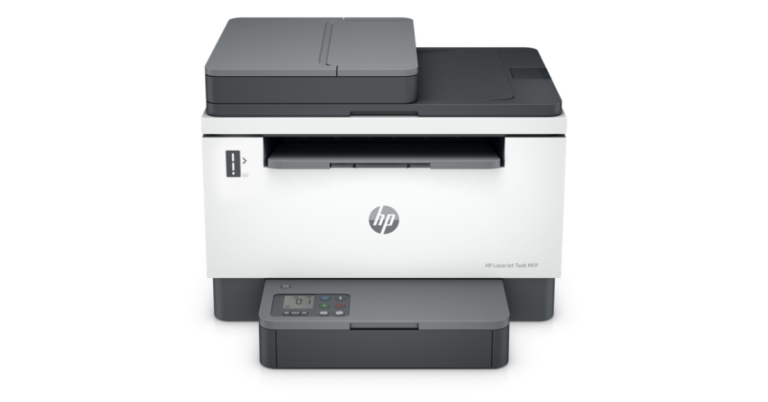
HP has expanded its products portfolio with the launch of the industry’s first LaserJet Tank Printers in the Indian market. The HP LaserJet Tank series is compact and is suited for small and medium businesses for affordable high-quality printing. It is capable of printing up to 5,000 pages. These HP printers do not require cartridges and provide a hassle-free toner refill. Furthermore, the printers will be wirelessly connected for seamless operation.

In This Article
HP LaserJet Tank series price in India
The company has introduced three models; the HP LaserJet Tank 1005 is now available for Rs 23,695. While the LaserJet Tank 1020 and LaserJet Tank 2606 printers come with a price tag of Rs 15,963 and Rs 29,558.
HP LaserJet Tank printers specifications
Many similarities exist between the HP LaserJet Tank 1005 and Tank 1020 series. The printer can print at a rate of up to 22 pages per minute. Both printers can print up to 5,000 pages and can be refilled with the HP Toner Reload Kit, which comes in two sizes: 2500 and 5,000 pages. These also help you speed through multipage documents with automatic two-sided printing and have a long life. Additionally, it can print, scan, and share from anywhere at any time using the HP Smart app. While the most expensive printer, the LaserJet Tank 2606, supports Duplex Hi-Speed Printing (Speed through multipage documents with automatic two-sided printing). On the SDW variant, it has a 40-page ADF (Automatic Document Feeder) and a 250-page input tray. With the HP Smart App and Smart Advance scanning features app, you can print, scan, and share from anywhere at any time. All of the other features are identical to those of its siblings, the HP LaserJet Tank 1005 and Tank 1020 printers. Sunish Raghavan, Senior Director, Printing Systems, HP India said “At HP, we are committed to assisting the small and medium-sized companies in unlocking innovation and overcoming challenges, especially those accentuated by the Covid-19 pandemic. We have always been at the forefront of innovations that benefit SMBs and SOHOs with business continuity. Our new LaserJet tank technology has been designed for a seamless user experience, offering innovative capabilities such as advanced scanning features via the HP Smart App, a 15-second toner refill, and an ultra-high-yield Original HP Toner Kit – all of which contribute to an efficient print experience.” For the latest gadget and tech news, and gadget reviews, follow us on Twitter, Facebook and Instagram. For newest tech & gadget videos subscribe to our YouTube Channel. You can also stay up to date using the Gadget Bridge Android App. You can find the latest car and bike news here.How to reset Apple ID password?
How can we not forget passwords? Every single application that we use digitally, be it online on the web or locally on our devices, requires us to construct an ID to access their services. And with so many applications that we may or may not live without, remembering passwords for each of our IDs becomes quite an exercise for the mind. If you are a person who keeps a record of all your IDs and passwords safely to access later in the hour of need, then we guess you’re already sitting tension free. But in case you don’t, we are here for your help. Provided below are the 3 best ways how to reset Apple ID password in no time.
 Step 1: Go to Settings > [Tap your name] > Password & Security > Change Password.
Step 2: If you’re signed in to iCloud and have a passcode enabled, you’ll get a prompt to enter the passcode for your device. You then just have to follow the onscreen steps to update your password. That’s it!
Read also: How To Start Or Stop Screen Recording On A Mac?
Step 1: Go to Apple menu > System Preferences > Apple ID.
Step 2: Click Password & Security. If you’re asked to enter your password, you can directly click on the “Forgot Apple ID or password” option, follow the on-screen procedure and skip the final step.
Step 3: If you’re not asked for a password, click on Change Password and enter the password you use to unlock your Mac. That’s it!
Step 1: Download the Apple Support app if not already, then open and tap on Passwords & Security.
Step 2: Tap on Reset Apple ID Password.
Step 3: Click on Get Started > “A different Apple ID”.
Step 4: Enter the Apple ID that you need to reset your password for, click on Next and then follow the on-screen instructions until your password change has been confirmed. That’s it!
Read also: 5 Best Ways To Quickly Recover Deleted Contacts On iPhone
If your friend or family member uses an Apple device with iOS 9 through 12, then the Apple Support app cannot be downloaded upon it. Instead, you can use the Find My iPhone app for this purpose. Open the Find My iPhone app and tap on Forgot Apple ID or Password once the Sign In screen appears. Just make sure that the Apple ID field is empty when you click on the option. Next, just keep on following the on-screen steps and your Apple ID password would get reset.
Step 1: Navigate to iforgot.apple.com from your web browser.
Step 2: Enter your Apple ID, select the option to reset your password and then click on Continue. In case you forgot your Apple ID, visit the Apple Support website to learn what to do next.
Step 3: Choose to answer your security questions and get an email or enter your recovery key.
Step 4: Follow the on-screen steps to reset your password. That’s it!
After you reset your password, you’ll be asked to sign in again with your new password. You also might need to update your password in Settings on your device.
So those were the 3 ways how to reset your Apple ID password. In case you know of any other means or ways to achieve the same, let us know in the comments section below.
For the latest gadget and tech news, and gadget reviews, follow us on Twitter, Facebook and Instagram. For newest tech & gadget videos subscribe to our YouTube Channel. You can also stay up to date using the Gadget Bridge Android App. You can find the latest car and bike news here.
Step 1: Go to Settings > [Tap your name] > Password & Security > Change Password.
Step 2: If you’re signed in to iCloud and have a passcode enabled, you’ll get a prompt to enter the passcode for your device. You then just have to follow the onscreen steps to update your password. That’s it!
Read also: How To Start Or Stop Screen Recording On A Mac?
Step 1: Go to Apple menu > System Preferences > Apple ID.
Step 2: Click Password & Security. If you’re asked to enter your password, you can directly click on the “Forgot Apple ID or password” option, follow the on-screen procedure and skip the final step.
Step 3: If you’re not asked for a password, click on Change Password and enter the password you use to unlock your Mac. That’s it!
Step 1: Download the Apple Support app if not already, then open and tap on Passwords & Security.
Step 2: Tap on Reset Apple ID Password.
Step 3: Click on Get Started > “A different Apple ID”.
Step 4: Enter the Apple ID that you need to reset your password for, click on Next and then follow the on-screen instructions until your password change has been confirmed. That’s it!
Read also: 5 Best Ways To Quickly Recover Deleted Contacts On iPhone
If your friend or family member uses an Apple device with iOS 9 through 12, then the Apple Support app cannot be downloaded upon it. Instead, you can use the Find My iPhone app for this purpose. Open the Find My iPhone app and tap on Forgot Apple ID or Password once the Sign In screen appears. Just make sure that the Apple ID field is empty when you click on the option. Next, just keep on following the on-screen steps and your Apple ID password would get reset.
Step 1: Navigate to iforgot.apple.com from your web browser.
Step 2: Enter your Apple ID, select the option to reset your password and then click on Continue. In case you forgot your Apple ID, visit the Apple Support website to learn what to do next.
Step 3: Choose to answer your security questions and get an email or enter your recovery key.
Step 4: Follow the on-screen steps to reset your password. That’s it!
After you reset your password, you’ll be asked to sign in again with your new password. You also might need to update your password in Settings on your device.
So those were the 3 ways how to reset your Apple ID password. In case you know of any other means or ways to achieve the same, let us know in the comments section below.
For the latest gadget and tech news, and gadget reviews, follow us on Twitter, Facebook and Instagram. For newest tech & gadget videos subscribe to our YouTube Channel. You can also stay up to date using the Gadget Bridge Android App. You can find the latest car and bike news here.
In This Article
Use Your Own Device To Reset Your Apple ID Password
First, if you have your own Apple device, you can try resetting your password from any trusted iPhone, iPad, iPod touch, Apple Watch, or Mac. Just follow the following steps for your respective case.From Your iPhone, iPod, iPad or Apple Watch
 Step 1: Go to Settings > [Tap your name] > Password & Security > Change Password.
Step 2: If you’re signed in to iCloud and have a passcode enabled, you’ll get a prompt to enter the passcode for your device. You then just have to follow the onscreen steps to update your password. That’s it!
Read also: How To Start Or Stop Screen Recording On A Mac?
Step 1: Go to Settings > [Tap your name] > Password & Security > Change Password.
Step 2: If you’re signed in to iCloud and have a passcode enabled, you’ll get a prompt to enter the passcode for your device. You then just have to follow the onscreen steps to update your password. That’s it!
Read also: How To Start Or Stop Screen Recording On A Mac?
From Your Mac
You can reset your Apple ID password from your Mac with macOS Catalina or later. Step 1: Go to Apple menu > System Preferences > Apple ID.
Step 2: Click Password & Security. If you’re asked to enter your password, you can directly click on the “Forgot Apple ID or password” option, follow the on-screen procedure and skip the final step.
Step 3: If you’re not asked for a password, click on Change Password and enter the password you use to unlock your Mac. That’s it!
Step 1: Go to Apple menu > System Preferences > Apple ID.
Step 2: Click Password & Security. If you’re asked to enter your password, you can directly click on the “Forgot Apple ID or password” option, follow the on-screen procedure and skip the final step.
Step 3: If you’re not asked for a password, click on Change Password and enter the password you use to unlock your Mac. That’s it!
Use Another Device To Reset Your Apple ID Password
You can also use a friend or a family member’s Apple device to reset your Apple ID password. There are two ways to do so:Using The Apple Support App
 Step 1: Download the Apple Support app if not already, then open and tap on Passwords & Security.
Step 2: Tap on Reset Apple ID Password.
Step 3: Click on Get Started > “A different Apple ID”.
Step 4: Enter the Apple ID that you need to reset your password for, click on Next and then follow the on-screen instructions until your password change has been confirmed. That’s it!
Read also: 5 Best Ways To Quickly Recover Deleted Contacts On iPhone
Step 1: Download the Apple Support app if not already, then open and tap on Passwords & Security.
Step 2: Tap on Reset Apple ID Password.
Step 3: Click on Get Started > “A different Apple ID”.
Step 4: Enter the Apple ID that you need to reset your password for, click on Next and then follow the on-screen instructions until your password change has been confirmed. That’s it!
Read also: 5 Best Ways To Quickly Recover Deleted Contacts On iPhone
Using Find My iPhone App
 If your friend or family member uses an Apple device with iOS 9 through 12, then the Apple Support app cannot be downloaded upon it. Instead, you can use the Find My iPhone app for this purpose. Open the Find My iPhone app and tap on Forgot Apple ID or Password once the Sign In screen appears. Just make sure that the Apple ID field is empty when you click on the option. Next, just keep on following the on-screen steps and your Apple ID password would get reset.
Use iforgot To Reset Your Apple ID Password
Finally, if you’ve tried all the methods above and still are unable to reset your Apple ID password, try using the iforgot website for the same. Step 1: Navigate to iforgot.apple.com from your web browser.
Step 2: Enter your Apple ID, select the option to reset your password and then click on Continue. In case you forgot your Apple ID, visit the Apple Support website to learn what to do next.
Step 3: Choose to answer your security questions and get an email or enter your recovery key.
Step 4: Follow the on-screen steps to reset your password. That’s it!
After you reset your password, you’ll be asked to sign in again with your new password. You also might need to update your password in Settings on your device.
So those were the 3 ways how to reset your Apple ID password. In case you know of any other means or ways to achieve the same, let us know in the comments section below.
For the latest gadget and tech news, and gadget reviews, follow us on Twitter, Facebook and Instagram. For newest tech & gadget videos subscribe to our YouTube Channel. You can also stay up to date using the Gadget Bridge Android App. You can find the latest car and bike news here.
Step 1: Navigate to iforgot.apple.com from your web browser.
Step 2: Enter your Apple ID, select the option to reset your password and then click on Continue. In case you forgot your Apple ID, visit the Apple Support website to learn what to do next.
Step 3: Choose to answer your security questions and get an email or enter your recovery key.
Step 4: Follow the on-screen steps to reset your password. That’s it!
After you reset your password, you’ll be asked to sign in again with your new password. You also might need to update your password in Settings on your device.
So those were the 3 ways how to reset your Apple ID password. In case you know of any other means or ways to achieve the same, let us know in the comments section below.
For the latest gadget and tech news, and gadget reviews, follow us on Twitter, Facebook and Instagram. For newest tech & gadget videos subscribe to our YouTube Channel. You can also stay up to date using the Gadget Bridge Android App. You can find the latest car and bike news here. You may now book a Doctor’s appointment using Google Search
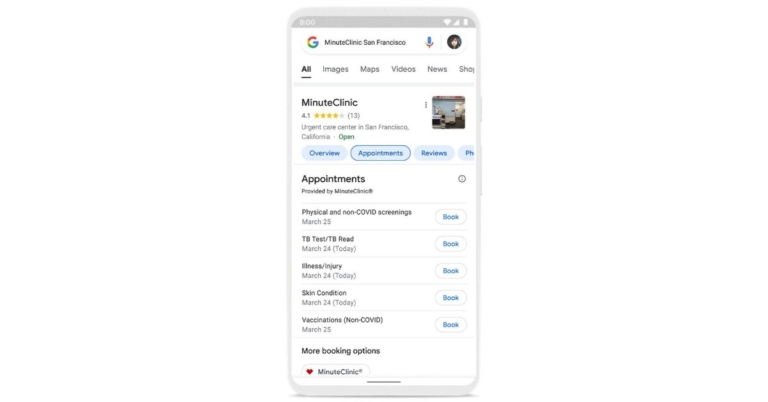
The new Google Search feature will display appointment availability for select providers, making it easier to book doctor’s appointments. However, the feature is currently being tested and will be available soon across the United States, albeit for a limited number of providers at first.
When people have health-related questions, they frequently turn to the internet for answers. In an attempt to make booking a doctor’s appointment convenient, Google has collaborated with CVS’ MinuteClinic and other scheduling providers. So when the feature becomes fully operational the users can simply book a doctor’s appointment by conducting a quick search. The feature was introduced at the tech giant’s second annual Google Health event, The Check-Up.
Google Search has released a feature that will show appointment availability for healthcare providers, allowing you to easily book an appointment. Whether you put off your annual check-up, recently moved and need a new doctor, or need a same-day visit to a CVS MinuteClinic, you may find available appointment dates and times for doctors in your area.
Please keep in mind that the feature to book a doctor’s appointment through Google Search is still in the works and is being rolled out to limited users. Through the search results, users will be able to see the available appointment dates and times for doctors in the area.
So when you search for a specific practitioner or facility on Google Search, appointment availability will appear. If a suitable appointment date appears, click the Book button next to the available schedule. It will direct you to a third-party booking website.
Google Search team recently released features to assist people in navigating the complex healthcare system and making more informed decisions, such as locating healthcare providers who accept their insurance.
Aside from that, Google has announced that Fitbit is developing an AFib algorithm that will work in conjunction with the PPG (Photoplethysmography) AFib algorithm, which passively examines heart rate data to detect signs of an irregular heart rhythm.
The study findings were presented by Google at the most recent American Heart Association meeting, demonstrating that the algorithm correctly identified undiagnosed AFib 98 percent of the time. However, it has submitted the algorithm for FDA approval.
For the latest gadget and tech news, and gadget reviews, follow us on Twitter, Facebook and Instagram. For newest tech & gadget videos subscribe to our YouTube Channel. You can also stay up to date using the Gadget Bridge Android App. You can find the latest car and bike news here.
EA’s FIFA Game Is Supposedly Being Renamed, New Soccer Game Coming?

If you look at a close-up of the Nike match ball, FIFA EA Sports, and No Room For Racism logos on referee Anthony Taylor’s shirt during the Premier League match between Burnley and Newcastle United on April 11, 2021, at Turf Moor in Burnley, England, you will find differences. Sporting stadiums in the United Kingdom are still subject to stringent restrictions because of the Coronavirus Pandemic, as government social distancing rules forbid supporters from entering grounds, resulting in games being played behind closed doors. Now a new development has happened.
As per a report, a new name might be given to the ever-popular soccer franchise by EA. It appears to coincide with FIFA’s request for a stunning $2.5 billion for name rights that would span for the next ten years.
Read also: Microsoft released EA Play on Xbox Game Pass for PC and Auto
FIFA recognises the success of EA’s game and desires a larger slice of that gigantic pie. But, of course, EA doesn’t want to eat into its profit margin any further than it already has. In terms of licence payments and all the negotiating and legal labour that entails, a large, global soccer video game is already a giant. That is the greater point – EA oversees that work. FIFA does not include official team branding or player names from the real world. That is handled individually and at a cost to the publisher.
However, according to a recent Comicbook.com source, EA CEO Andrew Wilson has stated that he already wishes to cancel the partnership with FIFA.
Read Also: FIFA 21 to launch on PS5 on December 4: Here’s what you must know
It is interesting to see how the new title will work out. It has been decades since EA and FIFA have partnered for one of the most popular games on the planet. There are rumours that FIFA will succumb to the pressure and lower its rates so that EA can make some profit and not end up spending all of it in giving to FIFA. If the deal stays put, it will be a good move for football lovers, however, like the popular PES, there are many who swear by EA as well. They just might buy the new names version of the game. However, it is yet to be seen if EA will be able to use the names of any or all of the footballers in the new game.
For the latest gadget and tech news, and gadget reviews, follow us on Twitter, Facebook and Instagram. For newest tech & gadget videos subscribe to our YouTube Channel. You can also stay up to date using the Gadget Bridge Android App. You can find the latest car and bike news here.
YouTube released new health features in India to allow users identify authoritative information about health
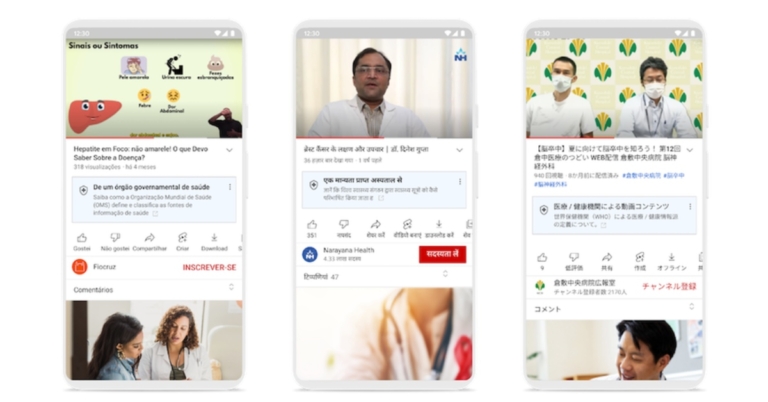
YouTube is rolling out new health features on its platform in India. The video streaming platform has introduced fresh health source information panels, which will label videos from credible health organisations and government institutions. This can be used to identify data from trusted sources. Additionally, the Google Owned video platform has also brought health content shelves in search results that highlight videos from authoritative sources.
Users in Brazil, India, and Japan will notice new features alongside health-related searches and videos beginning this week. Note that both the new wellness features will be accessible in Hindi as well as English. YouTube has also partnered with leading health organisations around the world to create video content and make it easier for users to find authoritative information related to health.
Health source information panels on YouTube videos have also been added to assist viewers in identifying videos from authoritative sources, as well as health content shelves that more effectively highlight videos from these sources when searching for specific health topics. These contextual cues are intended to assist people in more easily navigating and evaluating credible health information. In their search results, people will still be able to find relevant videos from a variety of channels.
 A set of principles developed by a panel of experts convened by the National Academy of Medicine (NAM) in the United States have been included to determine which sources to include in health features. As per YouTube, the World Health Organization and NAM recently convened a meeting of international interdisciplinary experts to review and validate principles for global application.
“We’re also expanding the use of product features to surface credible and relevant health information that was first launched in the U.S. last year. Starting this week, users in Brazil, India, and Japan will also see new features next to some health-related searches and videos. In the coming months, we’ll continue to expand these features to other countries” YouTube via its blog post noted.
For the latest gadget and tech news, and gadget reviews, follow us on Twitter, Facebook and Instagram. For newest tech & gadget videos subscribe to our YouTube Channel. You can also stay up to date using the Gadget Bridge Android App. You can find the latest car and bike news here.
A set of principles developed by a panel of experts convened by the National Academy of Medicine (NAM) in the United States have been included to determine which sources to include in health features. As per YouTube, the World Health Organization and NAM recently convened a meeting of international interdisciplinary experts to review and validate principles for global application.
“We’re also expanding the use of product features to surface credible and relevant health information that was first launched in the U.S. last year. Starting this week, users in Brazil, India, and Japan will also see new features next to some health-related searches and videos. In the coming months, we’ll continue to expand these features to other countries” YouTube via its blog post noted.
For the latest gadget and tech news, and gadget reviews, follow us on Twitter, Facebook and Instagram. For newest tech & gadget videos subscribe to our YouTube Channel. You can also stay up to date using the Gadget Bridge Android App. You can find the latest car and bike news here.
 A set of principles developed by a panel of experts convened by the National Academy of Medicine (NAM) in the United States have been included to determine which sources to include in health features. As per YouTube, the World Health Organization and NAM recently convened a meeting of international interdisciplinary experts to review and validate principles for global application.
“We’re also expanding the use of product features to surface credible and relevant health information that was first launched in the U.S. last year. Starting this week, users in Brazil, India, and Japan will also see new features next to some health-related searches and videos. In the coming months, we’ll continue to expand these features to other countries” YouTube via its blog post noted.
For the latest gadget and tech news, and gadget reviews, follow us on Twitter, Facebook and Instagram. For newest tech & gadget videos subscribe to our YouTube Channel. You can also stay up to date using the Gadget Bridge Android App. You can find the latest car and bike news here.
A set of principles developed by a panel of experts convened by the National Academy of Medicine (NAM) in the United States have been included to determine which sources to include in health features. As per YouTube, the World Health Organization and NAM recently convened a meeting of international interdisciplinary experts to review and validate principles for global application.
“We’re also expanding the use of product features to surface credible and relevant health information that was first launched in the U.S. last year. Starting this week, users in Brazil, India, and Japan will also see new features next to some health-related searches and videos. In the coming months, we’ll continue to expand these features to other countries” YouTube via its blog post noted.
For the latest gadget and tech news, and gadget reviews, follow us on Twitter, Facebook and Instagram. For newest tech & gadget videos subscribe to our YouTube Channel. You can also stay up to date using the Gadget Bridge Android App. You can find the latest car and bike news here. Amazon Quiz Answers Today 25 March 2022: Participate to win Rs 15,000

25 March 2022 Amazon Quiz has gone live on its platform. The quiz timings are 12 AM to 11:59 PM. The Amazon App users can participate in the quiz daily and all they have to do is submit correct answers to the questions asked on the e-commerce platform. Today’s participants can get a chance to win Rs 15,000 Amazon Pay Balance.
Amazon brings a fresh questionnaire that contains 5 questions daily. These questions are based on current affairs and general knowledge. The quiz can be played from 8 AM to 11:59 PM and the contestants need to answer correctly to enter into a lucky draw.
Only one person is declared as a winner and the results will be announced at the end of every month. And to make sure that you give correct answers to all the 5 questions Gadget Bridge everyday updates all the answers to the Amazon Quiz. Do check out 25 March 2022 Amazon Quiz Answers to win Rs 15,000 Amazon pay Balance.
- Amazon Quiz Today Prize – Rs 15,000 Amazon Pay Balance
- Quiz Date – 25 March 2022
- Daily Timing – 12 AM to 11:59 PM
- Winner Announcement – Today 12 PM
In This Article
Amazon Quiz Answers Today 25 March 2022
Question 1: Atharva – Which country hosted the 4th Asia Ministerial Conference on Tiger Conservation?
Answer: MalaysiaQuestion 2: Which Indian state celebrates Netaji Subhas Chandra Bose’s birthday as Desh Nayak Diwas?
Answer: West BengalQuestion 3: Who is Germany’s current chancellor?
Answer: Olaf ScholzQuestion 4: In which country did this car manufacturing company originate?
Answer: SwedenQuestion 5: Name the architect who originally started the construction of this iconic building.
Answer: Jorn UtzonHow To Play Amazon Quiz
Only app users are eligible to play the Amazon quiz every morning from 12 AM to 11:59 PM. The quiz is not available on the desktop. For those who are unaware of how to play the Amazon quiz below are the steps, you can follow to take the quiz.- Firstly download the Amazon app from Google Play Store or App Store
- Now fill in the required information through the Sign Up option.
- You need to log in to the Amazon app and scroll down on the home screen to find the Amazon Quiz banner.
- Tap on the Amazon Quiz banner and tap on the Start button to start the Quiz.
- Now you will get 5 questions and you need to answer them correctly. One wrong answer will eliminate you from the Quiz.
- After answering all the questions correctly you are now eligible for a Lucky Draw.
- The winner’s name will be announced today at 12 PM.
How To Start Or Stop Screen Recording On A Mac?

If you’ve been using Mac religiously almost all your life, then you might already be aware of this one. But in case you’re a newbie and have just stepped into the world of iOS, you don’t need to spend another minute gathering resources or asking your fellow Apple users how to start or stop screen recording on a Mac. And even if you’re not as new to the Mac iOS, we totally understand in case you missed how to do so. That’s precisely why we’re here for.
Sometimes you’re officially required to record a video conference while working from home. Sometimes you may need to record a tutorial as a student. And when the whole world is shifting towards the work from home and digital working culture, skills like recording one’s laptop screen become very essential to have the knowledge of. And to tell you, it is quite easy to achieve. All you need to do is just follow our quick step-by-step guide provided below on how to start or stop screen recording on a Mac.
To view the screenshot toolbar on your Mac screen, press Shift+Command+5 keys together. Once the toolbar appears on your screen, you’ll be able to see controls for recording your entire screen, recording a portion of your screen or capturing a still image of your screen. Select the required option, and that’s it!
Read also: How to connect AirPods Pro to MacBook
Read also: How to reset a MacBook Pro: A Step by step guide
Step 3: To stop the recording, click the Stop button in the menu bar, or press Command+Control+Esc shortcut keys for the same. That’s it! Plus, after you stop recording, QuickTime Player automatically opens the recording for you, which you can then choose to play, edit or share as per your choice.
So those were the two fast ways how to start or stop screen recording on a Mac. Just a matter of a couple of clicks, easy no? In case you find an even easier and faster way to start or stop recording your Mac screen, we would love to hear it in the comments section below.
For the latest gadget and tech news, and gadget reviews, follow us on Twitter, Facebook and Instagram. For newest tech & gadget videos subscribe to our YouTube Channel. You can also stay up to date using the Gadget Bridge Android App. You can find the latest car and bike news here.
In This Article
Using The Screenshot Toolbar
 To view the screenshot toolbar on your Mac screen, press Shift+Command+5 keys together. Once the toolbar appears on your screen, you’ll be able to see controls for recording your entire screen, recording a portion of your screen or capturing a still image of your screen. Select the required option, and that’s it!
Read also: How to connect AirPods Pro to MacBook
To view the screenshot toolbar on your Mac screen, press Shift+Command+5 keys together. Once the toolbar appears on your screen, you’ll be able to see controls for recording your entire screen, recording a portion of your screen or capturing a still image of your screen. Select the required option, and that’s it!
Read also: How to connect AirPods Pro to MacBook
Using QuickTime Player
Step 1: Open QuickTime Player from your Applications folder and go to File > New Screen Recording. Next on your screen will appear either a control bar just like the Screenshot Toolbar as described above or a screen recording window as shown below on your Mac. Step 2: To start the recording, click the Record button as highlighted below. Now you have two ways to proceed forward with.- If you want to record the entire screen, click anywhere on the screen.
- If you want to record only a portion of your entire screen, click and drag your mouse to select the area to record, and then click start recording within that area.
 Read also: How to reset a MacBook Pro: A Step by step guide
Step 3: To stop the recording, click the Stop button in the menu bar, or press Command+Control+Esc shortcut keys for the same. That’s it! Plus, after you stop recording, QuickTime Player automatically opens the recording for you, which you can then choose to play, edit or share as per your choice.
So those were the two fast ways how to start or stop screen recording on a Mac. Just a matter of a couple of clicks, easy no? In case you find an even easier and faster way to start or stop recording your Mac screen, we would love to hear it in the comments section below.
For the latest gadget and tech news, and gadget reviews, follow us on Twitter, Facebook and Instagram. For newest tech & gadget videos subscribe to our YouTube Channel. You can also stay up to date using the Gadget Bridge Android App. You can find the latest car and bike news here.
Read also: How to reset a MacBook Pro: A Step by step guide
Step 3: To stop the recording, click the Stop button in the menu bar, or press Command+Control+Esc shortcut keys for the same. That’s it! Plus, after you stop recording, QuickTime Player automatically opens the recording for you, which you can then choose to play, edit or share as per your choice.
So those were the two fast ways how to start or stop screen recording on a Mac. Just a matter of a couple of clicks, easy no? In case you find an even easier and faster way to start or stop recording your Mac screen, we would love to hear it in the comments section below.
For the latest gadget and tech news, and gadget reviews, follow us on Twitter, Facebook and Instagram. For newest tech & gadget videos subscribe to our YouTube Channel. You can also stay up to date using the Gadget Bridge Android App. You can find the latest car and bike news here. 5 Best Ways To Quickly Recover Deleted Contacts On iPhone
If you ever deleted a phone number by mistake from your iPhone contacts, there is absolutely no need to feel silly about it. Such sort of stuff may happen with anyone at any given point in time. Sometimes contacts or other crucial data may get lost without even your interference, owing to a bug or an internal glitch. And if you do not know how to retrieve back your lost contact, there’s no need to worry. We have brought to you the 5 best and easiest ways for you to quickly recover deleted contacts on your iPhone with or without a backup.
Hey, you never know when you might be in need of that one lost contact. Let us help you preserve it.
Step 1: Navigate to iCloud.com from your web browser and sign in with your Apple ID.
Step 2: Go to Account Settings > Advanced > Restore Contacts
Step 3: Chose the contacts you would like to restore and click on the Restore button.
Read also: Top 5 Ways To Recover Deleted Phone Numbers On Android Smartphone
Step 1: Go to Settings > Profile > iCloud
Step 2: Find the Contacts option from the menu and toggle it off.
Step 3: Choose “Keep on My iPhone” in the pop-up.
Step 4: Now, Toggle the Contacts option on and then select the Merge option in the pop-up that comes next.
Step 1: Connect your iPhone to your computer via a USB cable and open iTunes software.
Step 2: Select your device from the iTunes software and click on Summary from the left panel menu.
Step 3: Within the Summary window, under the Backups area, select the Restore Backup option.
Step 4: Select the desired backup and click on the Restore button to complete the process. The corresponding backup will get restored on your iPhone, hence restoring the contacts you lost.
Read also: How to create a backup of your WhatsApp chats on Android and iOS?
Step 1: Go to Settings > General > Reset and click on Erase All Content and Settings.
Step 2: Follow the on-screen instructions and then go to “Apps & Data” > “Restore from iCloud Backup”.
Step 3: Sign in to iCloud with your Apple ID, choose a backup that you want to restore and wait for the process to complete. That’s it!
Step 1: Go to Settings > Passwords & Accounts.
Step 2: Click on the Add Account option and select Google.
Step 3: Sign in with your Google ID and click on the Allow button.
Step 4: Turn on the Contacts switch and tap on Save in the top right corner of the interface.
Finally, if you are someone who doesn’t keep your contacts synced or backed up anywhere, there’s an option for you too! If nothing works, there are 3rd party applications and iOS data recovery softwares that are specially built for recovering lost data, including contacts or phone numbers. You can use apps like iFindit and Gihosoft iPhone Data Recovery to retrieve back photos, videos, text messages, contacts, Whatsapp and more data on your iOS device.
So those were the 5 best ways how to recover deleted contacts on an iPhone quickly and with or without a backup. If you know of any other means or ways to do the same, do let us know in the comments section below.
For the latest gadget and tech news, and gadget reviews, follow us on Twitter, Facebook and Instagram. For newest tech & gadget videos subscribe to our YouTube Channel. You can also stay up to date using the Gadget Bridge Android App. You can find the latest car and bike news here.
In This Article
Restore Contacts from iCloud Website
 Step 1: Navigate to iCloud.com from your web browser and sign in with your Apple ID.
Step 2: Go to Account Settings > Advanced > Restore Contacts
Step 3: Chose the contacts you would like to restore and click on the Restore button.
Read also: Top 5 Ways To Recover Deleted Phone Numbers On Android Smartphone
Step 1: Navigate to iCloud.com from your web browser and sign in with your Apple ID.
Step 2: Go to Account Settings > Advanced > Restore Contacts
Step 3: Chose the contacts you would like to restore and click on the Restore button.
Read also: Top 5 Ways To Recover Deleted Phone Numbers On Android Smartphone
Merge Contacts from iCloud
If you enabled Contacts sync to iCloud previously, then you can merge the contacts on your iCloud to your iPhone, thus bringing back the deleted phone numbers as well. Step 1: Go to Settings > Profile > iCloud
Step 2: Find the Contacts option from the menu and toggle it off.
Step 3: Choose “Keep on My iPhone” in the pop-up.
Step 4: Now, Toggle the Contacts option on and then select the Merge option in the pop-up that comes next.
Step 1: Go to Settings > Profile > iCloud
Step 2: Find the Contacts option from the menu and toggle it off.
Step 3: Choose “Keep on My iPhone” in the pop-up.
Step 4: Now, Toggle the Contacts option on and then select the Merge option in the pop-up that comes next.
Recover Deleted Contacts from iTunes or iCloud Backup
If you keep your contacts backed up on iCloud or even on iTunes, then this would be another efficient method to retrieve lost contacts on your iPhone. But before proceeding with this method, we suggest you keep a backup of all the existing data on your device since the one you’ll download from iTunes or iCloud will override all existing files.Restore from iTunes Backup
 Step 1: Connect your iPhone to your computer via a USB cable and open iTunes software.
Step 2: Select your device from the iTunes software and click on Summary from the left panel menu.
Step 3: Within the Summary window, under the Backups area, select the Restore Backup option.
Step 4: Select the desired backup and click on the Restore button to complete the process. The corresponding backup will get restored on your iPhone, hence restoring the contacts you lost.
Read also: How to create a backup of your WhatsApp chats on Android and iOS?
Step 1: Connect your iPhone to your computer via a USB cable and open iTunes software.
Step 2: Select your device from the iTunes software and click on Summary from the left panel menu.
Step 3: Within the Summary window, under the Backups area, select the Restore Backup option.
Step 4: Select the desired backup and click on the Restore button to complete the process. The corresponding backup will get restored on your iPhone, hence restoring the contacts you lost.
Read also: How to create a backup of your WhatsApp chats on Android and iOS?
Restore from iCloud Backup
 Step 1: Go to Settings > General > Reset and click on Erase All Content and Settings.
Step 2: Follow the on-screen instructions and then go to “Apps & Data” > “Restore from iCloud Backup”.
Step 3: Sign in to iCloud with your Apple ID, choose a backup that you want to restore and wait for the process to complete. That’s it!
Step 1: Go to Settings > General > Reset and click on Erase All Content and Settings.
Step 2: Follow the on-screen instructions and then go to “Apps & Data” > “Restore from iCloud Backup”.
Step 3: Sign in to iCloud with your Apple ID, choose a backup that you want to restore and wait for the process to complete. That’s it!
Recover Deleted Contacts from Google Contacts
For those of you who keep your contacts synced with your Google account, this method is for you. Step 1: Go to Settings > Passwords & Accounts.
Step 2: Click on the Add Account option and select Google.
Step 3: Sign in with your Google ID and click on the Allow button.
Step 4: Turn on the Contacts switch and tap on Save in the top right corner of the interface.
Step 1: Go to Settings > Passwords & Accounts.
Step 2: Click on the Add Account option and select Google.
Step 3: Sign in with your Google ID and click on the Allow button.
Step 4: Turn on the Contacts switch and tap on Save in the top right corner of the interface.
Retrieve Deleted Contacts from Data Recovery Softwares
 Finally, if you are someone who doesn’t keep your contacts synced or backed up anywhere, there’s an option for you too! If nothing works, there are 3rd party applications and iOS data recovery softwares that are specially built for recovering lost data, including contacts or phone numbers. You can use apps like iFindit and Gihosoft iPhone Data Recovery to retrieve back photos, videos, text messages, contacts, Whatsapp and more data on your iOS device.
So those were the 5 best ways how to recover deleted contacts on an iPhone quickly and with or without a backup. If you know of any other means or ways to do the same, do let us know in the comments section below.
For the latest gadget and tech news, and gadget reviews, follow us on Twitter, Facebook and Instagram. For newest tech & gadget videos subscribe to our YouTube Channel. You can also stay up to date using the Gadget Bridge Android App. You can find the latest car and bike news here.
Finally, if you are someone who doesn’t keep your contacts synced or backed up anywhere, there’s an option for you too! If nothing works, there are 3rd party applications and iOS data recovery softwares that are specially built for recovering lost data, including contacts or phone numbers. You can use apps like iFindit and Gihosoft iPhone Data Recovery to retrieve back photos, videos, text messages, contacts, Whatsapp and more data on your iOS device.
So those were the 5 best ways how to recover deleted contacts on an iPhone quickly and with or without a backup. If you know of any other means or ways to do the same, do let us know in the comments section below.
For the latest gadget and tech news, and gadget reviews, follow us on Twitter, Facebook and Instagram. For newest tech & gadget videos subscribe to our YouTube Channel. You can also stay up to date using the Gadget Bridge Android App. You can find the latest car and bike news here. Confirmed: OnePlus 10 Pro India launch to take place on March 31

Finally, the OnePlus 10 Pro India launch date has been announced. The device will be available in the country on March 31st. The Chinese smartphone firm has been teasing its flagship device through its social media channels. To recall, the smartphone debuted in China earlier this year. While confirming the smartphone’s arrival the firm is also teasing the key specs of the upcoming phone that too matches with the Chinese variant. So Indian variant specifications will be similar to that of the Chinese model.
OnePlus took to Twitter to announce the launch date for the OnePlus 10 Pro in India. As per the company, the OnePlus 10 Pro launch event will take place on March 31 at 7:30 pm IST and 2 pm GMT/10 am EDT. Last month the company also confirmed at MWC 2022 that the OnePlus 10 Pro will be available in worldwide markets, including India, by the end of March 2022.