Google’s Family Link is an easy-to-use application allowing parents to set rules for their children to use devices like smartphones and tablets. It ensures that children grow in a healthy environment gaining useful knowledge while blocking inappropriate online content.
Who needs Google Family Link?
Nowadays, children have as much access to gadgets like smartphones and tablets as an adult. Most schools have curriculums in which children have to submit homework and assignments through a portal or mobile application. Besides, the COVID-19 pandemic has led tasks like lectures and assessments to be carried out solely online on the internet.
Although smartphones and tablets are of great utility for children, they also expose them to online content inappropriate at such an age. To solve parents’ dilemma whether they should offer gadgets to their children or not, Google’s Family Link comes to their rescue.
How can Google’s Family Link help you manage your child’s phone?
Google’s Family Link empowers parents in a variety of ways to monitor their child’s activity on a smartphone.
1) Apps download: The app allows them to be the final authority to approve apps that their child wishes to download from the Play Store.
2) Screen time: With Family Link, parents can allot limits for the daily screen time on their child’s device. Moreover, the weekly and monthly reports tell the overall screen time and the time spent on individual applications by their child.
3) Remote lock: Family Link enables the parents to remotely lock their child’s device or hide particular apps during productive hours of their child.
4) SafeSearch filters: The SafeSearch feature blocks explicit content on Google Search including graphics violence and suggestive videos. This feature remains active for the user under 13.
5) Build curiosity: Besides being a limiter, the app acts as a facilitator. Family Link automatically shows teacher-recommended apps that your child can directly download from the Play Store.
How can Google’s Family Link help you manage your child’s phone?
How to use Google’s Family Link?
Google’s Family Link allows parents to decide when their child is mature enough to freely use the device. To set the Family link using the app, follow these steps.
1) Install the Family Link on an Android device.
2) Create a Google Account for your child within the application or a browser on the website families.google.com.
3) Now you can monitor your child’s account as a parent on your Android or iOS smartphone.
4) As soon as your child turns 13, the app will allow him/her to upgrade to a normal Google Account.
How to use Google’s Family Link?
Google’s Family Link allows a family group of up to six people with the parent as the administrator.
For the latest gadget and tech news, and gadget reviews, follow us on Twitter, Facebook and Instagram. For newest tech & gadget videos subscribe to our YouTube Channel. You can also stay up to date with the Gadget Bridge Android App.
PUBG Mobile recently ban over 1 million accounts permanently for actions that violate the game’s terms and policy. It is not a new event happening in the gaming world. Tencent regularly checks players exercising in-game activities that go against a healthy match.
In a tweet, PUBG Moble declared, “Don’t get caught on the wrong side of the #BanPan. From March 5th-11th, we permanently banned 1,110,842 accounts from accessing our game. The majority of reasons include Auto-Aim Hacks, Speed Hacks, X-Ray Vision”.
What illicit tactics did the banned players use?
In its BanPan initiative, Tencent found that a majority of banned accounts were using illegitimate tactics to enhance their performances in the gameplay. These activities included auto-aim cheats, X-Ray vision cheats, and speed cheats.
While scanning the banned players, the company discovered the following.
34 per cent of the players belonged to the Bronze category
13 per cent belonged to the Diamond category
12 per cent belonged to the Silver and Crown ranks
11 per cent belonged to the Platinum category
10 per cent belonged to the Gold category
7 per cent belonged to the Ace category.
the remaining 13 per cent belonged to the Conqueror category.
Will the banned accounts be recovered?
As per the rules of the company, the banned accounts will not be recovered as their data has been deleted from the gamer servers. It has been found that among the banned accounts, a significant number constituted fake accounts or bots created by hackers to gain an unauthorised advantage during the gameplay. The remaining accounts were genuine players using cheats and hacks to gain rewards in the game. Tencent also observed a decline of about 41 per cent in the number of fake accounts created by hackers since the last BanPan report.
Will the banned accounts be recovered?
How can PUBG Mobile players prevent getting banned?
Using cheats is a common practice across different single-player and multiplayer games including GTA and Call of Duty. However, PUBG Mobile maintains a rigid position regarding cheats. It does not permit players to use hacks during gameplay that yield them unnecessary advantages over other players. To avoid getting banned, PUBG Mobile has suggested gamers obey the propriety of the game. They must indulge in fair gameplay to develop natural tactics of spotting and killing opponents.
For the latest gadget and tech news, and gadget reviews, follow us on Twitter, Facebook and Instagram. For newest tech & gadget videos subscribe to our YouTube Channel. You can also stay up to date with the Gadget Bridge Android App.
Realme GT was allegedly found cheating the AnTuTu benchmark tool owned by a Chinese software company named Cheetah Mobile. As a result, AnTuTu removed Realme from its benchmarking platform. In the past, smartphone brands including Huawei, OnePlus, and some others were also found manipulating the benchmark scores and faced consequences.
Why was Realme removed from AnTuTu benchmarking platform?
AnTuTu revealed the reason for removing Realme from the benchmark on Weibo. It stated that the company tampered with the performance testing outcomes of its GT smartphone. AnTuTu claimed that Realme tried to change the values of the multi-threaded workload and JPG decoding parts.
As per the allegations, Realme delayed the threads of the GT smartphone while running the multithreaded test on the AnTuTu app. This enabled the smartphone to run the fastest CPU cores raising the result values. AnTuTu also blamed Realme for changing the reference image to minimise the processing time and attain a higher score.
What are the actions taken by AnTuTu?
AnTuTu has taken strict actions against Realme for manipulating the parameters. It has expelled the company from the benchmark platform for three months. Moreover, AnTuTu has asked Realme to furnish clarification for the action and to take corrective measures. If the company still fails to avoid such misdeed, it may get banned permanently from the list.
What are the actions taken by AnTuTu?
How did Realme respond to the situation?
Realme vehemently denied the allegations put by AnTuTu saying that it provided genuine data regarding the smartphone’s performance.
According to Realme, “Realme GT is equipped with the latest Snapdragon 888 5G platform, bringing users high performance. Benchmark scores of Realme GT are all accurate data under the current versions of the Antutu benchmark. Realme has always been committed to bringing users excellent performance, the actual user experience is the top priority for Realme. On the other hand, regarding the test issues doubted by both sides, we are in touch with Antutu to sort it out positively.”
Seems like Realme is up to no good and the customer sentiment with cheaters is known. The brand has already been facing a lot of flak and is not the best when it comes to smartphones or after-sales service. Many think that the Indian leadership is to be blamed for many of its hiccups here. And now with this Realme-cheating-gate, the companies worries are just going to increase.
For the latest gadget and tech news, and gadget reviews, follow us on Twitter, Facebook and Instagram. For newest tech & gadget videos subscribe to our YouTube Channel. You can also stay up to date with the Gadget Bridge Android App.
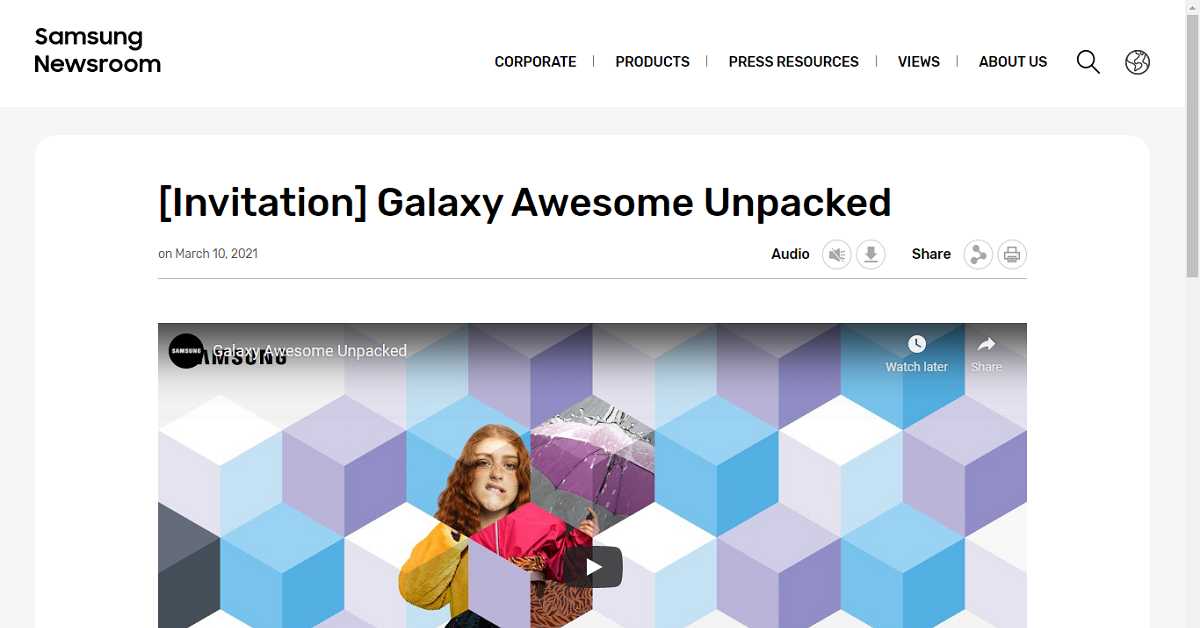
Samsung is hosting the awaited ‘Galaxy Awesome Unpacked’ event today i.e., March 17, 2021 at 7:30 PM India time. The company will launch globally a couple of its mid-range smartphones and a smartwatch. The event will be streamed live on Samsung Newsroom and Samsung’s YouTube channel. Here are the expected specs of the upcoming smartphones. For your convinence we have embedded the live streaming link here as well.
How to watch live the Galaxy Awesome Unpacked event?
The Samsung Galaxy A72 may sport a 6.7-inch Full HD+ AMOLED display offering a 90 Hz refresh rate for fast-paced gaming. It may be released in LTE and 5G variants. You may get a 64MP primary camera, a 12MP ultrawide, 5MP macro sensors, and an 8MP telephoto lens. The smartphone might come with a 32MP selfie camera embedded in a central punch-hole notch. The Galaxy A72 is expected to run a powerful Snapdragon 720G processor accompanied by 6GB/8GB RAM. The device may be packed with a massive 5,000 mAh battery with 25W fast charging. The Android 11 operating system might board the smartphone backed by 128GB/256GB of secondary storage.
Expected Price:
128GB variant: ₹34,999
256GB variant: ₹37,999
Samsung Galaxy A52 expected features
The Samsung Galaxy A52 5G is expected to offer a 6.5-inch Full HD+ AMOLED display with an outstanding 90 Hz refresh rate. The smartphone may sport a quad rear camera setup with a 64MP primary sensor, a 12MP telephoto lens, a 5MP macro lens, and a 5MP depth sensor. You may expect a 32MP selfie camera fixed at the centre of the screen. The smartphone may run the Android 11 operating system. Like the galaxy A72, it may also arrive in two secondary storage variants i.e., 28GB and 256GB. The Galaxy A52 is also expected to be released with LTE or 5G connectivity. The device is reported to be packed with a heavy-duty 4,500 mAh battery with 25W fast charging.
Camera quality has been the priority of a majority of smartphone users. When it comes to social media and online meetings, we can’t ignore the selfie camera. The selfie talks much about the overall smartphone quality. The lens and the megapixels number go complementary with each other. Today, 24MP is considered a standard for front cameras. We have curated a list of the best smartphones offering at least a 24MP selfie camera.
1) Samsung Galaxy S21 Ultra
Samsung Galaxy S21 Ultra is renowned for having outstanding camera quality. This 5G smartphone has one of the most powerful and latest hardware among all smartphones. It comes with a sharp 1,440p display that offers an impressive view quality. It does not get too hot even during non-stop GPU usage at 100% while playing high-end video games and delivering heavy tasks. On the rear, the smartphone has a 108-megapixel primary camera, a 12-megapixel camera, a 10-megapixel camera, and a 10-megapixel camera.
Samsung Galaxy S21 Ultra
Selfie camera: 40-megapixel
Price: ₹ 1,05,999
Buy on Amazon
2) Samsung Galaxy M51
The Samsung Galaxy M51 comes with an outstanding 6.7-inch Super AMOLED display supporting Full HD+ resolution. It runs a powerful Qualcomm Snapdragon 730G processor that can efficiently handle multitasking and gaming. You get a long-lasting 7,000mAh battery, which is one of the most massive batteries you can get in a smartphone. The device is available in two variants, one has 6GB RAM and 64GB of storage and the other has 8GB RAM and 128GB of storage. You can capture 4K videos from the rear as well as front camera.
Samsung Galaxy M51
Selfie camera: 32MP
Price: ₹ 22,999
Buy on Amazon
3) Oppo Reno 5 Pro 5G
The Oppo Reno 5 Pro 5G is known for its sleek design. It comes with a MediaTek Dimensity 1000+ processor for delivering high processing speeds. The device runs ColorOS 11.1 operating system based on Android 11. It is a 5G smartphone to offer you lightning-fast connectivity with the support of Bluetooth 5.1 and Wi-Fi 6. You get a 6.55-inch 1,080×2,400 pixels Super AMOLED display proving vivid colours and wide viewing angles. Along with a premium design, you get long battery life with fast charging.
Oppo Reno 5 Pro 5G
Selfie camera: 32MP
Price: ₹ 35,990
Buy on Amazon
4) Oppo Reno 3 Pro
Oppo Reno 3 Pro comes with a 6.4-inch AMOLED display with a fingerprint scanner embedded within the display. It runs an octa-core MediaTek Helio P95 processor that can easily handle multitasking and gaming. The device offers 8GB of RAM with two storage options, 128GB and 256GB. You get a long-lasting 4,025mAh battery with the support of 30W VOOC charging. The smartphone runs the ColourOS 7 operating system over Android 10. It has a quad-camera setup at the back consisting of a 64-megapixel primary sensor.
Oppo Reno 3 Pro
Selfie camera: 44MP + 2MP
Price: ₹24,990
Buy on Flipkart
5) Vivo V20 Pro
The Vivo V20 Pro sports a 6.44-inch full-HD+ AMOLED display along with Schott’s Xensation Up protective glass. It runs a powerful Qualcomm Snapdragon 765G processor that delivers high performance without much heating. The display renders amazing graphics to enhance your video streaming and gaming experience. This smartphone offers a 44-megapixel primary lens and an ultra-wide-angle 8-megapixel camera. Moreover, it’s a 5G smartphone to provide you connectivity with minimum latency.
Vivo V20 Pro
Selfie camera: 44MP + 8MP
Price: ₹ 29,990
Buy on Amazon
6) Vivo X50
This smartphone sports a 90Hz 6.56-inch AMOLED display supporting a Full-HD+ resolution to elevate your video-watching and gaming experience. it comes with an elegant yet durable design with Funtouch OS 10.5 based on Android 10. The device runs a powerful Qualcomm Snapdragon 730 processor offering outstanding performance while carrying out resource-demanding tasks. Vivo X50 is known for having an impressive battery life easily lasting more than a day once fully charged. The rear quad camera setup (48MP + 13MP + 8MP + 5MP) captures amazing pictures even in low-light conditions.
Vivo X50
Selfie camera: 32MP
Price: ₹ 34,990
Buy on Amazon
7) Asus ROG Phone 5
Asus ROG Phone 5 offers a 6.78-inch 1,080×2,448 pixels Full HD+ display. It runs a powerful octa-core Qualcomm Snapdragon 888 processor accompanied by 5GB RAM making it one of the most-awaited gaming smartphones. It comes with a massive 6,000mAh battery supported by proprietary fast charging. The Asus ROG Phone 5 has a 4G smartphone with an Android 11 operating system. You get 128GB of inbuilt storage with an in-display fingerprint sensor. The 64-megapixel primary camera captures outstanding pictures and videos.
Asus ROG Phone 5 (Image Credit: Asus)
Selfie camera: 24MP
Price: ₹49,999
Buy on Flipkart
8) OnePlus Nord
The OnePlus Nord is a budget smartphone offering outstanding camera quality and seamless experience. It has a 48 MP Sony IMX586 sensor to reduce blur and shakiness in pictures and videos. You also get an 8 MP ultra-wide-angle lens in addition to the 32MP main shooter. The device features a 90Hz fluid AMOLED screen and Oxygen OS. Nord runs on a powerful Qualcomm Snapdragon 765G 5G mobile platform that offers you improved CPU speeds, faster graphics rendering, and peak gaming performance. The smartphone delivers a high gaming performance and its HDR10+ screen renders amazing graphics.
OnePlus Nord
Selfie camera: 32MP + 8MP
Price: ₹ 27,999
Buy on Amazon
9) LG G8X
LG G8X is a dual-screen smartphone with a 360 Degree Free-Stop Hinge enabling you to fold the screen around or fix it at any desired angle. You get a dual 6.4-inch 2,340 x 1,080 pixels OLED FullVision display offering an outstanding picture quality with vivid colours. The smartphone runs a powerful Qualcomm Snapdragon 855 Octa-Core processor accompanied by 6GB RAM for delivering high performance and rendering cool graphics on each screen. The Balanced Stereo Speakers with DTS:X 3D Surround and 32-bit Hi-Fi Quad DAC offer a premium audio quality.
LG G8X
Selfie camera: 32MP
Price: ₹ 29,500
Buy on Amazon
10) Redmi Note 9 Pro Max
The Redmi Note 9 Pro Max comes with a 6.67-inch screen with a comfortable design. It has a huge 5,020mAh battery that can last longer than many other smartphones in the same price range. The device runs a powerful Qualcomm Snapdragon 720G processor. The Redmi Note 9 Pro Max is available in three variants, 6GB RAM with 64GB storage, 6GB RAM with 128GB storage and 8GB RAM with 128GB storage. You get a 33W fast charging that refills the battery within an hour. The rear 64MP rear camera captures sharp pictures even in low-light conditions.
Redmi Note 9 Pro Max
Selfie camera: 32MP
Price: ₹ 15,790
Buy on Amazon
For the latest gadget and tech news, and gadget reviews, follow us on Twitter, Facebook and Instagram. For newest tech & gadget videos subscribe to our YouTube Channel. You can also stay up to date with the Gadget Bridge Android App.
Online casinos are one of the most popular methods of gambling across the whole of India. It allows quick and easy access to a huge range of different casino games. The potential for massive wins is something that many Indian players are drawn to. But, there are a number of barriers in place that can make it difficult for Indian players to play at online casinos.
Because computers aren’t as widespread in India as they are in some other countries, it means that it can sometimes be difficult to access the sites. While it might not be changing in terms of access to computers, there are other ways that are becoming popular when it comes to giving Indian players access to online casinos.
Mobile Phones
More and more players in India are getting access to mobile phones. They make it relatively easy to sign up to an online casino and begin playing. What is most appealing about using a mobile phone is that it gives Indian players the ability to play without needing to have the internet in their home. The use of 3G, 4G and even 5G means that mobile networks can provide coverage to almost the whole world now. Indian players are able to use their relatively cheap data to play at a huge selection of different online casinos.
It provides access to these sites without the requirement of an expensive computer. Mobile phones can connect to the home internet of course, but it’s not a necessity like some other devices. It means that a mobile phone provides the ability for players to enjoy playing at an online casino no matter where they go. The only requirement is a charged battery and a strong connection to mobile data.
Mobile phones provide players with the opportunity to play across a number of different platforms. Both iOS and Android offer the ability to access the mobile versions of online casinos. There are two main ways that these sites can be accessed. The first is through a mobile app. These are downloads that are offered to players. They can normally be downloaded from the app stores but sometimes they are available through the casino website.
The second way is through a mobile browser. This is available at almost all online casinos that offer mobile play. While apps are not offered at all sites, there are very few sites that only support app play for mobile players. It means that even if the player device doesn’t have a lot of memory in place the mobile browser site will offer the opportunity to play at the online casino.
Tablets
Tablets are very similar to mobile phones in a number of ways. In fact, some of the top-end mobile phones are just shrunk down versions of tablets. Tablets do tend to have some small differences though. The first is that they don’t always have mobile data available. While some data plans are available for tablets, they aren’t offered as standard like they tend to be for mobile phones. It means that generally, tablets require players to connect to the home internet. This is obviously a bit of a drawback for players that want to play on the move, however, there are some positives that make up for this.
A big positive of tablets is that the size of the screen tends to be a lot larger. This means that the games look significantly better on a table when compared to mobile phones. Players can enjoy larger sized graphics and it’s much easier to see what’s going on. It provides a much more enjoyable gaming experience. On top of this, because tablets tend to have more powerful batteries players are able to play for longer. Finally, the faster processors in the tablet mean that it can play the games much more smoothly than on mobile.
Smart Watches
This is an area that’s much less well known than the previous two methods. Smartwatches are a much newer technology and they don’t have the level of support that mobile phones and tablets do. However, some of the more advanced models on the market do have built-in web browsers included.
With new online casino games being created using HTML5 it means that all modern browsers are able to play compatible games. If a smartwatch is strong enough then it will be able to run online casino games for players. Because smartwatches can connect to mobile phones to get access to an internet connection, it means that players are able to play some casino games on their smartwatch.
For the latest gadget and tech news, and gadget reviews, follow us on Twitter, Facebook and Instagram. For newest tech & gadget videos subscribe to our YouTube Channel. You can also stay up to date with the Gadget Bridge Android App.
Although Windows 10 is one of the most commonly used operating systems, some tips and tricks can save a lot of time and effort. You might already be aware of some of the given tricks, but we’ve also listed some tricks that only experienced users might know. Here are the best Windows 10 tricks that you must know.
1) Minimize all windows while keeping the current one
If you have too many windows opened on your desktop, you can clear out the view by keeping only the current window while minimizing others. Just click the title bar of the desired window. Holding and shaking it will vanish other windows.
2) Open the Second Start menu
Besides the expanded Start menu, Windows 10 offers a secondary Start menu without any graphics icons. You can open it by pressing Windows + X or just right-clicking the Start menu icon.
Open the Second Start menu
3) Open a Taskbar window without clicking
When you have multiple windows in the taskbar, you can open the desired window without clicking. You just need to press Windows + [Number], whee ‘Number’ denotes the numeric position of the concerned window.
4) Identify how much space apps are occupying
When you fall short of space for files, you have to clean up your device’s storage. The first task is to figure out how much space do the apps occupy. Go to Settings > System > Storage. Choose a drive and click ‘Apps & games’ to get a list of installed applications along with the space they occupy.
5) Remove ads in your Start menu
Windows 10, by default, offers advertisements recommending new apps and games that you might like to install. However, if you want to get rid of the advertisements, go to Settings > Personalization > Start. Turn the ‘Show suggestions occasionally in Start’ option off.
6) Shut down background apps
Inactive applications also utilise the computer’s RAM and processing when they send you notifications or run updates. This can impact your current task as well as the battery. To stop the background apps, go to Settings > Privacy > Background apps. turn the ‘Let apps run in the background’ option off.
Shut down background apps
7) Background scrolling
Windows 10 allows you to scroll the window that you are not currently working on. This feature enhances your view without switching tasks. To use this feature, go to Settings > Devices > Mouse. Turn the ‘Scroll inactive windows when I hover over them’ option on.
8) Show file extensions
For a clean view, Windows doesn’t show the extensions of the file in Windows Explorer. However, if you’re interested to view them while working on a project, go to the Search bar and type ‘File Explorer Options’. In the View tab, uncheck the ‘Hide extensions for known file types’ box and click and OK.
9) Enable focus assist
You can avoid distracting notifications by setting a limit on the number of notifications. Go to Settings > System > Focus assist. You can choose any of the three options:
Off – disable all notifications
Priority – selected notifications from a priority
Alarms – hide all notifications, except for alarms
Enable focus assist
10) Take a screenshot
We quite often need to take a screenshot while working on Windows 10. There are several ways to take a screenshot but you can quickly do that by pressing the Windows key + Print Screen key. You can access all your screenshots by going to Pictures > Screenshots.
For the latest gadget and tech news, and gadget reviews, follow us on Twitter, Facebook and Instagram. For newest tech & gadget videos subscribe to our YouTube Channel. You can also stay up to date with the Gadget Bridge Android App.
Microsoft releases Windows 10 updates from time to time to keep the operating system features and virus definitions up to date. Most users usually update their Windows as and when the system prompts them to do so. However, there may be cases when you want to suspend or disable the Windows 10 updates. When you are working on a project, it’s not possible to shut down your PC for updates. Moreover, updates quite often bring compatibility issues that you want to avoid. Thus, here are the best ways to pause and disable Windows 10 updates.
How to pause Windows 10 updates?
To pause the updates on Windows 10, follow these steps.
1) Go to Start > Settings > Update & Security > Windows update
2) This panel shows the pending updates of Windows 10 if any otherwise you will see the message “You’re up to date” with a tick mark.
3) At the bottom, you will see four option listed, namely, Pause updates for 7 days, Change active hours, View update history, and Advanced options.
4) Click the ‘Pause updates for 7 days’ option.
5) The Windows updates will be paused with the message “Updates paused”. You can go to the ‘Advanced options’ to pause the updates to a particular date.
As soon as you click the ‘Resume Updates’ option, Windows will automatically start checking for updates.
How to pause Windows 10 updates?
How to disable updates in Windows 10?
Windows 10 allows you to pause updates for 35 days. To prevent Windows from updating for a longer period, you will need to disable the updates Follow these steps.
1) Press Windows+R to open the ‘Run’ box
2) Type ‘services.msc’ and press OK.
3) Look for ‘Windows Update’ and double-click on it.
4) Choose ‘Disabled’ from the ‘Startup type’ drop-down menu.
To enable the updates, reiterate the above steps set the ‘Startup type’ to ‘Automatic’ or ‘Manual’.
How to disable updates in Windows 10?
For the latest gadget and tech news, and gadget reviews, follow us on Twitter, Facebook and Instagram. For newest tech & gadget videos subscribe to our YouTube Channel. You can also stay up to date with the Gadget Bridge Android App.
BMW recently revealed the new eighth edition of the iDrive, an in-car communications and entertainment system. The BMW iDrive has existed for the past twenty years and has played a major role in enhancing the driving experience of BMW cars. The new version is seen to be a revolutionary step towards autonomous driving.
What is the new BMW iDrive all about?
The eighth edition of the BMW iDrive will come with a curved screen stretching from the driver’s end to the centre of the dashboard. The display size will vary across different car sizes. The new iDrive will significantly enhance the interior communication system of BMW cars. The installed system will be able to compute about 20 times the information of the previous version leading to much higher accuracy and efficiency in autonomous driving.
According to BMW, “The brain of this car will be a significant improvement over the previous model”.
As said, the screen sizes will vary depending on the vehicle, but there will be the appearance of “floating” on the screen in all variants, the automaker said. The new iDrive is expected to come installed in the new BMW iX electric SUV and the i4 electric sedan by the end of the year 2021.
What is the new BMW iDrive all about?
How does the new iDrive work?
According to BMW Chief Technology Officer, Frank Weber, “the new BMW iDrive will support the Level 2 and Level 3 autonomous driving systems. Level 2 includes functions including automatic emergency braking, adaptive cruise control, and lane-keeping. On the other hand, Level 3 allows the driver to take control on request”.
According to Frank, BMW Chief Technology Officer, “Nobody currently can offer at the start of production Level 3 capabilities, because you need so many test miles. And so you need a production vehicle, and then you run all your validation tests for Level 3”.
There would be several ways to control the iDrive. Such as through voice, gesture, and touch. There will be three key modes that are as follows.
Drive: Drivers can take the assistance of the information display
Focus: This mode helps in highly dynamic driving circumstances
Gallery: It clears out space for other applications by compressing the driving data.
How do other major automobile companies see the new BMW iDrive system?
Major automobile brands including Audi are also competing to design the best autonomous driving system. Audi claimed that its A8 sedan would feature a ‘Traffic Jam Pilot’ feature that would not require the driver during traffic. Audi has not yet decided to activate this feature. Level 3 automation still has many challenges to overcome.
How do other major automobile companies see the new BMW iDrive system?
For the latest gadget and tech news, and gadget reviews, follow us on Twitter, Facebook and Instagram. For newest tech & gadget videos subscribe to our YouTube Channel. You can also stay up to date with the Gadget Bridge Android App.
A recent Windows 10 update was reported to create an issue while using a printer. When some users tried to print a Notepad or Office document, they received the BSOD (Blue Screen of Death) error with a message “Your PC ran into a problem and needs to restart”.
When Microsoft acknowledged the issue face by people using printers, it began figuring out the problem. Even though the company didn’t have a solution, it said, “We are presently investigating and will provide an update when more information is available”.
How users reacted to the issue?
The issue was not observed in all the devices with the new update. It is happening with printers of specific brands using specific firmware. Windows users began complaining regarding the error on Reddit. Due to the error, the printing could not be possible with normal Windows options. Instead, direct printing must be enabled in the Command Prompt. Based on the application is being used for printing, a compatibility tool may also be used. These two methods seem complex and thus are not likely to click the users’ minds.
How users reacted to the issue?
How Microsoft acknowledged the issue?
After the users began complaining regarding the printing error, Microsoft became aware of the problem faced with the PCs with the new Windows update. The company soon registered the issue on the Windows 10 Support page. According to Windows, it has “seen numerous reports of error popping up here and there”. The printer brands that seemed to have faced the problem included Zebra, Kyocera, and Ricoh.
How is Microsoft solving the issue?
Microsoft is trying to fix the issue that is causing the fatal error in Windows. The company has released a new update that should let the printing take place without any error. According to Microsoft, the error happened only with a few printers using some apps. It didn’t clarify the brands of the printer and applications that faced the issue.
The new update of Windows 10 is expected to resolve the issue. If you have been facing the same printing error, you may update your Windows 10 in the following steps: Settings > Update & Security > Windows Update > Check for Updates.
For the latest gadget and tech news, and gadget reviews, follow us on Twitter, Facebook and Instagram. For newest tech & gadget videos subscribe to our YouTube Channel. You can also stay up to date with the Gadget Bridge Android App.


























 For the latest