Laptop heating is quite a common issue faced by users all over the world. When you use a laptop for a sustained period especially while gaming, it emits a significant amount of heat. This heat, if left untreated, can affect the hardware thereby shortening the life of the device. A laptop cooling stand is thus an essential gear for almost every user. They are quite affordable and will greatly enhance the performance of your device. Here is the top 5 list to choose from.
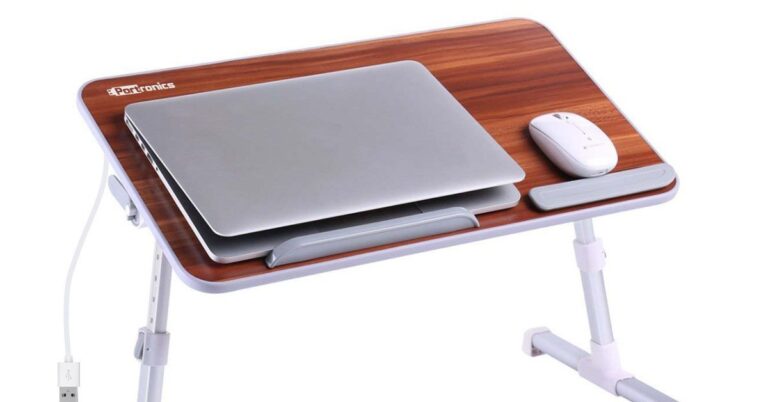
1) Portronics My buddy plus Adjustable Laptop cooling Table
This laptop table from Portronics comes with an ergonomic design with inclinations up to 300 degrees. It has a 1,800RPM cooling fan located underneath the tabletop. The attached USB will connect with your laptop for the power supply. You can use all design of laptops with this laptop cooler desk. The fans provide optimum cooling without making any noise. The desk is made of durable material. It can be folded to carry in a backpack, too.
Portronics My buddy plus Adjustable Laptop cooling Table
Price: ₹ 1,899
Buy on Amazon
2) Diswa Adjustable Laptop Table with Fan
Diswa’s laptop table is lightweight and made of highly durable aluminium alloy. It has ventilation holes for airflow and a cooler to avoid laptop heating. The ergonomic design reduces back pain. The stand can be folded to easily store and carry along. The stand comes with a mousepad that can be set on either side for easy access. It has a load capacity of 13KG i.e. you can place all kinds of laptops on it.
Diswa Adjustable Laptop Table with Fan
Price: ₹ 1,590
Buy on Amazon
3) Cooler Master Notepal X-Slim
The Cooler Master Notepad X-Slim comes with a noiseless 160mm high-performance fan. The pad can be adjusted between two settings for achieving an optimum typing angle. You get a high-quality metal mesh for smooth airflow. The groves on the surface allow you to manage your cables, too. The pad can easily support up to 17inch laptops. The fan gets connected to a laptop through a USB and the front vent hand dryer design keeps your hands cool while using your device.
Cooler Master Notepal X-Slim
Price: ₹ 7,316
Buy on Amazon
4) Cooler Master Notepal XL
The Cooler Master Notepal XL comes with a quiet yet fast 230mm fan. It can expel approx. 89.8 cubic feet of air per minute to maintain an optimal flow. The stand has an ergonomic design allowing you to gain an appropriate typing angle. There are three USB ports for connecting miscellaneous peripherals. The design is big enough to support even 17-inches laptops. It is slim and lightweight (0.85Kg) enabling you to easily carry it along.
Cooler Master Notepal XL
Price: ₹ 3,499
Buy on Amazon
5) Targus Lap Chill Mat
The Targus Lap Chill Mat comes with a slim design with the ability to adjust in four levels. It comes with a dual-fan system that can operate at up to 2,500rpm. The ergonomic design allows you to tilt it for comfortable typing. The rubber stops given on the Chill Mat checks the laptop from slipping. The exterior neoprene covering ensures that you don’t feel exhausted while carrying the table on your lap. You get a 4-port USB hub for connecting additional peripherals.
Targus Lap Chill Mat
Price: ₹ 6,899
Buy on Amazon
For the latest gadget and tech news, and gadget reviews, follow us on Twitter, Facebook and Instagram. For newest tech & gadget videos subscribe to our YouTube Channel. You can also stay up to date with the Gadget Bridge Android App.
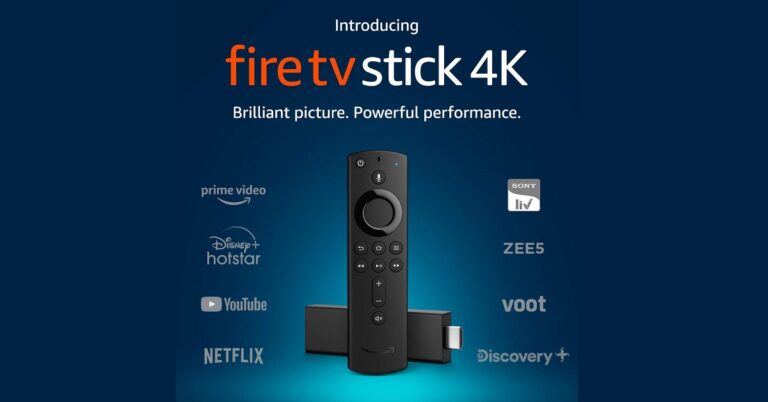
Amazon is a renowned company offering dozens of products that have uplifted the living standards of users and made their lifestyle easy. Amazon Fire Stick is one of those products that allow you to access a variety of high-quality content on your TV making it smarter. Besides streaming music and movies, you can perform several other functions. Here are the top 10 Fire Stick applications that you must install.
1) Netflix
Netflix is among the most popular applications for streaming TV shows and movies. Netflix offers different kinds of plans keeping in mind different kinds of viewers. However, even the basic plans provide the same quality of original content as the expensive plans. Netflix comes with an intuitive platform that recommends content based on your watching habits. This helps you find new relevant content with ease. Unlike other applications, you can create your schedule to watch shows the way you want.
Netflix
2) YouTube
When it comes to streaming videos, there is hardly anything that comes first in the mind other than YouTube. With its user-friendly interface and robust recommendation engine, you get exactly what you want. The best part is you can access unlimited videos all the time free of cost. With the firestick application, you can get the same experience on your Fire Stick. You can easily watch videos, movies, and take the Premium subscription to get access to exclusive content.
YouTube
3) Hulu
Hulu is one of the most preferred streaming applications globally. It offers a huge library of original content, TV shows, and movies. It would be the best choice for Fire TV as it allows you to keep multiple profiles including kids’ profiles. Hulu is slightly different from other applications including Netflix as you can get early access to web series from conventional networks. Moreover, this app allows you to download the content across multiple devices to watch them offline.
Hulu
4) Crackle
Crackle is a streaming service owned by Sony. With the Fire Stick app, you can get access to exclusive Sony content that you might not get on other applications. Crackle is known for its simple interface allowing you to sort the movies and TV shows based on genre or lexicographically. The best part is that it is absolutely a free video streaming service. Crackle fully runs on video advertisements and you don’t have to spend a penny.
Crackle
5) Spotify
You can access the finest music on your Fire TV with the Spotify app. You just need to link your Spotify account and make it your default music app. You can use voice commands to start the music. The Spotify Fire TV app will elevate your music listening experience. You can browse playlists and favourite tracks using the Fire TV remote or your smartphone. The premium account allows you to access high-quality audio without irritating advertisements.
Spotify
6) VLC Media Player
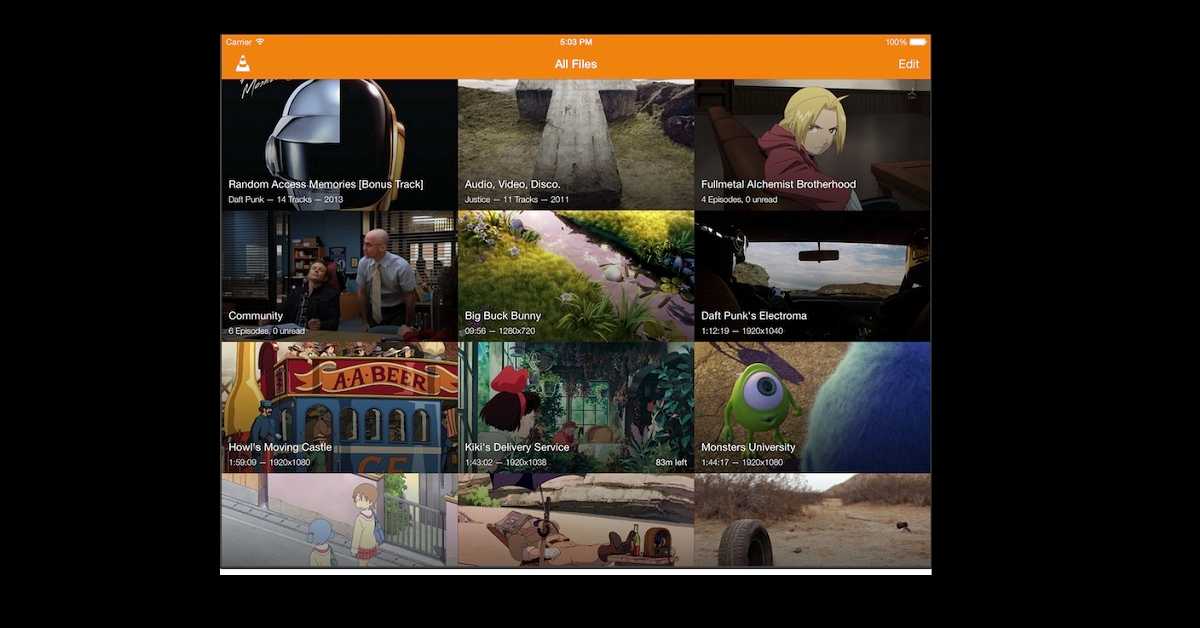
VLC Media Player is one of the most useful applications that you can have on your Fire TV. There are several file formats for videos. Some may be supported by your stick while others may not. VLC Media Player is compatible with almost all kinds of video file formats. VLC for Fire Stick comes with a media library allowing you to directly browse the folders for audio and video files. You can play the local files as well as the network streams.
VLC Media Player
7) AllCast
AllCast is a must-have Fire TV application for those who want to watch smartphone content on their TV. By using the AllCast application, you can mirror the media files from your smart device to the Fire Stick. Now you can enjoy music and movies saved on your smartphone on the large screen. You can also view photos via a Google or iCloud account. The Premium Edition blocks ads for you on most websites and allows you to save unlimited website bookmarks.
AllCast
8) Twitch
Twitch is a must-have Fire TV application for gamers and streamers. Twitch on your Fire Stick will allow you to watch the live streams of your favourite games. You can browse the live channels that you wish to watch including LIRIK and MAN vs GAME. Twitch also offers you news related to big game developers like Ubisoft, 2K games, and Microsoft. It comes with an intuitive interface so that you can easily explore your favourite content.
Twitch
9) DittoTV
DittoTV is a highly useful application for your Firestick as it lets you to stream live TV content at an affordable price. You can access all your favourite TV channels including Zee and Star. DittoTV offers movies in different languages with a watch-on-demand feature. You can stay updated with news, sports, and stock updates. Ditto TV is the only online platform where you can stream HD TV Channels including National Geographic Wild and Sony HD.
DittoTV
10) VPN by Private Internet Access
While streaming online content on your Fire Stick, it’s beneficial to remain protected from unauthorised activities. VPN by Private Internet Access encrypts your network so that you can browse privately online. You can remain anonymous on the public WI-Fi by hiding your IP address. It has been a trusted VPN provider since 2010 obeying the no-log policy. You can connect up to 5 devices simultaneously and get 24/7 professional customer support.
VPN by Private Internet Access
For the latest gadget and tech news, and gadget reviews, follow us on Twitter, Facebook and Instagram. For newest tech & gadget videos subscribe to our YouTube Channel. You can also stay up to date with the Gadget Bridge Android App.
The Portable Document Format, commonly known as PDF is one of the most preferred file formats across different purposes and professions. This file format is compatible with almost all electronic devices. Being a highly secure format, it is used for circulating online content like e-books, research papers, applications, and press releases.
Who would need to compress a PDF file and why?
Most organisations use cloud storage solutions like Amazon Web Services, Microsoft Azure, and Google Cloud. Storage on the servers comes with a cost. Bigger the files, the more cost the companies will incur. This is where reducing the PDF file size becomes crucial. Moreover, transferring heavy files (say several MBs or even GBs) takes time as they require much larger bandwidth as compared to small files. Thus to reduce the transmission latency, file compression is necessary. In our day-to-day life, we might not feel the need to reduce the size of PDF files. But when it comes to scalable projects, file compression is the need of the hour.
Here are the best ways to reduce the size of a PDF file.
File compression using ilovepdf.com website
Open the iLovePDF website (https://www.ilovepdf.com/) in a web browser. This website offers a plethora of tools to modify your ODF files.
Click the ‘COMPRESS PDF’ option in the menu bar located at the top.
Click the button ‘Select PDF files.
Select the files from your device’s storage to reduce the size.
Click the ‘Compress PDF’ button located at the bottom right.
The processing time may vary depending on the size of the PDF file. Bigger the PDF file, the more processing time it will take.
The uploaded PDF file will be compressed and automatically downloaded. However, if the auto-download feature does not work, click on the ‘Download compressed PDF’ button to save the file.
File compression using ilovepdf.com website
File compression using Adobe online PDF file compressor
Microsoft has released a new feature in the Skype Desktop app called active noise cancellation. This new feature will enhance the experience of Skype voice and video calls by optimally reducing the background noise.
According to Skype, “We are pleased to announce the release of our latest background noise suppression feature in the Skype desktop app. Originally developed for Microsoft Teams, this new feature is designed to silence just about everything except for your voice when you’re meeting on Skype.”
How does this feature work?
Skype revealed that this technology of active noise cancellation works on Machine Learning. When the user speaks in a voice or video call, the voice signals are sent through the microphone. The audio feed is analysed and feed to deep neural networks that cancel the noise without compromising the voice quality.
According to Skype, “This technology relies on machine learning (ML) to learn the difference between clean speech and noise and is frequently referred to as artificial intelligence (AI). A representative dataset is used to train the ML model to work in most of the situations our Skype users experience. There needs to be enough diversity in the dataset in terms of clean speech, noise types, and the environments from which our users are joining online calls”.
This technology relies on machine learning (ML) to learn the difference between clean speech and noise and is frequently referred to as artificial intelligence (AI).
How to enable the active noise cancellation video calls?
To activate the active noise cancellation feature in Skype video calls, follow these steps.
1) Launch the Skype Desktop app.
2) Click on the three vertical dots located on the top-left part of the screen next to the profile picture.
Click on the three vertical dots located on the top-left part of the screen next to the profile picture.
3) Click the ‘Settings’ option to open the ‘Settings tab.
4) In the ‘Settings’ tab, click the ‘Audio & Video’ option from the side menu.
5) Scroll down to the ‘Audio’ section.
6) Click the down arrow located next to the ‘Noise cancellation.
Click the down arrow located next to the ‘Noise cancellation.
7) Choose the desired option among the following: ‘Off’, ‘Auto’, ‘Low’, ‘High’. If you are not sure which option to choose, click the ‘Auto’ option. This is the default option that optimally cancels the background noise.
8) Exit the ‘Settings’ Tab. Your updated preferences will automatically be set.
Which platforms support this new feature of Skype?
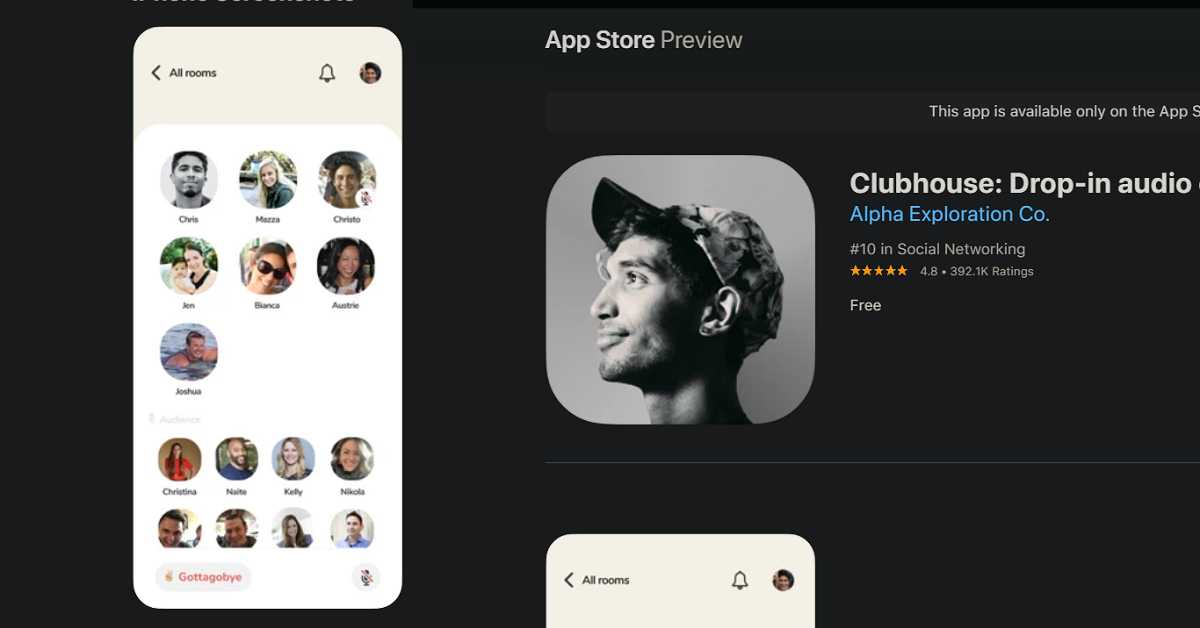
The Clubhouse, an invitation-only audio-chat iPhone app, recently announced its new accelerator programme in which it will offer support to the selected 20 creators with resources. According to Paul Davidson, the Clubhouse co-founder, the selected creators will be offered assistance and resources to help them connect with sponsors.
According to Clubhouse, “We are launching our first creator accelerator program, Clubhouse Creator First. We are looking to support and equip 20 creators with resources they need to bring their ideas and creativity to life”.
What will the creators get in the accelerator programme?
The selected creators will receive a monthly salary of around $5,000. They will have the choice to pick up to three gears among booking guests, mentorship, recording features, and analytics. The programme will also allow the creators to share links to their profiles. To expand the reach, the Clubhouse has decided to allow users to join rooms of their chosen language. Moreover, they can send invitations using their phone numbers.
According to Clubhouse, “Clubhouse Creator First is an accelerator program designed to help aspiring creators on Clubhouse host amazing conversations, build their audience, and monetize.”
The Clubhouse has added a new feature for nominating users from clubs. Now, the invitees will have a nomination bade sowing the name of the club. Moreover, new provisions have been made to discover abuse in the programme.
What will the creators get in the accelerator programme?
What is the significance of the programme?
Till now, Twitter has been the most effective medium for broadcasters to connect with their viewers. The accelerator programme is seen as an opportunity for the Clubhouse to encourage creators to use the app. Also considering Facebook’s importance in information sharing, the new programme will bind the users to the app.
According to analyst Vajresh Balaji, “Clubhouse only has a little over 10 million users. To put that into perspective: Facebook has 2.9 billion users, TikTok has 2 billion users, and Twitter has almost 200 million users”.
What is the limitation of the program?
Despite being a significant step to support the creators, the accelerator programme has a few limitations. The programme works on the invite-only concept i.e. it’s based on audio chats and not available freely to creators all around the world. Moreover, the programme is available only on iOS. As a result, the users who primarily work on other operating systems will not be counted in the first place.
The Clubhouse shall be selecting 20 creators for the accelerator programme via applications till March 31, 2021.
For the latest gadget and tech news, and gadget reviews, follow us on Twitter, Facebook and Instagram. For newest tech & gadget videos subscribe to our YouTube Channel. You can also stay up to date with the Gadget Bridge Android App.
Microsoft’s Surface Duo set multiple new dimensions for the company. The device helped the company to establish its new identity in the field of smartphones with Android experience. The smartphone, being a dual-screen gadget, gave competition to the most advanced smartphones. Now, Microsoft is preparing to release an improved edition of the smartphone, named ‘Surface Duo 2’.
What can we expect from the Surface Duo 2?
The Microsoft Surface Duo 2 is expected to come with more powerful features as compared to its predecessor. It will sport a faster processor, better camera quality and 5G support. The Surface Duo was quite appreciated for its design and display but had a lot of issues with the software. This time, the company has emphasised eradicating the software issues including the camera app.
Surface Duo comes with an 11MP camera that didn’t produce outstanding results. We expect the Surface Duo 2 to get an improved camera quality. Microsoft has even posted several job listings to grow a team of engineers to work on the Surface Duo 2. The Duo has one battery installed in each panel but could only provide the power of 3,577mAh. We can expect an improved battery in the upcoming smartphone. The Surface Duo offers a Dual 5.6-inch OLED screen, a Qualcomm Snapdragon 855 processor, and 6GB RAM. The Surface Duo 2 might sport a more powerful processor to support a double screen. However, like its predecessor, the Surface Duo 2 might come in 128GB and 256GB variants.
What can we expect from the Surface Duo 2?
When will Microsoft release the Surface Duo 2 and how much will it cost?
Surface Duo 2 has been reported to be under development and is expected to arrive by the end of the year 2021. Comparing with its predecessors and enhanced features, we can expect the 128GB model of Surface Duo 2 to cost around $1,400. Likewise, the 256GB model might be available at a price of $1,500.
What else is Microsoft working on?
The company endeavours to bring to the customers “the best of Microsoft to the Android ecosystem”. The “Obscured Regions” API shows that Microsoft is working in the field of Android.
What else is Microsoft working on? (Image Credit: Microsoft)
According to Microsoft, “The API will allow the developer to re-flow the experience into the visible regions. For example, a Launcher might animate its bottom drawer to the un-obscured are to allow the user to launch another application”.
The company is also aiming to release Surface Laptop 4 at the beginning of the second quarter. Surface Pro 8 is also expected to arrive in the market in the last quarter.
For the latest gadget and tech news, and gadget reviews, follow us on Twitter, Facebook and Instagram. For newest tech & gadget videos subscribe to our YouTube Channel. You can also stay up to date with the Gadget Bridge Android App.
MyHeritage is an application that allows you to colourise black and white pictures in one click. The app is available for Android as well as iOS devices. You get a simple way to colourise old photographs of your family tree and save them to the MyHeritage server where they will stay preserved.
Download on Play StoreDownload on App Store
Who would like to colourise a black and white photograph and why?
A coloured photograph is truer to life as compared to a black and white one. A colour picture helps us more effectively relate to the past events. Thus, anyone interested in giving a modern touch to a black and white picture and wishes to permanently save them on the MyHeritage servers can use the app.
To colourise a black and white photograph using the MyHeritage app, follow these steps.
Step 1: Select the black and white photo that you want to colour
The Photos section allows you to select pictures from the smartphone’s storage. The selected black and white photos will be sent to the ‘Album’ of the application.
Step 1: Select the black and white photo that you want to colour
Step 2: Colouring the black and white photograph
As soon as you select the desired black and white photograph, it will be sent to the canvas to edit. Here you can see features to enhance your photograph. Click the colourful circular icon located at the top of the screen. This will appropriately colourise the black and white picture with a balanced hue and saturation.
Step 2: Colouring the black and white photograph
Step 3: Compare with the previous version
The app comes with a slider bar that you can drag horizontally to compare the colourised picture with the old one. This will help you get an idea of the hue and saturation aspects.
Step 3: Compare with the previous version
Step 4: More options
You get features to tag the photo and save the coloured and the black and white pictures to the library. It should be noted that if you decide to delete the black and white version, the coloured photograph is also erased.
How much colourising the black and white pictures using the MyHeritage app costs?
You can colourise as many black and white pictures as you want free of cost. However, the colourised photographs will have a watermark of the MyHeritage logo located on the bottom right. To get rid of the watermark, you will need to upgrade your account. There are four kinds of plans, namely, ‘Premium’ ($79/year), ‘PremiumPlus'($129/year), ‘Data'($129/year), and ‘Complete'($189/year). With the ‘Complete’ subscription, you can colourise an unlimited number of photos without any watermark.
For the latest gadget and tech news, and gadget reviews, follow us on Twitter, Facebook and Instagram. For newest tech & gadget videos subscribe to our YouTube Channel. You can also stay up to date with the Gadget Bridge Android App.
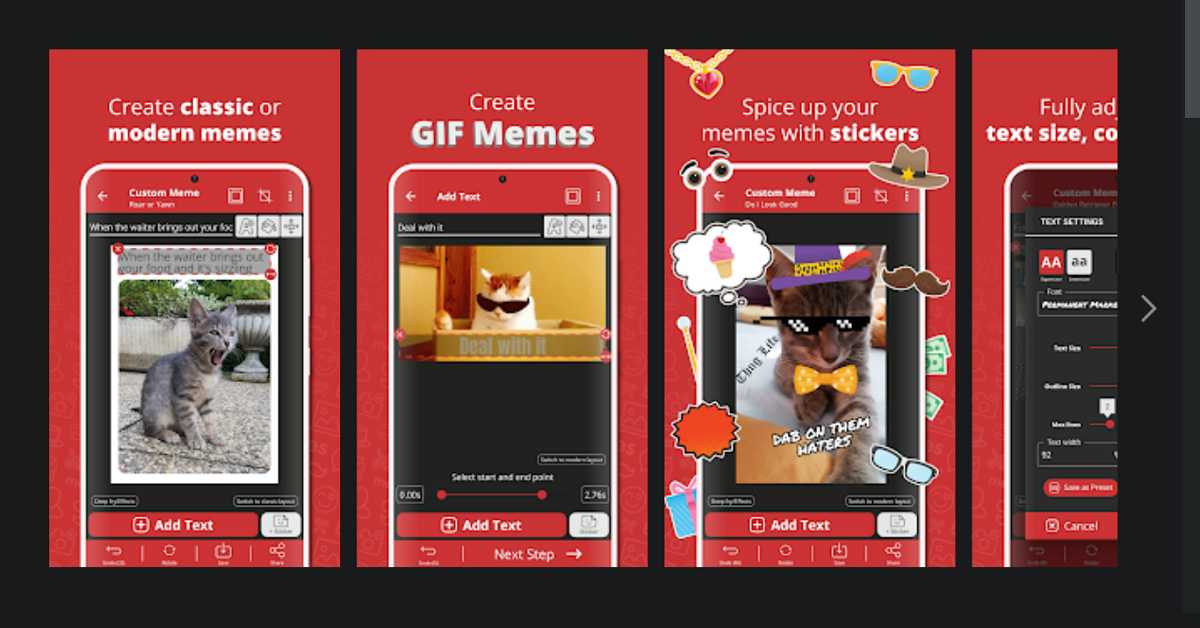
Memes are an interesting element of social media. They are full of humour as well as sarcasm. Nowadays, there are several pages and accounts on social media posting funny memes on the internet, WhatsApp et al. If you have a comical bent of mind, you can easily create wonderful memes without requiring much stuff. Here are the top 10 applications that you can use to create funny memes in just a few steps.
1) Meme Generator by ZomboDroid
Meme Generator is one of the most widely used apps to create memes. You can easily generate funny memes and share them on social media. The app provides more than 1,000 memes along with unique captions to mix and match to pour out your creativity. The interesting thing about this application is that you can manipulate hair in the pictures to create funny memes of your friends.
Meme Generator by ZomboDroidFeatures:
Pictophile is an easy-to-use meme-generator available for Android and iOS operating systems. The app offers unlimited ways to create funny memes free of cost. The unique feature of this application is that you can create GIFs of your memes to share on social media. The app allows you to edit videos to create GIF memes free of cost. You get a huge library of more than 1,000 memes captioners to use in your memes.
PictophileFeatures:
Meme Creator is a widely used app to create memes on your smartphone free of cost. You get a plethora of unique backgrounds that are renewed regularly. You can choose the desired background based on popularity, new, or most searched. The app offers more than 20 stylish fonts to enhance the effectiveness of your memes. Favourite memes created by you can be kept separately in a list format.
Meme CreatorFeatures:
Easy Meme maker, as the name suggests, is a free and easy-to-use application available for Android and iOS devices to generate memes. You can generate hilarious memes of your friends’ photographs and selfies. The app provides a list of popular images as templates for you to import into your memes. This increases the chances of your memes getting viral on social media.
Easy Meme MakerFeatures:
Memedroid is an awesome application to create funny memes and share them with your friends and family. You can explore the huge library containing pictures from categories including sport, politics, and celebrity. Memedroid is completely integrated with popular social media applications like Facebook, Instagram, and Twitter. Thus. you can create interesting memes and instantly share them on social platforms.
MemedroidFeatures:
GIPHY is one of the most preferred applications for creating GIF memes on Android and iOS devices. In a few steps, you can create wonderful memes with unique stickers and filters. GIPHY has one of the largest libraries of funny templates of animated GIFs. There are several categories to choose from including TV, movies, music and comedy. You get a feature to instantly share your created memes on a variety of social media platforms.
GIPHYFeatures:
Mematic is a popular application for creating amazing memes on Android and iOS devices. The app offers a feature to include funny captions to your memes free of cost. You get a simplified user interface where you can easily import images from the storage to create innovative memes. The unique feature of this meme-generator app is that you can prank your friends by creating fake quotes and headlines.
MematicFeatures:
Meme maker is a widely used free application to create funny memes on your smartphone. You can choose from a plethora of popular images or import them from your phone’s storage. The app offers features to include cations in your memes. You can modify the font, font size, and font style in a few clicks. Besides, the app provides an option to add a watermark to your memes with text and images.
Meme MakerFeatures:
Simple Meme Generator is an application to generate comical memes based on ordinary life. You can create innovate memes in a few simple steps and share them with your friends and family. The app comes with options to include the text of varies font style, size and colour. You can simply import images from the phone’s gallery and manipulate them to create hilarious memes.
Simple Meme GeneratorFeatures:
Thug life photo maker is one of the most popular applications on Android and iOS to generate high-quality memes. The app offers several stickers to overlay on your images to create funny images. The categories include sunglasses, necklace, hats, and thug life. You can modify the angle and size of the stickers to fit the faces and images of all kinds.
Thug Life Photo MakerFeatures:
GIPHY is one of the most widely used application to create GIFs. When you launch the app, you’re automatically directed to the GIPHY’s gallery to browse different varieties of GIFs. However, in this article, we will discuss how you can create a GIF from the captured screen or shot videos.
Download GIPHY on the Play Store
Who will need to create a GIF and why?
The Graphics Interchange Format, commonly known as GIF, is one of the most used media formats across different platforms and purposes. Static images and videos have their limitations. While creating presentations, using multiple images at different places is inconvenient. Videos are too bulky to import into a project. On the other hand, a GIF condenses a few frames in one place. Nowadays, GIFs are extensively used on social media to create memes. They don’t utilise much storage and can be easily shared. Thus, if you are a digital creator or a presentation maker, you would need to learn the art of creating GIFs.
To make a GIF using the GIPHY application, follow these steps.
Step 1: Getting the video
Tap the ‘Create’ button, located in the top-right corner of the screen. You could also tap the ‘Profile‘ tab situated in the bottom-right.
You can either select a video from the Gallery or capture a new video.
Permit the app to access your camera or Gallery.
Getting the video
Step 2: Once you shot the video or captured the smartphone screen, you can go ahead with creating a GIF.
Capturing the video
Text: Type the desired text or caption that you want to add to your GIF. You can choose from the nine available colours.
Effects: There are eight unique effects available including rainbow overlay, weird crystal effect, and black-and-white film grain.
Stickers: You can add cool stickers to your GIF. The app offers several animated stickers to choose from.
Trim: You can select or reject the parts of the video as per your wish. Use the markers to delete the portions that you don’t wish to add to your GIF.
Adding effects
Step 3: You can modify the resolution and the aspect ratio by cropping the GIF. Once you tap the Crop tool in the top-right corner, you’ll the default aspect ratios to choose from like 1:1, 3:2, 16:9, 4:5, and 9:16.
Step 4: Once you choose the desired aspect ratio, tap the ‘Right Arrow’ button.
Ready to export
Step 5: Now you can save your GIF by tapping the ‘Save GIF’ option.
The GIFs made using the GIPHY application are compatible with all the social media platforms like Instagram, Facebook, and Twitter. You can also share the files from within the app.
For the latest gadget and tech news, and gadget reviews, follow us on Twitter, Facebook and Instagram. For newest tech & gadget videos subscribe to our YouTube Channel. You can also stay up to date with the Gadget Bridge Android App.
OnePlus recently made announcements regarding the launch of the OnePlus 9 series on March 23. The OnePlus Global launch event will begin at 8:30 PM IST on March 23, 2021. The event will be streamed live on the social media channels and the official YouTube page of OnePlus. Here is what do we know so far and what is churning in the rumour mill.
Which smartphones are expected to launch on March 23?
We may expect three smartphones to be released, namely, the OnePlus 9, the OnePlus 9 Pro, and the OnePlus 9E/9R. The OnePlus 9 Pro is said to be superior among them. The OnePlus 9E will be the most budget-friendly smartphone with mid-tier features. Besides the premium OnePlus 9 series, the company is expected to release its most-awaited smartwatch called the ‘OnePlus Watch’. The device is reported to come with a circular dial and features like a heart-rate sensor, activity tracker, and sleep, tracker. It might be powered by a Qualcomm Snapdragon 4100 processor and run the Wear OS along with the OnePlus’s OxygenOS.
Which smartphones are expected to launch on March 23? (Image Credit: OnePlus)
What features can we expect in the OnePlus 9 series?
The upcoming OnePlus smartphones will come packed with enhanced cameras as compared to the OnePlus 8 series. The OnePlus 9 will have a triple camera setup at the rear while the OnePlus 9 Pro will offer four cameras at the back powered by Hasselblad.
According to OnePlus, “The two companies have already been cooperating on the revamped camera system – Hasselblad Camera for Mobile – for the new OnePlus 9 Series, set to launch globally on March 23”.
OnePlus asserted that the OnePlus 9 series will come with a Sony IMX789 sensor that would be the most advanced sensor ever installed on an OnePlus smartphone. The 12-bit RAW would enable the device to capture vibrant colours. The OnePlus 9 series will take 4K videos at 120FPS and 8K videos at 30FPS video.
According to OnePlus, “Now, through close R&D collaboration, OnePlus and Hasselblad will work together to deliver vastly improved camera systems on future OnePlus smartphones, including the upcoming OnePlus 9 Series,”.
OnePlus and Hasselblad will work together. (Image Credit: OnePlus)
The OnePlus 9 and OnePlus 9 Pro smartphones are expected to run the powerful Snapdragon 888 processor and outstanding Fluid AMOLED display with a 120Hz refresh rate. You will get 12GB RAM, 156GB of storage, and 5G connectivity.
The OnePlus 9E/9R will run the Snapdragon 690 chipset and will sport a triple rear camera setup. The display will offer a 90Hz refresh rate that would be powered by a 5,000mAh battery.
What are the expected prices of the upcoming smartphones?
The OnePlus 9 series will be composed of the most premium smartphones from the OnePlus. Considering the features and the price range of their predecessor, we can expect the OnePlus 9 series to arrive in the Indian market at a price slightly above Rs 50,000.
For the latest gadget and tech news, and gadget reviews, follow us on Twitter, Facebook and Instagram. For newest tech & gadget videos subscribe to our YouTube Channel. You can also stay up to date with the Gadget Bridge Android App.