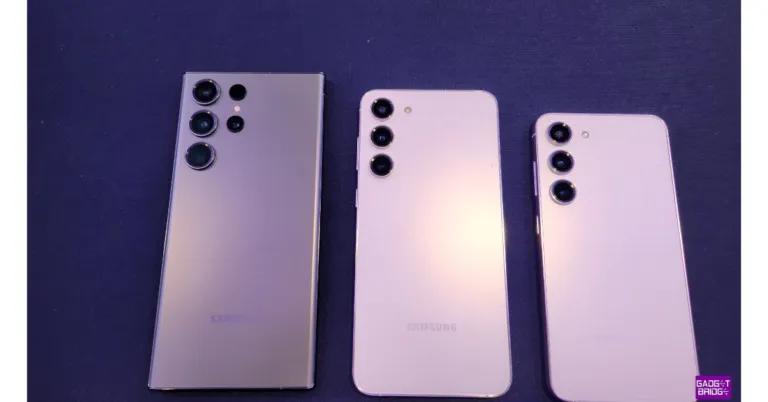
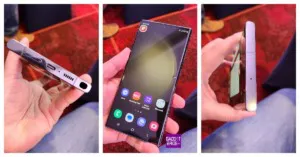
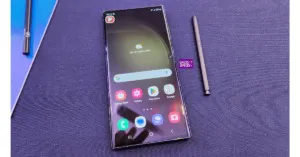
Today Samsung officially announced the launch of the Samsung S23 Series in both the Indian and international markets. Samsung Galaxy S23, Galaxy S23+, and Galaxy S23 Ultra are the three devices that make up the new flagship line. The phones, which are the Galaxy S22 lineup’s replacements, have arrived and bring a number of important enhancements and modifications to the cameras and performance. The series features up to 200MP camera sensors and an overclocked version of the Qualcomm Snapdragon 8 Gen2 SoC. While the Ultra version supports the S Pen for a Galaxy Note-like experience.
Samsung Galaxy S23 series price in India and availability
The price of the Samsung Galaxy S23 Series has not yet been disclosed. Phantom Black, Cream, Green, and Lavender are the four matte colours in the new collection that are inspired by nature.Beginning on February 17, carriers, retailers, and Samsung.com will all offer the Galaxy S23 Ultra, Galaxy S23+, and Galaxy S23.Also Read:Pre-orders for the Samsung Galaxy S23 Series have begun in India: Details insideFor S23 series phones, pre-registration is available. On Samsung India’s website, there is currently a pre-reserve option where users can reserve the phones for Rs 1,999, which is refundable. Additionally, customers who reserve these devices in advance will receive bonuses worth up to Rs 5,000.
Samsung Galaxy S23 specifications
The IP68-rated Samsung Galaxy S23 has a water- and dust-resistant construction. The 6.1-inch full-HD+ Dynamic AMOLED 2X display is its standout feature. The display features a refresh rate of up to 120Hz, which can tumble to 48Hz, and is rated to provide a 240Hz touch sampling rate in game mode. For better outside visibility, there is a Vision Booster feature. The Gorilla Glass Victus 2 shields the entire structure. The device features a triple rear camera setup which includes a 50-megapixel primary wide-angle sensor (f/1.8 aperture and 85-degree field of view). The setup further includes a 12-megapixel ultra-wide angle camera (f/2.2 aperture lens and a 120-degree field-of-view) and a 10-megapixel telephoto camera (f/2.4 aperture lens and 3x optical zoom). For selfies, it sports a 12-megapixel selfie sensor (f/2.2 aperture lens and an 80-degree field-of-view).Samsung Galaxy S23Android 13 with One UI 5.1 is what powers the basic S23. With 8GB of RAM and up to 512GB of storage, it has a Qualcomm Snapdragon 8 Gen 2 SoC. A USB Type-C port, Wi-Fi 6E, Bluetooth 5.3, 5G, and 4G LTE are a few of the connectivity options available. Additionally, Knox Vault support is included, as well as Samsung Knox security.A 3,900mAh battery is also part of the S23 (supports 25W wired and 15W wireless charging). Wireless PowerShare is also included for using it to charge other devices that accept wireless charging.
Samsung Galaxy S23+ specifications
The Samsung Galaxy S23 and Galaxy S23+ have a lot in common. A 6.6-inch full-HD+ Dynamic AMOLED 2X display is available on the device. Other display features are the same as those mentioned above. The gadget has an IP68 rating for water and dust resistance. On both phones, the processor and software are identical.Samsung Galaxy S23+The S23+ camera’s specifications, however, are identical to those of the standard S23. The battery capacity, which has been raised to 4,700mAh and supports 25W wired and 15W wireless charging, is another significant change in this model. Additionally, Knox Vault and Samsung Knox security are supported.Samsung Galaxy S23 Ultra
Samsung Galaxy S23 Ultra specifications
The Samsung Galaxy S23 Ultra, on the other hand, has a 6.8-inch Edge QHD+ Dynamic AMOLED 2X Display. Its dynamic refresh rate ranges from 1 to 120 Hz, and its touch sampling rate is 240 Hz in game mode. The phone, like the previous two models, is powered by a specialised Snapdragon 8 Gen 2 SoC from Qualcomm and runs Android 13 with One UI 5.1 on top. It can also support up to 12GB of RAM and up to 1TB of storage. Samsung has also included the S Pen stylus with the phone.Samsung Galaxy S23 UltraThe Samsung Galaxy S23 Ultra has a quad rear camera setup, led by a 200-megapixel primary wide camera (f/1.8 aperture and an 85-degree field of view). There is a 12-megapixel ultra-wide camera (f/2.2 aperture and 120 degrees field of view), a 10-megapixel telephoto lens (f/2.4 aperture and 3x optical zoom) and lastly another 10-megapixel telephoto sensor (10x optical zoom). Upfront there is a 12-megapixel selfies camera (f/2.2 aperture and 80-degree field of view).5G, 4G LTE, Wi-Fi 6E, Bluetooth 5.3, and a USB Type-C port are among the available forms of connectivity. Knox Vault and Samsung Knox security are supported by the phone. There is a 5,000mAh battery powering it (45W wired and Fast Wireless Charging 2.0).
For the latest gadget and tech news, and gadget reviews, follow us on Twitter, Facebook and Instagram. For newest tech & gadget videos subscribe to our YouTube Channel. You can also stay up to date using the Gadget Bridge Android App. You can find the latest car and bike news here.
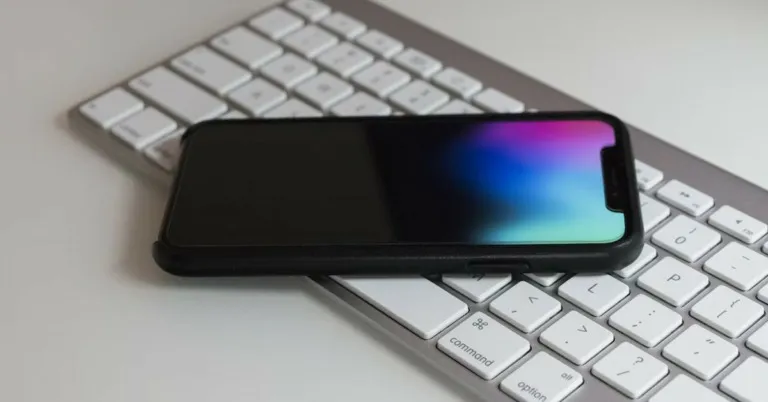
In order to save up disk space you can group a similar set of files together and compress them in an archive format. The resulting compressed file occupies a relatively low space on your device. ZIP and RAR are two of the most popular file compression formats. While the native ‘Files’ app on your iPhone can easily uncompress ZIP files, it isn’t equipped to deal with the RAR format. Luckily, there are a few apps you can use to read the RAR files on your iPhone. In this article, we bring you the top 4 ways to open RAR files on an iPhone.Read Also: Sennheiser IE 200 Wired In-ear headphones goes on sale in India
Use the Documents app
The native Files app on your iPhone may not recognise the RAR format but several third-party apps do. ‘Documents’ is a very popular third-party file viewer that you may already use on your iPhone. If not, download the app from the App Store and follow the steps mentioned below.Step 1: Install and launch the Documents app on your iPhone.Step 2: Go to the My Files tab and select Files to locate the RAR file you want to open.Step 3: Select the RAR file.Step 4: Select the destination folder for RAR file extraction.Step 5: Tap on ‘Extract’ at the top left corner of the screen.You can now access the destination folder from the Documents app or the native Files app to view the contents of the RAR file.
Use iZip
iZip is a great third-party tool you can download from the App Store to unzip or ‘unrar’ compressed files. Here’s how you can use it.Step 1: Install and launch iZip on your iPhone.Step 2: Select ‘Document browser’ and locate the RAR file.Step 3: Tap on the RAR file. This will take you back to the iZip app.Step 4: Select ‘Yes’ in the popup box to open the file. Step 5: Tap on ‘Yes’ in the following popup box. This will unzip all the contents of the file.You will now be able to view the RAR file in the iZip app. Similarly, you can also select the RAR file from the native Files app and open it in iZip to extract it.
Use the Unzip app
Unzip is another great tool you can use to extract RAR files. Here’s how you can use it.Step 1: Download and install Unzip from the App Store.Step 2: Locate the RAR file in the native Files app.Step 3: Long press the file and select ‘Share’.Step 4: Scroll past the list of apps and select Unzip.Step 5: The RAR file will open in the Unzip app. Create a folder to extract its contents.
Use the Mail app
If the RAR file was mailed to you, you can view its content using the Mail app itself, without needing to download a third-party tool. Here’s how.Step 1: Open the Mail app and select the email containing the RAR file attachment.Step 2: Tap on the ‘Preview Content’ option below the attachment.The contents of the RAR file will open up on your iPhone.Read Also: 3 working methods to Put a Picture on Another Picture on iPhone
Over the last few years, Android has been honing the ‘Live Captions’ feature and improving upon it with every iteration. While most videos these days contain relevant subtitles, audio content still lacks this feature. Apart from media consumption, Live Captions are really helpful for people with impaired hearing. Android has integrated the captions really well with its software, to the point that you can even see the captions for the voice notes you receive on your phone. In this article, we bring you two quick ways to turn on live captions on Samsung Galaxy smartphones.Read Also: 3 working methods to Put a Picture on Another Picture on iPhone
Turn on Live Captions from Settings
Step 1: Go to Settings and select Accessibility.Step 2: Select Hearing Enhancements.Step 3: Tap on ‘Live Caption’.Step 4: Turn the toggle bar on for ‘Use Live Caption’.
Turn on Live Captions from the drop-down menu
Step 1: Unlock your Samsung Galaxy smartphone and swipe down from the status bar.Step 2: Swipe down on the drop-down menu to reveal all its contents. Step 3: Swipe right to view the next page and tap on the plus icon.Step 4: Drag down the ‘Live Captions’ icon to the drop-down menu and select ‘Done’.Step 5: Finally, tap on Live Captions to enable it.Read Also: Poco X5 5G, Poco X5 Pro 5G to debut in India on February 6
Conclusion
These are two quick ways to turn on live captions on Samsung Galaxy smartphones. If you feel like the captions bar is distracting you from viewing a video, you can easily tap and drag it to a more convenient place. Live captions may draw a greater amount of power from the battery. If your smartphone is low on charge, you can quickly deactivate Live Captions from the drop-down menu.For the latest gadget and tech news, and gadget reviews, follow us on Twitter, Facebook and Instagram. For newest tech & gadget videos subscribe to our YouTube Channel. You can also stay up to date using the Gadget Bridge Android App. You can find the latest car and bike news here.
Infinix has introduced its Zero Book laptop line in India. The Infinix Zero Book and the Infinix Zero Book Ultra are the two variants available. The laptops feature 15.6-inch full-HD displays. The devices will have three different processor options and come with Wi-Fi 6E connectivity and Intel 96EU Iris graphics.
Infinix Zero Book, Infinix Zero Book Ultra price in India and sale details
The Infinix Zero Book Ultra costs Rs 84,990 and comes with a 12th Gen Intel Core i9 CPU, 32GB RAM, and a 1TB SSD. While the cost of the model with 512GB SSD is Rs 79,990. The more affordable Infinix Zero Book costs Rs 49,990 and comes with a 12th Gen Intel Core i5 processor. On the other hand, the price of the model with a 12th Gen Intel Core i7 processor is priced at Rs 64,990.Both models are now available for purchase on Flipkart.
Specifications
The 15.6-inch, FHD display on the Infinix Zero Book Series features 400 nits of brightness, 100% sRGB colour coverage, and rich colour. Additionally, there are quad-array speakers on the device, which combine two 1W high-frequency speakers on the front and two 2W low-frequency speakers on the back.A 12th generation Intel Core i9 CPU with 14 cores and 20 threads is installed in the Infinix Zero Book Ultra The 96EU Iris Xe Graphics system, which is included with the ZERO BOOK Series along with performance, easily tackles graphically demanding jobs like video editing and graphics design. The ZERO BOOK series includes the distinctively designed Overboost Switch, which rests on the side of the laptop and is specifically created for the user who needs more from their laptop. Users can increase their CPU to suit the demands of the task at hand by flicking a switch. The three modes that Overboost supports are ECO, BAL, and OVERBOOST.When Overboost mode is activated, the CPU is powered up to 54W, offering incredible sustained performance and keeping the system from overheating owing to ICE STORM 2.0. With two substantial 65mm fans and a brand-new shark fin design that allows the blades to be as thin as 0.25mm, this cutting-edge cooling system can increase air intake while minimising noise. Infinix Zero Book Series laptops have a 70Wh battery and a 100W Hyper Charger that can fully charge the device in just 2 hours, providing plenty of power when travelling.Along with the Infinix PC Connection & the Android on Windows platform, the laptop’s FHD camera also has AI BeautyCam Enhancement for clear, sharp, and crisp video conversations, enabling customers to switch between their smartphone and laptop with ease.The most recent version of Windows 11 is pre-installed on the Infinix Zero Book Series. Users can project the screen of their smartphone onto the display of their laptop using the Multitasking Phone Mirroring feature, which makes it easy to drag and drop files, photographs, videos, and other stuff between the two. Users can simultaneously launch two app windows from their smartphone onto their laptop, increasing productivity with each use.
For the latest gadget and tech news, and gadget reviews, follow us on Twitter, Facebook and Instagram. For newest tech & gadget videos subscribe to our YouTube Channel. You can also stay up to date using the Gadget Bridge Android App. You can find the latest car and bike news here.
Twitter has discontinued ‘CoTweets,’ which it has been testing on its platform. It is a tool for collaborative tweeting on Twitter that was introduced for testing for a limited number of users last year. The feature was only accessible to users in the US, Korea, and Canada. CoTweet was a feature that Twitter was experimenting with to give two authors a chance to share the limelight, highlight their contributions, and interact with more people.CoTweets has already been disabled by Twitter before a stable release. The microblogging platform began testing this capability in July 2022. According to Twitter, the CoTweets functionality will be discontinued, and current CoTweets will remain viewable for an additional month before being converted to Retweets.Also Read:Users Can Co-Author a Single Tweet using the Twitter CoTweets Feature, Currently in TestingThe company said, “For the last several months we’ve been testing a new way to Tweet together using CoTweets. We’re sad to say that the current experiment is coming to an end. CoTweets will no longer be available to create starting Tuesday, 1/31. Already existing CoTweets will be viewable for one more month at which point they will revert to Retweets. We apologise for any inconvenience this may cause. We appreciate the feedback we’ve been given about CoTweets and we’re still looking for ways to implement this feature moving forward. We thank you for trying CoTweets and we’ve enjoyed watching all of your creativity with this feature come to life!”Also Read:Twitter users will soon be able to side-swipe through tweets, trends, topicUnknown to many, a co-authored Tweet (coTweet) is one that is simultaneously posted to both authors’ profiles and their followers’ timelines. A CoTweet can be identified by the usernames and profile images of two authors in the header. CoTweets enable authors to share the limelight, open doors for interacting with new audiences and strengthen their existing relationships. A CoTweet features two authors who share an audience and ownership, as opposed to a Tweet’s single author. After a CoTweet invite is sent, CoTweet content cannot be changed or amended.
For the latest gadget and tech news, and gadget reviews, follow us on Twitter, Facebook and Instagram. For newest tech & gadget videos subscribe to our YouTube Channel. You can also stay up to date using the Gadget Bridge Android App. You can find the latest car and bike news here.
If your PC’s mouse suddenly stopped working and you can’t find an emergency replacement, not all hope is lost. If you have a smartphone with you, it can be used as a working mouse for your computer. All you need to do is install an app that simulates a mouse or trackpad and you’re good to go. In this article, we bring you the top 4 apps to use your smartphone as a remote mouse for your PC.Read Also: Hypercasual mobile titles remain market leaders amid mobile spending drop
Remote Mouse
Looking for an app with no frills that has all the essential features to get the job done? Remote Mouse fits the bill perfectly. This app can simulate a mouse or a touchpad on your smartphone and even offers an integrated keyboard in multiple languages. Compatible with both Windows and Mac, the Remote Mouse app can simulate trackpads for both platforms. The keyboard function allows you to type in multiple languages and even use speech-to-text if you don’t feel like typing. On top of that, you also get dedicated controls for media players, web browsing, and app switching. In order to use this app you need to download the Remote Mouse computer server from the app’s official website and connect your smartphone and PC to the same WiFi network.
KiwiMote
KiwiMote turns your Android smartphone into a wireless remote and keyboard for Windows, Mac, and even Linux devices. All you need to do is install the app on your Android smartphone and establish a connection with your PC simply by scanning a QR Code. You don’t need to download a separate server on your PC to use this app. Once your PC and smartphone are connected to the same WiFi network, you can use KiwiMote to simulate a mouse, trackpad, keyboard, or even a joystick if you want to play basic games. Using KiwiMote you can also control PowerPoint presentations from your smartphone and get access to dedicated media controls for several media players.
Monect PC Remote
The PC Remote app by Monect is specially designed for gamers who want to turn their smartphone into a remote controller for their PC. Apart from offering mouse and keyboard controls for your PC, this app also lets you use your smartphone as a gaming controller with customisable buttons. On top of that, you can even use your device as a Graphics Drawing Tablet on PC. To use Monect PC Remote, you will need to install its PC receiver on your computer by visiting its official website. Next, connect your PC to your smartphone using a shared WiFi connection, USB tethering, Bluetooth, or mobile hotspot, and you’re good to go.
Infinimote: Remote and Mouse
Infinimote brings a lot of customisation options to the user compared to an average remote mouse or keyboard app. Once you install Infinimote on your smartphone, you will need to download its PC server program for the official website. After your PC and smartphone are connected through WiFi or Bluetooth, you can use Infinimote to create and customise multiple remotes for your PC. The app offers 6 preinstalled remotes for quick use. You can customise the buttons, touch gestures, and other buttons to your liking. One of the best aspects of using this app is that there’s virtually no lag in its performance. Read Also: Best digital writing pads you can buy right now (2023)
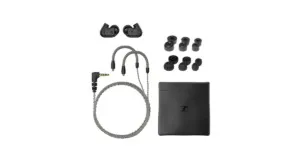
Sennheiser, a German maker of audio goods, recently unveiled a brand-new, premium wired headset in the Indian market. The Sennheiser IE 200 Wired In-ear headphones come with a 7-millimeter extra-wide band transducer. In addition to this, the wired earphones come with a dual-tuning feature. The device was launched in India early this month at CES 2023
Sennheiser IE 200 price in India and availability
The Sennheiser IE 200 has been launched in India with a price tag of Rs 14,990. The audio device is now available across all online platforms such as www.sennheiser-hearing.com, Amazon, Flipkart, Headphone Zone and The Audio Store along with premium retail outlets in the country.
Sennheiser IE 200 specifications
The Sennheiser IE 200 includes a 7-millimeter extra-wide band transducer for superb quality and is built on 15 years of Sennheiser TrueResponse Transducer technology. The IE 200 is designed for undisturbed listening sessions and fits incredibly well. Their unassuming design, which can fit ears of all sizes, boasts a tried-and-true ergonomic layout that encourages a reliable seal and long-lasting comfort. The cable of the earphones is braided, which lessens contact noise. It also comes with a dual-tuning feature, users can choose between two positions for the ear pads to be installed in the sound pipe with this function, which gives them control over how the sound is regulated.Also Read:Poco X5 5G, Poco X5 Pro 5G to debut in India on February 6The IE 200 wired headset also features an inbuilt MMCX interface and a 3.5mm stereo connector that is generally compatible. The interfaces enable the earbuds to be connected to a variety of gadgets, including as smartphones, laptops, and music players.The headset offers a typical in-ear audio experience with a deep soundstage when the ear pads are in the closed position. On the other hand, when the ear pads are open the earphones offer a spatial listening experience. The sound quality is claimed to be comparable to that of open-back headphones worn in-ear.
For the latest gadget and tech news, and gadget reviews, follow us on Twitter, Facebook and Instagram. For newest tech & gadget videos subscribe to our YouTube Channel. You can also stay up to date using the Gadget Bridge Android App. You can find the latest car and bike news here.
Superimposing images on top of each other is more simple than it seems. If you’re using an iPhone, the process of overlaying images should not take more than 5 minutes. While the native Photos app on your iPhone may not have the tool to carry out this task, there are several third-party photo editing apps that can easily do the job. In this article, we bring you 3 working methods to put a picture on another picture on an iPhone.Read Also: Best digital writing pads you can buy right now (2023)
Use the InShot app
InShot is one of the most popular photo editing apps for Android as well as iOS. Among a range of editing tools and functions, the app allows you to superimpose images on top of each other. Here’s how you can put a picture on another picture on iPhone using InShot.Step 1: Download and launch the InShot app on your iPhone.Step 2: Tap on ‘Photo’ and select ‘New’.Step 3: Add a picture from your phone’s gallery. The first picture you add should be the background image.Step 4: From the toolbar, select Stickers and tap on the gallery icon.Step 5: Click on the plus sign to add the image you want to superimpose on the background. If you want to remove the background from this image, tap the icon next to the plus sign. This will automatically remove the background and create a cutout of the object in the image.Step 6: After you’ve selected the image or cutout, it should show up in the ‘Imported’ section. Tap on the image to superimpose it on the background image.Step 7: Once the image has been added, you can drag it around and even change its size. You can also add multiple images as stickers by following this process again.Step 8: Once you’re happy with the result, tap save.
Use Canva
Canva is another top app that you can use to overlay images. Here’s how.Step 1: Download and launch the Canva app on your iPhone. Step 2: Tap the plus icon at the lower right corner of the screen.Step 3: Select ‘Custom Size’ or choose a template. Step 4: Tap on ‘Uploads’. Select ‘Upload Media’ and add the background image from your phone’s gallery.Step 5: Tap the plus sign at the bottom left corner of the screen and select ‘Uploads’ again.Step 6: Select the image you want to overlay on top of the background and add it to the editor. Step 7: The image will be overlaid on the background. You can tap either image to edit them. Canva also allows you to adjust the transparency of the images.Step 8: Once you’re satisfied with the result, tap the download icon at the top of the screen. The final image will be saved to your phone’s gallery.
Use Instagram
If you find using a photo editor to be too complicated or just don’t want to install one, you can also use Instagram for this task. Here’s how you can use Instagram to put a picture on another picture on an iPhone.Step 1: Before launching Instagram, you need to create a cutout of the image you want to superimpose on another image. iOS 16 makes this really easy. All you need to do is open the image in the Photos app and long-press the subject. Once a shiny white outline appears around the subject, select ‘Copy’. The cutout will be copied to the clipboard.Step 2: Open the Instagram app and create a story using the background image. Do not publish the Story.Step 3: Tap the text option and paste the cutout you made using the Photos app.Step 4: Once the cutout has been posted, tap the ellipses at the top of the screen and select ‘Save’. The image will be saved to your phone’s gallery and you don’t have to publish it on Instagram.Read Also: Top 10 Apps to download first on your new Samsung Galaxy S23 Ultra
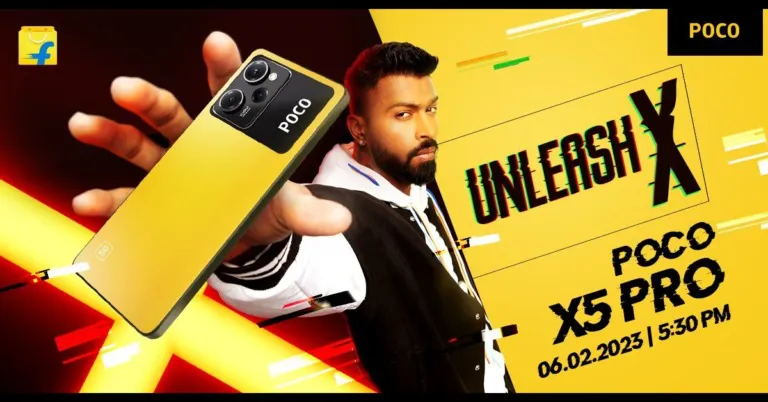
On February 6, Poco will introduce the Poco X5 series, which includes the Poco X5 5G and Poco X5 Pro 5G, in India. Poco had made hints about the release of its X5 series previously. Numerous claims and leaks regarding the phones have surfaced on the web ahead of the company’s announcement. The series has been spotted on several certification websites as well as on a Hungarian shopping website.Xiaomi’s sub-brand Poco has officially revealed the official launch dates for the Poco X5 5G and Poco X5 Pro 5G in India and across the globe, confirming earlier leaks and rumours about the devices’ release dates. The company took to Twitter to announce the Poco X5 series India release date. The 6th of February has been chosen as the launch day. The same day will see the global release of the devices. The company has scheduled a launch event that will begin at 5.30 PM IST.Also Read:Pixel 7 Pro Review: Why you should get the phone
Poco X5 5G specifications expected
The Poco X5 5G and Poco X5 Pro 5G were previously discovered on a Hungarian retail website, where a few important details were hinted at. The Poco X5 5G will reportedly come in Green, Blue, and Black colour options, according to the listing. It will run on MIUI 13 for POCO based on Android OS. According to leaks, the smartphone has a 6.67-inch AMOLED full-HD+ screen with a 1,080 x 2,400 pixel resolution. A refresh rate of 120Hz will be supported by the display. According to the website, the phone will use a Qualcomm SM6375 SoC which is believed to be a Snapdragon 695 with 6GB of RAM. It might support up to 33W of rapid charging and have a 5,000mAh battery. The phone will apparently feature Bluetooth 5.1, Wi-Fi, GPS, and NFC connectivity.
Poco X5 Pro 5G specifications expected
Many claim that the Redmi Note 12 Pro Speed Edition, which made its debut in China in December of last year, is what the Poco X5 Pro 5G is expected to be. If the reports are to be believed then Poco X5 Pro 5G will feature a 6.67-inch AMOLED full-HD+ display with 16K colours and a 1,080 x 2,400-pixel resolution. It is expected to have a Snapdragon 778G SoC and 6GB of RAM. The device is likely to run MIUI 14-based Android OS.The Poco X5 Pro is rumoured to have a triple back camera configuration with a 108-megapixel primary sensor, an 8-megapixel sensor, and a 2-megapixel sensor. There will be a 16-megapixel front camera for taking selfies. The Poco X5 Pro might include a 5,000mAh battery that supports 67W fast charging.Also Read:Samsung Galaxy Unpacked 2023: Here is what to expect and how to watch the event live
Poco X5 5G, Poco X5 Pro 5G price in India expected
Garena Free Fire is a battle royale game with regular awards and tournaments to keep players interested. If you play Garena Free Fire, you should be aware of the redeem codes that are released on a daily basis. However, because the battle royale game is banned in India, players from other countries can use the Free Fire Redeem codes daily. If you’re unfamiliar with the Garena Free Fire redeem codes or don’t know how to get them, we’ve put together a step-by-step guide to help you redeem them. Check out Garena Free Fire Redeem Codes for 1 February 2023.The Free Fire redeem codes are a great way to get free stuff. These are 12-digit codes that contain alphabets and numbers, as well as an expiration date and time. Because the Garena FF redeem codes cannot be used more than once, you should hurry to the redemption page to claim your free reward before someone else does. To get a free reward, all you have to do is go to reward.ff.garena.com/en, which is the official redemption page. Also, keep an eye on this space for daily updates on Garena Free Fire redemption codes and rewards.
Garena Free Fire Redeem Codes Today 1 February 2023
FGN9QQSV31XZ
FFDBGQWPNHJX
E2F86ZREMK49
FFAC2YXE6RF2
FFCMCPSBN9CU
HHNAT6VKQ9R7
WD2ATK3ZEA55
FFBBCVQZ4MWA
TDK4JWN6RD6
HFNSJ6W74Z48
V44ZZ5YY7CBS
4TPQRDQJHVP4
XFW4Z6Q882WY
FFDBGQWPNHJX
E2F86ZREMK49
FFAC2YXE6RF2
How to Get Free Fire Redeem Codes for Garena on 1 February 2023?


 Step 3:
 Step 4:
 Step 3:
 Step 3:

 Step 2:
 Step 3:
 Step 4:
 Step 4:
 Step 5:
 Read Also: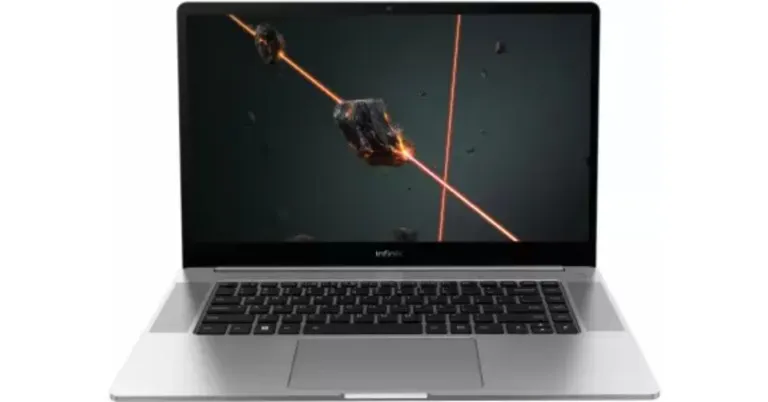




 Step 3:
 Step 5:
 Step 6:
 Step 7:
 Step 3:
 Step 4:
 Step 5:
 Step 6:
 Step 7:
 Step 2:
 Step 4:
 Read Also: