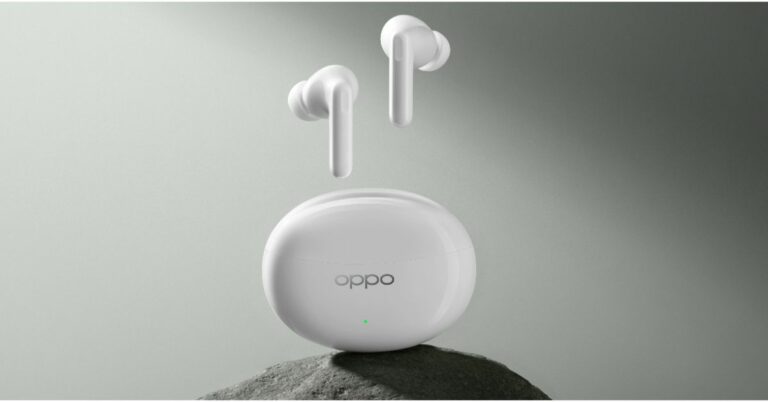
Oppo Enco Air 3 Pro with ANC and 12.4mm dynamic drivers launched in India

Alongside Oppo Reno 10, Reno 10 Pro, and Reno 10 Pro+ the company has also launched its new TWS in India. The Oppo Enco Air 3 Pro has been introduced and is a successor to last year’s Oppo Enco Air 2 Pro. The earphones come with a natural bamboo fibre diaphragm for clear and crisp audio. They also include an adaptive noise cancelling feature and offer IP55 dust and water resistance. In addition to this, the audio device is claimed to provide 30 hours of playback.

Oppo Enco Air 3 Pro price in India and sale details

The Oppo Enco Air 3 Pro has been launched in India with a price tag of Rs 4,999. These are scheduled to go on sale on July 11 via Flipkart, Amazon and the OPPO store at noon. The device comes in two colour options of green and white. Oppo Enco Air 3 Pro price in India and sale details

Oppo Enco Air 3 Pro specifications

The Oppo Enco Air 3 Pro are the first earbuds in the world to have a natural bamboo fibre diaphragm for crystal-clear sound. With an IP55 certification for water and dust resistance, they are ideal for outdoor activities. They have 12.4mm dynamic drivers that have a 20Hz to 40kHz frequency range. With LDAC, its high-definition audio reproduces reality, and its 49dB adaptive noise cancellation delivers an immersive listening environment. The Enco Air 3 Pro, is a Bluetooth-enabled device with Bluetooth version 5.3. and has a connection range of up to 10 metres. It supports LDAC, AAC, and SBC Bluetooth codecs. When watching movies on a smartphone, the OPPO Alive audio in the Enco Air 3 Pro provides spatial surround sound. Golden Sound 2.0, is another feature of the TWS, which creates a user-specific ear canal model after a short listening test to configure the buds specifically to the user’s hearing. There is a USB Type-C charging port on the casing. The charging case has a 440mAh battery, and each of the earbuds has a 43mAh battery. Thirty hours of listening fun are promised on a single charge. According to the manufacturer, it takes 120 minutes to fully charge both the charging case and the earphones. Charging just the earphones takes 90 minutes to complete. For the latest gadget and tech news, and gadget reviews, follow us on TwitterFacebook and Instagram. For newest tech & gadget videos subscribe to our YouTube Channel. You can also stay up to date using the Gadget Bridge Android App. You can find the latest car and bike news here.

Oppo Reno 10 5G, Oppo Reno 10 Pro 5G, Oppo Reno 10 Pro+ 5G debuts in India

Today marked the official launch of the Oppo Reno 10 5G series in India, which includes the standard Oppo Reno 10, Reno 10 Pro, and Reno 10 Pro+. The new phones come pre-installed with Android 13. They have a triple back camera arrangement and a 120Hz display. Additionally, each device comes with a 32-megapixel selfie camera. While the regular model includes a MediaTek chipset, both pro versions use Qualcomm processors as their power source.

Oppo Reno 10 5G series price in India and sale details

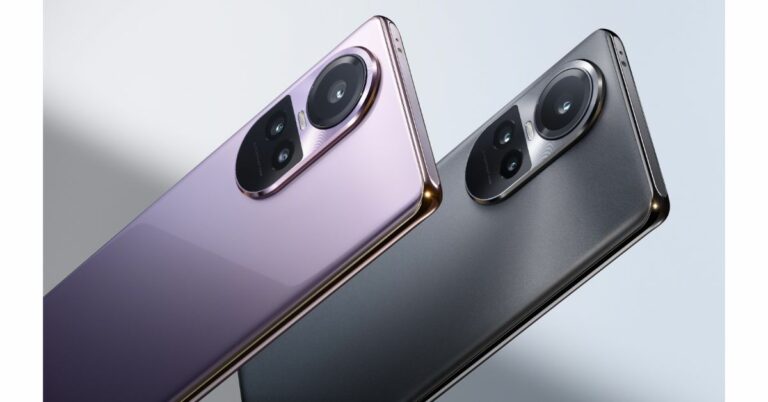
The company is yet to decide on the price of the Oppo Reno 10 5G. According to the company, the price will be announced on July 20 at noon. The phone will come in two colour options of Ice Blue and Silvery Grey. On the other hand, Oppo Reno 10 Pro 5G will be priced at Rs 39,999. Lastly, the price of Oppo Reno 10 Pro+ 5G is set at Rs 54,999. Both the pro variants will be available in Glossy Purple and Silvery Grey and are scheduled to go on sale on July 13 via Flipkart, Oppo India online store, and leading retail stores in the country. Oppo Reno 10 5G series price in India and sale details Offers Customers can avail of the following offers on the first sale of the OPPO Reno10 Pro+ 5G and OPPO Reno10 Pro 5G…
  • Customers can enjoy discounts of up to INR4000 on Flipkart and OPPO Stores, and no-cost EMI for up to 9 months on HDFC, ICICI Bank and SBI Cards. 
  • Customers can avail cashback of up to INR4000 from mainline retail outlets and no-cost EMI for up to 9 months on leading banks cards like SBI Cards, Kotak Bank, Bank of Baroda, IDFC First Bank, One Card, AU Small Finance. 
  • Customer can also avail cash back up to INR4000 on consumer loan partners like TVS Credit, HDB Financial & IDFC First Bank. Additionally, customers can enjoy the benefit of Zero Down Payment schemes from leading financers.
  • Loyal OPPO customers can avail an Exchange + Loyalty Bonus of up to INR4000 online & offline.
  • Users can enjoy free trials of YouTube Premium and Google One for up to 6 months through MyOPPO.
  • Customers who buy a phone between 13th and 19th July can enter the MyOPPO raffle and win a trip to Dubai and other exciting prizes. Buy the Reno10Pro+ 5G and Reno10 Pro 5G between July 13 – July 31 and get OPPO Pad Air(4+128GB) at a discount of INR1500.
 Also Read: Asus TUF gaming F15 laptop review: 11 Gen Intel CPU with RTX 2050 under 60K, worth buying? OPPO Premium Service Offer
  • All the issues/queries will be resolved within 24 working hours by a team of dedicated experts (Exclusive hotline – 9958808080)
  • Free pick up and drop facility available across 13,000+ pin codes with resolution of issues within 72 hours of the complaint.
  • OPPO offers affordable EMI for the service/repairs of smartphones. The lowest EMI starts from INR3200 from all the leading financiers. Customers will have the option to decide on EMI instalment and tenure at their convenience.

Oppo Reno 10 Pro+ 5G specifications

The Oppo Reno 10 Pro+ 5G features a 6.74-inch AMOLED 3D curved display with 1,240x 2,722 pixels of resolution. The screen supports up to 120Hz LTPS dynamic refresh rate, and up to 240Hz touch sampling rate. It also comes with HDR 10+ support 450ppi pixel density, 100 percent coverage of the DCI-P3 colour gamut, 93.9 percent screen-to-body ratio, and is rated to offer 1400 nits of peak brightness. The glass panel has Corning Gorilla Glass 5 coating. The phone runs on Android 13-based ColorOS 13.1 and is powered by an octa-core Qualcomm Snapdragon 8+ Gen 1 SoC, along with 12GB of LPDDR5 RAM (RAM can be extended further to 8GB) and up to 256GB of UFS 3.1 storage. There is a 3,500mm square VC liquid cooling surface area and X-Axis linear motor. In terms of optics, there is a triple rear camera setup that consists of a 64-megapixel periscope sensor with OIS (f/2.5 aperture), a 50-megapixel Sony IMX890 sensor with OIS ( f/1.8 aperture) and an 8-megapixel wide-angle lens. For selfies, there is a 32-megapixel sensor on the front panel. Reno 10 Pro+ 5G boasts a 4,700mAh battery with 100W SuperVOOC fast charging technology. In terms of connectivity, there is 5G, Wi-Fi 6, Bluetooth, NFC, GPS, and a USB Type-C port for charging. It also includes an in-display fingerprint sensor and face unlock, an accelerometer, an ambient light sensor, an ambient colour temperature sensor, an e-compass, a gyroscope, and an IR sensor. Oppo Reno 10 5G series price in India and sale details

Oppo Reno 10 Pro 5G specifications

Oppo Reno 10 Pro 5G features a 6.7-inch full-HD+ OLED 3D curved display with 1,080X 2,412 pixels of resolution. The screen supports up to 120Hz refresh rate, and up to 240Hz touch sampling rate. There is 93 percent screen-to-body ratio, 950 nits of peak brightness and 100 percent coverage of the DCI-P3 colour gamut. The device is powered by Android 13-based ColorOS 13.1 and comes equipped with an octa-core Snapdragon 778G 5G SoC with up to 12GB of RAM (expandable) and up to 256GB of UFS 3.1 storage. For the photos and videos, there is a triple rear camera setup that includes a 50-megapixel primary Sony IMX890 sensor (f/1.8) with OIS, a 32-megapixel telephoto sensor and an 8-megapixel wide-angle lens. There is a 32-megapixel front-facing camera for taking selfies. The device has a 4,600mAh battery with 80W SuperVOOC flash charging support.

Oppo Reno 10 5G specifications

The Oppo Reno 10 5G’s display is similar to the Pro variant. Under the hood, there is an octa-core 6nm MediaTek Dimensity 7050 processor with 8GB of RAM and up to 256GB of UFS 3.1 storage. The Oppo Reno 10 5G features a triple rear camera unit with a 64-megapixel primary sensor with OIS and autofocus, a 32-megapixel telephoto sensor, and an 8-megapixel sensor. There is a 32-megapixel selfie camera as well. The handset also includes a 5,000mAh battery that offers 67W SuperVOOC flash charging support. For the latest gadget and tech news, and gadget reviews, follow us on TwitterFacebook and Instagram. For newest tech & gadget videos subscribe to our YouTube Channel. You can also stay up to date using the Gadget Bridge Android App. You can find the latest car and bike news here.

Here is how to transfer the WhatsApp Chat History via QR code (Android and iOS)

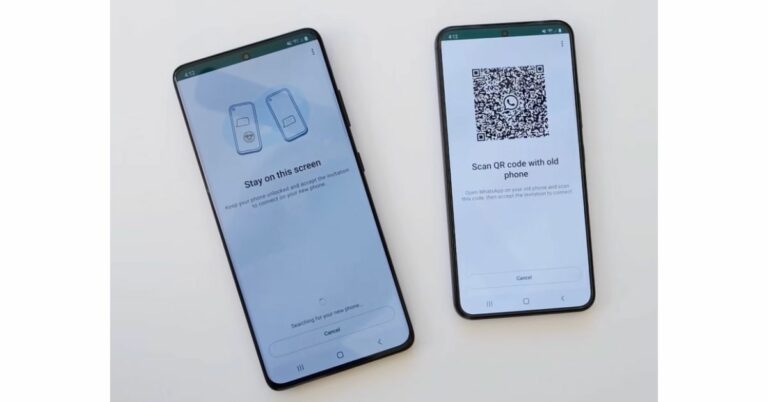
WhatsApp recently unveiled a new function for WhatsApp. Users will now be able to easily and securely move their chat history between devices. Currently, the transfer can only occur if both devices are running the same OS. The use of QR code authentication will now allow users to share their chat history. Larger attachments and messages can now be transferred from one device to another more quickly and easily thanks to the new capability. Users no longer need to exit their apps on one device in order to move data to the other phone thanks to the new procedure. At the moment, users have the option of updating the backup on cloud services or using a third-party app to transfer their chat history. With the new method, users do not have to close their apps on one device in order to transfer data to the other phone. The data is safe because it only travels between two devices, without the use of any third-party apps or cloud services. However, one must ensure that both of their phones have Android OS Lollipop 5.1, or Android 6 or higher installed in order to transfer the WhatsApp Chat History via QR code. Both the old and new iPhone models should have WhatsApp for iOS version 2.23.9.77 or higher installed in order to move chats over to iOS. Also Read: 6 Easy Ways to Fix WhatsApp Call Not Ringing When iPhone is locked Additionally, one needs to ensure the new phone isn’t registered on WhatsApp until the transfer process is complete. Additionally, WiFi must be turned on and connected to the same network on both devices.

How to transfer WhatsApp Chat History via QR code on Android Phone

  • On your old Android device launch WhatsApp. Start by selecting More Options > Settings > Chats > Transfer chats.
  • Install WhatsApp on the new device and sign up with the same number.
  • Next, click on Start to Transfer chat history from the old phone.
  • A QR code will show after the permissions are granted. You now need to scan the QR code on your old device.
  • The procedure will start as soon as the request to connect the phone is approved.
  • Tap Done when the import is complete.

How to transfer WhatsApp Chat History via QR code on iOS device

  • Go to Settings > Chats > Transfer Chats to iPhone > Start after opening WhatsApp on the old iPhone.
  • Install WhatsApp on the new iPhone and register.
  • Tap on the continue option to Transfer chat history to iPhone.
  • Scan the QR code displayed on your new device using the camera on your old phone.
  • Once the transfer is finished you can set up your profile on the new iPhone.
For the latest gadget and tech news, and gadget reviews, follow us on TwitterFacebook and Instagram. For newest tech & gadget videos subscribe to our YouTube Channel. You can also stay up to date using the Gadget Bridge Android App. You can find the latest car and bike news here.
Asus TUF gaming F15 laptop review: 11 Gen Intel CPU with RTX 2050 under 60K, worth buying?

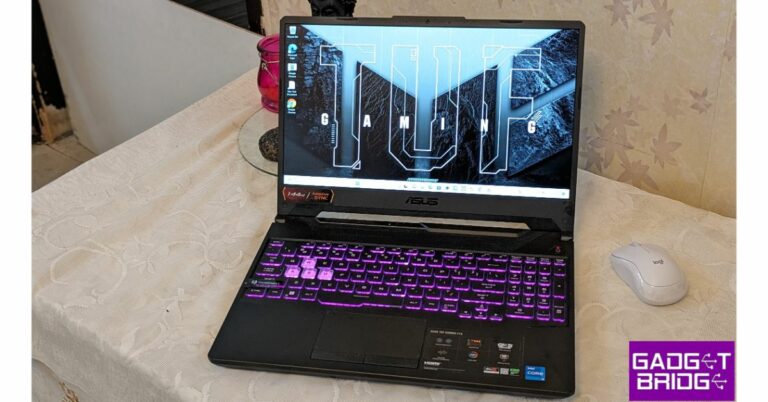
While the Asus TUF gaming F15 FX506HF has been available in the international market for quite some time, it has finally arrived in India. We are aware that a high-quality gaming laptop costs a lot in India. You all arrived at the appropriate time and right place since this time we’ll be evaluating a min-budget-friendly gaming laptop with good to great features. We have the TUF gaming F15 laptop with RTX 2050 powered by an 11th Gen Intel processor. Yes, it is 2 generations old, but it can very well be a good initial gaming laptop for you. This is their newest TUF gaming laptop model for 2023 in India. Because of its specs, we were really excited. The performance, though, is impressive. It features an FHD 144Hz display and an Intel Core i5-11400H 11th Gen processor with Optimus NVIDIA GeForce RTX 2050 GPU. So is this the most powerful gaming laptop under 60K? Let’s find this out in this Asus TUF gaming F15 laptop review.

Asus TUF gaming F15 laptop review: Design and Display

Let’s first examine the design before moving on to the performance. The simple appearance of the Asus TUF gaming F15 laptop is appealing. The TUF logo is embossed on the top, while the vents are designed like a honeycomb at the bottom. The rest of the chassis is made entirely of plastic, but the lid feels like it has a faux aluminium finish. Asus TUF gaming F15 laptop review: Design and Display It is a large and hefty laptop, but as it is a TUF model, it does not fall short in terms of durability. In addition to its military-grade ruggedness, its hinge, lid, and keyboard deck are all sturdy. A series of LED indicators with the TUF gaming branding above it can also be seen. These indications can be seen even when the lid is closed. The lid is simple to open with one hand. Another good feature is the keyboard deck’s smooth matte texture, which deters fingerprints. The vents on the keyboard deck’s top are for cool air intake, and the vents on the right side are for hot air outflow. This laptop has two more vents on the back for cooling. review of Asus TUF gaming F15 laptop Asus TUF gaming F15 laptop review: Design and Display You receive a full-sized RGB keyboard that includes the numpad and the alphabet. The keyboard’s lighting options are now controlled by the Aura button. In addition, the keyboard is really smooth, and we have written many articles on it, including this one, without experiencing any problems. Asus TUF gaming F15 laptop review: Design and Display You also get a rather sizable trackpad that supports all of the Windows motions. The main drawback is how quickly it smudges, giving the laptop a grimy appearance. However, while using movements like pinch-zoom, two-finger scrolling, and three-finger flicking, the touchpad responded quickly and precisely. A charging port, Ethernet, HDMI, two USB C thunderbolt connectors, a USB port, and a 3.5mm headphone jack are all included in the Asus TUF gaming F15 laptop. Another USB 3.1 port is located on the opposite side. Through the Thunderbolt port, an external display can be connected. review of Asus TUF gaming F15 laptop Describing the display, the 15.6-inch FHD Anti-glare display on the Asus TUF gaming F15 laptop has a resolution of 1,920 x 1,080 pixels. 16:9 aspect ratio and 144Hz refresh rate are also supported. Additionally, the screen is 250 nits bright, which might seem low for some, but you are not going to take it out in the sun, so mostly it is fine. The Adaptive-Sync technology from VESA is also there. review of Asus TUF gaming F15 laptop

Asus TUF gaming F15 laptop review: Performance

The 11th Gen Intel Core i5-11400H Processor, 2.7 GHz (12M Cache, up to 4.5 GHz, 6 Cores), is what powers our TUF F15 unit. It has a 4GB Optimus NVIDIA GeForce RTX 2050 Laptop GPU installed. The 512GB PCIe 3.0 NVMe M.2 SSD can be expanded using two PCIe slots, and the 16GB DDR4 RAM can be increased to 32GB using two DDR4 SO-DIMM slots. In India, this configuration costs about Rs 66,000, but after bank and credit card discounts you can get it for under Rs 60,000 (currently). Daily tasks can be easily handled using the laptop. On it, we viewed a lot of multimedia content with no lag or other issues. Our test results for the TUF gaming F15 laptop’s overall performance in Geekbench were: CPU Benchmark
  • Single-Core Score: 434
  • Multi-Core Score: 2132
GPU Benchmark
  • OpenCL Score: 40320
The machine is capable of carrying out daily tasks, video editing, coding, and app development. Keep in mind that the GPU lacks the capability to perform tasks linked to 3D modelling, making it essentially unsuitable for tasks related to architecture or high power apps. Any ordinary daily chores we threw at the Asus TUF gaming F15 laptop it easily handled. For two weeks, we used the laptop exclusively for work and gaming purposes. Numerous hours were spent online each day, as well as utilising Google Docs and Word for writing, editing photos, checking emails frequently, and playing background music. There were absolutely no problems performing all these tasks at once. The laptop was our primary work and gaming device for two weeks. Even with more than 30 tabs open on Chrome, we were able to pick up exactly where we left off. The bottom panel warmed up after a while, but that is to be expected when using the laptop throughout the day. We typically test the majority of the games to obtain the greatest performance and a high frame rate. Due to the 144Hz display, the gameplay was really fluid. There was no screen tearing or anything else. More graphically demanding games could only be played at mid-lower settings, yet it handled games like CS: GO, Call of Duty, and GTA V reasonably well. review of Asus TUF gaming F15 laptop The colour reproduction on the display appears good, and the contrast isn’t too poor either. The viewing angle is likewise pretty pleasant, with a reduction in saturation and brightness levels only noticeable at extreme angles. The display of the TUF F15 isn’t the best we have seen in the segment, but it’s adequate for pleasant outside use (just not directly under the sun). If you can locate some sort of shade, though, it can be used just fine. The faster refresh rate is beneficial for everyday use as well as gaming. The 144Hz refresh rate makes the animations appear smooth. Since it is an anti-glare display, there are no reflections visible on the screen. Since the display doesn’t get particularly bright — as we already mentioned — and our room receives a lot of direct sunshine, it can occasionally feel a little dull during the day. The laptop’s speakers don’t provide terrific sound and aren’t very good. When watching videos, one needs to utilise headphones or connect a speaker because the level is so low. The speaker is even less loud than the speaker of a smartphone. Which is very strange coming from Asus. Even after experimenting with several equaliser presets in the volume settings, we were unable to settle on a pleasant audio experience. review of Asus TUF gaming F15 laptop A typical 720p HD web camera is located on top of the TUF F15 as expected. Despite not being particularly remarkable or spectacular, this is more than adequate for participating in casual video conversations. There isn’t a privacy shutter either. Let’s finally discuss its battery life. A 48Wh battery is included with the Asus TUF gaming F15 laptop. Under our normal usage, which included online browsing and article writing, this system managed about two to two and a half hours of screen time.

Verdict

Overall, there is no doubt that this laptop can easily handle even the most demanding games on medium or lower settings. The TUF F15 would have been great for binge-watching if only its down-firing speakers were a little bit better! You will receive a full-sized chiclet keyboard with everything, including a dedicated Numpad. Additionally, the WASD keys receive a unique transparent flare that distinguishes them from the other keys. The display also doesn’t seem to be very bright. The price of the Asus TUF gaming F15 laptop is Rs 66,990 on both Amazon and the company’s website. And as said, after bank discounts you can get it for less than Rs 60K. But, yes there is a but, this is a machine that is dated and to some, it might not be appealing. Nevertheless, if you are looking for a good-budget gaming laptop, this just might be it.

 Asus TUF gaming F15 laptop pros

  • Budget-friendly
  • Can handle most of the games
  • RGB keyboard

 Asus TUF gaming F15 laptop cons

  • The display isn’t bright
  • Speaker volume is too low
  • No privacy shutter for the webcam
For the latest gadget and tech news, and gadget reviews, follow us on TwitterFacebook and Instagram. For newest tech & gadget videos subscribe to our YouTube Channel. You can also stay up to date using the Gadget Bridge Android App. You can find the latest car and bike news here.

BGMI redeem codes for 10 July 2023, claim and receive rewards and benefits

After being banned for nearly ten months, Battleground Mobile India, aka BGMI, is officially available again in India. BGMI fans are looking for ways to improve their game experience and one such method is the usage of redemption codes, which offers a variety of rewards and advantages using BGMI redeem codes players can gain access to new skins, outfits, loot crates, weapons and free UC and diamonds. As mentioned earlier, these codes give users the chance to earn unique rewards and gain extra benefits while playing the game. This includes GUN SKINS (M4, AKM, M416, AWM, M24, UZI, KAR98K), free character voucher, Andy, Carlo, Sara, Victor character for free, free Anna Character on completing the mission and UC or Royal Pass Discount. So here we have gathered a list of the most recent BGMI redeem codes as of 10 July 2023. Also, redeem these codes asap as these are only valid for a limited duration.

BGMI Redeem Codes for 10 July 2023

KARZBZYTR JJCZCDZJ9U UKUZBZGWF SIWEST4YLXR TIFZBHZK4A GPHZDBTFZM24U RNUZBZ9QQ BMTCZBZMFS DKJU5LMBPY BBKTZEZET3 PGHZDBTFZ95U SD16Z66XHH

How to get free Redeem Codes for BGMI on 10 July 2023?

  • Launch BGMI on your device.
  • Then select the Redeem Code option from the main menu.
  • Next, click on the Redeem code tab.
  • A new window will open, requesting the redemption code.
  • Now enter your BGMI code.
  • Confirm and click on the “Redeem” tab.
  • If your redeem code is valid then you will get a message confirming that your rewards were successfully redeemed.
(Note that these codes are case-sensitive, so be sure to type them correctly to prevent any errors.) For the latest gadget and tech news, and gadget reviews, follow us on TwitterFacebook and Instagram. For newest tech & gadget videos subscribe to our YouTube Channel. You can also stay up to date using the Gadget Bridge Android App. You can find the latest car and bike news here.
Garena Free Fire Redeem Codes Today 10 July 2023: Here is how to claim them

Garena Free Fire is a battle royale game with regular awards and tournaments to keep players interested. If you play Garena Free Fire, you should be aware of the redeem codes that are released on a daily basis. However, because the battle royale game is banned in India, players from other countries can use the Free Fire Redeem codes daily. If you’re unfamiliar with the Garena Free Fire redeem codes or don’t know how to get them, we’ve put together a step-by-step guide to help you redeem them. Check out Garena Free Fire Redeem Codes for 10 July 2023. The Free Fire redeem codes are a great way to get free stuff. These are 12-digit codes that contain alphabets and numbers, as well as an expiration date and time. Because the Garena FF redeem codes cannot be used more than once, you should hurry to the redemption page to claim your free reward before someone else does. To get a free reward, all you have to do is go to reward.ff.garena.com/en, which is the official redemption page. Also, keep an eye on this space for daily updates on Garena Free Fire redemption codes and rewards.

Garena Free Fire Redeem Codes Today 10 July 2023

  • UVX9PYZV54AC
  • BR43FMAPYEZZ
  • 8F3QZKNTLWBZ
  • WEYVGQC3CT8Q
  • HNC95435FAGJ
  • J3ZKQ57Z2P2P
  • GCNVA2PDRGRZ
  • MCPW3D28VZD6
  • ZZZ76NT3PDSH
  • EYH2W3XK8UPG
  • NPYFATT3HGSQ
  • 4ST1ZTBE2RP9
  • X99TK56XDJ4X
  • MCPW2D1U3XA3
  • FFCMCPSEN5MX
  • MCPW2D2WKWF2
  • B3G7A22TWDR7X
  • 6KWMFJVMQQYG
  • FF7MUY4ME6SC
  • FFCMCPSGC9XZ

How to Get Free Fire Redeem Codes for Garena on 10 July 2023?

  • Visit the Garena Free Fire game’s official website at reward.ff.garena.com.
  • Use your Facebook, Google, VK, Apple ID, Huawei ID, or Twitter account to log in.
  • You’ll be taken to a valid redemption code (s)
  • Copy and paste the 12-digit redemption code into the text box.
  • On the screen, a dialogue box will appear.
  • ‘Ok’ should be selected.
For the latest gadget and tech news, and gadget reviews, follow us on TwitterFacebook and Instagram. For newest tech & gadget videos subscribe to our YouTube Channel. You can also stay up to date using the Gadget Bridge Android App. You can find the latest car and bike news here.

How to Mirror and Control Your Android Phone from Ubuntu?

0
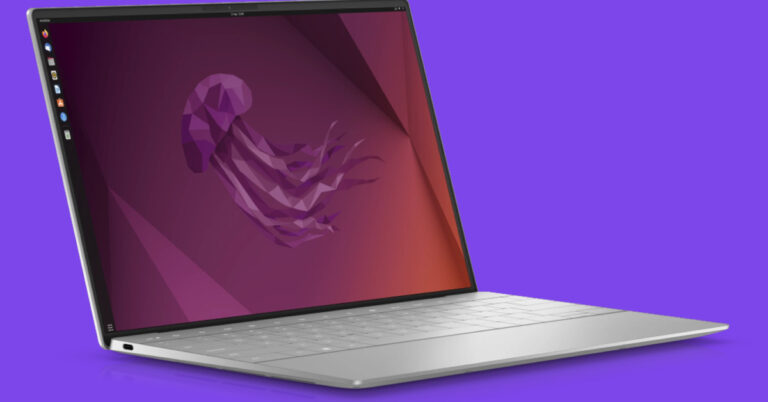
While most screen mirroring apps do a good job of casting your phone’s display on a bigger screen, not many of them let you control your phone from another device. If you mirror your phone on a TV, you cannot use the remote controller to navigate through different apps. You still have to rely on your phone for that. PCs, on the other hand, offer more control options. Previously, we talked about how you can control your phone using a Windows PC. Now, let’s take a look at how you can mirror and control your Android phone from an Ubuntu (Linux) desktop. Read Also: Top 7 Ways to Take a Screenshot on Mac, Windows, iPhone, & Android

Here’s how you can mirror and control your Android phone from an Ubuntu (Linux) PC

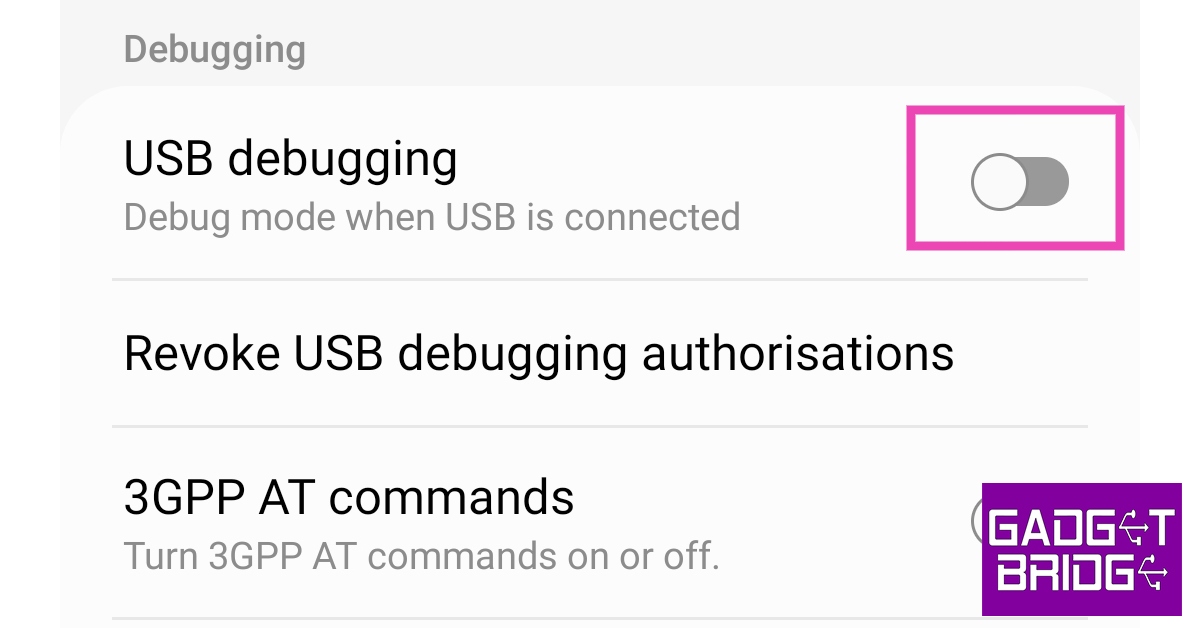
Step 1: Download Scrpy for Linux from Github. Next, you need to enable USB debugging on your Android phone. Here’s how. Step 2: Go to Settings and select About Phone. Step 1: Go to Settings and select About Phone. how to fix can't delete apps on android. how to delete pre-installed apps on android Step 3: Select ‘Software Information’. Step 2: Select ‘Software Information’. how to fix can't delete apps on android. how to remove an app that wont uninstall. how to delete pre-installed apps on android Step 4: Tap on ‘Build Number’ 7 times to enter Developer Mode. Step 3: Tap on ‘Build Number’ 7 times to enter Developer Mode. how to fix can't delete apps on android Step 5: Go back to Settings, scroll all the way down, and select ‘Developer options’. Step 4: Go back to Settings, scroll all the way down, and select ‘Developer options’. how to fix can't delete apps on android. how to delete pre-installed apps on android Step 6: Scroll down to the Debugging section and turn the toggle bar on for ‘USB debugging’. Step 5: Scroll down to the Debugging section and turn the toggle bar on for ‘USB debugging’. how to fix can't delete apps on android. how to delete pre-installed apps on android Step 7: Connect your Android phone to the Ubuntu desktop using a USB cable. Step 8: Launch Terminal using Ctrl + Alt + T key combination. Step 9: Type scrcpy and hit Enter. Step 10: Your Android phone will ask you to allow USB debugging. Select ‘OK’. Your Android phone’s display will be mirrored on your Ubuntu PC and can be controlled from there.

Frequently Asked Questions (FAQs)

How do I mirror my Android phone’s display on Ubuntu?

You can mirror your phone’s display on an Ubuntu PC using the Scrcpy tool.

How to control an Android phone from Ubuntu?

The Scrcpy tool for Ubuntu lets you mirror and control your Android phone from your Ubuntu PC.

Does Ubuntu have Miracast?

Yes, Ubuntu supports Miracast wireless displays. Read Also: How to change the username of your Threads account?

Conclusion

This is how you can mirror and control your Android phone from an Ubuntu (Linux) PC. Once you’re able to view your smartphone’s display on your PC, you can use the keyboard and mouse to control it. This is a great way to play Android games on your PC without using an Android emulator For the latest gadget and tech news, and gadget reviews, follow us on Twitter, Facebook and Instagram. For newest tech & gadget videos subscribe to our YouTube Channel. You can also stay up to date using the Gadget Bridge Android App. You can find the latest car and bike news here.

Top 5 Ways to Find Hidden Apps on an iPhone

Hiding apps on your iPhone serves a lot of purposes. Firstly, it is a great way of keeping your personal and financial apps away from prying eyes. It also comes in quite handy for people who want to break their social media addiction but also don’t want to uninstall all the apps on their phones. Hiding an app can deter you from constantly opening it on your phone. While you may know how to hide an app, it is also important that you know how to search for it and unhide it. In this article, we bring you the top 5 ways to find hidden apps on your iPhone. Read Also: Top 7 Ways to Take a Screenshot on Mac, Windows, iPhone, & Android

Perform a search using Spotlight

Perform a search using Spotlight The Spotlight tab on iOS devices can access hidden apps as well and bring them up in search results whenever they are requested. To perform an app search on your iPhone using Spotlight, simply swipe down from the middle of the home screen. Enter the name of the app in the search bar. Spotlight will display the app even if it is hidden from the home screen.

Reset Home Screen Layout

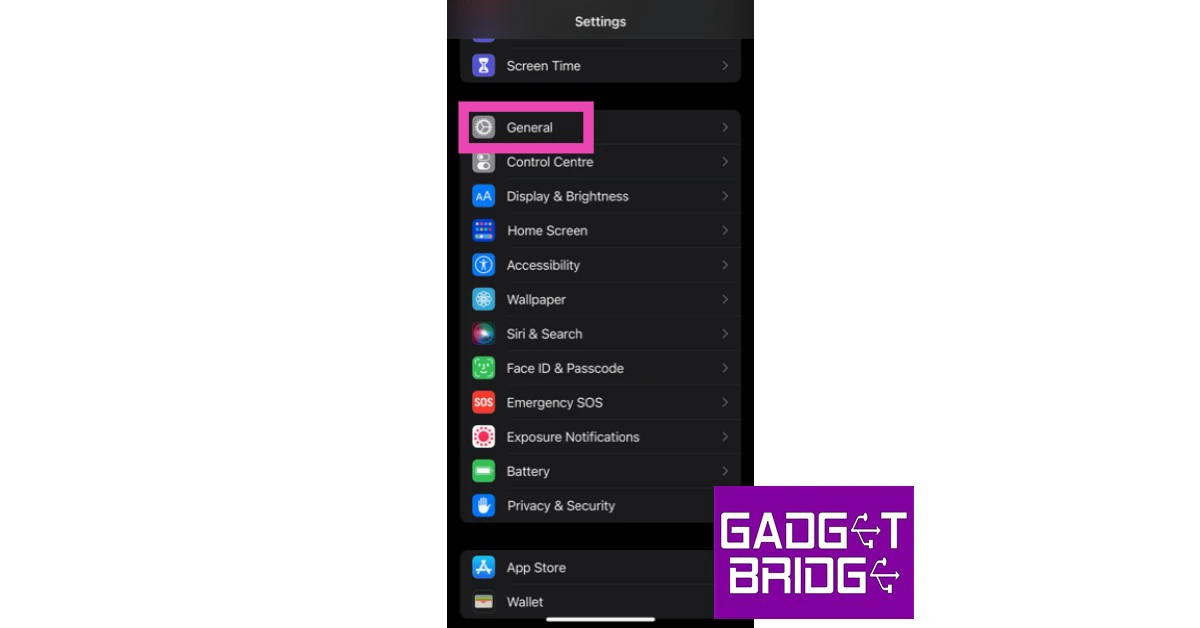
Restoring your iPhone’s home screen to its original layout unhides all the apps that you may have stashed away. Here’s how you can go about it. Step 1: Go to Settings and select General. Step 1: Go to Settings and select General. how to fix iphone dictation not working on ios 16. whatsapp call not ringing when iphone is locked. 10 Easy Ways to Fix ‘Call Failed’ Error on iPhone (2023) Step 2: Select ‘Transfer or Reset iPhone’. Step 2: Scroll down and select ‘Transfer or Reset iPhone’. 10 Easy Ways to Fix ‘Call Failed’ Error on iPhone (2023) Step 3: Tap on ‘Home Screen Layout’. Step 3: Tap on ‘Home Screen Layout’.

Unhide a home screen

iOS also gives you the option to hide an entire home screen on your iPhone. If you notice multiple apps missing from your iPhone, you may have accidentally hidden an entire home screen. Here’s how you can unhide it. Step 1: Long press any empty spot on the home screen until the icons begin jiggling. Step 2: Tap the ellipses at the bottom of the screen. Step 3: Go through the home screens and look for a checkmark at the bottom of the screen card. Step 4: If a home screen does not have a checkmark on its card, it means that it is hidden. Tap the circle to unhide it. Step 4: If a home screen does not have a checkmark on its card, it means that it is hidden. Tap the circle to unhide it. Step 5: Select ‘Done’.

Unhide apps using the App Library

Step 1: Go to the home screen and scroll all the way to the right. Step 1: Go to the home screen and scroll all the way to the right. How to hide and unhide apps on an iPhone Step 2: Search for the app in the search bar. If you have prevented the app from showing up in search results, go ahead and change that setting. Step 3: Once the app shows up in search results, long press it and drag it to the left. The app will be moved to the home screen. Once the app shows up in search results, long press it and drag it to the left. How to hide and unhide apps on an iPhone Step 4: Adjust the app’s position on the home screen by pressing and dragging it. Tap ‘Done’ once you’re done. Alternatively, you can press and hold anywhere on the home screen and tap the minus icon on the app. How to hide and unhide apps on an iPhone

Use Siri

If you can’t find a hidden app on your iPhone, you can simply ask Siri to launch it for you. All you need to say is ‘Hey Siri, launch [app name]’ and the voice assistant will open the app on your iPhone. It’s a simple trick but it works.

Frequently Asked Questions (FAQs)

How do I unhide an app on my iPhone?

To unhide an app on an iPhone simply search for it in Spotlight or App Library, press and hold its icon, and drag it back to the home screen.

How do I unhide a home screen on my iPhone?

To unhide an entire home screen on your iPhone, long press an empty spot on the home screen and press an empty circle on the thumbnail for the hidden screen.

How do I reset the home screen layout on an iPhone?

To reset the home screen layout on an iPhone go to Settings>General>Reset and select Home Screen Layout. Read Also: 10 Easy Ways to Fix ‘Call Failed’ Error on iPhone (2023)

Conclusion

This is how you can unhide and find hidden apps on your iPhone. If you don’t want a hidden app to show up as a search result, go to Settings>Siri & Search>App>On Home Screen and switch off the toggle bar for ‘Show app in search results’. This will prevent Spotlight, Siri, and App Library from searching the app. For the latest gadget and tech news, and gadget reviews, follow us on Twitter, Facebook and Instagram. For newest tech & gadget videos subscribe to our YouTube Channel. You can also stay up to date using the Gadget Bridge Android App. You can find the latest car and bike news here.

How to Use an Android Device to Write Raspberry Pi SD Cards?

0
Raspberry Pi is an affordable and portable (fits inside your pocket!) computer that can connect to any monitor, keyboard, and mouse and carry out basic computing tasks. You can browse the web, make a Word file, play a video, and more. Since it is a compact device, you need an SD card to boot the Raspberry Pi OS. Typically, you need a PC to create a bootable SD card, but it is possible to do that with an Android phone as well. In this article, we show you how to use an Android device to write Raspberry Pi SD cards. Read Also: How to change the username of your Threads account?

Here’s how you can write a Raspberry Pi SD card using an Android device

Step 1: Install Pi SD Card Imager app on your Android smartphone. Step 2: Place the micro SD card in its dedicated slot. Most Android smartphones have a hybrid SIM tray that doubles as a micro SD card slot as well. If your smartphone does not support expandable memory, you will need an external card reader for this task. The card reader can be connected to your smartphone using an OTG adapter. Step 3: Launch the Pi SD Card Imager app. Step 4: Tap the ellipses at the top right corner of the screen. Step 4: Tap the ellipses at the top right corner of the screen. Step 5: Tap on ‘Choose OS’. Step 5: Tap on ‘Choose OS’. Step 6: Select the checkbox for Pi 4 at the top of the screen. Step 7: Select Raspberry Pi OS (32-bit) (3.2 GB) to download all the Raspberry Pi OS installation files on your Android phone. Step 7: Select Raspberry Pi OS (32-bit) (3.2 GB) to download all the Raspberry Pi OS installation files on your Android phone. Step 8: Tap the ellipses at the top right corner of the screen again and select ‘Choose SD or USB’. Select your SD card drive from the list. Step 8: Tap the ellipses at the top right corner of the screen again and select ‘Choose SD or USB’. Select your SD card drive from the list. Step 9: Select the checkbox for ‘Enable SSH for remote login (raspbian)’. Step 10: Select ‘Write to SD’. This will take a few minutes. Step 10: Select ‘Write to SD’. This will take a few minutes.  Step 11: Pull out the micro SD card once the writing process is over. Insert it into the Raspberry Pi. Step 12: Boot the Raspberry Pi.

Frequently Asked Questions (FAQs)

How to install Raspberry Pi OS on an SD card using an Android phone?

You need the Pi SD Card Imager app to install Raspberry Pi OS on an SD card. Once you run the app, it will download all the installation files and write them on the card.

How to make a bootable Raspberry Pi SD card?

Making a bootable Raspberry Pi SD card typically requires a PC, but you can do it with your Android phone as well, using the Pi SD Card Imager app.

How do I use an SD card on my Android phone if it doesn’t have a micro SD slot?

If your Android phone does not have a micro SD card slot, you can connect it to an external card reader using an OTG adapter. Read Also: Samsung Galaxy M34 5G with 6,000mAh battery launched in India

Conclusion

This is how you can use an Android device to write Raspberry Pi SD cards. While there are several apps you can use to install Raspberry Pi OS on an SD card, we suggest going with Pi SD Card Imager. If you found this article helpful, let us know in the comments! For the latest gadget and tech news, and gadget reviews, follow us on Twitter, Facebook and Instagram. For newest tech & gadget videos subscribe to our YouTube Channel. You can also stay up to date using the Gadget Bridge Android App. You can find the latest car and bike news here.

How to Connect a PS3 Controller to an Android Phone?

Playing games with a PS3 controller is one of the most fun things you can do on your Android phone. The are a couple of ways you can go about pairing the two devices together. You can choose to connect them wirelessly, which takes some time and effort, or go the easier route and connect them with an OTG cable. In this article, we show you the two ways you can connect a PS3 controller to an Android phone. Read Also: Samsung Galaxy M34 5G with 6,000mAh battery launched in India

Use the Sixaxis Controller app

Use the Sixaxis Controller app. How to Connect a PS3 Controller to an Android Phone? The common method of connecting your PS3 controller to an Android phone is through the Sixaxis app. The only catch is that you will need to root your Android phone to use this app. Don’t know how to root your phone? Check out this article for the full guide.  Step 1: Before you begin, you should check whether the app is compatible with your phone. Install the Sixaxis Compatibility Checker app to find out if your phone is compatible with the app. Step 2: Install the Sixaxis Controller app on your phone. Step 3: Connect your PS3 controller to your Android phone using a USB cable. Step 4: Tap the Start icon on the Sixaxis Controller app. Step 5: Tap on ‘Pair’. Step 6: Make sure your Android phone and PS3 controller’s Bluetooth address match. Step 7: Now, tap ‘Pair’ in the pop-up box. Step 8: Once the app says ‘Master address updated’ unplug your PS3 controller. Step 9: Turn on the controller. It will form a Bluetooth connection with your Android phone.

Use an OTG adapter

What Is USB OTG? 5 great ways to use It on Android devices If you don’t want to root your Android phone, you can still connect it to your PS3 controller using an OTG adapter. Simply plug the cable into the USB port of your phone. Pull out your controller, and plug it into the USB Type-A port of the OTG adapter. Once the connection has been established, you can use your PS3 controller to play games on your Android phone.

Frequently Asked Questions (FAQs)

How do I wirelessly connect my PS3 controller to my Android phone?

You will need the Sixaxis app to wirelessly connect your PS3 controller to your Android phone. Sixaxis demands root access to your device.

How do I connect my PS3 controller to my Android phone without rooting it?

The simplest way to connect your PS3 controller to your Android phone is by using an OTG cable.

Can I play games on my Android phone using my PS3 controller?

Once your controller and phone are paired, you can use it to play games on your phone. Go to input methods in the in-game menu and select your controller before playing the game. Read Also: Viewsonic VP-16 OLED monitor launched in India

Conclusion 

These are the two ways to connect a PlayStation 3 controller to an Android phone. If you don’t mind a wired connection, we’d suggest using an OTG cable since it does not require you to root your device. However, if you don’t want to settle for anything less than a wireless connection, you will need to root your Android phone. For the latest gadget and tech news, and gadget reviews, follow us on Twitter, Facebook and Instagram. For newest tech & gadget videos subscribe to our YouTube Channel. You can also stay up to date using the Gadget Bridge Android App. You can find the latest car and bike news here.

BGMI redeem codes for 8 July 2023, claim and receive rewards and benefits

After being banned for nearly ten months, Battleground Mobile India, aka BGMI, is officially available again in India. BGMI fans are looking for ways to improve their game experience and one such method is the usage of redemption codes, which offers a variety of rewards and advantages using BGMI redeem codes players can gain access to new skins, outfits, loot crates, weapons and free UC and diamonds. As mentioned earlier, these codes give users the chance to earn unique rewards and gain extra benefits while playing the game. This includes GUN SKINS (M4, AKM, M416, AWM, M24, UZI, KAR98K), free character voucher, Andy, Carlo, Sara, Victor character for free, free Anna Character on completing the mission and UC or Royal Pass Discount. So here we have gathered a list of the most recent BGMI redeem codes as of 8 July 2023. Also, redeem these codes asap as these are only valid for a limited duration.

BGMI Redeem Codes for 8 July 2023

JJCZCDZJ9U – Golden Pan UKUZBZGWF – Free Fireworks TIFZBHZK4A – Free Outfit RNUZBZ9QQ – AKM Glacier Skin TQIZBZ76F – Vehicle Skin 5FG10D33 – Falcon and Free Emotes GPHZDBTFZM24U – UMP9 Skin KARZBZYTR – Free Outfit PGHZDBTFZ95U – M416 Skin R89FPLM9S – Companion TQIZBz76F – 3 Free Motorcycle BMTFZBZQNC – Free Drifter Set SD14G84FCC – Free Skin for KAR98 Sniper Gun RNUZBZ9QQ – AKM Glacier Skin BMTCZBZMFS – Pretty in Pink set and Pretty in Pink Headpiece 5FG10D33 – Outfit for Free

How to get free Redeem Codes for BGMI on 8 July 2023?

  • Launch BGMI on your device.
  • Then select the Redeem Code option from the main menu.
  • Next, click on the Redeem code tab.
  • A new window will open, requesting the redemption code.
  • Now enter your BGMI code.
  • Confirm and click on the “Redeem” tab.
  • If your redeem code is valid then you will get a message confirming that your rewards were successfully redeemed.
(Note that these codes are case-sensitive, so be sure to type them correctly to prevent any errors.) For the latest gadget and tech news, and gadget reviews, follow us on TwitterFacebook and Instagram. For newest tech & gadget videos subscribe to our YouTube Channel. You can also stay up to date using the Gadget Bridge Android App. You can find the latest car and bike news here.

Garena Free Fire Redeem Codes Today 8 July 2023: Here is how to claim them

Garena Free Fire is a battle royale game with regular awards and tournaments to keep players interested. If you play Garena Free Fire, you should be aware of the redeem codes that are released on a daily basis. However, because the battle royale game is banned in India, players from other countries can use the Free Fire Redeem codes daily. If you’re unfamiliar with the Garena Free Fire redeem codes or don’t know how to get them, we’ve put together a step-by-step guide to help you redeem them. Check out Garena Free Fire Redeem Codes for 8 July 2023. The Free Fire redeem codes are a great way to get free stuff. These are 12-digit codes that contain alphabets and numbers, as well as an expiration date and time. Because the Garena FF redeem codes cannot be used more than once, you should hurry to the redemption page to claim your free reward before someone else does. To get a free reward, all you have to do is go to reward.ff.garena.com/en, which is the official redemption page. Also, keep an eye on this space for daily updates on Garena Free Fire redemption codes and rewards.

Garena Free Fire Redeem Codes Today 8 July 2023

J3ZKQ57Z2P2P FFICJGW9NKYT XUW3FNK7AV8N B3G7A22TWDR7X 31BBMSL7AK8G 8F3QZKNTLWBZ WEYVGQC3CT8Q GCNVA2PDRGRZ FF7MUY4ME6SC 4ST1ZTBE2RP9 X99TK56XDJ4X FFCMCPSJ99S3 MCPW3D28VZD6 GCNVA2PDRGRZ 4ST1ZTBE2RP9 FFCMCPSUYUY7E EYH2W3XK8UPG UVX9PYZV54AC ZZZ76NT3PDSH XZJZE25WEFJJ V427K98RUCHZ B3G7A22TWDR7X 6KWMFJVMQQYG 31BBMSL7AK8G J3ZKQ57Z2P2P

How to Get Free Fire Redeem Codes for Garena on 8 July 2023?

  • Visit the Garena Free Fire game’s official website at reward.ff.garena.com.
  • Use your Facebook, Google, VK, Apple ID, Huawei ID, or Twitter account to log in.
  • You’ll be taken to a valid redemption code (s)
  • Copy and paste the 12-digit redemption code into the text box.
  • On the screen, a dialogue box will appear.
  • ‘Ok’ should be selected.
For the latest gadget and tech news, and gadget reviews, follow us on TwitterFacebook and Instagram. For newest tech & gadget videos subscribe to our YouTube Channel. You can also stay up to date using the Gadget Bridge Android App. You can find the latest car and bike news here.

Top 7 Ways to Take a Screenshot on Mac, Windows, iPhone, & Android

0
Screenshots are an easy way to record the information on the screen and share it with your contacts. Once you get your hands on a new device, you should know how to capture its screen. While you may be familiar with the standard way of taking a screenshot, there are a few other tricks you can use as well. In this article, we bring you the top 7 ways to take a screenshot on a Mac, Windows PC or laptop, iPhone, and Android smartphone. Read Also: How to join Threads without linking your Instagram account?

Take a screenshot on Mac

There are a few ways you can go about taking a screenshot on an Apple Mac. In order to capture the entire screen, press Shift + command + 3. To capture a portion of the screen, press Shift + command + 4. Drag the crosshair to select the area you want to capture. Once the release the mouse/trackpad, your Mac will take a screenshot of the selected area.

Take a screenshot on Windows

Here are some of the different ways you can take a screenshot on your Windows PC or laptop.

Use the PrtScn key

PrintScreen Key Pressing the ‘PrtScn’ (print screen) key is the quickest way to take a screenshot on your Windows PC and laptop. On systems running Windows 11, it will trigger the screenshot control bar. You can simply select the area of the screen that you want in the screenshot. The image will be saved as soon as you release the cursor. Devices running Windows 10 or older will simply copy the screenshot on the clipboard when the prtsc key is pressed. You can paste the screenshot on any photo editor using the Ctrl + V key combination.

Snipping Tool

Use the Snipping Tool Windows’ native Snipping Tool app comes in very handy while taking screenshots. Simply search ‘Snipping Tool’ in the Windows search bar and once you’ve opened the app, select ‘New’. Select the area on the screen you want to capture. Once you’ve selected the area, the Snipping Tool will open the screenshot on a preview window where you can further edit it.

Take a screenshot on your iPhone

Here are some easy ways to take a screenshot on an iPhone.

Use the key combination

The most common way to take a screenshot on an iPhone is by pressing the Volume Up button + Side Key. This works on iPhones with Face ID. On older iPhones with a dedicated home button, press the top key + home button to take a screenshot.

Use Back Tap

Want to take a screenshot by simply tapping your iPhone’s back two times? Follow these steps. Step 1: Go to Settings and select Accessibility. how to turn on flashlight on iphone without unlocking Step 2: Select Touch and tap on ‘Back tap’. Step 3: After you’ve turned on the toggle bar for Back Tap, choose the appropriate trigger. We suggest a double-tap trigger as it is much easier to use. Step 4: Choose ‘Screenshot’ as the action for the trigger you have selected. Step 4: Choose ‘Screenshot’ as the action for the trigger you have selected.

Take a screenshot on Android

Here are some of the ways to take a screenshot on an Android smartphone.

Use the key combination

iQOO Z7 5G review: Design and Display . screenshot gesture android To take a quick screenshot on your Android smartphone, simply press the Volume Down + Power keys together. If you’re using an old Android device with a dedicated home button, press Power Key + Home Button to take a screenshot. Make sure you press both buttons at the same time to take a screenshot. Pressing either button even a tiny bit earlier will not capture the screenshot.

Use the screenshot option from Quick Settings

Take a screenshot using the Quick Settings Menu. screenshot gesture android If your Volume keys aren’t working, you can take a screenshot from the Quick Settings menu on your Android phone or tablet. Simply swipe down from the status bar and tap on ‘Screenshot’. Once you press on the tile, your smartphone will capture the screen you are on after rolling up the quick settings menu.

Frequently Asked Questions (FAQs)

How do I take a screenshot on iPhone?

Press the Volume Down key + Side key to take a screenshot on your iPhone.

How do I take a screenshot on my Android phone?

To take a screenshot on your Android phone, press the Volume Down key + Power key at the same time.

How do I take a screenshot on my Windows PC or laptop?

To take a screenshot on your Windows device, simply press the PrtScn key on your keyboard and drag the cursor over the area you want to capture. Read Also: Spotify is completely removing Apple’s App Store payments from its platform

Conclusion

This is how you can take a screenshot on a Mac, Windows PC or laptop, iPhone, and Android phone. You can instantly edit your screenshot using Markup on an iPhone. Android phones also have an easily accessible editor that lets you crop, highlight, and add text to the screenshot. On a laptop, however, you will need to use a dedicated photo editor to make changes to a screenshot. For the latest gadget and tech news, and gadget reviews, follow us on Twitter, Facebook and Instagram. For newest tech & gadget videos subscribe to our YouTube Channel. You can also stay up to date using the Gadget Bridge Android App. You can find the latest car and bike news here.

How to change the username of your Threads account?

Within the first few days of its launch, Threads has taken the Internet by storm. The social media platform has gathered over 55 million users so far and is expected to maintain a similar pace in the coming days. Earlier thought to be a standalone rival to Twitter, users were surprised at how closely Threads is linked to Instagram. You can only join Threads with an Instagram account, and the usernames of the two profiles are synced together. So, how do you go about changing the username of your Threads account? Let’s take a look. Read Also: Nothing Ear 2 Black debuts in India, two new features also introduced

Here’s how you can change your Threads username

Your Threads account is linked to your Instagram profile. In order to change your Threads username you will need to change your Instagram handle, since both accounts share a common username. Here’s how you can go about it. Step 1: Launch the Instagram app on your smartphone. Step 2: Tap the profile icon at the bottom right corner of the screen. Step 1: Launch the Instagram app and tap the profile icon at the bottom right corner of the screen. Step 3: Tap on ‘Edit Profile’. Step 3: Tap on ‘Edit Profile’. How to change the username of your Threads account? Step 4: Tap the text field under ‘Username’. Step 4: Tap the text field under ‘Username’. How to change the username of your Threads account? Step 5: Enter a new username. Step 5: Enter a new username. How to change the username of your Threads account? Step 6: Hit the tick icon at the top right corner of the screen. Your Instagram and Threads usernames will be changed.

Frequently Asked Questions (FAQs)

How do I change my username on Threads?

Since your Threads account is linked to your Instagram profile, they both share the same username. In order to change your Threads username, you will have to change your Instagram handle.

What is my Threads username?

Your Threads username is the same as your Instagram handle. 

How many users does Threads have?

Within 24 hours of its launch, over 30 million users signed up for Threads. Currently, the social media platform has over 55 million users, and the number is expected to rapidly rise in the coming days. Read Also: OnePlus Nord CE 3 powered by Snapdragon 782G SoC launched in India

Conclusion

This is how you can change your username on Threads. Your Threads account is so closely linked with your Instagram profile that it feels more like an extension of the latter rather than a standalone app. You cannot delete your Threads profile without deleting your Instagram account. At best, you can deactivate it. For the latest gadget and tech news, and gadget reviews, follow us on Twitter, Facebook and Instagram. For newest tech & gadget videos subscribe to our YouTube Channel. You can also stay up to date using the Gadget Bridge Android App. You can find the latest car and bike news here.

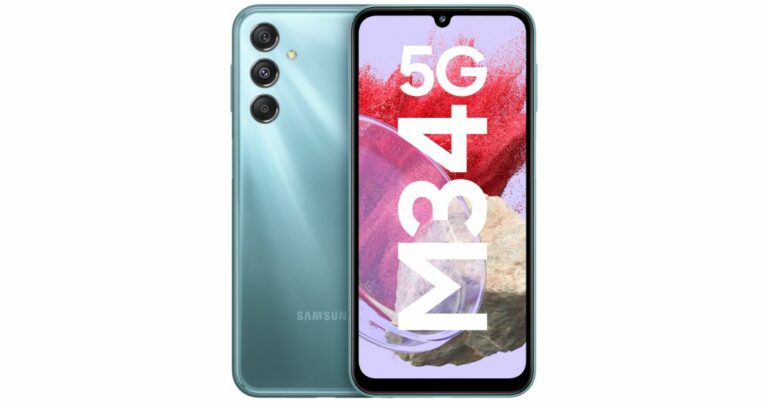
Samsung Galaxy M34 5G with 6,000mAh battery launched in India

The introduction of a new smartphone by Samsung in the Indian market was formally announced today. The Samsung Galaxy M34 5G is the latest addition to the company’s M-Series portfolio. In the nation, Amazon will be the place to get the gadget. A 50-megapixel primary sensor with optical image stabilisation (OIS) capability is a feature of the gadget. Additionally, Samsung’s Nightography feature and a Fun Mode with 16 built-in lens effects are included. A 120Hz  display and an Exynos 1280 SoC are also included with the M34. In addition, the phone utilises One UI 5.1, which is based on Android 13.

Samsung Galaxy M34 price in India and sale details

Samsung Galaxy M34 has been launched in India with a starting price of Rs 17,999 for the 6GB RAM with 128GB storage. There is an 8GB RAM with 128GB storage option as well that will retail at Rs 18,999. However, the company is offering the phone at a special launch price of Rs 16,999 and Rs 18,999 respectively. Samsung Galaxy M34 price in India and sale details The phone is being offered in three colour options of Prism Silver, Midnight Blue and Waterfall Blue. The device is scheduled to go on sale from July 15 via Amazon and Samsung online stores. M34 is currently up for pre-orders.

Samsung Galaxy M34 specifications

The Full HD+ 6.5-inch display of the Samsung Galaxy M34 has a refresh rate of 120 Hz. The screen is shielded by Corning Gorilla Glass 5 and has a brightness of 1000 nits. The device runs OneUI 5.1, an Android 13-based operating system, and will receive four years of Android software upgrades and five years of security fixes. Inside, there is a built-in Exynos 1280 SoC with a Mali-G68 MP4 GPU, up to 8GB of RAM, and 128GB of internal storage. The triple rear cameras on the Samsung Galaxy M34 include a 50-megapixel primary sensor with optical image stabilisation (OIS). A 2-megapixel macro sensor and an 8-megapixel ultra-wide angle camera are also included. A 13-megapixel sensor is located at the front of the device for selfies and video calls. A 6,000mAh battery powers the device and is said to last up to two days on a single charge. Additionally, the device is capable of 25W wired charging. A dual-SIM card slot, 4G VoLTE, 5G, Wi-Fi 802.11 b/g/n/ac, Bluetooth, GPS, and a USB Type-C connector are all included for connectivity. For the latest gadget and tech news, and gadget reviews, follow us on TwitterFacebook and Instagram. For newest tech & gadget videos subscribe to our YouTube Channel. You can also stay up to date using the Gadget Bridge Android App. You can find the latest car and bike news here.

Viewsonic VP-16 OLED monitor launched in India

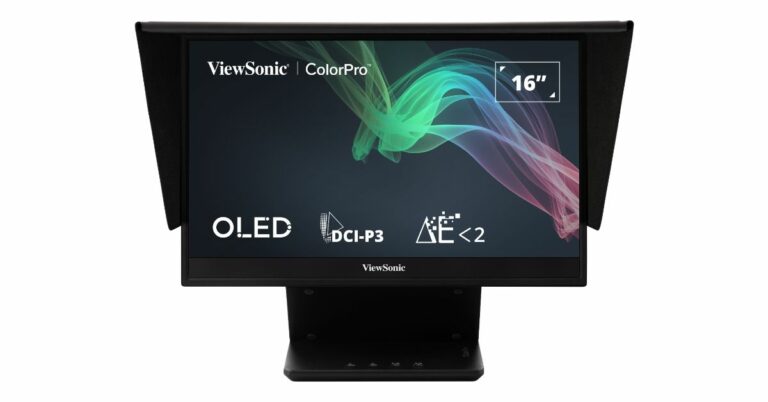
Viewsonic has announced the launch of its first portable touchscreen monitor VP-16 OLED in India. It is an FHD 15.6-inch ColorPro OLED panel monitor. The display is Pantone validated and comes with an adjustable stand and built-in hood and cover accessory. The OLED monitor supports a 60Hz refresh rate. The 15.6-inch ColorPro OLED panel monitor of the Viewsonic VP-16 OLED has 1920×1080 pixels of resolution. The Monitor is touchscreen supported and comes with 1080p Full HD resolution and Pantone Validation. A number of light-emitting diodes are used to independently illuminate the OLED display. The Viewsonic VP-16 OLED monitor supports a 60Hz refresh rate. The display can be used as an extraordinarily high-quality photo or video preview display for in-field adjustments and both inside and outdoor photography when it is connected to a camera. Viewsonic VP-16 OLED monitor launched in India Additionally, OLEDs are said to offer outstanding image quality and are slimmer and more power-efficient than LCDs because they do not need a backlight or filters. The VP-16 OLED provides a wide colour gamut to 100% DCI-P3, Delta E2, offering improved brightness, contrast, and a wider spectrum of colours. For professionals with precise colour demands the monitor comes with a 100,000:1 high-contrast ratio provides “true black” and depicts lightness and darkness in detail. Additionally, the display emits less blue light than standard monitors, reducing eye strain and enhancing viewing comfort. There is a USB Type-C connectivity and 40W two-way power charging. The monitor can be powered by a laptop or, when plugged into a USB-C power bank or an AC adapter and outlet, it can provide power to a laptop or mobile device via pass-through charging. The display also has a 3.5mm headphone connector and a mini-HDMI port. The OLED panel has a highly adjustable stand and built-in hood. Additionally, the monitor has a removable protective cover that serves as a shading hood for a quick “dark room” effect. An ergonomic height-adjustable stand is a feature of the VP-16 OLED that offers more comfortable viewing angles for practically any working position. The stand also comes with a tripod mount that is easily adjustable for five various orientations. This monitor’s two inbuilt speakers deliver stereo sound. Additionally, the product’s energy STAR accreditation lowers greenhouse gas emissions while saving money on electricity. The Viewsonic VP-16 OLED monitor are available on Amazon and is priced at MRP of INR 75,000 and EUP (end-use-price) Rs 49,999. For the latest gadget and tech news, and gadget reviews, follow us on TwitterFacebook and Instagram. For newest tech & gadget videos subscribe to our YouTube Channel. You can also stay up to date using the Gadget Bridge Android App. You can find the latest car and bike news here.

12 Easy Ways to Fix ‘Call Failed’ Error on iPhone (2024)

0
Sometimes the most basic errors can be the most difficult ones to fix. This is largely because it can take a lot of time to determine the cause of the problem. While you can learn to live with certain issues on your phone, a functional problem with something as essential as placing calls cannot be ignored. In this article, we bring you the top 12 easy ways to fix the ‘call failed’ error on an iPhone. Read Also: Your Threads profile can only be deleted by deleting your Instagram account

Dial *#31#

Your iPhone may not be able to make a call if you have hidden your Caller ID. Hiding your Caller ID allows you to make anonymous calls, but it may not work if the receiver has turned on spam protection. In that case, your call will fail to connect. Simply dial *#31# and try again.

Restart your iPhone

how to fix text message notification sound not working on iphone Restarting your iPhone can fix minor background issues and software glitches that may be keeping it from functioning properly.  To restart your iPhone, simply press one of the volume buttons along with the side key until the power slider appears on the screen. Drag the power slider to the right to turn off your iPhone. Power the phone back on by pressing and holding the side key.

Toggle Airplane Mode

Toggle Airplane Mode Toggling the Airplane Mode on your iPhone can refresh the network and fix any background issues related to the cellular connection. Go to Settings and turn on the toggle bar next to Airplane Mode. Wait for a few seconds and turn it off. Place the call using the dialer. It will likely go through now.

Turn off WiFi calling

If WiFi calling is enabled on your iPhone, it may be keeping the cellular calls from getting connected. Turn off WiFi calling and try placing a call again. Go to Settings>Mobile Data>WiFi Calling and switch off the green toggle bar. Return to the dialer app and place the call.

Update Carrier Settings

Update Carrier Settings Your iPhone’s network provider rolls out regular updates to improve the network connection. Usually, these updates are automatically installed on your phone, but you can always manually check for any pending updates. To update the carrier settings on your iPhone, go to Settings>General>About>SIM Details and tap the ‘Network Provider’ option to receive the latest settings.

Force stop and re-launch the Phone app

iPhone’s native dialer app is not known to malfunction, but on the rare occasion that it does, you can easily fix it by restarting it. Closing the app and opening it again performs a refresh and removes the temporary files that are causing the corruption. Access the app switcher and swipe up on the Phone app’s card to shut it down. Go back to the home screen and tap the app’s icon to restart it.

Make sure you are using the right network operator

Make sure you are using the right network operator If you have disabled automatic network selection on your iPhone, you need to make sure that your device is using the correct network operator to place outgoing calls. Go to Settings>Mobile Data>Network Selection and choose the appropriate network. We’d suggest turning on automatic network selection and letting your iPhone decide which network works for it.

Check your balance

It is possible that the talk time on your SIM card ran out, leading to the suspension of outgoing calls. Use your network provider’s app to check your balance. If you have enough balance, check the plan’s validity. If your calling plan is no longer valid, you will have to recharge it before placing a call.

Re-insert the SIM card

If your iPhone has a physical SIM card inside it, pull it out, give it a quick wipe, and re-insert it into the device. The placement of the SIM card may change slightly over a period of time, leading to minor network hiccups. Reinserting it into the phone can help solve that situation. Once you’ve inserted the SIM back in, try placing the call again and see if it goes through.

Have you been blocked?

If you’re facing the ‘call failed’ error while trying to ring a specific contact, it is possible that the user may have blocked your number. You can easily verify this by calling the user from another number. If the call goes through, it means that your original number is blocked on the user’s end.

Update iOS

Go to Settings>General>Software update. how to fix iphone dictation not working on ios 16 If the ‘call failed’ error is related to a software bug, you may want to update your iPhone to the newest iOS version. Developers are quick to fix these annoying bugs with a software patch. These bugs are more likely to pop up on older iOS versions. Simply go to Settings>General>Software update and check for any pending updates.

Reset Network Settings

Resetting the network settings on your iPhone will un-pair all WiFi networks and Bluetooth devices connected to your phone. You will need to pair with them again. But it may fix the ‘Call failed’ error that you keep receiving on your iPhone. Here’s how you can go about it. Step 1: Go to Settings and select General. Step 1: Go to Settings and select General. how to fix iphone dictation not working on ios 16. whatsapp call not ringing when iphone is locked. 10 Easy Ways to Fix ‘Call Failed’ Error on iPhone (2023) Step 2: Scroll down and select Transfer or reset iPhone. Step 2: Scroll down and select ‘Transfer or Reset iPhone’. 10 Easy Ways to Fix ‘Call Failed’ Error on iPhone (2023) Step 3: Select Reset followed by Reset Network Settings. Step 3: Select ‘Reset’ followed by ‘Reset Network Settings’. whatsapp call not ringing when iphone is locked. 10 Easy Ways to Fix ‘Call Failed’ Error on iPhone (2023)

Frequently Asked Questions (FAQs)

Why is my iPhone saying ‘call failed’?

Your iPhone may throw the ‘Call failed’ error when it fails to connect to the number you dialled. The most probable cause of this issue is a faulty network connection.

What does dialling *#31# on iPhone do?

Dialling *#31# on your iPhone disables your anonymous caller Caller ID. You will not be able to make anonymous calls after dialling that code.

How do I fix the ‘call failed’ error on an iPhone?

To fix the ‘call failed’ error on your iPhone, try toggling the Airplane Mode and restarting the device. If that doesn’t work, check your talk time balance and reinsert the SIM card. Read Also: Spotify is completely removing Apple’s App Store payments from its platform

Conclusion

These are the top 12 easy ways to fix the ‘Call failed’ error on your iPhone. If the problem still persists after trying the fixes mentioned above, it is possible that you are experiencing a hardware-related issue. Take your phone to an Apple-authorised repair centre for further diagnosis. If you have AppleCare+, you will be issued a temporary iPhone while our current device gets fixed.

Samsung Galaxy Z Fold 5, Galaxy Z Flip 5 now up for pre-reservations in India: Details inside

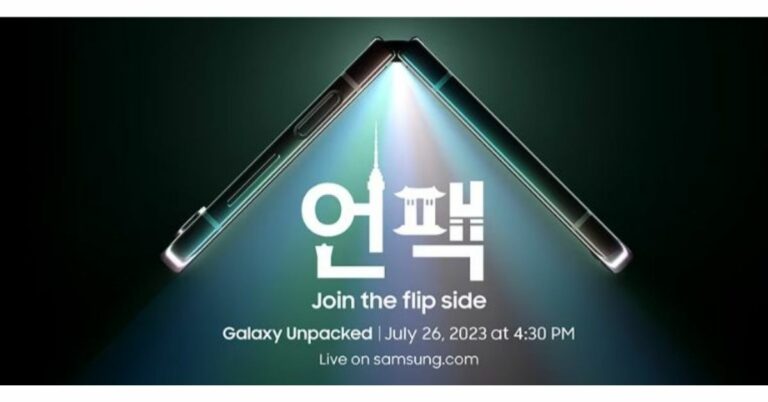
Samsung is all set to release its new foldable phones in India and globally. The company has scheduled to host its next Galaxy Unpacked event on July 26. The Galaxy Z Fold 5 and Galaxy Z Flip 5—the latest foldable devices from the company—may be unveiled. Although Samsung hasn’t officially announced the name of the upcoming Galaxy Z series foldable smartphones it has begun taking pre-orders for its next-gen foldable devices. Samsung Galaxy Z Fold 5, Galaxy Z Flip 5 pre-reservation in India has begun. The company today officially announced that consumers can pre-reserve its next generation of foldable devices starting today. According to the company, customers can pre-reserve Samsung’s next-generation foldable devices by paying Rs 2000 on Samsung.com, Amazon.in and Flipkart. The Bookings can also be made by visiting Samsung’s Exclusive Stores and leading retail outlets across the country. Also Read: Samsung Galaxy Unpacked Event confirmed for July 26, hints a foldable phone Pre-reserved customers will get benefits worth Rs 5000 on the purchase of Samsung’s next generation of foldable devices that will be unveiled globally on July 26. The upcoming Galaxy Unpacked event will be held on July 26 in Seoul, South Korea, rather than earlier ones that were held in the US and Europe. The event will be live-streamed via the company’s website and YouTube channel starting at 4.30 PM IST. The company’s newest foldable smartphones, the Galaxy Z Fold 5 and Galaxy Z Flip 5, as well as the Galaxy Tab S9 series, are likely to be presented. It is predicted that the Samsung Galaxy Flip 5 would have a cover display that is considerably bigger and equivalent to the Razr 40 Ultra. At the next Unpacked event, Samsung is anticipated to introduce a number of other devices in addition to the Galaxy Z Flip 5. The business also intends to introduce a larger Galaxy Fold 5 with an updated hinge. The company is expected to release two new accessories: the Galaxy Watch 6 series and the Galaxy Buds 3 TWS headphones. Galaxy Watch 6 and Galaxy Watch 6 Classic, both of which are anticipated to have larger displays than their predecessors. The Galaxy Watch 6 series, which will also provide notifications for irregular heart rhythms, is predicted to be powered by the Exynos W930 chip from the firm. For the latest gadget and tech news, and gadget reviews, follow us on TwitterFacebook and Instagram. For newest tech & gadget videos subscribe to our YouTube Channel. You can also stay up to date using the Gadget Bridge Android App. You can find the latest car and bike news here.

How to join Threads without linking your Instagram account?

Instagram’s rival to Twitter is finally here. After being in the pipeline for the last few months, ‘Threads’ went live on July 6. The social media platform amassed more than 10 million sign-ups within the first 24 hours. While Threads has managed to generate a lot of interest immediately upon launch, many Twitter users are hesitant to join the app due to one crucial reason. Unlike Twitter, you cannot sign up for Threads using your email address. You need to link your Instagram account to Threads in order to use the app. For a lot of users, the charm of Twitter lies in the option to post with their anonymity intact. You may not want all your Twitter followers to have access to your personal Instagram account as well. Luckily, there is a way you can anonymously post on Threads. In this article, we show you how to join Threads without linking your Instagram account. Read Also: Spotify is completely removing Apple’s App Store payments from its platform

Create a burner Instagram account

Step 1: Launch the Instagram app and sign out of your existing account. Step 2: From the login page, select ‘Create new account’. Step 2: From the login page, select ‘Create new account’. Step 3: Enter a name for your profile. This isn’t your Instagram handle, it is the screen name that shows up when people open your profile. Since you’re making a burner account, you don’t have to enter your real name here. However, the name that you enter here will also be locked for your Threads account. In order to change your Threads profile name, you will need to change your profile name on Instagram. Enter a name for your profile. Step 4: Now, create a password. Step 4: Now, create a password. Step 5: Instagram will ask for your date of birth. Enter a random date that qualifies for the minimum age requirement. Enter a random date that qualifies for the minimum age requirement. Step 6: Create a username. This will be your official Instagram handle. Hit ‘Next’ when you’re done. Step 6: Create a username. This is your Instagram handle. Hit ‘Next’ when you’re done. Step 7: Instagram will now ask for your mobile number. You can give your personal mobile number, but we wouldn’t advise that since this is a burner account. You can use a secondary number for this step, check out our list of the best burner phone number apps. However, the quickest way to create a burner account is by using a temporary email address. So, tap on ‘Sign up with e-mail address’. So, tap on ‘Sign up with e-mail address’. How to join Threads without linking your Instagram account? Step 8: Now go to a temporary email address website to generate a burner email for your Instagram account. Simply search for ‘temp mail’ on Google and pick a random site, or use https://tempail.com/. generate a burner email for your Instagram account. Step 9: Once you’ve entered the email address, Instagram will email you a 6-digit verification code. Go back to the temporary mail website and check the inbox for the code. Enter it on Instagram. Instagram will email you a 6-digit verification code. How to join Threads without linking your Instagram account? Step 10: Hit ‘I Agree’ on the Terms & Conditions page. Step 10: Hit ‘I Agree’ on the Terms & Conditions page. Set up your Instagram profile by adding a profile picture, writing a bio, and filling out the profile details. Make sure you don’t sync your phone contacts or Facebook friends with this account.

Create a Threads account

Now that you’ve created a burner Instagram account, making an anonymous Threads profile is easy play. Simply follow these steps. Step 1: Launch the Instagram app and tap the profile icon at the bottom right corner of the screen. Step 1: Launch the Instagram app and tap the profile icon at the bottom right corner of the screen. Step 2: Now, tap the hamburger menu at the top right corner of the screen. Step 2: Now, tap the hamburger menu at the top right corner of the screen. How to join Threads without linking your Instagram account? Step 3: Select ‘Threads’. Step 3: Select ‘Threads’. How to join Threads without linking your Instagram account? Step 4: Tap on ‘Get Threads’. Step 4: Tap on ‘Get Threads’. Step 5: You will be redirected to the Threads app on Google Play Store (or App Store if you’re using an iPhone). Install it on your phone. If you have already downloaded the app, it will auto-launch as soon as you tap ‘Get Threads’. Step 6: Launch the Threads app and select the option to log in with your Instagram account. Make sure the handle belongs to your burner account. Launch the Threads app and select the option to log in with your Instagram account. Step 7: Write a Bio, upload a profile picture, and add an external link to your profile. You can also choose to import all these details from your burner Instagram account. Write a Bio, upload a profile picture, and add an external link to your profile. How to join Threads without linking your Instagram account? Step 8: Tap the arrow icon at the top right corner of the screen when you’re done. Step 9: Choose whether you want your Threads profile to be public or private. Step 9: Choose whether you want your Threads profile to be public or private. How to join Threads without linking your Instagram account? Step 10: In the following window, select ‘Join Threads’. Step 10: In the following window, select ‘Join Threads’. How to join Threads without linking your Instagram account? You can now start using Threads! Once you’ve set up your Threads profile, you can log out of your burner account on Instagram and start using the primary one. This will not have any effect on the Threads app, you will stay signed in with your burner there.

Frequently Asked Questions

What is the Threads app?

Threads is Instagram’s rival to Twitter. While Instagram is a media-centric platform, Threads (like Twitter) is more text-based.

Who owns the Threads app?

Threads is owned by Meta Platforms Inc., which is Facebook’s parent company.

How do I sign up for Threads?

To join threads, you need an Instagram account. At the moment, you cannot join Threads using just your email address. Read Also: Nothing Ear 2 Black debuts in India, two new features also introduced

Conclusion 

This is how you can join the Threads app without linking your actual Instagram account. While making a burner Instagram account, it may take a few tries to select the right temporary email. Instagram may reject email addresses generated using some of the temp mail providers. You can also sign up using a burner phone number from one of the secondary phone number apps. For the latest gadget and tech news, and gadget reviews, follow us on Twitter, Facebook and Instagram. For newest tech & gadget videos subscribe to our YouTube Channel. You can also stay up to date using the Gadget Bridge Android App. You can find the latest car and bike news here.

Thread’s growing popularity enrages Twitter, threatens to sue Meta

Instagram’s parent company Meta unveiled Threads on Wednesday. Threads is a text-based social media platform similar to Twitter and other text-based social networks. Due to the popularity of the rival app Threads, Twitter has threatened to sue Meta. The newly launched app has won the title of most fastest downloaded app ever surpassing the chatbot ChatGPT. More than 30 million people downloaded Instagram’s new app in just 16 hours.  The Elon Musk-owned microblogging platform is now planning to take legal action against Meta following the successful launch of Threads. Reportedly a lawyer for Twitter accused Meta of stealing trade secrets by employing former Twitter employees in a letter that was addressed to CEO Mark Zuckerberg on Wednesday. Semafor was the first to report on the letter. The veracity of the letter was confirmed to CNN by a source with knowledge of the situation.
Musk tweeted, in response to news stories about the letter, “Competition is fine, cheating is not.”
Also Read: Instagram’s Threads goes live on the web for a few hours prior to launch Threads was launched by Meta in order to take on Twitter. The company head Mark Zuckerberg revealed that more than two million people had downloaded Threads. And within 16 hours of its launch, the app gained over 30 million downloads. Five million people had downloaded Threads by another two hours. The number of downloads had risen to 10 million by the time Meta’s chief went to bed on Wednesday night. The app had more over 30 million downloads when he woke up on Thursday morning, he claimed. Threads was the top-rated free app on the iOS App Store as of Thursday afternoon. Also Read: Your Threads profile can only be deleted by deleting your Instagram account The chatbot ChatGPT, which was quickly surpassed, had one million downloads in the first five days of its existence, according to OpenAI, ChatGPT’s creator. With more than 237 million daily users, Twitter continues to lead, according to the most recent statistics made available. Note that in order to delete the Threads accounts users need to delete their Instagram account. Instagram stated that it working on additional options for Threads users to cancel their accounts. For the latest gadget and tech news, and gadget reviews, follow us on TwitterFacebook and Instagram. For newest tech & gadget videos subscribe to our YouTube Channel. You can also stay up to date using the Gadget Bridge Android App. You can find the latest car and bike news here.

BGMI redeem codes for 7 July 2023, claim and receive rewards and benefits

After being banned for nearly ten months, Battleground Mobile India, aka BGMI, is officially available again in India. BGMI fans are looking for ways to improve their game experience and one such method is the usage of redemption codes, which offers a variety of rewards and advantages using BGMI redeem codes players can gain access to new skins, outfits, loot crates, weapons and free UC and diamonds. As mentioned earlier, these codes give users the chance to earn unique rewards and gain extra benefits while playing the game. This includes GUN SKINS (M4, AKM, M416, AWM, M24, UZI, KAR98K), free character voucher, Andy, Carlo, Sara, Victor character for free, free Anna Character on completing the mission and UC or Royal Pass Discount. So here we have gathered a list of the most recent BGMI redeem codes as of 7 July 2023. Also, redeem these codes asap as these are only valid for a limited duration.

BGMI Redeem Codes for 7 July 2023

  • LEVKIN1QPCZ
  • VETREL2IMHX
  • GPHZDBTFZM24U
  • KARZBZYTR
  • SD14G84FCC
  • FENKYU5ATPD
  • SIWEST4YLXR
  • BDNKUPRMF4
  • ZADROT5QLHP
  • BOBR3IBMTO

How to get free Redeem Codes for BGMI on 7 July 2023?

  • Launch BGMI on your device.
  • Then select the Redeem Code option from the main menu.
  • Next, click on the Redeem code tab.
  • A new window will open, requesting the redemption code.
  • Now enter your BGMI code.
  • Confirm and click on the “Redeem” tab.
  • If your redeem code is valid then you will get a message confirming that your rewards were successfully redeemed.
(Note that these codes are case-sensitive, so be sure to type them correctly to prevent any errors.) For the latest gadget and tech news, and gadget reviews, follow us on TwitterFacebook and Instagram. For newest tech & gadget videos subscribe to our YouTube Channel. You can also stay up to date using the Gadget Bridge Android App. You can find the latest car and bike news here.

Garena Free Fire Redeem Codes Today 7 July 2023: Here is how to claim them

Garena Free Fire is a battle royale game with regular awards and tournaments to keep players interested. If you play Garena Free Fire, you should be aware of the redeem codes that are released on a daily basis. However, because the battle royale game is banned in India, players from other countries can use the Free Fire Redeem codes daily. If you’re unfamiliar with the Garena Free Fire redeem codes or don’t know how to get them, we’ve put together a step-by-step guide to help you redeem them. Check out Garena Free Fire Redeem Codes for 7 July 2023. The Free Fire redeem codes are a great way to get free stuff. These are 12-digit codes that contain alphabets and numbers, as well as an expiration date and time. Because the Garena FF redeem codes cannot be used more than once, you should hurry to the redemption page to claim your free reward before someone else does. To get a free reward, all you have to do is go to reward.ff.garena.com/en, which is the official redemption page. Also, keep an eye on this space for daily updates on Garena Free Fire redemption codes and rewards.

Garena Free Fire Redeem Codes Today 7 July 2023

  • V427K98RUCHZ
  • MCPW2D1U3XA3
  • FFAC2YXE6RF2
  • FBENRFJKIVUZYTR
  • FSV8BERKTYIHUBY
  • FFCMCPSJ99S3
  • XZJZE25WEFJJ
  • FAGTFQRDE1XCF
  • FFCMCPSGC9XZ
  • MCPW2D2WKWF2
  • FFCMCPSEN5MX
  • FFCMCPSBN9CU
  • BR43FMAPYEZZ
  • NPYFATT3HGSQ

How to Get Free Fire Redeem Codes for Garena on 7 July 2023?

  • Visit the Garena Free Fire game’s official website at reward.ff.garena.com.
  • Use your Facebook, Google, VK, Apple ID, Huawei ID, or Twitter account to log in.
  • You’ll be taken to a valid redemption code (s)
  • Copy and paste the 12-digit redemption code into the text box.
  • On the screen, a dialogue box will appear.
  • ‘Ok’ should be selected.
For the latest gadget and tech news, and gadget reviews, follow us on TwitterFacebook and Instagram. For newest tech & gadget videos subscribe to our YouTube Channel. You can also stay up to date using the Gadget Bridge Android App. You can find the latest car and bike news here.

Your Threads profile can only be deleted by deleting your Instagram account

0
Meta’s Twitter rival – Threads – has gained a tremendous number of followers within just hours of its launch. Mark Zuckerberg, CEO of Meta, also announced that the platform had crossed 10 million sign-ups in its first seven hours. An Instagram account is required to onboard Threads but even if we consider how wildly popular the former is, it’s still surprising to see how quickly the number of followers of the new Twitter-rival are going up. However, there is one thing that most users probably don’t know about yet: In order to delete your Threads account, you actually need to delete your Instagram account linked to it. Yes, you read that right. If you go looking for an option to delete your Threads profile, there is a ‘Supplemental Privacy Policy,’ in which the parent company states, “You may deactivate your Threads profile at any time, but your Threads profile can only be deleted by deleting your Instagram account.” Read Also: Instagram’s Threads goes live on the web for a few hours prior to launch The idea behind this is that a user’s Thread profile is a part of their Instagram account only. Needless to say, a lot of users have been surprised to learn this. For the uninitiated, Threads has been launched by Meta to rival microblogging platform Twitter. Threads has been launched in over 100 countries now and its users are going up constantly. It can pose some serious competition to Twitter in the days to come, especially considering that more and more Instagram users are talking about Threads on their Stories too. It should be taken into account that Instagram has more than 2 billion users at this point and this would tremendously help expand Threads’ user base. Zuckerberg posted on the new platform talking about his vision for Threads, “I think there should be a public conversations app with 1 billion+ people on it. Twitter has had the opportunity to do this but hasn’t nailed it. Hopefully we will.” By garnering 10 million users in just seven hours of being launched, Threads has become the fastest growing consumer offering yet. Read Also: Instagram is working on live captions feature on its platform to be known as “Voice Note” for Threads app It is interesting to note that the launch of Threads comes at a time when Twitter has been caught in a web of its own unpopular decisions. Just days back, an announcement to restrict views for unregistered users was criticized a lot and prior to that, a move to temporarily limit the number of tweets users can view in a day had caused people to express anger as well as disappointment. Amid all this, the launch of Threads may seem like a breath of fresh air to a lot of Twitter users unhappy with these decisions. For the latest gadget and tech news, and gadget reviews, follow us on Twitter, Facebook and Instagram. For newest tech & gadget videos subscribe to our YouTube Channel. You can also stay up to date using the Gadget Bridge Android App. You can find the latest car and bike news here.

Spotify is completely removing Apple’s App Store payments from its platform

0
Music-stream app Spotify hasn’t been letting customers subscribe to its Premium membership via Apple’s in-app purchase system for over seven years now. Taking a step forward in the same direction, Spotify is now on its way to drop the support for Apple’s payment system completely. According to a report by Variety, the streaming company has sent an email to its legacy Premium subscribers who are still using Apple’s App Store to notify them that in order to continue their services, they would have to resubscribe using an alternative payment method at the end of this billing cycle. Read Also: Spotify officially makes its way to India, priced at Rs 119 per month The email read, “We’re contacting you because when you joined Spotify Premium you used Apple’s billing service to subscribe. Unfortunately, we no longer accept that billing method as a form of payment. If you wish to keep your Premium subscription, you will need to re-subscribe after your last billing period has ended and your account has been moved on to the Free account.” Spotify has also given its statement confirming that it has started informing “a small number of users that a legacy payment method, that their Premium account is attached to, is being deprecated.” The spokesperson speaking to media also added that these steps taken by Spotify will “help ensure that [it] can continue to provide a consistent best-in-class subscription experience for all our users.” We should mention that Spotify stopped accepting Premium subscriptions via the App store in 2016 because Apple’s in-app purchases charge a commission of up to 30%. This happened just two years after the payment method was added to the streaming platform. In addition to this, customers who continued to pay via App Store were charged an extra $3 per month so that the burden of Apple’s commission fee didn’t fall on Spotify. Read Also: 3 Great Ways to Fix the Spotify Web Player when it stops working In 2019, Spotify also filed an antitrust complaint against Apple with the European Union, saying that the Cupertino-based tech giant’s App Store policies harmed competition. The company had taken issue for Google Play Store’s fee structure, but the two companies had found a solution that worked for both. Google and Spotify announced a pilot program in select markets where users would have the option of paying from both their payment systems. Google charges 4% less than its standard rates for these purchases. Considering that most of Spotify’s existing users had already moved from App Store payments to other methods, the move by the streaming giant is not very likely to affect too many people. For the latest gadget and tech news, and gadget reviews, follow us on Twitter, Facebook and Instagram. For newest tech & gadget videos subscribe to our YouTube Channel. You can also stay up to date using the Gadget Bridge Android App. You can find the latest car and bike news here.

Nothing Ear 2 Black debuts in India, two new features also introduced

The Nothing Ear 2, which debuted in India earlier this year has today been introduced in a new colour variant. The company has launched its 2nd gen TWS earphones in a Black colour variant. Additionally, Nothing has announced two new Nothing X features along with the Ear 2 Black. Nothing Ear 2 now comes in a new black colour option. Along with it, the Nothing X app has received new audio improvements that include an Advanced Equaliser for Ear (2) and Ear (stick) additionally an Ear-specific Noise Reduction function (stick). Nothing Ear 2 Black price in India and availability The newly released Ear 2 Black has a new matte and smokey black finish and was developed after the previously released Ear 2 recently won the Red Dot Design Award. As mentioned earlier the company has also introduced new audio updates on the Nothing X app. It now includes an Advanced Equaliser for Ear (2) and Ear (stick). Plus a Noise Reduction feature just for Ear (stick). Nothing Ear 2 Black price in India and availability

Advanced Equaliser and Noise Reduction

Nothing has introduced the new Advanced Equaliser for the users of Ear (2) and Ear (stick). This feature will allow more precise sound customization. As per the company, the new advanced equaliser gives users even more freedom to control how they want to hear their music through an intuitive and simple graphical interface. Through a parametric 8-band equaliser with a real-time preview of the adjustments, the entire Q factor, and frequency control, it enables a high level of customization. This new feature, which can be accessed through the Nothing X app, also allows users to share their own EQ profiles or download others via QR codes. On the other hand, the Noise Reduction for Ear (stick) will allow users to reduce background noise.

Nothing Ear 2 Black price in India and availability

Nothing Ear 2 Black has been launched with a price tag of Rs 9,999. It is scheduled to go on sale from July 21 via Flipkart and in a few retail locations. The Advanced Equaliser will be available from today on Nothing X for all Ear (2) and Ear (stick) users. Whereas the Noise Reduction feature will also be available today on Nothing X for all Ear (stick) users. For the latest gadget and tech news, and gadget reviews, follow us on TwitterFacebook and Instagram. For newest tech & gadget videos subscribe to our YouTube Channel. You can also stay up to date using the Gadget Bridge Android App. You can find the latest car and bike news here.