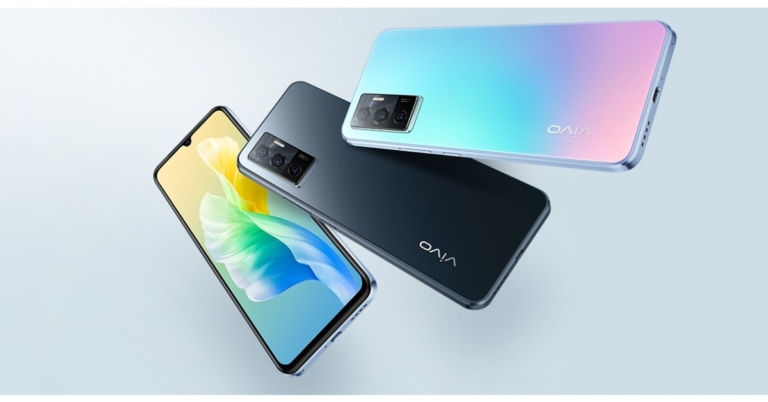
Earlier this week the Indian pricing of Vivo V23 5G and Vivo V23 Pro 5G were leaked. The upcoming V-Series launch is scheduled to take place on January 5th in the country. Ahead of the official announcement Vivo V23e 5G price and launch date in India have been leaked on the web. Though it is part of the forthcoming lineup the device has already debuted in Thailand last month. The MediaTek Dimensity 810 SoC powers the device. It also comes with a 4,050mAh battery that supports 44W flash charging for quick charging. A triple rear camera with a 50-megapixel primary sensor is also included, and the phone runs Android 11.According to the latest report Vivo V23e 5G is going to launch in India a month after the Vivo V23 5G and Vivo V23 Pro 5G gets released here. The device is likely to debut in India in February and its price is slated to fall between Rs 25,000 and Rs 30,000.To recall the device was introduced in Thailand late in November. There it is available in a single 8GB RAM with 128GB of internal storage option priced at THB 12,999 that translates to Rs 29,200. The device is available in two colour options of Sunshine Coast and Moonlight Shadow.
Vivo V23e 5G specifications, features
In terms of specifications, The Vivo V23s 5G features a full HD+ AMOLED display measuring 6.44 inches in terms of specifications. The screen has a resolution of 1.0802,400 pixels. Out of the box, the phone runs FunTouch OS 12, which is based on Android 11. The MediaTek Dimensity 810 SoC is housed inside, along with 8GB of RAM and 128GB of internal storage. A microSD card can be used to expand the memory up to 1TB.The Vivo V23e has a triple rear camera setup that includes a 50-megapixel primary sensor with an f/1.8 aperture for photos and videos. An 8-megapixel ultra-wide angle lens with f/2.2 aperture and a 2-megapixel macro sensor with f/2.4 aperture is also included. A 44-megapixel front-facing camera is available for selfies and video calls.Among the connectivity options are a USB Type-C port, Bluetooth Version 5.1, GPS, and dual Wi-Fi. On the screen, there’s also a fingerprint sensor. Vivo V23e 5G has a 4,050mAh battery and supports 44W fast charging.
For the latest gadget and tech news, and gadget reviews, follow us on Twitter, Facebook and Instagram. For newest tech & gadget videos subscribe to our YouTube Channel. You can also stay up to date using the Gadget Bridge Android App. You can find the latest car and bike news here.
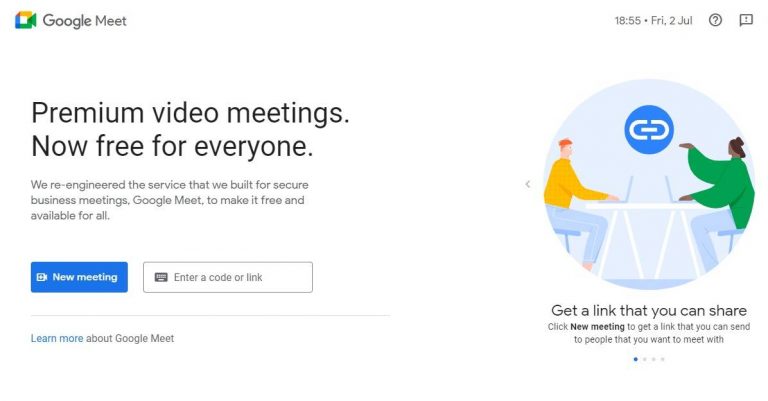
Google Meet is an online meeting client that is used by many. It is one of the most used online meeting clients that we use in our everyday life. It is easy to use, comes with interesting features, and can be accessed on any device and it also does not require to be downloaded. You can access Gmeet in the Gmail app and on the web browser as well, without compromising on features. But if you have ever faced echo issues then you should go through this article, because we will show you how to solve the Google Meet sound echo problem.So now you don’t have to worry about any echo issues in your G-meetings, just follow the steps given below and you will be able to omit any echo from your meetings:
In This Article
Check if you are creating an echo
One of the great features of Google Meet is that it sends a pop-up notification during a meeting if an echo is detected. When you receive that pop up then you can click on Get help here to troubleshoot the issue. It offers three recommendations to remove echo from your end.
Sitting in a room well isolated can reduce the amount of echo and background noise. Also, try to attend meetings in that room of your house which is filled with sound-absorbing materials such as rugs, mats, carpets, and heavy curtains. Soft materials like blankets and rugs have the ability to absorb sound up to some extent. Also, you have to make sure that while attending the meeting you are not directly facing a wall, as it will reflect back your voice and can produce an echo that you do not want.
Use of the Microphone correctly
Most people don’t know where the microphone of their device is placed, so either they end up blocking the MIC on their phone or they stay too far from the MIC of their laptop, as a result, it produces an echo. If you attend meetings on a phone then mics are generally placed at the bottom of the phone and on the top bezel in the case of laptops. So make sure that you are not too far from them because it will produce an echo. Additionally, you should also use an external mic if it is available with you, or you can just use any normal pair of earphones. External MIC/earphones generally are better than onboard mics on most laptops. Using a good microphone will omit most of the echo that is produced.
Smart TVs are very common these days, they are now very easily available at a price similar to a normal TV. Purchasing a smart TV makes more sense since these smart machines allow access to many channels that offer TV programs, movies, and music without the need to connect a TV antenna or a cable. But if your smart TV has now slowed down then this article is for you. Here are the 13 best ways to make your Android TV run faster. So it’s time to give a new life to your TV and make it faster and more enjoyable. Just look and follow the hacks and methods mentioned below and you will be able to make your smart TV run faster.Read Also:Asus Chromebook CM14 with MediaTek Kompanio 520 CPU launched in India
In This Article
Clear Cache data and app data
If your TV has now slowed down then chances are that you have filled up the storage of your TV or maybe some apps are the culprit. In order to clear data or cache data from your TV just follow the given steps:Step 1: Go to your Android TV Settings, different TVs might have different methods so just look for your TV in the instruction manual.Step 2: Then go to Apps and tap your preferred app.Step 3: Click on Clear Cache and press the OK button, or just clear all the data and press OK.That is how you can clear data on your TV and it should make your TV run faster.
Uninstall apps
If clearing data and cache didn’t work then you should uninstall the apps that are just taking up space and you do not use them. This is the best method to clear up the space on your TV. To uninstall apps just follow the steps:Step 1: Open your Android TV Menu.Step 2: Head to the Apps section and highlight the app from the list you want to remove.Step 3: Press and hold the Select or Enter key on your TV Remote.Step 4: The final step is to just uninstall the app.And that’s how you can uninstall any app that you do not use on your Android TV.
Free the Storage Space
If you are running out of storage space on your TV, it is a good idea to clear it up. If there’s not enough storage space, your TV can slow down considerably.
Step 1: Go to Settings and select More Settings.
Step 2: Click on Storage.
Step 3: This is where you’ll see the storage breakdown among Apps, Media, Downloads, and more. Visit each category and delete the files you no longer need.
Disable Bloatware Apps
Some Android TVs (especially in the budget category) ship with a lot of bloatware apps that ultimately slow it down. Some of these apps can’t be removed from the TV, but you can disable them. If you don’t use the Google app on your device, you should consider disabling it as well. Here’s how.
Step 1: Go to Settings.
Step 2: Scroll down and select Apps.
Step 3: Select Google.
Step 4: Hit Disable.
Similarly, you can disable other bloatware apps on your TV.
Read also: Best 4 ways to remove Chinese apps from your Android
Turn Off Usage Diagnostics & Location Tracking
If you will turn off this feature then it will help to improve the performance of your Android TV and will make it run faster. Since Android TVs are not meant for multitasking, this feature runs in the background and consumes resources making your TV run slower. To disable this just follow the steps:Step 1: Open the Settings on your Android TV, and scroll down and click on Location under Personal.Step 2: Over here, click on Location Status and turn it Off.Step 3: Now, just go back to the Settings menu and click on Usage & Diagnostics.Step 4:Disable the toggle to turn it Off.This is how you can turn off this feature and make your TV run faster.
Disable Automatic Software Updates
Android TVs have a decent processor inside them but that is not meant for multitasking or handling many tasks at the same time. Background updates take up resources from your TV and make it slow down. If you want to make your TV run faster then just disable the background update settings by following these steps:Step 1: Open the Settings menu on your TV.Step 2: Go to the System Software Update menu.Step 3: Over here you will have to turn off automatic updates and that is it.
Disable Automatic App Updates
You have to turn off the automatic app updates as well in order to make your Android TV run faster. To do this just follow the given steps:Step 1: Open the Google Play Store on your Android TV, and go to Settings.Step 2: Over here, click on Auto-update apps and turn it off.It is that simple, just 2 steps and that is it!
Limit Your TV’s Background Processes
Using developer options, you can decide the number of processes your TV is allowed to handle in the background at any given time. Doing so will help in speeding up its performance.
Step 1: Go to Settings and select About.
Step 2: Click on Build Number 7 times to enter Developer Mode.
Step 3: Go back to Settings and select More Settings.
Step 4: Scroll all the way down and select Developer Options.
Step 5: Click on Background Processes Limit.
Step 6: Select the number of processes you want your TV to handle in the background.
Turn Off or Reduce Animation Scales
Using developer options, you can also turn off or reduce the animations on your TV to make it run faster. Here’s how.
Step 1: Go to Settings and select Developer Options.
Step 2: Scroll down to the animation scales section.
Step 3: Turn off the Window Animation Scale, Transition Animation Scale, and Animator Duration Scale. If you don’t want to turn them off entirely, you can reduce them by a certain factor.
Use a higher bandwidth connection
Since Android TV relies on the internet they need to have a good internet connection otherwise you might see lags in the performance of the TV. So, if possible then connect your TV to a 5GHz band, since it offers more speed. Also, make sure that the WiFi router is fairly close to the TV. If possible then use a wired connection rather than using WiFi since a wired connection offers lossless speed and you will feel fewer lags in your experience.
Close apps
We all have a habit of jumping straight to the home and not closing the apps. Again, smart TVs do not have specs that are made to handle many tasks at the same time. When you jump straight to the home screen, the app keeps running in the background and takes up resources from the TV, slowing its performance. So it is advised that you should always press the back button to close the apps, not the home button.
Update Your TV’s OS
Older software versions can cause your TV to slow down. Make sure its updated to the latest OS version. Here’s how.
Step 1: Go to Settings and select About.
Step 2: Hit System Update.
Step 3: Click on Software Update and select Check For Updates.
Step 4:Download any new updates.
Turn Off Account Syncing
Let’s be honest, you don’t really need to sync your TV data to your Google account unless you’re replacing the unit with a newer one. Background syncing can use significant resources and end up slowing down your TV. Here’s how you can disable it.
Step 1: Go to Settings and select Accounts & sign-in.
Step 2: Select your Google Account.
Step 3: Turn off the toggle switches for all the synced services.
Frequently Asked Questions (FAQs)
How do I make my Android TV go faster?
Get rid of the bloatware apps on your TV, clear the cache of your most used apps, and free up its storage to make it go faster.
How do I update my Android TV software?
Go to Settings>About>System Update>Software Update>Check for Updates and download any pending updates.
These are the top 13 ways to make your Android TV faster. By simply freeing up the storage space and removing the bloatware apps on the device, you will see a visible bump in performance. If the videos across different streaming apps take a lot of time to load, you need to switch to a better internet connection. If you know any other ways to make your Android TV run faster, let us know in the comments!
If you have ever been in a situation where you need to be a detective to uncover someone’s nefarious plans? If yes, then you must have thought about how you can record audio on a phone with the screen off. This article is for you if you also want to know how you can record audio on a phone with the screen off.Just follow the methods or ways mentioned below:
In This Article
Use the native audio recorder
Almost all smartphones have a built-in audio recorder that lets users record audio in the background. Recording audio in the background means recording the audio when the screen is turned off or you are doing some other work. In order to record audio in the background with a native recorder just follow these steps:Step 1: Open the audio recorder app on your phone, it should be by names like- Audio recorder, Recorder, Sound Recorder, Voice recorder, etc.Step 2: Now that you have opened the recorder, it is time to press the record button.Step 3: After pressing the record button just jump back to the home menu or simply tap the power button to lock your phone.And this is how you can enable sound recording in the background. This hack comes with a downside though. Some phones do not have either a built-in audio recorder or it does not allow recording in the background.
Record a voice note directly from the lock screen
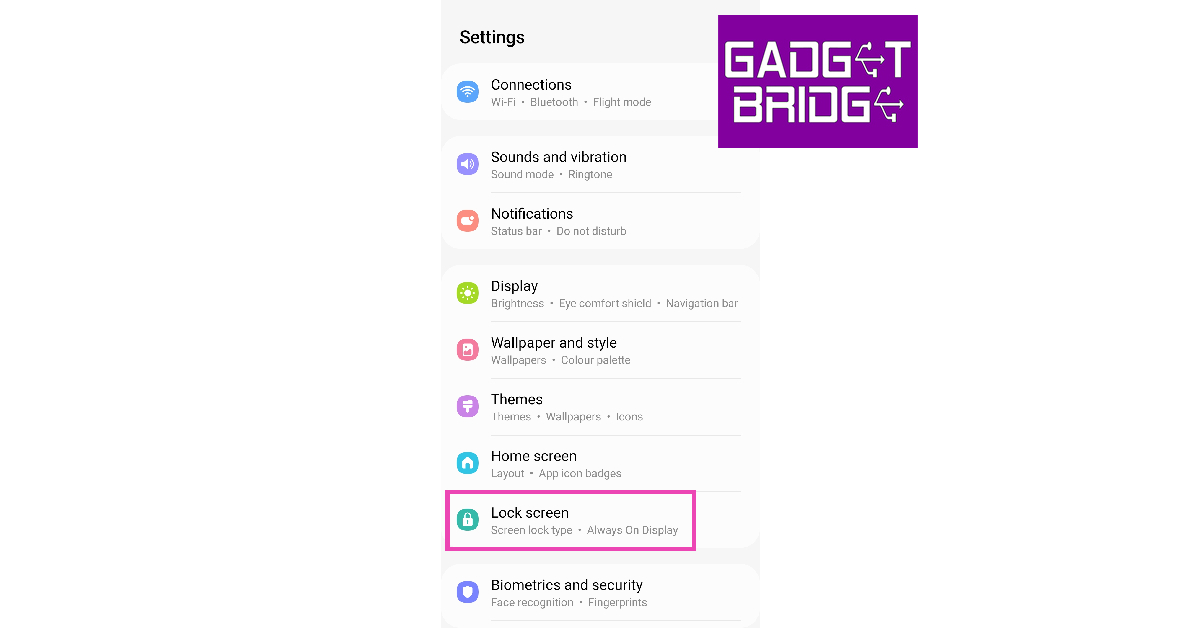
Using the native voice recorder widget on your lock screen, you can record audio without even needing to unlock your phone. Here’s how.
Step 1: Go to Settings and select Lock screen.
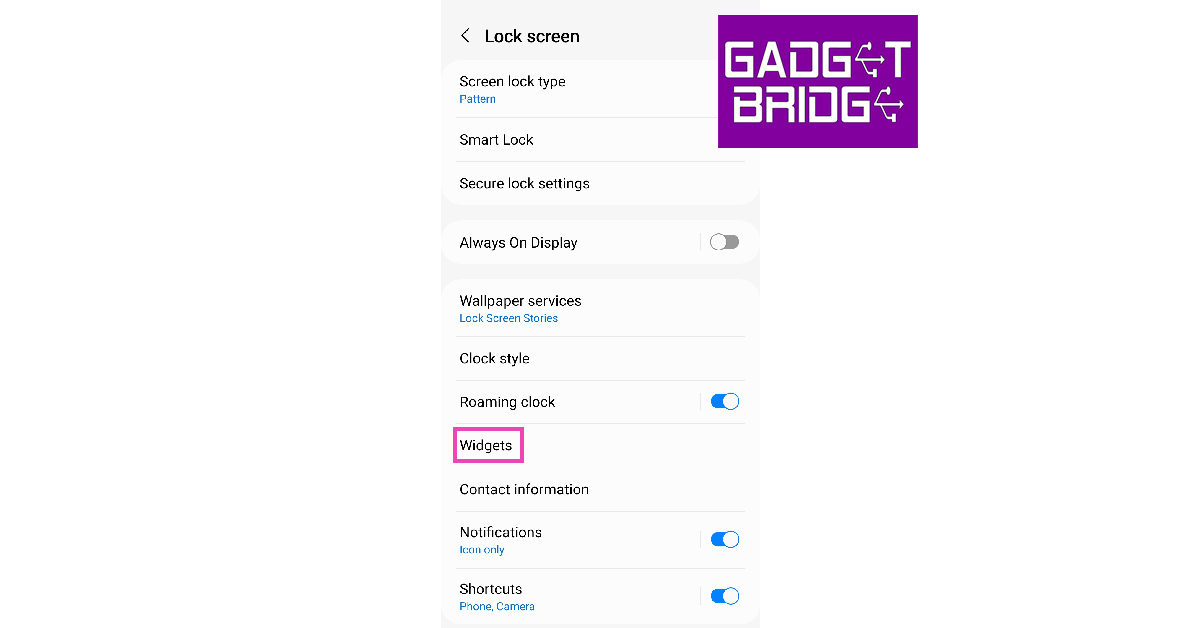
Step 2: Tap on Widgets.
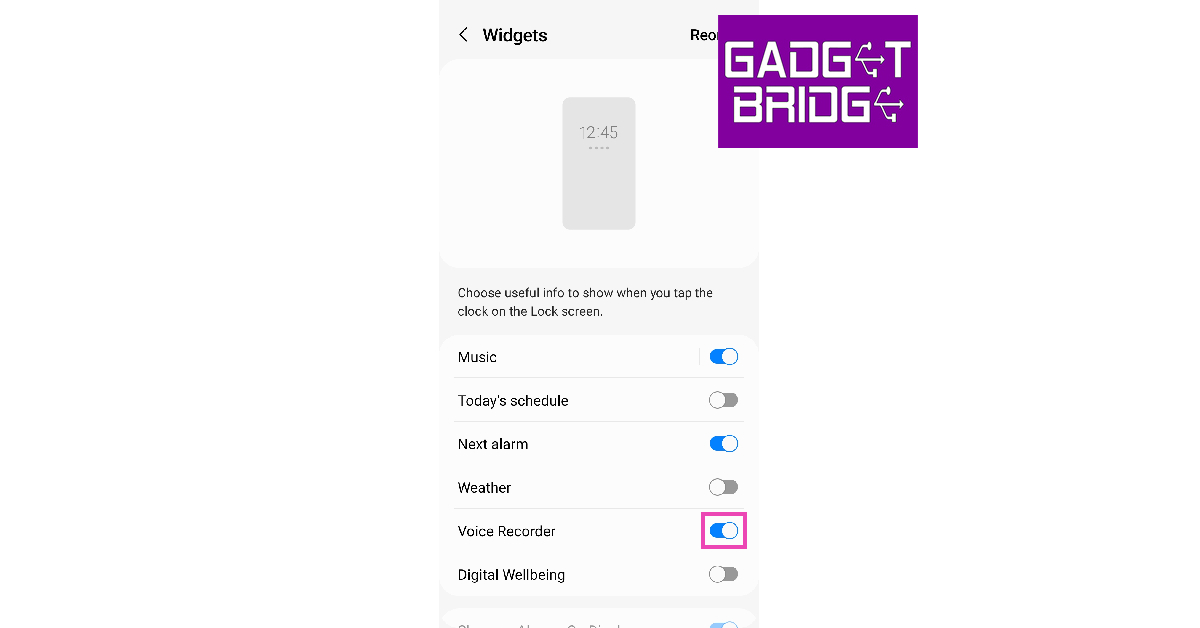
Step 3: Turn on the toggle switch for Voice Recorder.
Step 4:Lock your phone’s screen.
Step 5: Press the side key once.
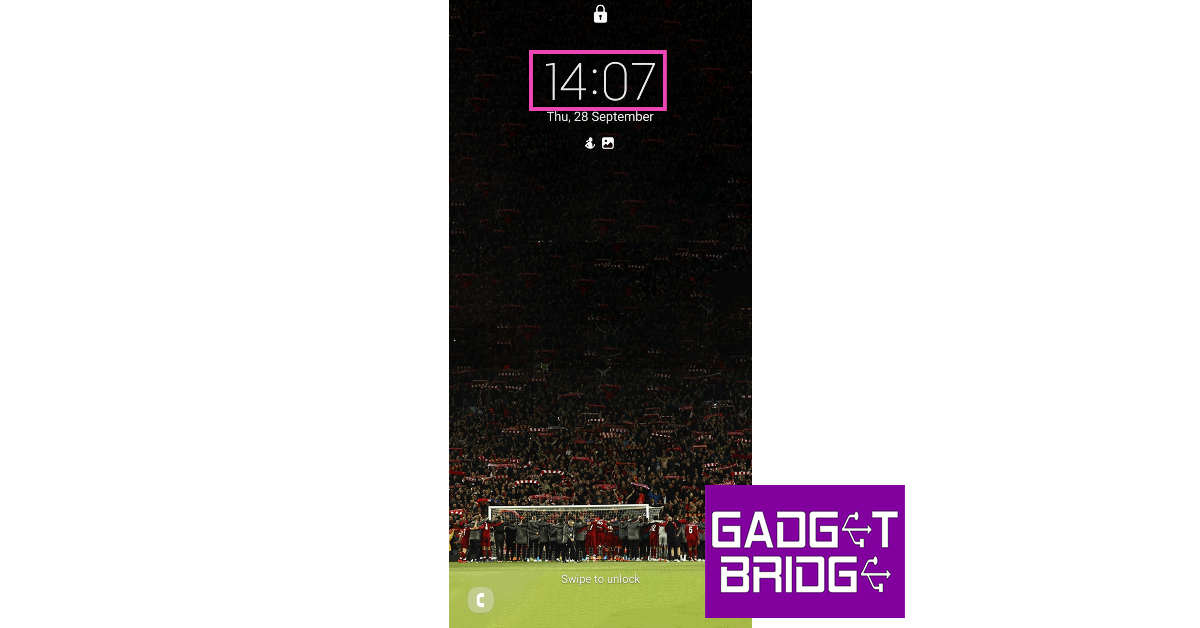
Step 6: Tap once on the clock to reveal the widgets.
Step 7: Hit the red button on the voice recorder widget to start recording audio.
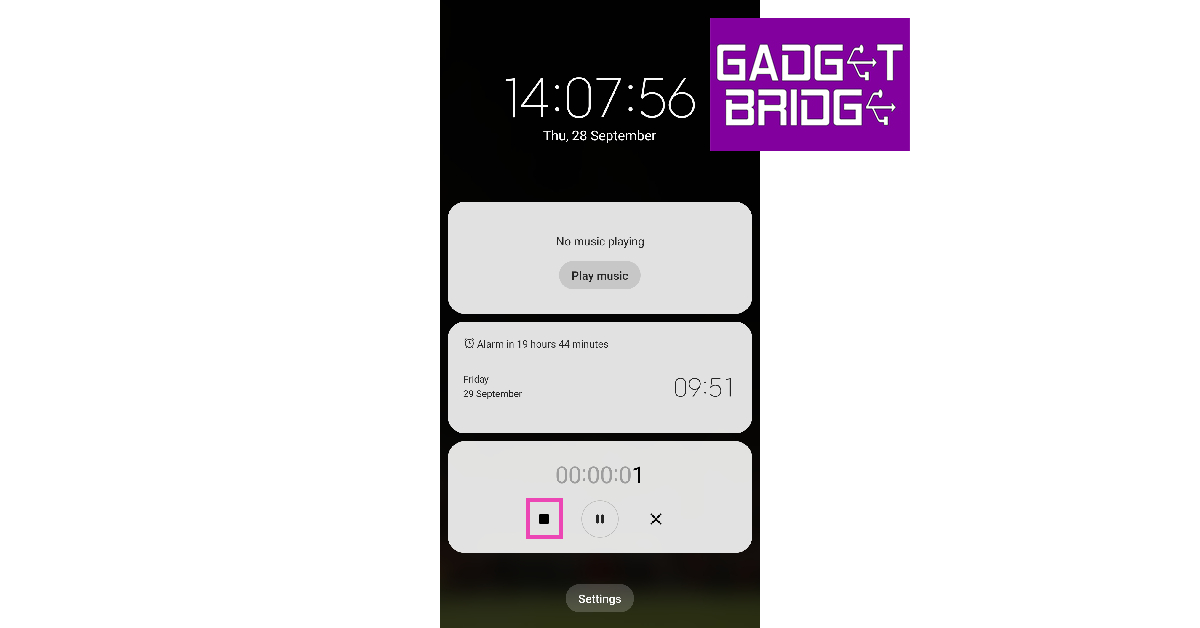
Step 8: Hit the Stop icon when you’re done.
Read also: 4 Ways to record Clubhouse audio conversations
Use GOM Recorder
GOM Recorder is an audio recording app that can be very useful in certain situations where you have to quickly start recording the audio. The GOM Recorder comes with motion gestures you just have to set the intensity and shake your phone to start recording. It also comes with a schedule recording feature, along with a quick widget that you can add to your home screen, these features make GOM Recorder an easy audio spy tool for Android. You can download GOM Recorder by clicking here.
Smart Recorder
The next app on our list is Smart Recorder that is specifically designed for continuous recording, thanks to its skipping silence on-the-fly feature. You do not have to press the record button or the stop/pause button when there is no conversation, the app does it all by itself. You just have to turn on the app once and leave it, the app automatically removes the part where there was silence. This can be extremely useful. The app also offers tonnes of useful features including sensitivity control, live audio spectrum analyzer, gain control, Wave/PCM encoding with adjustable sample rate, and whatnot. You can download Smart Recorder by clicking here.
Background Video Recorder
The final app on our list is Background Video Recorder. With the above apps you can just record the audio, but using this app you can also record videos in the background without letting anyone know about it. Just install the app by clicking here. The app has an option to disable camera sounds and previews so, no one will be able to tell you’re actually recording instead of playing a game or watching a movie.
Frequently Asked Questions (FAQs)
How do I record audio on my Android smartphone with the screen off?
Most native audio recording apps on Android smartphones let you record with the screen off. Simply launch the app, start recording and lock the screen.
How do I record audio on my phone without unlocking it?
Most Android smartphones allow you to place a widget for the voice recorder app on the lock screen. Go to Settings>Lock screen>Widgets to enable it. Using this widget, you can record audio without unlocking your phone.
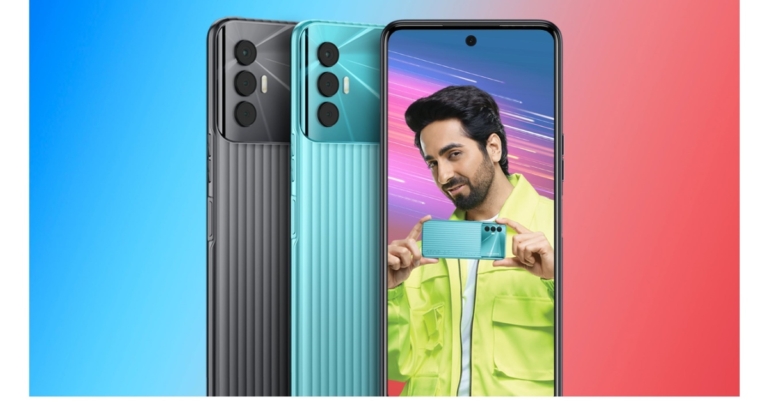
Tecno Spark 8 Pro has officially launched in the Indian market. As the name suggests it is an upgraded model of Spark 8 that arrived in India a few months back. The key highlights of the smartphone include a 5,000mAh battery with support for 33W fast charging. The device is powered by MediaTek Helio G85 SoC and sports a 48-megapixel primary sensor.
In This Article
Tecno Spark 8 Pro price in India and availability
Tecno Spark 8 Pro has been launched in India at a launch price of Rs 10,599 for the single 4GB RAM with a 64GB storage model. The device comes in four colour options of Black, Komodo Island, Turquoise Cyan, and Winsor Violet. This budget smartphone is now listed on Amazon and is scheduled to go on sale from January 4 via the e-commerce platform.
Tecno Spark 8 Pro specifications
Tecno Spark 8 Pro features a 6.8-inch full-HD+ Dot-in display with 1,080×2,460 pixels of resolution. The screen offers a 20.5:9 aspect ratio and 500 nits of peak brightness. It runs on Android 11 with HiOS v7.6 on top and is powered by a MediaTek Helio G85 octa-core processor and 4GB of LPDDR4x RAM and up to 64GB of eMMC 5.1 storage that can be expanded up to 512GB via microSD card. The internal storage can also be used to virtually expand the RAM by up to 7GB.The Tecno Spark 8 Pro has a triple rear camera setup for photos and videos, with a 48-megapixel primary sensor and an f/1.79 aperture, as well as a 2-megapixel secondary sensor and an AI lens. A front-facing 8-megapixel selfie camera sensor with an f/2.0 aperture and dual-LED flash is also included.Battery and connectivity Tecno has included a 5,000mAh battery with 33W fast charging support in the Spark 8 Pro. 4G VoLTE, Wi-Fi 802.11ac, Bluetooth v5.0, GPS/ A-GPS, and a USB Type-C port are just a few of the connectivity options available. An accelerometer, ambient light, proximity, and a fingerprint sensor on the side are among the sensors onboard.
For the latest gadget and tech news, and gadget reviews, follow us on Twitter, Facebook and Instagram. For newest tech & gadget videos subscribe to our YouTube Channel. You can also stay up to date using the Gadget Bridge Android App. You can find the latest car and bike news here.
31 December 2021 Amazon Quiz has gone live on its platform. The quiz timings are 12 AM to 11:59 PM. The Amazon App users can participate in the quiz daily and all they have to do is submit correct answers to the questions asked on the e-commerce platform. Today’s participants can get a chance to win Rs 30,000 Amazon Pay Balance.Amazon brings a fresh questionnaire that contains 5 questions daily. These questions are based on current affairs and general knowledge. The quiz can be played from 8 AM to 11:59 PM and the contestants need to answer correctly to enter into a lucky draw.Only one person is declared as a winner and the results will be announced at the end of every month. And to make sure that you give correct answers to all the 5 questions Gadget Bridge everyday updates all the answers to the Amazon Quiz. Do check out 31 December 2021 Amazon Quiz Answers to win Rs 30,000 Amazon pay Balance.
In This Article
31 December 2021 Amazon Quiz Answers
Question 1: Which actor is set to wear the black cape as the latest Batman in an upcoming feature film on the superhero?
Answer: Robert Pattinson
Question 2: Which team did Namibia defeat to register its first-ever win in a T20 World Cup match?
Answer: Netherlands
Question 3: Which city now boasts the highest infinity pool in the world?
Answer: Dubai
Question 4: During a game of this sport, which of these scores are you likely to see?
Answer: 15-0
Question 5: This ancient statue is believed to depict which Greek goddess?
The Samsung Galaxy Flip is one of the best foldable phones out right now, with its clamshell design the users get a nostalgic feeling of the early 2000s. Xiaomi is also working on Samsung Galaxy Flip rival and here are 4 things to know about the new Xiaomi Clamshell phone.
In This Article
About the patent
Xiaomi already has theMi Mix Fold in its portfolio, they are now planning to add another foldable with a clamshell design. The company patented a device under the application number 2020301357510 at CNIPA (Chinese National Intellectual Property Association) and from the patent sketches the resemblance of the device with Galaxy Z Flip 3 can be seen. Most of the details still remain unknown including the name of this upcoming flip phone from XiaomiRead also:Here’s another look at what the foldable iPhone may look like
Design
In the patent images, we can clearly see a hinge dividing the phone horizontally into two. We can also see a front pill-shaped camera cutout and a horizontal camera module. On the bottom side, we can see the type-C port and SIM card slot as well. Also, the design is more suitable for most people since when the phone is folded into half the size it fits very easily inside the pocket. Another benefit of the clamshell design is that it offers a more sensible screen aspect ratio, so watching movies and videos won’t be a problem in this type of design.
Dual display on the phone
Just like its inspiration, it looks like that the Flip phone from Xiaomi will also feature a secondary display at the back of the phone. The secondary display can be very useful to check time, notifications, and also to click selfies with the back of the camera. TheGalaxy Z Flip 3 features a 1.9-inch Super AMOLED display at the back of the phone.
Price
Samsung has been a leader in the foldable department but their phones are very expensive with the cheapest Galaxy Z Flip 3 costing you a whooping Rs 85,000, for the pretty average specs that it offers. The expected price for the upcoming Flip phone from Xiaomi could be less than Rs 75,000. If it gets launched in this price range then it will take the title of the most affordable folding phone, currently, that title is held by the Samsung Galaxy Z Flip 3. Since the foldable technology is getting more easily accessible it does look like that we will be seeing a lot of foldable phones in the year 2022. Read also:Top 5 Samsung phones to launch in quarter 1 of 2022For the latestgadget and tech news, andgadget reviews, follow us onTwitter,FacebookandInstagram. For newesttech & gadget videos subscribe to ourYouTube Channel. You can also stay up to date using theGadget Bridge Android App. You can find the latestcar and bike news here.
Samsung phones are associated with trust and quality at this time. They are usually a bit more expensive than other phones offering the same specs, but people go for the trust value that the company provides. So if you are a Samsung fanboy or you trust the company and use Samsung phones or want to switch to Samsung this article is for you. Here are the top 5 Samsung phones that will launch in quarter 1 of 2022So, just check out the list below and select your new Samsung device.
In This Article
Samsung Galaxy S21 FE (Fan Edition)
Image Courtesy: CoinBRSIf you want to get a flagship experience without making a huge hole in your wallet Samsung Galaxy S21 FE is for you. With the Galaxy S20 FE, Samsung had entered into a new market and it was also an instant hit. Samsung Galaxy S20 FE was an all-around good Samsung flagship at an affordable price. Based on the most recent specs leak, the Galaxy S21 FE will have a 6.41-inches 120Hz FHD+ AMOLED display. Powering this setup will be Snapdragon 888 or Exynos 2100 chipset and a 4,500 mAh battery with 25W charging speeds. The phone will come somewhere in January 2022.The expected price for S21 FE is Rs 58,000.
Samsung Galaxy S22 Ultra
Image Courtesy- FrontPageTechIf you want to experience a true flagship that the company can offer you should go for the S22 Ultra. In the flagship world, Samsung’s S series is the most important series. They are the flagships that come at the starting of January, and they set the bar for the upcoming premium smartphones. The S21 series was a hit series and it looks like Samsung will shake the market again with its S22 series. The Samsung Galaxy S22 Ultra is the best that Samsung can offer. Some specs of the device are as follows- 6.8-inches QHD+ Dynamic OLED Display, Qualcomm Snapdragon 8 Gen1 chip with up to 16GB RAM, and 512GB internal storage option. The phone cloud also offers a primary 108Mp camera. The expected price for S22 Ultra is Rs 1,10,000.Read also: 7 new smartphones that will be launched in the first 3 months
Samsung Galaxy A33 5G
Image Courtesy- 91MobilesApart from flagships, Samsung has also planned to launch some interesting 5G phones as well, one of which is the Galaxy A33 5G. The Samsung Galaxy A33 5G is rumoured to launch in early 2022. Some specs of the phone are as follows- a 6.4-inches display with an Infinity-U punch-hole design. The design will look very similar to other Samsung phones. The phone could launch in four different colour options. There are not many details available on the specs part but it is expected that the phone will come with 5G capabilities.The price of the phone is TBA (to be announced).
Samsung Galaxy A13 5G
We will see a lot of action from the A series of Samsung, the company can also launch another 5G phone under its A series in the first quarter of 2022. The Samsung Galaxy A13 5G will carry a MediaTek Dimensity 700 chipset and comes with 4GB RAM according to the latest rumours. It will have a plastic body that the company will name as “Glastic body”. It might also have a 50Mp main camera. The expected price of Galaxy A13 5G is around Rs 22,000.
Samsung Galaxy M22
Image Courtesy- MySmartpriceThe M series of Samsung is quite popular among those who want to get a Samsung phone under the 20K price range. Samsung might also launch the Galaxy M22 very soon. The phone has been spotted on many certification websites. The support page for Galaxy M22 has already gone live on the official site. The phone will come with a 90Hz Super AMOLED display with MediaTek Helio G80 chipset and the primary camera will be a 48MP shooter, and it will have a quad-camera setup and a 5000mAh battery. The expected price of the phone wil be around Rs 16,000.Read also: Samsung Galaxy M22 support page went live on the SamsungFor the latest gadget and tech news, and gadget reviews, follow us on Twitter, Facebook and Instagram. For newest tech & gadget videos subscribe to our YouTube Channel. You can also stay up to date using the Gadget Bridge Android App. You can find the latest car and bike news here.
Smartphones are a part of our daily life now. From family photos that you got from WhatsApp groups to confidential documents sent via e-mails we store everything on our smartphones. But, what if a confidential document gets into the wrong hands? You don’t want that, right? So here we are to show you how to scan documents on Android or an iPhone and password-protect them.After reading this article you will be able to scan any document from your Android or iPhone and secure them with a password. Just follow the ways/hacks mentioned below:
In This Article
Scan Document with Google Drive
Google Drive is the most popular cloud storage platform, it also offers users to share documents. If you use Google Drive then you will be very happy to know that you can scan documents with Google Drive and you do not have to install any other application for this. To scan documents with Google Drive just follow these steps:
Open Google Drive on your Android phone.
In the bottom right corner, you will see a + icon, tap on that.
Then, select scan, the camera will be opened, and now click the picture of the document
Now just adjust the corner of the scanned file to your liking and save it. That is it!
You can opt to save the file in black & white or coloured documents.
Use PhotoScan by Google
Photo scan is a scanning app from Google that is solely made to scan and share documents. You can download PhotoScan from Google from the Playstore or from Apple Appstore After downloading the app just follow the steps:
Open the Photoscan app and hit the red button.
You will see 4 white dots in each corner of the screen, move your phone so that each dot gets aligned with the center.
When you have scanned the document the final step is to adjust corners according to your liking, and that’s it. Just save the document.
If you have an iPhone or iPad and you do not want to install any other app to scan documents, then the best way is to use the native note app. Just follow the steps given below:
Open the Notes app on your iPhone/iPad and select a note or create a new one.
Then tap the Camera button, then tap the Scan Documents.
Place your document in view of the camera.
If your device is in Auto mode, your document will automatically scan. If you need to manually capture a scan, tap the Shutter button tap the Shutter button to scan or one of the Volume buttons. Then drag the corners to adjust the scan to fit the page, then tap Keep Scan.
Apple is an aspirational brand and everyone wants to have an Apple product in their homes or their pocket. But, it is not easy for everyone to get hands-on with an Apple product. In India, there is a huge fan following of iPhones and iPads. Due to their high price especially in India, most people get an iPhone or iPad from the second-hand market. But it does come with some trust issues. If you are going to get an iPhone or iPad from a second-hand market and want to check if it is a real deal then this article is for you where we will tell you the best ways to identify, verify Your iPhone or iPad model and version.So, after reading this article you will be able to make a sound decision. Just look at the ways given below:
In This Article
Identify and Verify iPhone
If you are going to get an iPhone for you then follow these steps:
Open Settings on your iPhone.
Click on General and then go to About.
You can look for the Model Number over here.
Tap on the identifier next to Model Number, and you will see the model no. of the iPhone that will start with the letter A.
Read also: Google introduces two new features to protect its AndroidAn alternative way to check the model no of the iPhone is to check the backside of the iPhone (for models older than iPhone8). If you have the latest series of iPhones that comes with a notch. You have to remove the sim tray and check the model no from there. With these methods, you can find which iPhone you have and if you want to check the origin of your iPhone you can check the list from here. If you want to know the condition of your iPhone then check the identifier text. You can find out the condition of your iPhone by the first letter of the text. If it starts with:M then it is a brand new iPhoneF is a refurbished device.N means Replacement device.P means Personalised device.
Identify and Verify iPad
If you are using an iPad or going to get one then follow these steps:
Open Settings on your iPad.
Click on General and go to About.
You can look for the Model Number over here.
Tap on the identifier next to Model Number, and you will see the model no. of the iPad.


 Sitting in a room well isolated can reduce the amount of echo and background noise. Also, try to attend meetings in that room of your house which is filled with sound-absorbing materials such as rugs, mats, carpets, and heavy curtains. Soft materials like blankets and rugs have the ability to absorb sound up to some extent. Also, you have to make sure that while attending the meeting you are not directly facing a wall, as it will reflect back your voice and can produce an echo that you do not want.
 Sitting in a room well isolated can reduce the amount of echo and background noise. Also, try to attend meetings in that room of your house which is filled with sound-absorbing materials such as rugs, mats, carpets, and heavy curtains. Soft materials like blankets and rugs have the ability to absorb sound up to some extent. Also, you have to make sure that while attending the meeting you are not directly facing a wall, as it will reflect back your voice and can produce an echo that you do not want.
 Most people don’t know where the microphone of their device is placed, so either they end up blocking the MIC on their phone or they stay too far from the MIC of their laptop, as a result, it produces an echo. If you attend meetings on a phone then mics are generally placed at the bottom of the phone and on the top bezel in the case of laptops.
So make sure that you are not too far from them because it will produce an echo. Additionally, you should also use an external mic if it is available with you, or you can just use any normal pair of earphones. External MIC/earphones generally are better than onboard mics on most laptops. Using a good microphone will omit most of the echo that is produced.
Most people don’t know where the microphone of their device is placed, so either they end up blocking the MIC on their phone or they stay too far from the MIC of their laptop, as a result, it produces an echo. If you attend meetings on a phone then mics are generally placed at the bottom of the phone and on the top bezel in the case of laptops.
So make sure that you are not too far from them because it will produce an echo. Additionally, you should also use an external mic if it is available with you, or you can just use any normal pair of earphones. External MIC/earphones generally are better than onboard mics on most laptops. Using a good microphone will omit most of the echo that is produced.
 If your TV has now slowed down then chances are that you have filled up the storage of your TV or maybe some apps are the culprit. In order to clear data or cache data from your TV just follow the given steps:
Step 1: Go to your Android TV Settings, different TVs might have different methods so just look for your TV in the instruction manual.
Step 2: Then go to Apps and tap your preferred app.
Step 3: Click on Clear Cache and press the OK button, or just clear all the data and press OK.
That is how you can clear data on your TV and it should make your TV run faster.
If your TV has now slowed down then chances are that you have filled up the storage of your TV or maybe some apps are the culprit. In order to clear data or cache data from your TV just follow the given steps:
Step 1: Go to your Android TV Settings, different TVs might have different methods so just look for your TV in the instruction manual.
Step 2: Then go to Apps and tap your preferred app.
Step 3: Click on Clear Cache and press the OK button, or just clear all the data and press OK.
That is how you can clear data on your TV and it should make your TV run faster.
 If clearing data and cache didn’t work then you should uninstall the apps that are just taking up space and you do not use them. This is the best method to clear up the space on your TV. To uninstall apps just follow the steps:
Step 1: Open your Android TV Menu.
Step 2: Head to the Apps section and highlight the app from the list you want to remove.
Step 3: Press and hold the Select or Enter key on your TV Remote.
Step 4: The final step is to just uninstall the app.
And that’s how you can uninstall any app that you do not use on your Android TV.
If clearing data and cache didn’t work then you should uninstall the apps that are just taking up space and you do not use them. This is the best method to clear up the space on your TV. To uninstall apps just follow the steps:
Step 1: Open your Android TV Menu.
Step 2: Head to the Apps section and highlight the app from the list you want to remove.
Step 3: Press and hold the Select or Enter key on your TV Remote.
Step 4: The final step is to just uninstall the app.
And that’s how you can uninstall any app that you do not use on your Android TV.
 Some Android TVs (especially in the budget category) ship with a lot of bloatware apps that ultimately slow it down. Some of these apps can’t be removed from the TV, but you can disable them. If you don’t use the Google app on your device, you should consider disabling it as well. Here’s how.
Step 1: Go to Settings.
Step 2: Scroll down and select Apps.
Step 3: Select Google.
Step 4: Hit Disable.
Similarly, you can disable other bloatware apps on your TV.
Read also: Best 4 ways to remove Chinese apps from your Android
Some Android TVs (especially in the budget category) ship with a lot of bloatware apps that ultimately slow it down. Some of these apps can’t be removed from the TV, but you can disable them. If you don’t use the Google app on your device, you should consider disabling it as well. Here’s how.
Step 1: Go to Settings.
Step 2: Scroll down and select Apps.
Step 3: Select Google.
Step 4: Hit Disable.
Similarly, you can disable other bloatware apps on your TV.
Read also: Best 4 ways to remove Chinese apps from your Android
 You have to turn off the automatic app updates as well in order to make your Android TV run faster. To do this just follow the given steps:
Step 1: Open the Google Play Store on your Android TV, and go to Settings.
Step 2: Over here, click on Auto-update apps and turn it off.
It is that simple, just 2 steps and that is it!
You have to turn off the automatic app updates as well in order to make your Android TV run faster. To do this just follow the given steps:
Step 1: Open the Google Play Store on your Android TV, and go to Settings.
Step 2: Over here, click on Auto-update apps and turn it off.
It is that simple, just 2 steps and that is it!
 Since Android TV relies on the internet they need to have a good internet connection otherwise you might see lags in the performance of the TV. So, if possible then connect your TV to a 5GHz band, since it offers more speed. Also, make sure that the WiFi router is fairly close to the TV. If possible then use a wired connection rather than using WiFi since a wired connection offers lossless speed and you will feel fewer lags in your experience.
 Older software versions can cause your TV to slow down. Make sure its updated to the latest OS version. Here’s how.
Step 1: Go to Settings and select About.
Step 2: Hit System Update.
Step 3: Click on Software Update and select Check For Updates.
Step 4: Download any new updates.
Older software versions can cause your TV to slow down. Make sure its updated to the latest OS version. Here’s how.
Step 1: Go to Settings and select About.
Step 2: Hit System Update.
Step 3: Click on Software Update and select Check For Updates.
Step 4: Download any new updates.

 Step 2: Tap on Widgets.
 Step 3: Turn on the toggle switch for Voice Recorder.
 Step 4: Lock your phone’s screen.
Step 5: Press the side key once.
Step 6: Tap once on the clock to reveal the widgets.
Step 4: Lock your phone’s screen.
Step 5: Press the side key once.
Step 6: Tap once on the clock to reveal the widgets.
 Step 7: Hit the red button on the voice recorder widget to start recording audio.
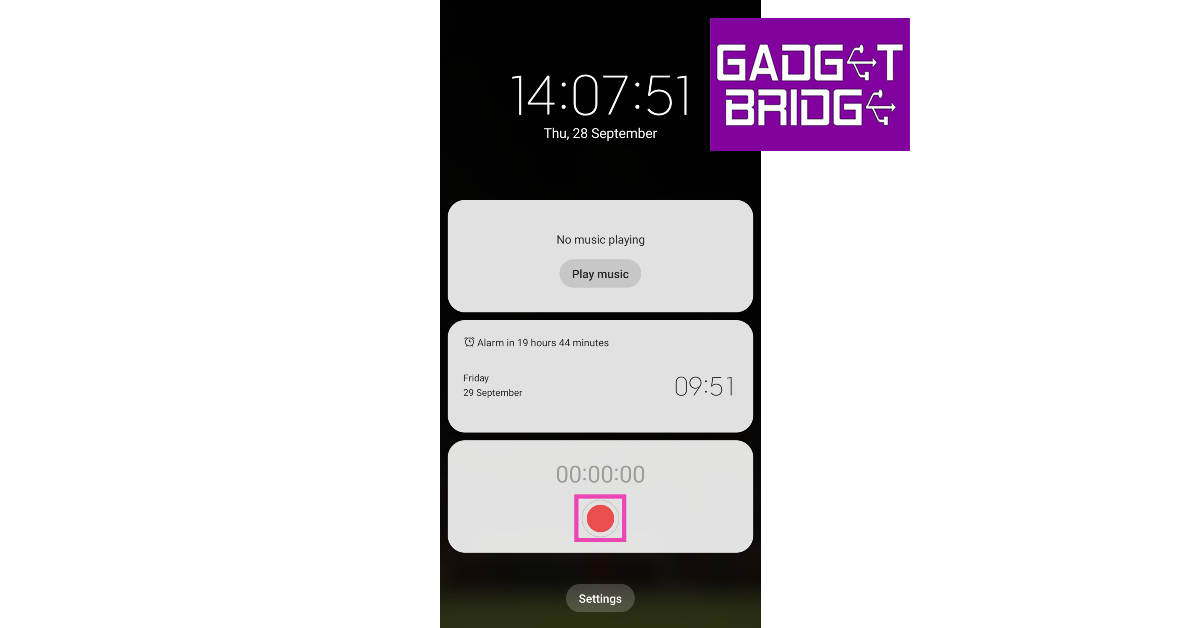 Step 8: Hit the Stop icon when you’re done.
 Read also: 4 Ways to record Clubhouse audio conversations
 GOM Recorder is an audio recording app that can be very useful in certain situations where you have to quickly start recording the audio. The GOM Recorder comes with motion gestures you just have to set the intensity and shake your phone to start recording.
 It also comes with a schedule recording feature, along with a quick widget that you can add to your home screen, these features make GOM Recorder an easy audio spy tool for Android. You can download GOM Recorder by clicking here.
 You just have to turn on the app once and leave it, the app automatically removes the part where there was silence. This can be extremely useful. The app also offers tonnes of useful features including sensitivity control, live audio spectrum analyzer, gain control, Wave/PCM encoding with adjustable sample rate, and whatnot. You can download Smart Recorder by clicking here.
 The final app on our list is Background Video Recorder. With the above apps you can just record the audio, but using this app you can also record videos in the background without letting anyone know about it. Just install the app by clicking here. The app has an option to disable camera sounds and previews so, no one will be able to tell you’re actually recording instead of playing a game or watching a movie.



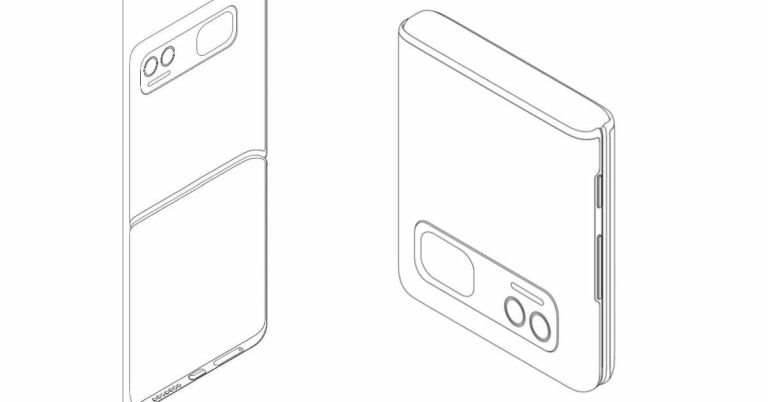
 In the patent images, we can clearly see a hinge dividing the phone horizontally into two. We can also see a front pill-shaped camera cutout and a horizontal camera module. On the bottom side,
  we can see the type-C port and SIM card slot as well. Also, the design is more suitable for most people since when the phone is folded into half the size it fits very easily inside the pocket. Another benefit of the clamshell design is that it offers a more sensible screen aspect ratio, so watching movies and videos won’t be a problem in this type of design.
 Just like its inspiration, it looks like that the Flip phone from Xiaomi will also feature a secondary display at the back of the phone. The secondary display can be very useful to check time, notifications, and also to click selfies with the back of the camera. The Galaxy Z Flip 3 features a 1.9-inch Super AMOLED display at the back of the phone.


 We will see a lot of action from the A series of Samsung, the company can also launch another 5G phone under its A series in the first quarter of 2022. The Samsung Galaxy A13 5G will carry a MediaTek Dimensity 700 chipset and comes with 4GB RAM according to the latest rumours. It will have a plastic body that the company will name as “Glastic body”. It might also have a 50Mp main camera. The expected price of Galaxy A13 5G is around Rs 22,000.

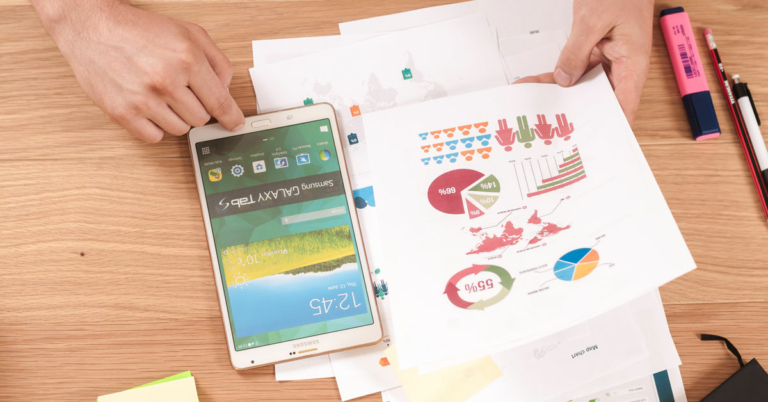


 DigiLocker is a platform for the issuance and verification of documents & certificates in a digital way, you can also save your scanned documents in this as well. You can download DigiLocker for iOS from here and for Android from here
Just install DigiLocker and import your scanned documents in it and that is it.
Read also: Scanning multiple documents daily? Check out the best
For the latest gadget and tech news, and gadget reviews, follow us on Twitter, Facebook and Instagram. For newest tech & gadget videos subscribe to our YouTube Channel. You can also stay up to date using the Gadget Bridge Android App. You can find the latest car and bike news here.
DigiLocker is a platform for the issuance and verification of documents & certificates in a digital way, you can also save your scanned documents in this as well. You can download DigiLocker for iOS from here and for Android from here
Just install DigiLocker and import your scanned documents in it and that is it.
Read also: Scanning multiple documents daily? Check out the best
For the latest gadget and tech news, and gadget reviews, follow us on Twitter, Facebook and Instagram. For newest tech & gadget videos subscribe to our YouTube Channel. You can also stay up to date using the Gadget Bridge Android App. You can find the latest car and bike news here. 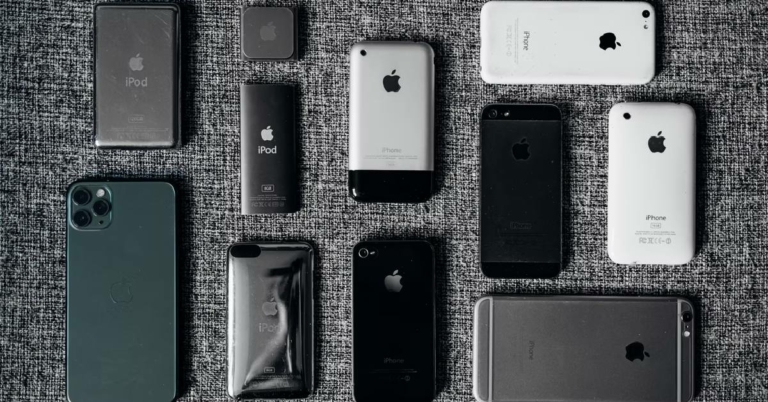

 An alternative way to check the model no of the iPhone is to check the backside of the iPhone (for models older than iPhone8). If you have the latest series of iPhones that comes with a notch. You have to remove the sim tray and check the model no from there.
 With these methods, you can find which iPhone you have and if you want to check the origin of your iPhone you can check the list from here.
If you want to know the condition of your iPhone then check the identifier text. You can find out the condition of your iPhone by the first letter of the text. If it starts with:
M then it is a brand new iPhone
F is a refurbished device.
N means Replacement device.
P means Personalised device.
With these methods, you can find which iPhone you have and if you want to check the origin of your iPhone you can check the list from here.
If you want to know the condition of your iPhone then check the identifier text. You can find out the condition of your iPhone by the first letter of the text. If it starts with:
M then it is a brand new iPhone
F is a refurbished device.
N means Replacement device.
P means Personalised device.
 The alternative option is to check the backplate of the iPad on the bottom. With these methods, you can find which iPad you have and if you want to check the origin of your iPad you can check the list from here.
And this is how you can check if you have got a legit iPhone or iPad or not.
Read also: How to get your Instagram account verified?
For the latest gadget and tech news, and gadget reviews, follow us on Twitter, Facebook and Instagram. For newest tech & gadget videos subscribe to our YouTube Channel. You can also stay up to date using the Gadget Bridge Android App. You can find the latest car and bike news here.
The alternative option is to check the backplate of the iPad on the bottom. With these methods, you can find which iPad you have and if you want to check the origin of your iPad you can check the list from here.
And this is how you can check if you have got a legit iPhone or iPad or not.
Read also: How to get your Instagram account verified?
For the latest gadget and tech news, and gadget reviews, follow us on Twitter, Facebook and Instagram. For newest tech & gadget videos subscribe to our YouTube Channel. You can also stay up to date using the Gadget Bridge Android App. You can find the latest car and bike news here.