Google Maps is a versatile application which is used by many to navigate and help them locate places remotely. It might have happened sometimes that you are in need of Google Maps, but the app is either crashing or not working properly. Well, you are not alone, there are a few bugs and issues that do not let the application work in the way it is supposed to. No application is perfect and the same goes for Google Maps as well. Most of the time it will work absolutely flawlessly, but if you are stuck in such a rare case that your Maps application is not working properly, here are some fixes for your Google Maps that you can consider trying.Read Also:OnePlus 12R Genshin Impact Edition officially launched in India
Restart your device
In most electronics a simple restart creates wonders. Restarting your device will give it a fresh start and allow the application to start again which will clear some basic bugs if any case they might have triggered while using Google Maps.
Location permission
Google Maps asks for permission for location, if by chance you have not given all the location permission the application will create a problem. Here is how to check and rectify.Step 1 – Hold the application for two seconds and tap on app info.Step 2 – Select Permission.Step 3 – Tap on the locationStep 4 – Now select Allow all the time.Open Google apps and try again if it solves the problem.
Try updating the app
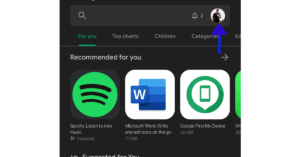
Updating the application fixes some features and adds features to the application. There might be some update pending on Google Maps so it’s better to check and get it updated.Step 1 – One Google Play Store.Step 2 – Tap on the profile picture.Step 3 – Select My apps & gamesStep 4 – Click Update all.If you do not want to update all apps, update Google Maps selectively. After that check, if the solution worked for you.
Uninstall updates
Doing so will convert the applications back to factory settings so by any chance if you update Maps with a buggy version, it will solve the problem. Here is how to do it.Step 1 – Hold the application for two seconds to find the app info setting.Step 2 – Tap on the 3 dot burger sign and select Uninstall updates.Following these steps, the app will go back to the factory setting, see if this method works for you.Read Also: How to live with a smartphone with low internal storage
Force Stop
If you are making changes to the application data and it is open in the background, there are chances that these changes won’t affect it. To make it work you need to force stop the application completely. Hold the application, go to app info and press force stop.
Clear data and cache
Buggy data or bad cache can be a major problem as to why your application is not functioning properly. You can clear the data and cache files by long-pressing the application. Heading to app info and then storage and cache. First try to clear the cache and see if it works for you, if not try removing the app data as well.
Check if Google Maps is down
If Google Maps is experiencing a server outage, the app will not refresh on your device. To make sure this is the case, go to Downdetector.in and search for Google Maps. If you notice a spike in user reports, it means the service is temporarily down. Wait for Google to restore the servers or use an alternative like Waze or HERE WeGO.
Check the network connection
If the strength of the network connection on your phone is low, you will certainly face issues with the Google Maps app. Switch to a better WiFi network and try again. If you’re on the go, toggle Airplane Mode on and off to refresh the mobile internet network. You can also try using a WiFi hotspot from another device.
Disable WiFi Only Mode
The WiFi Only Mode on Google Maps does not let the app work on mobile data. Here’s how you can turn it off.
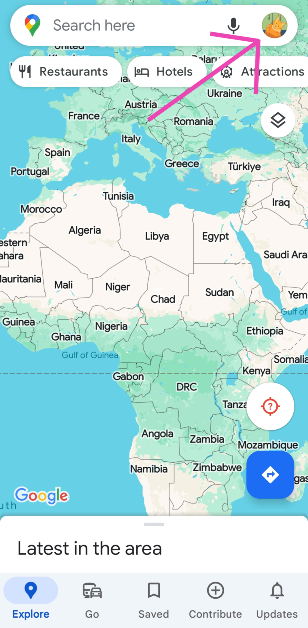
Step 1: Launch the Google Maps app and tap your profile icon at the top right corner of the screen.
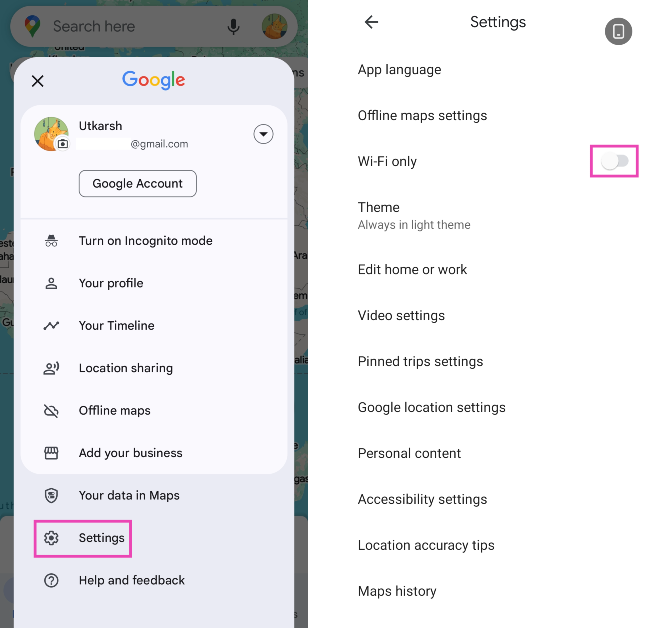
Step 2: Tap on Settings and turn off the toggle switch for WiFi Only.
Unrestricted data
Due to Android’s smart management, it restricts data of applications that have not been used and still takes memory in the background. There is a good chance that this thing might have been interfering with the proper functioning of Google Maps. Here is how to fix it.Step 1 – Hold the Google Maps app to discover more settings.Step 2 – Tap on the App info.Step 3 – In the application setting tap on Mobile Data and Wi-Fi.Step 4 – Make sure both the Background data and Unrestricted data usage options are turned on.
Reset Google Play Services
Google Play Services keep all the Google applications working together and run constantly in the background. So in a nutshell, if the Google Play Services are not working fine it will create problems with maps and other applications as well. To solve it try the below method.Step 1 – Go to Settings and open Apps.Step 2 – In the list of applications search Google Play Services.Step 3 – Head to storage and then clear all data.This process will take a while, wait for the process to complete and try using Google Maps now.Read Also: How to format an external hard drive or USB pen drive?
Location accuracy
By enabling high accuracy mode, Google Maps will be able to know your location more accurately. Though these options consume more data and battery it is required by the application to work properly.Step 1 – Open SettingsStep 2 – Look for location.Step 3 – Head to advance.Step 4 – Here, select Google Location Accuracy.Step 5 – Toggle on Improve Location Accuracy.Fire up the application and see if it works. This should fix your Google Maps if it is not working.
Calibration
Google Maps shows you your precise location. To achieve that calibration is very important. If the compass is not properly calibrated the Google map will not work properly and give incorrect locations. It’s easy to manually calibrate your Google Maps.Step 1 – Open Google Maps and tap on the blue circle(your current location).Step 2 – An option list will open with calibration as an option on it.Step 3 – Calibrate your phone following the instructions on the screen.This should most probably fix the problem and your Google Maps should be working fine again.
Frequently Asked Questions (FAQs)
How do I disable the WiFi Only mode on Google Maps?
Go to Google Maps>Profile>Settings and turn off the toggle switch for ‘WiFi Only’.
How do I check if Google Maps is down?
If your Google Maps is not working, go to Downdetector.in and search for Google Maps. If you see a spike in user reports, it means the app is down.
These are the top 13 ways to fix Google Maps if it is not working. If none of these work the last option left for you is to reset your device, it will also free up the clutter making your phone smoother. If still there is a problem, then surely there is a hardware issue with your device. In such a case, we advise you to contact the nearest service centre and get it fixed.
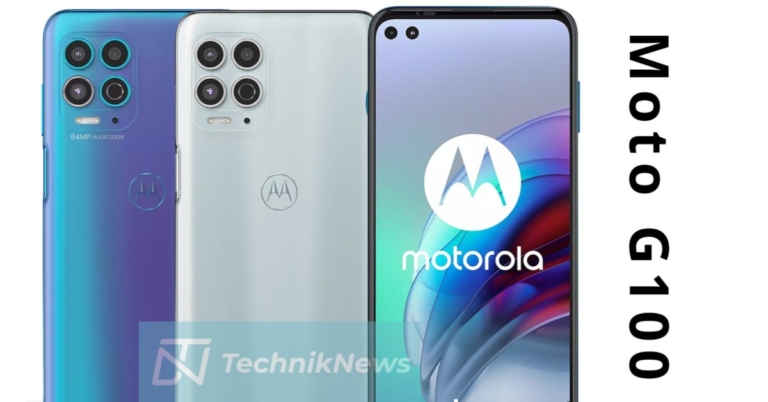
Lenovo owned smartphone company, Motorola, is rumoured to be working on a new smartphone. Moto G200 is said to be under development and ahead of the official launch the device’s specification and other details have been leaked online. The alleged smartphone is likely to include a Snapdragon 888 SoC under its hood. In addition to this, the phone is expected to feature an FHD+ display with a 144Hz refresh rate.Ahead of the official announcement from Motorola, the key specs of its upcoming smartphone Moto G200 have been leaked on the web. The company has not yet confirmed anything about the alleged device. It is thought to be a follow up to the Moto G100, which was released in China earlier this year.The purported Moto G200 has been codenamed Yukon according to tipster Evan Blass. Reportedly the Motorola smartphone is codenamed Yukon/Xpeng, which may hit the stores next month. As per the report by TechnikNews, a German publication, the G200 may feature a full HD+ display. The phone is likely to run on Android 11 and is said to be powered by Qualcomm Snapdragon 888 SoC. The upcoming Motorola phone could also be offered with 8GB of RAM. Whereas in terms of imaging, the Moto G200 might also come with a triple camera set up on its back panel. The camera system is said to house a Samsung’s 108-megapixel S5KHM2 sensor. Apart from this, there will be a 13-megapixel macro and a 2-megapixel depth sensor onboard. The Moto G200 is said to sport a 16-megapixel front-facing camera for selfies.Rumours are that the Moto G200 may also arrive in China as Motorola Edge S30. Like we said earlier the company has not officially said anything with regard to the phone so this information should be treated with caution however the upcoming phone is speculated to share some common features as of Edge 20 Pro and Edge S Pro. Image Courtesy: 9to5googleBesides this, the company is also preparing to launch its new smart wearable Moto Watch 100. The device has been co-created with CE Brands. The company has shared an investor press release that confirms the existence of the device. Not only that, the firm has also shared an operational update road map that reveals a few important details of the Motorola smartwatch. The device will feature an all circular dial with oval buttons on the sides. It may arrive with 5ATM water resistance and a heart rate sensor. Along with this, the wearable is said to include Bluetooth v5.2 and GPS for connection. It could run on Wear OS and come with an Aluminium casing. The smartwatch is also said to enter mass production from next month.
For the latest gadget and tech news, and gadget reviews, follow us on Twitter, Facebook and Instagram. For newest tech & gadget videos subscribe to our YouTube Channel. You can also stay up to date using the Gadget Bridge Android App. You can find the latest car and bike news here.
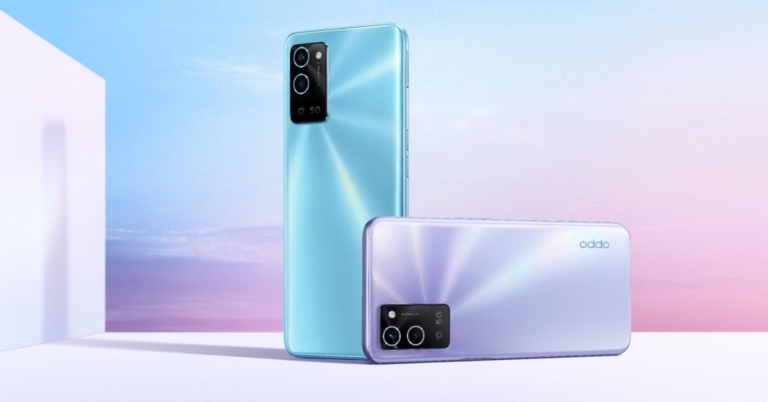
The Chinese smartphone company Oppo has expanded its A-Series lineup with the launch of a new smartphone. The company has released Oppo A56 5G, a mid-range smartphone. The device comes equipped with a 5,000mAh battery and features a dual rear camera set-up. The phone is powered by Dimensity 700 SoC.
Oppo A56 5G price and sale details
In China, the Oppo A56 5G has been launched with a single 6GB RAM with 128GB storage. There the phone is priced at CYN 1,599 that translates to Rs18,800. The mid-range smartphone comes in three different colour options of Soft Fog Black, Wind Chime Purple and Cloud Smoke Blue. The phone is now available for pre-orders in its home market.
Oppo A56 5G tech specs
Speaking of the specifications, the Oppo A56 5G is powered by ColorOS 11.1 on top of Android 11 out of the box. Under its hood, there is an octa-core MediaTek Dimensity 700 SoC coupled with Mali-G57 MC2 GPU for graphics. It is offered in 6GB RAM with 128GB of storage capacity. There is an option to expand the memory via an SDXC card. In terms of display, there is a 6.5-inch HD+ A-Si display with 720×1,600 pixels of resolution. The screen offers a standard 60Hz refresh rate, a touch sampling rate of 120Hz and 480 nits of peak brightness. Moreover, the display comes with 269ppi pixel density, 88.7 percent screen to body ratio and is guarded with Corning Gorilla Glass 3.Oppo A56 5G has a dual rear camera set up that houses a 13-megapixel primary sensor with f/2.2 aperture along with a 2-megapixel portrait sensor with f/2.4 aperture. Video portrait, slow motion, night scene mode, time-lapse and other features are available on the rear camera. This phone also has an 8-megapixel selfie camera with an f.2.0 aperture. Apart from this, Oppo’s latest mid-range device comes packed with a 5,000mAh battery. In terms of connectivity, the phone is equipped with GPS, Bluetooth v5.1, Wi-Fi 5, a USB Type C port, a 3.5mm audio jack and so on. The device bears a side-mounted fingerprint sensor and face unlock feature for biometrics.
For the latest gadget and tech news, and gadget reviews, follow us on Twitter, Facebook and Instagram. For newest tech & gadget videos subscribe to our YouTube Channel. You can also stay up to date using the Gadget Bridge Android App. You can find the latest car and bike news here.
When it comes to features, Samsung’s F-series smartphones are quite promising. It has everything at a reasonable price. We’ve been using the Samsung Galaxy F22 for a while now, and this is our long-term review. The phone costs Rs 11,999. It has a 90Hz HD+ SAMOLED display, a large 6,000mAh battery, and a 48-megapixel quad camera setup. Let’s look at if the smartphone is worth picking up?
Samsung Galaxy F22 Review: Design and Display
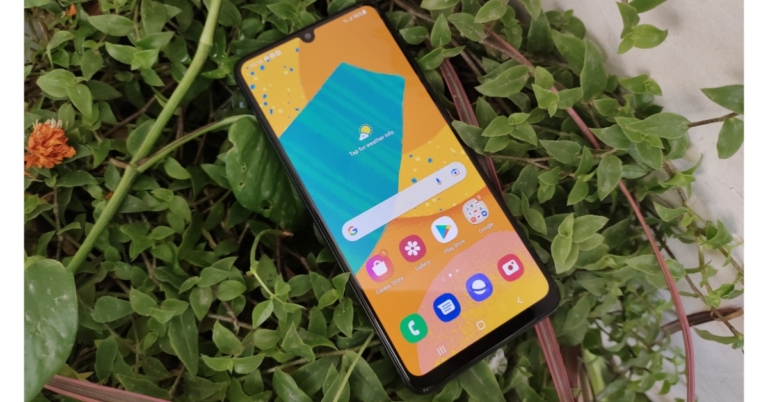
The Samsung Galaxy F22 has a simple design that includes a plastic back and curved edges. Denim Blue and Denim Black are the available colours. For the review, we have the former shade. The back panel has a textured finish with horizontal stripes, which provides a good grip but does not give the phone a very premium appearance.The phone weighs 203gms and has a heavy feel to it. The buttons on the side could have been placed better. The fingerprint scanner is set a little higher than we would like, making it difficult to reach with one hand. As a result, the volume rocker placement is further away, requiring you to stretch your thumb to reach both buttons. On the other side of the frame, there is a SIM tray, as well as a microSD card slot for storage expansion. A 3.5mm headphone jack, a USB Type C port, and a downward-firing speaker are located on the bottom of the device. The Samsung Galaxy F22 also has a 6.4-inch HD+ SAMOLED Infinity-U display. The screen has a resolution of 700×1,600 pixels, a refresh rate of 90Hz, and a brightness of 600 nits. The Galaxy M32, which has a similar SAMOLED display, was recently reviewed by us. The contrast level is excellent, with saturated colours and sufficient brightness when used both indoors and outdoors. Corning Gorilla Glass 5 safeguards the display from scratches and breakage. Because the screen only supports HD viewing, the sharpness is slightly diminished when compared to other phones. The touch response on this phone is poor but it does have a 90Hz refresh rate, which aids in making the interface smooth and fluid.
Samsung Galaxy F22 Review: Performance and Cameras
In terms of performance, the Samsung Galaxy F22 is powered by a 12nm octa-core MediaTek Helio G80 SoC. The device is available in two configurations: 4GB of RAM with 64GB of storage and 6GB of RAM with 128GB of storage. The fact is that the company includes this chipset in all of its mid-range smartphones. To be honest, we’re not thrilled with the chipset’s performance, but it’s not terrible either for the price bracket. The processor is capable of handling day-to-day tasks well, particularly when combined with Samsung’s UI. The phone comes with Samsung’s UI on top of Android 11. The UI is similar to that of other Samsung handsets, but it does come with pre-installed apps, many of which can be uninstalled immediately to make room for other apps. The phone handles lighter applications nicely and performs well too when multitasking. The handset is fine-tuned to keep apps in memory for a longer period of time. Gaming, on the other hand, is only adequate given the price tag. Call of Duty is playable at medium to high graphics and decent framerate settings. After about 30 minutes of gameplay, the phone gets a little warm, which most in the category do. In terms of cameras, the Samsung Galaxy F22 features a quadruple rear camera setup with a 64-megapixel primary sensor. There is also an 8-megapixel ultra-wide-angle camera, a 2-megapixel macro lens, and a 2-megapixel depth sensor. A 13-megapixel camera sensor is located on the front of the device for selfies and videography. The camera specifications are comparable to those of the Galaxy M32. The images from the F22 come out softer at times, but not bad. The colour reproduction on both phones is identical, but we believe the F22 has a better dynamic range and contrast.While the ultra-wide photos are only sufficiently accurate, they can be used when necessary. The ultra-wide images come out a bit dark, but considering the price, we have no complaints. macro shotWe were astounded by the portrait results. They were superior to the Galaxy M32. The background separation and colour appear natural and pleasing, while the subject’s skin tone appears smooth and pinkish in tint. The nighttime images are surprisingly good, despite our disappointment with the M32 in this regard. The selfies appear softer, but we prefer the ones taken by M32. Why you ask? The selfies on the Galaxy F22 are soft and have slightly dull colours. So, in one department the F22 wins and in the other the M32.The Samsung Galaxy M32 is powered by a 6,000mAh battery. It easily lasts for days when multitasking, watching videos, gaming, browsing the web, and scrolling through social media feeds. However, you only get a 15W charger, which takes a long time to charge the device. Instead, we recommend, a 25W charger should be purchased separately for faster charging.
Verdict
When we consider the phone’s price (Rs 11,999), we are quite pleased with its performance. The Samsung Galaxy F22, is best suited for light gaming, but the likes of demanding games such as Call of Duty can be played too. This, in our opinion, is the best budget smartphone available on the market right now.Pros
Long battery life
Vibrant display
Clean UI
90Hz refresh rate support
Cons
Slow charging
Dull Selfies
For the latest gadget and tech news, and gadget reviews, follow us on Twitter, Facebook and Instagram. For newest tech & gadget videos subscribe to our YouTube Channel. You can also stay up to date using the Gadget Bridge Android App. You can find the latest car and bike news here.
27 October 2021 Amazon Quiz has gone live on its mobile app platform. The quiz can be played from 12 AM to 11:59. All you need to do is just answer five easy questions that the e-commerce website puts before you. Today you can stand a chance to win Rs 30,000 Amazon Pay Balance.
Every day Amazon posts a new questionnaire that consists of five simple questions about general knowledge and current events. To enter a lucky draw, participants must correctly answer the questions. One incorrect answer will result in your elimination from the quiz. Each month, only one person will be declared the winner and the results will be announced at the end of the month. Amazon customers who submit correct answers can win Amazon Pay Balance worth up to Rs 50,000. To ensure that you answer all five questions correctly, Gadget Bridge updates all of the correct answers on a daily basis. Take a look at today’s answers:
27 October 2021 Amazon Quiz Answers
Question 1: In September 2021, BTS performed their hit song Permission to Dance at which of these special locations?
Answer: UN General Assembly Hall
Question 2: In the recent FIDE Online Olympiad, India claimed the bronze medal. Which team did they lose to in the semi-finals?
Answer: USA
Question 3: Mahatma Gandhi’s birthday on 2nd October is celebrated as the International Day of what?
Answer: Non Violence
Question 4: Which of these British players has won three Grand Slam singles titles in this sport?
Answer: Andy Murray
Question 5: This element represents the lead character in which film franchise?
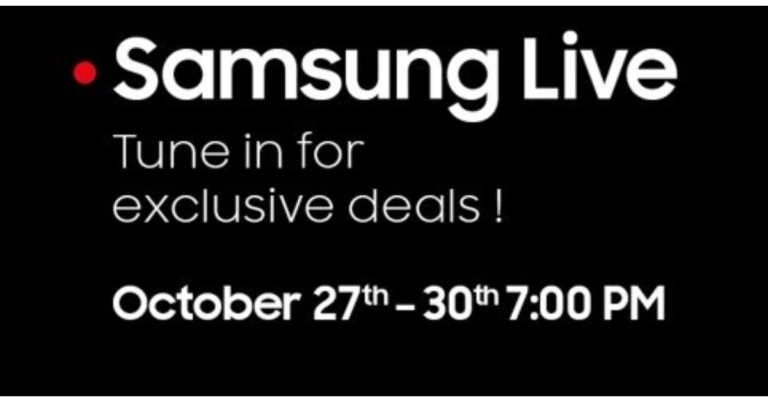
Samsung India has today announced a four days festive live shopping event. The Samsung Live Shopping will begin from October 27 that is tomorrow and will be live until October 30. The South Korean firm will offer an exclusive exciting deal on Samsung.com across its product categories.The Samsung Live Shopping offer will be live-streamed on YouTube and Facebook. According to the company, the Live Events are aimed at adding to the festive cheer of consumers by providing exciting offers and benefits on a large number of Samsung products.Samsung Live Shopping will go live from 7 pm to 7:30 pm from October 27 to October 30, onsamsung.com with limited period offers available till midnight. During the live sale event, it will provide exciting benefits and offers on the Galaxy Watch 4, Galaxy Tab S7+, Galaxy Tab S7 FE, the Sero and Neo QLED TV, Curd Maestro and Digi-Touch Cool range of refrigerators.Galaxy Watch 4 series sales will be live-streamed on the first day, which is tomorrow. The company is expected to offer the devices at discounted prices during the live shopping event on its platform. To recall, the Samsung Galaxy Watch 4 comes in 40mm and 44mm models (Bluetooth only) priced at Rs 23,999 and Rs 26,999 respectively. Whereas the LTE variant is priced at Rs 28,999 and Rs 31,999 for the same casing. On the other hand, Samsung Galaxy Watch 4 Classic Bluetooth model 40mm size comes at Rs 23,999 while the 44mm is priced at Rs 26,999. The LTE version is priced at Rs 28,999 and Rs 31,999 for similar dial sizes respectively.October 28 the company will be putting up Samsung Neo QLED and The Sero Television for live sale. On October 29 Samsung will be offering exciting discounts on its range of Curd Maestro and Digital Touch Cool refrigerators while on the last day of the Samsung Live Shopping you can purchase Samsung Galaxy Tab S7+ and S7 FE at reduced prices. Right now Galaxy Tab S7+ retails at Rs 79,999. On the other hand, Samsung Galaxy Tab S7 FE, which was launched recently, comes in a single 4GB RAM with 64GB storage. The device will be available with a price tag of Rs 41,999.
For the latest gadget and tech news, and gadget reviews, follow us on Twitter, Facebook and Instagram. For newest tech & gadget videos subscribe to our YouTube Channel. You can also stay up to date using the Gadget Bridge Android App. You can find the latest car and bike news here.
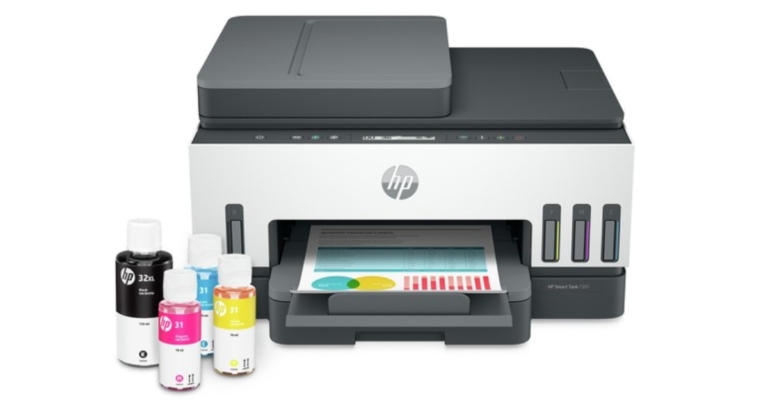
HP today expanded its lineup of smart tank printers in the Indian market. The HP Smart Tank 700 series printer is the latest addition by the company which is suited for small businesses and home users. The device comes with dual-band Wi-Fi 3 support and allows remote printing using the HP Smart App. Most importantly the printer can print on both sides.
HP Smart Tank 700 series printers price in India and sale details
HP Smart Tank 700 series offers three models. The HP Smart Tank 720 is available at Rs 20,049 while the Smart Tank 750 is priced at Rs 22,480. The HP Smart Tank 790 wireless can be purchased at Rs 24,910. All the models are on sale via the HP Store in the country.The HP Smart Tank 790 and HP Smart Tank 750 offer a warranty of one year or the first 50,000 pages, whichever is earlier. On the other hand, the HP Smart Tank 720 comes with a warranty of one year or the first 30,000 pages, whichever is earlier.
HP Smart Tank 700 series specifications
The HP Smart Tank 700 series printers are the first ink tank printer to be made from over 25% recycled plastic. The series is said to come with two years of ink supply that prints 12000 pages (black) and 8000 pages (colour) and saves up to 80% on ink costs, making it an ideal printing solution for users with high-volume needs. It supports a spill-free refill system while enabling organizations to print documents 50% faster with Smart Shortcuts, text recognition and intelligent file naming.The HP Smart Tank 700 printers can be connected by dual-band Wi-Fi, & Bluetooth Low Energy (BLE). In addition to this, it is the company’s first smart tank printer to print on both sides for high-volume printing needs. While the HP Smart App lets users print from anywhere.It comes with smart guided lighting, low ink and paper sensors with mobile alerts that inform users before the ink runs out. The HP smart printers also offer security features like secure boot, write protected memory and pre-set passwords for work from home requirements. “The security features help maintain privacy and control, including the basic encryption and password control system. The printer ensures that it’s running without known vulnerabilities. While starting, it automatically checks the critical codes and if it’s compromised, instinctively stops. It also prevents the introduction of any malicious code while the printer is running,” the company stated.The secure boot ensures that a device boots with the software trusted by the Original Equipment Manufacturer (OEM) and immediately stops if it’s compromised. The FW Code-Signing Validation validates memory code, then stops and notifies the consumer if it’s not authentic. The Write protected memory avoids the introduction of malicious codes while the printer is running. One can also pre-set a password to prevent intruders from accessing printer settings and the automatic update makes sure that the printers are running without any known vulnerabilities.
For the latest gadget and tech news, and gadget reviews, follow us on Twitter, Facebook and Instagram. For newest tech & gadget videos subscribe to our YouTube Channel. You can also stay up to date using the Gadget Bridge Android App. You can find the latest car and bike news here.
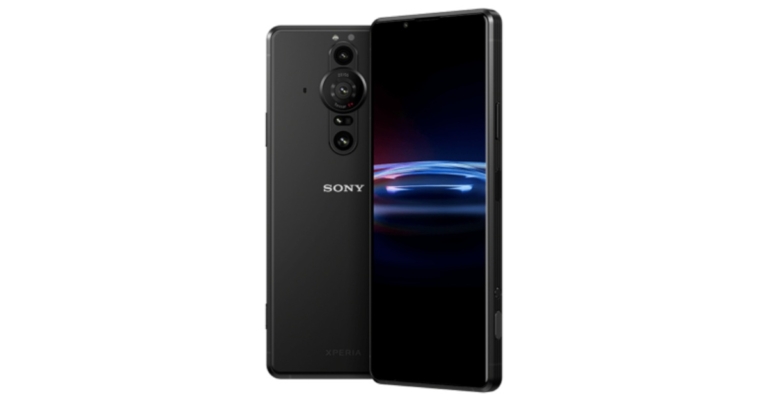
Sony has expanded its Xperia lineup with the launch of the Sony Xperia Pro-I. The device is claimed to come with the best smartphone camera. The company announced the phone via a virtual launch event. It is aimed at creative professionals including content creators, photographers and even filmmakers. It features Zeiss optics and includes a dedicated shutter button given on the right side of the frame. It is powered by Qualcomm Snapdragon 888 SoC and is highlighted with a 1-inch Exmor RS CMOS sensor.
Sony Xperia Pro-I price and sale details
Sony Xperia Pro-I has been introduced at a price tag of $1,7999 that converts to Rs 1.35 lakh. The phone comes in a single Frosted Black colour option. Alongside the smartphone, the company has also launched an additional accessory namely Vlog Monitor at $199, which translates to Rs 15,000. Both the products are said to go on sale from December.
Sony Xperia Pro-I specifications
Sony Xperia Pro-I features a 6.5-inch OLED display offering 3.840×1,644 pixels of resolution. The smartphone comes with a 120Hz refresh rate, 4K resolution and 240Hz touch sampling rate. The screen also has HDR support along with a 100 percent DCI-P3 colour gamut.On the software front, the Sony Xperia phone runs on Android 11 and is powered by a Qualcomm Snapdragon 888 SoC with 12GB of RAM and 512GB of storage. The Internal storage can be expanded up to 1TB using a microSD card. The biggest USP of the Sony Xperia Pro-I is its pro cameras. It is highlighted with a triple rear camera set up that houses a 12MP primary camera with a 1-inch Exmor RS sensor offering aperture ranging from /2.0 to f/4.0, There are two other 12MP lenses with 1/2.9 inch and 1/2.5 inch Exmor RS sensors. All the sensors support OIS while on the front there is an 8MP 1/4 inch selfie camera with f/2.0 aperture.Apart from this, to protect the rear sensor the company has provided a dedicated shutter button on the right side of the frame which can be easily customised as per the liking.Not only this, the Sony Xperia Pro-I comes packed with a 4,500mAh battery that supports 30W fast charging. The smartphone is IPX5, IPX8 and IP6x rated for protection against dust and water resistance. It further includes Bluetooth v5.2, WiFi 6, dual-band WiFi with 2.4Ghz and 5Ghz bands and NFC for wireless connectivity. There is a 5G, 4G LTE, USB Type C port and 3.5mm headphone jack. The sensors on the phone include A-GPS, A-GLONASS, Galileo QZSS, fingerprint sensor and Beidou.
For the latest gadget and tech news, and gadget reviews, follow us on Twitter, Facebook and Instagram. For newest tech & gadget videos subscribe to our YouTube Channel. You can also stay up to date using the Gadget Bridge Android App. You can find the latest car and bike news here.
It’s in human nature to be clumsy sometimes and many of you might have spilt water on your smartphone. At times, the water might have been trapped inside your smartphone’s speaker, accidentally. Now all you can hear is a muffled sound and that is irritating and painful. Tired of hitting your smartphone again and again to expel the water? Confused about how to remove water from phone speaker? Worry not, here are some steps you can use to clean water from your smartphone’s speaker easily.
Check for built-in feature
Hearing the muffled sound for the first time might have scared you by thinking you might have damaged your phone. In most cases, many phones have some water protection even with no IP rating. As a result, many companies put built-in features for cleaning smartphone’s speakers. For example, in MIUI, it can be found in Setting>Additional Setting>Clear Speaker. Try searching for similar phrases like “clean speaker”, “speaker cleaner”, etc.Read Also:UC Web launches UC Cleaner booster app for Android
Use third party application
If you are not successful in finding any such option, try using a third-party application like Speaker cleaner – Remove water & fix sound. The app will play the sound in such a frequency that the water will eject from your speaker automatically. Install the application and grant permissions. Start the app and run it until you hear a clear sound and don’t see any moisture near the speaker grill (make sure you are not connected to any Bluetooth earphones or speakers during this time).
Let it sit
If none of the above methods work, let the phone sit for a while in a downwards facing position (of the speaker). The water may take time to evaporate or eject from the speaker grill. Just leave the phone at room temperature for 24 hours and see if it fixes the problem. Also, we do not advise keeping the phone in direct sunlight or an extremely hot place in order to achieve this solution as it will damage the internals of your Android smartphone.Read Also: How to clean your laptop?
Bonus tip: Use web
If you don’t feel like using any third-party application, we still have a solution for you. Head to Fix My Speakers 🔊 and press the blow button. It is an online solution that works exactly like the application above. Also, use it when away from pets or children as it produces a loud noise, which may disturb them or other people.These are some simple ways to remove or clean water from your smartphone’s speaker. If none of these features work for you, there are chances that you might have damaged your smartphone and the only way left to fix it is to reach the nearest service centre. There might be the chance that the water has gone deep inside and there will be very little time for you now to get your phone fixed before it is gone forever.
For the latest gadget and tech news, and gadget reviews, follow us on Twitter, Facebook and Instagram. For newest tech & gadget videos subscribe to our YouTube Channel. You can also stay up to date using the Gadget Bridge Android App. You can find the latest car and bike news here.
The power button is one of the most essential pieces of hardware as it controls the screen of your phone and much more. There can be a lot of reasons why your power button may become unresponsive or get stuck. From wear and tear, water damage to software bugs can cause your power button to stop working. As you might have noticed by now, it is extremely painful and difficult to use a phone without a power button. Now the question is how to turn on your Android smartphone without the power button. Worry not, here are a couple of workarounds that you can use to solve your problem.Read Also:iPhone 16 Series: Everything we know so far
Turn on your screen
To operate anything on your smartphone you need to first turn on the screen. If the power button is not working then how do you do that, you ask? Just plug your phone into the charger or ask someone to call the number your phone is using. Another brilliant way is to use a fingerprint scanner. The fingerprint scanner is working on your phone all the time. Just place your registered finger on the scanner and this should allow you to use your phone.
Fix the power button
If your phone’s power button is broken, it can be quite tricky to restart it. Luckily, fixing it doesn’t always have to be tedious. There are a couple of ways you can go about it, depending on the nature of the problem. If your power button isn’t working due to the dirt that has accumulated around it, take a cotton swab, dip it in isopropyl alcohol, and gently rub the area surrounding the power button. If the button is stuck, take a hair dryer and use it to warm up the button. This will loosen it up a little.
Use third-party application
There are plenty of third-party applications on the Google Play Store. These applications help you to revamp your buttons. For such a task our choice is Button Mapper. All you have to do is install the application from the Play Store. Next grant all the permissions that the applications ask. Once this step is done now you will get tons of new options from which you can easily remap your power button to any other button.Read Also: Twitter found testing scheduling feature for web browser
Scheduled Power on/off
If you don’t want to use a third-party application and all you want is to restart your smartphone? You can use the scheduled power on/off feature. This feature is available on all Android smartphones. Just head to Setting>Accessibility>Scheduled power on/off (if you don’t find it here just type it on the setting search bar). It’s good to keep this setting if your phone’s power button gives you trouble. For instance if your phone has shut down due to some reason, at least it will turn on at the scheduled point. Also, you can set small intervals on schedule to restart your phone.
Using ADB Command (little computer skills required)
You can use the ADB command to turn on your smartphone directly via a computer. The first thing to do is enable a USB debugger in the developer options. The second thing to do is set the default connection mode as “file transfer”. Now follow the next steps.
Connect your Android phone using a USB cable.
Install ADB drivers on your system (Windows, Mac, Linux) if it’s already there follow the next step.
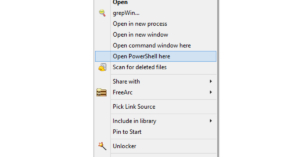
Right-click on the Phone’s folder and open Powershell.
As soon as you press enter the device will reboot, this will also solve temporary software issues if any.
Use Recovery Mode
You can turn on your Android smartphone in Recovery Mode without using the power button. Plug in the USB cable and long-press both volume keys simultaneously. After a few seconds, your smartphone will reboot in recovery mode. Exit the recovery mode to reboot your phone normally.
Bonus tip: Use the accessibility feature
Many phones have accessibility features like raise to wake up or double-tap to lock/unlock. These features will come in handy and will let you use your smartphone even when the power key is not working. There are a few companies that provide a floating widget that will include power options. If your phone does not have any of the options use Button Mapper from the second option. The application has a built-in gesture setup, which will come in handy.
Frequently Asked Questions (FAQs)
How do I turn on my Android smartphone without using the power button?
Plug your smartphone into the charger and long-press the volume keys together to enter recovery mode. Use the volume keys to navigate to the exit option and select it. This will reboot your phone in regular mode.
How do I fix a broken power button?
If the power button is broken due to accumulated dirt, clean it using a cotton swab dipped in isopropyl alcohol. If it is stiff, use a blow dryer to loosen it up.
This is it for how to turn on your Android smartphone without using the power button. In case none of the methods work for you, we advise you to take the phone to the nearest service centre and get your hardware or software(whichever is affected) changed. This will completely resolve the problem once and for all.


 In most electronics a simple restart creates wonders. Restarting your device will give it a fresh start and allow the application to start again which will clear some basic bugs if any case they might have triggered while using Google Maps.
 Step 2 – Select Permission.
 Step 3 – Tap on the location
Step 4 – Now select Allow all the time.
Step 3 – Tap on the location
Step 4 – Now select Allow all the time.
 Open Google apps and try again if it solves the problem.
 Step 3 – Select My apps & games
Step 4 – Click Update all.
Step 3 – Select My apps & games
Step 4 – Click Update all.
 If you do not want to update all apps, update Google Maps selectively. After that check, if the solution worked for you.
 Following these steps, the app will go back to the factory setting, see if this method works for you.
Read Also: How to live with a smartphone with low internal storage
Following these steps, the app will go back to the factory setting, see if this method works for you.
Read Also: How to live with a smartphone with low internal storage
 If you are making changes to the application data and it is open in the background, there are chances that these changes won’t affect it. To make it work you need to force stop the application completely. Hold the application, go to app info and press force stop.
 Buggy data or bad cache can be a major problem as to why your application is not functioning properly. You can clear the data and cache files by long-pressing the application. Heading to app info and then storage and cache. First try to clear the cache and see if it works for you, if not try removing the app data as well.
 If Google Maps is experiencing a server outage, the app will not refresh on your device. To make sure this is the case, go to Downdetector.in and search for Google Maps. If you notice a spike in user reports, it means the service is temporarily down. Wait for Google to restore the servers or use an alternative like Waze or HERE WeGO.
 Step 2: Tap on Settings and turn off the toggle switch for WiFi Only.

 Step 2 – In the list of applications search Google Play Services.
Step 3 – Head to storage and then clear all data.
Step 2 – In the list of applications search Google Play Services.
Step 3 – Head to storage and then clear all data.
 This process will take a while, wait for the process to complete and try using Google Maps now.
Read Also: How to format an external hard drive or USB pen drive?
This process will take a while, wait for the process to complete and try using Google Maps now.
Read Also: How to format an external hard drive or USB pen drive?
 Step 3 – Head to advance.
Step 4 – Here, select Google Location Accuracy.
Step 3 – Head to advance.
Step 4 – Here, select Google Location Accuracy.
 Step 5 – Toggle on Improve Location Accuracy.
 Fire up the application and see if it works. This should fix your Google Maps if it is not working.
 Step 3 – Calibrate your phone following the instructions on the screen.
 This should most probably fix the problem and your Google Maps should be working fine again.











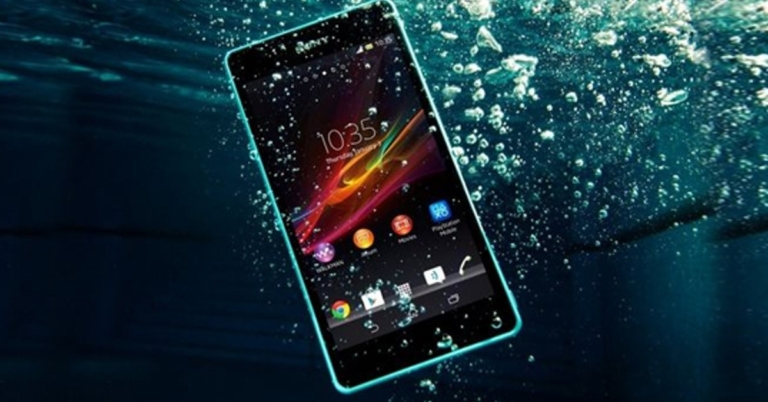



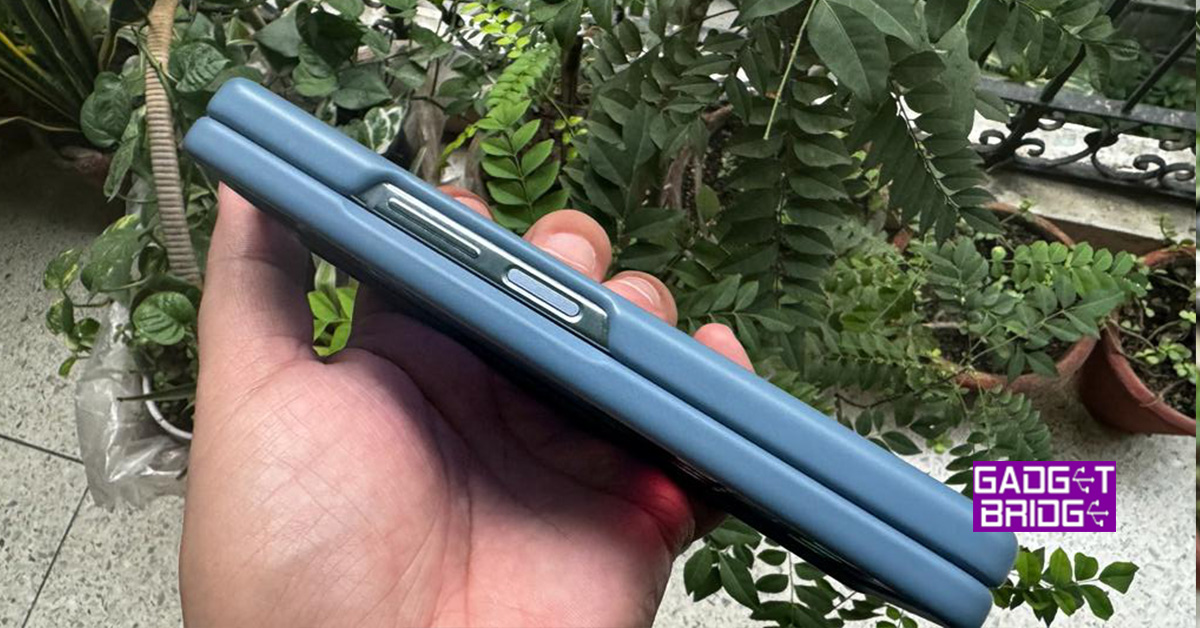 If your phone’s power button is broken, it can be quite tricky to restart it. Luckily, fixing it doesn’t always have to be tedious. There are a couple of ways you can go about it, depending on the nature of the problem. If your power button isn’t working due to the dirt that has accumulated around it, take a cotton swab, dip it in isopropyl alcohol, and gently rub the area surrounding the power button. If the button is stuck, take a hair dryer and use it to warm up the button. This will loosen it up a little.


 Read Also: