The expected design, specs and price of the Oppo Reno 7 Series have surfaced on the web, therefore, indicating that the launch of the new smartphone series is imminent. Previously the Reno Pro’s camera specifications were leaked by a tipster and now the lineup has been spotted listed on the 3C certification website. Along with this, more reports, images have emerged confirming the form factor and pricing of the vanilla Reno 7 and Reno 7 Pro.According to GSMArena the prices of the Oppo Reno 7 Series have been leaked, The Oppo Reno 7 8GB RAM with 256GB storage is expected to cost CYN 2,999 that converts to Rs 35,200 whereas the 12GB RAM with 256GB storage model is likely to cost CYN 3,299 which is around Rs 38,700.The patent images of the Oppo Reno 7 Pro were also leaked previously which were used to file with the China National Intellectual Property Administration. According to the leaked renders the upcoming Reno 7 Pro will bear a flat display similar to the existing one along with a punch hole cut out on the top left corner of the screen. There will be negligible bezels around the screen and the right spine of the phone will sport a power button while the volume rocker will be situated on the left. The device will keep the 3.5mm headphone jack, a SIM slot, Type C port and a speaker grille. The rear panel shows a rectangular-shaped quad-camera set-up. The report also suggests that the patent has been filed with four and triple sensors.Image Courtesy: LetsGoDigitalApart from this the key specifications and renders of vanilla Reno 7 were tipped via Twitter. The phone is expected to offer a 6.5-inch FHD+ display by BOE. It may support a 90Hz refresh rate panel along with 10-bit colour. They could also come with MediaTek Dimensity 920 SoC paired with LPDDR4x RAM and UFS 3.1 storage. Not just that the standard model is expected to house a 4,500mAh battery with 65W fast charging support.Furthermore, the Oppo Reno 7 is said to have a triple camera set up on its back which may include a 50MP Sony IMX766 lens. The Pro model could also equip a similar display paired with a secondary 9MP Sony IMX355 sensor and a 2MP sensor. For selfies, it is speculated to sport a 32MP Sony IMX615 sensor. Not only these cameras will support the Z-axis linear motor. Besides this, there will be NFC and a vapour chamber liquid cooling system onboard. MySmartPrice discovered the Oppo Reno 7 Pro listed on China’s 3C certification website. Not much has been revealed but the device was found to be carrying model number PFDM00. It is suggested to support 65W SUPERVOOC 2.0 fast charging. Reportedly the smartphone will pack a 4,500mAh battery. On the other hand, the Oppo Reno 7 Pro is likely to include MediaTek Dimensity 1200 SoC with up to 12GB of RAM and 256GB of storage. The devices are said to be released in a few months.
For the latest gadget and tech news, and gadget reviews, follow us on Twitter, Facebook and Instagram. For newest tech & gadget videos subscribe to our YouTube Channel. You can also stay up to date using the Gadget Bridge Android App. You can find the latest car and bike news here.
Amazon Quiz for October 28 2021 has gone live on the company’s mobile platform. The daily quiz contest brings an opportunity for Amazon users to win exciting prizes. In today Amazon Quiz the participants have the chance to win Rs 20,000 Amazon Pay Balance. All they have to do is answer all the questions correctly.
A fresh question is posted on the Amazon app daily which consists of five simple questions based on general knowledge and current events. The quiz can be played on the Amazon App from 12 AM to 11:59 PM. You have to answer all the questions correctly. Then the participants will be shortlisted for a lucky draw. The result of the lucky draw will be announced at the end of the month. The participants can win Amazon Pay Balance to up to Rs 50,000. Check out the 28 October 2021 Amazon Quiz question and their answers to win a Rs 20,000 Amazon Pay Balance.
28 October 2021 Amazon Quiz Answers
Question 1: In 1977, an organisation abbreviated as NAVS established a day to promote a certain eating habit. What day was established?
Answer: World Vegetarian Day
Question 2: The celebration of the marriage between the crown prince of Bavaria and Princess Therese von Sachsen in 1810 led to what annual occasion?
Answer: Oktoberfest
Question 3: In the movie Bell Bottom which of these actors plays a RAW agent?
Answer: Akshay Kumar
Question 4: In the 2019 Women Women’s World Cup for this sport, who placed second?
Answer: Netherlands
Question 5: This is the famous UNESCO World Heritage Site of Pattadakal located in which Indian state?
Flipkart recently concluded its Big Billion Days Sale and now another festive sale, the Big Diwali Sale will begin on October 28 that is tomorrow and will last until November 3 in the country. The sale will begin early for Flipkart Plus members and today Poco has revealed some offers for the upcoming sale event. During the sale, the company will be putting up its recent smartphone at a reduced price as well as providing additional discounts on prepaid transactions. Continue reading to learn more about the sale offers on Poco smartphones.POCO X3 Pro which arrived in India earlier this year, its 8GB RAM with a 128GB storage model will be available at Rs 18,999 down from Rs 25,999. When bank offers are applied it will bring down the price to Rs 17,749. On the other hand, the 6GB RAM with a 128GB storage model will come at a discounted price of Rs 16,999. The retail price of the smartphone is Rs 23,999 and when combined with bank offers it can be purchased for Rs 15,749.The phone comes in three three colour options of Golden Bronze, Graphite Black, and Steel Blue. It features a 6.67-inch full-HD+ dot display witha 120Hz refresh rate, 240Hz touch sampling rate. The phone is powered by a 7mm octa-core Qualcomm Snapdragon 860 SoC and there is a 48-megapixel quad rear camera setup. Poco X3 Pro also houses a 5,160mAh battery along with a 33W Type-C charger.On the other hand, both the 4GB RAM/ 6GB RAM with 64GB storage of the Poco M2 Pro will be available for Rs 11,999 and Rs 12,999 respectively. The smartphones are originally selling for Rs 16,999 and Rs 17,999 respectively. While the bank offers will further bring down the price of the device to Rs 10,799 and Rs 11,749 respectively.The smartphone features a 6.67-inch full-HD+ display with a notch to house a 16-megapixel selfie camera. It is powered byQualcomm Snapdragon 720G processor. The device is fuelled by a 5,020mAh battery with33W fast charging support. Lastly, the Poco C3 3GB RAM with a 32GB storage model will be selling at Rs 7,499 during the Flipkart Big Diwali sale. With bank offers, it can be purchased for Rs 6,749. The device comes with a 6.53-inch HD+ LCD waterdrop-style notch display and runs on MIUI 12 for Poco on top of Android 10. Under the hood, there is an octa-core MediaTek Helio G35 chipset and has a triple rear camera setup
For the latest gadget and tech news, and gadget reviews, follow us on Twitter, Facebook and Instagram. For newest tech & gadget videos subscribe to our YouTube Channel. You can also stay up to date using the Gadget Bridge Android App. You can find the latest car and bike news here.
Indian e-commerce platform Flipkart today announced its collaboration with Snap Inc to broaden its AR led e-commerce experience via its camera for its customers across the county. According to the company, this collaboration will play a critical role as announced on the sidelines of Snap in India. This is also the first time that Snap has ever partnered with an Indian e-commerce platform. Speaking about the partnership, Jeyandran Venugopal, Chief Product and Technology Officer at Flipkart, said, “The e-commerce landscape in India is changing rapidly with millions of new customers from all geographies looking for richer experiences online. As a homegrown e-commerce company, we are proud to take a lead on this with our augmented reality enabled app and are taking this vision ahead in partnership with Snap Inc, a global leader in AR technologies. This partnership will herald a new era in the e-commerce industry, enabling easy access for customers while driving growth for lakhs of our sellers.”Now Flipkart will be integrating Snap’s cutting edge camera kit into its app as part of its partnership allowing Indian users to virtually try on products or view them in their physical world before making any purchase. Flipkart already offers an AR-enabled camera but this integration of Snap’s camera kit will expand its capabilities to allow customers to view a broader range of products across categories such as fashion, wearable technologies and more in a more immersive manner in the coming months.For your information, Snap Inc. is also the developer of the popular mobile app Snapchat which is built around the camera that plays an important role in the lives of millions of users and will provide Flipkart customers with a unique AR experience. Separately Snapchat has also reached the 100 million user mark in India on a monthly basis. The company co-founder and CEO Evan Spiegel has shared the news at the virtual Snap of India 2021 event.
For the latest gadget and tech news, and gadget reviews, follow us on Twitter, Facebook and Instagram. For newest tech & gadget videos subscribe to our YouTube Channel. You can also stay up to date using the Gadget Bridge Android App. You can find the latest car and bike news here.
Instagram, owned by Facebook, is one of the leading social media platforms in the world. With millions of users, the developers try their best to keep it up to date. The reason why it has become so successful over the years is that it adapts and overcomes trends. The introduction of Reels in 2020 has paid off massively. Reels have completely changed how we consume and interact with media. The seamless integration of Reels into the Instagram app is also very clever. However, sometimes users report strange audio issues with Reels. In this article, we bring you the top 7 fixes to the ‘Audio not working on Instagram Reels and Stories’ issue.Read Also:How to fix the bad signal strength of Android and iPhones
Restart your device to hear audio on Instagram Reels
It is possible that a bug may have been triggered due to some action that you took on your device or even a background app. No need to fret, as you can just restart your phone to fix it. Restarting will give the UI and application a fresh start, eliminating the cause or reason for the bug. Also before restarting make sure your ringer is on. Just play any video and press the volume-up key to see if it changes anything.
Hit the unmute icon to hear audio on Instagram Reels
Instagram Reels and Stories are muted by default. To turn the audio on, simply hit the speaker icon at the bottom right corner of the Reel. If you are viewing the Reel in full screen, simply tap anywhere on the screen. While viewing Stories, press the Volume Up key to unmute them.
Unmute your phone to hear audio on Instagram Reels
It is possible that your phone is on mute. Simply hit the Volume Up key to unmute it. You can also swipe down from the status bar and unmute your phone from the Quick Settings Menu. Look for the speaker icon and tap on it.
Update Instagram
There might be bugs in the current version of Instagram you are using. These glitches often are reported by many users and the company rolls out updates as soon as possible to fix them. Head to the respective stores of whichever OS you are using and see if there are any pending updates left. If you find an update tab in front of the application on either Google Playstore or Apple Appstore press it to start the update.
Clear cache and data
The cache is a small piece of information that any smart device stores to quickly access when needed like the opening of an application or the process of opening a tab you frequently open. Due to this small piece of information, the system is able to give you a much faster and smoother response. Though the clearing cache option is not available on iOS, here is how you can do it on Android.Step 1: Go to Settings and select Apps.
Step 2: Select Instagram.
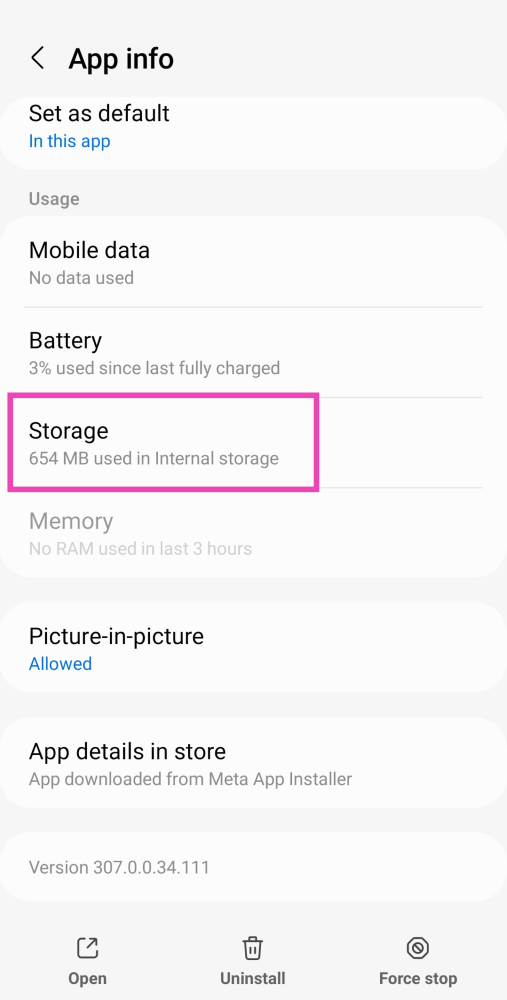
Step 3: Tap on Storage.
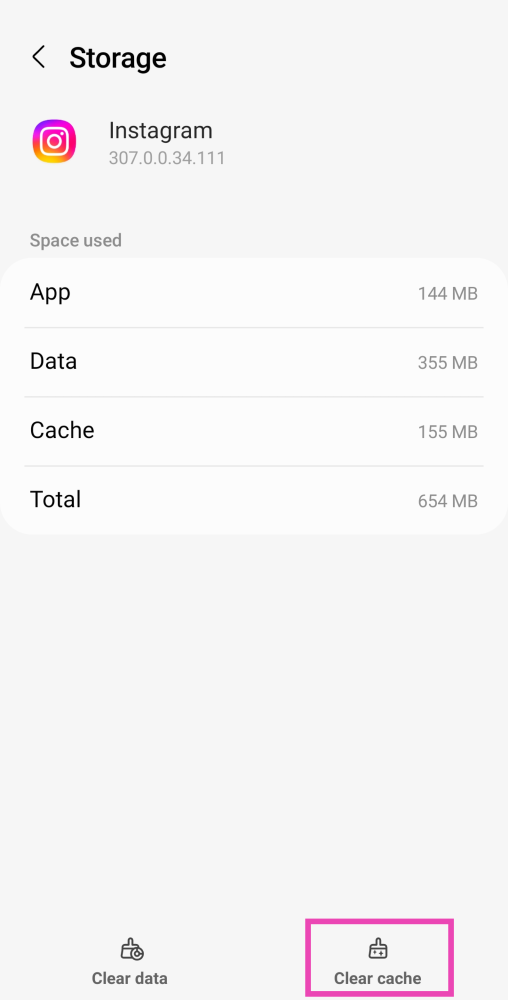
Step 4: Select Clear cache.
Force Stop the Instagram app
If you are making changes and the app is still running in the background the changes won’t apply right away. Sometimes restarting the app works as well to fix the ‘no audio on Instagram reels’ issue. Try the following steps.Step 1: Go to Settings and select Apps.
Step 2: Select Instagram.
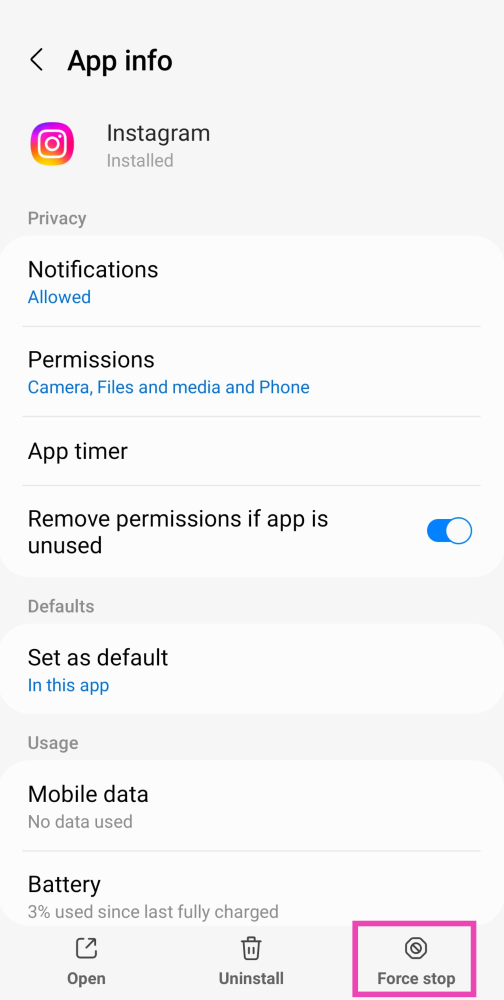
Step 3: Hit Force Stop at the bottom of the screen.
Reinstall Instagram
Sometimes, removing and reinstalling the Instagram app from your device can flush annoying bugs and resolve any issues you may be facing on the platform. To uninstall Instagram from your smartphone, simply long-press its icon on the app drawer and hit ‘Uninstall’. Go to the Google Play Store or App Store and reinstall the app.
Bonus Tip: Check your internet connection
Make sure that the internet connection you are connected with is proper and fast. To test that head to fast.com. Another thing to check is that you have enough storage left on your smartphone. Whenever any multimedia is consumed or an application is updated, it slightly increases the application size, no space left on board can also result in the malfunctioning of the application.
Frequently Asked Questions (FAQs)
How do I turn on the audio on Instagram Reels and Stories?
Tap anywhere on the screen to turn on the sound on Instagram Reels. If you’re watching Stories, simply press the Volume Up button to unmute them.
Why isn’t sound working on the Instagram app?
If you can’t hear any sound on Instagram Reels, Stories, or videos, make sure your app is updated. Give your phone a quick restart to resolve any background issues. Usually, this problem arises due to unexpected bugs in the app.
How do I clear Instagram’s cache?
To clear Instagram’s cache, go to Settings>Apps>Instagram>Storage>Clear Cache. Clearing the cache for Instagram does not log you out of the app or delete your drafts.
Read Also: Top 5 ways to fix if you are unable to download apps
Conclusion
These are the top 7 ways to fix the ‘audio not working on Instagram Reels and Stories’ issue on your smartphone. If none of these fixes worked for you, check if other apps are able to play sound on your device. If they aren’t the issue likely lies with your phone’s hardware.
The Chinese electronics brand, EZVIZ, today announced the launch of its new wireless camera in the Indian market. The company has expanded its smart home security portfolio with the introduction of a new EZVIZ TY1 Smart camera. The new CCTV camera is a Wi-Fi pan and tilt camera that offers 360 degrees of field video. In addition to this, it comes with a 1080p video recording along with smart night vision and smart tracking.Deepak Wadkar – AVP Sales – EZVIZ said “Increased consumer awareness around crime and security threats has led to a major growth of home security solutions in India. With the sudden spike in security breaches in the last few years, EZVIZ has witnessed an increased demand for smart home security cameras, since customers want to protect their homes and stay connected with their loved ones, now more than ever. In correlation to this, we have launched the new EZVIZ TY1 security camera with features like FHD 1080p resolution, 360-degree visual coverage, improved night vision and enhanced data protection and privacy, which accurately addresses the needs of the users and create a holistic experience for them.” He added “Providing our customers with home security solutions with best-in-class home functionalities and versatile use cases has always been our number one priority,”
EZVIZ TY1 Smart camera is multifunctional and can be used to keep an eye on your children while you are out, monitor your housekeeper, and even your pets. The device comes with a smart tracking feature that can detect the motion of moving objects and alert the user with an image in real-time. It has a two-way built-in microphone along with a speaker letting you stay in touch with your family remotely via the EZVIZ App.
EZVIZ TY1 has a sensor with 2MP resolution. It offers a 360-degree field view, super-crisp 1080 video recording and smart tracking features.According to the company, the EZVIZ security camera includes a motorised pan and tilt for 360-degree visual coverage allowing you to view the entire room with a single camera rather than multiple cameras in different corners. Like we said earlier it offers 1080p resolution for sharp and clear footage. The EZVIZ TY1 Smart camera also improves night vision with smart IR that helps in reducing areas of overexposure in video displays for clear nighttime monitoring of up to 10 meters. The EZVIZ TY1 2MP Smart Wi-Fi Pan & Tilt Camera will be available offline via the company’s official channel partners and distributors.
For the latest gadget and tech news, and gadget reviews, follow us on Twitter, Facebook and Instagram. For newest tech & gadget videos subscribe to our YouTube Channel. You can also stay up to date using the Gadget Bridge Android App. You can find the latest car and bike news here.
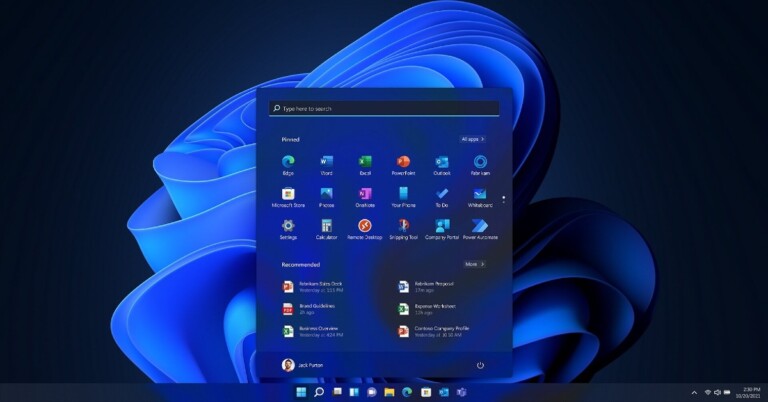
Windows 11 has been a big update by Microsoft this year. The UI feels more animated and the icons look polished and futuristic. Adding to it are the new round corners almost everywhere in the UI. Yes, Windows 11 looks better than Windows 10 but it completely depends on individual taste how you want to position it. With the new update, the taskbar icons including the search and Windows one got relocated to the centre of the taskbar. This gives the taskbar a minimalistic look, though many like the traditional left positioned of the icons and Windows button on it. Here is how to move Windows and other icons from the middle to the left side of the taskbar in Windows 11.Step 1 – Open Windows and search the Taskbar settings.Read Also: Windows 11 launched: Here are the top 5 featuresStep 2 – Here click on Taskbar behaviour to bring down the options list.Step 3 – Choose taskbar alignment from centre to left.Read Also: 6 steps that help you access error-free Microsoft StoreAnd that’s about it, doing this process will shift the taskbar and reposition it to the left side of the screen just like the traditional way.
For the latest gadget and tech news, and gadget reviews, follow us on Twitter, Facebook and Instagram. For newest tech & gadget videos subscribe to our YouTube Channel. You can also stay up to date using the Gadget Bridge Android App. You can find the latest car and bike news here.
Instagram is an American photo and video sharing social media platform that is trending especially among youngsters as they share a lot of multimedia. Just like Twitter, this social media platform also has followers and the following tab on everyone’s profile. The more followers you have the more engagement and impactful your profile becomes (well, that’s what the current generation thinks, which is subjective). With so many people on Instagram how to know if someone unfollows you? Here is ways for Instagram unfollowers check.
In application
You can find it out via application by opening the application and following the next steps below.Step 1 – Open profile by tapping on profile picture towards the lower right cornerStep 2 – Tap on the followersStep 3 – Search from the followers you already have to know the missing names.It gets difficult to know if you lost a large number of followers, but you will get an idea of people who stopped following you. There can also be a possibility that a user has deleted their Instagram account.Read Also: How to find who unfollowed you on Instagram
From Website
The steps from the website are pretty much the same as the above. Follow the below steps.Step 1 – Login to your Instagram account from the website.Step 2 – Click on profile on the top right corner of the screenStep 3 – Head to followers to search out the missing accounts from your profile.If you find it to be a big hassle and want to know instantly who unfollowed you, you can always use a third-party application to help you with Instagram unfollowers checkRead Also: How to declutter your Facebook news feed?
Third-party application
There are a lot of applications in app stores available for you to download in order to know who unfollowed you. Though Instagram is banning some of the applications as they are fetching data illegally from their platform. A popular application for this purpose is Followers and Unfollowers. You will be required to log in to your Instagram account via the app, which is always not recommended as any information can be fetched via your account or your account might be compromised. The app tells you who unfollowed you after you install the application and not of the incidents that happened in the past.Remember: It is always good to read the T&C/Privacy policy of any app before installing.
For the latest gadget and tech news, and gadget reviews, follow us on Twitter, Facebook and Instagram. For newest tech & gadget videos subscribe to our YouTube Channel. You can also stay up to date using the Gadget Bridge Android App. You can find the latest car and bike news here.
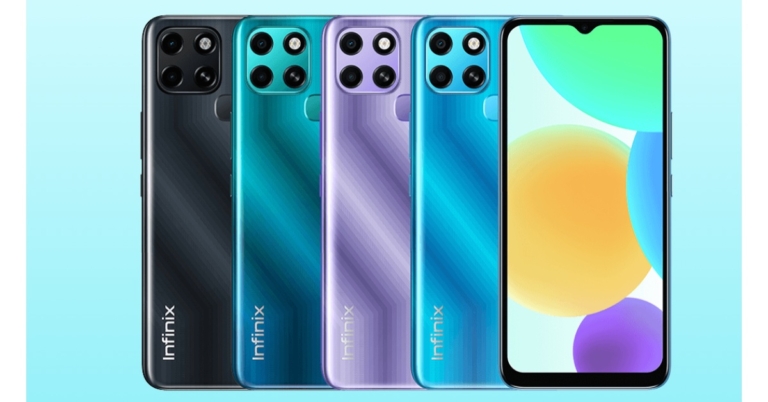
Transsion Group Holdings brand Infinix announced the launch of its new smartphone in the market. The company has introduced Infinix Smart 6 as its newest budget offering and is a successor of Infinix Smart 5A. The device features a dual rear camera set up and is powered by MediaTek Helio A20 SoC. It comes with Android 11 out of the box and an HD+ display. Read on to know its price and availability details.
Infinix Smart 6 price and sale details
Infinix Smart 6 is the company’s latest budget smartphone that has been introduced at $120 which translates to Rs 9,000. The phone will also be available in a limited market and offered in four colour options of Polar Black, Light Sea Green, Heart of Ocean and Starry Purple.
Infinix Smart 6 specifications
Speaking of the specifications, Infinix Smart 6 comes with a new form factor than its predecessor. The phone features a square-shaped camera module and noticeable bezels around the display and a rear-mounted fingerprint sensor. The phone features a waterdrop design 6.6-inch HD+ LCD IPS display. The screen comes with 1600×720 pixels of resolution with 16 million colours and 266ppi pixel density. It runs on Android 11 Go Edition based XOS 7.6. Under the hood, there is a Unisonic SC9863A SoC paired with 2GB of RAM and 32GB of storage option. The internal storage can be expanded up to 512GB using a microSD card. In terms of optics, Infinix Smart 6 features a dual rear camera housed inside a square-shaped camera module. It includes an 8-megapixel primary sensor and a secondary 0.08-megapixel lens. Upfront there is a 5-megapixel sensor inside a waterdrop notch for selfies and video calling. The budget-friendly phone boasts a 5,000mAh battery and comes with 10W chagrin support. According to the company, the battery can provide 31 hours of talk time and 678 hours of standby. The device includes a 3.5mm headphone jack, Bluetooth and Micro USB port for connectivity. The sensors on the phone include a rear-mounted fingerprint sensor, G-Sensor, ambient light sensor and proximity sensor.
For the latest gadget and tech news, and gadget reviews, follow us on Twitter, Facebook and Instagram. For newest tech & gadget videos subscribe to our YouTube Channel. You can also stay up to date using the Gadget Bridge Android App. You can find the latest car and bike news here.
Google Maps is a versatile application which is used by many to navigate and help them locate places remotely. It might have happened sometimes that you are in need of Google Maps, but the app is either crashing or not working properly. Well, you are not alone, there are a few bugs and issues that do not let the application work in the way it is supposed to. No application is perfect and the same goes for Google Maps as well. Most of the time it will work absolutely flawlessly, but if you are stuck in such a rare case that your Maps application is not working properly, here are some fixes for your Google Maps that you can consider trying.Read Also:OnePlus 12R Genshin Impact Edition officially launched in India
Restart your device
In most electronics a simple restart creates wonders. Restarting your device will give it a fresh start and allow the application to start again which will clear some basic bugs if any case they might have triggered while using Google Maps.
Location permission
Google Maps asks for permission for location, if by chance you have not given all the location permission the application will create a problem. Here is how to check and rectify.Step 1 – Hold the application for two seconds and tap on app info.Step 2 – Select Permission.Step 3 – Tap on the locationStep 4 – Now select Allow all the time.Open Google apps and try again if it solves the problem.
Try updating the app
Updating the application fixes some features and adds features to the application. There might be some update pending on Google Maps so it’s better to check and get it updated.Step 1 – One Google Play Store.Step 2 – Tap on the profile picture.Step 3 – Select My apps & gamesStep 4 – Click Update all.If you do not want to update all apps, update Google Maps selectively. After that check, if the solution worked for you.
Uninstall updates
Doing so will convert the applications back to factory settings so by any chance if you update Maps with a buggy version, it will solve the problem. Here is how to do it.Step 1 – Hold the application for two seconds to find the app info setting.Step 2 – Tap on the 3 dot burger sign and select Uninstall updates.Following these steps, the app will go back to the factory setting, see if this method works for you.Read Also: How to live with a smartphone with low internal storage
Force Stop
If you are making changes to the application data and it is open in the background, there are chances that these changes won’t affect it. To make it work you need to force stop the application completely. Hold the application, go to app info and press force stop.
Clear data and cache
Buggy data or bad cache can be a major problem as to why your application is not functioning properly. You can clear the data and cache files by long-pressing the application. Heading to app info and then storage and cache. First try to clear the cache and see if it works for you, if not try removing the app data as well.
Check if Google Maps is down
If Google Maps is experiencing a server outage, the app will not refresh on your device. To make sure this is the case, go to Downdetector.in and search for Google Maps. If you notice a spike in user reports, it means the service is temporarily down. Wait for Google to restore the servers or use an alternative like Waze or HERE WeGO.
Check the network connection
If the strength of the network connection on your phone is low, you will certainly face issues with the Google Maps app. Switch to a better WiFi network and try again. If you’re on the go, toggle Airplane Mode on and off to refresh the mobile internet network. You can also try using a WiFi hotspot from another device.
Disable WiFi Only Mode
The WiFi Only Mode on Google Maps does not let the app work on mobile data. Here’s how you can turn it off.
Step 1: Launch the Google Maps app and tap your profile icon at the top right corner of the screen.
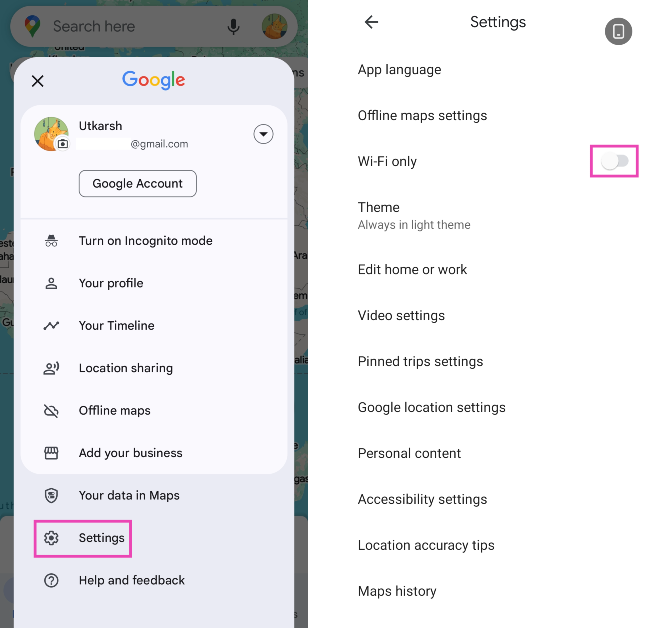
Step 2: Tap on Settings and turn off the toggle switch for WiFi Only.
Unrestricted data
Due to Android’s smart management, it restricts data of applications that have not been used and still takes memory in the background. There is a good chance that this thing might have been interfering with the proper functioning of Google Maps. Here is how to fix it.Step 1 – Hold the Google Maps app to discover more settings.Step 2 – Tap on the App info.Step 3 – In the application setting tap on Mobile Data and Wi-Fi.Step 4 – Make sure both the Background data and Unrestricted data usage options are turned on.
Reset Google Play Services
Google Play Services keep all the Google applications working together and run constantly in the background. So in a nutshell, if the Google Play Services are not working fine it will create problems with maps and other applications as well. To solve it try the below method.Step 1 – Go to Settings and open Apps.Step 2 – In the list of applications search Google Play Services.Step 3 – Head to storage and then clear all data.This process will take a while, wait for the process to complete and try using Google Maps now.Read Also: How to format an external hard drive or USB pen drive?
Location accuracy
By enabling high accuracy mode, Google Maps will be able to know your location more accurately. Though these options consume more data and battery it is required by the application to work properly.Step 1 – Open SettingsStep 2 – Look for location.Step 3 – Head to advance.Step 4 – Here, select Google Location Accuracy.Step 5 – Toggle on Improve Location Accuracy.Fire up the application and see if it works. This should fix your Google Maps if it is not working.
Calibration
Google Maps shows you your precise location. To achieve that calibration is very important. If the compass is not properly calibrated the Google map will not work properly and give incorrect locations. It’s easy to manually calibrate your Google Maps.Step 1 – Open Google Maps and tap on the blue circle(your current location).Step 2 – An option list will open with calibration as an option on it.Step 3 – Calibrate your phone following the instructions on the screen.This should most probably fix the problem and your Google Maps should be working fine again.
Frequently Asked Questions (FAQs)
How do I disable the WiFi Only mode on Google Maps?
Go to Google Maps>Profile>Settings and turn off the toggle switch for ‘WiFi Only’.
How do I check if Google Maps is down?
If your Google Maps is not working, go to Downdetector.in and search for Google Maps. If you see a spike in user reports, it means the app is down.
These are the top 13 ways to fix Google Maps if it is not working. If none of these work the last option left for you is to reset your device, it will also free up the clutter making your phone smoother. If still there is a problem, then surely there is a hardware issue with your device. In such a case, we advise you to contact the nearest service centre and get it fixed.





 On the other hand, the 6GB RAM with a 128GB storage model will come at a discounted price of Rs 16,999. The retail price of the smartphone is Rs 23,999 and when combined with bank offers it can be purchased for Rs 15,749.
The phone comes in three three colour options of Golden Bronze, Graphite Black, and Steel Blue. It features a 6.67-inch full-HD+ dot display with a 120Hz refresh rate, 240Hz touch sampling rate. The phone is powered by a 7mm octa-core Qualcomm Snapdragon 860 SoC and there is a 48-megapixel quad rear camera setup. Poco X3 Pro also houses a 5,160mAh battery along with a 33W Type-C charger.
On the other hand, both the 4GB RAM/ 6GB RAM with 64GB storage of the Poco M2 Pro will be available for Rs 11,999 and Rs 12,999 respectively. The smartphones are originally selling for Rs 16,999 and Rs 17,999 respectively. While the bank offers will further bring down the price of the device to Rs 10,799 and Rs 11,749 respectively.
On the other hand, the 6GB RAM with a 128GB storage model will come at a discounted price of Rs 16,999. The retail price of the smartphone is Rs 23,999 and when combined with bank offers it can be purchased for Rs 15,749.
The phone comes in three three colour options of Golden Bronze, Graphite Black, and Steel Blue. It features a 6.67-inch full-HD+ dot display with a 120Hz refresh rate, 240Hz touch sampling rate. The phone is powered by a 7mm octa-core Qualcomm Snapdragon 860 SoC and there is a 48-megapixel quad rear camera setup. Poco X3 Pro also houses a 5,160mAh battery along with a 33W Type-C charger.
On the other hand, both the 4GB RAM/ 6GB RAM with 64GB storage of the Poco M2 Pro will be available for Rs 11,999 and Rs 12,999 respectively. The smartphones are originally selling for Rs 16,999 and Rs 17,999 respectively. While the bank offers will further bring down the price of the device to Rs 10,799 and Rs 11,749 respectively.
 The smartphone features a 6.67-inch full-HD+ display with a notch to house a 16-megapixel selfie camera. It is powered by Qualcomm Snapdragon 720G processor. The device is fuelled by a 5,020mAh battery with 33W fast charging support.
Lastly, the Poco C3 3GB RAM with a 32GB storage model will be selling at Rs 7,499 during the Flipkart Big Diwali sale. With bank offers, it can be purchased for Rs 6,749. The device comes with a 6.53-inch HD+ LCD waterdrop-style notch display and runs on MIUI 12 for Poco on top of Android 10. Under the hood, there is an octa-core MediaTek Helio G35 chipset and has a triple rear camera setup
For the latest gadget and tech news, and gadget reviews, follow us on Twitter, Facebook and Instagram. For newest tech & gadget videos subscribe to our YouTube Channel. You can also stay up to date using the Gadget Bridge Android App. You can find the latest car and bike news here.
The smartphone features a 6.67-inch full-HD+ display with a notch to house a 16-megapixel selfie camera. It is powered by Qualcomm Snapdragon 720G processor. The device is fuelled by a 5,020mAh battery with 33W fast charging support.
Lastly, the Poco C3 3GB RAM with a 32GB storage model will be selling at Rs 7,499 during the Flipkart Big Diwali sale. With bank offers, it can be purchased for Rs 6,749. The device comes with a 6.53-inch HD+ LCD waterdrop-style notch display and runs on MIUI 12 for Poco on top of Android 10. Under the hood, there is an octa-core MediaTek Helio G35 chipset and has a triple rear camera setup
For the latest gadget and tech news, and gadget reviews, follow us on Twitter, Facebook and Instagram. For newest tech & gadget videos subscribe to our YouTube Channel. You can also stay up to date using the Gadget Bridge Android App. You can find the latest car and bike news here.  On the other hand, the 6GB RAM with a 128GB storage model will come at a discounted price of Rs 16,999. The retail price of the smartphone is Rs 23,999 and when combined with bank offers it can be purchased for Rs 15,749.
The phone comes in three three colour options of Golden Bronze, Graphite Black, and Steel Blue. It features a 6.67-inch full-HD+ dot display with a 120Hz refresh rate, 240Hz touch sampling rate. The phone is powered by a 7mm octa-core Qualcomm Snapdragon 860 SoC and there is a 48-megapixel quad rear camera setup. Poco X3 Pro also houses a 5,160mAh battery along with a 33W Type-C charger.
On the other hand, both the 4GB RAM/ 6GB RAM with 64GB storage of the Poco M2 Pro will be available for Rs 11,999 and Rs 12,999 respectively. The smartphones are originally selling for Rs 16,999 and Rs 17,999 respectively. While the bank offers will further bring down the price of the device to Rs 10,799 and Rs 11,749 respectively.
On the other hand, the 6GB RAM with a 128GB storage model will come at a discounted price of Rs 16,999. The retail price of the smartphone is Rs 23,999 and when combined with bank offers it can be purchased for Rs 15,749.
The phone comes in three three colour options of Golden Bronze, Graphite Black, and Steel Blue. It features a 6.67-inch full-HD+ dot display with a 120Hz refresh rate, 240Hz touch sampling rate. The phone is powered by a 7mm octa-core Qualcomm Snapdragon 860 SoC and there is a 48-megapixel quad rear camera setup. Poco X3 Pro also houses a 5,160mAh battery along with a 33W Type-C charger.
On the other hand, both the 4GB RAM/ 6GB RAM with 64GB storage of the Poco M2 Pro will be available for Rs 11,999 and Rs 12,999 respectively. The smartphones are originally selling for Rs 16,999 and Rs 17,999 respectively. While the bank offers will further bring down the price of the device to Rs 10,799 and Rs 11,749 respectively.
 The smartphone features a 6.67-inch full-HD+ display with a notch to house a 16-megapixel selfie camera. It is powered by Qualcomm Snapdragon 720G processor. The device is fuelled by a 5,020mAh battery with 33W fast charging support.
Lastly, the Poco C3 3GB RAM with a 32GB storage model will be selling at Rs 7,499 during the Flipkart Big Diwali sale. With bank offers, it can be purchased for Rs 6,749. The device comes with a 6.53-inch HD+ LCD waterdrop-style notch display and runs on MIUI 12 for Poco on top of Android 10. Under the hood, there is an octa-core MediaTek Helio G35 chipset and has a triple rear camera setup
For the latest gadget and tech news, and gadget reviews, follow us on Twitter, Facebook and Instagram. For newest tech & gadget videos subscribe to our YouTube Channel. You can also stay up to date using the Gadget Bridge Android App. You can find the latest car and bike news here.
The smartphone features a 6.67-inch full-HD+ display with a notch to house a 16-megapixel selfie camera. It is powered by Qualcomm Snapdragon 720G processor. The device is fuelled by a 5,020mAh battery with 33W fast charging support.
Lastly, the Poco C3 3GB RAM with a 32GB storage model will be selling at Rs 7,499 during the Flipkart Big Diwali sale. With bank offers, it can be purchased for Rs 6,749. The device comes with a 6.53-inch HD+ LCD waterdrop-style notch display and runs on MIUI 12 for Poco on top of Android 10. Under the hood, there is an octa-core MediaTek Helio G35 chipset and has a triple rear camera setup
For the latest gadget and tech news, and gadget reviews, follow us on Twitter, Facebook and Instagram. For newest tech & gadget videos subscribe to our YouTube Channel. You can also stay up to date using the Gadget Bridge Android App. You can find the latest car and bike news here. 

 It is possible that a bug may have been triggered due to some action that you took on your device or even a background app. No need to fret, as you can just restart your phone to fix it. Restarting will give the UI and application a fresh start, eliminating the cause or reason for the bug. Also before restarting make sure your ringer is on. Just play any video and press the volume-up key to see if it changes anything.
 Step 2: Select Instagram.
 Step 3: Tap on Storage.
 Step 4: Select Clear cache.


 It is possible that a bug may have been triggered due to some action that you took on your device or even a background app. No need to fret, as you can just restart your phone to fix it. Restarting will give the UI and application a fresh start, eliminating the cause or reason for the bug. Also before restarting make sure your ringer is on. Just play any video and press the volume-up key to see if it changes anything.
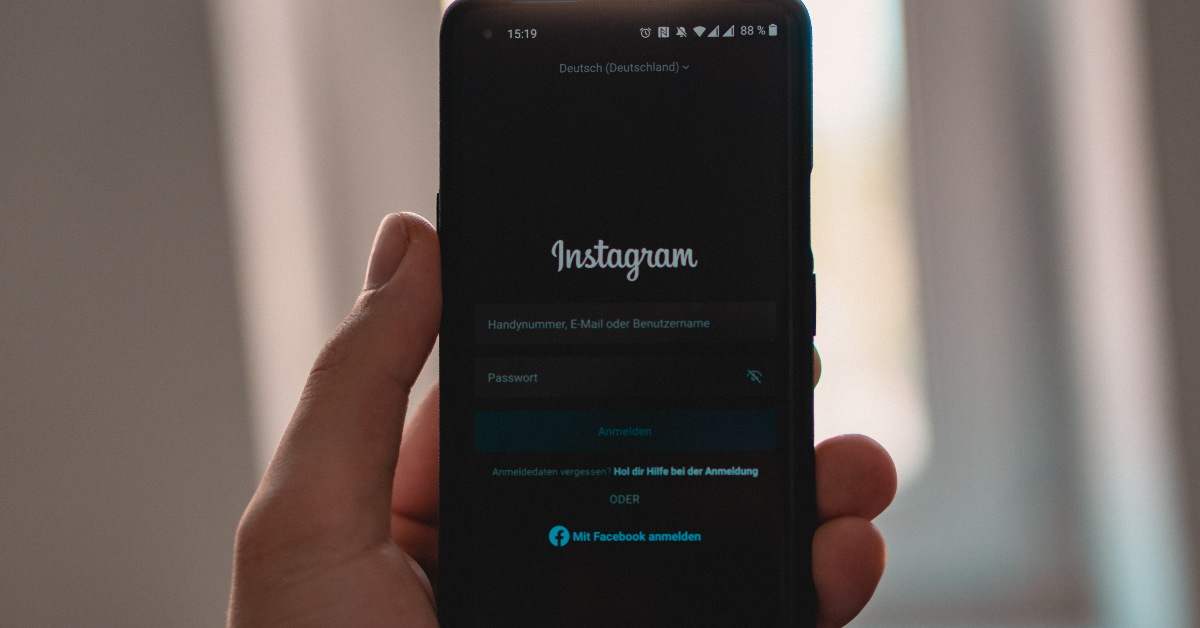 There might be bugs in the current version of Instagram you are using. These glitches often are reported by many users and the company rolls out updates as soon as possible to fix them. Head to the respective stores of whichever OS you are using and see if there are any pending updates left. If you find an update tab in front of the application on either Google Playstore or Apple Appstore press it to start the update.
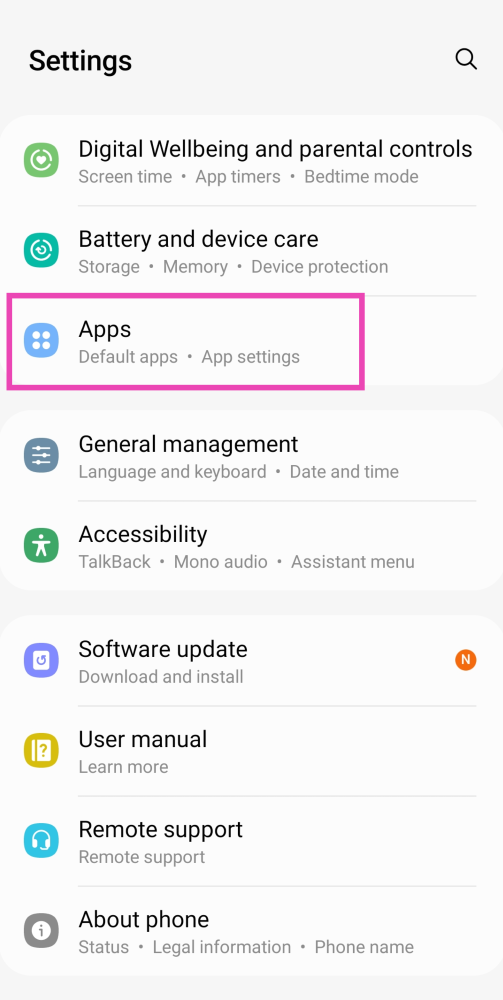 Step 2: Select Instagram.
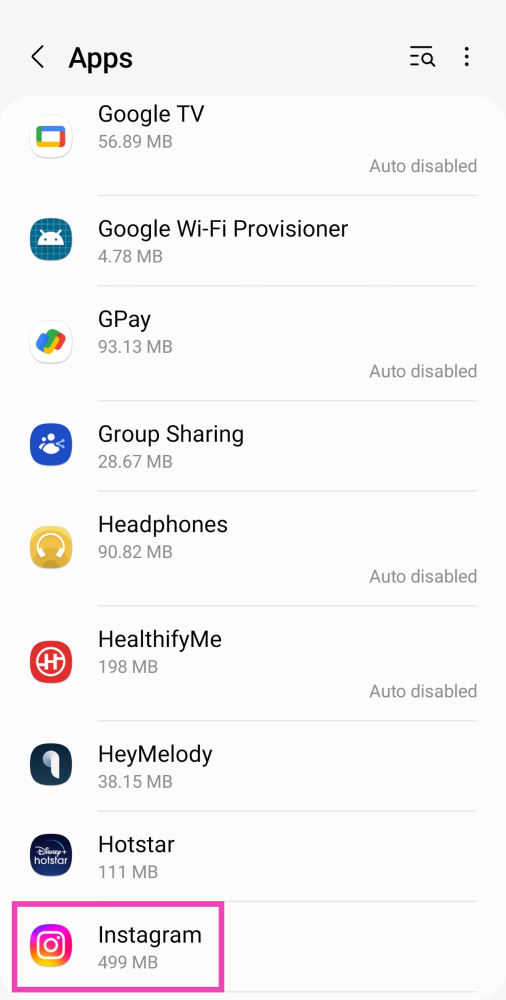 Step 3: Tap on Storage.
 Step 4: Select Clear cache.
 Sometimes, removing and reinstalling the Instagram app from your device can flush annoying bugs and resolve any issues you may be facing on the platform. To uninstall Instagram from your smartphone, simply long-press its icon on the app drawer and hit ‘Uninstall’. Go to the Google Play Store or App Store and reinstall the app.

 Read Also: Windows 11 launched: Here are the top 5 features
Step 2 – Here click on Taskbar behaviour to bring down the options list.
Read Also: Windows 11 launched: Here are the top 5 features
Step 2 – Here click on Taskbar behaviour to bring down the options list.
 Read Also: Windows 11 launched: Here are the top 5 features
Step 2 – Here click on Taskbar behaviour to bring down the options list.
Read Also: Windows 11 launched: Here are the top 5 features
Step 2 – Here click on Taskbar behaviour to bring down the options list.
 Step 3 – Choose taskbar alignment from centre to left.
 Read Also: 6 steps that help you access error-free Microsoft Store
And that’s about it, doing this process will shift the taskbar and reposition it to the left side of the screen just like the traditional way.
For the latest gadget and tech news, and gadget reviews, follow us on Twitter, Facebook and Instagram. For newest tech & gadget videos subscribe to our YouTube Channel. You can also stay up to date using the Gadget Bridge Android App. You can find the latest car and bike news here.
Read Also: 6 steps that help you access error-free Microsoft Store
And that’s about it, doing this process will shift the taskbar and reposition it to the left side of the screen just like the traditional way.
For the latest gadget and tech news, and gadget reviews, follow us on Twitter, Facebook and Instagram. For newest tech & gadget videos subscribe to our YouTube Channel. You can also stay up to date using the Gadget Bridge Android App. You can find the latest car and bike news here. 
 Step 2 – Tap on the followers
 Step 3 – Search from the followers you already have to know the missing names.
 It gets difficult to know if you lost a large number of followers, but you will get an idea of people who stopped following you. There can also be a possibility that a user has deleted their Instagram account.
Read Also: How to find who unfollowed you on Instagram
It gets difficult to know if you lost a large number of followers, but you will get an idea of people who stopped following you. There can also be a possibility that a user has deleted their Instagram account.
Read Also: How to find who unfollowed you on Instagram
 Step 2 – Click on profile on the top right corner of the screen
 Step 3 – Head to followers to search out the missing accounts from your profile.
 If you find it to be a big hassle and want to know instantly who unfollowed you, you can always use a third-party application to help you with Instagram unfollowers check
Read Also: How to declutter your Facebook news feed?
If you find it to be a big hassle and want to know instantly who unfollowed you, you can always use a third-party application to help you with Instagram unfollowers check
Read Also: How to declutter your Facebook news feed?



 Step 2: Tap on Settings and turn off the toggle switch for WiFi Only.

 Step 5 – Toggle on Improve Location Accuracy.
 In most electronics a simple restart creates wonders. Restarting your device will give it a fresh start and allow the application to start again which will clear some basic bugs if any case they might have triggered while using Google Maps.
 Step 2 – Select Permission.
 Step 3 – Tap on the location
Step 4 – Now select Allow all the time.
Step 3 – Tap on the location
Step 4 – Now select Allow all the time.
 Open Google apps and try again if it solves the problem.
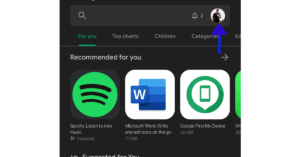 Step 3 – Select My apps & games
Step 4 – Click Update all.
Step 3 – Select My apps & games
Step 4 – Click Update all.
 If you do not want to update all apps, update Google Maps selectively. After that check, if the solution worked for you.
 Following these steps, the app will go back to the factory setting, see if this method works for you.
Read Also: How to live with a smartphone with low internal storage
Following these steps, the app will go back to the factory setting, see if this method works for you.
Read Also: How to live with a smartphone with low internal storage
 If you are making changes to the application data and it is open in the background, there are chances that these changes won’t affect it. To make it work you need to force stop the application completely. Hold the application, go to app info and press force stop.
 Buggy data or bad cache can be a major problem as to why your application is not functioning properly. You can clear the data and cache files by long-pressing the application. Heading to app info and then storage and cache. First try to clear the cache and see if it works for you, if not try removing the app data as well.
 If Google Maps is experiencing a server outage, the app will not refresh on your device. To make sure this is the case, go to Downdetector.in and search for Google Maps. If you notice a spike in user reports, it means the service is temporarily down. Wait for Google to restore the servers or use an alternative like Waze or HERE WeGO.
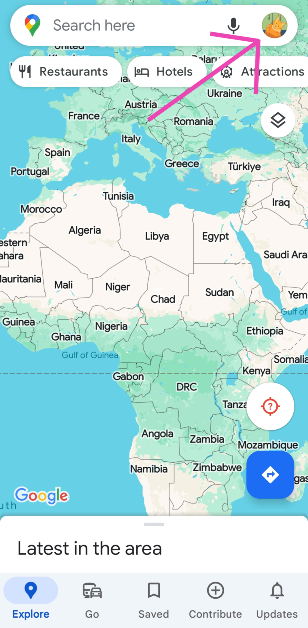 Step 2: Tap on Settings and turn off the toggle switch for WiFi Only.

 Step 2 – In the list of applications search Google Play Services.
Step 3 – Head to storage and then clear all data.
Step 2 – In the list of applications search Google Play Services.
Step 3 – Head to storage and then clear all data.
 This process will take a while, wait for the process to complete and try using Google Maps now.
Read Also: How to format an external hard drive or USB pen drive?
This process will take a while, wait for the process to complete and try using Google Maps now.
Read Also: How to format an external hard drive or USB pen drive?
 Step 3 – Head to advance.
Step 4 – Here, select Google Location Accuracy.
Step 3 – Head to advance.
Step 4 – Here, select Google Location Accuracy.
 Step 5 – Toggle on Improve Location Accuracy.
 Fire up the application and see if it works. This should fix your Google Maps if it is not working.
 Step 3 – Calibrate your phone following the instructions on the screen.
 This should most probably fix the problem and your Google Maps should be working fine again.