Amazon hosts a Quiz session for its customers daily. Its app platform brings a quiz on a daily basis, which begins at 12 AM and ends at 11:59 PM daily. The participants stand a chance to win cash prizes on a daily basis. Today’s 29 October 2021 Amazon Quiz will let you win Rs 25,000 Amazon Pay Balance.
By participating in the Amazon Quiz the participants can win Amazon Pay Balance ranging from Rs 5,000 to Rs 50,000 every day while sitting at home. To win the participants must answer five questions correctly that are based on current events and general knowledge. One wrong answer can eliminate you from the quiz. The results will be announced at the end of the month. Today’s question will let you win Rs 25,000 Amazon Pay Balance. Check below for today Amazon quiz answers.
29 October 2021 Amazon Quiz Answers
Question 1: 3rd October is celebrated as the unity day in which country? (On this day in 1990 the eastern and the western blocks of a country became one)
Answer: Germany
Question 2: India would play 1 Test on their tour of England in 2022, after a Test match at which venue got called off in 2021 due to COVID-19?
Answer: Old Trafford
Question 3: Thena, Ikaris, Kingo and Ajak are a part of which group of people with superpowers that would appear in an upcoming Marvel movie?
Chipset manufacturer Intel has unveiled its new 12th Generation Core processor for desktops. Six new models have been announced that are based on Alder Lake architecture on the 10nm process. These are the company’s new generation of chipsets including three models: Intel Core i9-12900K, Core i7-12700K and Core i5-12600K. While the other three models have a KF suffix at the end that lacks UHD Graphics 770 GPU.All the 6 desktop processors are based on Intel’s performance hybrid architecture featuring a combination of Performance-cores (P-cores), the highest performing CPU core Intel has built, and Efficient-cores (E-cores), designed for scalable multithreaded workload performance. All the processors are unlocked and overclockable and come with a mix of diverse performance and efficiency cores in consumer X86 PCs. Along with this the DDR5 RAM and the PCIe5.0 interconnect standard have also debuted. The Alder Lake CPUs will be using a hybrid of two core types and is similar to how ARM-based smartphone chipsets are developed. While the new 10m Intel 7 process will be used to manufacture all 12 Gen Core CPUs. The latest Golden Clove performance core to replace the existing Tiger Lake’s platform Willow Cove cores. Besides this, the Gracemont Efficiency core architecture is the successor of Lakefield which is the company’s first hybrid CPU released in 2020. As of now, the 12th Gen desktop Core i9 CPUs are announced to have 16 cores which include 8 performance and efficiency cores, 12 cores include 8 performance and 4 efficiency cores as well as 10 cores including 6 performance and 4 efficiency cores. The performance cores benefit from Hyper-Threading letting two threads run at the same time vehicle Efficiency cores don’t really. Though there will be nonlinear core or thread counts. The Thread Director balanced workloads and assigned the best activities to each core which required Windows 11. According to the company, the Core i9-12900K provides astounding gen-over-gen performance increases, including up to 25% more FPS on Troy: A Total War Saga, up to 28% more FPS on Hitman 3, and up to 23% more FPS on Far Cry 63. Enhanced by Intel Killer Wi-Fi 6E for up to 75% less latency while gaming when multitasking, high-frequency P-cores paired with E-cores for offloading parallel tasks enable up to 84% more frames per second for simultaneous gaming, streaming, and recording.Moreover, the 12th Gen Intel Core desktop processors are the first to DDR5 memory for up to 4800MT/s, PCIe 5.0 (up to 16 lanes), which offers up to 2X I/O throughput over PCIe 4.0, with up to an additional four lanes of PCIe 4.0 support. In addition to this, it brings 30MB Intel Smart Cache (L3) and 14MB L2 cache for increased memory capacity with reduced latency. It comes integrated with Discrete Thunderbolt 4 universal cable connectivity for external device expansion.On the other hand, the Intel 600 Series Chipset includes new PCIe Gen 4.0 lanes make for 28 total lanes off the chipset, integrated USB 3.2 Gen 2×2 provides up to double the bandwidth, DMI Gen 4.0 increases the chipset to CPU throughput for fast access to peripheral devices and networking. It also offersIntel Volume Management Device (VMD) to PC chipsets to simplify storage control by allowing direct control and management of NVMe-based SSDs from the PCIe bus without additional RAID controllers or other hardware adaptors.
Intel 12th Generation Alder Lake CPUs Availability
The unlocked 12th Gen Intel Core desktop processors are up for pre-orders now being offered by participating OEMs, channel partners, and retailers. Broad availability will start November 4 with more than 140 customers in more than 30 countries expected to add the new processors to their lineups by the end of the year. The price of the new Alder Lake processors will begin at $264 to $589 for the unlocked desktop processors.The company is likely to have hundreds of thousands of 12th Gen Intel Core desktop “K” processors by the end of the year and more than 2 million by the end of March 2022. To enable the expanded offerings for desktop, mobile and commercial segments expected in early 2022, Intel is also shipping 28 of the processor SKUs in the 12th Gen Intel Core processor family to OEM partners.
For the latest gadget and tech news, and gadget reviews, follow us on Twitter, Facebook and Instagram. For newest tech & gadget videos subscribe to our YouTube Channel. You can also stay up to date using the Gadget Bridge Android App. You can find the latest car and bike news here.
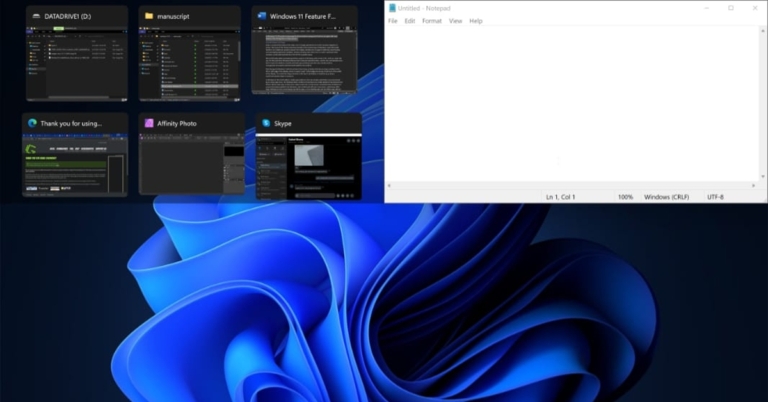
Since Windows 7, Microsoft introduced a split-screen feature and you could have done it by pressing Windows + Arrow keys to make the application divide in half screen. This feature is very useful while taking notes as in half of the screen you can open a browser and within the other half you can open a notepad or Word doc and start typing. The snap window feature in Windows 11 has seen an overhaul and we can say that it is the best when compared to all the past versions. The shortcut still works in the same manner, but now there is much more to just splitting the screen into two halves. Here is how to use the feature in Windows 11 properly.
Enable snap window
Though this feature is on by default, you can check it once again if it is enabled/disabled.Step 1 – Press the start button on the keyboard or press the Windows icon on the toolbar.Step 2 – Search by typing snap settings, and open it.Step 3 – Make sure the snap window option is toggle on.Read Also: OnePlus, Oppo, Xiaomi and more will come with Snapdragon 888
How to use snap window
Once the option is switched on now you can split the applications into 6 different layouts
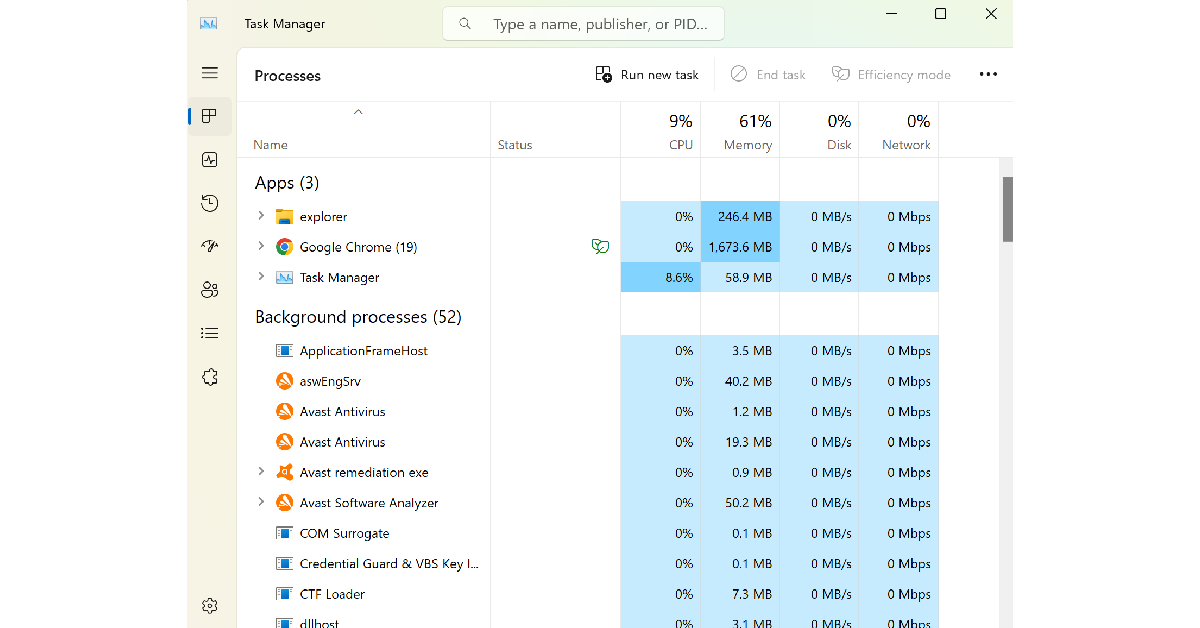
Task Manager is a tool that has been there in Windows for decades. It manages and shows users the way apps process as well as services running on your system. It can be very useful to know, which application is becoming a resource hog or many monitorable problems like RAM usage and memory usage. To do any of it you must first know how to open a task manager, as it has slightly changed from Windows 10. Here are the top 10 ways to open Task Manager in Windows 11.Read Also:OnePlus 12R Genshin Impact Edition officially launched in India
Ctrl + Shift + Esc
Pressing these keys simultaneously will open the task manager instantly.
As soon as you press Win+X it will open a drop-down list where you can find the task manager.
Task Manager from Windows search
Press the Windows key on your keyboard or tap on the Windows icon on the task bar and search task manager in the search bar.
From Run Window
It is one of the fastest ways to open a task manager. All you have to do is either search for Run on Windows search or press Win+R and then type taskmgr and press enter. This will directly open the task manager in front of you.
Open Task Manager using the File Explorer
Step 1: Hit the File Explorer icon in the taskbar.
Step 2: Click on the empty space in the address bar.
Step 3: Type ‘taskmgr‘ and hit Enter.
Use Command Prompt/Powershell to open Task Manager
Step 1: Launch Command Prompt or Powershell on your Windows 11 PC.
Step 2: Type ‘taskmgr.exe‘.
Step 3: Hit Enter.
Create a desktop shortcut
Step 1: Right-click on any empty spot on the desktop.
Step 2: Select New>Shortcut.
Step 3: Type ‘taskmgr.exe‘ in the location section.
Step 4: Hit Next.
Step 5: Give the shortcut a name and click on Finish.
Step 6: Double-click the shortcut on the desktop to launch the Task Manager.
Pin the Task Manager to the Taskbar
Step 1: Go to the System32 folder in C:>Windows.
Step 2: Scroll down and locate the Taskmgr application file.
Step 3:Drag the application and drop it in the taskbar.
The Task Manager will be pinned to the taskbar.
Open Task Manager from Settings
Step 1: Open Settings on your Windows 11 PC.
Step 2: Search for task manager in the search bar.
Step 3: Click on ‘View system resource usage in Task Manager‘.
Frequently Asked Questions (FAQs)
What is the keyboard shortcut for Windows Task Manager?
You can trigger the task manager on your Windows PC by pressing Ctrl+Shift+Esc simultaneously.
How do I create a desktop shortcut for the task manager?
Right-click anywhere on the desktop and select New>Shortcut. Type taskmgr.exe in the location field and hit ‘Next’. Give the shortcut a name and hit ‘Finish’.
These are the best ways to open Task Manager on Windows 11. Now you can monitor your system and see resource utilisation from the applications easily. If you know any other way to easily access the task manager on your PC, let us know in the comments!
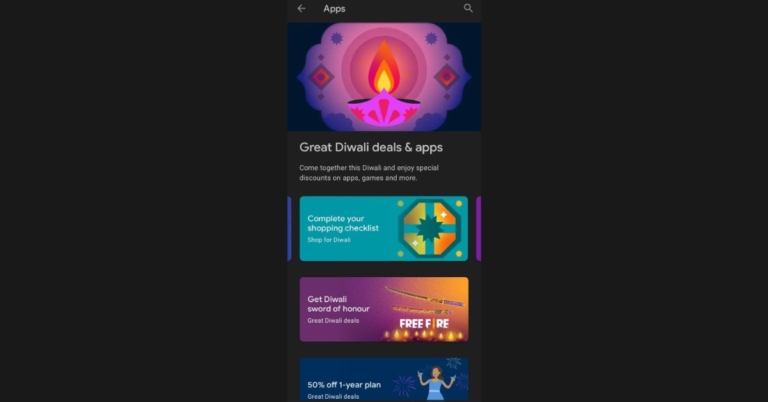
Diwali has arrived and almost all the tech giants are lobbying offers as part of the festivities. And Google Play store is running Great Diwali Deals on its platform. It is offering its users special deals on some of the popular games and applications on the Android Play Store.Some of the applications are also on sale along with in-app purchases. The deals are only available in India and let’s take a peek at what Google has to offer.Teen Patti Gold gaming app is offering up to 85 percent on chips and bazaar items during Mega Diwali Sale. It is a limited time offer.Google Play Store is also offering a Rs 20 discount on a single app, game or in-app item. These offers will be applied at the time of checkout.Canva design Photo and video app is another app on the list that is letting you design Diwali cards for free. You can find Diwali templates for cards, invitations and posters while using the app.Truecaller is providing 50 percent off on its annual subscription. You can subscribe to Truecaller premium and pay 50 percent less for the first year. Offer is only accessible to new subscribers to annual plans. While the users on monthly, 3 months and 6 months and can get the offer on upgrading to the annual subscription. Picsart photo and video editor is giving 50 percent off on its annual gold subscription for a limited period.Other apps like Calm- meditate, sleep, relax is now offering 50 percent off on its premium subscription. You will be charged Rs 1,825 for a 1-year subscription that will renew at Rs 3,650 annually. Similarly, there will be 50 percent off on one year plan of the Kinemaster app during the Great Diwali sale on Google Play Store. PowerDirector is also offering 50 percent off on all its premium plans.Garena Free Fire is also running a Diwali Special event. While Ludo King is putting up 100 coins at 50 percent off.Apart from this Krafton has also announced Diwali offers for Battlegrounds Mobile India. It has brought in-game credits UC and other rewards such as lucky spin in which you can win new outfits, emotes, helmets and more. Those who purchase in-game credit bundles are eligible for extra UC. The basic pack is fr Rs 89 with 60 UC, Rs 499 pack offers 300 UC along with 25 bonus UC, for Rs 899 the plates will get 600 UC and 60 bonus UC and so on. You can purchase the UC by tapping on the UC icon given in the main menu.
For the latest gadget and tech news, and gadget reviews, follow us on Twitter, Facebook and Instagram. For newest tech & gadget videos subscribe to our YouTube Channel. You can also stay up to date using the Gadget Bridge Android App. You can find the latest car and bike news here.
Paytm India largest digital payment platform today announced that it has received approval from SEBI for its IPO and it has now filed the Red Herring Prospectus. It has also disclosed its financials for three months ended June 2021, as the company prepares for its mega IPO. As of now, the proposed IP is the largest of its kind. Notably, the Rs 15,200 crore initial public offering of Coal India in 2010 was the country’s largest to date. Paytm’s IPO will open for subscription from November 8 at a price range of Rs 2,080- 2,150 per share with a face value of Rs 1 each. While Paytm’s IPO will close for subscription on November 10. The booking running managers are as follow:
Morgan Stanley India Company Private Limited
Axis Capital Limited
ICICI Securities Limited
JP Morgan India Private Limited
Citigroup Global Markets India Private Limited
HDFC Bank Limited
Whereas Link Intime India Private Limited will be the registrar to the offer. According to the company, the bids can be made for a minimum of 6 equity shares and in multiples of 6 equity shares thereafter. Moreover, the Qualified Institutional Buyers will receive no more than 75 percent of the net offer, while the retail investors will receive 10 percent and non-institutional investors will receive the rest 15 percent (NIIs).Investors must make certain that the bank account that will be used for bidding would be linked to their PAN. Paytm is planning an IPO worth Rs 18,300 crore making its largest market debut in the country till now. As a result of increased investor demand, it has increased the size of its initial public offering (IPO) from Rs 16,000 crore to Rs 18,600 crore.According to the company’s RHP, Paytm’s revenues increased dramatically in three months ending June 2021 owing to its payments and financial service offerings. The Revenue from operations increased b 62 percent to $8,908 million in Q1FY22 from $5,512 million in Q1 for the year 2021. In addition to this Paytm’s payments and financial service revenue alone accounted for $6,894 million in Q1FY22 accounting for 77 percent of total revenue. The company’s contribution margin too increased significantly in Q1FY2022 rising from 14.9 percent in Q1FY21 to 27.4 percent in Q1FY22. Due to a loss of $3,819 million for the three months ending June 2021, the company’s marketing and promotional expenses increased to $ 1,3777 million for Q1FY22. Also, employee benefits expenses increased to $3,507 million in Q1FY22 from $2,138 million in Q1FY21. Paytm’s total user base has increased to 337 million registered consumers and over 21.8 million registered merchants as of June 30, 2021 according to the company’s RHP.
For the latest gadget and tech news, and gadget reviews, follow us on Twitter, Facebook and Instagram. For newest tech & gadget videos subscribe to our YouTube Channel. You can also stay up to date using the Gadget Bridge Android App. You can find the latest car and bike news here.
The new Windows 11 was launched recently by Microsoft and the updated OS gets smarter design and faster interface. To make it user friendly the company didn’t make huge changes in usability so that it remains easy to grasp for the people who are upgrading. The theme is one of the traits that was carried forward from the previous generation. As default, Windows 11 boots with a light theme. Do you want the dark theme experience and enable a system-wide dark mode in Windows 11 as well? Here is how you can switch to a system-wide dark mode on Windows 11.Read Also: Twitter adds a new dark mode called ‘Lights Out’ for iOSStep 1 – Press the Windows button on your keyboard or press the icon on the taskbar.Step 2 – Search Dark Theme to find the option Turn on dark theme mode system-wide option.Step 3 – In the opened setting choose the theme from Choose your mode option and select accordingly. This is it on how to enable a system-wide dark mode in Windows 11.
Chinese electronics brand, Anker, has announced its new audio product under its Soundcore sub-brand. The company has introduced a new portable speaker- Soundcore Select Pro. The device features a 6,700mAh battery that promises up to 16 hours of playback. The new audio device is IPX7 rated water-resistant and is ideal for pool parties as it is waterproof. Not just this, the speaker comes with a power output of up to 30W and supports the company’s proprietary BassUp technology.
Soundcore Select Pro portable speaker price in India and sale offers
The Soundcore Select Pro portable speaker has been launched in India with a price tag of Rs 7,999. The audio device is now available for purchase via the e-commerce platform Flipkart. The speaker comes in a single black colour option and on its purchase, the e-retailer is offering 6 months of free subscription to Gaana Plus and 18 months of warranty. The buyer also has the option of no-cost EMI starting at Rs 2,667 per month. However, the e-commerce platform has listed the product at a special price of Rs 5,999.
Soundcore Select Pro portable speaker specifications
The Soundcore Select Pro portable speaker is IPX7 rated, fully waterproof and floats. These outdoor speakers come with a 10m of wireless range and can be connected to your smartphone or other devices via Bluetooth Version 5. The equips customisable drivers that include four passive radiators that offer a total audio output of 30W paired with the company’s BassUp Technology.While the customisable equaliser setting can be accessed via the Soundcore app available both on Android and iOS platforms. Besides this, the Soundcore Select Pro includes an LED list that changes lights in time according to the music. There is a PartyCast feature that works in conjunction with light and audio throughout numerous Soundcore speakers while connecting them together. In addition to this the Soundcore portable speaker houses a 6,700mAh battery which offers up to 16 hours of total playback time on a single charge and can be charged via USB Type C cable. Over that the Select Pro also comes integrated with PowerIQ charge-out tech that lets the users charge their smartphones.
For the latest gadget and tech news, and gadget reviews, follow us on Twitter, Facebook and Instagram. For newest tech & gadget videos subscribe to our YouTube Channel. You can also stay up to date using the Gadget Bridge Android App. You can find the latest car and bike news here.
Many iPhone users have been facing the problem of being stuck in the Apple logo or phone turning off automatically. This problem started to surface once in the past as well. Users started to face issues like the phone will not turn on, will go in a boot loop or won’t turn on at all. There can be many reasons for this problem. You might have tried to jailbreak the phone, an update that triggered some unnecessary bug or hardware malfunction. This situation can be extremely annoying and painful. Are you stuck in a similar situation? Worry not, here are some easy fixes that you can try on your own.
Plug your phone in the charger
If your device does not have enough charge it will show you the Apple logo but the phone won’t boot up, this usually happens with older iPhones more often, as the battery life is degraded, it often misbehaves. Try plugging your device in the charger and wait for some time before trying to start it.
Hard Reset
A hard reset usually fixes the temporary glitches. This method won’t work if there are any issues with your firmware or hardware.
For iPhone 8, SE 2020 and later – Press and quickly release the Volume Up button, press and quickly release the Volume Down button, press and hold the Power button. When the Apple logo appears, release the button.
For iPhone 7 and later – Press and hold both the Volume Down button and the Power button at the same time. When the Apple logo appears, release both buttons.
For iPhone 6s and earlier – Press and hold both the Power button and the Home button at the same time. When the Apple logo appears, release both buttons.
You can fix your iPhone using iTunes on your machine with the help of recovery mode. Here is how to do it.Step 1 – Boot your phone into recovery mode.
iPhone 8 or later – Press and quickly release the Volume Up button. Press and quickly release the Volume Down button. Then, press and hold the Side button until you see the recovery-mode screen.
iPhone 7 series- Press and hold the Top (or Side) and Volume Down buttons simultaneously. Keep holding them until you see the recovery-mode screen.
iPhone 6s or earlier – Press and hold both the Home and the power buttons simultaneously. Keep holding them until you see the recovery-mode screen.
Once done successfully you will see a power cable and a laptop icon on the screen (like the image below).Step 2 – Open your system and then iTunes on it.Step 3 – Connect your iPhone and it will automatically ask you to update or restore the device.Warning: This will reset the iPhone to the factory setting and all your data including contacts, photos or any multimedia will be gone if not backed up previously.
DFU Restore
DFU stands for Device Firmware Update, it is similar to the above method. It is generally used for iPhones that are stuck in the boot loop due to bad software updates. This will also result in losing all the data from your iPhone. It is also an official method that you can consider using.Step 1 – Plug your phone via USB and open iTunes on your laptop.Step 2 – Now follow the instructions according to the device you own.
iPhone 8 or later – Quick-press the Volume Up button. Then, quick-press the Volume Down button. After this, press and hold down the Side button until the screen goes black. As soon as the screen goes black, hold down both the Side button and Volume Down button. After 5-6 seconds, release the Side button while continuing to hold down the Volume Down button.
iPhone 7 earlier – Press and hold both the Side button and Volume Down button. After 8 seconds, release the Side button while continuing to hold down the Volume Down button.
iPhone 6s and earlier – Hold down both the Home button and Lock button. After 7-8 seconds, release the Lock button while still holding down the Home button.
There will be nothing on the iPhone’s display but iTunes will now automatically prompt that your phone is in DFU mode and you can select what next to be done.Read Also: Apple to start iTunes for Samsung smart TVs
Use third party application
If doing this feels like a hassle you can always go with a third-party application. There are lots of applications but our recommendation is Tenorshare Reiboot. The application is very informative and gives you a step by step guide on how to do it. We will still like to give you an easy overview of using it.Step 1 – Download the application and fire up the application.Step 2 – Press Start on the home screen to start the process.Step 3 – Start the Standard Repair.Step 4 – Put your device on Recovery or DFU mode using the above methods if the device is not detected.Step 5 – Download the latest iOS for your device.Step 6 – Now press Start the repair and wait for it to complete.Once completed your device should start perfectly alright with a brand new OS.
Apple support/service centre
This is the last option you can opt for. If the phone didn’t start from any of the methods above there might be an issue with firmware or hardware, which needs to be fixed via a professional. We recommend going to the official apple service centre only as genuine parts last a little longer than any of the knockoffs in the market.
For the latest gadget and tech news, and gadget reviews, follow us on Twitter, Facebook and Instagram. For newest tech & gadget videos subscribe to our YouTube Channel. You can also stay up to date using the Gadget Bridge Android App. You can find the latest car and bike news here.
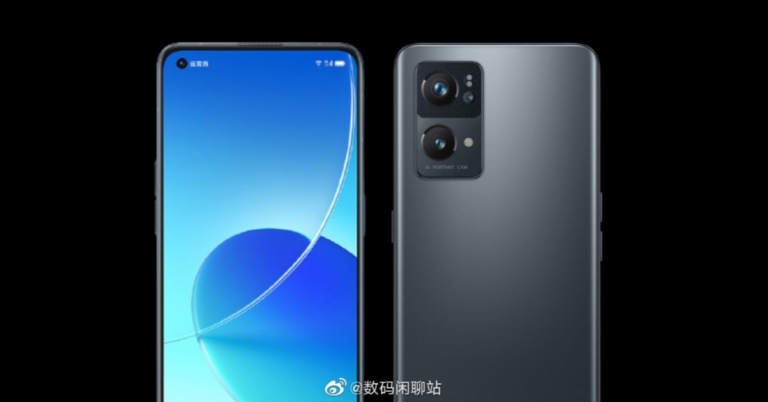
The expected design, specs and price of the Oppo Reno 7 Series have surfaced on the web, therefore, indicating that the launch of the new smartphone series is imminent. Previously the Reno Pro’s camera specifications were leaked by a tipster and now the lineup has been spotted listed on the 3C certification website. Along with this, more reports, images have emerged confirming the form factor and pricing of the vanilla Reno 7 and Reno 7 Pro.According to GSMArena the prices of the Oppo Reno 7 Series have been leaked, The Oppo Reno 7 8GB RAM with 256GB storage is expected to cost CYN 2,999 that converts to Rs 35,200 whereas the 12GB RAM with 256GB storage model is likely to cost CYN 3,299 which is around Rs 38,700.The patent images of the Oppo Reno 7 Pro were also leaked previously which were used to file with the China National Intellectual Property Administration. According to the leaked renders the upcoming Reno 7 Pro will bear a flat display similar to the existing one along with a punch hole cut out on the top left corner of the screen. There will be negligible bezels around the screen and the right spine of the phone will sport a power button while the volume rocker will be situated on the left. The device will keep the 3.5mm headphone jack, a SIM slot, Type C port and a speaker grille. The rear panel shows a rectangular-shaped quad-camera set-up. The report also suggests that the patent has been filed with four and triple sensors.Image Courtesy: LetsGoDigitalApart from this the key specifications and renders of vanilla Reno 7 were tipped via Twitter. The phone is expected to offer a 6.5-inch FHD+ display by BOE. It may support a 90Hz refresh rate panel along with 10-bit colour. They could also come with MediaTek Dimensity 920 SoC paired with LPDDR4x RAM and UFS 3.1 storage. Not just that the standard model is expected to house a 4,500mAh battery with 65W fast charging support.Furthermore, the Oppo Reno 7 is said to have a triple camera set up on its back which may include a 50MP Sony IMX766 lens. The Pro model could also equip a similar display paired with a secondary 9MP Sony IMX355 sensor and a 2MP sensor. For selfies, it is speculated to sport a 32MP Sony IMX615 sensor. Not only these cameras will support the Z-axis linear motor. Besides this, there will be NFC and a vapour chamber liquid cooling system onboard. MySmartPrice discovered the Oppo Reno 7 Pro listed on China’s 3C certification website. Not much has been revealed but the device was found to be carrying model number PFDM00. It is suggested to support 65W SUPERVOOC 2.0 fast charging. Reportedly the smartphone will pack a 4,500mAh battery. On the other hand, the Oppo Reno 7 Pro is likely to include MediaTek Dimensity 1200 SoC with up to 12GB of RAM and 256GB of storage. The devices are said to be released in a few months.
For the latest gadget and tech news, and gadget reviews, follow us on Twitter, Facebook and Instagram. For newest tech & gadget videos subscribe to our YouTube Channel. You can also stay up to date using the Gadget Bridge Android App. You can find the latest car and bike news here.



 The Thread Director balanced workloads and assigned the best activities to each core which required Windows 11.
According to the company, the Core i9-12900K provides astounding gen-over-gen performance increases, including up to 25% more FPS on Troy: A Total War Saga, up to 28% more FPS on Hitman 3, and up to 23% more FPS on Far Cry 63. Enhanced by Intel Killer Wi-Fi 6E for up to 75% less latency while gaming when multitasking, high-frequency P-cores paired with E-cores for offloading parallel tasks enable up to 84% more frames per second for simultaneous gaming, streaming, and recording.
Moreover, the 12th Gen Intel Core desktop processors are the first to DDR5 memory for up to 4800MT/s, PCIe 5.0 (up to 16 lanes), which offers up to 2X I/O throughput over PCIe 4.0, with up to an additional four lanes of PCIe 4.0 support. In addition to this, it brings 30MB Intel Smart Cache (L3) and 14MB L2 cache for increased memory capacity with reduced latency. It comes integrated with Discrete Thunderbolt 4 universal cable connectivity for external device expansion.
On the other hand, the Intel 600 Series Chipset includes new PCIe Gen 4.0 lanes make for 28 total lanes off the chipset, integrated USB 3.2 Gen 2×2 provides up to double the bandwidth, DMI Gen 4.0 increases the chipset to CPU throughput for fast access to peripheral devices and networking. It also offers Intel Volume Management Device (VMD) to PC chipsets to simplify storage control by allowing direct control and management of NVMe-based SSDs from the PCIe bus without additional RAID controllers or other hardware adaptors.
The Thread Director balanced workloads and assigned the best activities to each core which required Windows 11.
According to the company, the Core i9-12900K provides astounding gen-over-gen performance increases, including up to 25% more FPS on Troy: A Total War Saga, up to 28% more FPS on Hitman 3, and up to 23% more FPS on Far Cry 63. Enhanced by Intel Killer Wi-Fi 6E for up to 75% less latency while gaming when multitasking, high-frequency P-cores paired with E-cores for offloading parallel tasks enable up to 84% more frames per second for simultaneous gaming, streaming, and recording.
Moreover, the 12th Gen Intel Core desktop processors are the first to DDR5 memory for up to 4800MT/s, PCIe 5.0 (up to 16 lanes), which offers up to 2X I/O throughput over PCIe 4.0, with up to an additional four lanes of PCIe 4.0 support. In addition to this, it brings 30MB Intel Smart Cache (L3) and 14MB L2 cache for increased memory capacity with reduced latency. It comes integrated with Discrete Thunderbolt 4 universal cable connectivity for external device expansion.
On the other hand, the Intel 600 Series Chipset includes new PCIe Gen 4.0 lanes make for 28 total lanes off the chipset, integrated USB 3.2 Gen 2×2 provides up to double the bandwidth, DMI Gen 4.0 increases the chipset to CPU throughput for fast access to peripheral devices and networking. It also offers Intel Volume Management Device (VMD) to PC chipsets to simplify storage control by allowing direct control and management of NVMe-based SSDs from the PCIe bus without additional RAID controllers or other hardware adaptors.
 The Thread Director balanced workloads and assigned the best activities to each core which required Windows 11.
According to the company, the Core i9-12900K provides astounding gen-over-gen performance increases, including up to 25% more FPS on Troy: A Total War Saga, up to 28% more FPS on Hitman 3, and up to 23% more FPS on Far Cry 63. Enhanced by Intel Killer Wi-Fi 6E for up to 75% less latency while gaming when multitasking, high-frequency P-cores paired with E-cores for offloading parallel tasks enable up to 84% more frames per second for simultaneous gaming, streaming, and recording.
Moreover, the 12th Gen Intel Core desktop processors are the first to DDR5 memory for up to 4800MT/s, PCIe 5.0 (up to 16 lanes), which offers up to 2X I/O throughput over PCIe 4.0, with up to an additional four lanes of PCIe 4.0 support. In addition to this, it brings 30MB Intel Smart Cache (L3) and 14MB L2 cache for increased memory capacity with reduced latency. It comes integrated with Discrete Thunderbolt 4 universal cable connectivity for external device expansion.
On the other hand, the Intel 600 Series Chipset includes new PCIe Gen 4.0 lanes make for 28 total lanes off the chipset, integrated USB 3.2 Gen 2×2 provides up to double the bandwidth, DMI Gen 4.0 increases the chipset to CPU throughput for fast access to peripheral devices and networking. It also offers Intel Volume Management Device (VMD) to PC chipsets to simplify storage control by allowing direct control and management of NVMe-based SSDs from the PCIe bus without additional RAID controllers or other hardware adaptors.
The Thread Director balanced workloads and assigned the best activities to each core which required Windows 11.
According to the company, the Core i9-12900K provides astounding gen-over-gen performance increases, including up to 25% more FPS on Troy: A Total War Saga, up to 28% more FPS on Hitman 3, and up to 23% more FPS on Far Cry 63. Enhanced by Intel Killer Wi-Fi 6E for up to 75% less latency while gaming when multitasking, high-frequency P-cores paired with E-cores for offloading parallel tasks enable up to 84% more frames per second for simultaneous gaming, streaming, and recording.
Moreover, the 12th Gen Intel Core desktop processors are the first to DDR5 memory for up to 4800MT/s, PCIe 5.0 (up to 16 lanes), which offers up to 2X I/O throughput over PCIe 4.0, with up to an additional four lanes of PCIe 4.0 support. In addition to this, it brings 30MB Intel Smart Cache (L3) and 14MB L2 cache for increased memory capacity with reduced latency. It comes integrated with Discrete Thunderbolt 4 universal cable connectivity for external device expansion.
On the other hand, the Intel 600 Series Chipset includes new PCIe Gen 4.0 lanes make for 28 total lanes off the chipset, integrated USB 3.2 Gen 2×2 provides up to double the bandwidth, DMI Gen 4.0 increases the chipset to CPU throughput for fast access to peripheral devices and networking. It also offers Intel Volume Management Device (VMD) to PC chipsets to simplify storage control by allowing direct control and management of NVMe-based SSDs from the PCIe bus without additional RAID controllers or other hardware adaptors.
 Step 3 – Make sure the snap window option is toggle on.
 Step 3 – Make sure the snap window option is toggle on.
 Read Also: OnePlus, Oppo, Xiaomi and more will come with Snapdragon 888


 Read Also: 6 Gadgets you should bring home this summer
Now you can enjoy multitasking and can have a seamless experience on Windows 11.
For the latest gadget and tech news, and gadget reviews, follow us on Twitter, Facebook and Instagram. For newest tech & gadget videos subscribe to our YouTube Channel. You can also stay up to date using the Gadget Bridge Android App. You can find the latest car and bike news here.
Read Also: 6 Gadgets you should bring home this summer
Now you can enjoy multitasking and can have a seamless experience on Windows 11.
For the latest gadget and tech news, and gadget reviews, follow us on Twitter, Facebook and Instagram. For newest tech & gadget videos subscribe to our YouTube Channel. You can also stay up to date using the Gadget Bridge Android App. You can find the latest car and bike news here. 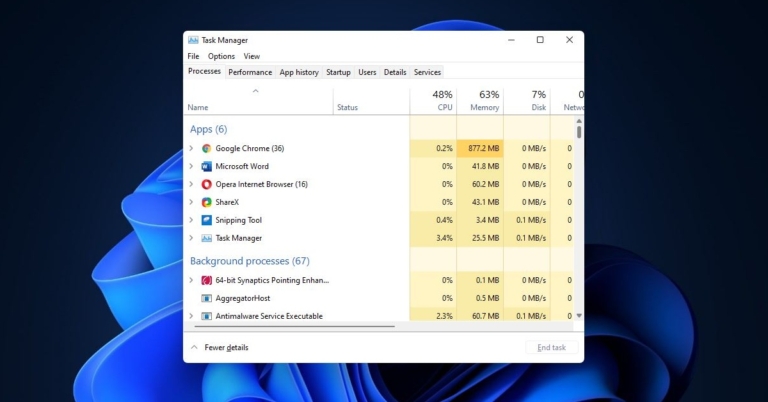
 Step 3: Type ‘taskmgr‘ and hit Enter.
 Step 3: Click on ‘View system resource usage in Task Manager‘.

 Read Also: 20 keyboard shortcuts you must know to save time


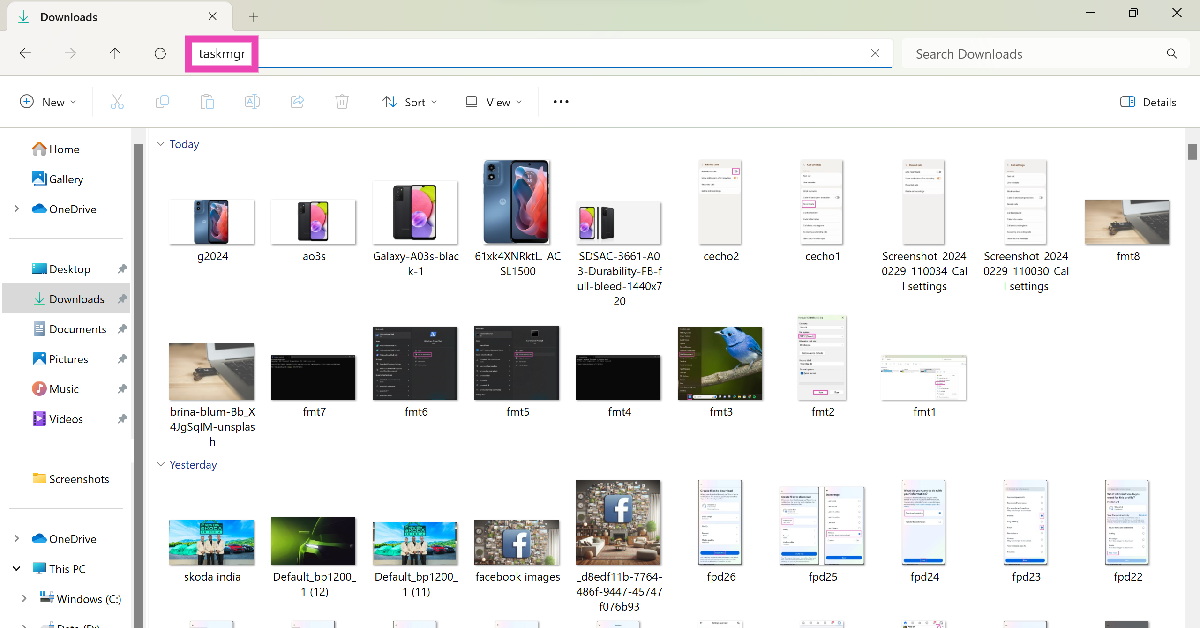 Step 3: Type ‘taskmgr‘ and hit Enter.
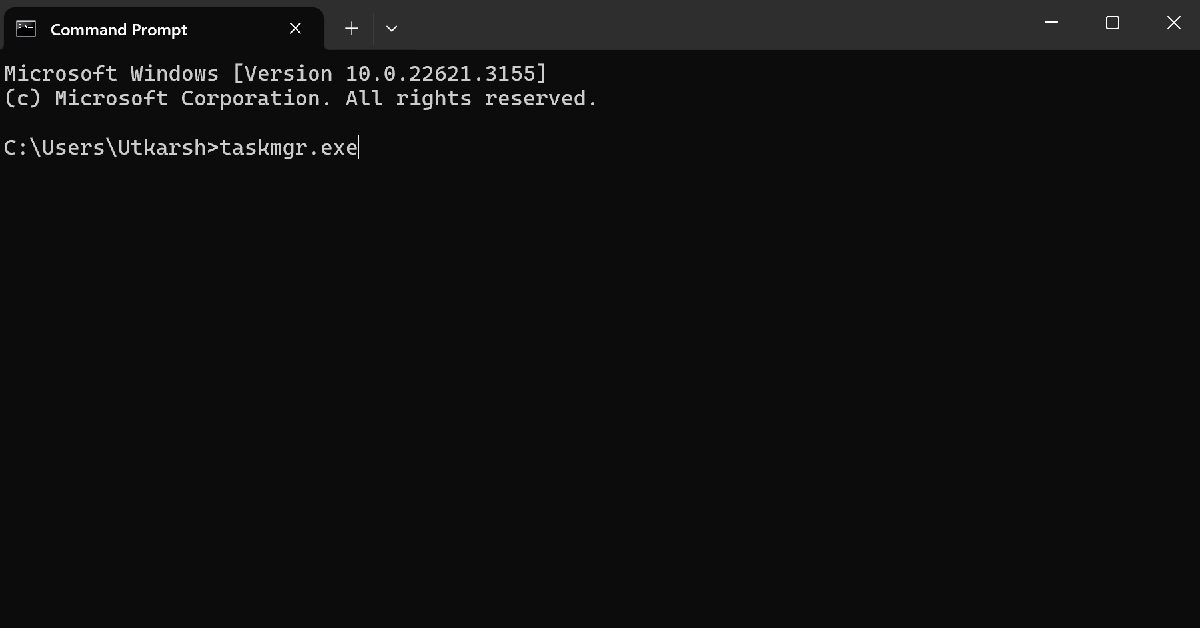 Step 3: Hit Enter.
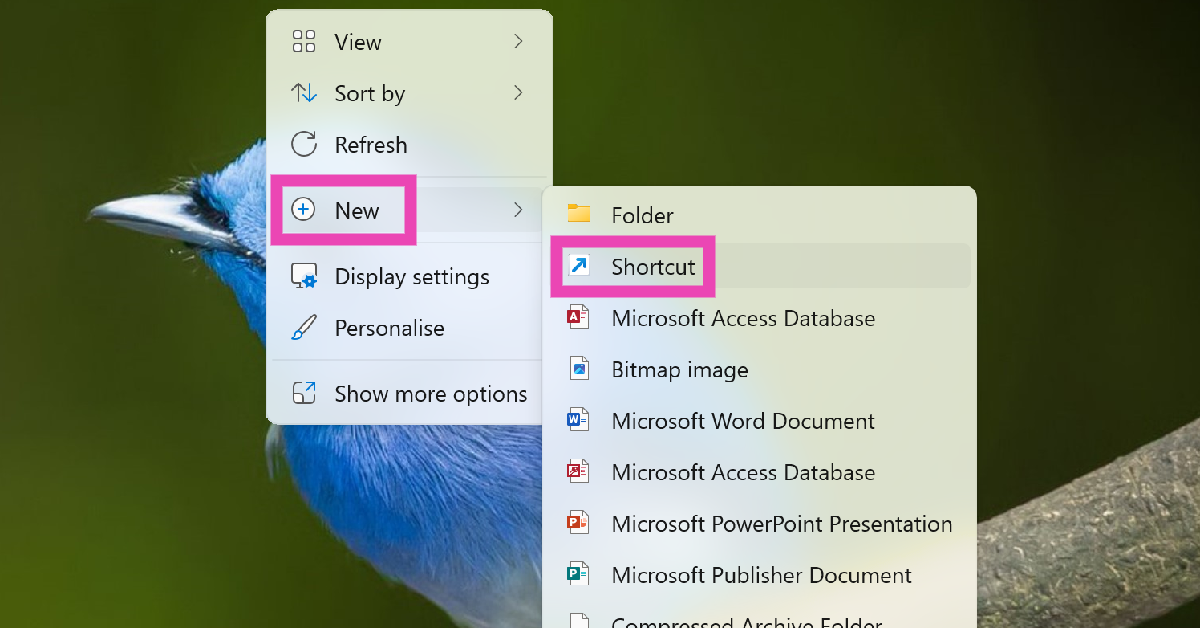 Step 3: Type ‘taskmgr.exe‘ in the location section.
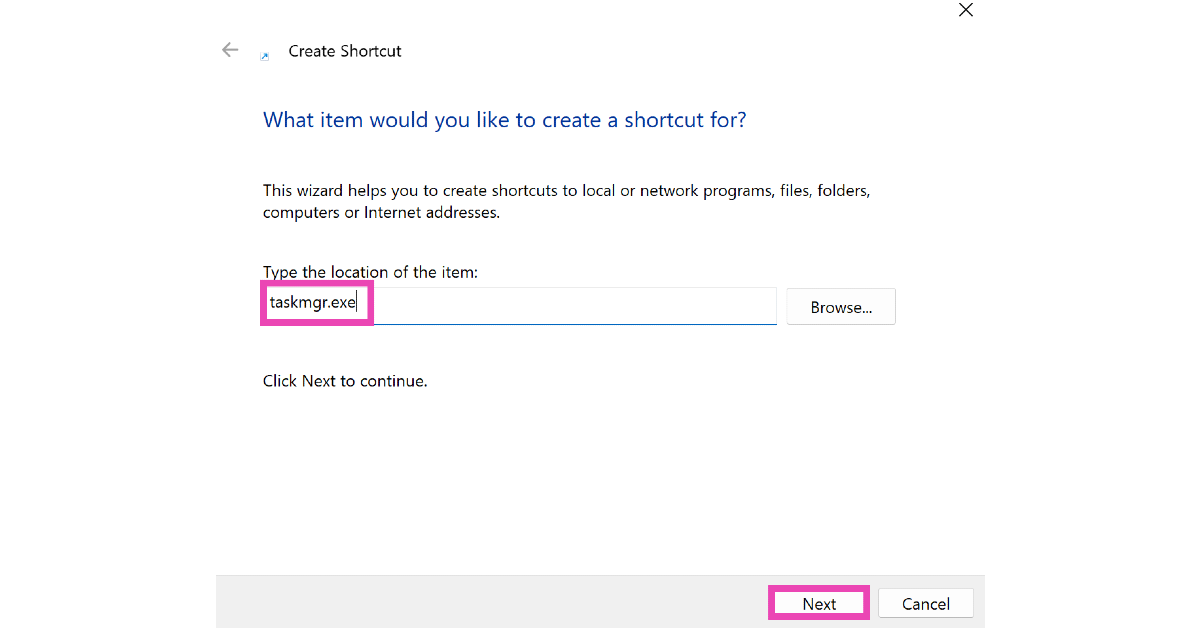 Step 4: Hit Next.
Step 5: Give the shortcut a name and click on Finish.
Step 4: Hit Next.
Step 5: Give the shortcut a name and click on Finish.
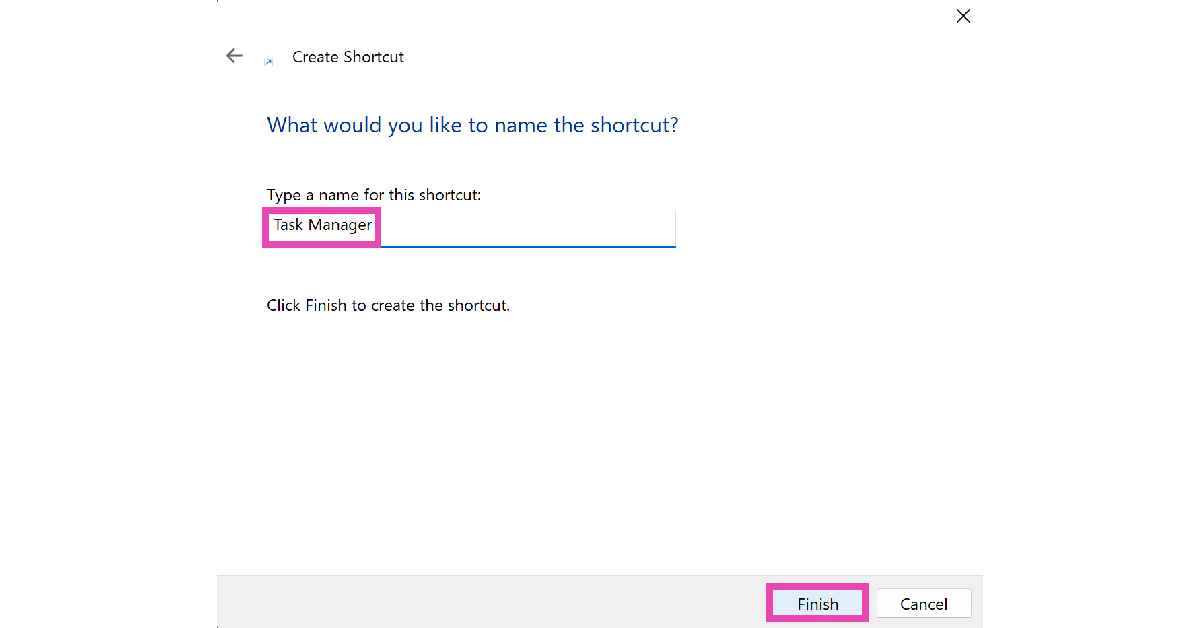 Step 6: Double-click the shortcut on the desktop to launch the Task Manager.
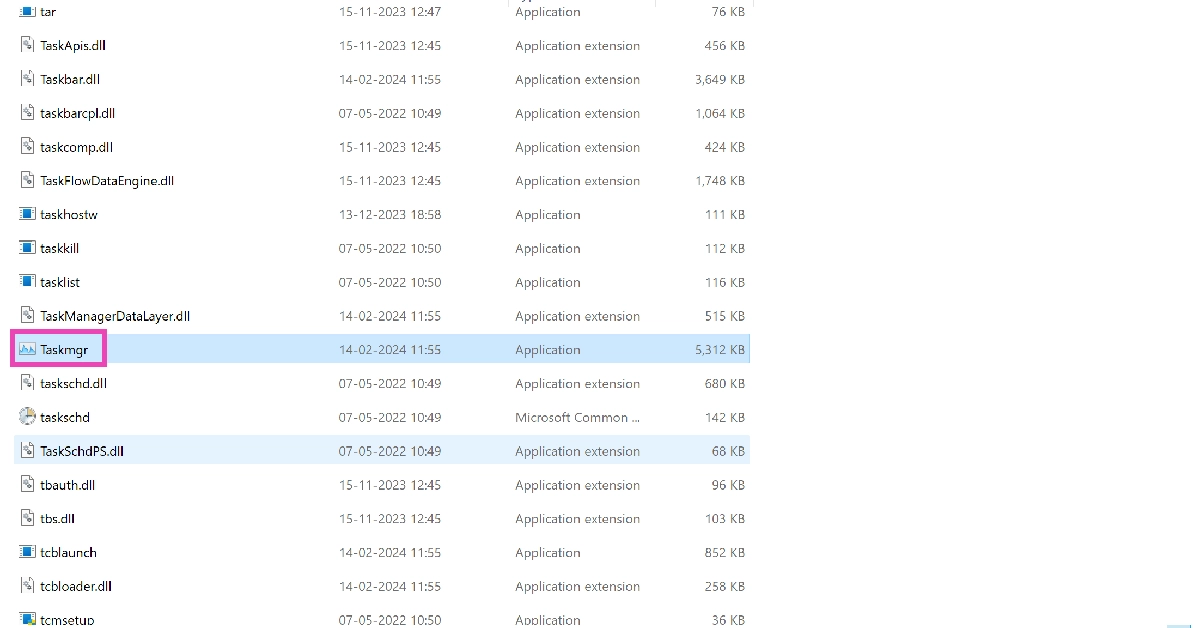 Step 3: Drag the application and drop it in the taskbar.
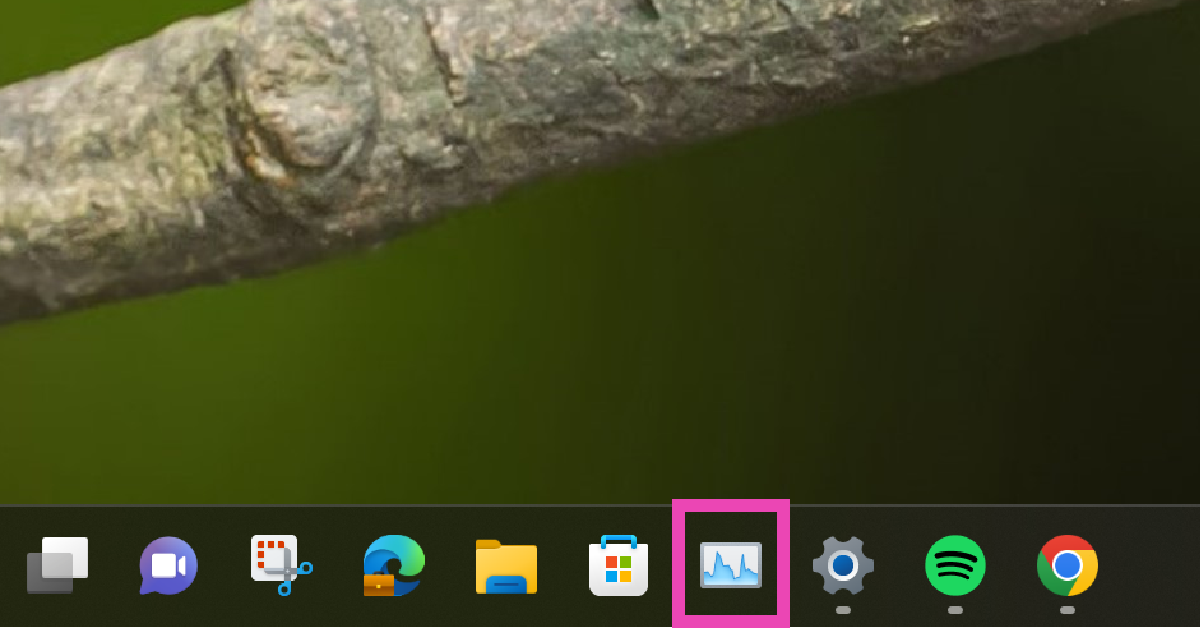 The Task Manager will be pinned to the taskbar.
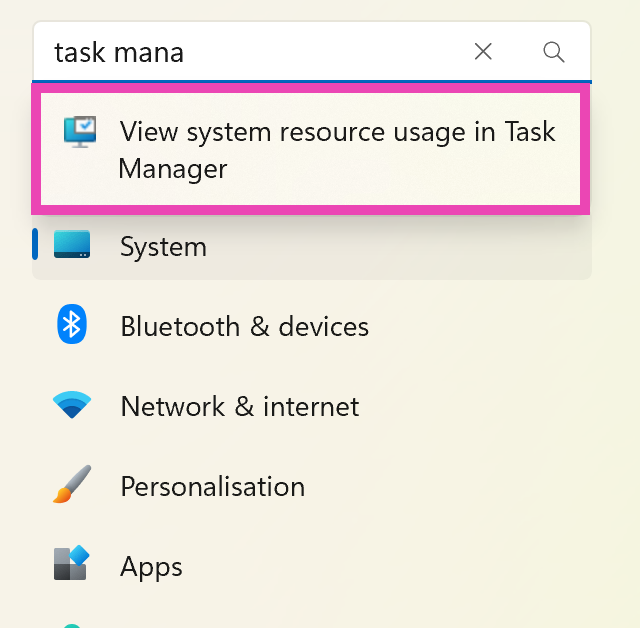 Step 3: Click on ‘View system resource usage in Task Manager‘.

 Step 2 – Search Dark Theme to find the option Turn on dark theme mode system-wide option.
 Step 3 – In the opened setting choose the theme from Choose your mode option and select accordingly. This is it on how to enable a system-wide dark mode in Windows 11.

 Note: This will remove all the animations and you will be left only with a bland Windows experience. It will completely depend upon your individual liking to use it or not.
For the latest gadget and tech news, and gadget reviews, follow us on Twitter, Facebook and Instagram. For newest tech & gadget videos subscribe to our YouTube Channel. You can also stay up to date using the Gadget Bridge Android App. You can find the latest car and bike news here.
Note: This will remove all the animations and you will be left only with a bland Windows experience. It will completely depend upon your individual liking to use it or not.
For the latest gadget and tech news, and gadget reviews, follow us on Twitter, Facebook and Instagram. For newest tech & gadget videos subscribe to our YouTube Channel. You can also stay up to date using the Gadget Bridge Android App. You can find the latest car and bike news here. 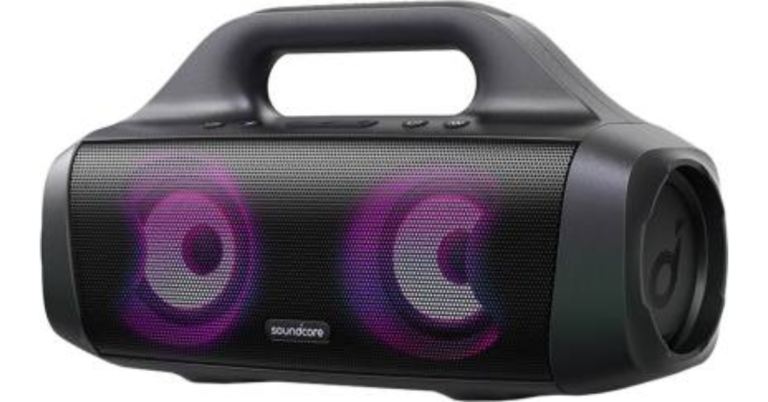
 While the customisable equaliser setting can be accessed via the Soundcore app available both on Android and iOS platforms. Besides this, the Soundcore Select Pro includes an LED list that changes lights in time according to the music. There is a PartyCast feature that works in conjunction with light and audio throughout numerous Soundcore speakers while connecting them together. In addition to this the Soundcore portable speaker houses a 6,700mAh battery which offers up to 16 hours of total playback time on a single charge and can be charged via USB Type C cable. Over that the Select Pro also comes integrated with PowerIQ charge-out tech that lets the users charge their smartphones.
For the latest gadget and tech news, and gadget reviews, follow us on Twitter, Facebook and Instagram. For newest tech & gadget videos subscribe to our YouTube Channel. You can also stay up to date using the Gadget Bridge Android App. You can find the latest car and bike news here.
While the customisable equaliser setting can be accessed via the Soundcore app available both on Android and iOS platforms. Besides this, the Soundcore Select Pro includes an LED list that changes lights in time according to the music. There is a PartyCast feature that works in conjunction with light and audio throughout numerous Soundcore speakers while connecting them together. In addition to this the Soundcore portable speaker houses a 6,700mAh battery which offers up to 16 hours of total playback time on a single charge and can be charged via USB Type C cable. Over that the Select Pro also comes integrated with PowerIQ charge-out tech that lets the users charge their smartphones.
For the latest gadget and tech news, and gadget reviews, follow us on Twitter, Facebook and Instagram. For newest tech & gadget videos subscribe to our YouTube Channel. You can also stay up to date using the Gadget Bridge Android App. You can find the latest car and bike news here.  While the customisable equaliser setting can be accessed via the Soundcore app available both on Android and iOS platforms. Besides this, the Soundcore Select Pro includes an LED list that changes lights in time according to the music. There is a PartyCast feature that works in conjunction with light and audio throughout numerous Soundcore speakers while connecting them together. In addition to this the Soundcore portable speaker houses a 6,700mAh battery which offers up to 16 hours of total playback time on a single charge and can be charged via USB Type C cable. Over that the Select Pro also comes integrated with PowerIQ charge-out tech that lets the users charge their smartphones.
For the latest gadget and tech news, and gadget reviews, follow us on Twitter, Facebook and Instagram. For newest tech & gadget videos subscribe to our YouTube Channel. You can also stay up to date using the Gadget Bridge Android App. You can find the latest car and bike news here.
While the customisable equaliser setting can be accessed via the Soundcore app available both on Android and iOS platforms. Besides this, the Soundcore Select Pro includes an LED list that changes lights in time according to the music. There is a PartyCast feature that works in conjunction with light and audio throughout numerous Soundcore speakers while connecting them together. In addition to this the Soundcore portable speaker houses a 6,700mAh battery which offers up to 16 hours of total playback time on a single charge and can be charged via USB Type C cable. Over that the Select Pro also comes integrated with PowerIQ charge-out tech that lets the users charge their smartphones.
For the latest gadget and tech news, and gadget reviews, follow us on Twitter, Facebook and Instagram. For newest tech & gadget videos subscribe to our YouTube Channel. You can also stay up to date using the Gadget Bridge Android App. You can find the latest car and bike news here. 
 Once completed your device should start perfectly alright with a brand new OS.
 If your device does not have enough charge it will show you the Apple logo but the phone won’t boot up, this usually happens with older iPhones more often, as the battery life is degraded, it often misbehaves. Try plugging your device in the charger and wait for some time before trying to start it.
 A hard reset usually fixes the temporary glitches. This method won’t work if there are any issues with your firmware or hardware.
 Step 2 – Open your system and then iTunes on it.
Step 3 – Connect your iPhone and it will automatically ask you to update or restore the device.
Step 2 – Open your system and then iTunes on it.
Step 3 – Connect your iPhone and it will automatically ask you to update or restore the device.
 Warning: This will reset the iPhone to the factory setting and all your data including contacts, photos or any multimedia will be gone if not backed up previously.
 There will be nothing on the iPhone’s display but iTunes will now automatically prompt that your phone is in DFU mode and you can select what next to be done.
Read Also: Apple to start iTunes for Samsung smart TVs
There will be nothing on the iPhone’s display but iTunes will now automatically prompt that your phone is in DFU mode and you can select what next to be done.
Read Also: Apple to start iTunes for Samsung smart TVs
 Step 2 – Press Start on the home screen to start the process.
Step 3 – Start the Standard Repair.
Step 2 – Press Start on the home screen to start the process.
Step 3 – Start the Standard Repair.
 Step 4 – Put your device on Recovery or DFU mode using the above methods if the device is not detected.
Step 5 – Download the latest iOS for your device.
Step 4 – Put your device on Recovery or DFU mode using the above methods if the device is not detected.
Step 5 – Download the latest iOS for your device.
 Step 6 – Now press Start the repair and wait for it to complete.
 Once completed your device should start perfectly alright with a brand new OS.