Smartphones have changed the way we work in our day-to-day lives. With the introduction of touchscreens, using a phone has become easier as compared to the traditional physical keyboard. Despite being a boon, there is some trouble faced at times as well. This can be solved if you disable the touch screen on your smartphone. Some of the issues include being prone to accidental taps. This is especially problematic if your smartphone is in your pocket or purse. However, to avoid these accidents you can temporarily disable the touch screen of your iPhone or Android smartphone. Here are some ways how you can disable the touchscreen of your mobile.Read Also:Top 3 ways to add a Google Map to your website
Disable Touch Screen On Android
Screen pinning
The first method is using the screen pinning option. It is a feature which many people either have not heard of or don’t know how it works. It was introduced in Android phones after the update of Android 5.0. Follow these steps to use this feature:Step 1: Go to Settings.Step 2: Tap on Security.Step 3: Select Screen pinning.Step 4: Once the feature is turned on, toggle the Recent Apps gesture/button. You will see a pin symbol or long-press a specific application to find the pinning option.Read Also: Top Google Chrome extensions you should install today.
Use Pocket Mode
Companies nowadays have a built-in pocket mode feature that disables the phone’s screen when the light sensor of the phone gets covered. It is a handy feature, especially on the go. Head to settings and search for pocket mode(or similar, depending on your device). Once you find it, turn on its toggle switch.
Screen lock
One of the most underrated features to disable your screen. All you have to do is head to Settings>Security and enable the lock. One can choose between keeping a swipe lock or a PIN/password. Set the inactivity lock timer accordingly after doing the above. Once the phone is locked, it will require it to be unlocked before the user can work on it. So, the screen will stay locked till you put in your passcode.
Use a third-party app (Touch Protector)
If there is no pocket mode on your smartphone and the above steps are not working out for you. Try Touch Protector from Google Playstore. This app works somewhere between screen pinning and pocket mode. It will disable the screen until you want to work again. It also has a smart detection mode to enable the touch screen while receiving incoming calls. The best part is the application is completely free.Download from here
Use the Disable Touch Screen app by Firefly-Team
The Disable Touch Screen app by Firefly-Team can be downloaded for free from the Google Play Store. This app blocks accidental touches, so it doesn’t hinder your movie-watching experience. It works seamlessly with OTT apps like Netflix, Hotstar, Sony Liv, Voot, and more. Once you install the app, hit Start and press the lock button on the page that you want to lock.
Download from here
Disable Touch Screen On iPhone
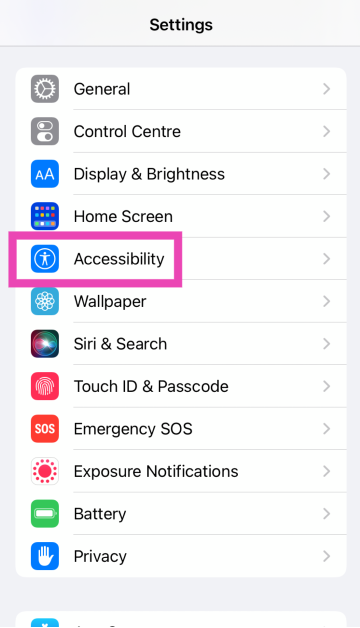
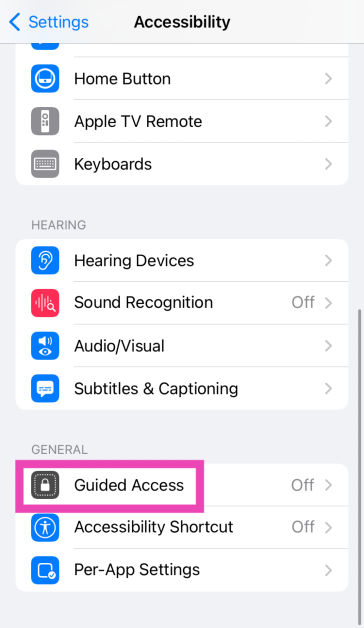
For iPhones, there is a built-in function to temporarily disable the touch screen. The feature is called Guided Access. Using this feature users can disable specific areas of the iPhone’s screen and lock the buttons as well. Step 1: Go to Settings.Step 2: Tap on Accessibility.Step 3: Scroll down and select Guided Access.Step 4: Turn on the toggle switch for Guided Access.Step 5: Once the feature is switched on, open the app that you want to lock. On an iPhone X or later device, triple-click the side button. On an iPhone 8 or earlier, triple-click the Home button. Select the part of the screen you want to disable. Tap the Guided Access option, then tap Start.
Frequently Asked Questions (FAQs)
Is it possible to disable the touch screen of my Android phone?
You can disable the touch screen on an Android phone by pinning any app to the home screen. This will lock the app and render all touch gestures useless. You can turn on app pinning by going to Settings>Security>Screen pinning.
How do I reduce accidental touches while watching movies on apps like Netflix and Prime Video?
Popular OTT platforms like Netflix, Prime Video, and Hotstar have a screen lock option for their smartphone apps. If an app lacks that feature, use a third-party app like Touch Protector.
How do I disable the touch screen on an iPhone?
Go to Settings>Accessibility>Guided Access and turn on its toggle switch. Triple-click the side button or the home button to turn it on for a particular app.
Read Also: You should definitely POCKET this App [Review]
Conclusion
This is how you can disable the touch screens on Android or iPhone mobile. These simple steps will come in handy and will avoid unnecessary screen taps on your smartphone. If you know of any other method to disable the touch screen on your iPhone or Android phone, do let us know in the comments!
One of the most basic yet important functions of any smartphone is the calling feature. With users getting indulged in meeting new people online, it gets difficult to remember each and every detail of a particular person. Especially keeping all the phone numbers in your mind is a big task. But does your contacts keep disappearingUsers usually store these details in the “Contact” application of the device. But what if these contacts start to vanish.? It can be a matter of concern. However, you can easily fix this issue by following the below steps. Here is how to fix contacts that keep disappearing from the Android smartphone problem.
Restart Your Phone
The thumb rule of every electronic. If any problem occurs, restart the device and give it a try. There might be some problem with UI interfering with the contact application. Restarting the Android device might solve the issue as it refreshes the phone by clearing the memory. After the device is restarted try to open the contacts app and see if the contacts are back or not. If not, head to the next step.Read Also: How to fix the bad signal strength of Android and iPhones
Turn on or off Sync
Contact synchronisation is important to backup your contacts safely within the cloud. This will help to transfer all the contacts when you switch to a new device as well. Check if the setting is toggled on, if not switch it on. If the setting is already on, switch it off then again turn it back on. This will restart the synchronisation process bringing your contacts back. This is how.Step 1 – Head to Accounts in Setting.Step 2 – Tap on the Account sync.Step 3 – Turn off all the settings and toggle them back on.
Update the application
It might be a case that you are running an older version of the application. To fix this update to the latest version of the contact app from the Play Store. Switching it to the latest version should fix the issue. We also recommend checking for any updates on your smartphone as well. If found, update it to the latest version too.
Clear application cache
The sudden vanishing of contacts can be caused by a bad cache saved by your application. Head to the app info of the Contact application after that Storage & cache> Clear cache. Note that clearing cache will not tamper with your already saved contacts. Though if you are planning to clear data make sure you backup the current contacts first.Read Also: How to change your language in Google on a PC or a smartphone?
Reset app preference
Resetting the app preference can fix many application issues. By doing so it will reset all the app setting values to default. Here is how you can do itStep 1 – Open Settings.Step 2 – Search for “Reset Options” in the settings.Step 3 – Tap on the Reset app preference.Step 4 – Accept the prompt and you are good to go.
Remove Google account
Try removing your Google account if none of these work. There might be an issue with specifically your account. Removing the account and adding it back again should solve the issue. If none of the above methods worked for you, this will work for sure.Step 1 – Open Settings.Step 2 – Head to accounts and then select the Google account.Step 3 – Tapping Remove account will directly log out your account from the device. (Your smartphone may ask you for your password or pin).
Backup all your contacts
Make a backup of the contacts every 2 months and save it on your Google Drive. By this, you will eliminate the risk of losing any contact. Try resetting your Android smartphone. This step is not very convenient but will fix any other bug related to the phone as well. But before that do backup your contacts once.Follow these steps to get rid of contacts that keep disappearing from Android smartphones and we are sure you will see your contacts appearing on your smartphone in no time.
For the latest gadget and tech news, and gadget reviews, follow us on Twitter, Facebook and Instagram. For newest tech & gadget videos subscribe to our YouTube Channel. You can also stay up to date using the Gadget Bridge Android App. You can find the latest car and bike news here.
Apple has finally announced the Indian availability of the Apple Watch Series 7. The new smartwatch from the company is going to be available from October 15 onwards in the country. The Watch model was unveiled in India last month along with the iPhone 13 series. At the time of the announcement, the price of the smartwatch series was not revealed but now the price of the devices, as well as their availability details, have been officially declared.
Apple Watch Series 7 price in India and availability
According to the company, the price of the Apple Watch Series 7 will begin at Rs 41,900 in India. The pre-orders for the premium smartwatch will open from October 8 starting 1 PM onwards and will be available from October 15 onwards. The device will be available in beautiful new aluminium case finishes, including midnight, starlight, green, and a new blue and (PRODUCT)RED, along with a range of new band colours and styles. Stainless steel models are available in silver, graphite, and gold stainless steel, along with Apple Watch Edition in titanium and space black titanium. Other than in India the device will be available in Australia, Canada, China, France, Germany, India, Japan, Mexico, Russia, South Korea, the UAE, the UK, the US, and more than 50 other countries and regions.
Apple Watch Series 7 specs
Apple Watch Series 7 comes in 41mm and 45mm sizes. It is the company’s first to have an IP6X certification for resistance to dust and maintains a WR50 water resistance rating. The most premium smartwatch has an always-on Retina display with significantly more screen area and thinner borders. The device is just 1.7 mm thin. In addition to this, the Apple Watch features a user interface optimised for the larger display, a new QWERTY keyboard, plus two unique watch faces Contour and Modular Duo designed specifically for the new device.The Watch Series 7 also includes health and wellness features like an electrical heart sensor and ECG app, and a Blood Oxygen sensor and app. The smartwatch operates on the latest version of watchOS 8 that helps users stay healthy, active, and connected through new workout types, the new Mindfulness app, innovative accessibility features, greater access with Apple Wallet, and more capabilities with the Home app, along with enhancements to Messages and the Photos app.
For the latest gadget and tech news, and gadget reviews, follow us on Twitter, Facebook and Instagram. For newest tech & gadget videos subscribe to our YouTube Channel. You can also stay up to date using the Gadget Bridge Android App. You can find the latest car and bike news here.
Applications are an important part of the Android ecosystem. With so many options to choose from, you might have downloaded an app for a trial purpose. But, what if you are unable to uninstall the application. Fret not, as this article will help you out. Here is how to remove apps on Android that the phone won’t let you uninstall. Try these following simple steps.To understand the applications that are unable to uninstall, we must know the reason and which specific applications can’t be removed. There are 3 cases in which your Android smartphone will not let you uninstall a particular application.
System application – If the application is a system app the smartphone will not let you uninstall it. These are required and essential to run Android. You need some necessary files/software and these apps are among those.
Pre-installed applications – Some companies allow you to uninstall a few pre-installed apps. On the other hand, there are few which come from the factory and cannot be uninstalled even if you try to factory reset your smartphone.
Apps with Admin Privileges – You might have installed some application or some important pre-installed applications have admin privileges. If any app has admin privilege on your smartphone, then it won’t allow these applications to be uninstalled.
In the first two cases, users can disable the application and then they will not be bothering you. For the third case, users can take the privilege away from the application and uninstall it, simple as that. Here is how you can do it.
Disable the Application
Few of the unnecessary pre-installed apps can be annoying with their push notifications or ads in some cases. Though it cannot be completely uninstalled from your device without rooting it, there is a way you can disable them so they don’t bother you anymore.Step 1 – Long press the application to find App info.Step 2 – An information screen will pop up in front of you.Step 3 – Tap on the disable option.Once disabled the application will no longer show up in your library and won’t run in the background. This will also save some space on your smartphone as the application will be reset to its factory settings.Read Also: Top 5 ways to force uninstall programs in Windows 10
Take away administrator privileges
Few applications require administrator privileges in order to perform a specific task. Fetching something from the lock screen is a prime example of this. While using these applications, one might have given admin rights to them in a hurry and do not remember it. With these rights given, the smartphone won’t uninstall the application. In such a case, first we have to take the privileges back and then try to uninstall them. Here is how.Step 1 – Head to Setting.Step 2 – Go on Security settings.Step 3 – Choose Device admin apps. (This feature might be called something else in your Android mobile)Step 4 – Toggle off the applications to take away the administrator privileges.After completing these steps uninstall the application following the normal way and this time it should uninstall.Read Also: Best ways to fix if Steam is not downloading games on your PCThese are the steps you can follow to fix remove apps on Android that the phone won’t let you uninstall. If none of them work for you there are 3 methods you can consider. First , rooting your smartphone, which is kind of a tricky task and voids the warranty of the company (and we will not recommend it). The other method is resetting your phone to the factory settings. The last option is using the ADB command line in Windows Powershell, which again is not recommended as it requires professional skills and may result in bricking your phone.
For the latest gadget and tech news, and gadget reviews, follow us on Twitter, Facebook and Instagram. For newest tech & gadget videos subscribe to our YouTube Channel. You can also stay up to date using the Gadget Bridge Android App. You can find the latest car and bike news here.
Facebook services were down for the longest time on Monday. The outage affected the Facebook app, WhatsApp, Instagram as well as Messenger. All these services were back online after several hours. According to the Down Detector, the services went down from 9 PM onwards (IST). When Gadget Bridge staff attempted to access these apps, they were all consistently unavailable. As we said, this is the longest Facebook outage in recent memory. The company’s CEO Mark Zuckerberg’s personal wealth has plummeted by more than $6 billion, which is equal to Rs 22,790 crores in Indian currency. Taking him down a notch on the list of the world’s wealthiest people.The Facebook, WhatsApp and Instagram outage is likely to be caused by a problem in the company domain name system (DNS). Though DNS is unnoticed but is a very vital component in the world on the Internet. The company itself apologised for the inconvenience caused to the users. It has released an official statement that said, “To all the people and businesses around the world who depend on us, we are sorry for the inconvenience caused by today’s outage across our platforms. We’ve been working as hard as we can to restore access, and our systems are now back up and running. The underlying cause of this outage also impacted many of the internal tools and systems we use in our day-to-day operations, complicating our attempts to quickly diagnose and resolve the problem.”According to the company its technical teams have discovered that changes to the configuration of the backbone routers that coordinate network traffic between its data centres caused issues that interrupted this communication. This disruption to network traffic had a cascading effect on how its data centres communicate, therefore bringing its services to a pause.Although all the Facebook services are back online and are fully functional. The company is also not sure whether user data was compromised as a result of this outage. The Social media giant at last added, “People and businesses around the world rely on us every day to stay connected. We understand the impact outages like these have on people’s lives, and our responsibility to keep people informed about disruptions to our services. We apologize to all those affected, and we’re working to understand more about what happened today so we can continue to make our infrastructure more resilient.”
For the latest gadget and tech news, and gadget reviews, follow us on Twitter, Facebook and Instagram. For newest tech & gadget videos subscribe to our YouTube Channel. You can also stay up to date using the Gadget Bridge Android App. You can find the latest car and bike news here.
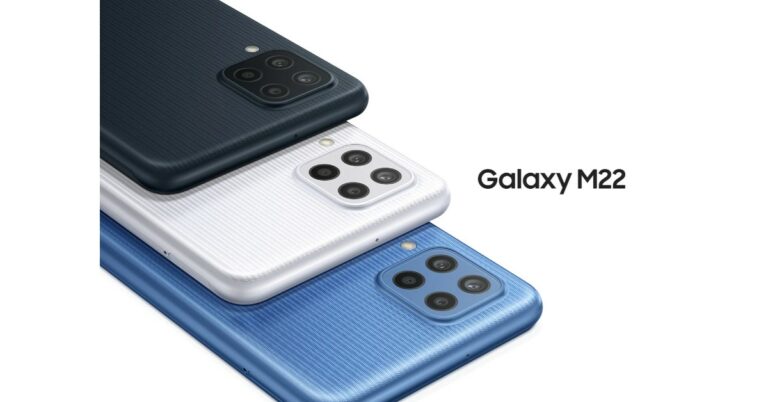
Samsung Galaxy M22 India launch is expected to take place soon. The device’s support page is now live on the company’s official website in the country. However, the Samsung India website does not reveal any details with regard to the upcoming smartphone except for the model number. But the phone will be the same variant of the Galaxy M22 smartphone that debuted in Germany last month.The phone is listed to bear a model number SM-M225FV/DS. The DS at the end of the model number hints at the Dual-SIM functionality that would come with the alleged smartphone. Also, the model number matches up to the similar device of which the support page was spotted in Russia last month.
Samsung Galaxy M22 price in India (expected)
Like we mentioned earlier, the upcoming smartphone could be similar to the Samsung Galaxy M22 that was introduced in Germany last month. The pricing of the phone was not revealed, but the smartphone was tipped to be priced around EUR 239.90 that converts to around Rs 20,700. In Germany, the device is available in three colour options of Black, Light Blue and White.
Samsung Galaxy M22 specs (expected)
In terms of specifications, the Samsung Galaxy M22 variant that was launched in Germany features a 6.4-inch HD+ Super AMOLED Display with 720×1,600 pixels of resolution. The phone runs on Android OS and is powered by an unnamed octa-core processor with 4GB of RAM and 128GB of internal storage. The memory can be expanded up to 1TB using a microSD card.The Galaxy M22 may come with a quad rear camera set up that includes a 48MP primary sensor, an 8MP secondary and dual 2 MP sensors. In addition to this, there is a 13MP front-facing camera for taking selfies and video calling. The German variant of the Samsung Galaxy M22 packs a 5,000mAh battery that supports 25W fast charging. In terms of connectivity, there are dual-SIM slots, NFC, Bluetooth v5, WiFI 802.11ac 3.4mm jack and a USB Type C port for charging.
For the latest gadget and tech news, and gadget reviews, follow us on Twitter, Facebook and Instagram. For newest tech & gadget videos subscribe to our YouTube Channel. You can also stay up to date using the Gadget Bridge Android App. You can find the latest car and bike news here.
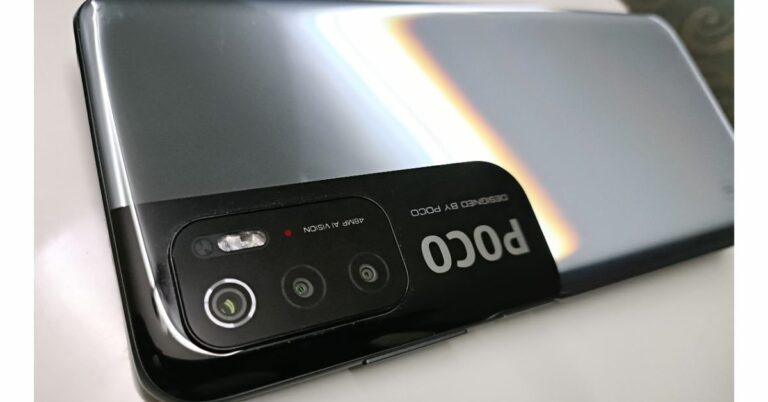
Poco M4 Pro 5G is reported to launch soon in the market. The alleged smartphone has been spotted on various benchmarking and certifications websites in the past. Now the device has appeared on the Eurasian Economic Commission(EEC) and Compulsory Certificate of China also known as 3C. In addition to this, the phone has also been spotted on IMEI and TENAA certification sites hinting at the imminent launch. The device is going to be a successor of the Poco M3 Pro 5G, which was launched in India a few months ago.According to an Indian tipster, Poco M4 Pro 5G has appeared on all the above-mentioned certification websites with the same model number 2109116AC. The EEC, 3C, IMEI and TENAA listing also suggests that the phone will have the support of 33W fast charging.Poco M3 Pro 5G is also tipped to be listed bearing a model number 21091116AG that suggests it to come with a MediaTek processor. Not much has been revealed about the upcoming smartphone but it would be coming with upgraded features and specs over its predecessor Poco M3 Pro 5GAlso Read: Poco M3 Pro 5G ReviewOnly a little time passed when Poco M3 Pro 5G was launched in India. But the device is suggested to be an upgrade over the 4G Poco M3 that was introduced earlier this year.The Poco M3 phone is powered by an Octa-core Qualcomm Snapdragon 662 SoC paired with 4GB of LPDDR4x RAM and up to 128GB of storage. It features a 6.53 full HD+ display and runs on MIUI 12 for Poco based on the top of Android 10. The device also comes with a triple camera set up on its back that includes a 48MP primary sensor, a 2MP macro lens and a 2MP depth sensor. Upfront there is a selfie camera. The smartphone is backed by a 6,000mAh battery that comes with 18W fast chagrin support.The Poco M3 comes in 4GB RAM 64GB storage, 6GB RAM with 64GB storage and 6GB RAM with 128GB storage options. The price of the phone starts at Rs 10,499 and goes up to Rs 12,499.
For the latest gadget and tech news, and gadget reviews, follow us on Twitter, Facebook and Instagram. For newest tech & gadget videos subscribe to our YouTube Channel. You can also stay up to date using the Gadget Bridge Android App. You can find the latest car and bike news here.
Amazon Quiz for October 5 2021 has gone live on the company’s mobile platform. The daily quiz contest brings an opportunity for Amazon users to win exciting prizes. In today Amazon Quiz the participants have the chance to win Rs 5,000 Amazon Pay Balance. All they have to do is answer all the questions correctly.A fresh question is posted on the Amazon app daily which consists of five simple questions based on general knowledge and current events. The quiz can be played on the Amazon App from 12 AM to 11:59 PM. You have to answer all the questions correctly. Then the participants will be shortlisted for a lucky draw. The result of the lucky draw will be announced at the end of the month. The participants can win Amazon Pay Balance to up to Rs 50,000. Check out the 5 October 2021 Amazon Quiz question and their answers to win a Rs 5,000 Amazon Pay Balance.
5 October 2021 Amazon Quiz Answers
Question 1: Dahi Handi is a festival associated with which occasion that fell on 30th August this year?
Answer: Janmashtami
Question 2: The Independence Dua of which country is also known as Hari Merdeka?
Answer: Malaysia
Question 3: After Mariyappan Thangavelu went into quarantine due to possible exposure to COVID-19, who was named India’s Tokyo Paralympics flag bearer?
Answer: Tek Chand
Question 4: This is the European Commission Berlaymont building located in which city?
Answer: Brussels
Question 5: This is a famous monument located in which city?
YouTube recently released a Picture in Picture mode update in iPhone with an update of iOS. YouTube has been the last to update iOS devices with PiP mode as other streaming services like Apple TV, Prime Video, Netflix, etc have got it before. Though the feature is introduced it might not be convenient for everyone and also not works for everyone as well. If you are habitual of watching YouTube on PiP, but now it’s not working for you, here are a few troubleshooters you can perform to fix the problem.
Check for updates
An outdated build might result in not getting this feature or if there is a bug in the old build. It is always better in most cases to keep your application up to date. Along with that also make sure that your iPhone is running the latest version of iOS. As it can lead to the same issue in future as well. To fix it, head to the Apple store, tap on your profile on the top right corner and scroll down to find the update all button. To update the iPhone head to General > Software Update and check for updates.Read Also: WhatsApp to roll out PIP feature for WhatsApp Web
Subscribe to YouTube Premium
Unfortunately, YouTube has kept the picture in picture mode exclusively for premium members. If the company is planning to make this feature free for everyone is still unknown. But, for now, one has to pay for a premium subscription to use YouTube in PiP mode. Along with PiP you also get an ad-free YouTube experience, unlimited video download option, background video playing, and YouTube Music when you buy the subscription. One can opt for a student discount by verifying him/her as a student, too.
Use YouTube in the browser
It is the best work around if YouTube premium feels heavy on your pocket and all you want is to watch videos in PiP, and advertisements don’t bother you. You can do it with the built-in browser. Follow the below steps.Step 1 – Go to YouTube.com in the Safari browser.Step 2 – Tap Aa on the top left of the screen. Step 3 – Select the Request Desktop Site option from the drop-down menu.Step 4 – Once the desktop site loads, start playing a video and make it full screen.Step 5 – Tap the PiP button on the top left corner of the display.Read Also: WhatsApp rolls out PiP mode to all Android usersThese are a few steps that will allow you to watch YouTube videos in picture in picture (PiP) mode on your iOS devices. If none of these work, try uninstalling the YouTube application and reinstalling it. As there is no clear data or clear cache option like Android in iOS, all you can do is uninstall and reinstall the application.
For the latest gadget and tech news, and gadget reviews, follow us on Twitter, Facebook and Instagram. For newest tech & gadget videos subscribe to our YouTube Channel. You can also stay up to date using the Gadget Bridge Android App. You can find the latest car and bike news here.
With Android 12 still in the beta stages, Android 11 is the best OS available for Android. With Android 11, there is a wide range of applications that one can download from its Play Store service. Google Play Store is a digital distribution service owned by Google and provides service to all Android users and sometimes the users hit a roadblock. There are multiple reasons because of which a user is unable to update apps on Android 11. Below are some fixes that will come in handy if apps are not downloading on Android 11.
Check the internet connection
If you are unable to reach the update page or the Playstore is showing you offline, it can be a problem with your internet connection. There are two possibilities because of which this error can occur. The first being there is no internet connection at all. The other reason for this error is the slow internet. Make sure you are connected to an Internet connection that is strong, stable and has a decent speed. If you are connected to Wi-Fi, try switching to mobile data or vice versa. Also, make sure the VPN on your smartphone is disabled.
Force stop and clear data
Force stopping the Play Store and clearing the data will refresh it. If the problem is related to Playstore, performing this method will most probably solve it. General bugs related or updating issues are cleared from Playstore’s memory. Here is how to do it.Step 1 – Hold the Play Store icon for 1 second to see options.Step 2 – Select App info from the listed options.Step 3 – First press force stop in the opened window.Step 4 – Next head to the Storage option.Step 5 – Press the Clear storage option.Play store majorly relies on Play Services and Download Manager for updating applications. If the problem by this step persists try to clear the data of the Play Services and Download manager as well.Read Also: Microsoft brings a much-needed update to its Xbox One
Check storage
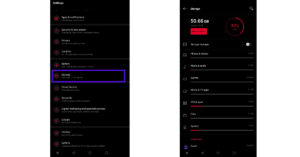
The applications won’t update from Playstore if there is no storage space left on the device. With new updates, there are more system files that are integrated, which increases the application size. To check storage, head to Setting> Storage, we advise that at least 20% storage in your smartphone should be free.
Reinstall play store
There might have been some bug or issue while updating the Playstore. There also could be that the current version of the store has got some bug. One cannot remove Playstore and reinstall it but they can remove the update to make it go back to factory setting and updating it again will get rid of the problem. To perform this one should follow these steps.Step 1 – Hold the play store icon for 1 second to see options.Step 2 – Select App info from the listed options.Step 3 – Tap the three-dot on the top right corner of the screen.Step 4 – Select Uninstall Updates and then press Ok to confirm.Start using the Play Store and the application will automatically update in the background. As the Play Store has gone back to its factory settings, give some time for the update to complete.Read Also: Google announces Top Play Store apps
Remove Google account and re-add it
There is a strong possibility that the specific Google account you are using has some issues related to application updates. Users can consider removing their Google account and re-adding it to eliminate this doubt.Step 1 – Open Setting. Step 2 – Head to the Accounts section.Step 3 – Select the Google account that is needed to be removed. (Phone might ask you for the pin or password to complete the process)Open Google Play Store again and it will ask you to sign in. Just input the credentials and you are good to go. We advise restarting the phone once the process is done as well.Following the above steps, one can fix Apps not updating on the Android 11 problem. If none of these methods work we advise you to factory reset the device once to make your Android start afresh. If the issue has recently occurred and you are not able to diagnose, factory resetting will probably fix that issue.
For the latest gadget and tech news, and gadget reviews, follow us on Twitter, Facebook and Instagram. For newest tech & gadget videos subscribe to our YouTube Channel. You can also stay up to date using the Gadget Bridge Android App. You can find the latest car and bike news here.


 Step 3: Select Screen pinning.
 Step 4: Once the feature is turned on, toggle the Recent Apps gesture/button. You will see a pin symbol or long-press a specific application to find the pinning option.
 Read Also: Top Google Chrome extensions you should install today.
 Companies nowadays have a built-in pocket mode feature that disables the phone’s screen when the light sensor of the phone gets covered. It is a handy feature, especially on the go. Head to settings and search for pocket mode(or similar, depending on your device). Once you find it, turn on its toggle switch.
 If there is no pocket mode on your smartphone and the above steps are not working out for you. Try Touch Protector from Google Playstore. This app works somewhere between screen pinning and pocket mode. It will disable the screen until you want to work again. It also has a smart detection mode to enable the touch screen while receiving incoming calls. The best part is the application is completely free.
Download from here
If there is no pocket mode on your smartphone and the above steps are not working out for you. Try Touch Protector from Google Playstore. This app works somewhere between screen pinning and pocket mode. It will disable the screen until you want to work again. It also has a smart detection mode to enable the touch screen while receiving incoming calls. The best part is the application is completely free.
Download from here
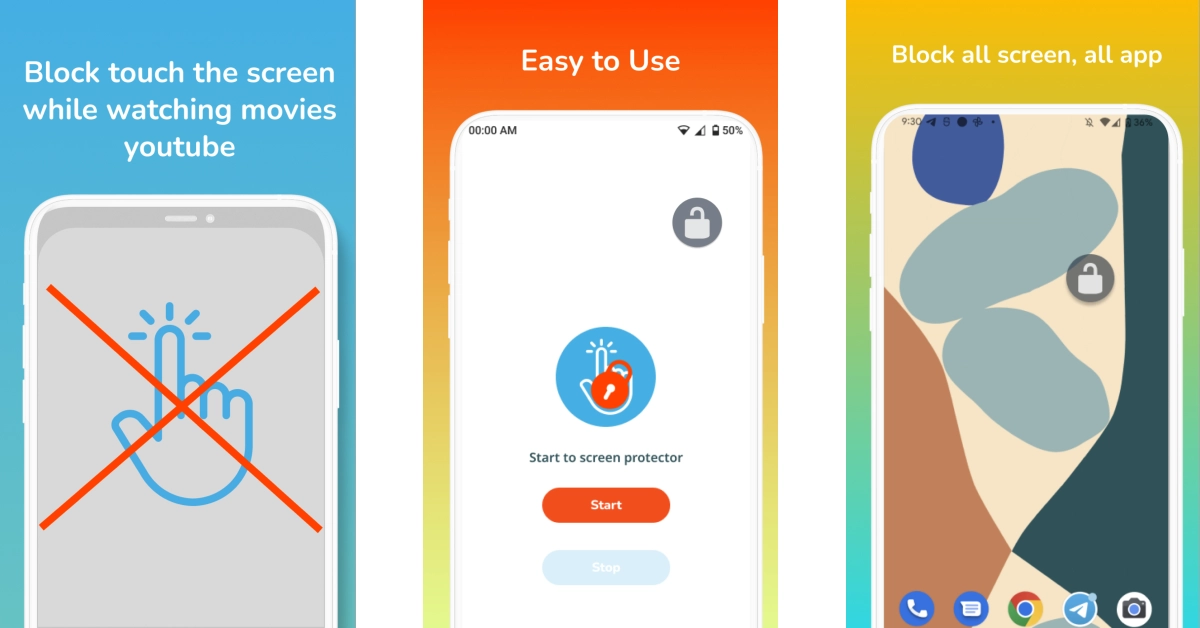 The Disable Touch Screen app by Firefly-Team can be downloaded for free from the Google Play Store. This app blocks accidental touches, so it doesn’t hinder your movie-watching experience. It works seamlessly with OTT apps like Netflix, Hotstar, Sony Liv, Voot, and more. Once you install the app, hit Start and press the lock button on the page that you want to lock.
Download from here
The Disable Touch Screen app by Firefly-Team can be downloaded for free from the Google Play Store. This app blocks accidental touches, so it doesn’t hinder your movie-watching experience. It works seamlessly with OTT apps like Netflix, Hotstar, Sony Liv, Voot, and more. Once you install the app, hit Start and press the lock button on the page that you want to lock.
Download from here
 Step 3: Scroll down and select Guided Access.
 Step 4: Turn on the toggle switch for Guided Access.
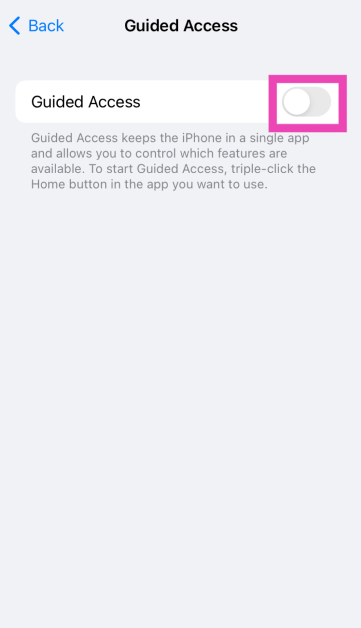 Step 5: Once the feature is switched on, open the app that you want to lock. On an iPhone X or later device, triple-click the side button. On an iPhone 8 or earlier, triple-click the Home button. Select the part of the screen you want to disable. Tap the Guided Access option, then tap Start.

 Step 2 –
 Step 3 –

 Read Also:
  Step 3 –


 Step 2 –
 Step 4 –



 Read Also:
 Step 3 –
  Step 5 –

 Step 3 –