Qualcomm Snapdragon 8 Gen 3 with Generative AI features announced

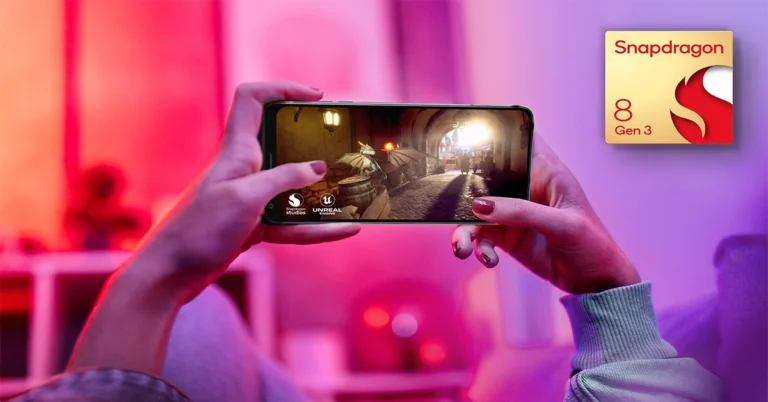
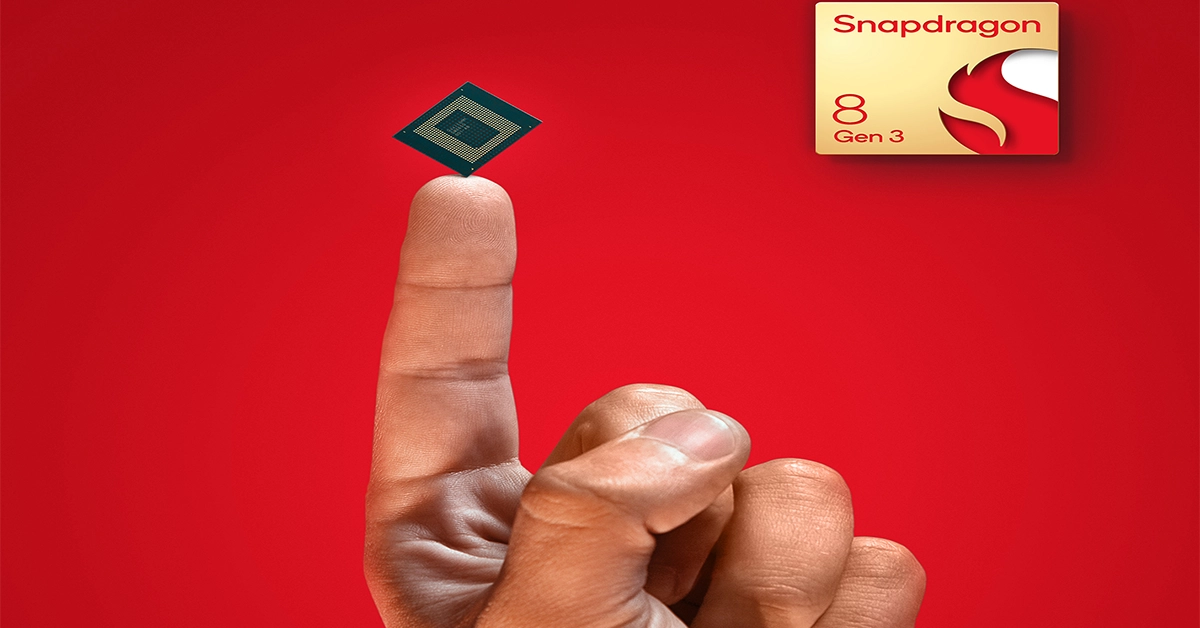
Qualcomm today at its Snapdragon Summit 2023 unveiled Snapdragon 8 Gen 3 SoC. This is the company’s next-gen flagship processor designed for the most premium Android smartphones. The Mobile Processor will be powered by Generative AI to support multi-modal generative AI models, including popular large language models (LLM), language vision models (LVM), and more. According to the company, the processors will feature in the upcoming handsets in the coming weeks.

Qualcomm Snapdragon 8 Gen 3 specifications

The Qualcomm Snapdragon 8 Gen 3 will be based on 4nm processing technology. In addition to this, there will be a Qualcomm Kryo CPU with up to 3.3 GHz which is said to be 30% faster and 20 percent more efficient. It includes 5 performance cores (up to 3.2 GHz) and two efficiency cores(up to 3.2 GHz). Also Read: Apple Event: Apple set to host “Scary Fast” event on October 30 The chipset is the company’s first to focus on Generative AI. It supports multi-modal generative AI models, including popular large language models (LLM), language vision models (LVM), and transformer network-based automatic speech recognition (ASR) up to 10B parameters. The LLM models are said to run up to 20 tokens/sec, allowing personal AI assistant can respond to you quickly. Qualcomm Snapdragon 8 Gen 3 specifications It comes with Hexagon process NPU which is claimed with 98% faster and 40% more efficient performance. Moreover, the chipset is said to come integrated with Qualcomm Adreno GPU with 25% faster performance. The mobile processor will support 240 fps gaming on 240 Hz displays along with hardware-accelerated ray tracing in addition to global illumination. For photography, the Qualcomm Snapdragon 8 Gen 3 SOC will powered by Samsung’s 200-megapixel image sensor. In addition to 2X and 4X zoom, all in 4K with object tracking the chip will also allow multiple video capture with support for Dolby HDR. According to Qualcomm, the AI will help in filling up photos using the Photo Expansion feature while the Video Object Eraser by Arcsoft will remove items in a video. “Thanks to our leading Cognitive ISP, you can intelligently snap one-of-a-kind content with generative AI voice-activated photo and video editing. Plus, individually optimize different components of your shots in real-time in up to 12 layers for more detail, vibrancy, and authenticity with Semantic Segmentation— available on front and back cameras. Even in the darkest of dark, Night Vision video capture powered by AI lets you achieve incredible content, ” Qualcomm said. Two always-sensing cameras in the front and back allow for easy QR code scanning, face unlock, and more. Whereas Two always-sensing cameras in the front and back allow for easy QR code scanning, face unlock, and more. It will also include Vlogger’s View will also allow you to share both your selfie camera and rear camera video simultaneously, putting you in the action as you share and narrate. On the connectivity front, the Qualcomm Snapdragon 8 Gen 3 processor will include Qualcomm FastConnect 7800 that will provide support for Bluetooth 5.4, Wi-Fi 7 802.11be, 802.11ax, 802.11ac, 802.11a/b/g/n. It will also have a Snapdragon X75 5G Modem-RF System with AI tensor accelerator that achieves better speeds, coverage, mobility, link robustness, and location accuracy.

How to watch videos in Incognito Mode on YouTube?

0
Every video you watch on YouTube gets entered in your watch history on the app. This helps YouTube come up with better suggestions for your home feed and also lets you revisit the content that you’ve watched in the past. Sometimes, watching a particular video can throw a wrench in your curated feed. This happens more often when you view a video from a popular creator or check out an ongoing trend that is being pushed by the platform. To preserve your video suggestions, you can watch videos in an incognito tab. And no, you don’t need to switch to the web browser, since YouTube has an integrated Incognito Mode within the app. In this article, we show you how to watch videos in Incognito Mode on the YouTube app and website. Read Also: Vivo Y200 with Snapdragon 4 Gen 1 processor launched in India

Should you use Incognito Mode for YouTube?

The Incognito Mode for YouTube comes in handy in a wide range of situations. Here are some common scenarios when you might want to use this tool:
  • You don’t want your search query to be tied to your account
  • You don’t want the video to be recorded in your watch history
  • You don’t want your feed to be filled with suggestions similar to the video
  • You don’t want to view ads related to the video you are about to watch
  • Someone asked to watch a video on your phone and you don’t want them to look at your feed
However, there are certain downsides to using Incognito Mode as well.
  • Your current feed does not show up in Incognito Mode
  • You can’t go back and check which videos you watched
  • You cannot like or comment on videos in Incognito Mode
  • Your views in Incognito Mode are not included in the analytics and data

Switch to Incognito Mode in the YouTube app

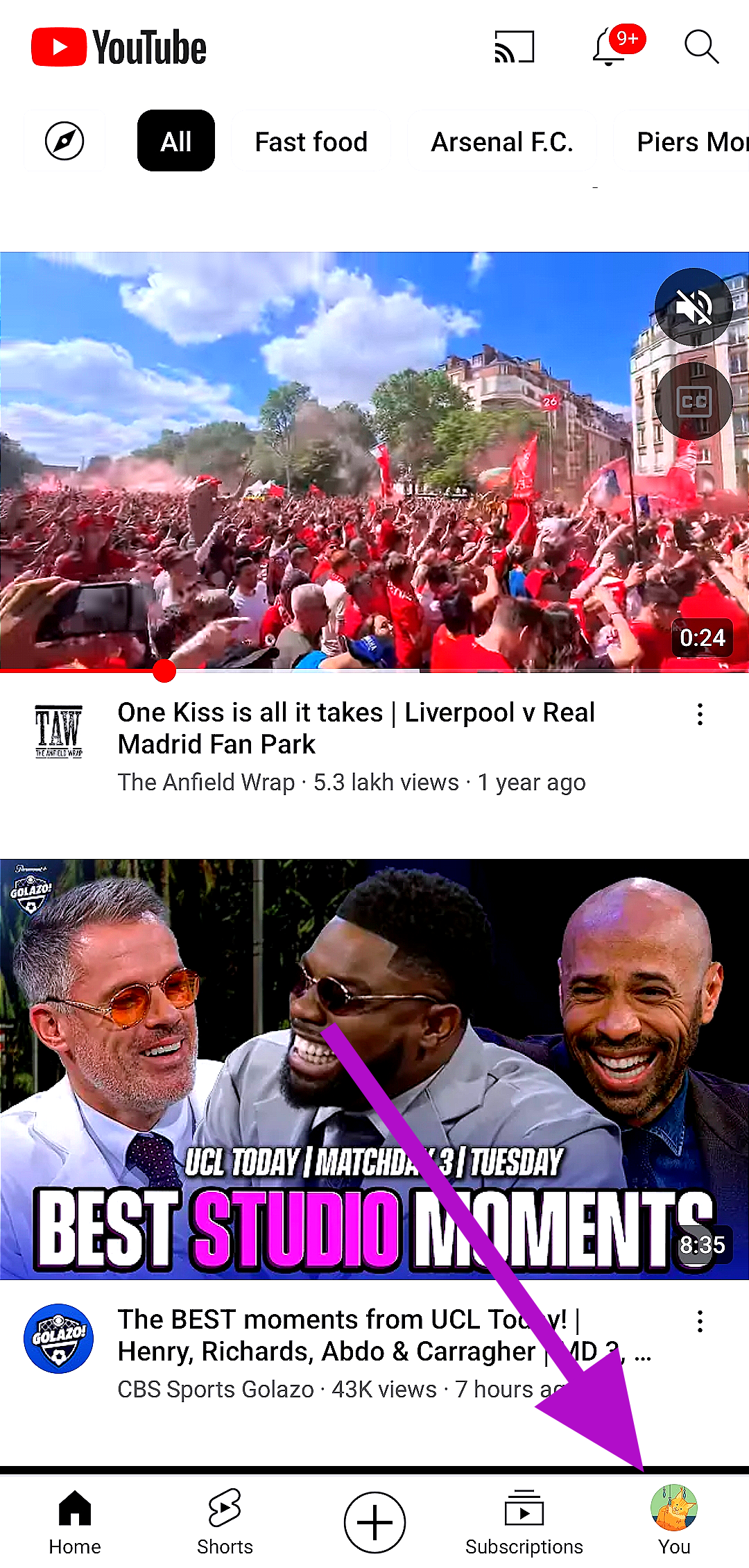
Step 1: Launch the YouTube app. Step 2: Tap on the You tab at the bottom right corner of the screen. Step 2: Tap on the You tab at the bottom right corner of the screen. Step 3: Select Turn on Incognito from the list of options. Step 3: Select Turn on Incognito from the list of options. Once you are in incognito mode, the videos you watch will not be reflected in your watch history. Your suggestions and feed will not be influenced by the videos you watch. To switch back to your account, tap on the You tab again and select Turn off.

Use Incognito Mode for YouTube on your web browser

Since YouTube’s mobile site does not have an incognito mode, you will have to rely on your web browser’s incognito function. To switch to the incognito tab on Google Chrome, simply tap the ellipses at the top right corner of the screen and select New Incognito Tab. Samsung users can use the incognito tab on their phone’s native browser by tapping the tabs icon at the bottom toolbar and selecting ‘Turn on Secret mode’. To make sure no one else gets access to the Secret tabs, set up a password for them. Vivo and iQOO users can also select incognito mode after tapping on the tabs icon at the bottom right corner of the native browser window. Once you are in Incognito Mode, you can watch videos without signing into your account. Once you switch back to the regular tab, you will not need to sign in again. This allows users a quick way to watch YouTube videos without having them reflect on the browser or account history.

Pause your watch history

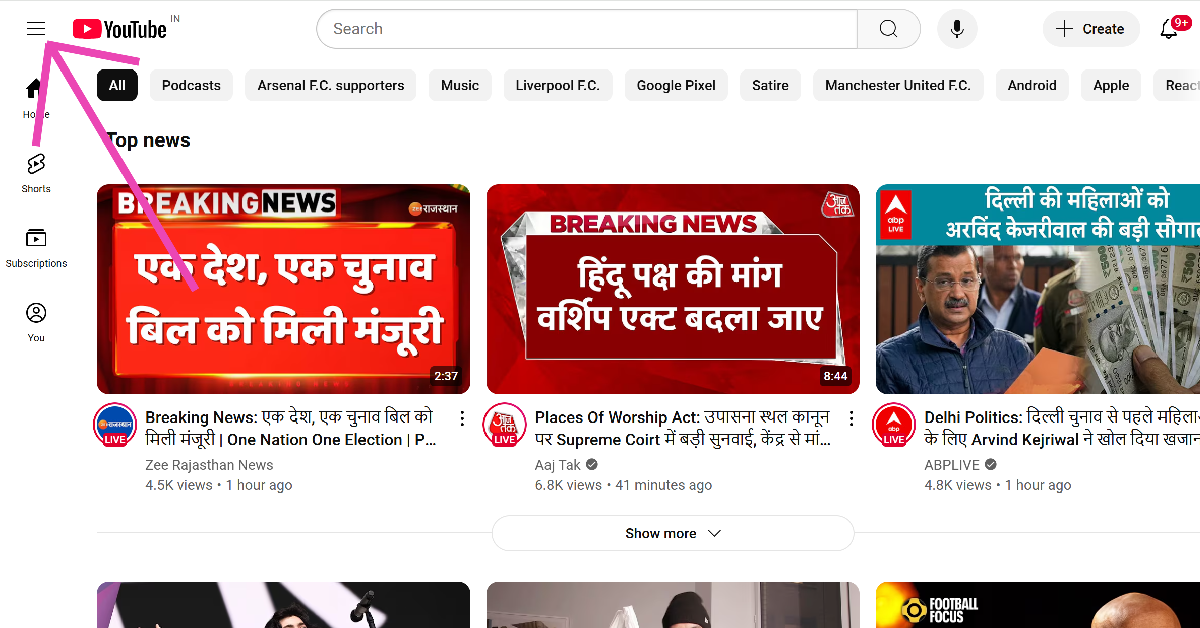
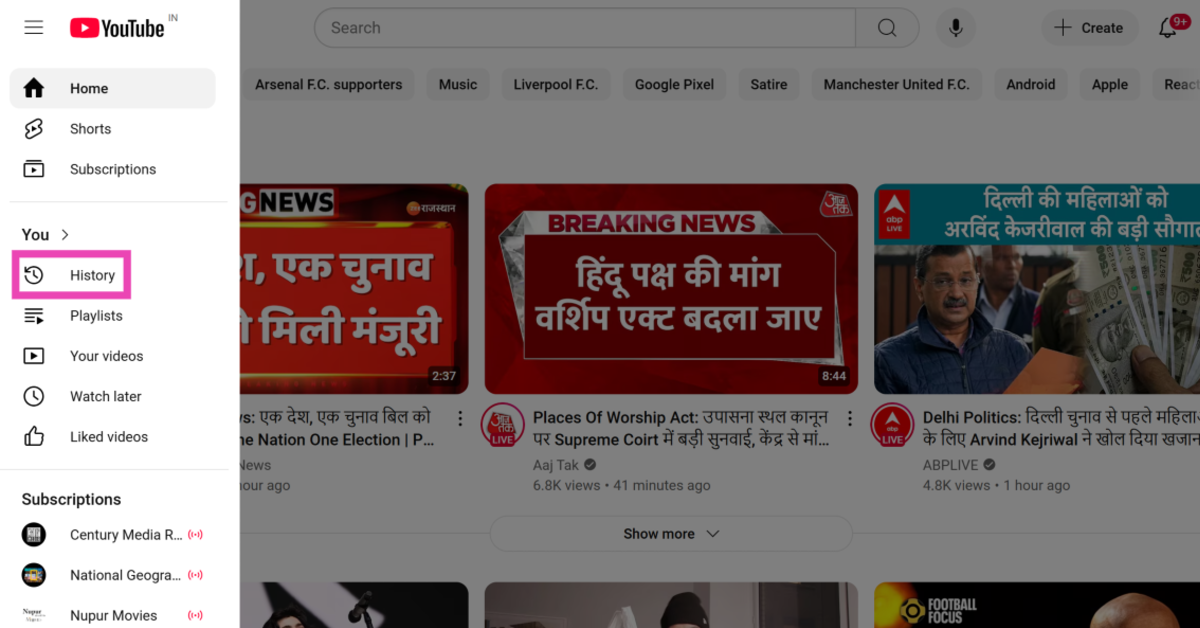
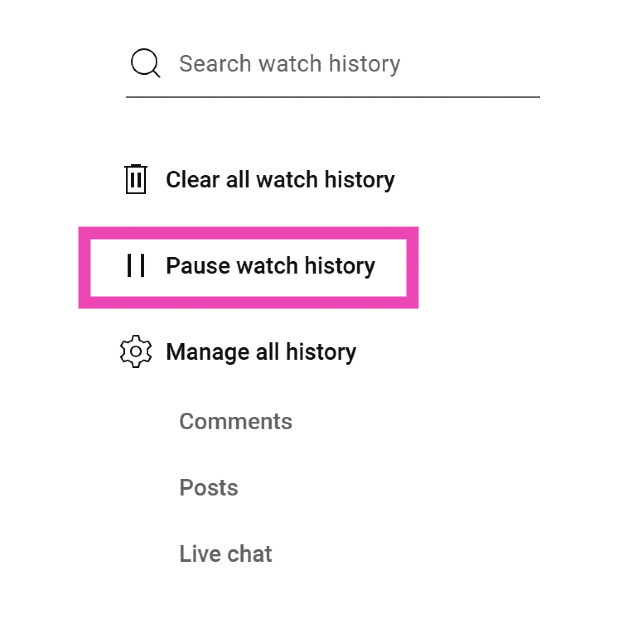
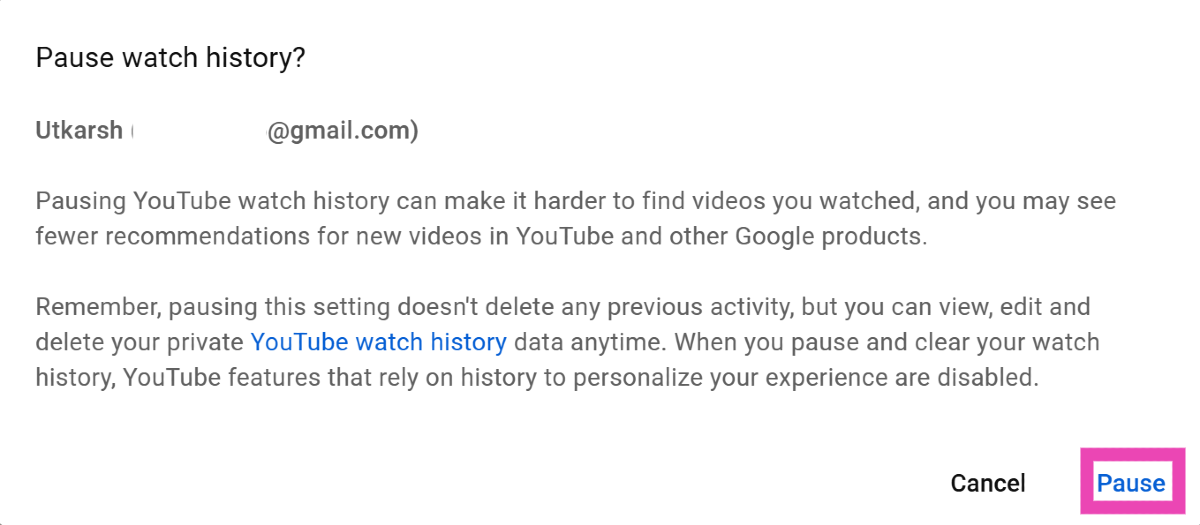
If you’re unable to switch to an incognito tab on your web browser, the next best thing you can do is pause your watch history. This ensures that the videos you watch on YouTube do not get recorded on your Google account. Here’s how you can go about it. Step 1: Open the web browser on your PC and go to YouTube. Step 2: Hit the hamburger menu in the top left corner of the screen. Step 2: Hit the hamburger menu in the top left corner of the screen. Step 3: Click on History. Step 3: Click on History. youtube incognito mode pc Step 4: Click on Pause watch history. Step 4: Click on Pause watch history. youtube incognito mode pc Step 5: Confirm your selection in the popup box. Step 5: Confirm your selection in the popup box. youtube incognito mode pc

Frequently Asked Questions (FAQs)

Does the YouTube app have an Incognito Mode?

You can access the incognito mode on the YouTube app by tapping on the ‘You’ tab and selecting ‘Turn on Incognito’.

What does the incognito mode on YouTube do?

Turning on the incognito mode opens a new window in which you aren’t signed into your YouTube account. Anything you do in incognito mode will not be registered in your account activity.

Does the YouTube website have an incognito mode?

YouTube only offers an incognito mode on its mobile apps. Desktop users will need to rely on their browser’s incognito mode to view videos discreetly.

Can a YouTuber see who viewed their video in Incognito Mode?

Since incognito views are not counted while compiling the data and analytics for a video, YouTube creators have no way of knowing how many people watched their videos in incognito mode.

Does Incognito Mode save watch history?

No, Incognito Mode on YouTube does not save watch history. Read Also: Best mobile deal on iPhone 13, now priced under 50k on Amazon

Conclusion

These are the top 3 ways to watch videos in Incognito Mode on the YouTube app and website. Watching a video in incognito mode still contributes towards its view count, given you watch the video for more than 30 seconds. Since you are logged out of your account in incognito mode, you will not be able to view your subscriptions or curated home feed.

How to use the magic eraser tool on Google Pixel 8 phones?

0
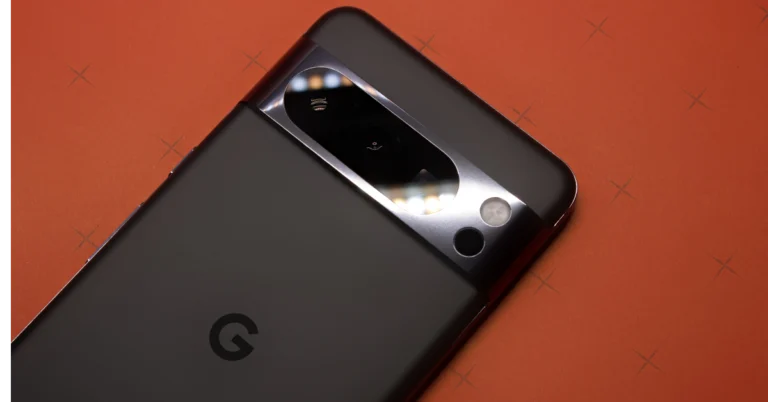
The Magic Eraser tool is undoubtedly one of the coolest features of a Google Pixel smartphone. Every year, Google improves upon this tool and makes it more efficient and versatile. The new Google Pixel 8 series also gets a new Audio Magic Eraser that lets you suppress unwanted noises in your videos. The magic eraser is one of the pieces of software magic on the Pixel that everyone raves about. If you’re a Pixel user it is essential you know how to tap into the potential of this clever tool. In this article, we show you how to use the magic eraser tool on Google Pixel 8 series smartphones. Read Also: Best mobile deal on iPhone 13, now priced under 50k on Amazon

Use Magic Eraser for images on Google Pixel 8 Series

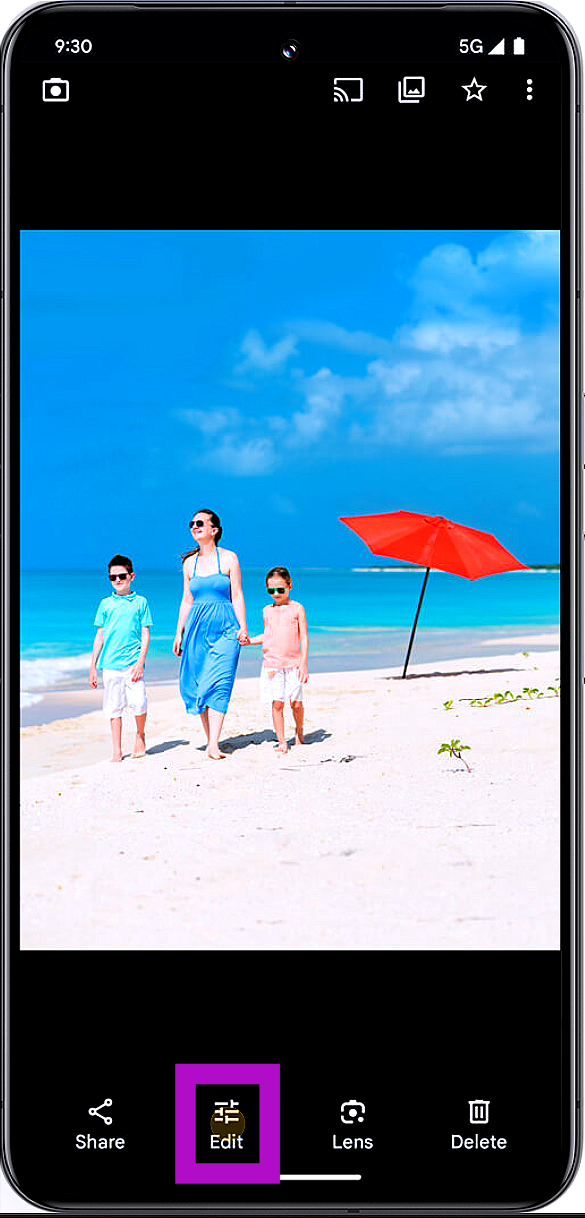
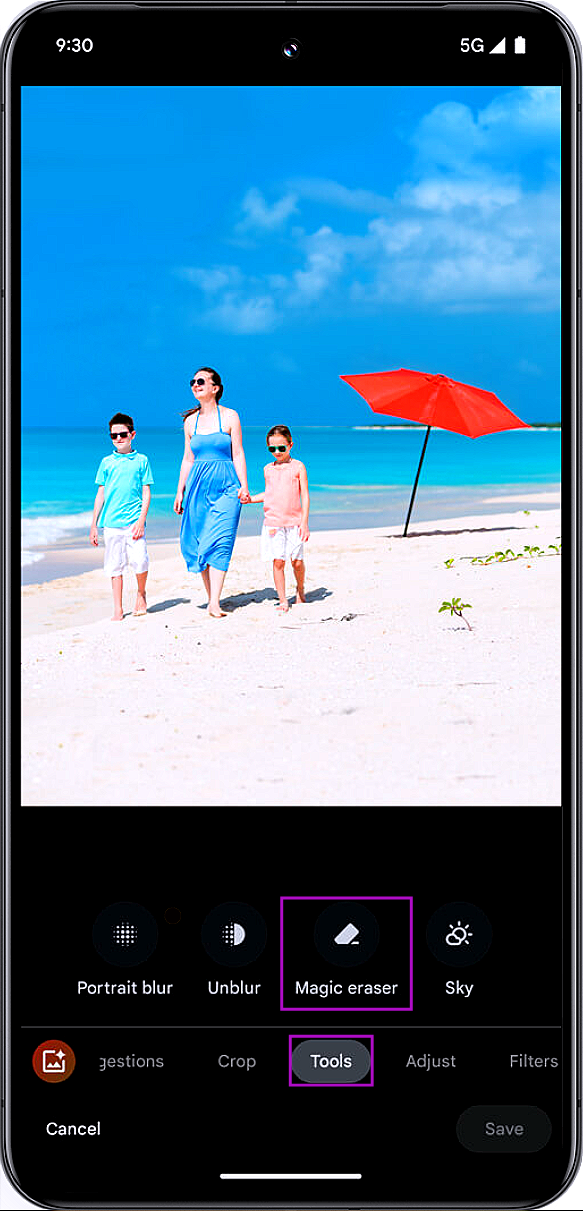
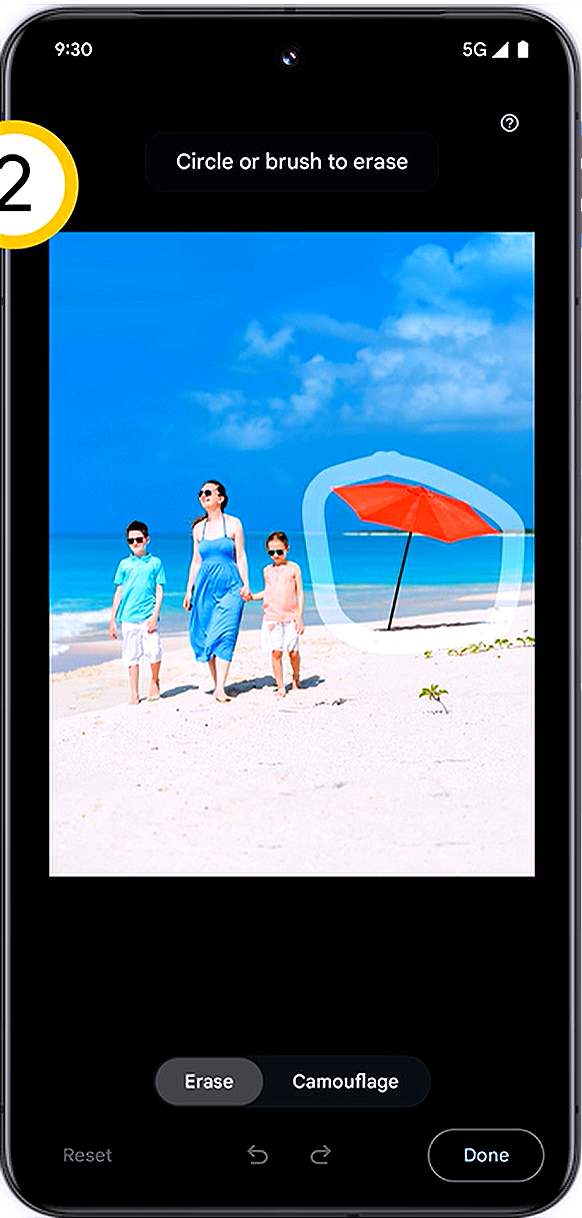
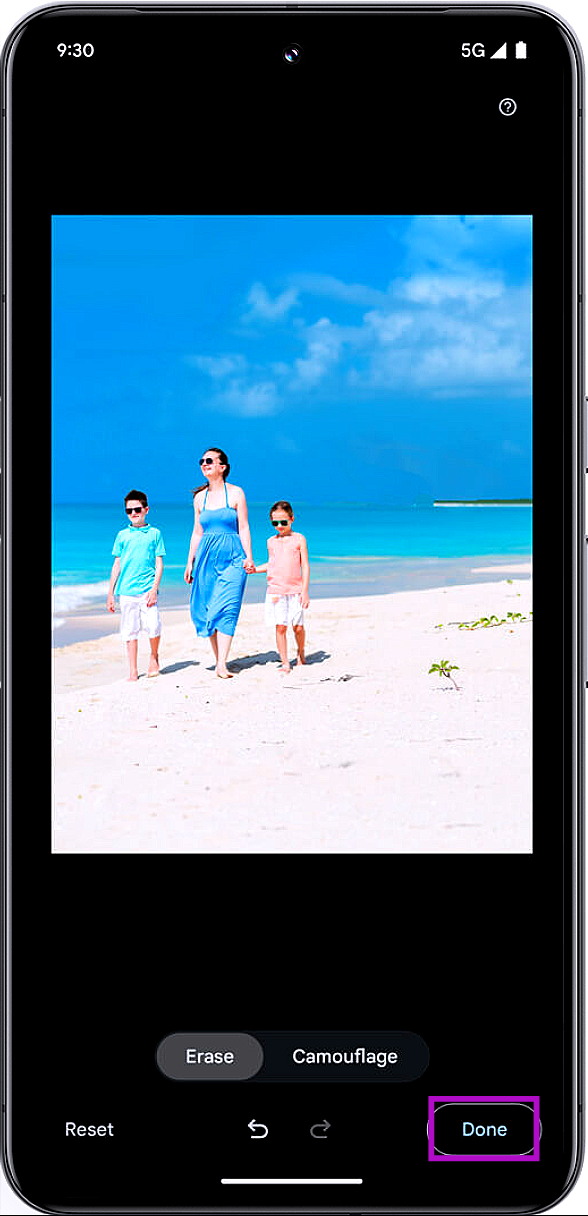
Step 1: Launch the Google Photos app and open the image you want to edit. Step 2: Tap Edit at the bottom of the screen. Step 2: Tap Edit at the bottom of the screen. Step 3: Switch to the Tools tab. Step 4: Select Magic Eraser. Step 4: Select Magic Eraser. Step 5: Use Google’s suggestion to remove an object from the image. If the object you want to remove isn’t suggested by the software, simply draw a circle around it. You can also cover the object with brush strokes to remove it from the image. Step 6: Tap Done once the object has been removed. Step 6: Tap Done once the object has been removed. Step 7: Select Save copy to save the image on your device.

Use Audio Magic Eraser to reduce distracting sounds

Use Audio Magic Eraser to reduce distracting sounds Step 1: Launch the Google Photos app and select the video you want to edit. Step 2: Tap Edit at the bottom of the screen. Step 3: Switch to the Audio tab and tap on Audio Eraser. Step 4: The video editor will separate all the different noises in the video and classify them into different categories. Step 5: Select a noise and move the slider to change its intensity in the overall mix. Step 6: Tap on Done once you’ve reached the ideal background noise level. Step 7: Select Save copy.

Frequently Asked Questions (FAQs)

Is Magic Eraser a free tool on Google Pixel?

Yes, the object eraser is a free tool for Google Pixel smartphones. However, other Android smartphone users need to subscribe to Google One in order to access the tool in the Google Photos app.

Do Android smartphones other than Google Pixel have the magic eraser tool?

Android smartphone manufacturers other than Google have their own versions of the magic eraser tool. This tool can be accessed from the default gallery app on the device.

What does the new Audio Magic Eraser on the Google Pixel 8 series do?

The new Audio Magic Eraser tool on Google Pixel 8 intelligently recognises all the different sounds in a video and lets you alter their intensity individually. This allows you to completely remove any unwanted sounds from the video. Read Also: Itel Icon smartwatch with HD screen and BT calling launched in India

Conclusion

This is how you can use the two magic eraser tools on the Google Pixel 8 series smartphones. Google Photos also has a cool ‘Magic Editor’ tool that uses regenerative AI to make clever edits on your images. You can bring objects closer, improve the lighting, change the colour of the sky, and do a lot of other things with this tool.

Apple Event: Apple set to host “Scary Fast” event on October 30

Apple is set to host its second launch event “Scary Fast” on October 30. Since iPhone 15, Apple Watch, and AirPods have already been released, it is anticipated that the tech giant may unveil its new MacBooks and iMacs. Apple is preparing for another tech event namely “Scary Fast” that is said to be held on October 30. The start time for the Apple Event is 5 PM PT, or 5.30 AM IST. Apple usually hosts their events on Tuesdays at 10 AM PST, so this is the first time the company has held one on a Monday. According to Indian timings it will be held on October 31 (Tuesday) at 5:50 AM. The “Scary Fast” event will be streamed live via the company’s website and also via the company’s official YouTube channel and Apple TV app. Also Read: iPhone 14 Plus price on Flipkart starts at Rs 64,999, best time to buy the device Earlier this month, Apple unveiled its latest iPhone 15 series models along with AirPods and Apple Watch Series. Numerous reports about the company’s next MacBooks and iMacs launch have been circulating everywhere; however, the company chose to keep its devices under wraps until October 30. A recent report by Bloomberg’s Mark Gurman already predicted that the 24-inch iMac will debut at the end of this month. He further mentioned that the existing iMac was running low in Apple retail outlets which is why it may introduce a refreshed model. Note that the Apple 24-inch iMac has not been refreshed since 2021. The firm introduced this model in a new colour option at its ‘Spring Loaded event. It is now available in seven colourways. The 24-inch iMac model comes equipped with M1 chip. It features a 4.5K retina display. The screen offers 500 nits of peak brightness. The device is 11.5mm thick. It is still not confirmed if the upcoming iMac model will be powered by M2 or M3 chips. Regarding MacBook Pro which is already available in two models 14-inch and 16-inch sizes. These two models were introduced with the M2 chipset earlier this year. Bloomberg’s Mark Gurman newsletter also states that a bigger version of the iMac might get launched later in 2024 and 2025.

Garena Free Fire Redeem Codes Today 25 October 2023: Here is how to claim them

Garena Free Fire is a battle royale game offering its players awards and tournaments to keep players interested. If you play Garena Free Fire, you should be aware of the redeem codes that are released on a daily basis. However, because the battle royale game is banned in India, players from other countries can use the Free Fire Redeem codes daily. If you’re unfamiliar with the Garena Free Fire redeem codes or don’t know how to get them, we’ve put together a step-by-step guide to help you redeem them. Check out Garena Free Fire Redeem Codes for 25 October 2023. The Free Fire redeem codes are a great way to get free stuff. These are 12-digit codes that contain alphabets and numbers, as well as an expiration date and time. Because the Garena FF redeem codes cannot be used more than once, you should hurry to the redemption page to claim your free reward before someone else does. To get a free reward, all you have to do is go to reward.ff.garena.com/en, which is the official redemption page. Also, keep an eye on this space for daily updates on Garena Free Fire redemption codes and rewards.

Garena Free Fire Redeem Codes Today 25 October 2023

FREEAV11QT6023 FIRE459MM3X440 NEWYESK87TR4R FH56E1BI892023 FH56E1BI892023 FIREE451KQ2023 FTY7UYHJRY76QUYB FGTDHF6T7UY56F6T FIYUJUT7UKYFFDSU FFJYFTTBU6EUJT63 FREEC5RA2423T8Z F7FGYJUR76JUT6HK FIHYHTYUJT6U8FHF

How to Get Free Fire Redeem Codes for Garena on 25 October 2023?

  • Visit the Garena Free Fire game’s official website at reward.ff.garena.com.
  • Use your Facebook, Google, VK, Apple ID, Huawei ID, or Twitter account to log in.
  • You’ll be taken to a valid redemption code (s)
  • Copy and paste the 12-digit redemption code into the text box.
  • On the screen, a dialogue box will appear.
  • ‘Ok’ should be selected.

Top 4 Ways to Blur Out a Part of Picture on Android

0
While sharing screenshots with other people, you may want to blur out your personal details and sensitive information from the picture. For example, you may not want to give away your Instagram handle while sharing a screenshot of your post. Cropping the image can prove to be futile when the details you want to hide lie away from the borders. In this scenario, using a blur tool is the best thing you can do to obscure your personal info. In this article, we bring you the top 4 ways to blur out a part of a picture on Android. Read Also: Itel Icon smartwatch with HD screen and BT calling launched in India

Use the native editor to blur a picture on a Samsung phone

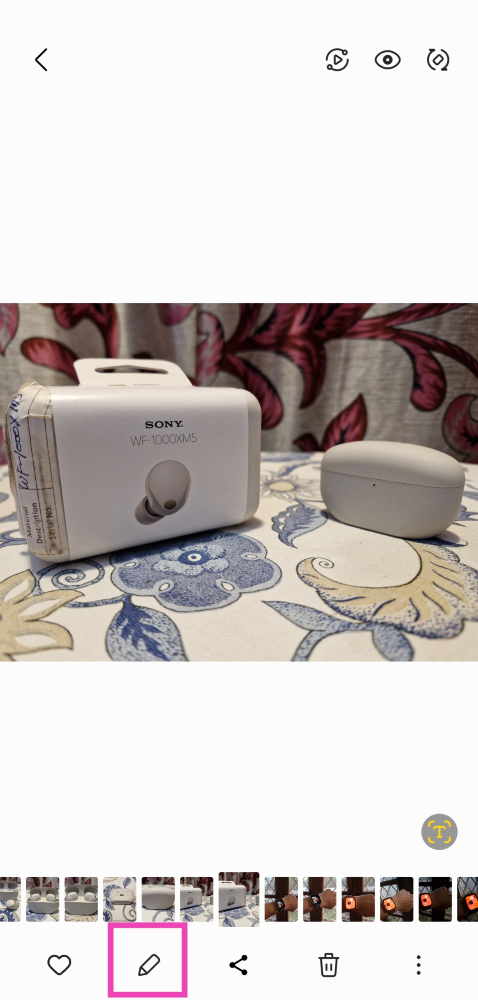
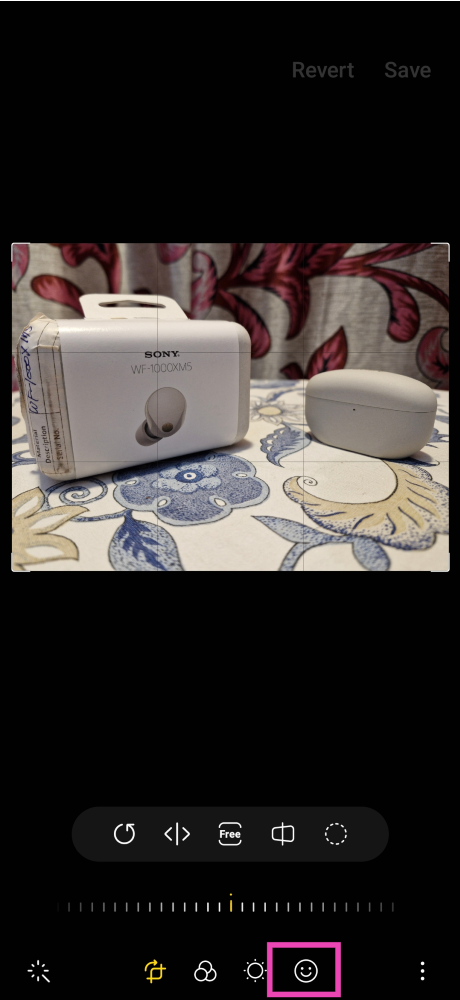
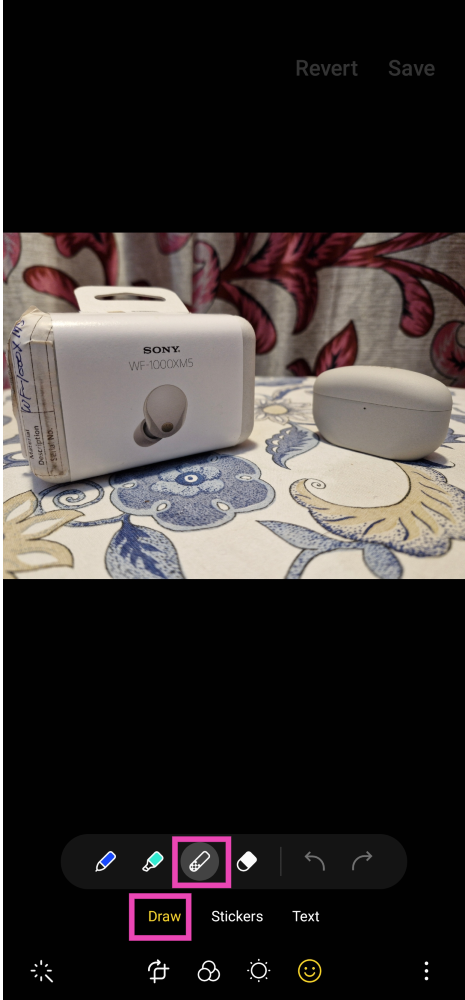
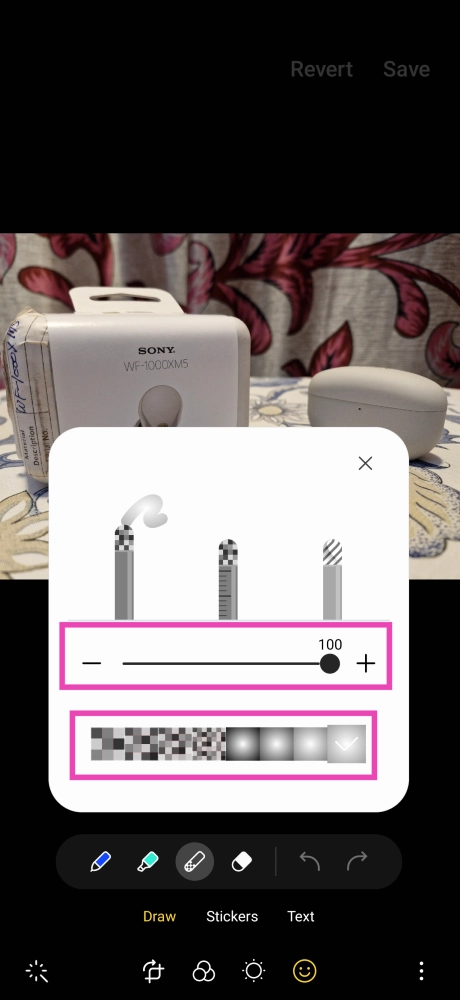
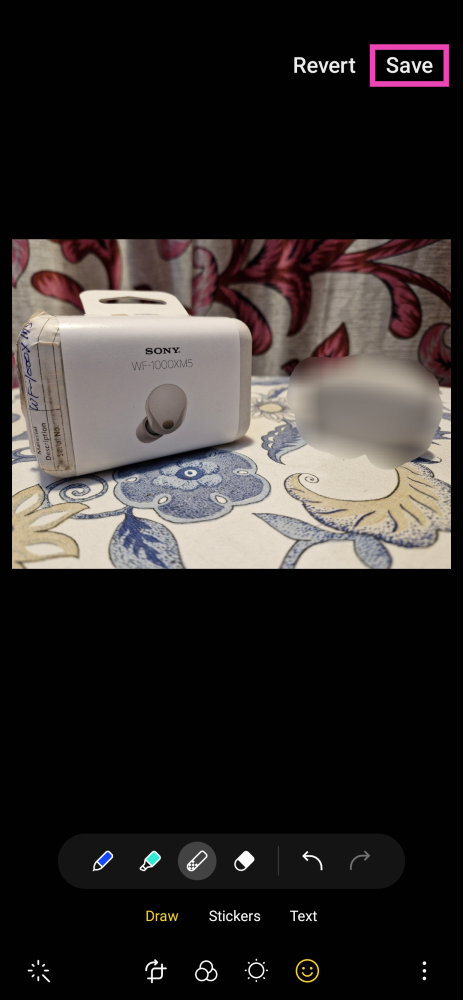
Step 1: Open the picture you want to blur on the native Samsung gallery app and hit the Edit option at the bottom of the screen. Step 1: Open the picture you want to blur on the native Samsung gallery app and hit the Edit option at the bottom of the screen. Step 2: Tap the Emoji icon. Step 2: Tap the Emoji icon. Step 3: Select Draw and tap on the Mosiac brush. Step 3: Select Draw and tap on the Mosiac brush. Step 4: Choose a blur pattern and the intensity level. Step 4: Choose a blur pattern and the intensity level. Step 5: Draw over the parts of the picture you want to blur out on your Android smartphone. Step 5: Draw over the parts of the picture you want to blur out on your Android smartphone. Step 6: Hit Save at the top right corner of the screen once you’re done.

Use Google Photos to blur out part of a picture

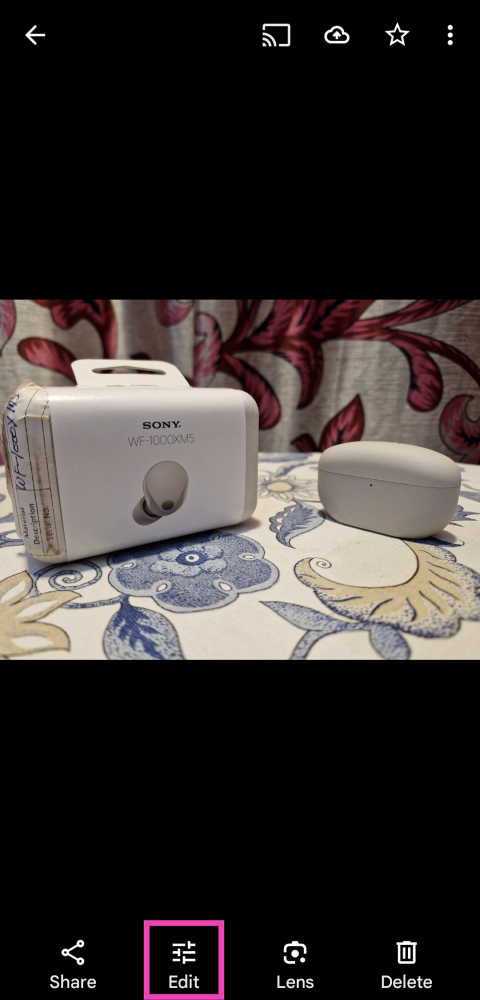
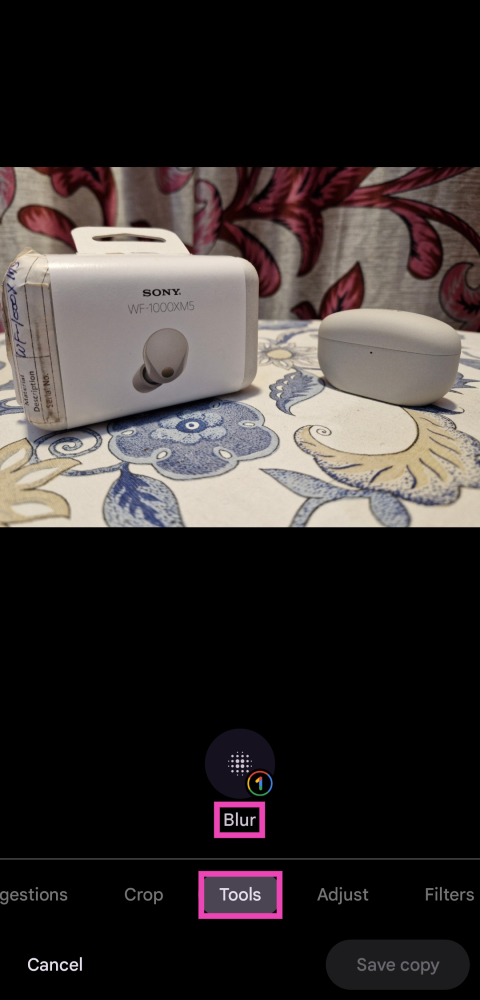
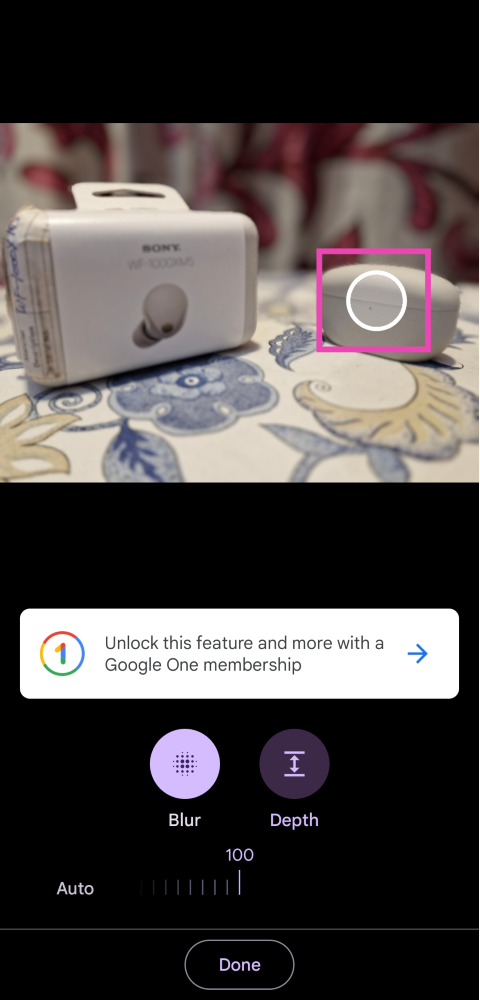
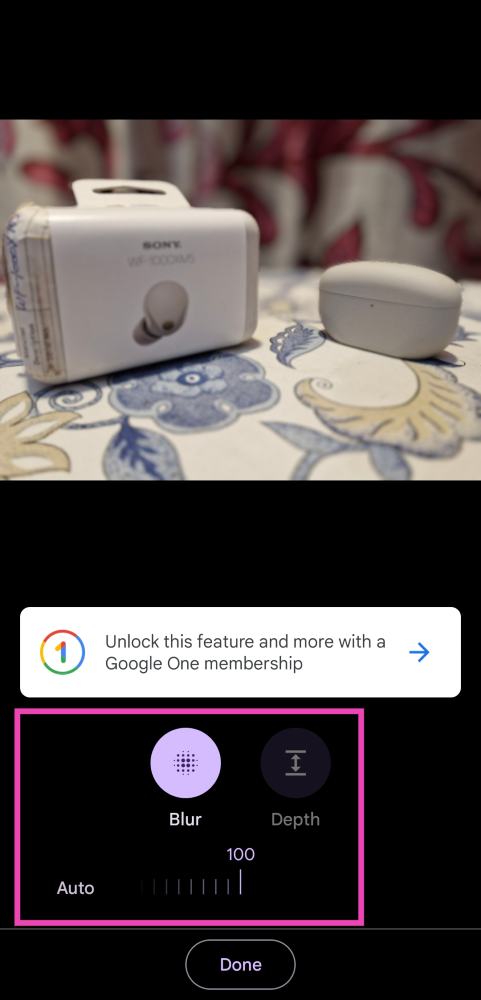
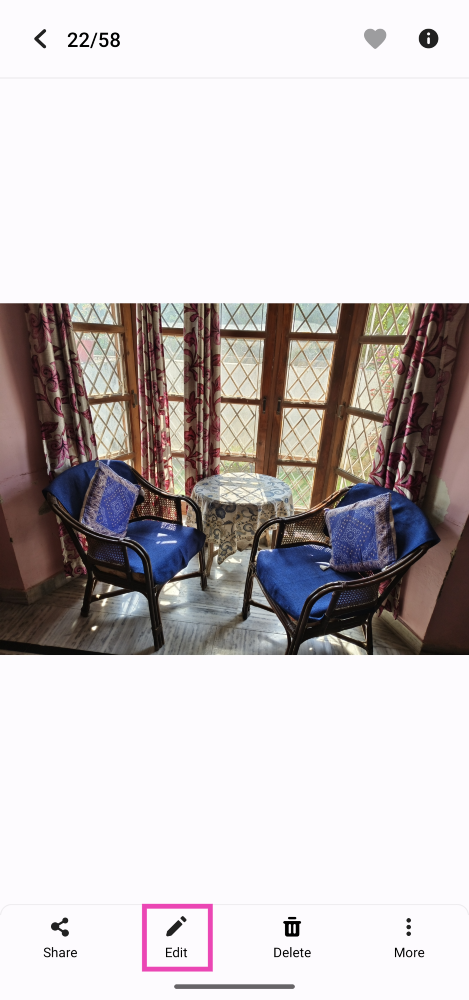
Step 1: Launch the Google Photos app and select the picture that you want to blur. Step 2: Tap on Edit at the bottom of the screen. Step 2: Tap on Edit at the bottom of the screen. Step 3: Switch to the Tools tab and tap on Blur. Step 3: Switch to the Tools tab and tap on Blur. Step 4: Move the circle to the area that you do not want to blur. Step 4: Move the circle to the area that you do not want to blur. Step 5: Select the intensity and depth of the blur effect. Step 5: Select the intensity and depth of the blur effect. Step 6: Hit Done to save your changes.

Blur a picture on a Vivo or iQOO smartphone

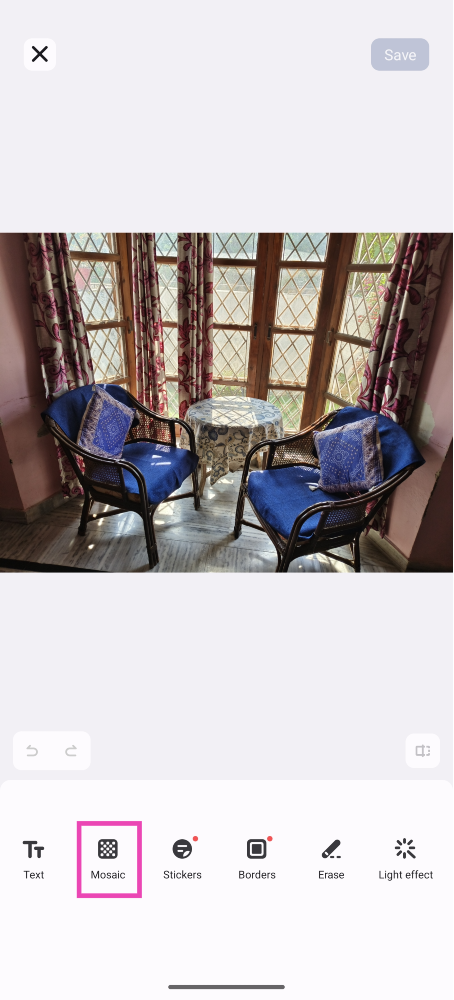
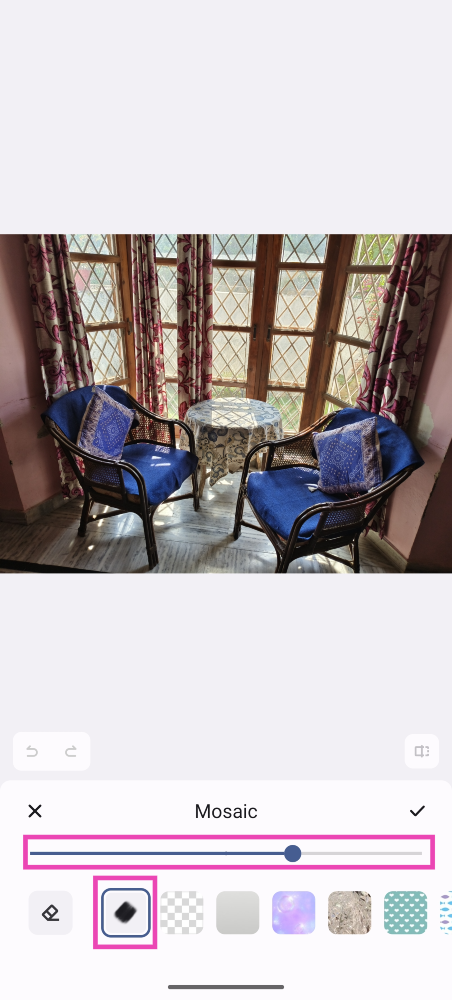
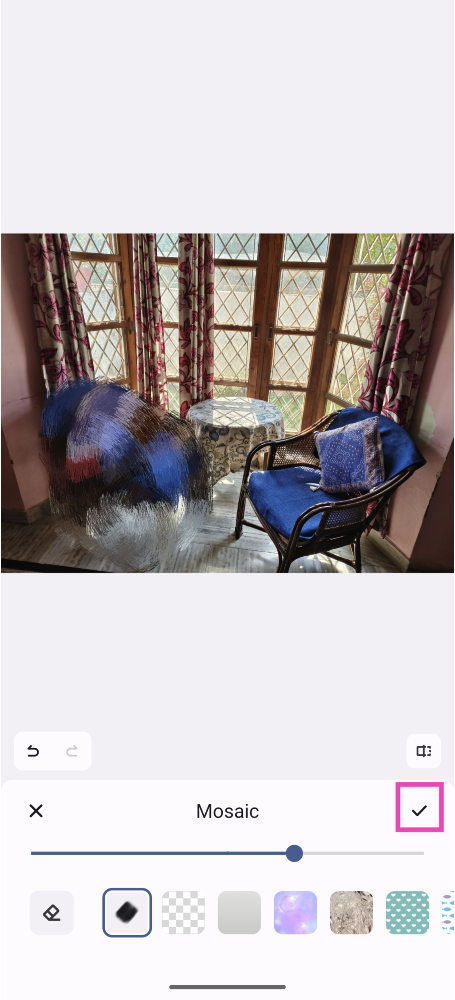
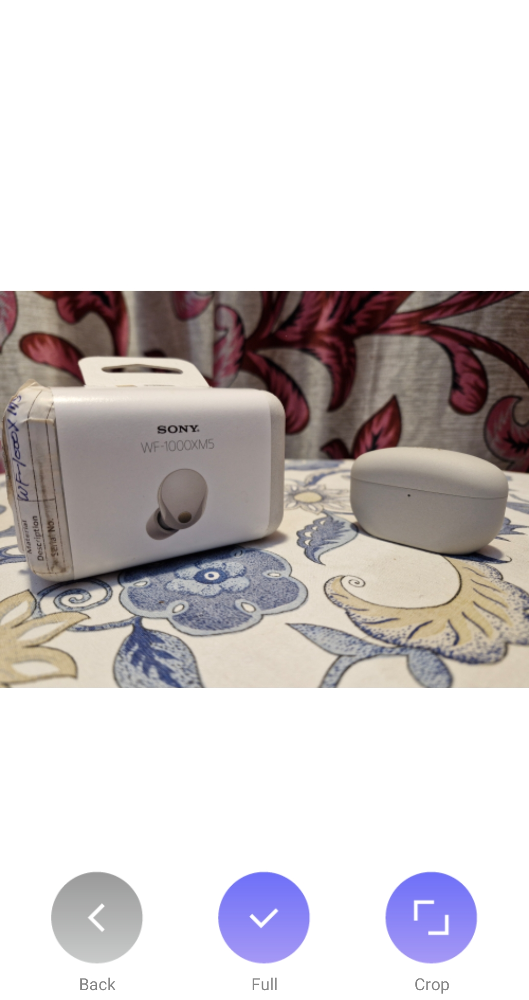
Step 1: Open the picture you want to blur using the native ‘Albums’ app on your Vivo or iQOO smartphone. Step 2: Select the Edit option from the bottom toolbar. Step 3: Tap on Mosiac. Step 3: Tap on Mosiac. Step 4: Choose a pattern and set the intensity for the blur effect. Step 4: Choose a pattern and set the intensity for the blur effect. Top 4 Ways to Blur Out a Part of Picture on Android Step 5: Brush the part of the picture that you want to blur. Step 5: Brush the part of the picture that you want to blur. Top 4 Ways to Blur Out a Part of Picture on Android Step 6: Tap the tick icon next to Mosiac. Step 7: Hit Save at the top right corner of the screen.

Use the Point Blur app

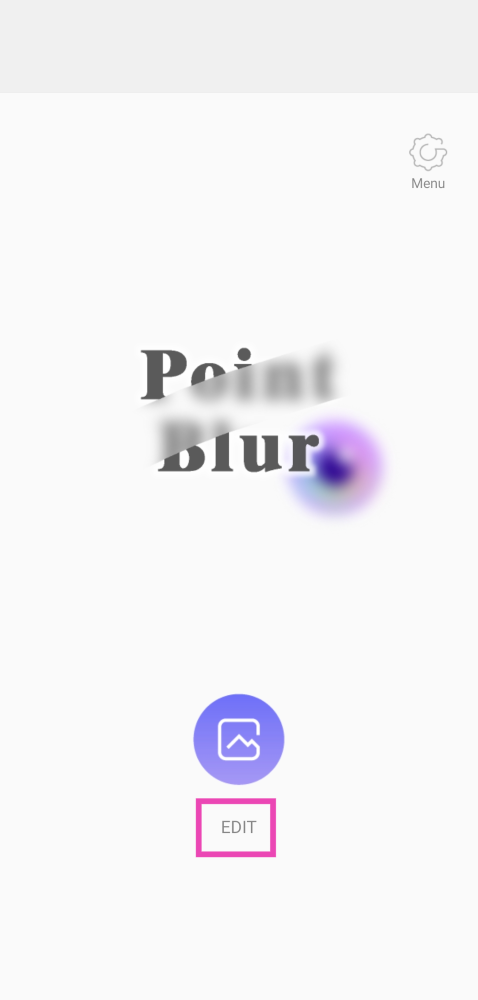
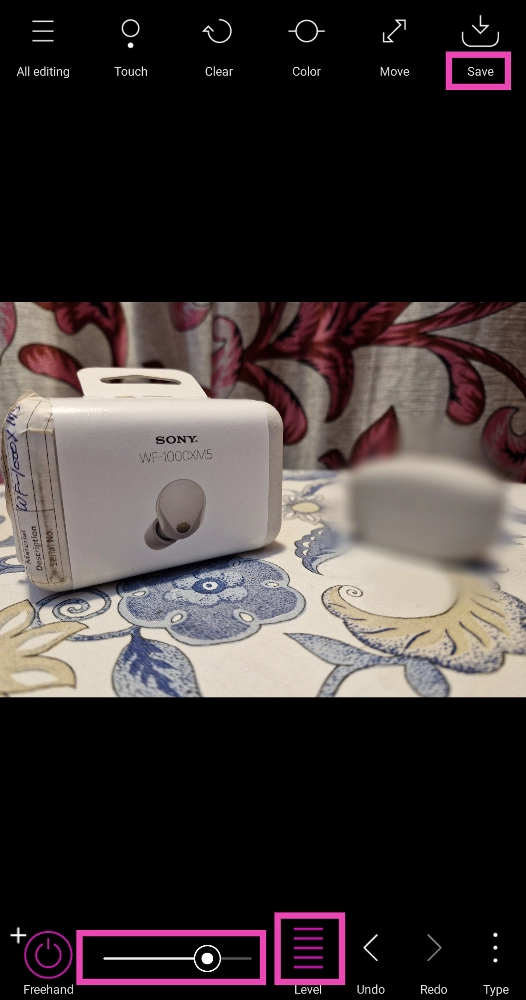
Step 1: Install and launch the Point Blur app on your Android smartphone. Step 2: Tap on Edit. Step 2: Tap on Edit. Top 4 Ways to Blur Out a Part of Picture on Android Step 3: Select the picture that you want to blur. Step 4: Choose whether you want to crop the image or not. Step 4: Choose whether you want to crop the image or not. Top 4 Ways to Blur Out a Part of Picture on Android Step 5: Select the blur level and brush size from the bottom toolbar. Step 5: Select the blur level and brush size from the bottom toolbar. Top 4 Ways to Blur Out a Part of Picture on Android Step 6: Draw over the part of the picture that you want to blur. Step 7: Hit Save at the top right corner of the screen.

Frequently Asked Questions (FAQs)

How do I blur a part of a picture on my Android smartphone?

Use the mosaic brush tool to blur a part of a picture on your Android smartphone. Choose the appropriate blur pattern and intensity level from the list of options.

Does the Google Photos app offer a blur tool?

The blur tool on the Google Photos app is used for focusing on one particular part of an image and blurring out the background. The blur tool is a paid feature of the Google Photos app.

What are some good apps for blurring an image on Android?

Third-party apps like Point Blur and Blur Photo let you blur out a part of an image and also let you choose the blur pattern, intensity, and brush size. Read Also: Logitech G PRO X SUPERLIGHT 2 Gaming Mouse for professional gamers launched in India

Conclusion

These are the top 4 ways to blur out a part of an image on your Android smartphone. If you need to completely remove an unwanted object from the image, using the magic object eraser is your best option. The magic eraser tool is now available on most native photo editors on Android. For the latest gadget and tech news, and gadget reviews, follow us on Twitter, Facebook and Instagram. For newest tech & gadget videos subscribe to our YouTube Channel. You can also stay up to date using the Gadget Bridge Android App. You can find the latest car and bike news here.

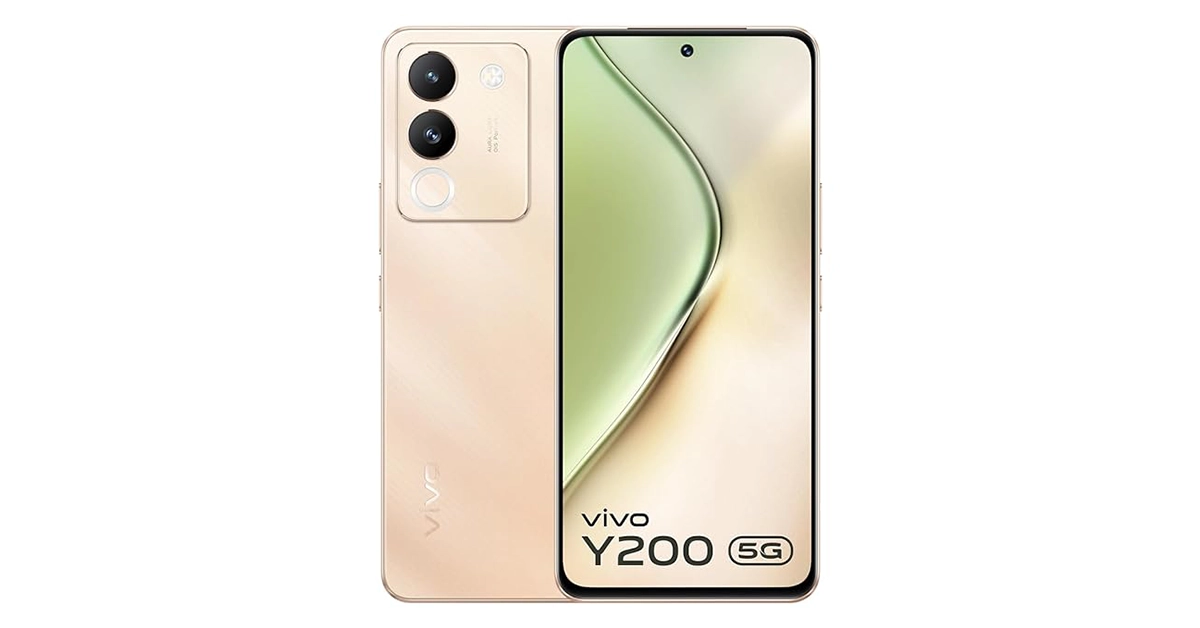
Vivo Y200 with Snapdragon 4 Gen 1 processor launched in India

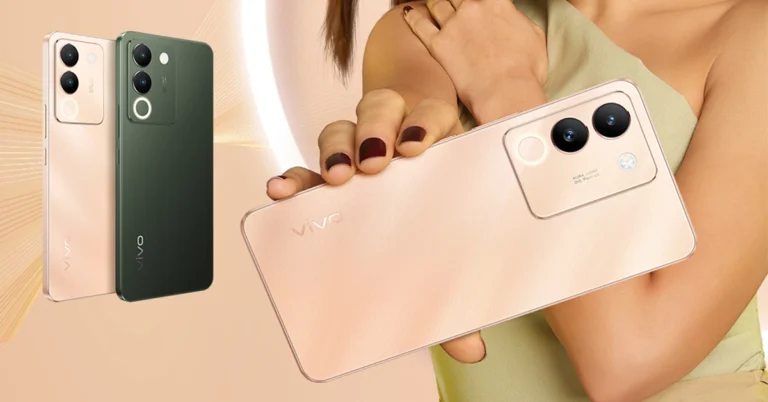
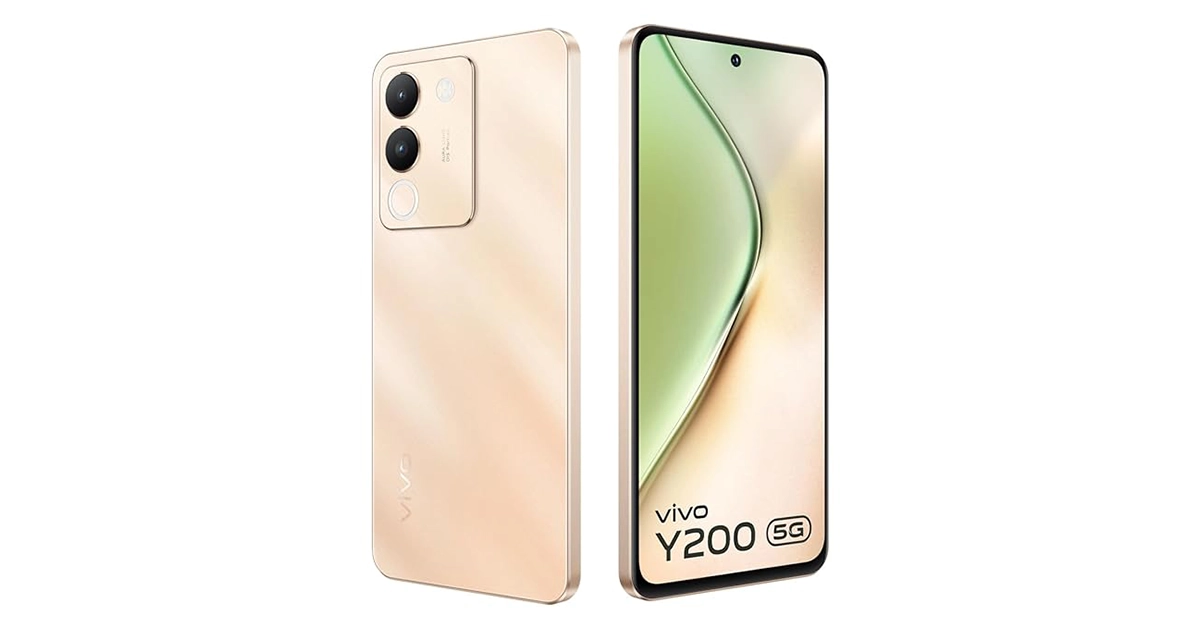
Vivo Y100 now has a successor. The Chinese smartphone brand has today officially unveiled Vivo Y200 in India. This 5G phone features a 120Hz AMOLED display. It is powered by Snapdragon 4 Gen 1 SoC and runs on Funtouch OS 13 on Android 13. The handset features a dual rear camera setup that includes a 64-megapixel sensor. In addition to this, there is a 4,800mAh battery with 44W fast charging. Vivo Y200 price in India, sale offers

Vivo Y200 price in India, sale offers

Vivo Y200 price in India has been set at Rs 21,999 for the 8GB RAM with 128GB storage option. The 8GB RAM with 256GB storage option comes with a price tag of Rs 24,999. The 5G phone will be available in two colour options of Jungle Green and Desert Gold. The device can be purchased via Amazon, Flipkart, Vivo India e-store, and all partner retail stores. Additionally, buyers can also take advantage of cashback of up to Rs 2,500 using SBI, IndusInd, IDFC First, Yes Bank, and other financial partners. Also Read: iPhone 14 Plus price on Flipkart starts at Rs 64,999, best time to buy the device

Vivo Y200 specifications

Vivo Y200 is powered by a 6nm Qualcomm Snapdragon 4 Gen processor paired with GB of LPDDR4X RAM and 256GB of UFS2.2 storage. The device includes 8GB of additional RAM via the Extended RAM 3.0 feature that makes switching between apps faster and smoother. The 5G smartphone features a 6.67-inch full-HD+ AMOLED display with 1,080×2,400 pixels of resolution. The screen has support for 120Hz Ultra Vision refresh rate and 900 nits of brightness. The front panel also comes with 394 ppi of pixel density. The device has a 7.69 mm ultra-slim body and weighs 190g. Vivo Y200 specifications Vivo Y200 is highlighted with a dual rear camera setup that includes a 64-megapixel primary sensor with OIS and f/1.79 aperture. The camera set-up includes a secondary 2-megapixel sensor with f/2.4 aperture. The handset has a 16-megapixel front-facing camera with f/2.0 aperture for selfies. Also Read: Best mobile deal on iPhone 13, now priced under 50k on Amazon Y200 is IP54 rated for dust and water resistance. The device boasts a 4,800mAh battery that comes with 44W fast charging support. In addition to this, there is 5G, Wi-Fi, Bluetooth 5.2, GPS, GLONASS, Galileo, QZSS, and a USB 2.0 port for connectivity. Along with an in-display fingerprint sensor the phone also includes an accelerometer, ambient light sensor, motor, proximity sensor, e-compass, and gyroscope. For the latest gadget and tech news, and gadget reviews, follow us on TwitterFacebook and Instagram. For newest tech & gadget videos subscribe to our YouTube Channel. You can also stay up to date using the Gadget Bridge Android App. You can find the latest car and bike news here.

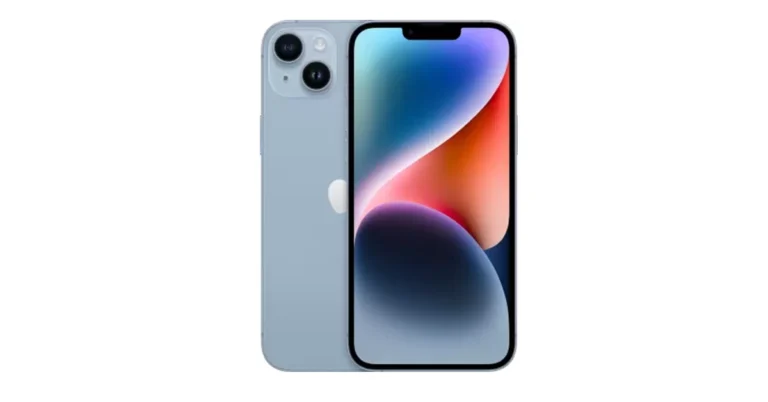
iPhone 14 Plus price on Flipkart starts at Rs 64,999, best time to buy the device

The festive season is the best time to buy an iPhone. The price of the iPhone 14 Plus has been reduced significantly on Flipkart. The device is currently selling at an unbelievable price during the sale period on Flipkart. If you wish to buy an iPhone now is the perfect time and Flipkart is where you can get the best deal on iPhone 14 Plus. Flipkart is offering the best deals on iPhones during its festive sale. The iPhone 14 Plus is now being made available for as low as Rs 64,999 down from its original cost of Rs 79,990 which is an excellent deal. In addition to this, the buyers can also avail of an additional exchange discount. Shoppers can get their old smartphone or an iPhone for up to Rs 50,299 in savings. Also, there will be 10 percent off if you are a Kotak, RBL or an SBI credit card customer. Also Read: Best mobile deal on iPhone 13, now priced under 50k on Amazon The iPhone 14 Plus is available in three different configurations. The 128GB of storage costs Rs 79,900 in India. The price of 256GB and 512GB storage capacities are available for Rs 89,900 and Rs 1,09,900. It comes in five different colour options of Red, Midnight, Starlight, Blue and Purple.

Apple iPhone 14 Plus specifications

Apple iPhone 14 Plus highlights a 6.7-inch Super Retina XDR OLED screen which offers a wide colour gamut, HDR, and 1200 nits of brightness. The device’s display has a pixel density of 460 ppi and supports a 60Hz refresh rate. The screen is protected by a tough Ceramic Shield front cover that is water and dust-resistant. Also Read: Vivo X90 Pro gets a massive price drop, here is how much it costs now For optics, the dual rear camera setup includes the iPhone 14 Plus: a primary 12MP wide-angle sensor with a bigger f/1.5 aperture, sensor-shift OIS, and a secondary 12MP ultra-wide-angle sensor. The Ultra Wide camera provides a distinctive viewpoint for broader views and enhances low-light images using a Photonic Engine. For selfies and video calls, the front camera has a 12MP sensor with autofocus. The iPhone 14 Plus has Face ID and is built to IP68 standards for water and dust protection. Under the hood, there is an Apple A15 Bionic SoC and up to 512GB of internal storage. The device runs on iOS 16. For the latest gadget and tech news, and gadget reviews, follow us on TwitterFacebook and Instagram. For newest tech & gadget videos subscribe to our YouTube Channel. You can also stay up to date using the Gadget Bridge Android App. You can find the latest car and bike news here.
Logitech Pebble 2 Keyboard and Mouse Review: Attractive, snappy, and a whole lot of fun!

Logitech has a long-standing reputation for producing cutting-edge computer peripherals for every kind of user. Whether you are looking for a behemoth of a mechanical keyboard with an expansive design and a no-holds-barred approach to functionality or a compact mouse that’s perfect to use on the go, Logitech always has something in store for you. Back in June, we reviewed Logitech MX Keys S which really impressed us with its solid aluminium chassis and top-notch typing experience. Now we turn our attention to the recently released Logitech Pebble 2 combo. This keyboard and mouse combo centers aesthetic and portability, bringing a splash of colour to your PC setup. After using the two devices for a week, we bring you our Logitech Pebble 2 keyboard and mouse combo review. Read Also: Itel Icon smartwatch with HD screen and BT calling launched in India

Logitech Pebble 2 Keyboard and Mouse review: Design

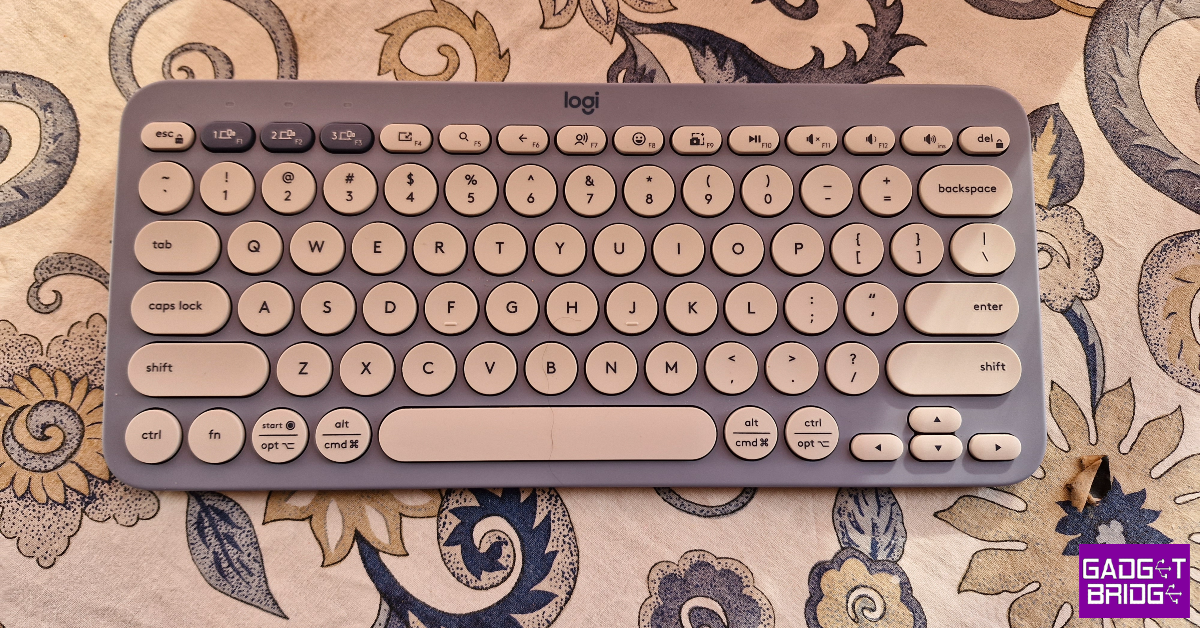
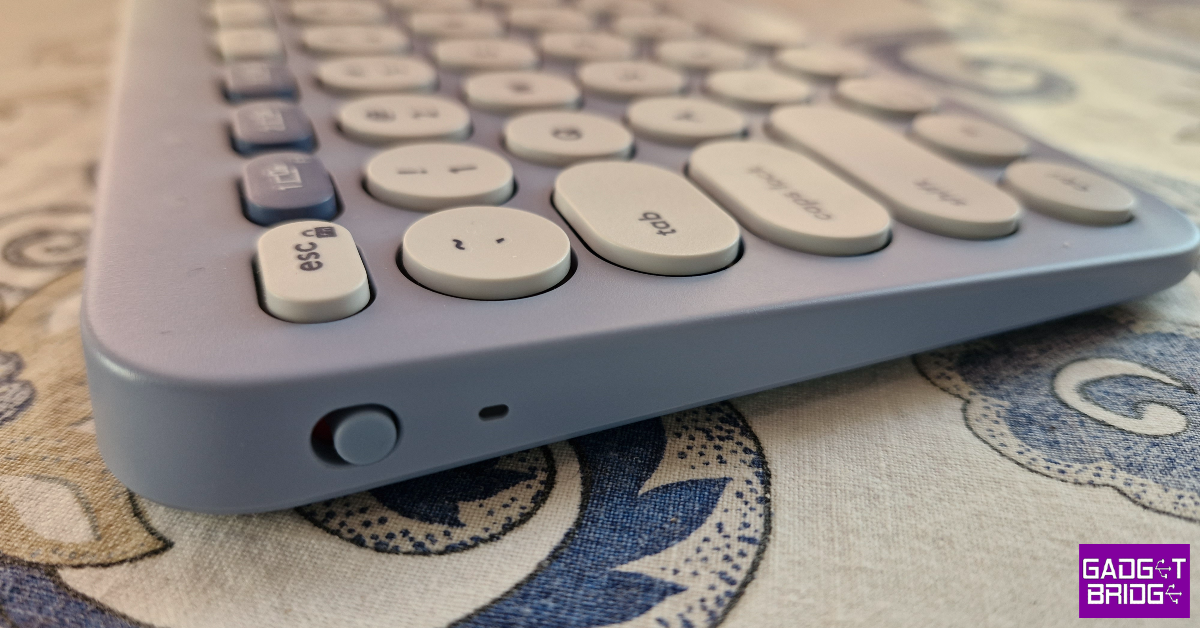
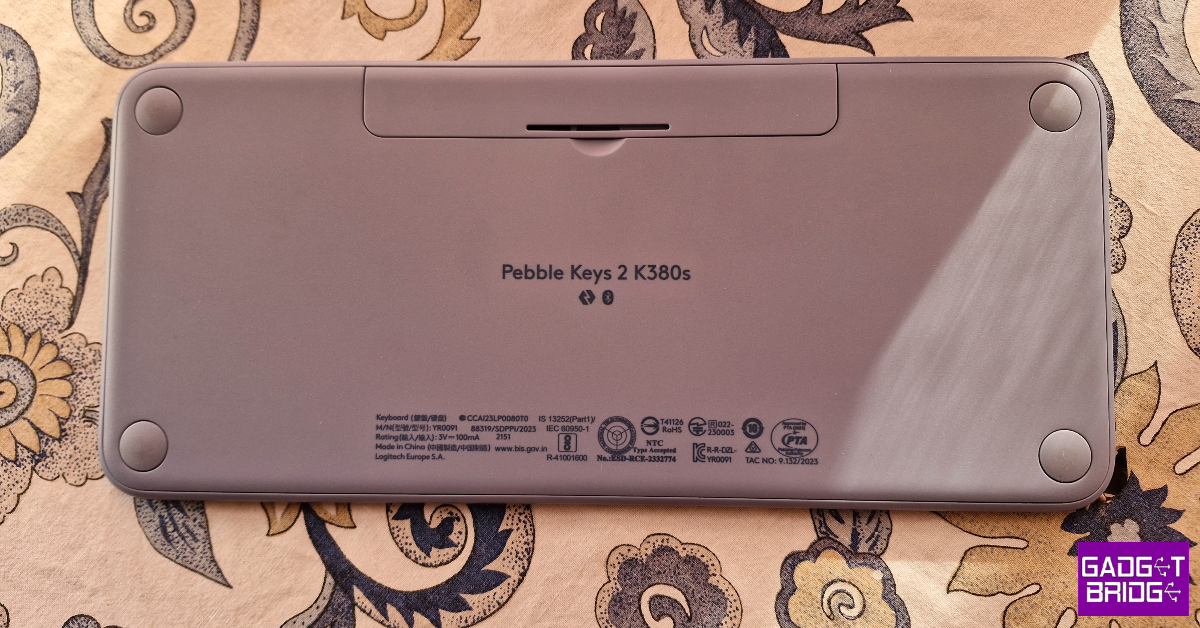
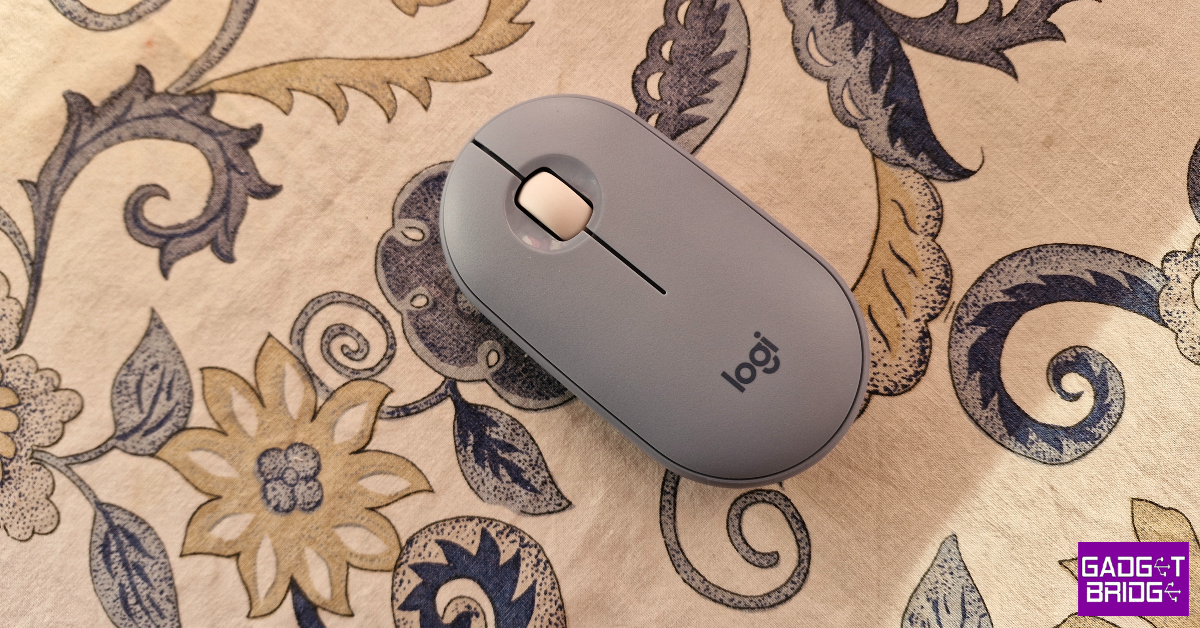
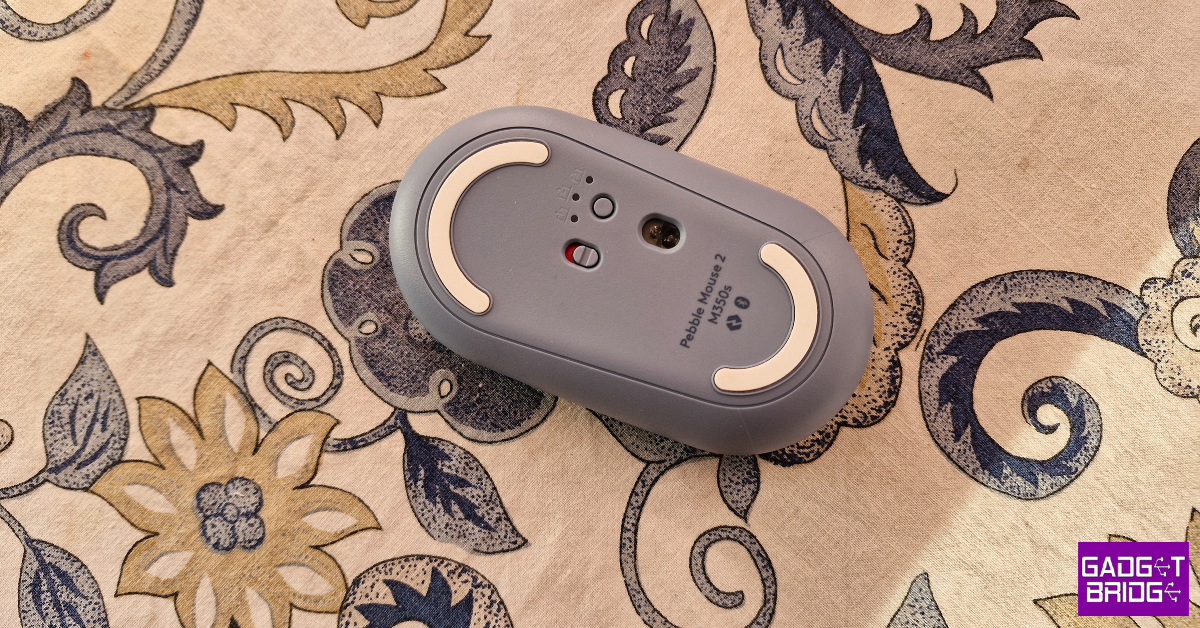
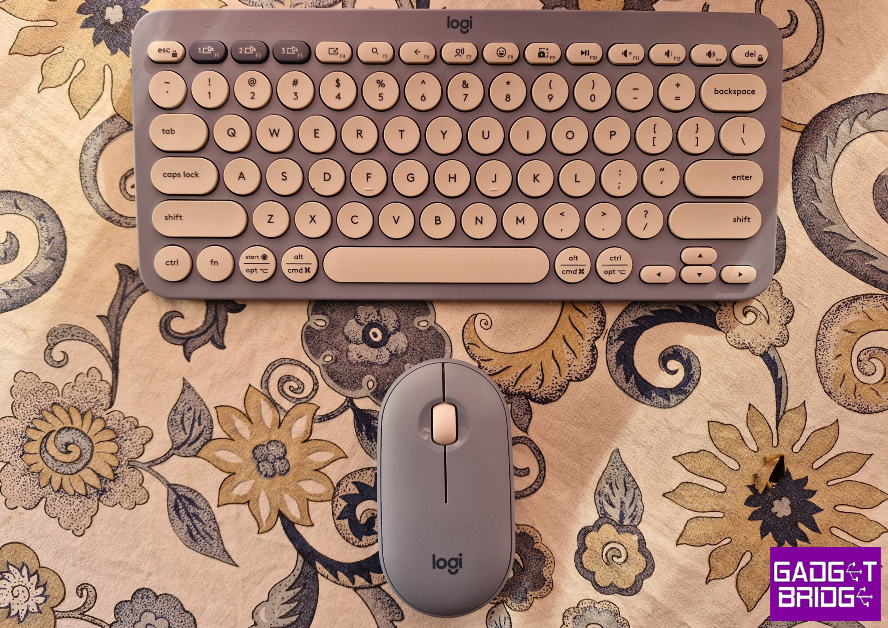
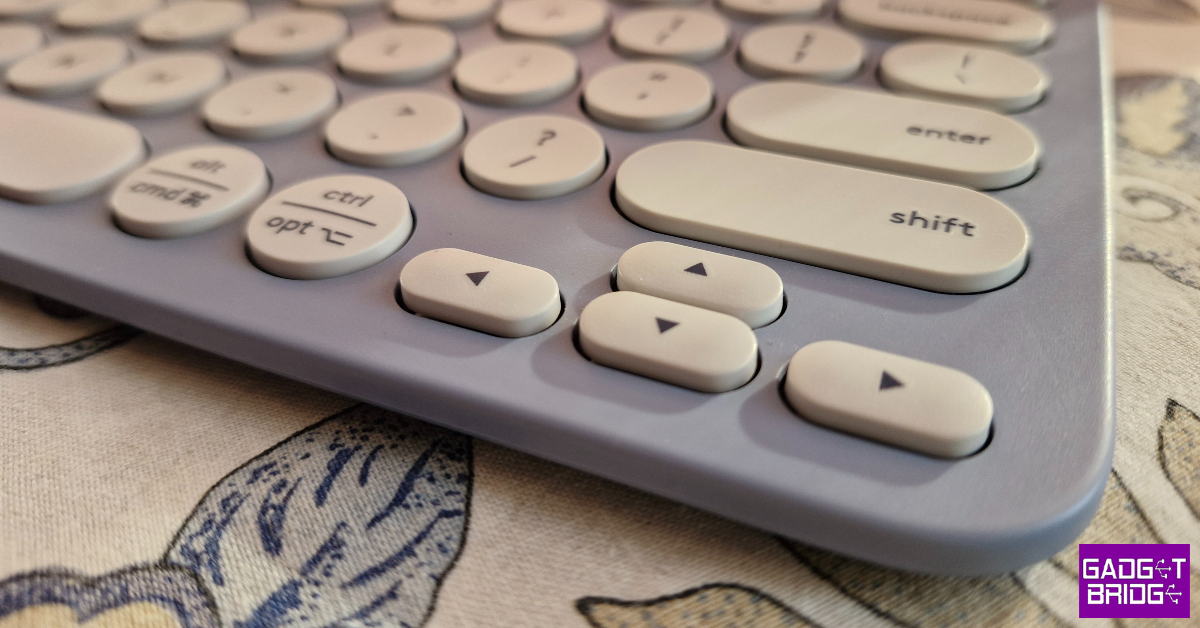
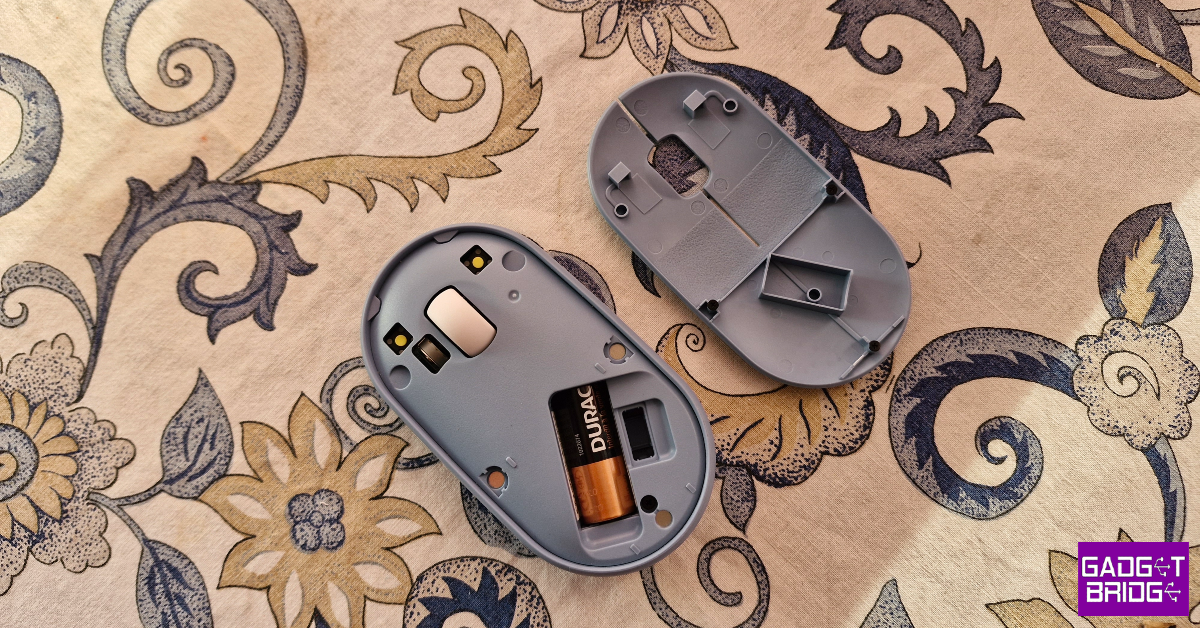
Inside the Pebble 2 Combo box, you get the Logitech K380S keyboard, M350S mouse, a Logi Bolt receiver, user documentation, and an Important Info Document (IID). The keyboard has 2 AAA alkaline batteries inside while the pebble mouse comes preinstalled with a single AA alkaline battery. There are 5 colour options to choose from – Blue, Graphite, Rose, Sand, and White. Logitech has taken the ‘pebble’ approach on almost every design element on the two devices. The plastic keyboard frame has rounded edges and circular keycaps. This plastic chassis makes the keyboard comfortably light, weighing just 415g. Since it doesn’t have a vertical number pad, the keyboard is just 279mm wide. The unique, rounded design of the keycaps is a departure from the traditional keyboard look. Flipping over the keyboard, you will notice the four rubber feet on all corners of the device. However, there are no retractable feet on this keyboard. This means you cannot control its height while resting it on a flat surface. There is a compact slot for the two AAA batteries on top of the frame. On the left side lies a solitary power switch along with an LED indicator. Logitech Pebble 2 Keyboard and Mouse review: Design Our Logitech Pebble 2 Keyboard and Mouse review units featured a blue and white colour combination. The pastel blue colour of the keyboard chassis is a very nice foundation for the slightly off-white colour on the rounded keycaps. The pill-shaped F1, F2, and F3 keys can be used to toggle the connection among three connected devices. These keys receive a darker shade of blue. Each key has its own LED indicator, letting you know which device you are currently connected to. The Logitech Pebble 2 M350S mouse applies the blue and white colour combination to its plastic body and scroll wheel. The rubber feet at the bottom of the mouse receive white colouring as well. The top panel of the mouse is magnetically clasped to the body and houses the AA battery and a storage port of the Logi Bolt receiver. The pebble-shaped design of this mouse does not take into consideration the arch of your palm while holding the device, thereby compromising the ergonomic factor. Using the mouse for long hours can cause fatigue to the palm and wrist. However, the Pebble 2 mouse makes no pretensions about being an ergonomic beast. It is a fun, compact mouse that looks aesthetically pleasing and can be easily carried around wherever you go. One of the advantages of having a pebble design is that it makes the mouse ambidextrous. You can swap the left and right mouse buttons using the Logi Options+ customisation software. There is a power switch at the bottom of the mouse and a pairing key that lets to connect to and switch among three devices.

Logitech Pebble 2 Keyboard and Mouse 2 review: Performance

Connecting the Logitech Pebble 2 keyboard and mouse to our Windows laptop was a seamless experience. You can connect the two devices using Bluetooth or attach the Logi Bolt wireless receiver to your PC and laptop’s USB port for quick pairing. With the Bluetooth turned on, our Windows laptop immediately recognised the two devices and paired with them within seconds. You can connect the Pebble mouse and keyboard to up to 3 devices. This includes your iOS or Android smartphone as well. Logitech Pebble 2 Keyboard and Mouse 2 review: Performance The Logitch Pebble 2 K380S keyboard features scissors switches for the keys. These switches cut down on the clanking sound you get from a mechanical switch but there is still a decent level of tactile feedback here. The hits aren’t entirely muted, but the timbre and travel on these keys are similar to a laptop keyboard. If you’re not a mechanical keyboard enthusiast, the typing experience and feedback on the Pebble keyboard will feel very satisfactory. The compactness of the keyboard in conjunction with the round design of the keycaps means that there will be some misfires while typing, but it doesn’t take a long time to get used to the layout. If you’re an Apple user, Logitech has a special Mac variant of the keyboard as well. The function keys on the top row have special controls for media playback, volume adjustment, emojis, screenshots, and text-to-speech. These keys can be customised using the Logi Options+ software, which continues to be one of Logitech’s strongest assets. The Logitech Pebble 2 M350 mouse also offers a muted click response. Logitech claims that its Silent Touch Technology reduces the click noise by 90%. While the keyboard does generate a fair bit of noise from keystrokes, the Pebble mouse is ultra-silent to the point that it is barely noticeable. The scroll wheel has a very pleasing, rugged feedback to it. The optical sensor has a 400-4,000 DPI range, allowing the mouse to track comfortably on most surfaces. We didn’t feel the need to use a mousepad with the M350S. It tracked seamlessly on our wooden desk. We even tried using it on the bed and the couch, and it replicated the smooth performance without any hiccups. Its slim form factor makes it very portable – you can even fit it inside your pocket. The Logi Options+ app opens up this keyboard and mouse combo to a whole new world of functionality. We strongly suggest spending some time on this software and working out the best customisations for you. You can program the function keys to adjust the screen brightness, open a particular app, and do a multitude of other tasks. This software also lets you customise the scroll wheel button on the mouse. You can choose how this button acts within different apps on your device. The battery life is another strong aspect of the Logitech Pebble 2 keyboard and mouse. The keyboard draws power from two AAA batteries and the mouse has a single AA battery inside it. Logitech claims a maximum battery life of 3 years on the keyboard and 2 years on the mouse. The alkaline batteries on either device can be easily replaced once they are drained. This completely eliminates the need for USB ports for charging and wired use. Read Also: Logitech G PRO X SUPERLIGHT 2 Gaming Mouse for professional gamers launched in India

Conclusion

The Logitech Pebble 2 keyboard and mouse is an ideal combo for users who prioritise the aesthetic of their PC setup over everything else. The pastel colour combination and minimal design bump up the style factor of these devices. If you’re interested in rugged devices designed for heavy use, you may want to look at other options in Logitech’s catalogue. But if you don’t demand a lot from your keyboard and mouse outside of everyday tasks, the Pebble 2 is certainly an exciting option. Right now, this keyboard and mouse combo can be purchased for Rs 4,495 on Amazon.

Logitech Pebble 2 Keyboard and Mouse: Pros

  • Attractive design
  • Compact form factor
  • Super portable
  • Logi Options+ app offers tons of customisations

Logitech Pebble 2 Keyboard and Mouse: Cons

  • No retractable feet on the keyboard
  • Prolonged use of the mouse can cause fatigue
For the latest gadget and tech news, and gadget reviews, follow us on Twitter, Facebook and Instagram. For newest tech & gadget videos subscribe to our YouTube Channel. You can also stay up to date using the Gadget Bridge Android App. You can find the latest car and bike news here.
Best mobile deal on iPhone 13, now priced under 50k on Amazon

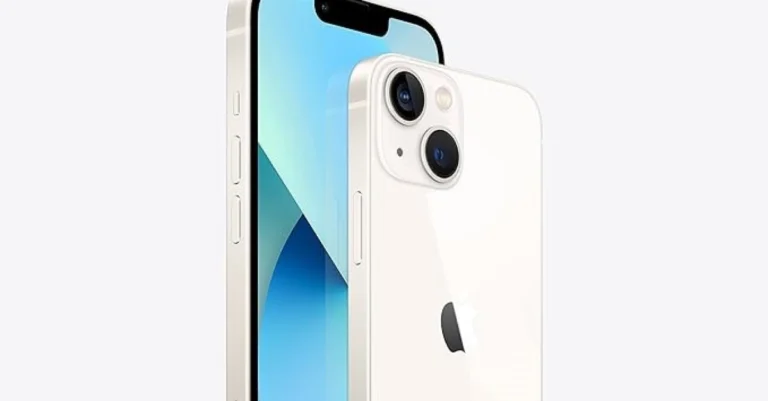
Festive Sales in India are on and the currently running Amazon Great Indian Festival sale 2023 has great deals to offer. During the ongoing sale, the iPhone 13 is seeing a massive price drop. The phone has received a massive price drop of Rs 8,901. This is the ideal offer if you’re looking to upgrade your phone or get the best deals on an iPhone. On the Apple Store, the iPhone 13 is priced much higher. But the ongoing Amazon Great Indian Festival sale 2023 is selling the device at its lowest price ever. The iPhone 13 on Amazon is available at a starting price of Rs 50,999 for the 128GB model. Whereas the 256GB model of the iPhone comes at Rs 60,999 and Rs 69,499 for the highest 512GB storage. Therefore customers can save up to Rs 8,901 if they purchase the device now. Also Read: iPhone 14, iPhone 14 Plus on Flipkart could be bought under 60k during Big Billion Days Sale In addition to this customers can receive a 10 per cent discount on EMI transactions made using HDFC bank debit and credit cards. Besides this, the best value can be the exchange offer with other discounts. Amazon is offering an exchange discount of up to Rs 50,000 for your old phone. But remember this offer is applicable depending on the condition of your old smartphone/iPhone. The iPhone 13 was launched in India two years ago. iPhone 13 features a 6.1-inch Super Retina XDR display. The device is powered by the company’s A15 Bionic chipset. The device has a diagonal rear camera design consisting of a 12-megapixel dual rear camera setup with 4K Dolby Vision HDR support. In addition to this, there is a 12-megapixel TrueDepth selfie camera on the front. The handset is IP68-rated. This is likely to be a limited offer so we don’t know how long this deal will be available, so we recommend you to snatch it up till the stock lasts. For the latest gadget and tech news, and gadget reviews, follow us on TwitterFacebook and Instagram. For newest tech & gadget videos subscribe to our YouTube Channel. You can also stay up to date using the Gadget Bridge Android App. You can find the latest car and bike news here.

Garena Free Fire Redeem Codes Today 23 October 2023: Here is how to claim them

Garena Free Fire is a battle royale game with regular awards and tournaments to keep players interested. If you play Garena Free Fire, you should be aware of the redeem codes that are released on a daily basis. However, because the battle royale game is banned in India, players from other countries can use the Free Fire Redeem codes daily. If you’re unfamiliar with the Garena Free Fire redeem codes or don’t know how to get them, we’ve put together a step-by-step guide to help you redeem them. Check out Garena Free Fire Redeem Codes for 23 October 2023. The Free Fire redeem codes are a great way to get free stuff. These are 12-digit codes that contain alphabets and numbers, as well as an expiration date and time. Because the Garena FF redeem codes cannot be used more than once, you should hurry to the redemption page to claim your free reward before someone else does. To get a free reward, all you have to do is go to reward.ff.garena.com/en, which is the official redemption page. Also, keep an eye on this space for daily updates on Garena Free Fire redemption codes and rewards.

Garena Free Fire Redeem Codes Today 23 October 2023

3IBBMSL7AK8G B3G7A22TWDR7 XGCNVA2PDRGR Z4ST1ZTBE2RP FFICJGW9NKYT ZFF7MUY4ME6S CX99TK56XDJ4 XWEYVGQC3CT8Q FFCO8BS5JW2D FFAC2YXE6RF2 FF9MJ31CXKRG 9J3ZKQ57Z2P2 P8F3QZKNTLWB

How to Get Free Fire Redeem Codes for Garena on 23 October 2023?

  • Visit the Garena Free Fire game’s official website at reward.ff.garena.com.
  • Use your Facebook, Google, VK, Apple ID, Huawei ID, or Twitter account to log in.
  • You’ll be taken to a valid redemption code (s)
  • Copy and paste the 12-digit redemption code into the text box.
  • On the screen, a dialogue box will appear.
  • ‘Ok’ should be selected.
For the latest gadget and tech news, and gadget reviews, follow us on TwitterFacebook and Instagram. For newest tech & gadget videos subscribe to our YouTube Channel. You can also stay up to date using the Gadget Bridge Android App. You can find the latest car and bike news here.

New Instagram update brings new creative tools like Birthday’s, Audio Notes, Selfie Video Notes and more

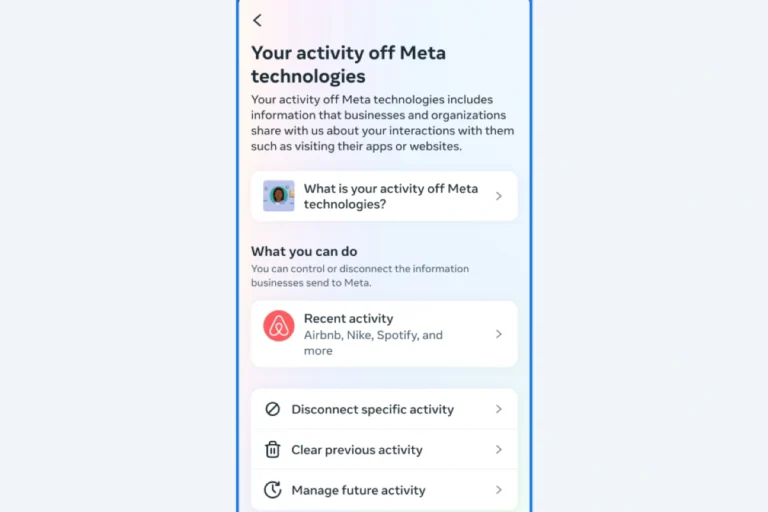
Meta has introduced a couple of new features for Instagram. The company is empowering its users by providing an essential feature called Activity Off-Meta Technologies which stops Instagram from collecting their apps and website information. In addition to this few more features like Birthday, Audio Notes, Selfies Video Notes and Multiple Lists for Stories are also part of the new Instagram update. At a product education session in Gurgaon today Meta unveiled 4 new Instagram features that would appeal to the GenZ audiences, and would soon start testing. New Instagram update brings new creative tools like Birthday’s, Audio Notes, Selfie Video Notes and more

Birthday’s

This Instagram feature will allow users to help their friends and followers know when their birthday is. So they can celebrate or watch you in fun ways, like stickers and confetti!.

Audio Notes and Selfie Video Notes

Meta has also brought a number of improvements to Audio Notes and Selfie Video Notes. For Audio Notes, Meta now allows users to leave a voice recording as a Note. As the name suggests the Selfie Video notes will let you capture a short video that will loop in your Note for 24 hours. Also Read: Itel Icon smartwatch with HD screen and BT calling launched in India

Multiple Lists in Stories

According to Meta Multiple Lists in Stories is the most requested feature allowing users to create more lists beyond just Close Friends. Instagram now lets you create lists for your different groups of friends, your family, for work and more. As mentioned earlier Meta also released a feature named Activity Off-Meta Technologies on Instagram. It will help users to stop Instagram from collecting your online activity data. This feature allows you to manage how information other businesses send Meta is connected to your Facebook and Instagram accounts. According to the company, you can also review the businesses that are sharing data with Meta, disconnect specific ones to further personalise your experience, or clear this data entirely – it’s up to you. For the latest gadget and tech news, and gadget reviews, follow us on TwitterFacebook and Instagram. For newest tech & gadget videos subscribe to our YouTube Channel. You can also stay up to date using the Gadget Bridge Android App. You can find the latest car and bike news here.

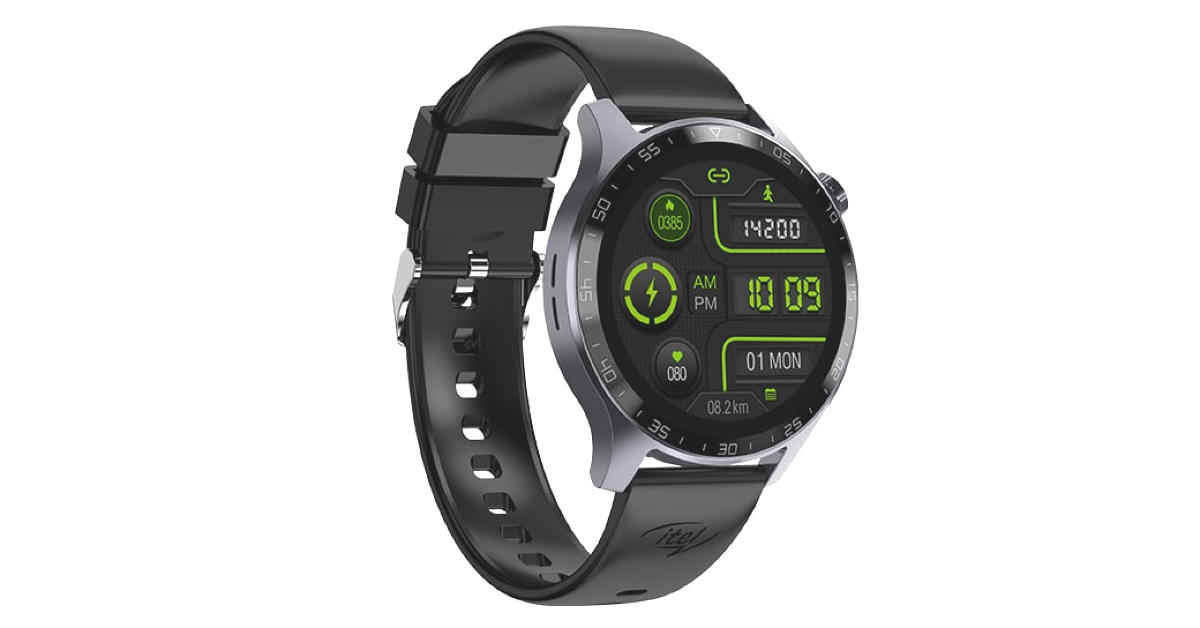
Itel Icon smartwatch with HD screen and BT calling launched in India

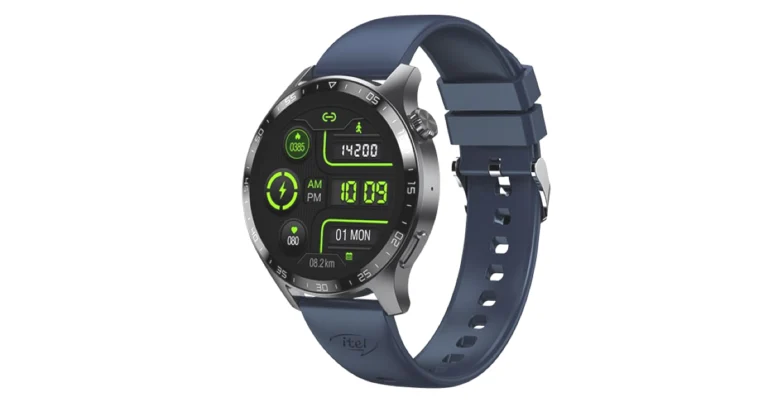
Itel has expanded its smartwatch portfolio with the launch of its Icon Smartwatch in the Indian market. The latest wrist wearable comes with a spherical 1.38-inch HD screen. The device offers over 100 customised watch faces. It can also monitor heart rate and can control the camera and music on your connected phone. Also, the smartwatch can deliver 12 days of standby time.

Itel Icon smartwatch price in India

The Itel Icon smartwatch has been launched in India with a price tag of Rs 1,599. According to the company, the device will be available for purchase via select retail outlets in the country.

Itel Icon smartwatch features

The Itel Icon smartwatch features a large spherical dial having a 1.38-inch IPS display with 240x 240 pixels of resolution. The HD screen offers 550 nits of screen brightness. The device offers more than 100 customised watch faces for personalisation. Also, the wearable is IP68 rated for water and dust resistance. Itel Icon smartwatch with HD screen and BT calling launched in India It has Bluetooth version 5.3 integrated for connectivity. The Bluetooth Calling and Quick Reply feature on the Itel smartwatch allows users to make and receive calls directly from their wrist. While the smart notifications keep you informed without the need to reach for your phone. The device also allows you to control music playback and camera remotely with Music & Camera Control. Also Read: CMF Watch Pro Review: A ‘Nothing’ special rather than nothing special The Itel Icon smartwatch also offers AI-powered voice assistance for hands-free control. The wristwatch has an array of 100 Sports Modes including a Health Suite which includes SpO2, heart rate, and sleep monitoring. Icon smartwatch has a 250mAh battery that is touted to offer 12 days of standby time. Commenting on the launch, the CEO of ITEL India, Mr. Arijeet Talapatra, said, “We are thrilled to unveil our latest smartwatch in a market that’s not only growing but thriving. India’s remarkable 121% year-on-year growth in smartwatch shipments in Q1 2023 underscores the increasing demand for these devices in our country. With Icon, we aim to capture the hearts of Indian consumers and further solidify our position as a frontrunner in the smartwatch industry. We look forward to contributing to India’s status as the biggest market for smartwatches and continuing our journey of innovation and excellence in wearable technology.” For the latest gadget and tech news, and gadget reviews, follow us on TwitterFacebook and Instagram. For newest tech & gadget videos subscribe to our YouTube Channel. You can also stay up to date using the Gadget Bridge Android App. You can find the latest car and bike news here.

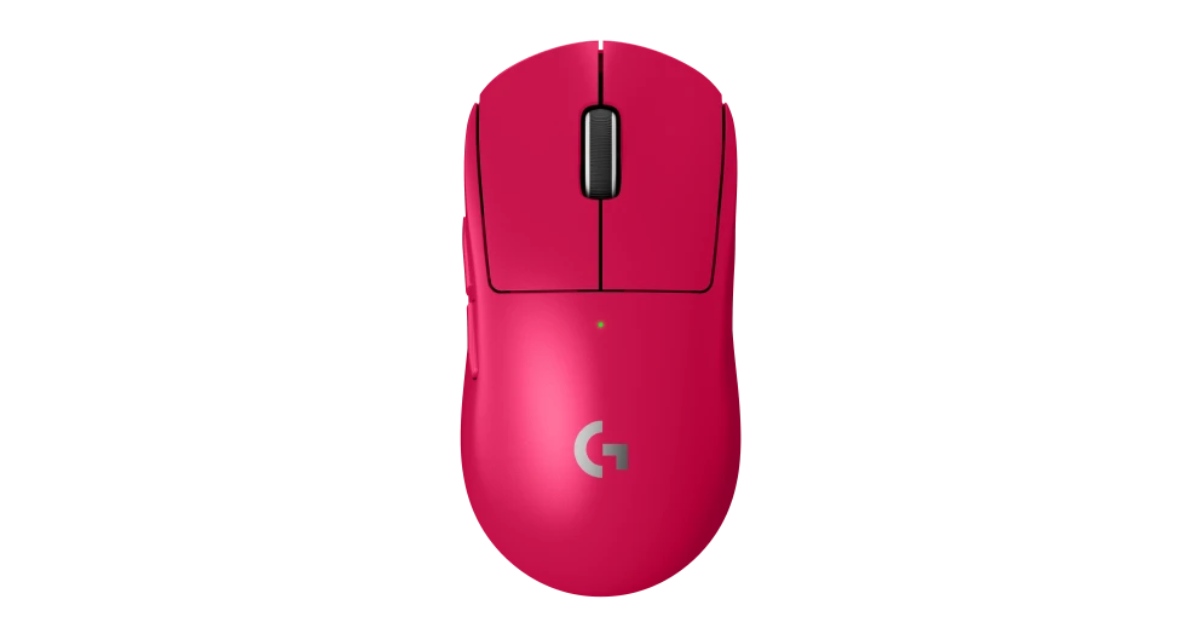
Logitech G PRO X SUPERLIGHT 2 Gaming Mouse for professional gamers launched in India

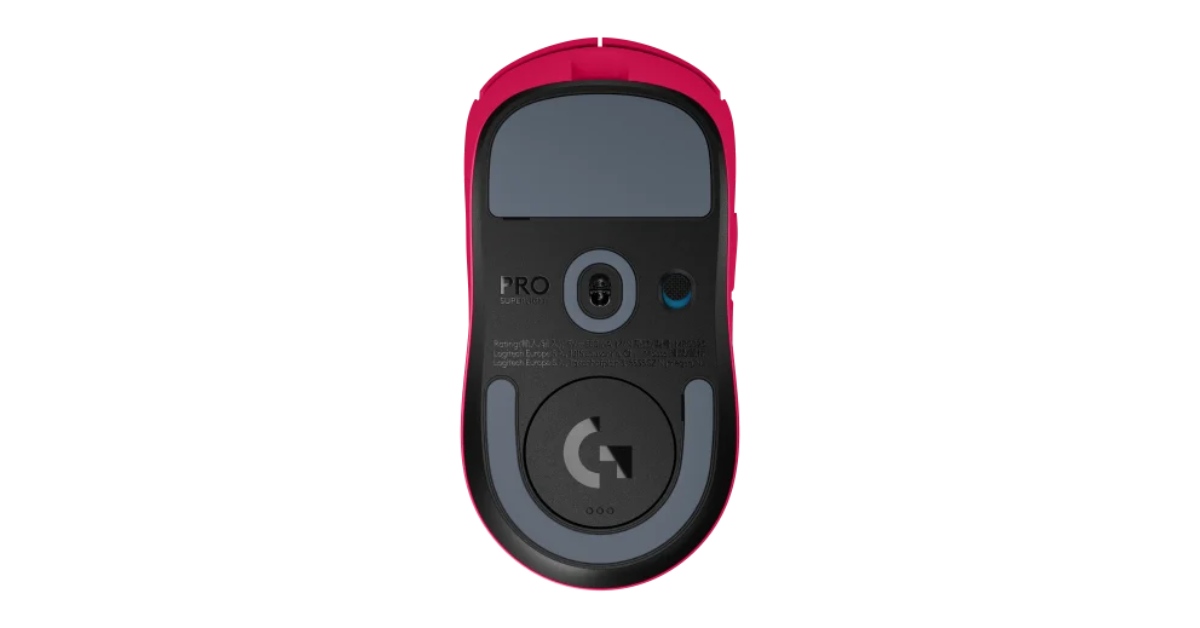
Logitech G PRO Series is expanding. The PC accessories maker has announced the launch of a new gaming mouse in India- the Logitech G PRO X SUPERLIGHT 2 Gaming Mouse. The device has been designed for the World’s elite Esports Athletes. The Logitech gaming mouse includes LIGHTFORCE Hybrid Switches and the brand-new HERO 2 Sensor. The mouse has up to 32,000 DPI and with tracking at over 500 inches per second. Logitech G PRO X SUPERLIGHT 2 Gaming Mouse for professional gamers launched in India Also Read: Logitech G502 X, G502 X Lightspeed, G502 X Plus gaming mouse launched in India The Logitech G PRO Series already includes a lineup of professional-grade headsets, mice, and keyboards designed for the top esports athletes. The newly launched Logitech G PRO X SUPERLIGHT 2 Gaming Mouse features LIGHTFORCE Hybrid Switches. It is a fresh hybrid optical-mechanical switch technology that is said to integrate the performance of optical sensors in speed and dependability with precise response and mechanical. In addition to this, there is a new HERO 2 Sensor offering tracking at over 500 inches per second and up to 32,000 DPI. Also Read: The new gaming mouse by Logitech retains the shape and geometry of the original PRO Superlight and also has a weight of only 60 grams. The Logitech G PRO X SUPERLIGHT 2 Gaming Mouse also features PRO-grade technology, USB-C, 95 hours of battery life and POWERPLAY compatibility. It also provides 25 kilohertz maximum frame rate. According to the company the Zero-additive PTFE mouse feet provide a smooth glide for better gameplay. Logitech G PRO X SUPERLIGHT 2 Gaming Mouse for professional gamers launched in India The Logitech G PRO X SUPERLIGHT 2 Gaming Mouse is said to offer interconnections between DPI, sensitivity, report rate, surface, gaming settings, and more. Professional gamers now have even more control and setting options thanks to G HUB upgrades and Onboard Memory Management software (OMM). The company has made adjustments to the new sensitivity UI in G HUB and OMM for configuring DPI with full presets, separate X/Y axis controls, and more. Additionally, the new HERO 2 sensor has the ability to copy settings from one mouse to the other ensuring the exact DPI from your old mouse. Also Read: Top 5 Gaming Mouse Under Rs 1,000 for Counter-Strike 2 The Logitech G PRO X SUPERLIGHT 2 Gaming Mouse has been launched in India with a price tag of Rs 16,995. It will be available for purchase via the company’s official website. It is being offered in Black, Magenta and white colour options. For the latest gadget and tech news, and gadget reviews, follow us on TwitterFacebook and Instagram. For newest tech & gadget videos subscribe to our YouTube Channel. You can also stay up to date using the Gadget Bridge Android App. You can find the latest car and bike news here.

Vivo X90 Pro gets a massive price drop, here is how much it costs now

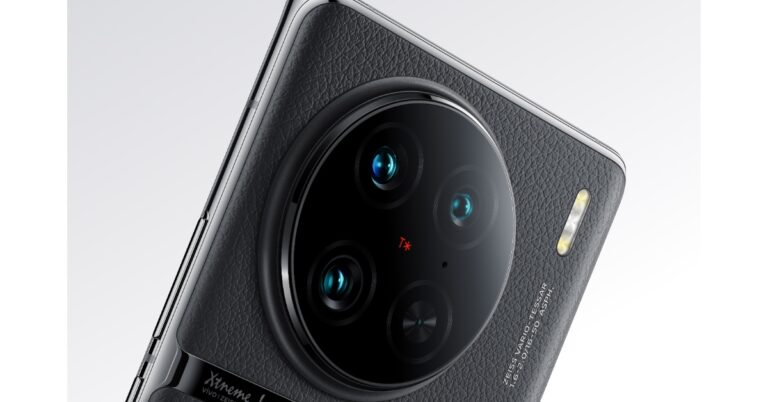
Vivo X90 Pro debuted in India in April this year. Just a few months after its release the device’s pricing has been revised. X90 Pro price has been dropped by Rs 10,000. The device is a triple rear camera unit powered by Zeiss lenses and uses the V2 image processing technology. It comes equipped with MediaTek Dimensity 9200 chipset. The camera-focused phone features a 6.78-inch AMOLED display with a refresh rate of up to 120 Hz. Vivo X90 Pro new price

Vivo X90 Pro’s new effective price and sale offers

If you love sharing photos on Instagram or on social media platforms and looking for a great camera phone then Vivo’s latest flagship smartphone Vivo X90 Pro is getting a massive price cut. The company has announced a price reduction of Rs 10,000 on the camera-focused smartphone.  After the price reduction, the Vivo X90 Pro will now be available at an exciting new price of Rs 74,999 which is down from its original cost of Rs 84,999 for the single 12GB RAM with 256GB storage option. The smartphone is available in two colour options of Asteroid Black and Breeze Blue. Also Read: Comparison: OnePlus Open Vs Samsung Galaxy Z Fold 5 The buyer can also avail of the 24-Month No Cost EMI with select banking partners. Further, an exchange bonus of up to Rs 8000 on Cashify can be availed along with a discount of up to 40% Discount on vivo V-Shield Protection Plans with every purchase. The device with a new effective price will be available for purchase via Flipkart, vivo India e-store and across all partner retail stores in the country. Vivo X90 Pro new price

Vivo X90 Pro specifications

The Vivo X90 Pro has a 6.78-inch AMOLED display and has a resolution of 1,260 x 2,800 pixels. The camera-focused phone has a screen-to-body ratio of 93.53 percent, a 20:09 aspect ratio, and a refresh rate of up to 120 Hz. The front panel has been certified to support the DCI-P3 colour gamut. The device runs on OriginOS 3 and runs Android 13. At its heart, there is an octa-core 4nm MediaTek Dimensity 9200 SoC and a G715 GPU. It comes with up to 12GB of LPDDR5 RAM and up to 256GB of UFS 3.1 inbuilt storage that can be expanded further via microSD card. The smartphone includes a Zeiss-powered triple rear camera setup that consists of a 50-megapixel Zeiss 1-inch primary sensor with an f/1.75 aperture. A 12-megapixel extreme wide-angle sensor and a 50-megapixel secondary 50mm sensor with an f/1.6 aperture each are also included. Furthermore, there is a 32-megapixel selfie camera on the front with an f/2.45 aperture. Vivo X90 Pro comes equipped with a 4,870mAh battery with compatibility for 50W wireless charging and 120W rapid charging. The device is IP68 rated for dust and water resistance. For the latest gadget and tech news, and gadget reviews, follow us on TwitterFacebook and Instagram. For newest tech & gadget videos subscribe to our YouTube Channel. You can also stay up to date using the Gadget Bridge Android App. You can find the latest car and bike news here.

Garena Free Fire Redeem Codes Today 21 October 2023: Here is how to claim them

Garena Free Fire is a battle royale game with regular awards and tournaments to keep players interested. If you play Garena Free Fire, you should be aware of the redeem codes that are released on a daily basis. However, because the battle royale game is banned in India, players from other countries can use the Free Fire Redeem codes daily. If you’re unfamiliar with the Garena Free Fire redeem codes or don’t know how to get them, we’ve put together a step-by-step guide to help you redeem them. Check out Garena Free Fire Redeem Codes for 21 October 2023. The Free Fire redeem codes are a great way to get free stuff. These are 12-digit codes that contain alphabets and numbers, as well as an expiration date and time. Because the Garena FF redeem codes cannot be used more than once, you should hurry to the redemption page to claim your free reward before someone else does. To get a free reward, all you have to do is go to reward.ff.garena.com/en, which is the official redemption page. Also, keep an eye on this space for daily updates on Garena Free Fire redemption codes and rewards.

Garena Free Fire Redeem Codes Today 21 October 2023

FFBBCVQZ4MWA FFAC2YXE6RF2 MHM5D8ZQZP22 FFCMCPSBN9CU

How to Get Free Fire Redeem Codes for Garena on 21 October 2023?

  • Visit the Garena Free Fire game’s official website at reward.ff.garena.com.
  • Use your Facebook, Google, VK, Apple ID, Huawei ID, or Twitter account to log in.
  • You’ll be taken to a valid redemption code (s)
  • Copy and paste the 12-digit redemption code into the text box.
  • On the screen, a dialogue box will appear.
  • ‘Ok’ should be selected.
For the latest gadget and tech news, and gadget reviews, follow us on TwitterFacebook and Instagram. For newest tech & gadget videos subscribe to our YouTube Channel. You can also stay up to date using the Gadget Bridge Android App. You can find the latest car and bike news here.

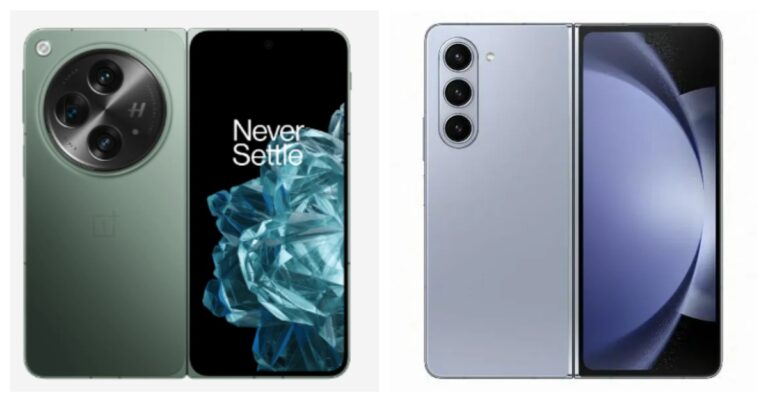
Comparison: OnePlus Open Vs Samsung Galaxy Z Fold 5

OnePlus Open launched in India last evening. The company is offering its first foldable with flagship-level specs. Therefore it becomes a serious challenger to all the brands offering a foldable phone especially Samsung which has already established its dominance in the market. The company recently launched Galaxy Z Fold 5 in India. Therefore, why not pit these two against each other? Here is our specs-by-specs comparison of the OnePlus Open and Samsung Galaxy Z Fold 5.

Display

OnePlus Open: Inner- 7.82-inch LTPO 3.0 Flexi-fluid AMOLED primary display Outside- 6.31 inches Super Fluid AMOLED with LTPO 3.0 Samsung Galaxy Z Fold 5: Inner- 7.6-inch QXGA+ Dynamic AMOLED 2X Infinity Flex Display Outside- 6.2-inch HD+ Dynamic AMOLED 2X Display Also Read: Samsung Galaxy Z Fold 5 with S Pen Fold Edition launched

Processor

OnePlus Open: Qualcomm Snapdragon 8 Gen 2 Samsung Z Fold 5: Qualcomm Snapdragon 8 Gen 2

Rear camera(s)

OnePlus Open: A triple rear camera setup tuned by Hasselblad includes a 1/1.43” 48MP Sony LYTIA-T808 “Pixel Stacked” CMOS primary sensor with Autofocus (1.12 μm, f/1.7 aperture, 85° FoV and OIS). There is a 1/2” 48MP Ultra-Wide lens (0.8 μm, 114° FoV, f/2.2 and EIS) and OmniVision OV64B 64MP Telephoto with OIS, 3X optical (0.7 μm, f/2.6, Up to 120X digital zoom). Samsung Z Fold 5: Rear: A 50MP Wide-angle Camera (Dual Pixel AF, OIS, F1.8, Pixel size: 1.0μm, FOV: 85˚), 10MP Telephoto Camera (PDAF, F2.4, OIS, Pixel size: 1.0μm, FOV: 36˚, 3X optical zoom), 12MP Ultra Wide Camera (F2.2, Pixel size: 1.12μm, FOV: 123˚), 12MP Ultra Wide Camera (F2.2, Pixel size: 1.12μm, FOV: 123˚).

Selfie camera

OnePlus Open: The company has provided two cameras for selfies 20MP primary (inner) and 32MP secondary (outer). Samsung Z Fold 5: There is a 10MP Selfie Camera (F2.2, Pixel size: 1.22μm, FOV: 85˚) on the cover, and a 4MP Under Display Camera (F1.8, Pixel size: 2.0μm, FOV: 80˚).

RAM and storage

OnePlus Open: 16GB RAM with 512GB storage Samsung Z Fold 5: 12GB RAM with 256GB storage, 12GB RAM with 512GB storage, 12GB RAM with 1TB storage

Battery

OnePlus Open: 4,805mAh battery Samsung Z Fold 5: 4,400mAh battery Also Read: OnePlus Open powered by Snapdragon 8 Gen 2 SoC and Hasselblad branded triple rear cameras launched in India

Operating system

OnePlus Open: OxygenOS 13.2 based on Android 13 Samsung Z Fold 5: One UI 5.1.1, which is based on Android 13

Price

OnePlus Open: Rs 1,39,999 Samsung Z Fold 5: Rs 154,999

Our Take

With impressive specifications, the OnePlus Open appears to be an intimidating rival for the Galaxy Z Fold 5. The most recent Snapdragon 8 Gen 2 Mobile CPUs are in both phones. However, the Samsung Fold is available in three distinct configurations while the OnePlus Phablet just has one RAM and storage choice. The designs of both phones were influenced by the respective business flagships. Compared to the Fold 5, the OnePlus Open is more compact and slender. The OnePlus phone’s display is also brighter than the Galaxy phone’s. They both ship pre-installed with Android 13 devices. When it comes to photography, OnePlus does better than Samsung. On paper, the OnePlus Open cameras appear to be reliable, but the performance of the camera on the Fold 5 doesn’t fall short (Samsung Galaxy Z Fold 5 Review). Although the Samsung Fold 5 is available in a variety of configurations, its basic model costs even more than the OnePlus Open 16GB RAM with a 512GB storage option. We are aware that Samsung has a sizable and loyal fan base for its reliable and proven handsets. However, the OnePlus Open definitely beats the OnePlus Fold 5 in terms of specs and cost. For the latest gadget and tech news, and gadget reviews, follow us on TwitterFacebook and Instagram. For newest tech & gadget videos subscribe to our YouTube Channel. You can also stay up to date using the Gadget Bridge Android App. You can find the latest car and bike news here.

Instagram displaying Stories in low quality? Try these 10 fixes

0
Instagram started off as a photo-sharing app but now hosts some of the most engaging video content on its platform. If you ever notice a drop in quality while watching Stories and Reels on the platform, it may be due to several reasons. Don’t know where to begin fixing it? In this article, we bring you the top 10 ways to fix the ‘Instagram displaying low-quality and blurry Stories’ issue on your Android smartphone. Read Also: How to create and join a Channel on WhatsApp?

Why are your Instagram stories blurry?

If you notice a drop in quality or straight-up blurriness in your Instagram stories, it could be due to the following reasons. Poor internet connection: If your internet connection isn’t up to the standard, it can cause your stories to upload at a poor quality. Media compression: If you’re uploading bulky images or videos, Instagram may compress them to lessen the load on its servers. Copyrighted content: Instagram often strikes down copyrighted content on its platform. If your story is blurry, there is a chance it could have been taken down. Graphic content: If your Instagram story contains graphic content like gore or nudity, it will be automatically blurred by the platform.

Turn off Data Saver on Instagram

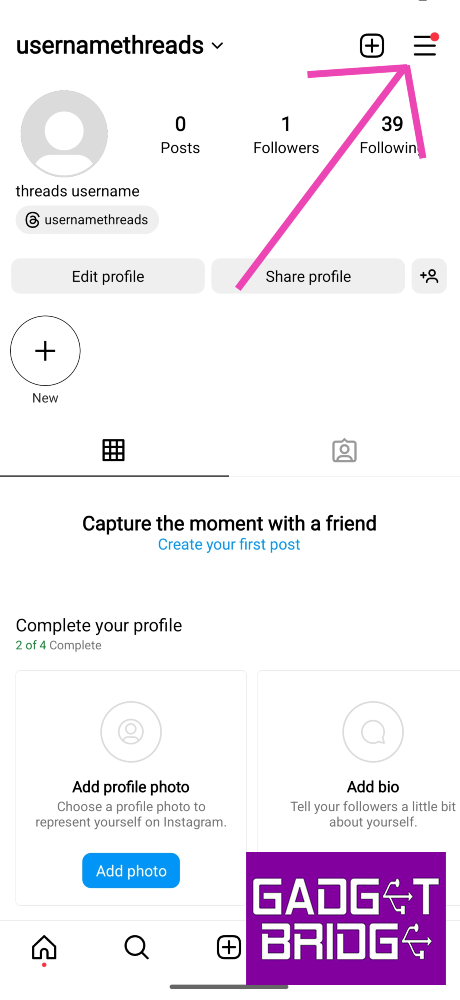
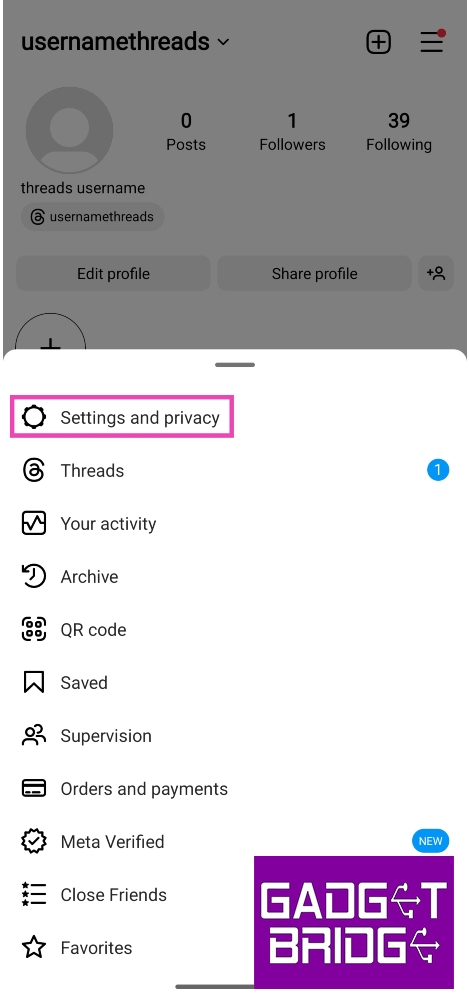
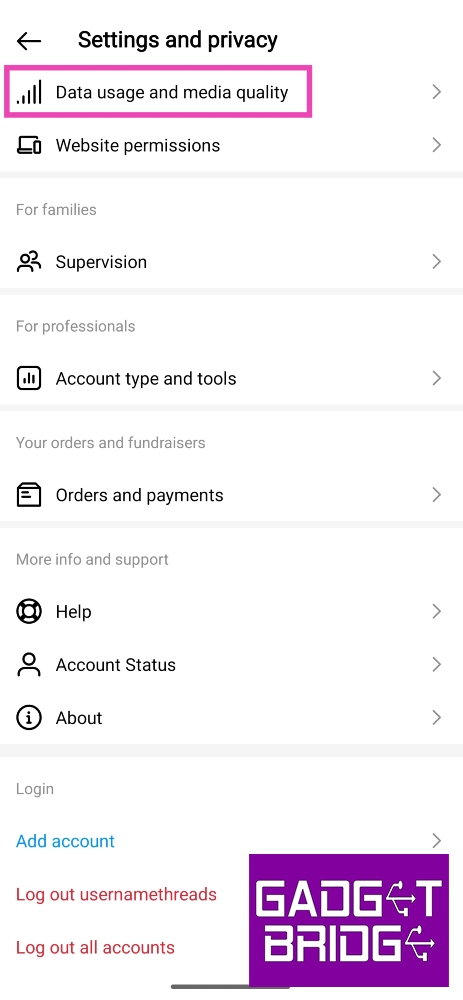
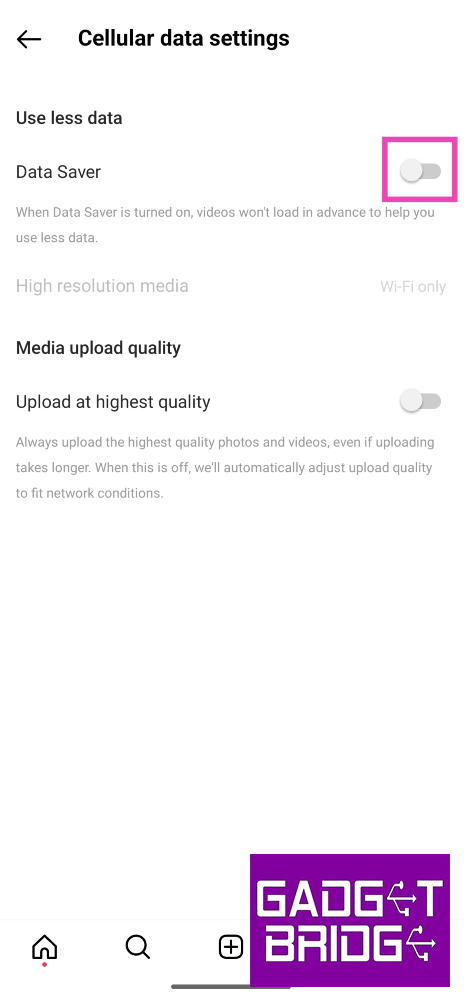
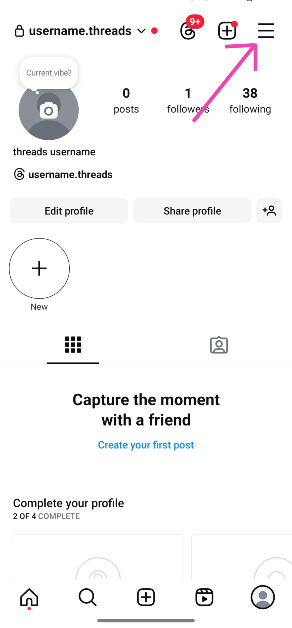
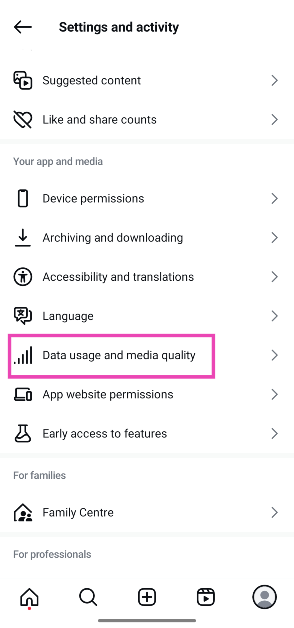
Step 1: Go to your Instagram profile and tap the hamburger menu at the top right corner of the screen. Step 2: Tap on the hamburger menu icon at the top right corner of the screen. Step 2: Select Settings and privacy. Step 3: Select Settings and privacy. Step 3: Tap on Data usage and media quality. Step 3: Tap on Data usage and media quality. Step 4: Turn the toggle switch off for Data Saver. Step 4: Turn the toggle switch off for Data Saver.

Check your internet connection

A weak connection can lead to a severe drop in image and video quality on Instagram. As a result, Instagram stories, posts, and reels may appear blurry or pixelated. Perform an internet speed test on your device to know for sure. Switch to a better network connection to fix this problem.

Change media upload quality

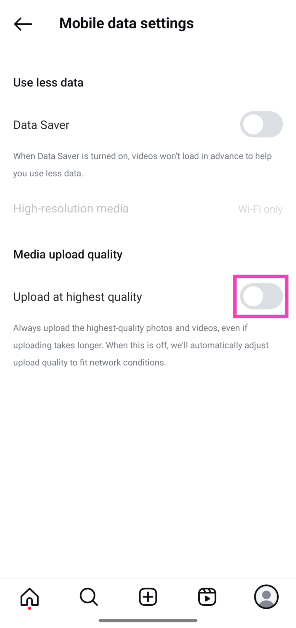
Step 1: Go to your Instagram profile and tap the hamburger menu at the top right corner of the screen. Step 1: Go to your Instagram profile and tap the hamburger menu at the top right corner of the screen. Step 2: Tap on Data usage and media quality. Step 2: Tap on Data usage and media quality. Step 3: Turn on the toggle switch next to Upload at highest quality. Step 3: Turn on the toggle switch next to Upload at highest quality.

Use the in-app camera

Top 7 ways to fix Instagram crashing on Android and iOS Instead of uploading a picture from your phone’s gallery, use Instagram’s in-app camera to take a picture and then upload it as your story. Instagram’s in-app camera is optimised for the platform and the loss in quality is minimal compared to uploading a picture or video from your phone’s gallery. Of course, this method only works when you’re present in the scene you want to capture. If you want to upload an old picture to your story, this method is irrelevant.

Don’t add music or stickers to your stories

7 Best Ways to Add Music or Audio to Reels on Instagram Adding music or stickers to your stories makes them bulkier. This dials down their quality during the upload process. To maintain the quality of your image or video, do not apply any add-ons available on the story creation page. Keep your media the focus of your story. This will ensure that it is uploaded at the highest possible quality.

Make sure your photos & videos follow Instagram’s upload guidelines

Visit the Instagram profile using a throwaway account While uploading a picture or video on your Instagram story, make sure it adheres to the platform’s guidelines for resolution, size, and aspect ratio. If your media is too high-quality or large in size, Instagram will compress it, thereby making it blurry. The aspect ratio should be 9:16 and the resolution should be 1,920 x 1,080p. Images should not be larger than 30MP while the video size should not exceed 4GB.

Clear Instagram’s app cache

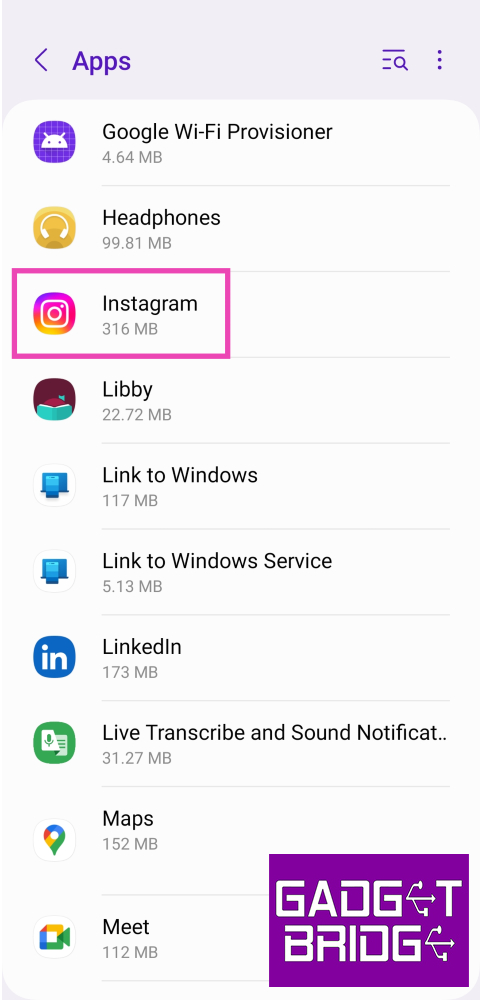
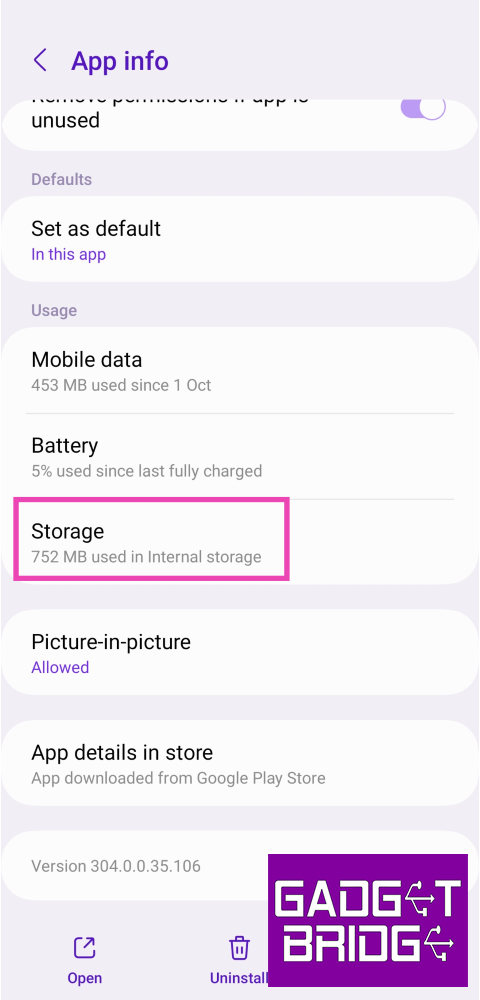
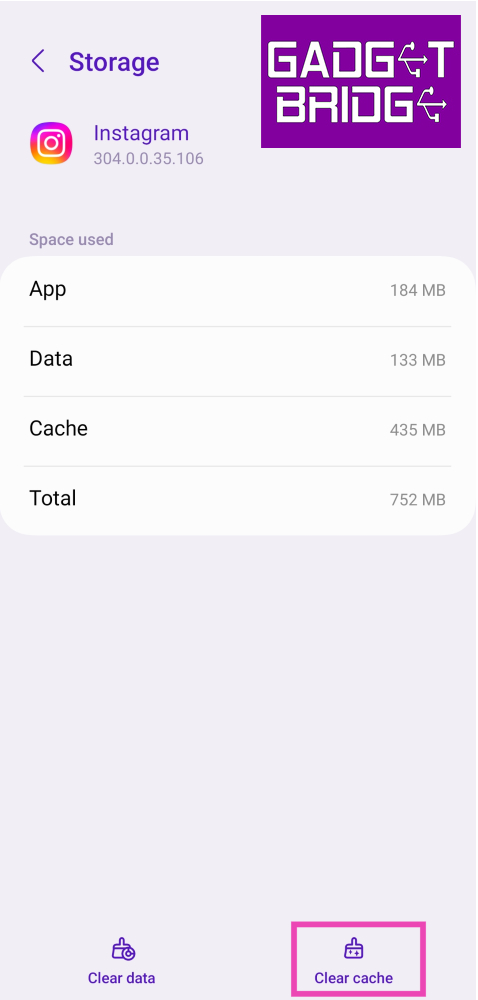
Step 1: Go to Settings and select Apps. Step 1: Go to Settings and select Apps. Step 2: Scroll down and select Instagram. Step 2: Select Instagram. Instagram displaying Stories in low quality? Try these 6 fixes Step 3: Tap on Storage. Step 3: Tap on Storage. Instagram displaying Stories in low quality? Try these 6 fixes Step 4: Select Clear Cache from the bottom of the screen. Step 4: Select Clear cache. Instagram displaying Stories in low quality? Try these 6 fixes

Update the Instagram app

If you’re using an older version of the Instagram app, it may present issues from time to time. New versions are better optimised and quicker than their previous versions. Go to Google Play Store, search for Instagram, and hit the Update button on the app’s page. You can also download the latest version of Instagram from a third-party app marketplace.

Delete and reinstall Instagram

If updating the app doesn’t fix the issue, delete it from your device and then reinstall it. To delete Instagram from your phone, tap and hold its icon on the app drawer and select Uninstall. Confirm your selection in the popup box. Launch the Google Play Store app, search for Instagram, and hit the Install button on the app’s page to download it again.
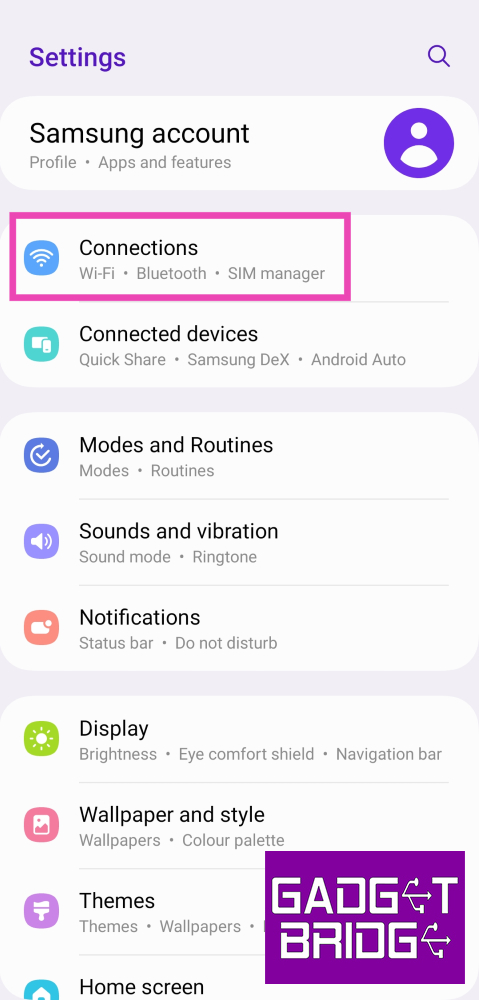
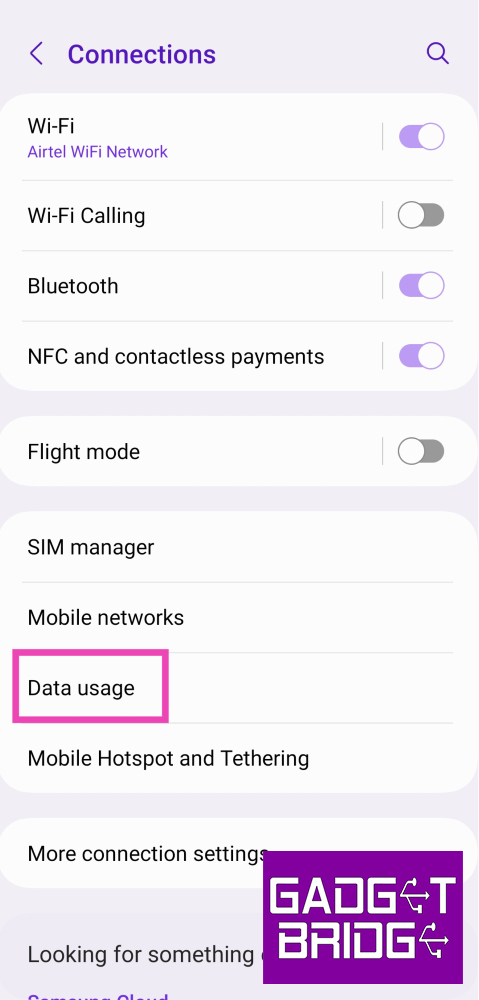
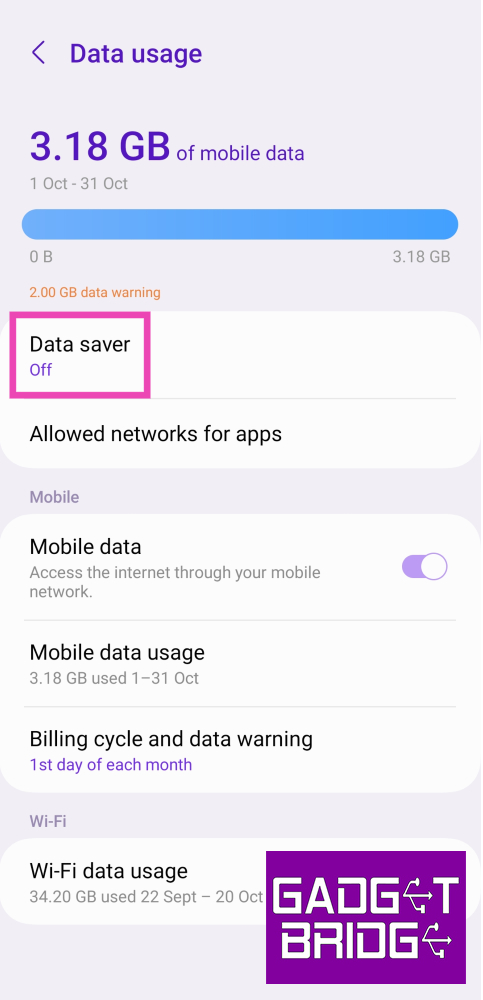
Turn off your phone’s data saver

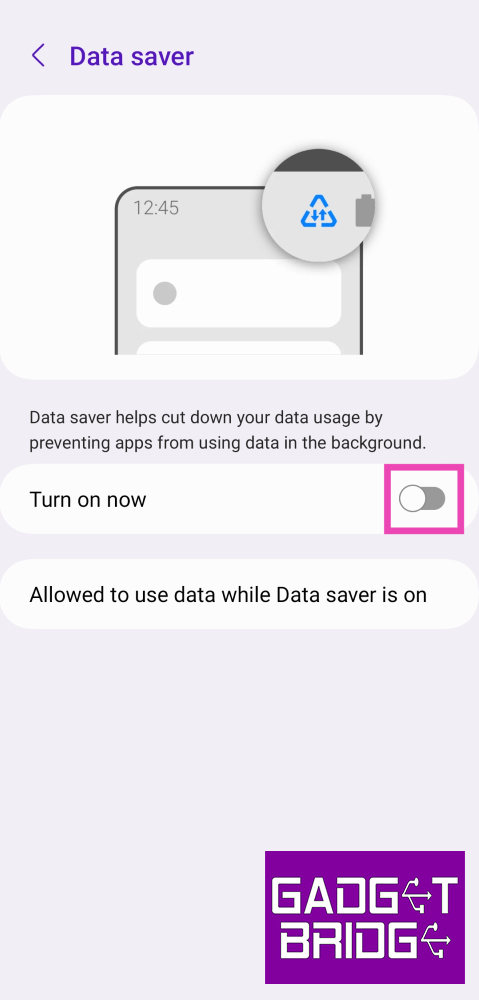
Step 1: Go to Settings and select Connections. Step 1: Go to Settings and select Connections. Instagram displaying Stories in low quality? Try these 6 fixes Step 2: Tap on Data Usage. Step 2: Tap on Data Usage. Instagram displaying Stories in low quality? Try these 6 fixes Step 3: Tap on Data Saver. Step 3: Tap on Data Saver. Instagram displaying Stories in low quality? Try these 6 fixes Step 4: Turn off the toggle switch for Turn on now. Step 4: Turn off the toggle switch for Turn on now. Instagram displaying Stories in low quality? Try these 6 fixes
Frequently Asked Questions (FAQs)

Why am I seeing low-quality blurry images on Instagram stories?

Instagram may drop the quality of stories, posts, and reels when your internet connection is weak. Switch to a network with a better signal strength to fix this issue.

Why is my Instagram story low quality?

Instagram compresses your images and videos if they do not adhere to the upload guidelines, which makes them look they are in low quality.

How do I turn off the data saver on Instagram?

To turn off the Data Saver on Instagram, go to Settings and privacy>Data usage and media quality and turn off the toggle switch for Data Saver.

How do I make sure Instagram posts high-quality images on my profile?

Go to Settings and privacy>Data usage and media quality and turn on the toggle switch for Upload at highest quality.

How to upload stories on Instagram without losing quality?

If you want to upload stories at the highest possible quality, make sure they do not have any add-ons like music, stickers, or gifs. Read Also: Sony WF-1000XM5 Review: Setting the benchmark yet again

Conclusion

These are the top 10 ways to fix the ‘Instagram displaying low-quality and blurry Stories’ issue on your Android smartphone. If you are facing issues with media quality while uploading pictures or stories to your profile, go to ‘Data usage and media quality settings’ and turn on the toggle switch for ‘Upload at highest quality’.

How to block pop-up ads and unwanted notifications on Android? Top 6 Ways

0
Over the years, ads and notification spam have become a real problem on Android smartphones. It is more common on budget smartphones, but of late even some midrange and flagship devices have started pushing ads in the form of popups and notification spam. In this article, we bring you the top 6 ways to block pop-up ads and unwanted notifications on your Android smartphone. Read Also: How to create and join a Channel on WhatsApp?

Why is your phone displaying ads?

Adware: If you’re seeing ads on your phone’s interface, it is likely due to adware. This usually happens when you download an app from a third-party marketplace. To limit adware on your device, make sure you install apps from legitimate sources only. In-app ads: If you’re using a free version of an app, you will need to bear through some ads. These ads are usually limited within the app but they may contain 30-second clips that take up the entire screen. If you want to get rid of them, you will need to subscribe to a premium membership of the app. Browser popups: When you visit a website on a web browser, it asks you for the permission to send popups. These popups act as notifications for new content posted on the website. If you accidentally allowed a website to send you popups, you can always reverse that decision. Ads on the lockscreen: Most Android OEMs have a magazine style layout for their lock screens. This magazine-style wallpaper often contains ads disguised as content. On a lot of devices, wallpaper services are turned on by default. Intrusive notifications: Some Android OEMs have their own app stores to rival the Google Play Store. These app stores send periodic notifications which are basically ads for their services.

Disable the ad-pushing app from displaying over other apps

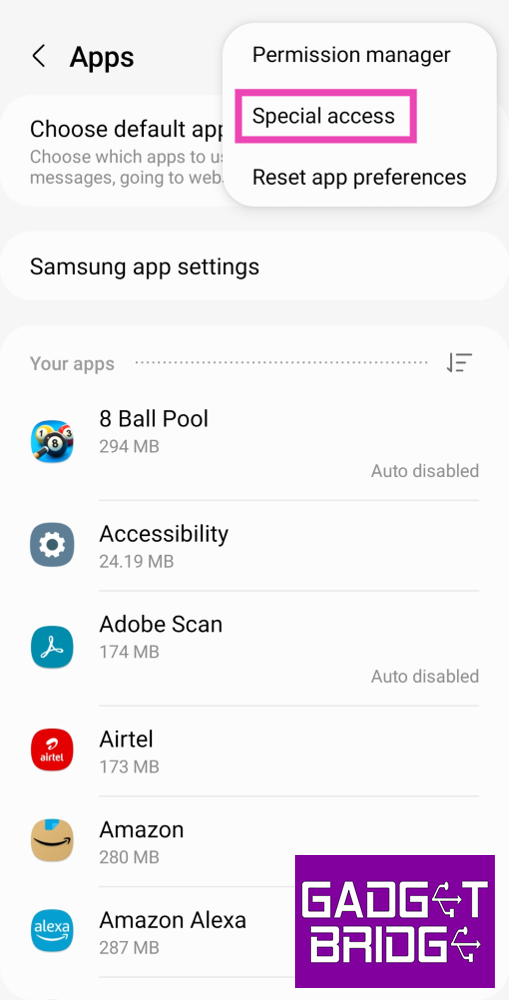
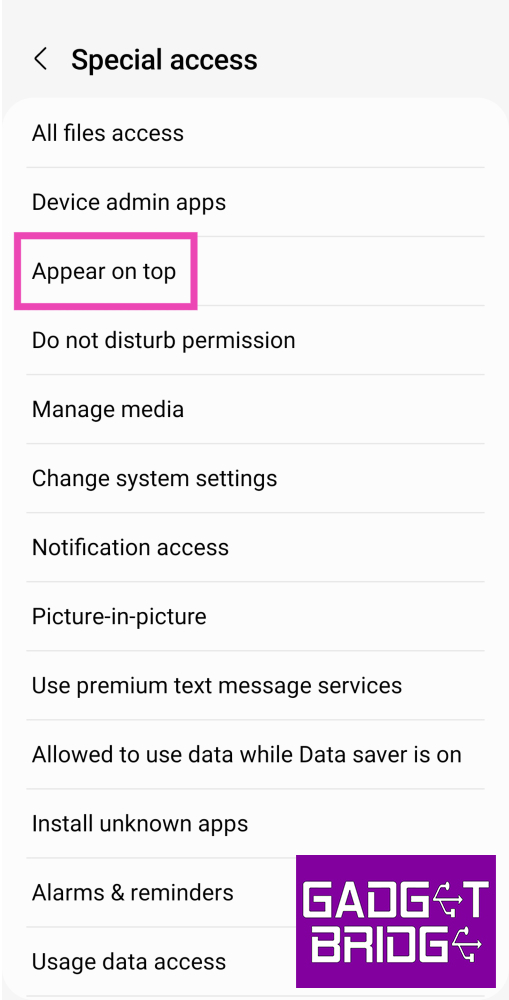
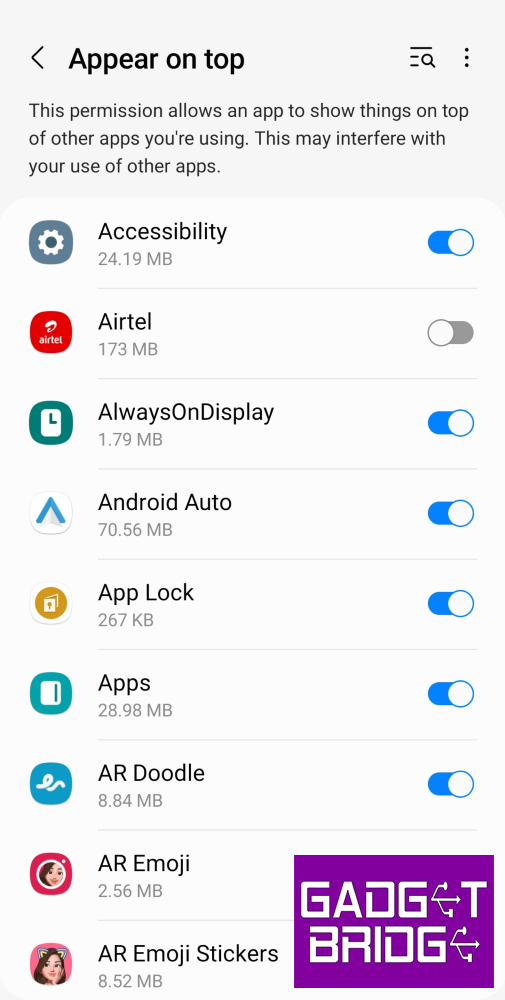
Step 1: Go to Settings and select Apps. Step 1: Go to Settings and select Apps. Step 2: Tap the ellipses at the top right corner of the screen and select Special access. Step 2: Tap the ellipses at the top right corner of the screen and select Special access. How to block pop-up ads and unwanted notifications on Android? Top 4 Ways Step 3: Tap on Appear on top. Step 3: Tap on Appear on top. How to block pop-up ads and unwanted notifications on Android? Top 4 Ways Step 4: Turn off the toggle switch for the app that has been pushing pop-up ads on your device. Step 4: Turn off the toggle switch for the app that has been pushing pop-up ads on your device. How to block pop-up ads and unwanted notifications on Android? Top 4 Ways

Turn off Wallpaper Services

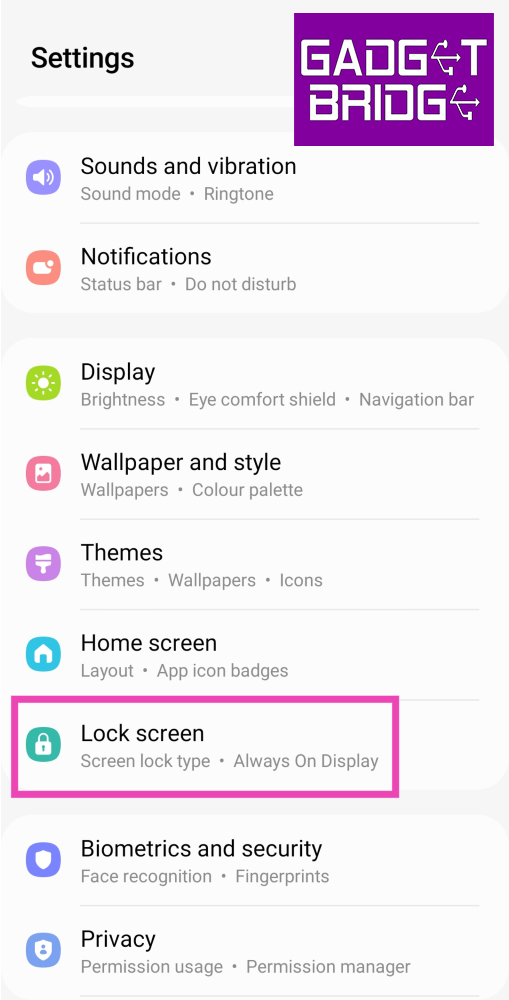
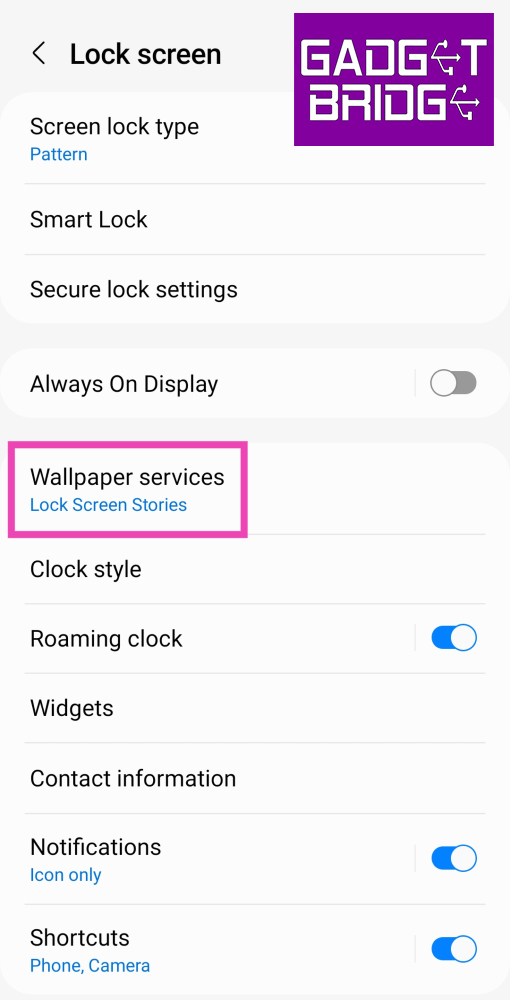
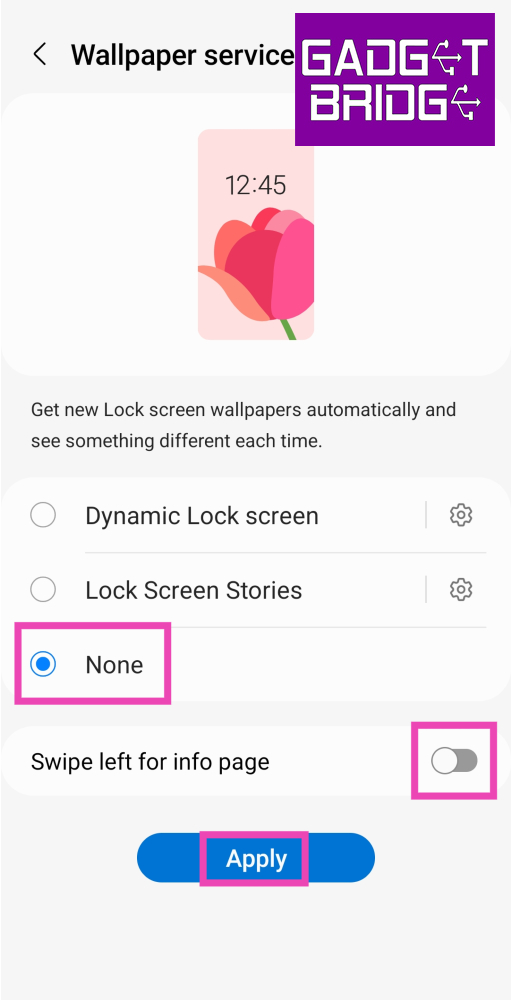
Some Android smartphones push ads on the device’s lock screen by using a custom wallpaper service. Here’s how you can disable it. Step 1: Go to Settings and select Lock screen. Step 1: Go to Settings and select Lock screen. Step 2: Tap on Wallpaper services. Step 2: Tap on Wallpaper services. Step 3: Tap on None and turn off the toggle switch for Swipe left for info page. Step 3: Tap on None and turn off the toggle switch for Swipe left for info page. Step 4: Hit Apply.

Revoke notifications for the app

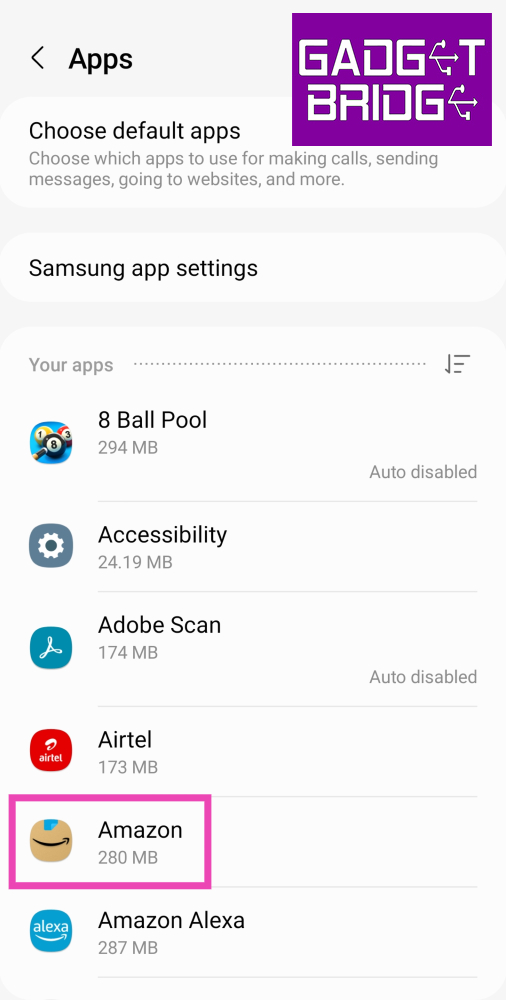
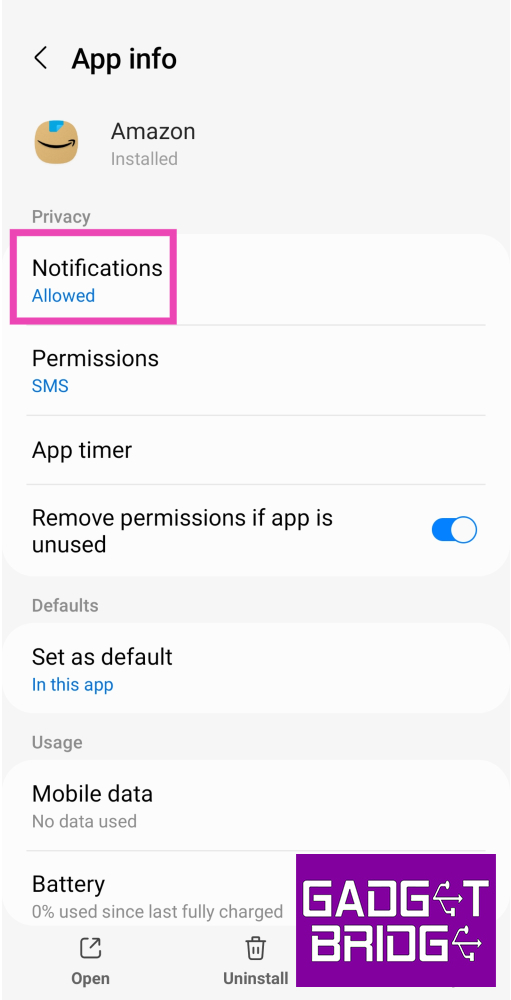
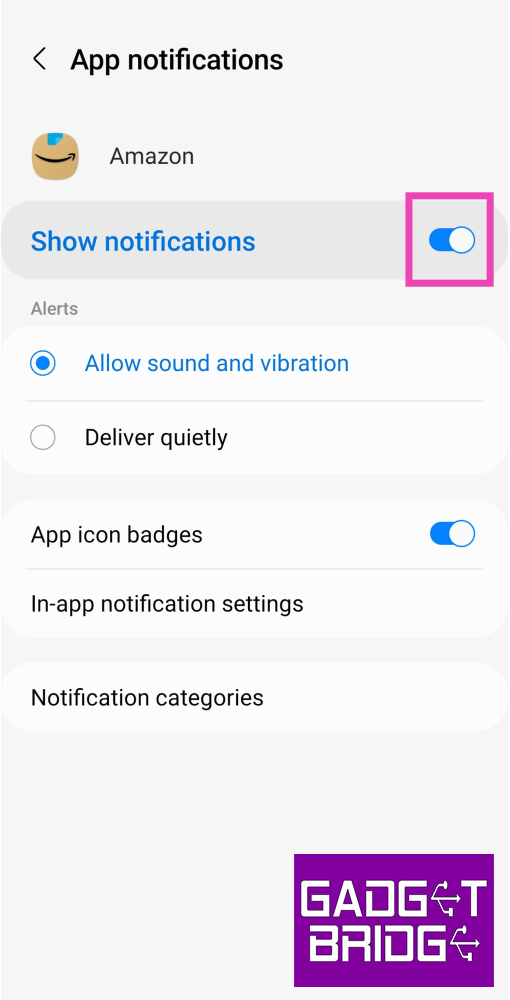
If an app keeps spamming your phone with unwanted notifications, here is how you can revoke its notification access. Step 1: Go to Settings and select Apps. Step 1: Go to Settings and select Apps. Step 2: Tap on the app that has been spamming your notifications. Step 2: Tap on the app that has been spamming your notifications. Step 3: Tap on Notifications. Step 3: Tap on Notifications. Step 4: Turn off the toggle switch for Allow notifications. Step 4: Turn off the toggle switch for Allow notifications. How to block pop-up ads and unwanted notifications on Android? Top 4 Ways

Turn off Google Chrome popups

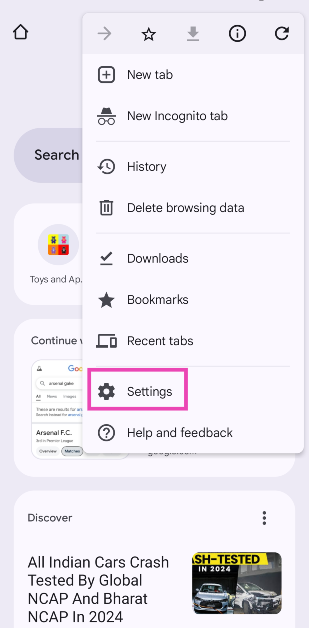
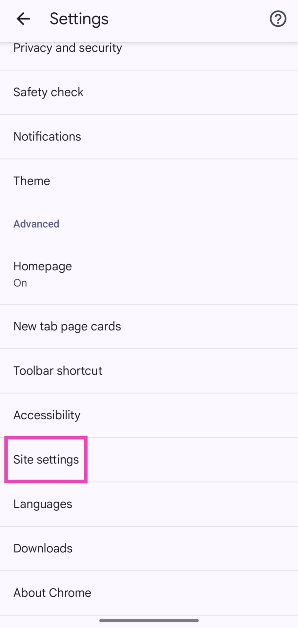
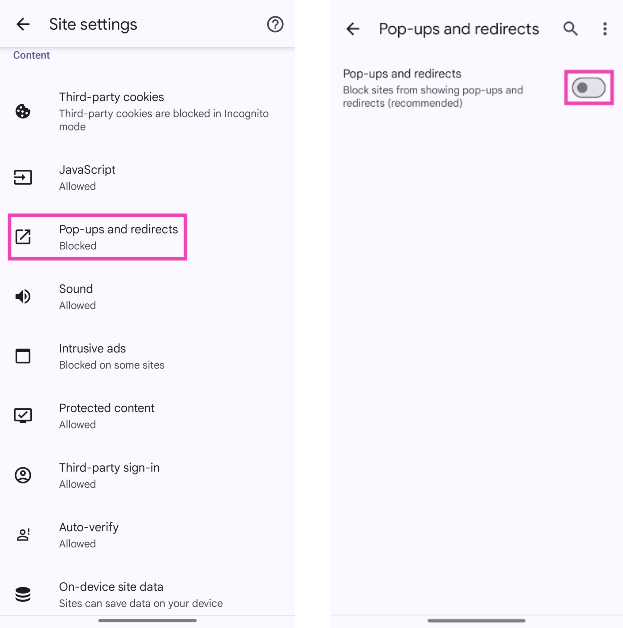
Step 1: Launch the Google Chrome web browser on your Android phone. Step 2: Hit the ellipses and select Settings. Step 2: Hit the ellipses and select Settings. Step 3: Tap on Site settings. Step 3: Tap on Site settings. Step 4: Select Pop-ups and redirects and turn off its toggle switch. Step 4: Select Pop-ups and redirects and turn off its toggle switch.
Use a DNS service

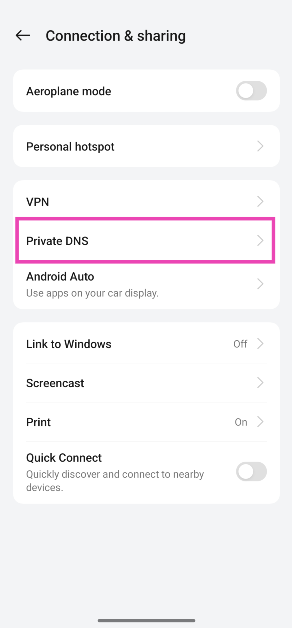
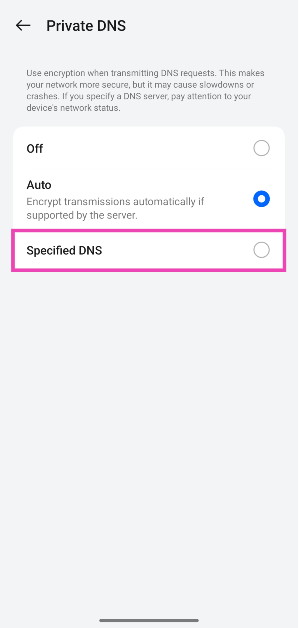
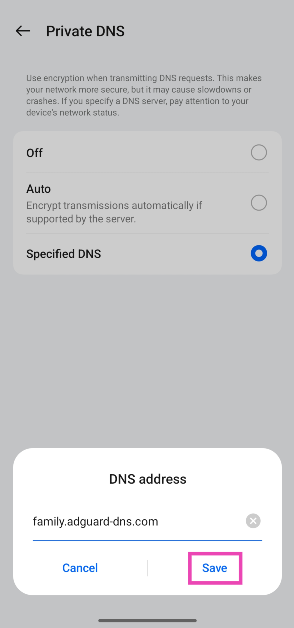
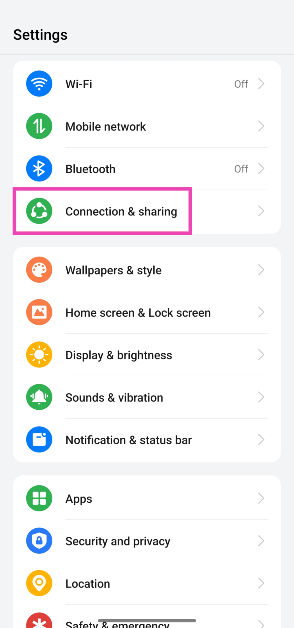
You can use an ad-blocking private DNS service to block ads on your phone while browsing the web. Here’s how. Step 1: Go to Settings and select Connections & sharing. Step 1: Go to Settings and select Connections & sharing. Step 2: Tap on Private DNS. Step 2: Tap on Private DNS. Step 3: Select Specified DNS. Step 3: Select Specified DNS. Step 4: Enter the hostname of the DNS provider. For example, dns.adguard-dns.com or family.adguard-dns.com. Step 4: Enter the hostname of the DNS provider. For example, dns.adguard-dns.com or family.adguard-dns.com. Step 5: Hit Save.

Turn off notifications for suggested videos from YouTube

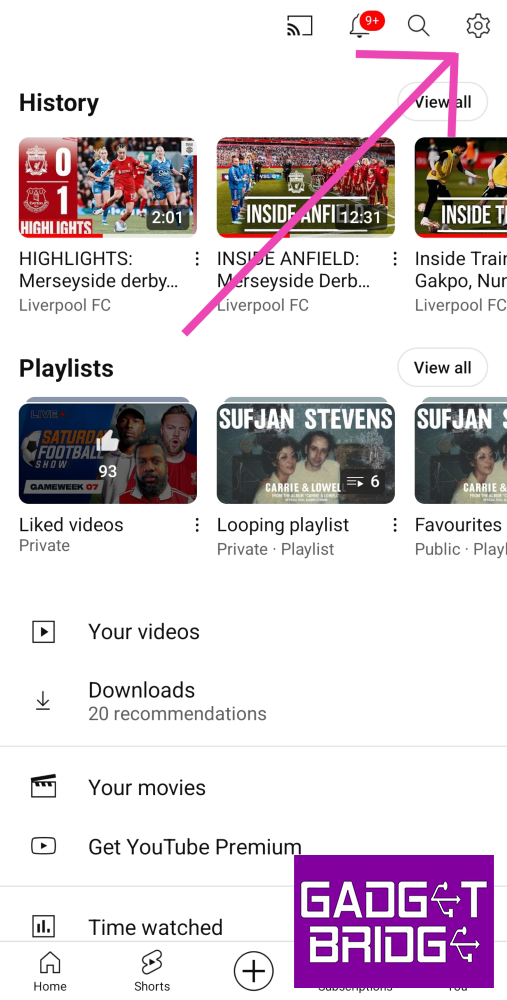
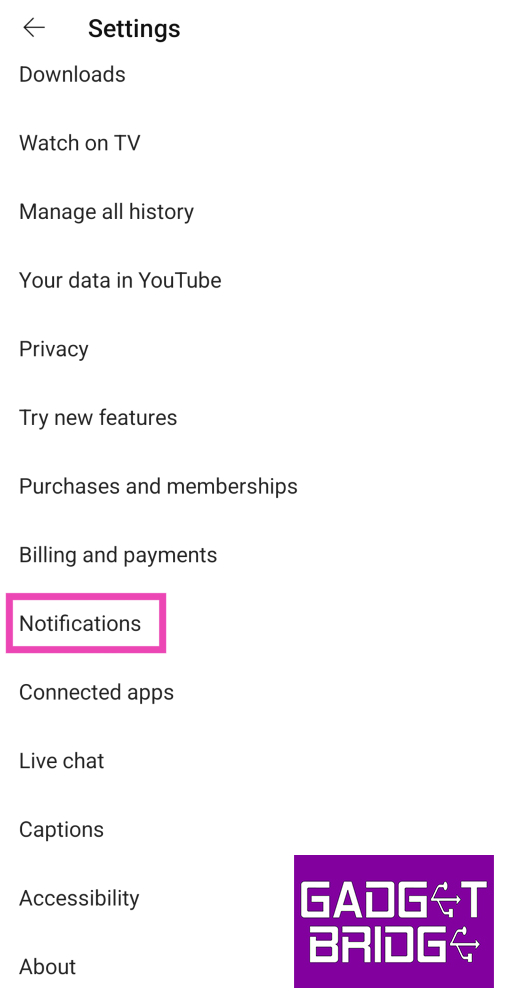
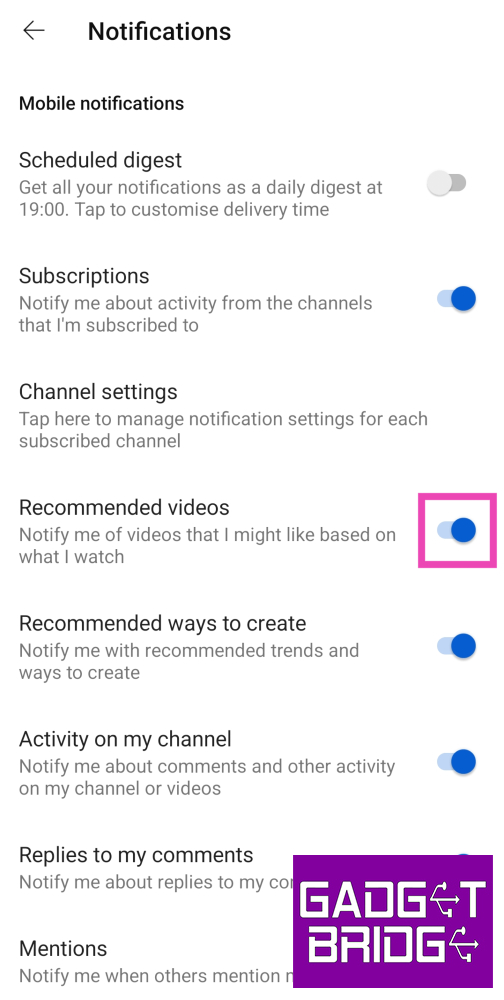
Step 1: Launch the YouTube app on your phone and tap on your profile picture at the bottom right corner of the screen. Step 2: Tap the gear icon at the top right corner of the screen to access settings. Step 2: Tap the gear icon at the top right corner of the screen to access settings. How to block pop-up ads and unwanted notifications on Android? Top 4 Ways Step 3: Scroll down and tap on Notifications. Step 3: Scroll down and tap on Notifications. How to block pop-up ads and unwanted notifications on Android? Top 4 Ways Step 4: Turn off the toggle switch for Recommended Videos and other kinds of notifications you want to block. Step 4: Turn off the toggle switch for Recommended Videos and other kinds of notifications you want to block. How to block pop-up ads and unwanted notifications on Android? Top 4 Ways

Frequently Asked Questions (FAQs)

How do I block pop-up ads on my Android phone’s lock screen?

Certain Android smartphone manufacturers are known to push ads on the lock screen. You can disable them by going to Settings>Lock screen>Wallpaper services and selecting None.

How do I block the recommended video suggestions from YouTube?

Launch the YouTube app and go to your profile. Select Settings>Notifications and turn off the toggle switch for Recommended videos.

Is there a way to block pop-up ads on Android?

If you routinely receive pop-up ads from a particular app, revoke its access to display over other apps. In order to do this, go to Settings>Apps>Special Access>Appear on top and turn off the toggle switch next to the app in question.

How do I disable pop-ups?

Go to Chrome>Settings>Permissions>Pop-ups and redirects and turn off its toggle switch.
Why am I suddenly getting popup ads on my phone?

If you’re seeing random ads on your phone’s interface, it could be because of adware. Your phone may have been exposed to adware after installing an app from third-party sources. Read Also: Sony WF-1000XM5 Review: Setting the benchmark yet again

Conclusion

This is how you can block pop-up ads and unwanted notifications on Android. Some smartphones may push a larger volume of ads than others. Vivo and Xiaomi devices are notorious for this. Check out this article to learn how you can disable ads on a Xiaomi smartphone.

WhatsApp multiple accounts feature released, available for Android

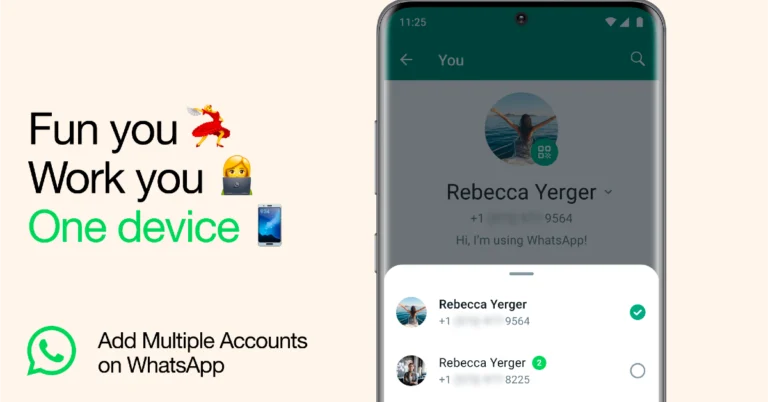
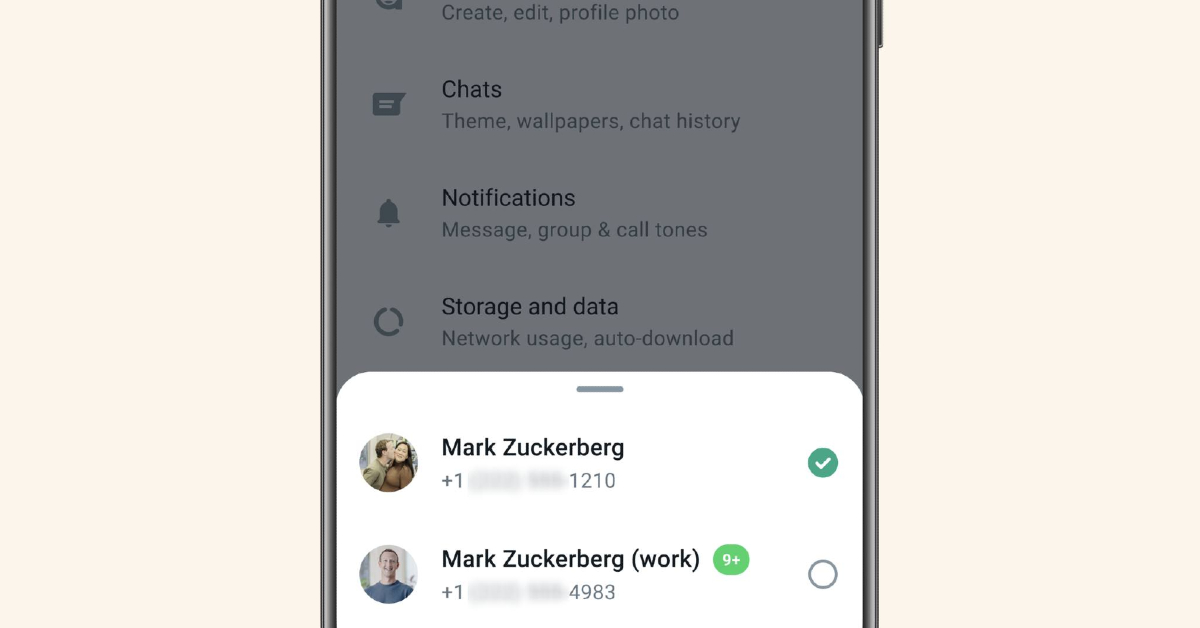
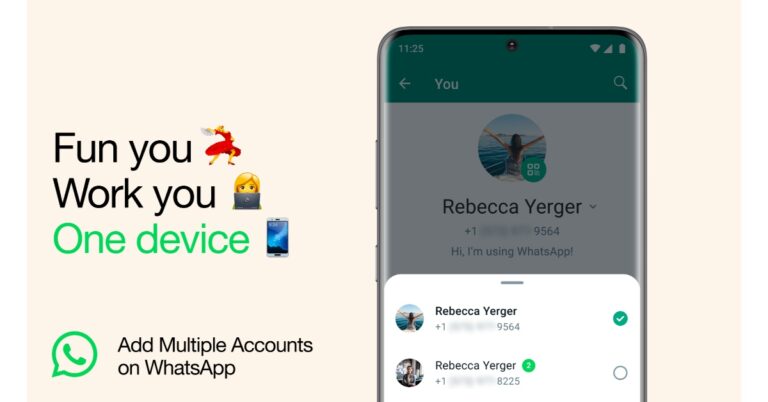
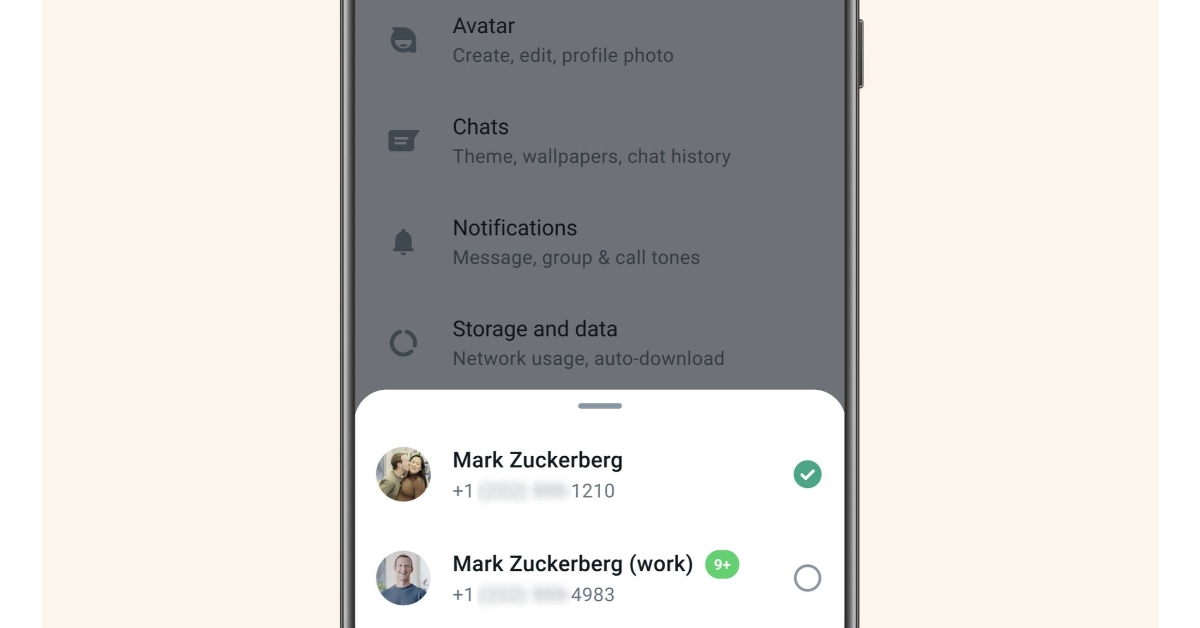
Tired of managing multiple WhatsApp accounts on different phones? Multiple accounts being used on separate devices is no longer a problem with WhatsApp. With the recently released Multiple account feature for WhatsApp, you may now switch between two different accounts on a single device. As of right now, Android users can use WhatsApp with numerous accounts. Meta’s chief Mark Zuckerberg has launched a multiple-account feature for WhatsApp. His post on Facebook reads, “Switch between two accounts on WhatsApp. Soon you’ll be able to have two WhatsApp accounts on one phone within the app.” He also shared a screenshot of a new feature demonstrating two WhatsApp accounts on a single phone. how to set up Multiple accounts feature on WhatsApp WhatsApp official blog post reads “Today, we’re introducing the ability to have two WhatsApp accounts on Android logged in at the same time. Helpful for switching between accounts – such as your work and personal – now you no longer need to log out each time, carry two phones or worry about messaging from the wrong place.” Also Read: Google to start manufacturing Pixel Phones in India, Pixel 8 will be the first Pixel phone to be produced locally The introduction of this Multiple accounts feature on WhatsApp will prevent users from downloading imitations or fake versions as a way of getting more accounts on their devices. This will help in keeping their personal data and chats secure and private. Users can easily switch from one account to another and set up their work and personal WhatsApp accounts on one single phone. Also, users will be able to control their privacy and notification settings on each account. They can mute notifications on their primary or secondary account. Besides this WhatsApp also allows its users to set up a single account on multiple phones.

How to set up multiple WhatsApp accounts on a single phone?

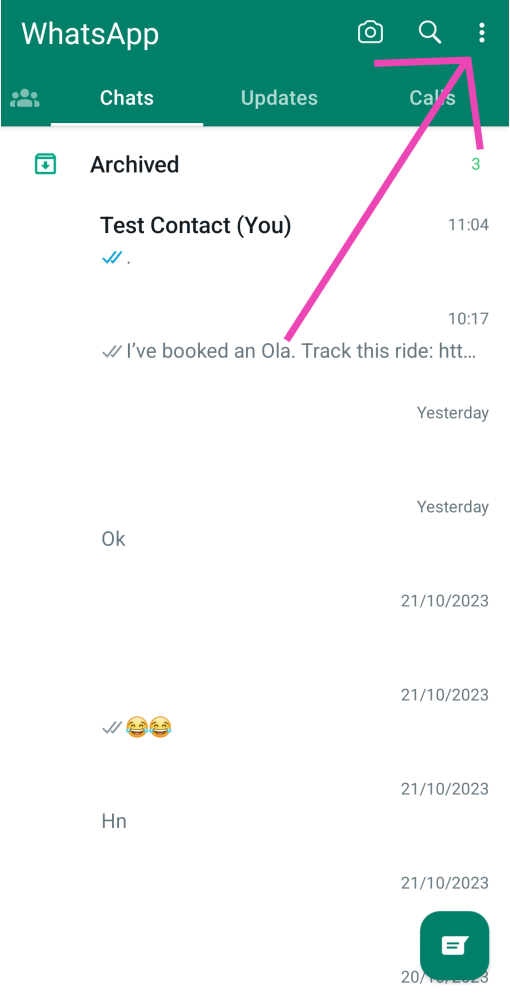
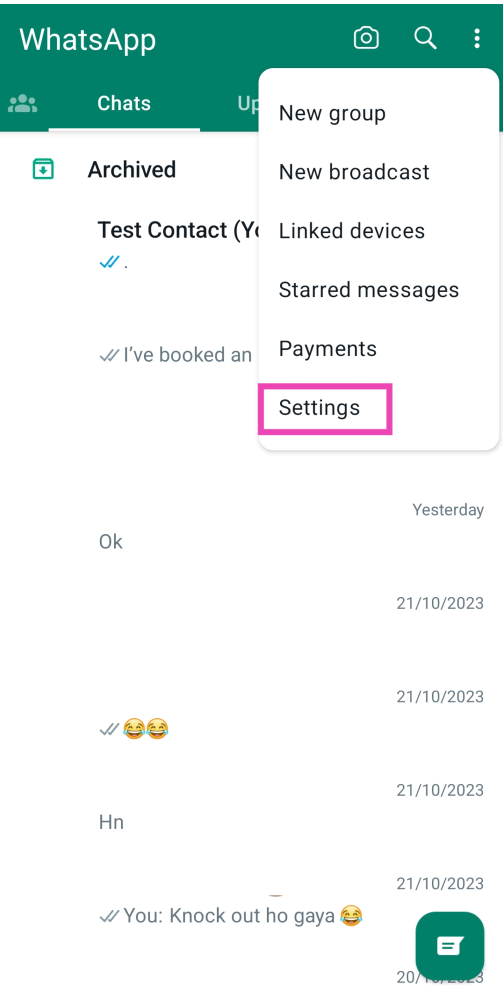
Setting up two WhatsApp accounts is simple. Firstly one needs to have a second phone number and SIM card, or a phone that accepts multi-SIM or eSIM. Then launch WhatsApp on your smartphone and go to settings. Now click on the arrow next to your name, and click “Add account”. For the latest gadget and tech news, and gadget reviews, follow us on TwitterFacebook and Instagram. For newest tech & gadget videos subscribe to our YouTube Channel. You can also stay up to date using the Gadget Bridge Android App. You can find the latest car and bike news here.

Best 9 Android Keyboard Apps For Everyday Use

Third-party keyboard apps can come in very handy if you don’t enjoy typing on your smartphone’s native onscreen keyboard. To put it simply, it is very rare for one native keyboard app to cater to the demands of every user. Third-party keyboards not only come with their own unique set of features, but they also let you control the thematic aspects of your onscreen keyboard. In this article, we bring you the top 9 Android keyboard apps for everyday use. Read Also: Sony WF-1000XM5 Review: Setting the benchmark yet again

Gboard

Download from Google Play Store Gboard Gboard is Android’s default keyboard but if your phone doesn’t run stock Android OS it gets sidelined for the manufacturer’s native keyboard. You can switch to Gboard from General Settings on your device. If you can’t find it on the list, you can always download it from Google Play Store.  In our opinion, Gboard is the most complete Android keyboard app out there. Its exhaustive list of languages makes it very versatile among different lingual demographics. You can also translate your text to another language directly from the keyboard. Apart from standard QWERTY typing, Gboard also supports glide typing, voice typing, and handwriting recognition.

Microsoft SwiftKey

Download from Google Play Store Microsoft Swiftkey Powered by Bing AI, Microsoft SwiftKey may just be one of the most clutch keyboard apps out there. You can chat to Bing AI using the keyboard itself, using it to resolve any queries on the spot. However, our favourite feature has to be ‘text rewrite’, which directs the AI bot to change the tone of the text to professional, casual, polite, or ‘social post’. If you’re wondering what a ‘social post’ is, it can be used to come up with fun captions for your social media posts. AI cred aside, SwiftKey also has an extensive sticker, emoji, and GIF library which you can browse through with ease.

Flesky

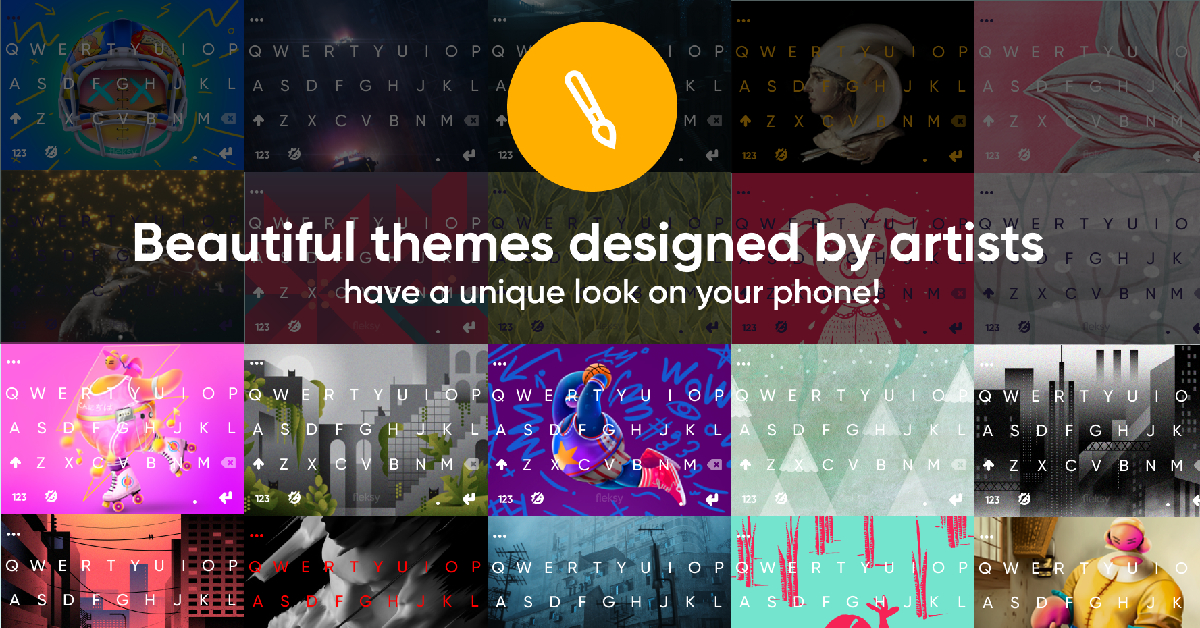
Download from Google Play Store Flesky Flesky is known for its glide typing chops, which make typing on it faster and more efficient. Instead of typing individual letters on the keyboard, you can just glide through them using a swiping gesture. Flesky will recognise the word you want to type and immediately push it on the text box. While it may seem chaotic, this process works perfectly. It has since been integrated into more popular keyboards (like Gboard) as well. Other than glide typing, Flesky lets you customise your keyboard with unique themes and mini-apps.

Grammarly

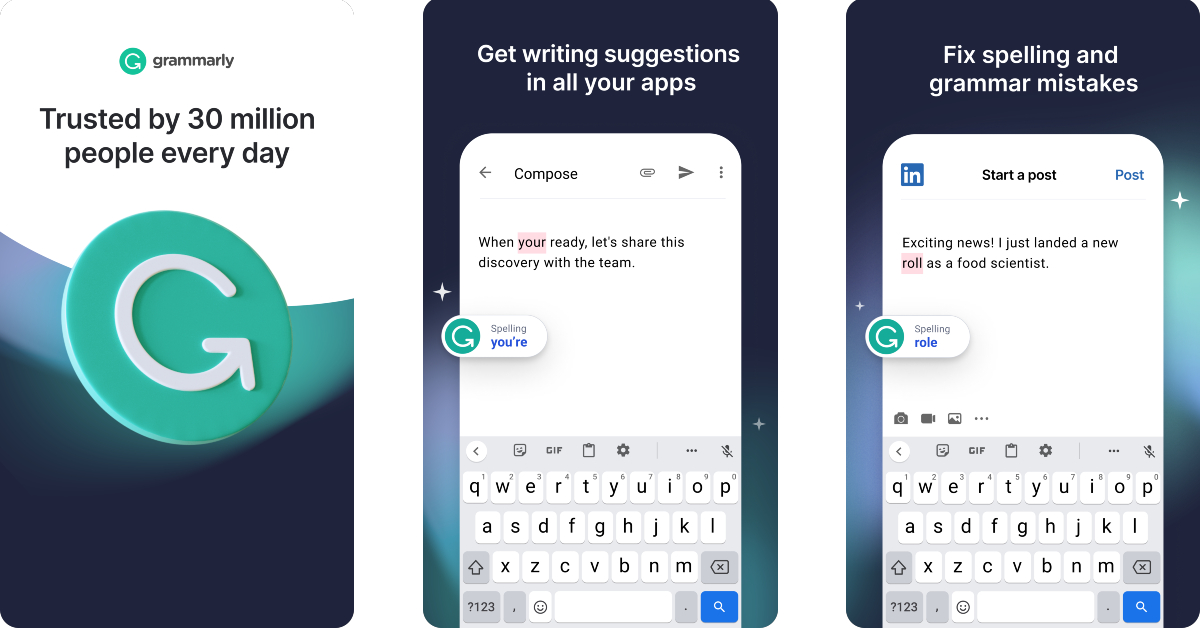
Download from Google Play Store Grammarly Most commonly known for being a grammar-checking tool, Grammarly also has an Android plugin that can be used on any keyboard. It’s pretty good too! Grammarly checks your texts for any typos, punctuation errors, and grammatical inconsistencies. On top of that, it also suggests vocabulary enhancement and alternate ways of framing a sentence. You also get a short explanation of your error along with every correction.

Chrooma

Download from Google Play Store Chrooma Best 9 Android Keyboard Apps For Everyday Use If you’re very particular about aesthetics, you will love this one. Chrooma Keyboard for Android adapts its colour theme to the app you’re using. You can also choose from a bunch of eye-catching RGB and AMOLED themes. If you like having total control over how your phone looks, then you’re going to want to tweak the keyboard as well. Apart from colourful themes, Chrooma also provides a seamless and smooth typing experience. The app has multi-language support, a one-handed mode, a split layout function, and supports gesture typing.

Ginger Keyboard

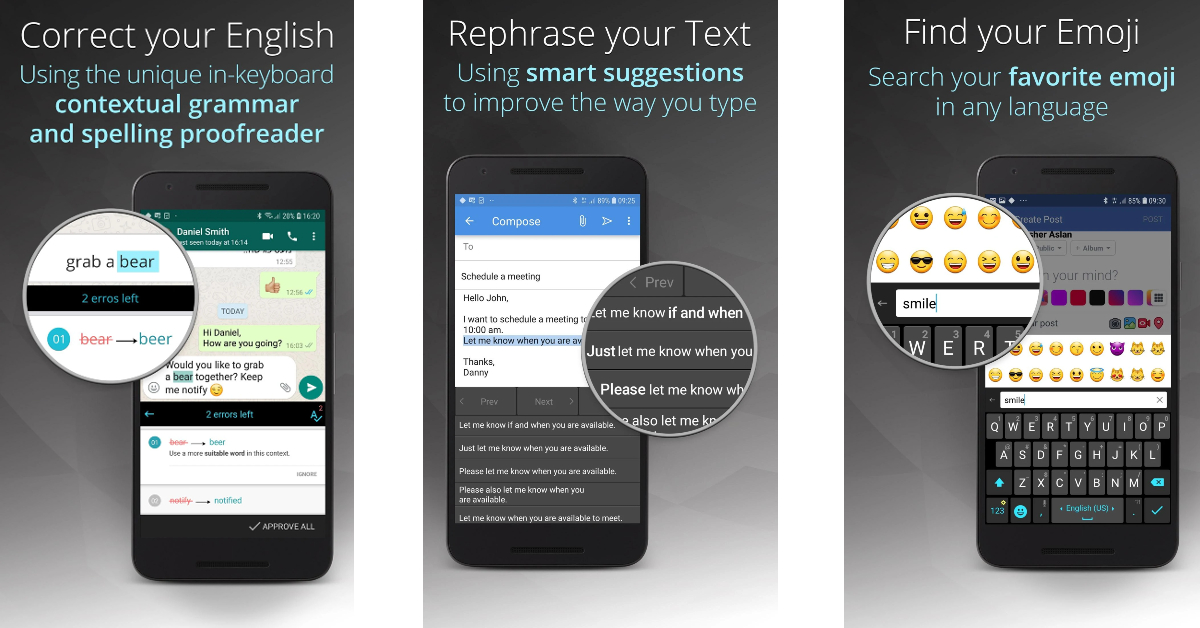
Download from Google Play Store Ginger Keyboard Best 9 Android Keyboard Apps For Everyday Use Regular keyboards only check for spelling and punctuation errors, but Ginger makes sure your sentence is properly structured and grammatically sound. This will come in handy for users who don’t like proofreading their texts before hitting send. Ginger Keyboard supports over 50 languages and has essential features like predictive text, predictive emojis, swipe typing, and emoji search.

Typewise

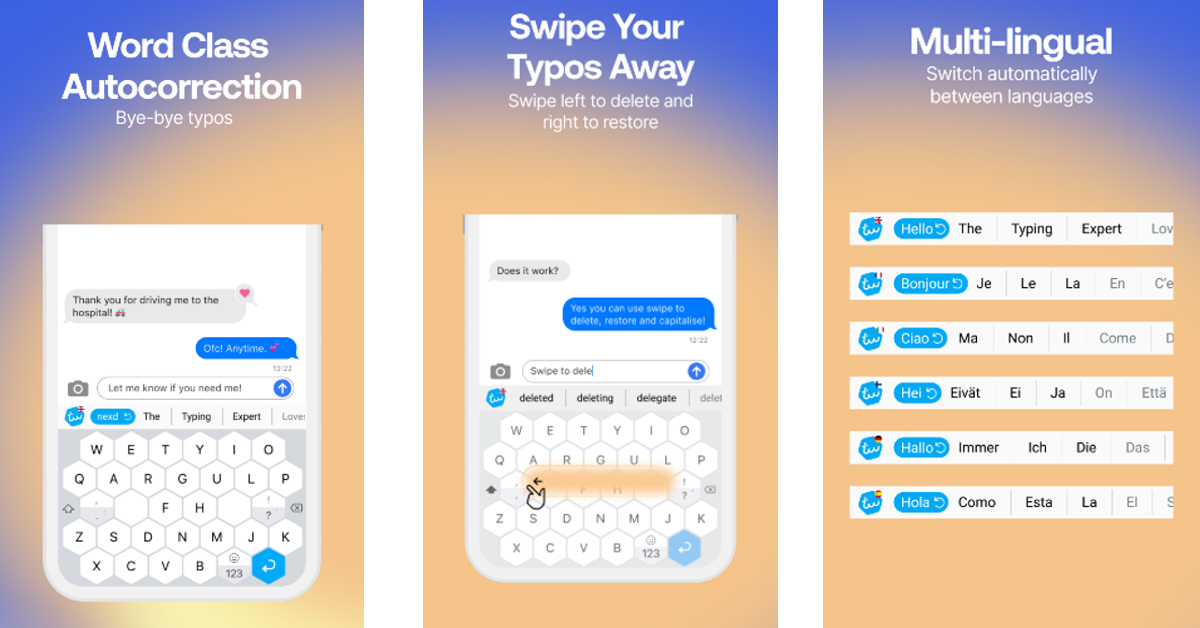
Download from Google Play Store Typewise Best 9 Android Keyboard Apps For Everyday Use Typewise puts an interesting spin on the traditional QWERTY keyboard with its unique honeycomb design. This layout reduces the likelihood of making a typo by 4 times compared to a regular keyboard. The honeycomb keys are larger than the rectangular tiles on a QWERTY keyboard, making them easier to hit and reducing the chance of a typo. Typewise Keyboard also offers interesting fonts, themes, and intuitive gestures to elevate the typing experience.

ai.type

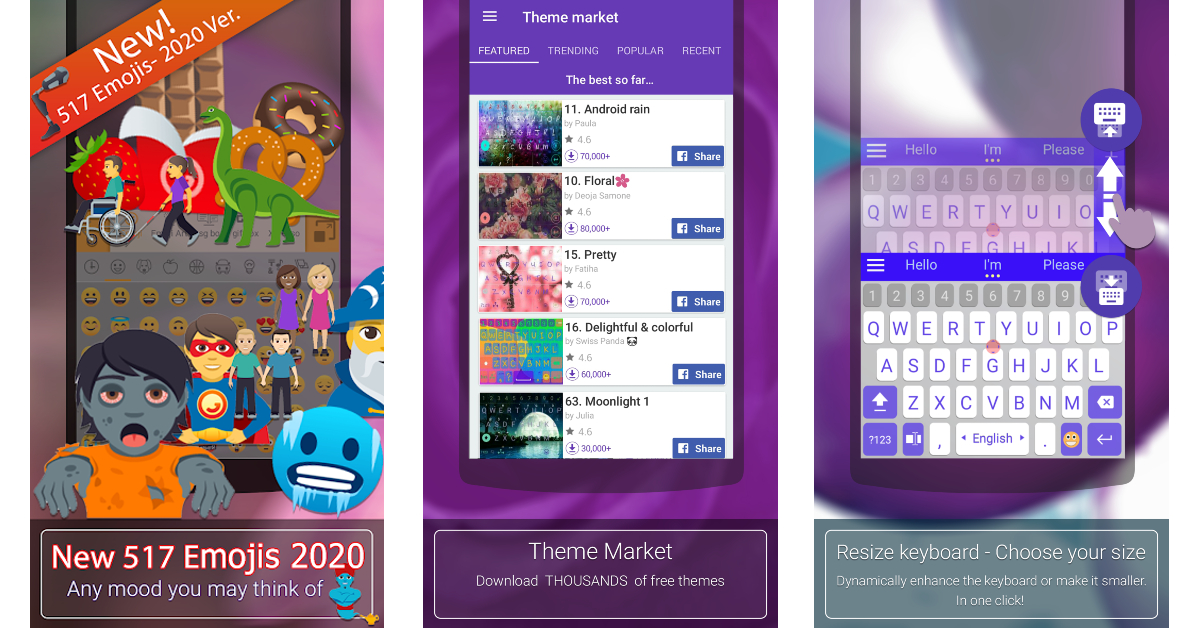
Download from Google Play Store ai.type Best 9 Android Keyboard Apps For Everyday Use If you’re looking for a keyboard with an exhaustive list of emojis and thousands of thematic options, ai.type should be right up your alley. With thousands of free themes and personalised layouts, ai.type is the perfect keyboard for people who like having control over how their phone looks. You can also stitch a theme of your own and share it with your friends. This app also offers helpful features like a calculator, keyboard resizer, cursor tracker, font selection, swipe typing, and more.

Bobble Keyboard

Download from Google Play Store Bobble Keyboard. Best 9 Android Keyboard Apps For Everyday Use Ending this list is one of the most popular keyboard apps for Android – Bobble Keyboard. This app has over 50 million downloads and a 4.5-star rating out of 430K reviews. One of the main attractions of Bobble is that it creates personalised animated stickers based on your selfies. The keyboard creates your own personal ‘bobblehead’ which can then be used to generate stickers and gifs for popular messaging apps like WhatsApp, Instagram, and Facebook. You can also choose a range of fonts and select pre-made posts for your WhatsApp status updates. Read Also: Oppo Find N3 foldable phone with Hasselblad cameras launched

Conclusion

These are the top 9 Android keyboard apps for everyday use. Once you install an app, add it to your keyboard menu from General Settings. Following that, you can easily toggle between different keyboards on any text box. Which keyboard app is your favourite? Let us know in the comments! For the latest gadget and tech news, and gadget reviews, follow us on Twitter, Facebook and Instagram. For newest tech & gadget videos subscribe to our YouTube Channel. You can also stay up to date using the Gadget Bridge Android App. You can find the latest car and bike news here.

Google to start manufacturing Pixel Phones in India, Pixel 8 will be the first Pixel phone to be produced locally

At the Google for India 2023 event the tech giant announced to manufacture Pixel Phones locally. The Made in India Pixel devices are expected to roll out in 2024. Google recently introduced the Pixel 8 Series in India globally so it is evident that the latest Pixel smartphone will be manufactured in India only. Also Read: OnePlus Open powered by Snapdragon 8 Gen 2 SoC and Hasselblad branded triple rear cameras launched in India Google has officially confirmed that Made in India Pixel phones will now be manufactured in the country. The company revealed its future plans at the Google for India 2023 event. As per the search giant, the first batch of Pixel smartphones will be available in 2024. Notably only assembling will be done at the local level. For this Google is collaborating with international and domestic manufacturers in India to produce Pixel smartphones locally. Google intends to begin manufacturing with Pixel 8.
Pixel 8 price in India
Pixel 8
Speaking at the event, Rick Osterloh, Senior Vice President of Devices & Services said, “We’re humbled at how India has embraced our consistent smartphone innovations, and continue to receive heartening feedback from our partners and our growing #TeamPixel family. When we set out with our hardware business, we committed to building and investing for the long run, and our plan to manufacture in India is an early step in the long journey of expanding our device production capacity and helping meet the country’s growing demand for Pixel smartphones. We look forward to sharing more details in the coming months, and can’t wait to bring the magic of Pixel smartphones to more people across the nation.” The company has admitted that the country is a top priority for Pixel smartphones and this move will increase their device production capacity and support the growing demand for Pixel in the nation. In addition to this Google has expanded its Pixel service network across the nation. As of now, they have 28 service centres in 27 cities across the nation thanks to their collaboration with F1 Info Solutions. Google will continue to expand coverage to more locations and cities in the months ahead. For the latest gadget and tech news, and gadget reviews, follow us on TwitterFacebook and Instagram. For newest tech & gadget videos subscribe to our YouTube Channel. You can also stay up to date using the Gadget Bridge Android App. You can find the latest car and bike news here.

Garena Free Fire Redeem Codes Today 20 October 2023: Here is how to claim them

Garena Free Fire is a battle royale game with regular awards and tournaments to keep players interested. If you play Garena Free Fire, you should be aware of the redeem codes that are released on a daily basis. However, because the battle royale game is banned in India, players from other countries can use the Free Fire Redeem codes daily. If you’re unfamiliar with the Garena Free Fire redeem codes or don’t know how to get them, we’ve put together a step-by-step guide to help you redeem them. Check out Garena Free Fire Redeem Codes for 20 October 2023. The Free Fire redeem codes are a great way to get free stuff. These are 12-digit codes that contain alphabets and numbers, as well as an expiration date and time. Because the Garena FF redeem codes cannot be used more than once, you should hurry to the redemption page to claim your free reward before someone else does. To get a free reward, all you have to do is go to reward.ff.garena.com/en, which is the official redemption page. Also, keep an eye on this space for daily updates on Garena Free Fire redemption codes and rewards.

Garena Free Fire Redeem Codes Today 20 October 2023

updating….

How to Get Free Fire Redeem Codes for Garena on 20 October 2023?

  • Visit the Garena Free Fire game’s official website at reward.ff.garena.com.
  • Use your Facebook, Google, VK, Apple ID, Huawei ID, or Twitter account to log in.
  • You’ll be taken to a valid redemption code (s)
  • Copy and paste the 12-digit redemption code into the text box.
  • On the screen, a dialogue box will appear.
  • ‘Ok’ should be selected.
For the latest gadget and tech news, and gadget reviews, follow us on TwitterFacebook and Instagram. For newest tech & gadget videos subscribe to our YouTube Channel. You can also stay up to date using the Gadget Bridge Android App. You can find the latest car and bike news here.

Free Tips to Simplify Your Digital Expenditure

Let’s face it, we all spend more online than we really ought to. Even so-called freemium software solutions often have hidden costs that you only find out after you have committed to them. There again, there are numerous free games out there you can download that are virtually unplayable unless you upgrade your avatar with a little hard-earned cash. Nevertheless, there are some truly cost-free options to help you stay on top of your overall outlay online. Read on to find out more about some of the best ones.

Android Apps Without the Charge

Firstly, there have always been apps that have been freely available to download and some offer exceptional functionality given they don’t have a price tag. However, the top-rated apps tend to be ones you have to pay for, especially if you are an Android user. Did you know, though, that it is perfectly possible to obtain paid apps on an Android device without having to stump up your credit card details? Doing so relies upon leveraging all of your Google Play points but it can certainly be worth it for the right sort of app. Even if you don’t have enough credit in your Play Store account to obtain the app you want completely free of charge, this method can significantly reduce your digital outlay.

Domain Name Registration at Zero Costs

In the past, building an online presence for a blog that you intended to monetize or a site that you wanted to make e-commerce sales through meant having to pay for a hosting service that would charge you for the chosen name of the website. However, it is perfectly possible to obtain a free domain these days without the need for any money to change hands. Even better, you can choose your preferred domain name and benefit from business email addresses with the same domain. This is a very good idea for start-up entrepreneurs who want to secure their chosen brand identity online without having to worry that a would-be competitor has got there first. Why pay for a domain name registration when you can secure the name you want at no cost at all?

Free File Transfers Made Easy

Transferring a file isn’t always super difficult if both devices concerned have the same operating system but things get a little trickier when you are moving a sizeable file from one to another. Android and Mac compatibility has historically been one of the hardest problems to overcome in terms of file transfers with audio files and video projects being particularly onerous. However, there are now some useful file transfer tools you can obtain online without charge that will get the job done reliably. What’s more, they work from iOS to Android and vice-versa, so you will obtain complete flexibility without having to shell out a cent.

Free Software Solutions in Summary

Not everything in life is free but there are plenty of ways you can obtain freemium digital services to help bring your expenditure down. Given so many of these free options are provided by reputable businesses, they are sometimes even better and more reliable than the equivalent paid-for alternatives. For the latest gadget and tech news, and gadget reviews, follow us on TwitterFacebook and Instagram. For newest tech & gadget videos subscribe to our YouTube Channel. You can also stay up to date using the Gadget Bridge Android App. You can find the latest car and bike news here.