BGMI Banned In India: Here are 6 great alternative battle royale games to play on your smartphone

Krafton’s Battle Ground Mobile India (BGMI) has been taken down from Google Play Store and App Store following a government order. While Apple did not provide any reason for taking down the game, a Google spokesperson confirmed that BGMI was taken down from the Play Store following a government order. The reason for the takedown remains a mystery as Krafton is yet to make a statement explaining the ban. Earlier in 2020, the Indian government had banned PUBG Mobile along with 40 other Chinese apps citing a ‘threat to national security’. With BGMI banned in India, here are 6 great alternative battle royale games you can play on your smartphone.  Read Also: Top 10 gaming smartphones for the gamer in you

Apex Legends Mobile

Apex Legends Mobile. bgmi banned in india. Apex Legends Mobile was launched for Android in May 2022, but its reputation as one of the best battle royale games had been firmly cemented owing to its popularity among PC and console gamers. Some users consider it superior to BGMI, with its immersive gameplay and high-end graphics. Set in the Apex Legends universe, the players get to join one of three groups on an island full of weapons. Up to 60 players can play in one session, and the last group standing wins. You can play as different characters that come with their own unique abilities. Apex Legends allows players to strategize and engage in tactical squad play.

Call of Duty Mobile

Call of Duty: Mobile. bgmi banned in india. The Call of Duty franchise needs no introduction. Over the years, Call of Duty has produced excellent games across different consoles, and their mobile iteration is no different. CoD allows you to play in different modes such as Team Deathmatch, Domination, and Kill-Confirmed on iconic maps like Shipment, Raid, and Standoff. You can even play 100-player Battle Royale. The voicechat over gameplay is seamless and presents no lag. All in all, Call of Duty Mobile is a great alternative to BGMI, and an excellent battle royale game to play with your friends on your smartphone.

Garena Free Fire Max

Garena Free Fire Max. bgmi banned in india Like BGMI, Garena Free Fire Max rose to popularity after the PUBG ban in India. Also known as Free Fire, the battle royale game was developed by 111dots Studio, a game company based in Vietnam. Published to Android and iOS by Garena, the game’s name is an amalgamation of the publisher and developer’s title. In 2019, Garena Free Fire Max became the most downloaded game for smartphones globally. Currently, Free Fire boasts more than 100 million daily active players. With BGMI banned in India, Garena is an excellent alternative.

New State Mobile

New State Mobile. bgmi alternatives. battle royale games If you’re looking for a battle royale game in the same vein as PUBG and with similar graphics, New State Mobile is the game for you. Developed by PUBG studios, it carries forward the same gameplay and graphic design employed in PUBG Battlegrounds. Published by Krafton on Android and iOS, New State Mobile is the second instalment in the PUBG gaming universe, following PUBG Battlegrounds.

Modern Combat 5

Modern Combat 5. bgmi alternatives. battle royale games Developed by Gameloft, Modern Combat was first launched in 2014 for all gaming platforms. Modern Combat 5 is the fifth instalment in the series. The fictional plot of the game follows the player as the protagonist as they take on the World Liberation Army, a terrorist organisation that plans on attacking several locations across the world. Apart from the story mode, Modern Combat 5 also offers battle royale mode, making it one of the better alternatives to BGMI.

ScarFall: The Royale Combat

ScarFall: The Royale Combat. bgmi alternatives. battle royale games If your smartphone is not designed to handle the bulky games mentioned above, you may want to try ScarFall: The Royale Combat. With its low-spec configuration, ScarFall can run on almost any smartphone. The immersive gameplay and cutting-edge graphics make ScarFall just as fun to play as any other game on this list. Read Also: The 10 best free online FPS browser games we love to play to kill time These are the 6 battle royale alternatives to BGMI that you can play on your smartphone. It remains to be seen whether the BGMI ban will be a lasting one, or if it is just a temporary suspension. Krafton has clarified that it is in contact with Indian authorities and will notify its users when the details of the ban are made available to them. For the latest gadget and tech news, and gadget reviews, follow us on TwitterFacebook and Instagram. For newest tech & gadget videos subscribe to our YouTube Channel. You can also stay up to date using the Gadget Bridge Android App. You can find the latest car and bike news here.

Garena Free Fire Redeem Codes Today 29 July 2022: Here is how to claim them

Garena Free Fire is a battle royale game with regular awards and tournaments to keep players interested. If you play Garena Free Fire, you should be aware of the redeem codes that are released on a daily basis. However, because the battle royale game is banned in India, players from other countries can use the Free Fire Redeem codes daily. If you’re unfamiliar with the Garena Free Fire redeem codes or don’t know how to get them, we’ve put together a step-by-step guide to help you redeem them. Check out Garena Free Fire Redeem Codes for July 29. The Free Fire redeem codes are a great way to get free stuff. These are 12-digit codes that contain alphabets and numbers, as well as an expiration date and time. Because the Garena FF redeem codes cannot be used more than once, you should hurry to the redemption page to claim your free reward before someone else does. To get a free reward, all you have to do is go to reward.ff.garena.com/en, which is the official redemption page. Also, keep an eye on this space for daily updates on Garena Free Fire redemption codes and rewards.

Garena Free Fire Redeem Codes Today 29 July 2022

GCNVA2PDRGRZ FF7MUY4ME6SC FF1CJGW9NKYT FF10HXQBBH2J 4ST1ZTBE2RP9 B3G7A22TWDR7X SARG886AV5GR W0JJAFV3TU5SE X99TK56XDJ4X FU9CGS4Q9P4E X99TK56XDJ4X 3IBBMSL7AK8G WLSGJXS5KFYR YXY3EGTLHGJX B6IYCTNH4PV3 J3ZKQ57Z2P2P 8F3QZKNTLWBZ WEYVGQC3CT8Q MHM5D8ZQ1P22

How to Get Free Fire Redeem Codes for Garena on July 29?

  • Visit the Garena Free Fire game’s official website at reward.ff.garena.com.
  • Use your Facebook, Google, VK, Apple ID, Huawei ID, or Twitter account to log in.
  • You’ll be taken to a valid redemption code (s)
  • Copy and paste the 12-digit redemption code into the text box.
  • On the screen, a dialogue box will appear.
  • ‘Ok’ should be selected.
For the latest gadget and tech news, and gadget reviews, follow us on TwitterFacebook and Instagram. For newest tech & gadget videos subscribe to our YouTube Channel. You can also stay up to date using the Gadget Bridge Android App. You can find the latest car and bike news here.
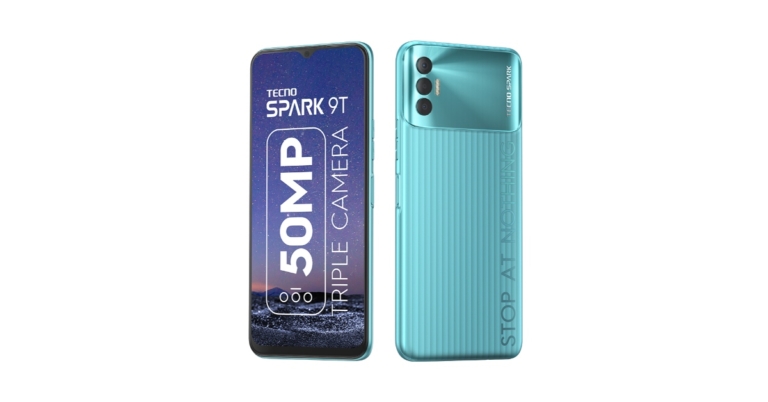
Tecno Spark with 9T 50-Megapixel Triple Rear Cameras launched in India

Tecno Spark 9T has officially launched in India today. The device is powered by MediaTek Helio G35 SoC. It features a 5,000mAh battery and comes with a 50-megapixel AI triple rear camera. The budget smartphone has an IPX2 splash-resistant rating. The device will be available for purchase via Amazon in the country.

Tecno Spark 9T price in India and availability

The cost of the Tecno Spark 9T model with 4GB RAM and 64GB storage in India is Rs 9,299. It is introductory pricing, according to Tecno. The device will be available in two colour options of Atlantic Blue and Turquoise Cyan. It is scheduled to go on sale in the country on August 6 via Amazon. Tecno Spark 9T price in India and availability

Tecno Spark 9T specifications

Tecno Spark 9T comes with a 6.6-inch full-HD+ Dot-Notch Display with 1,080×2,408 pixels of resolution. The screen also has a 90.1 percent screen-to-body ratio and 401ppi pixel density. The device runs on HiOS 7.6 based on Android 11. The MediaTek Helio G35 SoC with HyperEngine technology included within the smartphone is said to deliver intelligent resource management with 4GB of LPDDR4x RAM used. With Memory Fusion technology, the Tecno Spark 9T can utilise up to 3GB of storage as RAM. The 64GB of built-in storage on the Tecno Spark 9T may be increased via a specific microSD card slot to up to 512GB. The Tecno Spark 9T boasts a triple back camera arrangement for pictures and movies, with the main 50-megapixel sensor combined with an f/1.6 aperture and phase-detection autofocus. Alongside an AI sensor, there is a 2-megapixel sensor. The smartphone includes an 8-megapixel selfie camera with a dual front flashlight for taking selfies and making video calls. Additionally, it has a Super Night Mode for taking well-lit pictures in dim lighting. The phone also features pro-level shooting modes like 1080p Time-lapse, Slow Motion, and Video Bokeh It has a smart anti-oil side fingerprint sensor and the Face Unlock biometric feature. Wi-Fi, Bluetooth v5.0, GPS, GNSS, Galileo, Beidou, and QZSS are among the available connectivity choices. A 5,000mAh battery within the smartphone supports 18W rapid charging. According to the company it provides 39 days of standby time and 147 hours of music playback time to the users. The device is IPX2 splash-resistant and has speakers that support DTS surround sound. For the latest gadget and tech news, and gadget reviews, follow us on TwitterFacebook and Instagram. For newest tech & gadget videos subscribe to our YouTube Channel. You can also stay up to date using the Gadget Bridge Android App. You can find the latest car and bike news here.

Amazon Quiz Answers Today 29 July 2022: Participate to win Rs 15,000

Have you participated in the Amazon Quiz today? If not then participate in the 29 July 2022 Amazon Quiz as it has already gone live on the app. The daily quiz can be played from 12 AM to 11:59 every day on the mobile app platform. Today e-commerce is giving the chance to win Rs 15,000 Amazon Pay Balance. Every day Amazon brings a fresh quiz for its customers. By participating in the quiz the participants can win an Amazon Pay Balance of up to Rs 50,000. The quiz can only be played on the mobile app as it is not available for the desktop platform. The quiz contains five easy questions and you have to answer all the questions correctly. The participants will then be shortlisted for a lucky draw to select a winner. Whereas the results are declared at the end of the month. Check out today’s Amazon quiz answers to win Rs 15,000. Amazon Quiz Today Prize – Rs 15,000 Amazon Pay Balance Quiz Date – 29 July 2022 Daily Timing – 12 AM to 11:59 PM Winner Announcement – Today 12 PM

Amazon Quiz Answers Today 29 July 2022

Question 1: The famous striker Robert Lewandowski recently joined which football club? Answer: Barcelona Question 2: The movie ‘Shamshera’ stars which actress in the female lead role? Answer: Vaani Kapoor Question 3: The central bank of which continent recently raised its interest rates for the first time in over a decade? Answer: Europe Question 4: Which country is the highest producer of this beverage in the world? Answer: China Question 5: In which country is the global headquarters of this famous company located? Answer: USA

How To Play Amazon Quiz

Only app users are eligible to play the Amazon quiz every morning from 12 AM to 11:59 PM. The quiz is not available on the desktop. For those who are unaware of how to play the Amazon quiz below are the steps, you can follow to take the quiz.
  • Firstly download the Amazon app from Google Play Store or App Store
  • Now fill in the required information through the Sign Up option.
  • You need to log in to the Amazon app and scroll down on the home screen to find the Amazon Quiz banner.
  • Tap on the Amazon Quiz banner and tap on the Start button to start the Quiz.
  • Now you will get 5 questions and you need to answer them correctly. One wrong answer will eliminate you from the Quiz.
  • After answering all the questions correctly you are now eligible for a Lucky Draw.
  • The winner’s name will be announced today at 12 PM.
For the latest gadget and tech news, and gadget reviews, follow us on TwitterFacebook and Instagram. For newest tech & gadget videos subscribe to our YouTube Channel. You can also stay up to date using the Gadget Bridge Android App. You can find the latest car and bike news here.

AirPods Microphone Not Working? 10 easy ways to fix it

0
With AirPods, Apple has created one of the finest wireless headphones on the market right now. AirPods blend the experience of listening to audio and having hands-free conversations seamlessly with their receptive microphone. The microphone on your AirPods is located at the end of the stems. In this article, we show you the easiest ways to fix AirPods microphones that aren’t working. Read Also: Mid-year: Best TVs seen so far in 2022

Ensure your AirPods are charged

Ensure your AirPods are charged The AirPods microphone may not be working simply because it has run out of charge. Check the charge left on your AirPods by placing them in the case and holding it close to your iPhone. Sometimes the AirPods may work on a low charge but the microphone may stop working. Charge your AirPods to get the microphone working again.

Put the AirPods back in the case for 30 seconds

Put the AirPods back in the case for 30 seconds Putting your AirPods back in their case resets the Bluetooth connection with your iPhone and fixes any minor issue that may be keeping the microphone from working. Simply place the AirPods back in the case for roughly 30 seconds and take them out again. Once they are connected to your iPhone, check if the microphone is working. This is the easiest way to fix any minor issue with your AirPods.

Check the Microphone settings on your iPhone

If you’re experiencing the microphone issue with just one AirPod, the problem may lie with the microphone settings. You can specify which AirPod microphone should be in use. Usually, your iPhone switches the microphone by default, depending on the AirPod you’re using, but you may have changed this setting and forgotten about it. Follow the steps listed below to set it back to default. Step 1: Go to Settings and select Bluetooth.  Step 1: Go to Settings and select Bluetooth.  Step 2: Select the ‘i’ icon next to your AirPods in connected devices. Step 2: Select the ‘i’ icon next to the AirPods under ‘My Devices’. Step 3: Select ‘Microphone’ and tap ‘Automatically Switch AirPods’.

Clean the Microphone

It is quite common for the microphone on your AirPods to get clogged by dirt. The microphones are located at the end of the stems on your AirPods. You can use a cotton swab to clean the dirt or wipe it with a microfiber cloth. Blow on the microphone to remove any small dust particles and check if they’re working again.

Turn off Noise Cancellation

Turn off Noise Cancellation Active Noise Cancellation is a great feature to have on your wireless earbuds but sometimes it can mess with the functioning of the microphone. Turn off noise cancellation and check if the mic functions have been restored to normalcy. To disable noise cancellation for your AirPods, go to the Control Center and long-press the volume slider icon. Tap on ‘Noise Control‘ and select ‘Off‘.

Did you accidentally drop your AirPods in the water recently?

AirPods are rated IPX4 for water resistance, which means they are resistant to sweat and minor water splashes but not entirely waterproof. It is advised that you don’t wear your AirPods while swimming or taking a shower. If your AirPods were subjected to water recently, check them for water damage. Wipe the AirPods with a clean, dry cloth and place them in a bowl full of silicate packets.

Forget and Re-pair your AirPods

If you’ve tried all of the methods mentioned above and the microphone of your AirPods still isn’t working, it may be due to a corrupted connection to your iPhone. You can try ‘forgetting’ the AirPods and pairing them again. Just follow these easy steps. Step 1: Go to Settings and select Bluetooth. Step 1: Go to Settings and select Bluetooth.  airpods microphone not working Step 2: Select the ‘i’ icon next to the AirPods under ‘My Devices’. Step 2: Select the ‘i’ icon next to the AirPods under ‘My Devices’. airpods microphone not working Step 3: Select ‘Forget this Device’. Step 3: Select ‘Forget this Device’. airpods microphone not working Scan for new Bluetooth devices and re-pair your AirPods with your iPhone.

Update the firmware of your AirPods

An older firmware version can often lead to certain malfunctions on your AirPods. While there is no way to manually update the firmware of your AirPods, it will update automatically once your iPhone is paired with the earbuds and has a stable internet connection. To check the firmware version of your AirPods, connect them to your iPhone and go to Settings>Airpods and scroll to the About section. Tap on ‘Version’ to check the firmware version of the buds and the case.

Reset your AirPods

Reset your AirPods Resetting your AirPods takes care of any temporary issues that may be keeping the earbuds or the microphone from working. To reset your AirPods, press and hold the Setup button at the back of the charging case until the notification light turns amber. Make sure the earbuds are inside the case throughout this process. Now, turn on Bluetooth on your iPhone and pair your AirPods again.

Reset Network Settings

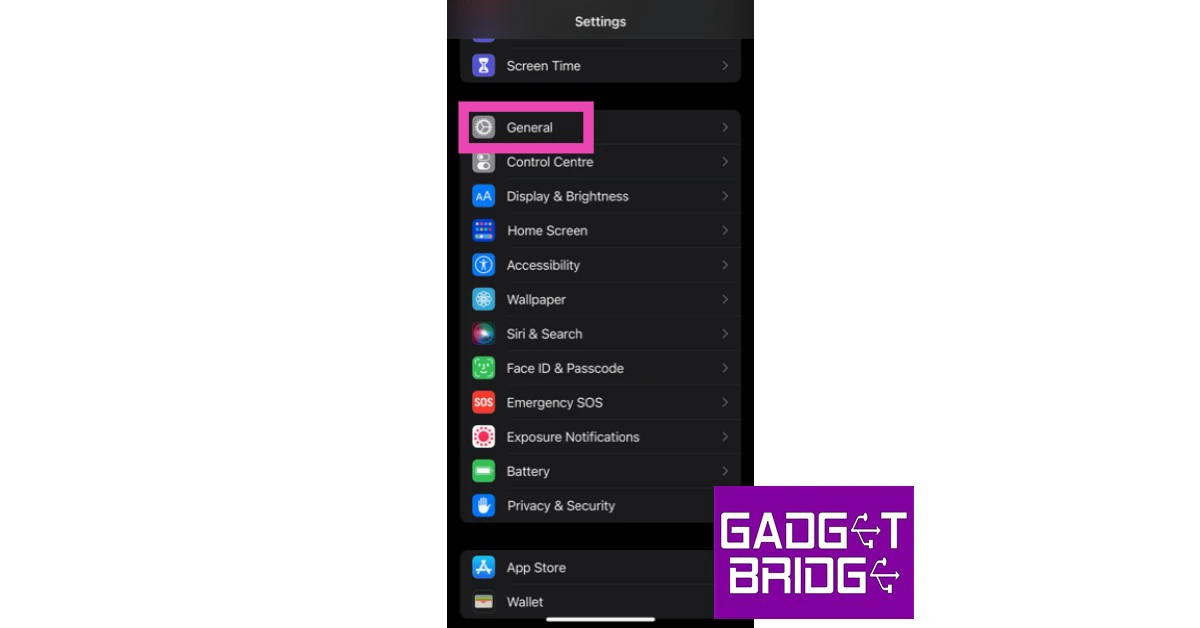
Restoring the network settings to factory default can fix any connection issues springing from customised settings. You will need to re-pair all your Bluetooth and WiFi connections after performing network settings reset. Here’s how you can go about it. Step 1: Go to Settings and select General. Step 1: Go to Settings and select General. how to fix iphone dictation not working on ios 16. whatsapp call not ringing when iphone is locked Step 2: Scroll down and select ‘Transfer or reset iPhone’. Step 2: Scroll down and select ‘Transfer or Reset iPhone’. Step 3: Select ‘Reset’ followed by ‘Reset Network Settings’. Step 3: Select ‘Reset’ followed by ‘Reset Network Settings’. whatsapp call not ringing when iphone is locked

Frequently Asked Questions

Is there a microphone on AirPods?

Yes, each earbud on your AirPods carries a microphone that is turned on by default as soon as the AirPods are connected to your iPhone. You can use this microphone to make phone calls and control Siri.

Where is the microphone on AirPods?

The microphone is located on the stem of the AirPods. You can find it below the control panel.

Why can’t callers hear me on my AirPods?

If your voice isn’t able to get through on a call while your AirPods are connected to your iPhone, there is something wrong with the microphone. Clean the microphone on either AirPod and try again. Read Also: Google Pixel 6a now available in India, goes on its first sale

Conclusion

These are the best and easiest ways to fix your AirPods microphone if they ever stop working. If you’ve tried all the methods above and the issue with the microphone still exists, you may have to get the problem diagnosed at an Apple Repair Center. For the latest gadget and tech news, and gadget reviews, follow us on TwitterFacebook and Instagram. For newest tech & gadget videos subscribe to our YouTube Channel. You can also stay up to date using the Gadget Bridge Android App. You can find the latest car and bike news here.
How To Fix ‘Can’t Send Emails With Attachments From Gmail Account’ Issue

0
While Gmail is the most popular email service in the world, it is not without flaws. Sometimes emails get stuck in the outbox and refuse to send entirely. Users also experience certain issues with uploading certain files as attachments. In this article, we show you how to fix the ‘Can’t send Emails with attachments from Gmail account’ issue. Read Also: Google announces local collaborations to improve India’s Maps user experience

Check attachment size

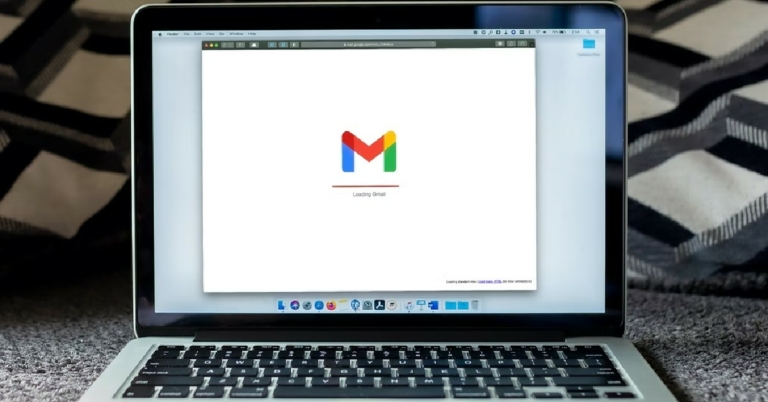
Can't send Emails with attachments Gmail does not allow email attachments more than 25MB in size. Check your attachment size, and if they exceed the limit, try sending them in two separate emails. You can also upload the attachment to Google Drive and email the link to the recipient. You can also use a file compressor to decrease the file size.

Switch off the Firewall

Can't send Emails with attachments It is possible that the firewall on your PC is blocking the email you’re trying to send. In order to disable the firewall, go to Control Panel>Network and Internet>System and Security and select Windows Defender Firewall. On the left-hand side panel, select Turn Windows Defender Firewall on or off and select the Turn off Windows Defender Firewall option.

Clear Browser Cache and Cookies

Clear Browser Cache and Cookies. Can't send Emails with attachments Some temporary files stored in the Cache may be keeping your email from getting sent. Simply go to Settings>Privacy and Security and clear the cache and cookies. This is one of the best ways to fix the ‘Can’t Send Emails With Attachments From Gmail Account’ issue.

Go Incognito

Can't send Emails with attachments If your use a lot of extensions on your browser, they may be getting in the way of sending your email. Instead of turning off all the extensions, you can quickly send the mail through an incognito window. If you’re using Google Chrome, simply press Ctrl+Shift+N to launch the incognito tab.

Use another browser

If you’re certain your email isn’t getting sent due to a browser-related issue, you can try sending it through another browser. Google Chrome, Mozilla Firefox, Opera, and Microsoft Edge are all credible web browsers you can use for this task. You should also check if your current browser has an update due before moving on to another browser. Oftentimes, a pending update contains the fix to any glitches or bugs, so it is a good idea to keep your browser updated. Read Also: Online Privacy is Possible if You Follow These Tips These were the best ways to fix the ‘Can’t Send Emails With Attachments From Gmail Account’ issue. If your emails keep getting stuck in the Gmail Outbox, read our comprehensive guide to fixing that issue here. For the latest gadget and tech news, and gadget reviews, follow us on TwitterFacebook and Instagram. For newest tech & gadget videos subscribe to our YouTube Channel. You can also stay up to date using the Gadget Bridge Android App. You can find the latest car and bike news here.

How to Convert MOV to MP4 on a Windows PC?

0
Converting a file to a different format isn’t as challenging as it sounds. If you’re looking to convert a video file from MOV to MP4 format, it can be easily done using VLC Media Player. If you do not have VLC Media Player installed on your PC, we have another option for you. In this article, you will find the two best ways to convert MOV to MP4 on a Windows PC Read Also: How to download YouTube videos on your PC?

Convert MOV to MP4 using VLC Media Player

VLC Media Player comes pre-installed on most PCs but if you can’t find it on your device, you can download it from VLC’s official website. Step 1: Open the VLC Media Player on your PC. Step 2: Click on the ‘Media’ menu and select ‘Convert/Save’. Step 3: Import the MOV file your want to convert using the ‘Add’ button. Step 3: Import the MOV file your want to convert using the ‘Add’ button. Step 4: Click on the ‘Convert’ button and select the format you want to convert the file in (Video – H.264 + MP3 (MP4)). Step 5: Specify the location where you want to save the converted file in the ‘Destination file’ bar. Click ‘Start’. Step 5: Specify the location where you want to save the converted file in the ‘Destination file’ bar. Click ‘Start’. VLC Media Player will convert the MOV file to MP4 and save it in the specified location.

Convert MOV to MP4 using an online converter

If you do not want to download VLC Media Player to your PC, you can use any online tool to convert a MOV file to MP4. One of the best websites for this task is www.cloudconvert.com. Step 1: Open www.cloudconvert.com on your web browser. Step 1: Open www.cloudconvert.com on your web browser. Step 2: From the ‘File Converter’ section select ‘Convert MOV to MP4’. Step 2: From the ‘File Converter’ section select ‘Convert MOV to MP4’. Step 3: Click on ‘Select File’ and select ‘From my computer’. Step 3: Click on ‘Select File’ and select ‘From my computer’. Step 4: Click on ‘Convert’. Step 4: Click on ‘Convert’. Cloud Convert will convert the MOV file to MP4 and give you the option to download it. After downloading, the file can be found in the Downloads folder on your PC. Read Also: Top 5 speech to text apps for your Android smartphone These were the two easiest ways to convert a MOV file to MP4 format on a Windows PC. MOV is the QuickTime format created by Apple, so some Windows devices may experience issues playing those files. Even though VLC is equipped to handle most formats, sometimes users report that MOV files do not run with the background audio in place. In such cases, it is much easier to simply convert those files before playing them. You can also download QuickTime for Windows to play those files. For the latest gadget and tech news, and gadget reviews, follow us on TwitterFacebook and Instagram. For newest tech & gadget videos subscribe to our YouTube Channel. You can also stay up to date using the Gadget Bridge Android App. You can find the latest car and bike news here.

Asus Zenfone 9 with 6-axis hybrid gimbal stabiliser launched

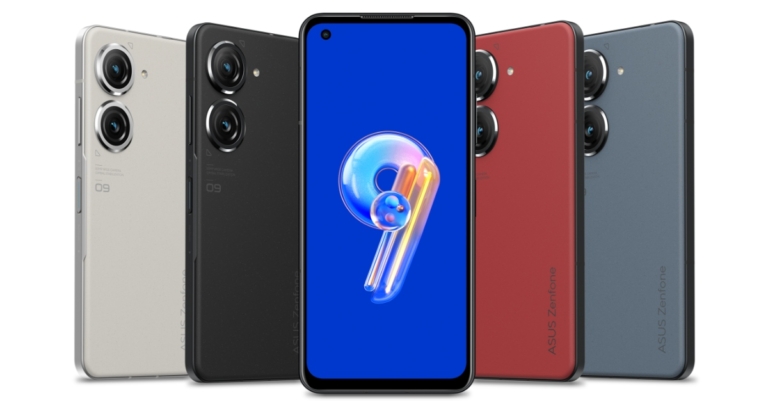
Asus Zenfone 9 has made its official debut in the market today. The brand new device is powered by a Snapdragon 8+ Gen 1 SoC and up to 16GB of RAM. The smartphone has a 50-megapixel dual rear camera arrangement with a 6-axis hybrid gimbal OIS/EIS stabiliser and a 5.92-inch AMOLED display with a 120Hz refresh rate. The phone is IP68 certified for protection against dust and water.

Asus Zenfone 9 specifications

A 5.92-inch AMOLED screen with 1,080 x 2,400px resolution, a 120Hz refresh rate and Gorilla Glass Victus protection is featured on the Asus Zenfone 9. The screen also has a 240Hz touch sampling rate and it has a bright display, peaking at 1,100 nits and offering 800 nits at 100% APL. Both an Always On mode and DC dimming at low brightness levels are supported. Snapdragon 8+ Gen 1 SoC powers the Asus Zenfone 9 with up to 16GB of RAM and an internal storage capacity of up to 256GB. To keep it cool, it has a sizable vapour chamber built right in. With nearly stock Android 12 out of the box, the phone will get two significant OS updates and at least two years’ worth of security updates. Asus Zenfone 9 price in India The Asus Zenfone 9 has two cameras on the back, a 50-megapixel Sony IMX766 primary sensor and a 12-megapixel ultra-wide camera with an IMX368 sensor. It has a 12-megapixel Sony IMX663 sensor with dual PDAF for taking selfies and participating in video conversations. The camera set-up also supports 8K recording. The primary sensor refers to having a 6-axis hybrid gimbal OIS/EIS stabiliser. The gyro sensor’s data is used by the primary camera’s stabiliser to adjust for abrupt z-axis movements forward and backwards in addition to compensating for movement on the x- and y-axis. While the ultrawide secondary lens also functions as a macro camera. Zenfone 9 supports 5G, Wi-Fi 6E, Bluetooth v5.2, NFC, and GNSS for connectivity. It includes a USB 3.0 Type-C port and a 3.5mm headphone jack. There is a 4,300mAh battery within the device. Additionally, the smartphone comes packaged with a 30W USB-C charger. The fingerprint reader on the Zenfone 9 is now located on the side of the device rather than beneath the display. The device also integrates Game Genie that can block notifications but you can also have any app floating above the game if you need to answer or check something. The Genie can display information such as game frame rates, predicted battery life, system temperatures, and more. If necessary, it can also remove background apps from RAM. Asus Zenfone 9 specifications

Asus Zenfone 9 price and availability details

Three memory setups are available: 8GB RAM with 128GB storage, 8GB RAM with 256G2B storage, and 16GB RAM with 256GB storage. The price of the Asus Zenfone 9 starts at €800. As per the company, prior to arriving in North America, Japan, Indonesia, and portions of South America, it will initially be made accessible in Europe, Hong Kong, and Taiwan. For the latest gadget and tech news, and gadget reviews, follow us on TwitterFacebook and Instagram. For newest tech & gadget videos subscribe to our YouTube Channel. You can also stay up to date using the Gadget Bridge Android App. You can find the latest car and bike news here.

Redmi 10A Sport budget smartphone with 5,000mAh battery launched in India

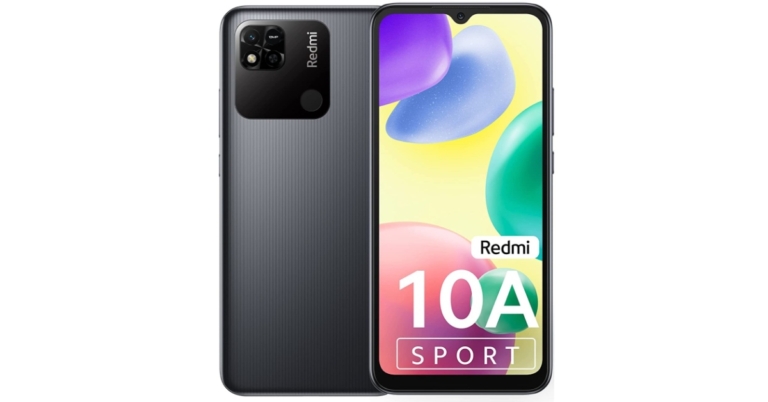
The Redmi 10A Sport was released in India today. The device is an improved version of the Redmi 10A made its debut in India in April of this year and is the successor of the Redmi 9A Sport. The newly launched phone is powered by MediaTek Helio G25 SoC. The device features a single 13-megapixel rear camera.

Redmi 10A Sport price in India and availability

Redmi 10A Sport has been launched in India in a single 6GB RAM with 128GB storage option. The device has been priced at Rs 10,999. Charcoal Black, Sea Blue, and Slate Grey are the available colour choices. Amazon and Mi.com are the two places in the nation where you can buy the Redmi smartphone.

Redmi 10A Sport specifications

Redmi 10A Sport is highlighted with a 6.53-inch HD+ IPS display with a waterdrop-style notch. The screen offers 720×1,600 pixels of resolution and comes with an aspect ratio of 20:9. The budget smartphone runs on MIUI 12.5, an Android-based operating system. The phone has an octa-core MediaTek Helio G25 SoC under the hood, along with up to 6GB of RAM. The Redmi phone has 128GB of built-in storage and can be expanded with a microSD card up to 512MB via a specific slot. A single 13-megapixel rear camera with an f/2.2 aperture and an LED flash is included for both photographs and videos. A 5-megapixel selfie camera sensor with an f/2.2 aperture is available on the front of the Redmi 10A Sport for taking selfies and making video calls. A 10W charger and 5,000mAh battery are included with the handset. Four different types of connectivity are offered: 4G LTE, Wi-Fi 802.11 b/g/n, Bluetooth v5, and GPS/A-GPS. The Micro-USB connector, 3.5mm headphone jack, and fingerprint sensor on the back of this phone are all included. For the latest gadget and tech news, and gadget reviews, follow us on TwitterFacebook and Instagram. For newest tech & gadget videos subscribe to our YouTube Channel. You can also stay up to date using the Gadget Bridge Android App. You can find the latest car and bike news here.

Mid-year: Best TVs seen so far in 2022

Continuing with our Mid-year lists, today we bring you the best TVs seen so far in 2022. We took a close look at the TV releases in all categories this year and picked the best ones across the spectrum. With 2022 still having a lot more to offer when it comes to Smart TVs, we expect a few changes to list as the year goes on. But for now, these are the best TVs we’ve seen so far in 2022. Read Also: Mid-year: Best Camera phones seen so far in 2022 LG C2 OLED Specifications Screen Size: 55 inches Resolution: 4k Dimensions: 112.2 x 4.5 x 70.3 cm Panel Type: OLED Smart TV: webOS 2022 Price: Rs 1,69,990 LG C2 OLED is one of the best TVs we’ve seen so far this year, and we wouldn’t be surprised if it’s the best TV release of the year. LG has made significant improvements on the C1, which includes pairing the C2 with the Alpha A9 Gen 5 processor. This powerful new processor offers better object enhancement and brings the most out of the C2. The C2 comes with a 7.1.2-channel surround sound, with a variety of sound modes to choose from. The C2 carries 4 HDMI 2.1 ports, making it the perfect TV to pair multiple consoles with. The vivid colours, sleek design, and smart connectivity make the LG C2 one of the best TV releases this year.

Samsung QN95B Neo QLED

Samsung QN95B Neo QLED Specifications Screen Size: 55, 65 inches Resolution: 4k Dimensions: 122.8 x 1.7 x 70.7 cm Panel Type: QLED Smart TV: Tizen Price: Rs 2,54,990 The Samsung QN95B may be the best 4k TV Samsung has released so far. Powered by second-generation Neo QLED, the Samsung QN95B delivers one of the best visual performances we’ve seen from a 4k TV so far. The miniLED zone dimming backlight contributes massively to this. The QN95B also comes with a separate One Connect box to plug in all the external cables. This box can be tucked away at the back of the tabletop stand or can be placed on the table itself. The Tizen OS offers a unique experience compared to other Smart TVs, coming with three different TV modes: Media Hub, Ambient Hub, and Gaming Hub. The Media Hub also comes with a universal search bar that can find content across different platforms. 

Sony A80K

Sony A80K Specifications Screen Size: 55, 65, 77 inches Resolution: 4k Dimensions: 144.8 x 5.3 x 83.6 cm Panel Type: OLED Smart TV: AndroidTV Price: Rs 3,49,990 The Sony A80K is one of the smarter-looking TVs on this list. The One Slate gives it a sleek look, and the multi-position stand can be adjusted for different heights. The A80K comes with Google TV for a better app-browsing experience. Visually, the A80K offers 4k upscaling, which is an attractive feature for most buyers. For gamers, the A80K offers two HDMI 2.1 input ports, supporting 4k video with a variable refresh rate of up to 120Hz. The auto latency mode offers smooth and seamless gameplay.

Redmi Smart TV X43

Xiaomi-Redmi-Smart-TV-X43-review Specifications Screen Size: 43 inches Resolution: 4k Dimensions: 96.7 x 21.5 x 61.3 cm Panel Type: LED Smart TV: Android 10 Price: Rs 27,999 Moving on to the mid-premium category, the Redmi SmartTV X43 has been one of the better releases we’ve so far this year. Xiaomi continues to amaze with its range of products, and its Smart TV offerings are no different. For a TV priced at Rs 27,999, the X43 is packed with cutting-edge features. Equipped with a 64-bit quad-core A55 CPU, 2GB RAM, and 16GB of internal storage, the X43 gets the most out of the Android 10 OS. The 60Hz refresh rate works well with the 4k resolution as well. The 4k HDR 10+ driven display could very well be the best in its category. We dive into closer details on our review of the Redmi Smart TV X43 here.

Acer I Series

Acer I Series. best smart tv 2022 Specifications Screen Size: 55 inches Resolution: 4k Dimensions: 123.4 x 9.1 x 71.4 cm Panel Type: LED Smart TV: Android 11 Price: Rs 37,999 Acer’s I Series range starts at Rs 14,999 with a 32-inch Smart TV, but our pick for the best release of 2022 so far has to be the 55-inch model in the Acer I Series. Priced at Rs 37,999, this mid-premium offering from Acer is powered by Android 11 OS and a Mali G31 GPU. The 16 MB internal storage is optimal for running a variety of apps. The 4k display with a 60Hz refresh rate provides a smooth experience while using the Smart TV. Acer I Series also comes with Google Assistant and a built-in Chromecast. The smart remote also has voice control and comes with dedicated hotkeys for Netflix, Prime Video, YouTube, and Disney+Hotstar.

OnePlus Y1S Pro

OnePlus TV 50 Y1S Pro goes on sale in India. best smart tv 2022 Specifications Screen Size: 43 inches Resolution: 4k Dimensions: 106 x 14.1 x 63 cm Panel Type: LED Smart TV: Android 11 Price: Rs 29,999 The OnePlus Y1S Pro is another credible entry in the mid-premium Smart TV category. Launched at Rs 29,999, the Y1S Pro stands out with its bezel-less design, offering a more immersive experience. Another feature that makes the OnePlus Y1S Pro unique is the OnePlus ecosystem, which offers fluid connectivity between multiple OnePlus devices. For example, the OnePlus Y1S Pro can read data from the OnePlus Watch to detect when you’ve gone to sleep, and automatically turn itself off. You can even connect your OnePlus wireless buds with just one press of a button. Apart from OnePlus devices, the general connectivity is also remarkable, with the Y1S Pro being able to pair with 5 devices at a time. Read Also: Mid-year: Best smartphones seen so far in 2022 These were some of the best Smart TVs we’ve seen so far in 2022. Let us know what you think of our picks. If you think we missed out on a release that deserves to be on this list, let us know in the comments! For the latest gadget and tech news, and gadget reviews, follow us on TwitterFacebook and Instagram. For newest tech & gadget videos subscribe to our YouTube Channel. You can also stay up to date using the Gadget Bridge Android App. You can find the latest car and bike news here.