12 July 2021 Amazon Quiz has now gone live. Every day the e-commerce website brings a daily quiz for its customers. The quiz begins from 12 AM to 11:59 PM. Those participating in the quiz can win exciting prizes by answering all the questions correctly. Today all customers across the country can win a Rs 10,000 Amazon Pay balance.
Amazon is back with another new daily quiz. Amazon quiz brings an opportunity for its customers to win daily prizes such as mobile phones, other gadgets including Pay Balance also. If you managed to answer all the questions correctly, you can stand a chance to win HP Omen Gaming Laptop. Check out today’s answers for the Amazon quiz.
12 July 2021 Amazon Quiz Answers
Question 1: Recently, a National Committee was formed to celebrate what in 2022 in the form of Azadi Ka Amrit Mahotsav?
The answer is- 75 years of India’s Independence
Question 2: The immense Chicxulub crater, that may have caused the extinction of Dinosaurs, is located underneath the Yucatan Peninsula in which nation?
The answer is- Mexico
Question 3: In an ODI match at which venue in 2021, did you have 1 pair of brothers representing India and another pair representing England?
The answer is- Pune
Question 4: Which necessary phone peripheral was recently removed from the box of the newest version of this particular mobile phone?
The answer is- Both of the above
Question 5: These animals can eat upto a kilogram of what per day?
The answer is- Eucalyptus leaves
As you all know, using Microsoft words traditionally means an awful amount of typing and using the keyboard. But in the case of people who are not comfortable with a lot of typing, Microsoft has enabled the speech-to-text feature. MS Word has support for voice typing where you can dictate your writing using voice recognition. This feature is very convenient and highly accurate also. Follow the guide below to use voice typing in Microsoft Word.
Conditions for using the Dictate your documents on Microsoft Word:
The prerequisite for using the speech-to-text on MS Word is: you need to make sure you have a working built-in microphone connected to your laptop/PC or an external microphone. Using headphones that have a good quality microphone is also a good option. And also make sure you have a proper functional internet connection.
Read more: Microsoft Word is soon getting predictive text: Everything you need to know
Guide to enable the speech-to-text features:
The following guide is to show how to enable the dictation of your document using Microsoft Word. The function is useful for many situations and for many people. Check out the guide to learn how to enable voice typing and use it in Microsoft Word.
Open the Microsoft Word software on your computer.
Once the MS word is open>Go to Home on the tab above.
From the “Home” tab from the top taskbar between “File” and “insert”>Click on the Home tab.
Now from the drop-down menu on the top of the screen>Go to Dictate with the microphone icon that is on the right side of the screen>Click Dictate.
Once you click the button you will hear a beep>Now the icon will turn into a red icon.
You can now start dictating your speech or words>Recording has started when the icon turns red.
Make sure you pronounce the word clearly and speak slowly and clearly for more accurate dictating.
Use this keyword as you dictate along: dictate punctuation as you record along, say New line so that you can start a new line like pressing the Enter key.
Make sure you have to dictate everything accurately and precisely>After you are done click on the Date button again to finish the process.
You can also use the voice command to complete your dictation or stop the function.
To know some more advanced options>You can still use the keyboard when you are using the Speech-to-text features on MS word.
There are options to make language settings as well: Click on the downward arrow on the Dictate icon>Scroll down and click on the preferred language>There is additional Preview language also.
Using an Android smartphone with a quick-draining battery is a pain. There are many reasons for the battery draining the power quickly. The apps that are running in the background are one of the main reasons to blame. Here are some methods to check which apps are draining your Android smartphone battery.
Re-configure your phone Display settings:
Optimising your app battery usage from the settings might help with the Android battery performance. There are some changes to the display and screen settings. These are some of the settings changes you can make to prevent the battery from draining on your Android smartphone.
Setting changes on Screen display: Settings>Display>Advanced>Screen Timeout>Not more than 30 seconds.
Reducing screen brightness: Settings>Display>Adaptive brightness>Turn it on.
Turning off keyboard sound and vibration: Settings>Click sound>Advanced>Turn it off.
Check for the Apps which are draining more battery:
The biggest reason for the battery juice to drain so fast can be because of all apps running in the background. To the user’s comfort, an Android smartphone allows you to make changes in Apps controls. You can delete the app, limit the app, force stop the app, pause the app. Here are the steps to check which app is drawing the juice more.
Go to the settings from the menu and open it.
Scroll down and click on the Battery settings.
Using the % given find which app uses the most battery.
Now Tap the app which uses the maximum percentage of battery
Uninstall it or Stop the app to use it in the background.
Find the app using a third-party app: AccuBattery App
Using an app from the Google Play Store is another option available to check which apps are draining your Android Smartphone battery. The app is one of the best apps available to control battery usage. The AccuBattery app also lets you know about battery health. Here is the guide on how to use the AccuBattery app.
Find the option App usage access using the three-dot icon on the top right corner.
Click on Grant Permission.
When prompted on the screen Allow the Usage access.
Now on the AccuBattery app homepage, you will find many options indicating the phone app usage of the battery.
Some options: Charging, Discharging, Health.
Using the app: Battery HD app
There is another third-party app you can download to find which app is draining your Android smartphone battery. You can download Battery HD from the Google Play Store. Here are the steps to operate the app.
Download the app from Play Store or use this link.
Install the app>Open Battery HD app on your Android smartphone.
The homepage will show the metrics of the Android battery.
Using a graph the app will indicate the Charging speed, Percentage usage, and temperature of the phone.
Truecaller is a Caller ID app that can now be used for many features. This Caller ID app is emerging as people’s best choice for identifying spam calls. With new features kept updating the app can now be used as more than a Caller ID app. Find out below the tips and tricks to use Truecaller like a Pro.
Enabling Call Alerts:
One of the best features updated by the Truecaller app is to alert calls before even ringing. Though the feature only works with people who have installed the Truecaller app on their phones. So even before dialling your number to give you a ring the Truecaller app will send you a notification of the incoming call contacts and let you decide if you want to pick it up or not. The feature is enabled using data or Wi-Fi to send you the alert faster, as cellular networks are slower than internet networks the alerts can reach faster as notifications.
Read more: Oppo F17 Pro Diwali Edition price revealed, now up for pre-orders
Use Full-screen Caller ID:
There is an option on the Truecaller app where you can use full-screen for all incoming calls on the Truecaller interface. And the incoming calls which will be highlighted in colours to show if it is important or spam. For example, for saved contacts, the incoming calls will be blue, for spam calls it will be red, for priority calls it will be purple, for users who have gold accounts it will appear gold. Here are the steps to enable the feature.
Download the Truecaller app and install it.
Open the app>Go to Settings.
Scroll down on the left panel>Click Caller ID.
From the right panel>Select Full-screen>Set as default.
Now the Full-screen feature will be enabled.
Use the Gold Caller ID or Premium badge:
Using the paid options of Premium and Gold will let you use some advanced options like a Pro. The Premium account will allow you to block ads, also let you see the profile who viewed you, some advanced spam calls blocking etc. And the Gold accounts will give you a gold caller ID in addition to the above-mentioned premium features. And your profile will be in gold colour when you make outgoing calls, it is usually hard to ignore such a gold account on the Truecaller ID app.
Read also: Apple’s iPhone 13 is rumoured to launch soon: Features, launch date, and price
Choose a reason for the outgoing calls:
To make your outgoing calls very important and make sure the one you are dialling will pick up your call, you can add a reason for the call. Once you choose the reason before dialling the calls the call reason will appear on the screen along with Call alerts and Caller ID on the call receiver phone. These are the steps you can do to use the choose a reason feature.
Open the Truecaller app.
Click on the three-horizontal icon on the top left corner.
Go to settings>Select General.
Scroll down and toggle the Choose a reason before calls
Now from the options shown up, you can select a reason before your outgoing calls.
Hide online or Last seen on the app:
For those who like to stay hidden the option is available to off the last seen on the app. Truecaller uses many icon colours to indicate if the profile is online, on a call, or busy. To avoid the feature and stay hidden follow the steps.
Go to settings from the menu options.
Navigate to the Privacy Center.
From the Privacy Center page>Toggle off the Availability.
The e-commerce website Flipkart is hosting Daily Trivia Quiz. Every day it brings a bunch of new questions for its users. By answering them correctly you can win exciting prizes. The questionnaire is based on questions related to general knowledge. Also, the users can win free vouchers and super coins, among other offers via the daily quiz. 10 July 2021 Flipkart Daily Trivia Quiz Answers has already gone live on its platform.
The participant should be at least 18 years old and should have a valid login ID. The Quiz is available on the mobile platform and not the web version. E-commerce conducts the quiz on daily basis and goes live at 12:00 AM IST and runs till 11:59 PM IST. The winners are announced within 15 days from the date of participation that can be viewed under the Gems/Rewards section in the app.
How to participate in the Flipkart Daily Trivia Quiz
To participate download the Flipkart app on your phone. Then open the Flipkart app then head to Game Zone. Now click on the Daily Trivia Banner or search for Daily Trivia. Enter the game and answer all 5 questions with correct answers.
10 July 2021 Flipkart Daily Trivia Quiz Answers
Question 1:Which chess piece can move one square in any direction?
Answer: King
Question 2:In honour of which Greek god was the ancient Olympics held?
Answer: Zeus
Question 3:In which Australian city would you find a cricket stadium named “The G”?
Answer: Melbourne
Question 4: Which IPL team’s coach is the former New Zealand captain Brendon McCullum?
Answer: KKR
Question 5: At 48, who is the oldest player in 2019’s IPL auction list?
Answer: Pravin Tambe
The e-commerce website Amazon is back with another daily quiz on its platform. The e-retailer conducts Amazon quiz sessions every day for its customers. The customers from different parts of the country can win exciting prizes and today’s quiz will let you win Rs 15,000 Pay Balance by answering all the questions correctly.
10 July 2021 Amazon Quiz is live now and the participants can stand a chance to win Rs 15,000 Pay Balance. By participating in the daily quiz the customers can win products such as OnePlus 7T, Apple iPhone x, iPhone Xs, Go Pro Hero 8, Galaxy Watch Active, and many more gadgets as well as Pay Balance. You can play the quiz from 12 AM to 11:59 PM every day and the winner’s names will be announced at the end of every month. Check out 10 July 2021 Amazon Quiz answers.
June 9 Amazon Quiz Answers
Question 1: The Full Moon of May is known as what?
The answer is- Flower Moon
Question 2: At the 2021 PGA Championship, who became the oldest major championship winner in history at the age of 50 years?
The answer is- Phil Mickelson
Question 3: European Space Agency’s Mars rover for the ExoMars programme is named after which famous scientist?
The answer is- Rosalind Franklin
Question 4: Which alcoholic drink is made primarily with this ingredient?
The answer is- Mead
Question 5: Which unit of measurement is used to measure these structures?
The answer is- Pyramid Inch
To FaceTime from an iPhone with an Android phone you need to create a link from the FaceTIme app and send the link using Whatsapp, email, and more. The link received on the Android smartphone can be opened using Google Chrome. And you can join the FaceTime call using Chrome Web. Follow the guide below to use FaceTime on your Android through a link.
How to create a FaceTime link from iPhone:
To use the FaceTime call on the Android mobile you need to receive an invite link from an Apple iPhone, Mac, or iPad user. The FaceTime call link can only be created from the FaceTime app supported on an iPhone. The following steps tell you how to create a FaceTime call link.
Open the FaceTime app (iOS 15).
Click on Create Link from the app homepage.
Select the Info button having an “i” icon.
From the open-up page click on Share Link.
Now from the options pop-up>Choose how to share it.
There are many options on how to send the link using which app: WhatsApp, email, Apple messages, or copy the link to send it from another online platform.
How to join the FaceTime link using an Android smartphone:
Since Facetime calls are supported only on Safari and Google Chrome. You need to use FaceTime using Chrome web on the Android mobile. When you have received the invite link click on the link and open it using Chrome. Follow the guide below to open the FaceTime link and join the video call from an Android smartphone.
Click on the invite link>Enter your name or username>And press Continue.
When the pop-up appears on the screen “facetime.com wants to use your camera”>Press Allow>Select Allow when Allow camera prompt.
From the browser open-up,>Click on the Join>Green Colour icon on the top right corner
Now the video call will be connected as soon as the iPhone user who created the link approve you to join
There is an option to leave when deemed using the Leave button>Red colour on the top of the page.
The Taiwanese electronics giant, Asus, has partnered with Flipkart to launch a new category of Products in India. The company has also launched a dedicated microsite on the e-commerce portal which says the collaboration between both companies is a transformation partnership for radical innovation that is #ThoughtfullySimple. Besides this, the Asus Zenfone 8 Series is also to hit the Indian stores soon. The launch has been confirmed by a teaser web page which has gone live on the company official website in the country.Leon Yu, Regional Director, India and South Asia, ASUS said, “India has the stature of the home market within ASUS and we are deeply committed to the needs of our Indian consumers and the Indian Market. To enable and help millions of our Indian customers to digitally access education, e-commerce, social interaction and work. Flipkart has been our long-term strategic partner to bring path-breaking innovations to the Indian market. We are very happy and strongly believe this collaboration will bring about a radical change in the digital lives of Indians.”As per the latest dedicated microsite which has been created on Flipkart the strategic partnership between Asus and Flipkart will kick off on June 15 at 12 noon. With this collaboration, the company aims to launch a new category of affordable and simple products in India. Both the e-commerce and electronics brands are yet to reveal the details about the launch but the speculations suggest that the company is going to launch a new Chromebook from Asus.
Ajay Veer Yadav, Senior Vice-President, Mobiles, Electronics and Large Appliances at Flipkart said, “As India’s home-grown e-commerce marketplace, Flipkart continues to meet customers’ evolving requirements with its widest selection of products and delivering it in a safe and hygienic manner across the country. In this endeavour, Asus has been a long-standing partner with its best-in-class technology solutions and I’m excited to take this partnership ahead with the upcoming launch of a new range of its offerings aimed at simplifying digital access for millions of Indians and I expect it to become a customer favourite.”Besides this Asus has also begun teasing the Asus 8Z series aka Zenfone 8 in India. The latest teaser page conforms to the India launch which has gone live on Asus India official website. To recall, the flagship smartphone series was introduced globally in May this year. Due to a surge in COVID-19 cases in India, Asus Zenfone 8 Series launch was deferred. However, the company still went ahead with the global launch.The company’s head in India Dinesh Sharma also took to Twitter to make an announcement, “To all Fans asking me about our new smartphone’s India launch – the answer is yes. The team is relentlessly working towards the same and we will announce the launch date soon. Deeply appreciate your enthusiasm. Watch this space for more infohttps://asus.in/new-phone”As of now, the company has not yet revealed any launch date but the launch is expected to happen later this month or in the first week of August. The Asus Zenfone 8 Flip was launched at €799 for the 8GB RAM with 256GB of storage that translates to Rs 70,648. Whereas the price of the Asus Zenfone 8 6GB RAM with 128GB storage is set at €599 that translates to Rs 52,966, 8RAM with 128GB storage at €669 (approx Rs 59,159) and 8RAM with 256GB storage at €729 (approx Rs 64,461). Lastly, the 16GB RAM with 256GB storage will be available with a price tag of €799 that translates to around Rs 70,648. Earlier the device was spotted through a Google Play supported devices listing. As per the listing, both Zenfone 8 Indian variants with model code I006D have been codenamed as “ASUS 8Z”. Whereas ZenFone 8 Flip has been listed as its original name but the device is most likely to come with an ASUS 8Z Flip branding in India.Speaking of the specifications, the Asus Zenfone 8 Flip features a 6.67-inch Samsung AMOLED display with 1,080×2,400 pixels of resolution, 90Hz refresh rate support and Corning Gorilla Glass 6 protection. The device ships ZenUI 8 on top of Android 11 and is powered by a Qualcomm Snapdragon 888 processor paired with 8GB of LPDDR5 RAM and 256GB of UFS 3.1. Moreover, the device packs a 5,000mAh battery supported by 30W fast charging tech. Also Read:Asus ZenFone 8 and ZenFone 8 Flip to be renamed as Asus 8Z and Asus 8Z Flip ahead of the India launch
The smartphone is highlighted with a triple camera with a flip mechanism that includes a 64-megapixel Sony IMX686 primary sensor with an f/1.8 aperture. In addition to this, there is a 12-megapixel ultra-wide-angle lens with f/2.2 aperture and an 8-megapixel telephoto lens with 3x optical zoom and OmniVision sensor. The camera module is protected by Gorilla Glass 3.
Asus Zenfone 8 features a 5.9 inch AMOLED display, a 120Hz refresh rate and HDR10+ support. There is a Qualcomm Snapdragon 888 SoC under its hood with up to 16GB of LPDDR5 RAM and 256GB of UFS 3.1 storage. The phone supports 30W HyperCharge with a 4,000mAh battery.This handset has a fixed dual camera set up that includes a 64-megapixel Sony IMX686 primary sensor with an f/1.8 aperture and a 12-megapixel Sony IMX363 ultra-wide-angle camera with Dual PDAF that also supports 4cm macro photography. Upfront there is a 12-megapixel selfie camera.
For the latest gadget and tech news, and gadget reviews, follow us on Twitter, Facebook and Instagram. For newest tech & gadget videos subscribe to our YouTube Channel. You can also stay up to date using the Gadget Bridge Android App.
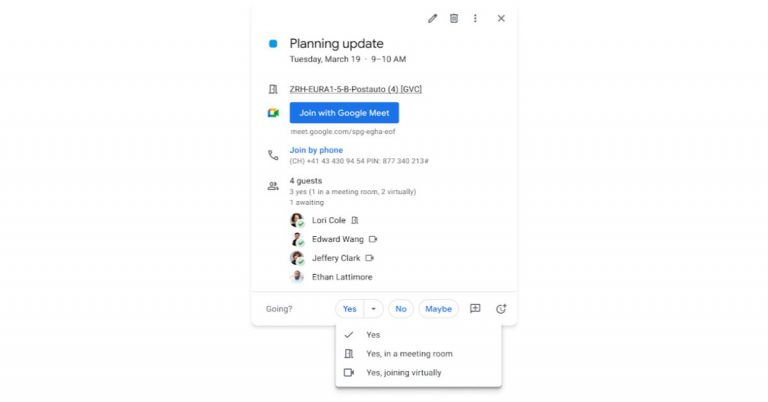
Google is rolling out a new update for Google Calendar to bring new features, considering the work from the home situation due to the COVID pandemic. The product is getting a new RSVP menu to make Google Calendar more flexible in the hybrid workplace model. With the introduction of new RSVP options for Calendar invitations, the users will be able to indicate how they plan to join a meeting – in the meeting room, or virtually. As per the official blog post, the new Google Calendar update will bring an RSVP option to allow users to join a meeting virtually or in person. This feature is accessible alongside the option of whether the recipient will be attending a meeting in person. As explained by the company both the organizer and guests will be able to see how attendees are planning to attend the meeting in the event detail. Therefore helping the meeting attendees know what to expect when joining a meeting, and prepare accordingly. It should also be noted that when the user chooses the new RSVP options, the join method details (e.g. “joining virtually”) are not shared with contacts on other platforms, such as Microsoft Outlook. Right now the RSVP menu options will be accessible only for Google Calendar and the company is planning to extend this calendar invitations feature to Gmail soon. The new feature can be seen under the Yes option. From there you can select from three options- Yes, Yes in a meeting room and Yes, joining virtually. The gradual rollout for the rapid release domains has already begun and the scheduled release domain gradual rollout will begin from July 22. Besides this Google has also released several new features giving more ways to work with, display, and organize BigQuery data using Connected Sheets. This will include hourly refreshes, specific start dates and frequency options every five days, every two months, etc. According to the company, these additional options will make it easier to automate data refreshing at a specified frequency with more granular scheduling options, giving you more flexibility when working with your data.
For the latest gadget and tech news, and gadget reviews, follow us on Twitter, Facebook and Instagram. For newest tech & gadget videos subscribe to our YouTube Channel. You can also stay up to date using the Gadget Bridge Android App.
Saving your files on your smartphones is performed by the built-in tools on your mobile. So if the name of the file is messy and it is such a pain to find the recently saved files. The files you have saved are in numbers or are in computer format generated by the tools. This creates such discomfort in searching for your files. Here is how you can batch rename files on your Android mobile to make the search easier.
Batch multiple files using ES files explorer app:
ES files explorer is a great software that lets you rename your files in bulk. It is one of the best free batch renamer apps available that you can download. Follow the steps below to batch rename files on your Android mobile.
Download and install the app from Google Play Store: Link
Find the location you want to rename the files on your Android smartphones.
Now long-press the files and folders until you see a green tick icon>Do the same and tick all files you want to batch.
Next, find the rename button on the top bar and click on it.
Wait for a pop-up showing Batch rename>Configure the options given on the page.
From the rename the files with a number or a name.
The next option to batch rename files on your Android mobile is by using the Bulk Rename Wizard app. This app has more customisation and it is a free renaming tool designed for Android mobile. You can rename multiple files and folders easily and faster with this minimal operations app. Follow the guide below to batch your rename files.