Working from home has become the new normal for the past year. We have seen a surge in the setting up of a home office as the old normal is not going to be back soon and we have to accept the current situation. With the increase in video conferencing, one also needs to have a pair of good headphones for better communication. The market is filled with such devices offering both wired or wireless headphones that suit you the best at the comfort of your home. So we have compiled a list for you of the best headphones with microphones in India. We have brought you the options that are easy on your pocket to read on to find out our top picks.boAt Bassheads 900 On-Ear Wired Headphones
boAt Bassheads 900 On-Ear Wired Headphones
boAt Bassheads 900 comes with a PVC cable that is said to be durable and tangle-free. The headset comes with a corrosion-resistant 3.5mm audio jack. There is an in-line microphone and the headphones can be folded to be easily carried in a bag or storage. In India, this product will be available with a price tag of Rs 699 and will be available via Amazon.Mi Super Bass On-Ear Wireless Headphones with Mic
Mi Super Bass On-Ear Wireless Headphones with Mic
These on-ear wireless headphones by Xiaomi come with a price tag of Rs 1,789. It includes a 40mm dynamic driver and comes with voice control to pick your genre of music or even to pick important calls. The audio device can be used both wired or wirelessly. The headphones deliver 20 hours of battery life and take 2 hours to get completely charged. You can purchase them from Amazon.in.Logitech H111 Wired Headset with Noise-Cancelling Microphone
Logitech H111 Wired Headset with Noise-Cancelling Microphone
As the name suggests Logitech H111 is wired headphones available in India with a price tag of Rs 899. The device can be purchased via Amazon is one of the low-cost headphones with a microphone available in India. It features an adjustable headband. It comes with a 180 degrees rotating microphone that is to be worn on the left or right and can be easily removed when not in use. It has a background noise reduction and is compatible with computers, smartphones and tablets. There is a 3.5mm jack for connectivity.
Cosmic Byte Blazar Headphones with Flexible Mic
These headphones with a microphone by Cosmic Byte are also a gaming headset that can be used for both playing games and listening to music. There is a Soft cushion head-pad and ear-pad with adjustable hinges. It comes with a flexible microphone for exact positioning. It has a 3.5mm Jack for sound and mic. The headset is available for purchase via Amazon with a price tag of Rs 759.Infinity Glide 510 by Harman
Infinity Glide 510 by Harman
Last but not least Infinity Glide 510 are wireless on-ear headphones with a microphone. It offers 72 hours of battery life and comes integrated with a 36mm Driver. With just 10 minutes of charging, it offers 2 hours of playtime. In addition to this, there is hands-free calling with 3 Button Remote. The audio device is available for purchase via Amazon at Rs 1,699.
For the latest gadget and tech news, and gadget reviews, follow us on Twitter, Facebook and Instagram. For newest tech & gadget videos subscribe to our YouTube Channel. You can also stay up to date using the Gadget Bridge Android App.
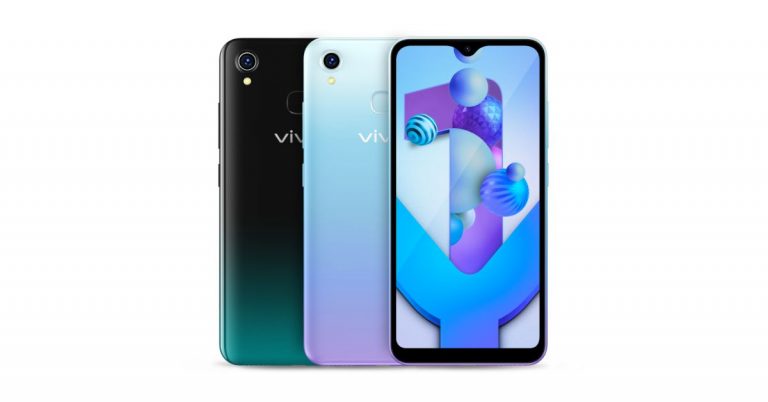
Vivo’s entry-level smartphone Vivo Y1s was launched in India last year. Then the device was introduced in a single 2GB RAM option. Today the Chinese smartphone company announced the introduction of a 3GB RAM variant in the country. The rest of the specs of the smartphone includes a single rear camera set up and a 4,030mAh battery. The phone is powered by MediaTek Helio P35 SoC and ships Android 10 software out of the box.Vivo Y1s 3GB RAM with 32Gb storage price and availabilityVivo Y1s is now available in a new 3GB RAM with a 32GB storage option. The new configuration will be available with a price tag of Rs 9,490. The device will be offered in two colour options of Aurora Blue and Olive Black on Vivo India E-store, Amazon, Flipkart, Paytm, Tatacliq, Bajaj EMI Store and across all partner retail stores.To recall, Vivo Y1s was launched in India last year in 2GB RAM with 32GB storage with a price tag of Rs 7,990. Vivo Y1s 3GB RAM with 32GB storage specificationsVivo Y1s features a 6.22-inch HD+ LCD with 720×1,520 pixels of resolution and an 88.6 percent screen-to-body ratio. The device runs on FunTouch OS 10.5 based on Android 10. Under the hood, there will be a MediaTek Helio P35 MT6765 SoC paired with 3GB RAM with 32GB storage. The internal storage can be expanded up to 256GB using a microSD card.For the photos and videos, Vivo Y1s comes with a single 13-megapixel rear camera with an f/2.2 aperture. Upfront there is a 5-megapixel selfie camera with an f/1.8 aperture. The Vivo Y1s supports bokeh mode and includes a dedicated beauty feature that offers tailored solutions for more refined skin tones and textures in both daylight and night. Vivo Y1s is backed by a 4,030mAh battery and it further includes 2.4G Wi-Fi, Bluetooth v5, Micro USB port, GPS, USB OTG, FM Radio, 3.5mm audio jack, and more as connectivity options. Whereas the sensors onboard include an accelerometer, ambient light sensor, proximity sensor, e-compass, and virtual gyroscope. In addition to this, the smartphone also has a Dark Mode that switches during the night.
For the latest gadget and tech news, and gadget reviews, follow us on Twitter, Facebook and Instagram. For newest tech & gadget videos subscribe to our YouTube Channel. You can also stay up to date using the Gadget Bridge Android App.
The digital thermometer has made work easier and saves time. Instead of waiting for minutes to get the result like the previous mercury thermometer. Now the digital thermometer scanner can give you instant results. Using the device correctly will give you better readings. Check our guide to correctly use the digital thermometer scanner.
Scan at the forehead
The first correct step to use a digital thermometer scanner is to aim at the forehead properly. If it is not positioned accurately at the forehead it will not give you the right reading. The digital scanner can be used on adults, children, and infants. The digital thermometer scanner is measured with an infrared sensor to check the body temperature. So placing it at the right place on your forehead will give better readings and accuracy.
Use it from a distance
The digital thermometer should be used from a distance for an accurate reading. To get the best result the scanner should aim at the forehead from a minimum distance of 1-2 inches. The device also should not be used near electromagnetic fields such as mobile phones and radios. Avoid dropping the device on the ground to yield the best result.
Read more: Try these easy fixes if your laptop’s camera is not working
Making sure the digital thermometer scanner is clean and dry
The infrared sensor is easily affected by moisture and dirt. So making sure the digital thermometer is clean and dry is another way to get accurate results. To clean the device you can use a thin cloth or cotton with very little water. You can also use medical alcohol to clean the scanner. Wipe the lens first and the body of the thermometer carefully. And make sure before using, the device is dry and clean.
Read also: Amazon Halo band and companion app introduced for tech freaks
Using the right functional settings
For optimal readings, you should select the right functional settings. First, check for the temperature unit switch, the button that has the sign °C/F°. Press on it and make sure you have on the switch adjusting your temperature unit. The next step is to press the button on which “Mode”/ “Body”/“Object” is written. Choose these settings to get the best and accurate reading on your digital thermometer scan. The different devices have a different setting name, but these are settings you need to adjust. The temperature unit button and the object reading button need to be put on to the right settings.
There should not be any obstructions between body and thermometer/use it on another body part
The digital thermometer is to be used on the optimal body parts. The first step suggested using on the forehead for effectiveness. The device is not effective on the forehead for various reasons. For example, wearing a hat for a long time will not give better results. And also the forehead is exposed to the outside temperature and is easily affected by the outside temperature. For such conditions, it is advised to scan on the wrist or the armpit for optimal reading on your device. Also make sure there are no obstructions between the scanner and the body like clothing, jewelry, etc.
For the latest gadget and tech news, and gadget reviews, follow us on Twitter, Facebook and Instagram. For newest tech & gadget videos subscribe to our YouTube Channel. You can also stay up to date using the Gadget Bridge Android App.
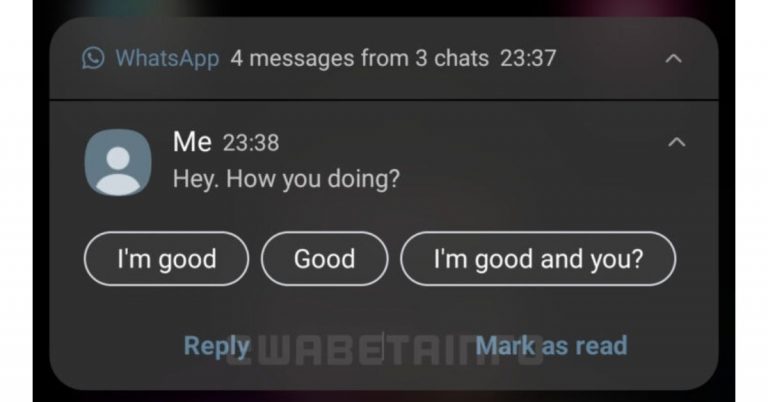
According to a report, WhatsApp has been testing green colour notifications for its Android beta app. Earlier the instant messaging app was testing blue colour for its notifications on Android which is said to be restored to green colour after getting feedback from the users. This change came with the 2.21.12.12 beta update where the company started with a dark blue colour and ultimately had to restore the original colour scheme for the notifications. A report by WABetaInfo stated that a new dark blue colour in notifications arrived in the 2.21.12.12 beta update, but WhatsApp but the company has to restore the colour. With the update, the company is said to bring few changes to UI and colours in the previous updates. They started removing theline separators in the list of your chats, and they changed the tint colour in push notifications, choosing a dark blue colour.However, WhatsApp is said to have restored the old green colour after users complained that the new colour wasn’t correctly visible in the notification, due to its contrast. Listening to the feedback WhatsApp has reverted the changes.Recently the instant messaging app owned by Facebook was also spotted working on a feature called Flash Call that helps users to log into WhatsApp quickly. It is an automatic verification method over call to quickly get verified to log into WhatsApp that arrived in the WhatsApp beta for the Android 2.21.11.7 update. As per the report, WhatsApp’s flash feature will call your phone number and then automatically end the call, verifying the last phone number in your phone’s log is equal to the number that gives you the 6-digit code. This automatic verification method is a safe method of login as all mobile numbers are different and one cannot trick. However, this feature will be optional and the users can choose to go for the old mentioned method of logging intoWhatsApp confirming the 6-digit code received via SMS or call. As far as privacy is concerned the messaging app is said to never use the user’s call history for any other purposes. However, it will just compare the last entry from your call history with the phone number that’s supposed to call you.
For the latest gadget and tech news, and gadget reviews, follow us on Twitter, Facebook and Instagram. For newest tech & gadget videos subscribe to our YouTube Channel. You can also stay up to date using the Gadget Bridge Android App.
Creating a google account gives you access to most Google products. Google Ads, Gmail, and YouTube can be logged in easily from your Google account. But when you sign in from multiple devices, your account opened on all those devices might not be safe. You can log out from all those devices at once easily. Follow the steps to know how to.
From laptop or computers
For many reasons, you might sign your Google account to multiple devices. For example, for work, you need to sign in to your Google account on your work devices. And again your Google account might be logged in from your personal laptops or computers. Signing in multiple devices will run the risk for safety and online security. The process to sign out of all devices at once does not take long. You can log out of your Google accounts from the web with these steps. Follow below:
First, open a Web browser
Open your Gmail account
Scroll to “Details”: On the bottom right corner
It will open up a page “Activity on this account”
Click on Security Check-up
On the Security Check-up: There bunch of options
Click on Your device: You will see all the sign-in devices
Now using the vertice three-dot icon: log out from unwanted devices
If the devices are stolen or lost. It runs the risk of hacking by unknown sources. To avoid your information being accessed by an unknown person. It is better to log out of your google account from devices you do not use. Here are the steps that you can do to log out all the devices that your Google accounts are signed in.
You might lose your phone or need to change to a new phone. Using your previous Google account to your new phone is required. And when you have logged in to your Google account from your new phone it is safer to log out from all of the other previous devices. You can log out from multiple devices easily by following these steps.
Go to your phone “Setting”
Scroll down to “Accounts”
On the Accounts page: Tap on google
Now you will see all the devices log in to your Google account
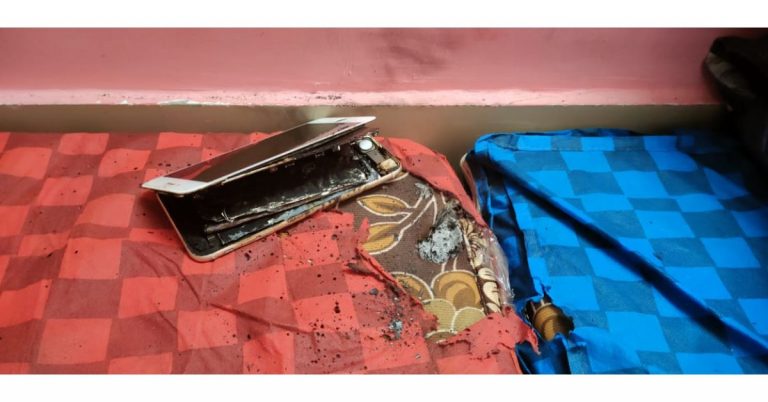
In a rare accident, an Apple iPhone 6S Plus caught fire. However, the phone was not kept on charge when it caught fire. Fortunately, the device was not in the pocket, however, it was kept on the mattress while the owner of the phone was asleep. The iPhone 6S is owned by a man who is from India.Mr Chaudhary from India is a user of the Apple iPhone 6S Plus which caught fire randomly in the middle of the night when he and his family members were asleep. However, the user was able to douse the fire so the situation was under control before the handset went up in flames.
The user took to Twitter to report this scary incident to the company and its head Tim Cook and called for support. As per the tweet sent to the company and its chief, the Apple iPhone 6S Plus caught the fire at midnight. His tweet reads, “@tim_cook My iPhone 6s plus Catch the Fire at Midnight But thank Fully it’s not Burnt in my Pocket. I Request to apply Brand Pls Do something!”
Other than this the user has also made a video and uploaded it to YouTube in which he has shown the burnt iPhone 6S. As we said before the owner was asleep when the iPhone burnt. Due to this the bedsheet, as well as the mattress, had also caught fire which was thankfully beaten out resulting in no serious injury. Till now the company has not commented on the incident.This is not the first time such an incident happened. A similar incident was experienced when an iPhone 6 owned by an 11-year-old girl who is from California, USA suddenly caught fire and burned holes in her blanket. The girl used to watchYouTube videos and occasionally lets her younger siblings play games on it.Another shocking incident took place when a user named Hillard saw smoke coming from his iPhone XS Max and also suddenly started feeling a “large amount of heat” clubbed with a burning sensation on his skin. He reportedly rushed and took off his pants where he had placed his iPhone XS Max and a fire extinguisher had to be used to put out the flames of the burningsmartphone.
For the latest gadget and tech news, and gadget reviews, follow us on Twitter, Facebook and Instagram. For newest tech & gadget videos subscribe to our YouTube Channel. You can also stay up to date using the Gadget Bridge Android App.
The e-commerce website Flipkart is hosting Daily Trivia Quiz. Every day it brings a bunch of new questions for its users. By answering them correctly you can win exciting prizes. The questionnaire is based on questions related to general knowledge. Also, the users can win free vouchers and super coins, among other offers via the daily quiz. June 15 Flipkart Daily Trivia Quiz Answers has already gone live on its platform.
The participant should be at least 18 years old and should have a valid login ID. The Quiz is available on the mobile platform and not the web version. E-commerce conducts the quiz on daily basis and goes live at 12:00 AM IST and runs till 11:59 PM IST. The winners are announced within 15 days from the date of participation that can be viewed under the Gems/Rewards section in the app.
How to participate in the Flipkart Daily Trivia Quiz
To participate download the Flipkart app on your phone. Then open the Flipkart app then head to Game Zone. Now click on the Daily Trivia Banner or search for Daily Trivia. Enter the game and answer all 5 questions with correct answers.
June 15 Flipkart Daily Trivia Quiz Answers
Question 1: Which Aamir Khan starring film was also produced by him?
Answer: Lagaan
Question 2: The movie ‘Shadow of the Cobra’ is based on which man’s life?
Answer: Charles Sobhraj
Question 3: In which of these movies do aliens come to earth?
Answer: Independence Day
Question 4: Who was Sanjay Dutt’s co-star in his debut film Rocky?
Answer: Tina Munim
Question 5: Which is the first Bollywood film to premiere at Leicester Square?
Answer: Life In A… Metro
Every day Amazon India brings a daily quiz for its customers to win exciting new prizes every day on its platform. The Amazon Quiz can be played daily from 12 AM to 11:59 PM. Today you can win a Rs 30,000 Amazon Pay Balance if you managed to answer all the questions correctly. Daily a new set of questions is presented in front of the participants that gives millions of people across the country to win exciting prizes.
The Amazon Quiz has gone live on its mobile platform. The participants have to answer 5 questions that are based on general knowledge and current affairs. After clearing the daily quiz their name will be shortlisted for a lucky draw to select a winner. Amazon announces the results of the lucky draw at the end of the month. So today’s Quiz will let you win a Rs 30,000 Amazon Pay Balance.
June 15 Amazon Quiz Answers
Question 1: In the final of which of these ATP Masters 1000 series tournaments in 2021 did Rafael Nadal beat Novak Djokovic?
The answer is- Italian Open
Question 2: In which country would you find the hot and dry deserts called Gibson, Simpson and Tanami?
The answer is- Australia
Question 3: Which popular series of books on dragons is authored by Tui T. Sutherland?
The answer is- Wings of Fire
Question 4: According to legend, on the order of King Arthur people like these spent their lives searching for which precious treasure?
The answer is- Holy Grail
Question 5: What do the ear flaps in this animal help it do?
The answer is- Stay cool
For the latest gadget and tech news, and gadget reviews, follow us on Twitter, Facebook and Instagram. For newest tech & gadget videos subscribe to our YouTube Channel. You can also stay up to date using the Gadget Bridge Android App.
Changing from one mobile service provider to another can be useful from time to time. You need the right service provider, which gives you the best network connectivity and internet services. There are some ways you can port your mobile in easy steps. Read the steps given below. And port a mobile number today.
Through SMS service
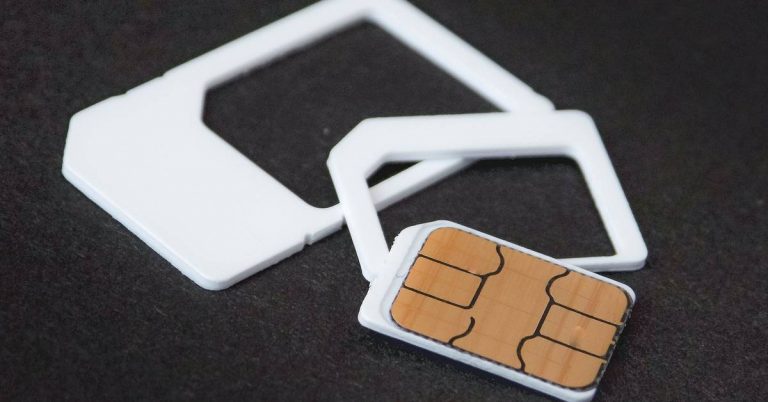
The process to port your number has become easier than before. MNP (Mobile Number Portability) retains your number and chooses your desired service provider. You do not have to get stuck with the same service provider just to retain your number. You can start porting a mobile number easily by SMS. To port a mobile number you need to make sure the existing connection is active for 90 days. And all the bills are paid. The requirement is only these two. Start porting your mobile number with the steps below.
Decide which service provider you want to port to
Send text: PORT space Mobile number to 1900
You will receive an SMS accepting the request
Go to the nearest operator store
Show them the request SMS: give details, take your ID cards
Charges are 19 Rupees
Now the process will take only 7 days: or it may take up to 15 days
Insert the new: with the same number
Subscriber can withdraw the porting request in 24 hours
On apps and websites of the service provider: Online
You can now port/order your SIM online and get it at your doorstep. The steps are as simple and easy as above. The mobile number you like to port should be active for 90 days. All bills should be cleared. You can visit the website or download the app of the service provider. Here are the simple steps to port your mobile number.
Open the app or visit the website of the service provider
Find the MNP option and click
Two option: New sim and Keep the existing number
Select keep existing number: to retain your number but change the service provider
Enter details: Pincode, Contact number, address
Generate OTP from the number you entered
Enter OTP
Select the Plan of the service provider you want to switch to
Your request has been recorded
Choose delivery at doorstep or store pick up
Any time the representative you call and deliver you the new with the same number
Or you can pick up the store according to convenience
Storing all your WhatsApp chats and files online is important. It will help backup all your data without the fear of losing it. But restoring it can get complicated for users. By following a few simple steps given below you will be able to restore the WhatsApp backup successfully.
Using Google drive backup
If you are changing to a new phone and restoring all your backup, all it takes is an easy few steps. You need to use your Google Drive account and you can easily restore the backup. The steps below will show you how. Most important note, you will need the same phone number and the same Google account to restore. Using google drive to restore backup works even when you want to uninstall and reinstall the WhatsApp app on the same phone. Let us get started with the steps. (But make sure you have taken a backup from the previous smartphone onto your Google Drive)
Install the Whatsapp (Changing the phone) or reinstall the app (Same phone)
Open Whatsapp
Verify your number
Restore Backup page in settings (or will show on the screen as a check box): Hit restore
The restoration process will start
After completion press next
All media will automatically be restored via Google drive:
To restore your files from local backup. First, you need to save all the WhatsApp media files to your new phone via a computer, or SD card. After you have completed transferring all files to your new mobile. You will be able to restore all media files and chat from your previous WhatsApp account. Your phone will be able to restore backup files from the last seven days. Follow the steps to know how to backup from local backup.
First, you need to save all the media files on your new phone
Use a File manager to access the media files
Locate the saved backed files> WhatsApp files
Make sure the Media files had been transferred to your new phone
Install WhatsApp now
Enter your phone number associated with the WhatsApp account and verify
Select restore on the screen
The app will now load and search for the local backup file saved on your new phone
In a minute you will be able to restore all your backup