

In This Article
Nokia C21 Plus review: Design and Display
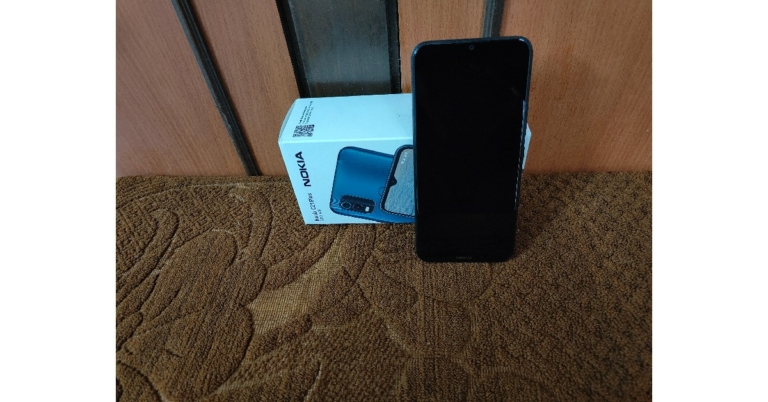
 Right off the bat, the Nokia C21 Plus is not a small phone by any means. With dimensions of 164.8 x 75.9 x 8.6 mm and a screen size of 6.52–inches, it certainly makes its presence felt. It weighs 191g, which is slightly on the heavier side, but you will eventually get used to it and it won’t be a big issue. The C21 Plus has an aluminium frame and a textured plastic back. The textured back panel provides a bit of a grip while holding the phone, but it may be a deal-breaker for those who were looking for a more ‘premium’ feel.
The 13MP + 2MP dual camera unit is placed in a rectangular section on the top-right part of the back panel and actually goes quite well along with it. The fingerprint sensor is placed right below the camera unit, at the centre of the panel.
Right off the bat, the Nokia C21 Plus is not a small phone by any means. With dimensions of 164.8 x 75.9 x 8.6 mm and a screen size of 6.52–inches, it certainly makes its presence felt. It weighs 191g, which is slightly on the heavier side, but you will eventually get used to it and it won’t be a big issue. The C21 Plus has an aluminium frame and a textured plastic back. The textured back panel provides a bit of a grip while holding the phone, but it may be a deal-breaker for those who were looking for a more ‘premium’ feel.
The 13MP + 2MP dual camera unit is placed in a rectangular section on the top-right part of the back panel and actually goes quite well along with it. The fingerprint sensor is placed right below the camera unit, at the centre of the panel.
 The micro USB charging port placed at the bottom of the phone is a bit of a letdown, given that Nokia’s competition in the segment has already upgraded to Type-C charging. For some buyers, these little things may amount to swaying their decision. The headphone jack is placed at the top left part of the phone, which is a good thing.
The SIM and memory card tray is placed along the left side of the phone, while the volume rocker and lock key find their way on the right.
The speaker has been housed in the back panel and is something that many buyers will not like. It is quite common for the sound to get muffled when you’re holding the phone and the speaker gets pressed/hidden against your palm or fingers.
Moving on to the positives, the IPS LCD display with 720×1,600p resolution provides a pleasing viewing experience. For those looking to upgrade to a smartphone primarily to watch video content, the C21 Plus would be a good choice. We streamed HD content on YouTube, Netflix, and Hotstar, which the C21 Plus handled with ease and provided good quality images throughout. The speaker, when not pressed against any surface, also provides a decent sound to go along with the video content.
The micro USB charging port placed at the bottom of the phone is a bit of a letdown, given that Nokia’s competition in the segment has already upgraded to Type-C charging. For some buyers, these little things may amount to swaying their decision. The headphone jack is placed at the top left part of the phone, which is a good thing.
The SIM and memory card tray is placed along the left side of the phone, while the volume rocker and lock key find their way on the right.
The speaker has been housed in the back panel and is something that many buyers will not like. It is quite common for the sound to get muffled when you’re holding the phone and the speaker gets pressed/hidden against your palm or fingers.
Moving on to the positives, the IPS LCD display with 720×1,600p resolution provides a pleasing viewing experience. For those looking to upgrade to a smartphone primarily to watch video content, the C21 Plus would be a good choice. We streamed HD content on YouTube, Netflix, and Hotstar, which the C21 Plus handled with ease and provided good quality images throughout. The speaker, when not pressed against any surface, also provides a decent sound to go along with the video content.
 The touchscreen is a bit prone to smudges while using the phone. We found ourselves wiping the fingerprints from the screen quite often, so our suggestion is to keep a micro-fibre cloth handy. When it comes to touch receptivity, the experience while scrolling wasn’t as smooth as we would have liked, but that is to be expected with most budget smartphones these days. A higher refresh rate would have been ideal, but we realise its too much to ask of a smartphone in this category. The screen brightness was not an issue at all, as the screen adapted well to bright outdoor conditions.
Nokia C21 Plus review: Performance and Cameras
The Nokia C21 Plus is powered by the Unisoc SC9863A chipset, which delivers a satisfactory performance. We didn’t experience any lag or a decline in speed even while using multiple apps or streaming HD content. For our review, we used the 4GB RAM + 64GB memory model, and it showcased fast boot time, smooth app switching, and decent speeds even while performing background tasks. The fingerprint sensor and face unlock work surprisingly fast, something we didn’t expect from a smartphone in this price segment. We also put the C21 Plus through the gaming test, and while it handled games like Candy Crush, Subway Surfers, and Clash Royale with ease, it struggled with first-person shooter games that demand a higher spec GPU and CPU. On the test bench, it scored 127 on the Single-core score and 476 on the Multi-core score during the Geekbench 5 test. Nokia claims a 3-day battery backup for the C21 Plus. However, under rigorous use of about 5-6 hours of screentime a day, the C21 Plus lasted almost a day and a half. While this is lower than what Nokia claims, it is still pretty good given the performance that the smartphone delivers. However, the USB micro-B charging port isn’t ideal for fast charging, and it took the C21 Plus several hours to fully charge. Even though the battery may last for more than a day, you will still want to put it on charge every night given how long it takes to charge.
Coming to the software, the C21 Plus runs on Android 11 Go Edition, which is specially designed by Google for smartphones in this category. The pre-loaded Google apps come with the ‘Go’ branding, and they’re lighter versions of the original apps designed to run smoothly on budget smartphones and also take up less storage. The software is identical to Android 11 for the most part, except for a few changes like fewer options in the notification slider. The security features have not been watered down. Nokia has also promised 2 years of quarterly security updates with C21 Plus.
Even though the Android 11 Go Edition is minimal and clean, the C21 Plus comes with bloatware apps like LinkedIn, Facebook Lite, Moj, Solitaire and more. These apps can be deleted right away and you can free up some much-needed storage space.
Moving to the cameras, the rear camera unit consists of a 13MP primary lens and a 5MP depth lens and an LED flash. The 5MP selfie camera at the front is notched at the centre of the screen, and quite surprisingly, comes with an LED flash as well. The front and rear cameras can both record 1080p videos at 30 frames per second.
Nokia claims a 3-day battery backup for the C21 Plus. However, under rigorous use of about 5-6 hours of screentime a day, the C21 Plus lasted almost a day and a half. While this is lower than what Nokia claims, it is still pretty good given the performance that the smartphone delivers. However, the USB micro-B charging port isn’t ideal for fast charging, and it took the C21 Plus several hours to fully charge. Even though the battery may last for more than a day, you will still want to put it on charge every night given how long it takes to charge.
Coming to the software, the C21 Plus runs on Android 11 Go Edition, which is specially designed by Google for smartphones in this category. The pre-loaded Google apps come with the ‘Go’ branding, and they’re lighter versions of the original apps designed to run smoothly on budget smartphones and also take up less storage. The software is identical to Android 11 for the most part, except for a few changes like fewer options in the notification slider. The security features have not been watered down. Nokia has also promised 2 years of quarterly security updates with C21 Plus.
Even though the Android 11 Go Edition is minimal and clean, the C21 Plus comes with bloatware apps like LinkedIn, Facebook Lite, Moj, Solitaire and more. These apps can be deleted right away and you can free up some much-needed storage space.
Moving to the cameras, the rear camera unit consists of a 13MP primary lens and a 5MP depth lens and an LED flash. The 5MP selfie camera at the front is notched at the centre of the screen, and quite surprisingly, comes with an LED flash as well. The front and rear cameras can both record 1080p videos at 30 frames per second.


Verdict
Pros
- Battery Life
- Display
- Performance
Cons
- Speaker placement
- Lacking Type-C charging
For the latest gadget and tech news, and gadget reviews, follow us on Twitter, Facebook and Instagram. For newest tech & gadget videos subscribe to our YouTube Channel. You can also stay up to date using the Gadget Bridge Android App. You can find the latest car and bike news here.


























 Step 8: From the Settings app, simply disable Auto Restore and Saving backups.
Step 9: Do a hard reset on your phone. After that, you will be able to access your Samsung phone.
Step 8: From the Settings app, simply disable Auto Restore and Saving backups.
Step 9: Do a hard reset on your phone. After that, you will be able to access your Samsung phone.
 Step 5: Then from the Help Page, tap on ‘Using Google Keyboard’
Step 6: Long press the texts to select it. And then tap the ‘Web Search’ option. Then search for ‘Settings’.
Step 7: From the Settings app, go to your phone’s About section.
Step 8: Tap on the Build Number seven times to unlock developer mode.
Step 9: Finally, from the Developer options, just turn on OEM unlocking and press the back button twice. Now, you can restart your phone and set it up as a new device.
Step 5: Then from the Help Page, tap on ‘Using Google Keyboard’
Step 6: Long press the texts to select it. And then tap the ‘Web Search’ option. Then search for ‘Settings’.
Step 7: From the Settings app, go to your phone’s About section.
Step 8: Tap on the Build Number seven times to unlock developer mode.
Step 9: Finally, from the Developer options, just turn on OEM unlocking and press the back button twice. Now, you can restart your phone and set it up as a new device.


 Step 3:
 Step 4:


 Step 2:
  Step 3:
 Step 3:

 Step 3:
 Step 4:
 Step 5:
 Step 6:

 Step 4:
 Step 5: