One of the biggest link aggregator websites in the world, Reddit, recently started hosting videos on its platform not too long ago. While the transition has worked favourably for the website, with a large chunk of the front page filled with video content, some users often report not being able to hear the sound on videos when they click on the post. In this article, we bring you the best ways to fix the ‘sound not working on Reddit videos’ issue in the Reddit app and website.Read Also: How to easily Translate WhatsApp Messages on Android to any language: Top 3 ways
In This Article
Check if the video is muted
Most videos on Reddit are muted by default. This is because Reddit is primarily a text-based platform that people use at work. Since unexpected sounds can create unnecessary distractions, you will find that most videos on the platform are muted by default. If you’re not able to hear the sound on videos, all you need to do is unmute the video by clicking on the loudspeaker icon at the bottom right corner of the video player. Once you unmute the video, you can access the volume controls. Adjust the slider to set the ideal volume.
Unmute the video on the official Reddit app
Official Reddit app users can unmute the videos on the platform by tapping on the speaker icon at the bottom right corner of the post. You can also open the video and unmute it by tapping on the speaker icon next to the seek bar. Once you unmute the video, it will remain unmuted when you return to the feed. Every video you scroll past will have its sound turned on until you mute it again.
Check your device’s volume
If you cannot hear the sound on a Reddit video, it is possible that your device may be on mute. If you are using the Reddit app, simply press the Volume Up key on your smartphone to turn up the volume. If you’re browsing Reddit on your computer, check your system volume by clicking on the speaker icon on the right corner of the toolbar.
Clear app cache
Temporary files in the cache are always prone to get corrupted. Once this happens, they may meddle with the basic functioning of the app. Simply clear the app cache to resolve this issue. Here’s how you can do that.Step 1: Go to Settings and select Apps.Step 2: Scroll down and select Reddit.Step 3: Tap on Storage.Step 4: Select Clear cache.
Update the app
Older versions of apps can sometimes malfunction out of the blue in weird ways. If you haven’t updated the Reddit app in a while, now would be a good time to do it. Go to the Google Play Store, search for Reddit, open its app page, and hit the ‘Update’ button. You can also update the app by going to the ‘Manage apps and device’ section in Play Store settings.
Delete and reinstall the app
Some app functions can fail to work correctly if the app is not installed properly. Uninstall the app and reinstall it to resolve these issues. Long-press the Reddit app icon in your phone’s app drawer and hit the bin icon to delete it. Then, install the app using the Google Play Store.
Log out and log back in
If the volume issue is account-related, logging out and then logging back into Reddit can resolve it. Launch the app, tap the profile icon at the top right corner of the screen, hit the arrow next to your username, then tap on your username and select ‘Log out’. Use your account credentials to log back in.
Use a third-party Reddit client
Reddit’s third-party client apps for smartphones have been around longer than the official app. Encountering bugs on the official Reddit app is a common occurrence. Since the third-party clients have been around for a while, they do not face the same issues as the official app and offer a smoother browsing experience. Ever since Reddit started charging an exorbitant amount for its API, the list of third-party clients has thinned out. But, you can still use apps like Nara and Infinity.
Frequently Asked Questions (FAQs)
Why is sound not working on Reddit videos?
Reddit videos are muted by default. Tap the speaker icon at the bottom right corner of the screen to unmute the video. If you don’t see the speaker icon, it means you’re watching a GIF which has no sound.
Why are Reddit videos muted by default?
Since Reddit is still majorly a text-based platform, the videos are muted by default so as to not alarm the users who casually tap on the post.
These are the best ways to fix sound not working on Reddit videos in the app and browser. If the problem still persists after trying all the fixes mentioned above, chances are that the issue lies with the video file uploaded to Reddit. Sometimes users upload videos without any sound on them. To verify if this is the case, check the comments of the post to see if other people have reported the same issue.
Lenovo-owned smartphone company Motorola introduced a new smartphone in the Budget category. The company has launched Moto E13 which is powered by an octa-core Unisoc T606 SoC and a Mali-G57 MP1 GPU. The device comes with a 5,000mAh battery that is claimed to last over 36 hours on a single charge. In addition to this, there is an IPS LCD display and Dolby Atmos speakers. The phone runs on the latest Android 13 (Go edition).
In This Article
Moto E13 price in India and sale details
The Moto E13 has been launched in India with a starting price of Rs 6,999 for the base 2GB RAM with a 64GB storage option. There is another 4GB RAM with a 64GB storage model priced at Rs 7,999. The device is being offered in three colour options of Aurora Green, Cosmic Black, and Creamy White. Beginning February 15, the smartphone will be available for purchase on Flipkart and Motorola.in.For both new and existing customers, a flat cashback of Rs 700 is offered if they choose to use the Jio network for a set amount of time within 15 days of the device’s activation.Also Read:Comparison: Poco X5 Pro Vs Redmi Note 12 Pro
Moto E13 specifications
The 6.5-inch HD+ IPS LCD screen on the Moto E13 has a 20:9 aspect ratio. It has an octa-core Unisoc T606 SoC, up to 4GB of LPDDR4x RAM, 64GB of built-in storage, and up to 1TB of extendable storage through a microSD card. The graphics processor is a Mali-G57 MP1 GPU and the device uses Android 13. (Go edition).In terms of optics, The Moto E1 has a front-facing 5-megapixel selfie camera and a single 13-megapixel camera sensor. The 13MP camera knows when everyone in the frame is smiling and takes a photo when that happens thanks to intelligent features like Auto Smile Capture. Other tools, like Face Beauty and Portrait mode, automatically improve your photosThe low-cost smartphone has a 5,000mAh battery and supports 10W cable charging. It also has 2×2 MIMO and comes with a 10W charger. It is stated to support playback of videos for up to 23 hours. Along with this, the phone has an IP52 water-repellent build to keep your phone safe from spills and splashes while you’re out and about.Wi-Fi dual-band (5GHz and 2.4GHz), the USB Type-C 2.0 connector, and Bluetooth 5.03 wireless technology are all supported in terms of connectivity. Additionally, the smartphone’s speaker is Dolby Atmos compatible.
For the latest gadget and tech news, and gadget reviews, follow us on Twitter, Facebook and Instagram. For newest tech & gadget videos subscribe to our YouTube Channel. You can also stay up to date using the Gadget Bridge Android App. You can find the latest car and bike news here.
If you do not have a laptop on hand, you can still print any document straight from your iPhone. Your iPhone has a feature called ‘AirPrint’ that lets it connect to any compatible printer over WiFi. This cuts out the need to mail yourself the documents and then access them on your laptop to print them out. The whole process of printing from your iPhone doesn’t take more than a few minutes. If you do not wish to use AirPrint, there are a couple of other methods you can employ to print any document, file, or image. In this article, we bring you three quick ways to print from iPhone with and without WiFi.Read Also:OnePlus TV 65 Q2 Pro, Keyboard 81 Pro introduced in India
In This Article
Print from iPhone using AirPrint
When your iPhone and printer are connected to the same WiFi network, printing any document is a breeze. iPhone’s AirPrint feature makes it easy to print any document, file, or photo over WiFi. Here’s how you can go about it.Step 1: Make sure your iPhone and printer are connected to the same WiFi network.Step 2: Open the document, picture, or file your need to print.Step 3: Tap on the Share icon at the bottom left corner of the screen.Step 4: Select ‘Print’.Step 5: In the ‘Print Options’ window, tap on ‘Printer’.Step 6: This is where you will see all the printers on your WiFi network. Select the printer you want to use for the task.Step 7: Select the presets, print quality, and the number of copies. Then select ‘print’.Your document, file, or image will be printed over WiFi.
Print from iPhone using a personal hotspot
If your iPhone and printer are not connected to a WiFi network, you can still print out documents wirelessly. Many AirPrint-compatible printers can also create a personal hotspot that you can connect to and carry out any printing job. Here’s how you can go about it.Step 1: Open Settings and select WiFi.Step 2: Select your Printer from the list of networks. Step 3: Once connected, open the document you wish to print.Step 4: Tap on the Share icon at the bottom left corner of the screen.Step 5: Select ‘Print’.Step 6: Your printer will already be selected.Step 7: Select the presets, print quality, and the number of copies. Then select ‘print’.
Print from iPhone using an OTG cable
Another way of printing from an iPhone without WiFi is by using an OTG cable. If you don’t know what an OTG cable is or what it does, read our article here. Once you’ve connected your iPhone to a printer using an OTG cable, follow these steps.Step 1: Once your iPhone and printer are connected with an OTG cable, open the document you wish to print.Step 2: Tap on the Share icon at the bottom left corner of the screen.Step 3: Select ‘Print’.Step 4: Your printer will already be selected.Step 5: Select the presets, print quality, and the number of copies. Then select ‘print’.Read Also: Google announced Bard a new AI chatbot and ChatGPT competitor
The Poco X5 Pro was unveiled in India earlier this week. The product rivals the Redmi Note 12 Pro in terms of specs and price. If you’re confused between the Poco X5 Pro and Redmi Note 12 Pro, have a look at our comparison. It might help you understand how the phones are different from one another.
Poco X5 Pro: Triple rear camera setup includes: 108-megapixel ISOCELL HM2 main sensor, 2-megapixel macro camera and an 8-megapixel ultra-wide angle lensRedmi Note 12 Pro: Triple rear camera setup includes: 50-megapixel Sony IMX766 sensor, 8-megapixel ultra wide-angle sensor and a 2-megapixel macro sensor
Poco X5 Pro: 5,000mAh batteryRedmi Note 12 Pro: 5,000mAh battery
Operating system
Poco X5 Pro: MIUI 14 for Android 12Redmi Note 12 Pro: MIUI 13 based on Android 12
Starting Price
Poco X5 Pro: Rs 22,999Redmi Note 12 Pro: Rs 24,999
Our verdict
Both the Poco X5 Pro and Redmi Note 12 Pro have a matte-finished polycarbonate back. Notably, the rear of the Poco phone from the previous generation is made of glass rather than plastic. It features a flatter design than the Redmi Note 12 Pro, and the camera island resembles the Redmi phone. The displays on the two phones are identical.The Poco X5 Pro sports a Snapdragon 778G SoC that is two years old, whereas the Redmi Note 12 Pro has a MediaTek Dimensity 1080 chipset. In contrast to the MediaTek chipset, the Snapdragon chipset performs and plays games far better. While the Poco X5 Pro is limited to 8GB of RAM, the Redmi Note 12 Pro offers up to 12GB of RAM. The 5,000mAh battery in both devices supports 67W fast charging.Redmi Note 12 Pro settles for a 50MP primary camera, while Poco X5 Pro boasts a 108MP primary sensor. Be aware that the Redmi phone supports optical image stabilisation, however, the Poco’s camera sensor does not.Which one should you buy?The Redmi Note 12 Pro is an excellent option if you enjoy playing casual video games and are searching for a phone for everyday usage. But the Poco X5 Pro is an obvious choice if you’re a gamer searching for the most affordable phone.
For the latest gadget and tech news, and gadget reviews, follow us on Twitter, Facebook and Instagram. For newest tech & gadget videos subscribe to our YouTube Channel. You can also stay up to date using the Gadget Bridge Android App. You can find the latest car and bike news here.
Garena Free Fire is a battle royale game with regular awards and tournaments to keep players interested. If you play Garena Free Fire, you should be aware of the redeem codes that are released on a daily basis. However, because the battle royale game is banned in India, players from other countries can use the Free Fire Redeem codes daily. If you’re unfamiliar with the Garena Free Fire redeem codes or don’t know how to get them, we’ve put together a step-by-step guide to help you redeem them. Check out Garena Free Fire Redeem Codes for 9 February 2023.The Free Fire redeem codes are a great way to get free stuff. These are 12-digit codes that contain alphabets and numbers, as well as an expiration date and time. Because the Garena FF redeem codes cannot be used more than once, you should hurry to the redemption page to claim your free reward before someone else does. To get a free reward, all you have to do is go to reward.ff.garena.com/en, which is the official redemption page. Also, keep an eye on this space for daily updates on Garena Free Fire redemption codes and rewards.
In This Article
Garena Free Fire Redeem Codes Today 9 February 2023
SARG886AV5GR
ZYPPXWRWIAHD
8F3QZKNTLWBZ
WOJJAFV3TUSE
WLSGJXS5KFYR
FF11HHGCGK3B
FF119MB3PFA5
B61YCTNH4PV3
FF11NJN5YS3E
Y6ACLK7KUD1N
YXY3EGTLHGJX
FF1164XNJZ2V
MCPTFNXZF4TA
X99TK56XDJ4X
FF10GCGXRNHY
FF11WFNPP956
ZRJAPH294KV5
FF11DAKX4WHV
FF10617KGUF9
How to Get Free Fire Redeem Codes for Garena on 9 February 2023?
9 February 2023 Amazon Quiz has gone live. Customers from different parts of the country are participating in the daily quiz. The quiz begins from 12 AM to 11:59 PM. Those participating in the quiz can win exciting prizes by answering all the questions correctly. Today participants have a chance to win a Rs 2,500 Amazon Pay Balance.Amazon quiz brings an opportunity for its customers to win Amazon Pay Balance ranging from Rs 1,000 to Rs 50,000. The Quiz can be played from 12 AM to 11:59 PM. The e-commerce platform brings a fresh quiz on a daily basis which consists of five questions related to general knowledge and current affairs. The participants need to answer all the questions correctly and their names will be selected for a lucky draw. The winner will be announced at the end of the month.One wrong answer could eliminate you from the quiz. If you manage to answer all the questions correctly you can stand a chance to win a Rs 5,000 Amazon Pay Balance today. Only app users are eligible to participate in the Quiz. Check Out 9 February 2023 Amazon Quiz Answers.Amazon Quiz Today Prize – Rs 2,500 Amazon Pay BalanceQuiz Date – 9 February 2023Daily Timing – 12 AM to 11:59 PMWinner Announcement – Today 12 PM
In This Article
Amazon Quiz Answers Today 9 February 2023
Question 1: After his brilliant performances against New Zealand, who recently became the No.1 ranked ODI bowler in the world?Answer: Mohammad SirajQuestion 2: All that Breathes’ from India secured an Oscar nomination in which category?
Answer: Best Documentary Feature FilmQuestion 3: The famous Bharatpur bird sanctuary is located in which Indian state?Answer: RajasthanQuestion 4: What is the name of the primary mascot of this company?Answer: Ronald McdonaldQuestion 5: Which planet is shown in this visual?
Answer: Jupiter
How To Play Amazon Quiz
Only app users are eligible to play the Amazon quiz every morning from 12 AM to 11:59 PM. The quiz is not available on the desktop. For those who are unaware of how to play the Amazon quiz below are the steps, you can follow to take the quiz.
Firstly download the Amazon app from Google Play Store or App Store
Now fill in the required information through the Sign Up option.
You need to log in to the Amazon app and scroll down on the home screen to find the Amazon Quiz banner.
Tap on the Amazon Quiz banner and tap on the Start button to start the Quiz.
Now you will get 5 questions and you need to answer them correctly. One wrong answer will eliminate you from the Quiz.
After answering all the questions correctly you are now eligible for a Lucky Draw.
The winner’s name will be announced today at 12 PM.
Zoom is a popular video conferencing system that allows you to remotely meet with others. It works on a variety of platforms, including desktop PCs and Apple and Android smartphones. It now provides a web-based option for remote meetings as well. But there are many good software out there which are better than Zoom. We found one great option in the form of Waveroom.
In This Article
Why would someone need to replace Zoom with such a feature-rich house? The reasoning is as follows.
Zoom’s free plan is insufficient, video quality frequently falls short due to internet connection limitations, and the tool does not always offer HD video quality. This is a major disadvantage for individuals who want to record podcasts and distant interviews. Zoom’s video call and recording standard is 720p, and HD video is basically only available for small group calls.
Furthermore, if a participant is using the desktop software, there is no ability to record their audio and video locally.
Other complaints include data security, a lack of customer assistance, and limited recording capabilities in the free tier.
So, which is our pick?
We found a great application, Waveroom, which is an online recording studio great to record online meetings and podcasts.
What are Waveroom’s neat features and pricing?
Organizing online video meetings.
We have audio-only calls.
During the meeting, local audio and video recordings were made.
Using an invitation link, you can invite up to four visitors to the meeting.
The ability to enter the recording room during the recording.
Individual workstations with personal rooms that you can delete and rename to make it easier to browse between guests and prior calls.
The quality of the recording is unaffected by your internet connection: a slow or inconsistent network will not disrupt your meeting. The local recording provides you with high-quality digital audio and video files of each participant.
Following the session, you will receive video files in 4K HD definition with clean, uncompressed audio.
So far, the tool is completely free.
Pricing?
The utility is now available for free to all users.
How to Use Waveroom to Record an Online Interview etc.
Step 1: Open Google Chrome and go to the Waveroom website.
Step 2: To sign up for the service, locate the Get started icon in the top right corner of the screen and click on it.
Step 3: Fill out the signup form or sign-up using Facebook or your Gmail account.
Step 4: After registering, you’ll be sent to your personal area where you can begin an audio-only or video meeting online. Meetings are referred to as Rooms.
Step 5: Press Create Room or the Plus button in the upper-left corner of your screen to launch a new podcast.
Step 6: At the top of the page, type the name of your room.
Step 7: Your computer should be equipped with the greatest webcam and microphone you can find. It will assist you in obtaining excellent results.
Step 8: Under the video preview, choose your settings for Video, Audio, and Record. You can select an audio-only room, a video conference, or the Record option, which will record audio, video, or both.
Step 9: Copy the invitation link. Send it to the individuals you wish to participate as podcast speakers.
Step 10: To access your room, click the Start Now option.
Step 11: When you are prepared to begin the podcast, click the Start Recording option.
Step 12: To end the session after the podcast is finished, press the hang-up phone icon.
Step 13: Wait for a little period while the meeting recording saves.
Step 14: In the top left corner of the page, click the ‘All Rooms’ button.
Step 15: Click the space you just left. You can download each podcast guest’s locally recorded audio and video files here.
The recording can be found in your individual dashboard. After that, you can store it as an MKV file on your PC. Soon, more formats will be added.
Being the largest Instant Messaging platform in the world, WhatsApp has broken down several barriers to communication. While the app doesn’t have many shortcomings, it still isn’t able to translate messages on its platform. If you use an Android smartphone, this shouldn’t be too much trouble and you can easily work around this issue with the help of several translation apps. In this article, we show you how to easily translate WhatsApp messages on Android to any language.Read Also: Top ways to Fix Galaxy S22 Screenshot Not Working Issue
In This Article
Translate WhatsApp messages using Google Translate
Instead of opening the web browser every time you need to translate a message, you can download the Google Translate app and make things easier. Here’s how you can translate WhatsApp messages using the Google Translate app.Step 1: Download and install the Google Translate app on your smartphone.Step 2: Launch the Google Translate app, tap on your profile icon, and select Settings.Step 3: Select Tap to Translate.Step 4: Turn the toggle bars on for Use Tap to Translate, Show floating icon, and Auto-translate copied text. You will need to give Google Translate permission to draw over other apps in order to use the floating icon.Step 5: Head over to WhatsApp and open the conversation you want to translate. Step 6: Long press a message and select the copy icon from the toolbar at the top of the screen.Step 7: Tap on the floating icon. The message will automatically be translated into your desired language. In order to change the language, simply tap on the language name and choose another language.
Translate WhatsApp messages using Gboard
Step 1: DownloadGboard from the Google Play Store and use it as your default keyboard.Step 2: Launch WhatsApp and open the conversation you want to translate. Step 3: Long press a text and copy it to the clipboard.Step 4: Tap on the message box to make Gboard appear on the screen.Step 5: Select the Google Translate icon on the Gboard toolbar.Step 6: Paste the text you want to translate in the box that says Type here to translate.Step 7: The text will be translated into your desired language and will show up in the message box.
Live Translate WhatsApp messages on Google Pixel 6 or above
If you own a Google Pixel smartphone, you don’t need to go through a third party to translate the text on the screen. This is a relatively new feature by Google that is only available on Google Pixel 6 and above. Here’s how you can use Live Translate.Step 1: Open Settings on your Pixel and select System.Step 2: Select Live Translate.Step 3: Turn on the toggle bar for Live Translate.Step 4: Choose the default language for translation.Step 5: Now, head over to WhatsApp and open the conversation you want to be translated.Step 6: Tap on the translate icon at the top.Step 7: Any messages in a language that is different from the default system language of your phone will be translated to the language you entered in the Live Translate section above. You may have to download a language pack for some languages.
Use Chat Translator for WhatsApp
Step 1:Download and install the Chat Translator for WhatsApp app from the Google Play Store.
Step 2: Launch the app and hit Next. Then tap Start.
Step 3: Select Turn on Chat Translator.
Step 4: Grant the app the necessary permissions.
Step 5:Select your language and the language that needs to be translated.
Step 6: Drag the ‘Hey‘ ball to the message that you want to translate.
Frequently Asked Questions (FAQs)
Can I translate WhatsApp messages within the app itself?
Yes, you can translate WhatsApp messages within the app using Gboard. Simply hit the Translate icon on the keyboard and paste the message there. The translated text will appear in the message box.
Does Live Translate work for WhatsApp?
Live Translate is only available for Pixel (6 and above) smartphones at the moment. You can turn on this feature from device settings and use it to translate messages on WhatsApp.
Is there a good third-party app to translate WhatsApp messages on Android?
The ‘Chat Translator for WhatsApp’ app carries out this task fairly well. Once you’ve installed the app and granted it the necessary permissions, all you need to do is drag the assistive ball on top of the text to convert it to your desired language.
Read Also: OnePlus Pad, company’s first tablet launches in India: Price and availability details
Conclusion
These are the four quick ways to translate WhatsApp messages on Android to any language. If you wish to send messages in another language on WhatsApp you can easily do so by using Gboard. All you need to do is tap on the translate icon, type your message, and translate it to your desired language. The translated message will automatically show up in the WhatsApp message box.
Apart from launching the OnePlus 11 5G, OnePlus 11R, OnePlus Buds Pro 2, and the OnePlus Pad in India, the Chinese company has also announced more products like OnePlus TV 65 Q2 Pro and Keyboard 81 Pro. The television comes with a refresh rate of 120Hz and runs on OxygenPlay 2.0. The keyboard features Keychron technology, which has a double gasket design and will prevent loud typing sounds.
In This Article
OnePlus TV 65 Q2 Pro specifications
The 65-inch 4K QLED display on the OnePlus TV 65 Q2 Pro has a resolution of 3840 x 2160 pixels. It has a 120Hz refresh rate and a 97 percent DCI-P3 colour space coverage. Additionally, the display has 120 local dimming zones and a peak brightness of 1200 nits. The smart TV with WiFi capability also has Bluetooth functionality.In addition to Dolby Atmos sound capabilities, the OnePlus TV 65 Q2 Pro supports the video formats AVI, MKV, MP4, and WMV. The OnePlus TV’s 70W 2.1 channel soundbar is front firing rather than motorised and features Dynaudio-tuned audio. OxygenPlay 2.0 is installed on top of Android TV on the OnePlus TV.
OnePlus Keyboard 81 Pro specifications
The OnePlus Keyboard is the brand’s first mechanical keyboard that can be customised. The OnePlus Keyboard is the company’s first mechanical keyboard with customization options. The hot-swappable capability on one of them enables customers to swap out switches for distinctive personalization. The keyboard also comes with the alert slider that was taken from OnePlus smartphones. The inclusion of open-source firmware from businesses like QMK and VIA is an additional feature. It boasts Keychron technology, which uses a double gasket construction to produce a precisely timed, softer motion with a pleasant sound. Aluminum was used in the keyboard’s construction to make it portable and lightweight. It also functions with Linux, Mac, and Windows. The design is identical to a MacBook’s, even though it may also be used with Microsoft Windows. The keyboard’s Marble-mallow keycaps come in two colour options: Winter Bonfire and Summer Breeze.
OnePlus TV 65 Q2 Pro, Keyboard 81 Pro price in India, sale details
Search giant Google has announced its own ChatGPT competitor- Bard. The new chatbot is driven by artificial intelligence (AI). The tool would respond to users’ questions and participate in conversations.The company’s CEO via blog post announced the initiative. ” AI is the most profound technology we are working on today. Whether it’s helping doctors detect diseases earlier or enabling people to access information in their own language, AI helps people, businesses and communities unlock their potential. And it opens up new opportunities that could significantly improve billions of lives. That’s why we re-oriented the company around AI six years ago — and why we see it as the most important way we can deliver on our mission: to organise the world’s information and make it universally accessible and useful.”According to Google, it has been developing Bard, an experimental LaMDA-based conversational AI service. Prior to making it more broadly accessible to the public in the upcoming weeks, Google is making it available to reliable testers.Also Read:What is ChatGPT? How to use the viral chatbot like a pro?The business claims that Bard aims to bring together the depth of knowledge found throughout the world with the strength, acumen, and creativity of Google’s expansive language models. It uses data from the internet to deliver original, excellent answers. Bard can serve as a creative release and a springboard for inquiry, enabling you to impart new scientific findings from NASA’s James Webb Space Telescope to a 9-year-old or learn more about the top football strikers of the moment before receiving training to hone your abilities.Google is initially making it available using LaMDA’s lightweight variant. The company claims that because the much smaller device uses a lot less computational power, it can scale to accommodate more users and collect more input. To ensure that Bard’s responses reach a high standard for quality, safety, and information found in real-world data, it will integrate external feedback with its own internal testing.“We’re excited for this phase of testing to help us continue to learn and improve Bard’s quality and speed,” the company noted.Since its November 2022 launch, ChatGPT, the most recent initiative from OpenAI, has generated significant online buzz. For those who are unaware, OpenAI developed ChatGPT, a language model tool that effectively forms phrases and simulates human-like conversations by sifting through huge text data sets using deep learning algorithms. Several language model tools existed before ChatGPT, but none of them was as precise as OpenAI’s chatbot. Additionally, ChatGPT supports user interaction using OpenAI, which has propelled its online popularity.
For the latest gadget and tech news, and gadget reviews, follow us on Twitter, Facebook and Instagram. For newest tech & gadget videos subscribe to our YouTube Channel. You can also stay up to date using the Gadget Bridge Android App. You can find the latest car and bike news here.
While creating and attending video meetings on Google Meet is free for all, recording a meeting is an exclusive feature reserved for Google Workspace subscribers. There are several Workspace editions you can subscribe to in order to access the recording feature. Even when you have the ability to record a meeting, you need the administrator or meeting organiser to give you permission to record the meeting. Regular participants are not allowed to record the meeting without being cleared by the admin first. In this article, we show you how to record video meetings in FHD on Google Meet.Read Also: OnePlus 11R with 100W SUPERVOOC flash fast charging announced in India
In This Article
Here’s how you can record meetings on Google Meet
Step 1: Join a video meeting on Google Meet or start one of your own.Step 2: On the bottom Toolbar, click on Activities and select ‘Record Meeting’.Step 3: Select ‘Start Recording’.Step 4: In the following window, select ‘Start Recording’.Step 5: To stop the recording, click on Activities and select Stop Recording. Confirm your selection in the following window.The video file will be saved to the organiser’s ‘Meet recordings’ folder on Google Drive. A link to the recording will be mailed to the person who started the recording. If the organiser changes midway through the meeting, the recording will be saved to the original event creator’s Drive folder.
Record meetings on Google Meet in FHD using iTop Screen Recorder
You can also record a meeting in FHD using the iTop Screen Recorder. Using this method, the video file will be saved locally to your device and will not be shared with the meeting creator or administrator. You can also record a meeting as a host or a participant. You dont need a Workspace plan subscription for it either. Here’s how you can record a video meeting using iTop Screen Recorder.Step 1: Download and install the iTop Screen Recorder on your laptop from the official website.Step 2: Open the iTop Screen Recorder once it has been installed and go to Options>Settings to customise it according to your liking. You can select the hotkeys, storage location, and more.Step 3: Join a meeting on Google Meet or create one of your own. Step 4: Go back to iTop Screen Recorder and select the region you want to record.Step 5: Click on the red button to start the recording and the square button to end it. The file will be stored in your desired location.Read Also: How to add location to your posts, reels and stories on Instagram
Most iPhone users often report that the Bluetooth on their phone automatically turns on even after they’ve turned it off. This situation may arise if you use the Control Center to turn the Bluetooth off. Swiping down from the status bar and using the Control Center to turn Bluetooth off simply disconnects your iPhone from the devices paired to it via Bluetooth. It doesn’t actually turn off Bluetooth entirely. In this article, we show you how to stop Bluetooth from automatically turning on on your iPhone.Read Also: OnePlus 11R with 100W SUPERVOOC flash fast charging announced in India
In This Article
Turn off Bluetooth from Settings
If you want to switch off Bluetooth on your iPhone for good, you need to do it from Settings. Here’s how.Step 1: Go to Settings and select Bluetooth.Step 2: Turn the toggle bar next to ‘Bluetooth’ off.Step 3: Select ‘Turn off’ from the popup box.
Turn off Airdrop
Airdrop uses your phone’s Bluetooth connection to transfer a file to another device. Once you send a file using Airdrop, it automatically turns on Bluetooth on your iPhone. Follow these steps to turn off AirDrop on your iPhone.
Step 1: Swipe down from the top right corner of the phone to reveal the Control Center.
Step 2: Long press the connection tiles folder to expand it.
Step 3: Select AirDrop.
Step 4: Tap on ‘Receiving off’.
Use Siri to turn Bluetooth off
This is probably the quickest way to turn Bluetooth off on your iPhone. You don’t need to navigate to Settings or Control Center to carry out the job. Activate Siri and simply say “Hey Siri, turn Bluetooth off” and Apple’s voice assistant will execute the command instantaneously.
Reset Network Settings
Step 1: Go to Settings and select ‘General’.
Step 2: Scroll down and select ‘Transfer or reset iPhone’.
Step 3: Select ‘Reset’ followed by ‘Reset Network Settings’.
Update iOS
If you are using an older version of iOS, this problem may be arising due to a software bug. These bugs are usually fixed in the updated OS version. Go to Settings>General>Software update to check for any pending updates and install them on your device.
How to turn Bluetooth back on?
Once you’ve turned the Bluetooth off on your iPhone, you won’t be able to connect to your AirPods or any other Bluetooth device. In order to turn Bluetooth back on, simply swipe down from the top of the screen and tap on the Bluetooth icon in the Control Center. Once the icon turns blue, it means that Bluetooth has been turned on. Alternatively, you can go to Settings>Bluetooth and turn the toggle switch on. You can also use Siri to turn the Bluetooth back on. Simply activate the voice assistant and say “Her Siri, turn Bluetooth on”.
Frequently Asked Questions (FAQs)
Why does the Bluetooth on my iPhone keep turning on?
Whenever you send a file to another through AirDrop, it automatically turns on Bluetooth. Your iPhone’s Bluetooth may also turn on automatically if there’s a Shortcut programmed to do so.
Taking a screenshot is one of the easiest things you can do with your smartphone. On Samsung Galaxy S22, all you need to do is press the volume down and power keys to take a quick screenshot. Using the popup toolbar at the bottom, you can either extend the screenshot to cover multiple pages or quickly edit it before saving. Oftentimes, users report that their Galaxy S22 is unable to take a screenshot. In this article, we bring you the top ways to fix the ‘Samsung Galaxy S22 screenshot not working’ issue.Read Also: Oppo A78 5G Review: How does it stand out in its category?
In This Article
App restrictions
Certain apps on your Galaxy S22 restrict it from taking a screenshot when they are running on the screen. You will run into this issue with OTT apps like Netflix, Disney+ Hotstar, and others. Apart from apps, Chrome’s Incognito window also doesn’t allow you to take screenshots. If you were issued the smartphone by your institution/workplace then the feature to screenshot may inherently be locked.
Restart your phone
Restarting your smartphone is the quickest way to fix any background issues or bugs. A quick restart should be the first step you take in fixing any problem you come across on your smartphone. To restart your Samsung Galaxy S22, simply press and hold the power button and then select ‘Restart’ from the screen.
Take a screenshot from the drop-down menu
Your S22 may not be taking screenshots due to a faulty volume or power key. A quick workaround to this issue is taking a screenshot from the drop-down menu. Simply go to the page you want to screenshot and swipe down from the status bar. Select the screenshot tile. This will take a screenshot of the page under the drop-down menu. Certain smartphones running previous versions of Android also allow you to take a screenshot from the app switcher.Take a screenshot using Google Assistant
Another really handy way of taking a screenshot on your Galaxy S22 is by asking Google Assistant to do it. This does not require using any physical buttons at all. It is also a great way of taking a screenshot while you’re driving, so as to not get distracted by your phone. Simply say “OK Google, take a screenshot” and let Google Assistant do the rest.
Check the storage space
If your Samsung Galaxy S22’s storage space is at full capacity, it won’t be able to take a screenshot since there’s no place to store it. To take a screenshot, clear up the storage space by going to Settings>Battery and device care>Storage. You will find a detailed breakdown of your phone’s storage space there.
Take a screenshot in Safe Mode
Rebooting your phone in Safe Mode confirms whether the issue you are experiencing is related to a third-party app or not. If you are able to take a screenshot in Safe Mode it means that one of the third-party apps is probably keeping you from taking one in regular mode. To enter Safe Mode, press and hold the power button and volume down button. Once the power menu pops up on the screen, press and hold the power icon until the Safe Mode option shows up. Once you enter Safe Mode, take a screenshot using the volume down and power keys.
Use a third-party app
There are several third-party apps you can use to take a screenshot on your phone. Apps like Assistive Touch overlay a convenient icon on your screen to access all the important functions and apps. You can edit these functions to include taking a quick screenshot. Other apps like Screenshot Touch and Screenshot Easy are specialised towards taking and editing screenshots using different customisable gestures and touches.
Enable media storage
Step 1: Go to Settings and select Apps.
Step 2: Tap the filter and sort icon next to Your apps.
Step 3: Switch on the toggle bar for Show system apps.
Step 4: Scroll down and select Media Storage.
Step 5: If it is disabled, select Enable.
Why can I not take screenshots on my Samsung Galaxy S22?
Certain apps restrict you from taking screenshots of their pages. This includes Chrome’s Incognito window. Your phone may also stop taking screenshots if its physical buttons are faulty or if its internal storage is at peak capacity.
How do I fix my phone if it isn’t taking screenshots?
If your phone isn’t taking screenshots, make sure there’s enough space in the device’s internal memory. Restart your phone in Safe Mode to figure out whether the issue is related to a third-party app.
How do I take a screenshot without using buttons?
To take a screenshot without using buttons, simply tap the Screenshot tile in the Quick Settings Menu. You can also take a screenshot using Google Assistant.
Conclusion
These are the top ways to fix the ‘Samsung Galaxy S22 screenshot not working’ issue. If you decide to perform a factory reset on your phone, back up all your data as you will lose it in the process. If you cannot take a screenshot even after performing a factory reset, take your S22 to an authorised service centre for further diagnosis.For the latest gadget and tech news, and gadget reviews, follow us on Twitter, Facebook and Instagram. For newest tech & gadget videos subscribe to our YouTube Channel. You can also stay up to date using the Gadget Bridge Android App. You can find the latest car and bike news here.
At its Cloud 11 event which was held in New Delhi OnePlus upgraded its entire portfolio with the addition of new products. While the company introduced new successors to its flagship smartphone, audio, and Smart TVs, the firm also introduced brand new devices at the event. The company released its first-ever OnePlus Pad and OnePlus Keyboard 81 Pro in the Indian market along with the OnePlus 11 5G, the OnePlus 11R, the OnePlus Buds Pro 2, and OnePlus TV 65 Q2 Pro. The OnePlus Pad has a large screen and a premium aesthetic. The bezels around the 11.6-inch display on the front of the OnePlus tablet are fairly thin.
In This Article
OnePlus Pad price in India and sale details
The OnePlus Pad will be available in a single Wi-Fi variant. The price of the OnePlus Pad is yet to be announced in India. However, the company has revealed that the tablet will open up for pre-orders in the country in the month of April. In addition to India, the company has also announced the availability of the device in North America, Europe and the Middle East.Also Read: OnePlus 11R with 100W SUPERVOOC flash fast charging announced in India
OnePlus Pad specifications
The screen on the OnePlus Pad is large, and it looks expensive. It features an 11.61-inch display with a refresh rate of 144Hz, a resolution of 2800×2000, a pixel density of 296 ppi, and a brightness of 500 nits. On the front of the OnePlus tablet, the bezels around the screen are relatively thin. The tablet sports 2.5D curved glass, a 7:5 screen ratio, and an 88 percent screen-to-body ratio. The four speakers provide an Omnibearing sound field, and depending on how the tablet is held, the speakers can switch between the left and right channels. Dolby Atmos and Dolby Vision are also included on the tablet.5G cellular sharing with smartphones is available on the OnePlus Pad. It is equipped with a MediaTek Dimensity 9000 chipset, which supports up to 12GB of LPDDR5 RAM. The Tab runs on Android 13 out of the box.Also Read:OnePlus Buds Pro 2 with Spatial Audio technology launched in India, OnePlus Buds Pro 2R also introducedIt has a 9,510mAh battery with 67W SUPERVOOC capability, which is said to provide up to one month of standby time. The OnePlus tab has an 8-megapixel selfie camera and a single 13-megapixel back camera with an LED flash. In addition to this, the device is supplied with a magnetic keyboard and a stylus.
For the latest gadget and tech news, and gadget reviews, follow us on Twitter, Facebook and Instagram. For newest tech & gadget videos subscribe to our YouTube Channel. You can also stay up to date using the Gadget Bridge Android App. You can find the latest car and bike news here.
Garena Free Fire is a battle royale game with regular awards and tournaments to keep players interested. If you play Garena Free Fire, you should be aware of the redeem codes that are released on a daily basis. However, because the battle royale game is banned in India, players from other countries can use the Free Fire Redeem codes daily. If you’re unfamiliar with the Garena Free Fire redeem codes or don’t know how to get them, we’ve put together a step-by-step guide to help you redeem them. Check out Garena Free Fire Redeem Codes for 8 February 2023.The Free Fire redeem codes are a great way to get free stuff. These are 12-digit codes that contain alphabets and numbers, as well as an expiration date and time. Because the Garena FF redeem codes cannot be used more than once, you should hurry to the redemption page to claim your free reward before someone else does. To get a free reward, all you have to do is go to reward.ff.garena.com/en, which is the official redemption page. Also, keep an eye on this space for daily updates on Garena Free Fire redemption codes and rewards.
In This Article
Garena Free Fire Redeem Codes Today 8 February 2023
Updating Soon
How to Get Free Fire Redeem Codes for Garena on 8 February 2023?
8 February 2023 Amazon Quiz has gone live on its mobile app platform. Customers from different parts of the country are participating in the daily quiz. The daily quiz is conducted by the company brings an opportunity for the customers to win exciting prizes. The quiz begins from 12 AM to 11:59 PM. In today’s quiz participants have a chance to win Rs 5,000 Amazon Pay Balance by answering all the questions correctly.Every day Amazon brings a fresh set of questions for its customers that contains five easy questions. Amazon quiz brings an opportunity for its customers to win Amazon Pay Balance ranging from Rs 1,000 to Rs 50,000. which consists of five questions related to general knowledge and current affairs.The participants need to answer all the questions correctly and their names will be selected for a lucky draw. The winner will be announced at the end of the month. One wrong answer could eliminate you from the quiz. If you manage to answer all the questions correctly you can stand a chance to win Rs 1,000 Amazon Pay Balance today. Only app users are eligible to participate in the Quiz. Check Out 8 February 2023 Amazon Quiz Answers.Amazon Quiz Today Prize – Rs 5,000 Amazon Pay BalanceQuiz Date – 8 February 2023Daily Timing – 12 AM to 11:59 PMWinner Announcement – Today at 12 PM
In This Article
Amazon Quiz Answers Today 8 February 2023
Question 1: In 2023, Lionel Messi and Cristiano Ronaldo faced off against each other in a football match played in which city?Answer: RiyadhQuestion 2: In the Marvel Cinematic Universe, Paul Rudd plays the role of which superhero?Answer: Ant-Man
Question 3: Which astronaut, part of the Apollo- 11 mission recently got married at the age of 93?
Answer: Buzz AldrinQuestion 4: Who succeeded him as president of the USA?Answer: Joe BidenQuestion 5: This is the flag of which Asian country?Answer: Malaysia
How To Play Amazon Quiz
Only app users are eligible to play the Amazon quiz every morning from 12 AM to 11:59 PM. The quiz is not available on the desktop. For those who are unaware of how to play the Amazon quiz below are the steps, you can follow to take the quiz.
Firstly download the Amazon app from Google Play Store or App Store
Now fill in the required information through the Sign Up option.
You need to log in to the Amazon app and scroll down on the home screen to find the Amazon Quiz banner.
Tap on the Amazon Quiz banner and tap on the Start button to start the Quiz.
Now you will get 5 questions and you need to answer them correctly. One wrong answer will eliminate you from the Quiz.
After answering all the questions correctly you are now eligible for a Lucky Draw.
The winner’s name will be announced today at 12 PM.
At the company’s Cloud 11 launch event today, the OnePlus 11R was introduced in India. The product is a less expensive variant of the recently unveiled premium OnePlus 11 5G model and a rebranded variant of the OnePlus Ace 2 which was also launched in China today. The phone is powered by Qualcomm’s Snapdragon 8+ Gen 1 5G SoC. The smartphone features a 6.74-inch Full-HD+ curved AMOLED display. Just like its elder sibling the 11R also comes with a 5,000mAh battery that supports 100W SUPERVOOC flash fast charging.
In This Article
OnePlus 11R specifications
The 6.74-inch Full-HD+ curved AMOLED display on the OnePlus 11R stands out thanks to its 2772 x 1240 pixel resolution. The screen’s dynamic adaptive refresh rate ranges from 40Hz to 120Hz. Additionally, it offers 450 ppi and a maximum brightness of 1,450 nits. The touch response rate of the display is up to 1000Hz. The Snapdragon 8+ Gen 1 5G chipset, along with up to 16GB of RAM and up to 256GB of internal storage, power the OnePlus 11R.Also Read:OnePlus 11 5G with Hasselblad branded cameras and Snapdragon 8 Gen 2 SoC launched in IndiaA 50MP Sony IMX890 main sensor is one of three back cameras on the OnePlus 11R. It also has a 4 cm macro camera with a 120-degree ultra-wide lens, an 8 MP ultra wide-angle sensor, and other features. The gadget has a 10x digital zoom but no optical zoom capabilities. Because it supports both electronic and optical image stabilisation, the OnePlus 11R’s rear camera can capture videos in 4K quality at 30 frames per second and is shake-free. A hole-punch notch at the top of the display houses the 16MP front camera.The device’s connectivity options include 5G, 4G, Wi-Fi, Bluetooth 5.3, NFC, and GPS. A 5,000mAh battery within the OnePlus 11R supports 100W SUPERVOOC flash fast charging.Also Read:OnePlus Buds Pro 2 with Spatial Audio technology launched in India, OnePlus Buds Pro 2R also introduced
OnePlus 11R price in India, sale details
However, the OnePlus 11R may share a lot of similarities with the flagship OnePlus 11 5G but it will be sold at a much-reduced price in India. The company has set the price of the device at Rs 39,999 for the 8GB RAM with 128GB storage option. Whereas the 16GB RAM with 256GB storage option can be bought for Rs 44,999. The handset is being offered in Sonic Black, and Galatic Silver colour options and the preorders will begin on February 21. Moreover, it can be purchased from February 28 onwards via the company’s official website, Amazon and other retail outlets in the country.
For the latest gadget and tech news, and gadget reviews, follow us on Twitter, Facebook and Instagram. For newest tech & gadget videos subscribe to our YouTube Channel. You can also stay up to date using the Gadget Bridge Android App. You can find the latest car and bike news here.
One of the more underrated features of Instagram is searching by location. Planning a trip somewhere and want to check out what it looks like from a traveller’s perspective? Simply look it up on the search tab and you will find hundreds of posts by Instagram users. If you want one of your posts to show up in that tab, you need to add the location to it. In this article, we show you how to add a location to your Instagram posts, Reels, and Stories.Read Also: Amazon Fire TV Streaming Trends Report 2022: Most searched content by Indians
In This Article
Add location to Instagram Post
Step 1: Launch the Instagram app on your smartphone and swipe left to access the Story creation window. Now, tap on ‘Post’ to create an Instagram post.Step 2: Take a picture or video for your Instagram post. Additionally, you can choose an image or file from your Gallery to upload to your profile.Step 3: Once you’ve selected a picture, tap the blue arrow at the top right corner of the screen.Step 4: Select a filter or edit the image according to your liking. Once you’re done, tap the blue arrow at the top right corner of the screen again.Step 5: In the following window, select ‘Add location’.Step 6: You can either manually search for a location or give the Instagram app location access to suggest places near you.Step 7: Write a caption for your post. You can also add background music to it. Tap the blue arrow at the top right corner of the screen once you’re done.The location will be added to your Instagram post and will appear below your handle in the post overview.
Add location to Reels
Step 1: Launch the Instagram app on your smartphone and swipe left to access the Story creation window. Tap on ‘Reel’ to create an Instagram Reel.Step 2: Tap ‘Next’ once you’ve created a Reel.Step 3: In the following window, tap on ‘Next’.Step 4: Select ‘Add location’.Step 5: You can either manually search for a location or give the Instagram app location access to suggest places near you.Step 6: Write a caption for your Reel. Tap the Share button once you’re done.The location will be added to your Reel.
Add location to Instagram Story
Step 1: Launch the Instagram app on your smartphone and swipe left to access the Story creation window.Step 2: Take a picture or video for your Instagram Story. Additionally, you can choose an image or file from your Gallery to upload to your Story.Step 3: Once you’ve taken a picture, tap on the sticker icon at the top.Step 4: Select the Location sticker. Step 5: You can either manually search for a location or give the Instagram app location access to suggest places near you.Step 6: Once you’ve selected a location, it will appear as a sticker on your story. You can drag it to adjust its placement on the image.Step 7: Tap on the forward arrow at the bottom right corner of the screen and select ‘Share’ to post the Story.The location will be added to your Instagram Story.Read Also: Best Bluetooth speakers for outdoor pool parties (2023)
Conclusion
This is how you can add a location to your Instagram posts, Reels, and Stories. Once you’ve added a location, you can tap on it to view posts of other people in that location. You can also go to Instagram’s search window and look up any location to see the recent posts from there. If you do not want your location to be public, make sure your posts can be viewed only by your followers.For the latest gadget and tech news, and gadget reviews, follow us on Twitter, Facebook and Instagram. For newest tech & gadget videos subscribe to our YouTube Channel. You can also stay up to date using the Gadget Bridge Android App. You can find the latest car and bike news here.
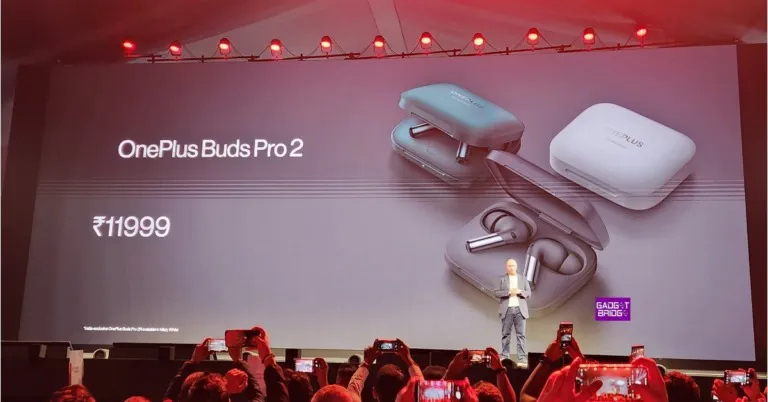
At today’s OnePlus Cloud 11 event in India, the company introduced its brand new OnePlus Buds Pro 2. Google’s Spatial Audio technology, developed for Android 13, is present in true wireless earphones. Additionally, by supporting Android’s Fast Pair feature, the smartphone will instantly pair with other Android devices with only a single tap. MelodyBoost Dual Drivers, which Dynaudio co-developed, are included in the TWS. Each earbud has a 6mm tweeter and an 11mm woofer.
In This Article
OnePlus Buds Pro 2 specifications
A 6mm tweeter and an 11mm woofer are featured on the OnePlus Buds Pro 2. The OnePlus Buds Pro 2’s Bluetooth v5.3 connectivity supports LHDC, AAC, SBC, and LC3 as audio codecs. Both earphones have three microphones with AI noise-reduction technology. The OnePlus Buds Pro 2 also has touch controls for calling and managing music playing. The IP55 designation for water and dust protection applies to these earbuds.Also Read:OnePlus 11 5G with Hasselblad branded cameras and Snapdragon 8 Gen 2 SoC launched in IndiaThe OnePlus Buds Pro 2 features the well-known spatial audio technology created by Google for Android 13. A multidimensional experience is created inside a set of tiny earbuds as a result. Because of this, the sound always comes from a fixed position and has the same 3D audio quality as in a movie theatre, regardless of movement.They have improved the spatial audio in conjunction with Google to imitate the immersive, three-dimensional experience enjoyed in theatres. By utilising OnePlus’ spatial rendering algorithm and IMU sensor, the OnePlus Buds Pro 2 improves the spatial audio capability while enhancing stability, compatibility with programme expansions, and opening up its technology to other apps.Thanks to Android’s audio-switching capability, the Buds Pro 2 can connect to two Android smartphones simultaneously and automatically switch the audio between them based on your actions, all without having to fiddle with Bluetooth settings.The ANC function allegedly has a 48dB noise reduction capacity. They also assist spatial audio for a realistic virtual surround sound experience.They claim that it takes an hour to fully recharge their charging case’s 520mAh battery. They also support Qi wireless charging. With a few extra charges in the case, the Buds Pro 2 offers up to 39 hours of worry-free audio playback. Contrarily, the Buds Pro 2 series’ dual connection with Bluetooth 5.3 LE audio ensures that your Bluetooth streaming experience will be quick and seamless.
OnePlus Buds Pro 2 price in India, sale details
OnePlus has launched two variants of its latest True wireless earphones in India. The first one is the OnePlus Buds Pro 2 which will be available for Rs 11,999. The earphone will come in two colour options of Arbor Green and Obsidian Black and Pre-orders begin today. On February 14 the open sale will begin via the official OnePlus India website, Amazon India, Flipkart, Myntra, the OnePlus Store app, and other hand-picked partners.On the other hand, the OnePlus Buds Pro 2R, a specially designed version of the earphones for India, cost Rs. 9,999. In March, this variation will be put up for sale.
For the latest gadget and tech news, and gadget reviews, follow us on Twitter, Facebook and Instagram. For newest tech & gadget videos subscribe to our YouTube Channel. You can also stay up to date using the Gadget Bridge Android App. You can find the latest car and bike news here.
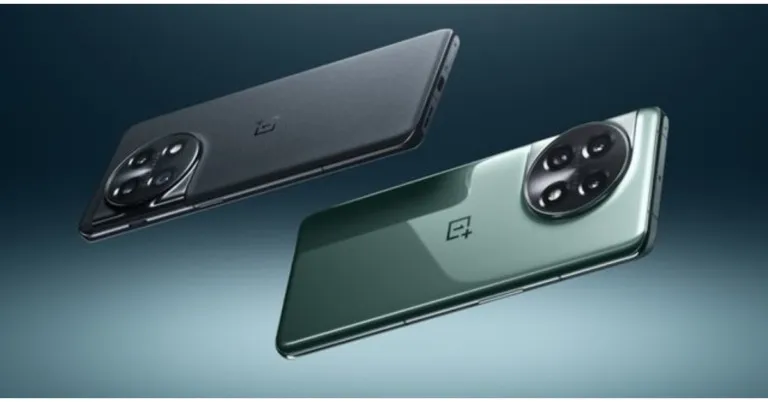
At the OnePlus Cloud event today, the company introduced the much-awaited OnePlus 11 5G in India. A 2K resolution, 120Hz, LTPO 3.0 AMOLED screen is included with the smartphone. It is powered by the Qualcomm Snapdragon 8 Gen 2 SoC and includes a 100W SuperVOOC quick charging capability. The device comes pre-installed with OxygenOS 13 on top of Android 13.
In This Article
OnePlus 11 5G specifications
The OnePlus 11 5G’s 6.7-inch Samsung LTPO 3.0 AMOLED display offers a 1,440 x 3,216-pixel resolution. The screen’s aspect ratio is 20.1:9, and it can adaptively refresh at up to 120Hz. The panel supports always-on displays with a resolution of 525 ppi and a maximum brightness of 1300 nits. As protection, a Corning Gorilla Glass 7 is employed. The display is capable of playing codecs in HDR and Dolby Vision. The gadget runs Android 13.0 in addition to ColorOS 13.0. The new phone has an Adreno 740 GPU, up to 16GB of LPDDR5x RAM, and an octa-core 4nm Snapdragon 8 Gen 2 SoC. A maximum of 256GB of UFS4.0 storage is available with the OnePlus 11 5G.There is a 5,000mAh dual-cell battery in the OnePlus 11 5G. Support for 100W SuperVOOC charging is available. A fingerprint reader is also incorporated into the display. It supports Dolby Atmos and has two speakers.One of the three rear cameras on the OnePlus 11 5G has an optical image stabilisation (OIS) sensor with a 50-megapixel resolution (f/1.8 aperture) from Sony. The camera unit also features a 48-megapixel Sony IMX58 extreme wide-angle sensor (f/2.2 aperture and 115-degree field of view) in addition to a 32-megapixel portrait sensor. A 16-megapixel sensor ( f/2.4 aperture) is located on the device’s front for selfies and video calls.There are also connectivity choices for 5G, 4G LTE, Wi-Fi 6, Bluetooth v5.3, Beidou, Glonass, Galileo, GPS, NFC, and other systems. In addition to a proximity sensor, gyroscope, g-sensor, rear colour temperature sensor, and Qualcomm sensor core, there are several other sensors on board.
OnePlus 11 5G price in India and sale details
Priced at Rs 56,999 for the 8GB model with 128GB storage and Rs 61,999 for the 12GB model with 256GB storage, the OnePlus 11 5G is now available in India. It will be available for purchase starting on February 14 through Amazon, the OnePlus web store, and other retail partners. The device will come in two colours options Eternal Green and Titan Black.
For the latest gadget and tech news, and gadget reviews, follow us on Twitter, Facebook and Instagram. For newest tech & gadget videos subscribe to our YouTube Channel. You can also stay up to date using the Gadget Bridge Android App. You can find the latest car and bike news here.
Telegram is always adding new capabilities to its messaging platform in order to enhance user experience. The instant messaging platform has now released its first significant update of the year, which included some important feature additions. The most recent update offers capabilities like profile picture maker, translating entire chats, and emoji categories, among others.In its first update of the year, Telegram introduces 10 significant features. Users can now rapidly transform any sticker or animated emoji into a profile picture for their accounts, groups, or channels thanks to the introduction of a new profile picture maker. Even those without Telegram Premium can utilise animated and customised emoji for these images. Try changing a contact’s information on Telegram to see how you can set or recommend profile pictures for your contacts.By tapping the Translate bar at the top, Premium users can now quickly translate entire chats, groups, and channels. You can choose which languages are translated and hide the bar using the settings menu. Individual messages can be translated by choosing them and hitting “Translate” for all users.Emoji and stickers are now organised in the panel and when selecting replies or statuses by categories. To zoom and get a better view before sending, hold any emoji. With detailed pie charts for Wi-Fi and mobile data, you can monitor how much data Telegram has consumed and change your auto-download settings to suit your data limit.Depending on the size, type, and chat from whence the material was received, you can choose when it automatically saves to your gallery. You can now save only the items you want because this menu now accepts exceptions as well. You don’t have to keep everything on your device when using Telegram. You can always re-download files from your Telegram cloud account after deleting them from your phone’s storage.Administrators can control which of the nine different media kinds, such as video or audio messages, group members are permitted to send. They can also turn off text messages to form groups that are just for the media.In addition to this, prepaying for a full year of premium features will save you up to 40% on your Telegram Premium subscription. The Telegram upgrade now gives developers of bots the opportunity to add special buttons that let users select channels, groups, or individuals who match certain criteria. The bot may be instantly added to a group where topics are enabled and the user is the admin, for instance.Additionally, individuals who have logged out can easily re-login using their Apple ID or Google ID without entering an SMS code. You must still enter your 2-Step Verification password if you have one set.Additionally, Telegram has included hundreds of symbols created specifically for group and profile pictures. From the new trending section at the top of your emoji panel, you may browse and add any of these packs.
For the latest gadget and tech news, and gadget reviews, follow us on Twitter, Facebook and Instagram. For newest tech & gadget videos subscribe to our YouTube Channel. You can also stay up to date using the Gadget Bridge Android App. You can find the latest car and bike news here.
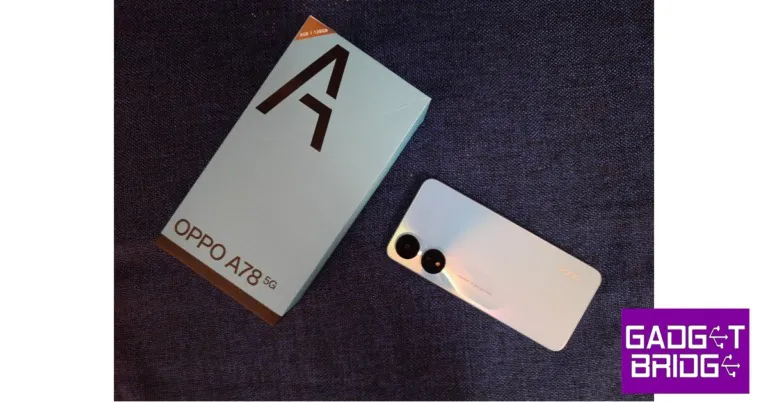
Two months into the new year, we’ve already seen a series of smartphone releases across all categories. With many more releases to follow in the coming months, consumers will certainly be spoilt for choice. Last month, Oppo launched the A78 5G at the price of Rs 18,999. At this price point, the A78 faces stiff competition from the recently launched Redmi Note 12, among several other budget smartphones. So, how does Oppo’s latest offering fare against other smartphones in its category? We used the smartphone for a week and may have some answers for you. Here is our in-depth Oppo A78 5G review.Read Also: Poco X5 Pro 5G with 108-megapixel sensor launched in India
In This Article
Oppo A78 5G review: Design and Display
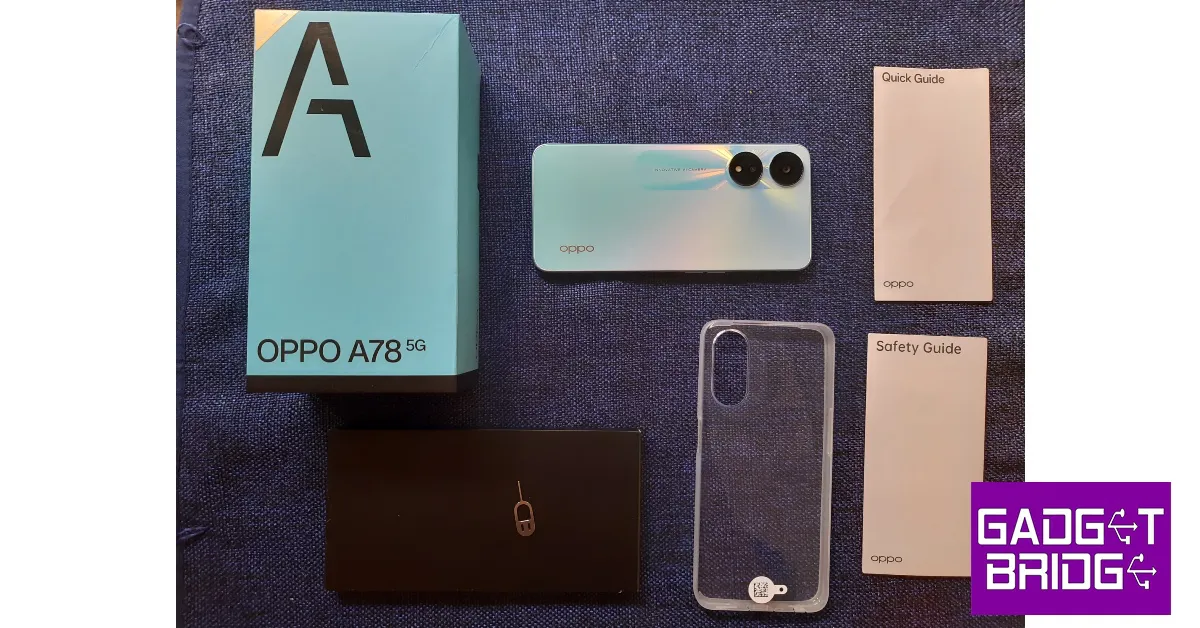
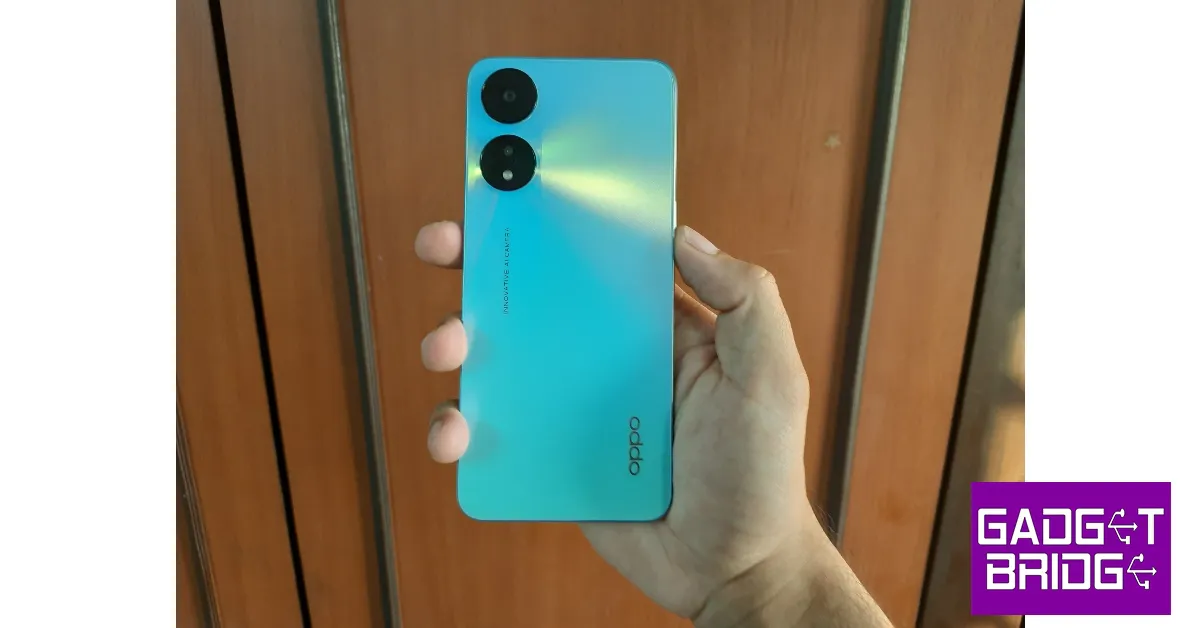
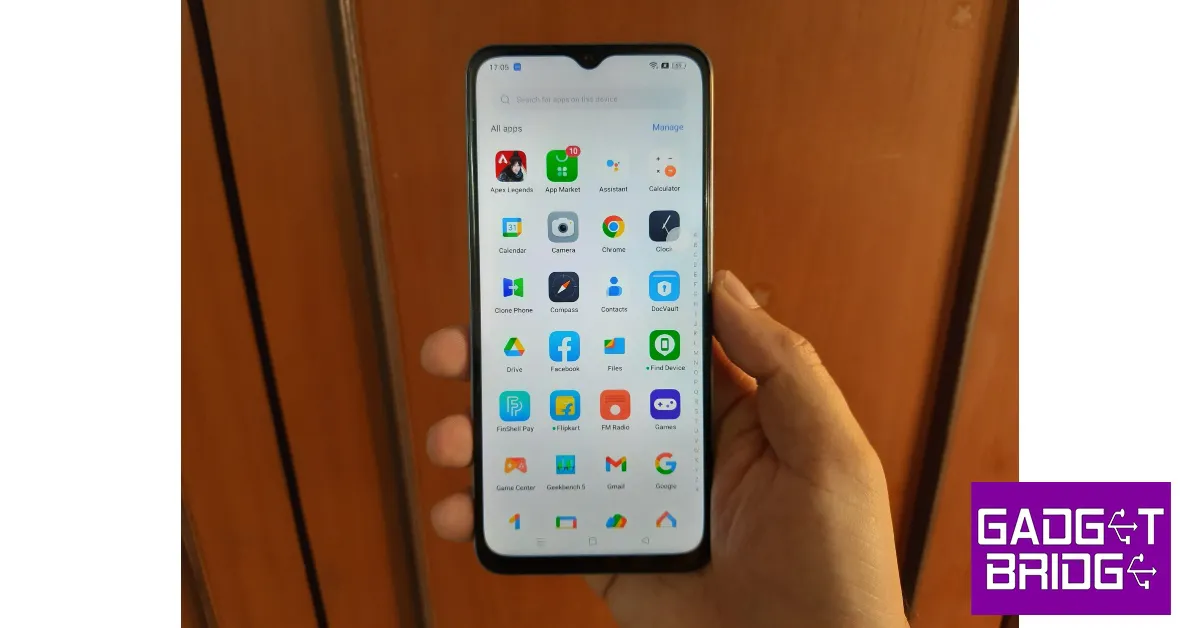
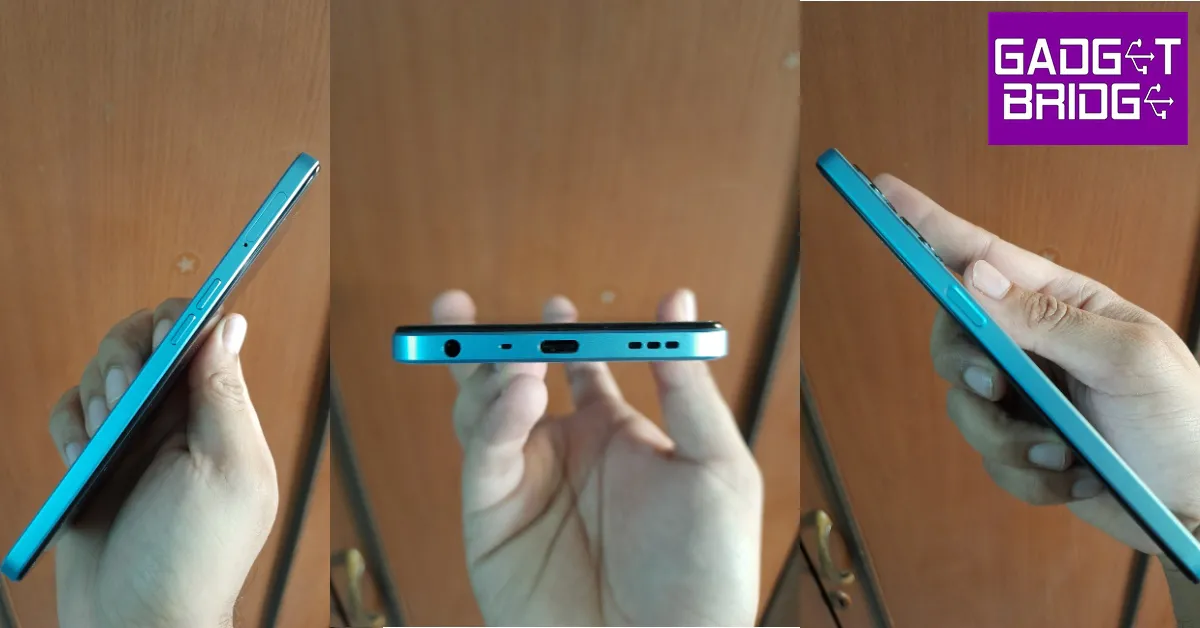
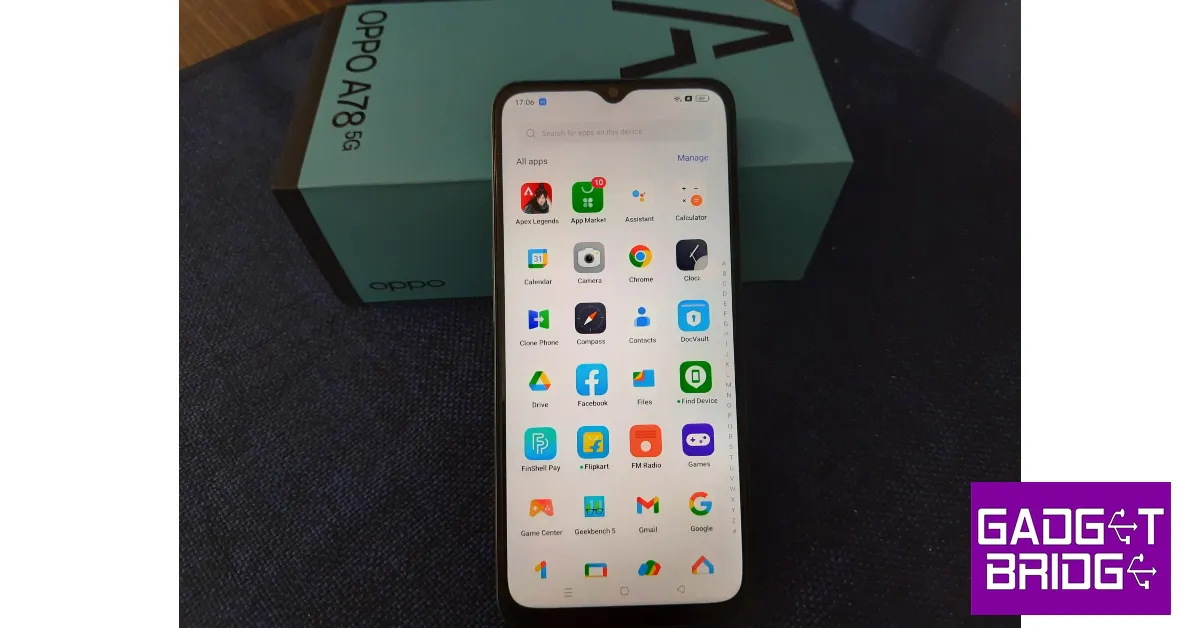
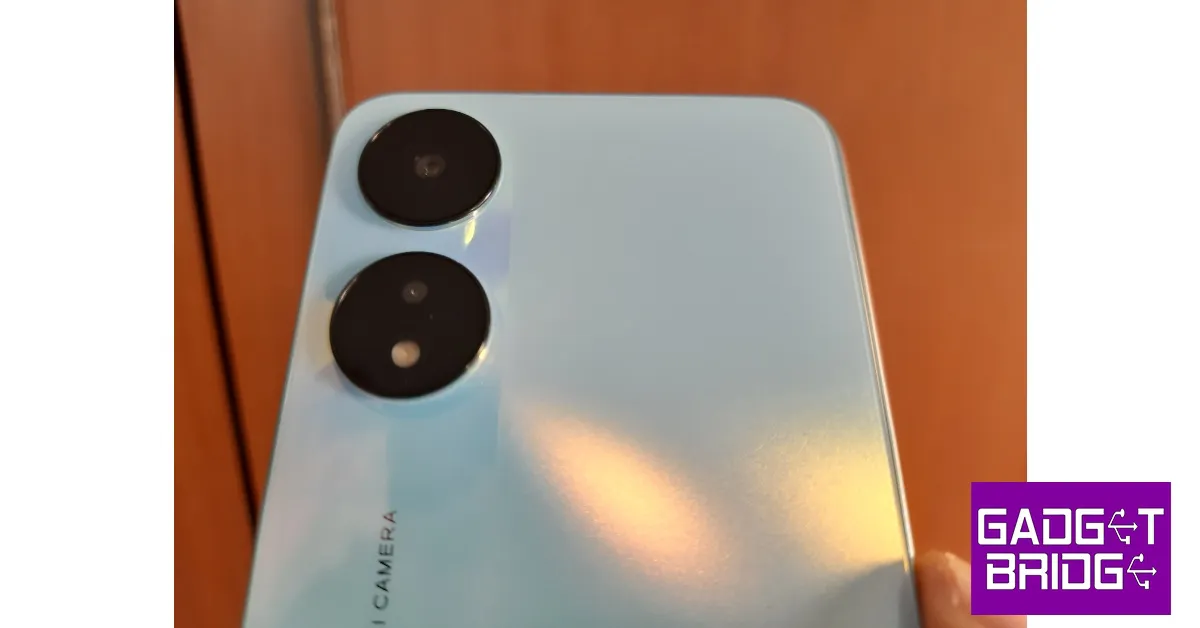
Unboxing the rectangular packaging you will find the A78 handset, a clear plastic case, a SIM ejector tool, a safety guide, a quick start guide, a 33W power adapter, and a USB Type-C charging cable. Currently, the A78 5G is available in a single variant of 8+128GB and two colour options – Glowing Black and Glowing Blue. We used the latter for this review.Talking about the design, Oppo hasn’t tried anything extravagant with the A78, keeping things rather simple. The back panel gets a matte finish which works well to provide much-needed premium texture to the plastic back. The dual camera cutouts house a primary 50MP lens and a 2MP depth sensor and LED flash. It is surrounded by a glossy finish which covers two-thirds of the length of the phone. This camera cutout drives the personality of the smartphone and keeps it from being just another milquetoast device in this category.While the back panel carries forward the signature Oppo design, the front display is bang-average. The waterdrop notch on the display seems dated and isn’t something you like to see on a smartphone that costs almost Rs 20,000. The 6.56-inch IPS LCD display has a refresh rate of 90Hz, which is below the 120Hz standard in this price range. Perhaps, the A78 could have benefited from an AMOLED display as well. The bezels surrounding the display grow in size around the chin, and the smartphone has a screen-to-body ratio of 84%.The 720 x 1612p resolution is also something that works against the A78 in comparison to its rivals. A basic 1080p display resolution would have been ideal here. There’s a main speaker at the bottom and the call speaker at the top doubles as a stereo speaker. We played content across various OTT platforms like Netflix, Disney+ Hotstar, and Sony LIV, and the smartphone pulled a satisfactory performance despite its 720p display. Peak brightness of 600 nits ensures that the display is legible even in direct sunlight.The power button is housed on the right side of the frame and also doubles up as the fingerprint reader. The volume rocker keys and SIM tray are placed on the left side of the frame. At the bottom, you’ll find the 3.5mm headphone jack, microphone, USB Type-C charging port, and speaker grille. The top frame has been left empty. The fingerprint sensor is pretty quick and the phone unlocks at a lightning-fast speed.
Oppo A78 5G review: Performance and Cameras
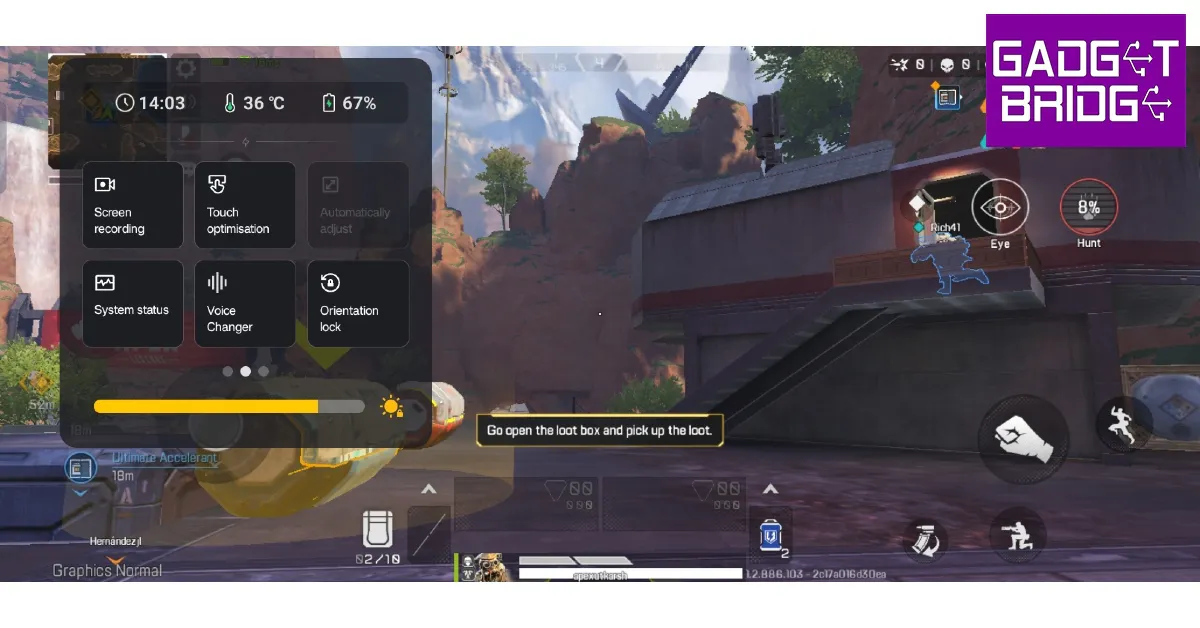
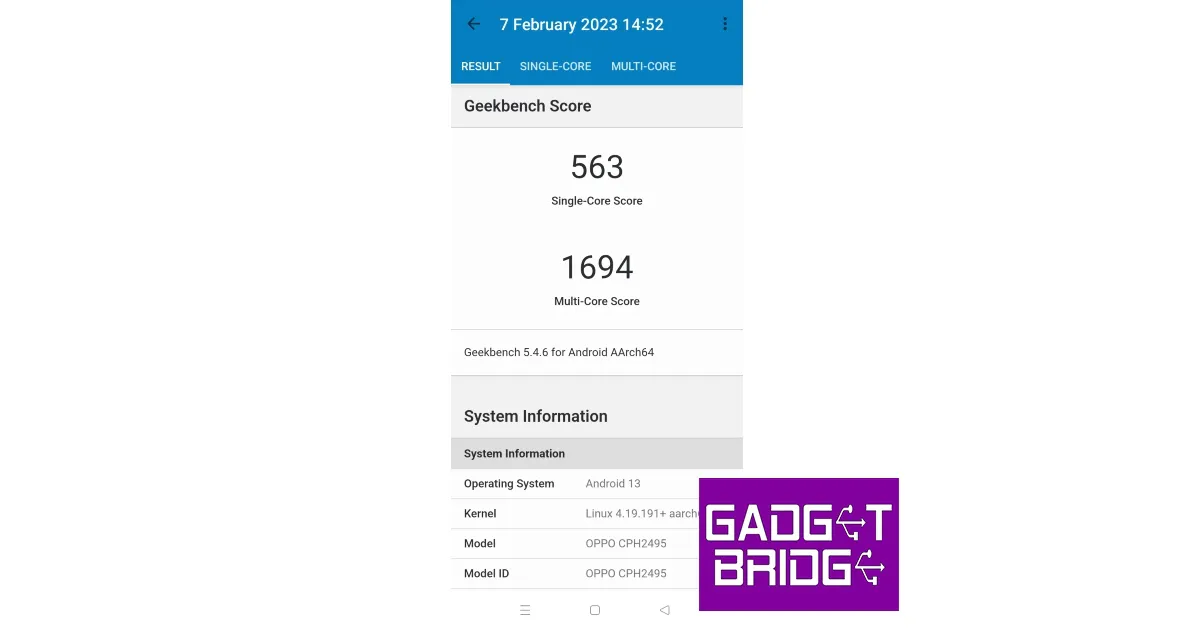
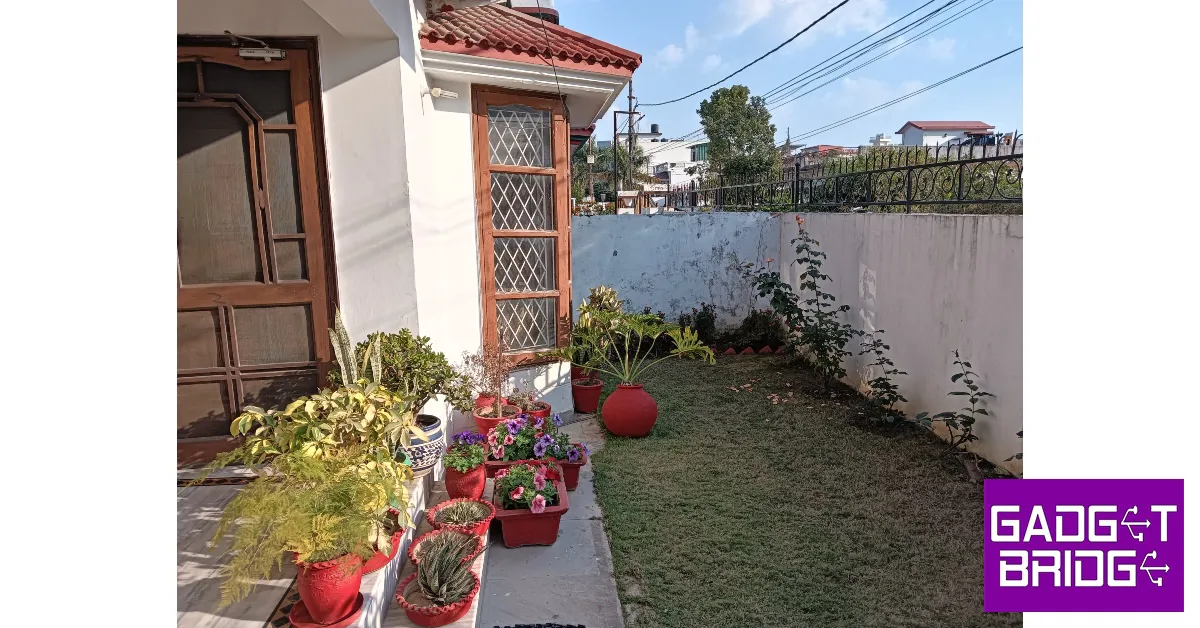
Powering the Oppo A78 is the MediaTek Dimensity 700 SoC along with Mali G57 GPU. The smartphone comes with Android 13 out of the box which is skinned with ColorOS 13. As mentioned earlier, the A78 is available in a single variant which offers 8GB RAM and 128GB storage. The microSD slot on the hybrid SIM tray allows memory expansion up to 1TB. The OS comes with a lot of bloatware which is something you should expect from smartphones in this price category.The software experience provided by ColorOS is decent, leaving not much to complain about. The interface doesn’t take much time to get used to. Features like 3-finger split screen mode, flexible windows, kid space, and smart sidebar make the smartphone very accessible. The haptic triggers seem a bit off and could have been a bit sharper. In terms of performance, the Oppo A78 5G carries out a decent job. The fluid display provides a satisfying scrolling experience. Even with multiple apps running in the background, the processor does not compromise any speed. While new smartphones rarely ever disappoint in this regard, a better assessment of the lags and loading speeds is done over a large interval of time.We played a bunch of different games on the Oppo A78 5G. While the smartphone easily handled lighter games like Garena Free Fire Max, we did experience some lags and frame drops while playing Apex Legends. The touch controls weren’t as smooth as we would have liked, and the smartphone would have benefited from a 120Hz refresh rate. That said, the phone did a good job at dissipating the heat, as we did not experience any uncomfortable overheating even after an hour of gaming.One of the better features of the phone was the Game Toolbar which can be accessed by swiping from the left of the screen. You can view the internal temperature of the smartphone along with other essential information here. The toolbar is also integrated with Discord and other IMs and comes with helpful tools like screen recorder, voice changer, and more. We ran a CPU benchmark on the Oppo A78 using Geekbench 5, and the smartphone achieved a single-core score of 563 points and a multi-core score of 1694 points.The Oppo A78 comes with a 33W fast charger and gets a 5,00mAh battery which easily lasts for a day, even after heavy usage. After a typical day that included constant WhatsApp usage, two to three hours of social media browsing, an hour of gaming, and another two hours of watching video content, we found ourselves ending the day with at least 20% charge left to spare. The smartphone can be fully charged in just over an hour while reaching a 50% charge takes just half an hour.Moving on, the Oppo A78 features a dual-camera setup which includes a 50MP primary shooter and a 2MP depth sensor. The ultrawide lens is noticeably absent. We played around with the camera in different lighting situations and the results were quite satisfactory.In optimum daylight, the Oppo A78 managed to capture a good amount of detail in the images. The colours weren’t as vibrant as we would have liked but the overall composition was pretty good. The colour tone of the images was on the cooler side. Low lighting conditions highlight the flaws of the colour profile as the photos seem a bit faded out. The images taken at night came out very grainy and the Night Mode came in pretty handy in fixing that. The Portrait Mode does a decent job of edge detecting and takes good pictures.The 8MP selfie camera tends to overcorrect the images. In low light, your selfies may lack the sharpness you want out of them. In well-lit daylight conditions, the results were far better. Both front and rear cameras can record 1080p videos at a frame rate of 30fps. The camera app also offers other options like Pro mode, Extra HD mode, Panoramic shot, Slo-Mo shot, Timelapse, and more.Read Also: How to Send Sound Emojis on Facebook Messenger?
Verdict
At Rs 18,999 the Oppo A78 5G is a decent smartphone if you’re looking for a device with great battery life, good performance, and a nice design. However, the LCD display with thick bezels and a waterdrop notch for the front camera seems pretty dated in this category. While it is still a good phone to watch content on, we would have preferred a 1080p display.
Pros
Battery lifeDecent performanceGood looking back panel
Amazon published its Fire TV streaming trends report for 2022 in India. The report shares information on how Indian viewers used Fire TV devices to access video in 2022. As per the report, Fire TV viewers have enjoyed the content in more than 12 languages, with Hindi, Telugu, Tamil, Malayalam, and Bengali coming in the first place. Whereas Shah Rukh Khan, Amitabh Bachchan, and Alia Bhatt were the actors most frequently searched for using Alexa on Fire TV devices, the survey said.According to the Amazon Fire TV Streaming Trends Report 2022, there is a 10% rise in the number of Fire TV units sold across the nation. The report claims that Indian households spent four hours every day binge-watching and streaming entertainment content.Also Read:OnePlus Cloud 11 launch event: OnePlus 11, OnePlus 11R launching in India todayIn the past year, regional material has become more popular. Fire TV customers have had access to content in more than 12 different languages, with Hindi, Telugu, Tamil, Malayalam, and Bengali leading the list.According to Amazon Fire TV Streaming Trends Report 2022, Indians used Alexa to do six queries on Fire TV every second. The most streamed type of content in India last year was a comedy, indicating that people there are drawn to finding more humour in their lives. The next two most popular genres were horror and cartoons. The top three movies on Fire TV in 2022 were Brahmastra, The Kashmir Files, and Pushpa: The Rise. The top three actors in Alexa’s list of most-searched actors on Fire TV were Shah Rukh Khan, Amitabh Bachchan, and Alia Bhatt, proving once again that they continue to rule the hearts of millions of movie fans.For the second consecutive year, Taarak Mehta Ka Ooltah Chashma, Anupama, and Indian Idol were the most frequently searched for content on Fire TV. The three kid-friendly brands most frequently searched on the platform were Motu Patlu, Peppa Pig, and Doraemon.According to Amazon’s report, the growth of online content resulted in a 44% increase in users of free content platforms. The most popular platforms for streaming free material were MX Player, Mini TV, and YouTube.Also Read:How to Send Sound Emojis on Facebook Messenger?The T20 World Cup, as well as new content releases for films and web series like Ram Setu, Doctor G, Mismatched Season 2, The Rings of Power – Season Finale, Four More Shots Please! – Season 3, Maja Ma, The Peripheral, Jurassic World Dominium, and The White Lotus, among others, contributed to October’s record-breaking levels of video streaming for the year.The biggest viewing on a single day was seen during India vs. Pakistan T20 World Cup match on October 23, 22.A 10X spike in JioCinema streaming on Fire TV was brought on by the FIFA World Cup.
For the latest gadget and tech news, and gadget reviews, follow us on Twitter, Facebook and Instagram. For newest tech & gadget videos subscribe to our YouTube Channel. You can also stay up to date using the Gadget Bridge Android App. You can find the latest car and bike news here.
A regular home Bluetooth speaker may carry out the job when it comes to providing for a small indoor gathering, but you can really hear its limitations in an outdoor setting where it needs to cater to a large area and a higher number of people. Most audio brands have a dedicated line of outdoor party speakers for this very purpose. In this article, we bring you our list of the best Bluetooth speakers for outdoor pool parties in 2023. This list covers the best products across different price points.Read Also:How to get an Apple Student Discount?
In This Article
JBL PartyBox 310
Price: Rs 45,999The JBL PartyBox 310 comes with 240 watts of JBL Pro Sound, 18 hours of battery life, and an IPX4 rating for water resistance, making it one of the best outdoor party speakers you can buy right now. Be it a pool or beach party, the PartyBox 310 can deliver a thumping sound in outdoor and indoor environments while being resistant to water splashes. The giant speaker also comes with dynamic lighting that can be controlled via the JBL app. Easily compatible with most speaker stands, you can lift it up to cover a wider area and deliver a better sound. The PartyBox 310 may not be as portable as your average home Bluetooth speaker, but the integrated wheels allow it to be easily rolled around.
Sony SRS-XV900
Price: Rs 79,990With a price tag of Rs 79,990, the Sony SRS-XV900 may be one of the most expensive party speakers available in India, but they are certainly one of the best around as well. The X-balanced speaker offers a powerful omnidirectional sound, which is ideal for parties. The jet bass booster produces rich, punchy bass and high-frequency sound is dispersed all around by the six tweeters on the front, side, and rear. The new SRS-XV900 Bluetooth party speaker offers 25 hours of battery life. With the speaker’s quick charging feature, 3 hours of playback may be obtained in just 10 minutes.
Samsung Sound Tower MX-T70
Price: Rs 34,990Delivering a powerful 1500W sound, Samsung’s towering MX-T70 Bluetooth speakers are designed keeping your party needs in mind. A 10-inch built-in woofer provides a thumping bass surround, taking the party music experience to another level. The bi-directional sound fills up any room the speaker is in. For outdoor parties, the bi-directional sound ensures that it covers a wide area, no matter how scattered the people are. The MX-T70 also comes with a Bass Booster button that can amplify the low end of any song. Lastly, the speakers ‘Group Play’ feature allows the pairing of up to 10 Sound Towers together, which will definitely blow the roof off every party. In case of minor spills, the top cover of the speaker is splash resistant.
boAt Party Pal 60
Price: Rs 4,999The boAt Party Pal 60 features a classic ‘boombox’ design with a tall strap that makes it easy to carry around. Portability aside, the Party Pal 60 delivers a 20W sound output, which is ideal for small parties. The speaker also has a microphone jack for karaoke sessions. The 2200mAh battery offers up to 4 hours of playtime. The integrated controls make it easy to adjust the mic audio levels with the backing track, and also lets you switch between the various modes (FM Radio/TF/AUX/USB). At Rs 4,999, the boAt Party Pal 60 is one of the most affordable Bluetooth party speakers you can buy right now.
Anker Soundcore Select Pro
Price: Rs 7,999Closing out this list is the Anker Soundcore Select Pro. The device features a 6,700mAh battery that promises up to 16 hours of playback. The new audio device is IPX7 rated water-resistant and is ideal for pool parties as it is waterproof. Not just this, the speaker comes with a power output of up to 30W and supports the company’s proprietary BassUp technology. With the Soundcore app, you can customise the equaliser and the lighting of the speaker. The Soundcore Select Pro speaker houses a 6,700mAh battery which offers up to 16 hours of total playback time on a single charge. Read Also: Poco X5 Pro 5G with 108-megapixel sensor launched in India
Conclusion
These are our picks for the best Bluetooth speakers for outdoor pool parties in 2023. When buying an outdoor party speaker, having a powerful amplifier and driver is as important as water protection. Given your speaker will be prone to a lot of water splashes, a basic IPX4 rating becomes absolutely essential. Think there’s another speaker that deserves to be on this list? Let us know in the comments!For the latest gadget and tech news, and gadget reviews, follow us on Twitter, Facebook and Instagram. For newest tech & gadget videos subscribe to our YouTube Channel. You can also stay up to date using the Gadget Bridge Android App. You can find the latest car and bike news here.
OnePlus is all set to launch a whole new range of new products in India today at its Cloud 11 event. The company is going to introduce the OnePlus 11 5G, OnePlus 11R, OnePlus Buds Pro 2, OnePlus Pad and more devices. The OnePlus 11 5G is already available for purchase in China. However, the firm has not yet revealed the cost of any of the devices but it has made public the design and key specs of the upcoming range of products.
In This Article
How to watch OnePlus Cloud 11 launch event
The OnePlus Cloud 11 launch event will be held today. The event is scheduled to begin at 7:30 PM IST. The company will be streaming it live on their official YouTube Channel and across all their social media channels. To remain up to date on the most recent information and developments, you may also register on the OnePlus Could 11 Launch Event page.
OnePlus 11 5G and OnePlus 11R Price in India
Nearly all of the important information regarding the new OnePlus 11 5G and OnePlus 11R has been leaked online before the formal announcement. In fact, prior to the official announcement, the anticipated price of the phones has already been revealed. When the phone becomes official, it will be sold in retail locations all around the nation as well as on Amazon and OnePlus.in.As we mentioned earlier, the OnePlus 11 5G has already reached China last month which basically indicates that the OnePlus 11 Indian model will have the same features and characteristics as the Chinese model.Also Read:OnePlus 11R 5G design, colour and other details leaked ahead of the official launchAccording to leaks, the OnePlus 11’s entry-level variant with 8GB RAM and 128GB storage will cost Rs 49,999 in India. Three further models will be available. The prices for the additional variants, which include 12GB RAM with 256GB storage, 16GB RAM with 256GB storage, and 16GB RAM with 512GB storage, are anticipated to cost Rs 54,999, Rs 59,999, and Rs 66,999, respectively.On the other hand, a tipster has already disclosed the anticipated price and storage options for the OnePlus 11R in India. The smartphone with 8GB of RAM and 128GB of storage space, in his opinion, may cost between Rs 35,000 and Rs 40,000 in the nation. 512GB of storage and 16GB of RAM are also planned, and the cost is predicted to be around Rs 45,000.
OnePlus 11 5G specifications
OnePlus 11 5G in India will be featuring a 6.7 inches Samsung LTPO 3.0 AMOLED display with 120Hz adaptive refresh rate and Corning Gorilla Glass 7 protection. The display is capable of playing codecs in HDR and Dolby Vision. The gadget runs Android 13.0 in addition to ColorOS 13.0. The new phone has an Adreno 740 GPU, 12GB or 16GB of LPDDR5x RAM, and an octa-core 4nm Snapdragon 8 Gen 2 SoC. A maximum of 512GB of UFS4.0 storage is available with the OnePlus 11 5G.The triple rear camera on the handset includes 50MP Sony IMX890 main sensor with OIS. The camera set-up will further include a 32MP portrait sensor and a 48MP Sony IMX58 extreme wide-angle sensor. The front of the device has a 16MP selfie camera. The phone has a 5,000mAh dual-cell battery that supports 100W SuperVOOC charging.
OnePlus 11R specifications
The Qualcomm Snapdragon 8 Plus Gen 1 chipset and up to 16 GB of RAM for the OnePlus 11R have been confirmed. The company claims that the 11R boasts RAM-Vita, a OnePlus machine-learning AI, similar to the flagship OnePlus 11, which speeds up RAM re-allocation between usage. The device also features a state-of-the-art 3D cooling system with a surface area 63.8% larger than the vapour chamber of the OnePlus 10 Pro. The HyperBoost Gaming Engine’s most current upgrades, such as the General Performance Adapter (GPA) Frame Stabiliser 4.0 and others, are also included on the OnePlus 11R. GPA 4.0 is a machine learning-based frame stabilisation technology that actively studies and adapts to the game being played.Also Read:OnePlus Keyboard to debut alongside OnePlus 11 5G and Buds Pro 2, price in India also tippedThe upcoming smartphone will include an ADFR 2.0-enabled 20Hz Super Fluid LTPS Display. It will also include a 5,000mAh battery that supports 100W SUPERVOOC rapid charging, which the company claims can charge the phone from 0% to 100% in just 25 minutes. ADFR 2.0 enables the display’s frame rate to automatically switch between 40Hz, 45Hz, 60Hz, 90Hz, and 120Hz depending on usage.The smartphone is said to boast a 6.7-inch full-HD+ AMOLED screen with a resolution of 1,080 x 2,412 pixels and a refresh rate of 120Hz, according to rumours. Up to 16GB of RAM and a Qualcomm Snapdragon 8+ Gen 1 SoC are expected to power the new gadget. According to rumours, the OnePlus 11R has two RAM (8GB and 16GB) and two storage (128GB and 256GB) variants. The alleged 5000mAh battery from OnePlus will reportedly support 100W SuperVOOC charging. A 50-megapixel primary sensor, an 8-megapixel super wide-angle sensor, and a 2-megapixel macro lens are among the three cameras that the phone is anticipated to include on the back. The front might house a 16-megapixel selfie camera for taking pictures of oneself.
For the latest gadget and tech news, and gadget reviews, follow us on Twitter, Facebook and Instagram. For newest tech & gadget videos subscribe to our YouTube Channel. You can also stay up to date using the Gadget Bridge Android App. You can find the latest car and bike news here.



 Most videos on Reddit are muted by default. This is because Reddit is primarily a text-based platform that people use at work. Since unexpected sounds can create unnecessary distractions, you will find that most videos on the platform are muted by default. If you’re not able to hear the sound on videos, all you need to do is unmute the video by clicking on the loudspeaker icon at the bottom right corner of the video player. Once you unmute the video, you can access the volume controls. Adjust the slider to set the ideal volume.
 Official Reddit app users can unmute the videos on the platform by tapping on the speaker icon at the bottom right corner of the post. You can also open the video and unmute it by tapping on the speaker icon next to the seek bar. Once you unmute the video, it will remain unmuted when you return to the feed. Every video you scroll past will have its sound turned on until you mute it again.
 Step 2: Scroll down and select Reddit.
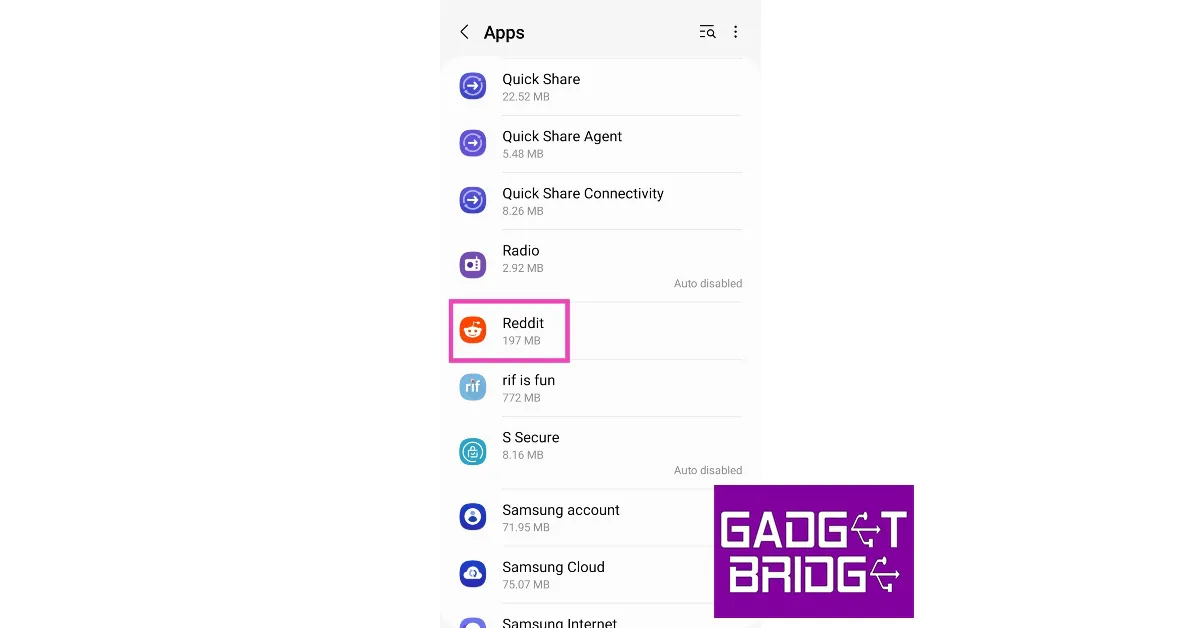 Step 3: Tap on Storage.
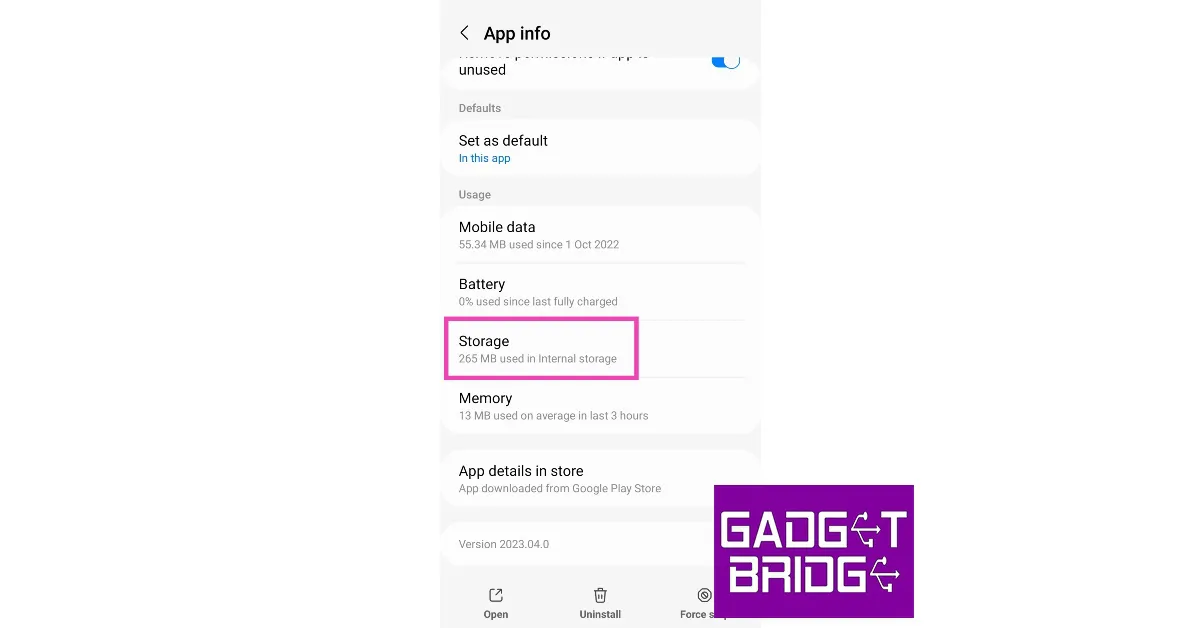 Step 4: Select Clear cache.
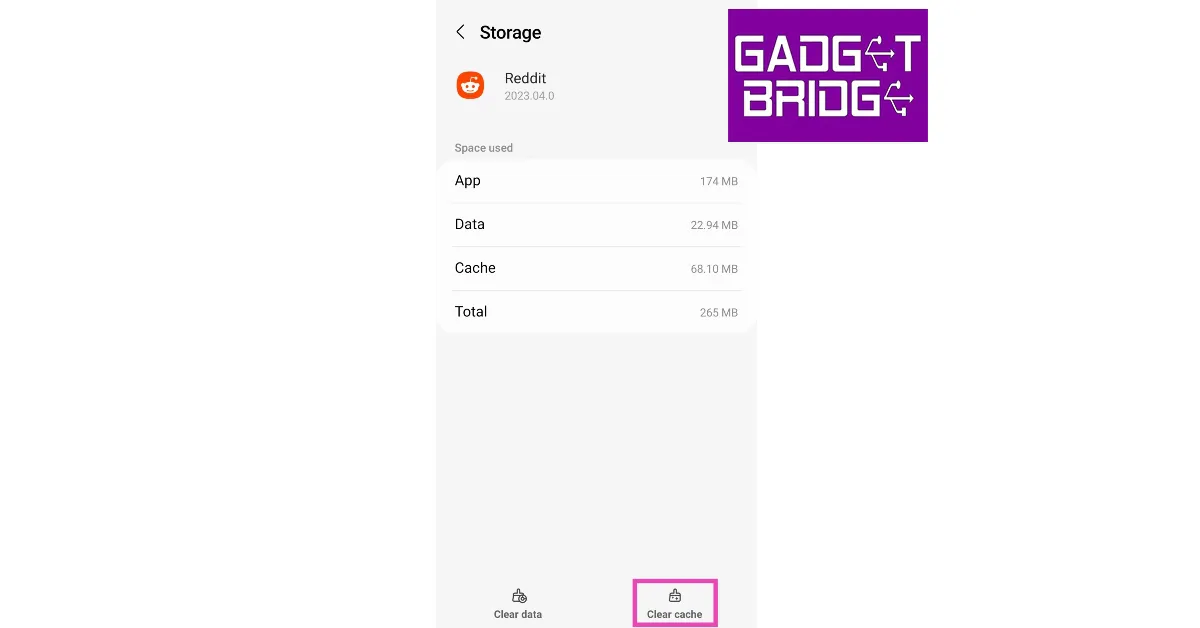
 Older versions of apps can sometimes malfunction out of the blue in weird ways. If you haven’t updated the Reddit app in a while, now would be a good time to do it. Go to the Google Play Store, search for Reddit, open its app page, and hit the ‘Update’ button. You can also update the app by going to the ‘Manage apps and device’ section in Play Store settings.
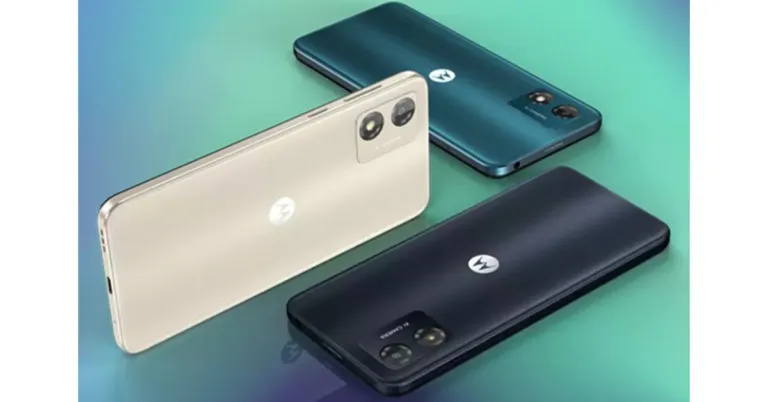


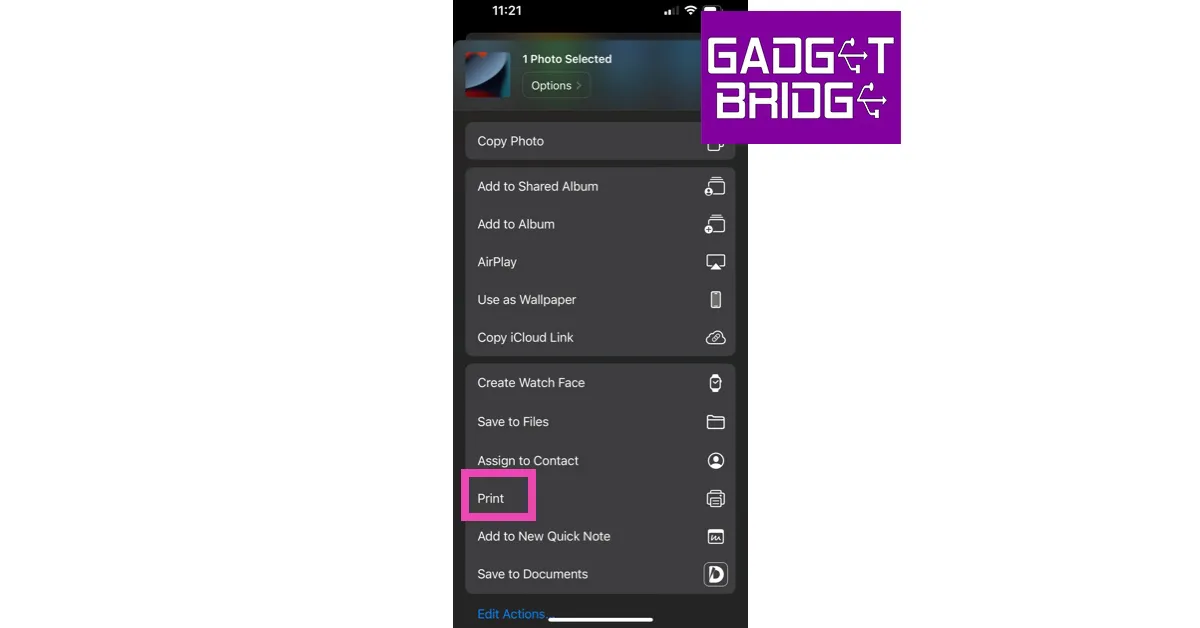 Step 5:
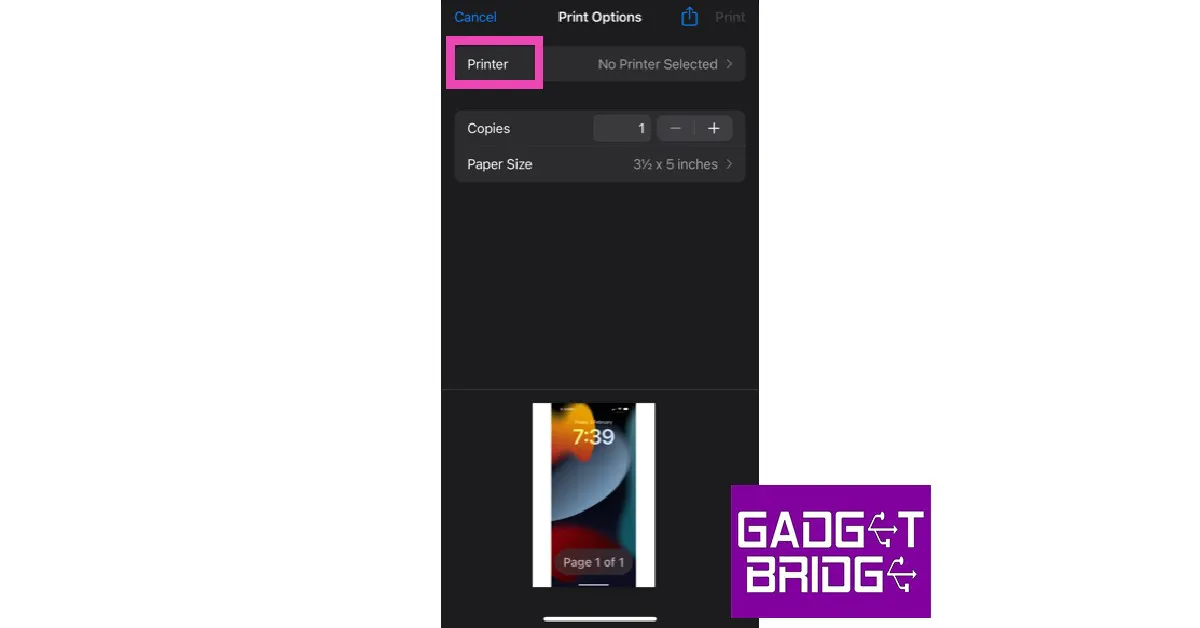 Step 6: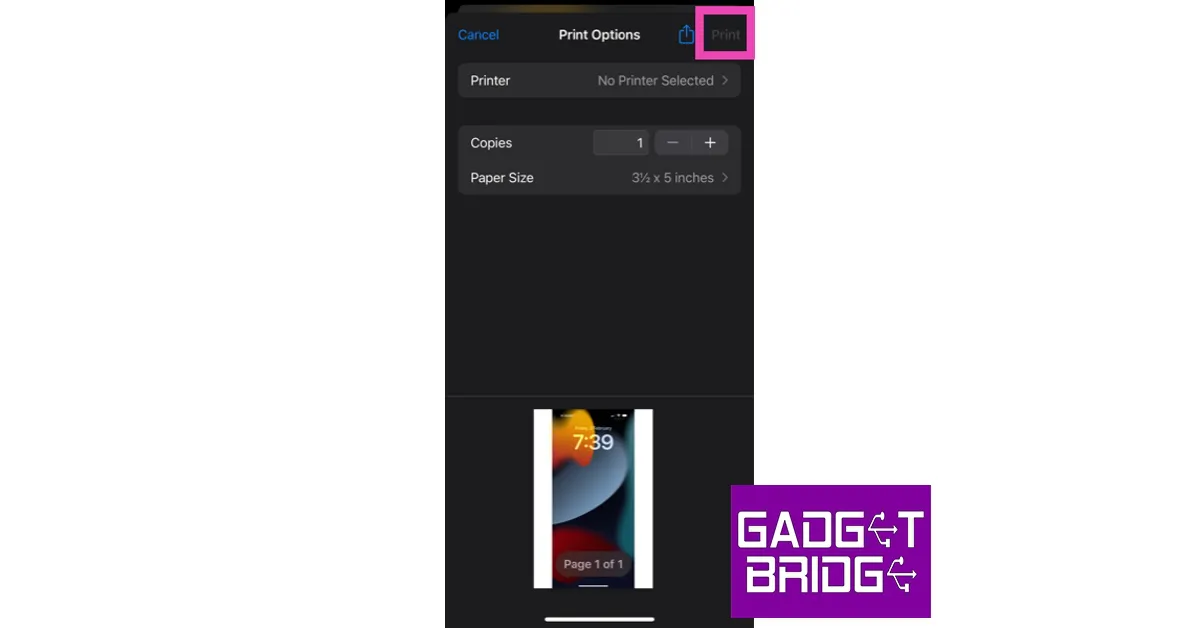
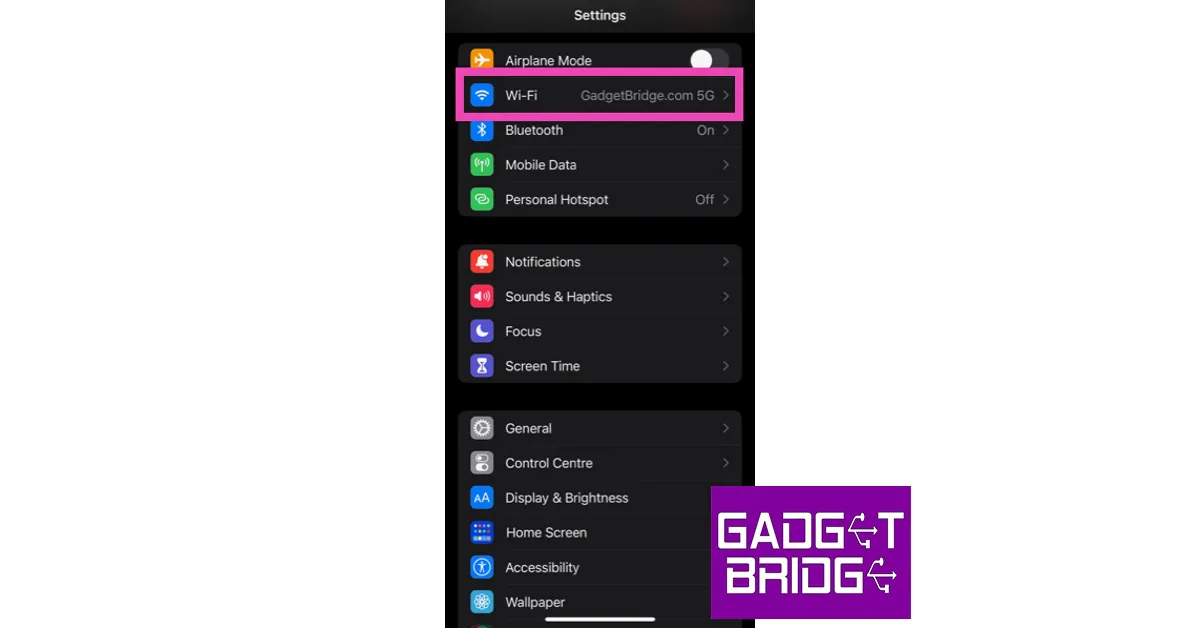 Step 2:
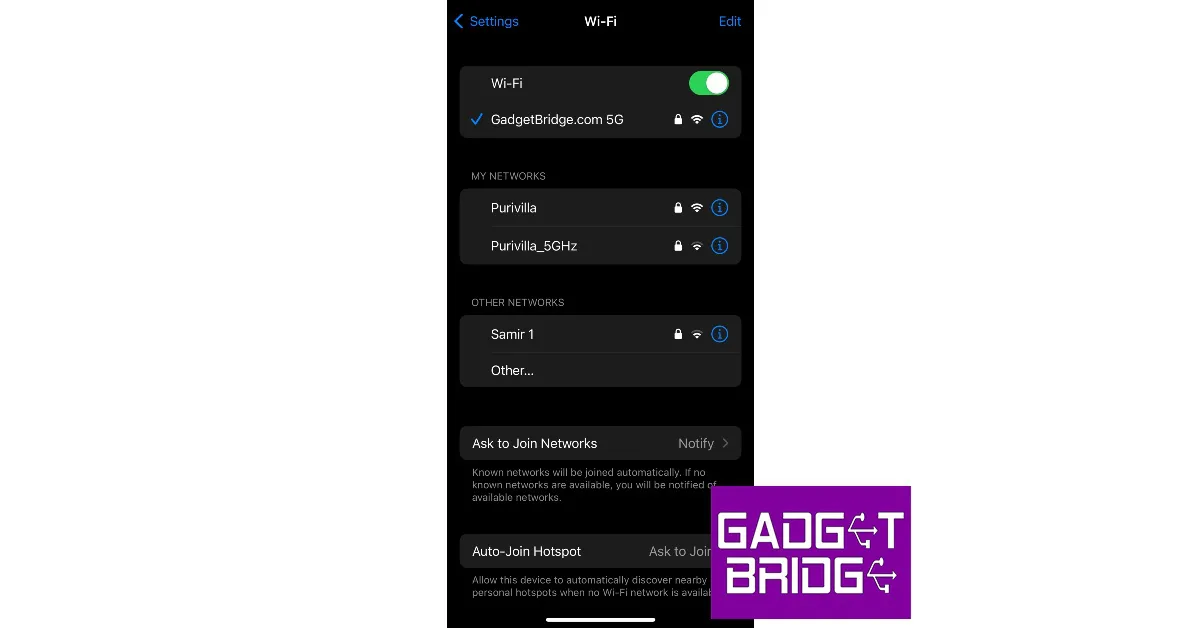 Step 3: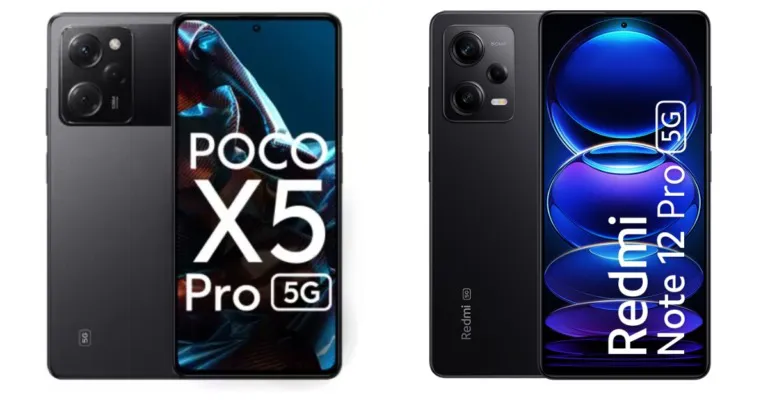


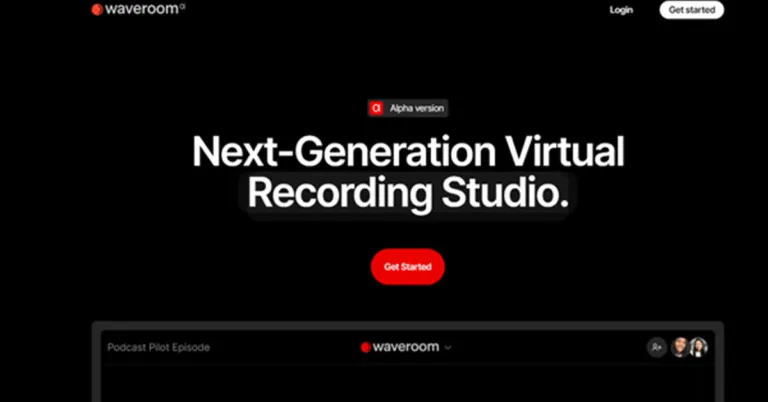
 Step 2: To sign up for the service, locate the Get started icon in the top right corner of the screen and click on it.
Step 3: Fill out the signup form or sign-up using Facebook or your Gmail account.
Step 2: To sign up for the service, locate the Get started icon in the top right corner of the screen and click on it.
Step 3: Fill out the signup form or sign-up using Facebook or your Gmail account. Step 4: After registering, you’ll be sent to your personal area where you can begin an audio-only or video meeting online. Meetings are referred to as Rooms.
Step 5: Press Create Room or the Plus button in the upper-left corner of your screen to launch a new podcast.
Step 4: After registering, you’ll be sent to your personal area where you can begin an audio-only or video meeting online. Meetings are referred to as Rooms.
Step 5: Press Create Room or the Plus button in the upper-left corner of your screen to launch a new podcast. Step 6: At the top of the page, type the name of your room.
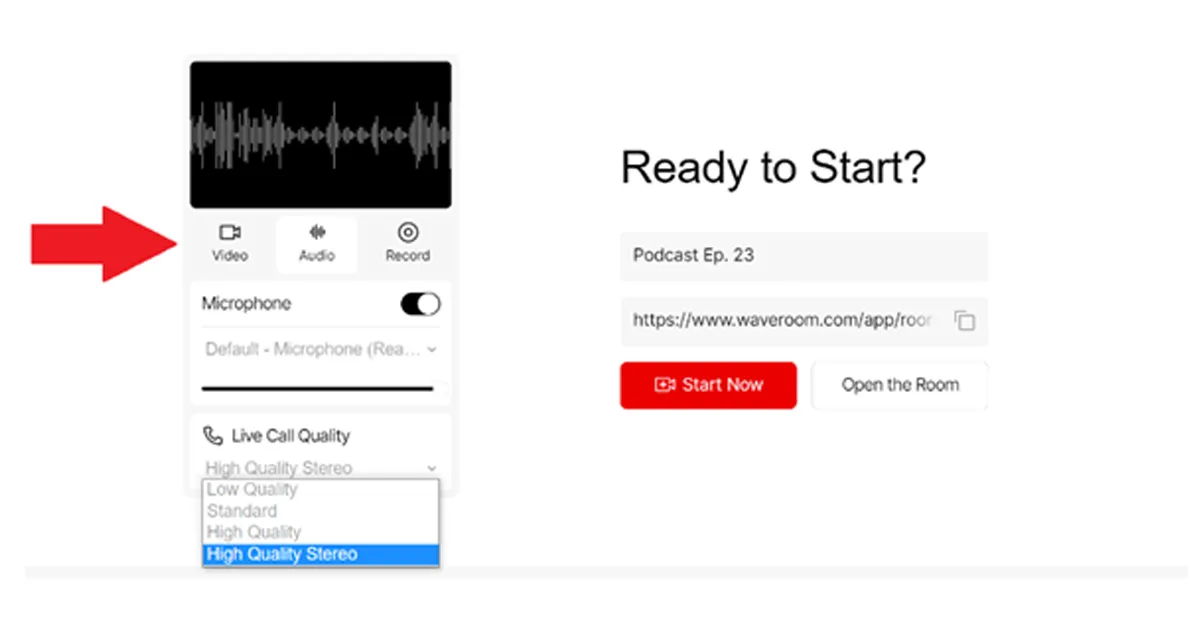 Step 7: Your computer should be equipped with the greatest webcam and microphone you can find. It will assist you in obtaining excellent results.
Step 8: Under the video preview, choose your settings for Video, Audio, and Record. You can select an audio-only room, a video conference, or the Record option, which will record audio, video, or both.
Step 9: Copy the invitation link. Send it to the individuals you wish to participate as podcast speakers.
Step 10: To access your room, click the Start Now option.
Step 11: When you are prepared to begin the podcast, click the Start Recording option.
Step 12: To end the session after the podcast is finished, press the hang-up phone icon.
Step 7: Your computer should be equipped with the greatest webcam and microphone you can find. It will assist you in obtaining excellent results.
Step 8: Under the video preview, choose your settings for Video, Audio, and Record. You can select an audio-only room, a video conference, or the Record option, which will record audio, video, or both.
Step 9: Copy the invitation link. Send it to the individuals you wish to participate as podcast speakers.
Step 10: To access your room, click the Start Now option.
Step 11: When you are prepared to begin the podcast, click the Start Recording option.
Step 12: To end the session after the podcast is finished, press the hang-up phone icon.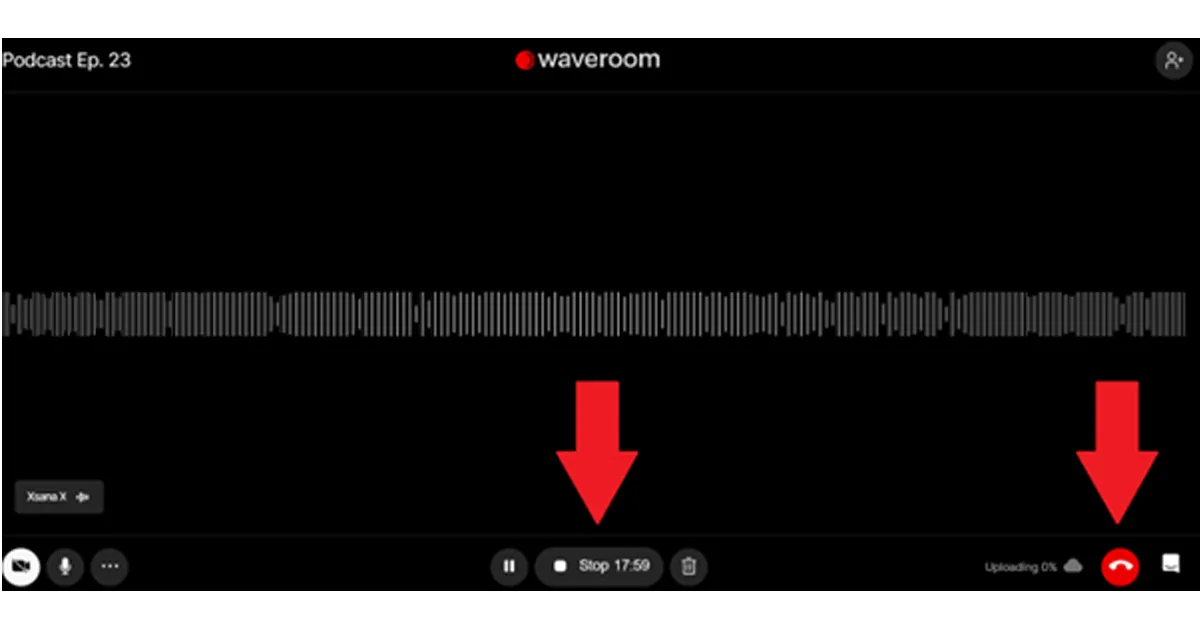 Step 13: Wait for a little period while the meeting recording saves.
Step 14: In the top left corner of the page, click the ‘All Rooms’ button.
Step 15: Click the space you just left. You can download each podcast guest’s locally recorded audio and video files here.
The recording can be found in your individual dashboard. After that, you can store it as an MKV file on your PC. Soon, more formats will be added.
Step 13: Wait for a little period while the meeting recording saves.
Step 14: In the top left corner of the page, click the ‘All Rooms’ button.
Step 15: Click the space you just left. You can download each podcast guest’s locally recorded audio and video files here.
The recording can be found in your individual dashboard. After that, you can store it as an MKV file on your PC. Soon, more formats will be added.

 Step 3:
 Step 4:
 Step 5:
 Step 7:
 Step 6:
 Step 7:
 Step 2:
 Step 4:
 Step 7:
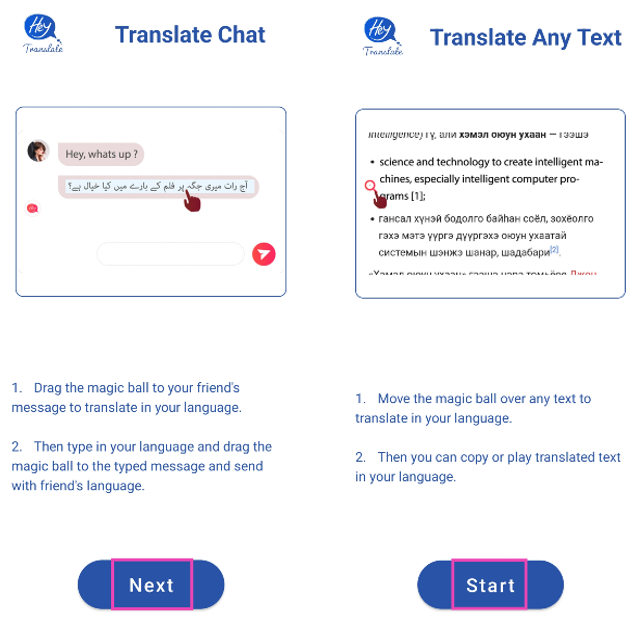 Step 3: Select Turn on Chat Translator.
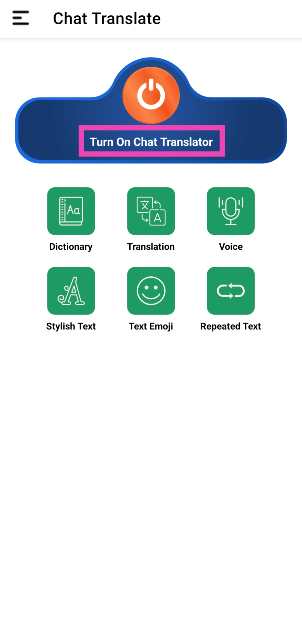 Step 4: Grant the app the necessary permissions.
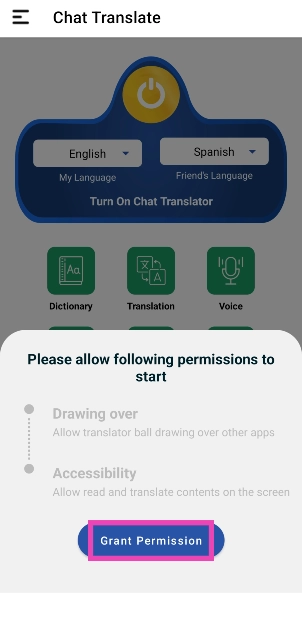 Step 5: Select your language and the language that needs to be translated.
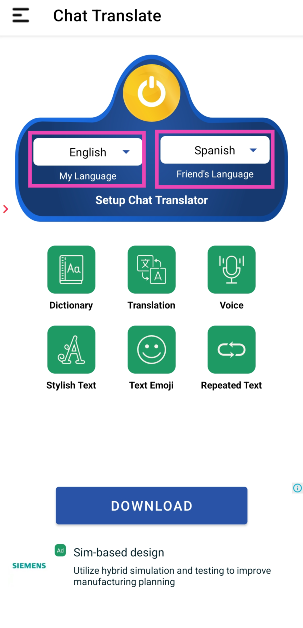 Step 6: Drag the ‘Hey‘ ball to the message that you want to translate.
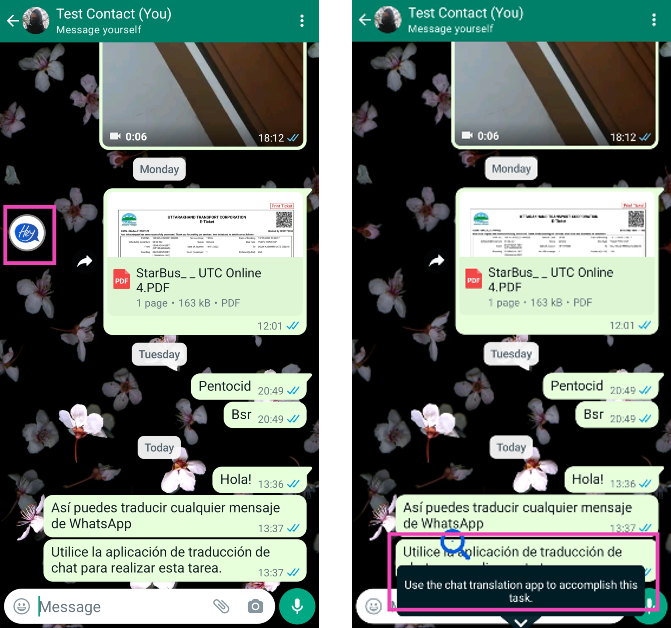
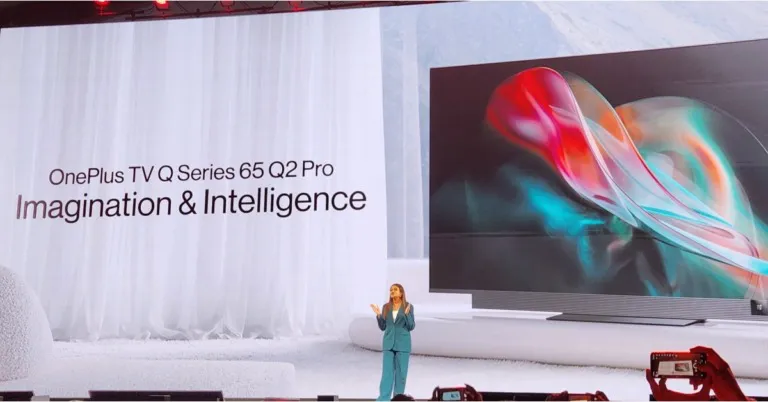


 Step 3:
 Step 4:
 Step 5:
 Step 3:
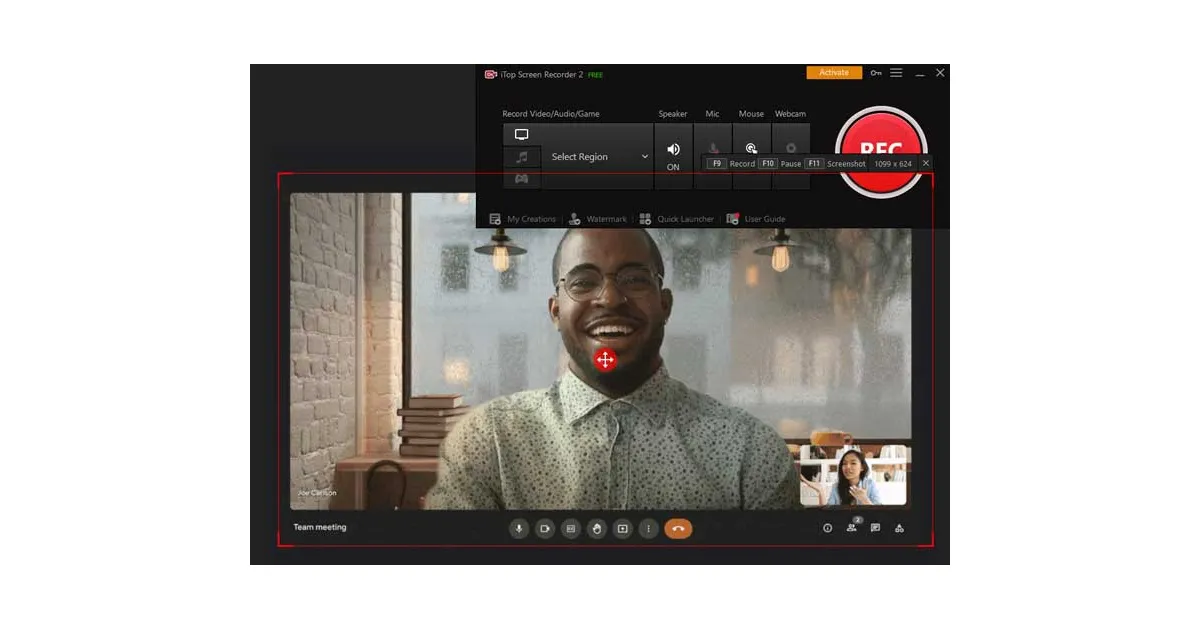 Step 5: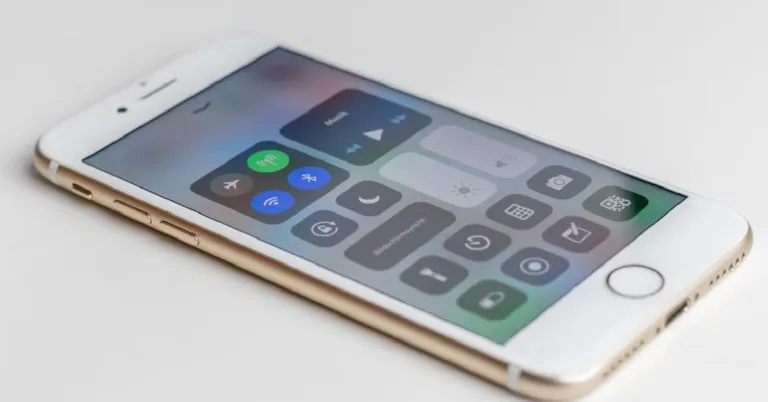
 Step 2:
 Step 3:
 Airdrop uses your phone’s Bluetooth connection to transfer a file to another device. Once you send a file using Airdrop, it automatically turns on Bluetooth on your iPhone. Follow these steps to turn off AirDrop on your iPhone.
Step 1: Swipe down from the top right corner of the phone to reveal the Control Center.
Step 2: Long press the connection tiles folder to expand it.
Step 3: Select AirDrop.
Step 4: Tap on ‘Receiving off’.
Airdrop uses your phone’s Bluetooth connection to transfer a file to another device. Once you send a file using Airdrop, it automatically turns on Bluetooth on your iPhone. Follow these steps to turn off AirDrop on your iPhone.
Step 1: Swipe down from the top right corner of the phone to reveal the Control Center.
Step 2: Long press the connection tiles folder to expand it.
Step 3: Select AirDrop.
Step 4: Tap on ‘Receiving off’.
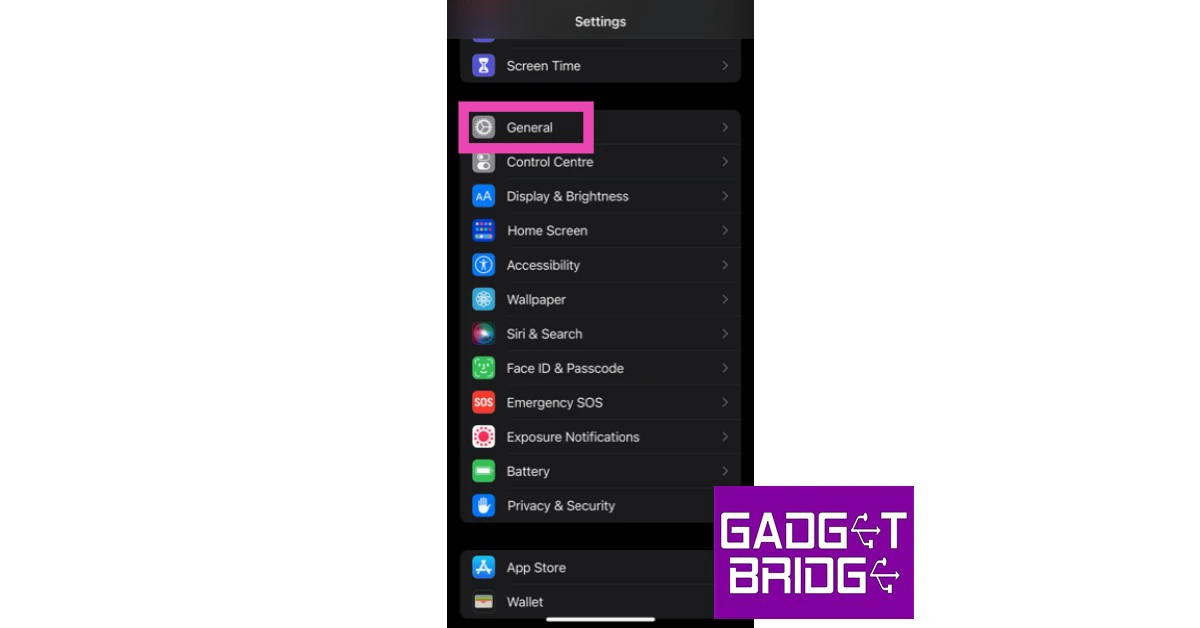 Step 2: Scroll down and select ‘Transfer or reset iPhone’.
 Step 3: Select ‘Reset’ followed by ‘Reset Network Settings’.

 If you are using an older version of iOS, this problem may be arising due to a software bug. These bugs are usually fixed in the updated OS version. Go to Settings>General>Software update to check for any pending updates and install them on your device.



 Step 2: Tap the filter and sort icon next to Your apps.
 Step 3: Switch on the toggle bar for Show system apps.
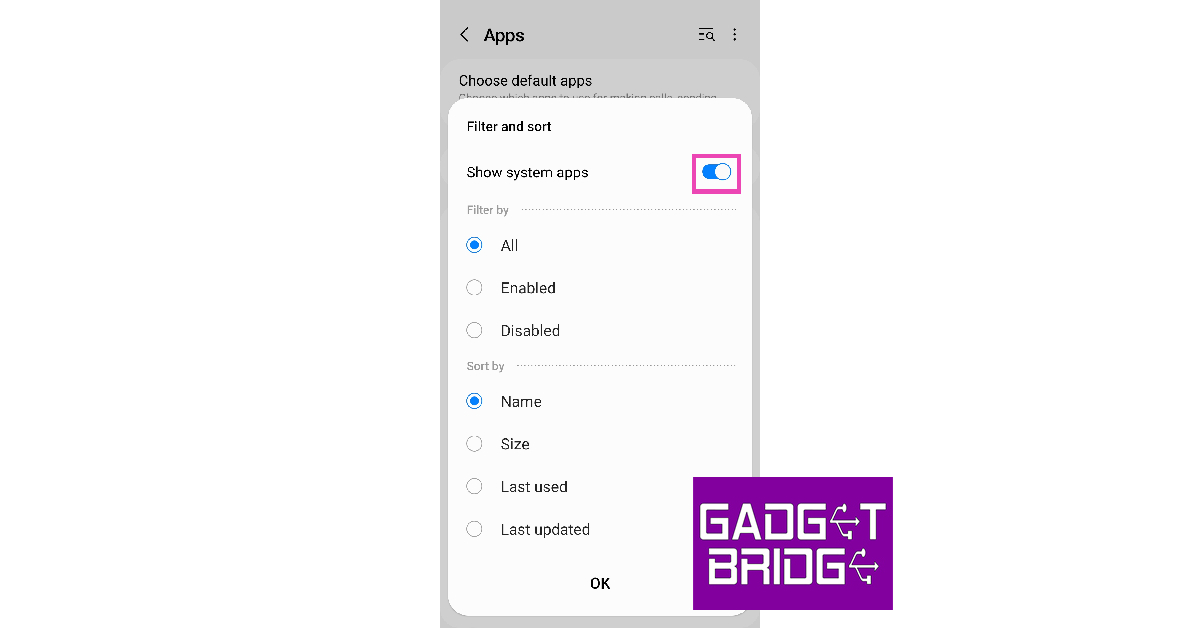 Step 4: Scroll down and select Media Storage.
 Step 5: If it is disabled, select Enable.
 Step 2: Tap on Reset.
 Step 3: Select Factory data reset.
 Step 4: Scroll down and tap on Reset.
 Read Also: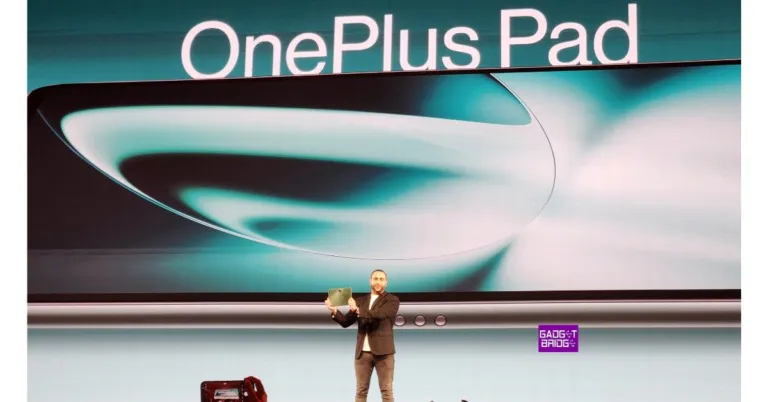
 Also Read:

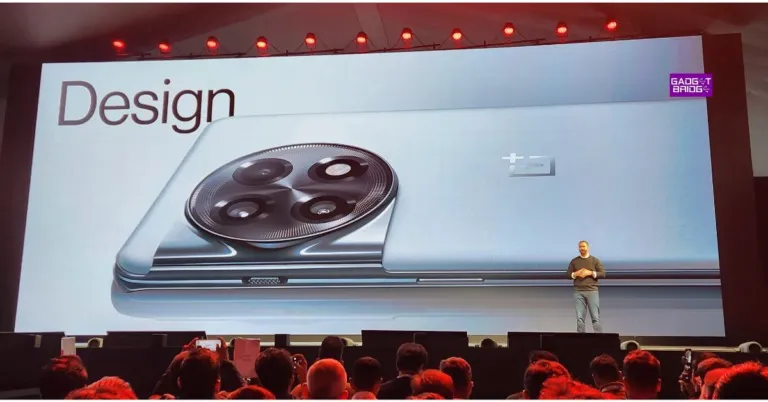


 Step 2:
 Step 4:
 Step 5:
 Step 6:
  Step 7:
 Step 2:
 Step 3:
 Step 5:
 Step 4:
 Step 5: