For a long time, WhatsApp users had been requesting the feature to exclude some contacts from seeing their last seen, profile picture, about, and status. Finally, on June 16th, WhatsApp announced new privacy options, which allowed users to hide certain profile features. In this article, we’ll show you how to hide WhatsApp last seen, profile picture, about, and status from some contacts in your list.Read Also:How to download an image or video from WhatsApp status using an Android device?
Here’s how you can hide WhatsApp Last Seen, Profile Picture, About, and Status from some contacts
Step 1: Open WhatsApp on your smartphone and click on the three dots at the top right corner.Step 2: Select Settings.Step 3: Select Account.Step 4: Select Privacy.Step 5: Select whether you want to change the visibility of Last Seen, Profile Photo, About, or Status.Step 6: Once you click on either one of them, you’ll be presented with three visibility options. If you want to exclude certain contacts from seeing your Last Seen, Profile Photo, About, or Status, click on ‘My Contacts, except…’Step 7: Select the contacts you want to exclude from viewing your Last Seen, Profile Photo, About, or Status.Step 8: Save your changes by tapping the Tick sign at the bottom right corner of your screen. Your changes will be saved.Read Also:WhatsApp’s new feature will let you share your status on FacebookThese updates are immensely helpful for users who only wish to reserve personal information from a few contacts, without wanting to change their visibility for all contacts. Since WhatsApp rolls out its new updates in phases, you might have to wait a while if this update isn’t already available on your device. On top of that, the new WhatsApp update also allows users to respond to messages with emojis.
For the latest gadget and tech news, and gadget reviews, follow us on Twitter, Facebook and Instagram. For newest tech & gadget videos subscribe to our YouTube Channel. You can also stay up to date using the Gadget Bridge Android App. You can find the latest car and bike news here.
Your Android Smart TV comes with a collection of pre-installed apps that are frequently used by most of its users. You can also download a wide variety of apps and games on your Android Smart TV using the Google Play Store. While basic apps like YouTube and Netflix may come pre-installed on your Smart TV, there are a whole bunch of other apps which will enhance your Smart TV experience. Today, we’ll show you how to install new apps on your Android Smart TV.Read Also:How to block YouTube channels from appearing on your Smart TV?
Here’s how you can install new apps on your Android Smart TV
Firstly, you need to make sure your TV is connected to the WiFi and has a stable internet connection. Secondly, you need a Google Account in order to download apps from the Google Play Store.Step 1: Go to the Android TV home screen and scroll to Apps.Step 2: Open the Google Play Store app.Step 3: Click on the Search bar.Step 4: Search for the App you want to download using the onscreen keyboard or the microphone.Step 5: Select the App you want to download and press Install.Read Also:The best 4K smart TVs under Rs 50,000 to watch Netflix, Prime Video and other OTT platformsFollowing these easy steps, you’ll be able to download any app you want on your Android Smart TV. App availability may depend on the manufacturer and the Smart TV model. If you wish to uninstall a certain app from your Smart TV, go to Settings>Apps. Select the app you wish to delete, then press Uninstall.
For the latest gadget and tech news, and gadget reviews, follow us on Twitter, Facebook and Instagram. For newest tech & gadget videos subscribe to our YouTube Channel.
The speed of your mouse pointer is set at a standard setting by default. Most users rarely ever need to change this speed. However, you may need to speed up the mouse pointer when your mouse slows down or when you attach another monitor to your system and need to customise the mouse accordingly. Today, we show you how to change your mouse pointer speed in Windows 11.Read Also:5 wireless mice under Rs 5,000 for work from home.
How to change mouse pointer speed using Settings
Step 1: Open Settings.Step 2: Select Bluetooth & Devices.Step 3: Select the Mouse option in the window that opens.Step 4: Use the slider next to ‘Mouse Pointer Speed’ to change the speed of your mouse pointer according to your liking.
How to change mouse pointer speed using the Control Panel
Step 1: Open Control Panel.Step 2: Select the Mouse option.Step 3: In the small window that opens up, click on the ‘Pointer Options’ tab.Step 4: Use the slider in the ‘Motions’ sections to change the mouse pointer speed according to your liking.Read Also:5 best Ergonomic mice for working from homeFollowing the steps above you will be able to change the mouse pointer speed in Windows 11. You can also change your mouse pointer speed through the Registry Editor, but this can be a risky process and isn’t ideally advised when there are much easier ways to carry out your task. Once you enter Mouse settings, you can also customise your mouse icon and add other functionalities to your mouse. You can also change the visibility of the pointer by adding a trail to its movement or by choosing to hide it while you’re typing.
For the latest gadget and tech news, and gadget reviews, follow us on Twitter, Facebook and Instagram. For newest tech & gadget videos subscribe to our YouTube Channel. You can also stay up to date using the Gadget Bridge Android App. You can find the latest car and bike news here.
WhatsApp now allows you to link up to four devices to your account, excluding your phone. WhatsApp Web and the WhatApp desktop app can come in quite handy if you want to use the instant messenger on your PC or laptop. While using WhatsApp for their desktop, users sometimes report an issue where they aren’t able to receive any notifications from the app or the web page. Today, we’ll show you how to enable desktop notifications for WhatsApp Web and the WhatsApp desktop app. Read Also:How to migrate your WhatsApp data from Android to iPhone?
How to enable desktop notifications for Whatsapp
Step 1: Turn on the Whatsapp desktop app or Whatsapp Web.Step 2: Tap the three dots on the top left part of the screen, next to your display name.Step 3: Click on Settings.Step 4: Click on Notifications.Step 5: Select which notifications you want to mute and which ones you want to turn on.Step 6: Close the Settings. Read Also:How To Set Up And Use WhatsApp On iPad (2022)?Using these easy steps you can enable desktop notifications for WhatsApp web and the WhatsApp app. If you’re still not receiving any notifications from Whatsapp, it might be because your browser is blocking the notifications. In order to resolve this go to the Chrome menu and then select Settings>Privacy and Security>Site Settings>Notifications. Search for web.whatsapp.com in the web bar and allow notifications. Sometimes Google Chrome blocks notifications from websites by default so you may want to allow Whatsapp Web notifications before you continue.
For the latest gadget and tech news, and gadget reviews, follow us on Twitter, Facebook and Instagram. For newest tech & gadget videos subscribe to our YouTube Channel. You can also stay up to date using the Gadget Bridge Android App. You can find the latest car and bike news here.
25 June 2022 Amazon Quiz has gone live on its platform. The quiz timings are 12 AM to 11:59 PM. The Amazon App users can participate in the quiz daily and all they have to do is submit correct answers to the questions asked on the e-commerce platform. Today’s participants can get a chance to win Rs 25,000 Amazon Pay Balance.By participating in the Amazon Quiz the participants can win Amazon Pay Balance ranging from Rs 1,000 to Rs 50,000 every day while sitting at home. To win the participants must answer five questions correctly that are based on current events and general knowledge. One wrong answer can eliminate you from the quiz. The results will be announced at the end of the month. Today’s question will let you win Rs 25,000 Amazon Pay Balance. Check below for today’s Amazon quiz answers.Amazon Quiz Today Prize – Rs 25,000 Amazon Pay BalanceQuiz Date – 25 June 2022Daily Timing – 12 AM to 11:59 PMWinner Announcement – Today 12 PM
Amazon Quiz Answers Today 25 June 2022
Question 1: Hardik Pandya recently got named the Indian captain for a T20I series to be held in which country?
Answer: IrelandQuestion 2: The Prime Minister will lead a mass yoga event from which historical place on the occasion of International Day of Yoga?Answer: Mysuru PalaceQuestion 3: Javicia Leslie is known for playing which of these superhero characters in a series?Answer: BatwomanQuestion 4: In which country would you find this famous bridge, that ‘breathes fire’ on special occasions?Answer: VietnamQuestion 5: This is a skeleton of which dinosaur?
Answer: Tyrannosaurus RexHow To Play Amazon QuizOnly app users are eligible to play the Amazon quiz every morning from 12 AM to 11:59 PM. The quiz is not available on the desktop. For those who are unaware of how to play the Amazon quiz below are the steps, you can follow to take the quiz.
Firstly download the Amazon app from Google Play Store or App Store
Now fill in the required information through the Sign Up option.
You need to log in to the Amazon app and scroll down on the home screen to find the Amazon Quiz banner.
Tap on the Amazon Quiz banner and tap on the Start button to start the Quiz.
Now you will get 5 questions and you need to answer them correctly. One wrong answer will eliminate you from the Quiz.
After answering all the questions correctly you are now eligible for a Lucky Draw.
The winner’s name will be announced today at 12 PM.
If you use your PC for gaming or video editing, chances are you may have encountered an overheated CPU on several occasions. While CPUs are bound to get heated up while carrying out heavy tasks, constant high temperatures can diminish the performance of your PC. It is highly advisable to constantly monitor the temperature of your CPU, especially while carrying out heavy tasks. In this article, we will show you how to check the CPU temperature in Windows 11.Read Also:Best ways to free up hard disk space in Windows10
Top 3 Ways to check the CPU Temperature in Windows 11
Windows 11 does not have any built-in tool to monitor the CPU temperature. However, you can check the temperature of your CPU by entering BIOS. While this may be the only way to check the CPU temperature without using third-party software, it has its drawbacks. Firstly, BIOS is not suited to monitor the CPU temperature while you’re carrying out tasks in real-time. Secondly, entering BIOS every time you want to monitor your CPU can be quite the hassle and is not generally advised.There are a large number of tools present online that will help you monitor your CPU performance and temperature. We’ve selected two of the best and easy-to-use tools: Core Temp and NZXT CAM.
Check CPU Temperature using BIOS
Step 1: Open the Start menu and click on Restart.Step 2: As soon as your system reboots and the display turns on, press the BIOS key for your motherboard. Depending on the manufacturer, the BIOS key of your system could be either F10, F12, F2, F1, or DEL. Press the BIOS key multiple times to make sure it works.Step 3: Your system will enter BIOS. Scan the interface to see the CPU Performance tab. This may be located in different places for different manufacturers. Within this tab, you will be able to see your CPU temperature.
Use Core Temp to check CPU Temperature
It is not ideal to enter BIOS every time you want to check the CPU temperature. If you want to keep regular checks on your CPU temperature it is advisable to install third-party software. One such tool is Core Temp. With Core Temp, you can monitor the fluctuations in your CPU temperature, and also keep tabs on the temperature of individual components within your CPU. Follow these steps to install and use Core Temp.Step 1: Visit the Core Temp website and click on the Download button.Step 2: Open the downloaded file and install Core Temp on your system.Step 3: Once installation is complete, launch the Core Temp tool. You will be able to view the CPU temperature along with additional information in the main window.
Use NZXT Cam to check CPU Temperature
NZXT Cam is another easy-to-use third-party software that helps you check the temperature of your CPU. Follow these steps to install and use NZXT Cam on your system.Step 1: Visit the NZXT website and download the CAM software.Step 2: Open the downloaded file and install it on your system.Step 3: Launch NZXT CAM.Step 4: The software will prompt you to sign up, but you can continue in guest mode as well.Step 5: After accepting the Terms of Use, you will be able to see the PC Monitoring window. Find the CPU window. The CPU temperature will be listed on it, along with additional information.Read Also:7 reasons why you are getting the blue screen of death (BSOD) in Windows 10 and its fixesThe ideal CPU temperature depends on a lot of factors, such as system configuration, quality of CPU cooling fans, the position of the CPU and ventilation around it. The ideal CPU temperature could be anywhere between 30-60°C. This can increase up to 65-70°C when your CPU is carrying a heavy load. Anything in the range of 80-90°C is considered dangerous for your PC.If you keep facing overheating issues with your CPU, you should consider upgrading the fans, cleaning any traces of dust, and ensuring no external object is restricting the airflow towards the CPU. If the issue still persists, you should take your CPU to a professional for further diagnosis.
For the latest gadget and tech news, and gadget reviews, follow us on Twitter, Facebook and Instagram. For newest tech & gadget videos subscribe to our YouTube Channel. You can also stay up to date with the Gadget Bridge Android App.
Apple announced iOS 16 at its Worldwide Developer’s Conference on June 6th 2022. Since then there has been a buzz around the new operating system and Apple users are highly anticipating its arrival. If you can’t wait to use it, you can download the iOS 16 Developer Beta software on your iPhone. Since the software is still under development, Apple has launched the beta profile for members registered in the Apple Developer Program to try out on their devices and report any bugs they come across. This helps in strengthening the software and creating a well-rounded finished product. Today, we’ll show you how you can download and install the iOS 16 developer beta on your iPhone.Read Also:How to Change Your Apple ID Email Address?
Follow these steps to download and install the iOS 16 Developer Beta profile on your iPhone
Step 1: Download the iOS 16 configuration profile from this page.Step 2: Connect your iPhone to a power chord and make sure it’s charging.Step 3: Connect your iPhone to the WiFi.Step 4: Go to Settings>General>Software update.Step 5: Tap on ‘Download and Install’.Step 6: If you want to install the right away, tap on Install. If you want to schedule the update for later, select Install Tonight or Remind me Later. Make sure your iPhone is connected to the power chord whenever the installation begins.Your iOS 16 Developer Beta software will be installed on your iPhone.Read Also:How to Pay Someone With Apple Pay on Your iPhone?Only devices that have been registered under the Apple Developer Program have access to beta software. If you download an unauthorised copy of the software, it carries the risk of posing a serious threat to your device and is in direct violation of Apple policy. Before you download beta software, make sure you’ve created a backup of the data on your device.You can report any bugs your encounter or even suggest improvements with the built-in Feedback Assistant app.
For the latest gadget and tech news, and gadget reviews, follow us on Twitter, Facebook and Instagram. For newest tech & gadget videos subscribe to our YouTube Channel. You can also stay up to date using the Gadget Bridge Android App. You can find the latest car and bike news here.
Through the decades, Craiglist has become a household name when it comes to buying and selling goods online. The local listing website makes it easy for a user to put up a listing for either selling a product or requesting a service. From used cars to job opportunities, you can find almost anything on Craiglist. However, with its massive popularity, Craiglist is also a hunting ground for scammers and corrupt sellers. It can become quite annoying trying to navigate a sea of listings and frequently coming across something suspicious. Luckily, there are some equally good alternatives to Craiglist out there. Today, we bring you the top 7 websites like Craigslist to find used items for sale in the USA.Read Also:7 best alternatives to Omegle
OfferUp is one of the best services to sell or buy goods locally. Currently operating only within the US, OfferUp focuses more on local sellers and buyers. OfferUp also allows its users to communicate with the sellers directly on the app so they don’t have to risk sharing their personal contact information.The website is well designed and easy to use. OfferUp also allows users to rate the sellers, so you know well in advance what kind of a person you’re dealing with.
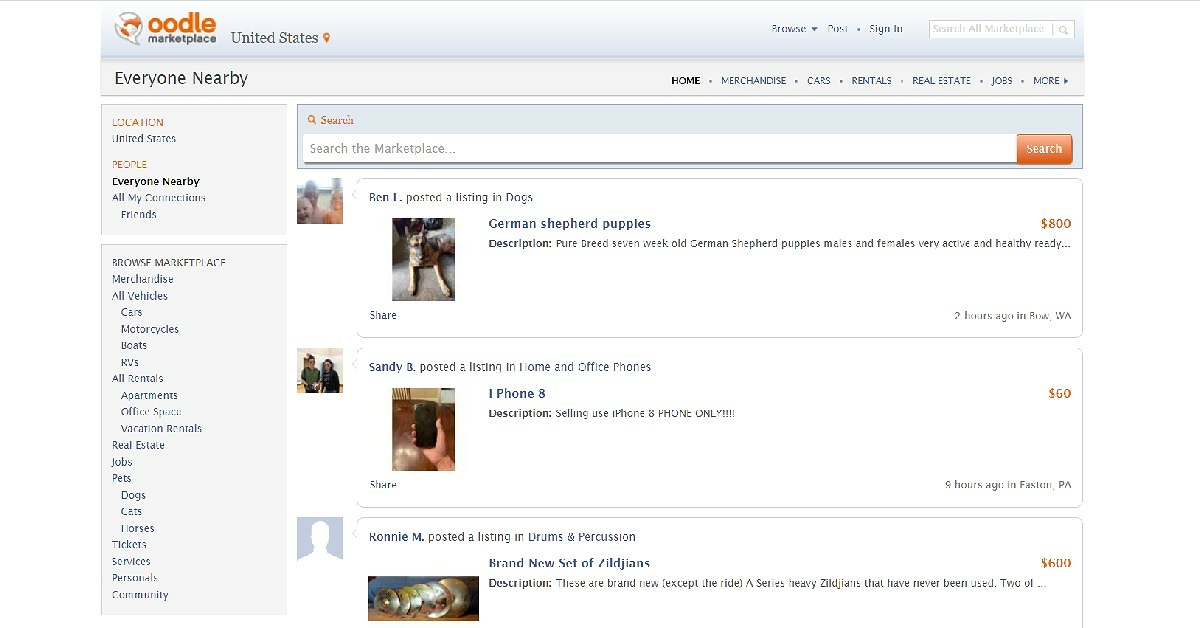
One of the better alternatives to Craigslist, Oodle has an old-school interface, quite similar to Craigslist itself. Oodle allows you to make listings in order to sell goods and services. It also lets you add other people to your network. You can Oodle for anything, ranging from looking for employers to selling pets online.
Facebook Marketplace may be one of the newer entries on this list but it is already used by millions of people worldwide. You can browse the website for used items for sale, go through listings of new products, or even create a classified-like posting yourself. If you’re looking for something specific, there are several groups that might offer products suited to your needs or at least guide you in the right direction. It is advised to make sure the seller is verified. If they aren’t, it might be a good idea to browse their Facebook profile for any suspicious activity. You can even send them a message if you want a better price for the product. Conversely, selling an item on Facebook Marketplace is quite easy as well. All you need to do is snap a picture of the item you want to sell and make a post mentioning the price and additional details about the product.
Locanto operates across 60 countries worldwide and is one of the more popular alternatives to Craigslist. Apart from selling items, you can also use Locanto to look up tutoring classes, local events, jobs, real estate, vehicles, household help, rideshare opportunities, music artists, and even pet sitters.Similar to Craiglist, Locanto also allows you to post personal ads. You need to manually enter your location on the website in order to browse used items for sale around your area. Locanto also accepts money to boost your listing, so you might see paid ads on the website.
eBay is probably the biggest website in the world for browsing used items for sale. You can find just about anything from eBay, with products ranging from cellphones to automobile parts. Since eBay is a popular website and gets a lot of traffic, it can attract a lot of scammers and corrupt sellers. Therefore, one must proceed with caution and only buy from verified sellers or the ones with favourable ratings.
Decluttr is a buying and selling website designed specifically for electronic goods. Instead of linking you with a buyer, Decluttr buys the item from you. Decluttr also provides a free instant valuation for the product you’re trying to sell. On top of that, it also provides free shipping.You can use Decluttr not only for electronic devices, but also for CDs, DVDs, books, and games. You can even sell tech items in bulk.
Poshmark is a marketplace designed for buying and selling clothes. Once you’ve signed up, you’ll be able to browse several categories of clothing products and even look up sellers that offer something you like. If you’re a seller, Poshmark offers you free shipping, making it easier for you to ship your products. Buyers, however, have to incur the cost of shipping on top of Poshmark’s 20% commission. Read Also:Best websites to shop and get international gadgets to India from?These 7 websites will cover everything you want when it comes to looking for used items for sale. Although these websites are generally safe and have created helpful communities, it is always better to be on the side of caution when dealing with sellers online. Always avoid giving out your personal information, and always select a public place when arranging for a spot to pick up an item.
For the latest gadget and tech news, and gadget reviews, follow us on Twitter, Facebook and Instagram. For newest tech & gadget videos subscribe to our YouTube Channel. You can also stay up to date using the Gadget Bridge Android App. You can find the latest car and bike news here.
HP has announced the launch of 2022 models of Omen 16, Omen 17, Victus 15, Victus 16 Gaming Laptops in the Indian market. The laptops are powered by AMD Ryzen 6000 series and Intel Core 12th generation CPUs. Additionally, the company has also introduced the Omen 45L, 40L, 25L, and Victus 15L desktops with Intel and AMD Ryzen processors.HP OMEN 16
HP Omen 16 price in India and specifications
The 16.1-inch IPS QHD display on the HP Omen 16 has a 16:9 aspect ratio with a refresh rate of 165 Hz. It is equipped with an Intel Core i7-12700H or AMD Ryzen RX 6650M processor that supports up to 12th generation, Nvidia GeForce RTX 3080 Ti graphics, 32GB of DDR5 RAM, and up to 2TB of PCIe SSD storage. Additionally, the laptop has a keyboard with up to RGB lighting. In terms of pricing the HP Omen 16 comes with a starting price of Rs 1,09,999. It will be available in a single Shadow black colour option.
HP Omen 17 price in India and specifications
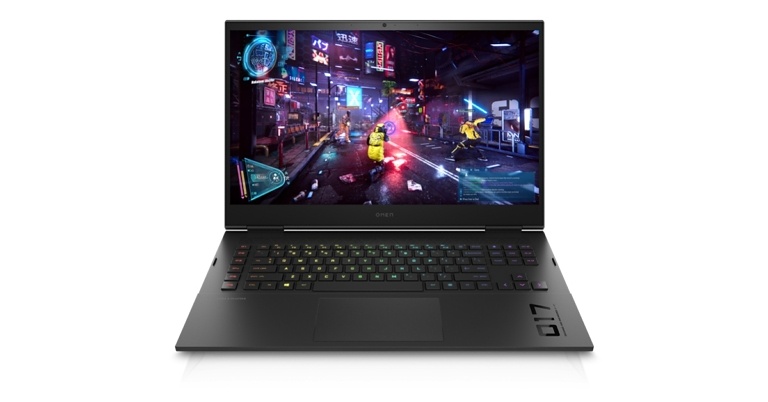
While the 17.3-inch screen on the OMEN 17’s micro-edge bezel display provides edge-to-edge immersion for a higher screen-to-chassis ratio. The OMEN family of products offers exceptional cooling and power together with an additional thermal outlet and heat pipe that boosts GPU and CPU performance. Its specs are comparable to those of the Omen 16.Starting in August, the HP Omen 17 will be available for purchase for Rs. 1,99,999.HP VICTUS 15
HP Victus 15 price in India and specifications
The 15.6-inch HP Victus 15 has a 15.5-inch display and is equipped with Nvidia RTX 3050Ti graphics and up to a 12th-generation Intel Core i7 processor. A Temporal Noise Reduction (TNR) technology is also built into the laptop, which is said to assist reduce background noise in videos with Super Resolution Auto Scene Setting. Beginning in July, the HP Victus 15 will be sold for a starting price of Rs. 67,999.HP VICTUS 16
HP Victus 16 price in India and specifications
For convenient everyday carrying, the 16.1-inch display on the HP Victus 16 offers settings up to FHD 144 Hz and Eyesafe low-blue light. With graphics driven by an AMD RyzenTM 7 6800H processor and up to an NVIDIA GeForce RTXTM 3050Ti laptop GPU. Up to 32 GB of DDR5-4800 MHz memory with choices for lightning-fast speed and responsive gameplay. A backlit keyboard printed in the recognisable font used on OMEN devices, and built-in fast keys for the OCC, power button, and calculator.Wide back vents improve thermal efficiency while also adding visual flair. Four-way airflow and a two-heat pipe design help to keep things running cool when the action heats up. Gaming and other tasks can be completed quickly and easily with a single SSD up to 512 GB PCIe NVMeTM TLC storage.Victus 16 is currently offered at a starting price of Rs. 84,999.
HP OMEN 45L, 40L and 25L desktops price in India and Specifications
The OMEN 45L, 40L, and 25L desktops are powered by Intel processors with up to 12 cores and up to 10GB of memory, as well as HyperX 32GB (2x16GB) DDR4 3733 XMP RGB for the 40L model and up to 10GB of memory for the 45L model. This guarantees fluid gaming.Omen 45L desktops use cutting-edge, patent-protected cooling technology that uses outside air to maintain the perfect temperature within the machine. Even when your games get hot, overheating is minimised by the careful arrangement of the fans.HP Omen 45LThe machine is aesthetically beautiful because of its tempered glass panels, full metal body, tool-free entrance, and full RGB control. Users may adjust every aspect thanks to the straightforward technology, including RAM frequency, intelligent overclocking, SW-based fan control, BIOS access, and RBG with OMEN gaming hub.The starting price for the HP Omen 45L, Omen 40L, and Omen 25L PCs is Rs. 1,49,999.
HP Victus 15L desktops price in India and Specifications
The Victus 15L’s Intel i7- 12700F 12 CORES processor and either an AMD Ryzen 7 5700G 8 CORES or an NVIDIA GeForce RTX 3060 Ti 8GB graphics card guarantee fluid gameplay and more. It has a small overall footprint and an interchangeable RBG logo for a unique lifestyle expression.The new desktop PC line’s considerable customization capabilities improve consumers’ gaming experiences. The Victus 15L desktop is being offered for a starting price of Rs. 93,999.
For the latest gadget and tech news, and gadget reviews, follow us on Twitter, Facebook and Instagram. For newest tech & gadget videos subscribe to our YouTube Channel. You can also stay up to date using the Gadget Bridge Android App. You can find the latest car and bike news here.
Garena Free Fire is a battle royale game with regular awards and tournaments to keep players interested. If you play Garena Free Fire, you should be aware of the redeem codes that are released on a daily basis. However, because the battle royale game is banned in India, players from other countries can use the Free Fire Redeem codes daily. If you’re unfamiliar with the Garena Free Fire redeem codes or don’t know how to get them, we’ve put together a step-by-step guide to help you redeem them. Check out Garena Free Fire Redeem Codes for June 24.The Free Fire redeem codes are a great way to get free stuff. These are 12-digit codes that contain alphabets and numbers, as well as an expiration date and time. Because the Garena FF redeem codes cannot be used more than once, you should hurry to the redemption page to claim your free reward before someone else does. To get a free reward, all you have to do is go to reward.ff.garena.com/en, which is the official redemption page. Also, keep an eye on this space for daily updates on Garena Free Fire redemption codes and rewards.
Garena Free Fire Redeem Codes Today 24 June 2022
FF9MJ31CXKRG
FFCO8BS5JW2D
PCNF5CQBAJLK
FFAC2YXE6RF2
FFICJGW9NKYT
WEYVGQC3CT8Q
3IBBMSL7AK8G
FV5BNJ45IT8U
F4N5K6LYOU9I
FH2GYFDHE34G
F7YGT1BE456Y
FJBHVFS4TY23
F87GYF3DGE6B
How to Get Free Fire Redeem Codes for Garena on June 24?


 Step 2: Select Settings.
 Step 3: Select Account.
 Step 4: Select Privacy.
 Step 5: Select whether you want to change the visibility of Last Seen, Profile Photo, About, or Status.
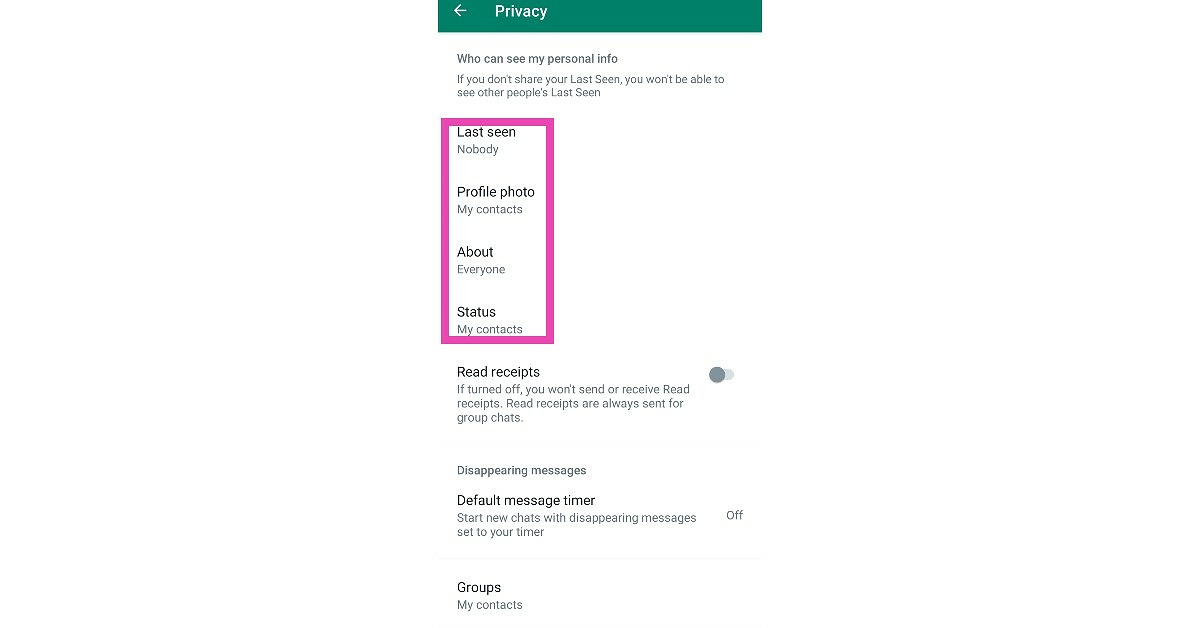 Step 6: Once you click on either one of them, you’ll be presented with three visibility options. If you want to exclude certain contacts from seeing your Last Seen, Profile Photo, About, or Status, click on ‘My Contacts, except…’
 Step 7: Select the contacts you want to exclude from viewing your Last Seen, Profile Photo, About, or Status.
Step 8: Save your changes by tapping the Tick sign at the bottom right corner of your screen. Your changes will be saved.
Step 7: Select the contacts you want to exclude from viewing your Last Seen, Profile Photo, About, or Status.
Step 8: Save your changes by tapping the Tick sign at the bottom right corner of your screen. Your changes will be saved.
 Read Also: WhatsApp’s new feature will let you share your status on Facebook
These updates are immensely helpful for users who only wish to reserve personal information from a few contacts, without wanting to change their visibility for all contacts. Since WhatsApp rolls out its new updates in phases, you might have to wait a while if this update isn’t already available on your device. On top of that, the new WhatsApp update also allows users to respond to messages with emojis.
For the latest gadget and tech news, and gadget reviews, follow us on Twitter, Facebook and Instagram. For newest tech & gadget videos subscribe to our YouTube Channel. You can also stay up to date using the Gadget Bridge Android App. You can find the latest car and bike news here.
Read Also: WhatsApp’s new feature will let you share your status on Facebook
These updates are immensely helpful for users who only wish to reserve personal information from a few contacts, without wanting to change their visibility for all contacts. Since WhatsApp rolls out its new updates in phases, you might have to wait a while if this update isn’t already available on your device. On top of that, the new WhatsApp update also allows users to respond to messages with emojis.
For the latest gadget and tech news, and gadget reviews, follow us on Twitter, Facebook and Instagram. For newest tech & gadget videos subscribe to our YouTube Channel. You can also stay up to date using the Gadget Bridge Android App. You can find the latest car and bike news here. 
 Step 3:
 Step 4:
 Step 5:
 Step 3:
 Step 4:
 Step 2:
 Step 3:
 Step 4: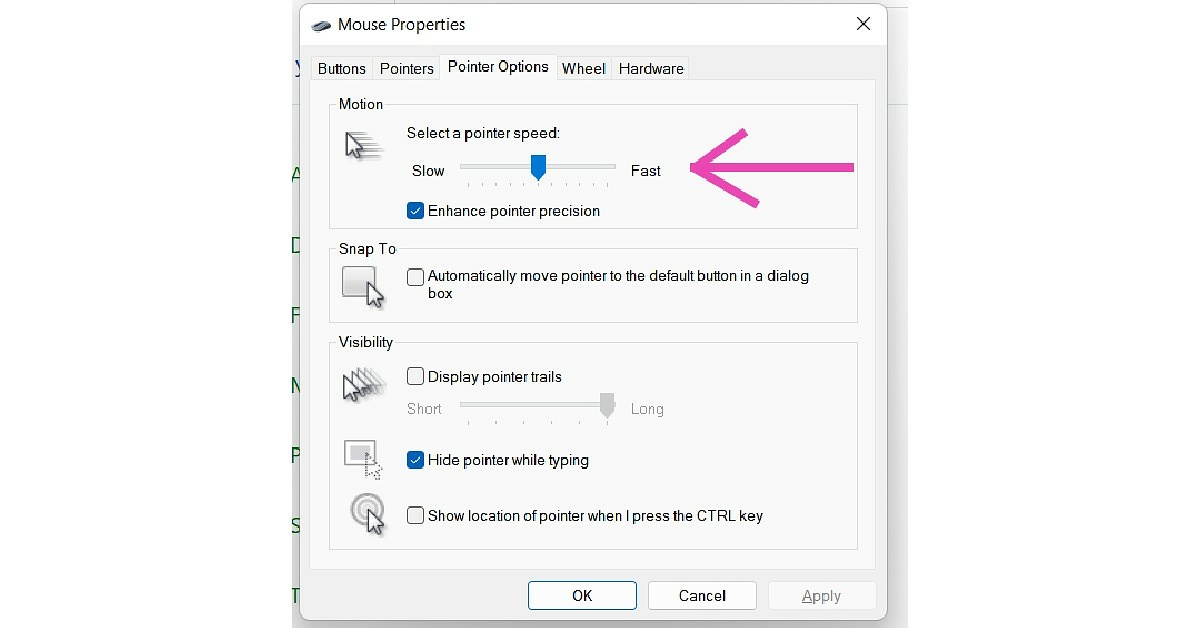
 Step 3:
 Step 4:
 Step 5:
 Step 6:

 Step 2:
 Step 2:

 Step 2:
 Step 5: