In This Article
OnePlus 9RT and OnePlus Buds Z2 TWS earbuds India launch to take place on January 14
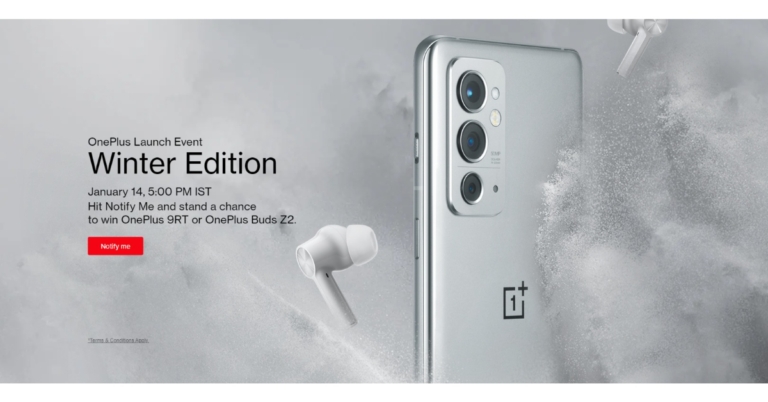
The India launch date for the OnePlus 9RT and OnePlus Buds Z2 true wireless stereo (TWS) earbuds have been announced. Both the devices are set to launch on January 14 in the country. Both the products have already launched in China last year. The smartphone is powered by the Snapdragon 888 SoC. It features a triple rear camera set-up and a 120Hz display. Whereas, OnePlus Buds Z2 11MM dynamic drivers and active noise cancellation (ANC)
The announcement comes only hours after OnePlus hinted at the release of both devices in two different tweets. On January 14 at 5 p.m. IST, the OnePlus 9RT and OnePlus Buds Z2 will be unveiled during a virtual Winter Edition launch event. The event will be broadcast live on the OnePlus India YouTube channel. On its official website, the firm has also set up a ‘Notify Me’ page.
How to sign out of Prime video on your smart TV?

Smart TVs are very common these days, they are now very easily available at a price similar to a normal TV. Smart TVs are a better option since these TVs give users many choices to watch from, one of them is by using their Amazon Prime Video account. But due to any reason if you want to sign out of your Prime Video then we will show you how to sign out of Prime video on your smart TV
Read also: The best and top Cloud Storage Services one can buy instantly
Just follow the simple and easy steps that are mentioned below and you will be able to sign out of your Prime Video account from your Smart TV:
In This Article
Signout using TV
One of the ways to sign out is by using the smart TV itself, just open the Prime Video on your Smart TV and follow the steps:- Once you have opened the Prime Video on your TV just go to the settings menu inside the Prime Video on your TV.
- Then go to the option that says Deregister Devices and click on that.
- Hit on the button to deregister your device, a popup will come to confirm the process is okay and the TV will be deregistered.
Use synced Phone or laptop
You can use your synced laptop or phone to deregister your TV from Amazon Prime videos, just follow the steps given and that is it:- Go to the Amazon website and sign in to your account if you have not signed in.
- Then go to Accounts & Lists and choose Your Video Library.
- Then go to the Settings and after that go to Your Devices.
- Find the TV that you want to deregister from Prime Video and hit the deregister button. Your TV will be deregistered or logged out from Prime Video.
5 ways to restart or force shutdown a frozen software or app in Windows

If you use a Windows PC or a laptop you might have come across a problem where the app that you are using stops responding all of a sudden. The not responding case happens specially if your PC is not capable of running heavy software like Premiere Pro, After Effects, etc. So, if you find yourself stuck in this situation quite a lot then we will show you 5 ways to restart or force shutdown a frozen software or app in Windows 10 and 11.
Just follow these simple hacks/ways and you should be able to take yourself out of the situation without any hassle.
 Alt+F4 is a shortcut on windows to kill or quit apps in an instant. This shortcut is quite handy in most situations. So, the next time when you find yourself in this situation where you can not quit the app just press the shortcut combo Alt+F4 and that is it.
 Select whether you want to shutdown or restart the PC.
In This Article
Use Alt+F4 shortcut
 Alt+F4 is a shortcut on windows to kill or quit apps in an instant. This shortcut is quite handy in most situations. So, the next time when you find yourself in this situation where you can not quit the app just press the shortcut combo Alt+F4 and that is it.
Use Command Prompt
Command Prompt or commonly called cmd. Command Prompt is the default command-line interpreter for Windows. In simple words, you can say cmd is the Commander in your PC that uses some commands to instruct Windows to work according to that. If you are stuck with a frozen app then you can use cmd to get out of the situation. Just press the combination of Win+R on your PC and follow the steps:- Now that you have pressed the key combination, you will see a popup window on your screen
- Just type “shutdown/s” on it to shutdown your PC and that is it. Or else you can restart your PC by typing shutdown/r instead of shutdown/s.


Go to Windows security screen
Another way to restart or shutdown the PC is by going to the Windows security screen by pressing a key combination Ctrl+Alt+Del. After you have pressed this key combination just click on the bottom right of the screen, you will see a button. Select whether you want to shutdown or restart the PC.
Use Task Manager to kill apps
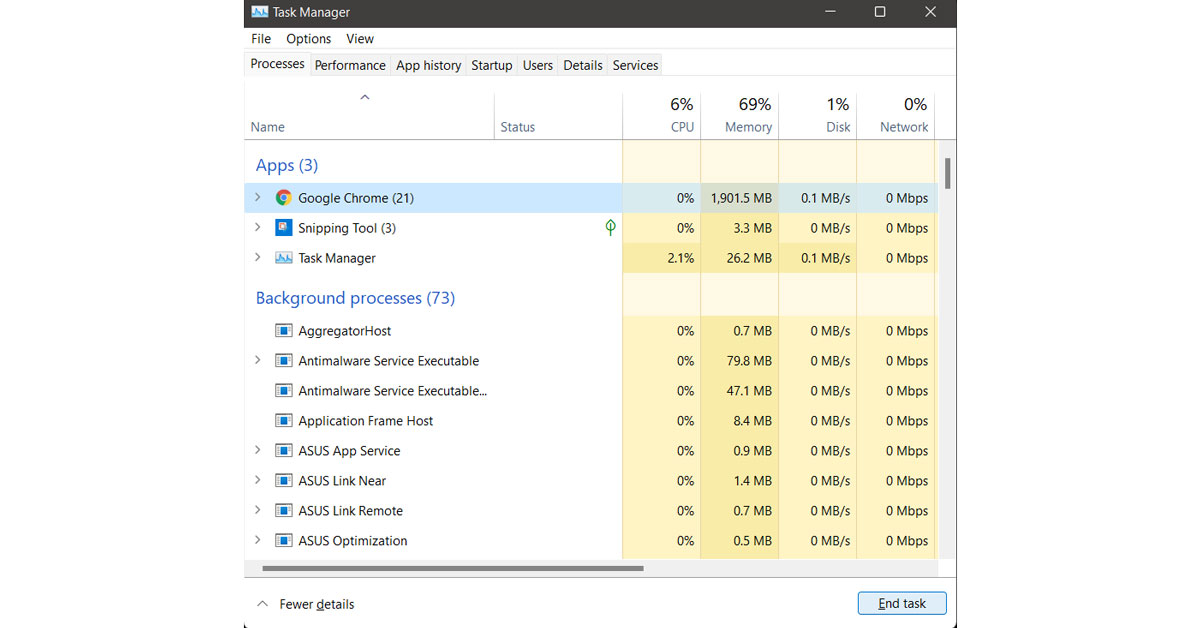
Using task manager can also be a great option if you do not want to shutdown or restart the PC to get rid of the frozen software, just follow the steps given below to know how can kill apps by task manager:- Open the task manager by pressing the key combination Ctrl+Shift+Esc and open Task Manager.
- You will see a window popup on your screen, now just go to the processes tab on the task manager.
- Select the app that you want to kill and press the end task button at the bottom right.
Use Slidetoshutdown Command
Another way to shutdown the PC and with it the frozen software, when it is stuck, is to use the combination Win+R keys. After you use the combination a window will appear, and just type the command “Slidetoshutdown.exe” and then press okay. Read also: How to resolve the ‘Frozen Mouse’ issue on a laptop? For the latest gadget and tech news, and gadget reviews, follow us on Twitter, Facebook and Instagram. For newest tech & gadget videos subscribe to our YouTube Channel. You can also stay up to date using the Gadget Bridge Android App. You can find the latest car and bike news here.Top 4 Ways to Access your Google Search History and Delete All Activity (2024)
Google Search is the most used and popular search engine among all other search engines available. It offers many great features and is very efficient in internet searches. Google records all the data that you search for and if you are not comfortable in sharing or keeping the data here are the top 4 ways to access your Google Search history and delete all activity.
Read also: Now you can protect your Activity History on Google
Step 2: Select Data and Privacy on the left side of the menu bar, and then select My Activity now just enter the security details.
Step 3: To clear all your Google search history and delete all the activity, select the three-dots menu at the top right of the screen then select Delete activity by, and then select the time span that you want to clear.
And that is it! This is how you can remove all the activity from your Google account.
 Step 2: Tap on Manage your Google Account.
 Step 3: Switch to the Data and privacy tab.
 Step 4: Scroll down and tap on My Activity.
Step 5: Tap on Delete.
Step 4: Scroll down and tap on My Activity.
Step 5: Tap on Delete.
 Step 6: Select Always.
Step 7: Select the services from which you wish to delete your activity and hit Next.
Step 8: Hit Delete.
Step 2: Select Search History.
Step 3: Tap on Delete.
Step 4: Select Delete all time.
Step 5: Hit Delete.
Step 6: Select Always.
Step 7: Select the services from which you wish to delete your activity and hit Next.
Step 8: Hit Delete.
Step 2: Select Search History.
Step 3: Tap on Delete.
Step 4: Select Delete all time.
Step 5: Hit Delete.
In This Article
Delete Google Activity on PC
So now you do not have to worry about your data being misused by anyone. Just follow the steps given below and you will be able to access your Google Search history and delete all activity: Step 1: Sign in to your Google account in Chrome web browser on your PC and search for myaccount.google.com. Step 2: Select Data and Privacy on the left side of the menu bar, and then select My Activity now just enter the security details.
 Step 3: To clear all your Google search history and delete all the activity, select the three-dots menu at the top right of the screen then select Delete activity by, and then select the time span that you want to clear.
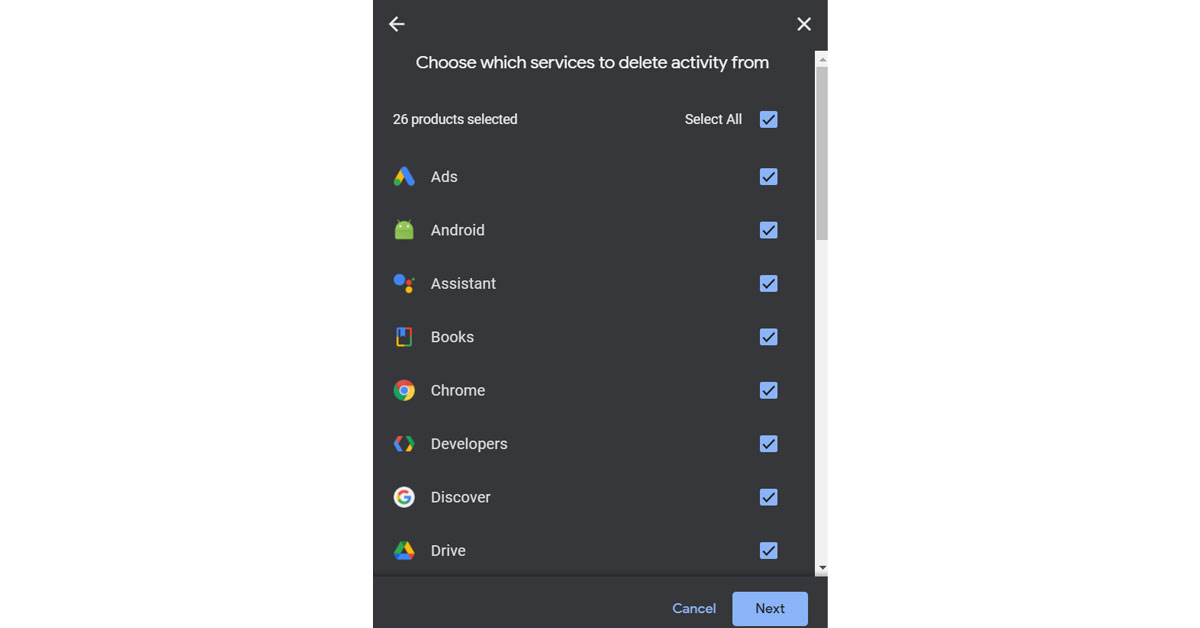 And that is it! This is how you can remove all the activity from your Google account.
Delete Google Search History on PC
Step 1: Open Chrome browser on your PC and then hit the three-dot menu at the top right corner of the screen near your profile photo. Step 2: Then go to the history option, and click on it. Step 3: After that, tap on the Clear Browsing data and select the time duration and that is it. This is how you can clear the browsing data on Google Chrome.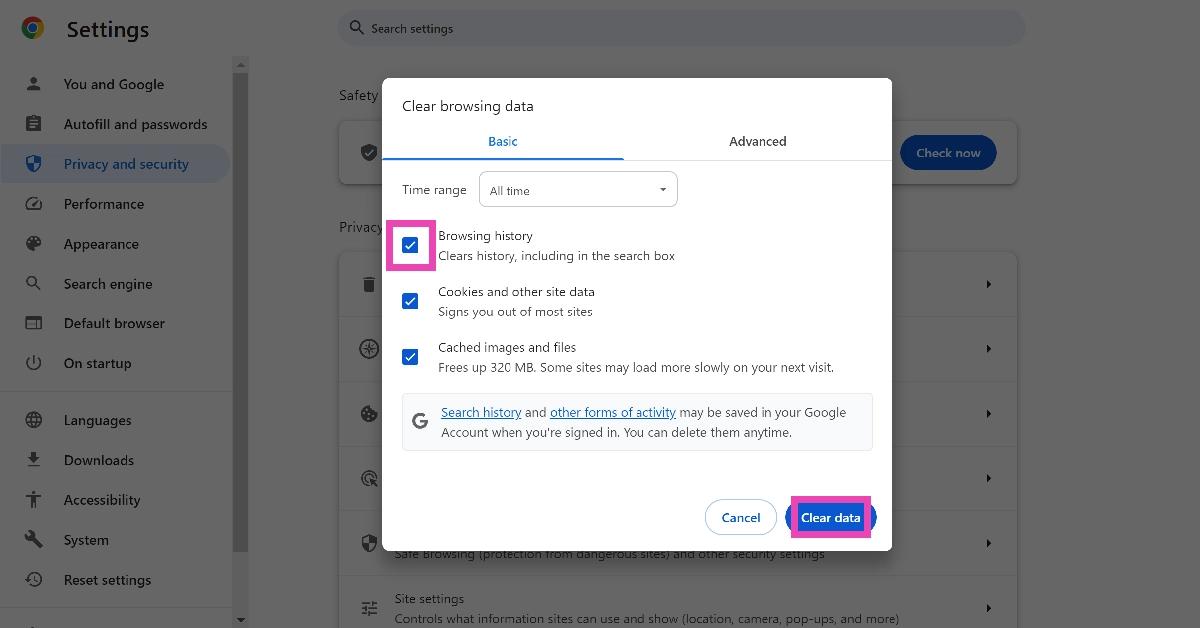
Delete Google Activity on your Android smartphone
Step 1: Go to Settings and select Google.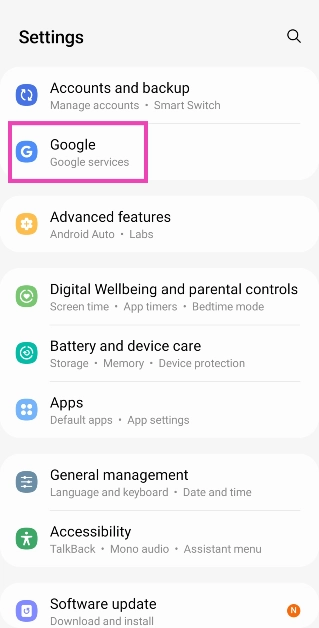 Step 2: Tap on Manage your Google Account.
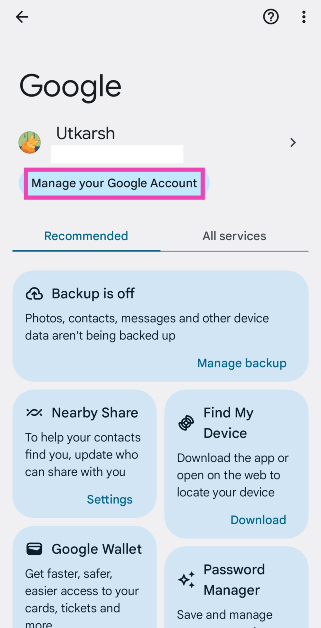 Step 3: Switch to the Data and privacy tab.
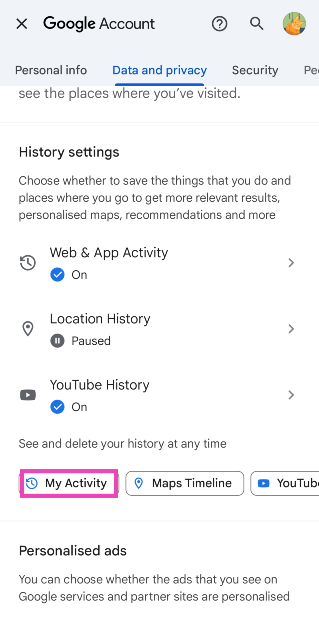
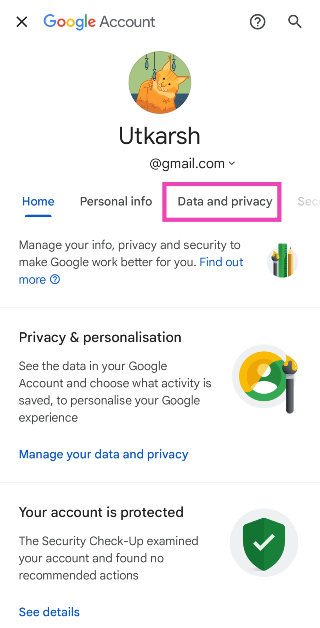 Step 4: Scroll down and tap on My Activity.
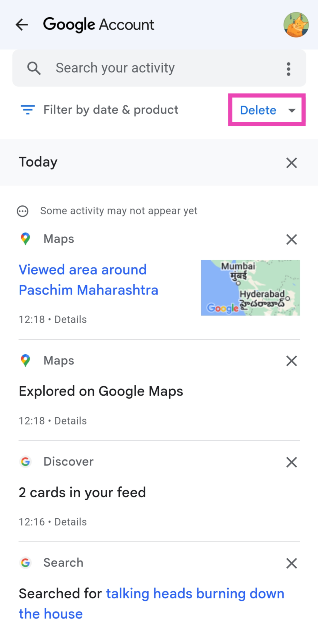
 Step 5: Tap on Delete.
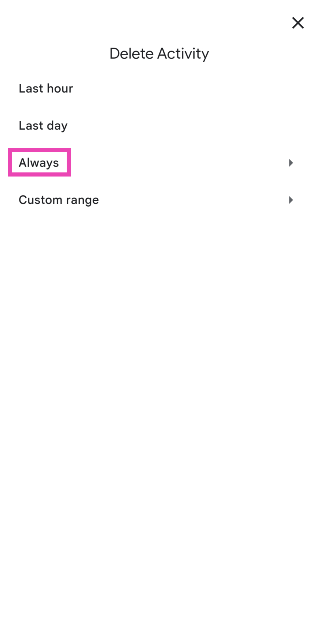
 Step 6: Select Always.
 Step 7: Select the services from which you wish to delete your activity and hit Next.
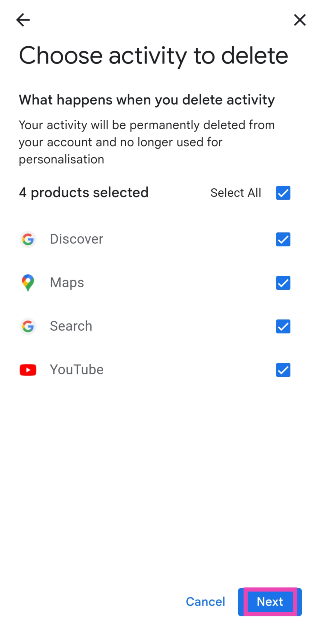 Step 8: Hit Delete.
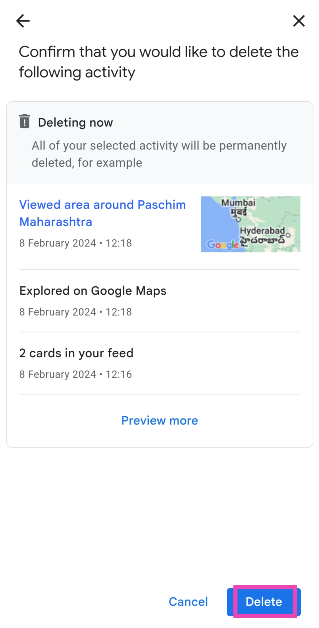
Delete Google Search History on Android
Step 1: Launch the Google app on your smartphone and tap your profile picture at the top right corner of the screen.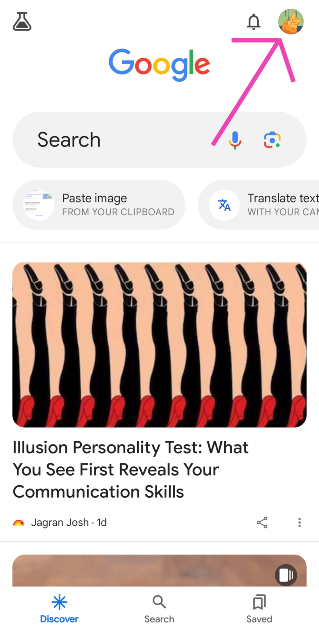 Step 2: Select Search History.
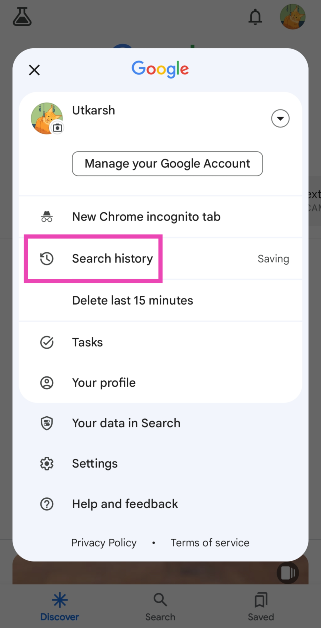 Step 3: Tap on Delete.
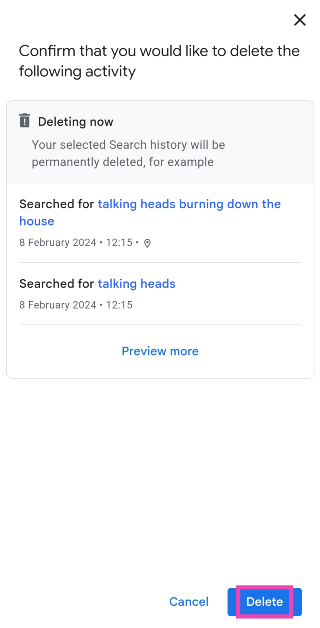
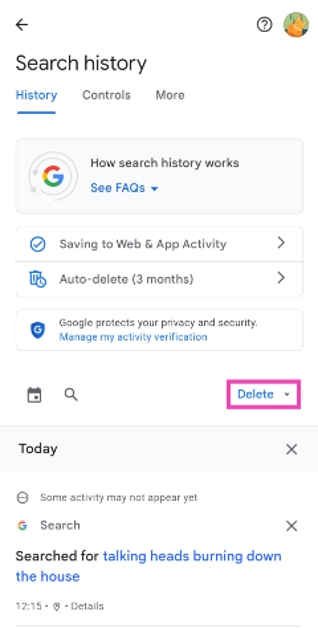 Step 4: Select Delete all time.
Step 5: Hit Delete.
Step 4: Select Delete all time.
Step 5: Hit Delete.
Frequently Asked Questions (FAQs)
How do I delete my Google Activity?
Go to your Google Account, select ‘Data and privacy’, click on My Activity, hit the ellipses and select ‘Delete activity by’. Choose the time span and the activities you want to delete.How do I stop Google from recording my activity?
On your Android phone, go to Settings>Google>Manage your Google Account>Data and privacy. Select the activity you wish to pause and select ‘Turn off’.How do I delete my Google search history on Android?
Launch the Google app, tap your profile picture, select ‘Search History’, hit ‘Delete’, and select ‘Delete all time’. Read also: How to stop YouTube from saving your search history?Conclusion
So, by using these 4 methods you can make sure that no one watches your search data on Google Chrome and also delete all the activity data from your Google account. You can also choose to pause Google from recording your activity from the ‘Data and privacy’ page. If you know of any other way to accomplish this task, let us know in the comments!Vivo Y21T with triple cameras and 90Hz display launched in India
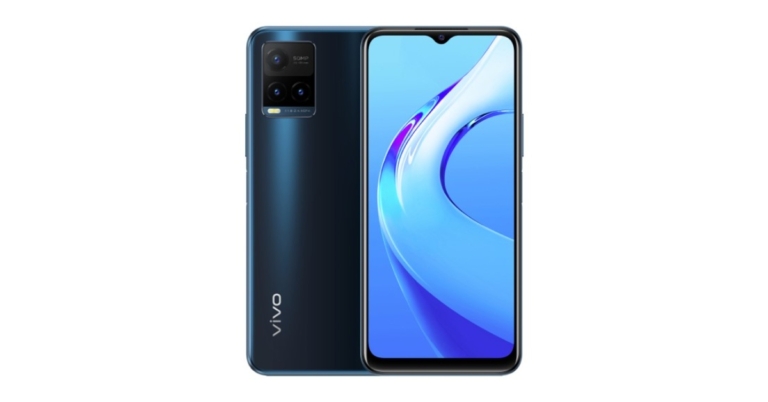
Vivo has announced the introduction of another Y-Series smartphone in India. Vivo Y21T is the latest addition to the company’s portfolio. The smartphone has a triple back camera setup with the main sensor of 50 megapixels. The phone is equipped with a 5,000mAh battery that supports 18W fast charging and is powered by Qualcomm Snapdragon 680 SoC.
In This Article
Vivo Y21T price in India and availability
Vivo Y21T price in India has been set at Rs 19,990 for the 4GB RAM with 128GB storage option. But the company will be offering the phone at an introductory price of Rs 16,490. The device will come in two colour options of Midnight Blue and Pearl White. It is now available for purchase via Vivo India E-store and across all partner retail stores in the country.Vivo Y21T features
The Vivo Y21T features a 6.51-inch HD+ display with a resolution of 2408 × 1080 and 90Hz refresh rate. The additional Eye Protection Mode filters out the harmful blue light for a more comfortable viewing experience. It runs Funtouch OS 12 out of the box, which is based on Android 11. The smartphone comes equipped with an octa-core Qualcomm Snapdragon 680 SoC, 6GB of RAM, and 128GB of internal storage that can be upgraded up to 1TB via a microSD card. The built-in storage may also be used to boost the RAM to 1GB. The Vivo Y21T features a triple rear camera set up that includes a 50-megapixel primary sensor with an f/1.8 aperture, a 2-megapixel macro sensor with an f/2.4 aperture and a 2-megapixel depth sensor with an f/2.4 aperture. In addition, the device has an 8-megapixel selfie camera with an f/1.8 aperture. Connectivity options on the newly announced cellphone include 4G LTE, Wi-Fi, Bluetooth v5, GPS/ A-GPS, FM radio, USB Type-C, and a 3.5mm headphone connector. The sensors onboard include an accelerometer, ambient light sensor, magnetometer, and proximity sensor. On the side, there is also a fingerprint scanner. The Vivo Y21T sports a 5,000mAh battery that supports 18W rapid charging. The smartphone also offers reverse charging that will turn the smartphone into a power bank. For the latest gadget and tech news, and gadget reviews, follow us on Twitter, Facebook and Instagram. For newest tech & gadget videos subscribe to our YouTube Channel. You can also stay up to date using the Gadget Bridge Android App. You can find the latest car and bike news here.4 January 2022 Amazon Quiz today answers: Answer to win Rs 15,000 Amazon Pay Balance

4 January 2022 Amazon Quiz has gone live on its platform. The quiz timings are 12 AM to 11:59 PM. The Amazon App users can participate in the quiz daily and all they have to do is submit correct answers to the questions asked on the e-commerce platform. Today’s participants can get a chance to win Rs 15,000 Amazon Pay Balance.
Amazon brings a fresh questionnaire that contains 5 questions daily. These questions are based on current affairs and general knowledge. The quiz can be played from 8 AM to 11:59 PM and the contestants need to answer correctly to enter into a lucky draw.
Only one person is declared as a winner and the results will be announced at the end of every month. And to make sure that you give correct answers to all the 5 questions Gadget Bridge everyday updates all the answers to the Amazon Quiz. Do check out 4 January 2022 Amazon Quiz Answers to win Rs 15,000 Amazon pay Balance.
In This Article
4 January 2022 Amazon Quiz Answers
Question 1: Israel opened its embassy for the first time in which country in 2021?
Answer: BahrainQuestion 2: President Joe Biden recently test-drove which all-electric car?
Answer: GMC HummerQuestion 3: Apple’s recent release of which ‘computer accessory’ led to amusing reactions on Twitter?
Answer: Polishing clothQuestion 4: This visual shows a cosplay of a famous literary character, which was played on screen by which famous actor?
Answer: Johnny DeppQuestion 5: What is the name for this traditional garment, which is the national dress of Japan, meaning “something to wear”.
Answer: Kimono For the latest gadget and tech news, and gadget reviews, follow us on Twitter, Facebook and Instagram. For newest tech & gadget videos subscribe to our YouTube Channel. You can also stay up to date using the Gadget Bridge Android App. You can find the latest car and bike news here.Moto G71 expected to be released in India in the second week of January
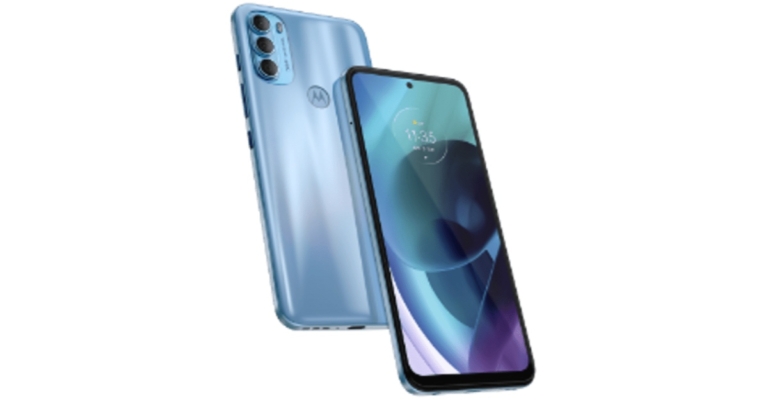
The Moto G71 might be released in India very soon. Motorola is yet to announce the launch date, but a new leak claims the newest Moto G-series phone will arrive later this month. To recall along with M71, Moto G200, Moto G51, Moto G41, and Moto G31 made their global premiere in November. The upcoming smartphone features a triple rear camera set up and a 5,000mAh battery. It is powered by Snapdragon 695 SoC with up to 128GB of internal storage option.
So far, only the Moto G51 and Moto G31 handsets have been announced in India. Tipster Yogesh Brar has turned to Twitter to imply that the Moto G71 would be released in India soon. According to him, the device will arrive in India by the second week of January, and that the company would tease the handset’s arrival in the country shortly. However, the source did not specify a specific launch date.
In This Article
Moto G71 price in India expected
Speaking about the pricing Moto G71 costs EUR 299.99 worldwide that translates to Rs 25,200. The Indian version will most likely be priced similarly.Moto G71 specifications expected
On the specification front, Android 11 is the operating system on which the Moto G71. It has a 6.7-inch full-HD+ OLED display with 1,080×2,400 pixels of resolution. The screen offers a 409ppi pixel density and 60Hz refresh support. The Qualcomm Snapdragon 695 SoC powers the device which also has 8GB of RAM and 128GB of internal storage. A 50-megapixel main sensor, an 8-megapixel ultra-wide-angle lens, and a 2-megapixel macro lens make up the Moto G71’s triple rear camera configuration. A 16-megapixel front camera for selfies is included. The Motorola phone has a 5,000mAh battery that charges quickly using Turbo Power 30. A USB Type-C connection, Bluetooth v5, and Wi-Fi ac are among the connectivity possibilities. For the latest gadget and tech news, and gadget reviews, follow us on Twitter, Facebook and Instagram. For newest tech & gadget videos subscribe to our YouTube Channel. You can also stay up to date using the Gadget Bridge Android App. You can find the latest car and bike news here.Samsung officially teases Samsung Galaxy S21 FE arrival, launching soon

The Samsung Galaxy S21 FE (Fan Edition) is set to debut at CES 2022, which kicks off on Wednesday, January 5 in Las Vegas, Nevada. Just ahead of the tech event Samsung has officially teased the global debut of the Galaxy S21 FE. Till now the company did not make any official announcement but the upcoming smartphone has been leaked multiple times in recent weeks. The company has not expectedly revealed the name of the device but the shared teaser confirms the arrival of the handset.
On Twitter, the business teased the new Samsung Galaxy S21 FE smartphone. The teaser comes with the tagline “Epic is coming.” The phone is seen in Graphite, White, Olive, and Lavender colours. Earlier the smartphone was rumoured to come in these four shades only.
Samsung has not revealed the details about the impending Galaxy S21 FE smartphone but some time back a customer in South Africa was quick to pick up on one and posted an unboxing video and review of the device. The unboxing and review video revealed that the device will not come with a charger. It is stated to be powered by the Snapdragon 888 SoC and pack a 4,500mAh battery.
The Samsung Galaxy S21 FE is believed to include a 6.4-inch full HD+ AMOLED display with a resolution of 2340 x 1080 pixels, a pixel density of 401ppi, and a punch-hole cutout for the front camera. The screen is supposed to offer a 120Hz refresh rate and be protected by Corning Gorilla Glass. The Galaxy S21 FE will be powered by the Qualcomm Snapdragon 888 or Exynos 2100 5G chipset, with up to 8GB of RAM and 256GB of extendable internal storage. Although we’d want to see Android 12 out of the box, it’ll most likely run.
The triple camera configuration will comprise a 12MP primary camera with an f/1.8 aperture lens, 79-degrees FoV, and OIS with dual-phase detection autofocus. A 12MP ultra-wide camera and an 8MP telephoto camera with 3x zoom are also expected to be part of the camera system. On the front, there’s a 32MP camera for selfies and video chats.
You may read our earlier coverage of the Samsung Galaxy S21 FE to learn more.
For the latest gadget and tech news, and gadget reviews, follow us on Twitter, Facebook and Instagram. For newest tech & gadget videos subscribe to our YouTube Channel. You can also stay up to date using the Gadget Bridge Android App. You can find the latest car and bike news here.
OnePlus 9RT smartphone and the OnePlus Buds Z2 TWS teased to launch in India soon
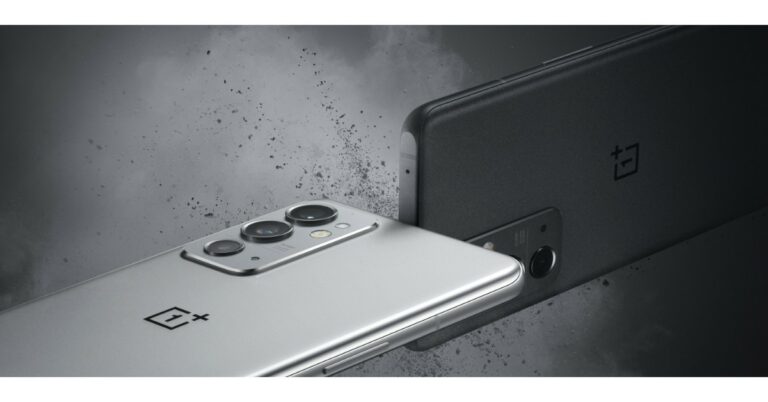
The OnePlus 9RT smartphone and the OnePlus Buds Z2 true wireless stereo (TWS) headphones will be released in India shortly. The company has teased the arrival of both the products in two different Morse code-encrypted tweets. Both the smartphone and the TWS earbuds are now available in China and were launched last year.
OnePlus took to Twitter to announce its upcoming smartphone and TWS earphones in the Indian market. Two tweets from OnePlus India have been shared which included mysterious Morse code messages. Decoding the Morse code reveals ONEPLUS 9 and ONEPLUS BUDS Z2 indicating that the OnePlus 9RT and OnePlus Buds Z2 will be released in India. The company has however not yet revealed the exact launch date of the upcoming devices but it is presumed that the products will be launched shortly. The OnePlus 9RT was expected to be priced in India between Rs 40,000 and Rs 44,000.
Previously both the OnePlus 9RT and OnePlus Buds Z2 were listed on the company’s official website in the country.
Besides that, rumours suggest that when the OnePlus 9RT is introduced, OnePlus’ OnePlus 9, OnePlus 9R, and OnePlus 8T smartphones will be discontinued.
In This Article
OnePlus 9RT specs
OnePlus 9RT will most likely have a 6.62-inch Samsung E4 AMOLED display with full HD+ resolution. The panel will have a resolution of 1,0802,400 pixels and a refresh rate of up to 120Hz. It will come pre-installed with ColorOS, which is based on Android 11. An octa-core Qualcomm Snapdragon 888 SoC will be found within, along with up to 12GB of LPDDR5 RAM and up to 256GB of UFS 3.1 storage. The rear camera will have three sensors. A 50MP Sony IMX766 primary lens with an aperture of f/1.8 and optical image stabilisation (OIS) will be included in the camera system. A 16-megapixel ultra-wide-angle lens with an f/2.2 aperture and a 2-megapixel macro lens is also included in the camera module. A 16MP Sony IMX471 selfie camera with f/2.4 aperture and EIS is located at the front of the phone. In addition, the OnePlus 9RT will come with a 4,500mAh battery that supports 65W Warp Charge. Aside from that, the newly released device features 5G and 4G LTE connection, as well as Bluetooth v5.2, WiFi 6, GPS/A-GPS, NFC, and a Type C connector.OnePlus Buds Z2 specs
The OnePlus Buds Z2 has already been launched globally. The earphones are certified IPS55, while the protective case is rated IPX4. You can operate the gadget by tapping or touching it because it is touch-enabled. The TWS earbuds include a Bluetooth v5.2 connection and a 94-millisecond latency rate. The 11mm dynamic drivers power the OnePlus Bus Z2. The gadget also has active noise cancellation, which claims to suppress ambient noise by up to 40 decibels. For a more immersive music experience, Dolby Atmos is supported. The TWS earbuds also include three microphones for better audio quality. Each earbud has a 40mAh battery, while the charging case has a 520mAh battery. For the latest gadget and tech news, and gadget reviews, follow us on Twitter, Facebook and Instagram. For newest tech & gadget videos subscribe to our YouTube Channel. You can also stay up to date using the Gadget Bridge Android App. You can find the latest car and bike news here.Top 4 ways to mark text messages as read on Android (2024)

Android users are all around the globe and the platform is also the most used mobile phone OS across the world. With devices ranging from less than Rs 10,000 to Rs 1,00,000+, everyone has an Android phone to choose from. One of the biggest pet peeves among Android users is the unread messages badge on the messaging app. You can either choose to clear this badge or read the messages. Today, we bring you the top 4 ways to mark text messages as read on Android. Just follow this simple way and you will be able to mark all the messages as read at once.
Read also: How to read WhatsApp messages without opening them?
Step 2: After you have opened the default messages app on the phone it is time to jump into the settings of the app.
Step 3: If your phone has Google messages installed on it then click on the three-dot menu on the right side of the search box.
Step 4: You will see an option to mark all messages as read, tap on that and that is it.
 Step 4: Select Mark as Read.

 Step 4: Select Mark as Read.
 Read also: Google starts rolling out a new feature that allows you to search
Step 4: Select Mark as Read.
Read also: Google starts rolling out a new feature that allows you to search
Step 4: Select Mark as Read.
In This Article
Mark all SMS text messages as read
Step 1: The first step is to take your phone and open the default messages app on your phone. Step 2: After you have opened the default messages app on the phone it is time to jump into the settings of the app.
  Step 3: If your phone has Google messages installed on it then click on the three-dot menu on the right side of the search box.
  Step 4: You will see an option to mark all messages as read, tap on that and that is it.
Mark an individual SMS text message as read
Step 1: Launch the messages app on your phone. Step 2: Long-press the text message you want to mark as read. Step 3: Hit the ellipses at the top right corner of the screen.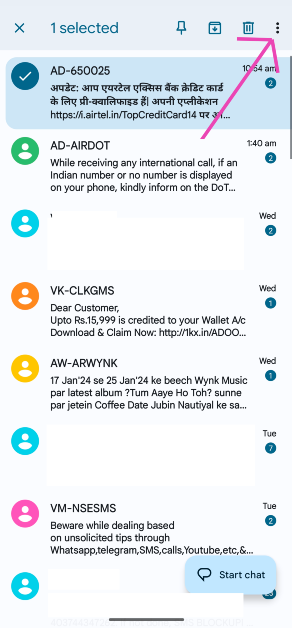 Step 4: Select Mark as Read.
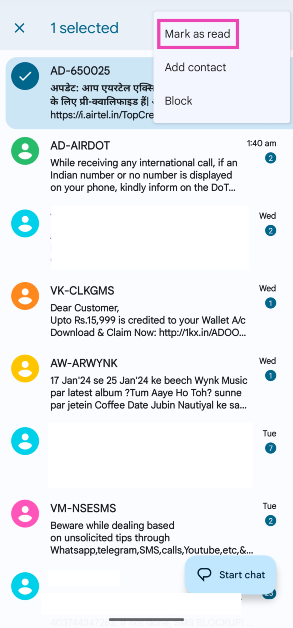
Mark a message on WhatsApp as read
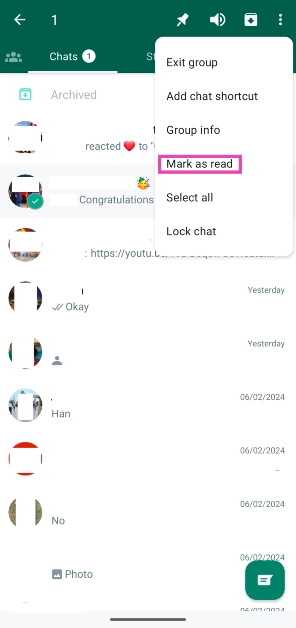
Step 1: Launch WhatsApp on your phone. Step 2: Long press the conversation you want to mark as read. Step 3: Hit the ellipses at the top right corner of the screen.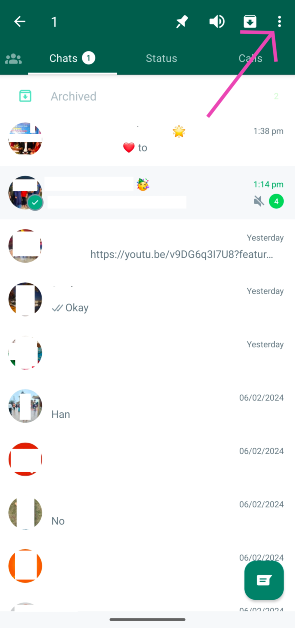 Step 4: Select Mark as Read.
 Read also: Google starts rolling out a new feature that allows you to search
Mark a message on Telegram as Read
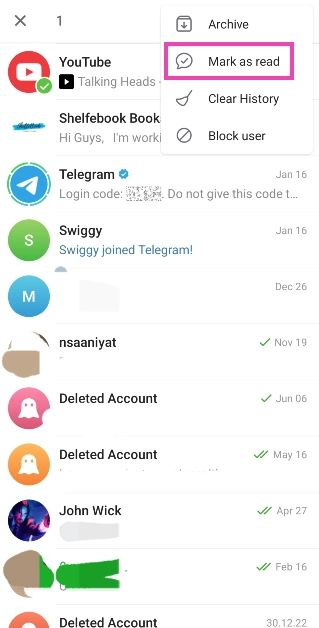
Step 1: Launch Telegram on your phone. Step 2: Long press the message you want to mark as read. Step 3: Hit the ellipses at the top right corner of the screen.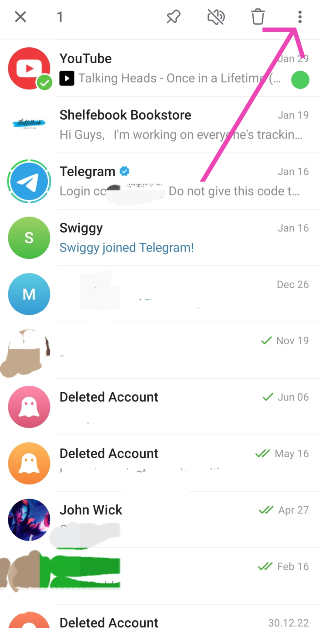 Step 4: Select Mark as Read.