CES 2022: Acer announced Chromebook Spin 513, Chromebook 315, and Chromebook 314

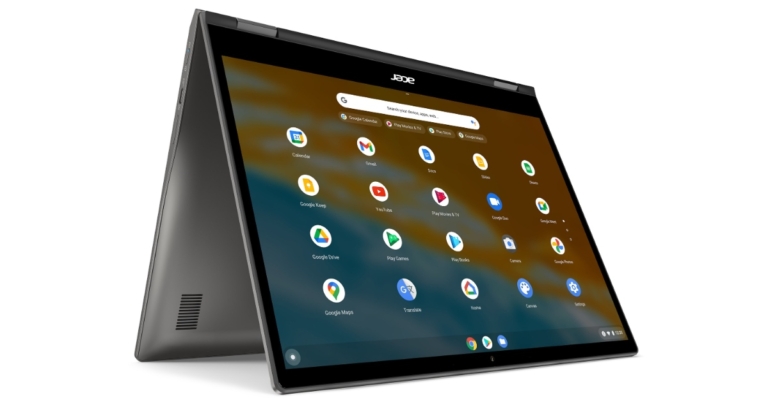
At the Consumer Electronics Show (CES 2022) Acer unveiled three new Chromebooks: the Chromebook Spin 513, Chromebook 315, and Chromebook 314. The former one equips a MediaTek Kompanio 1380 CPU while the latter two are powered by the newest Intel processors. All the laptops come with FHD displays and support Google Play Store.

Acer Chromebook Spin 513

The Acer Chromebook Spin 513 features a VertiView 13.5-inch display with 2256×1504 resolution and a 3:2 aspect ratio. It can transform between four different usage modes, such as tent mode for making the most of space-constrained spaces like trains or airplanes and tablet mode for use on the go. The Acer Chromebook is powered by an octa-core MediaTek Kompanio 1380 processor and comes with MIL-STD 810H durability standards. In addition to this, there is a backlit keyboard for low-light areas and a USB Type-C port for connecting to peripherals, transferring data and charging mobile devices as well as Wi-Fi 6 for wireless connectivity. Acer Chromebook Spin 513 In North America, the Acer Chromebook Spin 513 (CP513-2H) will be available in June for $599.99 (approx Rs 44,600). Starting in April, it will be offered in the EMEA (Europe, Middle East, and Africa) for EUR 649. (Approx Rs 54,600).

Acer Chromebook 315

Acer Chromebook 315 has a 15.6-inch FHD IPS anti-glare touchscreen (optional)display. While the keyboard has a dedicated numeric keypad. Additionally, there is an HDR webcam offering a wider FoV with flare-reducing technology and a pair of integrated microphones. It is powered by the latest Intel processors and Wi-Fi 6 and dual USB Type-C ports. There is provision for a microSD card as well as an eco-friendly OceanGlass touchpad which is made entirely out of ocean-bound plastic waste. Acer Chromebook 315 In North America, the Acer Chromebook 315 (CB315-4H/T) will be available in January for $299.99 (approx Rs 22,300 ). In EMEA, the smartphone will cost EUR 399 (approx Rs 33,600) and will be available in March.

Acer Chromebook 314

Acer Chromebook 314 comes with MIL-STD 810H durability and is designed for students and families with school-going children. The Acer Chromebook’s 14-inch FHD IPS touchscreen display features an anti-glare coating so it can be used even in brighter lighting conditions. Users can navigate Chrome OS via the optional multi-touch display, or by using the OceanGlass touchpad. Also, it offers up to 10-hours of battery life. While the Intel Wi-Fi 6 (802.11ax) provides connectivity speeds up to 3x faster than Wi-Fi 5. It has two built-in microphones and a flare-reducing webcam with temporal noise reduction (TNR) technology for better video quality in low-light conditions.
Acer Chromebook 314
Acer Chromebook 314
In June, Acer will release the Chromebook 314 (CB314-3H/T) in North America for $299.99 (approx Rs 22,300). It will be available for EUR 369 in EMEA beginning April (approx Rs 31,100). For the latest gadget and tech news, and gadget reviews, follow us on TwitterFacebook and Instagram. For newest tech & gadget videos subscribe to our YouTube Channel. You can also stay up to date using the Gadget Bridge Android App. You can find the latest car and bike news here.

How to sync and connect an Xbox controller to the console

Xbox is one of the most popular gaming consoles across the world. The gaming console from Microsoft offers a realistic gaming experience. The latest Xbox Series X and series S give a tough competition to Sony’s PS5. In this article, we will be showing you how you can sync and connect an Xbox controller to the console.  Read also: Sony gives the first look of PlayStation 5’s DualSense So, if you have got a new controller or replaced the older one this guide will help you out in pairing the controller. Just follow the simple steps mentioned below and that is it:

On Series S and Series X

  1. The first step is to turn on your Xbox Series X or S and insert AA batteries or rechargeable batteries into the controller.
  2. Then, turn on your controller by pressing and holding the Xbox button on the controller.
  3. The third step is to press the pairing button on the Xbox which is located just near the USB port.
    Xbox Series S - connect an Xbox controller to the console
    Xbox Series S
    Xbox Series X
    Xbox Series X
  4. Then quickly press the pair button on the controller and that is it.

On Xbox One

  1. The first step is to turn on your Xbox One S or X and insert AA batteries or rechargeable batteries into the controller.
  2. Then, turn on your controller by pressing and holding the Xbox button on the controller.
  3. The third step is to press the pairing button on your Xbox which is located just near the USB port, on the bottom front side on One X and One S, the pairing button is present on the left side of the original Xbox One.
    Xbox One -connect an Xbox controller to the console
    Xbox One
  4. Then quickly press the pair button on the controller and that is it.
So, this is how you can sync and connect controllers to your Xbox. Read also: Microsoft now lets users stream PC games to Xbox One and  This is how you connect an Xbox controller to the console. If you have any other suggestions, you can let us know in the comments. For the latest gadget and tech news, and gadget reviews, follow us on Twitter, Facebook and Instagram. For newest tech & gadget videos subscribe to our YouTube Channel. You can also stay up to date using the Gadget Bridge Android App. You can find the latest car and bike news here.

Should you get YouTube Premium? 9 things you need to consider first

YouTube Premium or formally known as YouTube Red is a paid service from YouTube that stops ads from coming in between your videos and opens access to exclusive videos on YouTube and allows for the downloading of videos in HD quality. The YouTube Premium offers for amplifying your streaming experience on YouTube. If you have in mind to get the Premium experience from YouTube then this article is for you, we will tell you that Should you get YouTube Premium? and 9 things you need to consider first. So, sit back and relax and just see through all the points down below before you make your final decision. 

YouTube Premium cost

YouTube Premium cost

The first thing that you should consider before making any plan to get YouTube Premium is that you should know the price that you are going to pay. If the price is worth the extra features that you get with Premium then you should go for YT Premium. In India, the YT Premium subscription costs Rs 129/month. You can also claim a 2 month free trial for the service as well. Now that you know the price for YT Premium it is the time you should know about its benefits, which are mentioned down below. Read also: Apple Search Ads is now available in India

Get Rid ads

Get Rid adsWhile watching your favourite rom-com web series with your loved ones on YouTube, what if suddenly you get an ad about an upcoming horror movie? That’s the last thing that you would want. Right? With YouTube Premium, you can get rid of irritating ads that appear in videos. So, you will get an undisturbed experience with YouTube Premium. This can be a big reason why you should go for the YouTube Premium

Access to YouTube Originals 

Access to YouTube Originals Apart from the ad-free experience you also get to experience the original content from YouTube. YouTube Originals is basically a collection of exclusive shows that are made by YouTube, and are only available on the platform. So, if you want to watch some exclusive content then you can also get YT Premium. 

YouTube Music Premium

YouTube Music Premium- should you get YouTube PremiumIf you can live with ads and do not want to pay extra for exclusive content, then YT Music Premium can be a deal maker for you. With YT Premium you also get YT Music Premium which is a music service from YouTube. Like Spotify or Jio Saavan and other music streaming platforms, YT Music is available for free. But, with YouTube Music Premium, you also get an ad-free experience along with the ability to play audio in the background. 

Video Downloads

Video Downloads- should you get YouTube PremiumIf you live in an area where the internet connection is bad and you rely on offline content then also YT Premium can be a great option for you. With Premium, you can download videos in Full HD resolution and store them on your phone Read also: YouTube Music, YouTube Premium launched in India: Here’s a look

Background video playback

Background video playback- should you get YouTube PremiumIf the above benefits were not a deal maker for you then playing videos in the background can be. With the Premium subscription on YouTube, you also get the ability to play videos in the background. So now, you can enjoy your favourite podcasts on the go that were only available on YouTube.
Ad-free and offline play in the YouTube Kids app

If you have kids at your home and they watch YouTube videos then also you can get the Premium membership. It will stop all ads that come on the YouTube Kids app, so you do not have to worry that your kids can mess up something by clicking on ads. You also get an offline play feature on YT Kids with the Premium membership.

You might get some ads

Yes, YouTube does claim that it offers an ad-free experience but many users have reported that they are getting ads even after the YouTube Premium subscription. So, it is true that almost all ads will be removed but you might still see a few of them.

YouTube Premium is not necessary 

Of course, you do get a lot of features that you do not get otherwise. But, most of the features that the YT Premium offers can be ignored like watching ad-free, and access to YT Music Premium, you already get to play background audio on other music streaming platforms. And if you want to watch YT Originals then most of them are already free, so you can watch them without paying any extra. So these were 9 things that you should consider before you get the YouTube Premium subscription.  Read also: Top ways to fix YouTube not working on Google Chrome For the latest gadget and tech news, and gadget reviews, follow us on Twitter, Facebook and Instagram. For newest tech & gadget videos subscribe to our YouTube Channel. You can also stay up to date using the Gadget Bridge Android App. You can find the latest car and bike news here.

LAUNCHED: Samsung Galaxy S21 FE 5G has a 120Hz AMOLED display and triple rear cameras

After months of speculations, Samsung has officially announced the launch of the Samsung Galaxy S21 FE 5G in the market. The smartphone has been unveiled in the UK and is likely to be available across various regions worldwide in the coming days. The device features the same form factor as the Galaxy S21. The Fan Edition comes with a 120Hz AMOLED display and triple back cameras housed inside a raised back camera module.

Samsung Galaxy S21 FE 5G price and availability

Earlier the device was rumoured to be presented at the upcoming CES 2022 but the company announced the Samsung Galaxy S21 FE 5G by listing it on its official website today. According to a listing on the Samsung UK website, the pricing of the Samsung Galaxy S21 FE 5G is EUR 699 that translates to Rs 70,200 for the 128GB storage and EUR 749 that converts to Rs 75,200 for the 256GB storage variant. The phone will be available in Graphite, Lavender, Olive, and White colours. In terms of availability, the device is scheduled to go on sale starting January 11 in various regions of the world through Samsung.com, carriers and retailers online. Official information about the Samsung Galaxy S21 FE’s debut in India still has to be released. Samsung Galaxy S21 FE 5G price in India

Samsung Galaxy S21 FE 5G specifications

The Samsung Galaxy S21 FE 5G is powered by Android 12 with One UI 4 layered on top. It has a 6.4-inch full-HD+ Dynamic AMOLE 2X display with a refresh rate of 120Hz and a touch sampling rate of up to 240Hz. The phone includes an octa-core SoC and up to 8GB of RAM. While the onboard storage on the new smartphone is up to 256GB.There’s also an in-display fingerprint sensor on the phone. Also, it is built to IP68 standards, which means it can withstand dust and water to a certain extent. The Galaxy S21 FE 5G has a triple rear camera configuration with a 12-megapixel main sensor with an f/1.8 wide-angle lens, a 12-megapixel ultra-wide sensor, and an 8-megapixel telephoto sensor. Additionally, the device has a 32-megapixel selfie camera with an f/2.2 aperture for selfies and video calls.

Samsung Galaxy S21 FE 5G connectivity and battery

5G, 4G LTE, Wi-Fi, Bluetooth, GPS/ A-GPS, NFC, and a USB Type-C connector are among the connectivity possibilities. Accelerometer, ambient light sensor, barometer, gyro, magnetometer, and proximity sensor are among the sensors onboard. The Galaxy S21 FE 5G comes with a 4,500mAh battery that supports 25W cable charging and 15W wireless charging. The phone also has Samsung’s Wireless PowerShare technology, which allows you to charge other devices remotely. For the latest gadget and tech news, and gadget reviews, follow us on TwitterFacebook and Instagram. For newest tech & gadget videos subscribe to our YouTube Channel. You can also stay up to date using the Gadget Bridge Android App. You can find the latest car and bike news here.

OnePlus 9RT and OnePlus Buds Z2 TWS earbuds India launch to take place on January 14

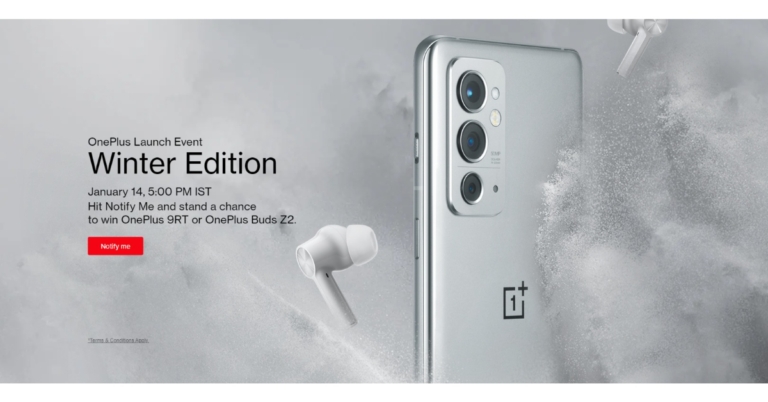
The India launch date for the OnePlus 9RT and OnePlus Buds Z2 true wireless stereo (TWS) earbuds have been announced. Both the devices are set to launch on January 14 in the country. Both the products have already launched in China last year. The smartphone is powered by the Snapdragon 888 SoC. It features a triple rear camera set-up and a 120Hz display. Whereas, OnePlus Buds Z2 11MM dynamic drivers and active noise cancellation (ANC) The announcement comes only hours after OnePlus hinted at the release of both devices in two different tweets. On January 14 at 5 p.m. IST, the OnePlus 9RT and OnePlus Buds Z2 will be unveiled during a virtual Winter Edition launch event. The event will be broadcast live on the OnePlus India YouTube channel. On its official website, the firm has also set up a ‘Notify Me’ page.

OnePlus 9RT specs

A 6.62-inch Samsung E4 AMOLED display with full HD+ quality will most likely be seen on the OnePlus 9RT. The display will feature a 1,0802,400-pixel resolution and a refresh rate of up to 120Hz. ColorOS, which is based on Android 11, will come pre-installed. There will be an octa-core Qualcomm Snapdragon 888 SoC, as well as up to 12GB of LPDDR5 RAM and up to 256GB of UFS 3.1 storage. Three sensors will be used in the back camera. The camera system will use a 50MP Sony IMX766 main lens with an aperture of f/1.8 and optical image stabilisation (OIS). The camera module also has a 16-megapixel ultra-wide-angle lens with an f/2.2 aperture and a 2-megapixel macro lens. At the front of the phone is a 16MP Sony IMX471 selfie camera with f/2.4 aperture and EIS. The OnePlus 9RT will also include a 4,500mAh battery with 65W Warp Charge capability. Aside from that, the smartphone comes with 5G and 4G LTE connectivity, as well as Bluetooth v5.2, WiFi 6, GPS/A-GPS, NFC, and a Type C port.

OnePlus Buds Z2 specs

The OnePlus Buds Z2 has already gone on sale throughout the world. The earbuds have an IPS55 rating, and the protective case has an IPX4 rating. Because the device is touch-enabled, you may utilise it by tapping or touching it. The TWS earphones have a Bluetooth v5.2 connection with a latency of 94 milliseconds. The OnePlus Bus Z2 is powered by 11mm dynamic drivers. Active noise cancellation is also included in the device, which claims to reduce ambient noise by up to 40 decibels. Dolby Atmos is available for a more immersive music experience. Three microphones are included in the TWS earphones for improved audio quality. The charging case includes a 520mAh battery, while each earbud has a 40mAh battery. For the latest gadget and tech news, and gadget reviews, follow us on TwitterFacebook and Instagram. For newest tech & gadget videos subscribe to our YouTube Channel. You can also stay up to date using the Gadget Bridge Android App. You can find the latest car and bike news here.

How to sign out of Prime video on your smart TV?

Smart TVs are very common these days, they are now very easily available at a price similar to a normal TV. Smart TVs are a better option since these TVs give users many choices to watch from, one of them is by using their Amazon Prime Video account. But due to any reason if you want to sign out of your Prime Video then we will show you how to sign out of Prime video on your smart TV Read also: The best and top Cloud Storage Services one can buy instantly Just follow the simple and easy steps that are mentioned below and you will be able to sign out of your Prime Video account from your Smart TV:

Signout using TV

One of the ways to sign out is by using the smart TV itself, just open the Prime Video on your Smart TV and follow the steps:
  1. Once you have opened the Prime Video on your TV just go to the settings menu inside the Prime Video on your TV.
  2. Then go to the option that says Deregister Devices and click on that.
  3. Hit on the button to deregister your device, a popup will come to confirm the process is okay and the TV will be deregistered.
And that is how you can deregister your smart TV from Amazon Prime Videos.

Use synced Phone or laptop

You can use your synced laptop or phone to deregister your TV from Amazon Prime videos, just follow the steps given and that is it:
  1. Go to the Amazon website and sign in to your account if you have not signed in.
  2. Then go to Accounts & Lists and choose Your Video Library.
  3. Then go to the Settings and after that go to Your Devices.
  4. Find the TV that you want to deregister from Prime Video and hit the deregister button. Your TV will be deregistered or logged out from Prime Video.
So, by following any of the methods you will be able to sign out of Prime video on your smart TV. Read also: How to sign out of Netflix on your smart TV, mobile and laptop? For the latest gadget and tech news, and gadget reviews, follow us on Twitter, Facebook and Instagram. For newest tech & gadget videos subscribe to our YouTube Channel. You can also stay up to date using the Gadget Bridge Android App. You can find the latest car and bike news here.

5 ways to restart or force shutdown a frozen software or app in Windows

If you use a Windows PC or a laptop you might have come across a problem where the app that you are using stops responding all of a sudden. The not responding case happens specially if your PC is not capable of running heavy software like Premiere Pro, After Effects, etc. So, if you find yourself stuck in this situation quite a lot then we will show you 5 ways to restart or force shutdown a frozen software or app in Windows 10 and 11. Just follow these simple hacks/ways and you should be able to take yourself out of the situation without any hassle.

Use Alt+F4 shortcut

Alt+F4-  ways to restart windowsAlt+F4 is a shortcut on windows to kill or quit apps in an instant. This shortcut is quite handy in most situations. So, the next time when you find yourself in this situation where you can not quit the app just press the shortcut combo Alt+F4 and that is it.

Use Command Prompt

Command Prompt or commonly called cmd. Command Prompt is the default command-line interpreter for Windows. In simple words, you can say cmd is the Commander in your PC that uses some commands to instruct Windows to work according to that. If you are stuck with a frozen app then you can use cmd to get out of the situation. Just press the combination of Win+R on your PC and follow the steps:
  1. Now that you have pressed the key combination, you will see a popup window on your screen
  2. Just type “shutdown/s” on it to shutdown your PC and that is it. Or else you can restart your PC by typing shutdown/r instead of shutdown/s.Command Prompt- ways to restart windows
This is how you can restart or shutdown your PC when you are stuck with a frozen app. Read also: Top 5 methods to switch users in Windows 10

Go to Windows security screen 

Another way to restart or shutdown the PC is by going to the Windows security screen by pressing a key combination Ctrl+Alt+Del. After you have pressed this key combination just click on the bottom right of the screen, you will see a button.Windows security screeen- ways to restart windows Select whether you want to shutdown or restart the PC.

Use Task Manager to kill apps

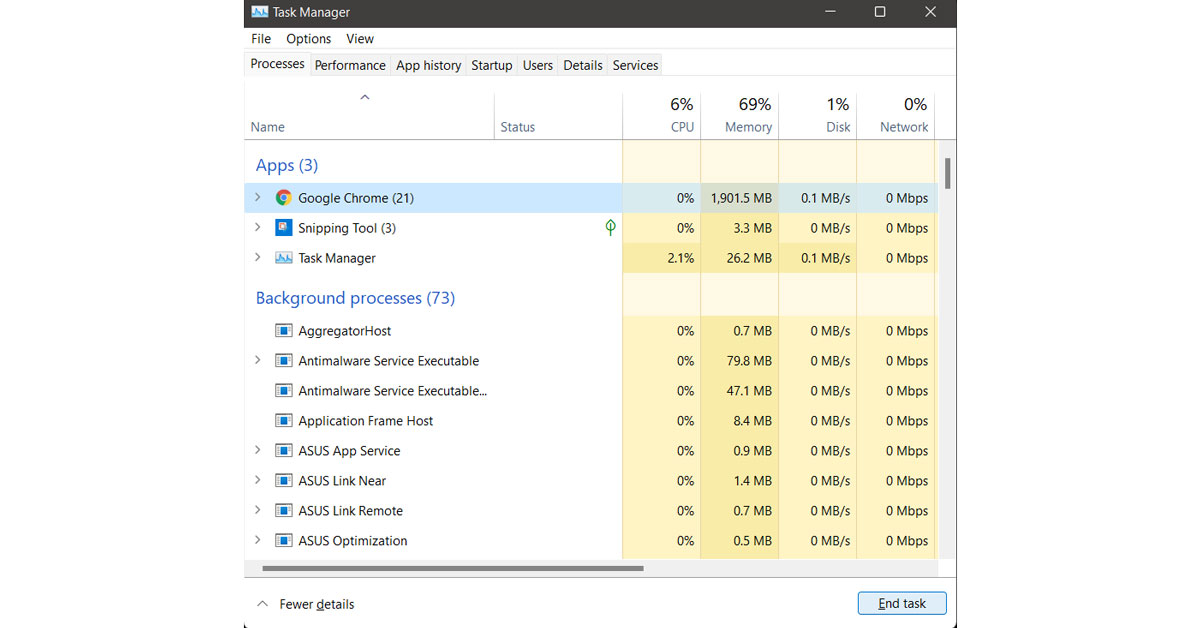
Using task manager can also be a great option if you do not want to shutdown or restart the PC to get rid of the frozen software, just follow the steps given below to know how can kill apps by task manager:
  1. Open the task manager by pressing the key combination Ctrl+Shift+Esc and open Task Manager.
  2. You will see a window popup on your screen, now just go to the processes tab on the task manager.Task Manager
  3. Select the app that you want to kill and press the end task button at the bottom right.
And this is how you can kill apps on your PC with Task Manager

Use Slidetoshutdown Command 

Another way to shutdown the PC and with it the frozen software, when it is stuck, is to use the combination Win+R keys. After you use the combination a window will appear, and just type the command “Slidetoshutdown.exe” and then press okay. Read also: How to resolve the ‘Frozen Mouse’ issue on a laptop? For the latest gadget and tech news, and gadget reviews, follow us on Twitter, Facebook and Instagram. For newest tech & gadget videos subscribe to our YouTube Channel. You can also stay up to date using the Gadget Bridge Android App. You can find the latest car and bike news here.

Top 4 Ways to Access your Google Search History and Delete All Activity (2024)

Google Search is the most used and popular search engine among all other search engines available. It offers many great features and is very efficient in internet searches. Google records all the data that you search for and if you are not comfortable in sharing or keeping the data here are the top 4 ways to access your Google Search history and delete all activity.  Read also: Now you can protect your Activity History on Google

Delete Google Activity on PC

So now you do not have to worry about your data being misused by anyone. Just follow the steps given below and you will be able to access your Google Search history and delete all activity: Step 1: Sign in to your Google account in Chrome web browser on your PC and search for myaccount.google.com.access your Google Search history Step 2: Select Data and Privacy on the left side of the menu bar, and then select My Activity now just enter the security details.access your Google Search history- How to delete activity from google Step 3: To clear all your Google search history and delete all the activity, select the three-dots menu at the top right of the screen then select Delete activity by, and then select the time span that you want to clear.access your Google Search history- How to delete activity from google And that is it! This is how you can remove all the activity from your Google account. 

Delete Google Search History on PC

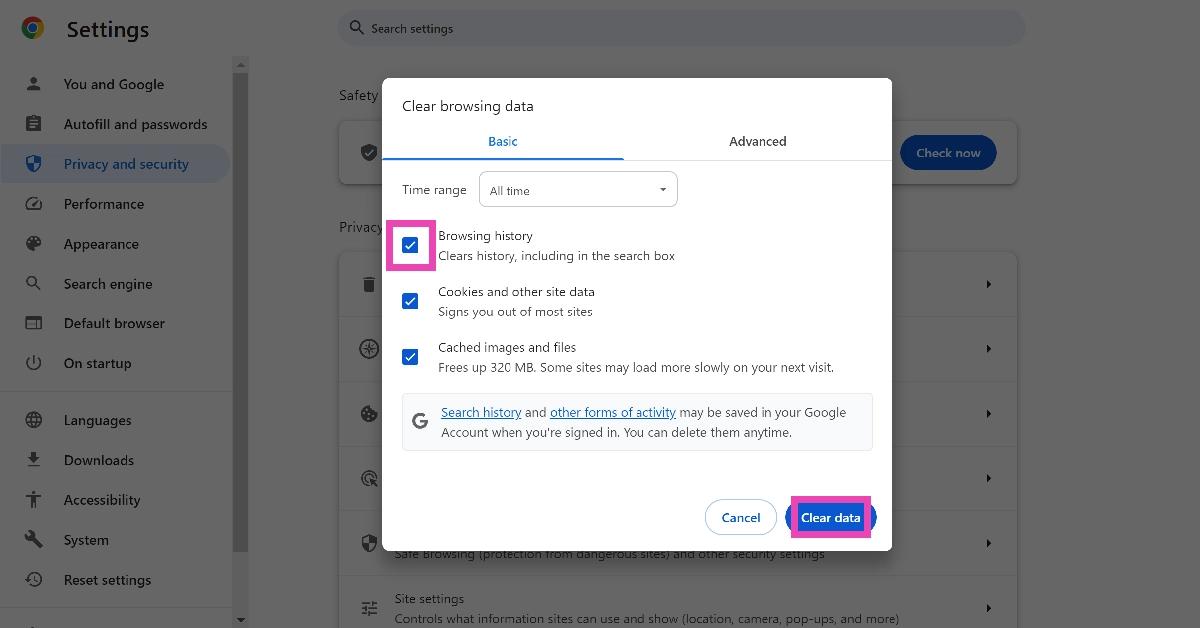
Step 1: Open Chrome browser on your PC and then hit the three-dot menu at the top right corner of the screen near your profile photo. Step 2: Then go to the history option, and click on it.  Step 3: After that, tap on the Clear Browsing data and select the time duration and that is it. This is how you can clear the browsing data on Google Chrome. Step 3: After that, tap on the Clear Browsing data and select the time duration and that is it. This is how you can clear the browsing data on Google Chrome.

Delete Google Activity on your Android smartphone

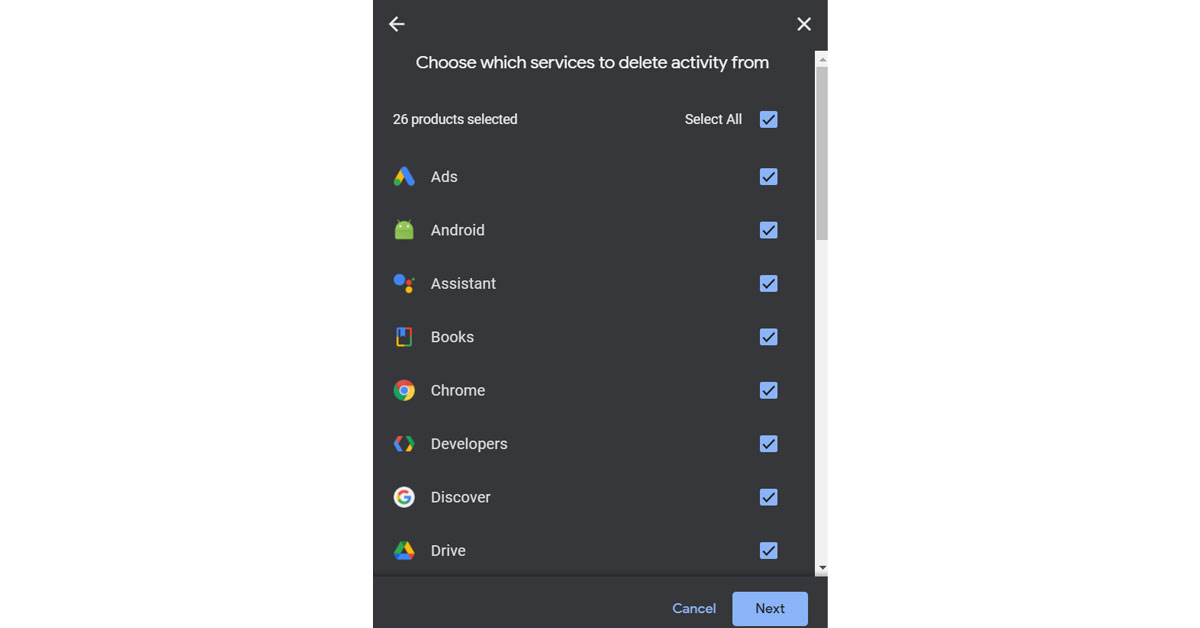
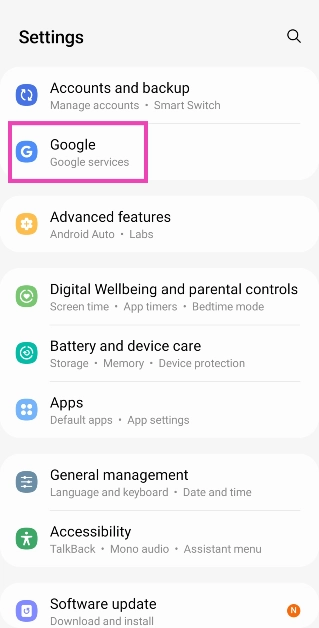
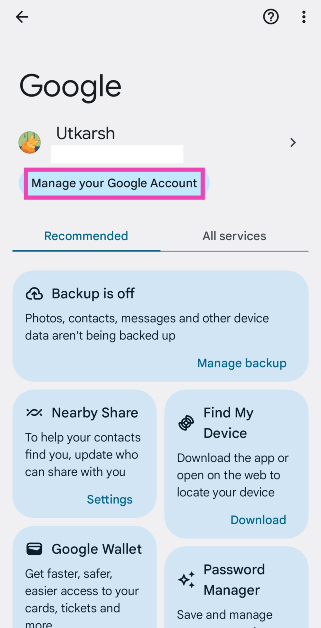
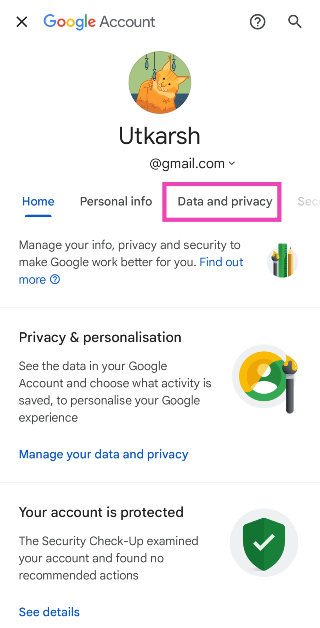
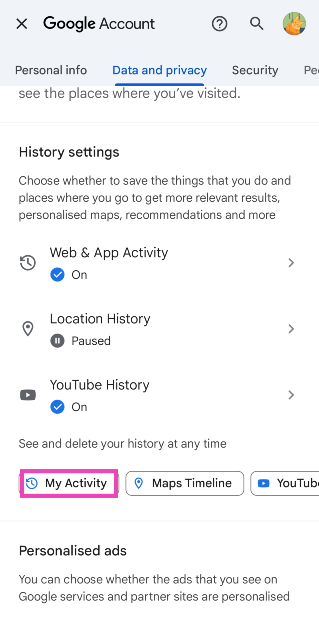
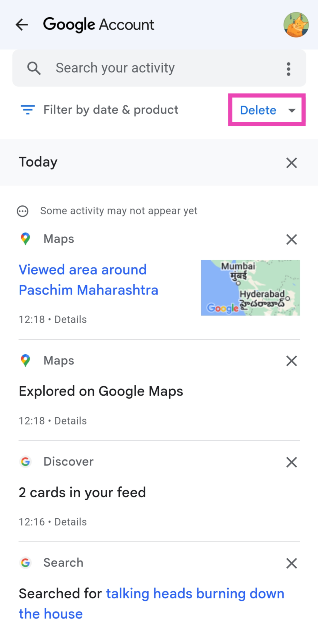
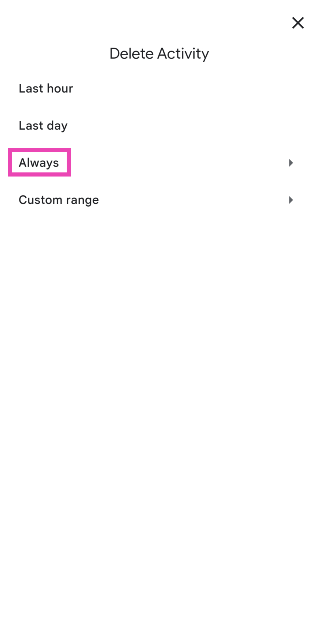
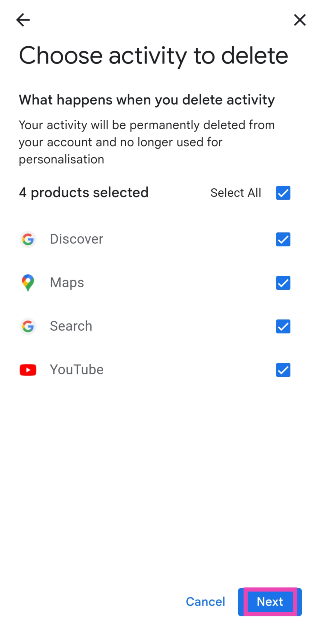
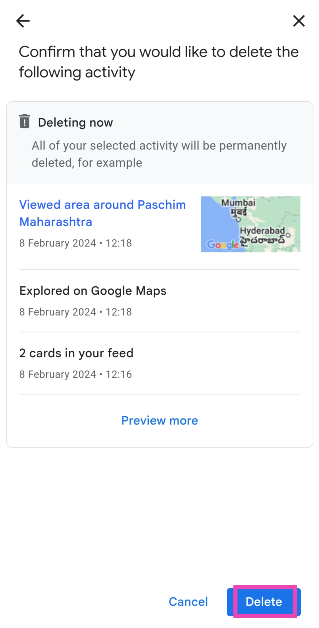
Step 1: Go to Settings and select Google. Step 1: Go to Settings and select Google. Step 2: Tap on Manage your Google Account. Step 2: Tap on Manage your Google Account. Step 3: Switch to the Data and privacy tab. Step 3: Switch to the Data and privacy tab. Step 4: Scroll down and tap on My Activity. Step 4: Scroll down and tap on My Activity. Step 5: Tap on Delete. Step 5: Tap on Delete. Step 6: Select Always. Step 6: Select Always. Top 4 Ways to Access your Google Search History and Delete All Activity (2024) Step 7: Select the services from which you wish to delete your activity and hit Next. Step 7: Select the services from which you wish to delete your activity and hit Next. Top 4 Ways to Access your Google Search History and Delete All Activity (2024) Step 8: Hit Delete. Step 8: Hit Delete. Top 4 Ways to Access your Google Search History and Delete All Activity (2024)
Delete Google Search History on Android

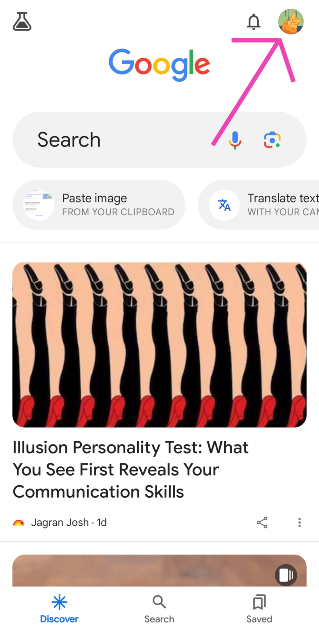
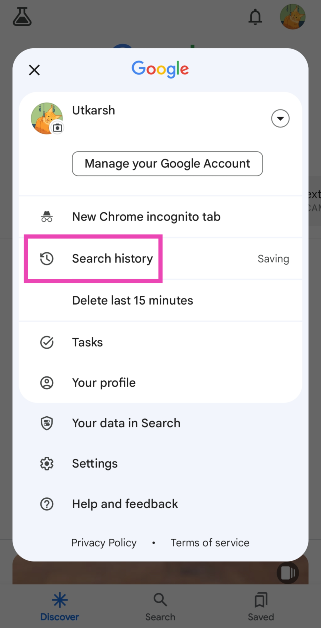
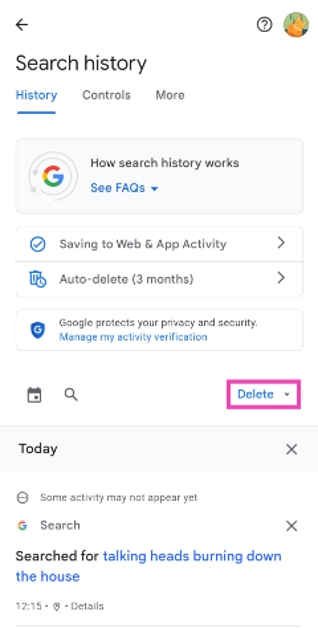
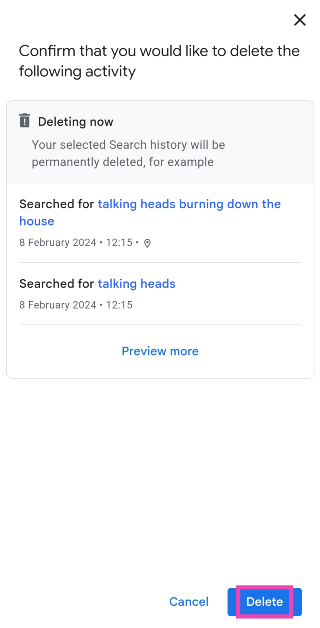
Step 1: Launch the Google app on your smartphone and tap your profile picture at the top right corner of the screen. Step 1: Launch the Google app on your smartphone and tap your profile picture at the top right corner of the screen. Top 4 Ways to Access your Google Search History and Delete All Activity (2024) Step 2: Select Search History. Step 2: Select Search History. Top 4 Ways to Access your Google Search History and Delete All Activity (2024) Step 3: Tap on Delete. Step 3: Tap on Delete. Top 4 Ways to Access your Google Search History and Delete All Activity (2024) Step 4: Select Delete all time. Step 5: Hit Delete. Step 4: Select Delete all time. Top 4 Ways to Access your Google Search History and Delete All Activity (2024)
Frequently Asked Questions (FAQs)

How do I delete my Google Activity?

Go to your Google Account, select ‘Data and privacy’, click on My Activity, hit the ellipses and select ‘Delete activity by’. Choose the time span and the activities you want to delete.

How do I stop Google from recording my activity?

On your Android phone, go to Settings>Google>Manage your Google Account>Data and privacy. Select the activity you wish to pause and select ‘Turn off’.

How do I delete my Google search history on Android?

Launch the Google app, tap your profile picture, select ‘Search History’, hit ‘Delete’, and select ‘Delete all time’. Read also: How to stop YouTube from saving your search history?

Conclusion

So, by using these 4 methods you can make sure that no one watches your search data on Google Chrome and also delete all the activity data from your Google account. You can also choose to pause Google from recording your activity from the ‘Data and privacy’ page. If you know of any other way to accomplish this task, let us know in the comments!

Vivo Y21T with triple cameras and 90Hz display launched in India

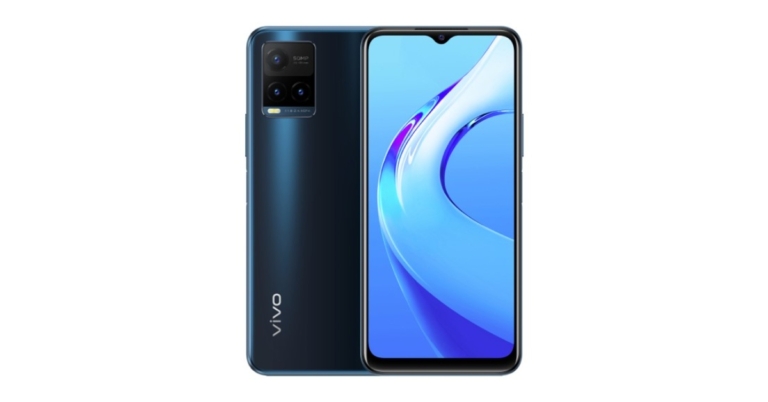
Vivo has announced the introduction of another Y-Series smartphone in India. Vivo Y21T is the latest addition to the company’s portfolio. The smartphone has a triple back camera setup with the main sensor of 50 megapixels. The phone is equipped with a 5,000mAh battery that supports 18W fast charging and is powered by Qualcomm Snapdragon 680 SoC.

Vivo Y21T price in India and availability

Vivo Y21T price in India has been set at Rs 19,990 for the 4GB RAM with 128GB storage option. But the company will be offering the phone at an introductory price of Rs 16,490. The device will come in two colour options of Midnight Blue and Pearl White. It is now available for purchase via Vivo India E-store and across all partner retail stores in the country.

Vivo Y21T features

The Vivo Y21T features a 6.51-inch HD+ display with a resolution of 2408 × 1080 and 90Hz refresh rate. The additional Eye Protection Mode filters out the harmful blue light for a more comfortable viewing experience. It runs Funtouch OS 12 out of the box, which is based on Android 11. The smartphone comes equipped with an octa-core Qualcomm Snapdragon 680 SoC, 6GB of RAM, and 128GB of internal storage that can be upgraded up to 1TB via a microSD card. The built-in storage may also be used to boost the RAM to 1GB. The Vivo Y21T features a triple rear camera set up that includes a 50-megapixel primary sensor with an f/1.8 aperture, a 2-megapixel macro sensor with an f/2.4 aperture and a 2-megapixel depth sensor with an f/2.4 aperture. In addition, the device has an 8-megapixel selfie camera with an f/1.8 aperture. Connectivity options on the newly announced cellphone include 4G LTE, Wi-Fi, Bluetooth v5, GPS/ A-GPS, FM radio, USB Type-C, and a 3.5mm headphone connector. The sensors onboard include an accelerometer, ambient light sensor, magnetometer, and proximity sensor. On the side, there is also a fingerprint scanner. The Vivo Y21T sports a 5,000mAh battery that supports 18W rapid charging. The smartphone also offers reverse charging that will turn the smartphone into a power bank. For the latest gadget and tech news, and gadget reviews, follow us on TwitterFacebook and Instagram. For newest tech & gadget videos subscribe to our YouTube Channel. You can also stay up to date using the Gadget Bridge Android App. You can find the latest car and bike news here.

4 January 2022 Amazon Quiz today answers: Answer to win Rs 15,000 Amazon Pay Balance

4 January 2022 Amazon Quiz has gone live on its platform. The quiz timings are 12 AM to 11:59 PM. The Amazon App users can participate in the quiz daily and all they have to do is submit correct answers to the questions asked on the e-commerce platform. Today’s participants can get a chance to win Rs 15,000 Amazon Pay Balance. Amazon brings a fresh questionnaire that contains 5 questions daily. These questions are based on current affairs and general knowledge. The quiz can be played from 8 AM to 11:59 PM and the contestants need to answer correctly to enter into a lucky draw. Only one person is declared as a winner and the results will be announced at the end of every month. And to make sure that you give correct answers to all the 5 questions Gadget Bridge everyday updates all the answers to the Amazon Quiz. Do check out 4 January 2022 Amazon Quiz Answers to win Rs 15,000 Amazon pay Balance.

4 January 2022 Amazon Quiz Answers

Question 1: Israel opened its embassy for the first time in which country in 2021?

Answer: Bahrain

Question 2: President Joe Biden recently test-drove which all-electric car?

Answer: GMC Hummer

Question 3: Apple’s recent release of which ‘computer accessory’ led to amusing reactions on Twitter?

Answer: Polishing cloth

Question 4: This visual shows a cosplay of a famous literary character, which was played on screen by which famous actor?

Answer: Johnny Depp

Question 5: What is the name for this traditional garment, which is the national dress of Japan, meaning “something to wear”.

Answer: Kimono For the latest gadget and tech news, and gadget reviews, follow us on TwitterFacebook and Instagram. For newest tech & gadget videos subscribe to our YouTube Channel. You can also stay up to date using the Gadget Bridge Android App. You can find the latest car and bike news here.