The viral word game Wordle needs no introduction at this point. If you’re a serious Wordle player, your streak must be very important to you. Sometimes, users forget to solve the puzzle, leading to their streak getting reset. If you want to avoid this situation, you can always play the next day’s Wordle right after solving the current day’s puzzle. All you need to do is adjust your phone’s date and time settings. In this article, we show you how to play Wordle twice in one day.Read Also:43 malicious apps draining battery removed from Google Play Store: Report
In This Article
Here’s how you can play Wordle twice in one day
Once you’ve solved the current day’s Wordle, follow these steps to play the next day’s Wordle.Step 1: Go to Settings and select General Management.Step 2: Tap on Date and time.Step 3: Switch off the toggle bar for Automatic date and time.Step 4: Set tomorrow’s date on your phone.Step 5: Launch the web browser and go to Wordle’s web page.You will now be able to play the next day’s Wordle.
How to replay today’s Wordle one more time?
If your first attempt at solving today’s Wordle wasn’t successful, you can have a crack at it one more time. You may be wondering why you need to solve the puzzle again when the answer is revealed at the end of every game. Well, if you take your streak seriously, there’s a neat little trick you can follow to make sure it never breaks. If you have multiple web browsers on your phone, you can play Worlde on them separately. Your progress on one browser will not have any effect on the game in another browser. This means, even if you lose a game of Wordle, you can always enter the correct answer in the other browser and retain your streak. This only works if you play the game on both browsers every day.
Frequently Asked Questions (FAQs)
How do I play tomorrow’s Wordle today?
Go to your phone’s time and date settings and set the date for tomorrow. Go back to Wordle’s web page and refresh it to play tomorrow’s puzzle.
How do I play Wordle two times in one day?
Websites like Wordle Archive let you play Wordle multiple times in one day.
Now that we already know that Apple iPhone 15 model will use USB-C charging port instead of a Lightning port we just got to know that iPhone 15 and iPhone 15 Plus are likely to come with colour-matched braided USB-C cables. Whatever the colour of the device, all previous iPhones came with a basic white wire. According to reports, the upcoming iPhone 15 and iPhone 15 Plus may come with customised USB-C cables in their respective colours. This information was distributed over Twitter by a user by the name of Majin Bu, although the rumour’s origin is unknown. Kosutami, a collector of Apple prototypes, claims to have seen samples of these coloured USB-C cables.Kosutami indicated that colours like white, black, yellow, purple, and orange are likely to be among the choices for the wires.Also Read:Apple will no longer use the moniker “iPhone 15 Pro Max” and will instead use “iPhone 15 Ultra”The ends of the cables are made of bright white plastic, with the exception of the black version. These braided USB-C cables have tubes for increased endurance in contrast to earlier Apple cables.The precise colour choices, though, are unclear but the orange may resemble the Coral colour option for the iPhone XR, which is a pinkish tone. These cable colours are probably compatible with the relevant iPhone 15 colour options. The iPhone 15 might be available in pink and blue, according to rumours.MacRumors also suggests that the iPhone 15 Pro and iPhone 15 Pro Max variants are also anticipated to include these colour-matched braided USB-C to USB-C cables.Those who know, Apple devices such as MacBooks with MagSafe 3 have braided cables. This gives the cable longevity by preventing bends that could lead to wire breaks in addition to giving it a stylish aesthetic.Because Sony missed the deadline for supplying the necessary image sensor component for the new periscope camera on the flagship, there may be delays with the iPhone 15 Pro Max. The flagship is the only model in the next series to have a new periscope camera, it should be noted. This will be Apple’s biggest advancement in the camera department.According to additional reports, shipment will likely commence on September 22 following the launch of pre-orders on September 15. The three to four-week delay mentioned in the analyst note could place the delivery of the iPhone 15 Pro Max between October 6 and October 13.
For the latest gadget and tech news, and gadget reviews, follow us on Twitter, Facebook and Instagram. For newest tech & gadget videos subscribe to our YouTube Channel. You can also stay up to date using the Gadget Bridge Android App. You can find the latest car and bike news here.
Dedicated gaming smartphones are hard to come by, especially in the Rs 20,000 price category. The newly launched Infinix GT 10 Pro holds a lot of promise, priced at Rs 19,999. The smartphone features a see-through back panel design inspired by the Nothing Phone. Under the hood, it flaunts the MediaTek Dimensity 8050 SoC, which can carry out some heavy lifting. We’ve been using this smartphone as our daily driver for a week. Here’s our in-depth Infinix GT 10 Pro review.Read Also:43 malicious apps draining battery removed from Google Play Store: Report
In This Article
Infinix GT 10 Pro review: Design and Display
The ‘unboxing experience’ for smartphones is quickly becoming a thing of the past, as most manufacturers are getting rid of the additional accessories inside the retail package. The Infinix GT 10 Pro does not adhere to this philosophy at all. It is one of the few smartphones to ship with a tempered glass panel inside the box. You’ll also find a 45W power adapter, a USB Type-A to Type-C charging cable, a soft plastic cover, multiple stickers, and some reading material within the retail package. The first 5,000 customers to order the smartphone will also receive a special gaming box consisting of shoulder triggers and thumb sleeves.Infinix GT 10 Pro’s retail package can also be fashioned into a boom boxTalking about the form factor, the Infinix GT 10 Pro comes across as a very boxy smartphone. The flat frame holds together the flat display and the flat back panel. Since it is a gaming smartphone, we’d have preferred a slightly curved back or frame for a better grip. However, this is not a dealbreaker at all. On the left edge of the frame, you get the solitary SIM tray. The volume rocker and the side key are housed on the right edge. At the bottom, you get the 3.5mm headphone jack, a USB Type-C port, and the speaker grille. The secondary microphone and stereo speaker have been placed up top.The transparent back of the Infinix GT 10 Pro is inspired by the Nothing Phone, but that is where the similarities between the two phones end. The GT 10 Pro takes a different approach to its design, limiting the LED presence to a small light strip on the camera panel. The rest of the panel flaunts a campy cyberpunk aesthetic. The Mirage Silver variant is also capable of changing the colour of certain elements to pink and blue when light falls on them. Whether this is gaudy or striking is up for interpretation.The brilliance of the 6.67-inch AMOLED display is something that is not up for interpretation, though. The bezels surrounding this 120Hz unit are very thin and symmetrical. The selfie camera is housed in a punch-hole cutout at the centre of the display. This is something that’s very rare to see in a 2023 smartphone that is priced under Rs 20,000. The smartphone can reach a peak brightness of 900 nits, which means you don’t have to cover the display when you’re using it under direct sunlight.Infinix GT 10 Pro has Wideline L1 certification and offers HDR10 support. You can watch HD content on Netflix, Prime, and YouTube. We enjoyed the viewing experience offered by this smartphone. The colour richness was very appealing to the eyes and the images relayed on the screen were contrasty and packed with a lot of detail. The stereo speaker setup was powerful enough to overcome any surrounding noises.
Infinix GT 10 Pro review: Performance and Cameras
There is a lot to talk about when it comes to Infinix GT 10 Pro’s performance. The manufacturer has made certain compromises to keep the price of the smartphone down. Being a gaming smartphone, the processor takes priority over the camera setup. Unsurprisingly, you won’t find an ultrawide camera on this device. Luckily, most of these tradeoffs work out in the end. The smartphone is powered by the MediaTek 8050 SoC and comes in a single 8GB RAM + 256GB storage variant.For a Rs 20,000 smartphone, the Infinix GT 10 Pro is extremely fluid and responsive. We set the refresh rate at 120Hz as soon as we took the smartphone out of the box. The smartphone registered even the slightest of touches and was very fun to work with while multitasking. Routine tasks were handled without so much as a hiccup. The haptics could have been a bit dialled down, but we got used to the vibrational feedback in no time.The highlight of this smartphone is its gaming performance. While the refresh rate for gaming is capped at 60Hz, the GT 10 Pro is able to play Call of Duty Mobile at the highest settings. The heat management on this device is phenomenal. It makes use of a vapor cooling chamber and an 11-layer cooling structure design to dissipate the heat. The Bypass Charging feature directly charges the motherboard while gaming, leading to less heat generation.Heat management aside, the gameplay experience was smooth and stutter-free. We enjoyed the touch response of the display while gaming. The flat frame compromises the grippy-ness of the device, but the fatigue only kicks in after hours of gaming. The GT Pro 10 comes with WiFi 6 support. We did not experience any issues with the network connection during our time with the device.On Geekbench 6, the Infinix GT 10 Pro scored 1105 points on the single-core test and 3358 points on the multi-core test.OS duties on this device are handled by Android 13 with Infinix’s XOS 13 on top. The UI follows the cyberpunk aesthetic, which is very noticeable in the background wallpapers and icon design. The LED strip on the back panel can be assigned specific patterns for different actions. While playing music on the device, the LED strip forms a pattern that aligns with the rhythm of the track being played. We’d have preferred a battery level status animation for when the phone is plugged into a charger, but at the moment you can only set one of the generic patterns for this action.XOS offers a very clean user experience. Apart from Carlcare and a few XOS-specific apps, there is no additional bloatware on the device. You get a few special features like floating windows, app cloner, gaming mode, and more. Infinix’s IM assistant offers a Peek Mode for WhatsApp, which allows users to go through unread messages without sending read receipts. There’s a sticker maker and voice changer for WhatsApp as well, but these features felt a bit too gimmicky to us. The manufacturer has promised only one major OS upgrade, which is a drawback when every other smartphone in this category offers at least 2 years of OS upgrades.Talking about battery life, the Infinix GT 10 Pro is equipped with a 5,000mAh unit that can easily last an entire day. This is particularly impressive for a smartphone that has an AMOLED panel and is designed for heavy gaming. We were left with a 10-15% charge at the end of each day even after a couple of hours of intense gameplay. The 45W charger provided in the box can fully charge the smartphone within 60 minutes.The rear camera unit of the Infinix GT 10 Pro comprises a 108MP primary shooter, a 2MP macro lens, and another 2MP depth sensor. Up front, the 32MP selfie camera is housed in a punch-hole cutout. There is no ultrawide camera in the rear camera array.Images taken in outdoor conditions with the 108MP primary camera present a decent dynamic range, vibrant colours, and a good level of contrast. In outdoor shots, we felt the sky could have been exposed a little better. The camera app has an AI colour enhancement feature that recognises the environment of the image and tunes the colours accordingly. We like that the smartphone doesn’t overprocess the images.In low light conditions, the main camera struggles a bit. We noticed that some noise managed to creep in the final images even after using the Super Night mode. We didn’t expect this from a 108MP sensor. The images also lacked the optimum level of detail. While the images are still passable, with some computational magic the final result could have been a lot better.The 32MP selfie camera takes decent pictures in indoor and outdoor conditions. It doesn’t mess with the skin tone and keeps the texture close to real. Portrait shots taken with the Infinix GT 10 Pro oftentimes struggle with background separation. You’d have to take a few trial shots with different focal lengths to get the desired result.The rear camera is capable of recording 4K videos at 30 fps. However, the ‘Ultra Steady’ capabilities of this camera are only limited to 1080p (30fps). The selfie camera can shoot 2K videos at 30fps as well.Read Also:X wipes out a decade of history including a lot of images
Verdict
After using the device for a week, we can safely say it is one of the better performers in its price bracket. Infinix has clearly put a lot of thought into this device, and it clearly shows. Right from the unboxing experience to the user interface, the Infinix GT 10 Pro asserts its own unique identity. Buyers looking for a budget gaming device will be pleased with the performance that this smartphone delivers with its MediaTek 8050 SoC. At the price of Rs 19,999, the Infinix GT 10 Pro is a bargain.
Over the last couple of years, WhatsApp has taken incremental measures to improve its calling experience. The messaging platform can now host group calls with up to 32 participants. Users can create call links for people that don’t have the app installed on their devices. The recent introduction of the screen-sharing feature makes WhatsApp a direct rival to apps like Zoom and Google Meet. In this article, we bring you the top 3 ways to make a WhatsApp group call.Read Also:43 malicious apps draining battery removed from Google Play Store: Report
In This Article
Create a WhatsApp Group Call link
Step 1: Launch the WhatsApp app on your smartphone and switch to the Calls tab.Step 2: Select Create call link.Step 3: Tap on Send link via WhatsApp to invite participants to the call.Step 4: To invite people that do not have WhatsApp, copy the call link and send it via text (or another messenger).Step 5:Tap the call link and hit Join.
Make a call within a WhatsApp group
Step 1: Launch the WhatsApp app on your phone and open the group you want to call.Step 2: Tap the phone icon to make an audio call to the group participants. For a video call, tap the video camera icon.
Add multiple members to an ongoing WhatsApp call
WhatsApp allows you to add multiple members to an audio or video call with an individual contact. Here’s how you can go about it.Step 1: In the calling window, tap the Add Participant icon at the top right corner of the screen.Step 2:Select a contact from the following page. They will be added to the call.Step 3: To add more participants, repeat the process.
Frequently Asked Questions (FAQs)
How do I create a WhatsApp Group Call link?
Launch WhatsApp, switch to the Calls tab and tap on Create call link. Share the link with the call participants so they can join.
How do I call a group on WhatsApp?
Open the group on WhatsApp and tap the audio or video call icon at the top right corner of the screen. The group call will be initiated.
How do I add another participant to a WhatsApp call?
When you’re on a call, tap the Add Participant icon at the top right corner of the screen. Select a contact on the following page. They will be added to the call.Read Also:How to get all the new emojis on your Android smartphone?
Apple releases a new line of iPhones in September of each year. Apple’s newest lineup of iPhones, the iPhone 15, will be unveiled this year as well. The details of the newest iPhone 15 series have been subject to several leaks and rumours. Sony’s failure to provide the required image sensor component for the new periscope camera on the iPhone 15 Pro Maxin a timely manner is anticipated to cause delays for the device.According to a report by 9to5mac, the iPhone 15 Pro Max may have delays because Sony was unable to meet the deadline for supplying the required image sensor component for the flagship’s new periscope camera. Note that, the flagship is the only model from the upcoming series receiving a new periscope camera. This is going to be the most significant camera improvement from Apple.The iPhone 15 Pro Max, will employ a periscope lens system to enable higher optical zoom than the existing 3x cap. This upgrade will not be available for the smaller iPhone 15 Pro. There will be ultra-wide cameras on the iPhone 15 and iPhone 15 Plus, but not telephoto ones.Also Read:iPhone 15 Standard models likely to get Stacked CIS camera upgradeThe launch of the iPhone 15 is likely to take place on September 12. Alongside the new iPhone model, the company is also going to introduce Apple Watch Series 9 and Ultra 2. Reports further suggest that shipping will probably begin on September 22 after pre-orders start on September 15. The analyst note’s three to four-week delay might place iPhone 15 Pro Max delivery between October 6 and October 13.Reports also revealed that the iPhone 15 Pro Max name will be replaced with iPhone 15 Ultra. A USB-C charging port, similar to that found on recent iPads, is anticipated to replace the Lightning port on the iPhone 15 range. Stainless steel is anticipated to be replaced by titanium in the iPhone 15 Pro and iPhone 15 Pro Max. A customisable button resembling the Action button on the Apple Watch Ultra will take the place of the regular mute switch on Pro versions.
For the latest gadget and tech news, and gadget reviews, follow us on Twitter, Facebook and Instagram. For newest tech & gadget videos subscribe to our YouTube Channel. You can also stay up to date using the Gadget Bridge Android App. You can find the latest car and bike news here.
We now often hear rumours and leaks about the next iPhone, and its release date is quickly approaching. Apple will release its newest lineup of iPhones in the second week of September this year like it does every year. The latest iPhone 15 series’ features have been subject to several leaks and rumours. One of them claims that the name of the iPhone 15 Pro Max will change. This year’s flagship iPhone from Apple is likely to be known as the iPhone 15 Ultra, replacing the iPhone 15 Pro Max.As per Andrew O’Hara of AppleInsider on X, “Here’s a late Friday tidbit I’ve heard for #iPhone15. Multiple sources have told me Apple will indeed use the “iPhone 15 Ultra” monicker for the plus-sized pro phone. This was an early rumour that got backpedalled. Most have since referred to it as iPhone 15 Pro Max.”Also Read:Apple iPhone 15, iPhone 15 Plus, iPhone 15 Pro, iPhone 15 Pro Max price leaked ahead of the official launchIf the said information is to be believed then the new iPhone 15 series will include four models- iPhone 15, iPhone 15 Plus, iPhone 15 Pro and iPhone 15 Ultra.The iPhone 15 Ultra isn’t anticipated to differ significantly from its siblings. Renders show that all four models will have somewhat improved designs with slightly curved edges and smaller bezels around the displays. The iPhone 15 Pro Max will still differ from the rest of the range in a few key ways, though.Andrew O’Hara further revealed that the iPhone 15 Ultra will have a larger display and a 10X periscope tele lens. Both the iPhone 15 Pro and iPhone 15 Ultra will be titanium instead of stainless steel. In addition to this, they will have the Action Button in place of the mute toggle, and likely get the new 3nm A17 Bionic chip.According to other reports, Apple will sell the iPhone 15 Pro Max in a raw colour option, similar to the Apple Watch Ultra, to showcase the new finish. According to reports, it will also have bezels that are incredibly thin—possibly thinner than those on the iPhone 15 Pro. It will reportedly have the smallest smartphone bezels ever, according to some publications.The iPhone 15 Pro Max is anticipated to be bulkier than the iPhone 14 Pro Max. Rumours suggest that the iPhone 15 Pro Max will be 8.25mm thick as opposed to the iPhone 14 Pro Max’s 7.85mm, allowing Apple to reduce the camera bump. Apparently, the buttons are also changing. Apple will once again use a volume rocker rather than discrete buttons and the mute switch will become an Action button.
For the latest gadget and tech news, and gadget reviews, follow us on Twitter, Facebook and Instagram. For newest tech & gadget videos subscribe to our YouTube Channel. You can also stay up to date using the Gadget Bridge Android App. You can find the latest car and bike news here.
After being banned for nearly ten months, Battleground Mobile India, aka BGMI, is officially available again in India. BGMI fans are looking for ways to improve their game experience and one such method is the usage of redemption codes, which offers a variety of rewards and advantages using BGMI redeem codes players can gain access to new skins, outfits, loot crates, weapons and free UC and diamonds.As mentioned earlier, these codes give users the chance to earn unique rewards and gain extra benefits while playing the game. This includes GUN SKINS (M4, AKM, M416, AWM, M24, UZI, KAR98K), free character voucher, Andy, Carlo, Sara, Victor character for free, free Anna Character on completing the mission and UC or Royal Pass Discount. So here we have gathered a list of the most recent BGMI redeem codes as of 22 August 2023. Also, redeem these codes asap as these are only valid for a limited duration.
In This Article
BGMI Redeem Codes for 22 August2023
updating…
How to get free Redeem Codes for BGMI on 22 August2023?
Launch BGMI on your device.
Then select the Redeem Code option from the main menu.
Next, click on the Redeem code tab.
A new window will open, requesting the redemption code.
Now enter your BGMI code.
Confirm and click on the “Redeem” tab.
If your redeem code is valid then you will get a message confirming that your rewards were successfully redeemed.
Garena Free Fire is a battle royale game with regular awards and tournaments to keep players interested. If you play Garena Free Fire, you should be aware of the redeem codes that are released on a daily basis. However, because the battle royale game is banned in India, players from other countries can use the Free Fire Redeem codes daily. If you’re unfamiliar with the Garena Free Fire redeem codes or don’t know how to get them, we’ve put together a step-by-step guide to help you redeem them. Check out Garena Free Fire Redeem Codes for 22 August 2023.The Free Fire redeem codes are a great way to get free stuff. These are 12-digit codes that contain alphabets and numbers, as well as an expiration date and time. Because the Garena FF redeem codes cannot be used more than once, you should hurry to the redemption page to claim your free reward before someone else does. To get a free reward, all you have to do is go to reward.ff.garena.com/en, which is the official redemption page. Also, keep an eye on this space for daily updates on Garena Free Fire redemption codes and rewards.
In This Article
Garena Free Fire Redeem Codes Today 22 August2023
updating…
How to Get Free Fire Redeem Codes for Garena on 22 August2023?
Google has revealed that the Docs, Sheets, and Slides applications for Android smartphones will receive an update. Along with additional features and functionality, the modifications will include a fresh, more contemporary style.All Android smartphones running Android 11 or later will be able to access the update when it launches in the upcoming weeks. The updated look of Docs, Sheets, and Slides is more in line with the aesthetic of other Google applications, such as Gmail and Google Drive. Larger, easier-to-tap buttons and cleaner, more streamlined icons will be seen across the apps. Users will find it simpler to produce and modify documents, spreadsheets, and presentations thanks to the additional productivity tools. Over that, consumers will, for instance, be able to track changes to documents and add comments and annotations to them.Google has been working to improve the usability and productivity of its products for a while, and Docs, Sheets, and Slides have just seen some changes. According to the firm, the modifications will simplify the process for customers who use Android smartphones to generate and collaborate on documents, spreadsheets, and presentations.Also Read:Microsoft Excel for iPhone can now click photos of spreadsheets Additionally, the revamp is a component of Google’s larger plan to make its Workspace products more competitive with Microsoft Office. On Windows devices, Microsoft Office is the most popular productivity suite, but Google is trying to take market share with its Workspace apps on Android smartphones.For Android users of Docs, Sheets, and Slides on Android devices, the update is a good thing. The apps will be easier to use and more effective thanks to the new functionality and design. As said, Google also anticipates gaining market share on Android smartphones as a result of the redesign.
In This Article
The Docs, Sheets, and Slides apps will undergo the following modifications, among others:
New look: The apps will have a new, more contemporary look that matches other Google apps. The general appearance of the apps will be more streamlined, and the icons and buttons will be bigger and simpler to tap.
New collaboration features: The applications will acquire new collaboration capabilities, like the capability to view who is actively editing a document and the capacity to communicate with other collaborators in real-time.
New productivity features: New productivity tools will be added to the apps, including the ability to track document changes and add comments and annotations.
Here are some extra information regarding the renovation:
The new design will be inspired by Google’s Material You design language, which employs dynamic colours to enhance user experience and make it more pleasing to the eye. Users will find it simpler to collaborate on documents, spreadsheets, and presentations in real-time thanks to the new collaboration tools. Users will be able to generate and edit documents, spreadsheets, and presentations more quickly thanks to the new productivity capabilities. The revamp of Docs, Sheets, and Slides is a big upgrade that will increase the value and enjoyment of using these apps. Google is dedicated to improving its products, and this redesign is a positive move in that direction.For the latest gadget and tech news, and gadget reviews, follow us on Twitter, Facebook, and Instagram. For the newest tech & gadget videos subscribe to our YouTube Channel. You can also stay up to date using the Gadget Bridge Android App.
Google Play Store has millions of apps and many times large number of frequent submissions allows harmful and malicious apps to infiltrate the Play Store and collect personal data from people’s smartphones and often damage them. 43 harmful apps that were covertly using a phone’s battery were recently removed by Google.The warning was issued after McAfee’s security team found a collection of 43 apps that might show adverts when the device isn’t in use. Soon after this discovery, Google Play Store became vigilant and removed these dubious apps from its platform since they may drain the battery and utilise mobile data even while the screen is off.According to McAfee’s Mobile Research Team, the fact that these apps run advertisements even while the device’s screen is off may at first seem convenient to consumers. However, it’s obviously against Google Play Developer’s guidelines for how advertisements should be shown.The blog post noted, “This affects not only the advertisers who pay for invisible Ads but also the users as it drains the battery, consumes data and poses potential risks such as information leaks and disruption of user profiling caused by Clicker behaviour.”What’s more worrying is 43 apps that have been downloaded 2.5 million times in total. TV/DMB Players, Music Downloaders, News, and Calendar applications are some of the targeted apps. The ad fraud library said to employ certain strategies to avoid detection and inspection. By intentionally delaying the start of its fraudulent actions, it creates a latent period beginning with installation.Additionally, all of this library’s complex configurations can be remotely changed and pushed using the Firebase Storage or Messaging services. The challenge of discovering and analysing this fraudulent behaviour is considerably increased by these considerations. Additionally, the latent period often lasts for a few weeks, making it difficult to catch.It is important to exercise caution when granting permissions, such as deactivating “power saving” and enabling “draw over other apps.” These permissions may allow certain acts to be carried out covertly in the background, raising concerns regarding the motives and actions of the aforementioned libraries or apps. Giving these rights can lead to additional harmful behaviour, including the display of phishing pages and background advertisements.McAfee’s Mobile Research Team explained that users are unaware that running advertising is present on their devices because the fetching and loading of ads begins when the device screen is switched off after the latent time. By contacting the special domain associated with the application (for example, mppado.oooocooo.com), this ad library registers device information. then use Firebase Storage to obtain the precise ad URL and display the adverts. It is significant to highlight that this procedure uses mobile data and power resources.Users may catch a peek at the advertisement at this point if they swiftly turn on their devices before it closes on its own.McAfee informed Google about the exposed apps, and they responded right away. While some apps are updated by the developer, the majority are no longer accessible through Google Play. This threat has been identified by McAfee Mobile Security as Android/Clicker.Users should exercise caution and carefully consider the necessity of granting permissions like power saving exclusion or drawing over other apps before authorising them.
For the latest gadget and tech news, and gadget reviews, follow us on Twitter, Facebook and Instagram. For newest tech & gadget videos subscribe to our YouTube Channel. You can also stay up to date using the Gadget Bridge Android App. You can find the latest car and bike news here.
Every year, new emojis are added to the Android and iOS ecosystems. These emojis are similar for the most part, but there are certain subtleties that give them their own unique flavour. The emojis may also differ among different Android smartphone manufacturers. If you keep seeing square boxes in conversations with your friends, it means your phone is unable to load the newer emojis. In this article, we show you how to get all the new emojis on your Android smartphone.Read Also:WhatsApp rolling out caption edit feature, allowing users to edit media: Details
In This Article
Update your phone
Older versions of Android do not have the newest emojis. If you keep seeing square boxes instead of an emoji, you need to update your phone’s OS. Here’s how you can go about it.Step 1: Go to Settings.Step 2: Scroll down and select About Phone.Step 3: Select Software Information. This is where you’ll be able to see the Android version running on your smartphone.Step 4: To update the OS to the latest version, go to Settings and select Software Update.Step 5: Tap Download and update to install the latest OS version on your smartphone.
Use Gboard
If your phone’s default keyboard does not have all the new emojis, use Gboard instead. Google’s keyboard app gives you access to all the latest emojis while also letting you create custom emojis. The Emoji Kitchen feature fuses multiple emojis together to create a new, unique emoji. This emoji is sent to the receiver as a sticker. Here’s how you can use Emoji Kitchen on the Gboard app for Android.Step 1: Set Gboard as the default keyboard for your phone.Step 2:Open a conversation on any messenger app.Step 3:Long press the comma icon to access emojis on Gboard. Make sure you don’t take the emoji icon on the messenger.Step 4: Select the emojis you want to fuse together.Step 5:Emoji Kitchen will cook up a new emoji for you.
Install a third-party keyboard app
Apart from Gboard, there are dozens of other third-party keyboard apps you can use on your Android smartphone. These apps are constantly updated to add new emojis. Microsoft’s Swiftkey Keyboard even comes with the Bing AI chatbot integrated into it. Once you’ve installed a third-party keyboard app on your phone, go to Settings>General Management>Keyboard list and default to set it as the default keyboard.
Frequently Asked Questions (FAQs)
How do I get new emojis on my Android phone?
To get the latest emojis on your Android smartphone, update the phone’s OS or use a third-party keyboard app with updated emojis.
How do I set a third-party keyboard app as the default keyboard on my phone?
Go to Settings>General Management>Keyboard list and default to set a third-party keyboard as the default keyboard.
Most images and links posted before December 2014 are currently being deleted by a bug on X, the social media network formerly known as Twitter. No matter where they are or what device they are using, the malfunction appears to be impacting all users and this is the latest Twitter Bug.
Read Also:Demystified: What each symbol and icon means on twitterOn Saturday, August 20, 2023, the first report of the bug was received. Users realised that tweets with images and links from before December 2014 were no longer accessible. The bug also made it difficult to view photos and links that were included in retweets and replies.X has not yet offered any feedback on the Twitter bug. Some experts, though, think it might be due to a change in how X stores media files. The bug may have affected links as well as photos due to a change X made to its URL shortening service in 2016.For anyone who submitted images and links on X before December 2014, the bug is a huge inconvenience. Many of these tweets serve as archival accounts of significant occasions or as reminders of the past. Finding and sharing previous tweets is additionally challenging as a result of the bug.Some users have hypothesized that the Twitter bug might represent X’s attempt to save money. However, it’s also conceivable that X is attempting to fix a technical issue.
In This Article
Users of X who have encountered the issue can try the following fixes in the interim:
Retweet the tweet or reply to it with the image or link.
Reupload the image or link to X after saving it to your computer.
Gmail’s in-app browser allows users to quickly visit a link without having to switch to the default browser app. This saves a lot of time, especially when you’re unsubscribing from email newsletters, alerts, and reminders. However, it has its own downsides. Firstly, if you’re used to the customised settings on your default browser, you will definitely miss them on this in-app browser. Secondly, you’ll need to enter your login credentials for different websites on the in-app browser since it cannot pull your saved passwords info from the default browser on your phone. If you’d rather stick to the default browser, here’s how you can disable the in-app browser on the Gmail app for Android.Read Also:WhatsApp rolling out the feature to share HD-quality photos
In This Article
Disable Gmail’s in-app browser on Android
Step 1: Launch the Gmail app on your smartphone.Step 2: Tap the hamburger menu icon at the top left corner of the screen.Step 3: Select Settings.Step 4: Tap on General Settings.Step 5:Uncheck the box for Open web links in Gmail.
Bonus Tip: Stop links from opening in the Gmail app
If you don’t want the Gmail app to open every time you click on an email address, follow these steps. Once the Gmail app has been removed as the default app for supported links, those links will open in a separate tab on your web browser.Step 1: Go to Settings and select Apps.Step 2: Tap on Gmail.Step 3: Select Set as default.Step 4: Switch off the toggle bar for Open supported links.
Frequently Asked Questions (FAQs)
How do I disable Gmail’s in-app browser on my Android phone?
Go to Gmail>Menu>Settings>General Settings and uncheck the box for ‘Open web links in Gmail.’
How do I disable Gmail from opening supported links on my phone?
Go to Settings>Apps>Gmail>Set as default and switch off the toggle bar for ‘Open supported links’.
If you routinely share screenshots with your friends and colleagues, there are a couple of tricks you can use to emphasise the important parts of the screenshot. This saves a lot of time for the person viewing the screenshot. Instead of sending an image of a wall of text, you can highlight the relevant sentences or point them out with an arrow. If the screenshot does not contain enough information, you can also add more text to it. In this article, we show you how to highlight, draw, and write on a screenshot on an Android smartphone.Read Also:WhatsApp rolling out the feature to share HD-quality photos
In This Article
Highlight text on a Screenshot on your Android smartphone
Step 1: Take a quick screenshot by pressing the Volume Down and Side Key simultaneously.Step 2: Go to your phone’s Gallery app and open the screenshot.Step 3: Hit the Edit icon in the bottom menu.Step 4: Tap the Smiley icon at the bottom of the screen.Step 5: Select the Highlighter tool. Choose a colour and adjust the brush size according to your liking.Step 6: Use your finger or a stylus to highlight a line of text.Step 7: Hit Save at the top right corner of the screen to save your changes.
Draw or scribble on a Screenshot on your Android smartphone
Step 1: Open the screenshot on your phone’s Gallery app.Step 2: Hit the Edit icon in the bottom menu.Step 3: Tap the Smiley icon at the bottom of the screen.Step 4: Select the Pen tool. Choose a colour, brush size, and the kind of pen you want.Step 5: Use your finger or a stylus to draw or scribble over the screenshot.Step 6: Hit Save at the top right corner of the screen when you’re done.
Add text to a Screenshot on Android
Step 1: Open the screenshot on your phone’s Gallery app.Step 2: Hit the Edit icon in the bottom menu.Step 3: Tap the Smiley icon at the bottom of the screen.Step 4: Select Text.Step 5: Select the font, colour and size for the text.Step 6:Enter the text. Tap and drag it to the desired spot.Step 7: Hit Save at the top right corner of the screen when you’re done.
Frequently Asked Questions (FAQs)
How to highlight a screenshot on Android?
Open the screenshot on the Gallery app, hit the edit icon and select the Smiley icon. Choose the Highlighter tool and use your finger to highlight any part of the screenshot.
How to draw or scribble on a screenshot on Android?
Open the screenshot on the Gallery app, hit the edit icon and select the Smiley icon. Choose the Pen tool and use your finger to draw or scribble on the screenshot.
You’d think that streaming apps would transcend cross-platform connectivity issues, but that isn’t the case with Apple TV. Being Apple’s very own streaming platform, Apple TV does not have an app for Android smartphones and tablets. Luckily, if you’re thinking of finally getting started with Ted Lasso, you don’t have to buy a new Macbook. In this article, we show you how to watch Apple TV+ content on Android TV and other Android devices.Read Also:WhatsApp rolling out the feature to share HD-quality photos
In This Article
Watch Apple TV+ on Android smartphones and tablets
The Apple TV app is not available for Android smartphones and tablets yet. This leaves you with only one option – using the Apple TV website on your device’s web browser to watch content. Here’s how you can go about it.Step 1:Launch the mobile web browser app of your choice on your Android smartphone or tablet.Step 2: Go to tv.apple.com.Step 3: Tap on Sign in at the top right corner of the screen.Step 4: Sign into Apple TV using your email or Apple ID.Step 5: Once you are signed in, you will be able to watch Apple TV+ content on your Android device.
Watch Apple TV+ on Android TV or Google TV
Android TV users can download the Apple TV app on their Smart TVs directly from the Google Play Store. Earlier, users had to rely on Chromecast or the internet browser on their TVs to watch Apple TV+ content. Even though the Apple TV can be downloaded from the Play Store, users find it too buggy for the Android platform. You may experience frequent shutdowns and login issues. Here’s how you can install it on your Smart TV.Step 1:Launch the Google Play Store app on your Android TV.Step 2: Search for Apple TV.Step 3: Hit Install.Step 4: Now, go to the Apps page on your Android TV and launch the Apple TV app.You can also use the Play Store app on your smartphone to download Apple TV on your Android TV. This will require you to sign into the Play Store on your phone using the same account as your TV. When you’re on the Apple TV app page, simply select the model of your TV instead of your smartphone before hitting Install.
Frequently Asked Questions (FAQs)
How do I watch Apple TV+ content on my Android smartphone?
Since the Apple TV app is not available for Android smartphones and tablets, the only way to watch Apple TV+ content on those devices is through its website.
How do I watch Apple TV+ on my Android TV?
The Apple TV app for Android or Google TV can be downloaded from the Google Play Store on your TV. Once the app is installed, sign into it using your email address or Apple ID account to begin watching content.
How much does an Apple TV+ subscription cost in India?
Meta is always in a rush to stay ahead of its competitors. Its instant messaging platform WhatsApp recently introduced several features, and the firm is said to working on a new one that may be of great use to users just like the edit sent messages feature. Reportedly a new feature is rolling out and may soon allow WhatsApp users to edit media captions.According to a report by WaBetaInfo soon WhatsApp users will be able to edit media captions thanks to an update to the message editing feature. As per the report the new feature has been spotted in the WhatsApp for iOS 23.16.72 update, which is accessible on the App Store. Installing the most recent versions of WhatsApp for iOS and Android improves communication by enabling users to update descriptions for photographs, videos, GIFs, and documents after sending them.Also Read:WhatsApp rolling out the feature to share HD-quality photosUsers wouldn’t be able to use this feature for a few weeks, according to the changelog. The report claims that WhatsApp is now broadly rolling out this feature to all users after installing the most recent upgrades of WhatsApp for iOS from the App Store and the TestFlight app, as well as WhatsApp for Android from the Google Play Store.So to access this feature, simply tap and hold a recent message with a caption. This function was formerly restricted to text messages alone. However, the feature has now officially been expanded to include media messages as a result of recent update. Note that with the new functionality, captions for videos, GIFs, and documents can now be edited, provided that it is done within 15 minutes of sending the message.According to the report, it is important to remember that the only device from which a message with a caption can be edited is the one from which the original message was sent.Also, the caption edit feature is currently accessible to a limited number of users who download the most recent versions of WhatsApp for iOS from the App Store and WhatsApp for Android from the Play Store; more users will be able to do so over the next few days.
For the latest gadget and tech news, and gadget reviews, follow us on Twitter, Facebook and Instagram. For newest tech & gadget videos subscribe to our YouTube Channel. You can also stay up to date using the Gadget Bridge Android App. You can find the latest car and bike news here.
The second-generation Nothing Phone has been released in India. We have been using the Nothing Phone 2 as our main driver consistently for the past month. We were really pleased with the performance of its predecessor, which was a very good phone. We would also agree that the corporation is obviously attempting to do things differently with the design. The specs have gotten better significantly, yes. Its price begins at Rs 45,000, and compared to Phone 1, there has been a significant price increase. Now that its price screams premium let’s see what they deliver at this pricing in our Nothing Phone 2 Review.
In This Article
Nothing Phone 2 Review: Design and Display
Let’s begin by saying, the Type C to Type C cable, the SIM ejector tool, and the phone are all transparent. Neat.The Nothing Phone 2 seems a tad larger in our hands this time. Additionally, we have the Nothing Phone 1, which allows us to see exactly what changes have been made to the current phone. They are hence almost identical in appearance.In terms of size, the Phone 2 is a little larger than the earlier model. In terms of width, it is also wider. The glass at the back is curved but the corners are flat. This time, the glyph lighting has also seen a little adjustment. When comparing them side by side, you can see that this generation has 11 glyphs overall compared to the prior generation’s five.Nothing Phone 2 Vs Nothing Phone 1We received the white colour option last year, which improved the appearance and made the glyph interface more appealing. We received the grey version this time, but we think the white version is more appealing.The antenna lines are clearly visible on the frames because they are made of metal.Given that it has a glass back, the box does not contain any case. You should purchase one to protect your phone from drops and scratches; otherwise, the joy of the glyph illumination will be lost. Here, we should also point out that the glyph lighting also serves as a warning when the phone is dropped accidentally.Speaking of buttons and ports, there is a speaker grille, a USB Type C connector for charging, and a SIM card tray at the bottom that supports two nano SIM cards. On the right side of the frame is a power button, and on the left is a volume rocker up and down. A microphone with noise cancellation is located on top.As we already stated, Nothing phone 2 is larger than its predecessor, and as a result, it boasts an even bigger 6.7-inch display. The display of the Nothing Phone 1 was 6.5 inches. Its LTPO OLED display has a Full-HD+ resolution of 2,412 x 1,080 pixels, an adjustable refresh rate of 120Hz, and a touch sampling rate of 240Hz. The device has SGS Low Blue Light and HDR10+ certifications.Because it is an LTPO display, the refresh rate can vary from 1Hz to 120Hz. The maximum brightness supported by the phone is 1,600 nits, and the average brightness is 1,000 nits. In terms of brightness, it is undoubtedly superior to its older sibling. If you take it outside, visibility in the sunlight is no problem. Yes, this is a 10-bit panel, and HDR10+ capability is also included.Also Read: iQoo Neo 7 Pro Review: Great Value For MoneyThe HDR performance is excellent as well, with vibrant hues. Netflix, however, does not support HDR, which is totally unacceptable for a 45K phone. HDR is supported by YouTube though. No ghost touches will occur because of the flat display, which is very beneficial if you game.Dolby Atmos compatibility is available for the speakers on the audio front. Although it isn’t the best audio performance available out there, we did like it. Therefore, the audio quality is better than normal.
Nothing Phone 2 Review: Performance and Cameras
When it comes to the performance, there is a significant jump. Qualcomm’s 4nm Snapdragon 8+ Gen 1 processor powers the Nothing Phone 2. The CPU used in the previous iteration was 778G. The chipset is undoubtedly well-optimized for the NothingOS. It has 512GB UFS 3.1 ROM and up to 12GB LPDDR5 RAM.While typing, the tactile feedback is pleasant and satisfying. The calls are of excellent quality. The earpiece is of excellent quality as well. This phone comes with three microphones in total, which is also a plus. The fingerprint sensor is flawlessly functioning and has no known difficulties.The smoothness and fluidity of the Phone 2 are excellent. It fared exceptionally well for routine use, which includes daily activities like browsing the internet, scrolling through social media feeds, watching videos, and listening to music.Nothing Phone 2 won’t let you down in terms of games either. Games can be played at their highest settings. Unbelievable, it doesn’t even get warm when you play a lot of games. Yes, the thermals are excellent as well.Phone 2 comes with Nothing OS 2.0, based on Android 13. Along with 3 years of Android updates, the company has also announced that the phone would receive 4 years of security updates.When comparing the Nothing Phone 2 with the Nothing Phone 1 (Review), it is clear that Nothing has worked very hard on the OS. This time, it contains a number of features that are not available on other devices. The home screen has been updated and now appears more aesthetically pleasing and distinctively different from before.There are multiple widgets, and the icon set is all black and white, giving it a unique and exciting appearance. However, there are numerous apps, including Netflix, BGMI, Instagram and more, that aren’t supported by the black-and-white icons set when you install third-party apps. They also paid close attention to the little details, like the ability to customise folders and give each folder a unique design and feel.There are many wonderful customisation features available for Glyph. For those who don’t know, the LED or glyph lights are located on the back panel. There were 5 glyphs in the Nothing Phone 1 from the previous year; this time, there are 11. The glyph interface has also been enhanced and made more useable, and many new functions have been introduced.Nothing Phone 2 Vs Nothing Phone 1Similar to its predecessor, the Nothing Phone 2’s glyphs may be used to set ringtones, turn on a torch, and receive notifications. In addition, you can do a lot by using this feature’s settings alone. There, you can look for the Glyph interface, which has a wide range of options for customisations.The level of glyph lighting can be changed in the settings. There are three options available: automatic, disable automatic, and choose different lighting levels. You may also add customised contacts and create ringtones. Even if the phone is on mute, this feature can be useful.Additionally, there are other notification settings accessible, but the most intriguing one is the ability to use the glyph composer. You see a pad for creating a new phone ringtone.All New Essential is a different new option. You can use this to enable essential notifications for applications. Flip to Glyph, which requires only a simple flip of the smartphone to switch to Silent mode, is another essential feature. A countdown timer can be set with the glyph using the Glyph Timer. When the timer expires, an alarm will ring to let you know that the set length of time has passed. Every time you change the volume, it will be visible on the phone’s back thanks to a volume indicator. Additionally, a charging metre that displays the charging status is also present.Also Read:Redmi 12 5G Review: Delivers on every frontOne very important point that we want to emphasise before moving on to the camera section is the fact that you cannot set it up unless you insert a working India SIM card. We haven’t seen this interesting feature on any smartphone before.The smartphone has two rear cameras: a 1/2.76-inch 50-megapixel Samsung ISOCELL JN1 sensor with an ultra-wide lens (114-degree FoV and f/2.2 aperture) and a 1/1.56-inch 50-megapixel primary Sony IMX890 sensor with optical image stabilisation (OIS) and electronic image stabilisation (EIS) support. A 32-megapixel 1/2.74-inch Sony IMX615 sensor with an improved f/2.45 aperture is located up front and has been updated for selfies and video calling.Regarding the images taken in daylight, the main camera captured quite a bit of details. Dynamic range is mostly done fine, and colours tend to be done accurately. However, the camera’s contrasty picture, which isn’t very brilliant even in the bright sun, is something we didn’t enjoy. As a result, the dynamic range occasionally didn’t appear to be that good. But when you zoom in, the details are excellent. Therefore, if you prefer brightly coloured excellent images, this might not be the greatest option available. The Nothing Phone 2 camera’s performance won’t let you down if you’re seeking natural colours and accurate colour reproduction.In comparison to the primary camera, the ultrawide angle camera also produces photos that are quite comparable. Despite the fact that the photographs are well-detailed, the contrast is a little too strong, and shadows are buried. The ultra-wide-angle photographs are fairly well done in terms of clarity and colour.The colours are really natural and wonderfully done here, and the close-up photos also have outstanding details and an impressive level of clarity. It is also possible to take macro pictures with the ultrawide angle camera. The high-resolution sensor produces truly excellent photos. The colour, details, clarity, and overall appearance are all good.Moving on, you have the option of taking 2x zoom portraits in addition to the standard 1x. The edge detection on the 2X portraits is pretty accurate, however, the background blur seems a little strange. As a result, the portraits appear to be a little too out of place. Again, portraits are a little too stark here, and this needs refinement as it is not the greatest portrait available in this price range.Without Night Mode on Vs with Night Mode onThe primary sensor performed brilliantly in low-light situations. Images using artificial indoor lighting offer excellent detail and appear quite natural. The Nothing Phone 2’s low-light photographs are retained as dark images, which means they are not overexposed and the details and colours are fairly nicely done. The low-light ultra-wide angle pictures are also good.The skin tones and selfie quality are both excellent. Despite the somewhat warmer tones in the selfies, we think this is unquestionably one of the best selfies because it has excellent sharpness levels and appears very real. Even selfies in portrait mode have improved greatly. The edge detection looks fantastic, and the skin tones are quite true. Even selfies in low light are beautiful.Let’s get to the video recording now. The phone 2 can record videos at a resolution of 4K@60 frames per second. Although a little overly contrasty, the 4K video quality is pretty nice overall. We really enjoyed how fluid the video was, and the whole experience is very similar to that of the very high-end phones of Samsung (Samsung Galaxy S23 Ultra Review) and Apple (Apple iPhone 14 Pro Review). Even the 4K 30FPS footage supports OIS and is quite fluid. Both the resolution and the sharpness settings exhibit good detail. All formats, including 1080p 30FPS, provide excellent stability. In this price range, this stability is arguably the best that we have experienced.Additionally, there has been a modest improvement in battery capacity. This time, the 4,700mAh battery in the Nothing Phone 2 supports 45W rapid charging. However, an adaptor is not included in the box, so you will need to purchase it separately. With intensive usage, we were able to achieve more than 7 hours of continuous screen time on this phone thanks to its battery-efficient 8+ Gen 1 processor. The glyph lighting does not use a lot of battery power, contrary to what you may think. The phone takes around an hour to fully charge at a 45W charging rate.
Verdict
Price-wise, Nothing Phone 2 is significantly more expensive than Phone 1, which debuted at roughly Rs 32K. This one price starts at Rs 45,000. This is the Snapdragon 8+ Gen 1 device with the finest tweaking, in our opinion. Yes, it offers that good of a performance. Compared to the Nothing Phone 1, the Glyph offers a wide range of options. The following version or software update will undoubtedly improve it, giving you more possibilities. Despite the price hike, the optics still have a twin 50-megapixel camera configuration without a telephoto lens. In terms of details and sharpness levels, the primary sensor performs pretty well. However, the dynamic range doesn’t appear to be all that good. Although it is not the best camera available, it won’t let you down. Another significant advancement and unquestionably one of this device’s best features is the selfie camera. The Nothing Phone 2 also has excellent video recording capabilities.
Should we recommend this phone to you?
No, if you already own a Nothing Phone 1. Yes, if you’re searching for a smartphone with good performance, but only if the price had been a little bit lower—say, around 40K—could it have been a good value for money phone. But hey the festive season is right around the corner you can get it at a discount then, from any of the e-tailers.
After being banned for nearly ten months, Battleground Mobile India, aka BGMI, is officially available again in India. BGMI fans are looking for ways to improve their game experience and one such method is the usage of redemption codes, which offers a variety of rewards and advantages using BGMI redeem codes players can gain access to new skins, outfits, loot crates, weapons and free UC and diamonds.As mentioned earlier, these codes give users the chance to earn unique rewards and gain extra benefits while playing the game. This includes GUN SKINS (M4, AKM, M416, AWM, M24, UZI, KAR98K), free character voucher, Andy, Carlo, Sara, Victor character for free, free Anna Character on completing the mission and UC or Royal Pass Discount. So here we have gathered a list of the most recent BGMI redeem codes as of 21 August 2023. Also, redeem these codes asap as these are only valid for a limited duration.
In This Article
BGMI Redeem Codes for 21 August2023
PGHZDBTFZ95U
R89FPLM9S
BMTCZBZMFS
5FG10D33
TQIZBz76F
BMTFZBZQNC
SD14G84FCC
RNUZBZ9Q
BTOQZHZ8CQ
TQIZBZ76F
5FG10D33
GPHZDBTFZM24U
KARZBZYTR
JJCZCDZJ9U
UKUZBZGWF
TIFZBHZK4A
RNUZBZ9QQ
LEVKIN1QPCZ
ZADROT5QLHP
VETREL2IMHX
TIFZBHZK4A
BOBR3IBMT
GPHZDBTFZM24U
KARZBZYTR
SD14G84FCC
ZADROT5QLHP
SIWEST4YLXR
JJCZCDZJ9U
VETREL2IMHX
MIDASBUY–COM
How to get free Redeem Codes for BGMI on 21 August2023?
Launch BGMI on your device.
Then select the Redeem Code option from the main menu.
Next, click on the Redeem code tab.
A new window will open, requesting the redemption code.
Now enter your BGMI code.
Confirm and click on the “Redeem” tab.
If your redeem code is valid then you will get a message confirming that your rewards were successfully redeemed.
Garena Free Fire is a battle royale game with regular awards and tournaments to keep players interested. If you play Garena Free Fire, you should be aware of the redeem codes that are released on a daily basis. However, because the battle royale game is banned in India, players from other countries can use the Free Fire Redeem codes daily. If you’re unfamiliar with the Garena Free Fire redeem codes or don’t know how to get them, we’ve put together a step-by-step guide to help you redeem them. Check out Garena Free Fire Redeem Codes for 21 August 2023.The Free Fire redeem codes are a great way to get free stuff. These are 12-digit codes that contain alphabets and numbers, as well as an expiration date and time. Because the Garena FF redeem codes cannot be used more than once, you should hurry to the redemption page to claim your free reward before someone else does. To get a free reward, all you have to do is go to reward.ff.garena.com/en, which is the official redemption page. Also, keep an eye on this space for daily updates on Garena Free Fire redemption codes and rewards.
Meta has introduced a new update for WhatsApp that includes the ability to transfer HD-quality images within the app. Till now the feature was in the testing phase and is now being rolled out to both iOS and Android users across the globe. Mark Zuckerberg, the CEO of Meta, posted on Facebook to announce the official debut of the function.Until now, WhatsApp sent a compressed version of every image that was sent by default, which might lead to a loss of quality for any photographs sent to receivers via the application. A feature that allows users to share a higher-quality image instead of a compressed image has been added to WhatsApp‘s most recent update.The most recent version adds a new HD button at the top that may be used to send high-definition pictures. Although HD resolution images are sharper than regular quality photos, they require more data and storage space.Also Read:Titan Eye X 2.0 and Fastrack Vibes 2.0 SmartGlasses launched in IndiaAdditionally, users must manually choose the HD option every time they’d like to share a high-quality image because Standard is the default choice. WhatsApp will display a little HD icon next to the image thumbnail in the chat when a high-definition image arrives. The standard version will be available for download for recipients with terrible internet connections.Meta made no mention of the amount of compression that will be made to HD photos But WABetaInfo previously disclosed that WhatsApp will still use a slight amount of compression even if HD resolution is chosen.Sending HD videos via the app is not yet supported. Users have to upload videos as documents in order to share them without compression; this technique also lets users send photos without compressing.In addition to this HD photos will be protected by end-to-end encryption.For the latest gadget and tech news, and gadget reviews, follow us on Twitter, Facebook and Instagram. For newest tech & gadget videos subscribe to our YouTube Channel. You can also stay up to date using the Gadget Bridge Android App. You can find the latest car and bike news here.
Strengthening its smart eyewear category Titan has officially announced the launch of two new smart audio glasses in India- Titan Eye X 2.0 and Fastrack Vibes 2.0. Both smart eyewear comes with the latest features, especially for those who use corrective lenses, reading glasses, and progressives lenses. They also have the TWS which is claimed to offer high-resolution audio. The Titan SmartGlasses are IP54 rated and come with a week-long battery life.
In This Article
Titan Eye X 2.0 and Fastrack Vibes 2.0 price and availability
The Titan Eye X 2.0 is available in three variants with a price starting at Rs 15,000. The Titan SmartGlasses will be available for purchase via Titan Eye+ stores and on the Titan Eye+ website.On the other hand, Fastrack Vibes 2.0 also has three models of polaroid lens colours to choose from – Black, Blue and Red. Its price starts at Rs 3,999. It can be bought through the Fastrack Eyewear website and stores.Fastrack Vibes
Titan Eye X 2.0 and Fastrack Vibes 2.0 features
The Titan EyeX 2.0 is the ideal alternative to headsets or earbuds, especially for people who use corrective lenses, reading glasses, or progressive lenses. Its elegant form offers seamless integration of style and practicality. They have concealed charging connectors, open-ear speakers, and simple touch controls. The EyeX 2.0 is easily adaptable to professional, sporting, and everyday contexts and can be connected to your smartphone via a specialised mobile app for tracking eye health, fitness monitoring, and notifications.Also Read:iQoo Neo 7 Pro Review: Great Value For MoneyFor improved connectivity, the Titan EyeX 2.0 includes Bluetooth 5.3 Dual Mode Classic and BLE. Additionally, a 3-axis accelerometer and capacitive sliding touch are present. The IP54-rated smart glasses have a one-week battery life.Fastrack Vibes 2.0 audio sunglasses, on the other hand, contain smart functions and are perfect for daily use. It has access to Google Assistant and Bluetooth v5.0 technology for simple connectivity and access. The Titan SmartGlasses have an open-ear audio experience that combines music with situational awareness and is touch-enabled. Additionally to this, the Fastrack Vibes 2.0 audio sunglasses have a longer battery life of up to 4 hours of playback on a single charge, enabling customers to listen to music nonstop.
For the latest gadget and tech news, and gadget reviews, follow us on Twitter, Facebook and Instagram. For newest tech & gadget videos subscribe to our YouTube Channel. You can also stay up to date using the Gadget Bridge Android App. You can find the latest car and bike news here.
There is nothing more annoying than WhatsApp crashing on your phone when you need to read an urgent message on the app. There could be multiple reasons behind this unusual behaviour, which means you’ll have to go through several methods to diagnose and fix the issue. If you don’t have much time on your hands, here are 10 quick ways to fix the ‘WhatsApp keeps crashing’ issue on your Android phone.Read Also:Best Ways to Update Your Phone OS: iPhone and Android
In This Article
Why does WhatsApp keep crashing on my device?
There are a multitude of reasons that could be causing these unexpected causes. One of the most common reasons behind app malfunctions is corrupted files in the cache. If you don’t clear the app’s cache regularly, the older unused data can corrupt over time. These corrupt files can keep the app from functioning properly.
Another reason that goes under the radar while diagnosing the erratic app behaviour is the lack of storage on your device. Apps like WhatsApp need some breathing space on your device’s memory to run correctly. If someone sends you a video on WhatsApp and there isn’t enough memory on your device to store it, the app will shut down unexpectedly.
The good news is that issues can be sorted out rather easily. Go through our list of fixes one by one and check the app after completing every method. Let us know which method worked for you!
Force Stop and Restart WhatsApp
Step 1: Go to Settings and select Apps.Step 2: Select WhatsApp.Step 3: Tap on Force Stop.Step 4:Confirm your selection in the popup box.Step 5:Launch WhatsApp from the app drawer.
Restart your phone
If restarting WhatsApp doesn’t work, try restarting your phone instead. It is possible that an OS-related issue may be causing WhatsApp to crash on your device. Minor issues on your phone can be fixed with a quick reboot. To restart your phone, press and hold the side key and select Restart from the list of options. Some phones may require pressing the side key and volume up key simultaneously to access the power menu.
Clear WhatsApp’s cache
Step 1: Go to Settings.Step 2: Select Apps.Step 3: Select WhatsApp.Step 4: Tap on Storage.Step 5: Select Clear Cache.
Reinstall WhatsApp
Sometimes, clearing the cache and force-stopping the app isn’t good enough. You may need to uninstall it altogether and then reinstall it on your device. It may not be the ideal solution, but it can fix the background issues causing the app to crash. Before you delete WhatsApp from your device, make sure you have backed up your chat history. Upon reinstalling the app, you will need to verify your phone number. After that, you can restore your chat history from the backup you just created.
Update WhatsApp
If you’re using a very old version of WhatsApp, it may no longer be compatible with your device. This can lead to the app crashing as soon as you try to open it. To fix this issue, head over to the Google Play Store, search for WhatsApp, and tap Update on the app’s page. Once updated, WhatsApp will resume normal functioning.
Clear storage space
Lack of enough storage space can cause certain apps to crash on your phone. In order to accommodate temporary files, WhatsApp needs a fair bit of free storage space to work. If the app keeps crashing every time you try to download the media sent to you, it is very likely that lack of storage space is the reason behind this unusual behaviour. Go to Settings>Storage and make some space on your device by deleting all the redundant and rarely used files.
Reset App Preferences
Resetting app preferences is the quickest way to restore all the apps on your phone to their factory settings without losing any data. If you suspect that WhatsApp is crashing because of a setting you changed recently, resetting the app preferences will help fix it. Doing so will reset customised settings for all the apps on your phone, not just WhatsApp. Go to Settings>Apps, tap the ellipses, and select Reset App Preferences from the list of options.
Check Internet Connectivity
If your phone is receiving a poor network, it could cause WhatsApp to crash. Since the messaging app is reliant on the Internet to send and receive messages and media, the lack of a good connection can create trouble. Move to an area with a better network reception to switch to WiFi to get rid of this issue.
Update your phone
Step 1: Go to Settings and select Software Update.
Step 2: Hit Download and Install.
Step 3: Select Install Now.
Ask WhatsApp Support for help
If you have tried every fix on this list and still can’t resolve this issue, the only option you are left with is to contact WhatsApp Support for help. Thankfully, WhatsApp makes it very easy for you to reach out to them. Hit the ellipses and select Settings. Then go to Help>Contact us. Explain in detail the problem you are facing with the app. WhatsApp’s support team will respond to you within the app.
Frequently Asked Questions (FAQs)
Why does WhatsApp keep crashing on my Android phone?
There could be several reasons behind this unusual behaviour. The most likely reasons are lack of internal storage space, outdated version of the app, internet and connectivity issues, and background issues related to the OS.
How do I fix the ‘WhatsApp keeps crashing’ issue on my phone?
Force stop and restart the WhatsApp app on your device. Make sure your phone has enough free space in its internal memory. Clear WhatsApp’s cache and restart your phone for good measure.
Why does WhatsApp stop working every time I download a picture on the app?
These are the 10 quick ways to fix the ‘WhatsApp keeps crashing’ issue on your Android device. If these methods don’t work for you, you can perform a factory reset on your device as a last-ditch measure. Make sure you back up all your personal data before resetting your phone. You can also report the issue to WhatsApp support and seek their advice on the matter.
After being banned for nearly ten months, Battleground Mobile India, aka BGMI, is officially available again in India. BGMI fans are looking for ways to improve their game experience and one such method is the usage of redemption codes, which offers a variety of rewards and advantages using BGMI redeem codes players can gain access to new skins, outfits, loot crates, weapons and free UC and diamonds.As mentioned earlier, these codes give users the chance to earn unique rewards and gain extra benefits while playing the game. This includes GUN SKINS (M4, AKM, M416, AWM, M24, UZI, KAR98K), free character voucher, Andy, Carlo, Sara, Victor character for free, free Anna Character on completing the mission and UC or Royal Pass Discount. So here we have gathered a list of the most recent BGMI redeem codes as of 19 August 2023. Also, redeem these codes asap as these are only valid for a limited duration.
Garena Free Fire is a battle royale game with regular awards and tournaments to keep players interested. If you play Garena Free Fire, you should be aware of the redeem codes that are released on a daily basis. However, because the battle royale game is banned in India, players from other countries can use the Free Fire Redeem codes daily. If you’re unfamiliar with the Garena Free Fire redeem codes or don’t know how to get them, we’ve put together a step-by-step guide to help you redeem them. Check out Garena Free Fire Redeem Codes for 19 August 2023.The Free Fire redeem codes are a great way to get free stuff. These are 12-digit codes that contain alphabets and numbers, as well as an expiration date and time. Because the Garena FF redeem codes cannot be used more than once, you should hurry to the redemption page to claim your free reward before someone else does. To get a free reward, all you have to do is go to reward.ff.garena.com/en, which is the official redemption page. Also, keep an eye on this space for daily updates on Garena Free Fire redemption codes and rewards.
Heading off to college introduces a wave of new experiences and academic pressures. As thrilling as it can be, it’s also easy to get swamped with assignments, team tasks, and personal goals. Traditional ways to stay organized sometimes aren’t enough in our tech-driven world. Luckily, there’s a suite of digital tools for students today. If you’re trying to search for paper writer service with the help of EssayPro’s seasoned professionals amidst a packed calendar, consider these tech-savvy organization tactics.
In This Article
Cloud Storage & Document Management
Google Drive
Navigating the college journey without reliable cloud storage is risky. Think about spending hours on paper, only to have your computer malfunction. Google Drive comes to your aid, providing a secure place for notes, essays, and group work. It’s not just about storing; it’s about teaming up. Its real-time collaboration feature ensures everyone can work together effortlessly, while feedback tools encourage meaningful content discussions.
Dropbox
Dropbox offers more than just file storage. Its standout feature is the auto-sync, ensuring all changes reflect instantly across all devices. Shared folders simplify group work, creating a unified space for project materials, and making email chains or different file shares a thing of the past.
Time Management & Productivity Tools
Calendar Apps (like Google Calendar)
Student life is filled with deadlines and events. Google Calendar simplifies scheduling for classes, activities, paper writer and study times. But it’s more than just a scheduler:
Alerts for upcoming assignment deadlines avoid last-minute rushes.
Its colour-coded system lets you quickly distinguish between tasks and events.
Trello or Notion
With endless assignments calling for attention, a dedicated task manager is crucial. Both Trello and Notion offer platforms to systematically organize tasks. They provide:
Boards or pages for each task or project, offering clarity.
Pre-designed templates for various needs, be it a weekly planner or tracking an assignment.
Focus@Will or Forest App
Distractions can ruin the best-laid plans. That’s where Focus@Will and Forest App come in. While Focus@Will offers concentration-focused music, Forest App turns productivity into a game. Plant a tree and see it grow as you work on a task, making productivity fun!
Pomodoro Technique Apps (like TomatoTimer)
Derived from “tomato” in Italian, the Pomodoro Technique suggests working hard for 25 minutes and resting for 5. Apps such as TomatoTimer use this idea, helping students segment work, focus better, and combat stress.
Note-taking and Study Aids
Evernote or Microsoft
OneNote Proper note-taking is the cornerstone for academic triumphs. With tools like Evernote and Microsoft OneNote, jotting down notes is transformed. These platforms are more than digital notepads, letting you store texts, images, and web content. Whether you aim to write essay drafts or brainstorm, they’re perfect companions.
Quizlet or Anki
Examinations are given in college. That’s where Quizlet and Anki come in. These platforms use the power of digital flashcards, letting you craft study sets. And while some might rely on the best dissertation writing service for big research tasks, using Quizlet or Anki can be a great addition.
Khan Academy
More than just a study aid, Khan Academy is a holistic learning resource covering various subjects. From videos to practice tasks, it assists students in understanding tough subjects at their own speed.
Task Lists and Reminder Apps
Todoist or Microsoft To-Do Even organized students sometimes forget daily tasks amidst college madness. Todoist and Microsoft To-Do are life-savers, helping you monitor and prioritize daily tasks. They’re known for:
Efficiently listing tasks.
Regular reminders, making sure no assignment, whether weekly readings or project updates, slips through.
Habitica
Habitica blends fun with productivity, transforming tasks into challenges. Complete tasks, build habits, and see your in-game avatar progress. It’s about turning your productivity journey into a thrilling adventure.
Collaboration and Group Work Tools
Slack or Microsoft Teams
Clear communication is essential for group assignments. Slack and Microsoft Teams push team communication forward. They move away from messy emails to clean channels, promoting quick chats, file shares, and cooperative decisions. Whether it’s brainstorming or sharing updates, these platforms make group work a breeze.
Miro or Jamboard
Team brainstorming and planning sessions are crucial in college. Miro and Jamboard are like interactive virtual boards, helping groups visualize, strategize, and plan creatively. With features like sticky notes, drawing tools, and pre-built templates, they enable teams to co-create and iterate in real-time.
Zoom or Skype
In a world where remote collaboration has become more frequent, video conferencing tools like Zoom and Skype are indispensable. They provide a platform for face-to-face interactions, essential for discussions, presentations, or even casual group meet-ups. Features like screen sharing, breakout rooms, and recording sessions further enhance their utility in academic settings, making it easier for teams to discuss, share and reflect.
Asana or Basecamp
When it comes to project management and task delegation, Asana and Basecamp stand out. These tools enable students to break down large projects into manageable tasks, assign roles, set deadlines, and track progress. The visual layout of tasks, integrated calendars, and discussion boards make it easy for team members to understand their responsibilities and stay aligned with the project goals.
Conclusion
In the demanding world of college, relying on tech tools is more than just a convenience; it’s essential. As academics evolve, so should our organisational methods. It’s not just about finding any tool but the right one for your needs. Dive into these digital solutions, play around, and discover a streamlined, organized, and less stressful college life.
For the latest gadget and tech news, and gadget reviews, follow us on Twitter, Facebook and Instagram. For newest tech & gadget videos subscribe to our YouTube Channel. You can also stay up to date using the Gadget Bridge Android App. You can find the latest car and bike news here.


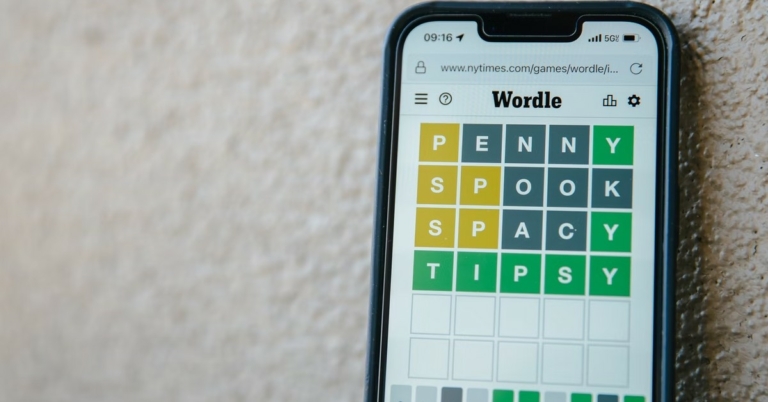
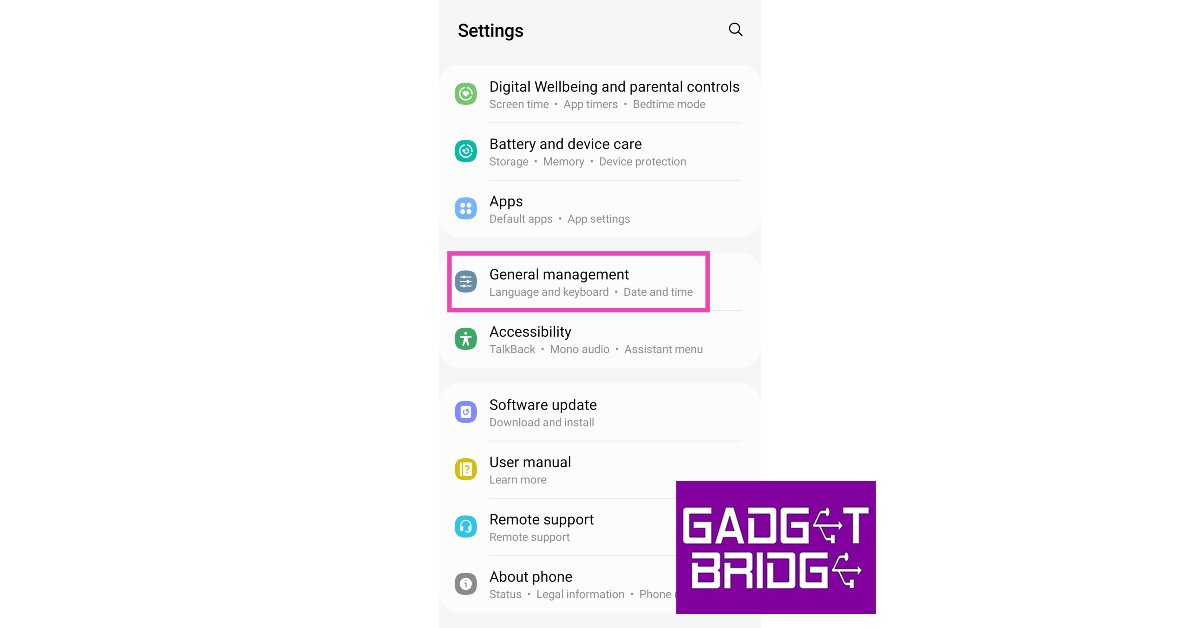 Step 2: Tap on Date and time.
 Step 3: Switch off the toggle bar for Automatic date and time.
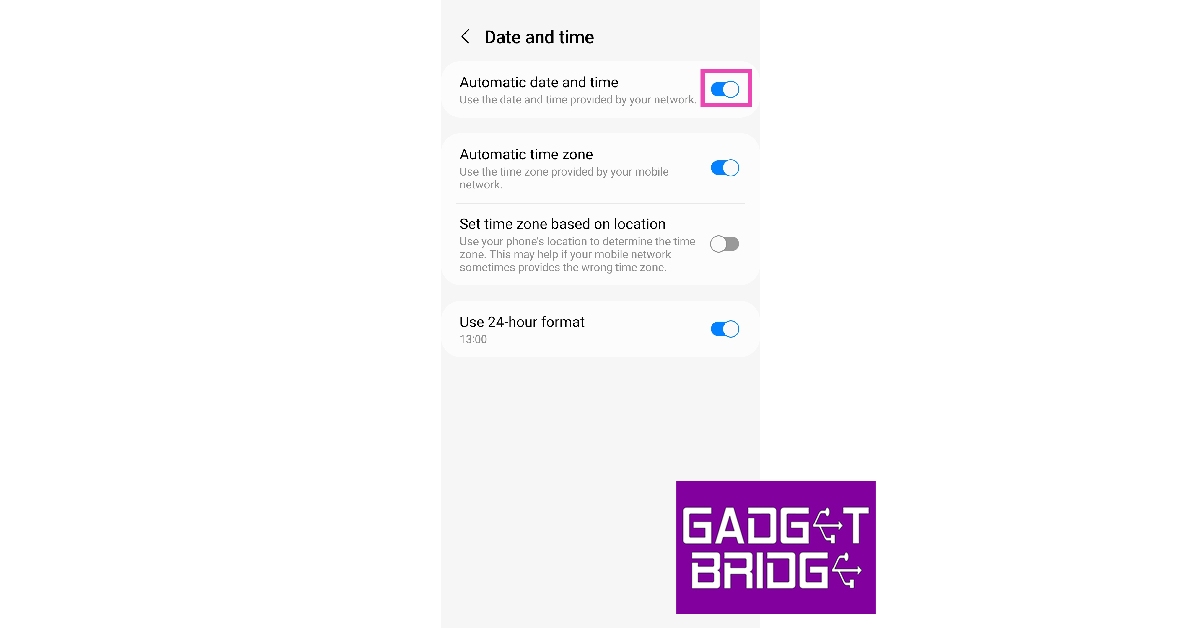 Step 4: Set tomorrow’s date on your phone.
 Step 5: Launch the web browser and go to Wordle’s web page.
You will now be able to play the next day’s Wordle.
Step 5: Launch the web browser and go to Wordle’s web page.
You will now be able to play the next day’s Wordle.
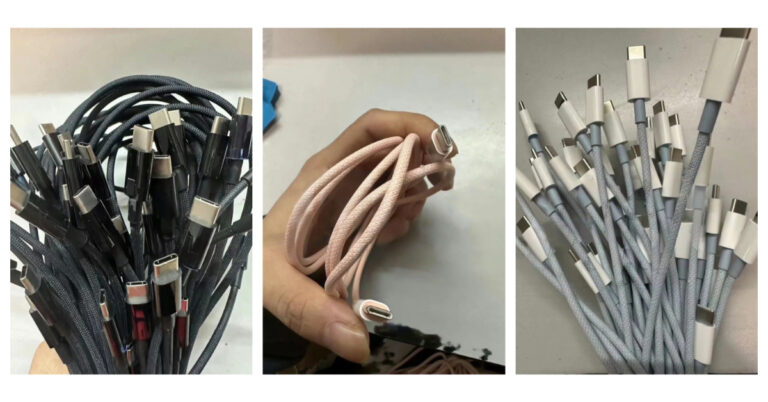
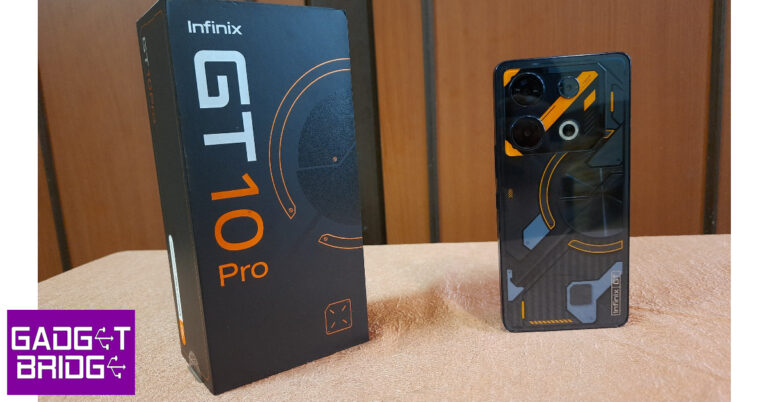


 Step 2:
 Step 3:
 Step 4:

 Step 2: Select a contact
 Step 3: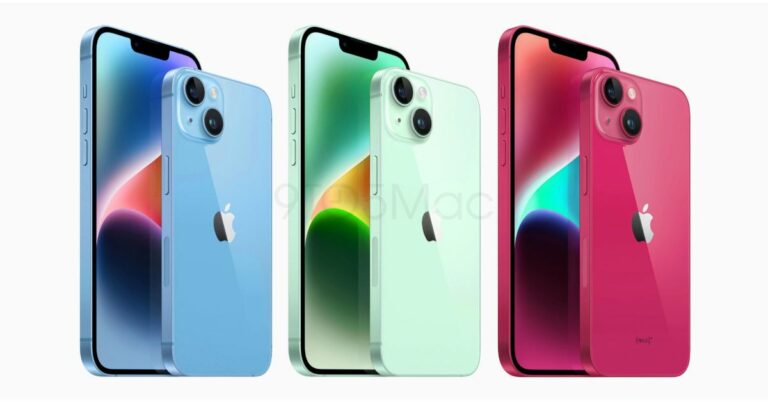
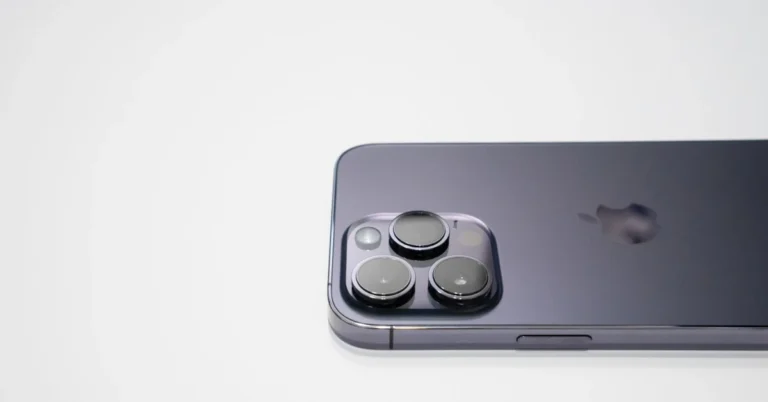





 Step 3:
 Step 4:
 Step 5:
 Step 4:
 Step 5: Emoji Kitchen



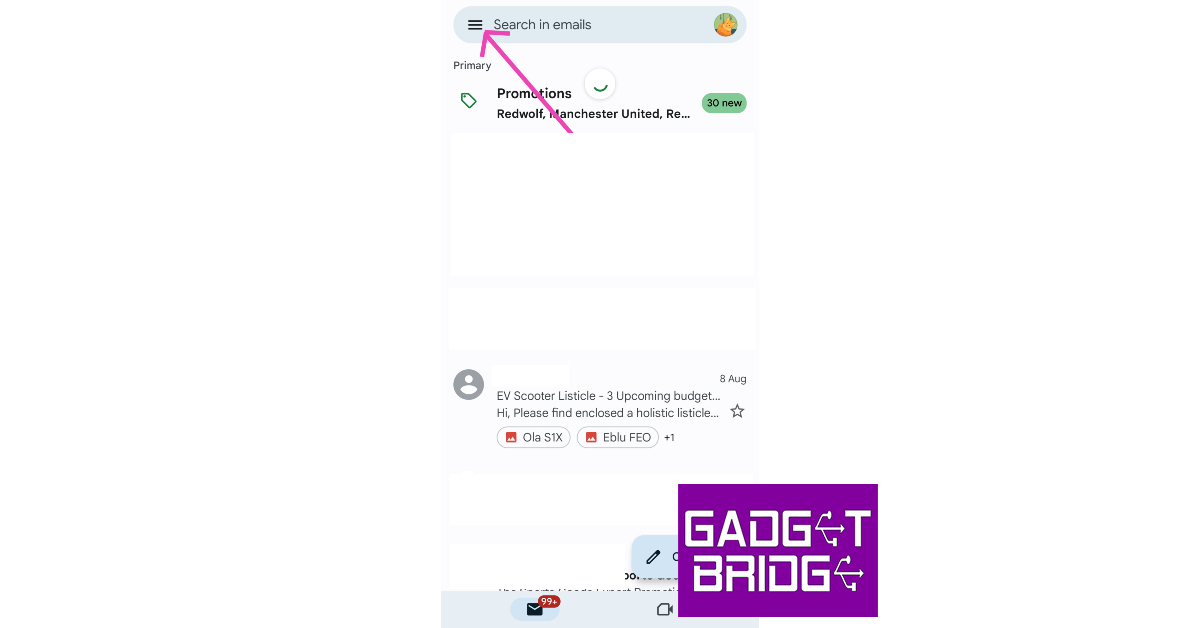 Step 3:
 Step 4:
 Step 5: Uncheck
 Step 2:
  Step 3:
  Step 4:
 Step 4:
 Step 5:
 Step 6:
 Step 7:
 Step 5:
 Step 6:
 Step 7:
 Step 4:
 Step 5:
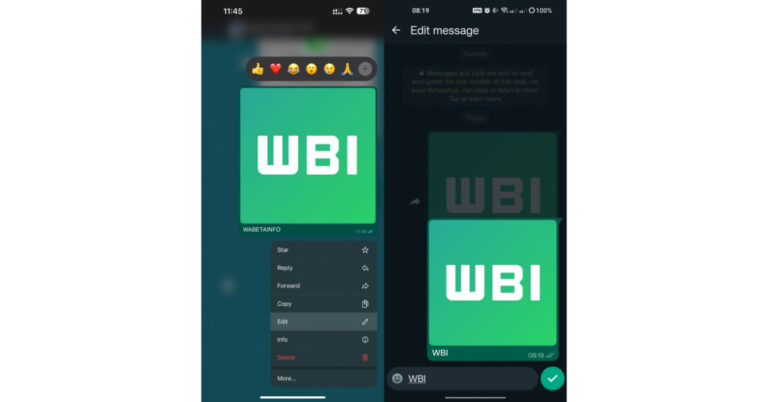
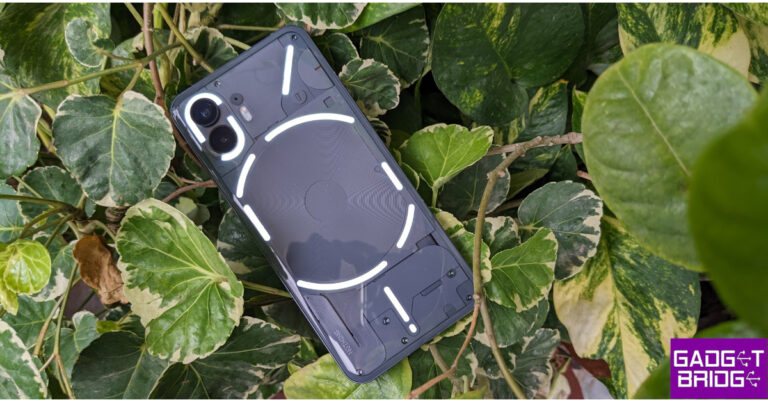




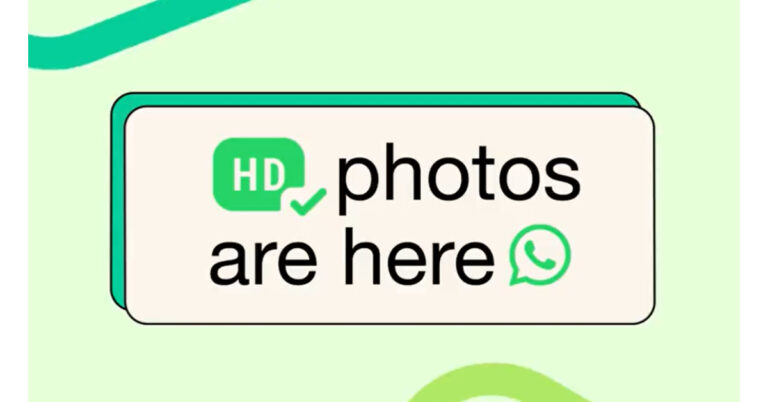
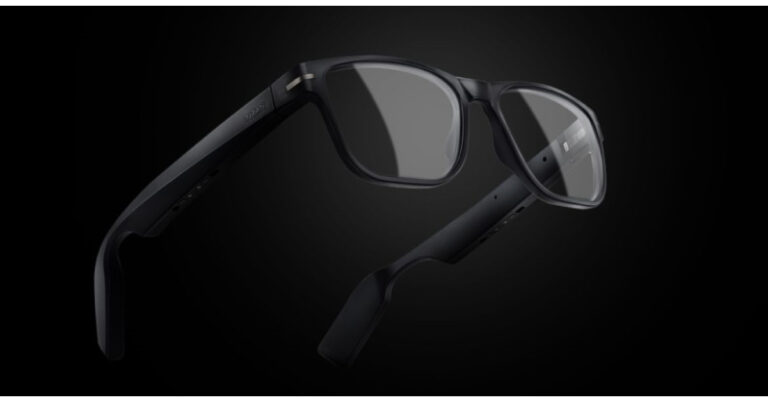

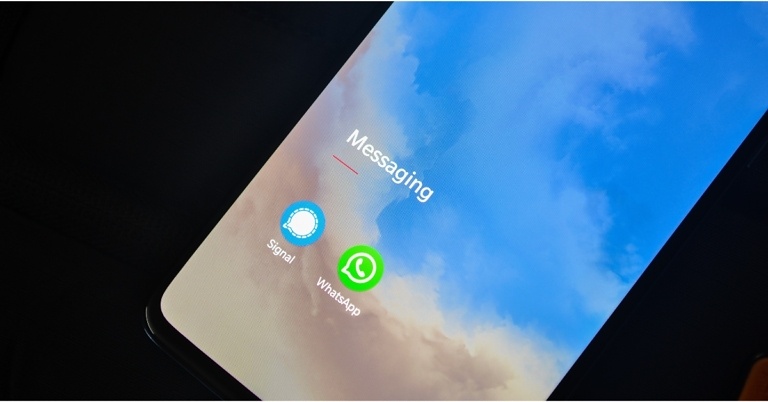
 Step 2:
 Step 3:
 Step 4: Confirm
 Step 5:
 Step 2: Hit Download and Install.
 Step 3: Select Install Now.