Sony India has expanded its portfolio with the launch of a new vlog camera- Sony ZV-1F. The new vlogging camera is compact in size and is said to come integrated with eco-friendly features. It has a vari-angle LCD for shooting selfies and a 20mm ultra-wide lens is also included for group selfies. Additionally, there is a 425 contrast-detection AF frame points for high-precision focusing on the camera.The all-new Sony ZV-1F vlogging camera features an ultra-wide 20mm prime lens for optimum selfie shooting and a wide field of view to capture more background. It also provides background bokeh in both stills and video. The vlogging camera is compact and lightweight. It weighs approximately 229 grams perfect for everyday usage. The vlogging camera comes with a Vari-Angle LCD touchscreen with features and settings changed by touch, including the ability to zoom. The is a Bokeh Switch button to allow users to quickly switch between background bokeh in videos. In addition to this, it includes a Product Showcase setting that lets users easily shift focus between face and products. It also includes a self-timer and recording lamp.The Sony ZV-1F has a ‘Soft Skin Effect’ option that makes the skin look more vibrant and natural by smoothing it and reducing wrinkles. While Face Priority AE automatically adjusts the brightness even in situations where light changes.Also Read:Vivo T2 5G series India launch set for April 11: Key details revealedMoreover, the Sony vlog camera features high precision focusing and Eye AF for both humans and animals without being distracted by other subjects. While the touchscreen ability makes changing subjects simple for users.According to the company, stabalisation is available for both photos and videos, which is accessible in Active Mode (electronic). With adjustments in tone, brightness, colour depth, and more, the newly introduced Creative Look function provides users with a total of 10 preset options to create desired atmospheres in both still photos and videos with no need for editing. There is an S&Q mode as well to shoot in both slow motion at 5 x slower speed and quick motion at 60 x faster hyper lapse speed to achieve the desired effect. For better audio quality the company has provided an in-built Directional 3-Capsule Mic. However, there is a provision for an external mic for clearer audio.The camera is compatible with the GP-VPT2BT Shooting Grip with Wireless Remote Commander which offers cable-free control of zoom, recording and more, and expands into a mini-tripod for stable hands-free shots.
The Chinese smartphone maker Vivo is all set to present a new smartphone series in India. Vivo T2 5G series is going to launch in the country on April 11. The upcoming smartphone series has also been listed on Flipkart to tease their availability and Key details post-launch. The lineup will succeed the last year’s Vivo T1 series.Vivo is planning to expand its T-Series with the addition of the Vivo T2 5G series in India. The Series is scheduled to launch in the country on April 11 at 12 noon. The Vivo T2 5G series has also been listed on Flipkart which gives a glimpse of the smartphones and their availability. According to the company, more details about the devices will be revealed in the coming days. Apart from Flipkart, the phones will also be available for purchase via the company’s official Vivo E-Store in the country. Moreover, details regarding the pricing probably be revealed at the time of the launch.As per the microsite, camera specs will be revealed on April 7 while the processor details on April 9. As of now, the company has only shared details about the display and how many devices will be launched. While rest of the details as mentioned will be unwrapped in the next few days.The landing page is teasing the Blue and Gold colour options of the Vivo T2 5G series. In addition to this the upcoming phones will be powered by a Snapdragon chipset, the company has confirmed.Also Read:Apple reveals its first retail store in India, the Apple BKC Store opening in MumbaiVivo also verified that there will be two devices in the series Vivo T2 5G and Vivo T2x 5G. They are confirmed to offer an FHD+ AMOLED display. The screen will support a peak brightness of 1300 nits, a contrast ratio of 6000000:1 and a 360Hz touch sampling rate. However, the reports suggest that the price of the Vivo T2 5G series may start at Rs 20,000. The base Vivo T2 5G is likely to be offered in two different configurations of 6GB RAM with 128GB storage and 8GB RAM with 128GB storage. On the other hand Vivo T2x 5G will be available in three choices- 4GB RAM with 128GB storage, 6GB RAM with 128GB storage, and 8GB RAM with 128GB storage.The vanilla T2 5G may get a 64-megapixel rear primary sensor with optical image stabilization (OIS) support.
For the latest gadget and tech news, and gadget reviews, follow us on Twitter, Facebook and Instagram. For newest tech & gadget videos subscribe to our YouTube Channel. You can also stay up to date using the Gadget Bridge Android App. You can find the latest car and bike news here.
Google’s Nearby Share feature was launched two years back for Android devices to easily send and receive content across Android phones, tablets and Chromebooks. This feature for sharing files is better and a lot faster than Bluetooth sharing. Earlier it was not possible to share files between Windows PC and Android devices but now the company is bringing Nearby Share for PCs too.Google Nearby Share is being expanded to Windows as a beta in select regions according to the company. This feature is very much similar to Apple’s Airdrop allowing the user to sync their Android device to another Android smartphone and to Windows PCs. This app is currently available for download from Google’s Android website. According to the company, it is compatible with Windows PCs running the 64-bit version of Windows 10 and higher.In order to set up Nearby Share Beta for Windows all you need to do is download and install the Nearby Share Beta app on your PC. Doing this will enable you to send files to nearby Android devices, or send files to your PC based on your device visibility preferences.On your Windows PC, Nearby Share Beta works whether the app is open on the desktop or running in the background. You can transfer an image, video, or document to an Android smartphone nearby by dragging it from your desktop into the app or by selecting “Send with Nearby Sharing” from the right-click menu. Simply pick the Android devices you want to share with from the list that appears.The company via blog post noted, “Sending files to your own devices is even faster. As long as both devices are logged into your Google account, file transfers are automatically accepted — even if your screen is off.”Ensure that the Nearby Share Beta app is open on your PC in order to share content from your Android handset to it. It’s then simple to select the PC from the list of available devices by hitting Share on the content you wish to transfer.In its beta form, Nearby Share for Windows PCs allows users to share material with Android tablets and smartphones.The Nearby Share Beta for Windows is now available in the United States and a few other countries, the business announced.For the latest gadget and tech news, and gadget reviews, follow us on Twitter, Facebook and Instagram. For newest tech & gadget videos subscribe to our YouTube Channel. You can also stay up to date using the Gadget Bridge Android App. You can find the latest car and bike news here.
Garena Free Fire is a battle royale game with regular awards and tournaments to keep players interested. If you play Garena Free Fire, you should be aware of the redeem codes that are released on a daily basis. However, because the battle royale game is banned in India, players from other countries can use the Free Fire Redeem codes daily. If you’re unfamiliar with the Garena Free Fire redeem codes or don’t know how to get them, we’ve put together a step-by-step guide to help you redeem them. Check out Garena Free Fire Redeem Codes for 6 April 2023.The Free Fire redeem codes are a great way to get free stuff. These are 12-digit codes that contain alphabets and numbers, as well as an expiration date and time. Because the Garena FF redeem codes cannot be used more than once, you should hurry to the redemption page to claim your free reward before someone else does. To get a free reward, all you have to do is go to reward.ff.garena.com/en, which is the official redemption page. Also, keep an eye on this space for daily updates on Garena Free Fire redemption codes and rewards.
In This Article
Garena Free Fire Redeem Codes Today 6 April 2023
Updating soon
How to Get Free Fire Redeem Codes for Garena on 6 April 2023?
6 April 2023 Amazon Quiz has gone live on its platform. The quiz timings are 12 AM to 11:59 PM. The Amazon App users can participate in the quiz daily and all they have to do is submit correct answers to the questions asked on the e-commerce platform. Today’s participants can get a chance to win Rs 2,500 Amazon Pay Balance.By participating in the Amazon Quiz the participants can win Amazon Pay Balance ranging from Rs 1,000 to Rs 50,000 every day while sitting at home. To win the participants must answer five questions correctly that are based on current events and general knowledge. One wrong answer can eliminate you from the quiz. The results will be announced at the end of the month. Today’s question will let you win Rs 2,500 Amazon Pay Balance. Check below for today’s Amazon quiz answers.Amazon Quiz Today Prize – Rs 2,500 Amazon Pay BalanceQuiz Date – 6 April 2023Daily Timing – 12 AM to 11:59 PMWinner Announcement – Today 12 PM
In This Article
Amazon Quiz Answers Today 6 April 2023
Question 1: Karman Kaur Thandi became India’s number 1 women’s player in which sport?
Answer: Tennis
Question 2: Ajay Devgn plays the divine accountant of good and evil deeds Chitragupta in which 2022 Hindi film?
Answer: Thank God
Question 3: Anti-Oil protestors just threw soup at a painting of sunflowers in the National Gallery in London. Which artist’s work was targeted?
Answer: Vincent van Gogh
Question 4: In which Spanish city is this building located?
Answer: Valencia
Question 5: Which bottled water brand was first introduced in India?
Answer: Bisleri
How To Play Amazon Quiz
Only app users are eligible to play the Amazon quiz every morning from 12 AM to 11:59 PM. The quiz is not available on the desktop. For those who are unaware of how to play the Amazon quiz below are the steps, you can follow to take the quiz.
Most cross-platform messaging apps like WhatsApp and Telegram have dedicated web portals and desktop apps that allow users to remotely chat from their PC or laptops, without needing to pick up their phones. This comes in handy when you need to stay connected with your friends and family while you’re at work or occupied with a project on your PC. iPhone users haven’t had this option for iMessage yet. That may change soon as Microsoft is looking to extend its Phone Link services to iOS. Right now, you can use Phone Link for your iPhone if you are signed up for the Windows Insider Program. This will allow you to access iMessage on your Windows 11 PC or laptop. Here is a brief explainer on how to use iMessage on Windows 11 using Microsoft Phone Link.Read Also:OnePlus Nord Buds 2 launched in India at Rs 2,999
In This Article
Here’s how you can use Phone Link to access iMessage on Windows 11
Before you begin, you will need to sign up for Windows Insider Program to use Phone Link for your iPhone. You can do so by going to Settings>Windows Update>Windows Insider Program and selecting Get Started.Step 1: Download and Install the Microsoft Phone Link app on your Windows PC or laptop.Step 2: Install the Link to Windows iOS app on your iPhone from the App Store.Step 3: Launch the Phone Link app on your PC and select iPhone.Step 4: Sign in to Phone Link using your Microsoft Account. Step 5: Launch the Link to Windows app on your iPhone and scan the QR displayed on the Windows app.Step 6: Give the app the necessary permissions to connect to your Windows PC or laptop.Once connected, you will be able to send and receive iMessages from your PC.
Limitations of using Phone Link for iOS
Although it is a pretty handy app, there are some limitations that come with using Phone Link for iOS. To begin with, Phone Link cannot access the messaging history from your iPhone. This means you will only be able to view the messages you send and receive while your iPhone is connected to your PC.As of now, there is no way to send images on iMessage using Phone Link for Windows. Microsoft may introduce this feature in future, but right now, basic texting is as good as it gets. The green and blue chat bubbles are also unavailable on Windows as Phone Link uses its own messaging interface for iMessage. Lastly, Phone Link for iOS is only available for Windows 11 users who have signed up for beta testing. It will be rolled out to the general audience in the coming months.
Frequently Asked Questions
Does Phone Link work with iOS?
If you are a part of the Windows Insider Program, you use the Beta version of Phone Link for iOS.
This is how you can use iMessage on Windows 11 using Microsoft Phone Link. While its functionality is extremely limited, we can only hope Microsoft fleshes it out with further updates. Right now, you can only see the messages that are sent to your while your iPhone is linked to your desktop. The green and blue chat bubbles from iMessage do not show up on the Phone Link app either.For the latest gadget and tech news, and gadget reviews, follow us on Twitter, Facebook and Instagram. For newest tech & gadget videos subscribe to our YouTube Channel. You can also stay up to date using the Gadget Bridge Android App. You can find the latest car and bike news here.
The German-origin brand, Truke has expanded its product portfolio with the launch of Buds Vibe true wireless earphones in India. The Truke Buds Vibe comes with dual noise cancellation with up to 35db active noise cancellation (ANC) and quad-mic environmental noise cancellation (ENC). The audio device has 13mm Titanium speaker drivers. It comes with 4 Preset EQ modes, fast charging and fast paring tech. Moreover, the TWS earphones are claimed to operate up to 48 hours on a single charge.
In This Article
Truke Buds Vibe specs and features
Truke Buds Vibe comes integrated with 13mm Titanium Speaker drivers that is claimed to offer high-quality audio with deep bass, clear treble, and crystal-clear sound. For personalised music experience, the device comes with 4 preset EQ modes- Dynamic Audio, Bass Boost Mode, Movie Mode, and Default Balanced mode.There is a transparent case design with a digital battery indicator allowing users to keep track of the battery life. The Buds Vibe also includes dual noise cancellation with a range of premium features, including Dual Noise Cancellation with up to 35dB Active Noise Cancellation (ANC) and Quad-Mic Environmental Noise Cancellation (ENC).The earphones also include Bluetooth 5.3 for connectivity. While the Instant Paring Technology with Open-to-Pair Technology for fast pairing. The Truke Buds Vibe has up to 48 hours of playtime with the case and up to 10 hours of playtime on a single charge.The company also provides 12 months of warranty on the purchase of the device.
Truke Buds Vibe price in India and availability
Truke Buds Vibe has been launched in India with a price tag of Rs 1,699. However, the company will be offering it at a special launch price offer of Rs 1499 valid till April 6. The device will be available for purchase via Amazon.in, Flipkart as well as Truke.in in the country.Mr. Pankaj Upadhyay, CEO, Truke India, said, “At Truke, we believe that everyone deserves the best technology and in the same pursuit, we launched our ANC Buds series this year. After receiving an overwhelming response from our customers on Buds A1, we realized the huge supply gap of affordable ANC audio products in the market, while the customers are actively looking for such premium features at budget prices.We are thrilled to launch our latest offering, the Buds Vibe, which comes with premium features like ANC, a stylish transparent case design, a battery indicator and four preset EQ modes for different user preferences. We are confident that customers across India will appreciate our efforts and committed to providing high-quality audio products at affordable prices.”
For the latest gadget and tech news, and gadget reviews, follow us on Twitter, Facebook and Instagram. For newest tech & gadget videos subscribe to our YouTube Channel. You can also stay up to date using the Gadget Bridge Android App. You can find the latest car and bike news here.
While smartwatches are not a substitute for medical-grade equipment, it still doesn’t stop manufacturers from packing a whole bunch of health monitoring functions in them. Your smartwatch is well-equipped to track your runs, workouts, and other exercises, but ECG and BP data should generally be taken with a grain of salt. Samsung’s Galaxy Watch is one of the few smartwatches that are somewhat reliable when it comes to BP monitoring, as they require calibration after every 4 weeks. If you’re keen on using your Samsung Galaxy smartwatch to measure blood pressure, here’s how you can go about it.Read Also:Use these Netflix Secret Codes to View Hidden Categories and Movies
In This Article
Calibrate your Samsung Galaxy Smartwatch
Your Samsung Galaxy smartwatch needs to be calibrated to provide accurate blood pressure readings. For this, you will need a traditional blood pressure monitoring device. A regular home BP monitor is sufficient for this task. You can use a manual BP monitor as well. Here’s how.Step 1: Wrap your Samsung Galaxy smartwatch around your wrist and make sure it is a snug, comfortable fit. Strap the home BP monitor on the opposite arm.Step 2: Launch the Samsung Health Monitor app on your smartwatch and select Blood Pressure.Step 3: The calibration process will require you to launch the Samsung Health Monitor app on your phone as well. Follow the on-screen instructions on the watch and open your phone when prompted.Step 4: Continue the calibration process on your smartphone.Step 5: Turn on your home BP monitor. At the same time, turn on BP monitoring on your smartwatch as well.Step 6: Once the process is over. Record the Systolic and Diastolic readings taken by your home BP monitor and manually feed them into the Samsung Health app on your smartphone.Step 7: Repeat this process three times.Once the calibration is complete, your Samsung Galaxy smartwatch will be able to monitor your blood pressure on its own and will provide accurate readings for up to 4 weeks. After that, you will need to calibrate it again.
Here’s how you can measure your Blood Pressure using a calibrated Samsung Galaxy smartwatch
Once the calibration is complete, follow these steps to monitor your BP using your Samsung smartwatch.Step 1: Wrap your watch around your wrist. Make sure it is not too tight,Step 2: One the app drawer on your Galaxy watch and launch the Samsung Health Monitor app.Step 3: Select Blood Pressure and tap on ‘Measure’.Your watch will take some time to measure your BP and display the readings on the screen once it’s done. You can view the results on your smartphone as well.
Frequently Asked Questions
Does Samsung Galaxy Watch have a blood pressure monitoring function?
Yes, the Samsung Galaxy Watch comes with a blood pressure monitoring function, but only for certain markets. Check Samsung’s website to see if your region is on the list.
Can I use Galaxy Watch to measure blood pressure in India?
Unfortunately, Samsung hasn’t rolled out this feature in India yet. The only alternative you have is to use the modded Samsung Health app on your Galaxy Watch and smartphone to measure your BP.Read Also:Acer Aspire 3 with latest Intel Core i3-N305 CPU launched in India
Conclusion
This is how you can measure your blood pressure using a Samsung Galaxy smartwatch. As of now, Samsung has not rolled out the ECG and BP monitoring features for Galaxy Watch in India. You will need a modded Samsung Health app for your smartphone and Galaxy Watch to gain access to these functions. Lastly, you should note that the BP readings taken using smartwatches should not be considered a substitute for those taken using medical-grade equipment.For the latest gadget and tech news, and gadget reviews, follow us on Twitter, Facebook and Instagram. For newest tech & gadget videos subscribe to our YouTube Channel. You can also stay up to date using the Gadget Bridge Android App. You can find the latest car and bike news here.
Tech giant Apple is soon going to establish its first-ever retail store in India. The Apple retail store in India will be located in Mumbai and will be called Apple BKC Store. While announcing its upcoming retail outlet in the country the firm revealed the barricade of the BKC store. The first picture of the store barricade in advance of the opening reveals the iconic Kaali Peeli taxi art.The Apple BKC store in India is scheduled to open in the Jio World Drive Mall in Mumbai. Apple has released the first picture of the store’s barricade along with a special wallpaper and playlist just ahead of the opening which can be downloaded here.The Apple BKC creative includes colourful interpretations of the decals combined with many Apple products and services that will be available is inspired by the iconic Kaali Peeli taxi art unique to Mumbai. In addition to this, the upcoming store displays Apples’ traditional salutation “Hey Mumbai” to onlookers.The company in its announcement said, “This morning, Apple revealed the barricade of its first retail store in India at Jio World Drive Mall, Mumbai officially marking the upcoming opening of Apple BKC. Apple’s CEO Tim Cook announced earlier this year that Apple Retail would soon arrive in India.Inspired by the iconic Kaali Peeli taxi art unique to Mumbai, the Apple BKC creative includes colourful interpretations of the decals combined with many Apple products and services that will be available for our customers to discover. The creative for the store features a bright welcome to people passing by with the classic Apple greeting “Hello Mumbai”.Also Read:OnePlus announced the all-new Nord CE 3 Lite 5G with a 108-megapixel camera in IndiaTo celebrate the opening of the new store, visitors can download the new Apple BKC wallpaper and move to the sounds of Mumbai with a specially curated playlist on Apple Music.”The company is anticipated to inaugurate the store later this month however the official date for the opening is yet to be announced.Moreover, rumours suggest that the next Apple retail store is likely to open in New Delhi. But this is going to be considerably smaller than the Apple BKC Store in Mumbai.
For the latest gadget and tech news, and gadget reviews, follow us on Twitter, Facebook and Instagram. For newest tech & gadget videos subscribe to our YouTube Channel. You can also stay up to date using the Gadget Bridge Android App. You can find the latest car and bike news here.
Wireless sharing between smartphones and PCs has always been a struggle for Android users. While there are several tools that make it possible to share files wirelessly, none of them is as seamless as Apple’s AirDrop. As a result, most Android users stick to emailing files to themselves to access them on their PC. Well, that may change soon. Google recently announced its plans to bring Nearby Share to Windows and has already rolled out a beta version of the app for PC. In this article, we show you how to send and receive files between your PC and Android smartphone using the Nearby Share app.Read Also:Use these Netflix Secret Codes to View Hidden Categories and Movies
In This Article
How to receive files on your PC from Android using Nearby Share
Step 1: Download the beta version of Nearby Share for PC using this link.Step 2: Follow the onscreen instructions to install the app on your PC.Step 3: Sign in with your Google Account or click on ‘Use without an account’ if you don’t wish to sign in.Step 4: If chose to use Nearby Share without an account, set up a name for your PC and select ‘Done’.Step 5: In order to receive files on your PC, tap on ‘Device is Hidden’ and select ‘Receive from everyone’.Step 6: Now, select the file you want to transfer on your Android smartphone.Step 7: Tap the Share icon and select ‘Nearby Share’ from the list of options.Step 8: Your smartphone will search for your PC. Once it pops up on the radar, select the icon for your PC.Step 9: Accept the transfer on your PC.Step 10: Once the file is received on your PC, click on ‘Open’ to view it. You can also access the file from the Downloads folder on your PC.
How to send files from your PC to Android using Nearby Share
Step 1: Launch the Nearby Share app on your PC.Step 2: Drag the file you want to share and drop it in the transfer box in the app. You can also select the file from within the app. Simply click on ‘Select Files’ or Select Folders’.Step 3: Once you’ve selected a file, your PC will look for nearby devices.Step 4: Make sure Nearby Share is enabled on your Android smartphone. You can do so by selecting ‘Nearby Share’ from the Quick Settings panel. Turn on the device’s visibility and make sure it is visible to everyone.Step 5: Click on your Android smartphone’s name on your PC.Step 6: Accept the transfer on your Android smartphone.The file will be sent successfully to your phone.
Frequently Asked Questions
Does Nearby Share work with Windows PC?
Android recently rolled out the beta version of Nearby Share for PC. You can download it from the official Android website. A full version will be released as soon as the beta testing ends.
Can you use Nearby Share between Android and PC?
Yes, you can use the Nearby Share Beta app for PC to share files with your Android phone and vice versa.
How do I use Nearby Share on PC?
Install the beta version of the Nearby Share app on your PC and simply drag and drop files to share them with your Android phone. You can also share files from your Android phone by selecting ‘Nearby Share’ from the sharing options.Read Also:What are the benefits of using GPS? What are the alternatives to it?
Conclusion
This is how you can send and receive files between your PC and Android smartphone wirelessly. As of now, you can only use the Beta version of Nearby Share on your PC. This means you may encounter some bugs and glitches while using it. These issues will be ironed out in the full version of the app. The availability of the beta app depends on your location. Check the official Android website to know more.For the latest gadget and tech news, and gadget reviews, follow us on Twitter, Facebook and Instagram. For newest tech & gadget videos subscribe to our YouTube Channel. You can also stay up to date using the Gadget Bridge Android App. You can find the latest car and bike news here.
On Tuesday evening OnePlus launched its most affordable Nord CE 3 Lite 5G smartphone in India. Alongside the company also introduced the OnePlus Nord Buds 2 true wireless earphones in the country. The audio device is a successor to the last year’s OnePlus Nord Buds. It has active noise-cancellation features. There is a capsule-shaped charging case and in-ear design earbuds. The device is touch sensitive and offers customisation controls. Moreover, there is a 12.4mm driver with 25dB depth and a dual-core processor.
In This Article
OnePlus Nord Buds 2 specifications and features
As said earlier, the OnePlus Nord Buds 2 has a capsule-shaped charging case and the design and shape of the earbuds are just like we have seen on its predecessor. It has e in-ear design earbuds that are touch sensitive and offers customisable controls and shortcuts that can be controlled via the HeyMelody app. The earphones are IP55 rated for dust and water resistance.The device comes with 12mm drivers that have been improved with an extra layer of titanium in the vibrating diaphragm for better audio. According to the company, a high-tension wire copper coil has been used for improved tension and longevity. Moreover, the true wireless earphones by OnePlus offer a master equalizer with choices for balanced, serenade, bold, and bass modes to deliver user-specific audio output.The OnePlus Nord Buds 2 also offers Active Noise Cancellation with 25dB depth and a dual-core processor that cancels out unwanted environmental noises. The dual mic system and the Enhanced Clear Call function on these TWS work together to amplify speech sounds during an audio or video call.The OnePlus Nord Buds 2 comes with Bluetooth 5.3 which supports both SBC and AAC codecs.The battery life has also been improved on this earphone. According to the company the TWS earphones can operate for up to five hours and up to 27 hours with AAC and ANC enabled. With ANC off, it can run for five hours after only ten minutes of charging.
Roblox is one of the biggest online game platforms that rose to massive popularity in recent years. Using Roblox Studio, you can create your own game or play games created by other users. The Roblox app can be downloaded for free on Android, iOS, Windows and other platforms. However, if you’re not interested in downloading the app, there is another way you can access it. In this article, we show you how to play Roblox online for free without downloading the app.Read Also:iQoo Neo 6 gets more affordable, price dropped by Rs 5,000: Deets inside
In This Article
Play Roblox on the official website
Step 1: Go to the official Roblox website and log in using your official Roblox account.Step 2: Use the search bar at the top to look for a specific title.Step 3: Select the game you want to play. Click on the green Play button to start playing it. If the game has a price tag, you will need to purchase it using Robux.
Play Roblox online on Now.gg
Step 1: Go to www.now.gg and search for Roblox.Step 2: Select ‘Play in Browser’.Step 3: Log in with your Roblox account and start playing. While Now.gg supports most parts of the gameplay, you won’t be able to purchase Robux while playing the game in your browser. In-game purchases can only be made through the Roblox app.
Frequently Asked Questions
Is Roblox appropriate for kids?
Common Sense Media rates Roblox safe for kids ages 13 and above.
How much is $1 in Robux?
1 USD is equivalent to 1 Robux.
Where can I play Roblox online?
You can play Roblox using the official website or mobile cloud gaming sites like Now.gg.
These are the two ways you can play Roblox online for free without downloading the app. If you’re playing the game on Windows, your PC will have to meet some basic requirements like 8GB RAM or higher, Windows 10 OS or higher, Intel Core i5 processor or higher, and NVIDIA GeForce GTX 660 or AMD Radeon HD 7870 graphics or higher.For the latest gadget and tech news, and gadget reviews, follow us on Twitter, Facebook and Instagram. For newest tech & gadget videos subscribe to our YouTube Channel. You can also stay up to date using the Gadget Bridge Android App. You can find the latest car and bike news here.
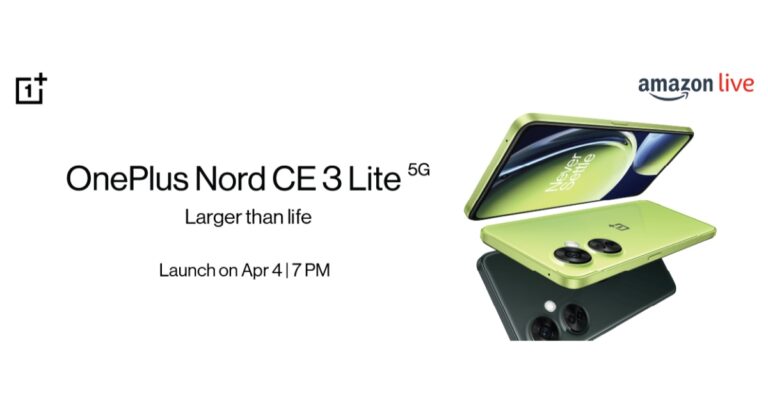
Looks like OnePlus is on a launching spree this year. The Chinese smartphone company has officially unveiled the much-speculated OnePlus Nord CE 3 Lite 5G in India. As the name suggests the device belongs to the OnePlus Nord family which will succeed last year’s Nord CE 2 Lite. The phone is being offered in the company’s budget mid-range category. Instead of an AMOLED display this year again OnePlus has delivered the handset with an LCD screen to cut down the cost. The display supports a 120Hz refresh rate. Additionally, the Nord CE 3 Lite has a triple rear camera setup featuring a 108-megapixel primary sensor. While the 5,000mAH battery on the phone also supports 67W SuperVOOC fast charging.
In This Article
OnePlus Nord CE 3 Lite 5G price and sale details
OnePlus Nord CE 3 Lite 5G price in India for the 8GB RAM with 128GB storage option starts at Rs 19,999. There is another 8GB RAM with 256GB storage option that costs Rs 21,999. Additionally, the newly launched phone will be available in two colour options of Pastel Lime and Chromatic Gray. The handset can be purchased via the company’s official website, Amazon and other retail stores in the country beginning April 11.Also Read:iQoo Neo 6 gets more affordable, price dropped by Rs 5,000: Deets inside
OnePlus Nord CE 3 Lite 5G specifications
In terms of specs, the OnePlus Nord CE 3 Lite 5G is powered by an octa-core Snapdragon 695 SoC with Adreno 619 GPU for graphics. The phone comes with 8GB of LPDDR4X RAM with a RAM expansion feature (expands by 8GB). Moreover, the phone is shipped with OxygenOS 13.1 on top of Android 13 out of the box. The gadget also comes with up to 256GB UFS 2.2 storage which can be further expanded using a microSD card (up to 1TB). On the gaming front, the Nord CE 3 Lite has a Game Focus Mode that prevents ghost touches by disabling notifications.It also features a 6.72-inch full-HD+ LCD display with 1,080×2,400 pixels of resolution. The screen comes with a dynamic refresh rate of 120Hz and 240Hz touch sample rate. It has a peak brightness of 680 nits, a 91.4 percent screen-to-body ratio, a 20:9 aspect ratio, and a 391ppi pixel density. Moreover, the screen is protected with Corning Gorilla Glass Victus.The OnePlus Nord CE 3 Lite 5G is highlighted with a triple rear camera setup that includes a 108-megapixel Samsung HM6 sensor with an f/1.75 aperture and EIS support. It also consists of a 2-megapixel macro lens and another 2-megapixel depth sensor. There is a 16-megapixel front-facing camera for selfies.The OnePlus phone has dual stereo speakers with noise cancellation support. This smartphone comes with a 5,000mAh battery that supports 67W SuperVOOC fast charging. The sensors on the phone include a side-mounted fingerprint sensor, accelerometer, e-compass, ambient light, gyroscope, and proximity sensor. In terms of connectivity, there is 5G, 4G LTE, Wi-Fi, a 3.5mm audio jack, Bluetooth 5.1, GPS/ A-GPS, and a USB Type-C port.For the latest gadget and tech news, and gadget reviews, follow us on Twitter, Facebook and Instagram. For newest tech & gadget videos subscribe to our YouTube Channel. You can also stay up to date using the Gadget Bridge Android App. You can find the latest car and bike news here.
Garena Free Fire is a battle royale game with regular awards and tournaments to keep players interested. If you play Garena Free Fire, you should be aware of the redeem codes that are released on a daily basis. However, because the battle royale game is banned in India, players from other countries can use the Free Fire Redeem codes daily. If you’re unfamiliar with the Garena Free Fire redeem codes or don’t know how to get them, we’ve put together a step-by-step guide to help you redeem them. Check out Garena Free Fire Redeem Codes for 5 April 2023.The Free Fire redeem codes are a great way to get free stuff. These are 12-digit codes that contain alphabets and numbers, as well as an expiration date and time. Because the Garena FF redeem codes cannot be used more than once, you should hurry to the redemption page to claim your free reward before someone else does. To get a free reward, all you have to do is go to reward.ff.garena.com/en, which is the official redemption page. Also, keep an eye on this space for daily updates on Garena Free Fire redemption codes and rewards.
In This Article
Garena Free Fire Redeem Codes Today 5 April 2023
XZJZE25WEFJJ
V427K98RUCHZ
FFCMCPSUYUY7E
FFICJGW9NKYT
FFCO8BS5JW2D
FFAC2YXE6RF2
MCPW3D28VZD6
ZZZ76NT3PDSH
EYH2W3XK8UPG
UVX9PYZV54AC
FF9MJ31CXKRG
How to Get Free Fire Redeem Codes for Garena on 5 April 2023?
Amazon hosts a Quiz session for its customers daily. Its app platform brings a quiz on a daily basis, which begins at 12 AM and ends at 11:59 PM daily. The participants stand a chance to win cash prizes on a daily basis. Today’s 5 April 2023 Amazon Quiz will let you win Rs 5,000 Amazon Pay Balance.By participating in the Amazon Quiz the participants can win Amazon Pay Balance ranging from Rs 1,000 to Rs 50,000 every day while sitting at home. To win the participants must answer five questions correctly that are based on current events and general knowledge. One wrong answer can eliminate you from the quiz. The results will be announced at the end of the month. Today’s question will let you win Rs 5,000 Amazon Pay Balance. Check below for today’s Amazon quiz answers.Amazon Quiz Today Prize – Rs 5,000 Amazon Pay BalanceQuiz Date – 5 April 2023Daily Timing – 12 AM to 11:59 PMWinner Announcement – Today 12 PM
In This Article
Amazon Quiz Answers Today 5 April 2023
Question 1: Surrender: 40 Songs, One Story’ is a new book released by which singer?
Answer: BonoQuestion 2: Which car company has recently declared that it will enter the Formula 1 arena from the 2026 season with its own cars?
Answer: AudiQuestion 3: Thai business tycoon and transgender rights advocate Anne Jakapong Jakrajutatip bought which organization for $20 million?
Answer: Miss UniverseQuestion 4:Where was the first of these locations built?
Answer: Clermont-FerrandQuestion 5: What is the other name for the sport?
Answer: pugilism
How To Play Amazon Quiz
Only app users are eligible to play the Amazon quiz every morning from 12 AM to 11:59 PM. The quiz is not available on the desktop. For those who are unaware of how to play the Amazon quiz below are the steps, you can follow to take the quiz.
Firstly download the Amazon app from Google Play Store or App Store
Now fill in the required information through the Sign Up option.
You need to log in to the Amazon app and scroll down on the home screen to find the Amazon Quiz banner.
Tap on the Amazon Quiz banner and tap on the Start button to start the Quiz.
Now you will get 5 questions and you need to answer them correctly. One wrong answer will eliminate you from the Quiz.
After answering all the questions correctly you are now eligible for a Lucky Draw.
The winner’s name will be announced today at 12 PM.
Netflix’s personalised recommendations and curated titles on your homepage do not seem that interesting when you take into account the sheer size of its library. Users often complain about the lack of options, but that is only because Netflix showcases only a portion of its collection in your home feed and the defined genre categories. If you want to explore movies and TV shows like a pro, you need to put Netflix’s secret codes into use.These codes will allow you to access a whole new range of genres that aren’t listed in Netflix’s interface. These categories range from common genres like Gangster Movies to something very specific like Deep Sea Horror Movies. If you’re tired of the same old suggestions on your Netflix app, it is time to give the secret genres a go. Not in the mood to watch a movie? Try the secret code for World Music Concerts! In this article, we show you how to use Netflix’s secret codes to view hidden categories and movies.Read Also:Amazon reveals sale offers for the upcoming Home Shopping Spree
In This Article
How to enter a secret code on Netflix?
You can only use secret codes on Netflix while using a web browser. However, when you’ve opened a title on your PC, you can simply continue watching on your TV or smartphone if you are logged in using the same account. Here’s how you can enter a secret code on Netflix.Step 1: Launch the web browser on your PC or laptop and sign in to your Netflix account.Step 2: Enter www.netflix.com/browse/genre/ in the address bar and type the secret code along with it. This is what the address should look like: www.netflix.com/browse/genre/[secretcode].For example, if you want to explore the Anime Fantasy genre (Secret Code: 11146), simply type www.netflix.com/browse/genre/11146.Step 3: Hit enter to reveal the hidden category.
Where can I find the secret codes for hidden genres?
These are some Netflix codes for our favourite hidden genres and categories. If you want more secret codes, you can perform a simple Google Search for the full list or simply ask us in the comments!
If you use an Android smartphone, chances are that you are familiar with GPS. GPS (Global Positioning System) is a satellite navigation system that was launched by the US Department of Defence in 1978, five years after starting the project. Due to its popularity in modern gadgets and devices, GPS as a term is used synonymously with satellite navigation. But GPS is one of the several Global Navigation Satellite Systems (GNSS) currently in use across the world. You may have heard of NavIC, which is India’s very own satellite navigation system launched not too long ago. So what is it that GPS does apart from determining the location of your device? In this article, we bring you the benefits of using GPS and some alternatives to it.Read Also:How to View GoodNotes Notes on Android, Windows or Non-Apple devices?
In This Article
Here are some of the benefits of using GPS
Navigation
We don’t need to tell you this, but satellite navigation is one of the key areas where GPS is put into use. When paired with a detailed map, your smartphone can use the GPS to track your position and navigate you from point A to point B. One of the most popular navigation apps, Google Maps, uses GPS to give you directions to your destination as you drive. Other services like Apple Maps and Waze also utilise GPS to offer detailed navigation along with a bunch of other features.
Keep a check on your kids’ safety
There are several GPS-based apps that let you monitor your children’s location in real-time. Apps like Family360, Glympse, and FamiSafe not only let you keep a tab on your family members’ location but also give you access to functions like creating safe circles on the map, tracking vehicle speed, and more. Here is our list of some of the best location-sharing apps you can download right now.
Find your lost phone
Finding a lost or stolen phone is made easy by GPS. Android users can simply log in to Google’s Find My Device page and track their phone’s live location if it is still switched on and connected to the internet. In case your phone is switched off, you can still get to know its last known location. Certain smartphone manufacturers like Samsung and Apple have tracking services of their own that can locate anything from smartphones to styluses and wireless earbuds.
Find services near you
Using GPS you can find services like hotels, restaurants, gas stations, ATMs, and more near you. Your current location made available via using GPS lets other apps give you a detailed list of the all services and attractions near you. Most navigation apps like Google Maps make use of this. If you’re travelling to a place you’ve never been before, you can use GPS to your benefit by checking out all the services available there.
Get detailed stats about your workouts
If you’re obsessed with fitness, you probably use a smartwatch or fitness band to track your workout routines. Your smartwatch uses GPS to track your runs, giving you a detailed account of the distance covered, average speed, and the route taken. If you’re looking to buy your first smartwatch, check out our list of the best smartwatches for fitness and health tracking here.
What are the alternatives to GPS?
Even though it is the most popular satellite network, GPS is not the only navigation system around. Here are some other Global Navigation Satellite Systems that are a good alternative to GPS.
GLONASS (Russia)
Global Navigation Satellite System (GLONASS) is a network of 27 satellites operated by the Russian Aerospace Defence Forces. It is currently the best alternative to GPS. GLONASS was launched in 1993. It wasn’t always a network of 27 satellites. In the beginning, GLONASS consisted of 12 satellites in 2 orbits around the Earth. GLONASS precision of 5-10 metres is very close to that of GPS (4-7 metres).
BeiDou (China)
BeiDou is China’s network of satellites and was first launched in 2000. This GNSS had humble beginnings, being a network of just 2 satellites on its launch. However, in 2012, China replaced it with BeiDou-2 which consists of 22 satellites, with plans of extending to accommodate 35 operational satellites. As of now, BeiDou is mostly used in China and its neighbouring regions. Its positioning accuracy is just as good as GPS, tracking location with a precision of 3-5 metres.
NavIC (India)
NavIC, formerly known as Indian Regional Navigation Satellite System (IRNSS), is the newest addition to the global network of satellites orbiting the planet. As of now, NavIC is only used to monitor India and its neighbouring regions. The constellation of 7 satellites provides position accuracy better than 20m. India plans on launching more satellites in future to join the NavIC network.
Quasi-Zenith (Japan)
Japan’s indigenous satellite navigation network is called Quasi-Zenith (QZSS) and is a constellation of four satellites. In Japanese, Quasi-Zenith is known as Michibiki. QZSS covers the Asia-Oceanic regions, where it provides better accuracy than GPS. As of now, QZSS works in tandem with GPS, providing the latter with additional data from the Asia-Oceanic region. This year, Japan plans to add seven more satellites to the network, making it completely autonomous.
Galileo (European Union)
Galileo was launched by the European Union in 2016 and currently consists of a network of 30 satellites, out of which 24 are operational. Galileo is operated by the European Union Agency for the Space Programme (EUSPA). This satellite network offers a position accuracy of 1 metre (public) and 20cm (on-demand)Read Also:Nokia C12 Plus with 4,000mAh battery launched in India
Vivo’s sub-brand iQoo has now reduced the cost of iQoo Neo 6 by Rs 5,000. The device was launched in India last year. The price revision comes just after the company introduced iQoo Neo 7. The device includes a 64-megapixel triple rear camera and a 6.62-inch E4 AMOLED display with a 120Hz refresh rate. Moreover, the phone is powered by Snapdragon 870 SoC and packs a 4700mAh battery with 80W fast charging support.
In This Article
iQoo Neo 6 new price and sale details
iQoo Neo 6 has today received a price cut of Rs 5,000. After the price drops the 8GB RAM with 128GB storage model is available at Rs 24,999. Whereas the price of the 12GB RAM with 256GB storage option has been slashed to Rs 29,999. The device with revised pricing will be available via the company’s official website and Amazon.Note that the phone was launched in India at a starting price of Rs 29,999 for the 8GB RAM with 128GB storage option. The 12GB RAM with 256GB storage model is priced at Rs 33,999. The phone comes in two colour options of Cyber Rage and Dark Nova.
iQoo Neo 6 specifications
iQoo Neo 6 is highlighted with a 6.62-inch E4 AMOLED full-HD+ display with 1,080×2,400 pixels of resolution and 120Hz refresh rate with a 360Hz touch sampling rate. The device runs on Android 12-based Funtouch OS 12. Under the hood, there is Snapdragon 870 SoC with up to 12GB of RAM in the device and has up to 256GB of built-in UFS 3.1 storage.The triple rear camera on the iQoo Neo 6 includes a 64-megapixel Samsung ISOCELL GW1P primary sensor with an f/1.89 aperture and optical image stabilisation. There is a 2-megapixel macro camera with an f/2.4 aperture and an 8-megapixel wide-angle camera with an f/2,2 aperture. For selfies and video chats, the iQoo Neo 6 has a 16-megapixel sensor on the front with f/2.0 aperture.In addition to this, there is a 4,700mAh battery with support for 80W FlashCharge. The handset has 5G, 4G LTE, Wi-Fi, Bluetooth 5.2, GPS, and a USB Type-C connection for connectivity. An accelerometer, ambient light sensor, magnetometer, gyroscope, proximity sensor, and an in-display fingerprint sensor for biometric authentication are among the sensors on board. For better thermal control when gaming, it comes with a liquid cooling vapour chamber.
For the latest gadget and tech news, and gadget reviews, follow us on Twitter, Facebook and Instagram. For newest tech & gadget videos subscribe to our YouTube Channel. You can also stay up to date using the Gadget Bridge Android App. You can find the latest car and bike news here.
Acer has expanded its Aspire portfolio with the launch of Aspire 3 15 and Aspire 3 14 laptops in India. Both laptops are powered by the latest Intel Core i3-N305 CPU with 8GB LPDDR5 memory onboard. As the name suggests they have a 14 or 15.6-inch full HD display along with Acer PurifiedVoice and AI Noise Reduction audio system.
In This Article
Acer Aspire 3 15 and Aspire 3 14 prices in India, sale details
The price of the Acer Aspire 3 15 and Aspire 3 14 starts at Rs 39,999 in India. They are available for purchase via Acer Exclusive Stores, Acer E-store, Vijay Sales, Amazon and Acer stores pan India.
Acer Aspire 3 15 and Aspire 3 14 specifications, features
According to the company, the Aspire 3 15 weighs only 1.7 kg and has an 18.9 mm thickness. Whereas the Aspire 3 14 with Metal A Cover weighs only 1.5 kg and has a thickness of 18.9 mm.Full-HD 1920×1080 pixel resolution is available in both sizes. Acer’s BlueLightShield is also available for the screen to block out blue light, perfect for casual web browsing and streaming videos, allowing for sharp, detailed images.There is a 78% increase in fan surface area which results in an improved thermal system and an additional 17% thermal capacity, allowing users to maintain optimum performance and prevent overheating while performing more work.Also Read:iQoo Neo 6 featuring a 120Hz E4 AMOLED display launched in IndiaThe all-new Aspire 3 laptops come with the most recent 2023 Intel Core i3 N-Series CPU with a max turbo clock speed of 3.8GHz perfect for multitasking. The CPU makes it ideal for navigating various learning tools and applications. There is 8GB of LPDDR5 RAM with either 256GB or 512GB of PCIe Gen3 (NVMe) SSD storage.The laptops come equipped with a 40WHr Lithium-Ion battery that provides up to 11 hours of battery life and Windows 11. While features like Microsoft Cortana with Voice and wake-on-voice provide convenience for the users. Additionally, there are stereo speakers and HD webcams on the device. In terms of connectivity, there is Wi-Fi 6, Bluetooth 5.1, HDMI, two USB 3.2 (Type-A), a USB Type-C, headphone and a microphone jack.
For the latest gadget and tech news, and gadget reviews, follow us on Twitter, Facebook and Instagram. For newest tech & gadget videos subscribe to our YouTube Channel. You can also stay up to date using the Gadget Bridge Android App. You can find the latest car and bike news here.
If you just got your hands on a new Android mobile device, you probably want to start watching content on it. Netflix is one of the most popular OTTs around right now, with a vast library of movies and TV shows across different languages. Once the app is installed on your phone, it is a good idea to check whether the Netflix app on your phone supports HDR content before choosing a subscription plan. Here is a quick guide to using Netflix on your Android phone or tablet.Read Also:Nokia C12 Plus with 4,000mAh battery launched in India
In This Article
Install Netflix on your Android phone or tablet
To get started with using Netflix on your Android phone or tablet, you will need to download and install the Netflix app from Google Play Store. Launch the Play Store app on your Android device and search for Netflix. Tap on ‘Install’. If you’re using an older version of Android, you may not be able to find the Netflix app on Google Play Store. In this case, download the app directly from Netflix by clicking on this link.Some Android devices may come with a pre-installed Netflix app. In this case, launch the app and proceed to sign in using your registered email account. If you haven’t signed up for Netflix yet, tap on ‘Get Started’ and choose a subscription plan.
Which Netflix plan should you choose for your Android device?
If you plan on using Netflix solely on your Android phone or tablet, then the ‘Mobile’ plan should be ideal for you. At Rs 149 per month, this is the most affordable subscription plan that Netflix offers in India. This plan allows you to watch Netflix content on one mobile device (phone or tablet) at a time. The only drawback is that you cannot watch content in HD using this plan.To watch content in 720p HD resolution, choose the ‘Basic’ plan which is currently priced at Rs 199 per month. One added advantage of this plan is that you can watch Netflix content on your TV and computer along with your mobile device. However, this plan still limits the user to watch on one screen at a time.To watch HDR content, subscribe to the ‘Premium’ plan, priced at Rs 649 per month. This plan allows you to watch Ultra HD content in 4K content across all devices. You can also watch content on 4 different devices at the same time on this plan, making it easier to share your subscription with your friends. There is also a ‘Standard’ plan on offer, which limits the resolution to full HD (1080p).
I’ve signed up for a Netflix plan. What’s next?
Now that you’ve settled on a Netflix plan, it’s time to quickly set up a profile and begin watching. This profile is neither a private account nor can it be used to log in to Netflix. This profile simply gives you a space to curate personalised Netflix recommendations and keep track of what you are watching. If you are sharing your account with your friends, they can set up their profiles as well.Once you’ve selected your profile, you can browse Netflix’s library of movies and TV shows. Use the search bar to look up a title that you want to watch. Switch to the ‘New & Hot’ tab to see trending and upcoming content on the platform.
How to check if my device supports HDR content?
Not sure if your mobile Android device supports HDR content on Netflix. Simply launch the Netflix app and tap on your profile icon at the top right corner of the screen. Select ‘App Settings’ and scroll down to ‘Playback Specification’. Look for ‘HDR Capabilities’. This is where you can check whether your Android phone or tablet supports HDR content for Netflix.
How do I change the video playback quality in the Netflix app?
The Netflix app for Android does not let you change the video quality while you’re watching a movie or TV show. There is no option to adjust the playback quality in the video player itself. To select a different video resolution, tap on your profile icon and select ‘Mobile data usage’. Turn off the Automatic slider and select ‘Save Data’ to watch content in SD resolution or ‘Maximum Data’ for HD resolution.You can also change the resolution for your downloads by tapping on ‘Download Video Quality’ and selecting either ‘Standard’ or ‘High’. We would suggest downloading HD content only when you are connected to a WiFi network as it can use a significant amount of data.
How to save and download a movie or TV series to watch later?
If you can’t watch a title at the current moment, you can always save it for later on Netflix. There are two ways to save any piece of content on the streaming platform. You can add the movie or episode to your watch list, so you don’t forget to view it. If you’re going someplace where you won’t get internet connectivity, you can choose to download a title and watch it offline later. Both these options can be accessed after opening a title on the app. You can choose to download individual episodes or an entire season of a TV series. Hitting the plus icon adds it to your Watch List. Your downloaded content and watch list can be accessed from the ‘My Netflix’ tab.
Turn on subtitles
One of the better aspects of using Netflix is that you can watch movies and TV from different regions of the world, in different languages. Even if the content isn’t dubbed in your native language, you can generally find the English subtitles in the app itself. To turn on the subtitles for a particular movie or TV show, simply tap on ‘Audio & Subtitles’ and select the subtitles of your choice. If the title is dubbed in another language, this is where you can toggle its audio.Read Also:IKODOO Buds One and Buds Z are now on sale, available exclusively on Amazon
Conclusion
These are the best ways to use Netflix on an Android phone or tablet. Tired of going through the same old movie suggestions on Netflix? Here are the top tips and tricks for discovering the best movies and TV shows on Netflix. Want to watch Netflix with your long-distance friends? Here’s how you can stream Netflix on Discord for a watch party.
Amazon Home Shopping Spree has been officially announced to commence in India on April 6. The e-commerce platform has announced that its sale will bring discounts and offers across a wide range of Home and kitchen products including water bottles, lunch boxes, deep freezers, coolers, fans, inverters, bedsheets, curtain lines, water dispensers, and much more. Also, now is the perfect moment to update your house with the added benefit of 10% additional savings on home and kitchen appliances when you buy more.The Amazon Home Shopping Spree is scheduled to begin on April 6 and will run until April 9 in the country. According to the e-commerce platform the sale is sponsored by Prestige. There will be great offers and deals with discounts of up to 70% on Kitchen appliances and home stuff. Customers can avail of a 10% instant bank discount using the HDFC Bank creditcard during the “Home Shopping Spree” on Amazon.in. Whereas Amazon Prime members are eligible to get additional benefits like coupons, combo offers, Buy more & save more offers, thrilling deals, and exchange offers, as well as up to Rs 250 off on minimum purchases of Rs 1000.Amazon customers can also benefit from discounts on some of the most well-known brands, like Prestige, Havells, Bajaj, Aqualean, Luminous, Blue Star, Rockwell, Urban Terrain, and many more.In addition to this, the customers can also take advantage of enticing savings of up to 80% off on Home and Kitchen clearance store items. Customers may also benefit from exciting deals on new launches from Home and Kitchen on top brands like Orient, Aurave, Tosaa, Urban Terrain, Cult sport, Yonex, Philips, and much more.Top offers on kitchen and home appliancesThere will be up to 50 percent off on water bottles and lunch boxes. The e-commerce platform will also offer up to 30 percent off on deep freezers and coolers.Top offers on home décor, furnishingsThere will be up to 60 percent off on fans and coolers, up to 35 percent off on inverters, up to 70 percent discount on bedsheets and curtain lines.Other offersThe Amazon Home Shopping Spree will also bring up to 30 percent off on water dispensers and up to 70 percent off on pest control and cycles. For more such deals visit here. For the latest gadget and tech news, and gadget reviews, follow us on Twitter, Facebook and Instagram. For newest tech & gadget videos subscribe to our YouTube Channel. You can also stay up to date using the Gadget Bridge Android App. You can find the latest car and bike news here.
GoodNotes is one of the finest note-taking apps around. With helpful features like handwriting recognition, free annotation, audio recording for notes, and superior organisation tools, it is no wonder that most Apple users swear by GoodNotes. As of now, there is no GoodNotes app for Android or Windows, which makes it hard for Apple users to freely share their notes with their friends who use other platforms. Luckily, there are a couple of workarounds for this problem. In this article, we bring you two quick ways to view GoodNotes notes and documents on Android, Windows, or non-Apple devices.Read Also:Nokia C12 Plus with 4,000mAh battery launched in India
In This Article
View GoodNotes documents on a web browser
One of the quickest ways to access a GoodNotes document on a non-Apple device is by sharing its link with the viewer. You can share the link with yourself and access the document on an Android or a Windows device. Here’s how.Step 1: Launch GoodNotes on your Apple device and select the document that you want to share.Step 2: Tap the Share icon.Step 3: Select ‘Share link to collaborate’.Step 4: Make sure you have enabled ‘Open document on Web’ in Share Settings.Step 5: Mail the link to yourself so you can access it on another device. You can also share this link with a friend who uses an Android or Windows device.Once you click on the link from an Android or Windows device, the document will open in a web browser.
View GoodNotes documents by enabling automatic backup
GoodNotes allows you to back up your notes and documents to cloud storage. Once they are backed up, you can view them on any non-Apple device. You can turn on auto-backup to ensure GoodNotes periodically uploads your files to the cloud storage of your choice. Here’s how.Step 1: Launch the GoodNotes app and tap the gear icon on the top-right corner of the screen.Step 2: Tap on Settings and select Automatic Backup.Step 3: Enable Auto-backup.Step 4: Customise the settings according to your liking and select Done.Any changes you make to your notes will be reflected in their backups. You can access these backed-up files using a Windows or Android device. GoodNotes allows you to use cloud storage services like Google Drive, Dropbox, OneDrive, and Box.Read Also:The most awaited smartphones to launch in April 2023: Here is a list
Frequently Asked Questions
Is there a GoodNotes app for Android?
As of now, there is no GoodNotes app for Android. But GoodNotes will be coming to Android in 2023.
Can I use GoodNotes on Android?
Currently, GoodNotes is undergoing beta trials for the Android platform. If you own an 8-inch or larger Samsung tablet with at least 3GB memory, you can download the GoodNotes app for Android from here.
How do I view GoodNotes documents on Android or Windows?
You can either share the link of your GoodNotes documents and open them on Android or Windows using the web browser, or you can back up your notes to cloud storage and access them using a non-Apple device.
Not much time has passed since OnePlus arrived with the OnePlus 11 series in India and is all geared up to land with another mid-range smartphone in the country. Today the company is going to launch OnePlus Nord CE 3 Lite. The Chinese smartphone manufacturer is also teasing the device on Amazon, confirming its availability on the e-commerce site. The device is said to be offered in the mid-range category and is going to succeed the Nord CE 2 that was launched last year. Through teasers, the company has already confirmed some of the key specs of the upcoming phone ahead of the official launch event.
In This Article
Livestream details
The OnePlus Nord CE 3 Lite is all set to make its India debut today. The launch event will begin at 7 PM IST and will be live-streamed via the company’s official YouTube channel. However, OnePlus fans can also watch the event live on its social media platforms and on our website as well. We have embedded the link below.
OnePlus Nord CE 3 Lite price in India expected
Note that its predecessor Nord CE 2 Lite was released with a starting price of Rs 19,999. Rumour mills suggest that there will be a hike in the price of the upcoming phone. If the rumour is to be believed then the company is likely to raise the price by Rs 2,000. The price of the OnePlus Nord CE 3 Lite in India is tipped to start at Rs 21,999.Also Read:The most awaited smartphones to launch in April 2023: Here is a listWay before the official release OnePlus revealed the early bird benefits for the purchasers of the device. According to the firm, the OnePlus Nord CE 3 Lite buyers are eligible to get a free OnePlus product. In addition, they are qualified for an extended warranty plan with an exclusive discount offer. There will be more bank offers and discounts on the purchase of the product.
OnePlus Nord CE 3 Lite specs expected
The company has already confirmed some of the key specifications as well as design elements in its teasers. OnePlus Nord CE 3 Lite will be powered by a Snapdragon 695 SoC with up to 8GB of RAM and an option to expand the RAM virtually. In addition to this, the handset is also confirmed to feature a 6.72-inch screen with 120Hz refresh rate support.It has not yet been confirmed by the company whether it would be an AMOLED or LCD panel. Notably, the LCD display on its predecessor was 6.59 inches. The OnePlus North CE 3 Lite will have a 108-megapixel primary camera with a 3x lossless zoom function. The smartphone’s 5,000mAh battery with 67W fast charging capabilities is also verified. The devices will be offered in two colour options: Chromatic Gray and Pastel Lime.
For the latest gadget and tech news, and gadget reviews, follow us on Twitter, Facebook and Instagram. For newest tech & gadget videos subscribe to our YouTube Channel. You can also stay up to date using the Gadget Bridge Android App. You can find the latest car and bike news here.
Samsung is one of the major players to put out its flagship smartphone series early in the year. These smartphones are a routine fixture in the year-end lists, and at this point, it is hard to imagine Samsung coming out with a dud. Samsung has stuck to the regular lineup for the S series this year, offering a compact king in Galaxy S23, a slightly larger S23+, and the spec-ed out S23 Ultra.Most consumers either go for the S23 due to its compactness and relatively affordable pricing or the S23 Ultra for, well, being the best Android smartphone out there. This puts the Samsung Galaxy S23+ in a unique spot, where it is neither the affordable option nor the standout best. But it is there for a reason. The S23+ caters to a niche that wants a big smartphone that isn’t too bulky and has a flat-screen display. Sure, it may miss out on some of the extravagant features of the S23 Ultra, but it is without a doubt one of the best smartphones that Android has to offer.We previously reviewed the Samsung Galaxy S23 Ultra (read here) and were mighty pleased by its performance. Now we turn our attention to the S23+ and see what it has to offer. So, without further ado, here is our in-depth review of the Samsung Galaxy S23+.Read Also:IKODOO Buds One and Buds Z are now on sale, available exclusively on Amazon
In This Article
Samsung Galaxy S23+ review: Design and Display
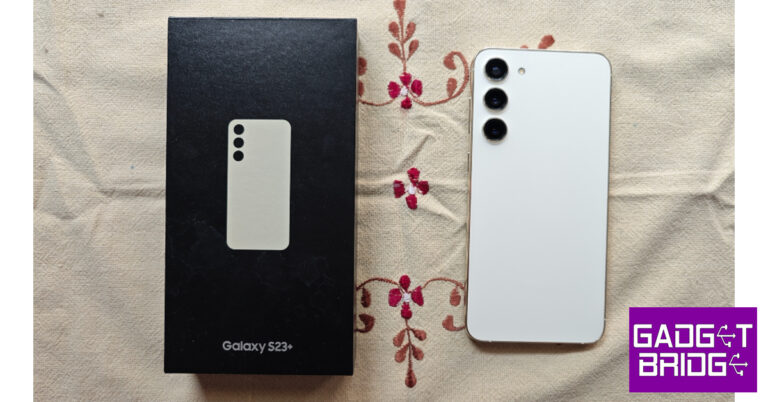
Samsung Galaxy S23+ comes in the standard compact rectangular box that the company uses for most of its smartphones. Samsung has used some recycled materials for this box. Inside, you will find the smartphone, a USB Type-C charging cable, a SIM ejector tool, and a quick start guide. There is no power adapter or phone cover inside the box.Samsung has kept the design of the S23+ clean and minimal. The smartphone gets a glass front and back panel with Victus 2 protection. The aluminium frame is slightly curved to provide a better grip. The flat glass black gets a matte texture and does not attract any fingerprints. The shiny aluminium frame tends to gather some prints and smudges. The in-hand feel of the device is exquisite. The flatness of the design complemented by the slightly curved edges gives the phone a premium feel without compromising on safety.There is no camera island on the S Series this year, something you may have noticed already. Samsung has applied S22 Ultra’s design language to all the variants of the S23. The three individual camera lenses are studded vertically on the back panel. Some may argue that Samsung has played it too safe, but we quite like the clean look.At the bottom of the frame, you will find the SIM tray, USB C port, microphones, and the primary speaker grille. The secondary speaker has been placed up top. On the right edge lie the power button and volume rocker keys. The left side of the frame is clean and keyless. The selfie camera is placed in a slim cutout in the middle of the display. There are six antenna bands on the device. Also, it is worth mentioning that Samsung has used a lot of recycled materials on this device, both on the outer casing and the internal components.The ‘Plus’ aspect of the phone is reflected in its display. The Samsung Galaxy S23+ comes with a 6.6-inch Dynamic AMOLED 2X display with a 120Hz maximum refresh rate. The compact S23 has a 6.1-inch display. The under-display ultrasonic fingerprint sensor is placed in the perfect position and is ridiculously fast. Since it is ultrasonic, you don’t need to turn on the display to use the fingerprint sensor.The display in itself is exemplary. This is something that we expect from Samsung and we are never left disappointed. The smoothness offered by this display simply cannot be replicated by any other smartphone. Every minute touch is registered efficiently. Browsing through apps and scrolling through your social media feed is a seamless experience. With a display like this, you would want to pick the bigger S23+ over the compact variant. A peak brightness of 1750 nits ensures that the display is perfectly legible under direct sunlight. The haptic experience is a bit dialled down, which is a smart decision as you want the smoothness of the display to take the centre stage.Before watching content on the S23+, you should check out the screen modes offered by Samsung. The ‘Natural’ mode produces cooler and well-balanced colour tones which are easy on the eyes. The ‘Vivid’ mode lets you control the colour temperature and white balance. This is the mode we stuck to, as it produces stunning images that are vibrant and truly ‘pop’. We watched HDR content across major OTT platforms, and the S23+ crushed it every single time. The level of detail that this 1080p display can produce is excellent. There are very slim bezels around the display but they do not affect the viewing experience in any major way. The stereo speaker maintains a great audio profile even at higher volumes. You don’t need to reach for your headphones every time you need to watch something on this phone.Most premium flagships these days opt for a curved display, so it’s nice to see Samsung put out a big smartphone with a flat front panel. If the accidental touches and the in-hand feel of a curved display keep you from buying a premium Android smartphone, the S23+ is the perfect device for you.
Samsung Galaxy S23+ review: Performance and Cameras
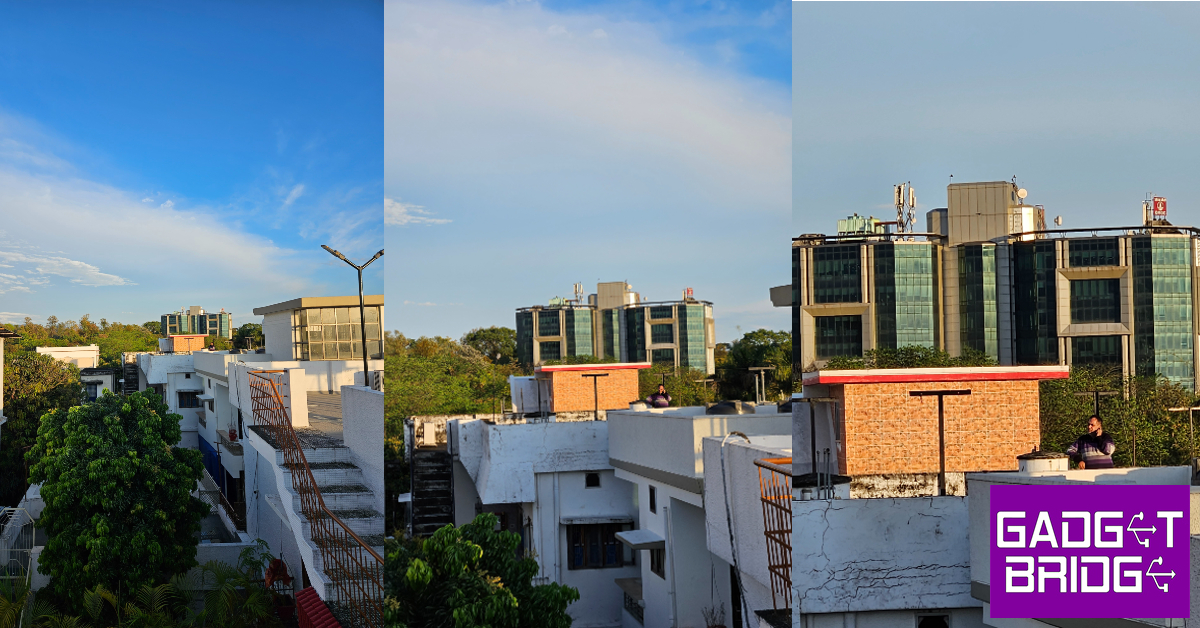
It shouldn’t come as a surprise, but Samsung’s S Series retains its title of the best-performing Android smartphone lineup. If you missed our review of the S23 Ultra, do give it a read to see how it performed. The Snapdragon 8 Gen 2 SoC remains a constant across the S Series, even for European markets (no more Exynos!). The S8G2 chip on the S Series comes with an added ‘for Galaxy’ title as it is slightly customised for higher clock speeds on Samsung’s flagship devices.Samsung Galaxy S23+ is available in two storage variants (256GB and 512GB) that come with 8GB RAM. We threw the kitchen sink and more at the S23+ and it handled every task with absolute ease. The smartphone is extremely quick. You never feel like it is a step behind in terms of performance. Once you’ve familiarised yourself with the phone, you will be flying in no time.We have no complaints on the gaming front either. We played Call of Duty Mobile on the highest settings and were very pleased by the experience. The touch reception of the display along with the 120Hz refresh rate elevates the gaming experience to new levels. There was slight heating around the camera array after 30 minutes of gaming, but we did not observe any throttling. After a 45-minute gaming session, the battery dropped by 6%. On Geekbench 6, the Samsung Galaxy S23+ scored 1,817 points in the single-core test and 4,579 points in the multi-core test.The software experience on the Samsung Galaxy S23+ leaves little room for complaints. One UI is one of the best skins for Android out there, and it introduces a couple of cool features in its latest iteration. Android 13’s Material You theme gives you greater control over the aesthetics of your phone, and One UI 5.1 makes perfect use of it. There are a few helpful connectivity features on One UI. The biggest of them all is Samsung Dex, which lets you cast your phone’s display on a TV or PC monitor. Currently, this feature is only available on the S Series. You’re probably wondering how Samsung Dex is different from regular screen mirroring. With Dex, you can essentially use your Samsung device like a PC on a bigger screen. You can access your apps, gallery, and Play Store, and use the mouse for easy control. The layout on the monitor doesn’t mirror your phone’s UI, it is completely redesigned for the bigger screen. Don’t have a mouse? You can use your smartphone as a trackpad. Using ‘Multi Control’ you can link your S23+ to your Galaxy Book and drag and drop files between them. One UI has also incorporated Microsoft’s ‘Link to Windows’ as a native feature.One UI’s Gallery app now lets you use an ‘Object Eraser’ to remove unwanted objects from your pictures. For us, the object eraser was a hit or miss. It doesn’t work nearly as efficiently as Pixel’s magic eraser. There is also an option to remaster your pictures, which tunes them for social media usage. The Portrait Effect is quite handy and produces some good results.While One UI is one of the better skins to play around with, it comes with significant bloatware, even on S23+. There is an entire package of Microsoft apps on this device along with Netflix, Spotify, and Facebook. Not a good look on any flagship device, especially on an S23 smartphone that you’re paying close to Rs 1,00,000 for. Apart from third-party bloatware, some Samsung apps have no purpose being there. The smartphone uses Google Messages by default, but Samsung’s messaging app somehow finds its way into the phone. Apps like Samsung Free, Samsung Shop, and My Galaxy also feel unnecessary.The battery performance is another aspect that Samsung can improve upon. The 4,700mAh battery is bigger than the 3,900mAh unit found on the S23. With moderate usage, this battery can comfortably last a day. But if you’re used to clocking more than 6 hours of screen-on time then you will need to give the S23+ a little boost before the day ends. If you don’t use Always On Display and limit the refresh rate to 60Hz, you will get a significantly better battery life out of this device. The charging speed is limited to 45W, which isn’t too bad, but it isn’t extraordinary either.Samsung Galaxy S23+ has the same camera specs as its compact counterpart. The rear camera array gets a 50MP primary shooter, a 10MP telephoto lens, and a 12MP ultrawide lens. Upfront, you get a 12MP selfie camera. Overall, the camera performance on the S23+ is near-perfect, with each lens producing excellent results.We used the 50MP primary shooter in different lighting conditions. The outdoor shots taken in natural light had a superb richness to them. The colours were vivid and the objects were captured with a great level of detail. Even objects in the distant background were rendered perfectly in the images. The image processing is on point here. The images aren’t oversaturated and the level of contrast is optimum. Outdoor shot in overcast conditions.The ultrawide camera replicates this performance. We were pleased to see that it did not wash out the colours or drop the sharpness from the images. The results produced here are so good that you can use the two cameras interchangeably. Ultrawide shot.Ultrawide shot.Ultrawide shot in overcast conditions.Ultrawide shot.At night time, you are better off using the main 50MP sensor. We preferred turning off the Night Mode for low-light photography, as the main sensor lets in enough light to produce well-detailed images. With the Night Mode on, the processed images come out a little brighter than you want them to be. Low light shot.Without Night Mode vs With Night Mode.Night Mode.Night Mode.The telephoto lens is quite fun to play around with as well. The 3x optical zoom does a good job of retaining the image quality, but the results get diminished as you go higher. On paper, the telephoto lens can hit 30x, but the images produced were quite forgettable, to put it mildly. There is no space zoom available in the S23+, unlike the S23 Ultra. With the recent revelation of Samsung using AI algorithms to process images of the moon, you aren’t missing out on much.Shot taken using telephoto lens.7x zoom.1x vs 3x vs 6.5x zoom.The 12MP selfie camera takes good pictures too. The portrait mode gives you a bunch of options for the style of blur you want on the images. When it comes to image processing, the end result has a slightly higher contrast than what is seen on the viewfinder. We found this mildly annoying. One of the better features of this camera is Auto Framing, which alters the zoom to accommodate the people in the frame while taking a video.Portrait Mode.Talking about shooting videos, the Samsung Galaxy S23+ can take 8K resolution videos at 24/30fps, and 4K videos at 30/60 fps. The selfie camera can record 4K videos at 30/60 fps. The stabilisation mode does not work for 8K videos, but you will see great results while shooting in 4K.Read Also:Mivi Commando X9 TWS with up to 72 hours of playtime launched in India
Verdict
With the Samsung Galaxy S23+, you get a brilliant Android smartphone with a stellar flat display which is the undisputed best in its category. While the S23 is a great compact phone, using this display in a bigger size is a wonderful experience. The phone is ridiculously fast and can handle even the most demanding tasks with ease. If you want the best ‘big’ Android phone out there but don’t want to shell out an additional Rs 30,000 for the S23 Ultra, the S23+ is the smartphone to pick. At Rs 95,000, the Samsung Galaxy S23+ is a good buy.
Garena Free Fire is a battle royale game with regular awards and tournaments to keep players interested. If you play Garena Free Fire, you should be aware of the redeem codes that are released on a daily basis. However, because the battle royale game is banned in India, players from other countries can use the Free Fire Redeem codes daily. If you’re unfamiliar with the Garena Free Fire redeem codes or don’t know how to get them, we’ve put together a step-by-step guide to help you redeem them. Check out Garena Free Fire Redeem Codes for 4 April 2023.The Free Fire redeem codes are a great way to get free stuff. These are 12-digit codes that contain alphabets and numbers, as well as an expiration date and time. Because the Garena FF redeem codes cannot be used more than once, you should hurry to the redemption page to claim your free reward before someone else does. To get a free reward, all you have to do is go to reward.ff.garena.com/en, which is the official redemption page. Also, keep an eye on this space for daily updates on Garena Free Fire redemption codes and rewards.
In This Article
Garena Free Fire Redeem Codes Today 4 April 2023
Updating Soon…
How to Get Free Fire Redeem Codes for Garena on 4 April 2023?


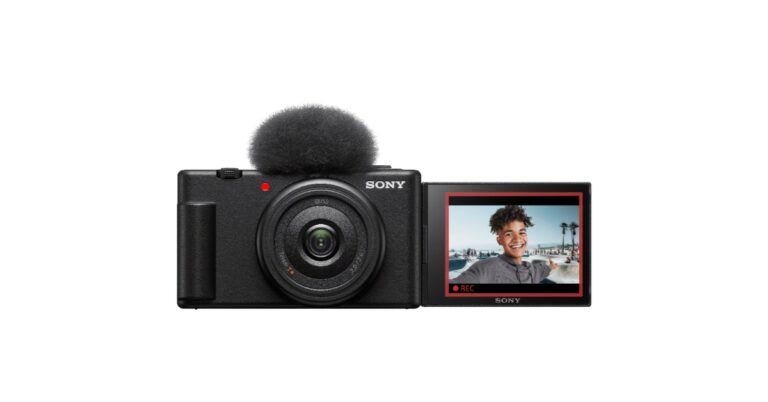
 The Sony ZV-1F has a ‘Soft Skin Effect’ option that makes the skin look more vibrant and natural by smoothing it and reducing wrinkles. While Face Priority AE automatically adjusts the brightness even in situations where light changes.
Also Read: Vivo T2 5G series India launch set for April 11: Key details revealed
Moreover, the Sony vlog camera features high precision focusing and Eye AF for both humans and animals without being distracted by other subjects. While the touchscreen ability makes changing subjects simple for users.
The Sony ZV-1F has a ‘Soft Skin Effect’ option that makes the skin look more vibrant and natural by smoothing it and reducing wrinkles. While Face Priority AE automatically adjusts the brightness even in situations where light changes.
Also Read: Vivo T2 5G series India launch set for April 11: Key details revealed
Moreover, the Sony vlog camera features high precision focusing and Eye AF for both humans and animals without being distracted by other subjects. While the touchscreen ability makes changing subjects simple for users.
 According to the company, stabalisation is available for both photos and videos, which is accessible in Active Mode (electronic). With adjustments in tone, brightness, colour depth, and more, the newly introduced Creative Look function provides users with a total of 10 preset options to create desired atmospheres in both still photos and videos with no need for editing. There is an S&Q mode as well to shoot in both slow motion at 5 x slower speed and quick motion at 60 x faster hyper lapse speed to achieve the desired effect. For better audio quality the company has provided an in-built Directional 3-Capsule Mic. However, there is a provision for an external mic for clearer audio.
The camera is compatible with the GP-VPT2BT Shooting Grip with Wireless Remote Commander which offers cable-free control of zoom, recording and more, and expands into a mini-tripod for stable hands-free shots.
According to the company, stabalisation is available for both photos and videos, which is accessible in Active Mode (electronic). With adjustments in tone, brightness, colour depth, and more, the newly introduced Creative Look function provides users with a total of 10 preset options to create desired atmospheres in both still photos and videos with no need for editing. There is an S&Q mode as well to shoot in both slow motion at 5 x slower speed and quick motion at 60 x faster hyper lapse speed to achieve the desired effect. For better audio quality the company has provided an in-built Directional 3-Capsule Mic. However, there is a provision for an external mic for clearer audio.
The camera is compatible with the GP-VPT2BT Shooting Grip with Wireless Remote Commander which offers cable-free control of zoom, recording and more, and expands into a mini-tripod for stable hands-free shots.
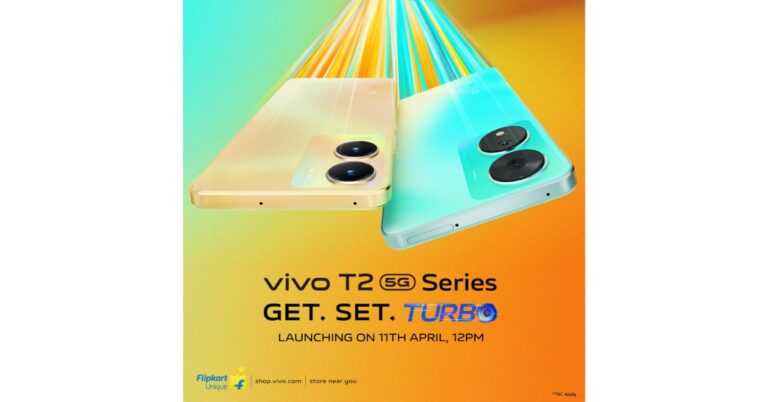
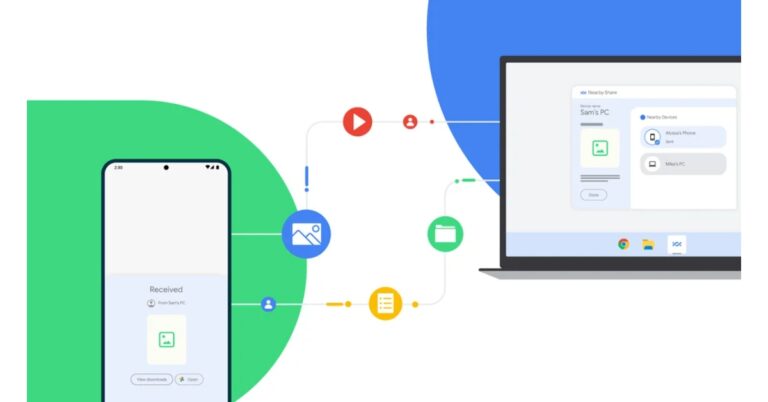


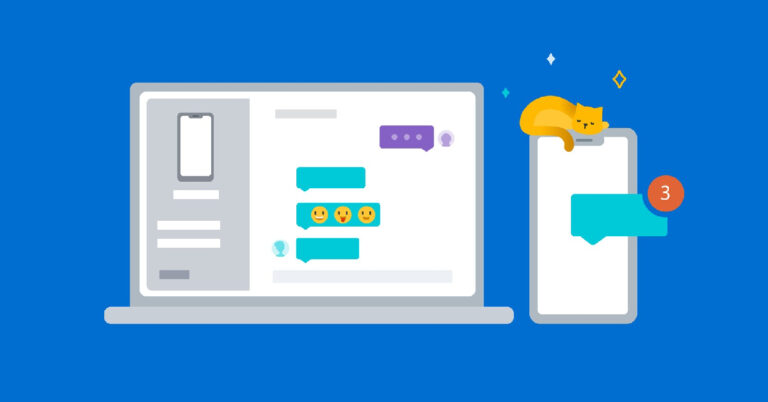

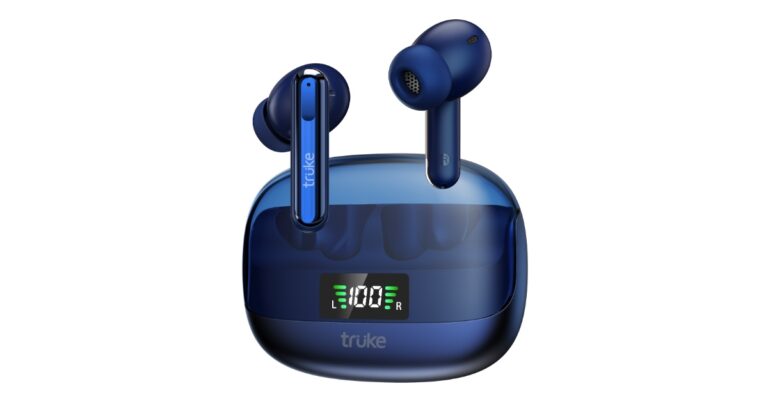


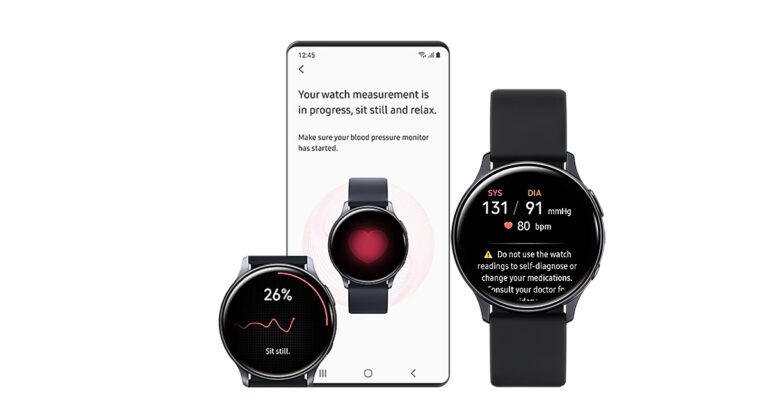

 Step 3: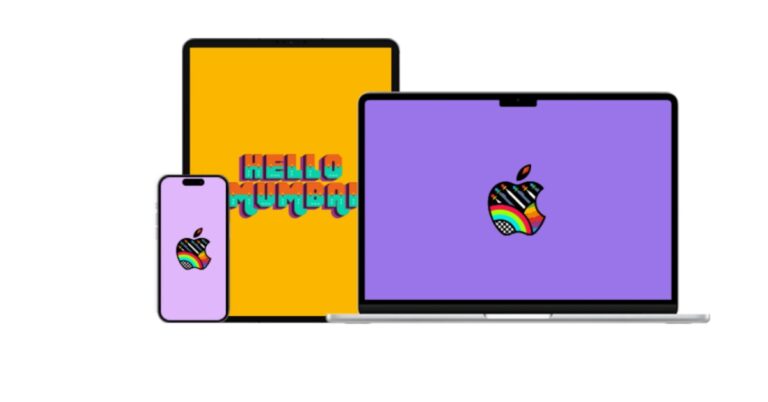


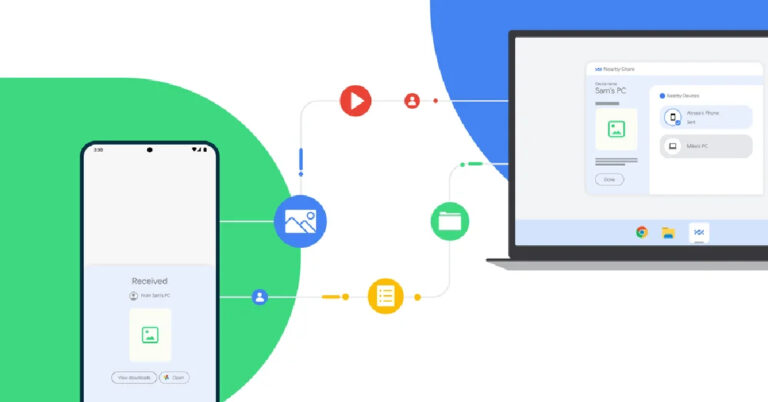
 Step 4:
 Step 5:
 Step 6:
 Step 8:
 Step 9:
  Step 10:
 Step 3:
 Step 4:
 Step 5:
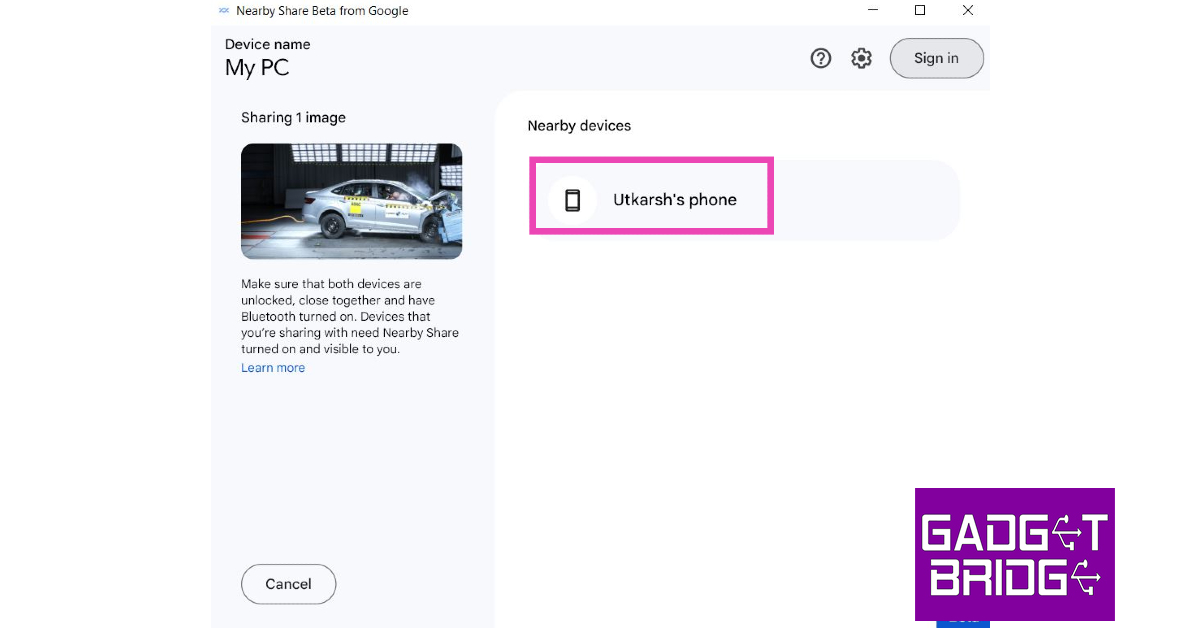 Step 6:
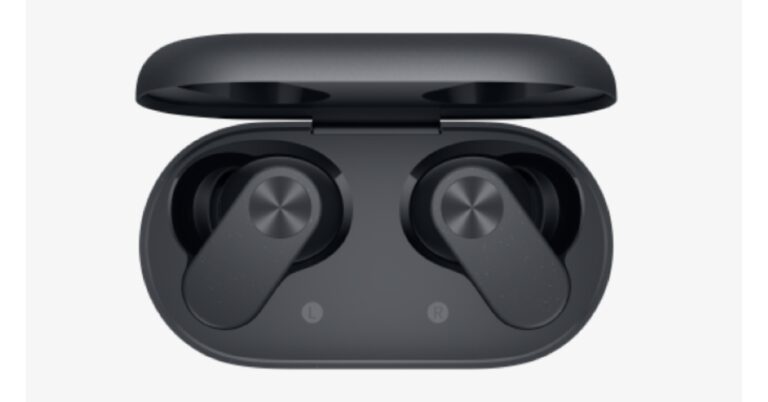


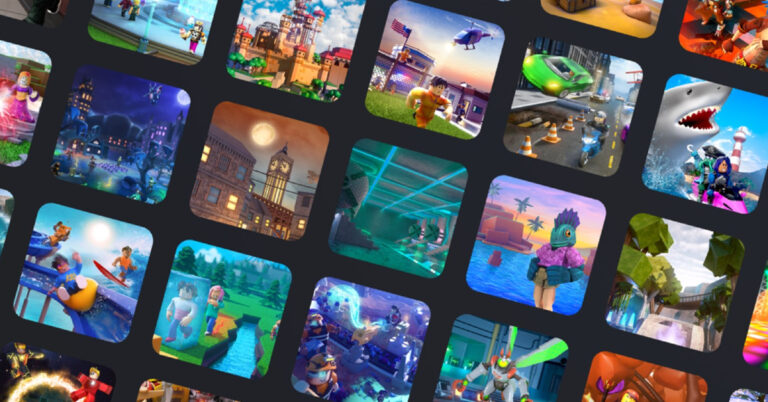
 Step 3:
 Step 3: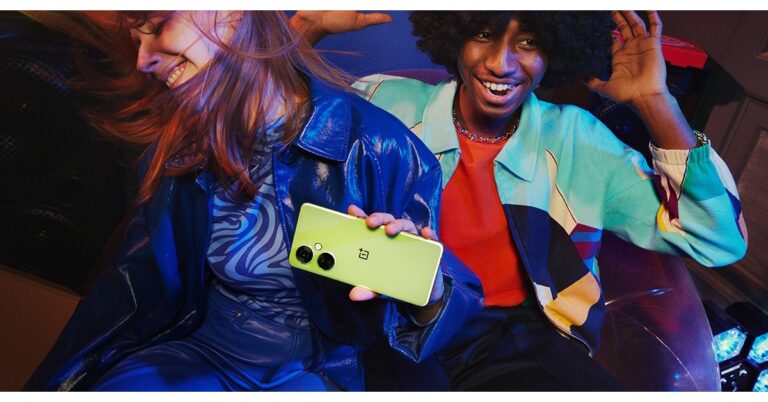
 Also Read:





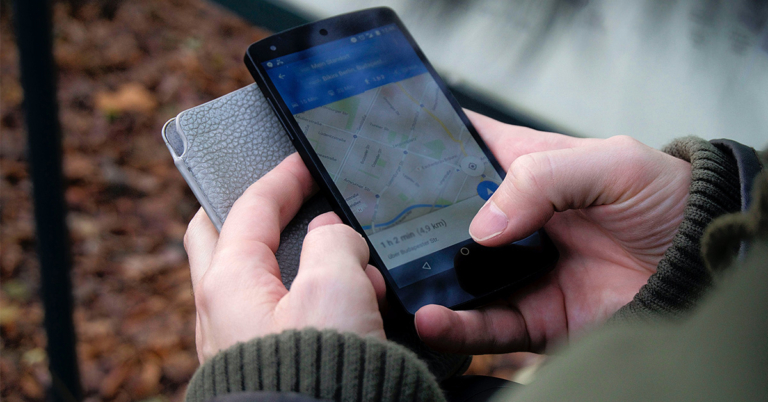


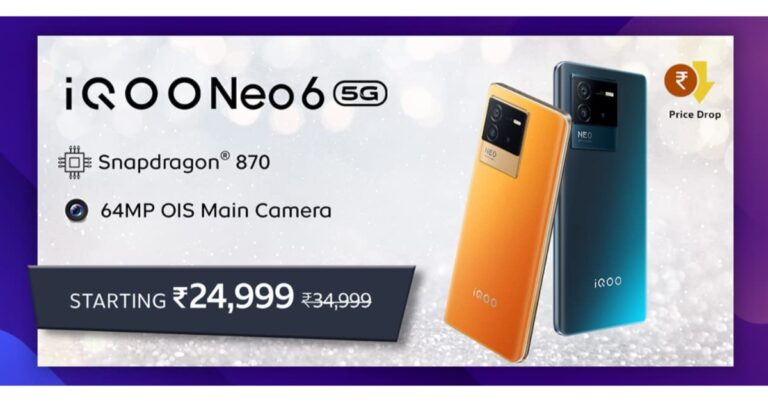
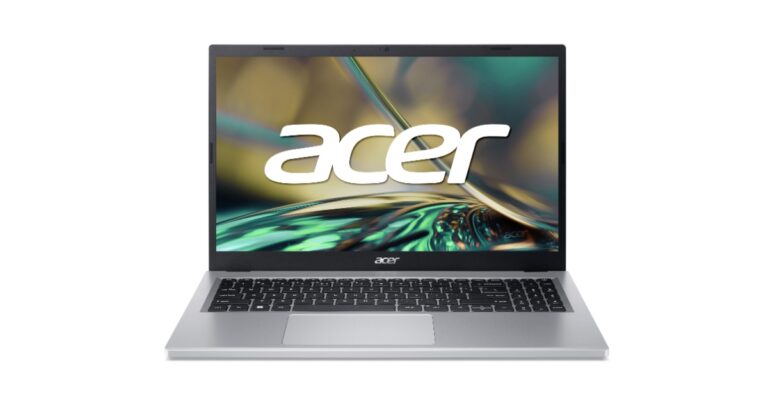



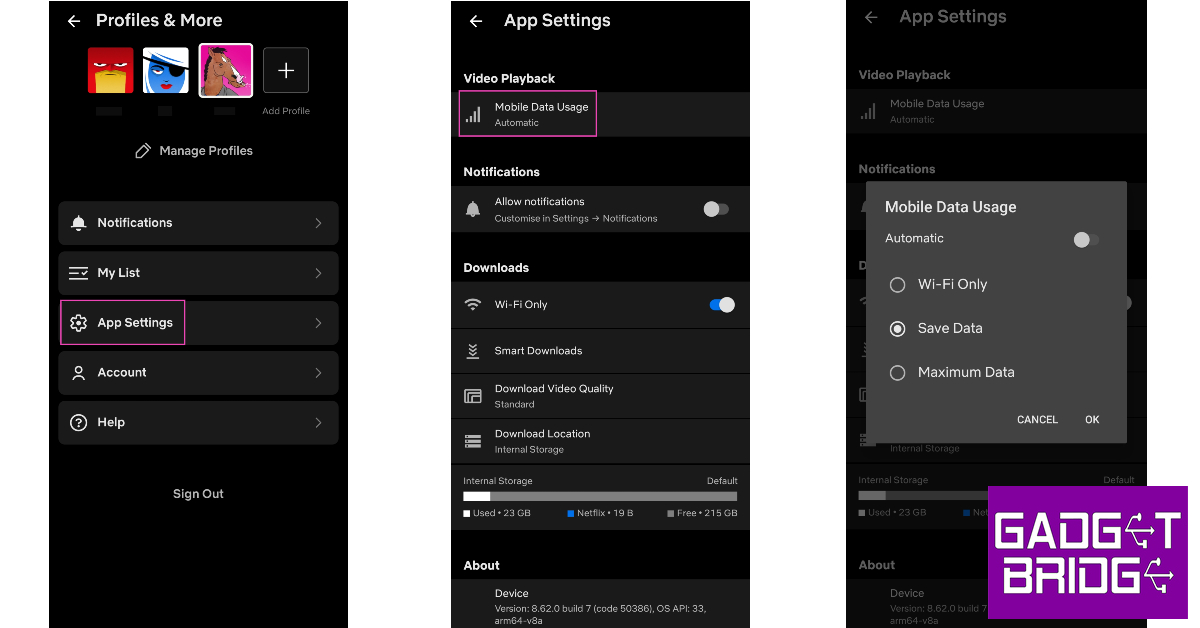
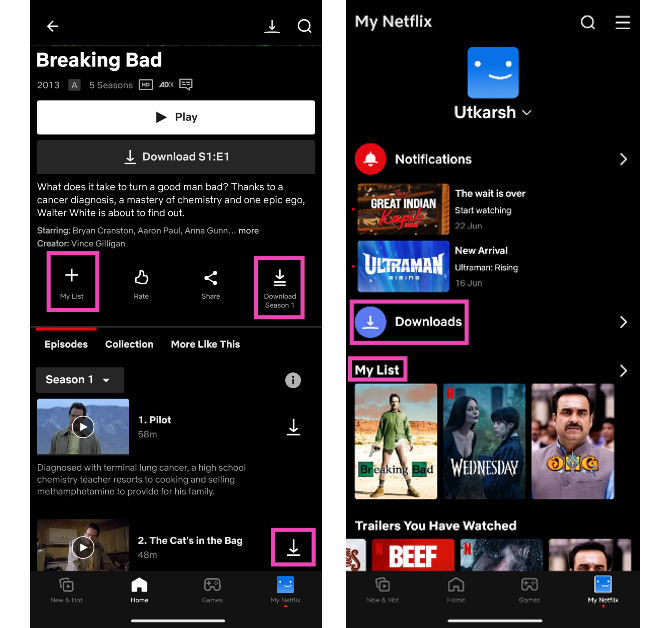 If you can’t watch a title at the current moment, you can always save it for later on Netflix. There are two ways to save any piece of content on the streaming platform. You can add the movie or episode to your watch list, so you don’t forget to view it. If you’re going someplace where you won’t get internet connectivity, you can choose to download a title and watch it offline later. Both these options can be accessed after opening a title on the app. You can choose to download individual episodes or an entire season of a TV series. Hitting the plus icon adds it to your Watch List. Your downloaded content and watch list can be accessed from the ‘My Netflix’ tab.

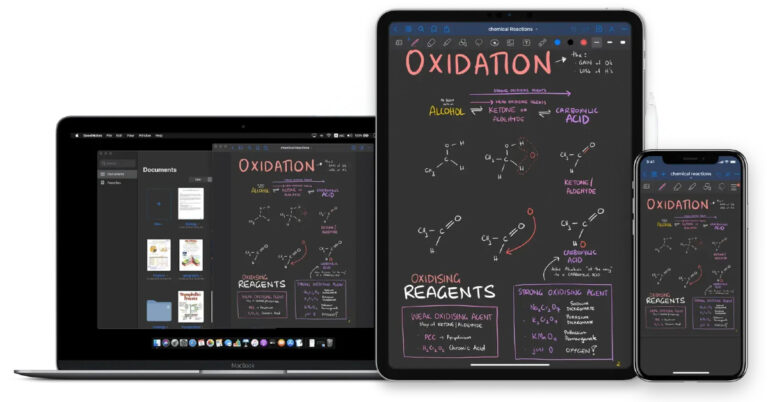
 Step 4:
 Step 5:
 Step 3:
 Step 4: