Daily Amazon brings a fresh quiz for its customers with exciting rewards on its platform. The Amazon quiz can be played every day from 12 AM to 11:59. 16 February 2023 Amazon Quiz has gone live on its platform and the e-commerce platform Amazon is today giving you a chance to win Rs 5,000 Amazon Pay Balance.To participate all you need to do is log in to your Amazon app on your device and give answers. Daily a new set of questions are presented to the participants which gives them a chance to win exciting prizes. The questionnaire consists of five easy questions that are usually based on general knowledge and current affairs. You can submit the correct answers and can win an Amazon Pay Balance of up to Rs 50,000. It should be noted that the quiz is not accessible on the web platform instead you have to participate only through the dedicated app.Amazon Quiz Today Prize – Rs 5,000 Amazon Pay BalanceQuiz Date – 16 February 2023Daily Timing – 12 AM to 11:59 PMWinner Announcement – Today 12 PM
In This Article
Amazon Quiz Answers Today 16 February 2023
Question 1: Jofra Archer recently picked up his first 6 wicket haul in ODI cricket against which country?Answer: South AfricaQuestion 2: Siddharth Malhotra and Rashmika Mandanna can be seen together in a spy thriller film titled Mission _____ . Fill in the blanks
Answer: Majnu
Question 3: The Adani group recently acquired the important port of Haifa in which country?Answer: IsraelQuestion 4: This is ‘The Temple of Heaven’ in which city?Answer: BeijingQuestion 5: This animal is found on the logo of which organizationAnswer: WWF
How To Play Amazon Quiz
Only app users are eligible to play the Amazon quiz every morning from 12 AM to 11:59 PM. The quiz is not available on the desktop. For those who are unaware of how to play the Amazon quiz below are the steps, you can follow to take the quiz.
Firstly download the Amazon app from Google Play Store or App Store
Now fill in the required information through the Sign Up option.
You need to log in to the Amazon app and scroll down on the home screen to find the Amazon Quiz banner.
Tap on the Amazon Quiz banner and tap on the Start button to start the Quiz.
Now you will get 5 questions and you need to answer them correctly. One wrong answer will eliminate you from the Quiz.
After answering all the questions correctly you are now eligible for a Lucky Draw.
The winner’s name will be announced today at 12 PM.
How Do I Move Windows 11 Without Losing My Data? You may use a 100% secure OS transfer tool. PassFab 4EasyPartition is an excellent system migration tool for transferring Windows to a new hard drive.
In This Article
Transfer/Migrate Windows 11 to New Hard Drive in 2023 [NEW]
The answer is that you can transfer Windows to a new hard drive. Making a backup image of your current Windows 11 installation, copying it to the new hard drive, and setting up the boot settings to start from the new drive are the steps involved in moving an operating system to a new hard drive. This procedure can assist you in maintaining a backup copy of your operating system, upgrading to a bigger hard drive, or replacing a problematic hard disc. You may find detailed instructions on how to move Windows 11 to a new hard drive in this article.
Can I Transfer Windows 11 to New Hard Drive
Continue reading if you wish to migrate Windows to a new drive. Transferring Windows 11 to a new hard drive may not be a particularly difficult task if you are familiar with the steps involved in making an operating system backup image, setting up the boot settings, and restoring an image to a new hard drive. The procedure can, however, become more challenging if you are unfamiliar with these processes or run into any technical difficulties along the way.
The software can make the process of moving Windows 11 to a new hard drive easier since it frequently has an intuitive user interface and can automate many of the tasks.
Why I Need to Transfer Windows to New Hard Drive
You might need to copy Windows to a new hard drive for several reasons:
Adding a new hard drive: The quantity of data on your computer’s hard disk might increase as you utilize it. increasing the size of the hard disc.
Replacing a bad hard drive: There are many different types of mechanical, wear-and-tear, and power surge-related reasons why hard drives might break down over time.
Keeping a backup copy: You may get a backup copy of your operating system and data by moving Windows 11 to a new hard drive.
Increasing performance: Installing Windows 11 on a fresh hard drive might also make your machine run faster.
Ultimate Choice-Transfer Windows to New Hard Drive with 4EasyPartition
Transferring Windows 11 to a new hard drive may be made easier with the help of many available tools. These tools offer a user-friendly interface and can assist in automating many of the necessary tasks.
There is a third-party partition management system called PassFab 4EasyPartition that may be used to move Windows 11 to a new hard drive. The best partition manager for Windows, PassFab 4EasyPartition, aims to increase disc performance. It provides secure OS migration to SSD/HDD in a matter of clicks. You may migrate with just one click rather than having to spend hours reinstalling operating systems and apps.
Key Features of PassFab 4EasyPartition:
Direct data transfer without reinstalling the application. Save time and increase productivity.
When users switch to a more efficient OS, make sure there are no service interruptions. Applications, system configuration files, and other items don’t need to be installed.
Move your data, operating system, and apps securely and effectively without losing any data.
Swap out your HDD for an SSD for the quickest and easiest method to boot
System migration is just only a few steps thanks to an intuitive UI and a step-by-step tutorial.
Steps to transfer Windows to a new hard drive using PassFab 4EasyPartition:
Step 1: Launch PassFab 4EasyPartition after downloading it, then select “Start” to begin the procedure.Note: The new USB flash drive, HDD, or SSD that you wish to migrate to must be connected to your computer.
Step 2: Click “Start” to move forward after choosing the source disc from which to migrate and the destination disc you wish to migrate to.Step 3: A warning pop-up window will appear. To move on to the next stage, select “Sure.”Step 4: Please verify the details for the source disc and the target disc in the preview interface before clicking “Start” to begin system migration. It won’t take long for the migration.Result: Your system was successfully migrated. To finish the procedure, click “Finish.”
People Also Ask
How to transfer windows from one SSD to another?
Ans: For the majority of users, replacing a hard drive is challenging since it entails a number of challenging processes, including reinstalling the operating system and certain other essential software. Fortunately, PassFab 4EasyPartition allows you to move the operating system to another SSD without having to reinstall Windows.
2. Can I move Windows from HDD to SSD without reinstalling?Ans: Without having to reinstall the operating system, you may transfer Windows from a normal hard disc drive (HDD) to a solid-state drive (SSD). This method of producing a backup image of your existing Windows system is called cloning. The tool PassFab 4EasyPartition can help to simplify the procedure.
3. How do I transfer Windows 11 to a new SSD?Ans: To completely copy a hard drive to a new SSD, including the operating system, applications, and data, utilise PassFab 4EasyPartition for Disk Clone. It is therefore the perfect tool for moving Windows 11 to a fresh SSD. A suitable choice for people who are unfamiliar with the hard disc cloning procedure.
4. Does Windows 11 have a cloning tool?Ans: Although there isn’t a built-in cloning tool for Windows 10, there are a number of third-party software that may be used to copy a hard drive, including your data and operating system. Your operating system and data may be quickly transferred to a new hard drive with PassFab 4EasyPartition.
Conclusion
Windows may be transferred to a new hard disc. There are various ways to do this, one of which is to use third-party software to clone the hard disc. Manually transferring Windows to a new hard drive is not always simple or dependable. System restoration in Windows 11/10 may occasionally fail with an error message. PassFab 4EasyPartition is one such program that can be used to transfer Windows 10 to a new hard drive.
Features including data migration, boot disc creation, disc cloning, and a user-friendly interface are available with PassFab 4EasyPartition.
For the latest gadget and tech news, and gadget reviews, follow us on Twitter, Facebook and Instagram. For newest tech & gadget videos subscribe to our YouTube Channel. You can also stay up to date using the Gadget Bridge Android App. You can find the latest car and bike news here.
Google’s native password manager is an excellent tool to store all your passwords in one place and sync them across multiple devices. Every time you enter a password on Chrome or any other third-party client, Google Password Manager asks your permission to save the password on your Google Account. However, if you want to manually save a password, it will require some additional steps. In this article, we show you how to manually add passwords in Chrome Password manager.Read Also:Best Ways To Remove Duplicate Icons On Android
In This Article
Add a password manually on Chrome
Step 1: Launch Google Chrome on your laptop and click on the ellipses (three dots) at the top right corner of the screen. Click on Settings.Step 2: Select Autofill from the side menu and click on ‘Password Manager.’Step 3: Select ‘Add’ from the ‘Saved Passwords’ section.Step 4: In the following window, enter the name of the website, your username, and your password. Hit Save once you’re done.
Add a password on Chrome for mobile
Step 1: Launch Google Chrome on your smartphone.Step 2: Tap the ellipses (three dots) at the top right corner of the screen and select Settings.Step 3: Tap on ‘Password Manager’.Step 4: Tap the plus icon next to the ‘Search passwords’ field.Step 5: Enter the name of the website or select the app from the option given below. Add your username and password as well.Step 6: Hit Save at the top right corner of the screen.Read Also: Vivo V27 coming soon to India, launch teased
Xiaomi has officially announced the launch of its newest streaming device in India. The company has released the Xiaomi TV Stick 4K in the nation which was first introduced in China in December last year. It is an upgraded version of Mi TV stick. The new model supports 4K streaming and also comes pre-installed with Android TV 11 and Dolby Vision. The streaming has built-in compatibility with Chromecast.
In This Article
Xiaomi TV Stick 4K price in India and sale details
The new streaming device, Xiaomi TV Stick 4K, has a compact design and promises to produce excellent colours for a lifelike and immersive viewing experience. The Xiaomi TV Stick 4K delivers an immersive and clear home theater-quality audio experience thanks to Dolby Atmos technology.Android TV, which is preinstalled on the Xiaomi TV Stick 4K, offers a user-friendly but immersive experience. Customers can access more than 10,000 apps from Google Play and find more than 400,000 movies and TV series on their favourite apps.The Xiaomi TV Stick 4K comes with the Mi Voice Remote, which has a unique Assistant button. The remote has shortcut buttons for each app as well as a built-in Chromecast. The streaming gadget helps turn a conventional TV into a Smart TV by supporting Dolby Atmos and Dolby Vision for improved movie playback. Amazon Prime Video, Netflix, and YouTube are already preinstalled on the smart device.It is equipped with a Mali-G31 MP2 GPU, a quad-core Cortex-A35 processor, and 2GB of RAM. The Xiaomi TV Stick 4K has the same amount of storage as the previous model but has more RAM. The stick has 2GB RAM with 8GB of internal memory. You may access more than 400,000 movies and TV shows from all of your favourite apps thanks to the system’s use of Android TV 11. 7000+ apps are available on Google Play. Play music and games, cast from any device, and more.The smart home device supports dual-band Wi-Fi 802.11 ac and Bluetooth v5.2 for wireless networking. It also contains an HDMI port for connecting to a television and a Micro-USB port for charging.The most recent PatchWall version is also included on the streaming device. Now, users may find YouTube Music Playlists right from the PatchWall Music Tab.Customers will now have access to 30+ foreign and Indian content partners, as well as intelligent suggestions and content in more than 10 different languages. PatchWall, which was created especially for Indian users, has a tonne of features, such as IMDb integration, 300+ live channels, a dedicated sports section, and a Universal Search.Users may project entertainment from all of their chosen apps to a range of devices, including smartphones, laptops, and tablets because it comes with Chromecast.
For the latest gadget and tech news, and gadget reviews, follow us on Twitter, Facebook and Instagram. For newest tech & gadget videos subscribe to our YouTube Channel. You can also stay up to date using the Gadget Bridge Android App. You can find the latest car and bike news here.
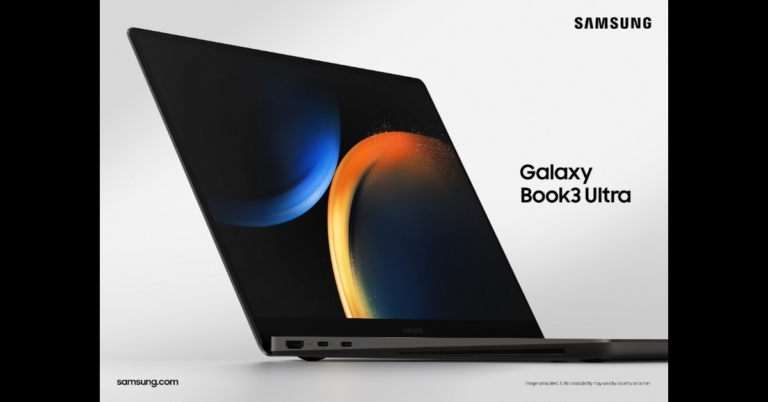
The Samsung Galaxy Book 3 Ultra is now available for pre-booking in India. The device was launched earlier this month alongside the Galaxy S23 series in the country. At the time of the launch, the company introduced three models the Galaxy Book 3 Ultra, Book 3 Pro 360, and Book 3 Pro. The laptops are powered by up to 13th Gen Intel Core CPUs and come integrated with Intel Iris Xe graphics.Global pre-orders for the Galaxy Book 3 Pro and Book 3 Pro 360 began on February 1. However, the business has recently declared that pre-orders for the Samsung Galaxy Book 3 Ultra are officially open. The 16-inch Graphite version of the Galaxy Book 3 Ultra will include 1TB of storage.Also Read:Samsung Galaxy Book 3 Series: Price in India, availability details and launch offers revealedThe cost of the Book 3 Ultra is Rs 28,1990. Customers who purchase the Book 3 Ultra will receive a bank cashback of Rs 10,000. Customers can choose no-cost EMIs for up to 24 months as well. Additionally, customers can receive an M8 Smart Monitor worth Rs 50099 at a discounted price of Rs 1999 just as part of special pre-book deals when they purchase a Book 3 Ultra. The device will be available via the company’s official website as well as via leading retail stores in India from today onwards.
Samsung Galaxy Book 3 Ultra specifications
The 16-inch 3K Dynamic AMOLED 2X display of the Galaxy Book 3 Ultra has a resolution of 2,880 by 1,800 pixels. The screen has an adjustable refresh rate of 120 Hz and a 400 nit brightness rating.The Galaxy Book 3 Ultra’s backlit keyboard has a three-row numeric layout. The Book 3 Ultra immediately starts Windows 11. Additionally included with this laptop are AKG quad speakers with Dolby Atmos. Additionally featured are a full-HD webcam and a dual mic setup. Depending on the model, it is powered by an Intel Core i7 or Core i9 processor from the 13th generation.Additionally, it has an integrated Nvidia GeForce RTX 4050 and GeForce RTX 4070 graphics card for laptops. There are possibilities for up to 1TB of SSD storage and 32GB of LPDDR5 RAM. The Book 3 Ultra sports a 76Wh battery and a 100W USB Type-C rapid charging connection. There are two wireless connectivity options: Wi-Fi 6E and Bluetooth 5.1.
For the latest gadget and tech news, and gadget reviews, follow us on Twitter, Facebook and Instagram. For newest tech & gadget videos subscribe to our YouTube Channel. You can also stay up to date using the Gadget Bridge Android App. You can find the latest car and bike news here.
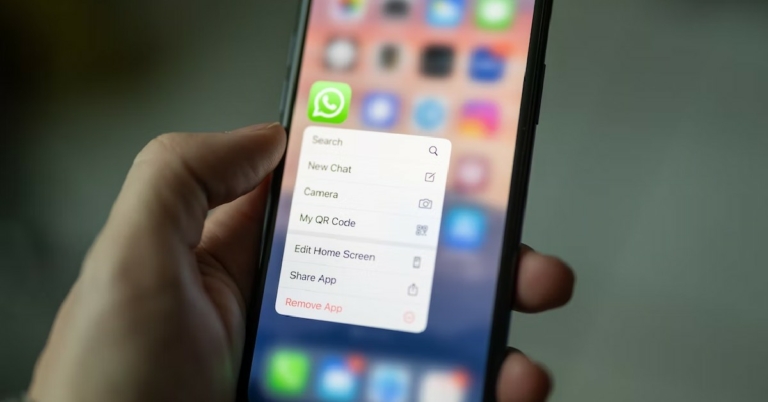
Unlike Android, Apple does not have an app cloner for Instant Messaging apps on its platform. This limits users from managing two messenger accounts on one iPhone. While most people don’t feel the need to have more than one WhatsApp account, some may want to manage their personal and work accounts on one phone. Luckily, there are a couple of tricks that can help you with this problem. In this article, we show you how to use two WhatsApp accounts on an iPhone. (2023)Read Also: How can I download and install Google Chrome on Mac?
In This Article
Use WhatsApp Business
WhatsApp has a separate app on the App Store for business accounts. The good news is that you don’t have to be a registered business in order to use it. You can easily register your secondary phone number on WhatsApp Business and use it like a regular app. Here’s how.Step 1: Download and Install WhatsApp Business from the App Store.Step 2: Launch WhatsApp Business and agree to the terms and conditions.Step 3: If you are already using WhatsApp on your iPhone, you will be prompted to use the same number for WhatsApp Business. Select ‘Use a different number’ instead.Step 4: You will receive an OTP on the number you just registered. Enter it on the app.Step 5: Tap on ‘Done’ at the top-right corner of the screen.Step 6: WhatsApp will give you the option to restore your chat history. If this is the first time you are registering this number on WhatsApp, you may not get this message.Step 7: Set up your profile. Step 8: In the business category, choose ‘Not a business’ and select ‘Done’.Step 9: Select Next. You will be prompted to add more details about your business. Choose ‘Not now’.Once you set up a profile on WhatsApp Business, your contacts will see the ‘Business Account’ tag under your profile name in chat threads.
Use a third-party app
There are several third-party apps that let you mirror your WhatsApp account on your phone. Messenger Duo for WhatsApp lets you link two accounts to your iPhone and offers a bunch of exclusive features like converting voice messages to texts, chat lock, quick send, fancy fonts, message scheduler, and more. In order to link a secondary account all you need to do is scan the QR code on the app using the ‘linked devices’ option on the WhatsApp app. This is similar to how you log in to the official WhatsApp Web Portal. As you may have already guessed by now, this method will require your WhatsApp account to be active on a secondary device at the time of login.Read Also: Playfit Flaunt Smartwatch Review: A worthy contender in the budget smartwatch category
If you always find yourself running out of storage space on your Android smartphone, deleting some images and videos is the quickest way of freeing up the memory on your device. Some Android smartphones suggest users take multiple images at once so they can select the best shot out of the lot. The problem with this is that the remaining redundant shots end up occupying a lot of space on your device. Multiple images received through WhatsApp also add to this problem. Luckily, the fix is easier than you think, and won’t require spending too much time browsing through the gallery. In this article, we bring you the top 3 ways to remove duplicate images on your Android smartphone.Read Also: How can I download and install Google Chrome on Mac?
In This Article
Remove Duplicate Images from Settings
Step 1: Go to Settings and select ‘Battery and device care’.Step 2: Select Storage.Step 3: Scroll down and tap on ‘Duplicate Files’. This is where you will find all the duplicate files on your phone, including images.Step 4: Manually select the duplicate images and delete them.
Use Files by Google
Google’s Files app is one of the more popular file managers around. While it is a native fixture on phones running stock Android, other OS skins do not usually come with this app. You can easily download it from the Google Play Store and use it to delete any duplicate files on your phone. Here’s how.Step 1: Download and install Files by Google from the Play Store.Step 2: Launch the app and give it the necessary permissions to function on your phone.Step 3: Tap on the ‘Clean’ tab at the bottom of the screen.Step 4: If your phone has any duplicate images, this is where you will be prompted to delete them.Step 5: Select the duplicate images and delete them from your device.
There are the top 3 ways to remove duplicate images on your Android smartphone. Removing duplicates will free up much-needed space on your phone, and as a result, boost its speed and performance. It also helps in keeping your photo gallery neat and organised. While removing duplicate images, it is a good idea to manually go through the photos and keep the best shot while deleting the rest.For the latest gadget and tech news, and gadget reviews, follow us on Twitter, Facebook and Instagram. For newest tech & gadget videos subscribe to our YouTube Channel. You can also stay up to date using the Gadget Bridge Android App. You can find the latest car and bike news here.
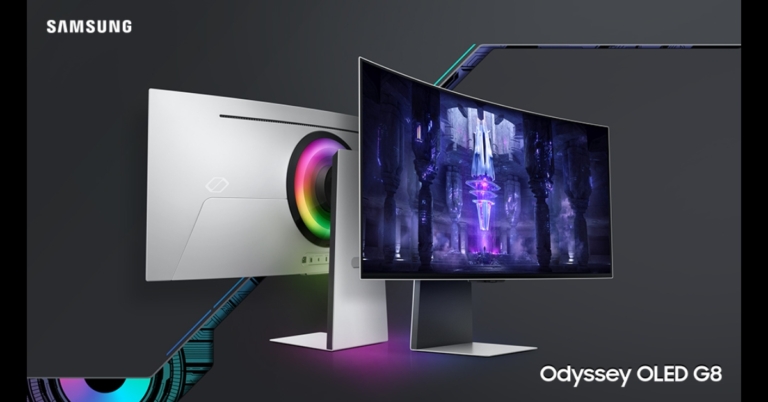
Samsung unveiled the newest lineup of Odyssey Gaming monitors. The newest models in the Odyssey Gaming Monitor line include the Odyssey OLED G8, Odyssey G7, and G7 Neo. The new gaming monitors come with Neo Quantum CPU, HDR true black 400, Smart entertainment, and AMD FreeSync Premium Pro.
In This Article
Odyssey OLED G8
The Odyssey OLED G8, the fastest OLED gaming display in the Odyssey lineup, offers a realistic viewing experience thanks to the Samsung Neo Quantum Processor that is housed inside. The picture quality on the 34-inch screen is unmatched thanks to its ultra-wide QHD resolution (3,440 x 1,440) and 21:9 aspect ratio. It has a DCI-99.3% colour gamut and 100% colour volume. With a GTG of 0.1ms and a refresh rate of 175Hz, the Odyssey OLED G8 offers the fastest response time out of the whole Odyssey lineup. This is improved with a 1800R curvature for the ideal playing vision and a million-to-one static contrast ratio to bring out the finest details for increased immersion.Since the Odyssey OLED G8 monitor is VESA DisplayHDR 400 True Black Certified, the content will be reproduced with correct colour and contrast reproduction and will appear vivid and lifelike. The Odyssey OLED G8 monitor is further improved with AMD FreeSync Premium for fluid gameplay.Price: Rs 175,000
Odyssey Neo G7
Samsung’s first flat Mini-LED model with a novel form factor is the Odyssey Neo G7. It features a 43-inch 4K resolution display (3,840 x 2,160). The VESA Display HDR600 comes with HDR 10+ certification. Samsung’s Quantum Matrix Technology, which utilises Quantum Mini LEDs to offer incredibly fine and exact control over the tightly packed LEDs, is highlighted by the Odyssey Neo G7.The 1ms (GTG) reaction time and up to 165Hz refresh rate that the Odyssey Neo G7 offers to provide a quick, fluid response and enable precise mouse movements. The Odyssey Neo G7 maintains incredibly smooth and quick action gameplay even during the most intense scenes and lowers stuttering, input latency, and screen tearing thanks to AMD FreeSync Premium Pro compatibility.Price: Rs 100,000 (32-inch) and Rs 130,000 (43-inch)
Odyssey G7
A high-end flat UHD gaming monitor, the Odyssey G7 features a 144Hz refresh rate and an IPS panel with a clean image via a 178° wide viewing angle. Additionally, it has an impressive array of internal capabilities, such as a 1ms response time and a QLED display with stunning clarity, to meet the demands of gamers for fluid and compelling gameplay.The 28-inch Odyssey G7 features a cutting-edge design, an ultra-wide game view, Auto source switch+, and G-sync compatibility. By synchronising the illumination with the game’s on-screen colours, the CoreSync technology gives players a more immersive gaming experience.Price: Rs 75,000
For the latest gadget and tech news, and gadget reviews, follow us on Twitter, Facebook and Instagram. For newest tech & gadget videos subscribe to our YouTube Channel. You can also stay up to date using the Gadget Bridge Android App. You can find the latest car and bike news here.
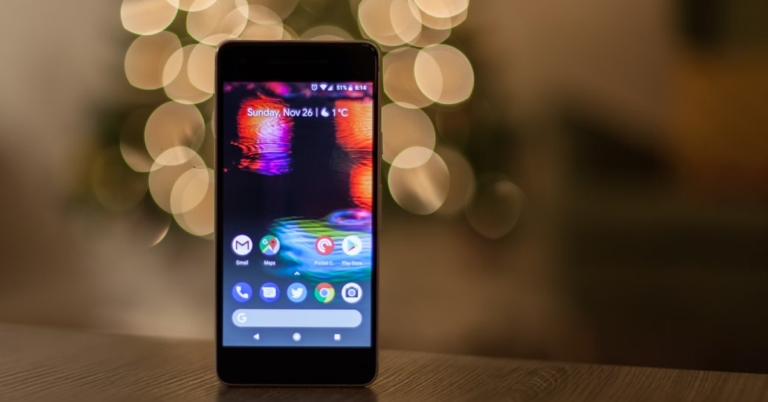
If you own an older smartphone that has stopped receiving security updates, you may notice some weird glitches from time to time. Some Android users report that their smartphone’s home screen gets filled with duplicate icons for a certain app out of the blue. There may be several reasons behind this problem. In this article, we bring you the best ways to remove duplicate app icons on your Android smartphone.Read Also: Playfit Flaunt Smartwatch Review: A worthy contender in the budget smartwatch category
In This Article
Check for Malware
Suspicious malware can creep into your phone from various sources and severely inhibit your smartphone’s ability to function properly. As a general rule of thumb, don’t download apps from third-party marketplaces and don’t click on shady links to reduce the risk of a malware attack. To scan your smartphone for malware, download the Malwarebytes Mobile Security app. Perform a deep scan of your smartphone using the app and remove all the malware you find on it.
Clear app cache
Clear the cache of the app that is producing duplicate icons on the home screen. Temporary files in the cache are known to corrupt over time and create unnatural issues on your phone. Here’s how you can clear the app cache.Step 1: Go to Settings and select Apps.Step 2: Select the app that is malfunctioning.Step 3: Select Storage.Step 4: Tap on ‘Clear Cache’.
Reinstall the app
If you are seeing duplicate icons for one particular app, it is possible that the apk file of the app installed on your phone may be faulty. Corrupted files can act unnaturally and create duplicate icons. To fix this, simply uninstall the app from your phone and download it again from the Google Play Store. You can uninstall the app from Settings or by simply long-pressing the icon on the app drawer and selecting ‘Uninstall’.
Update the app
Perhaps the issue lies with the app version and not the apk file. It is not uncommon for unexpected bugs to spring up from time to time. Usually, app developers fix these bugs with a swift update. To update an app, simply go to the Google Play Store, search for the app, and select ‘Update’ from the app page.
Update the OS
If the issue doesn’t like on the app’s end, it is possible that your phone’s OS may be at fault. This can be fixed by updating the system OS from Settings. Here’s how you can do that.Step 1: Go to Settings.Step 2: Scroll down and select ‘About Phone’.Step 3: Select ‘Software Information’. This is where you’ll be able to see the Android version running on your smartphone. Step 4: To update the OS to the latest version, go to Settings and select ‘Software Update’.Step 5: Click on ‘Download and update’ to install the latest OS version on your smartphone.
Uninstall third-party launchers
If you use any third-party Android launchers or app drawer substitutes, uninstall them from your phone. Apps like Nova Launcher, Niagra Launcher, and Smart Launcher are fun to use, but they may cause your app icons to duplicate when they start malfunctioning. Go to Settings>Apps>[Your Android Launcher] and tap on Uninstall at the bottom of the screen.Read Also: EZVIZ EB3 & EZVIZ CB3 battery cameras launched in India
Conclusion
These are the best ways to remove duplicate app icons from your Android smartphone. You can also try performing a factory reset as a last-ditch measure. Make sure you back up your phone’s data before factory resetting it. If the issue still persists after you’ve tried all these fixes, take your phone to a professional repair centre for further diagnosis. For the latest gadget and tech news, and gadget reviews, follow us on Twitter, Facebook and Instagram. For newest tech & gadget videos subscribe to our YouTube Channel. You can also stay up to date using the Gadget Bridge Android App. You can find the latest car and bike news here.
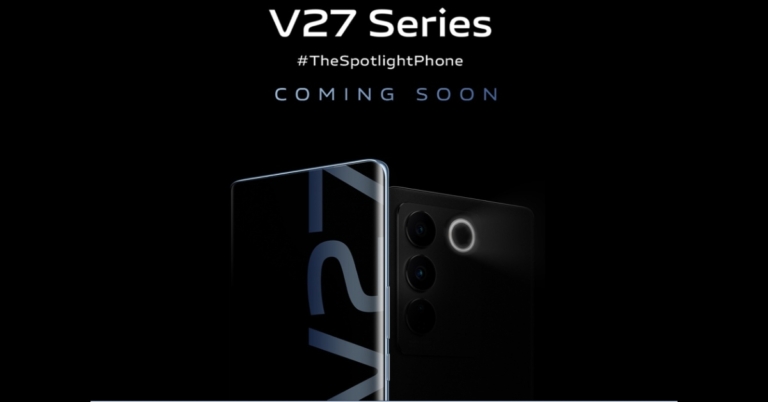
Vivo is all set to launch its next flagship smartphone in India. The company today teased the Vivo V27 series via its social media channels and has also created a dedicated microsite. The Vivo V27 and Vivo V27 Pro could be included in the lineup. The official teaser showcases the design of the upcoming series. The devices will be featuring a triple rear camera with a ring LED flash.Vivo is hinting at the release of new V-series smartphones in India. The company took to Twitter to tease the arrival of the Vivo V27 series. The basic Vivo V27 and Vivo V27 Pro could be offered. The company has also created a dedicated microsite and it has also been confirmed that Flipkart would sell these in India.The dedicated microsite teases the appearance of the upcoming phones. The company has not yet revealed a specific launch date instead said coming soon. The notify me button is also live. The black colour variant of the Vivo V27 has been teased. The upcoming smartphones also feature a curved display.Moreover, a triple rear camera arrangement is also easily noticeable. There is a ring LED flash and it appears that rings have been placed around each sensor. On the left spine, one can see where the power button and volume rockers are located.The company has also not revealed pricing but previously it was reported Vivo V27 5G in India could be priced at Rs 35,000. Whereas the Pro variant is claimed to be available at Rs 40,000. The base model of the Vivo V25 5G was released in India with a starting price of Rs 27,999, while the base model of the Vivo V25 Pro was priced at Rs 35,999.According to reports, a MediaTek Dimensity 7200 SoC powers the Vivo V27 5G. Whereas MediaTek Dimensity 8200 SoC may be found within the Vivo V27 Pro. They are reported to be available with 8GB RAM and 128GB storage or 12GB RAM and 256GB storage.
For the latest gadget and tech news, and gadget reviews, follow us on Twitter, Facebook and Instagram. For newest tech & gadget videos subscribe to our YouTube Channel. You can also stay up to date using the Gadget Bridge Android App. You can find the latest car and bike news here.
Garena Free Fire is a battle royale game with regular awards and tournaments to keep players interested. If you play Garena Free Fire, you should be aware of the redeem codes that are released on a daily basis. However, because the battle royale game is banned in India, players from other countries can use the Free Fire Redeem codes daily. If you’re unfamiliar with the Garena Free Fire redeem codes or don’t know how to get them, we’ve put together a step-by-step guide to help you redeem them. Check out Garena Free Fire Redeem Codes for 15 February 2023.The Free Fire redeem codes are a great way to get free stuff. These are 12-digit codes that contain alphabets and numbers, as well as an expiration date and time. Because the Garena FF redeem codes cannot be used more than once, you should hurry to the redemption page to claim your free reward before someone else does. To get a free reward, all you have to do is go to reward.ff.garena.com/en, which is the official redemption page. Also, keep an eye on this space for daily updates on Garena Free Fire redemption codes and rewards.
In This Article
Garena Free Fire Redeem Codes Today 15 February 2023
FFAC2YXE6RF2
ZYPPXWRWIAHD
FF10617KGUF9
FF11HHGCGK3B
Y6ACLK7KUD1N
W0JJAFV3TU5E
B6IYCTNH4PV3
FF11NJN5YS3E
ZRJAPH294KV5
FF119MB3PFA5
SARG886AV5GR
MCPTFNXZF4TA
WLSGJXS5KFYR
FF1164XNJZ2V
FF11DAKX4WH
YXY3EGTLHGJX
FF11WFNPP956
8F3QZKNTLWBZ
FF10GCGXRNHY
FF9MJ31CXKRG
FFCO8BS5JW2D
How to Get Free Fire Redeem Codes for Garena on 15 February 2023?
15 February 2023 Amazon Quiz has gone live on its platform. The quiz timings are 12 AM to 11:59 PM. The Amazon App users can participate in the quiz daily and all they have to do is submit correct answers to the questions asked on the e-commerce platform. Today’s participants can get a chance to win Rs 1,250 Amazon Pay Balance.Amazon brings a fresh questionnaire that contains 5 questions daily. These questions are based on current affairs and general knowledge. The quiz can be played from 8 AM to 11:59 PM and the contestants need to answer correctly to enter into a lucky draw.Only one person is declared a winner and the results will be announced at the end of every month. And to make sure that you give correct answers to all 5 questions Gadget Bridge everyday updates all the answers to the Amazon Quiz. Do check out 15 February 2023 Amazon Quiz Answers to win a Rs 1,250 Amazon pay Balance.Amazon Quiz Today Prize – Rs 1,250 Amazon Pay BalanceQuiz Date – 15 February 2023Daily Timing – 12 AM to 11:59 PMWinner Announcement – Today 12 PM
In This Article
Amazon Quiz Answers Today 15 February 2023
Question 1: Who recently set the record for the highest score by an Indian in a T20 international?
Answer: Shubhman GillQuestion 2: Colin Farrell has got an Oscar nomination in 2023 for ‘Best Actor in a Leading Role’ for which film?Answer: The Banshees of Inisherin
Question 3: In the news research firm, Hindenburg Research is based in which country?Answer: USAQuestion 4: Closeup of which animal?
Answer: CamelQuestion 5: View of which European capital?
Answer: Rome
How To Play Amazon Quiz
Only app users are eligible to play the Amazon quiz every morning from 12 AM to 11:59 PM. The quiz is not available on the desktop. For those who are unaware of how to play the Amazon quiz below are the steps, you can follow to take the quiz.
Firstly download the Amazon app from Google Play Store or App Store
Now fill in the required information through the Sign Up option.
You need to log in to the Amazon app and scroll down on the home screen to find the Amazon Quiz banner.
Tap on the Amazon Quiz banner and tap on the Start button to start the Quiz.
Now you will get 5 questions and you need to answer them correctly. One wrong answer will eliminate you from the Quiz.
After answering all the questions correctly you are now eligible for a Lucky Draw.
The winner’s name will be announced today at 12 PM.
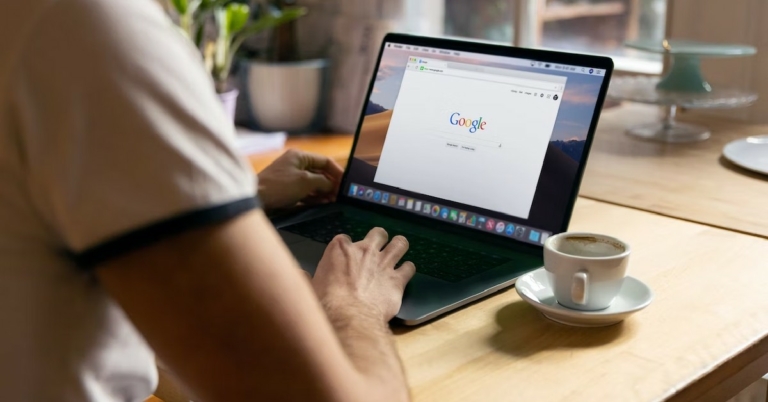
Google Chrome is the most popular browser in the world, surpassing Microsoft’s Edge and Apple’s Safari. If you recently bought a Mac, you probably want to use Google Chrome on it as well. Apple doesn’t include Google Chrome on its devices, in favour of its native browser, Safari. In this article, we show you how to download and install Google Chrome on a Mac. Read Also: How to use two WhatsApp accounts on one Android smartphone in 2023?
In This Article
Here’s how you can download and install Google Chrome on Mac
Step 1: Open Safari and go to https://www.google.com/chrome/.Step 2: Click on ‘Download Chrome’.Step 3: Open the downloaded file. It should be titled ‘googlechrome.dmg’.Step 4: Follow the onscreen installation instructions.Step 5: Drag the Chrome icon to the Applications folder. You may be asked to enter the Admin password in this step.Step 6: Go to the Applications folder and click on Chrome. Google Chrome browser will launch on your Apple Mac.Read Also: OnePlus 11 5G with Snapdragon 8 Gen 2 SoC first sale today
Conclusion
This is how you can easily install Google Chrome on a Mac. Once you’ve installed Chrome on your Mac, you may want to set it as the default browser. To do that, launch Chrome and click on the ellipses (three dots) at the top right corner of the screen. Go to Settings and select ‘Make Default’ in the ‘Default Browser’ category.For the latest gadget and tech news, and gadget reviews, follow us on Twitter, Facebook and Instagram. For newest tech & gadget videos subscribe to our YouTube Channel. You can also stay up to date using the Gadget Bridge Android App. You can find the latest car and bike news here.
If you frequently use the incognito tab on Chrome to watch videos on YouTube, you will be surprised to know that YouTube has an Incognito Mode of its own. This comes in handy when you’re watching videos on your smartphone, since it doesn’t require opening Chrome every time you want to enter incognito mode. In this article, we explain what Incognito Mode on YouTube is and how to use it like a pro in 2023.Read Also: OnePlus 11 5G with Snapdragon 8 Gen 2 SoC first sale today
In This Article
What is Incognito Mode on YouTube?
Turning on Incognito Mode on YouTube allows you to browse and watch videos anonymously, without reflecting the results in your search and watch history. The videos you watch will not have any effect on your YouTube feed and suggestions, which is a big plus. Similarly, if you want to have a look at the general YouTube feed outside of your suggestions, log into incognito mode.Earlier, you would have to log out of your YouTube account to view a neutral feed and watch videos without being bombarded with similar suggestions. Now you can simply turn on incognito mode for a private viewing session. It goes without saying but you cannot like a video or comment on it while you’re in incognito mode. You cannot subscribe to a YouTube channel either.
Here’s how you can turn on Incognito Mode on YouTube
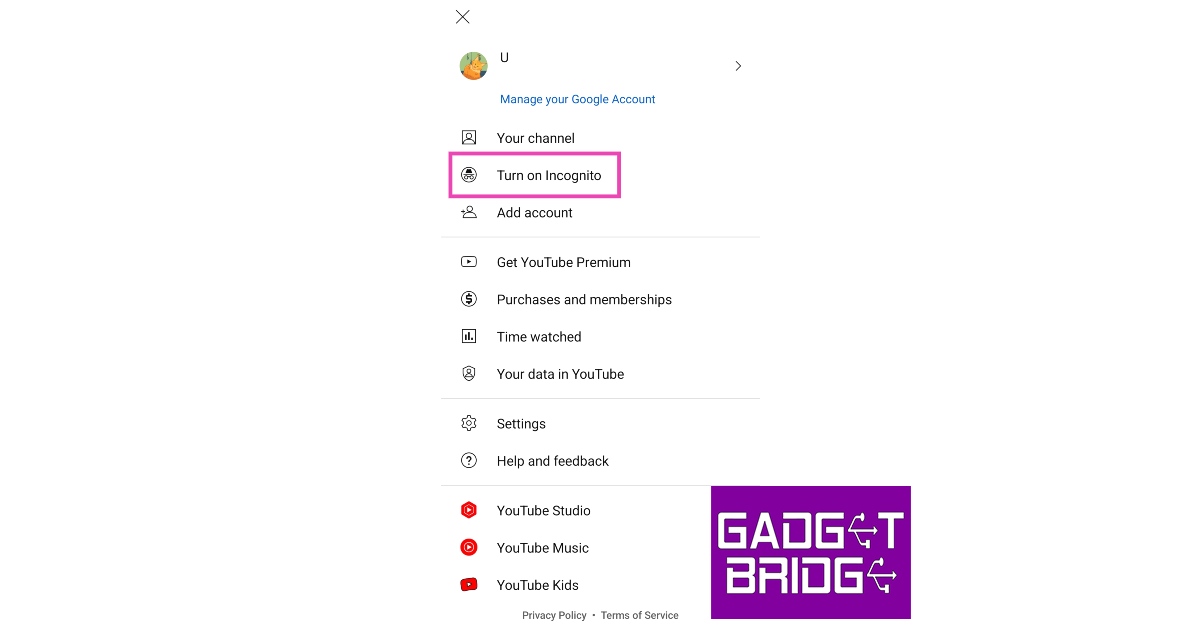
Step 1: Launch the YouTube app on your smartphone.Step 2: Tap on your profile icon at the top right corner of the screen.Step 3: Select ‘Turn on Incognito’ and confirm your selection in the popup box.Step 4: Incognito mode will now be turned on for YouTube.Step 5: To turn off Incognito Mode, simply tap on your profile icon again and select ‘Turn off incognito’.Read Also: How to use OTG on iPhone and iPad?
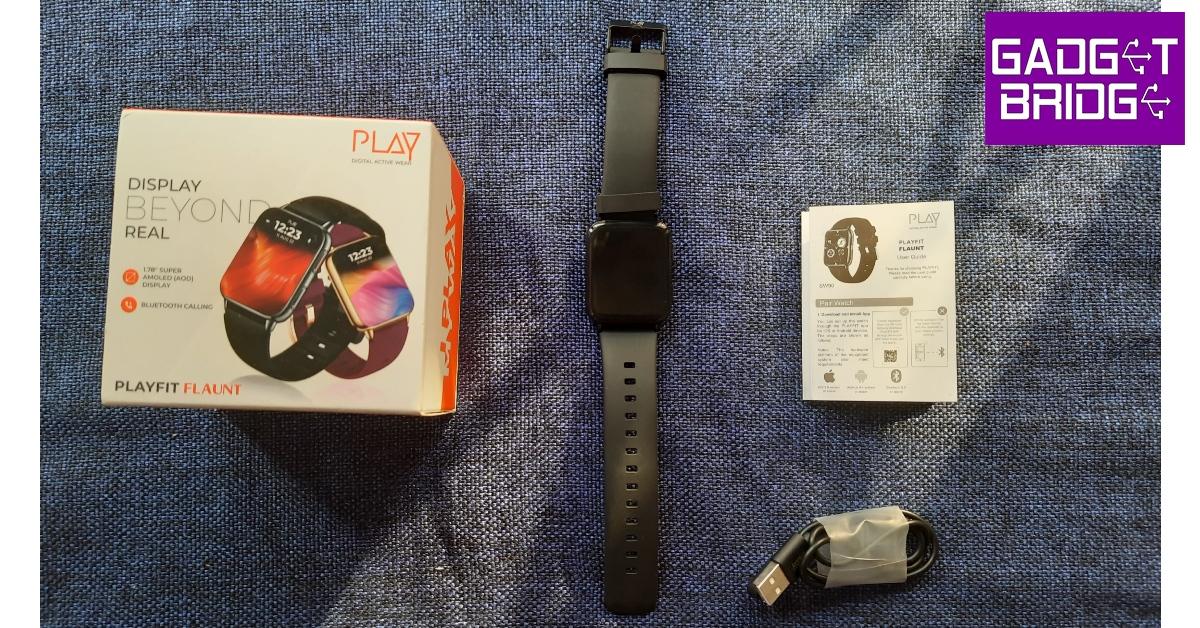
In the ever-expanding affordable smartwatch segment, new players are constantly dropping products that can match any of the established brands in terms of specs and even undercut them in pricing. Playfit, with its line of Indian-manufactured smartwatches and fitness bands, is looking to carve out a niche for itself in this segment. We got our hands on Playfit’s most recent release, Flaunt, and used it for over a week. Here is our Playfit Flaunt review.Read Also: OnePlus 11 5G with Snapdragon 8 Gen 2 SoC first sale today
In This Article
Playfit Flaunt review: Design
Inside the box, you’ll find the Playfit Flaunt with the straps already attached to it, a 2-pin magnetic charging cable, and a user manual + warranty card. There is no power adapter inside the box. The smartwatch is available in Champagne & Black, and Black colour options. We used the latter for this review.The biggest highlight of the smartwatch is its 1.78-inch Super AMOLED display. Surrounded by very slim bezels, the display is fun to use and looks fairly good compared to its rivals in this category. A peak brightness of 550 nits ensures that you have no problem viewing the display in direct sunlight. However, the touch response could have been a little better.On the right side of the dial, you will find the home key and a dedicated key to enter Workout Mode. The top key isn’t as clicky as the bottom one, which feels a bit weird while using the smartwatch. The microphone has been housed on the right side of the bottom. At the bottom, you will find the health sensors along with the magnetic charging port.The Playfit Flaunt has a traditional watch strap, which is actually a pretty good thing given how many smartwatches are drifting towards the ‘over-under’ strap style. The watch provides a comfortable, snug fit and you can wear it all day without feeling any unnatural skin irritation. With an IP67 rating, you don’t have to worry about any damage due to water splashes or dusty conditions. Sweaty workouts do not impede the performance of the Playfit Flaunt at all.
Playfit Flaunt review: Performance
The Playfit Flaunt smartwatch is powered by the Realtek chipset and comes with its own customised OS. Connecting the smartwatch to your phone takes no time at all. All you need to do is install the Playfit IoT app and give it the necessary permissions to connect to your smartwatch. Once connected, you can get a detailed breakdown of the data collected by your smartwatch on the app.The OS and general usability are a bit of a mixbag. There are some aspects where the watch truly shines. The range of functions offered with the Playfit Flaunt is truly impressive and increases the value for money you are getting on this device. The OS is pretty accessible and the user interface is pretty fun to play around with. There are a bunch of themes and menu layouts on offer.The calling feature is impeccable as well. You can either use the watch dialer to make a call or choose from the list of your favourite contacts on the watch itself. The quality of the microphone is decent and the speaker on the watch is perfect for calling in an indoor environment. You can even pick up WhatsApp calls using the smartwatch. New text notifications get relayed to the smartwatch as well, but replying to them will require your smartphone. You can also choose to receive calendar entries and emails, WhatsApp, and Facebook notifications on the Playfit Flaunt.The Playfit app allows you to make your own custom Watch Face and the level of customisation offered here is pretty impressive. You can even use the smartwatch to control the music on your phone. Another thing we liked about the smartwatch is that you can set up a lock pin for an extra layer of security. Not many smartwatches offer this feature.Moving on to the not-so-impressive bits, the Playfit Flaunt does not have a ‘tap to wake’ feature. This means you will have to rely on pressing the home button every time you want to use the watch. While there is an Alarm app on the watch, it does not sync with the alarms on your phone. So, you will need to manually set up individual alarms on the watch in order to use them.During our use, we encountered a bug in the ‘Find Phone’ feature on the smartwatch. The idea behind this feature is to use the smartwatch to ring your phone in case you can’t find it. While the Playfit Flaunt does ring your smartphone, there is no option to turn off the ringtone when you do find your phone. Even disconnecting the smartwatch from the phone does not help. The only way out is by restarting your smartphone.As a fitness tracker, the Playfit Flaunt delivers a good performance. The smartwatch is equipped to track 100+ workouts which also include different sports like Tennis, Cricket, Hockey, and more. The data gathered by Playfit Flaunt was close to accurate. While walking, we found that the smartwatch was clocking up to 10 more steps, which isn’t too bad. Health monitoring features like SpO2 count and Heart rate monitor were accurate as well. Our one small complaint here is that the smartwatch does not collect health data automatically at regular intervals. You will need to visit the appropriate widget and wait for the smartwatch to calculate the health function in order to get a reading. The sleep tracking could use better tuning as well, as the watch kept tracking more sleep hours even after waking up.The Playfit app is decent enough to have an in-depth look at all the data collected by the watch. The data is presented in the form of basic charts which are pretty easy to follow. The app’s UI seems a bit dated and we hope Playfit will fix that with a future update. Other than that, the performance is pretty much on par with what you get at this price point.The battery life on this smartwatch is very impressive. On a single charge, the Playfit Flaunt can easily last up to 5 days without the Always On Display turned on. The standby time on a single charge is 15 days. The magnetic clip charger can fully replenish the battery in under 2 hours.Read Also: How to use OTG on iPhone and iPad?
Conclusion
At Rs 3,999, the Playfit Flaunt is a decent buy. The wide range of functionality alone makes it worth the price. The bright AMOLED display is the show stopper here, and the overall design of the watch works in its favour. If Playfit manages to iron out certain bugs, you’re looking at a smartwatch that could give any other device in this segment a run for its money.
Pros
Super AMOLED displayBluetooth CallingCustomisation options
The OnePlus 11R 5G which is an affordable version of the flagship OnePlus 11 5G debuted in India a week ago. The company has now shared details related to its Android updates and security patches. The information has been revealed via a reply to a tweet. Qualcomm’s Snapdragon 8+ Gen 1 5G SoC powers the phone. A 6.74-inch Full-HD+ curved AMOLED display is available on the smartphone. The 11R has a 5,000mAh battery that supports 100W SUPERVOOC flash rapid charging.A tweet sent in response to a subscriber’s concern by the official OnePlus Support Twitter account revealed that the company will provide up to four years of security patches in addition to three years of Android updates. This means the OnePlus 11R users would be getting updates up to Android 17. Note that the device comes with OxygenOS 13, an Android 13-based operating system right out of the box.
OnePlus 11R specifications
The OnePlus 11R’s 6.74-inch Full-HD+ curved AMOLED display is notable for its 2772 x 1240 pixel resolution. The dynamic adaptive refresh rate of the screen varies between 40Hz and 120Hz. It also has 1,450 nits of maximum brightness and 450 ppi. The display has a touch response rate of up to 1000Hz. The OnePlus 11R is powered by the Snapdragon 8+ Gen 1 5G chipset and has an internal storage capacity of up to 256GB and up to 16GB of RAM.Also Read:OnePlus 11R with 100W SUPERVOOC flash fast charging announced in IndiaThe OnePlus 11R has three back cameras, one of which has a 50MP Sony IMX890 primary sensor. Along with other capabilities, it contains a 4 cm macro camera with a 120-degree ultra-wide lens and an 8 MP ultra wide-angle sensor. The device lacks optical zooming capabilities but has a 10x digital zoom. The OnePlus 11R’s rear camera is shake-free and supports both electronic and optical image stabilisation, allowing it to record videos in 4K quality at 30 frames per second. The 16MP front camera is located in a notch at the top of the display.The device has 5G, 4G, Wi-Fi, Bluetooth 5.3, NFC, GPS, and other connectivity options. The OnePlus 11R’s 5,000mAh battery supports 100W SUPERVOOC flash rapid charging.
For the latest gadget and tech news, and gadget reviews, follow us on Twitter, Facebook and Instagram. For newest tech & gadget videos subscribe to our YouTube Channel. You can also stay up to date using the Gadget Bridge Android App. You can find the latest car and bike news here.
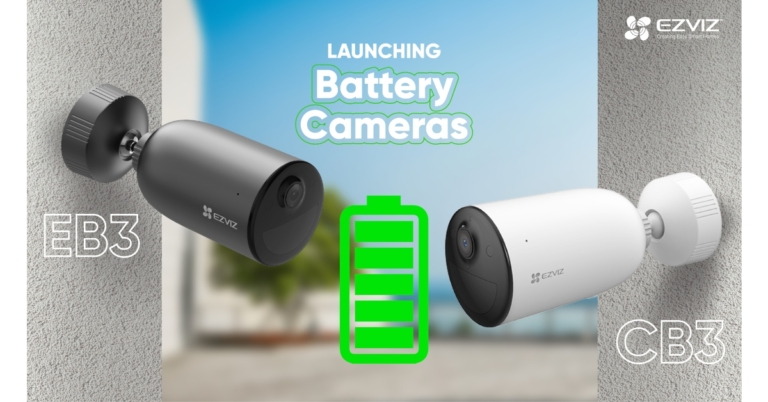
Indian smart home security company EZVIZ has announced the launch of two new CCTV cameras EZVIZ EB3 & EZVIZ CB3 in the Indian market. The device has been launched as part of their standalone smart home battery camera segment.The recently released EZVIZ EB3 and EZVIZ CB3 cameras, according to the manufacturer, are built to be eco-friendly and have a variety of features, including smart human motion detection based on a local, built-in algorithm, weatherproof design, smart integration with Google Assistant and Amazon Alexa, colour night vision, two-way talk, active defence with siren and strobe light, and customizable voice alerts.The EZVIZ EB3 & EZVIZ CB3 cameras have outstanding performance for outdoor security with 2K and 1080p resolution, respectively, and are remarkably easy to use. They have a 5200 mAh rechargeable battery built in, which can run continuously for up to 120 days on a single charge. Additionally, a solar charging panel that will support longer-term camera charging is soon to be available. However, this is dependent on usage and will consequently permit 40 triggers daily for motion detection. As a result, the cameras can basically go wherever that is close to the users’ homes, like the neighbourhood or the residential area, without intricate wiring or expensive installation.Additionally, these battery cameras provide far-reaching, colour night vision with a range of up to 15 metres. Users can choose between colour mode and infrared mode depending on their preferences. Furthermore, it is able to distinguish between people and running animals or other moving objects thanks to the PIR sensor and person shape detecting algorithm. Users may also store their captured moments on a microSD card that can hold up to 256GB locally, or they can subscribe to EZVIZ CloudPlay for fully secured cloud storage for even more data security. Either of these easily accessible options can be used by any home that needs an extra degree of security.EZVIZ EB3 & CB3 battery cameras are priced Rs 8000 and will be available for purchase via offline and online platforms.
For the latest gadget and tech news, and gadget reviews, follow us on Twitter, Facebook and Instagram. For newest tech & gadget videos subscribe to our YouTube Channel. You can also stay up to date using the Gadget Bridge Android App. You can find the latest car and bike news here.
For people with two active phone numbers, managing two WhatsApp accounts on different phones can be an arduous process. Luckily, most smartphones allow you to use two WhatsApp accounts by cloning the app. The upcoming Android 14 version is rumoured to have this feature as standard across all devices. So, without further ado, here’s how you can use two WhatsApp accounts on one Android smartphone in 2023.Read Also:A new tool for sending high-quality images is being developed by WhatsApp
In This Article
Use Dual Messenger
Most Android smartphones offer the ‘Dual Messenger’ feature that allows users to clone an Instant Messaging app to run two accounts in one phone. Here’s how you do that.Step 1: Go to Settings and select Advanced Features.Step 2: Scroll down and select Dual Messenger.Step 3: Turn the toggle bar on for WhatsApp.Step 4: Install a clone app for WhatsApp.Step 5: Now, go to the app drawer and select the clone WhatsApp app. It will have a small orange sign on it as the distinguishing factor.Step 6: Set up your account. This will require choosing a language and entering your phone number.Step 7: Once you’ve registered your number, you will be able to use two WhatsApp accounts on your phone.The ‘Dual Messenger’ feature may be named something different on your phone, depending on the manufacturer. On OnePlus phones, this feature is called Parallel Apps. Xiaomi phones call it Dual Apps, while in Vivo and Oppo phones it is known as App Clone and App Cloner respectively.
Use WhatsApp Web
If you want to run a secondary WhatsApp account that’s also active on another device, you will have to jump through a few hoops. WhatsApp does not allow one number to be signed into two devices unless it is through their web portal. If you’re okay with using WhatsApp on your phone’s web browser, you can easily activate an account there. If you’re already using Dual Messenger on your phone, this trick can help you run a third WhatsApp account on your phone. Here’s how.Step 1: Open www.web.whatsapp.com on your phone or tablet’s web browser.Step 2: Tap on the ellipses at the top right corner of the screen and select ‘Desktop site’.You can now use the WhatsApp Web portal similar to how you use it on a PC. Use your primary phone with the WhatsApp account to link your secondary device.Step 3: Open WhatsApp on your primary smartphone and tap the ellipses at the top right corner of the screen. Select ‘Linked Devices’.Step 4: Tap on ‘Link a device’ and scan the QR code on your secondary smartphone or Android tablet.You will now be able to use your WhatsApp account on the secondary smartphone or Android tablet.Read Also: Comparison: Moto E13 Vs Samsung Galaxy A04
Garena Free Fire is a battle royale game with regular awards and tournaments to keep players interested. If you play Garena Free Fire, you should be aware of the redeem codes that are released on a daily basis. However, because the battle royale game is banned in India, players from other countries can use the Free Fire Redeem codes daily. If you’re unfamiliar with the Garena Free Fire redeem codes or don’t know how to get them, we’ve put together a step-by-step guide to help you redeem them. Check out Garena Free Fire Redeem Codes for 14 February 2023.The Free Fire redeem codes are a great way to get free stuff. These are 12-digit codes that contain alphabets and numbers, as well as an expiration date and time. Because the Garena FF redeem codes cannot be used more than once, you should hurry to the redemption page to claim your free reward before someone else does. To get a free reward, all you have to do is go to reward.ff.garena.com/en, which is the official redemption page. Also, keep an eye on this space for daily updates on Garena Free Fire redemption codes and rewards.
In This Article
Garena Free Fire Redeem Codes Today 14 February 2023
X99TK56XDJ4X
FF7MUY4ME6SC
WEYVGQC3CT8Q
3IBBMSL7AK8G
J3ZKQ57Z2P2P
FFDBGQWPNHJX
TDK4JWN6RD6
4TPQRDQJHVP4
GCNVA2PDRGRZ
XFW4Z6Q882WY
HFNSJ6W74Z48
HHNAT6VKQ9R7
2FG94YCW9VMV
4ST1ZTBE2RP9
8F3QZKNTLWBZ
V44ZZ5YY7CBS
WD2ATK3ZEA55
E2F86ZREMK49
B3G7A22TWDR7X
MCPW3D28VZD6
FFCMCPSGC9XZ
FFCMCPSEN5MX
ZZZ76NT3PDSH
EYH2W3XK8UPG
FFCMCPSUYUY7E
NPYFATT3HGSQ
MCPW2D2WKWF2
V427K98RUCHZ
MCPW2D1U3XA3
FFCMCPSJ99S3
6KWMFJVMQQYG
BR43FMAPYEZZ
UVX9PYZV54AC
XZJZE25WEFJJ
HNC95435FAGJ
How to Get Free Fire Redeem Codes for Garena on 14 February 2023?
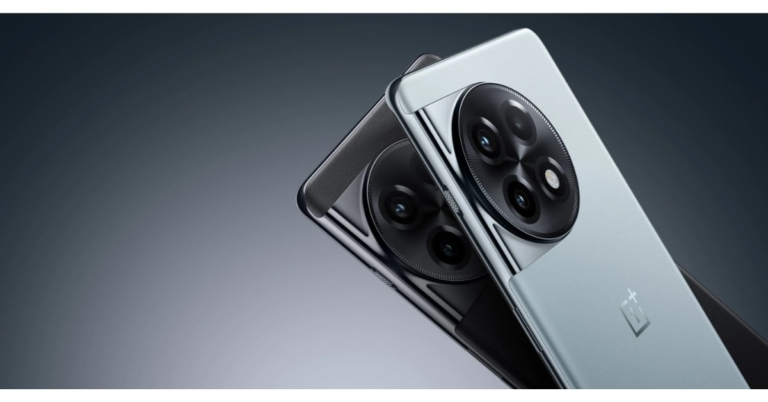
OnePlus 11 5G is all set to go on sale for the first time in India today. The device debuted in India last week alongside OnePlus 11R and other new products. It is equipped with a 100W SuperVOOC quick charging feature and is powered by the Qualcomm Snapdragon 8 Gen 2 SoC. OxygenOS 13 is pre-installed on top of Android 13 on the device.
In This Article
OnePlus 11 5G sale offers
OnePlus 11 5G India sale is scheduled to begin today at 12 noon. The OnePlus 11 5G is currently offered in India for a price of Rs 56,999 for the 8GB model with 128GB storage and Rs 61,999 for the 12GB variant with 256GB storage. Eternal Green and Titan Black are the two colour options for the smartphone. Both online and offline retail partners as well as the OnePlus online shop offer the device for sale.Also Read:OnePlus 11 5G with Hasselblad branded cameras and Snapdragon 8 Gen 2 SoC launched in IndiaBuyers can combine different bank and exchange incentives, like Rs 1,000 on an ICICI Bank credit card, EMIs, or netbanking, to purchase it at a discounted price. When purchasing the OnePlus 11 5G, consumers will also receive a 100GB Google One membership valid for six months. Along with a complimentary six-month trial of Spotify Premium, the smartphone maker also sells the OnePlus 11 5G.
OnePlus 11 5G specifications
The 6.7-inch Samsung LTPO 3.0 AMOLED display on the OnePlus 11 5G has a 1,440 x 3,216-pixel resolution. The aspect ratio of the panel is 20.1:9, and it has an adjustable refresh rate of up to 120Hz. The panel supports always-on displays with a maximum brightness of 1300 nits and a resolution of 525 ppi. A Corning Gorilla Glass 7 is used as protection. HDR and Dolby Vision codecs can be played on the monitor. In addition to ColorOS 13.0, the device runs Android 13.0. The new phone boasts an octa-core 4nm Snapdragon 8 Gen 2 SoC, up to 16GB of LPDDR5x RAM, and an Adreno 740 GPU. The OnePlus 11 5G supports UFS4.0 storage up to 256GB in capacity.The OnePlus 11 5G has a 5,000mAh dual-cell battery. There is support for 100W SuperVOOC charging. The display includes a fingerprint reader as well. It has two speakers and supports Dolby Atmos.Also Read:OnePlus 11R with 100W SUPERVOOC flash fast charging announced in IndiaSony’s optical image stabilisation (OIS) sensor with a 50-megapixel resolution (f/1.8 aperture) is one of the three rear cameras on the OnePlus 11 5G. In addition to a 32-megapixel portrait sensor, the camera unit has a 48-megapixel Sony IMX58 ultra wide-angle sensor (f/2.2 aperture and 115-degree field of view). The device’s front features a 16-megapixel sensor (f/2.4 aperture) for selfies and video calls.Additionally, there are options for 5G, 4G LTE, Wi-Fi 6, Bluetooth v5.3, Beidou, Glonass, Galileo, GPS, NFC, and other systems’ communication. There are numerous other sensors on board in addition to a proximity sensor, gyroscope, g-sensor, back colour temperature sensor, and Qualcomm sensor core.
For the latest gadget and tech news, and gadget reviews, follow us on Twitter, Facebook and Instagram. For newest tech & gadget videos subscribe to our YouTube Channel. You can also stay up to date using the Gadget Bridge Android App. You can find the latest car and bike news here.
The popular Amazon Quiz is now live on the Amazon app. The 14 February 2023 Amazon Quiz gives you a chance to win Rs 500 Amazon Pay Balance by answering all the questions correctly. The quiz can be played every day from 12 AM to 11:59. Only app users are eligible to participate in the Quiz as it is not accessible on the web platform.The Amazon Quiz brings a fresh set of questions for its customers that contains five easy questions. The questionnaire consists of five questions related to general knowledge and current affairs. The participants need to answer all the questions correctly and their names will be selected for a lucky draw. The daily quiz brings an opportunity for the customers to win exciting prizes. They can win Amazon Pay Balance ranging from Rs 1,000 to Rs 50,000. The participants need to answer all the questions correctly and their names will be selected for a lucky draw. The winner will be announced at the end of the month. Check Out 14 February 2023 Amazon Quiz Answers.Amazon Quiz Today Prize – Rs 500 Amazon Pay BalanceQuiz Date – 14 February 2023Daily Timing – 12 AM to 11:59 PMWinner Announcement – Today 12 PM
In This Article
Amazon Quiz Answers Today 14 February 2023
Question 1: Whom did Novak Djokovic beat in the final to win his 10th Australian Open men’s singles title?Answer: Stefanos TsitsipasQuestion 2: Austin Butler has got an Oscar nomination for Best Actor in a Leading Role for playing which real life character?
Answer: Elvis PresleyQuestion 3: How do we better know the Mughal emperor Abū al-Fatḥ Jalāl Al-Dīn Muḥammad?Answer: Akbar
Question 4: Flag of which country, famous as a beach destination?
Answer: MaldivesQuestion 5: Name this fruit
Answer: Kiwi
How To Play Amazon Quiz
Only app users are eligible to play the Amazon quiz every morning from 12 AM to 11:59 PM. The quiz is not available on the desktop. For those who are unaware of how to play the Amazon quiz below are the steps, you can follow to take the quiz.
Firstly download the Amazon app from Google Play Store or App Store
Now fill in the required information through the Sign Up option.
You need to log in to the Amazon app and scroll down on the home screen to find the Amazon Quiz banner.
Tap on the Amazon Quiz banner and tap on the Start button to start the Quiz.
Now you will get 5 questions and you need to answer them correctly. One wrong answer will eliminate you from the Quiz.
After answering all the questions correctly you are now eligible for a Lucky Draw.
The winner’s name will be announced today at 12 PM.
There are several ways to directly transfer files between your iPhone and a Mac or PC. You can either connect your iPhone to your Mac using a Lightning to USB cable or Airdrop the files wirelessly. However, if you want to transfer the files on an external storage device to your iPhone, you will need to use a Mac or PC as a buffer. This process can take some time since it requires plugging in two devices to your Mac. Luckily, with the help of a Lightning to USB adapter, you can access the contents of the external storage drive directly on your iPhone or iPad. In this article, we show you how to use an OTG (Lightning to USB adapter) on your iPhone and iPad.Read Also:Valentine’s Day Gifting Guide: Tech gifts for him and her
In This Article
Access external storage drives on your iPhone and iPad using OTG
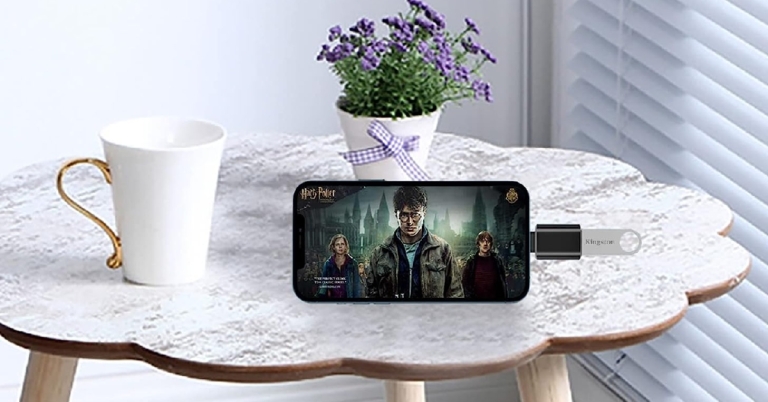
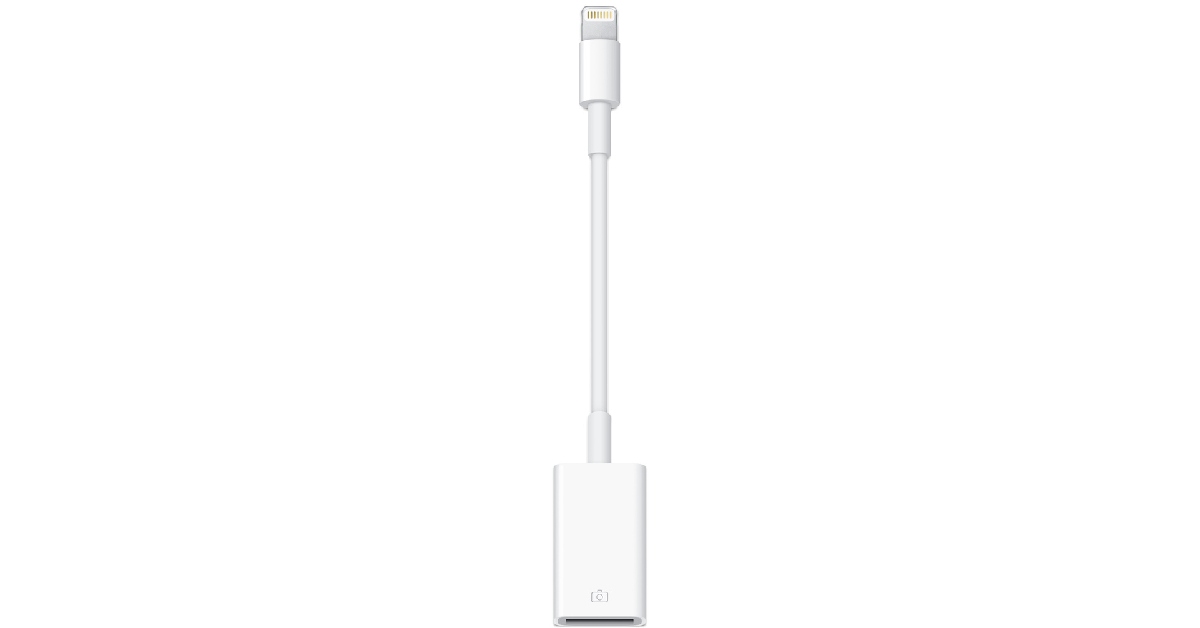
In order to connect an external storage device to your iPhone or iPad you will need to purchase a Lightning to USB adapter. The official Apple adapter can be bought for Rs 2,900 from the Apple Store. As far as Lightning to USB adapters go, Rs 2,900 is quite overpriced. You can find decent OTG adapters on Amazon for as low as Rs 624.Once you attach the Lightning to USB adapter to your iPhone or iPad, you can plug in any external storage device to the USB port and access its contents directly on your Apple device. You can view the contents on any supported app on your phone, like Photos and Files. If the external hard drive requires a higher power to function, use a Lightning to USB 3 Camera adapter that can be powered with an external charger. This will make your task considerably easier. Typically, pen drives don’t require additional power and can easily work with a simple Lightning to USB adapter.
Other things you can do using an OTG
A Lightning to USB adapter doesn’t just work for external storage devices, it can connect a whole bunch of different devices to your iPhone. Need to use an external keyboard or mouse with your iPad. Simply connect it to the USB port of the adapter and you’re good to go. If you like to game on your iPhone but can’t get a hang of the touch controls, simply plug in a console controller to the USB adapter and immerse yourself in the gaming experience. You can also connect a microphone if you want to record a podcast on the go. The possibilities are endless!Read Also: Oppo Find N2 Flip set to launch globally on February 15
Conclusion
This is how you can use OTG on an iPhone and iPad. Once you connect an external storage device to your iPhone, it may open the Photos app by default if there are any images or videos on the device. If you want to access other files on the drive, you will need to switch to a different app (like Files). Another thing to note is that your iPhone will only read the USB drive if it has a single partition and is formatted as FAT, FAT32, exFAT, or APFS. For the latest gadget and tech news, and gadget reviews, follow us on Twitter, Facebook and Instagram. For newest tech & gadget videos subscribe to our YouTube Channel. You can also stay up to date using the Gadget Bridge Android App. You can find the latest car and bike news here.
The desktop version of WhatsApp will soon support sending photographs “in their original quality.” The company was reportedly developing the same functionality for its iOS and Android apps. In addition to this, WhatsApp has started giving certain beta testers the option to share up to 100 media in a chat at once.According to a report, WhatsApp is developing a new feature that will let users send pictures in their original resolution and quality. The ability to send photographs in their original quality will soon be available. The feature is still being worked on in the Android beta version of WhatsApp.Also read:Comparison: Moto E13 Vs Samsung Galaxy A04Image courtesy: WaBetaInfoAs per the shared screenshot by WaBetaInfo, WhatsApp is also trying to add the same feature to the desktop version. Users will be able to send photos in their original quality, maintaining their resolution and clarity, thanks to this functionality. Compared to the existing picture compression that takes place while transferring images, this is a significant improvement. People won’t have to be concerned about their photographs losing resolution or quality when sending them.Also Read:Multi-search features to Google Lens added globallyDespite the addition of this capability, keep in mind that you will still have control over sending photographs. The conventional compression approach, which is always the default choice and can be handy for people who desire to conserve storage space, will still be available to beta testers when this functionality is made available to them.A future version of the app will include the feature of sending photographs at their original resolution, which is currently under development.Additionally, WhatsApp is releasing WhatsApp beta version 23.3.0.75 for iOS, which enables some testers to instantly share up to 100 media files. In the past, the app allowed users to share about 30 media files at once.Image courtesy: WaBetaInfoAs seen in the screenshot, in order to determine whether this function is available for your WhatsApp account, you must open the media picker and choose more than 30 media files. If you have the option to choose more than 30 media, it implies that your account has access to the function, which allows you to choose up to 100 photos and videos to better share your moments and memories.
For the latest gadget and tech news, and gadget reviews, follow us on Twitter, Facebook and Instagram. For newest tech & gadget videos subscribe to our YouTube Channel. You can also stay up to date using the Gadget Bridge Android App. You can find the latest car and bike news here.
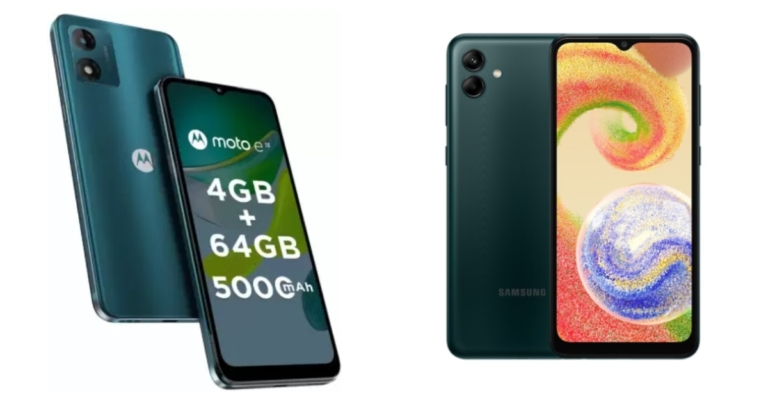
Motorola, a smartphone manufacturer owned by Lenovo, unveiled its newest E-Series model, the Moto E13, in India. The device faces off against the Samsung Galaxy A04. The Moto E13 and Samsung Galaxy A04 are both affordable smartphones, and which is better will depend on your needs. Here is a brief description of each device’s advantages and disadvantages.
Moto E13: 2GB RAM with 64GB storage and 4GB RAM with a 64GB storage modelSamsung Galaxy A04: 3GB of RAM and 32GB storage, 3GB of RAM and 64GB of storage and 4GB of RAM and 128GB of storage
The plastic bodies of both phones house 6.5-inch HD+ display with waterdrop notch designs.An octa-core Unisoc T606 SoC powers the Moto E13, which also has up to 4GB of LPDDR4x RAM and 64GB of internal storage. The Samsung phone, on the other hand, has an octa-core MediaTek Helio P35 12nm chipset and supports up to 4GB RAM and 128GB of storage.Samsung outperforms Motorola with a dual camera configuration with a 50-megapixel primary camera, whereas Motorola offers a single 13-megapixel rear camera. Contrarily, the Moto E13 provides a stock Android experience without any bloatware or tweaks, which many people might prefer for a more streamlined and uncomplicated experience. The batteries in both gadgets have a capacity of 5,000mAh, however, the Samsung device supports 15W charging whereas the Moto phone comes with 10W charging speed.In terms of performance, photography, and charging, the Samsung Galaxy A04 beats the Moto E13. The best phone for you will ultimately depend on your requirements when it comes to features like camera quality, battery backup, form factor and quality, and operating system.
For the latest gadget and tech news, and gadget reviews, follow us on Twitter, Facebook and Instagram. For newest tech & gadget videos subscribe to our YouTube Channel. You can also stay up to date using the Gadget Bridge Android App. You can find the latest car and bike news here.
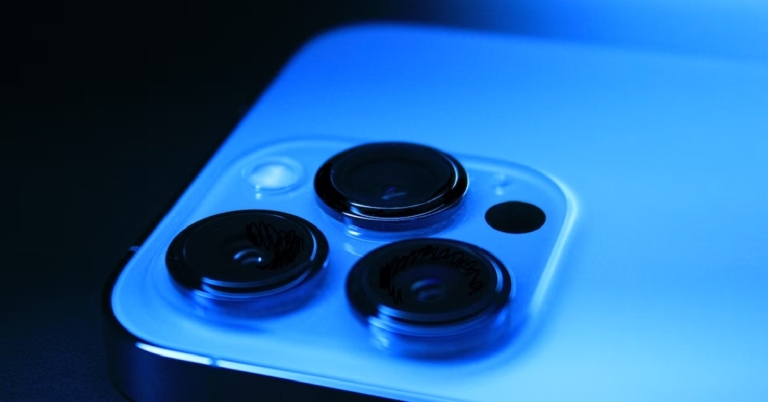
Apple first introduced the LiDAR scanner on the iPhone 12, and since then we’ve seen AR apps become more immersive and fun. LiDAR stands for ‘Light Detection And Ranging’ and is essentially used to map out the objects around you with the help of light signals. AR apps utilise the LiDAR scanner on your iPhone, using it in diverse and creative ways. In our previous article, we explained what a LiDAR scanner is and how you can use it on your iPhone. In this article, we bring you the 8 best LiDAR apps for your iPhone 14 Pro and 14 Pro Max.Read Also: The best gaming gadgets to use in 2023
In This Article
Measure
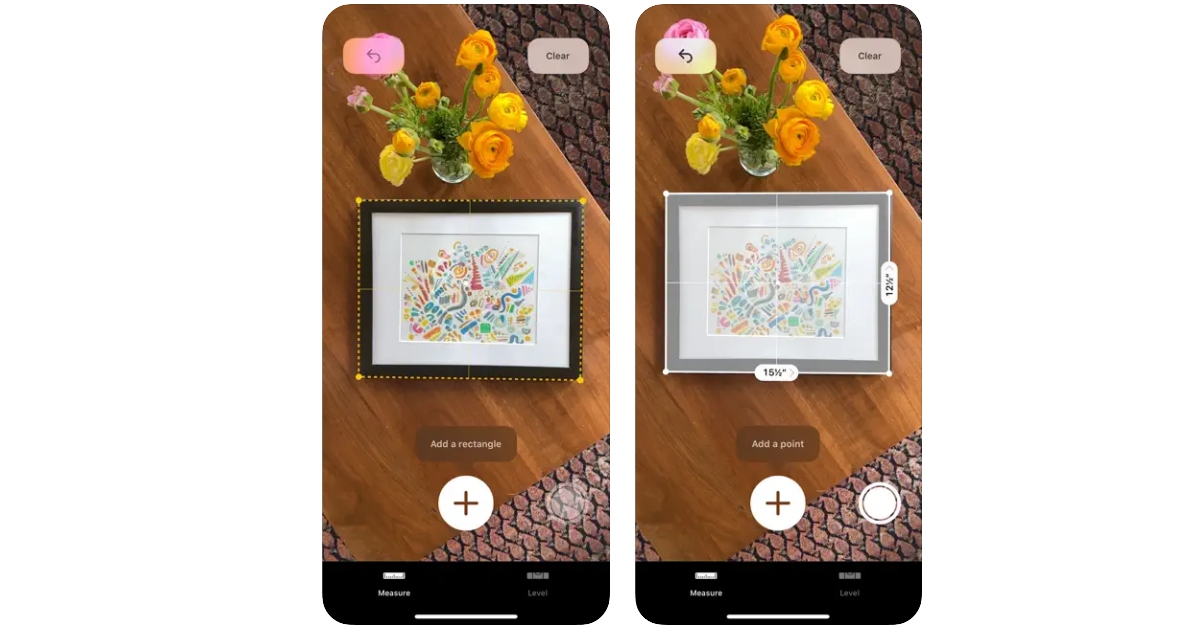
The native ‘Measure’ app on your iPhone uses the LiDAR sensor to take accurate measurements of objects as well as gauge the distance between two arbitrary points. All you need to do is point your phone towards an object and the LiDAR scanner will map out its dimensions with remarkable accuracy. The app is equipped to automatically carry out certain tasks like measuring a rectangular object or recording a person’s height. You can save the measurements along with the pictures in the app itself or share them with your friends via email or IM apps.
Polycam
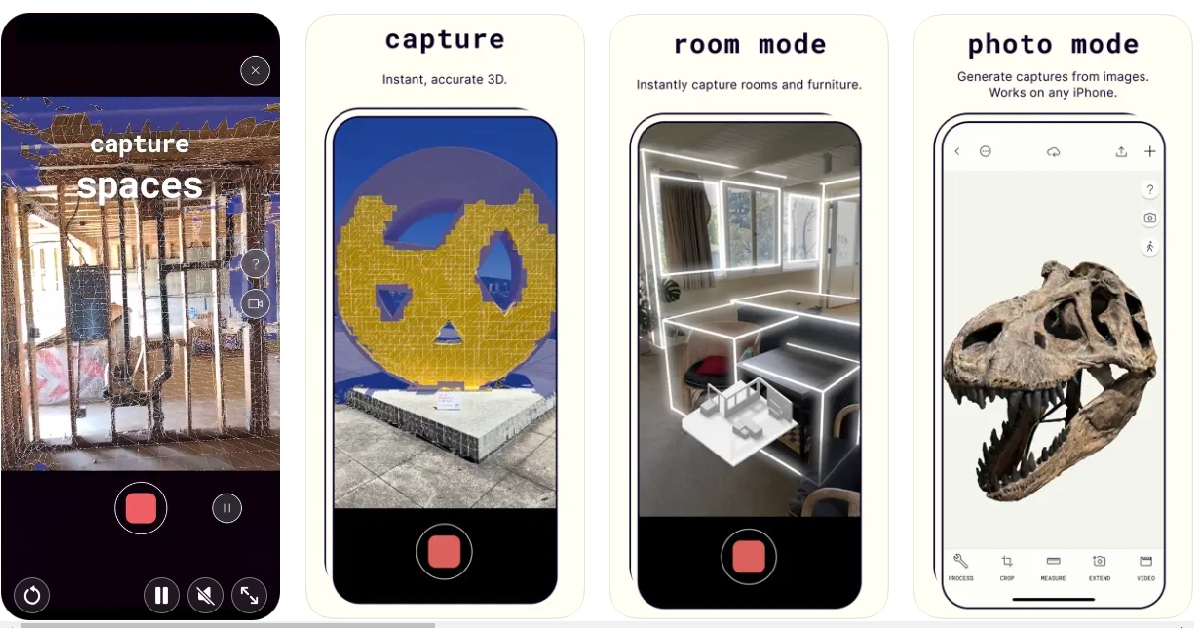
Considered by many to be the best LiDAR-based app for iPhones, Polycam creates 3D models of real-life objects around you. Simply open the app and use the camera to cover it from different angles. Once the 3D model has been rendered, you can use it in other design apps and software. You can edit the 3D model within the app with the help of a range of tools. The app’s ‘Room Mode’ helps you generate models of interior spaces in real-time.
RC Club
This AR racing simulator makes use of the LiDAR scanner in the most fun way possible. RC Club lets you race around different cars on real-life surfaces using its remarkable AR integration. The level of detail that has gone into this game is simply amazing. The app is able to judge the friction of the surface along with the weight and centre of gravity of the car you are racing to create a life-like simulation of what driving the car around would look like. You can spend hours on this app simply crashing your car into real-life objects and watching how it reacts in different situations.
Ikea Place
Thinking of giving your room a total makeover? Visualise the new look before buying any product using the Ikea Place app. Using AR tech, this app lets you virtually place Ikea products in your room to get an idea of how they would look in real. This app takes shopping for furnishing products to the next level.
Canvas: LiDAR 3D Measurements
This app is for design enthusiasts and professionals who are also familiar with CAD. Canvas takes detailed scans of indoor spaces which easily be exported to CAD for further editing. If you are a home improvement professional working remotely, this app will make it easier to work on a project with your team. The measurements taken by this app are extremely accurate and the rendered models are created in industry-standard formats.
Seeing AI
The Seeing AI app from Microsoft helps visually impaired people interact better with their surroundings by generating descriptions of the objects around them. While the app has been around longer than LiDAR, it uses the scanner to recognise objects quicker and more accurately than before. Seeing AI can recognise anything from products, currency, documents, and people around you.
Snapchat
Snapchat was one of the first apps to incorporate LiDAR in its functioning when Apple first introduced the scanner on iPhone 12. The app has hundreds of lenses and filters that use LiDAR to scan your surroundings and overlay objects on them. You can even create your own lenses with Lens Studio. You may have already used the popular lenses on Snapchat, but the deeper you dig, the more interesting stuff you will find.
Playground AR
Much like RC Club, Playground AR lets you play around with different objects in AR. You can build different objects out of blocks and even have some fun by driving cars and helicopters around them. You can even lay out a sequence of dominoes in your room and watch them collapse in one satisfying motion. Once you get a hang of this app you can easily spend hours on it without getting bored.Read Also: 6 Easy Ways to Fix ‘Quick Look Not Working’ on Mac



![How to Move Windows 11 to Another Drive [2023 Updated]](https://www.gadgetbridge.com/wp-content/uploads/2023/02/laptop-windows-microsoft-768x402.jpg "How to Move Windows 11 to Another Drive [2023 Updated]")
 Note: The new USB flash drive, HDD, or SSD that you wish to migrate to must be connected to your computer.
Step 2: Click “Start” to move forward after choosing the source disc from which to migrate and the destination disc you wish to migrate to.
Note: The new USB flash drive, HDD, or SSD that you wish to migrate to must be connected to your computer.
Step 2: Click “Start” to move forward after choosing the source disc from which to migrate and the destination disc you wish to migrate to. Step 3: A warning pop-up window will appear. To move on to the next stage, select “Sure.”
 Step 4: Please verify the details for the source disc and the target disc in the preview interface before clicking “Start” to begin system migration. It won’t take long for the migration.
 Result: Your system was successfully migrated. To finish the procedure, click “Finish.”
 Step 2:
 Step 3:
 Step 4:
 Step 3:
 Step 4:
 Step 5:
 Step 6: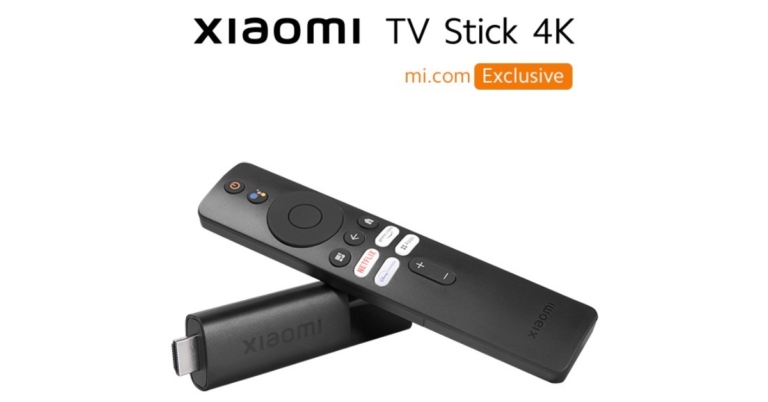
 Step 3:
 Step 8:
 Step 2:
 Step 3:
 Step 4:
 Step 4:
 Step 5:

 Step 2:
 Step 3:
 Step 4:
 Step 3:
 Step 4:
 Step 5:



 Step 1:

 Step 3:
 Step 4:
 Read Also: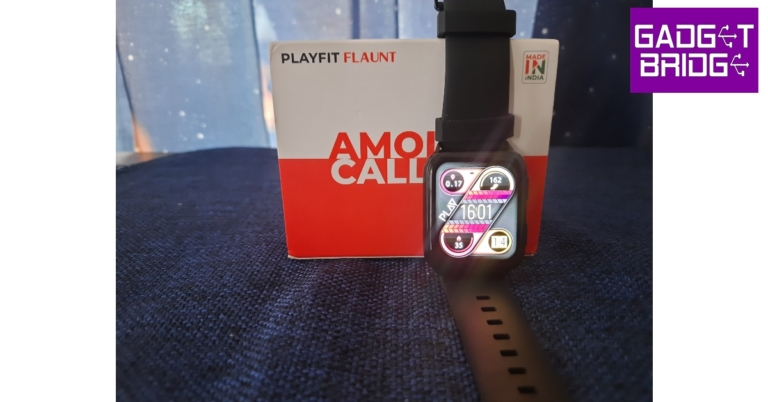


 Step 2:
 Step 3:
 Step 4:
 Step 5:
 Step 6:
 Step 7:
 Step 4: