

Nothing OS 1.5 update has arrived on the Nothing Phone 1
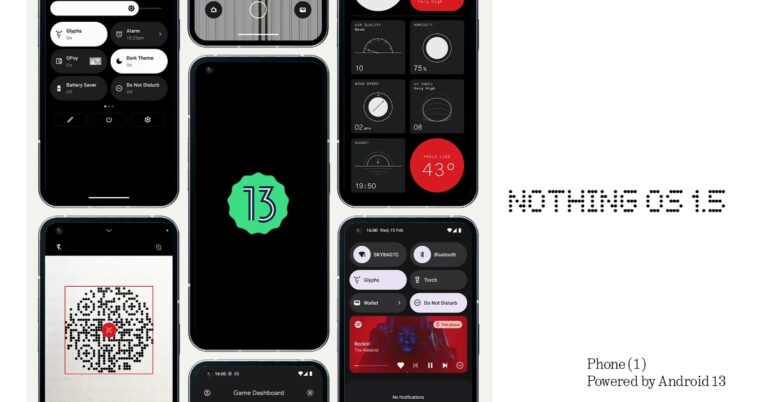
Nothing is officially releasing Nothing OS 1.5, which runs on Android 13 for the Nothing Phone 1. This is the company’s most significant upgrade yet. The most recent version includes new exciting custom capabilities, app improvements, visual upgrades, privacy advancements, system performance and general bug fixes.
Nothing Phone 1 is getting its first significant Android OS update. The business has announced the release of Nothing OS 1.5 for the device, which includes a number of improvements and a few unique features developed together by Google With the most recent version, users will have access to lock screen shortcut customizations, additional Glyph ringtones and more.
A new Nothing Weather app will be included with the Nothing OS 1.5 upgrade. The built-in camera app’s user interface will also be updated. According to the company, apps are allegedly going to load up to 50% faster with the upgrade.
Also Read: Infinix InBook Y1 Plus budget laptop launched in India
Nothing OS 1.5 has expanded customization possibilities and gives users access to a new Glyph sound bundle with more ringtones and notification sounds. Users get access to brand-new Material You colour schemes that are based on the wallpaper. The update also includes the capability for customising the shortcuts on the lock screen. Create shortcuts for the camera, torch, device controls, and wallet.
With the updated network Quick Settings panel in Nothing OS 1.5, it is now also possible to quickly switch data usage while using two SIM cards. Added QR code scanner in the camera app and Quick Settings.
The update also includes multi-language functionality, which enables different languages for certain apps. Receive clipboard access alerts. Text that has been copied shows up on the screen’s bottom corner’s clipboard. As a result, you can edit the content directly before pasting. To conserve battery, close running background programmes immediately from the notification centre.
Media controls also get a new look. Puts album artwork on full display with a wider set of music controls. One can now easily adjust individual volume sliders without unlocking the screen (e.g. music vs ringtone). Using Google Game Dashboard Screenshots, screen recording, FPS display, and Do Not Disturb are all supported. Whereas Live caption on Nothing Phone 1 detects speech on your device and automatically generates captions.
In order to keep the Nothing Phone 1 working smoothly, new self-repair functionality is added. This feature is said to erase outdated system dumps and unnecessary cache.
For the latest gadget and tech news, and gadget reviews, follow us on Twitter, Facebook and Instagram. For newest tech & gadget videos subscribe to our YouTube Channel. You can also stay up to date using the Gadget Bridge Android App. You can find the latest car and bike news here.
5 Easy Ways To Deal With Spam Emails on Gmail

Billions of people use Gmail regularly and if there’s one thing that truly unites their emailing experience, it’s spam. No matter how hard you try, it is virtually impossible to dodge spam mail. If left unattended, spam mail can make it hard to browse through your inbox. Luckily, there are a few steps you can take to minimise the spam on your email account. In this article, we bring you the top 5 ways to deal with spam emails on Gmail.
Read Also: Top 4 Ways to Unlock iPhone When You Forgot iPhone or iPad Passcode
 Step 4: Click on ‘Block <sender name>’. Report spam as well.
You will not receive any emails from the sender anymore.
If you signed up for a service using your Gmail account and have been receiving unnecessary promotional mail ever since, there is a quick way to put an end to it. All you need to do is open the email and click on the ‘Unsubscribe’ option next to the sender’s email address. Confirm your selection in the following pop-up box and you will be successfully unsubscribed from their promotional mailing list.
Gmail offers a range of filters that can help you sort through your emails and make sure you filter out the spam before it even reaches your primary inbox. To filter emails, click on the filter icon next to the search bar. Enter the email address you want to filter emails from. Additionally, you can add certain keywords and the emails that contain them will be filtered from your inbox. You can store the filtered emails in an archived folder if you want to have a look at them later.
There are several third-party tools available online that scan your inbox to filter out spam. While this may be really convenient, it also means exposing your emails to a third party. However, the open-sourced script ‘Gmail Unsubscribe’ is as privacy friendly as it gets. Gmail Unsubscribe neither collects your data nor sells it to any entities.
Read Also: Poco C55 powered by MediaTek Helio G85 SoC launched in India
Step 4: Click on ‘Block <sender name>’. Report spam as well.
You will not receive any emails from the sender anymore.
If you signed up for a service using your Gmail account and have been receiving unnecessary promotional mail ever since, there is a quick way to put an end to it. All you need to do is open the email and click on the ‘Unsubscribe’ option next to the sender’s email address. Confirm your selection in the following pop-up box and you will be successfully unsubscribed from their promotional mailing list.
Gmail offers a range of filters that can help you sort through your emails and make sure you filter out the spam before it even reaches your primary inbox. To filter emails, click on the filter icon next to the search bar. Enter the email address you want to filter emails from. Additionally, you can add certain keywords and the emails that contain them will be filtered from your inbox. You can store the filtered emails in an archived folder if you want to have a look at them later.
There are several third-party tools available online that scan your inbox to filter out spam. While this may be really convenient, it also means exposing your emails to a third party. However, the open-sourced script ‘Gmail Unsubscribe’ is as privacy friendly as it gets. Gmail Unsubscribe neither collects your data nor sells it to any entities.
Read Also: Poco C55 powered by MediaTek Helio G85 SoC launched in India
In This Article
Block and report spam senders
If you receive an unusual amount of spam from certain senders, you can individually block their email addresses and report them to Gmail. Here’s how you can do that. Step 1: Open Gmail on your web browser. Step 2: Open the spam mail. Step 3: Click on the ellipses at the top right corner of the mail, next to the date and time. Step 4: Click on ‘Block <sender name>’. Report spam as well.
 You will not receive any emails from the sender anymore.
Unsubscribe from promotional mail
 If you signed up for a service using your Gmail account and have been receiving unnecessary promotional mail ever since, there is a quick way to put an end to it. All you need to do is open the email and click on the ‘Unsubscribe’ option next to the sender’s email address. Confirm your selection in the following pop-up box and you will be successfully unsubscribed from their promotional mailing list.
Use Gmail filters
 Gmail offers a range of filters that can help you sort through your emails and make sure you filter out the spam before it even reaches your primary inbox. To filter emails, click on the filter icon next to the search bar. Enter the email address you want to filter emails from. Additionally, you can add certain keywords and the emails that contain them will be filtered from your inbox. You can store the filtered emails in an archived folder if you want to have a look at them later.
Use your email address to organise incoming mail
If you don’t have a throwaway email to sign up for services, you can use your primary email to filter out promotional emails and newsletters and organise your inbox. All you need to do is add a plus sign after your Gmail username and add the name of the website while signing up for a service. For example, if you are signing up for Swiggy, fill in your username as username+swiggy@gmail.com. Since the service does not register anything after the plus sign, the emails will be directed to your Gmail account but they will contain the +swiggy identifier in your inbox. Now, you can easily search username+swiggy@gmail.com in your inbox to filter out all emails from Swiggy. These can be deleted all at once. This trick also comes in handy when you use one email address for work and social activities. You can classify every mail by its activity. Simply type in username+gym@gmail.com when signing up for a gym, username+news@gmail.com when subscribing to a news service, or username+socialmedia@gmail.com when making an account on a social media platform. This will make it easier to manage your inbox.Use a third-party tool
 There are several third-party tools available online that scan your inbox to filter out spam. While this may be really convenient, it also means exposing your emails to a third party. However, the open-sourced script ‘Gmail Unsubscribe’ is as privacy friendly as it gets. Gmail Unsubscribe neither collects your data nor sells it to any entities.
Read Also: Poco C55 powered by MediaTek Helio G85 SoC launched in India
There are several third-party tools available online that scan your inbox to filter out spam. While this may be really convenient, it also means exposing your emails to a third party. However, the open-sourced script ‘Gmail Unsubscribe’ is as privacy friendly as it gets. Gmail Unsubscribe neither collects your data nor sells it to any entities.
Read Also: Poco C55 powered by MediaTek Helio G85 SoC launched in India
Conclusion
These are the top 5 easy ways to deal with spam emails on Gmail. You can also create a throwaway Gmail account and use it to sign up for any websites or services to cut down the spam on your main account. How do you minimise the spam on your Gmail account? Let us know in the comments! For the latest gadget and tech news, and gadget reviews, follow us on Twitter, Facebook and Instagram. For newest tech & gadget videos subscribe to our YouTube Channel. You can also stay up to date using the Gadget Bridge Android App. You can find the latest car and bike news here.Top 10 ways to fix Bluetooth issues on iPhone 13 and iPhone 14 (2024)
A working Bluetooth connection is one of the most essential parts of your iPhone these days. All the major accessories – from AirPods to Apple Watch – rely on a stable Bluetooth connection for their intended use. Any minor problem with your iPhone’s Bluetooth can render those accessories useless. In this article, we bring you the top 10 ways to fix Bluetooth issues on iPhone 13 and iPhone 14.
Read Also: Poco C55 powered by MediaTek Helio G85 SoC launched in India
Step 2: Turn the toggle bar next to Bluetooth off and then on.
A quick restart takes care of all the background issues and software glitches that may be keeping your iPhone from functioning properly. If restarting your phone’s Bluetooth doesn’t work, try restarting your phone instead. This should be the first step in resolving any functional issue on your phone. To restart your iPhone, simply press one of the volume buttons along with the side key until the power slider appears on the screen. Drag the power slider to the right to turn off your iPhone. Power the phone back on by pressing and holding the side key.
If the issue still persists after restarting your iPhone, try resetting the Bluetooth accessory. Most TWS products have a pairing button that can also be used to reset the device. On AirPods, this button lies right below the hinge. Press and hold this button for around 15 seconds or until the notification light blinks multiple times. Once the device has been reset, you will need to pair it with your iPhone again.
If you want to make sure whether the issue lies with your iPhone or the Bluetooth accessory, pair the device with another iPhone. If the device connects without any hassle, your iPhone is the one at fault. if you face the same issues connecting the device, you don’t need to focus on your iPhone but the device itself.
Step 2: Scroll down and select Transfer or reset iPhone.
Step 3: Select Reset followed by Reset Network Settings.
If the Bluetooth on your iPhone isn’t working due to a software bug, it will quickly be fixed in the next software update. It is highly likely that the update has already been published and is waiting to be downloaded to your phone. To update iOS to its latest version, go to Settings>General>Software Update and download the update.
Step 2: Scroll down and select Transfer or Reset iPhone.
Step 3: Tap on Reset.
Step 4: In the following window, select Reset All Settings.
Step 5: Enter the PIN and confirm your selection.
In This Article
Restart Bluetooth
If the Bluetooth on your iPhone 13 or iPhone 14 crashed all of a sudden or unexpectedly started malfunctioning, try restarting it first before jumping into major fixes. You can toggle the Bluetooth on and off from the Control Centre or restart it from Settings. Here’s how. Step 1: Go to Settings and select Bluetooth. Step 2: Turn the toggle bar next to Bluetooth off and then on.

Unpair the device and pair it again
If you’re experiencing any functional issues with the Bluetooth accessory, simply unpair it with your iPhone and then re-pair it. Go to Settings>Bluetooth, choose the device, and hit disconnect. Now, scan for nearby devices and connect to the Bluetooth accessory again.Restart your iPhone
 A quick restart takes care of all the background issues and software glitches that may be keeping your iPhone from functioning properly. If restarting your phone’s Bluetooth doesn’t work, try restarting your phone instead. This should be the first step in resolving any functional issue on your phone. To restart your iPhone, simply press one of the volume buttons along with the side key until the power slider appears on the screen. Drag the power slider to the right to turn off your iPhone. Power the phone back on by pressing and holding the side key.
Reset the Bluetooth accessory
 If the issue still persists after restarting your iPhone, try resetting the Bluetooth accessory. Most TWS products have a pairing button that can also be used to reset the device. On AirPods, this button lies right below the hinge. Press and hold this button for around 15 seconds or until the notification light blinks multiple times. Once the device has been reset, you will need to pair it with your iPhone again.
Forget the Device
If you’re having trouble with a previously connected device, forget the device and pair it again. In order to do this, go to the Bluetooth menu in Settings and select the device that’s giving you issues. Tap on ‘Forget this device’ and try pairing it again with your iPhone. You will be asked to match the pin like the first time you paired the device.Pair the Bluetooth device with another iPhone
 If you want to make sure whether the issue lies with your iPhone or the Bluetooth accessory, pair the device with another iPhone. If the device connects without any hassle, your iPhone is the one at fault. if you face the same issues connecting the device, you don’t need to focus on your iPhone but the device itself.
Reset Network Settings
Resetting the network settings on your iPhone restores all connections to their default settings. Any devices paired to your Bluetooth and WiFi will be deleted and you will need to pair them again. Any customised settings will also be set to default. Here’s how you can reset network settings on your iPhone. Step 1: Go to Settings and select General.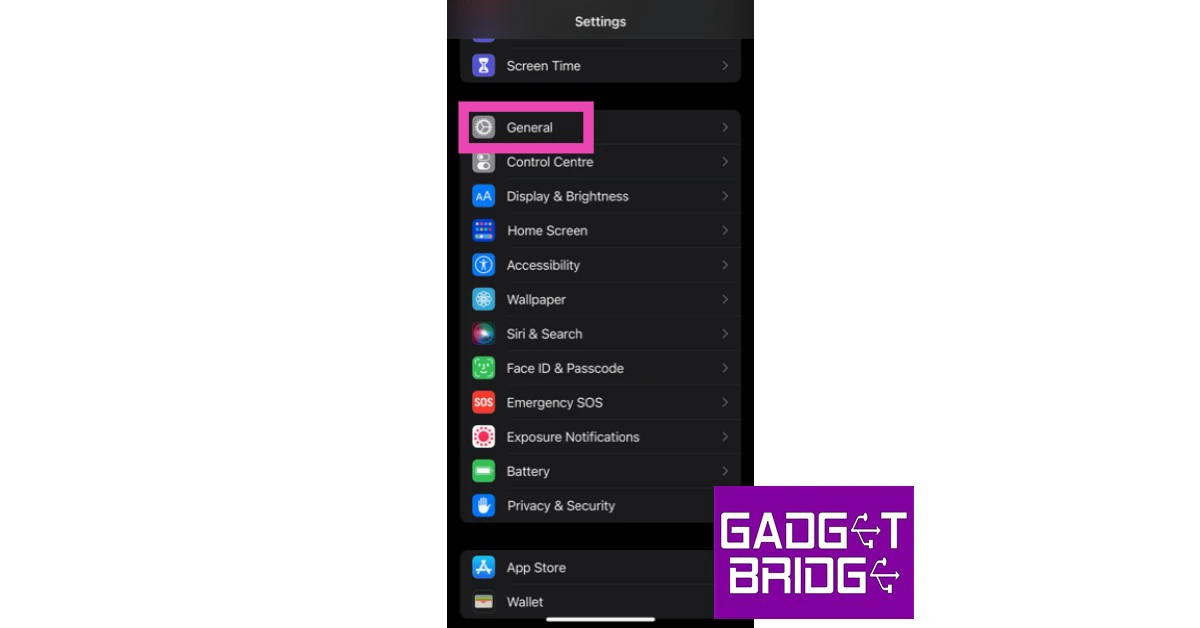 Step 2: Scroll down and select Transfer or reset iPhone.
 Step 3: Select Reset followed by Reset Network Settings.

Update your Bluetooth device’s firmware
Like your smartphone’s OS, the firmware of your Bluetooth headphones also receives periodic updates from the manufacturer. Apple AirPods automatically install any pending firmware updates as soon as they connect to your iPhone. This is not the case with other TWS products. To update the firmware of your TWS go to its support app (the one you use to customise the controls) and look for the update in the settings.Update iOS Version
 If the Bluetooth on your iPhone isn’t working due to a software bug, it will quickly be fixed in the next software update. It is highly likely that the update has already been published and is waiting to be downloaded to your phone. To update iOS to its latest version, go to Settings>General>Software Update and download the update.
Reset your iPhone to Factory Settings
You can try performing a factory settings reset on your iPhone to fix the Bluetooth issue. Before you proceed, make sure you back up all your personal data on the device as you will lose it in the process. Here’s how you can restore your iPhone 13 or 14 to its factory settings. Step 1: Go to Settings and select General.
Step 2: Scroll down and select Transfer or Reset iPhone.
Step 3: Tap on Reset.
 Step 4: In the following window, select Reset All Settings.
 Step 5: Enter the PIN and confirm your selection.
Frequently Asked Questions (FAQs)
How do I fix the functional issues with my AirPods?
If you’re facing functional issues like lags, stuttering, and inconsistent volume levels, simply disconnect your AirPods and pair them with your iPhone again.Why won’t my iPhone scan my Bluetooth accessory?
If your iPhone does not recognise your TWS, simply reset the device by pressing and holding the pairing button.How do I update my TWS’ firmware?
To perform a firmware update, launch your TWS’ mobile app and check the settings for firmware details. Read Also: OnePlus 11R pre-orders open in India: Details insideConclusion
These are the top 10 ways to fix any Bluetooth issues on your iPhone 13 or iPhone 14. If the problem still persists after trying these methods, it is likely a hardware-related issue. Take your iPhone to an Apple-authorised service centre for further diagnosis.8 Ways to Check if your iPhone or Android is Refurbished or Brand New
At a time when smartphone prices keep soaring to new heights every year, many users prefer buying a refurbished phone over a new one. If bought from a reputable seller, refurbished phones can be just as good as new ones. Some even come with a warranty period. A lot of users may even find it hard to differentiate between a new phone and a refurbished unit. While this may be good news if you purchased the latter, it can be slightly disconcerting for new phone buyers. After all, there are a lot of shady sellers out there. Luckily, there are several ways you can check if your iPhone or Android smartphone is refurbished or brand new. Here are the 8 best ways to go about it.
Read Also: Poco C55 powered by MediaTek Helio G85 SoC launched in India
 Step 3: Select About.
 Step 4: Check the first letter of the Model Number.
 If it starts with M, your iPhone is brand new.
If it starts with F, your iPhone is a refurbished unit provided by Apple or a third-party seller.
If it starts with P, your iPhone is a personalised unit with an engraving.
If it starts with N, your iPhone was issued as a replacement unit by Apple for a faulty iPhone.
Step 2: Tap on About.
Step 3: Select Parts & Service History.
If it starts with M, your iPhone is brand new.
If it starts with F, your iPhone is a refurbished unit provided by Apple or a third-party seller.
If it starts with P, your iPhone is a personalised unit with an engraving.
If it starts with N, your iPhone was issued as a replacement unit by Apple for a faulty iPhone.
Step 2: Tap on About.
Step 3: Select Parts & Service History.
 Step 4: The refurbished and serviced items will be listed on the following page.
Step 2: Tap on About and navigate to the Serial Number.
Step 3: Note down the serial number of your device.
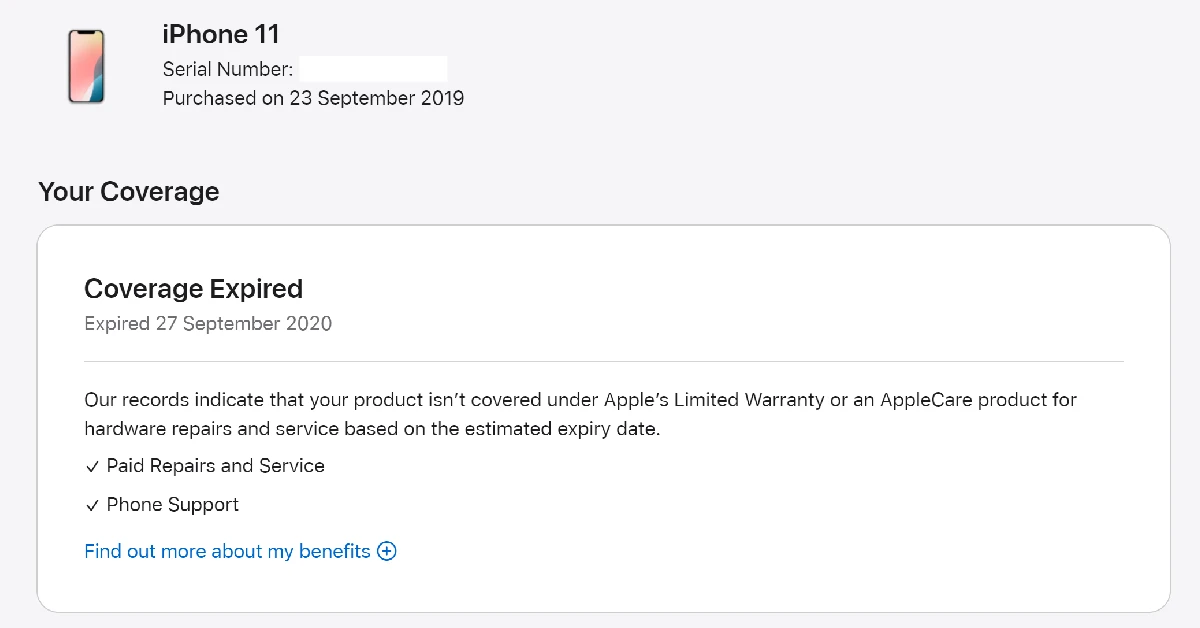
Step 4: Go to the device coverage page on Apple’s website.
Step 5: Enter your iPhone’s serial number and the on-screen CAPTCHA.
Step 6: Hit Submit.
Step 7: If the website says your iPhone has not yet been activated, your device is brand new.
Step 4: The refurbished and serviced items will be listed on the following page.
Step 2: Tap on About and navigate to the Serial Number.
Step 3: Note down the serial number of your device.
Step 4: Go to the device coverage page on Apple’s website.
Step 5: Enter your iPhone’s serial number and the on-screen CAPTCHA.
Step 6: Hit Submit.
Step 7: If the website says your iPhone has not yet been activated, your device is brand new.
 Step 2: Tap on Battery Health & Charging.
Step 3: Check the Maximum Capacity field.
Newer Android smartphones make it harder to check if they are refurbished or not. However, there are certain third-party apps that will do it for you. Samsung users can download the Phone INFO+ app to check the refurbishment status of their device. This is a paid app, which isn’t ideal, but it gets the job done. Launch the app and tap the hamburger menu on the left. Select ‘Refurbishment Check’ and the app will let you know if your device is refurbished or brand new.
If you purchased your phone from a shady seller and are now afraid they may have slipped you a stolen phone under the guise of a new one, you can easily find out its status by checking the IMEI number. Go to the About Phone section in the Settings app to find the IMEI number of your phone. Here are some easy ways to find the IMEI number of your smartphone. Now, go to imei.info and check if your device has any history of being stolen. If nothing shows up, your phone is likely brand new.
Step 2: Tap on Battery Health & Charging.
Step 3: Check the Maximum Capacity field.
Newer Android smartphones make it harder to check if they are refurbished or not. However, there are certain third-party apps that will do it for you. Samsung users can download the Phone INFO+ app to check the refurbishment status of their device. This is a paid app, which isn’t ideal, but it gets the job done. Launch the app and tap the hamburger menu on the left. Select ‘Refurbishment Check’ and the app will let you know if your device is refurbished or brand new.
If you purchased your phone from a shady seller and are now afraid they may have slipped you a stolen phone under the guise of a new one, you can easily find out its status by checking the IMEI number. Go to the About Phone section in the Settings app to find the IMEI number of your phone. Here are some easy ways to find the IMEI number of your smartphone. Now, go to imei.info and check if your device has any history of being stolen. If nothing shows up, your phone is likely brand new.
In This Article
How to check if your iPhone is refurbished
Refurbished iPhones are far too common these days. Apple retails refurbished iPhones in its own online store. If you find the regular iPhone to be too pricey, you can get a pretty good deal on a refurbished one. Apple even changes the battery and the outer shell and makes sure all broken parts are either fixed or replaced before retailing a refurbished iPhone. On top of that, you even get a warranty of 1 year. Other sellers may not offer a warranty on the iPhone, but usually ask for a lower price than the official Apple Store. Here is our list of the best places to buy a refurbished iPhone.Check the Model Number of the iPhone
Wondering whether your iPhone is refurbished or not? It is actually quite easy to find that out. All you need to do is look at the model number of your iPhone. Here’s how you can do that. Step 1: Go to Settings. Step 2: Select General.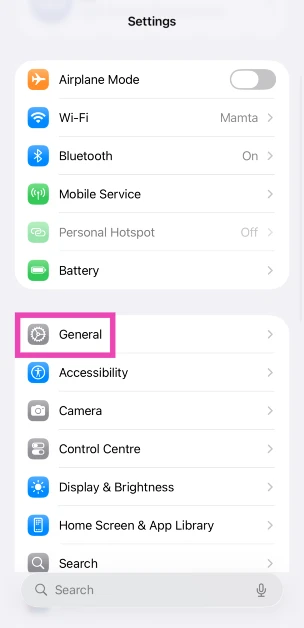 Step 3: Select About.
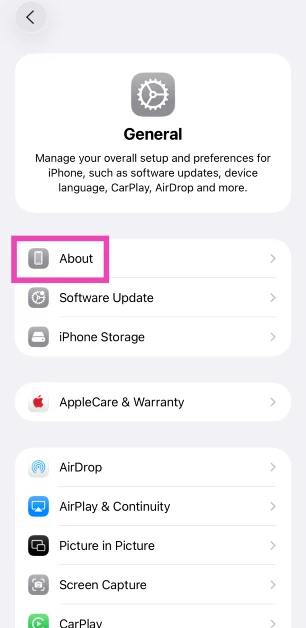 Step 4: Check the first letter of the Model Number.
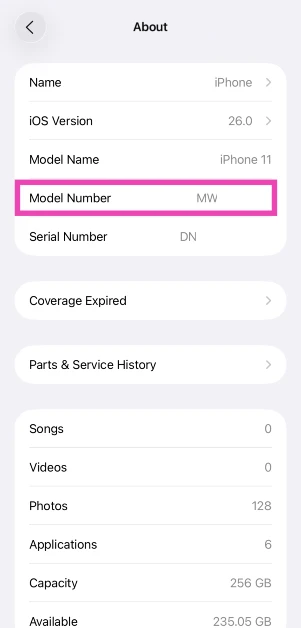 If it starts with M, your iPhone is brand new.
If it starts with F, your iPhone is a refurbished unit provided by Apple or a third-party seller.
If it starts with P, your iPhone is a personalised unit with an engraving.
If it starts with N, your iPhone was issued as a replacement unit by Apple for a faulty iPhone.
If it starts with M, your iPhone is brand new.
If it starts with F, your iPhone is a refurbished unit provided by Apple or a third-party seller.
If it starts with P, your iPhone is a personalised unit with an engraving.
If it starts with N, your iPhone was issued as a replacement unit by Apple for a faulty iPhone.
Check Parts & Service History
Your iPhone keeps a record of refurbished, repaired, and serviced parts. If you want to confirm that your iPhone is refurbished, simply check this record. Here’s how. Step 1: Go to Settings and select General.
Step 2: Tap on About.
Step 3: Select Parts & Service History.
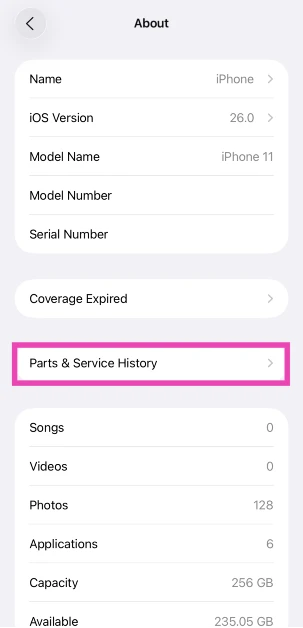 Step 4: The refurbished and serviced items will be listed on the following page.
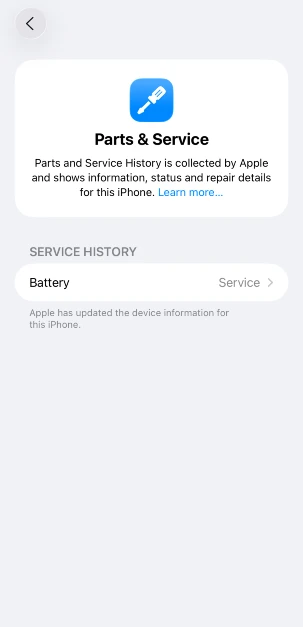
Check your iPhone’s Serial Number
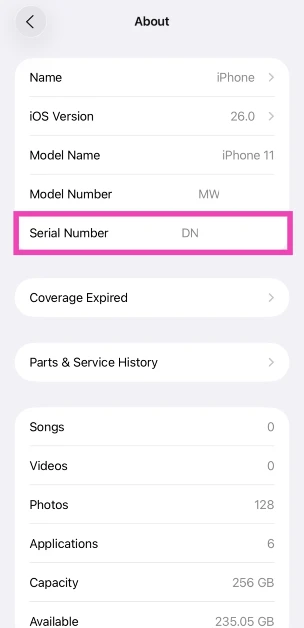
Step 1: Go to Settings and select General.
Step 2: Tap on About and navigate to the Serial Number.
Step 3: Note down the serial number of your device.
 Step 4: Go to the device coverage page on Apple’s website.
Step 5: Enter your iPhone’s serial number and the on-screen CAPTCHA.
Step 4: Go to the device coverage page on Apple’s website.
Step 5: Enter your iPhone’s serial number and the on-screen CAPTCHA.
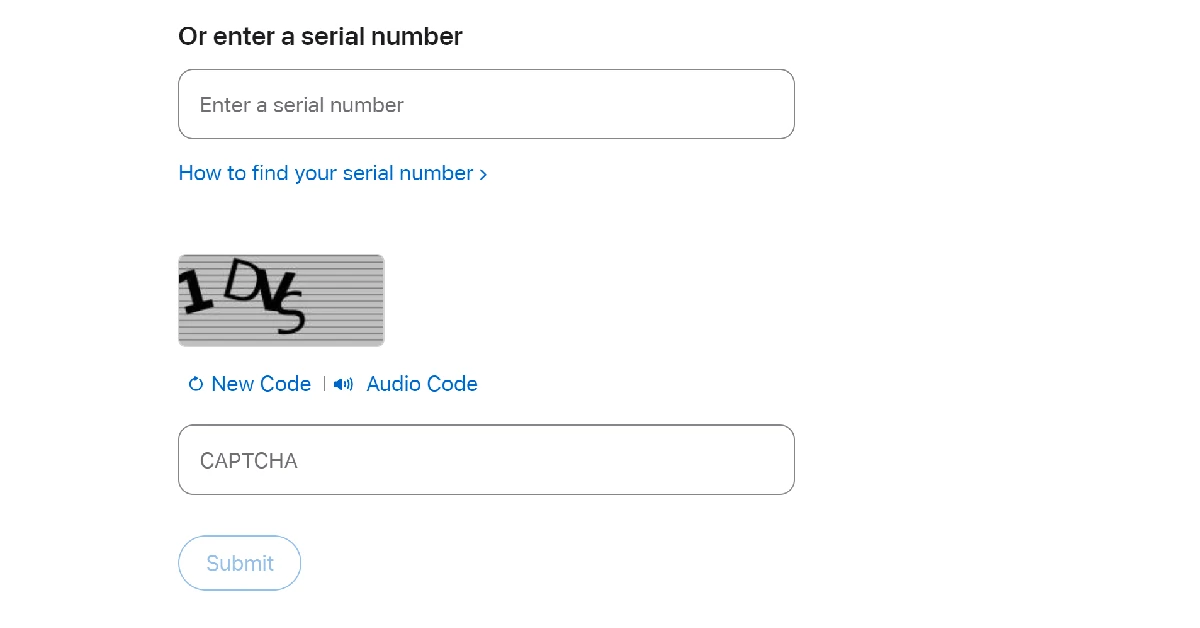 Step 6: Hit Submit.
Step 7: If the website says your iPhone has not yet been activated, your device is brand new.
Step 6: Hit Submit.
Step 7: If the website says your iPhone has not yet been activated, your device is brand new.
Check the Battery Health
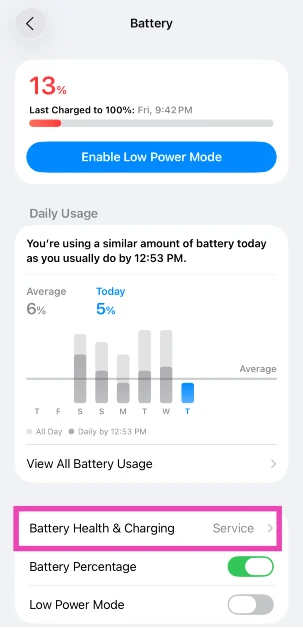
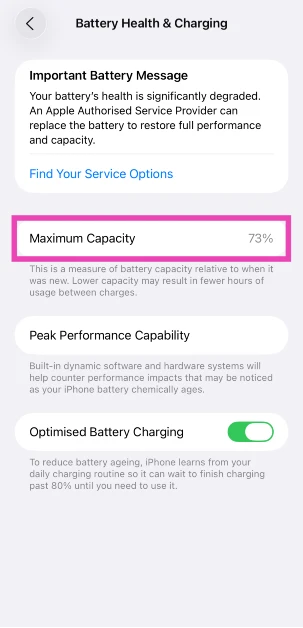
Most retailers, including official Apple retail outlets, change the battery packs of refurbished iPhones before selling them. However, in some cases, that might not be the case. To confirm whether your iPhone is a new model or a refurbished unit, check its battery health. A new iPhone or a refurbished unit with a new battery pack will always have a 100% battery capacity. However, refurbished units with old battery packs will have a significantly lower battery capacity. Step 1: Go to Settings and select Battery.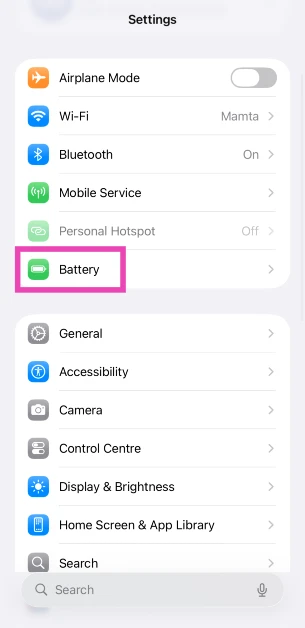 Step 2: Tap on Battery Health & Charging.
 Step 3: Check the Maximum Capacity field.
How to check if your Android phone is refurbished
There are a couple of ways to find out if your Android smartphone is refurbished or brand new. Older smartphones display their RTN information upon dialling a code. Newer smartphones typically do not have this feature. Here are some methods that will cover every Android phone.Use a dial code
This is one of the best methods to check if your Android smartphone is refurbished or not. Step 1: Open the dialer app on your phone. Step 2: Dial ##786# (##RTN#) on the keypad. If this code doesn’t work, dial ##786#*#. Step 3: Scroll down and check the Reconditioned Status. If it says Yes, your phone is a refurbished unit. If it says no, your phone is brand new.Use a third-party app
 Newer Android smartphones make it harder to check if they are refurbished or not. However, there are certain third-party apps that will do it for you. Samsung users can download the Phone INFO+ app to check the refurbishment status of their device. This is a paid app, which isn’t ideal, but it gets the job done. Launch the app and tap the hamburger menu on the left. Select ‘Refurbishment Check’ and the app will let you know if your device is refurbished or brand new.
Check the IMEI number
 If you purchased your phone from a shady seller and are now afraid they may have slipped you a stolen phone under the guise of a new one, you can easily find out its status by checking the IMEI number. Go to the About Phone section in the Settings app to find the IMEI number of your phone. Here are some easy ways to find the IMEI number of your smartphone. Now, go to imei.info and check if your device has any history of being stolen. If nothing shows up, your phone is likely brand new.
Make sure the IMEI number is consistent
There are several ways to go about checking the IMEI number of your Android phone. When a phone gets refurbished, the seller may flash its IMEI, leading to inconsistencies in the numbers listed on the device packaging and the device itself. Use the method mentioned above to find out the IMEI number of your phone from the device settings. Next, dial *#06# to check the IMEI number. Finally, check if these two numbers match the number listed on the retail package.Should you buy a refurbished phone?
If you don’t want to splurge a lot of money on a flagship smartphone, buying a refurbished unit is the right move. Premium smartphones offer anywhere between 5 to 7 major OS upgrades, depending on the manufacturer. If you’re buying a refurbished model that’s only a couple of years old, you can still get a lot of mileage out of it. The dropoff in performance isn’t super big. Apart from the year of production and remaining software coverage, you should also do a basic hardware check while buying a refurbished smartphone. This means running an app like TestM or Phone Doctor to get an assessment of the core hardware of the device. You should also manually check the cameras, display, and speakers of the phone. This is why we recommend buying refurbished smartphones from physical retailers rather than online outlets.Frequently Asked Questions (FAQs)
How do I find out if my iPhone is brand new or refurbished?
Go to Settings>About and find out your device’s model number. If it begins with an F, it means your iPhone is refurbished.How do I check if my Android smartphone is refurbished?
Dial ##786# on your phone’s dialer to check its reconditioned status.How do I check my iPhone’s parts and service history?
Go to Settings>General>About, and tap on ‘Parts & Service history’.How do I check my iPhone’s battery capacity?
Go to Settings>Battery>Battery Health & Charging, and check the ‘Maximum Capacity’ field.Which is the best place to buy a refurbished iPhone?
Apple’s official refurbished outlet is the best place to buy a refurbished iPhone since it will be equipped with a new battery and body casing. Apple also offers a 1-year warranty on refurbished iPhones. Read Also: OnePlus 11R pre-orders open in India: Details insideConclusion
This is how you can check if your iPhone or Android smartphone is refurbished or brand new. While buying a smartphone, make sure you check the date of manufacturing of the device. If a long time has elapsed since the date of manufacture, it is possible that the phone may be refurbished. To avoid this, always buy electronic goods from reputable sellers only.Infinix InBook Y1 Plus budget laptop launched in India
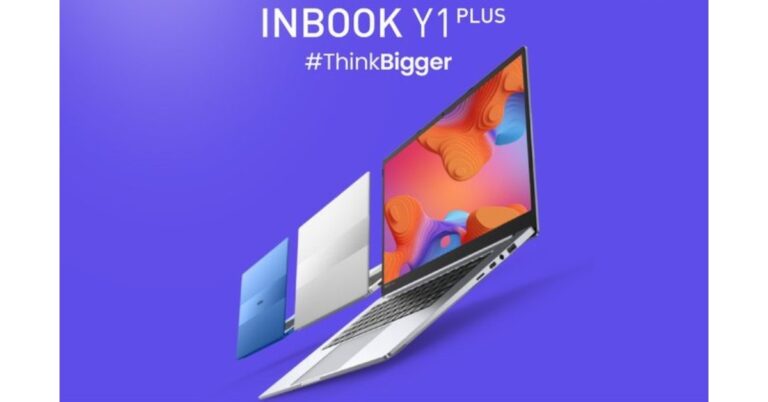
Infinix has announced the launch of a brand-new laptop in the affordable category- Infinix Y1 Plus. The laptop is aimed at college students and budding professionals. The device features a 15.6-inch Color Rich Anti-Glare FHD Display and it comes with a 50Whr capacity. The Infinix laptop has Windows 11 Home pre-installed.

In This Article
Infinix InBook Y1 Plus price and sale details
Infinix Y1 Plus has been launched in India with a price tag of Rs 29,990 for the base 8GB RAM with a 256GB storage option. While the 8GB RAM with 512GB storage option is priced at Rs 32,990. The device will be available in three colour options of Blue, Silver and Green. You can purchase it via the e-commerce website Flipkart from February 24 in the country.
Infinix InBook Y1 Plus specifications
The 15.6-inch Infinix InBook Y1 Plus has thin side bezels and a full-HD resolution display. The screen of the laptop also supports 86 percent of the sRGB colour gamut and has a brightness of 250 nits. The 2-megapixel web camera of the Infinix InBook Y1 Plus has dual LED fill lighting. Moreover, the Infinix InBook Y1 Plus has an AG glass touchpad with multi-touch gesture capabilities. The laptop has two stereo speakers that can emit 2W of sound. Also Read: Compare: Samsung Galaxy S23 Ultra Vs iPhone 14 Pro Max Windows 11 Home is pre-installed. An Intel Core i3 processor, 8 GB of RAM, and up to 512 GB of storage power the laptop. Around 1.76 kilograms is what Infinix claims it weighs. The laptop comes with two USB-C ports, dual USB 3.0 ports, an HDMI 1.4 port, a specific SD Card slot, and a 3.5mm audio port for connectivity. It has a 50Whr battery unit and supports 65W fast charging over USB Type-C, which can, according to the manufacturer, recharge the battery by 75% in an hour. According to the battery’s specifications, it can play videos for up to 9–10 hours. For the latest gadget and tech news, and gadget reviews, follow us on Twitter, Facebook and Instagram. For newest tech & gadget videos subscribe to our YouTube Channel. You can also stay up to date using the Gadget Bridge Android App. You can find the latest car and bike news here.Garena Free Fire Redeem Codes Today 22 February 2023: Here is how to claim them

Garena Free Fire is a battle royale game with regular awards and tournaments to keep players interested. If you play Garena Free Fire, you should be aware of the redeem codes that are released on a daily basis. However, because the battle royale game is banned in India, players from other countries can use the Free Fire Redeem codes daily. If you’re unfamiliar with the Garena Free Fire redeem codes or don’t know how to get them, we’ve put together a step-by-step guide to help you redeem them. Check out Garena Free Fire Redeem Codes for 22 February 2023.
The Free Fire redeem codes are a great way to get free stuff. These are 12-digit codes that contain alphabets and numbers, as well as an expiration date and time. Because the Garena FF redeem codes cannot be used more than once, you should hurry to the redemption page to claim your free reward before someone else does. To get a free reward, all you have to do is go to reward.ff.garena.com/en, which is the official redemption page. Also, keep an eye on this space for daily updates on Garena Free Fire redemption codes and rewards.
In This Article
Garena Free Fire Redeem Codes Today 22 February 2023
Updating soonHow to Get Free Fire Redeem Codes for Garena on 22 February 2023?
- Visit the Garena Free Fire game’s official website at reward.ff.garena.com.
- Use your Facebook, Google, VK, Apple ID, Huawei ID, or Twitter account to log in.
- You’ll be taken to a valid redemption code (s)
- Copy and paste the 12-digit redemption code into the text box.
- On the screen, a dialogue box will appear.
- ‘Ok’ should be selected.
Amazon Quiz Answers Today 22 February 2023: Participate to win Rs 500

Amazon hosts a Quiz session for its customers daily. Its app platform brings a quiz on a daily basis, which begins at 12 AM and ends at 11:59 PM daily. The participants stand a chance to win cash prizes on a daily basis. Today’s 22 February 2023 Amazon Quiz will let you win Rs 500 Amazon Pay Balance.
By participating in the Amazon Quiz the participants can win Amazon Pay Balance ranging from Rs 1,000 to Rs 50,000 every day while sitting at home. To win the participants must answer five questions correctly that are based on current events and general knowledge. One wrong answer can eliminate you from the quiz. The results will be announced at the end of the month. Today’s question will let you win Rs 500 Amazon Pay Balance. Check below for today’s Amazon quiz answers.
Amazon Quiz Today Prize – Rs 500 Amazon Pay Balance
Quiz Date – 22 February 2023
Daily Timing – 12 AM to 11:59 PM
Winner Announcement – Today 12 PM
In This Article
Amazon Quiz Answers Today 22 February 2023
Question 1: The UN has recognized which Indian govt. initiative as one of the top 10 World Restoration Flagships to revive the natural world? Answer: Namami Gange Question 2: Who is the first footballer to win two world cup golden balls? Answer: Lionel Messi Question 3: In the upcoming movie ‘Ant-Man and the Wasp: Quantumania’ , Jonathan Majors plays the role of which supervillain? Answer: Kang the Conqueror Question 4: Which continent does this owl not visit? Answer: Australia Question 5: The chariot of which Norse goddess was pulled by this animal? Answer: FreyaHow To Play Amazon Quiz
Only app users are eligible to play the Amazon quiz every morning from 12 AM to 11:59 PM. The quiz is not available on the desktop. For those who are unaware of how to play the Amazon quiz below are the steps, you can follow to take the quiz.- Firstly download the Amazon app from Google Play Store or App Store
- Now fill in the required information through the Sign Up option.
- You need to log in to the Amazon app and scroll down on the home screen to find the Amazon Quiz banner.
- Tap on the Amazon Quiz banner and tap on the Start button to start the Quiz.
- Now you will get 5 questions and you need to answer them correctly. One wrong answer will eliminate you from the Quiz.
- After answering all the questions correctly you are now eligible for a Lucky Draw.
- The winner’s name will be announced today at 12 PM.
Top 4 Ways to Unlock iPhone When You Forgot iPhone or iPad Passcode
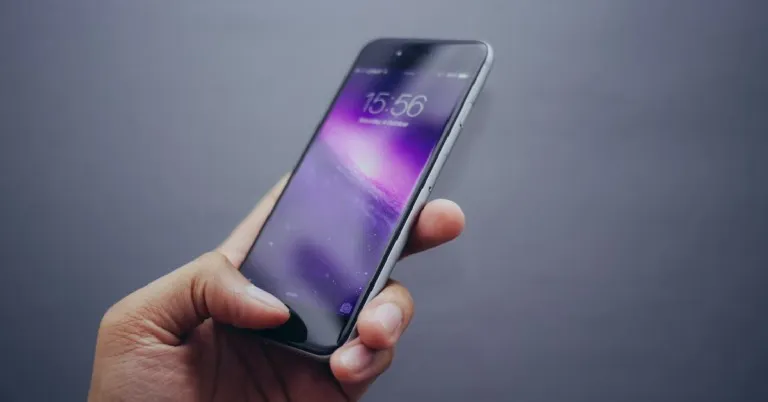
If you forgot your iPhone passcode, don’t get frustrated. You can remove the passcode and reset your device if you know the right methods. You can do everything on your own without any expertise. We are going to share the top 4 methods on how to unlock iPhone if you forgot password/passcode. Follow the simple steps and unlock your device without any hassle.
Step 2: Click on Find iPhone application. It will show you all the devices connected to the Apple ID. Click All Devices and select your device. You will see three options. Click Erase iPhone. Confirm by entering the password.
Step 3: Connect your device to the computer and click Next. If your device is not recognized, you can follow the on-screen instructions to put the device in DFU or Recovery mode.
Step 4: 4uKey will find suitable firmware for the device. Select the location and click Download.
Step 5: After downloading, click Start the Remove. 4uKey will start removing the passcode. Within a few minutes, your passcode will be removed.
In This Article
Bonus Tips If You Forgot iPhone Passcode
- If you are using iOS 15.2 or later, you can reset your device from the built-in function. After entering the wrong passcode multiple times, you will see the option on the screen.
- If you do not have a computer, you can use the iCloud method. It can also work from a smartphone.
- If you can create a backup of your device, you must do it. iTunes can do it if the device has been synced before.
- Try to reset the device using iTunes or iCloud. But if these methods do not work or you want a simple solution, try Tenorshare 4uKey.
Forgot Your iPhone Passcode? Solved!
People use passcodes to ensure the privacy of their data on their iPhones. But these can be problematic if you forget them. You cannot reopen the device without a passcode or change the passcode through any method. The only solution is resetting the device, and in this case, you lose all your data. How to reset iPhone passcode? We are going to introduce a few methods you can try to unlock your device and reset it. But all these methods have some conditions, such as Apple ID/password, syncing of the device, etc. If you want a quick solution, you can use Tenorshare 4uKey. It can remove the passcode without any prerequisites.Option 1: How to Unlock iPhone via iCloud When You Forgot Your Password
iCloud is the quickest option to unlock your device if you don’t remember the passcode. It does the job without any hassle, but it removes all your data. Your device is reset from iCloud, and all your data is erased. However, if you have a backup in iTunes or any other storage, you can restore it back. The best thing about this method is that you can reset your device remotely, which means it can also work if your device is not nearby; there is no need to connect it. Note: To use this method, you should know the Apple ID and password. Step 1: Go to the iCloud website. Enter your credentials to log into your account. Step 2: Click on Find iPhone application. It will show you all the devices connected to the Apple ID. Click All Devices and select your device. You will see three options. Click Erase iPhone. Confirm by entering the password.
Option 2: Unlock iPhone without Passcode or Face ID via iPhone Unlocker
How to unlock iPhone when you forgot password? The best way to unlock an iPhone without passcode or Face ID is by using a reliable iPhone unlocker. You can use Tenorshare 4uKey. It is an all-in-one iPhone unlocker that can unlock the passcode, Touch ID, Face ID, screen time passcode, MDM profile, and activation screen. The best part is that it works in every case and does not require anything. Just plug in your device and follow a few simple steps to get rid of the lock. Step 1: Download the software from the official site and install it on your computer. Step 2: Launch the software. On the main screen, you will have multiple options. Click Start to unlock the passcode. Step 3: Connect your device to the computer and click Next. If your device is not recognized, you can follow the on-screen instructions to put the device in DFU or Recovery mode.
 Step 4: 4uKey will find suitable firmware for the device. Select the location and click Download.
 Step 5: After downloading, click Start the Remove. 4uKey will start removing the passcode. Within a few minutes, your passcode will be removed.
Option 3: Unlock iPhone without Passcode or Face ID Using iTunes
What to do if you forgot your iPhone password?iTunes can be used to unlock the device without a passcode. It can help you reset your device, so the data will be erased. But if there is any backup you made in iTunes, you can restore it without any problem. But keep in mind that iTunes will not recognize your device when it is unlocked, but if you have synced the device to the computer before, then it can work. Step 1: Connect your device to the computer and open iTunes. Step 2: If iTunes recognizes your device and doesn’t ask for a passcode, you can proceed. You can also create a recent backup if you want to save all your data. Step 3: Click on Restore iPhone. You will see a popup. Click Restore to confirm. The process will take a few minutes to restore your device.
Option 4: How to Reset Your iPhone Using Recovery Mode When You Forgot Your Password
If you have not synced your device to the computer, iTunes or Finder will not recognize it. It will ask you to enter the passcode on the device and trust the computer. It is not possible in your case because you don’t remember the passcode. The only solution is to put the device in recovery mode and then use iTunes or Finder to reset it. It will also erase all your data from the device. Step 1: Make sure your device is not connected to the computer. Turn off the device. Step 2: Now, put the device in recovery mode by pressing the following buttons. Press the button according to the model of your device and hold it. iPhone 8 and later: Side Button iPhone 7: Volume Down Button Others: Home Button Step 3: While holding the button, connect the device to the computer. When you see the recovery mode on the screen, leave the button. Step 4: Open Finder or iTunes and click on your device. You will see a popup. Click on the Restore button. Wait for a few minutes, and the passcode of your device will be removed.
Final Words
You can unlock or reset your iPhone if you forgot iPhone passcode. We have shared some of the easy solutions you can try. You can choose the best one according to your situation. All these solutions have some prerequisites, but if you want to quickly reset your device and get 100% results, use Tenorshare 4uKey. It does the job with perfection and removes all kinds of locks from iPhones. For the latest gadget and tech news, and gadget reviews, follow us on Twitter, Facebook and Instagram. For newest tech & gadget videos subscribe to our YouTube Channel. You can also stay up to date using the Gadget Bridge Android App. You can find the latest car and bike news here.How to enable and use LED notification light on Samsung Galaxy S22, S22+ and S22 Ultra
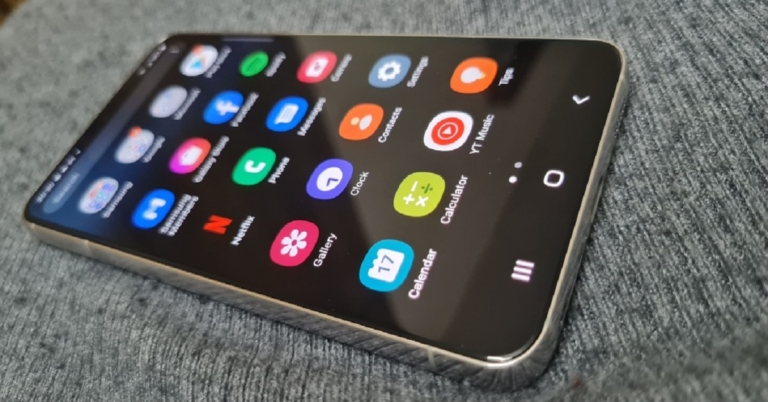
Over the years, smartphone manufacturers have made some decisions that haven’t gone down too well with consumers. The removal of the LED notification light from the front display is one of them. While the LED light was helpful in letting us know about any pending messages or charge status, it didn’t fit into the scheme of things when smartphones started ditching the extra bezels for a larger display. And to be fair, the Always On Display does a good job of displaying all the important notifications without needing to unlock your phone. For the nostalgia-ridden folks, there is a workaround that will restore the notification light on your phone. In this article, we show you how to enable and use the LED notification light on Samsung Galaxy S22, S22+, and S22 Ultra.
Read Also: Google Chrome now offers memory and energy modes for desktop users
Step 3: Give aodNotify notification access on your phone.
Step 4: Choose whether you want the notification light to be always on or only pop up when there’s a pending notification on your phone.
Step 5: Finally, allow aodNotify to draw over other apps.
Once you’ve set up the app, you can choose the position of the notification indicator along with the thickness, colour, and animation. If you choose to keep the indicator running at all times, it may drain the battery slightly faster.
Read Also:
In This Article
Use aodNotify
Your Samsung Galaxy S22 may not have an LED notification light, but the aodNotify app turns the border of the punch-hole camera at the front into a notification indicator. This notification light will serve as an indicator for low battery, charging status, and other app notifications. You can also use this app to simulate an LED notification dot on the status bar of your phone or light up the edges as a notification alert. This app not only works for Samsung Galaxy S22 but also for other Android smartphones. Here’s how you can set it up. Step 1: Download and install the aodNotify app on your Samsung Galaxy S22 or any other Android smartphone. Step 2: Select the apps you want to be notified about. Step 3: Give aodNotify notification access on your phone.
 Step 4: Choose whether you want the notification light to be always on or only pop up when there’s a pending notification on your phone.
 Step 5: Finally, allow aodNotify to draw over other apps.
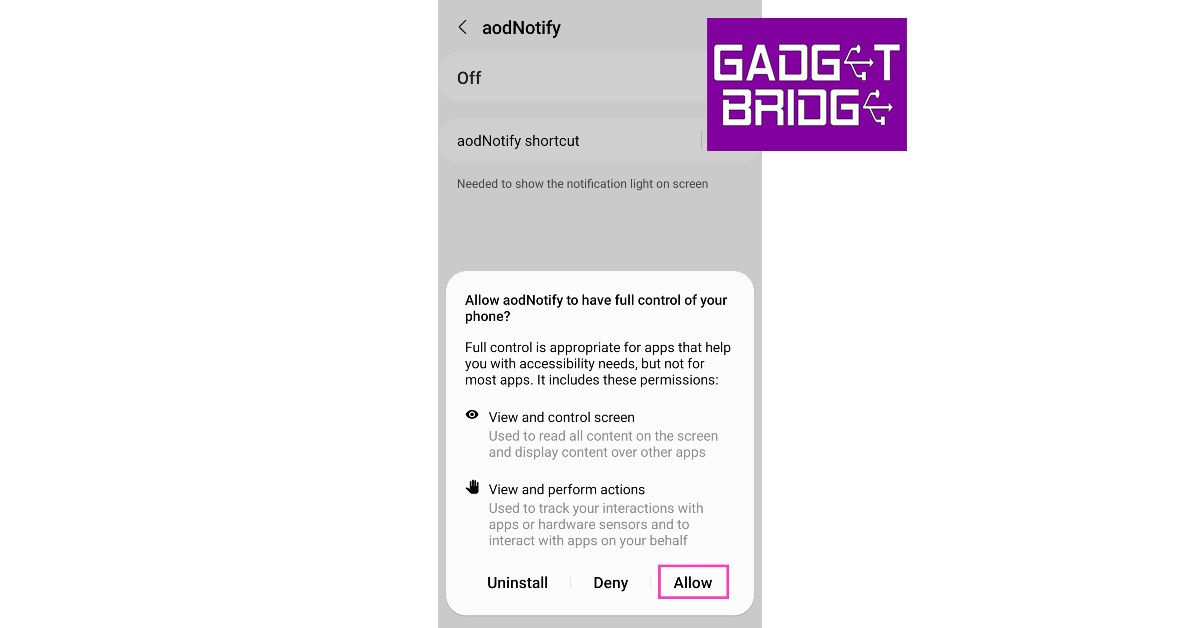 Once you’ve set up the app, you can choose the position of the notification indicator along with the thickness, colour, and animation. If you choose to keep the indicator running at all times, it may drain the battery slightly faster.
Read Also:
Once you’ve set up the app, you can choose the position of the notification indicator along with the thickness, colour, and animation. If you choose to keep the indicator running at all times, it may drain the battery slightly faster.
Read Also:
Final Words
This is how you can enable and use an LED notification light on Samsung Galaxy S22, S22+, and S22 Ultra. While your Samsung Galaxy S22 may not come with a dedicated LED notification light, you can program the rear flash and front display edges to light up every time you receive a notification. Go to Settings>Notifications>Notification pop-up style> Edge Lighting Style to make the edges of the display light up upon receiving a notification. Go to Settings>Notification>Flash Notifications to program the flash to blink every time a notification pops up on your phone. For the latest gadget and tech news, and gadget reviews, follow us on Twitter, Facebook and Instagram. For newest tech & gadget videos subscribe to our YouTube Channel. You can also stay up to date using the Gadget Bridge Android App. You can find the latest car and bike news here.Poco C55 powered by MediaTek Helio G85 SoC launched in India
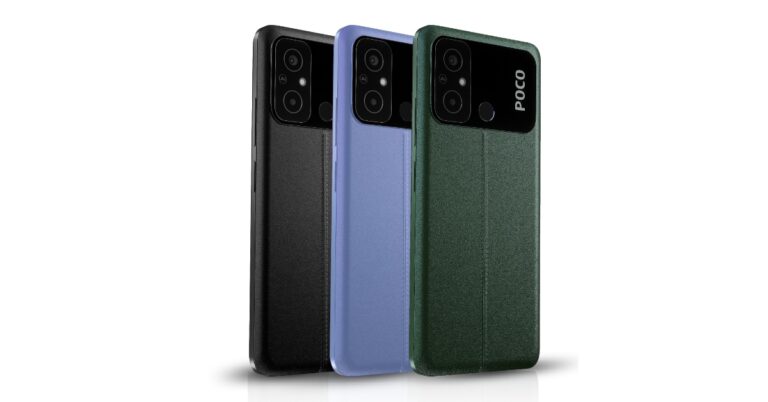
Poco has officially announced a new budget smartphone Poco C55 in the Indian market today. The device comes with a 6.71-inch HD+ screen with a waterdrop design notch and a fingerprint reader located on the back. The phone has a 50-megapixel dual back camera arrangement and a 5-megapixel front-facing camera. In addition to this, the phone is powered by a MediaTek Helio G85 Processor and has a 5,000mAh battery.
 Also, the firm has stated that the Poco C55 would be offered for a special “first day” price of Rs 8,499 and Rs 9,9999 for the 4GB and 6GB RAM options. These costs include promotions for HDFC Bank, SBI Bank, and ICICI Bank users.
Also Read: OnePlus 11R pre-orders open in India: Details inside
Also, the firm has stated that the Poco C55 would be offered for a special “first day” price of Rs 8,499 and Rs 9,9999 for the 4GB and 6GB RAM options. These costs include promotions for HDFC Bank, SBI Bank, and ICICI Bank users.
Also Read: OnePlus 11R pre-orders open in India: Details inside
In This Article
Poco C55 price in India and sale details
The 4GB RAM with 64GB storage Poco C55 price in India is set at Rs 9,499. Whereas the price of the 6GB RAM with 128GB storage model costs Rs. 10,999. Starting on February 28, customers may purchase the smartphone through Flipkart and the company’s website. The device will come in three colour options of Cool Blue, Forest Green, and Power Black. Also, the firm has stated that the Poco C55 would be offered for a special “first day” price of Rs 8,499 and Rs 9,9999 for the 4GB and 6GB RAM options. These costs include promotions for HDFC Bank, SBI Bank, and ICICI Bank users.
Also Read: OnePlus 11R pre-orders open in India: Details inside
Also, the firm has stated that the Poco C55 would be offered for a special “first day” price of Rs 8,499 and Rs 9,9999 for the 4GB and 6GB RAM options. These costs include promotions for HDFC Bank, SBI Bank, and ICICI Bank users.
Also Read: OnePlus 11R pre-orders open in India: Details inside
Poco C55 specifications
A 6.71-inch HD+ LCD screen with a resolution of 720×1,650 pixels is featured on the Poco C55. The screen has a maximum brightness of 534 nits, a refresh rate of 60 hertz, and a touch sampling rate of 120 hertz. A MediaTek Helio G85 CPU with up to 6GB of Memory powers the device. The phone is powered by MIUI 13. It features an internal storage capacity of up to 64GB, which can be increased to up to 1TB using a MicroSD card slot. The Poco C55 has a 50-megapixel primary camera with an f/1.8 aperture lens as well as an unidentified secondary camera. Moreover, the phone has a 5-megapixel front-facing camera for selfies and video calls. Also Read: Comparison: OnePlus 11 vs Samsung Galaxy S23 Wi-Fi, 4G, Bluetooth 5.1, GPS, and a Micro-USB port are available as connectivity choices. It has a rear-mounted fingerprint scanner, a virtual proximity sensor, and an accelerometer. A 5,000mAh battery within the device supports 10W charging. Moreover, the smartphone has an IP52 grade for water and dust protection. For the latest gadget and tech news, and gadget reviews, follow us on Twitter, Facebook and Instagram. For newest tech & gadget videos subscribe to our YouTube Channel. You can also stay up to date using the Gadget Bridge Android App. You can find the latest car and bike news here.OnePlus 11R pre-orders open in India: Details inside
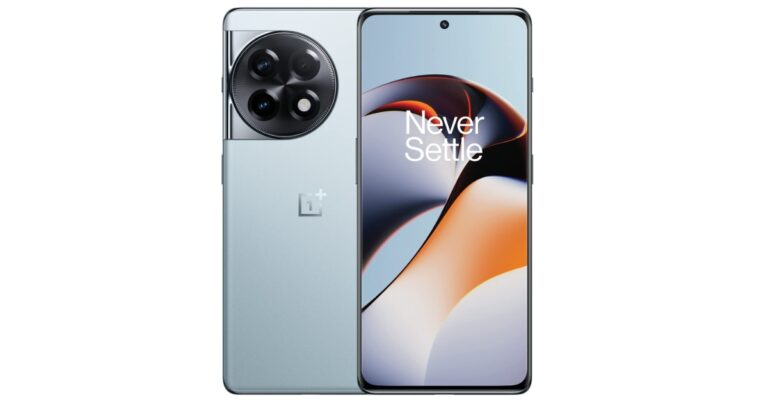
Early this month, the OnePlus 11R was unveiled in India. Pre-orders were not opened right away, nor were sales. At the time of the launch, the company announced that the phone’s pre-orders will begin on February 21 while the sale will begin later this month on February 28. In the nation, pre-orders for smartphone are currently open.
In This Article
OnePlus 11R price in India, availability details
OnePlus 11R pre-orders have gone live in India. The company has set the price of the OnePlus 11R at Rs 39,999 for the 8GB RAM with 128GB storage option. Whereas the 16GB RAM with 256GB storage option can be bought for Rs 44,999. The handset is being offered in Sonic Black, and Galatic Silver colour options. Moreover, it can be purchased from February 28 onwards via the company’s official website, Amazon and other retail outlets in the country. Also Read: OnePlus 11R with 100W SUPERVOOC flash fast charging announced in India An instant discount of INR 1000 is available on the OnePlus 11R when purchased using ICICI Bank credit cards, debit cards, and EMI transactions on OnePlus.in, the OnePlus Store app, OnePlus Experience Stores, and Amazon.in Citibank customers can also take advantage of an instant discount of INR 1000 on the OnePlus 11R when purchasing using Citibank credit cards and EMI transactions on OnePlus.in, the OnePlus Store app, OnePlus Experience Stores, and Amazon.in. RCC members can get up to INR 2000 off solely on Red Cable Club linked devices, on OnePlus.in, and the OnePlus Store App. This offer is only valid for purchases made with major credit cards on OnePlus.in and the OnePlus Store App.OnePlus 11R specifications
The OnePlus 11R’s 6.74-inch Full-HD+ curved AMOLED display has 2772 x 1240 pixel resolution. The dynamic adaptive refresh rate of the screen goes from 40Hz to 120Hz. It also has 450 ppi and a 1,450-nit maximum brightness. The display’s touch response rate can reach 1000Hz. The OnePlus 11R is powered by the Snapdragon 8+ Gen 1 5G CPU, up to 16GB of RAM, and up to 256GB of internal storage. Also Read: Comparison: OnePlus 11 vs Samsung Galaxy S23 The OnePlus 11R has three back cameras, one of which has a 50MP Sony IMX890 primary sensor. Together with other capabilities, it contains a 4 cm macro camera with a 120-degree ultra-wide lens and an 8 Megapixel ultra wide-angle sensor. The device lacks optical zooming capabilities but has a 10x digital zoom. The OnePlus 11R’s rear camera is shake-free and supports both electronic and optical image stabilisation, allowing it to record videos in 4K quality at 30 frames per second. The 16MP front camera is located in a notch at the top of the display. The device has 5G, 4G, Wi-Fi, Bluetooth 5.3, NFC, GPS, and other connectivity options. The OnePlus 11R’s 5,000mAh battery supports 100W SUPERVOOC flash fast charging. For the latest gadget and tech news, and gadget reviews, follow us on Twitter, Facebook and Instagram. For newest tech & gadget videos subscribe to our YouTube Channel. You can also stay up to date using the Gadget Bridge Android App. You can find the latest car and bike news here.Top ways to Fix Samsung Galaxy S22, S22+ and S22 Ultra Fingerprint Sensor Issue
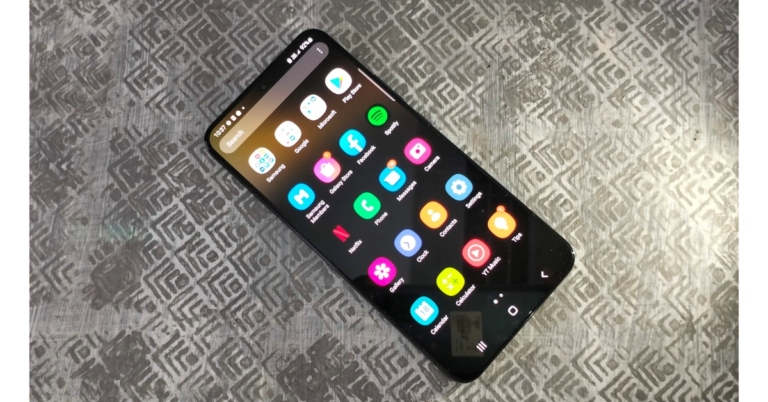
Samsung’s S22 series offered some of the best Android smartphones last year, only to be surpassed by its successor, S23. Samsung’s flagship series boasts one of the fastest under-display fingerprint scanners you can find on a smartphone. Oftentimes, user report that the sensor isn’t working as intended or is entirely dysfunctional. In this article, we bring you the top 7 ways to fix the Samsung Galaxy S22, S22+, and S22 Ultra fingerprint sensor issue.
Read Also: Poco C55 to launch in India today: Launch details inside
Your Samsung Galaxy S22 is well equipped to diagnose any faults in its hardware. This includes the fingerprint sensor as well. To run a check on the under-display fingerprint sensor, simply go to the dialer app and type *#0*#. Tap on ‘Sensor’ and select ‘Normal Scan’ under Fingerprint Test. Additionally, check the display for any hardware issues as well. If the tests do not return any hardware faults, proceed to the other fixes in this list. If there is an issue with the hardware, you will need to take your phone to a professional repair centre.
Restarting your smartphone is the first thing you can do in order to fix any software-related issues. A quick restart resolves any background glitches and resumes normal functioning. To restart your Samsung Galaxy S22 series smartphone, simply long press the power button on the side and select ‘Restart’. If the touchscreen is totally dysfunctional, press the Volume Down key and Power key together until your phone shuts down. Restart your phone by long pressing the power key again.
If you recently installed a screen protector over your phone’s display, you need to increase the touchscreen sensitivity along with it to make sure everything works as intended. Since there is an additional layer between your fingers and the touch display, increased touch sensitivity is essential to ensure a lag-free experience. Go to Settings>Display and tap the toggle bar next to touch sensitivity to turn it on.
 If the under-display fingerprint sensor doesn’t work even after increasing the touchscreen sensitivity, take off the screen protector and try again. Sometimes, air bubbles get between the screen protector and the phone’s display and prevent an ideal connection between the two. To minimise any issues with the screen protector always look up whether it is compatible with your phone’s manufacturer before buying it.
Step 3: Click on ‘Download and update’ to install the latest OS version on your smartphone.
Read Also: How to Restore Deleted WhatsApp Messages without Backup? [Both Android and iOS]
If the under-display fingerprint sensor doesn’t work even after increasing the touchscreen sensitivity, take off the screen protector and try again. Sometimes, air bubbles get between the screen protector and the phone’s display and prevent an ideal connection between the two. To minimise any issues with the screen protector always look up whether it is compatible with your phone’s manufacturer before buying it.
Step 3: Click on ‘Download and update’ to install the latest OS version on your smartphone.
Read Also: How to Restore Deleted WhatsApp Messages without Backup? [Both Android and iOS]
In This Article
Test the sensor
 Your Samsung Galaxy S22 is well equipped to diagnose any faults in its hardware. This includes the fingerprint sensor as well. To run a check on the under-display fingerprint sensor, simply go to the dialer app and type *#0*#. Tap on ‘Sensor’ and select ‘Normal Scan’ under Fingerprint Test. Additionally, check the display for any hardware issues as well. If the tests do not return any hardware faults, proceed to the other fixes in this list. If there is an issue with the hardware, you will need to take your phone to a professional repair centre.
Restart your smartphone
 Restarting your smartphone is the first thing you can do in order to fix any software-related issues. A quick restart resolves any background glitches and resumes normal functioning. To restart your Samsung Galaxy S22 series smartphone, simply long press the power button on the side and select ‘Restart’. If the touchscreen is totally dysfunctional, press the Volume Down key and Power key together until your phone shuts down. Restart your phone by long pressing the power key again.
Clean your finger and the phone display
The most likely reason behind the fingerprint sensor not working on your smartphone is a dirty display. While using your phone under humid conditions, it is quite common for sweat to stick to the phone’s screen and create some trouble. Simply wipe your phone down with a microfibre cloth and try again. If your S22’s display is fine, it may not be registering your fingerprint because your finger is too dry or chapped. Try using the fingerprint scanner with moisturized hands and see if it works.Increase touchscreen sensitivity
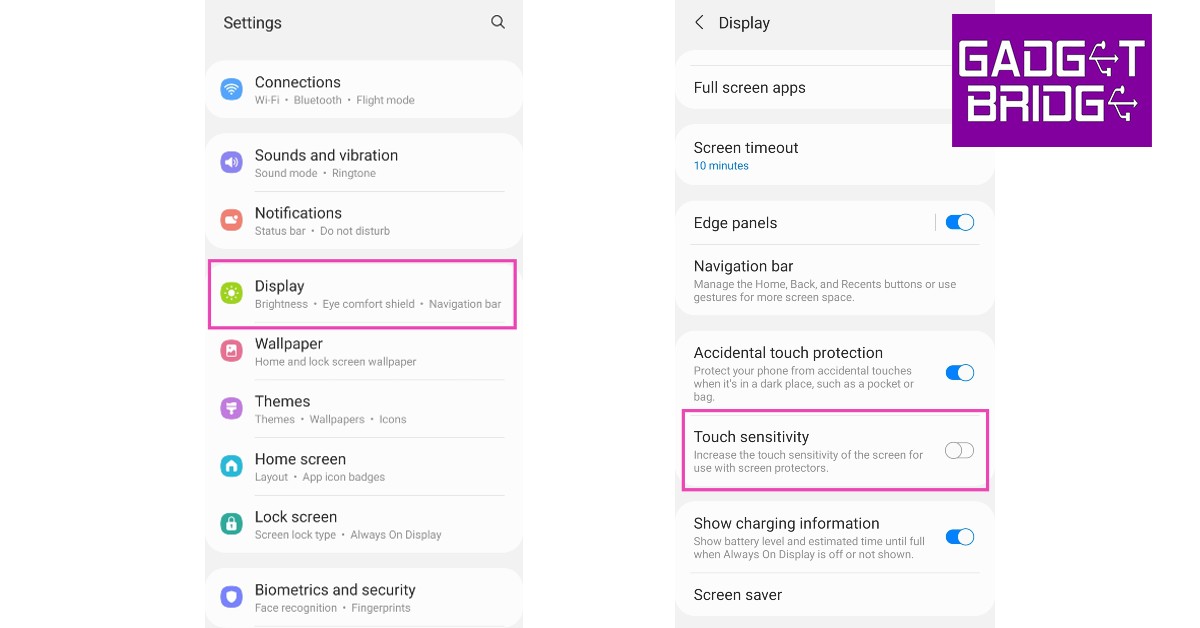 If you recently installed a screen protector over your phone’s display, you need to increase the touchscreen sensitivity along with it to make sure everything works as intended. Since there is an additional layer between your fingers and the touch display, increased touch sensitivity is essential to ensure a lag-free experience. Go to Settings>Display and tap the toggle bar next to touch sensitivity to turn it on.
Remove the screen protector
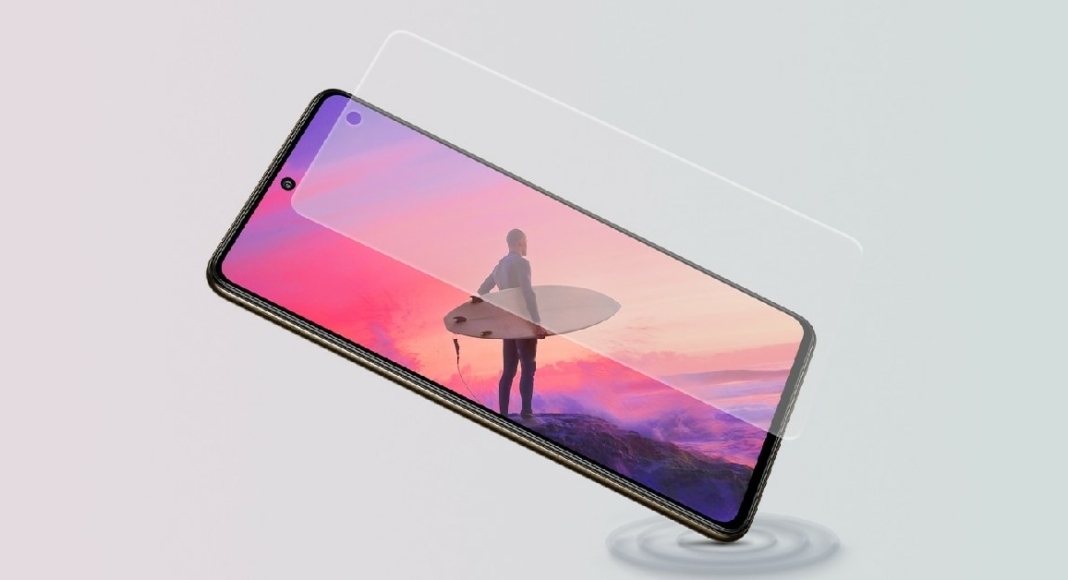 If the under-display fingerprint sensor doesn’t work even after increasing the touchscreen sensitivity, take off the screen protector and try again. Sometimes, air bubbles get between the screen protector and the phone’s display and prevent an ideal connection between the two. To minimise any issues with the screen protector always look up whether it is compatible with your phone’s manufacturer before buying it.
Register two fingerprints for the same finger
While Samsung Galaxy S22’s fingerprint scanner thoroughly maps out your fingerprint in different positions, there may still be certain positions where it takes time to register the print or doesn’t register it all. To get rid of this issue, register the same fingerprint twice and make sure you cover every possible position while scanning it. Your Samsung Galaxy S22 allows you to register prints for multiple fingers, making it easy to unlock your device using either hand. If all fingerprint profiles are occupied, delete one and register an extra set of prints for the finger your use the most to unlock your smartphone.Update System Software
If you’re using an old version of the system software, chances are that developers fixed the fingerprint scanner bug in a later update. Here’s how you can update the software version of your Samsung Galaxy S22. Step 1: Go to Settings. Step 2: Scroll down and select ‘Software Update’. Step 3: Click on ‘Download and update’ to install the latest OS version on your smartphone.
 Read Also: How to Restore Deleted WhatsApp Messages without Backup? [Both Android and iOS]
Conclusion
These are the top 7 ways to fix the Samsung Galaxy S22, S22+, and S22 Ultra fingerprint sensor issue. You can also try performing a factory reset on your smartphone if none of the fixes mentioned above work for you. Make sure you back up all your data before resetting your phone to its factory settings. For the latest gadget and tech news, and gadget reviews, follow us on Twitter, Facebook and Instagram. For newest tech & gadget videos subscribe to our YouTube Channel. You can also stay up to date using the Gadget Bridge Android App. You can find the latest car and bike news here.Top 11 ways to Fix ‘Camera not working’ issue on iPhone 13 & 14 (2024)
iPhone’s camera arrangement and image processing are in a category of its own, unmatched by its peers. This doesn’t mean that it is immune to malfunctions. Users often report seeing a black screen upon opening the camera app. Usually, this issue is caused by the phone case blocking the camera sensors, but if that isn’t the case with your device, there are a few steps you can take to fix it before taking your phone to the service centre. In this article, we bring you the top 11 ways to fix the ‘camera not working’ issue on iPhone 13 and 14 series.
Read Also: Unlocking the Potential of Your VPN: 8 Things to Do
Switching between the front and rear cameras refreshes the software and fixes any minor issues with the camera app. If your iPhone displays a black screen upon launching the camera app, it may be because the software wasn’t able to transition between the two camera units previously. Tap the camera switcher icon at the bottom right corner of the screen to toggle between the front and rear cameras.
An ill-fitting phone cover can hinder the camera lens, leading to a partial blackout on the viewfinder. This problem is more common in knock-off phone covers, which is why it is recommended you buy phone accessories from reputed sellers only. Take off your iPhone’s case and check if the camera is working again. If it isn’t move on to other fixes.
Step 2: Select VoiceOver.
Step 3: Turn the toggle bar off.
Read Also: Did You Accidentally Delete Your Favourite Photos? Here’s How to Recover Them using Stellar Photo Recovery!
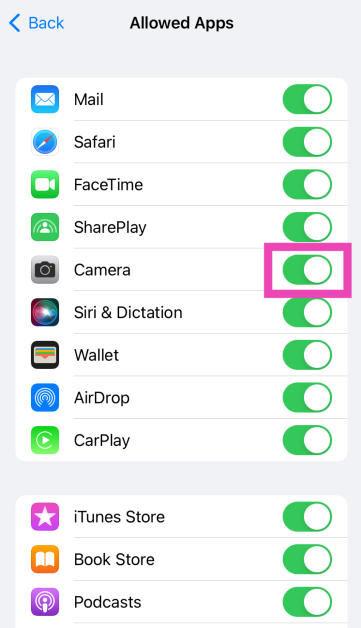
 Step 2: Scroll down and select Content & Privacy Restrictions.
Step 3: Tap on Allowed Apps.
Step 2: Scroll down and select Content & Privacy Restrictions.
Step 3: Tap on Allowed Apps.
 Step 4: Make sure the toggle switch for Camera is turned on.
If you’re using your iPhone to shoot videos under direct sunlight, it can warm up very quickly. The overheating can cause the camera app to stop working. In this scenario, you’re iPhone gives you an overheating warning to let you know it is shutting down the camera app. Rest your iPhone and let it cool down before starting the camera app again.
A simple restart can fix any software glitches that may be keeping your iPhone’s camera from working properly. To restart your iPhone, simply press one of the volume buttons along with the side key until the power slider appears on the screen. Drag the power slider to the right to turn off your iPhone. Power the phone back on by pressing and holding the side key.
Are you using an older version of iOS? Apple is quick to patch any bugs with an update to the system software. Update iOS to its latest version and check if the issue has been resolved. To update your iPhone, go to Settings>General>Software Update and download the update.
Step 4: Make sure the toggle switch for Camera is turned on.
If you’re using your iPhone to shoot videos under direct sunlight, it can warm up very quickly. The overheating can cause the camera app to stop working. In this scenario, you’re iPhone gives you an overheating warning to let you know it is shutting down the camera app. Rest your iPhone and let it cool down before starting the camera app again.
A simple restart can fix any software glitches that may be keeping your iPhone’s camera from working properly. To restart your iPhone, simply press one of the volume buttons along with the side key until the power slider appears on the screen. Drag the power slider to the right to turn off your iPhone. Power the phone back on by pressing and holding the side key.
Are you using an older version of iOS? Apple is quick to patch any bugs with an update to the system software. Update iOS to its latest version and check if the issue has been resolved. To update your iPhone, go to Settings>General>Software Update and download the update.
 Sometimes, the native camera app on your iPhone can start malfunctioning out of the blue. This may lead you to believe that there’s something wrong with the camera module, when in reality it is a software issue. This problem can be resolved by updating your iPhone’s software, but in case it doesn’t work, try using a third-party camera app like Halide Mark II. If that doesn’t work, your iPhone’s camera hardware might be damaged.
If one of the camera lenses on your iPhone is damaged, it can cause the viewfinder in the Camera app to black out. Take off the cover of your iPhone and inspect the lenses for any cracks or other kinds of damage. Put it under a light source to check if there are any cracks under the glass cover.
Step 2: Scroll down and select Transfer or Reset iPhone.
Step 3: Tap on Reset.
Step 4: In the following window, select Reset All Settings.
Step 5: Enter the PIN and confirm your selection.
Read Also: How to Use Google Assistant to Identify a Song in Any Language
Sometimes, the native camera app on your iPhone can start malfunctioning out of the blue. This may lead you to believe that there’s something wrong with the camera module, when in reality it is a software issue. This problem can be resolved by updating your iPhone’s software, but in case it doesn’t work, try using a third-party camera app like Halide Mark II. If that doesn’t work, your iPhone’s camera hardware might be damaged.
If one of the camera lenses on your iPhone is damaged, it can cause the viewfinder in the Camera app to black out. Take off the cover of your iPhone and inspect the lenses for any cracks or other kinds of damage. Put it under a light source to check if there are any cracks under the glass cover.
Step 2: Scroll down and select Transfer or Reset iPhone.
Step 3: Tap on Reset.
Step 4: In the following window, select Reset All Settings.
Step 5: Enter the PIN and confirm your selection.
Read Also: How to Use Google Assistant to Identify a Song in Any Language
In This Article
What’s causing my iPhone’s camera to malfunction?
If your iPhone 13 or 15 series camera suddenly stops working, it could be due to one of these reasons.- Overheating issues: If you’ve been video recording on your iPhone under direct sunlight for a long time, it can cause the device to overheat. Once the internal temperature of your iPhone hits a certain limit, it causes the camera to shut down. Typically, you would see an alert on your iPhone’s display before the camera app shuts down.
- Software issues: Your iPhone isn’t immune to software glitches. The good news is that these glitches can be quickly fixed by restarting your phone or updating its software. If your camera isn’t working in a particular app, then the fault lies with the app and not the camera arrangement.
- Hardware issues: Hardware issues are more serious since they can rarely be fixed at home. Sometimes, even a small knock can damage your iPhone’s camera if it lands on the lens. You can prevent the damage by using lens cover accessories.
Switch between the camera lens
 Switching between the front and rear cameras refreshes the software and fixes any minor issues with the camera app. If your iPhone displays a black screen upon launching the camera app, it may be because the software wasn’t able to transition between the two camera units previously. Tap the camera switcher icon at the bottom right corner of the screen to toggle between the front and rear cameras.
Restart the camera app
Closing the camera app and starting it again can resolve any minor background issues with your iPhone’s camera software. To close the camera simply swipe and hold from the bottom of your iPhone’s screen to access the app switcher. iPhones without a FaceID have a dedicated home button that can be pressed twice to access the app switcher. Slide to the camera app and then swipe upwards to close it. Launch the app again from your iPhone’s home screen to see if it is working.Check if your iPhone’s case is blocking the camera
 An ill-fitting phone cover can hinder the camera lens, leading to a partial blackout on the viewfinder. This problem is more common in knock-off phone covers, which is why it is recommended you buy phone accessories from reputed sellers only. Take off your iPhone’s case and check if the camera is working again. If it isn’t move on to other fixes.
Turn off VoiceOver
Oftentimes, iPhone users report that the VoiceOver feature interferes with the basic functioning of the phone. This issue extends to the camera app as well. If your iPhone’s camera unexpectedly stopped working, try turning off VoiceOver and see if normalcy has been restored. Here’s how you can turn off VoiceOver on your iPhone 13 or 14. Step 1: Go to Settings and select Accessibility. Step 2: Select VoiceOver.
 Step 3: Turn the toggle bar off.
 Read Also: Did You Accidentally Delete Your Favourite Photos? Here’s How to Recover Them using Stellar Photo Recovery!
Make sure the camera app isn’t blocked by Screen Time
Step 1: Go to Settings and select Screen Time.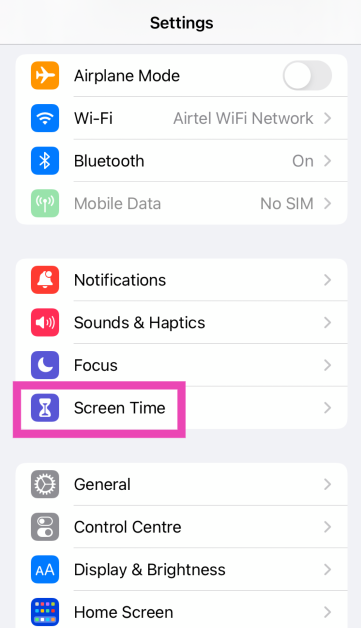 Step 2: Scroll down and select Content & Privacy Restrictions.
 Step 3: Tap on Allowed Apps.
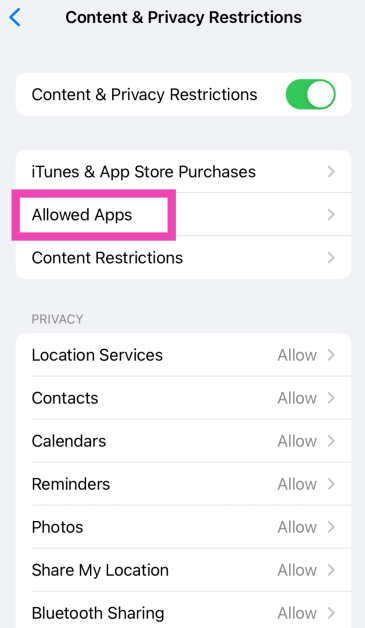 Step 4: Make sure the toggle switch for Camera is turned on.
Let your iPhone cool down
 If you’re using your iPhone to shoot videos under direct sunlight, it can warm up very quickly. The overheating can cause the camera app to stop working. In this scenario, you’re iPhone gives you an overheating warning to let you know it is shutting down the camera app. Rest your iPhone and let it cool down before starting the camera app again.
Restart your iPhone
A simple restart can fix any software glitches that may be keeping your iPhone’s camera from working properly. To restart your iPhone, simply press one of the volume buttons along with the side key until the power slider appears on the screen. Drag the power slider to the right to turn off your iPhone. Power the phone back on by pressing and holding the side key.
Update your iPhone
Are you using an older version of iOS? Apple is quick to patch any bugs with an update to the system software. Update iOS to its latest version and check if the issue has been resolved. To update your iPhone, go to Settings>General>Software Update and download the update.
Use a third-party camera app
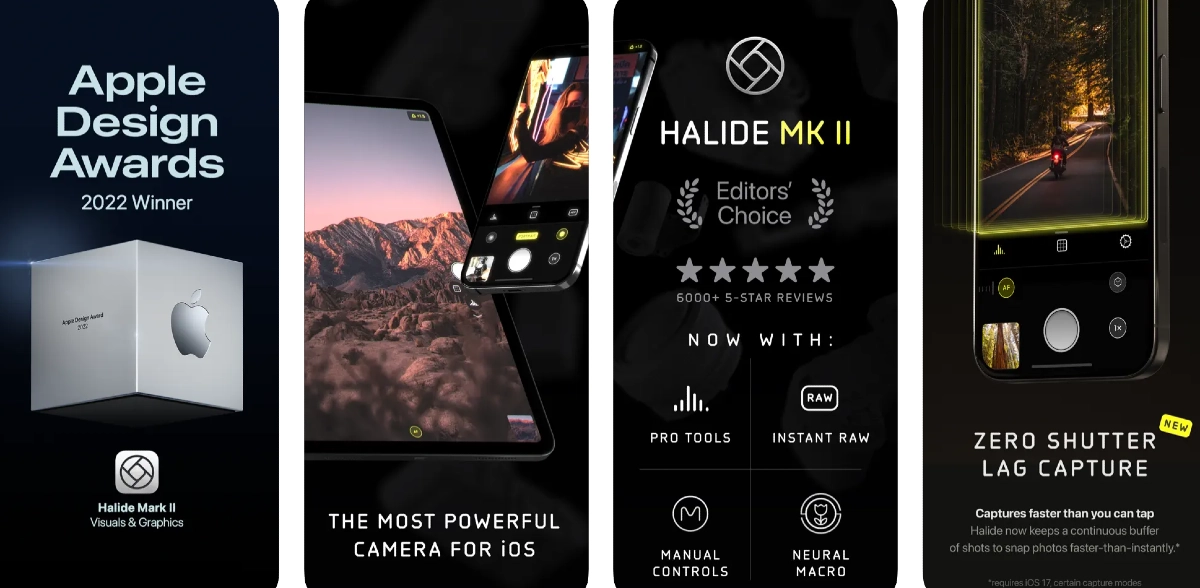 Sometimes, the native camera app on your iPhone can start malfunctioning out of the blue. This may lead you to believe that there’s something wrong with the camera module, when in reality it is a software issue. This problem can be resolved by updating your iPhone’s software, but in case it doesn’t work, try using a third-party camera app like Halide Mark II. If that doesn’t work, your iPhone’s camera hardware might be damaged.
Check for hardware damage
 If one of the camera lenses on your iPhone is damaged, it can cause the viewfinder in the Camera app to black out. Take off the cover of your iPhone and inspect the lenses for any cracks or other kinds of damage. Put it under a light source to check if there are any cracks under the glass cover.
Perform a factory reset
If the fixes mentioned above did not work for you, you can try performing a factory reset on your iPhone as a last-ditch effort to resolve the camera issue. Before you go through with this, make sure all your personal data is backed up to cloud storage as you will lose it in the process. Here’s how you can reset your iPhone 13 or 14 to its factory settings. Step 1: Go to Settings and select General.
Step 2: Scroll down and select Transfer or Reset iPhone.
Step 3: Tap on Reset.
Step 4: In the following window, select Reset All Settings.
Step 5: Enter the PIN and confirm your selection.
Read Also: How to Use Google Assistant to Identify a Song in Any Language
Frequently Asked Questions (FAQs)
Why is the camera on my iPhone not working?
Your iPhone camera can start to malfunction if the device gets overheated. Software glitches can also cause it to stop working. A simple restart should fix both issues.Why is my iPhone’s camera only partially working?
If you’re able to see a partial view of the surroundings on the viewfinder, it is possible that your iPhone’s camera is being blocked by the device cover. Take off the cover and try again.How do I turn off the shutter sound on my iPhone camera?
You can turn off the shutter sound of your iPhone camera by muting the system volume. Use the ringer switch or volume rocker keys to mute it.Conclusion
These are the top 11 ways to fix the ‘camera not working’ issue on the iPhone 13 and 14 series. If neither of these fixes worked for you, the problem is likely rooted in the camera hardware. For further diagnosis, take your iPhone to an Apple-authorised service centre. If you know of any other ways to fix the iPhone camera, let us know in the comments!Google Chrome now offers memory and energy modes for desktop users
The Memory Savers and Energy Saver modes are now available on Chrome for desktops. Note that all these features were announced last year that will make the PC run faster and have longer battery life when in Memory and Energy saver mode. While the Energy Saver function will save battery life by restricting background activity. Now that they are available, the functionalities come enabled by default on Mac, Windows, Linux, and Chromebooks.
Google is now widely implementing the Memory and Energy Saving modes on Chrome 110 for Mac, Windows, Linux, and Chromebooks. The desktop will run more quickly and have longer battery life while using Google’s browser when Memory and Energy saver modes are enabled. Memory will be automatically freed up from inactive tabs in Memory Saving mode, while the Energy Saver feature will cut down on background activity to save battery life. Under Chrome Settings, you can disable the modes if necessary.
In This Article
Turn Memory Saver on or off
Chrome deactivates inactive tabs to conserve memory and improve the performance of active tabs. An idle tab immediately reloads when you access it. Google claims that the Memory Saver mode will improve the performance of your active video and gaming tabs. Your computer’s settings and usage practices can make it impossible to deactivate a tab.- Launch Chrome on your computer.
- Click More and then Settings in the top right corner.
- Toggle to Performance from the left.
- On or off the Memory Saver.
Turn Energy Saver on or off
Chrome decreases its background processes and image capture rate in order to prolong the battery life of your device. When Energy Saving is activated, it begins operating automatically anytime your device is unplugged or when the battery is running low. Your device’s Energy Saver does not activate when it is plugged in.- Launch Chrome on your desktop.
- Click More and then Settings in the top right corner.
- Click Performance in the left menu.
- Choose your desired option after turning Energy Saving on or off.
7 Best Offline Music Player Apps for Android
While music streaming apps like Spotify, Apple Music, and Amazon Music have significantly changed how we consume music on our mobile devices, some people still prefer maintaining their own digital library – and for good reason too. Firstly, streaming music online can use up a good portion of your mobile data. Some people may find downloading music to be a much better alternative to streaming their favourite artists over and over again. While streaming services like Spotify offer the option to download your favourite songs, the downloads are only available until your subscription lasts. For those who would rather maintain a local music library on their smartphone, here are the 7 best offline music player apps for Android.
Read Also: Vivo V27 series confirmed to launch in India on March 1
One of the oldest and most popular music players on Android, Pulsar Music Player neatly categorises the music on your phone and offers a clean, ad-free interface at no additional cost. Android’s Material You design has been well integrated into the app, elevating the aesthetic and bringing a personalised touch to the music player. Pulsar Music Player can run a wide range of file formats including mp3, aac, flac, ogg, wav, and more. On top of that, you get the complete set of functions like gapless playback, lyrics display, crossfade, audio balance, visualiser, music equaliser, play speed adjusting, and more. Pulsar Music Player also supports Chromecast, Android Auto, and voice assistant, and you can easily integrate your Last.fm account with the app to record your scrobbles.
Canaree Music Player offers a beautiful app interface on top of the basic features that you expect from a music player. The buttonless player controls further add to the meticulous design of the app. Apart from organising your music collection, Canaree can also catalogue the podcasts in your library and make them accessible in chronological order. The app also comes with multiple themes for the player along with a 3D virtualiser.
BlackPlayer has all the ingredients for a perfect music player app. With the Material design seamlessly incorporated into the app and elegant animations across the board, BlackPlayer offers a unique look compared to other music players. This app also keeps a track of your most-played artists and songs and curates your homepage with personalised suggestions. BlackPlayer comes with Android Auto, WearOS, and Last.fm support.
If you’re looking for greater customisation in a music player, you may want to look into Pulse Music. This app lets you customise your home page, offers multiple Now Playing screens, curates playlists, and lets you customise the widget controls. The app also comes with multiple themes (dark themes included) and offers unique and helpful features like a sleep timer, Bluetooth autoplay, smart search, and more.
One Music Player curates personalised playlists for you based on your listening activity. While the playlists may not have songs outside of your music library, it is still a handy feature that compiles all your most listened songs in one place. To keep things fresh, One Music Player also personalises your homepage. On top of that, you get all the basic functions of a music player along with some unique elements like a carousel effect for album covers, an option to enrich song cover images, and more.
Nyx Music Player is designed for those who give aesthetics a higher preference than anything else. With 6 accent colours and 24 possible themes, Nyx has been thoughtfully designed to offer a unique and intricate interface. The app also comes with its own transitions and animations that greatly elevate the experience. On top of that, you get unique features like looper (repeats your favourite part of the song), nature sound (plays sounds of nature in 432Hz), volume boost, 3D sound, and more.
Retro Music Player comes with 3 base themes, 10+ now playing themes, and a bunch of accents that can be selected from the colour palette. On top of that, you get features like a music duration filter, gapless playback, carousel effect, drive mode, Bluetooth support, tag editor, home screen widgets, and support for over 30 languages. Retro Music Player also curates your homepage, filling it with music suggestions based on your listening activity.
Read Also: Top 5 ways to Fix ‘Instagram Pictures Not Showing Up’ Issue
In This Article
Pulsar Music Player
 One of the oldest and most popular music players on Android, Pulsar Music Player neatly categorises the music on your phone and offers a clean, ad-free interface at no additional cost. Android’s Material You design has been well integrated into the app, elevating the aesthetic and bringing a personalised touch to the music player. Pulsar Music Player can run a wide range of file formats including mp3, aac, flac, ogg, wav, and more. On top of that, you get the complete set of functions like gapless playback, lyrics display, crossfade, audio balance, visualiser, music equaliser, play speed adjusting, and more. Pulsar Music Player also supports Chromecast, Android Auto, and voice assistant, and you can easily integrate your Last.fm account with the app to record your scrobbles.
Canaree Music Player
 Canaree Music Player offers a beautiful app interface on top of the basic features that you expect from a music player. The buttonless player controls further add to the meticulous design of the app. Apart from organising your music collection, Canaree can also catalogue the podcasts in your library and make them accessible in chronological order. The app also comes with multiple themes for the player along with a 3D virtualiser.
BlackPlayer Music Player
 BlackPlayer has all the ingredients for a perfect music player app. With the Material design seamlessly incorporated into the app and elegant animations across the board, BlackPlayer offers a unique look compared to other music players. This app also keeps a track of your most-played artists and songs and curates your homepage with personalised suggestions. BlackPlayer comes with Android Auto, WearOS, and Last.fm support.
Pulse Music
 If you’re looking for greater customisation in a music player, you may want to look into Pulse Music. This app lets you customise your home page, offers multiple Now Playing screens, curates playlists, and lets you customise the widget controls. The app also comes with multiple themes (dark themes included) and offers unique and helpful features like a sleep timer, Bluetooth autoplay, smart search, and more.
One Music Player
 One Music Player curates personalised playlists for you based on your listening activity. While the playlists may not have songs outside of your music library, it is still a handy feature that compiles all your most listened songs in one place. To keep things fresh, One Music Player also personalises your homepage. On top of that, you get all the basic functions of a music player along with some unique elements like a carousel effect for album covers, an option to enrich song cover images, and more.
Nyx Music Player
 Nyx Music Player is designed for those who give aesthetics a higher preference than anything else. With 6 accent colours and 24 possible themes, Nyx has been thoughtfully designed to offer a unique and intricate interface. The app also comes with its own transitions and animations that greatly elevate the experience. On top of that, you get unique features like looper (repeats your favourite part of the song), nature sound (plays sounds of nature in 432Hz), volume boost, 3D sound, and more.
Retro Music Player
 Retro Music Player comes with 3 base themes, 10+ now playing themes, and a bunch of accents that can be selected from the colour palette. On top of that, you get features like a music duration filter, gapless playback, carousel effect, drive mode, Bluetooth support, tag editor, home screen widgets, and support for over 30 languages. Retro Music Player also curates your homepage, filling it with music suggestions based on your listening activity.
Read Also: Top 5 ways to Fix ‘Instagram Pictures Not Showing Up’ Issue
Retro Music Player comes with 3 base themes, 10+ now playing themes, and a bunch of accents that can be selected from the colour palette. On top of that, you get features like a music duration filter, gapless playback, carousel effect, drive mode, Bluetooth support, tag editor, home screen widgets, and support for over 30 languages. Retro Music Player also curates your homepage, filling it with music suggestions based on your listening activity.
Read Also: Top 5 ways to Fix ‘Instagram Pictures Not Showing Up’ Issue
Conclusion
These are our picks for the 7 best offline music player apps for Android. All the music players on this list are free to use, but some may come with additional features locked behind a paywall. Think there’s an app that deserves to be on this list? Let us know in the comments! For the latest gadget and tech news, and gadget reviews, follow us on Twitter, Facebook and Instagram. For newest tech & gadget videos subscribe to our YouTube Channel. You can also stay up to date using the Gadget Bridge Android App. You can find the latest car and bike news here.Garena Free Fire Redeem Codes Today 21 February 2023: Here is how to claim them

Garena Free Fire is a battle royale game with regular awards and tournaments to keep players interested. If you play Garena Free Fire, you should be aware of the redeem codes that are released on a daily basis. However, because the battle royale game is banned in India, players from other countries can use the Free Fire Redeem codes daily. If you’re unfamiliar with the Garena Free Fire redeem codes or don’t know how to get them, we’ve put together a step-by-step guide to help you redeem them. Check out Garena Free Fire Redeem Codes for 21 February 2023.
The Free Fire redeem codes are a great way to get free stuff. These are 12-digit codes that contain alphabets and numbers, as well as an expiration date and time. Because the Garena FF redeem codes cannot be used more than once, you should hurry to the redemption page to claim your free reward before someone else does. To get a free reward, all you have to do is go to reward.ff.garena.com/en, which is the official redemption page. Also, keep an eye on this space for daily updates on Garena Free Fire redemption codes and rewards.
In This Article
Garena Free Fire Redeem Codes Today 21 February 2023
- B3G7A22TWDR7X
- 6KWMFJVMQQYG
- FFCMCPSUYUY7E
- X99TK56XDJ4X
- MCPW2D1U3XA3
- FFCMCPSEN5MX
- HNC95435FAGJ
- EYH2W3XK8UPG
- BR43FMAPYEZZ
- FF7MUY4ME6SC
- FFCMCPSGC9XZ
- MCPW2D2WKWF2
- V427K98RUCHZ
- GCNVA2PDRGRZ
- 4ST1ZTBE2RP9
- 8F3QZKNTLWBZ
- WEYVGQC3CT8Q
- NPYFATT3HGSQ
- UVX9PYZV54AC
- J3ZKQ57Z2P2P
- GCNVA2PDRGRZ
- 4ST1ZTBE2RP9
- 3IBBMSL7AK8G
How to Get Free Fire Redeem Codes for Garena on 21 February 2023?
- Visit the Garena Free Fire game’s official website at reward.ff.garena.com.
- Use your Facebook, Google, VK, Apple ID, Huawei ID, or Twitter account to log in.
- You’ll be taken to a valid redemption code (s)
- Copy and paste the 12-digit redemption code into the text box.
- On the screen, a dialogue box will appear.
- ‘Ok’ should be selected.
Poco C55 to launch in India today: Launch details inside

Xiaomi’s spin-off Poco is all set to launch a new smartphone in India today. Poco C55 will be released today. The company has already hinted at the release of the phone in a brief commercial. The device is rumoured to be a rebranded variant of Redmi 12C which made its debut in China in January. In addition to this, the upcoming phone has also been spotted listed on a number of certification websites.
The Poco C55 India launch is scheduled to take place today. The company will be hosting a launch event that will go live at 12 noon. The launch event will be live-streamed via company’s official social media platforms and YouTube channel. According to the company the device will be exclusively sold on Flipkart starting at noon.
The firm hasn’t yet disclosed the official price, but according to a previous report, the Poco C55 could launch as a Redmi 12C that has been given a new name. The Redmi phone went on sale in January. It is available in four colour options: Shadow Black, Sea Blue, Mint Green, and Lavender. It comes with three storage configurations: 4GB RAM with 64GB storage, 4GB RAM with 128GB storage, and 6GB RAM with 128GB storage.
A 6.71-inch HD+ screen with a resolution of 1650 x 720 pixels is featured on the Redmi 12C. The display has a 20:6:9 aspect ratio and a maximum brightness of 500 nits. The smartphone has a Mali-G52 GPU and an octa-core MediaTek Helio G85 CPU. The device has eMMC 5.1 flash memory and LPDDR4X RAM. All three of the internal storage options for the Redmi 12C allow for microSD card storage expansion of up to 512GB. The hybrid dual SIM (Nano) slot was present when the phone was released.
The phone’s camera module, which is shaped like a pill, and an LED flash are housed in a square cutout on the back. Next to the camera unit is a fingerprint scanner for biometric verification. A 50-megapixel primary sensor serves as the focal point of the Redmi 12C’s dual rear camera system. A 5-megapixel camera sensor is housed in the phone’s front-facing dewdrop notch.
For the latest gadget and tech news, and gadget reviews, follow us on Twitter, Facebook and Instagram. For newest tech & gadget videos subscribe to our YouTube Channel. You can also stay up to date using the Gadget Bridge Android App. You can find the latest car and bike news here.
Amazon Quiz Answers Today 21 February 2023: Participate to win Rs 2,500

Amazon Quiz for 21 February 2023 has gone live on the company’s mobile platform. The daily quiz contest brings an opportunity for Amazon users to win exciting prizes. In today’s Amazon Quiz the participants have the chance to win Rs 2,500 Amazon Pay Balance. All they have to do is answer all the questions correctly.
A fresh question is posted on the Amazon app daily which consists of five simple questions based on general knowledge and current events. The quiz can be played on the Amazon App from 12 AM to 11:59 PM. You have to answer all the questions correctly. Then the participants will be shortlisted for a lucky draw. The result of the lucky draw will be announced at the end of the month. The participants can win Amazon Pay Balance to up to Rs 50,000. Check out the 21 February 2023 Amazon Quiz question and their answers to win Rs 2,500 Amazon Pay Balance.
Amazon Quiz Today Prize – Rs 2,500 Amazon Pay Balance
Quiz Date – 21 February 2023
Daily Timing – 12 AM to 11:59 PM
Winner Announcement – Today 12 PM
In This Article
Amazon Quiz Answers Today 21 February 2023
Question 1: An upcoming movie of Anupam Kher also starring Neena Gupta is titled ‘Shiv Shastri _____ ‘. Fill in the blanks Answer- Balboa Question 2: Who was the captain of the victorious Indian team that won the U19 Women’s T20 World Cup in 2023? Answer- Shafali Verma Question 3: Who among these has been part of the judges panel on MasterChef India 6 times (from the 2nd edition- the current 7th edition)? Answer- Vikas Khanna Question 4: Who among these presidents is seen in this famous monument? Answer- Abraham Lincoln Question 5: This famous monument is located in which state? Answer- GujaratHow To Play Amazon Quiz
Only app users are eligible to play the Amazon quiz every morning from 12 AM to 11:59 PM. The quiz is not available on the desktop. For those who are unaware of how to play the Amazon quiz below are the steps, you can follow to take the quiz.- Firstly download the Amazon app from Google Play Store or App Store
- Now fill in the required information through the Sign Up option.
- You need to log in to the Amazon app and scroll down on the home screen to find the Amazon Quiz banner.
- Tap on the Amazon Quiz banner and tap on the Start button to start the Quiz.
- Now you will get 5 questions and you need to answer them correctly. One wrong answer will eliminate you from the Quiz.
- After answering all the questions correctly you are now eligible for a Lucky Draw.
- The winner’s name will be announced today at 12 PM.
How to Restore Deleted WhatsApp Messages without Backup? [Both Android and iOS]
![How to Restore Deleted WhatsApp Messages without Backup? [Both Android and iOS]](https://www.gadgetbridge.com/wp-content/uploads/2023/02/Whatsapp-768x402.jpg "How to Restore Deleted WhatsApp Messages without Backup? [Both Android and iOS]")
WhatsApp is one of the best messaging applications and has been used by millions of users worldwide. With this app, you can easily send messages, videos and more. But how to restore deleted WhatsApp messages without backup? In case you have deleted your WhatsApp messages and didn’t remember to create the backup file, we got you covered. In this article, we will show you how to restore deleted messages without using the backup file. Also, we will discuss how to use the UltData WhatsApp Recovery tool. Continue reading the article to find out all the information.
Step 2. Connect your iOS device using the USB cable and click the “Start Scan” option.
Step 3. Once the program detects your mobile, it will start scanning the device and will show you some options on the screen.
Step 4. Choose the data which you want to recover. You can also click the Preview option to check the files.
Step 5. Once done, click the “Recover” option, and you are good to go. The program will recover WhatsApp data successfully.
Step 2. Next, connect your Android device using the USB cable. Make sure you have enabled USB debugging on your mobile.
Step 3. Once the program detects your mobile device, click the “Start” option to continue the process.
Step 4. Soon the program will start scanning your phone to find the lost WhatsApp data. Once the process is done, choose the WhatsApp data that you want to recover and hit the “Recover” option.
Step 5. Soon the program will start recovering your WhatsApp data. Make sure your mobile is connected during the process.
So, these are the simple steps you can follow to recover WhatsApp messages on Android and iPhone.
In This Article
How to Restore Deleted WhatsApp Messages without Backup on iPhone
If you are using an iPhone and forgot to back up your data, don’t worry. In this section, we will show you how to restore deleted WhatsApp messages using UltData WhatsApp Recovery. This software is amazing and helps you recover WhatsApp data in no time. Want to know more about its features? Check out the details below. Features of UltData WhatsApp Recovery- You can easily recover deleted messages from WhatsApp on your iPhone without worrying about the backup file.
- It can recover almost 7 different types of data, including videos, photos and more.
- You can recover WhatsApp from your iTunes backup.
- It has the highest recovery rate, around 98%.
- It is compatible with all the latest iOS devices, including iPhone 14(Plus) and Mini.
 Step 2. Connect your iOS device using the USB cable and click the “Start Scan” option.
Step 3. Once the program detects your mobile, it will start scanning the device and will show you some options on the screen.
Step 2. Connect your iOS device using the USB cable and click the “Start Scan” option.
Step 3. Once the program detects your mobile, it will start scanning the device and will show you some options on the screen. Step 4. Choose the data which you want to recover. You can also click the Preview option to check the files.
 Step 5. Once done, click the “Recover” option, and you are good to go. The program will recover WhatsApp data successfully.
How to Recover Deleted WhatsApp Messages on Android without Backup
If you are an Android user and want to recover deleted WhatsApp messages without backup, then you can use UltData for Android. This tool is easy to use and comes with numerous features, including restoring images, photos, videos and more. It supports around 6000+ Android phones and has the highest success rate. You can easily use it to restore deleted WhatsApp messages on Android without backup. Steps to Recover Deleted WhatsApp Messages on Android without Backup Step 1. Launch the program and click the “Recover WhatsApp Data” option. Step 2. Next, connect your Android device using the USB cable. Make sure you have enabled USB debugging on your mobile.
Step 3. Once the program detects your mobile device, click the “Start” option to continue the process.
Step 4. Soon the program will start scanning your phone to find the lost WhatsApp data. Once the process is done, choose the WhatsApp data that you want to recover and hit the “Recover” option.
Step 2. Next, connect your Android device using the USB cable. Make sure you have enabled USB debugging on your mobile.
Step 3. Once the program detects your mobile device, click the “Start” option to continue the process.
Step 4. Soon the program will start scanning your phone to find the lost WhatsApp data. Once the process is done, choose the WhatsApp data that you want to recover and hit the “Recover” option.
 Step 5. Soon the program will start recovering your WhatsApp data. Make sure your mobile is connected during the process.
So, these are the simple steps you can follow to recover WhatsApp messages on Android and iPhone.
Step 5. Soon the program will start recovering your WhatsApp data. Make sure your mobile is connected during the process.
So, these are the simple steps you can follow to recover WhatsApp messages on Android and iPhone.
How to Restore Deleted WhatsApp Messages without Backup for Free
If you don’t want to use a third-party tool and are looking for a free method, then you can use these steps. However, remember that you can only recover limited data. For example, on an iPhone, you can only recover 5GB of data. Also, remember that by using the free method, you can only recover photos and videos within 30 days. Once the time has passed, you won’t be able to restore WhatsApp data. Let’s see how you can recover deleted WhatsApp messages without a backup for free. For Android users:- For this method, you have to uninstall your WhatsApp application and, after a few seconds, reinstall it again.
- Launch the WhatsApp app and verify your number.
- Once you have installed the app, you will see the RESTORE option. So click it to restore your messages. It will search your Google Drive and will restore the data from there.
- Once the process is done, click the “Next” option and wait until you see the messages.
- In case you don’t have a backup in Google Drive, don’t worry; the app will automatically restore the files from your local backup file.
- For iPhone users:
- Open your Settings and hit the “General” option.
- Look for the “Reset on your iPhone” option and choose the “Erase All Content and Settings” option.
- Choose the “Restore from iCloud Backup” option. Make sure you are signed in to your iCloud.
- After that, choose the latest backup file and wait for a few minutes until the process is completed.
FAQs
Q1.How to recover 1-year-old WhatsApp messages without backup?
You can use a third-party tool named UltData WhatsApp Recovery to recover 1-year WhatsApp messages without backup. This tool is amazing and recovers data in no time. Also, the great thing about this app is that you don’t have to worry about the backup data.Q2.I reinstalled the WhatsApp app, but none of my messages appeared. What’s happening?
When you reinstall WhatsApp, you see the restore option, which helps you recover the data in no time. If you don’t see the restore option or skip it accidentally, you won’t see the messages on the screen. But don’t worry; you can easily use the WhatsApp backup recovery tool to restore your messages.Final Words
In this article, we have discussed all the possible ways to restore deleted WhatsApp messages without backup. We have discussed the ways both for your Android and iPhone devices. Moreover, if you want to restore deleted WhatsApp messages without backup, you can use UltData WhatsApp Recovery, which is an amazing application and has the highest rate of recovering WhatsApp messages on iPhone. For the latest gadget and tech news, and gadget reviews, follow us on Twitter, Facebook and Instagram. For newest tech & gadget videos subscribe to our YouTube Channel. You can also stay up to date using the Gadget Bridge Android App. You can find the latest car and bike news here.Unlocking the Potential of Your VPN: 8 Things to Do
Virtual private networks or VPN are useful tools used by individuals nowadays who want to browse freely and safely. This application offers the highest level of security and data privacy protection to make various content accessible to users online.
This article is a list of 8 things that a VPN online user can perform.
In This Article
What Is A VPN?
The fundamental concept of a VPN is to establish a secure, private tunnel between all your devices and a VPN server. This then links you to the rest of the internet. Your real IP address is concealed by the VPN server, making it hard to track the connection back to you. No one can eavesdrop on your activity or use your connection to their advantage because all traffic to and from your device is encrypted. When travelling, you can watch content from websites like Netflix and YouTube and get around some restrictions like government censorship, thanks to VPNs. Additionally, VPNs protect sensitive information from cybercriminals.Uses Of VPN
These are the top 8 fascinating things you can do with a VPN, from viewing your preferred shows in another nation to maintaining the privacy and security of your data.1. Prevent ISP Tracking
ISPs, or Internet service providers, typically have access to the location of their users. They now can track users’ positions and other important data most sensitive, thanks to technological improvements. By transferring the user’s original IP address to a server involved in the program that the network has secured, a VPN can shield consumers from this agenda. To make it difficult for the ISP to pinpoint the user’s location, the server is dispersed throughout the globe in several locations.2. Join A Remote Network
Your ability to access other networks remotely via a VPN is a very valuable capability. With the help of a VPN, you may utilize this to work from home safely, or you can connect from the office to your home office. The key advantage is a rigorous, two-way tunnel allowing unrestricted, secure access. Let’s assume you’re a student at a university, last but not least. In that situation, you have direct access to its online collection of sources and databases, which can only be accessed through a secure route.3. Safe Public Wi-Fi Usage
Using unsecured public Wi-Fi networks to stay connected to your contacts on social media and even to conduct online banking and shopping is likely if you’re always on the move. You open yourself up to countless internet hazards and leave yourself vulnerable to cybercrime by doing this. By masking your real identity and IP address, a VPN can shield you from these vulnerabilities and allow you to browse the internet privately.4. Protect Your Privacy
Giving consumers privacy is the most fundamental purpose of a virtual private network. This is particularly true for websites that collect information via surveys, forums, and other tools like apps. VPNs provide privacy protection by hiding the user’s identity, and they prevent websites from collecting data about users by intercepting their IP addresses and other browsing activity. They offer security and anonymity to ensure efficient browsing.5. Prevent Bandwidth Throttling
Your ISP may be using bandwidth-limiting techniques to target you if you’re engaging in activities that consume a lot of internet bandwidth, including streaming or gaming. Your Internet speed will be negatively impacted by bandwidth throttling, which happens when your ISP tries to control network traffic and lessen bandwidth congestion. You can bypass bandwidth restrictions and sluggish connection speeds using a VPN connection. Your ISP can no longer observe your activity sessions thanks to the encryption provided by a VPN for your web traffic. Your bandwidth will likely slow down if your ISP blocks the entire network in your area, regardless of what you do, but if you’re being singled out because of your surfing habits, a VPN can assist. As a result, you won’t experience significant bandwidth interruptions when playing your online games.6. Unblock Restricted Content
Easy access to international content and streaming portals is one of the primary reasons why so many people use a VPN. You must pay subscription fees to websites and services like Netflix, Amazon, Hulu, and others. Why, then, are you unable to use your purchased services when travelling? Depending on the nation you’re in, you might be able to access a local version. However, don’t be shocked if it doesn’t host your preferred content. However, if you use a VPN, you may connect to a server in the nation that hosts the streaming service, giving you immediate access to all of your preferred content.7. Find Cheaper Prices
Did you realize that there are lower costs available when buying items like airline tickets online? Geolocation data is frequently used by other businesses besides airlines to provide varying prices for the same flights. The majority of e-commerce websites display various prices depending on the region you’re connecting from. In certain cases, changing your location will substantially lower pricing. You’ll be able to connect from a server in the nation of your choice using a VPN. You’ll shortly discover that the identical ticket you were viewing miraculously has a lower price when you’re connected from another country’s servers! This frequently happens on websites for booking hotels, renting automobiles, or finding flight tickets. To make sure you’re receiving the greatest rate, make sure to activate your VPN and test a few different countries before proceeding with the checkout process on these sites.8. Safe Upload And Download
An everyday online activity is to upload and download stuff. Because it leaves certain digital footprints, it can, nevertheless, become fully insecure if a user is not vigilant. By setting up a VPN, a user can use secure browsing sessions to download and upload any content while their location is hidden. Through the usage of a VPN, users may prevent websites from tracking their location, even while they upload or download files. Because of this, nobody can discover the person’s location.Conclusion
Accessing the internet from any location, such as your home office, a restaurant, the airport, etc., may be done affordably and securely using a VPN. It allows you to communicate securely with your staff, clients, and banks. For the latest gadget and tech news, and gadget reviews, follow us on Twitter, Facebook and Instagram. For newest tech & gadget videos subscribe to our YouTube Channel. You can also stay up to date using the Gadget Bridge Android App. You can find the latest car and bike news here.How to Use Google Assistant to Identify a Song in Any Language (2024)
If you’re at a bar or listening to music on the radio, identifying a certain song is no longer the hassle it used to be. Earlier, you would have to ask around or simply wait for the song to be played again, but not all you need is your smartphone and you can easily get to know everything about the song – from the artist to the date of release. In this article, we show you how to use Google Assistant to identify any song in any language.
Read Also: 9 Great Voice Recording Apps for Android & iOS
Step 3: Play the song on another device.
Step 4: Google will search for the song using the melody and bring up matching results.
The YouTube Music app uses a similar algorithm to identify songs playing in your vicinity. Here’s how you can use it.
Step 1: Launch the YouTube Music app on your smartphone.
Step 2: Hit the search icon at the top right corner of the screen.
Step 3: Tap the wavelength symbol at the top right corner of the screen.
Step 4: Hum the song for 20-30 seconds.
Step 5: Google’s AI algorithm will look up the song that matches the melody. The song title along with the artist name, album name, and release year will appear on the screen.
Step 6: You can choose to play the song or add it to your playlist. If this is not the song you were looking for, tap the waveform symbol at the bottom of the screen to perform another search.
If Google Assistant fails to identify the song, there are plenty of other third-party apps that will do the job for you. You may already know of Shazam, which was the first app that became popular for its accurate song identification. Other apps like Soundhound and MusixMatch also carry out the same task with expertise. All you need to do is download the app and select the song identification feature. Once the app is using your phone’s mic to listen to the surroundings, bring it closer to the source of the sound so it can get a good sample. Within seconds, the app will show you all matching results.
In This Article
Here’s how you can identify a song using Google Assistant
Step 1: Tap the home icon or say Hey Google to trigger Google Voice Assistant. Step 2: Ask ‘Which song is this?‘ Step 3: Play the song on another device.
 Step 4: Google will search for the song using the melody and bring up matching results.
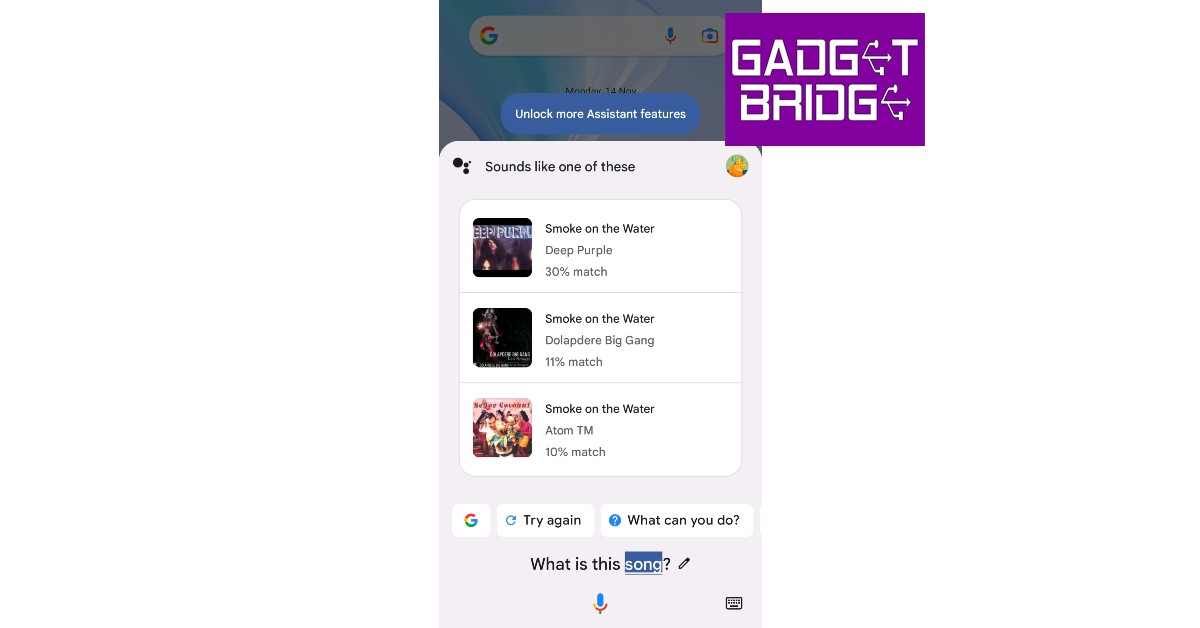
Use the Hum to Search feature on YouTube Music
 The YouTube Music app uses a similar algorithm to identify songs playing in your vicinity. Here’s how you can use it.
Step 1: Launch the YouTube Music app on your smartphone.
Step 2: Hit the search icon at the top right corner of the screen.
Step 3: Tap the wavelength symbol at the top right corner of the screen.
Step 4: Hum the song for 20-30 seconds.
Step 5: Google’s AI algorithm will look up the song that matches the melody. The song title along with the artist name, album name, and release year will appear on the screen.
Step 6: You can choose to play the song or add it to your playlist. If this is not the song you were looking for, tap the waveform symbol at the bottom of the screen to perform another search.
The YouTube Music app uses a similar algorithm to identify songs playing in your vicinity. Here’s how you can use it.
Step 1: Launch the YouTube Music app on your smartphone.
Step 2: Hit the search icon at the top right corner of the screen.
Step 3: Tap the wavelength symbol at the top right corner of the screen.
Step 4: Hum the song for 20-30 seconds.
Step 5: Google’s AI algorithm will look up the song that matches the melody. The song title along with the artist name, album name, and release year will appear on the screen.
Step 6: You can choose to play the song or add it to your playlist. If this is not the song you were looking for, tap the waveform symbol at the bottom of the screen to perform another search.
Bonus Tip: Use a third-party app
 If Google Assistant fails to identify the song, there are plenty of other third-party apps that will do the job for you. You may already know of Shazam, which was the first app that became popular for its accurate song identification. Other apps like Soundhound and MusixMatch also carry out the same task with expertise. All you need to do is download the app and select the song identification feature. Once the app is using your phone’s mic to listen to the surroundings, bring it closer to the source of the sound so it can get a good sample. Within seconds, the app will show you all matching results.
Frequently Asked Questions (FAQs)
How do I use Google Assistant to identify a song?
Trigger Google Assistant by saying ‘Hey Google’ or long pressing the side key, ask ‘Which song is this’, then play the song or hum it. Google Assistant will produce matching results within a few seconds.Can I identify a song using YouTube Music?
YouTube Music has a new song finder that can be accessed by pressing the waveform icon next to the search bar. Play a song or hum it to find the appropriate match.Are there any third-party apps to identify the song playing near me?
Apps like Shazam, Soundhound, and MusixMatch are great tools to identify songs playing in your vicinity. Read Also: Meta introduces a paid Blue Badge for Facebook and InstagramConclusion
This is how you can use Google Assistant to identify any song. The best part about using Google Assistant is that you don’t even need to play the official recording of the song for it to identify the track. You can even hum a certain section of the song or speak some lyrics into the microphone and Google Assistant will come up with matches for your query.360-degree video backgrounds are now available for Google Meet on mobile

Google Meet users will soon be able to use 360-degree backgrounds while participating in a video conversation on their mobile devices. This feature is currently being rolled out to Android and iOS devices. In addition to this, the editable widgets are now available for Chat app cards which will include interactive widgets like checkboxes, radio buttons, and dropdowns.
In This Article
360-degree video backgrounds
360-degree backgrounds for Android and iOS devices have finally been added to Google Meet. Users of the new functionality can choose from a variety of available backdrops. These backgrounds, which include a beach and a temple, move with you thanks to the gyroscope on your device. Remember that administrators can enable or disable backgrounds for their users. All Google Workspace users and users with personal Google Accounts can access it on Android and iOS devices. It should be noted that admins have the ability to disable these backgrounds when necessary, even if they may hide the user’s original backdrop from meeting attendees. Also Read: How to record video meetings in FHD on Google MeetEditable widgets now available for Chat app cards
In Chat app cards that are posted in the Chat message stream, developers can now include interactive widgets like checkboxes, radio buttons, and dropdown menus. You can rapidly change the information sent from Chat apps by doing this by Changing the assignee on a task card or changing the due date on a task card and Selecting or deselecting options on a card. Also Read: How to Use Face Filters on Google Meet Video Call? Only Google Workspace Essentials, Business Starter, Business Standard, Business Plus, Enterprise Essentials, Enterprise Standard, Enterprise Plus, Education Fundamentals, Education Plus, Education Standard, the Teaching and Learning Upgrade, Frontline, and legacy G Suite Basic and Business customers have access to this feature at this time. For the latest gadget and tech news, and gadget reviews, follow us on Twitter, Facebook and Instagram. For newest tech & gadget videos subscribe to our YouTube Channel. You can also stay up to date using the Gadget Bridge Android App. You can find the latest car and bike news here.Vivo V27 series confirmed to launch in India on March 1
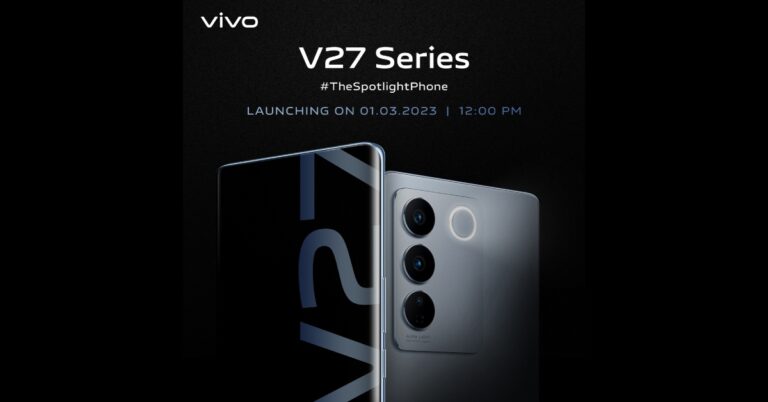
After teasing the Vivo V27 series in India the company today officially announced the actual launch date of the upcoming new lineup. The India launch is scheduled for March 1. In order to tantalise the main features of the new V-Series smartphones, the business has also developed a special microsite. The forthcoming series’ design is displayed in the official teaser. The devices would have three back cameras and a ring LED flash.
Vivo has confirmed that the new V-series smartphones will be launched in India on March 1 at noon. The new lineup is likely to include two new devices Vivo V27 and Vivo V27 Pro. It is confirmed that the Sony IMX 776V sensor and colour-changing rear panel would be included in the Vivo V27 series. According to the company, the camera sensor on the phone will come with compatibility for Aura Light Portrait mode and OIS (Optical Image Stabilization). The handset will be made available in a variety of colour schemes.
Also Read: iQOO 11 Review: A real beast
Moreover, a trio of rear cameras is clearly visible. Each sensor has what appears to have a ring surrounding it, and there is a ring LED flash. The volume rockers and power buttons are visible on the left spine of the device.
The phones will feature a hole-punch display and 3D curved panels. The screen is teased to support 120Hz refresh rates. It has also been confirmed that Flipkart would sell these in India.
Reports claim that the Vivo V27 5G will be powered by a MediaTek Dimensity 7200 Processor. The Vivo V27 Pro, on the other hand, will be using the MediaTek Dimensity 8200 Chipset. They reportedly come in 8GB and 128GB or 12GB and 256GB Memory configurations.
The company hasn’t yet disclosed prices, however, it was earlier reported that the Vivo V27 5G in India might cost Rs 35,000. Whereas the Pro version is said to be priced at Rs 40,000. The base variant of the Vivo V25 5G was made available in India for a starting price of Rs 27,999, while the base model of the Vivo V25 Pro cost Rs 35,999.
For the latest gadget and tech news, and gadget reviews, follow us on Twitter, Facebook and Instagram. For newest tech & gadget videos subscribe to our YouTube Channel. You can also stay up to date using the Gadget Bridge Android App. You can find the latest car and bike news here.
Top 12 ways to Fix ‘Instagram Pictures Not Showing Up’ Issue (2024)
Instagram may be the world’s largest photo-sharing platform but it isn’t entirely immune to bugs and other issues. Oftentimes, users report that new images do not show up on their Instagram feed, and even when they do, they simply won’t load. There can be multiple reasons behind this problem. In this article, we bring you the top 12 ways to fix the ‘Instagram pictures not showing up’ issue on your smartphone.
Read Also: Only those who pay will have access to 2FA SMS security protection on Twitter
Step 2: Scroll down and select Instagram.
Step 3: Tap on Storage.
Step 4: Select Clear Cache from the bottom of the screen.
Step 2: Select Settings.
Step 3: Tap on Account.
Step 4: Scroll down and select Mobile Data Use.
Step 5: Turn the toggle bar off for Data Saver.
Step 2: Tap on Data Usage.
Step 3: Tap on Mobile Data usage.
Step 4: Click on the gear icon for additional settings.
Step 5: Turn the toggle bar off for Set data limit.
 Step 2: Select Instagram.
 Step 3: Tap on Mobile data and WiFi.
Step 4: Turn on the toggle switch for Unrestricted data usage.
Step 3: Tap on Mobile data and WiFi.
Step 4: Turn on the toggle switch for Unrestricted data usage.
 Any account-related issues can be fixed by logging out of the Instagram app and logging back in. Go to your profile, open the hamburger menu, and select the Log Out option from Settings. Log back into Instagram using your email, phone number, or Instagram handle.
Instagram Lite is a faster, stripped-down version of Instagram that covers all the essential features of the app. If the main Instagram app isn’t able to load images due to network and connectivity issues, switch to Instagram Lite for smooth and fast browsing. Instagram Lite occupies less space on your phone on top of using minimal data. The app is available on the Google Play Store.
Older versions of the Instagram app may contain bugs that cause glitches and unwanted errors. These bugs are quickly resolved in the following updates. If you haven’t updated the Instagram app in a long time, go to Google Play Store, search for Instagram, and hit Update.
If the VPN server you are currently connected to is experiencing an outage, Instagram won’t load pictures on your device. To fix this, connect to a different server or disable the VPN service entirely. Go to Settings>Connection>More Connection Settings>VPN or disconnect from the connected server after launching the VPN app from your phone’s home page.
Any account-related issues can be fixed by logging out of the Instagram app and logging back in. Go to your profile, open the hamburger menu, and select the Log Out option from Settings. Log back into Instagram using your email, phone number, or Instagram handle.
Instagram Lite is a faster, stripped-down version of Instagram that covers all the essential features of the app. If the main Instagram app isn’t able to load images due to network and connectivity issues, switch to Instagram Lite for smooth and fast browsing. Instagram Lite occupies less space on your phone on top of using minimal data. The app is available on the Google Play Store.
Older versions of the Instagram app may contain bugs that cause glitches and unwanted errors. These bugs are quickly resolved in the following updates. If you haven’t updated the Instagram app in a long time, go to Google Play Store, search for Instagram, and hit Update.
If the VPN server you are currently connected to is experiencing an outage, Instagram won’t load pictures on your device. To fix this, connect to a different server or disable the VPN service entirely. Go to Settings>Connection>More Connection Settings>VPN or disconnect from the connected server after launching the VPN app from your phone’s home page.
In This Article
Check your internet connection
The most likely reason why Instagram won’t load pictures is a faulty internet connection. Make sure that mobile data on your device is turned on or you are connected to an active WiFi network. Check your network provider’s app to see if you have ample data left. Open a web page or another app to see if it is loading. This will help you get an idea of whether the issue lies with Instagram or your network.Clear app cache to fix ‘Instagram pictures not showing up’
Temporary files in the cache are always at risk of getting corrupted and impeding the basic functioning of the app. Here’s how you can clear Instagram’s app cache. Step 1: Go to Settings and select Apps. Step 2: Scroll down and select Instagram.
 Step 3: Tap on Storage.
 Step 4: Select Clear Cache from the bottom of the screen.
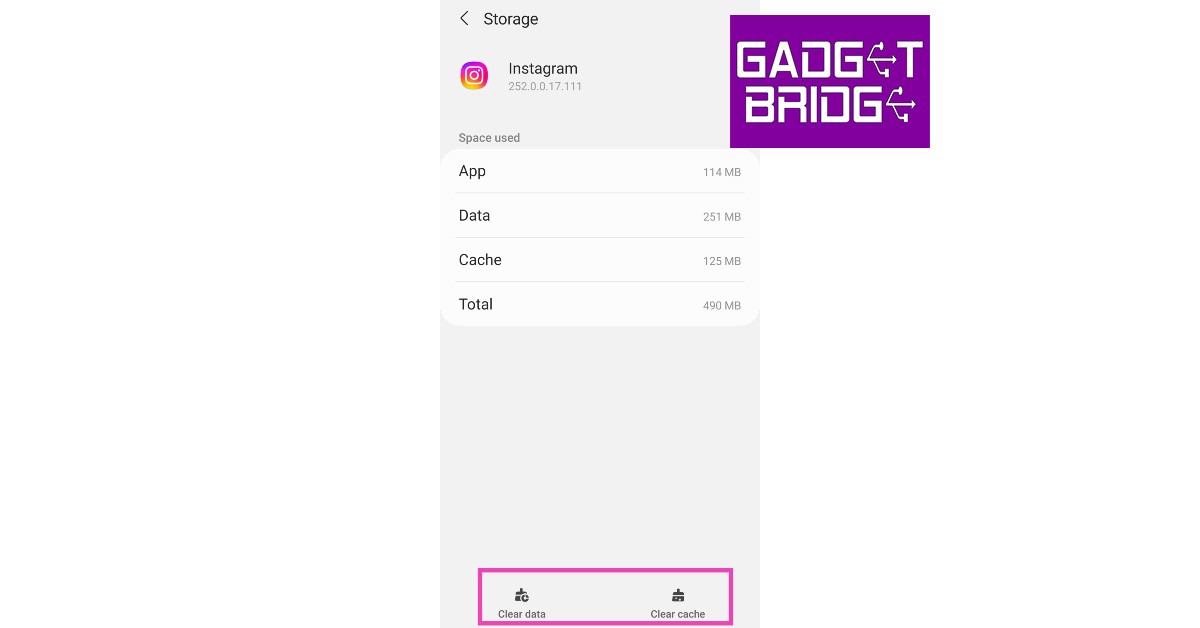
Turn off Instagram’s data saver to fix ‘pictures not showing up’ issue
Instagram has a native data-saving feature that disables the preloading of videos on the platform to consume less mobile data. While this works fine for the most part, it can often lead to pictures and videos not loading at all. Here’s how you can disable the data saver. Step 1: Go to your Instagram profile and tap the hamburger menu at the top right corner of the screen. Step 2: Select Settings.
Step 3: Tap on Account.
Step 2: Select Settings.
Step 3: Tap on Account.
 Step 4: Scroll down and select Mobile Data Use.
 Step 5: Turn the toggle bar off for Data Saver.

Disable your smartphone’s data saver
Like Instagram, your smartphone has a data saver tool as well. You can set a maximum data usage limit on your device. After the limit has been reached, mobile data will be turned off on your phone. Here’s how you can disable data saver on your smartphone. Step 1: Go to Settings and select Connections. Step 2: Tap on Data Usage.
 Step 3: Tap on Mobile Data usage.
 Step 4: Click on the gear icon for additional settings.
 Step 5: Turn the toggle bar off for Set data limit.

Allow unrestricted data usage to Instagram
Step 1: Go to Settings and select Apps.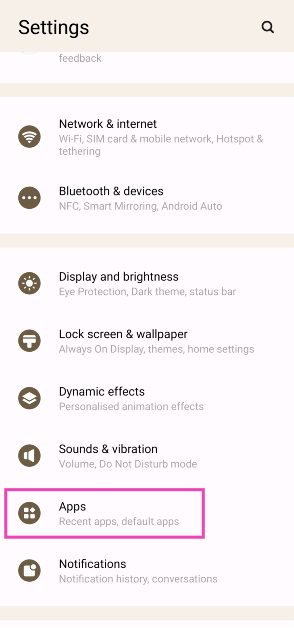 Step 2: Select Instagram.
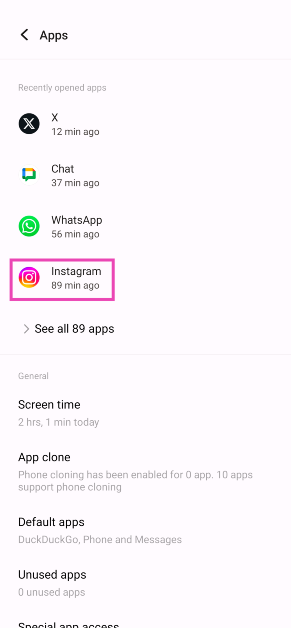 Step 3: Tap on Mobile data and WiFi.
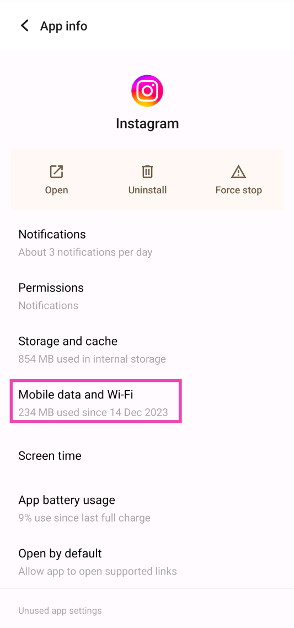 Step 4: Turn on the toggle switch for Unrestricted data usage.
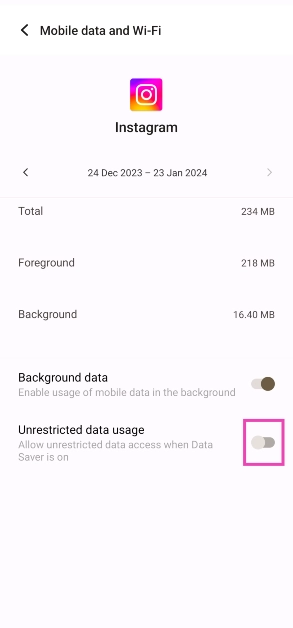
Log out and log back in to fix ‘Instagram pictures not showing up’
 Any account-related issues can be fixed by logging out of the Instagram app and logging back in. Go to your profile, open the hamburger menu, and select the Log Out option from Settings. Log back into Instagram using your email, phone number, or Instagram handle.
Uninstall and Reinstall the app
Uninstalling the app gets rid of the app data on your device. If you suspect the app data is the reason behind Instagram not functioning properly, uninstall and then reinstall the app on your phone. To delete Instagram, long-press its icon in the app drawer and hit the delete button. This will fix the ‘Instagram pictures not showing up’ issue.Use Instagram Lite
 Instagram Lite is a faster, stripped-down version of Instagram that covers all the essential features of the app. If the main Instagram app isn’t able to load images due to network and connectivity issues, switch to Instagram Lite for smooth and fast browsing. Instagram Lite occupies less space on your phone on top of using minimal data. The app is available on the Google Play Store.
Update the Instagram app
 Older versions of the Instagram app may contain bugs that cause glitches and unwanted errors. These bugs are quickly resolved in the following updates. If you haven’t updated the Instagram app in a long time, go to Google Play Store, search for Instagram, and hit Update.
Disable VPN
 If the VPN server you are currently connected to is experiencing an outage, Instagram won’t load pictures on your device. To fix this, connect to a different server or disable the VPN service entirely. Go to Settings>Connection>More Connection Settings>VPN or disconnect from the connected server after launching the VPN app from your phone’s home page.
Use Instagram’s Web Portal
If the above-mentioned fixes don’t work, maybe the problem lies with your device. Try using Instagram’s web portal for PC. Although it started out as a pretty basic webpage, Instagram for Web now supports almost all the features of its mobile apps.Check if Instagram’s servers are down
It is not uncommon for Instagram to experience a server outage. When the servers are down, all app activity is ceased until the servers are back up and running. You have no other option than to wait it out. To check if Instagram’s servers are down, visit the DownDetector website and search for Instagram.Frequently Asked Questions (FAQs)
Why won’t Instagram load any pictures?
If Instagram isn’t loading any pictures on your device, check your network connection. Additionally, make sure that Instagram’s and your device’s data savers are turned off.How do I turn off the data saver on Instagram?
To turn off Instagram’s data saver, go to Profile>Menu>Account>Mobile data use and turn off the toggle bar for Data Saver.How do I turn off my smartphone’s data saver?
Go to Settings>Connections>Data usage>Mobile data usage, hit the gear icon, and turn off the toggle bar for Set data limit. Read Also: Comparison: OnePlus 11 vs Samsung Galaxy S23Conclusion
These are the top 12 ways to fix the ‘Instagram pictures not showing up’ issue on your smartphone. If the issue still persists after trying the fixes mentioned above, it is possible that you may have been handed an account ban. For more details, contact Instagram support. If you found this article helpful, let us know in the comments!Top 7 ways to fix touchscreen issues on iPhone 13 and iPhone 14 (2024)
If your iPhone’s touchscreen started malfunctioning out of the blue, there could be a multitude of reasons behind it. Oftentimes, older smartphones are more likely to develop touchscreen issues, but if a newer iPhone (like iPhone 13 or 14) starts giving you problems, chances are it is due to a software glitch. In this article, we bring you the top 7 ways to fix touchscreen issues on iPhone 13 and iPhone 14.
Read Also: Only those who pay will have access to 2FA SMS security protection on Twitter
A quick restart will resolve any minor background issues that may be keeping your iPhone’s touchscreen from functioning properly. You can restart your iPhone 13 or 14 by pressing the volume key and side key until the power slider appears on the screen. Work the slider icon to turn off your iPhone. However, if the touchscreen is entirely unresponsive, you won’t be able to use the onscreen slider. In this case, you will need to force restart your iPhone. Here’s how you can do that
Step 1: Press and release the Volume Up key.
Step 2: Press and release the Volume Down key.
Step 3: Press and hold the side key until the Apple logo appears on the screen.
Step 4: Release the side key.
Step 2: Select Touch from the Physical and Motor section.
Step 3: Select Haptic Touch.
Step 4: Choose fast under the touch duration options. For a better idea of how the two speeds work, use the touch duration test listed below the options.
Make your selection and go back. Your changes will be applied to the phone.
 Step 3: Select Software Update.
 Step 4: Tap on Download and Install.
 You should also know that when you reset your phone to factory settings, there may be cases when your iPhone 13 is completely turned off and does not turn on. This is normal, so the first step is to check all the steps for recovery.
In This Article
Restart your iPhone
 A quick restart will resolve any minor background issues that may be keeping your iPhone’s touchscreen from functioning properly. You can restart your iPhone 13 or 14 by pressing the volume key and side key until the power slider appears on the screen. Work the slider icon to turn off your iPhone. However, if the touchscreen is entirely unresponsive, you won’t be able to use the onscreen slider. In this case, you will need to force restart your iPhone. Here’s how you can do that
Step 1: Press and release the Volume Up key.
Step 2: Press and release the Volume Down key.
Step 3: Press and hold the side key until the Apple logo appears on the screen.
Step 4: Release the side key.
A quick restart will resolve any minor background issues that may be keeping your iPhone’s touchscreen from functioning properly. You can restart your iPhone 13 or 14 by pressing the volume key and side key until the power slider appears on the screen. Work the slider icon to turn off your iPhone. However, if the touchscreen is entirely unresponsive, you won’t be able to use the onscreen slider. In this case, you will need to force restart your iPhone. Here’s how you can do that
Step 1: Press and release the Volume Up key.
Step 2: Press and release the Volume Down key.
Step 3: Press and hold the side key until the Apple logo appears on the screen.
Step 4: Release the side key.
Increase the touchscreen sensitivity
If you’re experiencing lag issues with your iPhone’s touchscreen, it may be because the touchscreen sensitivity has been set too low. This problem is more common in older iPhones. Here’s how you can increase touchscreen sensitivity on an iPhone. Step 1: Go to Settings, scroll down and select Accessibility.
Step 2: Select Touch from the Physical and Motor section.
 Step 3: Select Haptic Touch.
 Step 4: Choose fast under the touch duration options. For a better idea of how the two speeds work, use the touch duration test listed below the options.
 Make your selection and go back. Your changes will be applied to the phone.
Remove the screen protector
Not every screen protector works perfectly with the iPhone. While buying a screen guard, make sure that it is Apple-compatible. If the touchscreen issues on your iPhone started popping up after you installed the screen protector, peel it off and check if the touchscreen is working fine. If you’re using an Apple-compatible protector, take it off and wipe the screen thoroughly before putting it back on.Disconnect all accessories connected through the lightning port
Sometimes, your iPhone’s touchscreen may stop working when the device is connected to an accessory via the lightning port. In this case, disconnect your iPhone from whatever accessory is attached to it. This includes headphones, charger, or any external storage device connected through an OTG adapter. If your iPhone is connected to your Mac through the lightning cable, plug it out and see if the touchscreen has been restored to a working condition.Clean the touchscreen
If your iPhone got splashed with water or is being operated with sweaty hands, make sure you give it a thorough wipe before operating the touchscreen. Any trace of water on the screen may render it unresponsive. It is also common for traces of sweat to accumulate on the touchscreen in humid conditions. Always keep a microfibre cloth handy to give your phone a quick wipe before using it.Update your iPhone
Step 1: Make sure your iPhone is connected to a WiFi network and plug in its charger. Step 2: Go to Settings and select General. Step 3: Select Software Update.
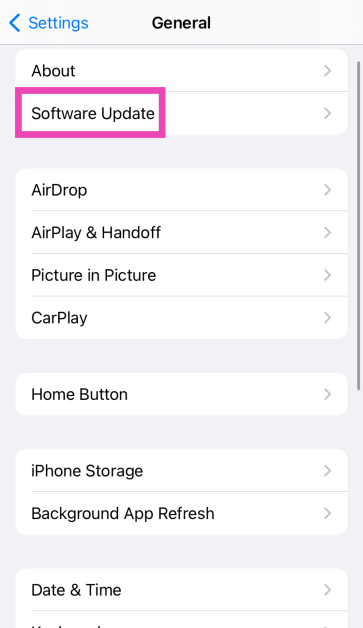 Step 4: Tap on Download and Install.
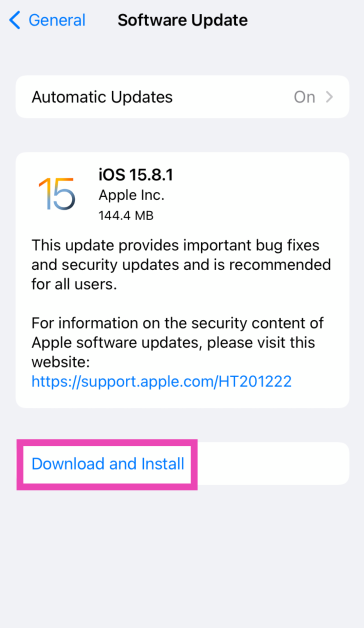
Factory reset your iPhone
As a last-ditch effort to rescue your iPhone’s touchscreen, you can try performing a factory reset if you suspect that the issue may be related to a software malfunction. If the touchscreen stopped working after a physical impact on the phone, skip this step. Here’s how you can factory reset your iPhone. Step 1: Connect your iPhone to a PC or Mac and launch iTunes. Step 2: Press and release the Volume Up key followed by the Volume Down key. Then press the side key for at least 10 seconds. Step 3: Press and hold the Volume Down key and side key simultaneously. Release the side key after 5 seconds and the Volume Down key after 10 seconds. Step 4: Click on Restore iPhone on iTunes. You should also know that when you reset your phone to factory settings, there may be cases when your iPhone 13 is completely turned off and does not turn on. This is normal, so the first step is to check all the steps for recovery.