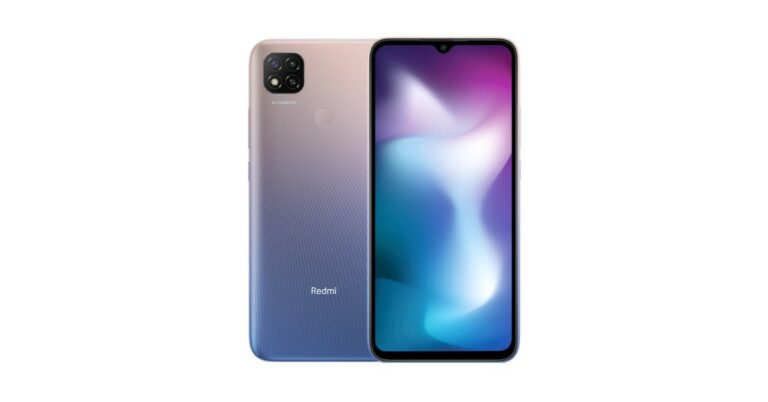
The Chinese smartphone company Xiaomi has announced the launch of its latest pocket-friendly smartphone in India. The Redmi 9 Activ is the latest addition by the company and is currently up for sale in the country.The newest phone comes with a water drop style HD+ display and is powered by MediaTek Helio G35 SoC. In addition to this, the smartphone boasts a 5,000mAh battery and dual rear cameras.
Redmi 9 Activ price in India and availability details
Redmi 9 Activ has been launched in India with a price tag of Rs 9,499 for the 4GB RAM with 64GB storage options. The 6GB RAM with 128GB storage variant is available at Rs 10,999. The device comes in three colour options of Carbon Black, Coral Green and Metallic Purple. The budget smartphone will be available via Amazon, Mi.com, Mi Home and Mi Studio stores in the country.
Redmi 9 Activ specs and features
Redmi 9 Activ comes with a 6.53-inch HD+ Dot Drop Display having 720×1600 pixels of resolution. The screen offers 400 nits of max brightness and a 20:9 aspect ratio. The device runs on MIUI 12 based on top of Android 11. Under the hood, there is MediaTek Helio G35 SoC cooped with 6GB of LPDDR4X RAM and 128GB of eMMC 5.1 storage that can be expanded via a microSD card. For the photos and videos, Redmi 9 Active features a dual rear camera set up that includes a 13MP primary sensor with f/2.2 aperture and a 2MP depth sensor with f/2.4 lens. There is an LED flash as well and the cameras also support features like AI Beauty 5.0 and AI scene detection. Upfront, there is a 5MP selfies camera with an f/2.2 aperture for taking selfies and video calling. Redmi 9 Active houses a 5,000mAh battery that supports 10W charging. For connectivity, there is 4G VoLTE, WiFi 802.11 b/g/n, Bluetooth v5, GPS/A-GPS, FM Radio and Micro-USB port. The phone also includes a rear-mounted fingerprint sensor, accelerometer, ambient light sensor and a proximity sensor.
For the latest gadget and tech news, and gadget reviews, follow us on Twitter, Facebook and Instagram. For newest tech & gadget videos subscribe to our YouTube Channel. You can also stay up to date using the Gadget Bridge Android App. You can find the latest car and bike news here.
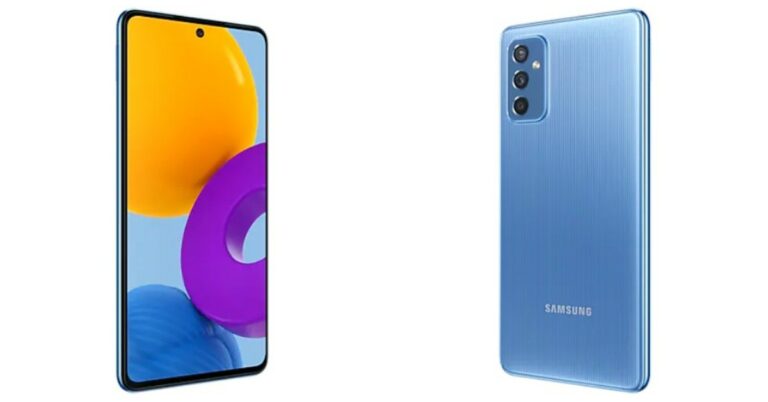
Samsung Galaxy M52 5G has officially debuted in Poland. The device is also set to launch in India tomorrow. The phone has been listed on the company’s website there and as per the listing it will come with a triple rear camera set up consisting of a 64-MP primary sensor. In addition to this, there is an AMOLED display with 120Hz refresh rate support. The 5G smartphone also includes a 5,000mAh battery with 25W fast charging support.
Samsung Galaxy M52 5G price and availability
The price of the Poland specific model of Samsung Galaxy M52 5G has not been listed on the company’s official website. But as per the listing, the phone will be available in a single 128GB storage option. There it is available in three colour options of Black, Blue and White.According to reports, the device was listed to come with a price tag of PLV 1,749 that translates to Rs 32,900 for the 8GB RAM with 128GB storage options.
Samsung Galaxy M52 5G specifications
Samsung Galaxy M52 5G listing on the Poland website reveals that the phone will come with a 6.7 inf full HD super AMOLED Plus display with 1,080×2,400 pixels of resolution. The screen will offer 120Hz refresh rate support and a 20: 9 aspect ratio. The phone will run on OneUI 3.1 based on top of Android 11 and will be powered by an unnamed octa-core SoC with 6GB of RAM and 128GB of onboard storage. The storage can be expanded up to 1TB using a microSD card. But the Amazon listing in India has confirmed that the upcoming smartphone will equip Qualcomm Snapdragon 778G under its hood. In addition to this, the Samsung Galaxy M52 5G will feature a triple rear camera set up consisting of a 64-MP primary sensor. Completing the setup there is a 12MP ultra wide-angle lens with f/2.2 aperture and a 5MP macro sensor. For taking selfies and video calling the device will sport a 32MP front-facing camera with an f/2.2 aperture. Samsung Galaxy M52 5G boasts a 5,000mAh battery with 25W fast charging support. There is a side-mounted fingerprint sensor on the phone that also acts as a power button. For connectivity, the 5G smartphone will include 5G, Bluetooth v5.0, Wi-FI, USB Type C and NFC support. The sensor on board includes an accelerometer, ambient light sensor, gyroscope, magnetometer, and proximity sensor.
For the latest gadget and tech news, and gadget reviews, follow us on Twitter, Facebook and Instagram. For newest tech & gadget videos subscribe to our YouTube Channel. You can also stay up to date using the Gadget Bridge Android App. You can find the latest car and bike news here.
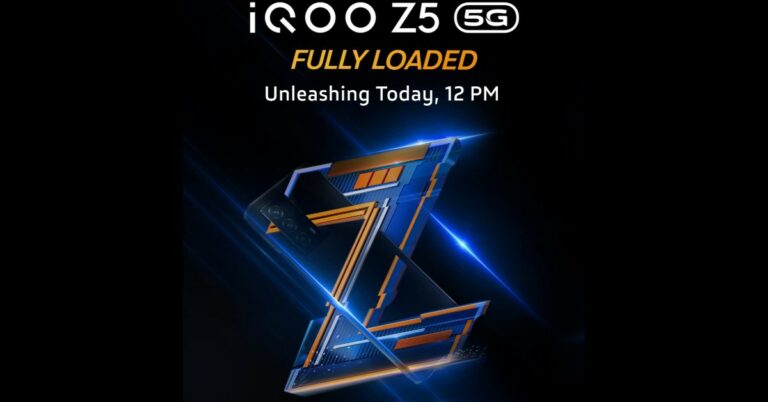
iQoo Z5 is all set to launch in India today. The device is the latest addition to the company’s 5G portfolio and it will be succeeding iQoo Z3 that was launched just a few months ago in the country. The phone first broke cover in China last week and will now hit the Indian stores. The device includes the latest Qualcomm Snapdragon 778G and a 20Hz refresh rate support.
iQoo Z5 launch details
iQoo Z5 is scheduled to launch in India today. The company will be hosting a virtual launch event to introduce the smartphone in the country. In interested one can watch the live streaming of the launch on the company’s official YouTube channel and well as on its social media channels. The link to YouTube is as follows and according to Indian Standard Time, the event will begin at noon.
What will be the price of the Z5 in India and its availability?
Although iQoo Z5 has been earlier launched in China the pricing will be somewhere similar to Chinese specific models. It is available in 8GB RAM with 128GB storage priced at CYN 1,899 that converts to Rs 21,600. The 256GB model costs CYN 2,099 that translates to Rs 23,900 and the 12GB RAM with 256GB storage options is available at CYN 2,299 that is roughly around Rs 26,000. iQoo Z5 is expected to be available in two colour options of Twilight Morning and Blue Origin.In India, the iQoo Z5 phone is tipped to be priced under Rs 30,000 and Amazon listing confirms its availability in India.
iQoo Z5 specification
iQoo Z5 will feature a 6.67-inch full HD+ LCD display with 1,080 X 2,400 pixels of resolution. The screen also comes with a120Hz refresh rate, HDR support and offers a 20:9 aspect ratio. It will be powered by Qualcomm Snapdragon 77G SoC with Adreno 642L GPU and will be available with up to 12GB of LPDDR5 RAM and up to 256GB of UFS 3.1 storage. For the photos and videos, the iQoo Z5 will include a triple rear camera set-up that includes a 64-megapixel main sensor with an f/1.79 aperture. The set-up also housed an 8-megapixel ultra-wide-angle lens with f/2.2 aperture and a 2-megapixel macro lens with f/2.4 aperture. Upfront there is a 16-megapixel sensor with an f/2.45 aperture for taking selfies and video calling.The iQoo Z5 5G smartphone will be housing a5,000mAh battery with 44W flash charge fast charging support. In addition to this, the handset includes 5G, tri-band W-Fi with 2.4 GHz, 5.1 GHz and 5.8GHz bands, Bluetooth v5.2, USB Type C port, USB OTG and 3.3mm headphone jack for connectivity. In addition to this, there will be a side-mounted fingerprint sensor, Face Wake unlock, gravity, ambient light, proximity, gyroscope and compass.
For the latest gadget and tech news, and gadget reviews, follow us on Twitter, Facebook and Instagram. For newest tech & gadget videos subscribe to our YouTube Channel. You can also stay up to date using the Gadget Bridge Android App. You can find the latest car and bike news here.
27 September 2021 Amazon Quiz has gone live on its platform. The quiz timings are 12 AM to 11:59 PM. The interested users can participate in the Amazon daily quiz to win exciting prizes. The company puts up 5 questions based on general awareness. You can submit the correct answers from the four options. Today the participants have the chance to win Rs 5,000 Amazon Pay Balance.Daily the e-commerce platform Amazon brings a new set of a questionnaire that includes five easy questions. The Amazon Quiz can be played from 12 AM to 11:59. The users have to answers all the questions correctly to enter into a lucky draw. The result of today’s quiz will be announced at the end of the month and only one person is declared a winner. We at Gadget Bridge updates all the answers to the Amazon Quiz on our website for the convenience of our readers. Here are the answers of the 27 September 2021 Amazon Quiz that will make you win Rs 5,000 Amazon Pay Balance.
27 September 2021 Amazon Quiz Answers
Question 1: In 2020, the theme of which day celebrated on August 19 was Pandemic lockdown through the lens?
Music is the way to express your emotions and feelings. Facebook developers thought why not add this feature to their social media platform as well. From adding ambience to your profile or just compiling your favourite soundtracks. Now you can easily add music to your profile to express yourself even better. Worry not, the music won’t start blasting from your phone’s speaker. It won’t play until one taps on it to listen. Here is how to Add Music to Your Facebook Profile.Step 1 – Install the Facebook application on your respective Android or iOS device.Step 2 – Log in to your profile.Step 3 – Tap on the burger icon in the top right corner.Step 4 – Scroll down to find music(usually below the “Friends” section).Step 5 – Select music and tap on + next to it in the option.Step 6 – Now one can either add from the trending one or search for their favourite song.Read Also: How to remove profile picture from Google account and GmailFollowing these steps, you will be able to add music to your Facebook profile. The music added will be automatically public and other friends can view this by going into the music section of your profile. It is an easy way to make your profile stand out from others. For the latest gadget and tech news, and gadget reviews, follow us on Twitter, Facebook and Instagram. For newest tech & gadget videos subscribe to our YouTube Channel. You can also stay up to date using the Gadget Bridge Android App. You can find the latest car and bike news here.
There can be multiple reasons why one needs to log out from a Google account on their Android device. Reasons can differ from losing your smartphone to simply upgrading to a new one. Also, if the phone is lost there is a lot of sensitive data that one can access from your smartphone. Below are the best ways to log out of your Google account from an Android phone. There are basically two ways to do it. Either directly from the smartphone or by a computer.
From smartphone
Step 1 – Open settingStep 2 – Head to accounts and then select the Google account.Step 3 – Tapping Remove account will directly log out your account from the device. (Your smartphone may ask you for your password or pin).Read Also: Intel has launched Compute Stick mini PC for Rs 10,999 in India
Remotely from another computer
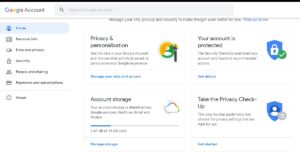
There can be a possibility that you lost your device and are unable to recover your smartphone. Google provides you with a feature to remotely remove your account using Google Dashboard. All you need is a computer with an internet connection and your Google credentials.Step 1 – Open desired browser and head to myaccount.google.com.Step 2 – Click on the Security tab from the left panel.Step 3 – Scroll a little down to find the Your Devices tab and click Manage devicesRead Also: WhatsApp restores green colour notification for beta usersStep 4 – Press the three-dot on the device and click on Sign out Step 5 – Click Sign out to confirm.These are some easy and best ways to log out of your Google account from an Android phone. For instance, if one does not have a computer with them. They can easily open Google Dashboard on their smartphone browser and follow the same process on it as well.
For the latest gadget and tech news, and gadget reviews, follow us on Twitter, Facebook and Instagram. For newest tech & gadget videos subscribe to our YouTube Channel. You can also stay up to date using the Gadget Bridge Android App. You can find the latest car and bike news here.
There is a selection of applications available in the Google Play Store. Google Play is a digital distribution service owned by Google and provides service to all Android users. Not being able to download applications from Google play is a common issue faced by many. There is no such one medicine that fixes all methods for this option but one option from below will surely solve the problem. Here are the top 5 ways to fix if you are unable to download apps on your Android phone.
Check Internet connection
If the download ain’t starting or the PlayStore is showing you offline. It is definitely a problem of either a slow connection or no connection. Make sure you are connected on an Internet connection that is strong and has a decent speed. If you are connected to Wi-Fi, try switching to mobile data or vice versa. Also, make sure the VPN is disabled as it sometimes hinders the download.
Force stop and Clear Data
Clearing data and force stopping the Play Store will give it a fresh start. By this method, most of the problems related to the Play Store like general bugs or downloading issues should be fixed. Here is how to do it.Step 1 – Hold the Play Store icon for 1 second to see options.Step 2 – Select App info from the listed options.Step 3 – First press force stop in the opened window.Step 4 – Next head to the Storage option.Step 5 – Press the Clear storage option.The name of the above may differ in phones according to the brand one is using. Play store Majorly relies on Play Services and Download Manager. If the problem by this step persists try to clear the data of the Play Services and Download manager as well.Read Also: Google finally removed this ‘controversial’ app from Play Store
Reinstall Play Store
If the above didn’t work for you, worry not. There is a possibility that the Play Store got updated incorrectly and caused the issue. Uninstalling the update and updating it back can resolve this issue. Here are steps on how you can do it. Step 1 – Hold the play store icon for 1 second to see options.Step 2 – Select App info from the listed options.Step 3 – Tap the three-dot on the top right corner of the screen.Step 4 – Select Uninstall Updates and then Ok to confirm.This will revert the Play Store to its factory settings. Start using play store and the application will automatically update in the background. One can try restarting their Android smartphone as well.
Remove your Google account and re-add it
There might be an account-related issue that can cause this to happen. To eliminate that doubt follow these steps to remove your Google account and re-add it.Step 1 – Open Setting. Step 2 – Head to the Accounts section.Step 3 – Select the Google account that is needed to be removed. (Phone might ask you pin or password to complete the process)Open Google Play Store again and it will ask you to sign in. Just input the credentials and you are good to go.Read Also: 10 things to do to deal with your slow internet connection
Factory Reset the phone
Usually, this is not required and can be avoided to fix such an issue. But one can consider completely wiping off all the data from their Android smartphone to give it a fresh start. Also, after the process, the applications won’t download from the get-go. As Google first completes the syncing process and puts the apps in the queue to download later. In these cases, Google will either won’t start the download or show “pending download” for everything in the queue. Wait for the initial processes to complete and try again.These were some simple steps that one can follow to fix unable to download apps on your Android phone. Mostly the general issues can be solved with the first 3 steps. If the problem persists we advise you to take your Android smartphone to your respective service centres.
For the latest gadget and tech news, and gadget reviews, follow us on Twitter, Facebook and Instagram. For newest tech & gadget videos subscribe to our YouTube Channel. You can also stay up to date using the Gadget Bridge Android App. You can find the latest car and bike news here.
Wireless connections are the most convenient ways to connect to the internet. Many Apple iPhone users have wireless network issues on their smartphones. The phone frequently disconnects from their Wi-Fi and they end up reconnecting it manually. If you face the same issues, worry not. Here are 5 ways to fix Wi-Fi that keeps disconnecting and reconnecting on the iPhone. No need to try all of them. Just work your way down and check-list and see which one works for you.
Check your Wi-Fi
There are a number of reasons thanks to the Wi-Fi, which can cause frequent disconnections. Your iPhone may be too far from the network range. Make sure that the iPhone is within the network area. Also, check if all other devices are suffering from the same problem. In this case, try restarting your router and see if that fixes the problem. If the issue is not resolved, there might be some hardware issues. Try contacting your service provider or router manufacturer to fix it for you.
Enable Auto-Join in iPhone
Enabling the auto-join feature can solve frequent disconnections as well. There is a strong possibility that you might have switched it on, but it got switched off automatically due to some reason. Here is how you can enable it.Step 1 – Open settings. Step 2 – Select Wi-Fi. Step 3 – Tap on the information mark next to your Wi-Fi network. Step 4 – Enable Auto-Join.If this method was successful your iPhone won’t automatically disconnect to your network now.Read Also: How to join missed Whatsapp video calls?
Forget and reconnect
There might have been some issue when you connected your Wi-Fi for the first time. One can fix this by resetting the network connection on your iPhone. By forgetting the Wi-Fi connection and rejoining it, will most probably fix this issue. Here is how you can do it.Step 1 – Open Settings. Step 2 – Select the Wi-Fi option. Step 3 – Tap on the information mark next to your Wi-Fi name. Step 4 – Press the “Forget This Network” option.After forgetting the network try reconnecting to your Wi-Fi and see if it works for you. If not, head to the next step.
Renew Lease
By renewing the Lease you’ll be retrieving a new IP address and routing data from the DHCP server, wireless router in this case. In other words, you will be updating the address information of your network. This method is worth giving a try when your iPhone disconnects from Wi-Fi frequently.Step 1 – Open settings. Step 2 – Select the Wi-Fi option.Step 3 – Tap on the information mark next to your Wi-Fi name. Step 4 – Tap the “Renew Lease” option.Check if the Wi-Fi problem for your iPhone recovers.Read Also: 7 Ways to fix Wi-Fi keeps disconnecting and reconnecting
Reset network settings
This is the final option you have left to try if the problem still persists. Sometimes iPhone network issues can be solved by resetting network settings. Here is how you can perform this.Step 1 – Open Settings. Step 2 – Select “General” from the list.Step 3 – Tap on transfer or reset>Reset option.Step 4 – Select “Reset Network Setting” from the options.Your iPhone will do a quick restart and wait until the process is complete. Then, try connecting your device back to your Wi-Fi network and see if this fixes the problem.These are simple 5 Ways to Fix Wi-Fi keeps disconnecting and reconnecting on iPhone problems. If none of the above steps solves the issue and the problem occurs with all the Wi-Fi networks, we recommend you take your iPhone to an authorised Apple service centre.
For the latest gadget and tech news, and gadget reviews, follow us on Twitter, Facebook and Instagram. For newest tech & gadget videos subscribe to our YouTube Channel. You can also stay up to date using the Gadget Bridge Android App. You can find the latest car and bike news here.
As the festive season is inching closer Samsung has officially announced its Big TV Festival and Home Like Never Before Offers. Both the offers can be available from today onwards and will be live till November 10 that will bring assured gifts cashback and more deals across its home products portfolio. Commenting on the launch, Raju Pullan, Senior Vice President, Consumer Electronics Business, Samsung India said, “Festive season is a very important time of the year for consumers to upgrade their homes and for us to connect with them. Spending more time at home has transformed consumer preferences, leading to a rise in demand for big-screen TVs that not only offer a premium cinematic experience but also give their living space a distinctive edge. We have also seen a rise in demand for large capacity refrigerators, washing machines and microwaves. There is also a trend to buy second and third ACs for homes as all family members continue to work and study from home. We have brought back the Big TV Festival and introduced Home Like Never Before offers to make celebrations even more special and memorable.” Samsung’s Big TV Festival and Home Like Never Before Offers will also provide easy EMIs at all leading consumer electronics retailers across the country. As per the company, the Big TV Festival will be valid on the purchase of select 55-inch and above Neo QLED and QLED TVs, and 75-inch and above Crystal 4K UHD TVs. On the purchase of the Select Televisions, the buyers are eligible to get a complimentary Soundbar worth up to Rs 1,04,900 and up to 20% cashback. This will also include easy EMIs starting at Rs 1,990 along with a 3-year complete warranty on TVs and a 10-year no screen burn-in warranty on select QLED TVs. The Samsung QLED lineup is powered by Quantum Dot technology that optimizes the TV’s brightness levels and delivers brighter and deeper colours, to deliver the visual experience intended by creators. It features Object Tracking Sound (OTS) and Active Voice Amplifier (AVA) for cinematic experience at home. The QLED TVs also comes with new Bixby and Alexa feature on One Remote Control allowing connections to all connected devicesMoreover, Samsung has also introduced ‘Home Like Never Before’ offers that will be applicable to its home appliances like Refrigerators, Washing Machines, Microwaves and Air Conditioners and others. These offers will provide cashback of up to 25% and EMIs starting at Rs 990. In addition to this, the customers can get a complimentary Borosil kit on select Microwaves, a 5-year comprehensive warranty, free installation on select ACs along with an extended warranty on multiple Samsung consumer electronics products.
For the latest gadget and tech news, and gadget reviews, follow us on Twitter, Facebook and Instagram. For newest tech & gadget videos subscribe to our YouTube Channel. You can also stay up to date using the Gadget Bridge Android App. You can find the latest car and bike news here.
The Internet is a way to connect with other people, sharing files, entertainment, sharing information, socialising, and many other things that could be beneficial for us. Most of the work has switched to online mode and thus making the internet the most valuable resource. But with every company having their own custom skin over the Android platform, It runs down to many glitches. From random restarts to random disconnecting of WiFi. If you are facing this issue then Here are 7 ways to fix Wi-Fi that keeps disconnecting and reconnecting on Android smartphones.
Reconnect to your Wi-Fi
Sometimes simply reconnecting to your Wi-Fi can solve the issue. To start fresh we need to forget the network and try connecting again. Follow the following steps to do so.Step 1 – From the drop-down menu in Android, press and hold the Wi-Fi option till the settings open.Step 2 – Select the Wi-Fi that is creating the issue.Step 3 – Tap Forget in the Wi-Fi setting.After following these steps simply re-enter the password and try to reconnect to your WiFi and check if the problem solves. If not, follow the next step.Read Also: How to fix the bad signal strength of Android and iPhones
Reset network setting on Android
There might be some bug that occurred in your phone’s network setting. Resetting it will solve the problem and here is how it can be done.Step 1 – Open Settings.Step 2 – Search for ”Reset Options” and select Wi-Fi.Step 3 – Press “Rest Setting”.Once the step is done successfully (some smartphones might restart), try reconnecting to your Wi-Fi network now.
Other Application Interference
Check for the applications that have access to control Wi-Fi. There are often times that your phone’s Wi-Fi may be affected due to such applications. The best example of such applications are VPNs, anti visor Wi-Fi prioritise apps etc. If these applications are necessary to you, try disabling them for the time being. After that try to reconnect to your network and see if the issue gets resolved.
Try removing other networks
It is a built-in feature in android smartphones that it automatically connects to the WiFi with the strongest strength or better speed. This game of shifting networks for finding the optimised one may cause frequent disconnection and connection problems. Try removing the other WiFi network following the methods shown in the first option.
Restart your router
Just like restarting most of the devices to fix a bunch of random glitches, routers are no different. Press the restart button on the router to give it a fresh start. If there is no restart button on your router, simply disconnect it from the power supply then reconnect the same. If the device is not blacklisted by the router, this method will probably fix the issue.Read Also: How to join missed Whatsapp video calls?
Check the router settings
There might be some issue with your router. Most routers in the market have a client filtering system that works on MAC addresses. This can result in blocking your device or blacklisting. Head to the wireless setting in your router and check the blacklist. Make sure your device is not there or blocked. Many network operators lock the Wi-Fi and won’t let users tamper with the setting. In such cases call your network provider and request them an engineer to fix it for you. (Above image shows how to do it in a D-Link router)
Upgrade router firmware
This step is to be done by professionals only as it takes time and knowledge related to network operations. One can download firmware manually from the official site of the router company and simply update it by logging into the network. This step usually is not required as most of the routers automatically come with the latest firmware or auto-update themselves. Unless you are using some high-end router that requires a firmware update manually, then you might need to do it. We recommend not to try this process on your own. Instead, ask the customer support to send a technician if required.These are 7 ways to fix Wi-Fi that keeps disconnecting and reconnecting on Android smartphones. These simple DIYs will surely fix the issue and connect you back to the internet hassle-free.
For the latest gadget and tech news, and gadget reviews, follow us on Twitter, Facebook and Instagram. For newest tech & gadget videos subscribe to our YouTube Channel. You can also stay up to date using the Gadget Bridge Android App. You can find the latest car and bike news here.







 Step 4 –
 Step 5 –
 Step 6 –
 Read Also:
 Step 3 –
 Read Also:
  Step 2 –
 Read Also:
  Step 5 –


 Step 3 –
 Step 5 –


 Step 2 –
 Step 4 –


 Step 4 –


 Step 2 –
 Step 3 –
 Step 3 –
