Google is one of the most secure email service providing reliable methods of password protection. The 2-step verification from Google adds another layer to your account. Some other websites that offer two-step verification feature include Outlook, Amazon, Dropbox, and Facebook.
Why do you need two-factor authentication?
This feature of Google adds another layer of security to your account. Google was of the first companies to provide a two-way authentication feature on its website. Once this feature is enabled, your account can be logged in only after authorisation from a physical device like a smartphone. Thus, it prevents unwanted access to your account.
How does the two-factor authentication Work?
When you activate the two-factor authentication feature in Google, your account will ask for the login password as well as a security key from a physical device to get access. The security key is sent to your smartphone through a text message or a voice call.
How does the two-factor authentication Work?
How to enable the two-factor authentication on Google?
You might have observed while working on your PC that all of a sudden, the mouse cursor stops moving. This issue is commonly known as the ‘Frozen Mouse’ problem. Touchpad or mouse is a necessary function. It makes your task convenient. Thus, this issue can’t be ignored especially when you face this problem frequently. In his article, we will talk about the major causes and ways to resolve this problem.
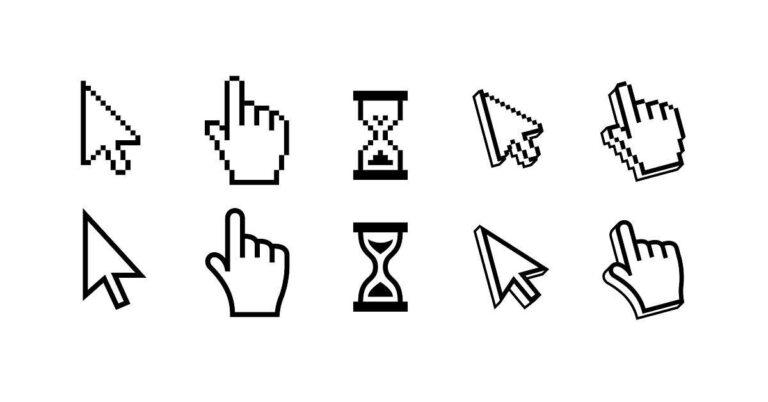
How does the frozen cursor look like?
While using your system, you may suddenly experience the following issues that are indicative of the frozen mouse issue.
The system screen freezes and the mouse cursor disappears.
The cursor does not move at all even when you swipe the touchpad.
No response after clicking the buttons or scrolling the wheel.
It is a myth that an issue with the mouse or keyboard is the sole cause of the frozen mouse cursor. There are several causes for the frozen mouse cursor. These include the unavailability of CPU resources, crashing of the mouse driver, and a problem with the current application. In some cases it is the hardware itself as well.
How to resolve the frozen mouse problem?
Restarting the system solves the frozen mouse problem in most cases. However, you can implement take the following steps.
1) Ensure that the touchpad is active: In some laptops, tapping a certain portion of the touchpad disables the touchpad. It gives an impression as if the mouse cursor is frozen. Thus, ensure your laptop has not disabled the touchpad. Sometime it is connected to a Fn key on the laptop as well to enable to disable it.
2) Reinstall the application: Sometimes the installation of the recent application causes the mouse cursor to freeze. Boot the system into safe mode and reinstall the application.
3) Update the mouse driver: AN obsolete mouse driver often develops compatibility issues. Thus, update your mouse driver in safe mode.
4) Enable the mouse in the Device Manager: Go to Start > Device Manager > Mice and other pointing devices. If you find an exclamation mark, it indicates a disabled. Right-click the icon and select the ‘Enable Device’ option to enable the driver.
Enable the mouse in the Device Manager
5) Troubleshoot the external mouse: An external hardware issue could also be responsible for the frozen mouse cursor. The external mouse that you connected might be incompatible or damaged. Thus, troubleshoot the connected mouse.
It should be noted that troubleshooting can only resolve compatibility issues. If your device is found to be damaged, it shall need to be replaced.
For the latest gadget and tech news, and gadget reviews, follow us on Twitter, Facebook and Instagram. For newest tech & gadget videos subscribe to our YouTube Channel. You can also stay up to date with the Gadget Bridge Android App.
Buying a refurbished device like a smartphone or laptop is a challenging task. Although you are paying a lesser amount, there is a high chance of wear-out marks and malfunctioning. Refurbished gadgets go through a set of customers, so you need to make sure you don’t get a defected product. You should ask the following questions before buying a refurbished device to get a profitable deal.
Question 1: What is the exact state of the refurbished device?
When you sell your used device like a smartphone to the company, it goes through a testing process. If the device seems like new and works properly, different methods of refurbishment are followed. Some brands put a tag “like new” on their refurbished gadgets. It relates to appearance and performance with respect to a new device. Thus, before buying a refurbished device, you must know the exact state and features. For instance, Amazon clearly reveals the battery capacity and if the smartphone has prior scratches.
What is the exact state of the refurbished device?
Question 2: Does the refurbished device come with a return policy?
The chances of malfunctioning in a refurbished deice are quite high. It may happen that it doesn’t work the way you expected. Companies like Amazon refrain from replacing the device’s skin. As a result, finding wear out marks on the refurbished gadget is quite common. Sometimes, the reference photograph hides the exact condition of the smartphone or laptop. When you finally get the refurbished item delivered, it may look much older than what is depicted on the website. Thus, ensure that the device comes with a return policy to save yourself from a loss-making deal.
Question 3: What kind of warranty comes with the refurbished device?
Contrary to a myth, some refurbished items do offer a warranty. Some companies offer a warranty beyond the return period. For example, Apple provides a one-year warranty on its refurbished products. Similarly, you get 90 days money-back satisfaction guarantee. The longer the warranty period you have, the safer the deal of buying the refurbished item is. Since the warranty period varies across sellers, you should search for the same product on multiple websites. Carefully read the vendor’s warranty terms before checking out.
What kind of warranty comes with the refurbished device?
Question 4: Will the refurbished smartphone be compatible with your network carrier?
This is the most critical yet most ignored detail while looking for a refurbished smartphone. Before buying one, you must not ignore the carrier limitations. Most of the websites mention the network carriers the device is locked in. However, if it’s unlocked, it will surely work will all the carriers including yours. After buying a locked phone, you can always choose to unlock it for your network carrier. Since the entire process of getting your smartphone unlocked can cost you time and money, it’s important that you verify this feature prior to buying. Luckily this does not imply in India, unless you are buying it from outside India.
Question 5: Does the refurbished device come with accessories?
Accessories play a significant role in deciding the deal price. Usually, smartphones or laptops with accessories are perceived as being relatively new as compared to the one’s void of accessories. On websites like Amazon, there are high chances of getting accessories along with the smartphone or laptop. These include earphones and a charger. However, you may not get the official charger that comes packed with a new device. These auxiliary items will help you save money by selling them. Thus, it important to look for websites that offer a complete package of the refurbished device.
Does the refurbished device come with accessories?
For the latest gadget and tech news, and gadget reviews, follow us on Twitter, Facebook and Instagram. For newest tech & gadget videos subscribe to our YouTube Channel. You can also stay up to date with the Gadget Bridge Android App.
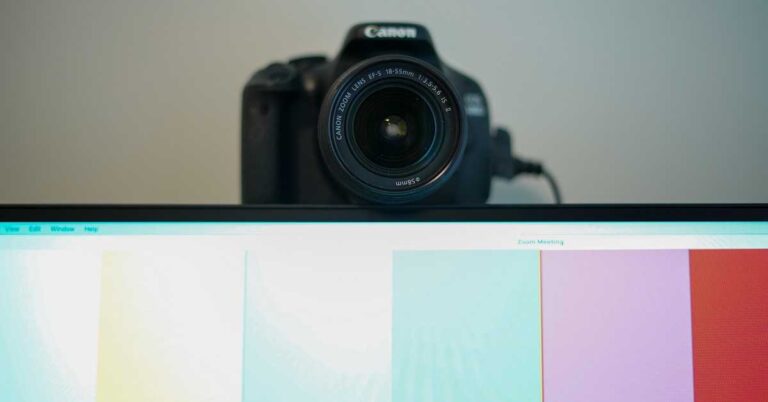
The COVID-19 pandemic has caused organisations across the globe to carry out online meetings. Canon, a leading camera brand, recently announced to release a webcam accessory kit to allow users to easily set up Canon camera as a webcam.
Who would require the webcam accessory kit?
The webcam installed in most of the laptops doesn’t provide crystal clear video capture. People who wish to achieve optimum video clarity through a new Canon DSLR should go for buying the Canon webcam accessory kit. This kit is essentially useful for those who already own a Canon DSLR and want to get the best out of that.
Which cameras will be compatible with the accessory kit?
Canon has decided to launch webcam accessory kits for a few of its DSLRs and mirrorless cameras that are listed below:
M50
M50 Mark II
M200
Rebel T3/EOS1100D
Rebel T5/EOS 1200D
Rebel T6/EOS 1300D
Rebel T7/ EOS 2000D
EOS RP
What are the components of the webcam accessory kit?
Canon revealed three kinds of webcam accessory kits that are available for preorder on Amazon (Buy Here). The two kits are compatible with the EOS M range of Canon cameras while the third kit is compatible with the EOS Rebel range of Canon cameras. Although each of the above kits consists of different components, they all include a USB cable and a battery insert and a power cord. The USB cable shall connect your camera to your PC. The battery insert along with the power cord will allow you to power your camera with a wall socket.
What are the components of the webcam accessory kit? (Image Credit: Canon)
What can the EOS Webcam Utility Software do with the kit?
With the Canon webcam accessory kit and EOS Webcam Utility Software, you can achieve the following.
1) Turn your EOS camera into a webcam: Using Canon’s EOS Webcam Utility Software, you can connect your EOS M series camera as a webcam to get high-quality video calls.
2) Live-Streaming like a pro: The EOS Webcam Utility Software and the kit accessories allow you to use your camera to stream live content and vlog. The kit along with the utility software provides a professional output at your home.
How much does the Canon webcam accessory kit cost? Is it worth the price?
The Canon webcam accessory kits will be sold at two price points. The two kits are quite affordable and will be available at $89.99 each (approx Rs 6,512.32). The third kit is comparatively expensive and will be sold at $159.99 (approx. Rs 11,578.01). When compared to buying individual components, the Canon kit is saving you around $12 (Rs 900 roughly). This amount may not seem significant at a glance but the company aims to provide everything in one package.
How much does the Canon webcam accessory kit cost? Is it worth the price? (Image Credit: Canon)
For the latest gadget and tech news, and gadget reviews, follow us on Twitter, Facebook and Instagram. For newest tech & gadget videos subscribe to our YouTube Channel. You can also stay up to date with the Gadget Bridge Android App.
Apple’s iOS offers one of the most convenient and secure interfaces. It offers dozens of features to have a personalised yet seamless user experience. With updates, new features are added including Face ID and appearance. Here are the Settings features that enhance accessibility and user experience.
1) Disable 5G where not accessible
Apple released the 5G support for the first time on iPhone 12. Based on the availability of 5G access, the iPhone users can switch between 4G LTE and 5G. To turn off 5G, go to Settings > Cellular > Cellular Data Options > Voice & Data. In the Voice & Data Settings, tap the LTE option. To choose 5G, just turn 5G On.
2) Unlock your phone while wearing a face mask
Wearing a mask has been a necessity throughout the COVID-19 pandemic. Since half your face is covered, you can’t unlock your smartphone using the Face ID. After the stable release of iOS 14.5 is available, you will get a new face-unlock feature by which you can unlock your smartphone wearing a face mask. As of now, only a beta version of the feature is available.
3) Reveal notifications on your lock screen
By default, iPhones with the Face ID feature don’t show the contents of notifications on the lock screen. This is a privacy feature that you can change in the Settings. Go to Settings > Notifications > Show Previews. Select the ‘Always’ option. If you don’t want to reveal the notification contents, select the ‘Never’ option.
Show full notifications on your lock screen
4) Declutter the home screen
The Apple iOS 14 enables the users to more control over the visuals of the home screen. Using the App Library, you can remove app icons without deleting the app. You can also add different kinds of widgets. If you don’t wish to add new apps to the App Library, go to Settings > Home Screen. Now, choose either of the following options: ‘Add to Home Screen’ or ‘App Library Only’.
5) Use attractive wallpapers
Apple, in its recent updates, has included new wallpapers that you can add to the home or lock screen. Go to the Settings > Wallpaper. Ensure than the ‘Dark Appearance Dims Wallpaper’ option is enabled. Select ‘Choose a new wallpaper’ where you can pick Still or Live wallpapers. The black and white circle denotes that the current wallpaper adapts to light and dark modes.
6) Activate Do Not Disturb
The ‘Do Not Disturb’ settings is a highly useful feature that silences all notifications as per the schedule set by you. This feature helps you get sound sleep by preventing distractions from beep sounds and calls at night. However, you can always permit calls from selected contacts. The phone will also ring when someone calls you repeatedly in case of an emergency.
Turn on Do Not Disturb
7) Modify font-size to make the screen text readable
This feature is highly useful though rarely used by people. You can adjust the font size of the on-screen text to make it readable by old people or people with long-sightedness. Go to Settings > Display & Brightness > Text Size. Here you can use the slider to enlarge the font. You can also enable the ‘Bold text’ option to make the text look even stronger.
8) Alternate appearance to Face ID
Apple’s Face ID works on Artificial Intelligence to figure out your facial features. As a result, it learns the changes to your face after each scan to better adapt to the aspects of your face like a beard or make-up. If the Face ID fails to consistently recognise, you can add an alternative appearance. Go to Settings > Face ID & Passcode. Enter the PIN and choose the ‘Set Up An Alternate Appearance’ option.
9) Turn off auto-brightness for elongated battery life
The display is the most prominent feature of a smartphone. The brightness level determines the battery life of an iPhone. You can completely control the brightness level by turning the Auto-Brightness off. Go to Settings > Accessibility > Display & Text Size. Scroll down and turn off the Auto-Brightness switch.
10) Customising the Control Center
Control Center offers you one-touch features like switch songs, brightness level, and aeroplane mode. You can pick the apps for your Control Centre, Go to Settings > Control Center > Customize Controls. Discard a feature using the minus button and include the same with the green plus button.
Control Center puts everything a tap and swipe away
For the latest gadget and tech news, and gadget reviews, follow us on Twitter, Facebook and Instagram. For newest tech & gadget videos subscribe to our YouTube Channel. You can also stay up to date with the Gadget Bridge Android App.
Microsoft announced to release of its EA Play subscription to PC users who have Xbox Game Pass membership. The company is aiming to extend the players’ access to EA Play that offers Electronic Arts video games on subscription.
What are the features of the Xbox Game Pass subscription?
With the Xbox Game Pass subscription, users will be able to access several video games without paying an extra cost. The game library includes Battlefield 5, Need for Speed Heat, and Star Wars Jedi: Fallen Order.
The EA Play subscription also comes with additional monthly rewards. The players can get rewards including EA Play Celebration Pack for Madden 21, Gold Team Fantasy MUT packs, and N7 Weapon Charm for Apex Legends. People using the EA Desktop app can get discounts on digital purchases. They will also access the exclusive in-game challenged and reward and member-only content.
What are the features of the Xbox Game Pass subscription?
Who will be able to access the EA Play subscription?
If you have already subscribed to EA PLay, you can access a variety of video games from Electronic Arts. The PC users holding Xbox Game Pass can avail of the subscription. It will also be available to Xbox Game Pass Ultimate members using Windows 10. The good thing about the plan is Xbox Game Pass members can play the PC and console versions of Star Wars: Squadrons on PC.
According to EA Play, “EA Play for PC is only available on PC, not on Mac. Games in The Play List may vary by region. Visit http://origin.com to see what’s available where you are.”
How much will the EA Play subscription cost?
The EA Play plan will be available to two kinds of users, namely, Xbox Game Pass PC subscribers and Xbox Game Pass Ultimate subscribers. The subscription cost of the Xbox Game Pass for PC will be ₹489 per month while that of the Xbox Game Pass Ultimate will be ₹699 per month.
How much will the EA Play subscription cost?
What is the procedure to get the plan?
PC users can enjoy the EA Play games using the EA Desktop app. Follow these steps.
1) Install the EA Desktop app
2) After installing the app, sign in with an EA account.
3) Now you will be asked to link their Xbox account and EA account.
4) After the linking process, you can download EA Play games on the Windows platform.
Windows 10 is expected to get an Auto HDR feature that was first launched with the Xbox Series X/ Series S in November 2020.
What is the procedure to get the plan?
According to Xbox Game Pass Team, “When enabled on your HDR-capable gaming PC, you will automatically get awesome HDR visuals on an additional 1000+ DirectX 11 and DirectX 12 games!”.
For the latest gadget and tech news, and gadget reviews, follow us on Twitter, Facebook and Instagram. For newest tech & gadget videos subscribe to our YouTube Channel. You can also stay up to date with the Gadget Bridge Android App.
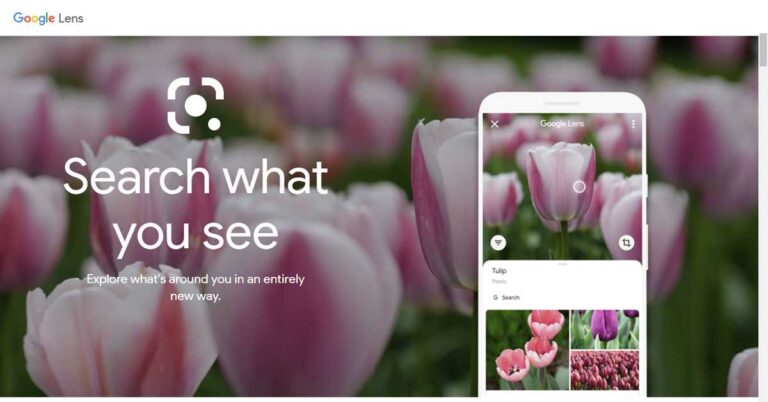
Google Lens, an image recognition technology developed by Google, recently received a beta update that provides a gallery to view pictures. Google Lens utilises the smartphone camera and implements Deep Learning to detect objects, language translation and scan codes.
What new feature does the new update offers?
Although the new update of Google Lens is not a major one, it will add to the convenience of using the app. The Google Lens application is of great utility as it enables users to perform various functions including. Besides the QR scan, it helps in object identification, explores places, text translation, and real-time analysis of live photos. The Gallery mode will further extend its capabilities. It will help users to quickly navigate through pictures through the Google Lens application.
What new feature does the new update offers? (Image Credit: Google)Download Google Lens on the Play Store
How to access the new feature?
You can find the new feature of Google Lens in the beta version of the app on Android. When you tap the gallery icon located next to the shutter, the updated app will allow you to scan the gallery in a thumbnail format. The app will display a fullscreen list of images arranged into folders. You can also view the recent eight screenshots that you took. To view the contents of a folder, tap the View All button.
What is the significance of the update?
According to Google lens. the new update will add convenience to online education with the ‘Education Mode’. Here are the key advantages.
1) This mode will assist students in solving complex problems. They will be able to see the solutions just by clicking a picture.
2) Students belonging to Science and Engineering fields can also seek solutions to problems by giving likely interpretations of the concepts.
What is the significance of the update?
The above features come under Google’s project named ‘The Anywhere School’. The motive of the project is to link different Google services like Meet, Classroom, and Suite for enhanced educational benefits.
For the latest gadget and tech news, and gadget reviews, follow us on Twitter, Facebook and Instagram. For newest tech & gadget videos subscribe to our YouTube Channel. You can also stay up to date with the Gadget Bridge Android App.
Twitter, the American microblogging and social networking service, is working on a new feature that will allow users to play YouTube videos straight away from tweets. This feature looks similar to the ‘Picture in Picture’ feature of WhatsApp that also enables you to watch YouTube videos within the chat in a mini player without opening the browser.
How will the YouTube video play feature of Twitter work?
As of now, when a user clicks on the YouTube link embedded in a tweet, he is redirected to the website of YouTube video. Once the new feature is released, the user will be able to play the video directly on the Twitter app or website. This will save the user from getting redirected to the new window. Instead, they remain on the app and quickly switch back to their feed after watching the video.
How will the YouTube video play feature of Twitter work?
When can we expect the new feature of Twitter to come?
Twitter said that the new feature is in the testing phase on iOS. The company also revealed a GIF showing how the new YouTube feature will work.
According to Twitter, “Starting today on iOS, we’re testing a way to watch YouTube videos directly in your Home timeline, without leaving the conversation on Twitter”.
The new feature is expected to be released in a small batch of users in countries like the US, Canada, and Japan.
What else is Twitter working on?
Besides the new YouTube video play feature, Twitter revealed other projects that are being tested. The company is testing new methods to share and view media like audio and video within the app.
According to Twitter, “Now testing on Android and iOS: when you Tweet a single image, how the image appears in the Tweet composer is how it will look on the timeline bigger and better. We’re testing ways for you to upload and view 4K images on Android and iOS. If you’re in the test, update your high-quality image preferences in Data usage settings to get started”.
Soon we can also find the Undo button on Twitter. Although the Undo feature will not allow users to edit their posted tweets, it shall give them a chance to un-send them.
What else is Twitter working on?
Recently, Twitter rolled out some useful features including voice tweet and voice DM. The new YouTube video play feature is also expected to be welcomed by the people and will enhance the user experience.
For the latest gadget and tech news, and gadget reviews, follow us on Twitter, Facebook and Instagram. For newest tech & gadget videos subscribe to our YouTube Channel. You can also stay up to date with the Gadget Bridge Android App.
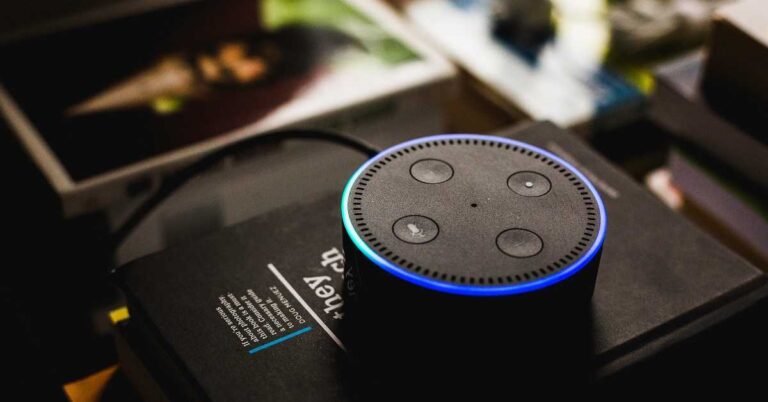
An Echo device like Amazon Alexa has become quite popular among households. It lets you control smart devices through a home automation system. Moreover, it can interact with you and do several other tasks including music playback, providing weather information, and setting alarms, and making to-do lists.
Who needs to use the Echo with two Amazon accounts and why?
Amazon Household is quite useful for families using an Echo device. It allows you to share digital content including video games and ebooks. You can also use the other person’s account to make online purchases when especially when that person has a Prime account.
What are the limitations of the Amazon Household account?
Although Amazon Household enables you to share Amazon benefits with another person say adult, teens, and children, it comes with certain limitation. These are as follows
1) You can add only one other adult to your household account.
2) Amazon provides you to add up to four teenagers of age 13 to 17.
3) You can add up to four children of age 12 or under using the Amazon Kids Plus plan.
What are the limitations of the Amazon Household account?
How to add someone to your Amazon Household?
1) Go to the Amazon website and open the Amazon Household page.
2) Choose the appropriate option among the following: ‘Add Adult’, ‘Add a Teen’, or ‘Add a Child. For the sake of example, we’ll choose the ‘Add Adult’ option.
3) Enter the name and email address of the adult person you want to add. For sharing the account, the person will be asked through an email to join your Amazon Household.
4) Once you’ve added the person to the Amazon Household, you can easily switch accounts by saying “Alexa, switch accounts”.
If you want to know which account you’re using, just say, “Alexa, identify account”.
How to add someone to your Amazon Household?
How to delete the second account?
It may be the case that the other person is no longer a part of the household. Removing a person from the Amazon Household is quite easy. Follow these steps.
1) Go to the Amazon website and open the “Manage your Household” page.
2) You’ll find the icons representing you and the other member located on the left side. You may choose two options.
3) Either select ‘Leave’ if you yourself wish to leave the household or ‘Remove’ to remove the other person from the Amazon Household.
How to delete the second account?
It must be noted that when an adult leaves or is removed from the Amazon Household, the same person can’t join for the next 180 days. However, if you accidentally deleted the other person’s account, you can contact Amazon Customer Support without facing the 180 days restriction. This method also works when you merely want to shift a member to a different Amazon Household without facing 180 days ban.
For the latest gadget and tech news, and gadget reviews, follow us on Twitter, Facebook and Instagram. For newest tech & gadget videos subscribe to our YouTube Channel. You can also stay up to date with the Gadget Bridge Android App.
Micromax launched its new smartphone IN 1 on March 19, 2021. The company boasts the smartphone as “India Ka Naya Blockbuster” i.e. it’s a smartphone designed for a self-reliant India. The launch event had been eagerly awaited by smartphone enthusiasts. Let’s find out if this smartphone can dominate other players in the price segment.
What are the features of the new Micromax IN 1?
Micromax is renowned for offering awesome features at an affordable price. Here is a crisp breakdown of individual functionalities.
1) Camera: You get a 48MP triple rear camera setup (a 48MP primary lens, a 2MP depth sensor, and a 2MP macro lens). The rear camera comes integrated with Artificial Intelligence that will give new dimensions to photography and video capturing. The IN 1 is the only smartphone in this price range to offer a Night-mode on both the front and rear cameras.
2) Display: This is with an elegant 6.67inch FHD+ with the selfie camera embedding in the punch-hole in the screen. You get a full 80degree viewing angle with 440 NITS of brightness.
3) Processor: The new IN 1 offers the powerful MediaTek Helio G80 processor. The Arm Mali-G52 class GPU with a peak speed of 950MHz is expected to make this smartphone quite popular among budget gamers.
4) Battery: The 5,000mAh battery installed in the new IN 1 is 100% Made in India. The battery can easily last up to 2 days once fully charged. You get an 18W fast charger so that you don’t have to wait for too long for music streaming and web browsing.
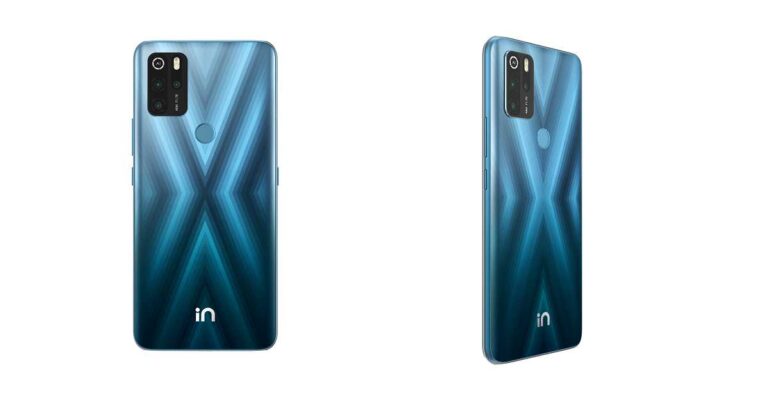
5) Design: The new IN1 looks more expensive than it is, owing to its elegant design. With merely 9mm thickness, it comes with a metallic finish and a unique X Pattern. The matte finish and Oleophobic coating protect it from fingerprint smudges
6) Connectivity: The IN 1 is a 4G smartphone supporting the latest Bluetooth V5.0 for efficient data transfer. You get Dual VoWi-Fi, Dual VoLTE and Dual Wi-Fi (2.4GHz/5GHz) features.
The device runs a Pure Android OS i.e., you will not get the skin, bloatware, and irritating advertisements. In a nutshell, the smartphone offers high performance and sleek design.
According to Rahul Sharma, Co-Founder, Micromax India,
“The IN 1 is inspired by the Indian cinema, and just like a superhit movie, we have tried to incorporate the best-in-class technology and great features to give you a seamless, safe and delightful experience. From the processor to the display, camera and battery, we have worked hard to incorporate all key features to make it a true blockbuster. We immensely value the feedback we receive from our consumers, which is why IN 1 brings to you enhanced hardware and software capabilities at India Ke Liye completely honest prices. It is the complete smartphone for all Indians.”
What are the variants of the new Micromax IN 1 and their respective prices?
The Micromax In 1 is launched in two variants, 4GB + 64GB and 6GB+128GB. The price of each variant is as follows.
Price of 4GB + 64GB variant: ₹ 10,499
Price of 6GB+128GB variant: ₹ 11,999
The smartphone will sport the following two colours, Purple and Blue.
When can you buy the new Micromax IN 1 and where?
The Micromax In 1 will be available for the first sale on March 26, 2021, at 12 PM. You can buy it exclusively on micromaxinfo.com and Flipkart. The company will also release an introductory offer for a limited period as long as the stock lasts. In this offer, you can get the smartphone at a discount of ₹500.
When can you buy the new Micromax IN 1 and where?
The best part about the phone is that its major components are manufactured within the country to consolidate the objective of ‘Atmanirbhar Bharat’. The display and camera quality with AI integration is just amazing. However, we had expected 5G connectivity considering the evolving requirements. However, considering the price point, the IN 1 might re-establish the company’s position in the Indian market.
For the latest gadget and tech news, and gadget reviews, follow us on Twitter, Facebook and Instagram. For newest tech & gadget videos subscribe to our YouTube Channel. You can also stay up to date with the Gadget Bridge Android App.
























 According to Rahul Sharma, Co-Founder,