In This Article
WhatsApp Chat Backups and how to set them up
To recover deleted WhatsApp messages the most important thing is to have your Chat Backup turned on only then you can actually retrieve the messages. To turn the backup on, tap the Settings tab. It’s on the bottom bar of the iPhone app. On Android, open the three-dot menu at the top-right and choose Settings. From there, head to Chats > Chat backup. Here (under Auto Backup on iOS and Back up to Google Drive on Android), the app offers several backup frequencies (along with the option to encrypt your WhatsApp backups):
Daily/ Weekly/ Monthly/ Off
WhatsApp on android devices makes a local backup every night, but this doesn’t help if you have lost your device, so backing up to the cloud is important and useful.
Over that, WhatsApp deletes older backup files as you create new ones. The iPhone app only keeps the latest backup file, while the Android version keeps “up to the last seven days’ worth” of backup files. Keep that in mind as you choose the right backup frequency for your needs.
Read Also: How can you bring back recently deleted images on Instagram?
Choosing auto-backups will make it easier for you to recover WhatsApp messages soon after deleting them. On the other hand, weekly auto-backups will allow you to go further back in time to recover deleted WhatsApp messages, costing you your recent messages.
From there, head to Chats > Chat backup. Here (under Auto Backup on iOS and Back up to Google Drive on Android), the app offers several backup frequencies (along with the option to encrypt your WhatsApp backups):
Daily/ Weekly/ Monthly/ Off
WhatsApp on android devices makes a local backup every night, but this doesn’t help if you have lost your device, so backing up to the cloud is important and useful.
Over that, WhatsApp deletes older backup files as you create new ones. The iPhone app only keeps the latest backup file, while the Android version keeps “up to the last seven days’ worth” of backup files. Keep that in mind as you choose the right backup frequency for your needs.
Read Also: How can you bring back recently deleted images on Instagram?
Choosing auto-backups will make it easier for you to recover WhatsApp messages soon after deleting them. On the other hand, weekly auto-backups will allow you to go further back in time to recover deleted WhatsApp messages, costing you your recent messages.
How to Recover Archived Chats in WhatsApp
At times the chat simply gets archived and all of it is still there on your WhatsApp and nothing has been deleted, to understand what the difference is and how to retrieve the chat or unarchive are listed below. Archiving is like hiding chats. Nothing gets deleted and would be accessible to you. All you need to do is unarchive them, whereas deleting chat would erase its contents and make them no longer accessible to you. For iPhone users, unarchiving their chats is easy. One way is to shake the device to undo and this will recover the archived chat. But there are other ways to do this as well.
Follow these steps to unarchive a WhatsApp chat on any iPhone:
- The first thing to do is scroll up in the chat list (users can swipe from top to bottom) till the Archived Chats appear.

- Now you have to tap on it. Next, swipe from right to left on the chat you want to restore.
- Lastly, hit the Unarchive button that appears on the screen.

To unarchive a chat on Android (follow the steps below)
- Scroll to the top of the chat list and tap Archived chats.
- Press and hold on the chat you want to recover.
- Tap the unarchive icon at the top-right, which looks like a box with an upward-facing arrow.


Read Also: WhatsApp now lets users view status updates in chat lists
How to Recover Deleted WhatsApp Messages
Once you have made a backup, recovering chats from them is simple, all you need to do is uninstall and then reinstall WhatsApp on your device. When you reinstall the app, a message would appear on your screen asking you if you wish to restore your message history from the backup file. To initiate the restore, tap on Restore and with this everything saved in your last backup would be retrieved. Make sure you do it as the message appears, as you can’t restore the backup file later. The next method works for both Android and Apple devices but with a limitation and that being, it will only work as long as you have a backup.How to Recover Deleted Media on WhatsApp
Restoring your backup file allows you to retrieve any deleted media from your chats. On Android, you can simply open a file explorer app and navigate to /WhatsApp/Media. From there, simply browse through the folders until you find the deleted photos you want to recover. On iPhone, you should have a backup copy of images saved to your device if you have the Save to Camera Roll option enabled at Settings > Chats in WhatsApp. Read also: How to block or unblock someone on WhatsApp?How to Recover Older Deleted Chats in WhatsApp
Please note: That the below strategy will work with Android devices only as Android lets its users access to the local backup files. If you are an iPhone user, the method of “restore from an iPhone backup” is what you will get. Here are the steps to restore old WhatsApp chats on Android:- Open a file explorer app (if you do not have, then download from PlayStore) on your Android device.
- Navigate to /WhatsApp/Databases.
- Rename msgstore.db.crypt12 to msgstore-latest.db.crypt12.
- Rename msgstore-YYYY-MM-DD.1.db.crypt12 to msgstore.db.crypt12.
- Uninstall WhatsApp.
- If Google Drive backups are enabled, open Google Drive, slide out the left menu, tap Backups, and delete the WhatsApp backup file.
- Reinstall WhatsApp.
- When prompted, restore from the backup file.
To retrieve WhatsApp messages deleted sometime between two backups, simply do the following:
- Rename msgstore.db.crypt12 to msgstore-latest.db.crypt12. This changes the latest backup file, since you’re about to give an older backup its name in order to restore it.
- Next, rename the msgstore-YYYY-MM-DD.1.db.crypt12 file that you want to restore to msgstore.db.crypt12.

 Step 3:
 Step 4:
 Step 3:
 Step 4:
 Step 5:















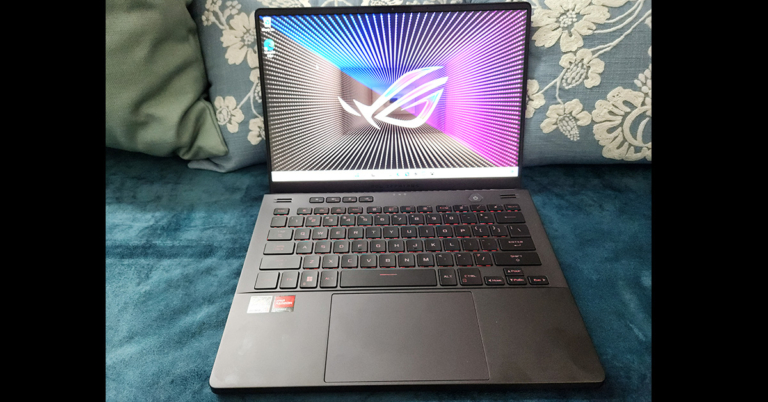
 With the large keyboard users also get a big trackpad. This is very comfortable to use and responds well to every click, swipe and tap. Since it is a ROG laptop, the trackpad does not double up as the NUM Pad, which is the case with the ZenBook series from Asus.
Moving to its display,
With the large keyboard users also get a big trackpad. This is very comfortable to use and responds well to every click, swipe and tap. Since it is a ROG laptop, the trackpad does not double up as the NUM Pad, which is the case with the ZenBook series from Asus.
Moving to its display,  Asus has also put an HD Web Cam on the laptop, which is a welcomed change. As for the ports, the Asus ROG Zephyrus G14 2022 gaming notebook comes with two USB 3.2, two USB Type-C gen 2, one HDMI, one audio/mic combo and a MicroSD card reader located on the left and right sides.

 Over that, the machine also sports quad speakers. Two are upward-firing speakers located just above the keyboard and two are downward-firing speakers that are located at the front bottom. These are tuned by Dolby Atmos and the sound is very very good with them. We would not be wrong if we call them twice as loud over the last generation of G14 by Asus.

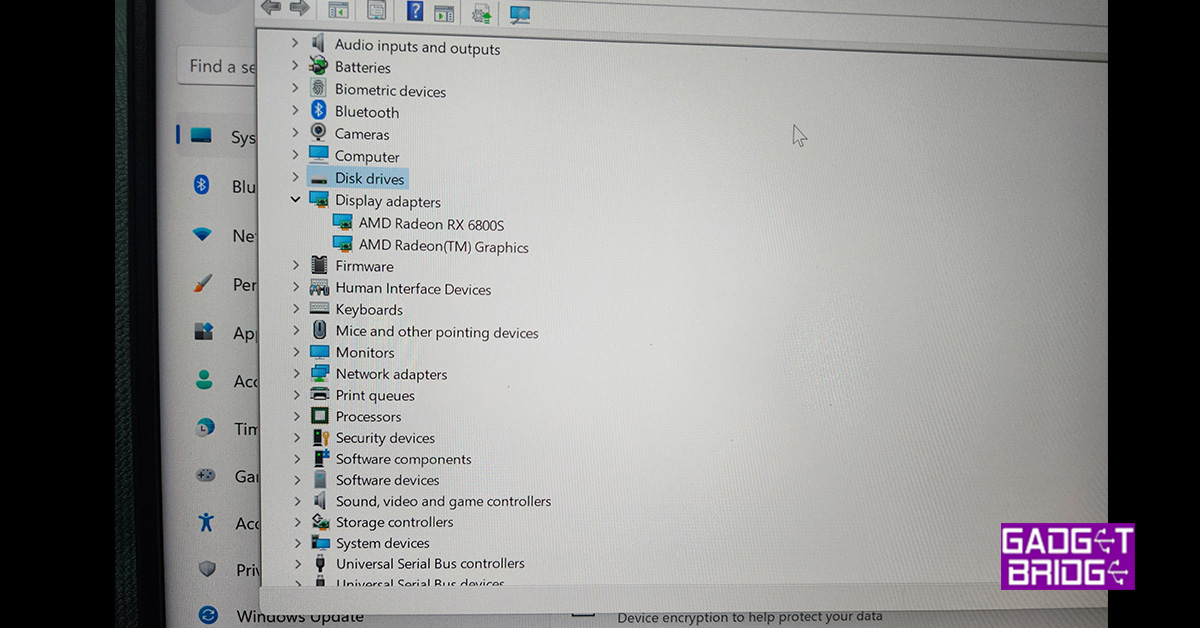
 Together, the machine can put some of the best gaming computers shy away in shame. Asus has managed to put so much firepower in such a small form factor. To put it to the ultimate test we played Battlefield 2042 on the machine at the highest settings and to our amazement, it performed just right. There was hardly any frame drop and we got consistent 60-70 frames per second.
 Read Also:
  But hey, most of us will not be gaming on it without using the power supply (240W). Which, can fast charge it to 50% in under 30 minutes. On the flip side, this machine is very luggable at just 1.72Kg. Many would just want to pick it up as a work cum gaming buddy on the fly. For the OS needs, Windows 11 Home edition is what users will get. We were hoping to see the Pro version in it. Also in the box, you get a nice ZIP pouch to carry it around. And lastly, it is available in two colours – white or black. You can pick the one you like the best.