A factory reset is a quick way to clear all data on your PC or laptop in case you want to sell it. If you are experiencing issues with your PC, a factory reset may come in handy. There are a couple of ways you can reset your PC, even if you dont have access to the admin account password. While Windows gives you the option to retain your personal files, it is always a good idea to back up your data before a complete reset. In this article, we bring you two quick ways to perform a factory reset on your Windows 11 PC or laptop.
How to Factory Reset your Windows 11 PC or laptop from Settings
Step 1: Go to Settings and select System from the menu on the left.
Step 2: Scroll down and select Recovery.
Step 3: In the following window, click on ‘Reset PC’.
Step 4: You will be presented with two options. You can choose to keep your personal files and remove apps & settings or remove all of your personal files, apps, and settings. Choose the option you want.
Step 5: Select how you would like to reinstall Windows. You can choose between ‘Cloud download’ or ‘Local download’.
Step 6: After you’ve made your choice, click on next to confirm your selection and then click on reset to begin the factory reset process.
It will take some time for your PC to reset and for Windows 11 to get reinstalled. After the process is complete, your PC will restart.
How to Factory Reset your Windows 11 PC or laptop from Recovery Mode
Step 1: Turn on your PC and click on the power icon on the login screen.
Step 2: Long press the Shift key and click on Restart. Don’t release the Shift key until you see ‘please wait’ on the screen. This is how you can restart your PC in recovery mode.
Step 3: Click on ‘Troubleshoot’ and select ‘Reset this PC’.
Step 4: In the following screen, you can choose whether you want to keep your personal files or remove all data including your personal files.
Step 5: Select how you would like to reinstall Windows. You can choose between ‘Cloud download’ or ‘Local download’.
Step 6: Click on Reset to begin the Factory Reset process. Your PC will restart after it has been reset.
These are the two quick ways to factory reset your Windows 11 PC or laptop. You can also reinstall Windows using a bootable USB drive. If you are experiencing certain issues with your laptop, performing a factory reset should be a last-ditch effort in fixing them. Try to diagnose the issue before completely wiping your laptop of all data. If you found this article helpful, let us know in the comments!
As a group admin, you should know that the key to sustaining a group is healthy user engagement. Even if your group doesn’t have a lot of members, you can use effective strategies to drive up user engagement and create meaningful content. If the group is buzzing with activity, it makes it more appealing to the prospective members. In this article, we bring you 8 effective tips to engage your Facebook group members.
Take some time out to compose a thoughtful welcome message and send it to new members that join your Facebook group. New members are more likely to participate in the group when you acknowledge their presence and make them feel welcome. You can either send a message to every person that joins the group or do a weekly roundup by making a fresh post and tagging all the new members. A public post also helps break the ice between new members and group regulars.
Initiate discourse with text posts
Depending on what your group is about, you can create text posts that spark a discussion in the comments and bring everyone together. Your post needs to be well-researched and should cover multiple facets of the discussion so as to include everyone in the discourse. Make sure the comment section is well-moderated so as to make everyone feel welcome in voicing their opinion without having to worry about any hostility.
Set up novel themes for specific days
If you’re worried about the group hitting a stagnation point, you can stir things up a bit and generate more user activity by encouraging group members to post content around a certain theme on specific days. For example, if you manage a food-related group, every Sunday can be a ‘homemade recipe’ posting day where users share their own recipes with the group. This will keep the group members interested in engaging with the group and will drive up user activity.
Make sure the group is well moderated
Once you notice that your Facebook group is seeing a lot of activity and user-generated posts, you will need to make sure that it is well-moderated. No matter how good the quality of content is, no one wants their feed to be filled with spam. Appoint a group of moderators and assign them certain tasks. Make sure the group members engage in civil discourse so that everyone feels welcome and isn’t put off by any kind of hostility.
Create video posts
If you want your content posted on other platforms, make sure you create frequent video posts. Apps like TikTok and Instagram are integral in making your content ‘viral’, and once your post gains popularity, it can bring a lot more new users to your group. Video posts can also generate within the group as more people are likely to watch a video than read a text post.
Build your community by hosting online or offline meetups
A close-knit community is integral to the proper functioning of a group. Make sure the group members are familiar with each other and bring everyone together by hosting virtual meetings through Zoom. You can also host an in-person meetup at a park or cafe if you manage a local group. You can set up fun activities like board games and trivia to unite the group.
Use group metrics to gain insights about the group
As an admin, you have access to group metrics that give you a better idea of the engagement and activity rate. Use these metrics to figure out which kind of content users like to engage with. Weed out the unpopular content. Over a period of time, you will get a good idea of what kind of content should be encouraged within the group.
Run contests and giveaways
Contents and giveaways are a great way of driving up engagement and even recruiting new members to your Facebook group. While you don’t have to entirely rely on giveaways to amplify user activity, you can use them to spark up the group when things hit a slow patch. Make sure the contests are designed around the theme of the group in order to make them unique.
These are the top 8 tips to engage your Facebook group members. While posting good quality content should always be your top priority, it is equally important to create a healthy community of group members. Facebook groups that are not well-moderated often fall apart pretty quickly. If you found these tips helpful, let us know in the comments!
Today in China, Redmi is slated to introduce its Redmi K60 series. The Redmi K60 series will include three different smartphones: the Redmi K60, the Redmi K60E, and the Redmi K60 Pro. Other than the smartphones the company is also going to launch more products Redmi Note 12 Pro Speed Edition smartphone, Redmi Watch 3, Redmi Band 2, and Redmi Buds 4 Lite.
Redmi will announce the launch of the Redmi Watch 3, Redmi Band 2, and Redmi Buds 4 Lite at the New Year conference in a post on the Chinese social networking site Weibo. Both the company’s official website and its official Weibo account allow viewers to watch the launch ceremony. It is important to let readers know that using a VPN is required in order to watch the launch event live stream. The conference is slated to start at 7 PM local time and at 4:40 PM IST on December 27. The Redmi K60 series’ launch date in India is currently unknown.
In terms of operating systems, all three smartphones will come pre-installed with the most recent MIUI 14 skin built on top of Android 13.
Both the Redmi K60 and Redmi K60 Pro will have a single punch-hole selfie camera that is positioned in the centre. The device is likely to feature a 2K display with a refresh rate of 120Hz. The Redmi K60 will have a Snapdragon 8+ Gen 1 processor, while the Redmi K60 Pro will be outfitted with the most recent Snapdragon 8 Gen 2 chip.
The primary sensor on the Redmi K60 Pro will be a Sony IMX800. OIS support will be included on both devices.
The 5,500mAh battery in both smartphones is touted to support 30W wireless charging. The Redmi K60 is anticipated to support 67W whereas the Redmi K60 Pro is anticipated to offer 120W fast charging. An under-display fingerprint scanner will probably be included with the Redmi K60 and Redmi K60 Pro.
The Redmi K60E’s display is anticipated to have a 1.5K resolution and a refresh rate of 120Hz. The device probably has a triple-rear-camera configuration with OIS capabilities.
The Dimensity 8200 chipset, which is rumoured to power the K60E, will reportedly be combined with 12GB LPDDR5 RAM and 256GB UFS3.1 storage. With regard to the device’s battery, the Redmi K60E is anticipated to have a 5,500mAh battery that supports 67W fast charging.
The Redmi Watch 3 will, according to the manufacturer, have a 1.75-inch AMOLED display. The business further revealed that the watch’s display is up to 341 pixels per inch and 1.3 times crisper. It is also revealed that the Redmi Watch 3 has a maximum brightness of 600 nits. On the other hand, Redmi Band 2 will reportedly have a 1.47-inch display.
The Redmi K60E is anticipated to cost about CNY 2,000, or roughly Rs 24,000. The Redmi K60 is rumoured to cost around CNY 2,499, or roughly Rs 30,000, and the Redmi K60 Pro, the most expensive model, may cost around CNY 3,299, or roughly Rs 40,000.
Let’s start by understanding what NFC is. NFC stands for Near Field Communication and allows two electronic devices to communicate with each other when they are held up close. NFC is quickly finding its place in modern smartphones but its usage is still limited to making contactless payments. Most smartphone users aren’t aware of the possibilities that lie ahead with NFC.
How to make the most of NFC and use it in day-to-day life?
To tap into the maximum potential of NFC, you will need to purchase ‘NFC tags’ which can be programmed to carry out certain tasks or share the data stored within them. In this article, we bring you the top 8 practical ways to use Android NFC in your day-to-day life.
Placing an NFC tag alongside your entry doorway can help in automating several smartphone-related tasks. You can program the NFC tag to turn on your phone’s WiFi the moment your step in, turn off the mobile data, decrease brightness, launch a Spotify playlist, and complete other tasks you usually carry out upon arriving home. Conversely, you can program the tag to ‘switch’ the tasks and turn off WiFi and turn on the mobile data as you step out.
Unlock your door
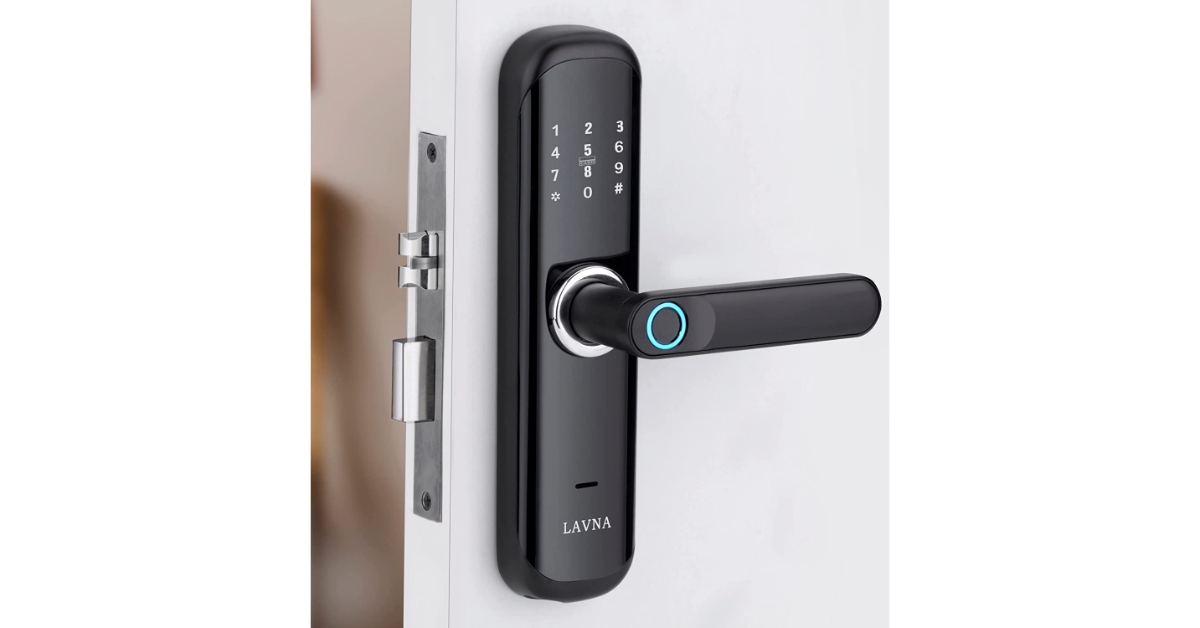
If you have a smart lock installed in your house, you can operate it using an NFC tag. You don’t have to enter the code every time you want to enter your house. The only precondition is that the smart lock must have NFC support (common in most modern smart locks). Once you’ve programmed the lock, all you need to do is place your phone near it and the door will automatically unlock for you.
Automate your tasks as you enter your car
If you don’t have Apple CarPlay or Android Auto in your car, an NFC tag will be extremely helpful. You can place the tag at a convenient spot (like the dashboard or centre console) and program it to automate certain tasks like launching the navigation app, playing a certain playlist on Spotify, enabling Bluetooth to pair with your car’s speakers, and turning on Do Not Disturb mode.
Share your business card
You can save money on printing out business cards and make the process of sharing one look pretty cool with the help of NFC. You can program an NFC tag to share your contact information and business details whenever someone taps on it. If you’re setting up shop at an event, you don’t have to worry about printing the ideal number of business cards. Simply place the NFC tag at a convenient spot where people can easily scan it for its contents.
Force yourself out of bed with an NFC alarm
If you have a habit of hitting the snooze button in bed over and over again, you can use an NFC tag to force yourself out of bed. The NFC Alarm Clock app makes you scan an NFC tag to disable the ringing alarm. To best utilise this feature, place the NFC tag far away from your bed, so you are forced to get up in order to turn off the alarm.
Connect to Bluetooth devices
Bluetooth devices are more common than ever these days. You may have several Bluetooth speakers at home that are paired with your smartphone and other media-playing devices. Constantly switching between devices can be quite a hassle. You can easily bypass this minor issue by programming NFC tags for different Bluetooth devices in your house. Once that’s done, all you need to do is tap your phone on the tag and it will automatically connect to the device, whether the Bluetooth is turned on or not. This is one of the most practical ways to use Android NFC at home.
Share the WiFi password
Here’s a cool way to share your home WiFi password. Program an NFC tag to share your WiFi network details whenever a smartphone comes in contact with it. WiFi passwords are usually long and complex, so you won’t need to remember them if you use an NFC tag. Apps like InstaWiFi will help you program the NFC tag to give out your home WiFi password.
Share a website
If you have a personal blog or website with a complicated name, you don’t need to spell it out every time someone asks for it. Simply pull out the NFC card with the website URL programmed in it and let the person scan it on their phone. When someone scans the NFC tag, their phone will immediately open the website in a web browser. This trick can be particularly useful for small businesses and sellers to direct people to their online stores.
These are the 8 practical ways to use Android NFC in your day-to-day life. Since NFC payments are pretty commonplace these days, we’ve omitted it from our list in favour of other creative tasks. Once you get a hang of how to use an NFC tag, the possibilities of its use are endless. You can get creative with it and program it to carry out tasks that fit your quirks and needs. If you found this article helpful, let us know in the comments!
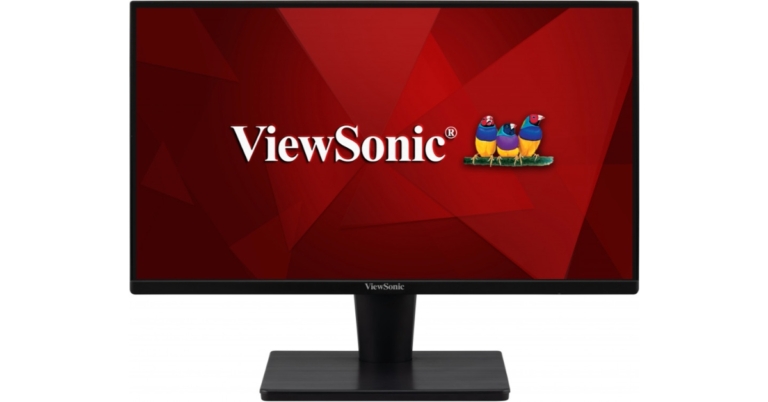
Viewsonic has announced the introduction of a limited edition monitor series in the Indian market. The new Viewsonic monitors series includes three models 19-inch VA1903H-2-IN1, 22-inch VA2215-H-IN1, 24-inch VA2432-MH-IN1, and 27-inch VA2732-MH-IN1. The monitor line offers eye-care technology to lessen eye strain while using a screen.
The Viewsonic VA1903H-2-IN1 monitor offers performance and value for both home offices and small companies. The VA1903H-2 is excellent for a range of tasks, including viewing office documents and browsing the web. It has HDMI ports, a quick 5ms reaction time, and a 50M:1 Dynamic Contrast Ratio. This monitor, which has a hairline surface finish, looks amazing on any desktop. The proprietary ViewMode feature from ViewSonic offers user-friendly presets for optimal screen performance in various applications. Additionally, for increased productivity, flicker-free technology and a blue light filter assist prevent eye strain from prolonged viewing times. The VA1903H-2 is a fantastic option for both government and education because it has an energy-saving Eco-mode that lowers cost of ownership.
Suitable for use in the office or at home, the ViewSonic VA2215-H is a 22-inch Full HD monitor with HDMI and VGA input. This monitor offers six ViewMode presets that deliver optimum screen performance according to your demands while still delivering superb visual quality with reduced battery consumption. Even while gaming, FreeSync eliminates tearing and stuttering. Eye strain from extended viewing times is reduced by the eye care technology that is a standard feature on all VA displays. This monitor’s easy installation on the wall or with a variety of industry-standard mounts is made possible by a VESA-compatible mount.
The ViewSonic VA2432-MH is a 24-inch (23.8” viewable) Full HD Monitor. It has IPS technology and flexible connectivity for use at home or in the office. Images are crisp and detailed from a variety of viewing angles thanks to SuperClear IPS technology and Full HD resolution. While HDMI and VGA inputs enable greater setup freedom when connecting with other devices, integrated speakers guarantee a clear and sharp sound. The VA2432-MH’s three-sided frameless bezel offers a smooth viewing experience and includes Eye Care technology to lessen eye fatigue brought on by prolonged viewing. The ease of adapting to multi-monitor or wall-mount setups is ensured by VESA compatibility.
For usage in the office or at home, the ViewSonic VA2732-MH is a 27″ (27″ viewable) Full HD Monitor with IPS technology and adaptable connectivity. Images are sharp and detailed from a variety of viewing angles thanks to SuperClear IPS technology and Full HD resolution. While HDMI and VGA ports enable greater setup options when connecting with other devices, integrated speakers guarantee a smooth and crisp audio experience. The VA2732-MH’s three-sided frameless bezel offers a smooth viewing experience and includes Eye Care technology to lessen eye strain brought on by prolonged viewing. Easy adaptation to multi-monitor or wall-mount setups is ensured by VESA compatibility.
Garena Free Fire is a battle royale game with regular awards and tournaments to keep players interested. If you play Garena Free Fire, you should be aware of the redeem codes that are released on a daily basis. However, because the battle royale game is banned in India, players from other countries can use the Free Fire Redeem codes daily. If you’re unfamiliar with the Garena Free Fire redeem codes or don’t know how to get them, we’ve put together a step-by-step guide to help you redeem them. Check out Garena Free Fire Redeem Codes for December 27.
The Free Fire redeem codes are a great way to get free stuff. These are 12-digit codes that contain alphabets and numbers, as well as an expiration date and time. Because the Garena FF redeem codes cannot be used more than once, you should hurry to the redemption page to claim your free reward before someone else does. To get a free reward, all you have to do is go to reward.ff.garena.com/en, which is the official redemption page. Also, keep an eye on this space for daily updates on Garena Free Fire redemption codes and rewards.
In This Article
Garena Free Fire Redeem Codes Today 27 December 2022
AD2Q-FG8I-H3EI
ET5W-G345-T6YH
RGY1-TG4F-VBE4
G5B6-NY3M-KU8H
DCV3-BH4E-JRFI
Y9H8-7GY6-FT8D
FQX1-FT2Q-S3WS
GEF8-B4N5-M6YK
OB98-7FD6-E5TR
JI56-Y9HI-8UBJ
FY87-HYBT-VGFC
VXSB-EN4K-56I9
Y8H7-B6V5-C4XS
3EAW-QSD2-CV3G
TER5-F43E-SWAS
WEYVGQC3CT8Q
GCNVA2PDRGRZ
JHGR-KIU7-HG45
UOJ8-7B6F-5DRE
J3ZKQ57Z2P2P
B3G7A22TWDR7X
3IBBMSL7AK8G
8F3QZKNTLWBZ
BG4N-EJ4K-5L6O
SARG886AV5GR
FF7MUY4ME6SC
FJK8-SL6W-Q203
9ER8-FG7H-BYU4
JVK9-DS2W-QJ2U
Y54E-RF3G-BE4E
JON9-8B7V-FY6D
F6C5-X4SA-3QWE
2DF3-GHRT-UG76
F4G5-TYH9-KJU7
4VRB-5TJK-GY6H
5FD4-SQED-2FV3
How to Get Free Fire Redeem Codes for Garena on December 27?
27 December 2022 Amazon Quiz has gone live on its mobile app platform. The quiz can be played from 12 AM to 11:59. All you need to do is just answer five easy questions that the e-commerce website puts before you. Today you can stand a chance to win Rs ___ Amazon Pay Balance.
Every day Amazon posts a new questionnaire that consists of five simple questions about general knowledge and current events. To enter a lucky draw, participants must correctly answer the questions. One incorrect answer will result in your elimination from the quiz. Each month, only one person will be declared the winner and the results will be announced at the end of the month. Amazon customers who submit correct answers can win an Amazon Pay Balance worth up to Rs 50,000. To ensure that you answer all five questions correctly, Gadget Bridge updates all of the correct answers on a daily basis. Take a look at today’s answers:
Only app users are eligible to play the Amazon quiz every morning from 12 AM to 11:59 PM. The quiz is not available on the desktop. For those who are unaware of how to play the Amazon quiz below are the steps, you can follow to take the quiz.
Firstly download the Amazon app from Google Play Store or App Store
Now fill in the required information through the Sign Up option.
You need to log in to the Amazon app and scroll down on the home screen to find the Amazon Quiz banner.
Tap on the Amazon Quiz banner and tap on the Start button to start the Quiz.
Now you will get 5 questions and you need to answer them correctly. One wrong answer will eliminate you from the Quiz.
After answering all the questions correctly you are now eligible for a Lucky Draw.
The winner’s name will be announced today at 12 PM.
Recently, Twitter introduced a new View Count feature for tweets that enables users to see a tweet’s precise view count in a way that is similar to how it appears on videos. This new function, which Musk had earlier this month promised to release, is now accessible to all users. Moreover, the ability to publish films up to 60 minutes long is currently being given out to Twitter Blue subscribers. The new capacity will also alter the video’s quality when it is released.
Users will be able to view the actual view count for their tweets using the new feature. Elon Musk tweeted to confirm the feature’s release. Users will be able to find out how many times a tweet has been viewed by using the View Count function, as per Elon Musk’s tweet. The web, iOS, and Android apps can now be used to access the function. Everyone can see how many times a tweet has been viewed, not only the account owner. Apps for iOS and Android presently support the feature. The web version of it is also accessible. The view count will currently only be displayed on newly posted tweets and not on older ones.
Twitter is rolling out View Count, so you can see how many times a tweet has been seen! This is normal for video.
Shows how much more alive Twitter is than it may seem, as over 90% of Twitter users read, but don’t tweet, reply or like, as those are public actions.
According to Elon Musk’s tweet, this novel feature is typical for videos. Given that more than 90% of users see tweets but don’t re-tweet, comment, or like them, he added that it will also demonstrate how much more active Twitter is than it may appear.
For Twitter Blue subscribers, a 60-minute video in 1080p resolution will be made accessible for sharing online. The microblogging service made the upgrade public via its Twitter Blue page. Up until now, Twitter Blue members could only submit movies that were up to 10 minutes long and no larger than 512MB in size. Customers can now submit videos that are 60 minutes long, claims the company. The video should not, however, be more than 2GB. This feature is not available in the Twitter mobile apps for iOS and Android.
Keep in mind that the feature can currently only be used via web and not through iOS or Android apps.
The Realme smartphone caught fire in a terrifying accident. On Sunday, the Realme 8 exploded when its owner was sitting, causing the disaster. Sadly, the gadget was in the pocket. Its leg was almost burned when it heard a sizzling sound. A man from India is the owner of the smartphone.
The Redmi 8 users took to Twitter to report the scary accident when the phone caught fire randomly in the middle of the night on December 25. The user noticed a sizzling sound as he and his siblings were seated; when he checked his pocket, he saw that smoke was flowing from the user’s phone. According to him, it nearly burned his leg.
“My Realme 8 EXPLODED ystrdy (25dec). I was sitting with my siblings when we heard a sizzling noise, I checked my pocket and there was smoke coming through my phone. It almost burnt my leg. Please🙏help me get a refund or replacement,” his tweet reads.
This disaster has occurred before; a few months ago, an eight-month-old girl died in the Bareilly region of Uttar Pradesh when her mother’s cell phone exploded while charging. Next to the infant, the mom had left the keypad phone charging. The phone, which was purchased six months ago, had a bloated battery and was attached to a switch powered by a solar panel. According to the family, there was no adapter involved; it was simply being charged using a USB cable.
Another instance apparently involved a Redmi 6A smartphone that detonated, killing a woman in the Delhi-NCR area. The smartphone exploded and apparently took the aunt of a person’s life, based on a tweet. The aunt used the smartphone and had put it close to her face on a pillow while sleeping. Xiaomi has replied to the tweet by stating that it is looking into the situation.
The user was killed by the battery explosion, which also produced photographs of the smartphone’s damage. The back panel of the smartphone shows that the battery has exploded, in contrast to the front panel’s fully bent and wrecked appearance.
If you are thinking of using e-commerce platforms to send gifts to your loved ones this festive season, make it special by adding a personalised message along with the gift order. Adding a custom message does not take much time and makes the gift all the more special. In this article, we bring you 2 simple ways to send custom messages with Amazon or Flipkart orders.
Step 3: Enter the delivery address and select the payment option.
Step 4: Before you place the order, click on ‘gifting options’.
Step 5: Enter your personalised message. Enter your name in the following text field if you want it printed along with the message. You can also choose to add a gift bag/box for an additional fee.
Step 6: Select ‘Save gift options and continue’.
Step 7: Click on ‘Place your order’.
Your Amazon gift order with the personalised message will be placed.
How to send custom messages with a Flipkart order
Flipkart does not allow customers to send personalised messages along with their orders. You can try contacting the seller directly and request them to send the order with a custom message. Simply click on the seller info on the product page and select ‘Contact seller’. While every seller may not comply with your request, it is worth giving a try. Flipkart allows you to send a personalised message along with a gift card, here’s how you can go about it.
Step 1: Search for the Flipkart gift card with the desired amount and relevant template.
Step 2: Click on ‘Buy now’.
Step 3: Add the recipient’s name and email address. In the last text field, add your personalised message. Click on ‘Continue’.
Step 4: Select your desired payment method and follow the onscreen instructions to send the gift card.
These are the 2 simple methods to send custom messages with Amazon or Flipkart orders to the recipient. You can also send a personalised message along with an Amazon gift card. Read our detailed guide to sending an Amazon gift card here. If you found this article helpful, let us know in the comments!
When it comes to creating stickers, Telegram is one step ahead of all instant messengers. Not only can you create your own stickers on Telegram, but you can also carry out the entire process on the app itself, in just a few simple steps. All you need to know is how to remove the background from an image. In this article, we show you how to create your Telegram stickers in just a few simple steps.
Here’s how you can create your own Telegram stickers
Step 1: Choose an image for the sticker. You can download an image from the Internet, take a screenshot from a video, or even pick one from your phone’s gallery.
Step 2: Remove the background from the image and create a PNG file. You can do this using any basic editing software or web tools like Adobe Photoshop or PhotoRoom. Read our complete guide to removing an image background on an Android smartphone here. Before you proceed, make sure that the image doesn’t exceed a resolution of 512 x 512 pixels. If the image is copyrighted, it may be taken down later on. However, if you intend to use it among friends, the chances of the sticker receiving a copy strike are marginal.
Step 3: Launch the Telegram app on your smartphone.
Step 4: Search for ‘Sticker’ in the search bar and select the official Stickers bot. It should have the blue tick next to it.
Step 5: Type ‘/newpack’ and hit send.
Step 6: Enter a name for your sticker pack and hit send.
Step 7: Tap the attachment icon and upload the image you just edited as a file.
Step 8: Assign an emoji to the sticker. You will be able to send this sticker to your friends on Telegram using this emoji.
Step 9: Upload more images if you want to create more stickers. Assign different emojis to all of them.
Step 10: Enter ‘/publish’ and hit send to publish your sticker pack.
Step 11: Telegram gives you the option to upload a 100 x 100-pixel icon for your sticker pack. You can also choose to skip this step by entering ‘/skip’.
Step 12: Type a short name for your sticker pack. This will be a part of the URL identifier.
Step 13: The Stickers bot will create your sticker pack and send you a link. Click on the link and tap on ‘Add stickers’ to download the sticker pack on your device. You can also share this link with your Telegram contacts and groups if you want them to use the stickers you created.
Step 14: Once you’ve downloaded your sticker pack, you can access them from the sticker section in the emoji tab.
This is how you can create your own Telegram stickers. If you don’t want to edit images on your smartphone, you can use Pixlr or Adobe Photoshop on your desktop and upload them to Telegram using its web portal. Got a sticker pack of your own? Share it in the comments!
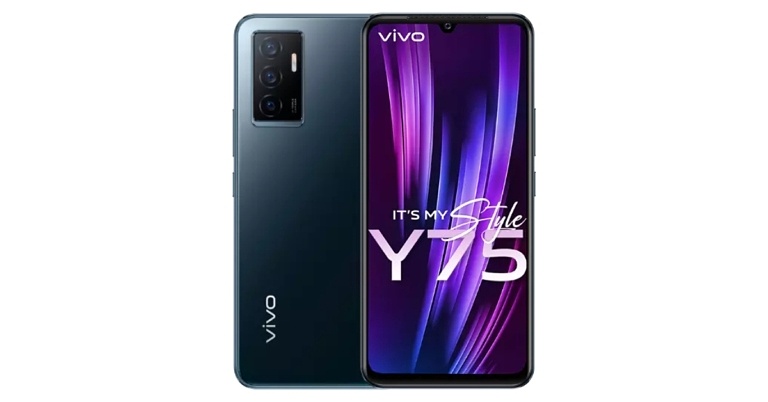
The cost of the Vivo Y75 has decreased by Rs 1000 in India. Both Vivo India’s e-store and Flipkart have changed their prices for the smartphone. To recall, the handset was launched in May this year. The MediaTek Helio G96 Chipset powers the smartphone, which has a modern design. A 44MP AF Selfie Camera with Eye Autofocus and a 50MP Super Night Camera are included. The phone has a 4,050mAh battery as well, which enables 44W FlashCharge.
In This Article
Vivo Y75 new price and offers
The Vivo Y75’s pricing has been reduced, and it is now available for Rs. 19,999 for the only 8GB RAM with 128GB storage configuration. The price of the phone has been reduced from Rs 20,999 to Rs 1000.
The Vivo Y75 smartphone’s new price has been updated on the company’s website, and Flipkart has confirmed that it would be listed there for Rs. 19,999. Customers can also receive an extra 1,500 rupees in cashback when using their ICICI, YES Bank, Bank of Baroda, or other qualified bank cards to make purchases.
Amazon, meanwhile, continues to display the outdated price of Rs. 20,999 for the Vivo Y75. The handset’s price in offline retail establishments has also been adjusted to Rs. 19,999.
Moonlight Shadow and Dancing Waves are the two colour options that are offered.
Vivo Y75 tech specifications
The Funtouch OS 12, which is based on Android 11, runs on the Vivo Y75. The MediaTek Helio G96 4G SoC and 8GB of RAM power the MediaTek Helio G96 4G SoC found within the Vivo Y-series phone. Through the use of built-in storage, the RAM can be extended to 4GB. The smartphone’s 6.44-inch AMOLED screen features a 1,080 x 2,400 pixel resolution.
Additionally, the vivo Y75 has a 4050mAh battery and a potent 44W FlashCharge that can charge the phone from 1% to 65% in 30 minutes, providing it with enough capacity to last the entire day. For connectivity, the smartphone includes Wi-Fi, Bluetooth v5.2, GPS, BEIDOU, GLONASS, and GALILEO as well as a 3.5mm headphone socket and a USB Type-C connector. The sensors onboard include an accelerometer, ambient light sensor, gyroscope, proximity sensor, and e-compass. Additionally integrated for authentication is a fingerprint sensor.
A 50-megapixel main sensor with an f/1.8 aperture is part of the triple rear camera arrangement. The camera system also includes an 8-megapixel wide-angle depth sensor with an f/2.2 aperture and a 2-megapixel macro sensor with an f/2.4 aperture. For selfies, the front of the Vivo Y75 has a 44-megapixel autofocus sensor.
Modern smartphones are built to take a significant amount of damage. Even if you crack your phone’s touchscreen, it won’t be rendered completely useless. If the touchscreen starts malfunctioning all of a sudden for no reason, there are a few things you can do before taking your phone to the repair centre. In this article, we bring you the best easy methods to fix touchscreen issues on an Android smartphone.
Restarting your smartphone is the first thing you should do on encountering an issue. While it may not diagnose the problem, it will fix any minor background glitches that may be keeping your smartphone from working. A quick restart clears any temporary or corrupted files that may be causing the touchscreen to act up. To restart your smartphone, long press the power key and tap on ‘Restart’. If the touchscreen isn’t working entirely, press the volume down key and power key until your phone shuts down. Press the power key again to restart it.
Fix touch sensitivity
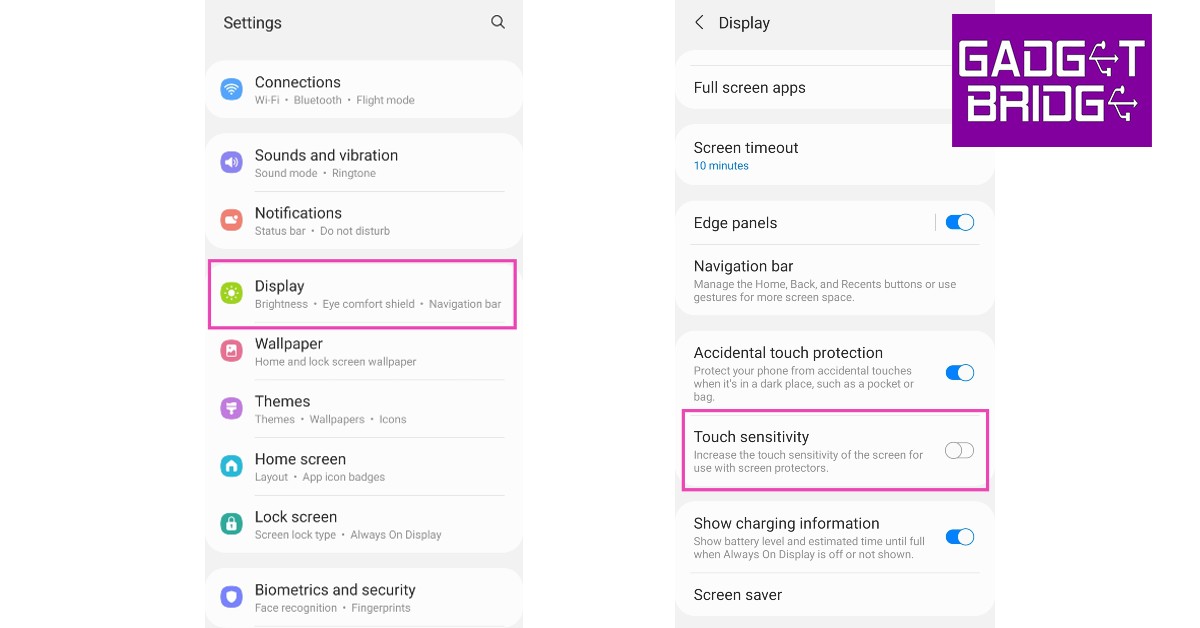
If you removed the screen protector from your smartphone’s display but forgot to lower the touch sensitivity, it may cause the screen to malfunction. Increasing the touch screen sensitivity is essential when you put on a screen protector, as it ensures that there’s no lag in touch response. However, when you take off the screen protector, the heightened sensitivity may create issues with the touchscreen. Go to Settings>Display and tap the toggle bar next to touch sensitivity to turn it off. Conversely, if the touchscreen started presenting issues right after you placed a screen guard, turn on the touch sensitivity.
Check the touchscreen for hardware-related issues
There are a few tests you can carry out to check the touchscreen for dead pixels. These tests will help you figure out if something is wrong with your screen’s hardware. You don’t need to download any app for this. Your smartphone comes embedded with certain tools and diagnostic tests. All you need to do is dial a star code.
For Samsung devices, dial *#7353#
For OnePlus, Oppo, Vivo, and Xiaomi devices, dial *#*#2664#*#*
For Sony devices, dial *#*#7378423#*#*
For Motorola devices, dial *#0*#
Once you carry out these tests, you will be able to check whether there are any ‘dead zones’ on your smartphone’s display.
Remove any physical attachments from the screen
If you have accessorised your smartphone by sticking a label or sticker on the screen, it may be keeping it from working properly. Even a faulty screen guard could cause this problem. Before buying a screen guard it is best you check whether it is approved for use by your smartphone manufacturer, or at least check the user reviews. Some screen guards use adhesives that may render some parts of the screen unresponsive.
Remove any peripherals and accessories
If your phone is connected to any accessories like an external mouse or keyboard, remove them from the device. If you want to be thorough, remove the SIM card and memory card as well. Sometimes a corrupted memory card can cause issues on your device. Restart your smartphone and check if the touchscreen is working again.
Use Display Tester
The Display Tester app is a great tool to figure out what’s wrong with your phone’s touchscreen. Use Display Tester to run tests for dead pixels, multi-touch detection, touchscreen dead spots and more. Once you have diagnosed the issue, it will be easier to determine whether it can be fixed or if you need to replace the screen.
Check your phone for moisture
If your phone got splashed recently, make sure you check your phone for any residual moisture. You can read out guide to completely removing water from any Android smartphone here. Make sure you regularly wipe the touchscreen whenever you operate it with sweaty or wet hands. It is always a good idea to invest in a smartphone with water resistant IP rating to prevent this issue from arising.
Reboot your smartphone in Safe Mode
Rebooting your smartphone in Safe Mode is an effective way to check whether the problem you are experiencing is caused by any of the installed apps. When you restart your phone in Safe Mode, it only uses the essential apps that came preinstalled in it. All third-party apps are restricted from functioning in Safe Mode. To reboot your phone in Safe Mode first, turn it off and then turn it back on using the power key. When the manufacturer logo appears on the screen while rebooting, press and hold the volume down key until ‘Safe Mode’ appears at the bottom of the screen. If the touch screen works fine in Safe Mode, it means that an app may be causing it to malfunction. Remove any recently downloaded apps one by one to see which app is responsible for the screen malfunction. If the problem persists in Safe Mode, then there may be a deeper issue causing the screen to act up.
Turn off developer options
You may have turned on the developer options on your device to enable USB debugging and then forgotten about it. Sometimes, leaving the developer options turned on can interfere with the core functions of your device. Go to Settings and scroll all the way down to access developer options. Switch off the toggle bar and restart your device. Your touchscreen should return to normalcy.
Check for any software update
It is not uncommon for software-related bugs to create touchscreen malfunction. Usually, these bugs are quickly fixed with a software update. To download any latest updates go to Settings>Software Update and select ‘Download and Install’. You can either download the update right there or schedule it for a later time.
Frequently Asked Questions
Why is my phone touch screen acting weird?
Your phone’s touchscreen may be acting weird due to numerous reasons. Install the Display Tester app to diagnose the issue.
What is Ghost touching?
When your phone responds to touch gestures you did not make, it is called Ghost touching. This may be caused by outdated software or faulty touchscreen hardware.
How do I fix touchscreen issues on my Android smartphone?
To fix your Android phone’s faulty touchscreen, reboot it in Safe Mode to determine if the problem is caused by a third-party app. If the touchscreen works fine in Safe Mode, remove the recently installed apps and restart your device. If your phone was exposed to water recently, make sure it is completely dry before using it again. Additionally, take off your phone’s screen protector and case to check if the touchscreen is malfunctioning because of them.
These are the best easy methods to fix any touchscreen issues on an Android smartphone. If these methods didn’t work for you, you should try performing a factory reset. Before performing a factory reset, make sure that all your data is backed up. If a factory reset doesn’t fix the issue either, take your phone to the service repair centre for further diagnosis.
For Twitter Blue subscribers, the option to post videos up to 60 minutes long is currently being rolled out. The quality of the video for release will also change as a result of the new capability.
A 60-minute video in 1080p resolution will be available for sharing online for Twitter Blue subscribers. Through its Twitter Blue page, the microblogging platform announced the update. Prior until now, only movies up to 10 minutes in length and with a file size of 512MB could be uploaded to the platform by Twitter Blue members. According to the business, customers can now upload videos that are 60 minutes long. However, the video should not exceed 2GB in size. The Twitter iOS and Android applications do not have this capability.
There is a catch, though, since the feature is currently only accessible via the web and not through iOS or Android apps. “Share more content with your followers with Twitter Blue. Subscribers can upload videos up to ~60 minutes long (1080p) (web only)” the company via Twitter Community Page shared.
Twitter just launched a new View Count for tweets that allows users to view the exact view count on a tweet in a manner similar to how it appears on videos. According to Elon Musk’s tweet, users will be able to know how many times a tweet has been seen by using the View Count feature. The function is now accessible via the web, iOS, and Android apps.
Currently, some businesses can access Twitter Blue for Business, which has been made public. The microblogging service disclosed this functionality in a blogpost. The functionality will allow users and businesses to differentiate themselves from the competition.
A business with access to Twitter Blue for Business is free to connect as many individuals, organisations, and brands as it wants to its account. The parent company’s profile photo will then appear on a little emblem next to the blue or gold checkmark for affiliated profiles.
Companies can link their leaders, brands, help handles, workers, or teams. sportsmen, writers, and fictional characters in movies. Each affiliate will be vetted and formally linked to its parent handle based on a list provided by the parent business.
Garena Free Fire is a battle royale game with regular awards and tournaments to keep players interested. If you play Garena Free Fire, you should be aware of the redeem codes that are released on a daily basis. However, because the battle royale game is banned in India, players from other countries can use the Free Fire Redeem codes daily. If you’re unfamiliar with the Garena Free Fire redeem codes or don’t know how to get them, we’ve put together a step-by-step guide to help you redeem them. Check out Garena Free Fire Redeem Codes for December 26.
The Free Fire redeem codes are a great way to get free stuff. These are 12-digit codes that contain alphabets and numbers, as well as an expiration date and time. Because the Garena FF redeem codes cannot be used more than once, you should hurry to the redemption page to claim your free reward before someone else does. To get a free reward, all you have to do is go to reward.ff.garena.com/en, which is the official redemption page. Also, keep an eye on this space for daily updates on Garena Free Fire redemption codes and rewards.
In This Article
Garena Free Fire Redeem Codes Today 26 December 2022
FGT6KUYGT3RJBN
JI1UYTY87KUDEX
EQ12QVXGTCXUY
IOL809LOKMNDFR
VFVCSAQGG12GTC
FVBHTYI7980P8
OGFDNHRFDASR3
42TGNJT7KI89OP
90OBSDTRBGSDA
XCBNR67YH824T
UHBJ67UJGT432
Q4XOLHJVGTRYX
DSZER5E4IK7RQ
2DFCGNTHJ7KI8
0P98HGFCKBVTY
How to Get Free Fire Redeem Codes for Garena on December 26?
Have you participated in the Amazon Quiz today? If not then participate in the 26 December 2022 Amazon Quiz as it has already gone live on the app. The daily quiz can be played from 12 AM to 11:59 every day on the mobile app platform. Today e-commerce is giving the chance to win Rs ___ Amazon Pay Balance.
Every day Amazon brings a fresh quiz for its customers. By participating in the quiz the participants can win an Amazon Pay Balance of up to Rs 50,000. The quiz can only be played on the mobile app as it is not available for the desktop platform. The quiz contains five easy questions and you have to answer all the questions correctly. The participants will then be shortlisted for a lucky draw to select a winner. Whereas the results are declared at the end of the month. Check out today’s Amazon quiz answers to win Rs ___.
Only app users are eligible to play the Amazon quiz every morning from 12 AM to 11:59 PM. The quiz is not available on the desktop. For those who are unaware of how to play the Amazon quiz below are the steps, you can follow to take the quiz.
Firstly download the Amazon app from Google Play Store or App Store
Now fill in the required information through the Sign Up option.
You need to log in to the Amazon app and scroll down on the home screen to find the Amazon Quiz banner.
Tap on the Amazon Quiz banner and tap on the Start button to start the Quiz.
Now you will get 5 questions and you need to answer them correctly. One wrong answer will eliminate you from the Quiz.
After answering all the questions correctly you are now eligible for a Lucky Draw.
The winner’s name will be announced today at 12 PM.
If your iPhone‘s volume goes down automatically, it is likely due to a software-related issue. You may first want to check the volume keys. If you don’t notice anything unusual, you may have to do further investigation. In this article, we bring you the top 10 ways to fix the ‘iPhone volume goes down automatically’ issue.
Why is my iPhone’s volume going down automatically?
Before we move on to the fixes, let’s take a look at what could possibly cause your iPhone’s volume to go down automatically.
The volume down button is stuck
Your iPhone’s cover is pressing against the volume down button
The Attention Aware features are misfiring
The touch controls on your AirPods are causing the volume to go down
Software issues
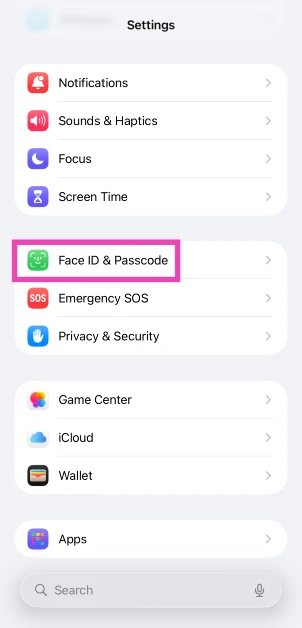
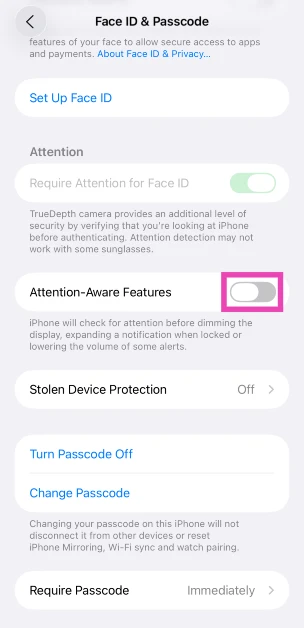
Turn off ‘Attention Aware’
Apple’s ‘Attention-Aware’ features use Face ID to determine whether you are looking at your phone. When you are looking at the screen, Attention Aware turns down the notification sounds since you are already active on your phone. It may also disable other functions that would usually only be useful when you are not using your phone. Attention Aware may be the reason why your iPhone’s volume is going down automatically. Here’s how you can turn it off.
Step 1: Go to Settings.
Step 2: Select Face ID & Passcode.
Step 3: Turn the toggle bar off for Attention-Aware Features.
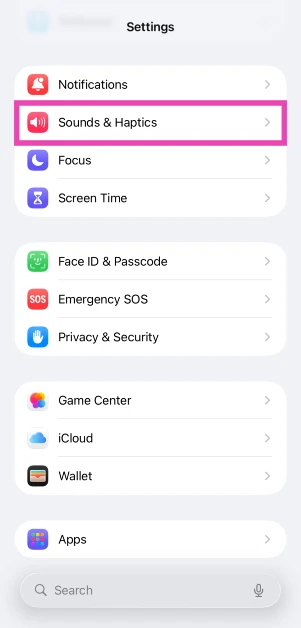
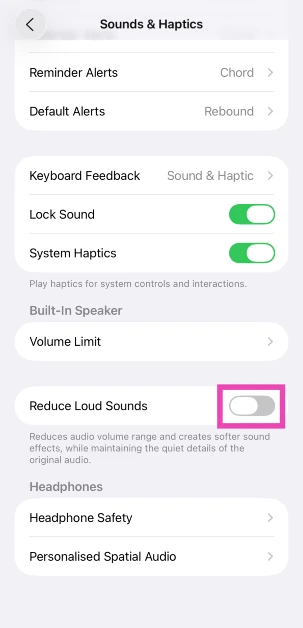
Turn off Reduce Loud Sounds
If you turn the volume up to a high level while using headphones, your Phone sends you a notification alerting you about the audio levels. The next time you plug in your headphones, the volume will automatically be turned down. You will have to manually turn up the volume using the volume rocker keys. Here’s how you can disable the ‘Reduce Loud Sounds’ feature.
Step 1: Go to Settings.
Step 2: Select Sound & Haptics.
Step 3: Turn off the toggle switch next to Reduce Loud Sounds.
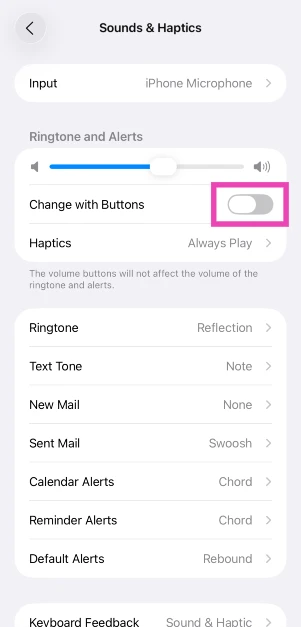
Turn off ‘Change with Buttons’
Your iPhone’s volume may be automatically going down because of a faulty volume button. You can fix this by disabling the ‘Change with Buttons’ in Settings. Here’s how you can do it.
Step 1: Go to Settings.
Step 2: Select Sound & Haptics.
Step 3: Turn the toggle bar off for Change with Buttons.
Take off your iPhone’s case
Not every case is a perfect fit for your phone. Some iPhone cases have the tendency to press against the volume rocker keys, leading to the volume going up or down. To make sure this isn’t the ‘case’ with your phone, pull it out of the protective cover and check if the problem still persists. If the volume still keeps going down, the case is not the culprit. If your phone works fine after taking the case off, it may be time to get a better cover for your iPhone.
Did you just connect your headphones?
If your iPhone’s volume is at the maximum level, pairing it with a Bluetooth headset can bring it down. Your iPhone automatically adjusts the volume to a more acceptable level so as not to hurt your ears when you put on the headphones. Once you manually increase the volume after the headphones have paired with your phone, it will not go down again.
Restart your iPhone
You’ll be surprised how many temporary issues can be fixed with a quick restart. If you’ve tried all the fixes on this list, you may want to restart your iPhone to see if it fixes the volume issue.
How to restart your iPhone X, 11, 12, 13, or later
Step 1: Press and hold one of the volume buttons and the side button until the power-off slider appears on the screen.
Step 2: Drag the slider to turn off your iPhone.
Step 3: After your phone is completely shut down, press the side key to turn it back on.
How to restart your iPhone 6, 7, 8, or SE (2nd or 3rd generation)
Step 1: Press and hold the side key until the power-off slider appears on the screen.
Step 2: Drag the slider to turn off your iPhone.
Step 3: Once your iPhone has completely shut down, long-press the power key again to restart it.
Turn Bluetooth off
If you’re using a Bluetooth speaker for audio output, the fault may not lie with your iPhone but with the external speaker. If the speaker has physical buttons for volume control, it is possible that someone may be using them to turn down the volume. This is more likely when there are several people in the room and you’re not paying attention to the Bluetooth speaker. Connecting your phone to an external audio output can also bring down the volume of notifications and other alerts.
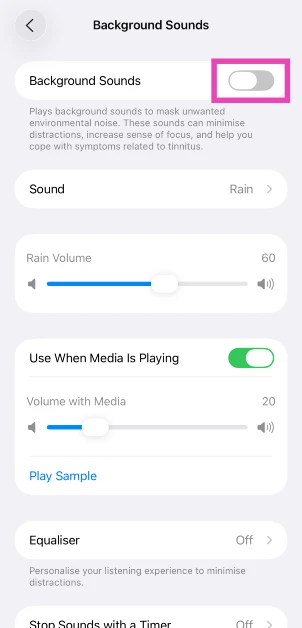
Turn off Background Sounds
If your iPhone’s volume keeps going down automatically, try turning off the background sounds feature from accessibility settings. Here’s how.
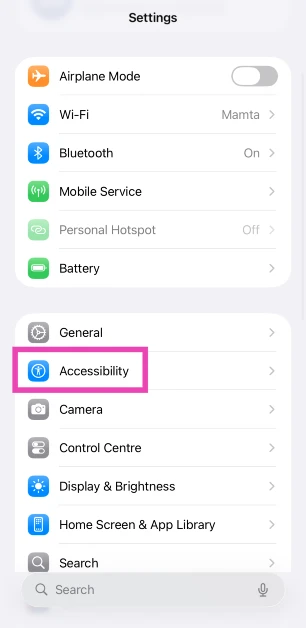
Step 1: Go to Settings and hit Accessibility.
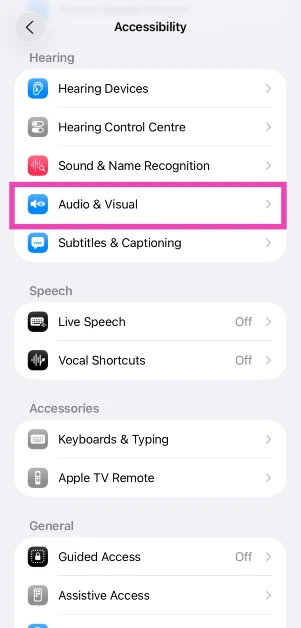
Step 2: Tap on Audio & Visual.
Step 3: Select Background Sounds.
Step 4: Turn off the toggle switch for Background Sounds.
Reset all settings
Step 1: Go to Settings and select General.
Step 2: Scroll down and tap on Transfer or Reset iPhone.
Step 3: Hit Reset.
Step 4: Tap on Reset All Settings.
Check for software updates
It is not uncommon for bugs to pop up and create software glitches on your phone. Minor issues like these are ironed out in successive updates that are rolled out immediately after the bug is encountered. To check for any software updates, go to Settings>General>Software Update.
Frequently Asked Questions (FAQs)
Why does my iPhone keep turning the volume down?
Your iPhone has a ‘Reduce loud sounds’ feature that automatically turns down the volume when you connect it to your AirPods. To fix this, go to Settings>Sound and Haptics>Headphone Safety and switch off the toggle bar for ‘Reduce Loud Sounds’.
Why does my phone’s volume decrease when ringing?
A faulty volume button or an ill-fitting case can trigger the volume-down action at random times. Get the button fixed to change the case to solve this issue.
What is Attention Aware?
Attention Aware is a feature on your iPhone that turns down the notification sounds when you’re looking at the screen.
How do I disable Attention Aware features on my iPhone?
Go to Settings>Face ID & Passcode and turn off the toggle switch next to ‘Attention Aware Features’.
How do I reset all the settings on my iPhone?
Go to Settings>General>Transfer or Reset iPhone>Reset and select ‘Reset All Settings’.
These are the top 10 easy ways to fix the ‘iPhone volume keeps going down automatically’ issue. If you’ve tried all the methods listed above and still aren’t able to fix the issue, try resetting your iPhone to its factory settings. Of course, this will require backing up your data first.
Welcome to the Gadget Bridge Awards 2022, the world’s largest and greatest consumer technology and gadget awards. This is the fourth year that we have held our annual awards to recognise the finest of the best in the tech and gadget world. All of the Gadget Bridge Awards 2022 nominees can be found here. This year has seen a slew of new gadgets released all year. We observed a wide range of devices in 2022, and this time we thought, why not further increase and appreciate additional tech toys. So, with over 41 categories, we can confidently claim to be the biggest tech and gadget awards of 2022.
We were overwhelmed in a few months due to the unexpected influx of gadgets, but we persevered and saw it as a challenge and powered on. We appreciate you, our readers, viewers, listeners, and well-wishers, for sticking by us and the rest of the industry (Thank You). The new year began with a bang, as some exciting cell phones were released in early 2022. Then, in mid-2022, we saw the return of some fantastic products, such as televisions, earphones, smartwatches, laptops, and tablets. The year was business as usual.
You, our audience, assisted us in determining the People’s Choice smartphone, gadget, and brand of 2022. Thousands of people voted on Twitter and in our voting forum to choose the winners. We had a clear victor in two categories, and a gadget won by a few percentage points in the third.
So, without further ado, let us get started and find out who won in each of the 42 classes. These are the Gadget Bridge Awards 2022: The year’s biggest and best consumer technology and gadget awards.
In This Article
Best Smartphone Of The Year 2022
Winner: Samsung Galaxy Z Fold 4
Best Budget Smartphone Of The Year 2022
Winner: Redmi A1
Best Budget Camera Phone Of The Year 2022
Winner: Redmi Note 11
Best Mid-range Camera Phone Of The Year 2022
Winner: Vivo V25 Pro
Best Camera Phone Of The Year 2022
Winner: Google Pixel 7 Pro
Best Inexpensive 5G Smartphone Of The Year 2022
Winner: Samsung M13 5G
Best Mid-Range Gaming Smartphone Of The Year 2022
Winner: Poco F4 5G
Best Gaming Smartphone Of The Year 2022
Winner: iQOO 9T
Best Mid-Range Smartphone Of The Year 2022
Winner: Oppo Reno 8 Pro
Best Selfie Smartphone Of Year 2022
Winner: Motorola Edge 30 Ultra
Best Vlogging Smartphone Of The Year 2022
Winner: Apple iPhone 14 Pro
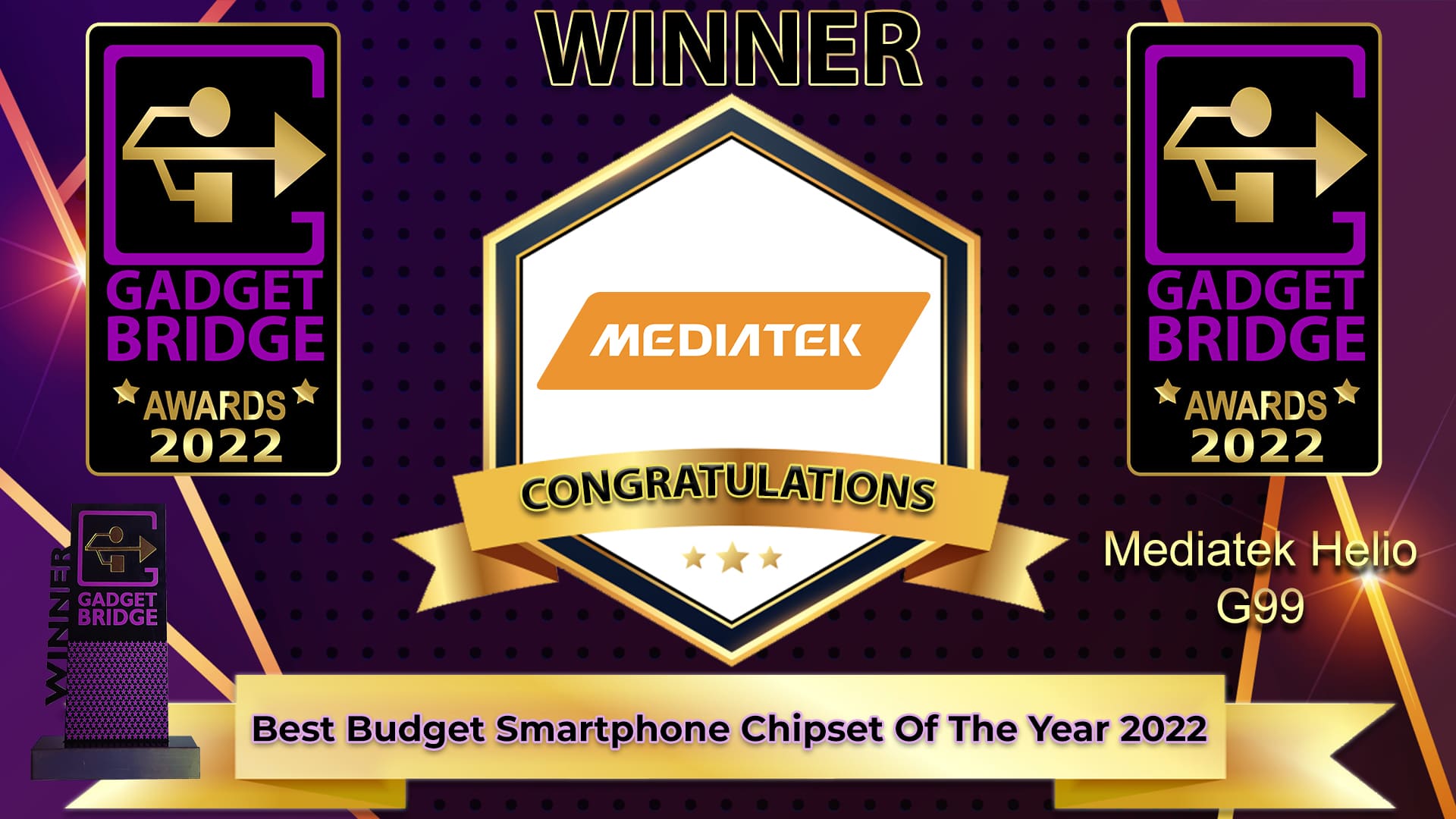
Best Budget Smartphone Chipset Of The Year 2022
Winner: Mediatek Helio G99
Best Mid-range Smartphone Chipset Of The Year 2022
If you receive an email from an unrecognisable address, you can find out the location where it may have originated with just a few simple steps. All you need to do is find the IP address of the sender and trace its location online. While it may sound complicated, the process is pretty simple and straightforward. In this article, we show you how to trace an email back to its source IP address.
Here’s how you can trace an email to its source IP Address
You can find the IP address of the sender from the email header. Here’s how.
Step 1: Open your Gmail inbox and select the email you want to trace.
Step 2: Click on the ellipses (three dots) and select ‘Show original’.
This will open the full email header in a new tab.
Yahoo mail users can view the full email header by opening the mail and selecting ‘View raw message’ after clicking on the ellipses. Outlook users can click on ‘More actions’ and select ‘View message source’ to open the email header.
Any email you receive travels through various servers. For every server that the email travels through, the header adds a ‘Received’ line and records the IP address of the server. To find the IP address of the sender, look for the first ‘Received’ line. The IP address will be listed there.
How to find the location of the email sender using the IP address
Once you know the IP address of the sender, you can trace their location using these easy steps.
This is how you can trace any email back to its source IP address. Instead of iplocation.net, you can use several other online IP location tools like DNS checker and KeyCDN. All you need to do is locate the IP address from the email header and paste it into the appropriate box on the IP locator website. You do not have to copy the full email header in this scenario. If you found this article to be helpful, let us know in the comments!
While you may be aware of the Adblock extension for Chrome, there are several other extension tools that are just as good. For every complicated task, there is an extension that provides an easy solution. But the best extensions are the ones you use most often. Here is our list of the top 10 productivity Google Chrome extensions you should use right now.
Ever wanted to quickly respond to a text but then found yourself stuck in a scrolling loop on your smartphone? While you can respond to your WhatsApp messages using the app’s web portal, there is no such alternative to regular text messaging. MightyText solves this issue by syncing your texts with your PC and letting you respond from the Chrome tab itself. You will save a lot of time that would otherwise be spent browsing social media feeds. You can also choose to sync the pictures on your phone and access app notifications on your PC.
Notion Web Clipper
If your Chrome bookmarks are full of clutter and hard to sort through, you should give Notion Web Clipper a try. This extension lets you create different projects where you can save the relevant web pages. Now you don’t need to go sort through hundreds of bookmarks to find what you’re looking for. You can easily create different folders for your reading list, academic journals, movie review, or recipes you come across on the Internet. In a workplace setting, you can collaborate with your team members by giving them access to a project and leaving notes and comments wherever required. Notion Web Clipper deserves its spot in the top 10 productivity Google Chrome extensions.
WhatFont
Ever come across a fascinating font while reading an article but don’t know what it’s called? All you need to do is hover the cursor over the text and WhatFont will identify it for you. This is a great tool for graphic designers and students working in design. Apart from identifying the text, WhatFont also detects the services used for serving the web fonts.
OneTab
If your Chrome browser is always full of inactive tabs, this handy extension will neatly store them in a list. Using OneTab you can save up to 95% of memory and make your web browser run faster. On top of that, it gets rid of all the clutter! You can choose to access individual tabs from the list or open them all at once.
Postlight Reader
Reading an article online can be nothing short of annoying with all the unnecessary popups, invasive ads, and additional clutter. Postlight Reader gets rid of all the distractions and provides a clean reading experience with just the text and the images. All you need to do is open the article on Chrome and click on the Postlight Reader extension. You can even send the article directly to your Kindle using Postlight.
Loom: Screen Recorder and Screen Capture
Loom is the most comprehensive screen recording tool that we have come across. Not only can you record your screen using Loom, but you can also use your PC’s camera and microphone to record yourself at the same time. Once the video has been recorded, it automatically gets saved to the cloud and can be shared with a quick link. Loom is a great tool for the workplace. If you want to explain a particular task to an employee or coworker, you can easily record your screen and talk them through it. Loom also gives you the option to turn off your camera and only use the microphone while you’re recording the screen.
Clockify Time Tracker
Clockify Time Tracker is a great tool to optimise your work day. You can use Clockify to time your tasks throughout the day and gain a deeper insight into how you go about your day. You can set a timer for individual tasks and even mark them as ‘billable’. This is a nifty feature for freelancers who take on several projects at once. The extension integrates with 50+ web apps. It even has an idle detection tool for the times you drift off and lose time on a project. If you want to make the most of your time, this is the extension for you. Clockify is easily one of the top 10 productivity Google Chrome extensions that we’ve used.
Todoist
You may be familiar with Todoist’s smartphone app, but its Chrome extension is just as good. Todoist is one of the better smartphone task managers we’ve used, and it delivers a similar performance on Chrome as well. With the Todoist Chrome extension, you can easily save a website on your reading list, create a checklist of tasks and mark them off as you complete them, collaborate with other people on a common project, and more. You can also easily jot down a note or set a quick reminder using this accessible Chrome extension. What we really like about Todoist is how seamlessly it integrates into your work routine.
Timewarp
This one is for all the serial procrastinators out there. If you find yourself wandering off to attention-grabbing sites like Reddit, Twitter, or YouTube, Timewarp reminds you to get back to the task at hand. For Timewarp to work, you need to create a list of websites that you frequent in order to kill time. The extension offers three features to cut down on wasted time – Redirect, Quote, and Timer. ‘Redirect’ takes you to a specified productive website every time you switch to a website on your list. For example, you can program Timewarp to redirect you to Google Docs every time you enter Reddit in the address bar. The ‘Quote’ feature springs a motivational quote your way when you open a website from the list. Lastly, ‘Timer’ displays the time you’ve spent on a particular website today.
Email Tracker for Gmail – Mailtrack
You may not have heard of Mailtrack before, but once you start using it, it will become one of the essential extensions on your browser. To put it simply, Mailtrack monitors your sent emails and lets you know which ones were opened by the recipient. It also tells you how many times the receiver opened your emails. The only downside is that it only works for Gmail.
These are the top 10 productivity Google Chrome extensions that you should use right now. All of these extensions are free to use but some may come with a premium subscription for additional features. Which extensions do you love to use? Let us know in the comments!
Unlike Twitter and Facebook, accessing Instagram without creating an account can be an ordeal. The social media platform started out as a smartphone app and is still used by the majority of its users in that form. Since you can’t use the app without signing up, it becomes impossible to view a profile or post without creating an account. Luckily, Instagram also has a website and it has come a long way since its early (and mostly unusable) beginnings. If you want to view a post without creating an account, using the Instagram website is a great alternative. But that’s not the only workaround for this issue. In this article, we bring you four ways to view Instagram posts without creating an account.
If you don’t have an Instagram account, you can still view someone’s profile through a web browser. All you need to do is add their username next to www.instagram.com/ and hit enter. However, there are some limitations to this method. Firstly, the profile you are viewing needs to be a public profile. If the profile is set to private, you will need to create an account and request to follow the profile. When approved, you will be able to view their posts. If the profile is public, you will be able to view its recent posts in a web browser.
Instagram only lets you view a few posts when you are browsing someone’s profile on a web browser without a registered account. In order to expand a post and view it in its entirety, you will need to create an account. However, there is a workaround to this issue. You can simply right-click on the post and open it in a new tab to view it without creating an account. Browsing Instagram without an account limits your usage to just viewing a few posts. You will not be able to view stories, reels, or even expand comments on a post. If you want full access to Instagram without creating an account, try the other method listed below.
View Instagram posts using ImgInn
There are several third-party websites and services that let you browse Instagram freely without needing to create an account on the platform. One of the most popular websites for this task is Imginn. Once you visit Imginn, all you need to do is type in the Instagram username of the profile you want to visit. You will be able to view all the posts, reels, stories, and highlights posted on the profile. This will only work if the profile is public. In order to view a private profile, you will need to create an account and follow it. ImgInn also lets you download pictures, videos, and reels posted by a profile with just one click.
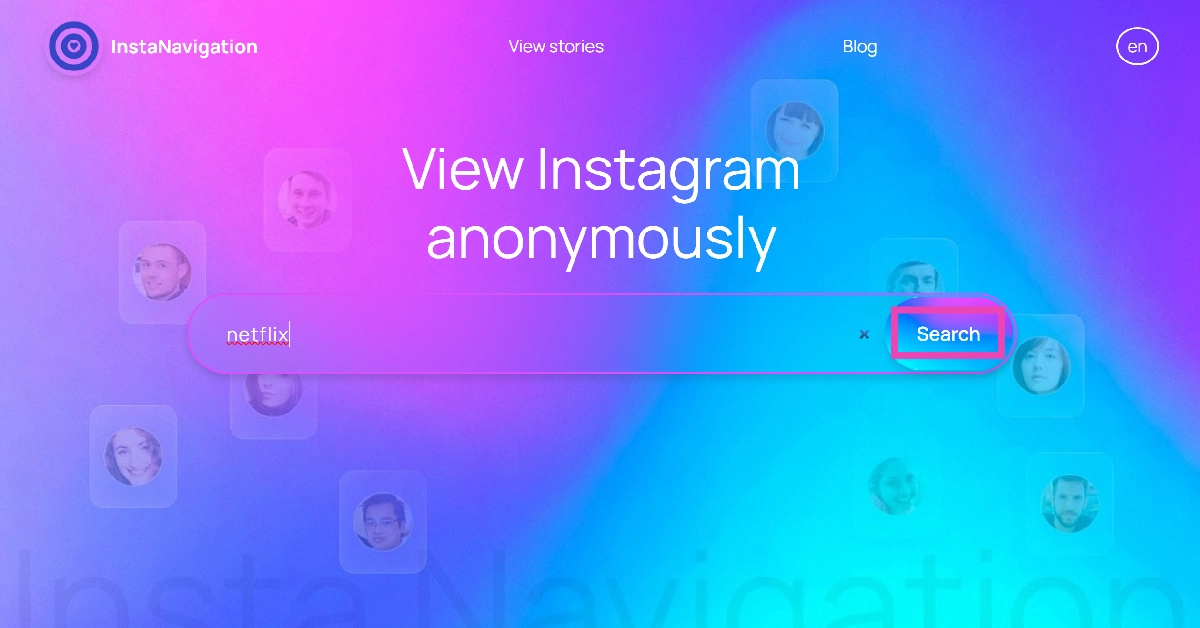
View Instagram Stories using InstaNavigation
ImgInn only lets you view Instagram posts and reels without an account. If you want to view someone’s story anonymously, use InstaNavigation. Here’s how.
Step 2: Enter the profile URL or the username of the account.
Step 3: If the account is public, you will be able to view the stories published on it. Simply click on the profile picture or scroll down to the Stories tab to view them.
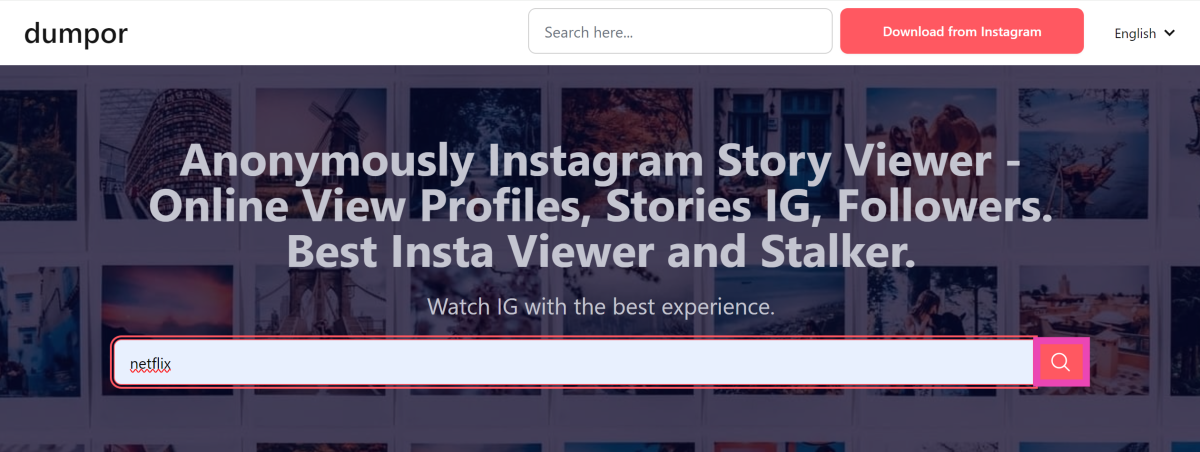
Step 2: Enter the Instagram handle in the box and hit the search icon.
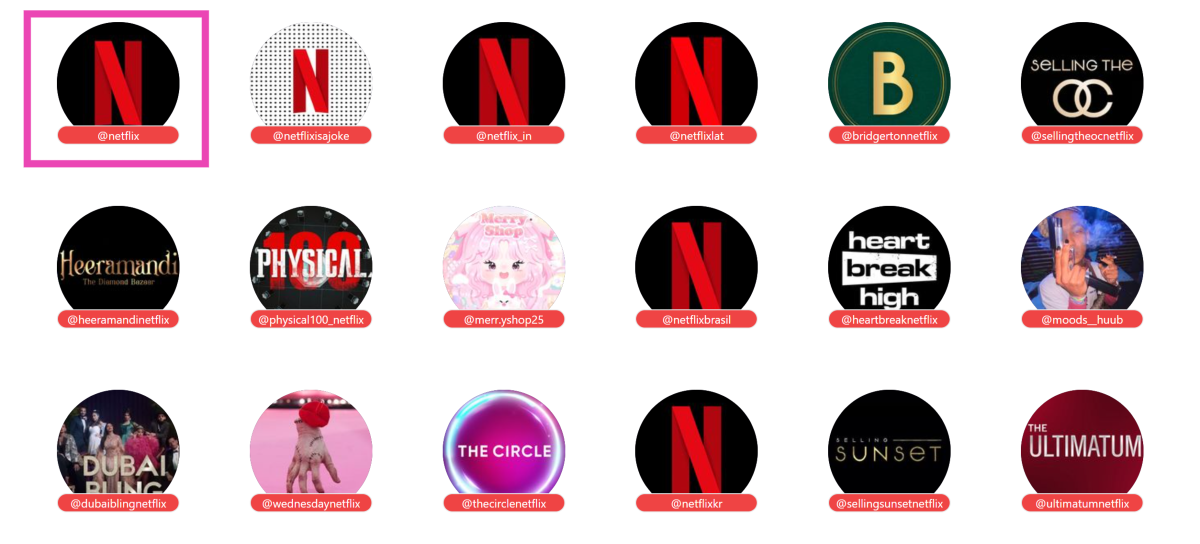
Step 3: Select the profile from the search results.
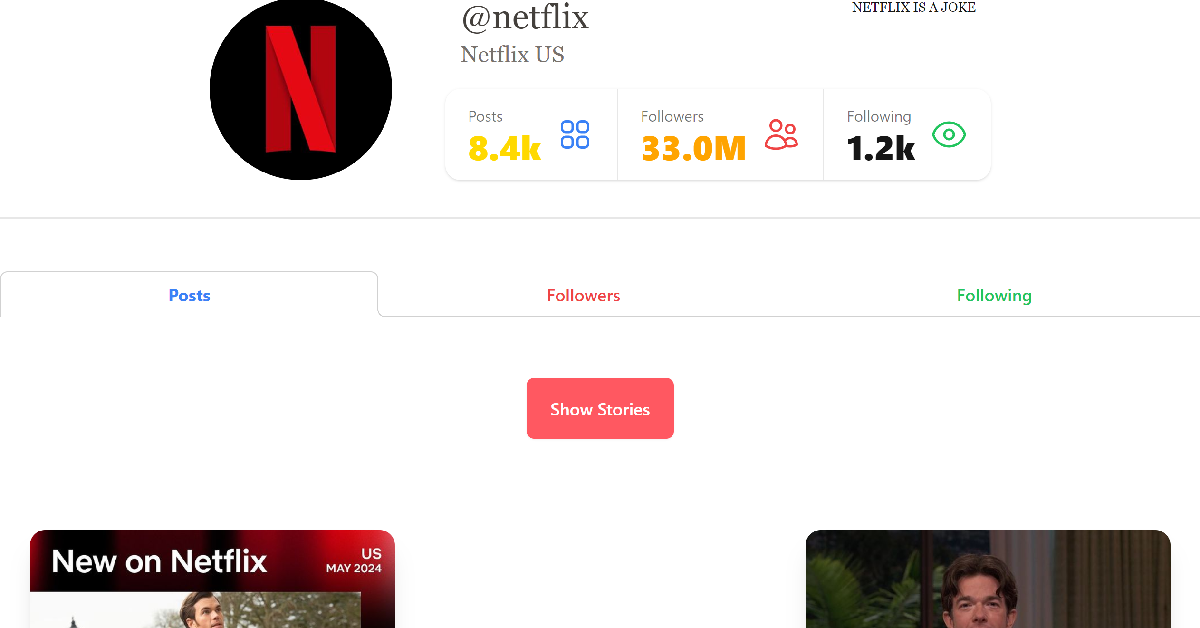
Step 4: Scroll down to view the posts. Click on Show Stories to view the current stories.
Frequently Asked Questions (FAQs)
Can you view Instagram posts without an account?
Instagram lets you view public profiles without an account on the web browser. However, you can only view limited posts this way.
How do I view Instagram posts without an account?
Use third-party websites like ImgInn and Dumpor to view Insta posts and reels without an account.
How do I view Instagram stories without an account?
Go to the InstaNavigation website, enter the name of the public profile, and scroll down to the Stories tab to view them.
Conclusion
These are the four simple ways to view Instagram posts without an account. These methods come in handy when you quickly want to view a few posts without going through the hassle of creating a profile. However, if you want to post comments, like posts, and network with people, you will need to create an Instagram account.
We’ve all seen the ads for wireless charging and wondered if it’s really worth it. Is wireless charging somehow better? How does it compare to traditional cable-based charging?
The answer is not as clear-cut as you may think. Not only do you need to consider the practical benefits of wireless charging, but you also have to evaluate how the technology works, what type of device you need to use it, and other factors.
In this article, we’ll explore the pros and cons of wireless charging to help you decide whether it’s right for your needs.
In This Article
What is wireless charging?
We’ve all experienced seeing our battery charge drop to almost 0% making us panic and run searching for a wire to charge our phone, somehow being unable to plug it in until at least the 3rd try. This is especially nerve-wracking if you’re in the middle of paying a casino game on SlotsLV or answering urgent messages from your boss.
Well, wireless charging solves this anxiety-inducing situation almost completely. Wireless charging is a process of transferring energy from one device to another without the use of wires or cables. The most common type of wireless charging uses electromagnetic induction to transfer energy between two coils.
When an electrical current is passed through the primary coil, it creates a magnetic field. This magnetic field then induces a current in the secondary coil, which can be used to power the device.
How to use a wireless charger
Wireless charging is one of the most popular features on new smartphones, and for good reason: it’s incredibly convenient. But not all wireless chargers are created equal, some are simply better than others. They can have faster charging, or work with only certain types of devices, and some come with extra features that can be useful (or not).
Here’s what you need to know about how to choose the right charger for your needs. Most wireless chargers use either the Qi or PMA standard. Qi is more common and is used by companies like Apple, Samsung, LG, and Sony.
PMA is used by Duracell Powermat and other accessory manufacturers. If you’re not sure which standard your device uses, check the product manual or website.
Additionally, when choosing a wireless charger, there are several things you need to keep in mind such as the charging speed. Some wireless chargers are faster than others. If you want the fastest possible charge, look for a charger that supports fast-charging standards like Qualcomm Quick Charge or Samsung Adaptive Fast Charging.
And not all wireless chargers work with all devices. If you have an iPhone, for example, make sure to get a charger that supports the Qi standard. You should also be on the lookout for wireless chargers that come with extra features like LED display lights, temperature control, and overcharge protection. Consider which features are important to you before making a purchase.
Once you’ve chosen a wireless charger, be sure to read the instructions carefully before using it. Most wireless chargers require you to place your device on the charging pad in the correct orientation in order for it to charge properly.
The pros and cons of wireless charging
There are several benefits of wireless charging over traditional methods. One benefit is that it eliminates the need for messy cables and cords. Wireless charging also offers the convenience of being able to charge your devices without having to remove them from their cases or covers.
Additionally, wireless charging is typically faster than wired charging, meaning you can get back to using your devices sooner. And you can continue using your device without any pesky cords or plugs getting in the way. They are also becoming more common and easier to find, so you’re not limited to using only proprietary chargers from your device’s manufacturer.
However, there are also certain drawbacks to this technology. Wireless chargers tend to be more expensive than traditional chargers.
Moreover, you have to make sure your device is properly aligned with the wireless charger for it to work properly, which can be a bit tedious. They can also be bulkier than traditional chargers, so they may not be as convenient to travel with.
Wireless charging is becoming more popular due to its convenience and ease of setup, but traditional chargers still have their place in many people’s lives.
If you’re someone who hates dealing with tangled cords, or you’re always on the go and need the convenience of being able to charge your devices quickly and easily, then wireless charging may be the right choice for you.
On the other hand, if you need reliable fast charging capabilities and don’t mind dealing with cords, then a cable-based charger is probably the better option.
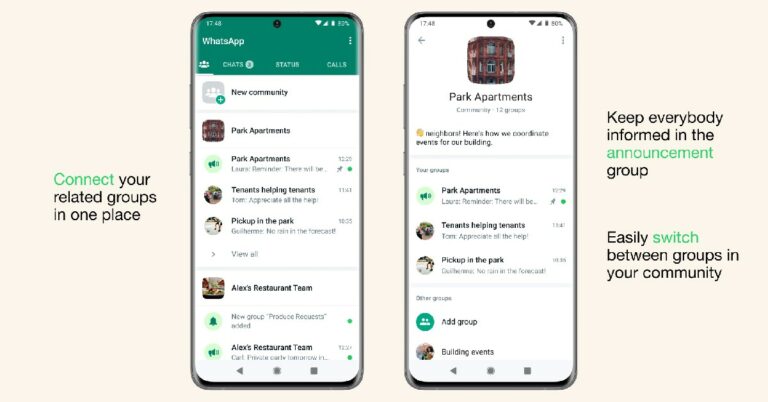
In its latest update, WhatsApp introduced the ‘Community’ feature, allowing admins to manage similar groups in one place. If you want to know how to create a WhatsApp Community, read our article here. If you are a Community admin and are wondering how to deactivate a WhatsApp Community, here’s how you can go about it.
A WhatsApp Community is where you can manage several different groups at once. Different groups can be clubbed together under one umbrella and managed together. This feature comes in handy when you moderate related groups and want to manage them in one place. For example, WhatsApp groups of different classes in a school can be brought together to form a ‘community’ of the school that they are a part of. Any announcements related to the school can be posted to the community where participants of all the groups can look them up.
Similarly, groups of teams at a workplace can be brought together as one community and managed in one place. One WhatsApp Community can accommodate up to 50 groups and 5000 members. Admins can post announcements in the ‘community announcement’ group for all the members to see.
Here’s how you can deactivate a WhatsApp community
Step 1: Launch the WhatsApp app on your smartphone.
This is how you can deactivate a WhatsApp Community. Once you deactivate a Community it will have no bearing on the groups within it. It will simply disconnect the groups within the community and get rid of the announcements group. The individual groups within the Community will continue functioning normally.
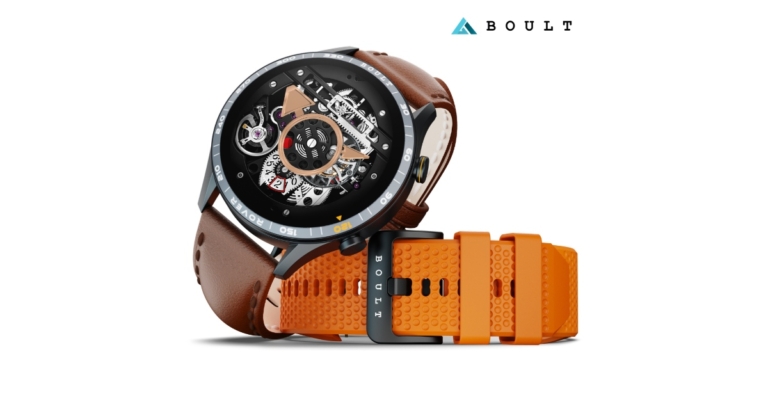
Boult Audio today announced the launch of Rover smartwatch in India. The device delivers 10 days of battery life. The watch comes with an AMOLED display which offers 600 nits brightness and Rover offers the choice of two bundles with secondary straps being offered for no additional cost. In addition to this, the device has over 100 sports modes to choose from.
In This Article
Boult Rover smartwatch price in India and availability
Boult Rover smartwatch will be available for purchase via the company’s official website with a price tag of Rs 2,999. The swanky watch will also soon be offered on Flipkart.
There will be two bundles for Rover. The leather brown strap will be the standard strap for the Classic switch edition, and an orange strap will be available without cost. The second package is called Flip, and it comes with free green and blue straps in addition to black as the main strap colour.
Boult Rover smartwatch features
Boult Rover is a Bluetooth-calling smartwatch with a 1.3-inch AMOLED display. In the box, Rover has a variety of coloured straps, including Orange and Leather and Black, Blue, and Green. With Rover’s 600 nits of high brightness, analysing your activities at any time of day is simple, even at noon when the sun is at its highest. The watch’s charm is heightened by its superior zinc alloy frame and leather straps. You can rest easy knowing that your watch will be able to withstand exposure to water and dust thanks to its IP68 classification.
With more than 150 cloud watch faces, the watch offers a cutting-edge and immersive experience, allowing the user a variety of alternatives for choosing the watch faces that best suit their personalities or flaunting a new appearance every day.
With more than 100 sports modes available, the smartwatch provides excellent value. Rover owners won’t have to worry about constant charging because of the device’s astounding ten-day battery life. The entire health monitor feature of the smartwatch also makes maintaining tabs on one’s health more convenient.
“We have made a name for ourselves in how customers perceive sound or audio. Now, we are expanding our services to other niches so that our customers benefit from the same assurance of quality across our product categories. Although there is still a way to go to achieve this dream, we are putting our best foot forward to deliver the finest quality products to our customers. Rover is a product of technological advancement where durability and style are combined to give it an edge over other variants in the market. Since a watch plays a crucial role in dictating everyday essentials, we have designed the smartwatch in a way that it ups your style game, in addition to giving you a range of functionalities,” said Mr. Varun Gupta, co-founder of Boult Audio.
While it is beginning to look a lot like Christmas, some of you may be putting off your gift shopping until the last minute. If you don’t know where to begin, we’ve got you covered. 2022 saw a lot of exciting tech products getting released. We’ve picked the best out of the lot and assembled them into a handy gifting guide. So, without further ado, here is our list of last-minute tech gifting options for Christmas.
The latest iPhone as a Christmas gift is always a no-brainer and probably the safest gifting choice. The iPhone 14 Pro comes with a new display and Apple’s biggest camera upgrade in years. The notch on the display has been replaced with a pill-shaped cutout which also houses the highly talked about ‘Dynamic Island’. The rear camera unit gets a 48MP primary sensor, a big upgrade over the 12MP lens on the previous version. Processor duties are handled by the new A16 Bionic chipset. iPhone 14 Pro also packs some new emergency features like crash detection and satellite connectivity. Read more about the latest iPhone in our review here.
Sony WH-1000XM5
Price: Rs 26,990
Sony’s latest flagship headphones, WH-1000XM5, make a perfect gift for an audiophile friend. Sony has been regularly putting out great wireless headphones every year in its 1000XM series, and the 1000XM5 continues that tradition by improving upon the sound profile of its predecessor and being comfortably ahead of its competition. The WH-1000XM5 employs giant 30mm audio drivers to deliver a sensational audio performance. If that’s not enough, these headphones also offer state-of-the-art ANC assisted by 8 microphones. You also get up to 30 hours of playback on a single charge and fast charging support. For more details, read our review here.
Nothing Phone (1)
Price: Rs 32,999
Not many smartphones are able to make as big waves in their debut year as the Nothing Phone (1) did this year. While the smartphone may stand out because of its aesthetics (thanks to the see-through back panel design and the Glyph interface), do not be mistaken in thinking that it is a one-trick pony. The rear camera and image processing of the Phone (1) are surprisingly good for a smartphone in the midrange category. Read more about it in our detailed review here. If you’re looking for a powerful smartphone to gift to a tech enthusiast but don’t want to splurge on a flagship, the Nothing Phone (1) stands out as an obvious choice.
Samsung Galaxy Watch 5
Price: Rs 30,000
Samsung Galaxy Watch 5 is arguably the best Android smartwatch on the market right now. Its BioActive sensors, health and fitness tracking, app integration and ease of accessibility make it an ideal gift for fitness freaks and regular tech enthusiasts alike. When we reviewed the Galaxy Watch 5 last month, we were blown away by the range of its fitness tracking and the accuracy of its health sensors. Even if you are not heavily into fitness, you’ll come to appreciate the density of the health data that the smartwatch is able to track across the day. On top of that, the dial faces and customisation options make it a pretty appealing bling to wrap around your wrist.
Amazon Echo Dot with Clock
Price: Rs 4,999
The Amazon Echo Dot with Clock makes a great nightstand addition. It is also one of the bestselling Echo devices. It comes with a minimal digital clock LED display and the standard LED lighting at the bottom. With the Echo Dot, you can play ambient sounds and white noise while you go to sleep, set up an alarm using Alexa, or even update your to-do list for the day. You can snooze the alarm by gently tapping on the top of the device.
Acer H Series Smart TV
Price: Rs 34,999
The recently launched Acer H Series ticks all the boxes for the perfect Christmas gift. This 50-inch Smart TV comes sports a 4k display and a 64-bit Cortex a 55 quad-core CPU with up to 1.3GHz clock speed. The Acer H Series is nearly frameless with just a thick silver border running at the bottom. Designed to be placed in a large living room, the H Series delivers a great viewing experience, one that isn’t easily matched in this price range. The Android TV 11 OS supports all of the OTT apps and the TV comes preloaded with the major ones like Netflix and Prime Video. Acer may be new to the Smart TV market in India but it is consistently delivering great products at really attractive prices. Read our review here.
Lenovo ThinkBook 15
Price: Rs 33,990
Looking for a budget-friendly laptop for students? The Lenovo ThinkBook 15 is a great buy at a reasonable cost. The Lenovo ThinkBook 15 features the AMD Ryzen 3 5300U processor and comes preloaded with Windows 11. While the standard variant has 256GB SSD storage along with 8GB RAM, there is also a 512GB SSD storage variant on offer. Brightness for the 15.6-inch Antiglare display is capped at 220 nits, which is optimum for indoor and outdoor usage. The laptop also comes with integrated AMD Radeon graphics.
Qubo Dashcam 4K
Price: Rs 9,990.
When it comes to Auto Tech, Hero Electronix has one of the best product portfolios in India. The recently launched Qubo Dashcam can record high-quality footage in 4k (with Sony IMX 415 lens and SIGMASTAR SSC8629G) and also comes with ADAS features like lane departure warning, forward vehicle motion detection, and vehicle ahead alert. On top of that, the dashcam also sports an inbuilt GPS and is capable of taking time-lapse videos. The ‘Loop recording’ feature overwrites old footage to save storage space and the ‘Emergency event recording lock’ automatically saves the video in case of an event.
OnePlus Nord Watch
Price: Rs 4,999
Looking for a no-nonsense fitness tracking smartwatch without wanting to splurge too much? The OnePlus Nord Watch fits the bill. The 1.78-inch AMOLED display offers a 60Hz refresh rate and a peak brightness of 500 nits. We reviewed the Nord Watch recently and were pleased by the touch response of the display and the versatility of its fitness tracking. The 230 mAh battery provides a week’s worth of juice even on above-average usage. When the smartwatch is on stand-by it can last up to 30 days.
Steelbird Bike Riding Gloves with Touchscreen Sensitivity
Price: Rs 599
While it isn’t exactly a ‘tech’ gift, the Steelbird riding gloves are a great accessory that allows riders to handle touchscreen interfaces without taking the gloves off. These gloves will come in handy for electric scooter owners that need to regularly handle the touch interface on their vehicle. Taking the gloves off every time you need to check your phone can be quite an annoyance, especially on pit stops during long rides. At a price of Rs 599, these gloves would make a thoughtful gift for someone that loves to ride.
These are our picks for the best last-minute tech gifting options for Christmas. Before buying any products, look out for the exclusive year-end offers and discounts being offered by e-commerce platforms and tech brands across the spectrum. What tech products did you pick up on your Christmas shopping spree? Let us know in the comments!