
In This Article
Hide your Snapchat Story from someone using Story Settings
Step 1: Open Snapchat and go to your Profile by tapping the profile at the top left of your screen. Step 2: Tap on the three dots next to ‘My Story’. Step 3: Select ‘Story Settings’.
 Step 4: Under ‘Who can view my Story?’ select ‘Custom’.
 Step 5: Select the contacts you don’t want to see the story and tap ‘Block’.

Hide your Snapchat Story from someone using Snapchat Settings
Step 1: Open Snapchat and go to your Profile by tapping the profile at the top left of your screen. Step 2: Tap on the Settings icon at the top right corner of your screen. Step 3: Scroll down and select ‘View My Story’ from under Privacy Control.
 Step 4: Select ‘Custom’.
Step 5: Select Contacts you want to restrict your Story from, and press ‘Block’.
Step 4: Select ‘Custom’.
Step 5: Select Contacts you want to restrict your Story from, and press ‘Block’.
Hide your Snapchat Story from someone by making a Private Story
Step 1: Open Snapchat and go to your Profile by tapping the profile at the top left of your screen. Step 2: Select ‘+Private Story’ right next to My Stories. Step 3: Choose the contacts you want to be able to view this story. No one else apart from these contacts will be able to see your story.
 Step 4: Choose a name for your story.
Step 5: Go back to your Profile and add to the story.
Step 4: Choose a name for your story.
Step 5: Go back to your Profile and add to the story.
 Read Also: Snapchat rolls out its paid subscription called Snapchat+
Following these easy steps, you can hide your Snapchat Story from someone in your contact list. If you want to mute someone else’s story, simply long-press on their story icon and select Story Settings>Mute Story. Any new stories they add will stay hidden and you won’t receive any notifications for them.
For the latest gadget and tech news, and gadget reviews, follow us on Twitter, Facebook and Instagram. For newest tech & gadget videos subscribe to our YouTube Channel. You can also stay up to date using the Gadget Bridge Android App. You can find the latest car and bike news here.
Read Also: Snapchat rolls out its paid subscription called Snapchat+
Following these easy steps, you can hide your Snapchat Story from someone in your contact list. If you want to mute someone else’s story, simply long-press on their story icon and select Story Settings>Mute Story. Any new stories they add will stay hidden and you won’t receive any notifications for them.
For the latest gadget and tech news, and gadget reviews, follow us on Twitter, Facebook and Instagram. For newest tech & gadget videos subscribe to our YouTube Channel. You can also stay up to date using the Gadget Bridge Android App. You can find the latest car and bike news here. 









 If your device is in Do Not Disturb mode, it may not send or receive files via AirDrop. Disable DND mode and try again. To turn off Do Not Disturb mode on your iPhone, iPad, or Mac, simply go to the Control Center and hit the moon icon. The moon icon is lit up when the Do Not Disturb mode is turned on. Tapping the icon again will turn it off.
 If the target device does not have enough storage space to receive the files being sent to it, the AirDrop transfer will keep on failing. Make sure the target device has enough free space before transferring a large volume of files. To check the storage on your iPhone go to Settings>General>iPhone Storage.
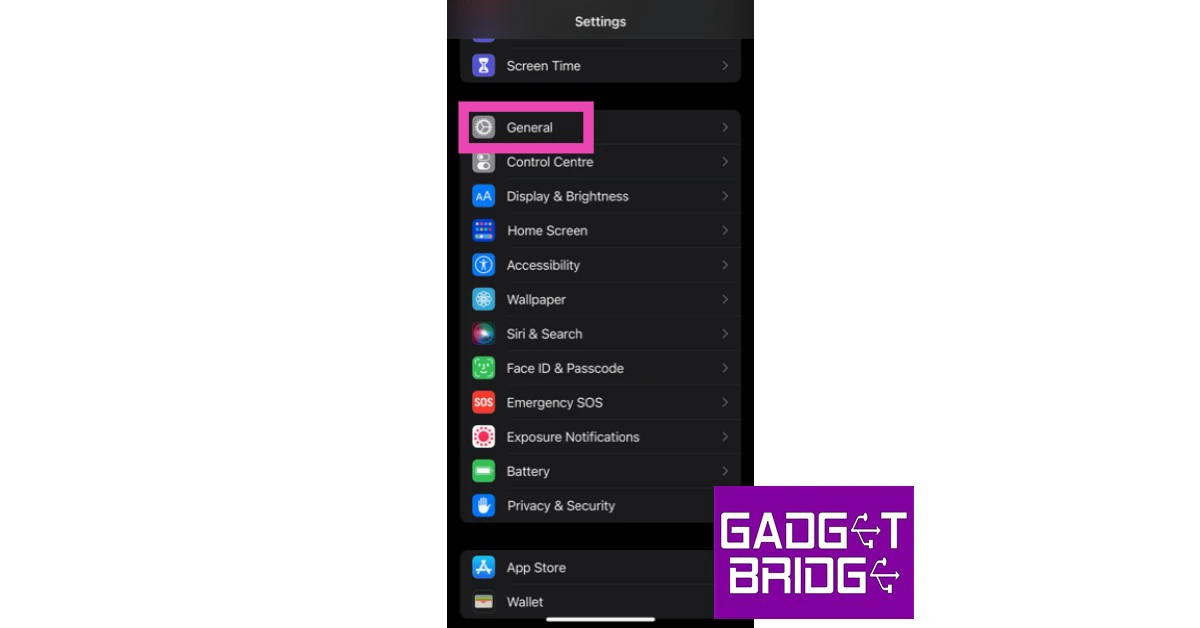 Step 2: Scroll down and select ‘Transfer or reset iPhone’.
 Step 3: Select ‘Reset’ followed by ‘Reset Network Settings’.

 Updating iOS to its latest version can fix any glitches or issues that you may be experiencing on your device. Since AirDrop is a native Apple service, it gets updated with iOS. Developers are quick to fix any minor bugs with a subsequent update. To update iOS to its latest version, go to Settings>General>Software Update and download the update.
 Step 2:
 Step 4:
 Step 3:
 Step 4:
 Read Also:



 Step 2:
 Step 3:
 Step 3:
 Step 3:
 Step 4:
 Step 5:
 Step 4:
 Step 3: