

Google extending support to show COVID-19 Vaccine and testing info on Android via digital COVID card
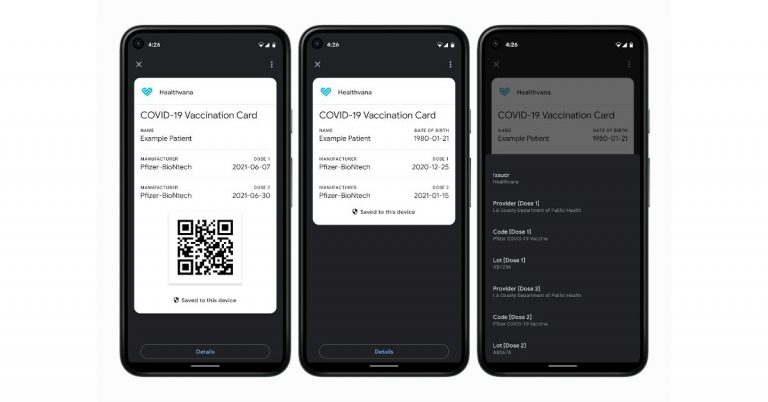
In its new update, Google has upgraded its Passes API that will be able to store and access COVID vaccination and test information on Android devices. This dedicated Card also known as COVID Card will create a shortcut on the user device home screen to display COVID vaccination and test information stored on their Android devices. This will also enable you to share your information, but will not be shared by the company on any third-party app and will not be used for targeting ads.
As per the latest blog post, developers from healthcare organizations, government agencies and organizations authorized by public health authorities to distribute COVID vaccines and/or tests will have access to these APIs to create a digital version of COVID vaccination or test information. According to Google the Passes API or digital COVID card feature will be initially released in the United States followed by other countries.
Using COVID Card the users will get access to all their information stored on it and a shortcut will be created on their device home screen, even when they are offline or in areas that have weak internet service. The service is accessible to a device running Android 5 or later and be Play Protect certified. Also, there is no compulsion to have the Google Pay app installed on their device.
The new COVID Card is also said to come with privacy and security features as it will store user’s COVID vaccination and test information. Also one needs to manually store it on each device when the user wants to access this information on multiple devices.
Additionally, Google will not store a copy of the user’s COVID vaccination or test information. Users can also choose to COVID Card to others however Google will make sure your information is not being shared with its various services or third parties and it is not used for targeting ads.
To make your info more secure a lock screen is required in order to store a COVID Card on a device. To protect the user’s personal information they will be asked for the password, pin or biometric method set up for their Android device.
Besides this Google API or Google Pay for Passes also allows users to save boarding passes, loyalty programs, offers, gift cards, or tickets to their phones for easy access at the right time.
For the latest gadget and tech news, and gadget reviews, follow us on Twitter, Facebook and Instagram. For newest tech & gadget videos subscribe to our YouTube Channel. You can also stay up to date using the Gadget Bridge Android App.
2 July 2021 Flipkart Daily Trivia Quiz Answers: Answer to win exciting prizes

The e-commerce website Flipkart is hosting Daily Trivia Quiz. Every day it brings a bunch of new questions for its users. By answering them correctly you can win exciting prizes. The questionnaire is based on questions related to general knowledge. Also, the users can win free vouchers and super coins, among other offers via the daily quiz. 2 July 2021 Flipkart Daily Trivia Quiz Answers has already gone live on its platform.
The participant should be at least 18 years old and should have a valid login ID. The Quiz is available on the mobile platform and not the web version. E-commerce conducts the quiz on daily basis and goes live at 12:00 AM IST and runs till 11:59 PM IST. The winners are announced within 15 days from the date of participation that can be viewed under the Gems/Rewards section in the app.
How to participate in the Flipkart Daily Trivia Quiz
To participate download the Flipkart app on your phone. Then open the Flipkart app then head to Game Zone. Now click on the Daily Trivia Banner or search for Daily Trivia. Enter the game and answer all 5 questions with correct answers.2 July 2021 Flipkart Daily Trivia Quiz Answers
Question 1: Who Among these is a part of the film Jumanji: The Next Level? Answer: Nick Jonas Question 2: The World’s youngest PM, Sanna Marin has been recently elected as the PM Of Answer: Finland Question 3: Who is known as Kriss Kringle In the USA And Father Christmas In Britain? Answer: Santa Claus Question 4: Oxford Dictionaries has named ___ As it’s 2019 Word of the year? Answer: Climate emergency Question 5: The Miss Universe 2019 Zozibini Tunzi is from which Country ? Answer: South Africa2 July 2021 Amazon Quiz- Answer these five questions and win Amazon Pay Balance Worth Rs 50,000

The e-commerce website Amazon is back with another daily quiz on its platform. The e-retailer conducts Amazon quiz sessions every day for its customers. The customers from different parts of the country can win exciting prizes and today’s 2 July 2021 Amazon Quiz will let you win Rs 50,000 Pay Balance by answering all the questions correctly.
2 July 2021 Amazon Quiz is live now and the participants can stand a chance to win Amazon Pay Balance worth Rs 50,000. By participating in the daily quiz the customers can win products such as OnePlus 7T, Apple iPhone x, iPhone Xs, Go Pro Hero 8 and many more gadgets as well as Pay Balance. You can play the quiz from 12 AM to 11:59 PM every day and the winner’s names will be announced at the end of every month. Today’s quiz result will be announced via a lucky draw. Check out today’s answers for the Amazon quiz.
2 July 2021 Amazon Quiz Answers:
Question 1: Multiple lions have tested positive for COVID-19 at Nehru Zoological Park situated in which city of India?
The answer is- Hyderabad
Question 2: Which Indian has been nominated as an athlete ambassador for the International Olympic Committee’s ‘Believe in Sport’ campaign?
The answer is- PV Sindhu
Question 3: Scientists have recently discovered what may be the smallest known black hole in the Milky Way galaxy. What is it called?
The answer is- The Unicorn
Question 4: What is this centuries-old art of clipping hedges into various ornamental shapes traditionally called?
The answer is- Topiary
Question 5: What is the pirate flag with the skull and cross-bones called?
The answer is- Jolly Roger
For the latest gadget and tech news, and gadget reviews, follow us on Twitter, Facebook and Instagram. For newest tech & gadget videos subscribe to our YouTube Channel. You can also stay up to date using the Gadget Bridge Android App.

Oppo Reno 6 Series to debut in India on July 14
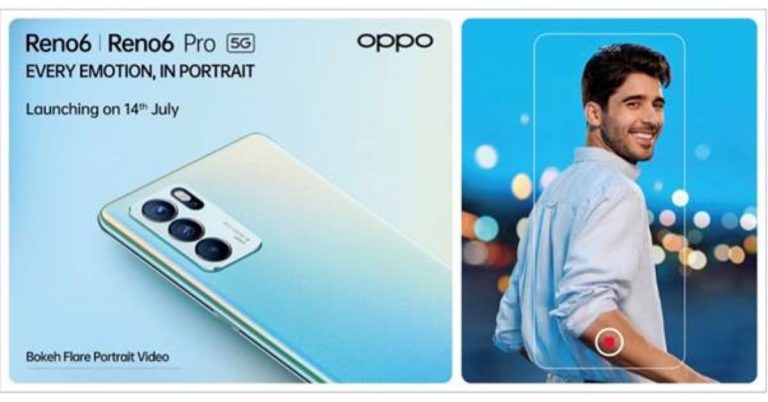
The Chinese smartphone company Oppo today announced that on July 14 it is going to launch Oppo Reno 6 Series in India. The new series consists of two phones Oppo Reno 6 Pro 5G and Reno 6 5G. Both the phones debuted in China in May this year. The smartphones come with 65W fast charging support and are powered by MediaTek SoCs and multiple cameras set up.
Just ahead of the official launch the company has listed the Oppo Reno 6 5G series on Flipkart for its availability. The listing also highlights some of the key specs of the upcoming Reno smartphones. As we are already aware of its specification, the company is going to officially reveal the pricing on the launch day only. The handset is set to debut on July 14 at 3 PM IST.
To recall, Oppo Reno 6 5G was launched in China at a starting price of CNY 2,799 that translates to Rs 32,253 for the base 8GB RAM with 128GB storage options. There is another 12GB RAM with 256GB storage variant which is priced at CNY 3,199 translating to Rs 36,866. On the other hand, Reno 6 Pro is made available in two variants, the 8GB RAM with 128GB storage options retails at CNY 3,499 that translates to Rs 40,309 and the 12GB RAM with 256GB options comes with a price tag of CNY 3,799 that comes around Rs 43,790.
Oppo Reno 6 5G specs
Oppo Reno 6 was launched in China featuring a 90Hz 6.43-inch full-HD+ hole-punch AMOLED display. The phone ships with ColorOS 11 based on top of Android 11 out of the box. Under the hood, there is a MediaTek Dimensity 900 SoC, paired with up to 12GB RAM and up to 25GB storage.
In terms of optics, there is a triple rear camera set up that includes a 64-megapixel primary sensor, an 8-megapixel secondary sensor, and a 2-megapixel tertiary sensor. Upfront there is a 32-megapixel selfie camera. The device is backed by a 4,300mAh battery that comes with 65W fast charging.
Oppo Reno 6 Pro 5G specs
Oppo Reno 6 Pro 5G features a bigger 90Hz 6.55-inch full-HD+ OLED display. Powered by MediaTek Dimensity 1200 SoC the Pro variant comes with up to 12GB of RAM and up to 256GB storage option. In terms of imaging, the phone consists of a quad rear camera setup that includes a 64-megapixel primary sensor. Further assisted by an 8-megapixel secondary camera, and dual 2-megapixel sensors. The selfie sensor is the same as above. There is a 4,500mAh battery on board with 65W fast charging support.
For the latest gadget and tech news, and gadget reviews, follow us on Twitter, Facebook and Instagram. For newest tech & gadget videos subscribe to our YouTube Channel. You can also stay up to date using the Gadget Bridge Android App.
Samsung Galaxy F22 with 90Hz HD+ display confirmed to launch in India on July 6
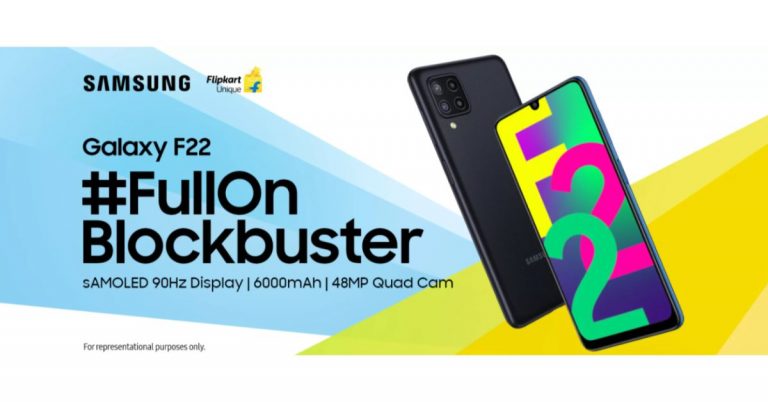
Samsung today announced the official launch date for its upcoming smartphone in the Indian market. The company has scheduled to launch the Samsung Galaxy F22 in India on July 6. The firm has also listed the device on Flipkart to tease its availability. As revealed by the company, the forthcoming phone will feature a 90Hz HD+ display. In addition to this, there is a 6,000mAh battery onboard and a quad rear camera set up as well.
After introducing Samsung Galaxy F02s, Galaxy F12, and Galaxy F62 in the Indian market, the South Korean giant has today announced plans to expand its Galaxy F series lineup with the launch of Samsung Galaxy F22 in the Indian market on July 6. The device will be available via Flipkart, Samsung’s online store and select retail stores after it went official in the country. Prior to the arrival, Flipkart dedicated pages also went live.
Also Read: Samsung Galaxy Z Fold 3, Galaxy Z Flip 3, Galaxy Watch 4, and Galaxy Watch Active 4 could launch on August 3 at the Galaxy Unpacked Event
In addition to this, the upcoming handset will be backed by a 6000mAh battery that is claimed to provide uninterrupted content viewing. In terms of optics, the Samsung Galaxy F22 will be featuring a True 48MP Quad Camera set-up. The details about the other three sensors will be revealed later on.
The official information about this product is very scarce but recently the phone was spotted on the Google Play Console website. As per the listing, Galaxy F22 will come with a display having 720×1339 pixels of resolution. The device is said to be powered by MediaTek MT6769T which is believed to be MediaTek Helio G80 SoC. Paired with 4GB of RAM the mobile phone will ship Android 11 out of the box.
Looking over the specs the device is speculated to be a rebadged version of Galaxy A22, which was launched in the European market earlier last month. However, the information is not reliable but you can take it with a grain of salt.
For the latest gadget and tech news, and gadget reviews, follow us on Twitter, Facebook and Instagram. For newest tech & gadget videos subscribe to our YouTube Channel. You can also stay up to date using the Gadget Bridge Android App.
Besides this, the company has also shared some details of the Galaxy F22 smartphone which includes a 6.4-inch HD+ sAMOLED display that will come with 90Hz refresh rate support. Moreover, it is said to offer a super smooth performance by reducing motion blurs and response time.
How to factory reset your iPhone?
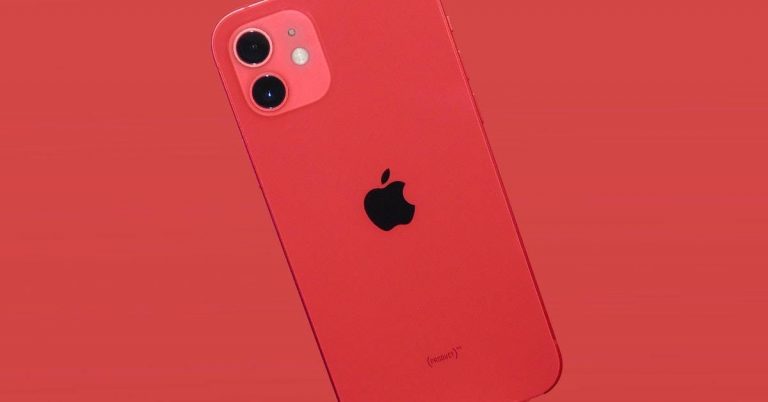
There are many reasons to factory reset an iPhone. Buying a new iPhone and throwing away our old iPhone can be the first reason. So before you sell your old iPhone or give it away to someone, the first thing you should do is completely factory reset your iPhone. But make sure you have backed up all your data somewhere. Here is how you can factory reset your iPhone.
 Creating a backup of all your data is helpful in many ways. For instance, it stored your valuable files and images, and second, you can access the same data on your new iPhone. You can back up all your data including contacts, images, and messages to your Mac. check the steps below.
 Another reason to factory reset an iPhone is to fix glitches and lag when the iPhone gets older. One thing to remember before you factory reset your iPhone is it rolls back to the basic default settings and you lose all your saved data, so follow the above steps first. Here are the steps below to reset your iPhone.
Backup your iPhone:
 Creating a backup of all your data is helpful in many ways. For instance, it stored your valuable files and images, and second, you can access the same data on your new iPhone. You can back up all your data including contacts, images, and messages to your Mac. check the steps below.
- Connect your device to your Mac.
- Go to Location>Click on your device.
- Allow Trust>Back up.
- You can also backup to your iCloud as well.
- And make sure you sign out from all apps.
- And remove all saved passwords>Log out Apple ID
- Factory reset.
Factory reset your iPhone:
 Another reason to factory reset an iPhone is to fix glitches and lag when the iPhone gets older. One thing to remember before you factory reset your iPhone is it rolls back to the basic default settings and you lose all your saved data, so follow the above steps first. Here are the steps below to reset your iPhone.
- Open the Setting with the gear icon.
- Go to general.
- Scroll down to the bottom of the page>Tap Reset.
- From the page open up you will find many options for reset>Choose the Erase all Content and Settings.
- The iPhone will ask for your iPhone password which you have set>Erase iPhone.
- Now enter your Apple ID when prompted.
- The process will take a few minutes and the factory reset will be completed.
Restore your data backup to your new iPhone:
The data which you had backup to your Mac can now be restored when the factory reset process is completed, Or if you want to restore the backup of the iPhone you just factory reset to a new iPhone. Follow the guide below.- Connect the fresh factory reset iPhone or your new iPhone to Mac.
- After the computer asks for a passcode enter the passcode>Trust.
- Select on your device.
- And from the open up page>Click restore backup.
- Carefully check the date of each backup>Choose the most relevant and recent since you recently backed up.
- Click Restore>Passcode.
How to deactivate Facebook account?

Facebook is leading the graph of Social media apps and websites. The word Facebook has become synonymous with social media. However, if online privacy is your biggest concern and if you feel the need to delete your Facebook account the following steps will guide you. For those who want to disconnect from social media, Facebook has added two options to deactivate your account permanently or temporarily.
Note: There are differences between deleting a Facebook account and deactivating a Facebook account. When you deactivate your account you can retrieve your account when you want to. And deleting means you are permanently deleting it from the Facebook domain.
 When you deactivate your Facebook account people can not always see your timeline or search profile on FB. But the messages you have sent will still be seen by your FB friends. The advantage of just deleting your account and deleting it is that you have the option to deactivate your account. Now follow the steps to deactivate your Facebook.
 If you strongly decide to delete your account you will delete the account permanently. This means you completely wiping out all information and shared items on your Facebook. The deleting process can take up to 90 days after you have pressed the delete button. It is advised that before you decide to delete it permanently you should download your information from FB. You can do this in some steps: Upside down arrow>Settings and Privacy>Settings>Your Facebook information>Download your information>View. Now for the steps on deleting your Facebook account follow the guide below and delete your FB account permanently using the steps.
Deactivating your Facebook account:
 When you deactivate your Facebook account people can not always see your timeline or search profile on FB. But the messages you have sent will still be seen by your FB friends. The advantage of just deleting your account and deleting it is that you have the option to deactivate your account. Now follow the steps to deactivate your Facebook.
- Open Facebook and log in with your username and password.
- Go to the top right corner and click the upside-down arrow.
- Press Settings and Privacy.
- Then tap on Settings.
- Now from the left side panel>Your Facebook information.
- Go to the right side window>Scroll down and go to Deactivation and Deletion.
- Select Deactivate account>Continue to account deactivation.
- Your Profile is not visible.
- But your Facebook Friends can see your name in their friend’s list.
- Your Posts and Comments will be visible to the Group admin with your Profile name.
- You can still use messenger from the Facebook messenger app.
- You can reactivate your account.
Deleting your Facebook account:
 If you strongly decide to delete your account you will delete the account permanently. This means you completely wiping out all information and shared items on your Facebook. The deleting process can take up to 90 days after you have pressed the delete button. It is advised that before you decide to delete it permanently you should download your information from FB. You can do this in some steps: Upside down arrow>Settings and Privacy>Settings>Your Facebook information>Download your information>View. Now for the steps on deleting your Facebook account follow the guide below and delete your FB account permanently using the steps.
- Login to your Facebook account with your unique username/email and password.
- Now navigate to the top right corner from the homepage and click on the upside-down arrow.
- Now from the drop-down menu click on Setting & Privacy.
- From the menu select Settings.
- On the left column find Your Facebook information and click on it.
- Scroll down on the right column to Deactivation and Deletion.
- Now choose Permanently delete account>Continue to account deletion.
- Press Delete Account>Continue.
How to connect AirPods to your Apple iPhone or Mac computers?

AirPods are one of the finest Apple products for your ears, designed to give you the ultimate sound. If you are in need of help in connecting your AirPods to your iPhone or Mac computers, the steps will walk you through the connectivity process of your AirPods. Though the process is known to be a simple task. The steps will make the process easier and a beginner can always take advantage of it. Follow the below guide.
 The below steps will teach you how to set up the AirPods on your Mac. So that when your Airpods are nearby your Mac you can listen to music, Siri, and phone calls. There are some requirements you need to check before trying to connect your AirPods to your Mac. For AirPods 2nd generation check if the Macbook has macOS Mojave 10.14.4 and for AirPods Pro see if the Mac is Catalina 10.15.1 macOS. Now the steps.
 The following are step-by-step instructions to connect your truly wireless earbuds. Airpods are meant to make full use of your iPhone connectivity and gear up your listening experience. The wireless earbuds can deliver true sound than most of the wireless earbuds available. Check out the steps below to connect your AirPods to your iPhone.
How to connect your AirPods to Mac computers:
 The below steps will teach you how to set up the AirPods on your Mac. So that when your Airpods are nearby your Mac you can listen to music, Siri, and phone calls. There are some requirements you need to check before trying to connect your AirPods to your Mac. For AirPods 2nd generation check if the Macbook has macOS Mojave 10.14.4 and for AirPods Pro see if the Mac is Catalina 10.15.1 macOS. Now the steps.
- The first step, switch on your AirPods device>Press the button on the case until a light flashes white.
- Now on your Mac Click the Apple menu>Select system preference>Bluetooth.
- After the Bluetooth is on>Select Airpods from the device list>Paired the device
- Select the Airpods and click the connect button next to it.
- Now you can enjoy unbelievable sound and music from your Mac computers.
- You can also enable the Siri voice control on your AirPods for more advanced functions.
- To improve Siri and Dictation>Share audio recording>And Apple will review a sample of your stored audio.
How to connect your Airpods to your iPhone:
 The following are step-by-step instructions to connect your truly wireless earbuds. Airpods are meant to make full use of your iPhone connectivity and gear up your listening experience. The wireless earbuds can deliver true sound than most of the wireless earbuds available. Check out the steps below to connect your AirPods to your iPhone.
- For the first step, you need to get your AirPods device ready. You do not have to worry much about switching on the AirPods is built-in with an Apple H1 chip that initiates a seamless pairing process.
- Now on your iPhone, the screen will display an option to connect the AirPods>Connect.
- Use the media control that pops out to pause/play/skip.
- You can also make controls from the Control center that can help with noise cancellation and transparency settings.
- Use more settings: Use Siri to announce your messages.
- If you want to start over the process>Press the button on the back of the Airpods case.
Tecno Spark Go 2021 budget smartphone with 5,000mAh battery launched in India
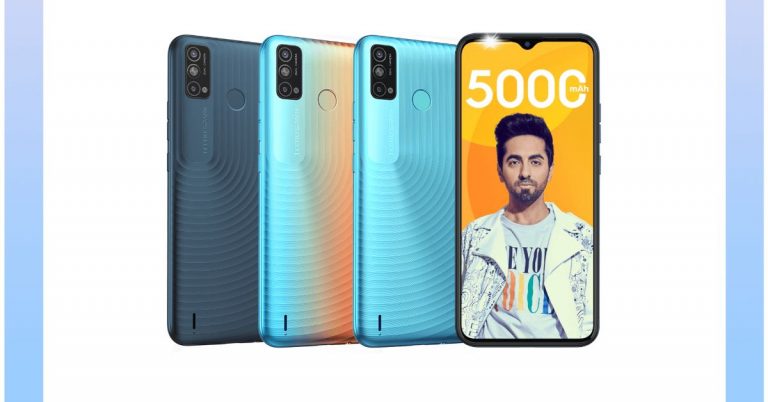
Transsion holding smartphone brand, Tecno Mobile, today officially announced the launch of the Tecno Spark Go 2021 smartphone in India. The device comes with a dual rear camera set up and a Dot Notch display. The entry-level phone is powered by a quad-core MediaTek Helio A20 SoC. The phone ships a 5,000mAh battery and is available in a single configuration.
 This budget smartphone packs a 5,000mAh battery which comes with a standby time of 36 days on a single charge. It also supports calling time of 27 hours, web browsing of 19 hours, video playback of 21 hours, game playing of 14 hours and music playback of 145 hours. In terms of connectivity, there is 4G LTE, Wi-Fi, Bluetooth v4.2, and more. The sensor onboard includes a rear-mounted fingerprint scanner, accelerometer, ambient light sensor, and proximity sensor.
Tecno Spark Go 2021 tech specs
Tecno Spark Go 2021 comes with a 6.52-inch HD+ Dot Notch display. It offers 720×1,600 pixels of resolution, 20:9 aspect ratio and 480 nit peak brightness. The smartphone ships with Android 10 Go Edition and there is a quad-core MediaTek Helio A20 SoC under its hood. It will be available in 2GB of RAM with 32GB of storage which can be expanded up to 256GB using a microSD card. In terms of imaging, Tecno Spark Go 2021 features a dual rear camera setup that consists of a 13-megapixel primary sensor with an f/1.8 aperture and a secondary camera sensor. There are 18 AI Auto scene detection modes such as HDR, Night Portrait, Backlight Portrait and AI-powered Background Bokeh Effect. Upfront there is an 8-megapixel sensor on the front with an f/2.0 aperture. The selfie camera also supports AI Beauty Mode, AI Portrait Mode and Wide Selfie Mode for capturing the perfect group selfie. This budget smartphone packs a 5,000mAh battery which comes with a standby time of 36 days on a single charge. It also supports calling time of 27 hours, web browsing of 19 hours, video playback of 21 hours, game playing of 14 hours and music playback of 145 hours. In terms of connectivity, there is 4G LTE, Wi-Fi, Bluetooth v4.2, and more. The sensor onboard includes a rear-mounted fingerprint scanner, accelerometer, ambient light sensor, and proximity sensor.