Indian e-commerce platform Flipkart has announced the digital platform focused on boosting local entrepreneurship. Shopsy is an app that claimed to open opportunities to enterprising Indians to start their own online business with no upfront investment. The users will be able to share catalogues of a wide selection of 15 Crore products offered by Flipkart sellers, ranging across Fashion, Beauty, Mobiles, Electronics and Home, among others with potential customers via popular social media and messaging apps. With the launch of the Shopsy app, Flipkart will take on a very popular online earning app Meesho that allows its users to earn money without any investment. Prakash Sikaria, Senior Vice President – Growth and Monetization, Flipkart, said, “Over the last many years, Flipkart has been committed to contributing towards creating direct and indirect employment opportunities across the country. Shopsy is launched to further that vision and provide additional earning opportunities for millions of enterprising Indians. Now, anyone from anywhere can start their online business with zero investment. In addition, we are opening up Flipkart’s years of e-commerce expertise for Indian entrepreneurs. Entrepreneurs now will utilize Flipkart’s catalogue, established delivery networks, and infrastructure to bring reliability and speed. These benefits will help them enhance the end consumers’ experience, which in turn help them grow their business.”One can simply register on the Shopsy app using their phone numbers and can explore a range of products from various suppliers. The users can also share catalogues with potential customers via popular social media and messaging apps. Once you place the order on behalf of customers, the product(s) get delivered to their address, and the commissions for that order get initiated to your account. As per the company, the commission percentage will vary depending on the category of products being ordered.While the budding entrepreneurs can now set up their business as long as they have access to a network of people that trust them, without the hassle of investment, inventory or logistics management. This initiative will also create a huge opportunity for innovative e-commerce models that helps these businesses become digital brands, catering to pan India customer bases.
For the latest gadget and tech news, and gadget reviews, follow us on Twitter, Facebook and Instagram. For newest tech & gadget videos subscribe to our YouTube Channel. You can also stay up to date using the Gadget Bridge Android App.
Apple has released the watchOS 8 public beta for your Apple Watch and you can be a public beta tester. All you need to do is sign up for Apple’s beta program and you can use the beta version of watchOS 8 on your Apple watch. If you have an iPhone with iOS 15 you can pair the iPhone with the Apple watch and install the public beta version. Remember: The watchOS 8 public beta can only be downloaded and installed using the iOS 15 beta. But as with every beta, there is a high risk of running into bugs and similar issues. And also once you have installed watchOS 8 you cannot roll back to the watchOS 7. So be careful and keep this in mind when you make the choice.
Read more: How to download and install watchOS 7.4 beta 5 on your Apple Watch?The watchOS 8 public beta version is now available for Apple Watch Series 3, 4, 5, 6, and SE devices. This beta version of the WatchOS 8 releasing later this year has some exciting features like respiratory sleep, tracking, new workouts mode, and multi-timer support. And also a bunch of new changes to different series of Apple watches including Photos which will have support for memories, highlights, and images that can now be shared from iMessage and mail. New AirTag tracking support labeled as FindMy. New feature to Apple Music where you can now share music on messages. And also pretty cool weather prediction notifications.
Read also: Android 12 Beta 1 now available for download: These are the compatible devices
Steps to install watchOS public beta:
Using an iPhone which has iOS 15>Search the website for Apple’s public beta website.
From the top left corner>Click two-line icon>Sign in.
Choose Downloads from the two-line icon.
Scroll down and select Install profile>Next to watchOS beta.
When Allow pops out click on it>Hit close.
Now go to settings on your device>Find Profile download.
Click install on the top right corner>Enter passcode if prompted.
Carefully read the consent agreement>Tap install two more times.
Restart your iPhone when required to make the changes complete.
Now open the Apple Watch app and go to General>Software update.
You can see watchOS 8 available>Download and install.
The software update will be downloaded to your Apple Watch from the iPhone. And in order to finish the installation, you have to make sure the Apple Watch is plugged into its charger and your iPhone has 50% or more charge with a Wi-Fi-connected. And as soon as the public beta version has completed installing you will be able to completely test the watchOS 8 public beta.
For the latest gadget and tech news, and gadget reviews, follow us on Twitter, Facebook and Instagram. For newest tech & gadget videos subscribe to our YouTube Channel. You can also stay up to date using the Gadget Bridge Android App.
In remote work life where everything revolves around connecting online, Google Meet is one of the platforms to meet our needs. Google has made the video meeting platform free with all its services. Many have shown appreciation for Google Meets and the service that it offers. Another good reason for video call users accessing the service gives options to jump from one video calling service to another. However, even Google Meet can face audio issues sometimes. Read the guide below to fix the audio issues on Google Meet.
Test your audio before joining any meeting
Before heading to any advanced setting to fix the audio problem in Google Meet. It is important to test your audio before you join or accept any video meetings.
Check if Google Meet has the selected device speakers
The audio issue can be arising from your device’s speakers settings. So you should open Google Meet and go to the settings if the right speakers of the device have been selected. Just in case the settings have not selected the device speakers the problems with the audio issue are from here. Check the steps to check the settings.
Google Hangouts MeetAnother reason for your audio not working on Google Meet might be that the audio driver has not been updated lately. The corrupt drivers on your computers must be the biggest reasons for your audio problems while using Google Meet. Follow the steps to update your audio drivers and to fix the audio issues on Google Meet.
Search for Device Manager on the search bar at the bottom left corner.
Open the Device Manager function.
Scroll down and find Sound, video, and game controller.
From the option, you will see two options: Realtek audio and Intel(R) display audio.
It is common for users to accidentally hit the mute button in the dedicated media keys row and kill the sound on their PCs. If you are wondering why there is no sound on Google Meet, it might be a good idea to check the system audio settings. Either hit the mute button on the keyboard or access the volume controls from the taskbar and make sure the device volume is at an optimum level.
Disable Bluetooth
If your PC is connected to a Bluetooth audio device, it will not relay the audio through its own speakers. This is the case when you are on a Google Meet meeting as well. It is easy to connect wireless headphones or earbuds to your PC and then forget about them. Access the Bluetooth settings from the taskbar and make sure it is not connected to any audio device.
Frequently Asked Questions (FAQs)
What is causing audio issues in Google Meet?
If your PC is not relaying the Google Meet audio it could be because of outdated audio drivers, lack of speaker access to Google Meet, or the PC being muted or connected to another audio device.
How do I update the audio drivers on my PC?
To update the audio driver on your PC, go to Control Panel>Device Manager>Sound, right-click on the audio driver and select ‘Update driver’.
These are the top 6 ways to fix any audio issues on Google Meet for PC. As a general rule of thumb, you should clear all tabs before getting on a Google Meet call. If you know of any other way to fix this problem, let us know in the comments!
We often face difficulty in managing bills and services from multiple local service providers and sometimes get frustrated because multiple bills have to be paid on different due dates. Over that, we forget to get them recharged. So to manage all these individual services the Indian telecom service provider Bharti Airtel today announced a new service for mobile called Airtel Black. This service is said to provide a collection of 2 or more Airtel services like Fiber, DTH, Mobile into one service. With this, the user is entitled to receive one single bill and don’t have to deal with multiple bills individually. Here are all the details.Airtel Black the latest program by the telecom company in which a customer can bundle 2 or more of Airtel services (Fibre, DTH, Mobile) together to become Airtel Black – which entitles the customer for one single bill. In addition to this, they will also have one Customer Care number with a dedicated team of relationship managers, and priority resolution of faults and issues. All of this also comes with the amazing value of zero-switching and installation costs coupled with free service visits for life. Airtel Black is a convenient way to manage multiple bill payment dates, navigating customer care IVRs, or interacting with separate service providers. All the customers will connect to a care representative within 60 seconds of calling. The team of experts managing the customer relationship keeps in touch with all your requirements and solves them on a priority basis. All service visits needed for your service come to you on priority, and free of charge.According to the company, Airtel Black will also help customers enjoy uninterrupted TV viewing, due to DTH being offered as a billed service. All the user needs is to pay their one bill monthly. They will have a full choice of selecting their suitable plans for each service and then bundle them together for billing. Those who are interested have to download the Airtel Thank app and choose an Airtel Black plan. They can plan by getting the existing service together into one single plan. Other than that, the customers can also visit the Airtel Store or give a missed call on 8826655555 to upgrade to Airtel Black. As per the company if a customer chooses any two or more services can avail first 30 days free on the new service added. There are fixed Airtel Black plans as well. The Rs 2099 monthly plan will offer 3 mobile connections 1 fiber and 1 DTH connection. Whereas Rs 1,598 plan will include 2 mobile connections and 1 fiber connection. The Rs 1,349 plan includes 3 mobile connections and 1 DTH connection and lastly, Rs 998 plan will consist of 2 mobile connections and 1 DTH.
For the latest gadget and tech news, and gadget reviews, follow us on Twitter, Facebook and Instagram. For newest tech & gadget videos subscribe to our YouTube Channel. You can also stay up to date using the Gadget Bridge Android App.
As the new normal life demands everything to be remote. Zoom has become the most popular video meetings and calls platform. As you might have experienced, scheduling your meetings is more frequent and necessary. But what will be the point if the audio is not audible at all. There are some ways you can fix the audio issues on Zoom meetings. Check the guide below.
Check your microphone before joining a meeting:
Zoom allows you to test your microphone before joining a meeting. Make sure you have put the settings to automatically join by computer audio. Similarly, you can test your audio speakers and also test your microphones. Here is the guide to test your audio before joining a meeting.
When you are connecting to a video meeting>A page will appear with two options: Join with Computer Audio, and Test Speakers and Microphone.
Click on Test Speakers and Microphone.
From a pop-up window, you will see the option to test your speakers>Do you want to hear a ringtone hit yes.
If you do not hear a sound, change the speakers.
Now Zoom will ask for the Speak and pause>Make sure the microphone is audible.
Another step you can do if you are facing audio issues on your Zoom meeting is by going to advanced audio settings. Basically, these advanced settings are for reducing background noise and to enhance audio. But it is also designed to fix low audio or any audio problems in Zoom. Follow below to solve the audio problem.
On the zoom screen>Click on the half arrow on mute.
Go to audio settings>Check if the Suppress background noise is in auto.
Scroll down to the bottom of the page and tap Advanced.
From the options click on the half arrow>Check if it is on auto.
The audio issue on your Zoom meeting might also be from your computer audio driver. There is a very high chance that your computer audio driver is outdated and it is not compatible with the Zoom meeting audio settings. So updating the audio driver might fix the problem with the audio issues in Zoom. Read the steps below to check the audio driver.
Right-click on the Window icon.
And select Device manager.
Click on Sound Video, and game controllers with the help of the half arrow next to it.
Again use the right-click and from the open up page>Update driver.
Now go to the zoom meeting to check for the audio after you update the audio driver.
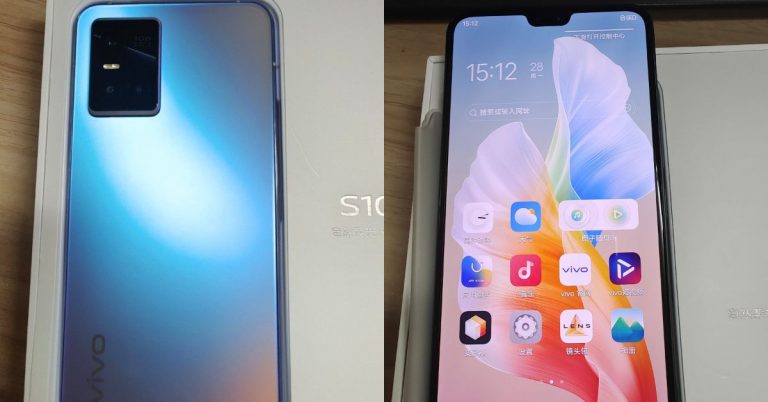
Vivo is all set to launch a new smartphone in the market. However, the company has not confirmed but the Vivo S10 has been spotted on the Geekbench website lately. The phone is going to succeed the Vivo S9. As per the listing, the phone is tipped to come with a triple rear camera and 44W fast charging support. Additionally, it will be powered by MediaTek Dimensity 1100 SoC. The smartphone is expected to debut in China later this month. Moreover, some live images of Vivo S10 Pro have also appeared on the web suggesting 5G capability.Vivo S10 has been spotted on the Geekbench website ahead of the official launch. The listing has revealed the key details of the alleged smartphone. The upcoming smartphone by the company is said to have scored 647 points in the single-core test and 2,398 points in the multi-core.Vivo S10 has surfaced with the model number V212A. As per the listing, the handset will be equipped with ARM MT6891Z/CZA CPU which is the MediaTek Dimensity 1100 SoC. The processor will be paired with 12GB of RAM which is expected to be offered in more configurations. However the past reports suggest that the handset will be available in two variants, 8GB RAM with 4GB of virtual RAM and 12GB RAM with 4GB of virtual RAM. Coming back to the Geekbench listing Vivo S10 is slated to come with Android 11 out of the box.Previously the device was tipped to sport a triple rear camera setup highlighted with a 108-megapixel sensor which is an upgrade over its predecessor having a 64-megapixel main sensor. In addition to this, the phone will have NFC support and UFS 3.1 storage. The smartphone will run Origin OS based on Android 11 and will have support for 44W fast charging.Image Courtesy: Twitter/@TechnoAnkit1Apart from this, some live images have also surfaced on Twitter that are believed to be Vivo S10 Pro 5G. The back panel of the device shows a hue changing rear which is quite similar to Vivo V21 featuring a triple rear camera sensor housed inside a rectangular module. The front of the phone carries slim bezels on the sides and sports dual front cameras for selfies.
For the latest gadget and tech news, and gadget reviews, follow us on Twitter, Facebook and Instagram. For newest tech & gadget videos subscribe to our YouTube Channel. You can also stay up to date using the Gadget Bridge Android App.
Using the internet or mingling online should always be secure and private. Telegram has enabled the feature to hide your profile picture from others. This new Telegram’s Privacy feature has the options and customisation to choose from, which enables you to hide your profile image from other users or groups. The options are available for both Android and iOS. Here are the steps to enable it.
How to hide profile picture on Android:
With the new privacy feature, you can not only hide your profile pictures but you can also maintain your security while using the Telegram app by hiding your number. By using the controls in privacy settings you can select who you want to hide your profile pictures from by selecting the contacts or hide them from everyone. The below guide is to enable the function to hide your telegram profile picture on your Android smartphones.
Open the Telegram messaging app on your phone: Log in if you have not.
Go to the left-top corner>Click the hamburger menu.
Now tap on Settings.
Next, scroll down to Privacy and security.
From the next open-up page>Select Profile Photos.
Now from options>Choose My contacts.
To hide your profile>Never allow>Add users>Click Done.
Now you will be able to hide your profile picture.
The feature to disable your profile photos on telegram has also been enabled on iOS also. Since the interface in iOS is slightly different from Android the steps will guide to make the process easier. Follow the guide below to hide your telegram profile picture on your iOS.
Open the Telegram app and log in if you have not.
Next, go to Settings.
And click on Privacy and Security.
Navigate to profile photo.
Now from the page “Who can see me my Profile Photo”>Select My contacts.
You can also make additional settings from the Exception section: Never share with, Always share with.
You can also make use of the additional settings provided by Telegram. There are a bunch of features that you can enable to make your telegram account more private and secure. There are options for hiding your Phone number, your last seen & online status, your calls, groups & channel, and more. To enable all these settings you have to use the same steps Settings>Privacy & Security>Privacy>Phone number, Last seen, Groups & Channel. Similar to the hide your profile photo features the options for hiding your phone and last seen also has an option for nobody and my contacts.
For the latest gadget and tech news, and gadget reviews, follow us on Twitter, Facebook and Instagram. For newest tech & gadget videos subscribe to our YouTube Channel. You can also stay up to date using the Gadget Bridge Android App.
The following guide is for hiding your apps when you do not want to see them. But you also do not want to delete them or you have no need for the app but occasionally you want to access them. This situation of wanting to hide your app can arise for many reasons, follow the guide below to hide apps on your Android smartphones.
Hide your apps on your Android smartphones: Settings.
Hiding your apps can sometimes get judgy, to be frank. But what people do not know is that it is actually for security and to ensure the safety of your Android smartphones. Hiding your apps works best when you lose your phone or it is stolen. The guide below will work for most Android smartphones. Note: Android smartphones do not come with hiding your app feature. But if you disable the app from the setting the app will not appear in the App drawer, however, it would not be uninstalled from your phone also.
Open the phone settings and go to Apps by scrolling down.
Tap the app you want to hide>Click disable from the App info page.
Wait for the confirmation page to open up and click Disable.
Now you can hide your app from your app without uninstalling it.
The method is not for every Android smartphone but all Android phones, which feature a biometric security key option to secure the app can use it. This guide seems fit to mention since most Android smartphones now have the option to make your folders secure with a pin or any other form of lock. Follow the steps below to safeguard the folder with secure folders.
The first thing you should do is open the settings on your smartphones.
Browse for the Biometrics and security options and tap on them.
Now select Secure Folder>Follow all prompts.
Enter a security code>Or any other form of lock.
Now check in the App Drawer if your folder is secure, so are all your apps in the folder.
This Android launcher has been suggested by many experts including us. The app comes with plenty of features and it runs smoothly. However, you need Nova Prime to hide all your apps. The steps below are for hiding your apps in your Android smartphones.
Download the app from Google Play Store.
Before making further steps make sure you have made Nova launcher as your default launcher.
Now open the Nova launcher app>Settings on the app.
Click Apps & Widgets drawer.
Go to the head drawer>Find hide apps.
Tick the box next to the app that you want to hide.
And since the app is hidden, if you want to use the app> use the search box and type the app name in the search box and it will appear.
WhatsApp has been presented as the most trusted online messaging app. And sending photos, videos, and files has never been this easy. As many of you have faced, WhatsApp messenger apparently allows you a limited size of files that you can send. The maximum size that you send is 64 MB but what if you want to send videos files that are bigger. The following will show you some methods to send your large video files using the app.
Send large video files using Google Drive:
The first way to send your large video files on your Whatsapp is through Google Drive. Using this third-party cloud service you can send all your large files using a link. You can upload any file size on the cloud and share the link on your Whatsapp, then the receiver can download the large video files using the link. Follow the steps to send large video files using Google Drive.
The first step is to upload the large video file you want to send via Google Drive.
Once you have completed the upload>Go to the top corner and find Share.
Select Share with others>Choose anyone with the link.
And copy the link>It gets copied to the clipboard.
Now share the link on WhatsApp with anyone.
The receiver can click on the link and open the file>And Download.
Send large video files using other websites: WeTransfer
The website is another method for you to send your large files on Whatsapp. WeTransfer is a tool that lets you share files using a link with anyone. The website offers two ways of sharing, if you have the free version you can send files up to 2 GB but the paid version lets you send files up to 20 GB in size. Here is the step to share your large video files using WeTransfer.
Send the video files using Video compressor Panda:
Video compressor Panda is an app that you can download on the Google Play Store. The app will compress your video so that you can send the large video files on WhatsApp in the 64MB limit. Here is how to send using the app.
Download the app on your Android smartphone.
Open the app and select the video you want to send>Next.
Tap on Compress.
Now you can choose the options: Share directly or Save it on your device and send it.
Finally, it looks like PUBG has succeeded with Battlegrounds Mobile India, which is a dedicated and exclusive game for the Indian market. Last month Krafton released the BGMI test program. However, the beta game is available to a limited number of testers but today the much-awaited game is out of the beta phase and has been officially released for the PUBG fans in the country.The PUBG Mobile fans can now enjoy the original version of Battlegrounds Mobile India on Android devices. The new battle royal game will be available as a free-to-play experience on mobile devices. You can now download the game from the Google Play store as it is available for all now. If you have not got yourself pre-registered for the BGMI then you can simply go to the Google Play Store app on your Android device and can easily download the game on your devices. Sadly there is no update on when it will be released for iOS but you can also download and enjoy the new gaming experience on your PC as the game can be also be downloaded via the Google Play store app from your desktop.
Those who have already downloaded the beta version of Battlegrounds Mobile India can update the game to the official version by heading to the Google Play Store and opening the Battlegrounds Mobile India app and tapping on the ‘Update’ button. Wait until the update gets completed. Once complete you are ready to go.The all-new Battlegrounds Mobile India will bring an array of maps, game modes, and exciting challenges. It will feature diverse maps with different terrains in a virtual setting, Weekend Vibes, Celebration Time, Friends for Life and much more with exciting rewards from outfits to weapon skins.
You can play solo or can team up with your friends. According to Krafton, as more and more players join the game, the India Ka Battlegrounds event rewards you with a permanent purple outfit for free.Besides this Krafton has also taken care of privacy and data security. The BGMI will now collect, use or share any personal information for those who are under 18 years of age without verifiable parental consent or as permitted by law. Those who are underaged will be asked to provide the mobile phone number of their parent or guardian to confirm that they are legally eligible to play the game. Also, the game will be playable for a maximum of 3 hours a day and the maximum daily amount of using our paid service will be Rs 7,000 for under 18 users.
For the latest gadget and tech news, and gadget reviews, follow us on Twitter, Facebook and Instagram. For newest tech & gadget videos subscribe to our YouTube Channel. You can also stay up to date using the Gadget Bridge Android App.



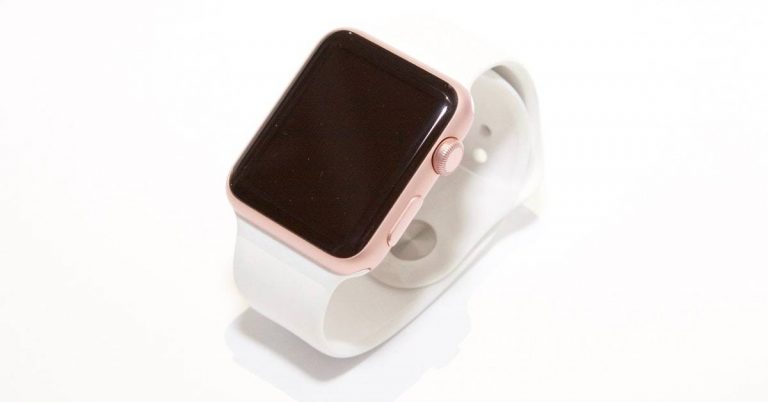
 The watchOS 8 public beta version is now available for Apple Watch Series 3, 4, 5, 6, and SE devices. This beta version of the WatchOS 8 releasing later this year has some exciting features like respiratory sleep, tracking, new workouts mode, and multi-timer support. And also a bunch of new changes to different series of Apple watches including Photos which will have support for memories, highlights, and images that can now be shared from iMessage and mail. New AirTag tracking support labeled as FindMy. New feature to Apple Music where you can now share music on messages. And also pretty cool weather prediction notifications.
Read also: Android 12 Beta 1 now available for download: These are the compatible devices
The watchOS 8 public beta version is now available for Apple Watch Series 3, 4, 5, 6, and SE devices. This beta version of the WatchOS 8 releasing later this year has some exciting features like respiratory sleep, tracking, new workouts mode, and multi-timer support. And also a bunch of new changes to different series of Apple watches including Photos which will have support for memories, highlights, and images that can now be shared from iMessage and mail. New AirTag tracking support labeled as FindMy. New feature to Apple Music where you can now share music on messages. And also pretty cool weather prediction notifications.
Read also: Android 12 Beta 1 now available for download: These are the compatible devices

 The watchOS 8 public beta version is now available for Apple Watch Series 3, 4, 5, 6, and SE devices. This beta version of the WatchOS 8 releasing later this year has some exciting features like respiratory sleep, tracking, new workouts mode, and multi-timer support. And also a bunch of new changes to different series of Apple watches including Photos which will have support for memories, highlights, and images that can now be shared from iMessage and mail. New AirTag tracking support labeled as FindMy. New feature to Apple Music where you can now share music on messages. And also pretty cool weather prediction notifications.
Read also: Android 12 Beta 1 now available for download: These are the compatible devices
The watchOS 8 public beta version is now available for Apple Watch Series 3, 4, 5, 6, and SE devices. This beta version of the WatchOS 8 releasing later this year has some exciting features like respiratory sleep, tracking, new workouts mode, and multi-timer support. And also a bunch of new changes to different series of Apple watches including Photos which will have support for memories, highlights, and images that can now be shared from iMessage and mail. New AirTag tracking support labeled as FindMy. New feature to Apple Music where you can now share music on messages. And also pretty cool weather prediction notifications.
Read also: Android 12 Beta 1 now available for download: These are the compatible devices

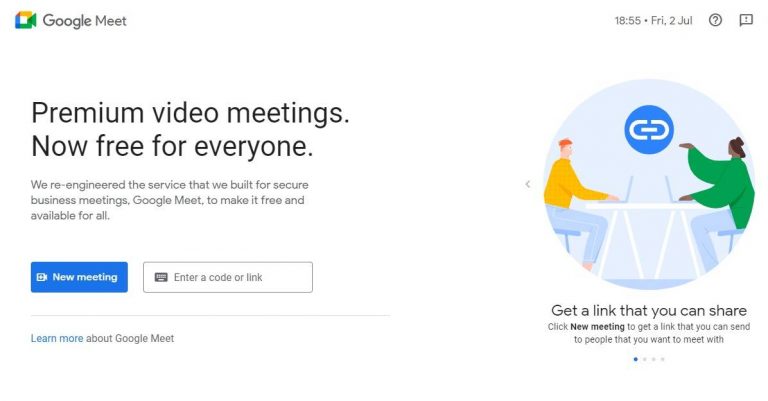
 Before heading to any advanced setting to fix the audio problem in Google Meet. It is important to test your audio before you join or accept any video meetings.
 The audio issue can be arising from your device’s speakers settings. So you should open Google Meet and go to the settings if the right speakers of the device have been selected. Just in case the settings have not selected the device speakers the problems with the audio issue are from here. Check the steps to check the settings.

 It is common for users to accidentally hit the mute button in the dedicated media keys row and kill the sound on their PCs. If you are wondering why there is no sound on Google Meet, it might be a good idea to check the system audio settings. Either hit the mute button on the keyboard or access the volume controls from the taskbar and make sure the device volume is at an optimum level.
 Before heading to any advanced setting to fix the audio problem in Google Meet. It is important to test your audio before you join or accept any video meetings.
 The audio issue can be arising from your device’s speakers settings. So you should open Google Meet and go to the settings if the right speakers of the device have been selected. Just in case the settings have not selected the device speakers the problems with the audio issue are from here. Check the steps to check the settings.

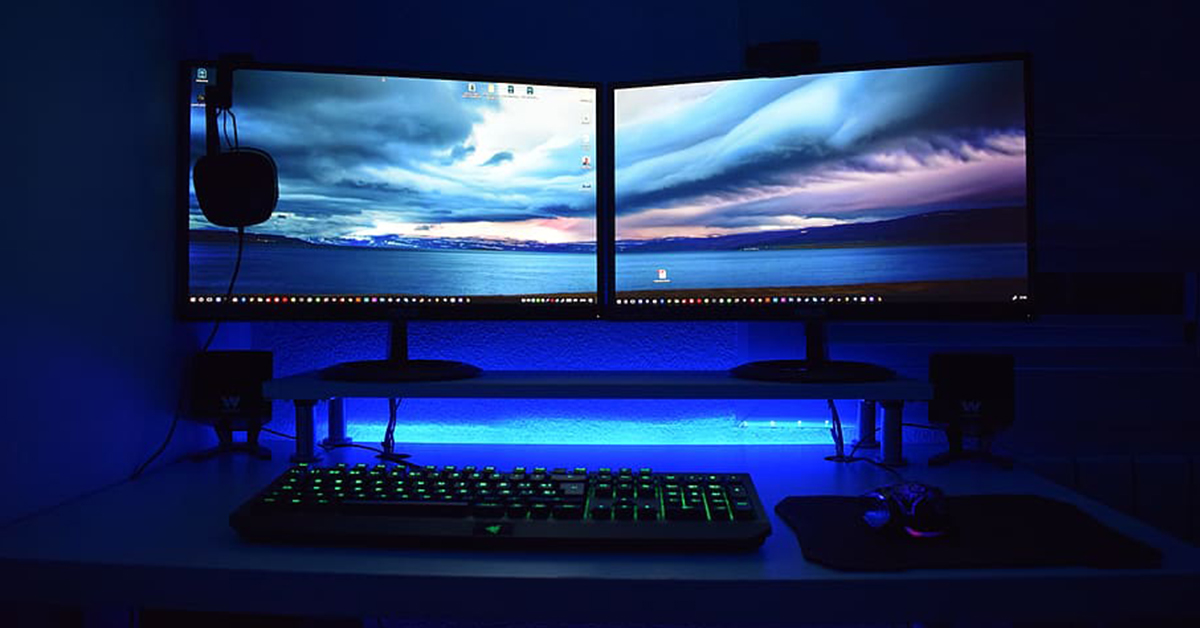 It is common for users to accidentally hit the mute button in the dedicated media keys row and kill the sound on their PCs. If you are wondering why there is no sound on Google Meet, it might be a good idea to check the system audio settings. Either hit the mute button on the keyboard or access the volume controls from the taskbar and make sure the device volume is at an optimum level.
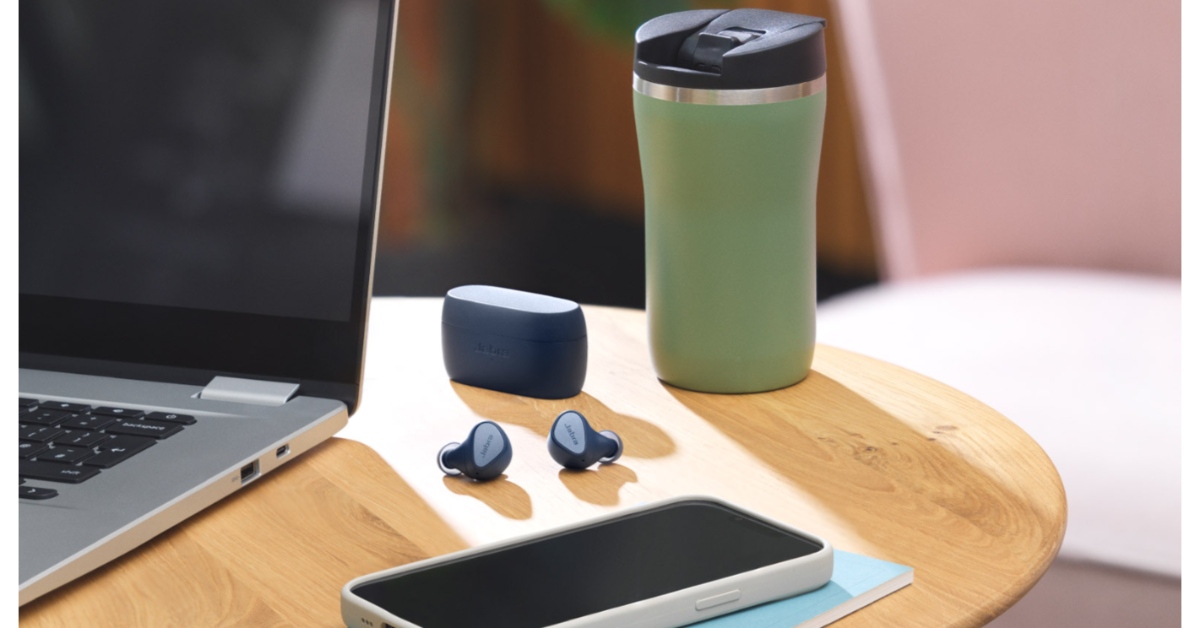 If your PC is connected to a Bluetooth audio device, it will not relay the audio through its own speakers. This is the case when you are on a Google Meet meeting as well. It is easy to connect wireless headphones or earbuds to your PC and then forget about them. Access the Bluetooth settings from the taskbar and make sure it is not connected to any audio device.


 Zoom allows you to test your microphone before joining a meeting. Make sure you have put the settings to automatically join by computer audio. Similarly, you can test your audio speakers and also test your microphones. Here is the guide to test your audio before joining a meeting.
 Another step you can do if you are facing audio issues on your Zoom meeting is by going to advanced audio settings. Basically, these advanced settings are for reducing background noise and to enhance audio. But it is also designed to fix low audio or any audio problems in Zoom. Follow below to solve the audio problem.
 The audio issue on your Zoom meeting might also be from your computer audio driver. There is a very high chance that your computer audio driver is outdated and it is not compatible with the Zoom meeting audio settings. So updating the audio driver might fix the problem with the audio issues in Zoom. Read the steps below to check the audio driver.
 Zoom allows you to test your microphone before joining a meeting. Make sure you have put the settings to automatically join by computer audio. Similarly, you can test your audio speakers and also test your microphones. Here is the guide to test your audio before joining a meeting.
 Another step you can do if you are facing audio issues on your Zoom meeting is by going to advanced audio settings. Basically, these advanced settings are for reducing background noise and to enhance audio. But it is also designed to fix low audio or any audio problems in Zoom. Follow below to solve the audio problem.
 The audio issue on your Zoom meeting might also be from your computer audio driver. There is a very high chance that your computer audio driver is outdated and it is not compatible with the Zoom meeting audio settings. So updating the audio driver might fix the problem with the audio issues in Zoom. Read the steps below to check the audio driver.



 With the new privacy feature, you can not only hide your profile pictures but you can also maintain your security while using the Telegram app by hiding your number. By using the controls in privacy settings you can select who you want to hide your profile pictures from by selecting the contacts or hide them from everyone. The below guide is to enable the function to hide your telegram profile picture on your Android smartphones.
 You can also make use of the additional settings provided by Telegram. There are a bunch of features that you can enable to make your telegram account more private and secure. There are options for hiding your Phone number, your last seen & online status, your calls, groups & channel, and more. To enable all these settings you have to use the same steps Settings>Privacy & Security>Privacy>Phone number, Last seen, Groups & Channel. Similar to the hide your profile photo features the options for hiding your phone and last seen also has an option for nobody and my contacts.
For the latest gadget and tech news, and gadget reviews, follow us on Twitter, Facebook and Instagram. For newest tech & gadget videos subscribe to our YouTube Channel. You can also stay up to date using the Gadget Bridge Android App.
You can also make use of the additional settings provided by Telegram. There are a bunch of features that you can enable to make your telegram account more private and secure. There are options for hiding your Phone number, your last seen & online status, your calls, groups & channel, and more. To enable all these settings you have to use the same steps Settings>Privacy & Security>Privacy>Phone number, Last seen, Groups & Channel. Similar to the hide your profile photo features the options for hiding your phone and last seen also has an option for nobody and my contacts.
For the latest gadget and tech news, and gadget reviews, follow us on Twitter, Facebook and Instagram. For newest tech & gadget videos subscribe to our YouTube Channel. You can also stay up to date using the Gadget Bridge Android App.  With the new privacy feature, you can not only hide your profile pictures but you can also maintain your security while using the Telegram app by hiding your number. By using the controls in privacy settings you can select who you want to hide your profile pictures from by selecting the contacts or hide them from everyone. The below guide is to enable the function to hide your telegram profile picture on your Android smartphones.
 The feature to disable your profile photos on telegram has also been enabled on iOS also. Since the interface in iOS is slightly different from Android the steps will guide to make the process easier. Follow the guide below to hide your telegram profile picture on your iOS.
 You can also make use of the additional settings provided by Telegram. There are a bunch of features that you can enable to make your telegram account more private and secure. There are options for hiding your Phone number, your last seen & online status, your calls, groups & channel, and more. To enable all these settings you have to use the same steps Settings>Privacy & Security>Privacy>Phone number, Last seen, Groups & Channel. Similar to the hide your profile photo features the options for hiding your phone and last seen also has an option for nobody and my contacts.
For the latest gadget and tech news, and gadget reviews, follow us on Twitter, Facebook and Instagram. For newest tech & gadget videos subscribe to our YouTube Channel. You can also stay up to date using the Gadget Bridge Android App.
You can also make use of the additional settings provided by Telegram. There are a bunch of features that you can enable to make your telegram account more private and secure. There are options for hiding your Phone number, your last seen & online status, your calls, groups & channel, and more. To enable all these settings you have to use the same steps Settings>Privacy & Security>Privacy>Phone number, Last seen, Groups & Channel. Similar to the hide your profile photo features the options for hiding your phone and last seen also has an option for nobody and my contacts.
For the latest gadget and tech news, and gadget reviews, follow us on Twitter, Facebook and Instagram. For newest tech & gadget videos subscribe to our YouTube Channel. You can also stay up to date using the Gadget Bridge Android App. 
 Hiding your apps can sometimes get judgy, to be frank. But what people do not know is that it is actually for security and to ensure the safety of your Android smartphones. Hiding your apps works best when you lose your phone or it is stolen. The guide below will work for most Android smartphones.
Note: Android smartphones do not come with hiding your app feature. But if you disable the app from the setting the app will not appear in the App drawer, however, it would not be uninstalled from your phone also.
Hiding your apps can sometimes get judgy, to be frank. But what people do not know is that it is actually for security and to ensure the safety of your Android smartphones. Hiding your apps works best when you lose your phone or it is stolen. The guide below will work for most Android smartphones.
Note: Android smartphones do not come with hiding your app feature. But if you disable the app from the setting the app will not appear in the App drawer, however, it would not be uninstalled from your phone also.
 The method is not for every Android smartphone but all Android phones, which feature a biometric security key option to secure the app can use it. This guide seems fit to mention since most Android smartphones now have the option to make your folders secure with a pin or any other form of lock. Follow the steps below to safeguard the folder with secure folders.
 This Android launcher has been suggested by many experts including us. The app comes with plenty of features and it runs smoothly. However, you need Nova Prime to hide all your apps. The steps below are for hiding your apps in your Android smartphones.
 Hiding your apps can sometimes get judgy, to be frank. But what people do not know is that it is actually for security and to ensure the safety of your Android smartphones. Hiding your apps works best when you lose your phone or it is stolen. The guide below will work for most Android smartphones.
Note: Android smartphones do not come with hiding your app feature. But if you disable the app from the setting the app will not appear in the App drawer, however, it would not be uninstalled from your phone also.
Hiding your apps can sometimes get judgy, to be frank. But what people do not know is that it is actually for security and to ensure the safety of your Android smartphones. Hiding your apps works best when you lose your phone or it is stolen. The guide below will work for most Android smartphones.
Note: Android smartphones do not come with hiding your app feature. But if you disable the app from the setting the app will not appear in the App drawer, however, it would not be uninstalled from your phone also.
 The method is not for every Android smartphone but all Android phones, which feature a biometric security key option to secure the app can use it. This guide seems fit to mention since most Android smartphones now have the option to make your folders secure with a pin or any other form of lock. Follow the steps below to safeguard the folder with secure folders.
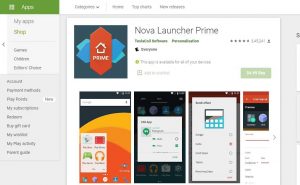 This Android launcher has been suggested by many experts including us. The app comes with plenty of features and it runs smoothly. However, you need Nova Prime to hide all your apps. The steps below are for hiding your apps in your Android smartphones.
 The first way to send your large video files on your Whatsapp is through Google Drive. Using this third-party cloud service you can send all your large files using a link. You can upload any file size on the cloud and share the link on your Whatsapp, then the receiver can download the large video files using the link. Follow the steps to send large video files using Google Drive.
 The website is another method for you to send your large files on Whatsapp. WeTransfer is a tool that lets you share files using a link with anyone. The website offers two ways of sharing, if you have the free version you can send files up to 2 GB but the paid version lets you send files up to 20 GB in size. Here is the step to share your large video files using WeTransfer.
 Video compressor Panda is an app that you can download on the Google Play Store. The app will compress your video so that you can send the large video files on WhatsApp in the 64MB limit. Here is how to send using the app.
 The first way to send your large video files on your Whatsapp is through Google Drive. Using this third-party cloud service you can send all your large files using a link. You can upload any file size on the cloud and share the link on your Whatsapp, then the receiver can download the large video files using the link. Follow the steps to send large video files using Google Drive.
 The website is another method for you to send your large files on Whatsapp. WeTransfer is a tool that lets you share files using a link with anyone. The website offers two ways of sharing, if you have the free version you can send files up to 2 GB but the paid version lets you send files up to 20 GB in size. Here is the step to share your large video files using WeTransfer.
 Video compressor Panda is an app that you can download on the Google Play Store. The app will compress your video so that you can send the large video files on WhatsApp in the 64MB limit. Here is how to send using the app.