


In This Article
Which method is best for you?
Out of the 6 methods mentioned in this article, you should pick one that suits your workflow the most. If you start your day by opening a group of websites, creating a desktop shortcut that launches those sites is your best option. You can also program Chrome to open those websites as soon as you launch the web browser. However, the problem with this method is that these websites will trigger into action every time you open a new Chrome window. If you simply want to open a bunch of websites on a list, the ‘Open Multiple URLs’ and ‘Open Multiple Links’ Chrome extensions will come in handy. The latter lets you highlight text and open all the links in it with a couple of clicks. The Open Multiple URLs extension requires pasting the links in a text box. We prefer the Open Multiple Links extension as it is more intuitive and seamless.Use the ‘Open Multiple URLs’ Chrome Extension
Step 1: Search for ‘Open Multiple URLs’ extension in the Chrome Web Store and add it to the web browser. Step 2: Paste the list of websites you want to open with a single click. Make sure the websites are separated by line breaks. Step 3: Click on the checkbox for ‘Preserve Input’ if it is unticked. This will avoid the trouble of typing the same sites every time you use the extension.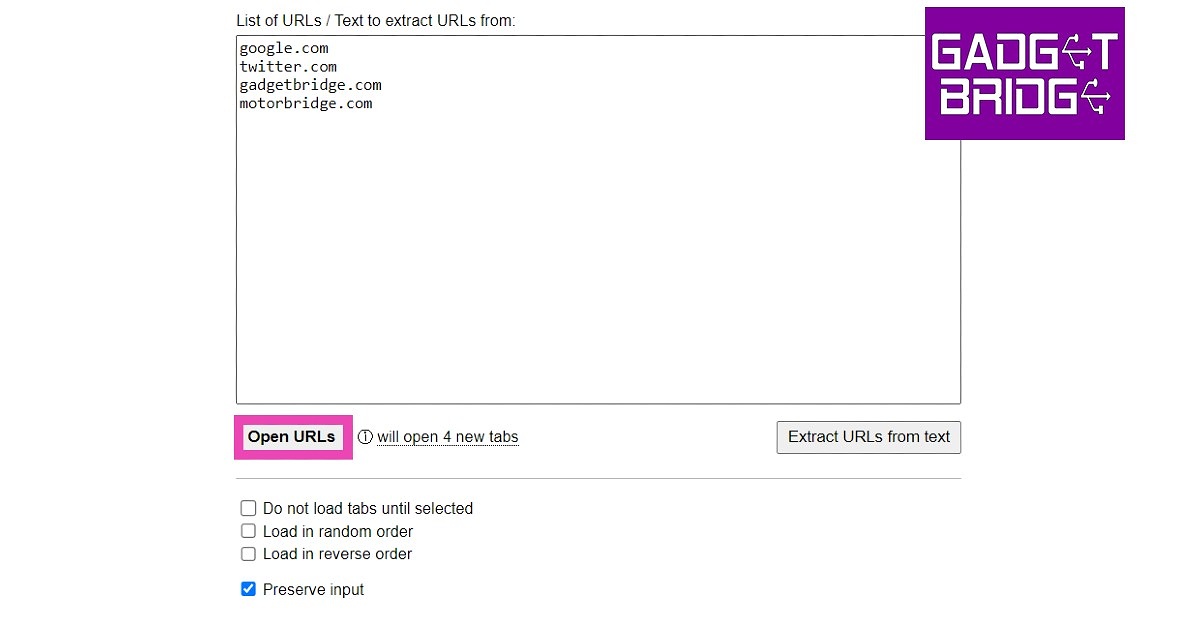 Step 4: Click on ‘Open URLs’.
Use Notepad to open multiple websites with a single click
Using too many extensions can often slow down Chrome. If you’re not interested in any additional extensions other than the essential ones, there’s a neat little Notepad trick that will help you open multiple Chrome tabs with just one click. Here’s how. Step 1: Launch Notepad. Step 2: Type the following command in the text window.@echo off
Start chrome website 1
Start chrome website 2
Start chrome website 3
Enter the website URLs wherever the placeholders are. You can add as many websites as you want.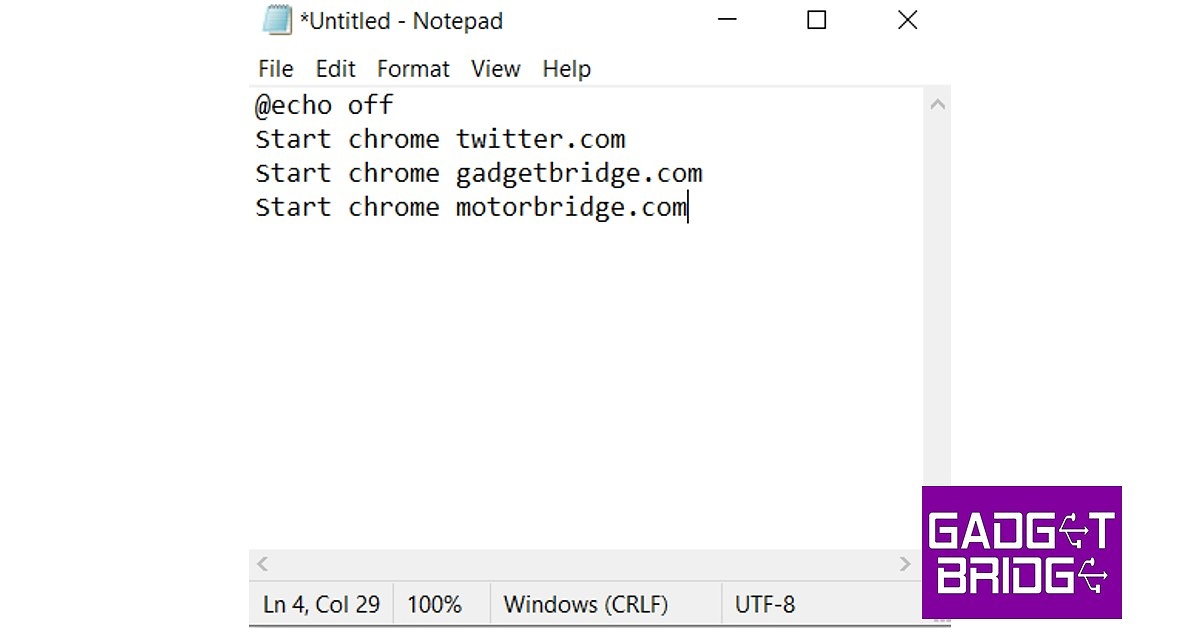 Step 3: Save the document as a BAT file on the desktop. You can do this by adding ‘.bat’ to the file name while saving it.
 Step 4: Now to the easiest part. Click on the saved file on the desktop, and it will open all the listed websites on Chrome.
Use the ‘Open Multiple Links’ Chrome Extension
Step 1: Install the Open Multiple Links extension from the Chrome Web Store.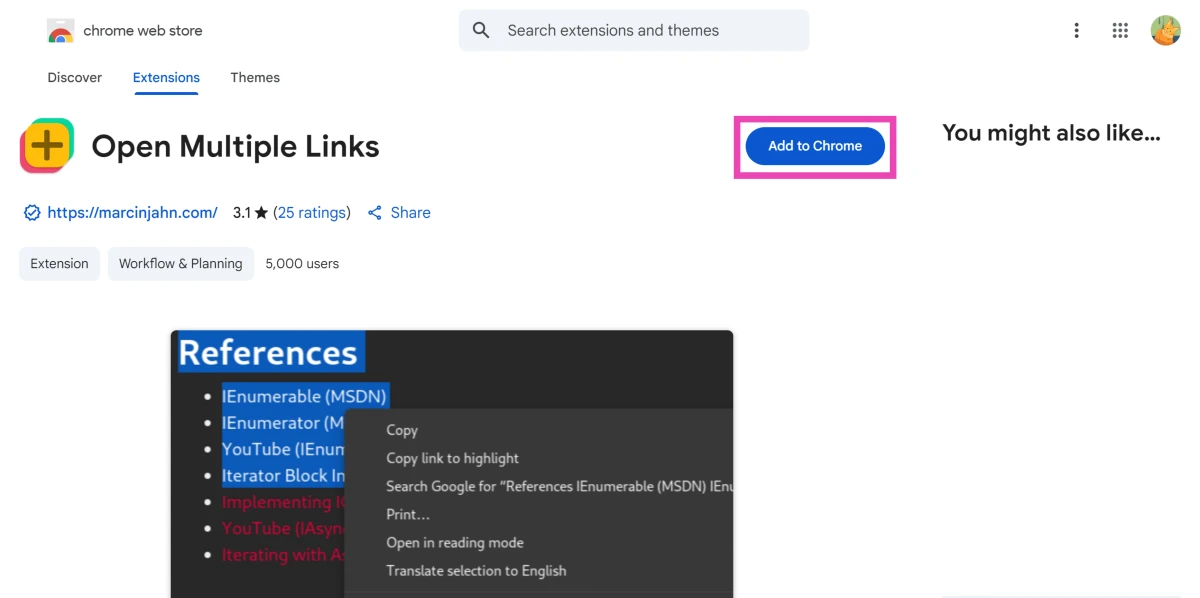 Step 2: Select text containing multiple links and right-click it.
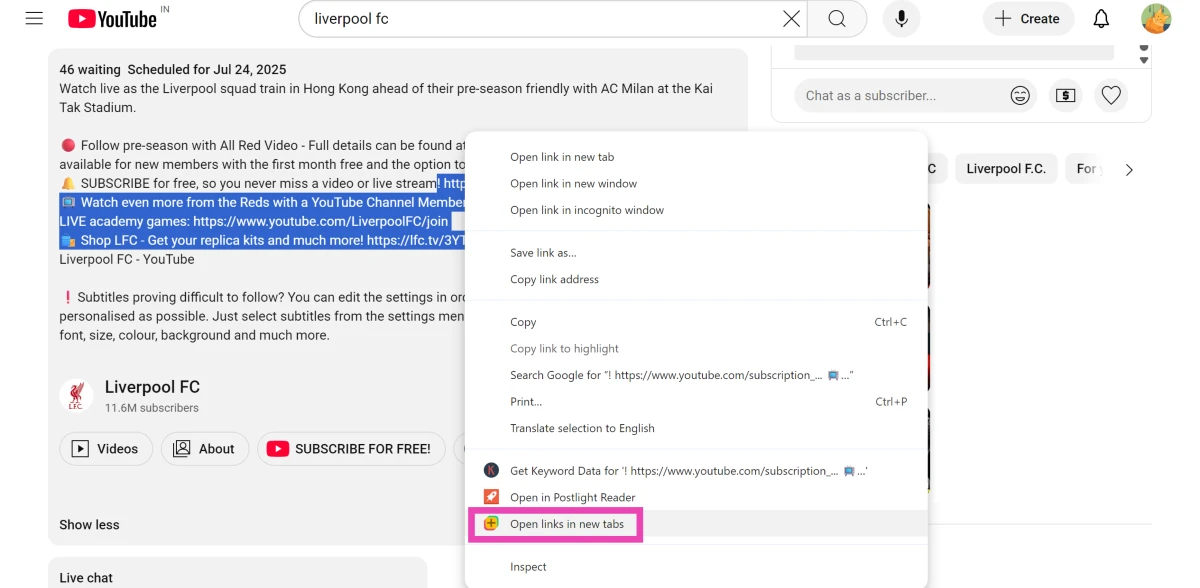 Step 3: Click Open links in new tabs.
Each link will open in a separate tab.
Step 3: Click Open links in new tabs.
Each link will open in a separate tab.
Open Multiple Sites on Startup
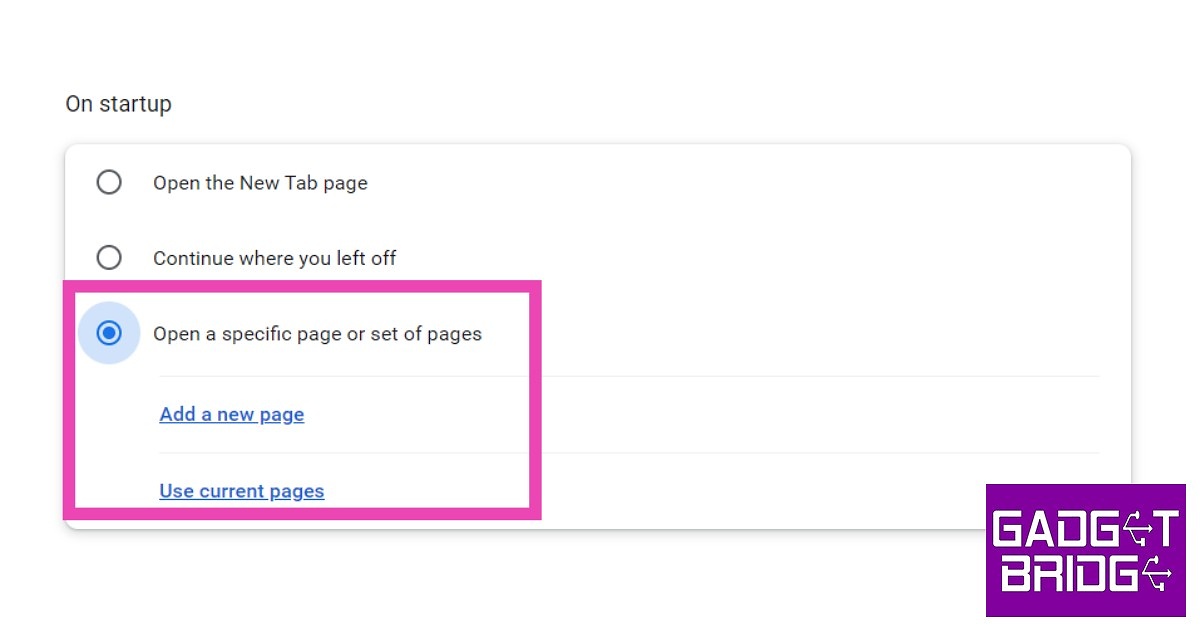
Step 1: First, open all the websites you want to open at once on startup. Step 2: Click on the ellipses (three dots) at the top right corner of the screen and select Settings. Step 3: Select On Startup from the left menu. Step 4: Select Open a specific page or set of pages, and then select Use current pages. You can also manually add pages that you want to be opened at once on startup.
Use a Macro Key
If your PC or laptop has a macro key, it can be customised to open Google Chrome with just one press of a button. To launch multiple websites at once, use the Startup method mentioned above. To assign the Chrome app to the macro key, simply drag and drop it on the Macro Key app. You can also press the macro key on your device and drag the Chrome icon from the desktop to the app window. Once the macro has been set, simply press the key once to launch Chrome and your chosen websites.Use Bookmarks
Step 1: Open all the websites in different tabs. Step 2: Press Ctrl+Shift+D. Name the folder and select ‘Bookmarks Bar’.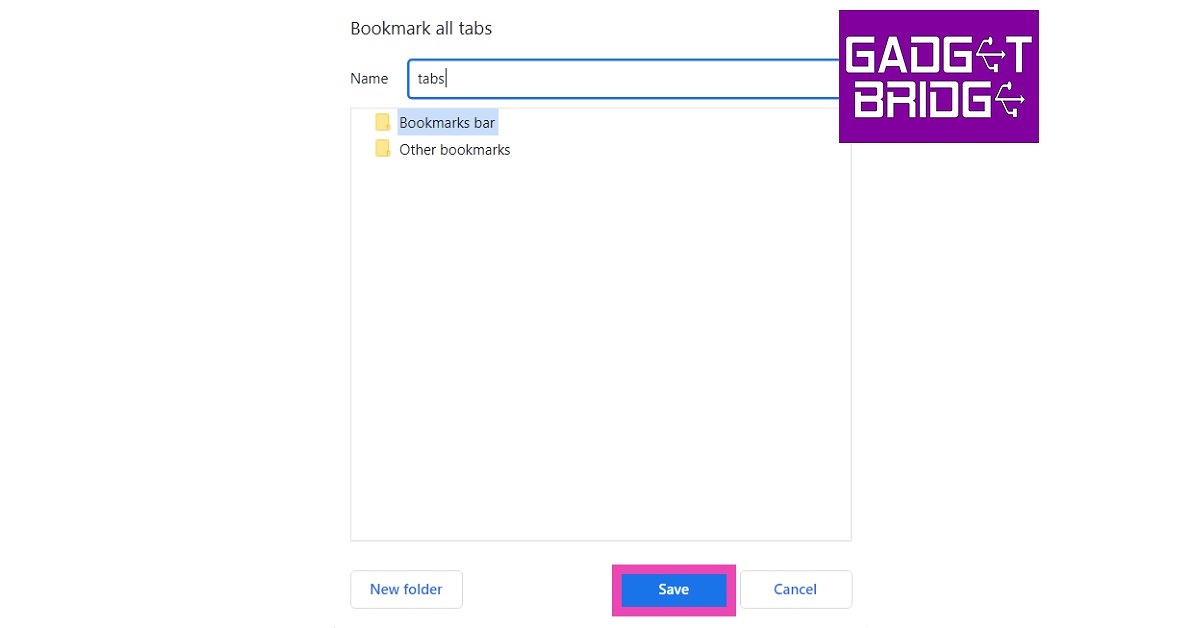 Step 3: The folder will appear on the bookmarks bar. Right-click on it and select Open all to launch all the websites in it at once. You can also drag other websites from the bookmarks bar to this folder to add them to the list.
 Read Also: Pre-orders for the Samsung Galaxy S23 Series have begun in India: Details inside


 Step 2: Select the location, start a scan and choose the files you want to recover.
 Step 3: Start the recovery process by previewing the files and then pressing recover. It is as simple as that.

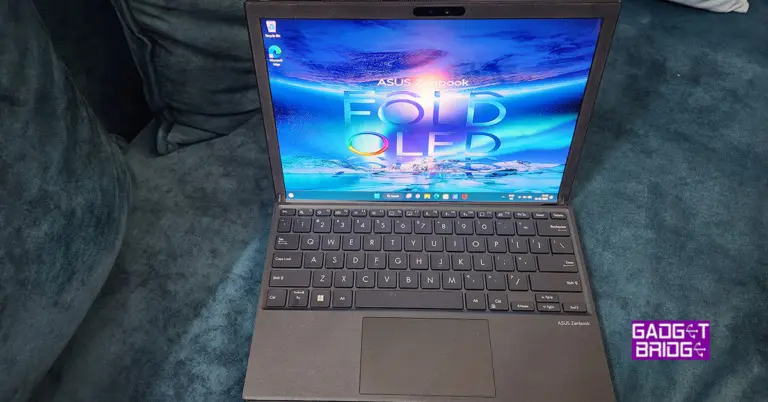
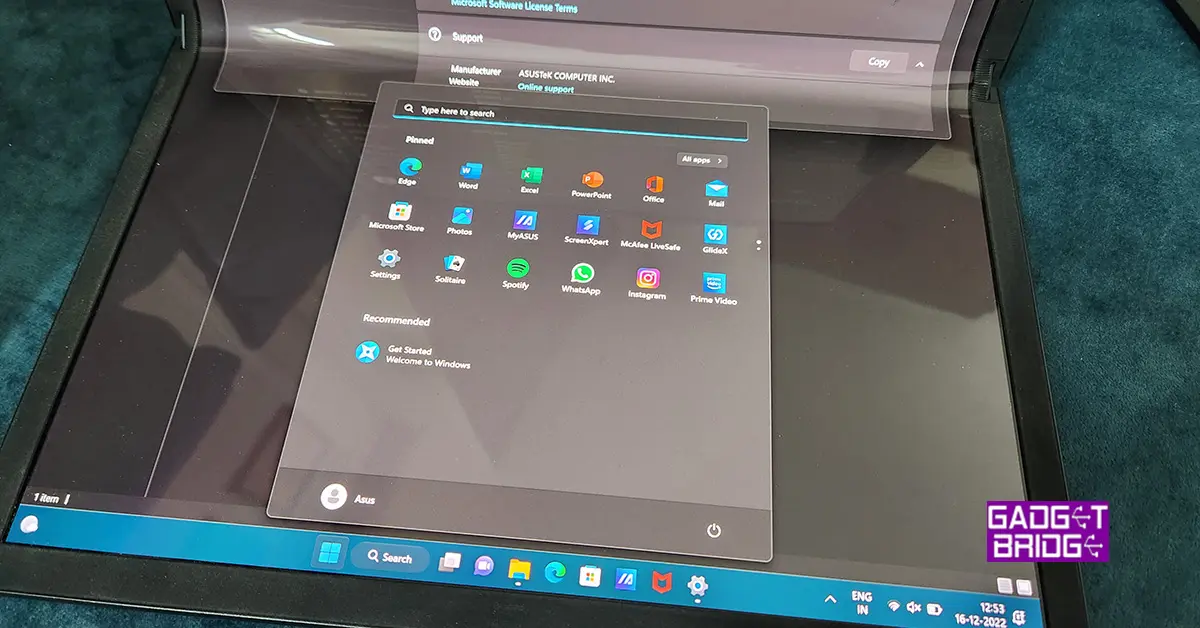
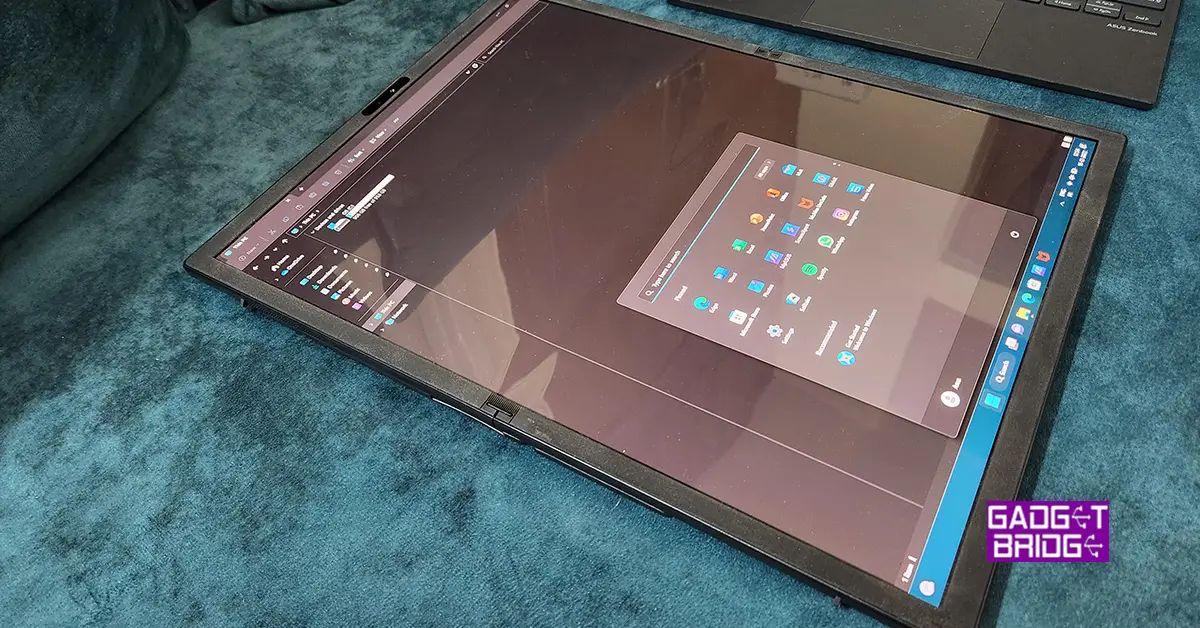 Talking a little more about its design, the ZenBook 17 fold has a clean and attractive design in addition to its folding display. The laptop is made of high-quality components, including a lightweight aluminium chassis. The laptop’s hinge is likewise precision-engineered, resulting in smooth and steady functioning when switching modes. When in tablet mode, the hinge also enables for a comfortable and ergonomic viewing position, making it ideal for watching movies, browsing the web, or taking notes. Overall, the ASUS ZenBook 17 fold is a well-constructed laptop that is ideal for anyone looking for a powerful and adaptable gadget.
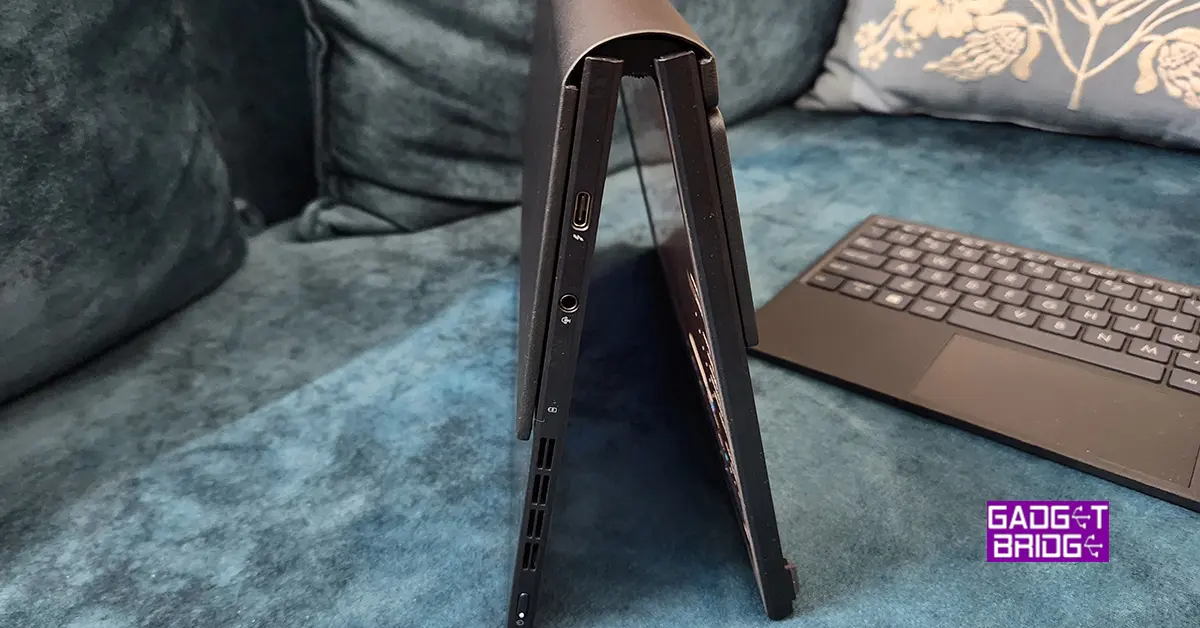
 When it comes to connectivity users get two thunderbolt ports, one on each side and one 3.5mm audio/mic port. To connect USB 3.0 devices you will need a USB type-C connections hub. Same as you used to get for the MacBook Airs.
 One of the laptop’s most noticeable features is its 17-inch touchscreen display. With a resolution of 3840×2160 pixels, the display offers vibrant, crisp images that are ideal for watching high-definition movies and video content. Additionally, the display fully supports the sRGB colour gamut, making it the perfect choice for experts in graphic design, photography, and video editing. The display is moreover Pantone verified, guaranteeing that colours are correct and constant, which is crucial for professionals who need to do colour-critical tasks.
Read Also:
One of the laptop’s most noticeable features is its 17-inch touchscreen display. With a resolution of 3840×2160 pixels, the display offers vibrant, crisp images that are ideal for watching high-definition movies and video content. Additionally, the display fully supports the sRGB colour gamut, making it the perfect choice for experts in graphic design, photography, and video editing. The display is moreover Pantone verified, guaranteeing that colours are correct and constant, which is crucial for professionals who need to do colour-critical tasks.
Read Also: 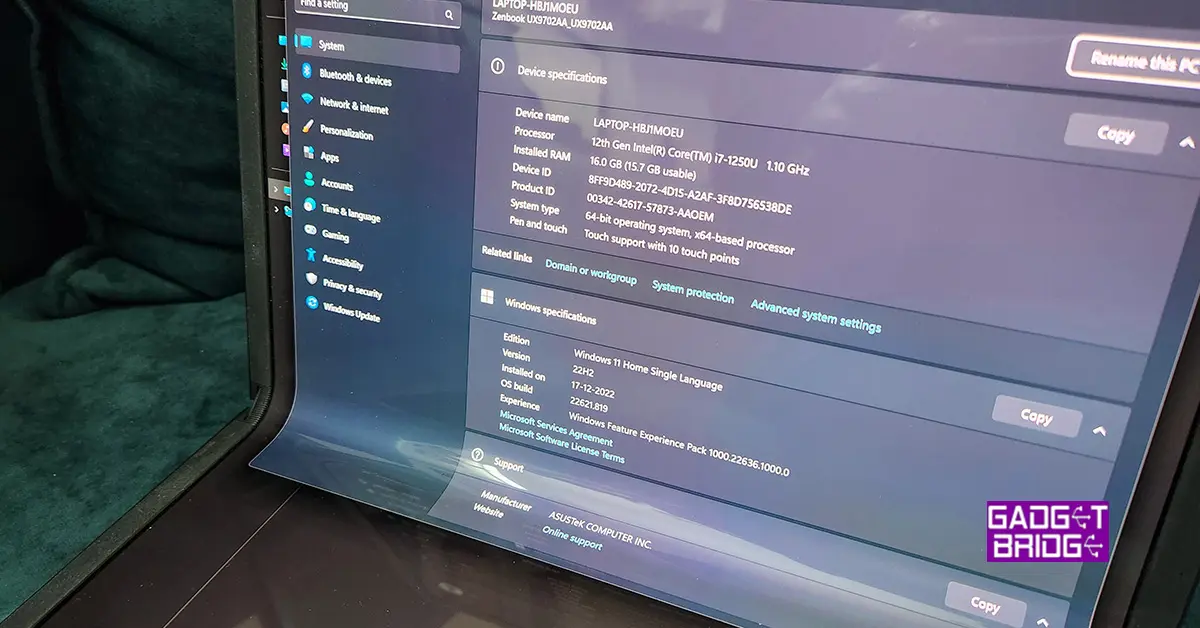 The laptop also comes with 16GB of RAM and 1TB of M.2 NVMe SSD storage, providing plenty of power and storage space for all your needs. We were hoping that there will be 32GB RAM model as well, but that is not available at the moment.
In terms of connectivity,
The laptop also comes with 16GB of RAM and 1TB of M.2 NVMe SSD storage, providing plenty of power and storage space for all your needs. We were hoping that there will be 32GB RAM model as well, but that is not available at the moment.
In terms of connectivity, 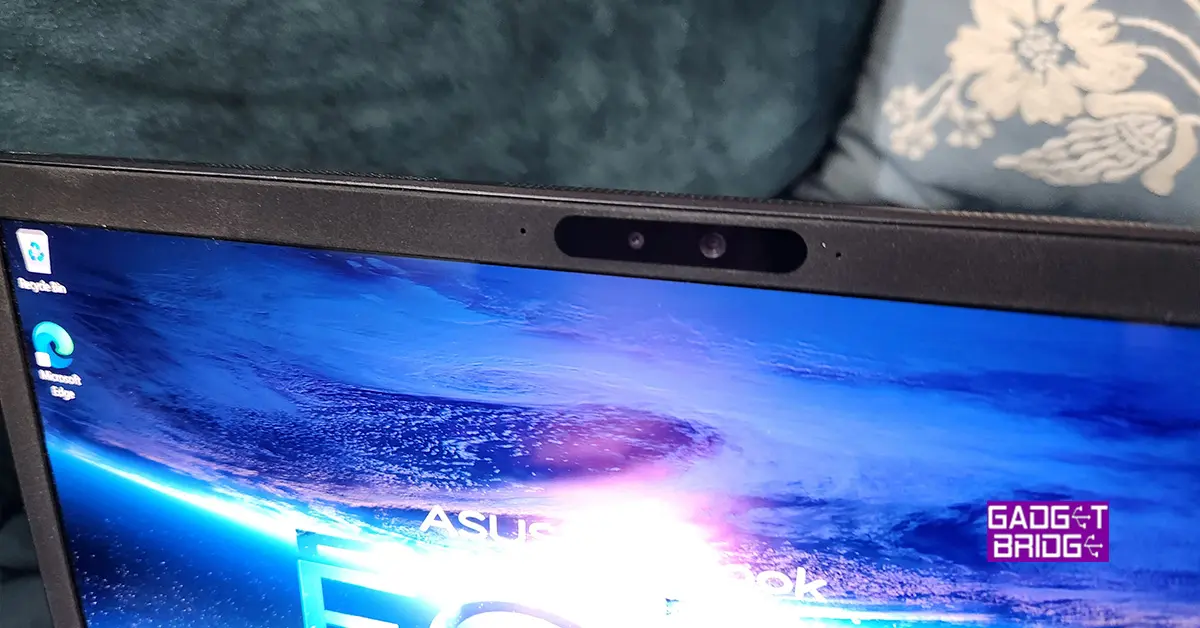 Windows 11 Home OS comes out of the box and setting it up is a bit tricky if you do not have an active internet connection. Though it is not Asus’s issue, Microsoft really needs to allow users to set up a device without creating a Microsoft account or registering for it first in a forced manner. Take a clue from Android, they tried that at one point, but then they also reverted to allowing users to set up a device without signing in. If the user wants to use PlayStore apps then they need to sign in, else no need. Same should be done with all Microsoft OS’s and laptops.
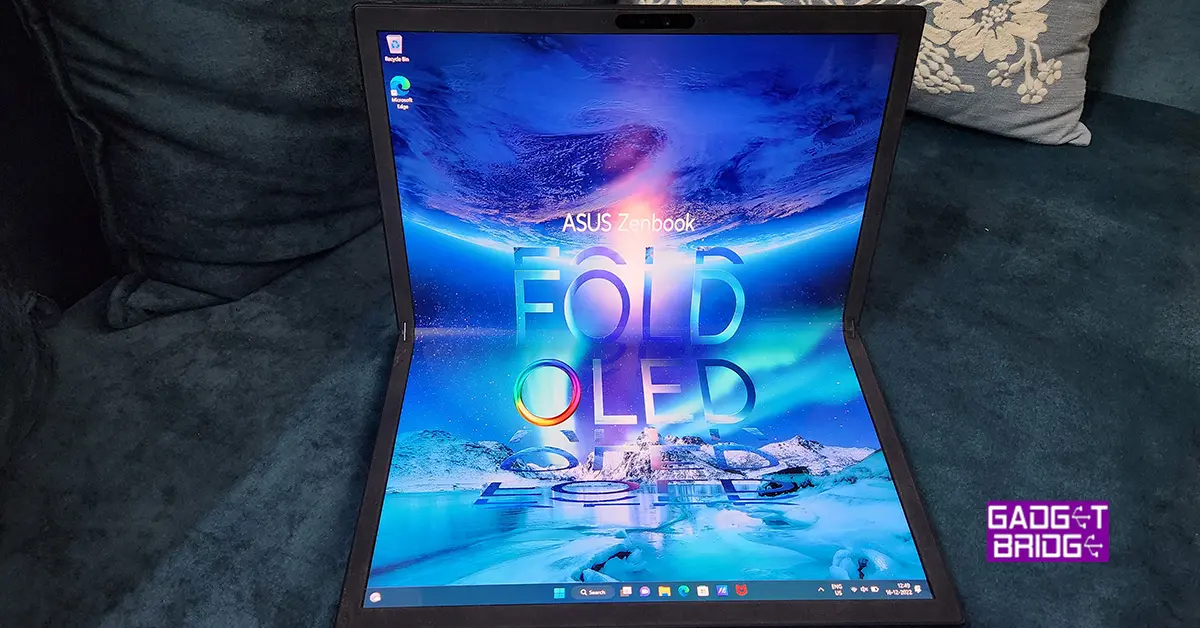 Moving on, we had a fabulous time with this laptop as when we needed to work, we connected the keyboard attachment, which turns it into a 13-inch laptop. And when we wanted to watch something, we flipped it 90 degrees to take full advantage of the 17-inch tablet mode.
Overall, we did not find any flaws in the performance of the Asus Zenbook 17 Fold. We even tried to edit a 4K videos on the machine and it handled the process well.
Read Also:
Moving on, we had a fabulous time with this laptop as when we needed to work, we connected the keyboard attachment, which turns it into a 13-inch laptop. And when we wanted to watch something, we flipped it 90 degrees to take full advantage of the 17-inch tablet mode.
Overall, we did not find any flaws in the performance of the Asus Zenbook 17 Fold. We even tried to edit a 4K videos on the machine and it handled the process well.
Read Also: 




 Step 3: Hit Search.
Step 4: Check the results.
Step 3: Hit Search.
Step 4: Check the results.


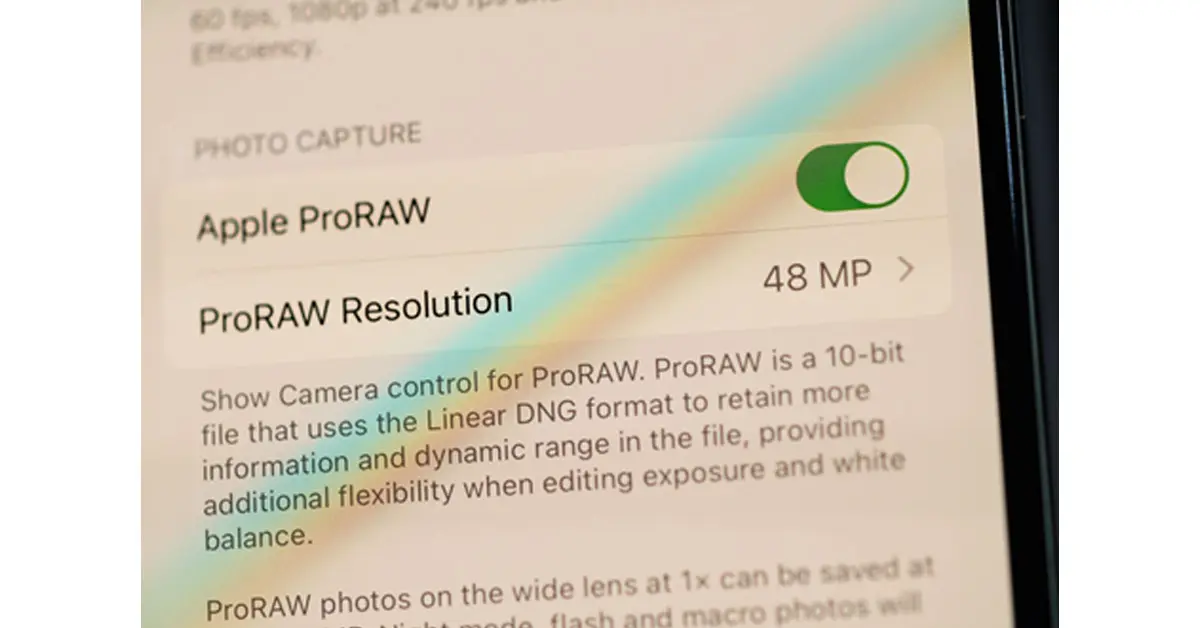 Source: Hadrian/Shutterstock.com
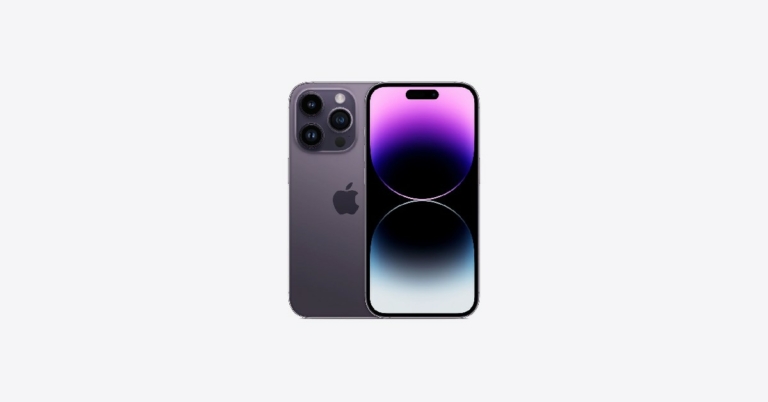
For those looking to zoom in, you can get a continuous zoom effect when taking photos or videos from a medium to close range. The iPhone 14 has one extra step between the wide 1x and the telephoto 3x.
Source: Hadrian/Shutterstock.com
For those looking to zoom in, you can get a continuous zoom effect when taking photos or videos from a medium to close range. The iPhone 14 has one extra step between the wide 1x and the telephoto 3x.
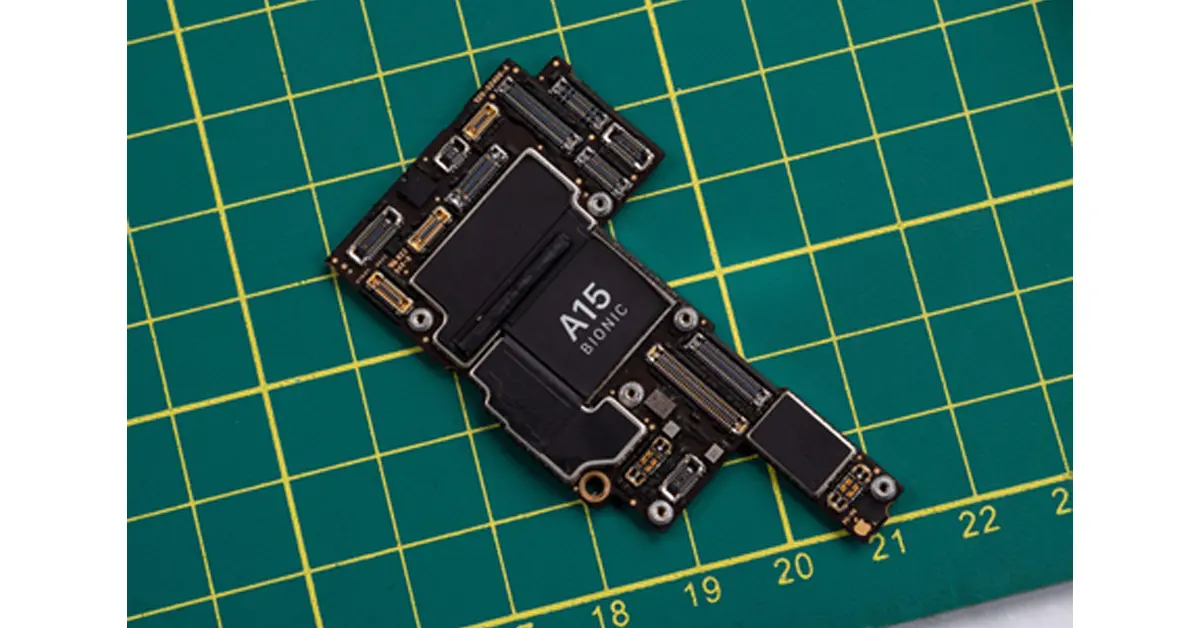 Source: Hopix Art/Shutterstock.com
As technology gets better and better, consumers get more impatient. iPhone 14 has catered to that need by providing the iPhone with the fast A15 Bionic chip. Yes, the iPhone 13 has this chip, too. However, in the iPhone 14, the graphics section of the chip is 18% more powerful than in previous phones. This updated design comes with a 5-core graphics processing unit (GPU).
If graphics and visuals are what you love about your iPhone, then this new upgrade will be even better for viewing photos, illustrations and videos. To make sure the cool graphics will always be clear and vivid, use a liquid screen protector.
Source: Hopix Art/Shutterstock.com
As technology gets better and better, consumers get more impatient. iPhone 14 has catered to that need by providing the iPhone with the fast A15 Bionic chip. Yes, the iPhone 13 has this chip, too. However, in the iPhone 14, the graphics section of the chip is 18% more powerful than in previous phones. This updated design comes with a 5-core graphics processing unit (GPU).
If graphics and visuals are what you love about your iPhone, then this new upgrade will be even better for viewing photos, illustrations and videos. To make sure the cool graphics will always be clear and vivid, use a liquid screen protector.


















 Step 3:
 Step 4:
 Step 3:
 The ‘
The ‘