In This Article
How Emergency SOS via Satellite works
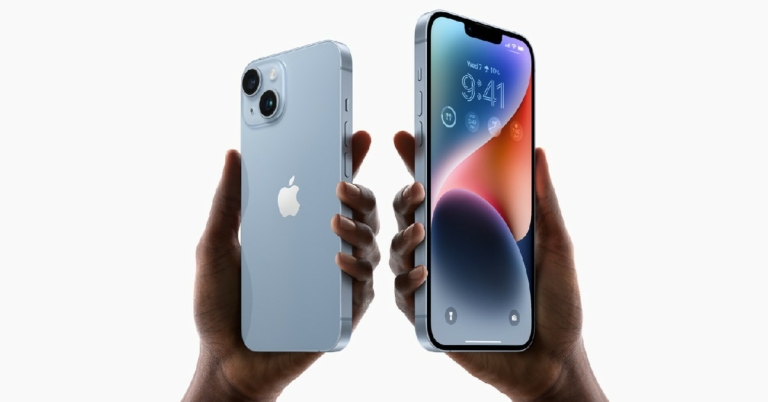
 When you call an emergency number, your phone uses the cellular connection or Wi-Fi data to connect you to the emergency service. If you’re in a remote area, connecting to an emergency service is virtually impossible. Well, not anymore. With the iPhone 14, you can establish a connection with a satellite, which will further relay your message to an emergency service. Satellite operator Globalstar has tied up with Apple to provide them with their satellite services.
How to use Emergency SOS via Satellite
 If you’re stuck in a no-network zone, tap on ‘Emergency text via satellite’ on the dialer while you’re calling emergency services. Tap ‘Report Emergency’ after that. You will be presented with some emergency questions. After you’ve answered the questions, you can choose to notify your emergency contacts that you’ve contacted emergency services. After you’ve filled up the questionnaire, your iPhone will give you on-screen instructions on how to connect to a satellite.
Firstly, you need to be in an area without cellular or Wi-Fi connectivity in order to utilise Emergency SOS via Satellite. This service will not work if you are getting even minimal network reception.
To connect to a satellite, you need to hold your phone in your hand and follow the on-screen instructions to establish the connection. Your phone will guide you to move in a particular direction to connect to the satellite. Since you cannot see satellites with a naked eye, you will have to rely on the directions that your iPhone gives you.
You need to ensure that you’re in a spot with a clear sky, unobstructed by any cloud cover. Light foliage is still alright, but you won’t be able to connect if you’re covered with heavy foliage. Hills, mountains, canyons, and tall structures can also block the connection. Since the satellite is constantly moving, you have to adjust your positions as well – your iPhone will keep prompting you to move accordingly.
Once a connection is established, your medical ID, emergency contact information, emergency questionnaire answers, location, and remaining battery life will be shared with emergency responders. You may also be asked follow-up questions related to your condition. Sending a message via satellite can take up to at least 15 seconds if the sky is clear, and up to a minute if there’s a light foliage cover.
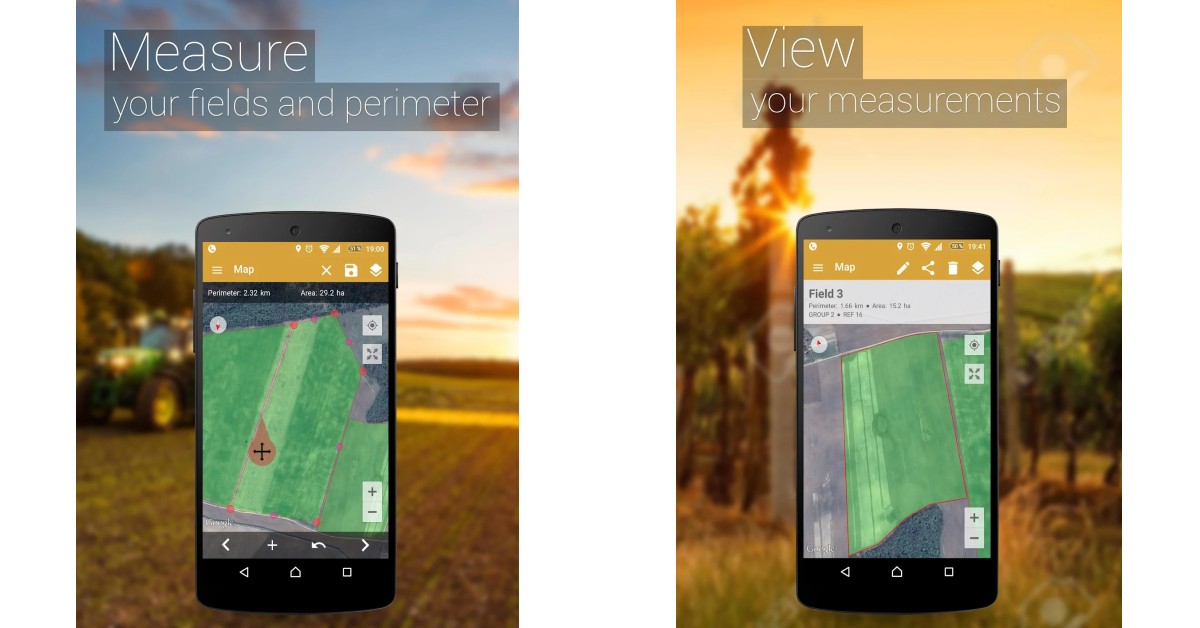
Read Also: Top 7 Distance Measuring Apps for Android and iOS
If you’re stuck in a no-network zone, tap on ‘Emergency text via satellite’ on the dialer while you’re calling emergency services. Tap ‘Report Emergency’ after that. You will be presented with some emergency questions. After you’ve answered the questions, you can choose to notify your emergency contacts that you’ve contacted emergency services. After you’ve filled up the questionnaire, your iPhone will give you on-screen instructions on how to connect to a satellite.
Firstly, you need to be in an area without cellular or Wi-Fi connectivity in order to utilise Emergency SOS via Satellite. This service will not work if you are getting even minimal network reception.
To connect to a satellite, you need to hold your phone in your hand and follow the on-screen instructions to establish the connection. Your phone will guide you to move in a particular direction to connect to the satellite. Since you cannot see satellites with a naked eye, you will have to rely on the directions that your iPhone gives you.
You need to ensure that you’re in a spot with a clear sky, unobstructed by any cloud cover. Light foliage is still alright, but you won’t be able to connect if you’re covered with heavy foliage. Hills, mountains, canyons, and tall structures can also block the connection. Since the satellite is constantly moving, you have to adjust your positions as well – your iPhone will keep prompting you to move accordingly.
Once a connection is established, your medical ID, emergency contact information, emergency questionnaire answers, location, and remaining battery life will be shared with emergency responders. You may also be asked follow-up questions related to your condition. Sending a message via satellite can take up to at least 15 seconds if the sky is clear, and up to a minute if there’s a light foliage cover.
Read Also: Top 7 Distance Measuring Apps for Android and iOS
Frequently Asked Questions
Where is the Emergency SOS via Satellite service available?
Currently, this service is available only in the United States of America and Canada. If you’re an international traveller in USA and Canada you can still use this service on your iPhone given you didn’t purchase it from China, Hong Kong, or Macao.What languages does the Emergency SOS service support?
Emergency SOS via satellite only supports American English, American Spanish, and Canadian French.Does the iPhone 13 have a satellite connectivity feature?
No, only the iPhone 14 series is equipped with the Satellite connectivity feature and you will need the iOS 16 update coming in November to use it.
For the latest gadget and tech news, and gadget reviews, follow us on Twitter, Facebook and Instagram. For newest tech & gadget videos subscribe to our YouTube Channel. You can also stay up to date using the Gadget Bridge Android App. You can find the latest car and bike news here.




 The
The  Read Also:
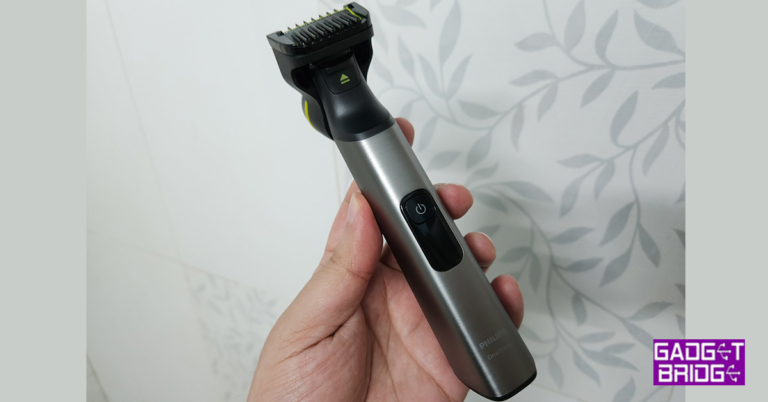
 Moreover, the same Philips OneBlade Pro QP6550 electric shaver can be used to cut the body hair, such as the chest as well as under the arm ones with minimal irritation. We are a big fan of clippers for body and neck hair, which leaves behind a light shade of hair. But not with this shaver by Philips. You get an extremely close shave even on the neck, as if you have used a shaving razor.














 The
The 
 For casual users,




 Step 2:
  Step 3:
 Step 4:
 Step 5:
  Step 6:
  Step 3:


 Step 3:
  Step 4:

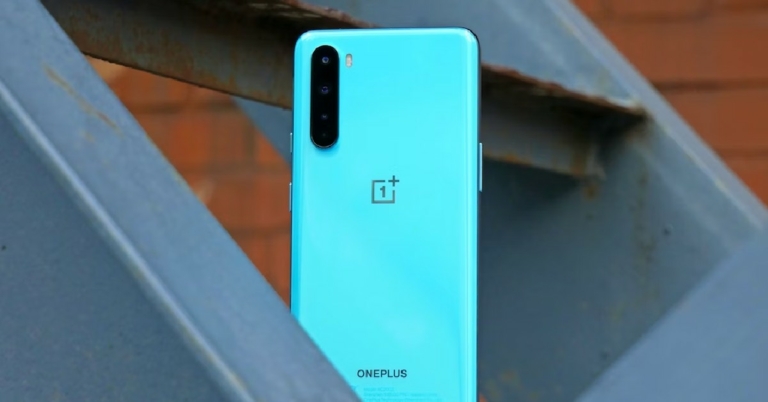
 Third-party apps on your device can interfere with the functioning of some system apps. Trying to figure out the culprit in this scenario can be a tricky task. However, if you want to know for sure that your phone’s Camera app is malfunctioning because of a recently installed third-party app, reboot your device in Safe Mode. All third-party apps are disabled in Safe Mode. If the camera app is still malfunctioning in Safe Mode, it means these issues aren’t caused by any third-party app.
To reboot your OnePlus phone in Safe Mode, press and hold the side key to reveal the power options. Then, tap and hold the ‘Power Off’ icon until the option to reboot your phone in Safe Mode appears.
Third-party apps on your device can interfere with the functioning of some system apps. Trying to figure out the culprit in this scenario can be a tricky task. However, if you want to know for sure that your phone’s Camera app is malfunctioning because of a recently installed third-party app, reboot your device in Safe Mode. All third-party apps are disabled in Safe Mode. If the camera app is still malfunctioning in Safe Mode, it means these issues aren’t caused by any third-party app.
To reboot your OnePlus phone in Safe Mode, press and hold the side key to reveal the power options. Then, tap and hold the ‘Power Off’ icon until the option to reboot your phone in Safe Mode appears.