There is no better search engine like Google. Other search engines like Bing and Yahoo are trying their level best to compete against Google but the search capabilities and optimisation paired with cross-platform abilities makes the search engine untouched in the competition. Now the question is how to fix the Google Search bar widget missing in AndroidIn Android smartphones the applications allow many widgets making the searches hassle-free. Google search bar has become a part of the home screen for most of the users and the widget makes us search anything in very little time. But what if the widget goes missing? Fret not, here are the best ways to fix it.
Bring the widget back
This comes under the widget category so if you head to widgets you can easily get the search bar back to do so follow the below steps.Step 1 – Long press the home screen to see the widget icon.Step 2 – Careful search for the Google search bar.Step 3 – Just drag and drop to the desired location of the screen.Now you can enjoy the Google search bar again.
Install Google application
If you do not find the widget in the above section you can guess there is a problem with the Google application. Head to the Playstore and install the official Google application. With the application, you fetch the latest version of Google and apart from the web, you can read custom stories as well. After the application is installed, follow the first step to get it done.Read Also: How to read WhatsApp messages without opening them?
Clear cache
The absence of a widget can be caused due to a bad cache file. This file gets stored in your system for the instantly opening of the application, widget in this case. The bad cache can occur for multiple reasons and if the problem in your Android is caused by this, Just hold the google application icon to see App info after that head to Storage and cache>clear cache.
Check for update
Check the update for both the application and smartphone. Any of which the update is pending causes the application or Ui to malfunction as improper updates cause compatibility issues. Head to the Playstore to check if the application is up to date. In the search, menu type Google and check if the update option pops in front of it. For UI heat to Setting and search update. If any of the updates are pending, get it don’t as soon as possible. Now follow the first step to see if the widget is back.
Restart Phone
Your widget may have been lost due to a bug in the UI. This can be solved with a simple restart. Restarting the phone will also start the applications from ground zero making fixing the temporary bugs and issues. To do so hold the power key for 2 seconds and press restart. let the phone complete the restart process and then try the first step again to see if the widget is back. This is one of the easiest ways to fix Google Search bar widget missing in AndroidRead Also: How to read WhatsApp messages without opening them?
Bonus Tip
Try using a widget of a different browser, say you have Mozilla Firefox installed on your smartphone, consider using its search bar. Most browsers have their own search widget in the widgets section. Trying some other widget will give you variety and solve your problem. You can also consider shifting to Google assistant full-fledged. It is a hands-free solution for your Google search bar.
For the latest gadget and tech news, and gadget reviews, follow us on Twitter, Facebook and Instagram. For newest tech & gadget videos subscribe to our YouTube Channel. You can also stay up to date using the Gadget Bridge Android App. You can find the latest car and bike news here.
Premium smartphone maker OnePlus is likely to introduce a new smartphone in the Indian market. The company has teased its upcoming smartphone on Twitter and other social media channels, showcasing the Pac-Man game’s image. So now it is expected that it will be launched as a Pac-Man themed device for the OnePlus Nord 2. OnePlus via Twitter and Instagramshared a teaser of its upcoming smartphone that is soon going to hit the Indian shores. The tweet contains an image of a Pac Man game and it reads, “ Something you definitely won’t at is coming soon.” The name and the specs of the smartphone still remains a mystery but speculations suggest that the forthcoming device will be called the OnePlus Nord 2 Pac-Man Edition as it is likely to be a redesigned variant of the recently launched OnePlus Nord 2. As of now, the company has not yet revealed the specs of the smartphone but according to a tipster, the OnePlus Nord 2 Pac-Man Edition may be powered by the Qualcomm Snapdragon 77G SoC. It should be noted that the original OnePlus Nord 2 includes a MediaTek Dimensity 1200 SoC under the hood.
OnePlus Nord 2 specifications
The OnePlus Nord 2 comes with a 6.43-inch full-HD+ Fluid AMOLED display having 1,080×2,400 pixels of resolution. It comes with a 20:9 aspect ratio and 90Hz refresh rate. On the software front, it runs OxygenOS 11.3 custom skin based on Oppo’s ColorOS 11.3 out of the box. Under the hood, there is an octa-coreMediaTek Dimensity 1200-AI SoC, coupled with up to 12GB of LPDDR4x RAM with up to 256GB of UFS 3.1 storage. There is a triple rear camera set up for the optics that includes a 50-megapixel Sony IMX766 primary sensor with OIS, 8-megapixel secondary wide-angle sensor, and a 2-megapixel monochrome sensor. Upfront the device sports a 32-megapixel selfie camera featuring dual video, nightscape ultra, group shot 2.0, and more.The OnePlus Nord 2 comes equipped with a 4,500mAh battery with 65W Warp Charge fast charging support. For connectivity there is 5G, 4G LTE, Wi-Fi 6, Bluetooth v5.2, GPS/ A-GPS/ NavIC, NFC, and a USB Type-C port. Sensors on the phone include an in-display fingerprint sensor, accelerometer, ambient light, gyroscope, and proximity sensor.
For the latest gadget and tech news, and gadget reviews, follow us on Twitter, Facebook and Instagram. For newest tech & gadget videos subscribe to our YouTube Channel. You can also stay up to date using the Gadget Bridge Android App. You can find the latest car and bike news here.
TikTok found a sudden rise in popularity within the last few years. The application is widely popular among young people and content creators. The popular social networking site has a very good amount of soundtracks that are both interesting and the popular trend makes the songs run on your mind all day long. Now the problem is not all creators mention the song name in their video. We understand the itch that goes through you to figure out which song is playing and the pain of searching it endlessly. Well, the search is over. Here are some solutions for you that will surely help you with this problem. Here are some ways and apps to help you out and find the soundtrack playing in a TikTok video.
Shazam
This is one of the most popular and most utilised music search applications in the world that helps you identify songs not only in TikTok but also wherever they are playing. Just open shazam on a different device or on a split-screen. Tap on the Shazam button and the application will search the songs be it a cover or remix and arrange them in a perfectly ordered library. In the library, you can tap on the song to get all the details like producers, singers lyrics, videos and where to find the soundtrack. The highlighted part of the application is that it can be linked to your Spotify account and the discovered songs are arranged in a playlist in the Spotify application so you can listen to them whenever you feel like.Download: iOS, Android, MacRead Also: Shazam app gets a new feature called Pop-up
SoundHound
A popular application that has been used extensively before Shazam gained popularity. The developers gave it an update and the app has become very competitive among music recognition applications. The application can be directly linked with your YouTube account. After recognition, it plays the only audio format fetching it directly from YouTube. You can watch the video as well with lyrics floating below the song cover. Just like Shazam, SoundHound can be integrated with your Apple Music and Spotify account, though it requires users to buy a premium version for the application. The application accepts voice recognition so you have to just say the activating phrase and ask which song is this (just like assistant in devices).Download: iOS, Android
Musixmatch
Earlier the application was a full-fledged music player that had some advanced options like changing the cover of the Album or fetching details of whatever song you are playing, but the developers worked really hard to activate the music recognition feature in the application too. Musicxmatch can now recognise the song you are playing and will add it to the library of the application. Just launch the floating widget and push the button once you like a song in TikTok and it will be automatically registered in your library. We also saw international songs trending in different languages. The application also translates the lyrics in any foreign language in real-time.Download: iOS, AndroidRead Also: How to add music to your Instagram story?
Bonus Tip
The personal assistant on your smartphone being Siri or Google Assistant has a feature to recognise the songs playing, too. All you have to say is the activation phrase and ask the assistant “which song is this” they will take a bit of time to listen to it and will give almost accurate results. Ideal for those who do not want to download an external application. Also, the Google assistant recognises humming so you can hum the song and the assistant will give exact good results.
YouTube is a vast ecosystem and a big platform that consists of an endless library of content creators and content to consume. With such a huge user base increasing day by day the applications are getting better and updates are released at a decent speed by Google. Few Android users might have faced a problem during the update or they might be unable to download YouTube on their Android smartphone. Are you facing such an issue? Here are the top fixes for you.
Restart your Android smartphone
Most of the problems are resolved with a simple restart of the smartphone. Restarting eliminates minor temporary bugs and issues. The smartphone’s internal settings as well as the application temporary cache gets cleared off giving them a fresh start. Try installing or updating Youtube after a good restart and see if it works for you. If not, worry not, this is just a start there are more methods you can try.
Switch to Wi-Fi
By default, the Google Playstore is set to download and update applications over Wi-Fi only. Check the Google Play setting to verify it and the best way to cross-check is to connect the smartphone to a stable Wi-Fi connection. If Wi-Fi is not available, try using a hotspot from another device. Try updating and downloading the application and see if it works for you.
Check Internet
A major reason why your applications are not updating is that there is a good chance that your smartphone does not have a strong internet connection once you check that the phone is connected to WiFi checking that the speed is optimum is the next way to go. Open Fast.com to check if you are getting decent speeds.
Switch to Airplane mode
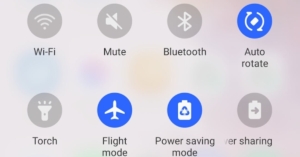
If there is any issue related to your mobile internet service provider and network setting switching to Airplane mode will fix these issues. By doing so it will connect to the strong network connection or telecom tower which is nearest to you. To do so drag down the notification panel and tap on Airplane mode, wait for 4-5 seconds and turn it back on to see if the issue persists.
Check Storage
Head to setting and go to storage, see that there is an ample amount of storage available on your device. Storage problems can cause update issues as well so it is always advisable to keep at least 1GB of free storage on board in even worst-case scenarios. Also, if you are using an SD card as external storage, try removing it and interesting it back to check if the application is able to install or update.Read Also: How does Wi-Fi work in airplanes?
Clear cache and data
Bad can be a major reason why the application on your smartphone is not updating or a particular application is not installed. For the updating matter, the reason can be from both the application and Google Playstore. For installation issues, the main reason will be from Google Playstore. For both cases, the procedure is the same. Hold the application to discover app info tap it to find the application setting. Head to storage and clear cache and data from there.
Check for system updates
If the version of the operating system on your Android is incapable of the current version of YouTube the application will fail to update and create issues. It’s always advised to run the latest update of the operating system on your device as they also release a security patch along with the update which is required and is essential for your system safety. Head to setting>about phone> check for updates (This setting may differ on all the systems, search for updates in settings to find similar results).
Reinstall the application
Another reason why the application miss behaves is bad files stored or a buggy update. The only way to fix the issue is to uninstall the application and reinstall it. After you reinstall the application will start fresh and also an updated version will have potential bug fixes. Hold the application and uninstall the application. Head to Google Playstore and download the YouTube application again.Read Also: 5 ways you can charge your Android smartphone faster
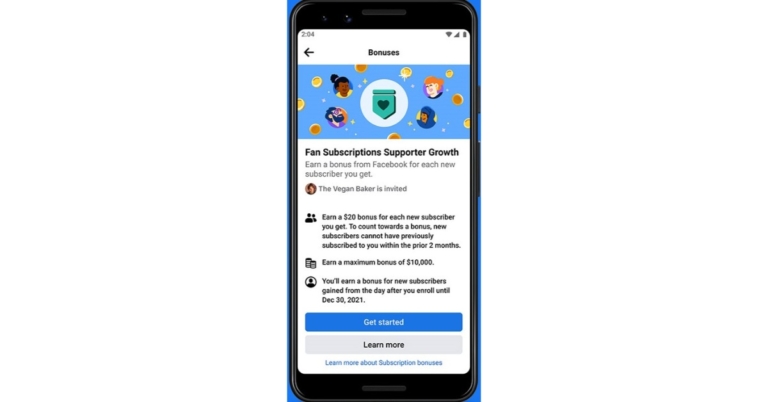
Facebook’s subscriptions feature has been updated. The new subscription will allow creators to generate revenue from their fans and avoid paying 30 percent cost on in-app purchases. A new link will be included that will let the people pay for in-app creator subscriptions via the desktop version of the social media platform On announcing the feature the company’s CEO Mark Zuckerberg said, “As we build for the metaverse, we’re focused on unlocking opportunities for creators to make money from their work. The 30% fees that Apple takes on transactions make it harder to do that, so we’re updating our Subscriptions product so now creators can earn more.”According to him, when people subscribe to the promotional link, creators will keep all the money they earn excluding taxes. Also, creators will have more ownership of their audience and they can download the email addresses of all of their subscribers. Facebook is also launching a bonus program that pays creators for each new subscriber they get as part of its $1 billion creator investment announced this summer. To help creators grow their subscription businesses, Facebook will pay creators a bonus of $5 – $20 for every new subscriber they get from now until the end of 2021. This will allow the creators to earn a bonus of up to $10,000 over the course of the program. It’s invite-only in all27 markets where the Subscriptions feature is available to creators.Creators must continue to forfeit 15-30 percent of their earnings to companies such as Apple whenever people purchase subscriptions through the Facebook app on mobile devices.With subscriptions, the audience can not only support the creators with recurring monthly payments. In return, they can choose to provide additional benefits like subscriber-only Lives, special discounts or a subscriber-only Group to the fans. People will be directed to the website to complete their Subscriptions purchase using Facebook Pay. When people purchase Subscriptions from this website on the web or mobile, creators will be able to keep 100% of the money they earn, excluding taxes. Creators can find their personalized promotional link in Creator Studio, which they can share with their audiences, including over email or text.
For the latest gadget and tech news, and gadget reviews, follow us on Twitter, Facebook and Instagram. For newest tech & gadget videos subscribe to our YouTube Channel. You can also stay up to date using the Gadget Bridge Android App. You can find the latest car and bike news here.
Clubhouse, an invitation-only audio-chat service, now supports 13 new languages. The audio-only social media app new language support will also include 5 Indian languages out of thirteen. The Clubhouse’s new language support is now available on the platform and for the time being, it will be available only to Android users. According to Clubhouse now language support will be added to the iOS platform as well in the near future. Not only this the social media has also received a new app icon.The company via blog post said, “We’re very happy to say that today, all of that is changing, as we are rolling out our first wave of local language support. We’re starting on Android with thirteen new languages launching immediately.” It further added, “We’ll be adding support for iOS and additional languages soon, so that people from Mumbai and Paris to Sao Pãulo and Jakarta can experience Clubhouse in a way that feels a bit more native to them.”The clubhouse has started rolling Android with 13 new languages that will be available right away, including French, German, Hindi, Indonesian, Italian, Japanese, Kannada, Korean, Malayalam, Portuguese (Brazilian), Spanish, Tamil, and Telugu. Apart from this, Anirudh Deshmukh, who is one of the creators in India is now Clubhouse’s new app icon. According to the company, he is a part of an incredible corner of Clubhouse where hundreds of different languages are spoken. And just like his predecessorMandiie Martinez, founder of theChingona AF club, Anirudh is a multi-hyphenate human with many talents. Separately, the audio-only Social media app introduced pinned links feature, allowing users to generate revenue through their work and can also be used in a variety of entertaining ways like playing games, running polls, and sharing links to YouTube videos. The users can pin a link to the top of their room using the Pinned Links. Themoderators can simply tap the “…” menu in the upper right and then “Pin a Link”. Clubhouse says that any room moderator has the authority to change or remove the link at any time.
For the latest gadget and tech news, and gadget reviews, follow us on Twitter, Facebook and Instagram. For newest tech & gadget videos subscribe to our YouTube Channel. You can also stay up to date using the Gadget Bridge Android App. You can find the latest car and bike news here.
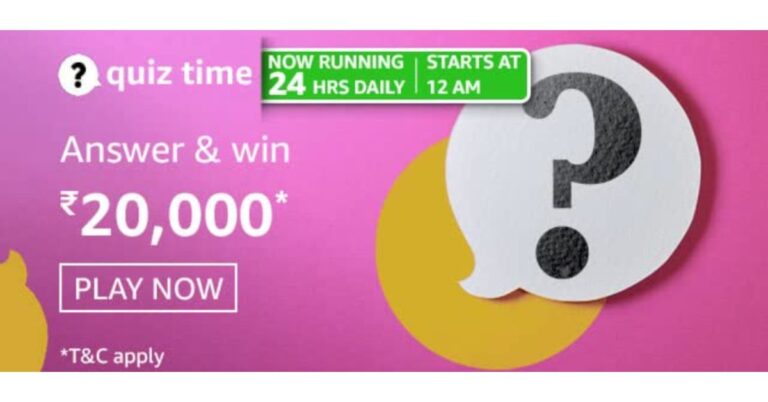
Amazon is back with another quiz on its mobile platform. The Amazon Quiz is conducted every day for its customers. Customers from different parts of the country are participating in the daily quiz. Today’s Amazon quiz is now live on the Amazon App. The participants can play the 5 November 2021 Amazon Quiz and get a chance to win Rs 20,000 Amazon pay Balance.
The Amazon Quiz can be played from 12 AM to 11:59 PM. For those who are unaware of the quiz, the e-commerce platform brings a fresh quiz on a daily basis which consists of five questions related to general knowledge and current affairs. The participants need to answer all the questions correctly and their names will be selected for a lucky draw. The winner will be announced at the end of the month. One wrong answer could eliminate you from the quiz. Only app users are eligible to participate in the Quiz. Check Out 5 November 2021 Amazon Quiz Answers.
5 November 2021 Amazon Quiz Answers
Question 1: Lalisa and Money are the first two solo songs released by which member of the K-pop group Blackpink?
Answer: Lisa
Question 2: Which is the venue for the first-ever day and night Test match played by Indian women?
Answer: Carrara Stadium, Gold Coast
Question 3: pmjay.gov.in is the official website for which government initiative?
Answer: Ayushman Bharat
Question 4: Which famous river is shown here?
Answer: Seine
Question 5: This famous island is considered a part of which country?
Poco is all set to announce the launch of its M Series smartphone- Poco M4 Pro 5G in the market on November 9. The company did not reveal much information about the smartphone. But now it has begun teasing some of the key specs of its upcoming smartphone via teasers. The device is also said to be a rebranded variant of the lately released Redmi Note 11 5G. According to the latest teasers released by Poco via Twitter, the Poco M4 Pro 5G will be featuring 33W fast charging. In addition to this, the device will be powered by a 6nm ultra-fast processor. But the company has disclosed the name of the chipset. Thesmartphone also appeared on several certifications as well as benchmarking sites. As per the Geekbench listing, the phone will equip an MT6833P chipset that is believed to be MediaTek Dimensity 810 SOC. The device’ssingle-core score is 603 and the multi-core score is 1,779. However, some of the reports suggest that the phone may also be powered by MediaTek Dimensity 700 SoC.The Geekbench listing also reveals that the Poco M4 Pro 5G will run Android 11 and will be offered 8GB of RAM.As per the Eurasian Economic Commission (EEC) and China’s 3C listing suggest that the phone will get 33W fast charging support and a MediaTek chip.Like we said earlier the rumours suggest that the device is likely to be a rebranded variant of Redmi Note 11 5G. If the rumours and leaks are to be believed then the Poco M4 Pro 5G may feature a 6.6-inch FHD display and 90Hz refresh rate support. Under the hood, there will beMediaTek Dimensity 810 SoC and will run Android 11 out of the box.There will be a dual rear camera set up that will include a 50MP primary sensor and an 8MP secondary lens. While on the front the phone features a 16MP selfie camera. It could also carry a 5,000mAh battery and supports 33W fast charging. The 3.5mm audio jack and a USB Type C post are also available for connectivity. Poco M4 Pro 5G is going to launch on November 9. The launch event will kickstart at 8 pm GMT+8 which is at 5.30 pm IST. It will be live-streamed via the company’s official YouTube Channel as well as on its social media platforms.
For the latest gadget and tech news, and gadget reviews, follow us on Twitter, Facebook and Instagram. For newest tech & gadget videos subscribe to our YouTube Channel. You can also stay up to date using the Gadget Bridge Android App. You can find the latest car and bike news here.
If you are very active in social media you probably would have come across those stunning neon photographs that are trending right now. These images add an extra spark to your photo making it glow and look gorgeous. Write text, create an outline or make wacky designs, there are tons of ideas with which you can implement these neon effects. Earlier the process was really complicated and you were required to learn Photoshop like a pro, but thanks to technology these effects are now just a few taps away. Here are some cool applications to help you with it.
Scribbl
An application with good AI processing power and a precise image editing application. Scribbl is famous for creating exclusive neon photos and images for users. The embedded AI helps to identify the image and suggest to you some great design. Don’t love your still images? Add some animated effects so that neon colour comes out popping. Draw a real-time design or add animation and save the image as a gif, this application will surely help you to stand out from the crowd.Download HereRead Also: 5 best photo editing apps for Android devices
Instasquare Photo Editor
The reason why this application is so popular is due to its built-in neon filter and sketch line effects. The application is developed by an Instagram user and so the application supports a 1:1 crop allowing the photo to fit in the Instagram grid size. You also get lots of picture frames and designed backgrounds making it easy to achieve your desired output. The Ai of the application understands the difference between background and object making the application versatile.Download Here
Neon Signs
Pretty much what the name of the application says. The application is a comprehensive text-based neon effect application that allows you to add beautiful neon animation to photos and symbols. The application comes along with built-in themes and designs that can be edited in real-time according to convenience. Add text customise with signs and position and make your normal looking text attractive. There is also a mode to upload your elf images but the application is not as polished for the images as compared to text.Download Here
Shining Neon Photo Editor
It is a lightweight application that has a waste library of neon stickers that has effects on borders and glasses. Users can choose from a wide variety of neon ornaments and effects like headphones shapes cameras etc to go perfectly with your existing image. The application is cool and lets you explore the artist in you. There also are pop features that sharpen the image automatically so you can add the beautiful neon effects easily, which will look even better.Download HereRead Also: 4 features coming to Instagram soon
Neon Photo Editor
Another lightweight yet powerful application has pre-made stickers for editing. Apart from the precious application Neon photo editor has some interesting features under its sleeves. You can use the application as a traditional editing application as well. This will help you to enhance the image details and make it according to your taste before adding neon effects. There are thousands of pre-made neon stickers as well as you can write down text with a neon glow as well. Enlarge, rotate or duplicate the effects according to your wish.Download HereThis is it for the top 5 ways to add neon effects to your images. Apply your imagination and editing skills by adding a magic neon pop to your images.
For the latest gadget and tech news, and gadget reviews, follow us on Twitter, Facebook and Instagram. For newest tech & gadget videos subscribe to our YouTube Channel. You can also stay up to date using the Gadget Bridge Android App. You can find the latest car and bike news here
Text messages have been revolutionised over the period of time and companies are trying hard to open new ways to communicate with one another. Emojis have been a great way to communicate subtle feelings that would otherwise be misconstrued via text. Want to create your own custom emoji on Android?There are tons of emojis natively present in all the applications and great for day-to-day communication and usage. But do you want to expand your emoticon library and stand out from the crowd? Here are ways by which you can create your own custom emoji on Android.Read Also:Top 5 AI Apps to Make Your Photos Sing on iPhone
Google Keyboard
Google recently rolled out an update for Emoji Kitchen. This basically combines one or two emojis into one good-looking sticker. There is no effort required. All you have to do is use Gboard, which most Android smartphones use nowadays. If you don’t have it pre-installed you can always download Gboard from Playstore. Now on the keyboard tap an emoji to say a smiling one and hold it, you will find different smiling emoji pairs as a beautiful sticker.Read Also: World Emoji Day: Apple shows new Emojis that are coming
Use Samsung Keyboard
Like Google Keyboard, Samsung’s native keyboard on One UI also offers an option to cook up custom emojis. These custom emojis are a hybrid of two or more regular emojis mashed into one. The resulting emoji is sent as a sticker. The only catch is that you won’t be able to send these emojis in apps that don’t support stickers. To create a custom emoji on Samsung, open the keyboard, hit the emoji icon, and tap the icon with two floating emojis. Tap on ‘Create’ and select two emojis to fuse them together.
Bitmoji
People familiar with Snapchat would have come across this name often. Bitmoji is a company that lets you make a custom avatar of your own and convert it to real-life stickers and emojis. The company has also availed its application for free download in Google Play Store. Install the application, create your own avatar and stand out from the crowd. The Gboard from the above also supports the application natively so you can access all your stickers and emoji from the emoji section of the keyboard itself.
Elite emoji
There are many applications available in the Google PlayStore for you to get but Elite emoji is a little different. The application is dedicated to emojis, with over 2,000 exclusive emojis and stickers. You also have 5,000+ phrases or sentences to go perfectly with your emoji or sticker. The application automatically picks up emojis for you as per the conversation you are in. Also, the application allows you to install an Elite keyboard that will let you choose from diversified taps. Though this keyboard can only be used for emoji but not for typing. You can try downloading Elite emoji for free in the Play Store.
Frequently Asked Questions (FAQs)
How do I create a custom emoji on Android?
Gboard has a special ‘Emoji Kitchen’ feature that lets you fuse two emojis together to make one custom emoji. These custom emojis are sent as stickers.
How do I create an animated avatar of myself?
You can create an animated avatar of yourself using Bitmoji on Snapchat. Meta’s suite of apps like WhatsApp, Instagram, and Facebook also lets you create animated avatars.
Make sure you remain up to date with applications as well as your phone’s operating system. With newer updates, new features and sometimes new emojis are added. Also if you want to add stickers for specific applications there are sticker packs available for free on Google Play Store. Just search for stickers and you will get endless results.


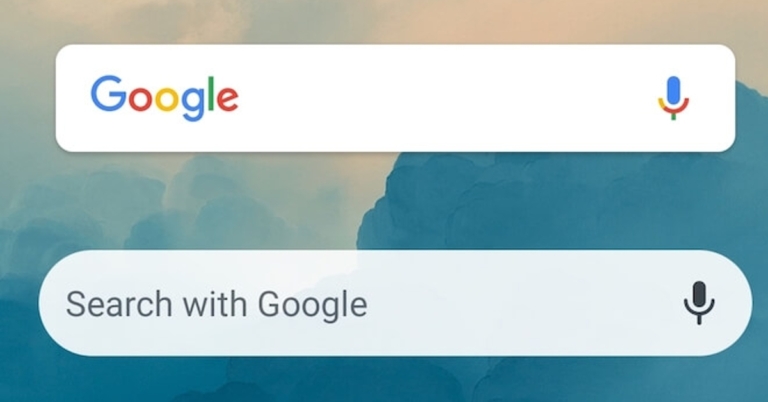
 Step 2 – Careful search for the Google search bar.
 Step 3 – Just drag and drop to the desired location of the screen.
 Now you can enjoy the Google search bar again.
 If you do not find the widget in the above section you can guess there is a problem with the Google application. Head to the Playstore and install the official Google application. With the application, you fetch the latest version of Google and apart from the web, you can read custom stories as well. After the application is installed, follow the first step to get it done.
Read Also: How to read WhatsApp messages without opening them?
If you do not find the widget in the above section you can guess there is a problem with the Google application. Head to the Playstore and install the official Google application. With the application, you fetch the latest version of Google and apart from the web, you can read custom stories as well. After the application is installed, follow the first step to get it done.
Read Also: How to read WhatsApp messages without opening them?
 The absence of a widget can be caused due to a bad cache file. This file gets stored in your system for the instantly opening of the application, widget in this case. The bad cache can occur for multiple reasons and if the problem in your Android is caused by this, Just hold the google application icon to see App info after that head to Storage and cache>clear cache.
 Your widget may have been lost due to a bug in the UI. This can be solved with a simple restart. Restarting the phone will also start the applications from ground zero making fixing the temporary bugs and issues. To do so hold the power key for 2 seconds and press restart. let the phone complete the restart process and then try the first step again to see if the widget is back. This is one of the easiest ways to fix Google Search bar widget missing in Android
Read Also: How to read WhatsApp messages without opening them?
Your widget may have been lost due to a bug in the UI. This can be solved with a simple restart. Restarting the phone will also start the applications from ground zero making fixing the temporary bugs and issues. To do so hold the power key for 2 seconds and press restart. let the phone complete the restart process and then try the first step again to see if the widget is back. This is one of the easiest ways to fix Google Search bar widget missing in Android
Read Also: How to read WhatsApp messages without opening them?