Kindle Paperwhite and Kindle Paperwhite Signature Edition debuts in India

0
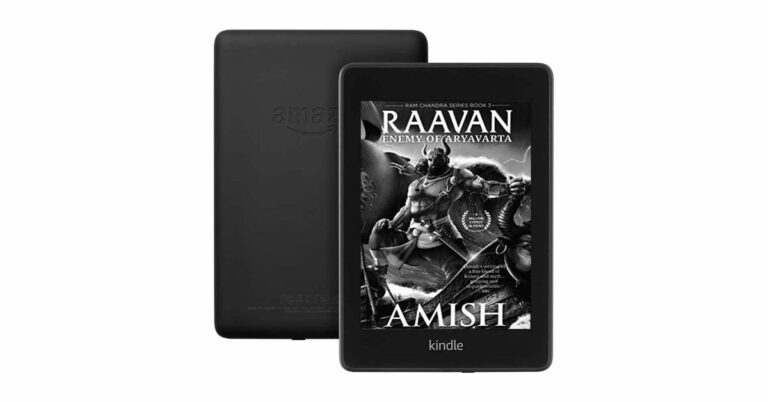
Amazon has officially announced the launch of its new generation of Kindle devices in India today. The company has introduced Kindle Paperwhite and a Kindle Paperwhite Signature Edition with a bigger 6.8-inch E-ink display. Both the devices come with adjustable warm light, wireless charging and improved battery life.

Kindle Paperwhite price

The all-new Kindle Paperwhite has been launched in an 8GB variant priced at Rs 13,999. On the other hand, the Kindle Paperwhite Signature Edition is priced at Rs 17,999 for the 32GB variant. Both the  Kindle e-readers devices will come in a black colour option. These are now available for pre-order from today onwards and the interested buyers can redeem Kindle credits worth Rs 500 which can be used towards eBook purchases, at up to 80% of the book price. Both the Kindle e-readers come with similar specs but the Signature Edition includes additional features. Kindle Paperwhite and a Kindle Paperwhite Signature Edition feature a 6.8-inch display having 10mm bezels, 300 ppi display and a flush-front design. The display offers an additional 10 percent brightness at the maximum setting to ensure reading is more comfortable on the eyes, and the adjustable warm light and a white-on-black dark mode offer flexibility for reading any time, day or night.  Kindle Paperwhite and Kindle Paperwhite Signature Edition debuts in India On the other hand, the Kindle Paperwhite Signature Edition comes with an additional auto-adjusting front light that automatically adjusts the brightness of the display based on the lighting around you so you can comfortably read in all conditions.       The devices come with improved battery life therefore they offer 10 weeks of battery life. With a 10W charger it takes 2.5 hours to completely charge them. The Kindle Paperwhite Signature Edition features wireless charging and can be used with any compatible Qi wireless charger (sold separately).  The new generation of Kindle includes IPx8 rating and is designed to withstand accidental drops in the bathtub, hot tub, pool, and ocean. Besides this, both the devices come with Whispersync and Whispersync for Voice that saves and synchronizes your last page read, bookmarks, and annotations from your Kindle eBooks across all of your Kindle devices and apps, so you can pick up where you left off on any device. The book covers allow you to see the cover of the book you are currently reading on the lock screen of select Kindle devices, too. Wordwise offers short, simple definitions that automatically appear above difficult words and the Accessibility option lets you access devices and reading applications which work with assistive technology, features that support a variety of reading needs, tools that enable anyone to become a Kindle author, and more than 12 million screen reader supported books. The new Kindle Paperwhite models come with instant access to the Kindle Store. The Massive selection offers millions of books, comics and magazines, including the latest best sellers. Whereas Kindle unlimited brings unlimited access to an ever-growing selection of over two million eBooks. Additionally, Prime members can read from a rotating selection of thousands of books, magazines, and more—at no additional cost towards your Prime membership. For the latest gadget and tech news, and gadget reviews, follow us on TwitterFacebook and Instagram. For newest tech & gadget videos subscribe to our YouTube Channel. You can also stay up to date using the Gadget Bridge Android App. You can find the latest car and bike news here.

How to reverse search on google using image or video

Reverse search is an important and indeed a great feature to find the source and other information related to the image or video. All you have to do is upload the image and know all the information related to it on the web. Here is how to reverse search on Google using an image or video.

Reverse search an Image using Google

On a computer/PC/MAC

Step 1 – Open the browser and head to images.google.com. Step 2 – Once the site is open click on the camera icon. How to reverse search on google using image or video (1) Step 3 – There will be the option of either pasting a URL or Uploading an image. One can also drag and drop the image they want to search. How to reverse search on google using image or video (1) Google Images will automatically detect the image and show the results accordingly How to reverse search on google using image or video (1) Read Alos: Xiaomi’s Mi Mix 4 to come with reverse wireless charging

On a smartphone

This can be a little tricky at first but the mechanism to be followed in the smartphone is almost the same. Here is how you can do it. Step 1 – Open the browser of your choice Step 2 – Search for images.google.com. How to reverse search on google using image or video (1) Step 3 – Select the Desktop site option from the setting dropdown. How to reverse search on google using image or video (1) Step 4 – Now the site will work in the same manner as the desktop site. Step 5 – Tap on the camera icon next on the search bar. Step 6 – Now you can either paste a URL or upload an image. Step 7 – If you decide to upload an image and choose a file, the UI will give you the option to either use the camera to click a photo or select a file from the file manager.  How to reverse search on google using image or video (1) Read Alos: Snapdeal to offer ‘90 minutes reverse pick-ups’ service After uploading the file, Google will automatically show all the results related to the image uploaded.

Reverse search a Video using Google

Google does not support the reverse search option for now so one cannot upload a video and know the source or information about it. But there is a walkaround that might come in handy if needed. Step 1 – Play the video on your system for which you want to search. Step 2 – Pause the video and take a screenshot using the snipping tool on Windows. (Just type ‘snipping tool in Windows 10 search bar and you will get it) How to reverse search on google using image or video (1) Step 3 – Now head to images.google.com upload the screenshot. Step 4 – Search for the image by the methods above and you will find the details of the video too. How to reverse search on google using image or video (1) Make sure you take multiple images from the video so it would be easy for you to search regarding a particular video topic. We can expect Google to add searching video natively soon. These steps will help you find information about a particular video or image easily using reverse search by Google. For the latest gadget and tech news, and gadget reviews, follow us on Twitter, Facebook and Instagram. For newest tech & gadget videos subscribe to our YouTube Channel. You can also stay up to date using the Gadget Bridge Android App. You can find the latest car and bike news here.

How to remove profile picture from Google account and Gmail

Google is used across almost all the devices (smartphone, tablet, laptop and PC) and has a huge ecosystem running behind it. With so many features and settings, it gets confusing on how to alter a particular one.  If you want to remove your profile picture from your Google account and you aren’t sure how to do it, this guide will surely come in handy. Here is how to remove profile pictures from Google accounts and Gmail easily.

On Computer

The easiest way to do it is by using a personal computer (PC). The profile picture can be removed following these steps.  Step 1 – Open your browser Step 2 – Type Accounts.Google.com and fill in your login details. Step 3 – On the left pane of the Google account page click on the “Personal info” tab Personal Info Step 4 – Under the Basic Info tab, there will be your profile picture.  Profile Picture in windows Read Also: How to change your Amazon Prime video profile picture Step 5 – Click on the profile picture and press remove. Remove Picture In case you want to change the profile pic, then press change. By this method, your profile picture will be removed or changed. It will take a little time for all the devices to update so worry not if you still see your profile picture on some devices.

On Android or iOS smartphones

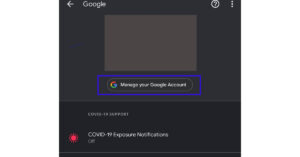
Step 1 – Open Phone setting (Gmail for iOS users) Step 2 – Go to Google Settings option when your scroll down(Open Gmail settings for iOS users and go to Google Setting) Google setting Read Also: How to show your profile picture and not video in Zoom  Step 3 – Choose the Manage your Google Account option in the Google setting tab. manage Google Account Step 4 – On the bottom of the personal information page, tap on the profile picture under the Basic info option.  Step 5 – Tap on the profile picture and select the remove option from there. Remove profile picture With these steps, one can easily remove their Google profile picture or change it. For iOS devices, one needs to install Gmail to perform this method as the application does not come pre-installed in Apple devices.  For the latest gadget and tech news, and gadget reviews, follow us on Twitter, Facebook and Instagram. For newest tech & gadget videos subscribe to our YouTube Channel. You can also stay up to date using the Gadget Bridge Android App. You can find the latest car and bike news here.
Oppo A54 and Oppo F19 price hiked by Rs 1,000

0
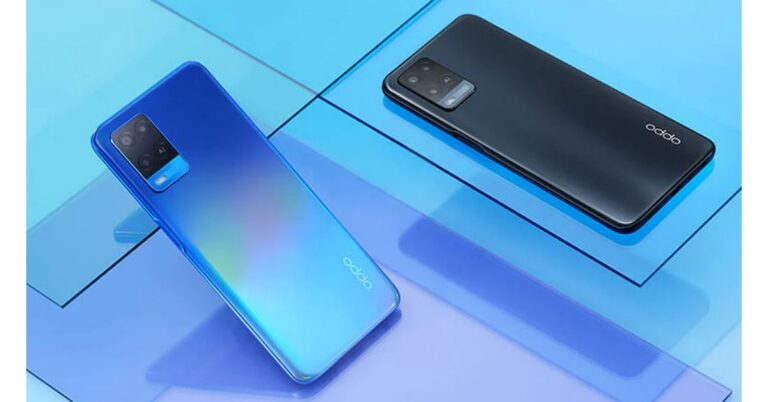
Due to recent global semiconductor shortages brands like Xiaomi, Samsung and Realme have hiked the prices of their smartphones in India. Oppo, which is now also facing the biggest recent global shortage of chipsets has joined the category and revised the price of two of its two popular devices in the country. The price of Oppo A54 and Oppo F19 has been increased by Rs 1,000. Read on to know the new pricing and availability details Oppo A54, Oppo F19 new pricing The Oppo A54 was launched in India in April this year with a price tag of Rs 13,990 for the base 4GB RAM with 64GB storage options. The base variant price has been revised to Rs  14,990. The price of the 4GB RAM with 128GB storage has been hiked to Rs 14,490 that was originally selling for Rs 13,490 Whereas the 6GB RAM with 128GB storage model which was earlier selling for Rs 14,990 will now sell for Rs 15,990. In a similar way, Oppo F19 price has been increased to Rs 19,990 from Rs 18,990 for the 6GB RAM and 128GB storage option. The revised pricing of both the phones are now flashed on both the e-commerce platform Amazon and Flipkart as well as on Oppo’s official online store in the country.  After the global chip shortage, Samsung has hiked the price of Samsung Galaxy M02s and Samsung Galaxy A12. Also, Xiaomi has also increased the price of its Redmi devices device in fact Redmi Note 10 Series have got two price revisions. Oppo A54 tech specs Oppo A54 comes with a 6.51-inch HD+ display having 720×1,600 pixels of resolution and a standard 60Hz refresh rate support. The phone runs on ColorOS 7.2 on top of Android 10 and is powered by MediaTek Helio P35 SoC. There is a triple rear camera set up which includes a 13-megapixel primary sensor. In addition to this, it also includes a 2-megapixel macro lens and another 2-megapixel depth sensor for portraits. On the front, there is a 16-megapixel sensor for taking selfies and video calling. The device is backed by a 5,000mAh battery, which is supported by 18W fast charging tech. 
Oppo A54 and Oppo F19 price increased
Oppo F19
Oppo F19 tech specs Oppo F19 features a 6.43-inch full HD+ AMOLED display with 1,080×2,400 pixels of resolution and there is a standard 60Hz refresh rate panel. The phone runs on Android 11 with ColorOS 11.1 on top and is powered by an octa-core Qualcomm Snapdragon 662 SoC, paired with Adreno 610 GPU. For the optics, there is a triple rear camera setup that includes a 48-megapixel primary sensor with an f/1.7 aperture. Furthermore, there is a 2-megapixel depth sensor and a 2-megapixel macro lens. The front notch holds a 16-megapixel sensor for taking selfies and video calling. The smartphone houses a 5,000mAh battery that’s paired with a 33W Flash Charge, which runs on a 11V3A solution.  For the latest gadget and tech news, and gadget reviews, follow us on TwitterFacebook and Instagram. For newest tech & gadget videos subscribe to our YouTube Channel. You can also stay up to date using the Gadget Bridge Android App. You can find the latest car and bike news here.

How to remove ads in any Xiaomi or Redmi device

Xiaomi is one of the most popular smartphone brands in the world and has leading sales in India. This is mainly possible due to the company offering good specifications at lower prices. The reason why the company is able to give such good specifications at lower prices is by generating revenue with targeted ads.  With the update to MIUI 10, the company allowed users to manually remove these targeted ads from the smartphone. There is not one simple button to stop them but has to follow a bunch of steps. Here is how to remove Ads in any Xiaomi or Redmi device.

Revoke MSA authorization

This is the first step of disabling ads. MSA stands for MIUI system ads and by the name, we can know it will be a building block of this journey. As it is a system app thus it’s not available on the home screen.  Go to Setting>Password and Security>Authorization and Revocation After finding this scroll down to the toggle off button next to the MSA option. By disabling it, Xiaomi now won’t have permission to display ads in the MIUI system application.   Read Also: 5 ways you can charge your Android smartphone faster

Disable Ads for GetApps

On the same “Authorization and Revocation section” find GetApps. After finding it toggle off the button next to it as well. This option will stop all the annoying apps from the MIUI application store. There is nothing to worry about if you are an active user of the application store as it will just stop the ads and you will still be able to use it.

Stop targeted ads

This step is not to remove ads but to not allow the company to fetch your personal data and play ads according to recommendations.  In order to toggle it off, one needs to go to Settings > Password and Security > Privacy > Ad Services and Toggle off Personalized ad recommendations. Read Also: Instagram rolling out Guides features for all the users

Default Applications

MSA removes most of the ads from the MIUI but there still are few default applications by the company’s showing ad recommendations and here is how you can shut each one of them.
  • Mi Security Scan

Xiaomi and Redmi devices perform a security scan before allowing users to run it from Google Play Store.  Head to the Play Store and tap on any random trusted application. As soon as the scan starts, tap on the cogwheel displayed on the top right corner of the screen. Search for the “Receive Recommendation” setting and toggle it off.
  • Mi Security App

MIUI has a built-in security application to perform scans and it also optimises the smartphone’s performance but it has inbuilt ads as well. It’s simple to disable them by opening the app and tapping on the cogwheel on the top right corner. Make sure you follow the same steps for cleaner and booster as well on the same application.
  • Mi File Manager

The file manager has a hidden option to remove ads from it. Open the application and go to the file manager settings. In the setting tap on the About section. In it will be an option for Recommendations, toggle it off.
  • Mi Browser

After so many security issues Xiaomi worked hard to make it better but it still has personalised ads and it’s easy to switch them off. Open the browser and head to browser settings > Privacy & security > Disable the personalized services.
  • Mi Downloads

This is the most common application that gets on people’s nerves. One can disable ads simply by going to settings and disable “Show Recommended Content”.
  • Mi Themes

Many users like to customise their smartphones which the company surely allows but offers a lot of ads in return. Here is how you can stop these ads. Open the themes application then tap on profile in the bottom right corner of the screen. Search for the setting option and disable recommendations.
  • Mi Music

It’s easy to do this in the Music app by simply opening the app and tapping on the menu icon in the top left corner. In their tap on setting then, in the Advance setting toggle off the recommendations option.
  • Mi Video

This is almost the same as the music application. Just open the application and tap on Profile > Settings > Toggle of Online Recommendations. Following these steps will make your device advertisement free and one can use their Redmi or Xiaomi device without a hassle. We also recommend going to settings and search for recommendations, ads or similar settings if any other system application is causing this problem. For the latest gadget and tech news, and gadget reviews, follow us on TwitterFacebook and Instagram. For newest tech & gadget videos subscribe to our YouTube Channel. You can also stay up to date using the Gadget Bridge Android App. You can find the latest car and bike news here.
Western Digital Elements SE external solid-state drive (SSD) with up to 2TB of storage launched in India

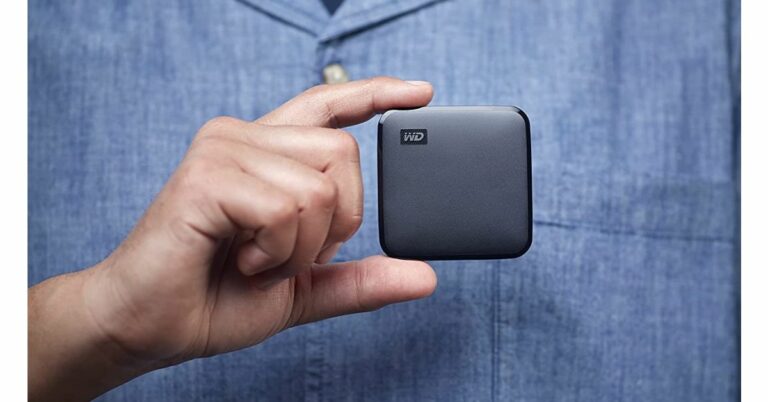
Western Digital has announced the launch of a new portable SSD in India. The new Western Digital Elements SE external solid-state drive (SSD) comes with a small form factor that comes with up to 2TB of storage space. It has a write speed of up to 400MBps and is compatible with Mac and Windows PCs. 

Western Digital Elements SE external solid-state drive (SSD) price in India and availability

The price of the Western Digital Elements SE external solid-state drive (SSD) starts at Rs 6,499 for the 480GB variant. The price of the 1TB variant is set at Rs 9,999 and the 2TB version will be available at Rs 19,999. The WD Elements SE SSD will come in a single black colour option only.  The WD Elements SE external SSD will be available for purchase via Amazon.in, Flipkart, Croma Retail, and other leading IT and Mobility stores across the country.  Western Digital Elements SE external solid-state drive (SSD)

Western Digital Elements SE external solid-state drive (SSD) specifications

The Western Digital Elements SE SSD comes with a pocket-sized form factor. This compact device is a great solution for consumers who need a portable drive to move files fast.  It has a write speed of up to 400MBps which is three times faster than a hard disk drive. It comes with three different capacities 480GB, 1TB and 2TB storage options.  The compact device is a great solution for consumers who need a portable drive to move files fast. The WD Elements SE SSD has plug-and-play functionality that means it is ready to use right out of the box and can seamlessly integrate into any workflow. The drive is also drop-resistant up to 2 meters. The Western Digital solid-state drive (SSD) includes USB 3.0 for connectivity. It is compatible with Windows 10 and macOS Big Sur, Catalina, and Mojave. The portable drive measures 64.5×64.5×8.72mm and is backed by a three-year limited warranty worldwide. Speaking on the launch of this new addition to the WD SSD portfolio, Mr. Khalid Wani, Senior Director – Sales, India, Western Digital said, “Solid-state drives are the next big wave in the storage industry because of their performance, speed, reliability, and for the ease they provide. Our new WD Elements SE external SSD is a productivity-driven solution for Mac and PC users.” For the latest gadget and tech news, and gadget reviews, follow us on TwitterFacebook and Instagram. For newest tech & gadget videos subscribe to our YouTube Channel. You can also stay up to date using the Gadget Bridge Android App. You can find the latest car and bike news here.

iOS 15, iPadOS 15 and WatchOS 8 are now available for download on compatible devices 

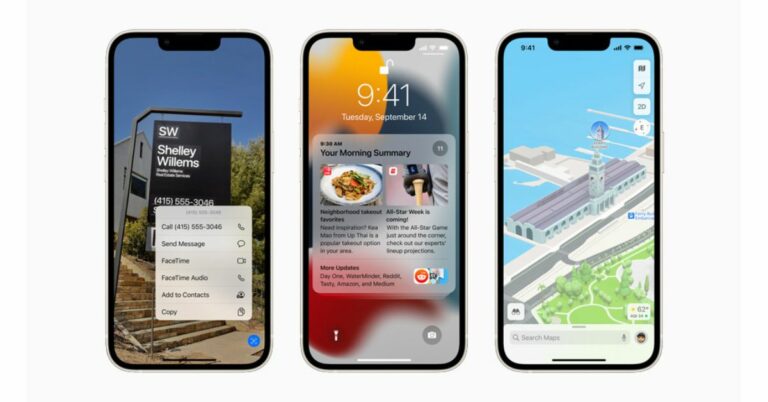
At its California Streaming event last week Apple announced the release date of iOS 15 and iPadOS 15. Now the new software upgrade for iPhones and iPads are finally being rolled out to users across the globe. This will come with improvement over the previous generations of iOS with multitasking made easy now. The latest iOS update will also bring other important features like Memoji SharePlay and Focus while the new iPadOS update will include upgraded FaceTime, Slide Over and Split View. Apart from this WatchOS 8 is now available too for Watch Series smartwatches. Here is a list of supported devices and how to download the latest update.

iOS 15 supported devices

iOS 15 is a free software update that is available starting today for iPhone 6s and later. The list includes iPhone 13 Series, iPhone 12 Series, iPhone 11 Series, iPhone X series, iPhone 8, iPhone 8 Plus, iPhone 7, iPhone 7 Plus, iPhone 6s, 6s Plus, iPhone SE, iPhone SE 2nd gen and iPod touch 7th gen.

How to download iOS 15 on your compatible devices

Immediately after the iOS update drops on your device all you need to do is use your compatible device go to Settings > General > Software Update. If you have already chosen the option for automatic download then the iOS 15 update will automatically get downloaded on your device once it is available. However, the eligible users can also manually download it using a Mac computer but before doing this make sure you have taken your device backup via iCloud or computer. Also, be sure that your iPhone or iPod is fully charged. Also Read: iOS 15 features iPad OS 15 supported devices 

iPad OS 15 supported devices 

Again iPadOS 15 is also a free software update that is now available for iPad mini 4 and later, iPad Air 2 and later, iPad 5th generation and later, and all iPad Pro models. The list includes iPad Pro 12.9-inch (5th generation), iPad Pro 11-inch (3rd generation), iPad Pro 12.9-inch (4th generation), iPad Pro 11-inch (2nd generation), iPad Pro 12.9-inch (3rd generation), iPad Pro 11-inch (1st generation), iPad Pro 12.9-inch (2nd generation), iPad Pro 12.9-inch (1st generation), iPad Pro 10.5-inch, iPad Pro 9.7-inch, iPad (9th generation), iPad (8th generation), iPad (7th generation), iPad (6th generation), iPad (5th generation), iPad mini (6th generation), iPad mini (5th generation), iPad mini 4, iPad Air (4th generation), iPad Air (3rd generation) and iPad Air 2.

How to download iPadOS 15 

In order to do so, the steps are similar to what we have explained for the iOS 15 download. Once the update arrives the eligible users will be able to download it by Settings > General > Software Update. The update will automatically be downloaded to compatible devices if you have already chosen that option. Also Read: Everything you should know about the new iPadOS 15  WatchOS 8 supported devices

WatchOS 8 supported devices

Apple WatchOS is also now available for download for eligible users as a free software update starting today. The new operating system is compatible with Apple Watch Series 3, Apple Watch Series 4, Watch Series 5, Apple Watch SE, Apple Watch Series 6 and Apple Watch Series 7

How to download WatchOS 8

To download WatchOS 8 the eligible users require iPhone 6s or later with iOS 15 or later and one of the above mentioned Apple Watch models. The users can then download it by going to General > Software Update on the Watch app of your iPhone. It can also be downloaded by going to Settings > General > Software Update. Apple Fitness+ updates will be available beginning Monday, September 27. Also Read: All the features coming to Apple Watch with new WatchOS 8 For the latest gadget and tech news, and gadget reviews, follow us on TwitterFacebook and Instagram. For newest tech & gadget videos subscribe to our YouTube Channel. You can also stay up to date using the Gadget Bridge Android App. You can find the latest car and bike news here.

21 September 2021 Amazon Quiz: Answer five easy questions to win Rs 20,000 Amazon Pay Balance

Amazon India is back with another lucrative quiz on its platform. 21 September 2021 Amazon Quiz has already gone live and today you can stand a chance to win Rs 20,000 Amazon Pay Balance.
The Amazon Quiz is hosted for the app users only which means desktops users cannot participate in the quiz. So before participating just make sure you have downloaded the App. The lucky users might win something by answering all the questions correctly. The Amazon Quiz can be played daily from 12 AM to 11:59 PM. Daily the e-commerce platform gives a chance to millions of people across the country to win exciting prizes. To participate and win Rs 20,000 Amazon Pay Balance check out today’s answers.

21 September 2021 Amazon Quiz Answers

Question 1: Who is set to act in ‘The King’, a film about King Kamehameha who was the first ruler of the Kingdom of Hawaii? The answer is- Dwayne Johnson Question 2: The Ministry for the Future is a novel set in the near future which describes the disastrous consequences of what? The answer is- Climate change Question 3: She recorded the second-fastest 100 m by a woman in history by recording timing of 10.54 at the Prefontaine classic. Name her The answer is- Elaine Thompson-Herah Question 4: Which European country is famous for these flowers? The answer is- Netherlands Question 5: This famous entrepreneur was associated with the growth of which of these entities in the mid-late 80s and early 90s? The answer is- Pixar For the latest gadget and tech news, and gadget reviews, follow us on TwitterFacebook and Instagram. For newest tech & gadget videos subscribe to our YouTube Channel. You can also stay up to date using the Gadget Bridge Android App. You can find the latest car and bike news here.

iQoo Z5 5G India launch confirmed for September 27, alleged official images surface online

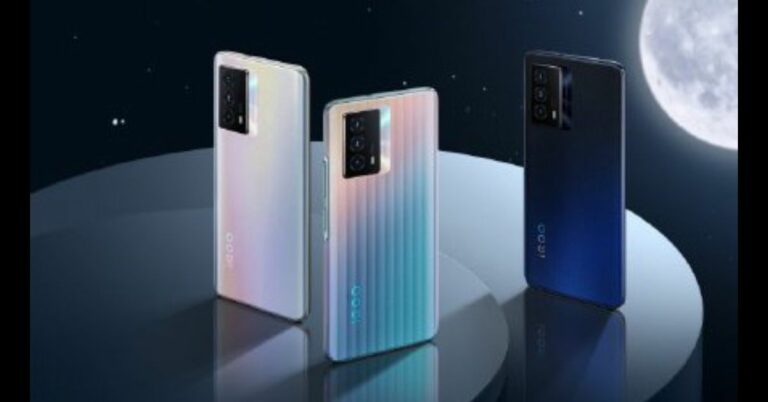
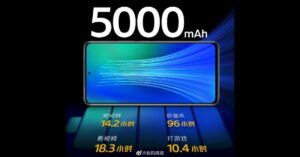
Vivo’s sub-brand started teasing iQoo Z5 5G launch in India. The device is the company’s latest that will succeed the existing iQoo Z3, which was launched in India in June this year. Now the company has confirmed that the upcoming phone will be launching in India on September 27. But before coming to India the device will make its debut in China on September 23. iQoo has also listed Z5 5G on Amazon to tease its availability in the country. The company took to Twitter to announce the exact launch date for iQoo Z5 5G in India. The upcoming phone is scheduled to take place on September 27 at 12 noon. As of now in India, the company has not yet revealed any details with regard to its specification or pricing.  But like we told you earlier prior to iQoo Z5 5G launch in the country, the phone will be introduced in China on September 23 at 2:30 pm CST Asia and 12 pm IST. So iQoo has started teasing the specs and design of the smartphone ahead of the official announcement. As per the alleged official images shared on the Chinese microblogging site Weibo the smartphone will be available in three colour options of  Black, White, and Blue with the hues of pink and purple. Unlike the iQoo Z3 which carries a subtle design, the company will include a pinstripe-style design variant as well. The images show a triple rear camera set-up housed inside a rectangular camera module. In terms of specs, iQoo Z5 5G is confirmed to pack a 5,000mAh battery. In addition to this, it will be equipped with a Snapdragon 778G SoC with LPDDR5 RAM and UFS 3.1 storage which is an upgrade over the Qualcomm Snapdragon 768G SoC which comes on the existing model. The phone is also confirmed to feature a hole-punch display with support for a 120Hz refresh rate, HDR 10, a 240Hz touch sampling rate, and a DCI-P3 colour gamut. The device will also include stereo speakers with support for Hi-Res Audio and Hi-Res Audio Wireless. iQoo Z5 5G price in India Moreover, iQoo Z5 5G is tipped to be priced under the Rs 30,000 price segment in the country. The device has been listed on Amazon and the dedicated landing page confirmed the availability of the phone on the e-commerce platform. For the latest gadget and tech news, and gadget reviews, follow us on TwitterFacebook and Instagram. For newest tech & gadget videos subscribe to our YouTube Channel. You can also stay up to date using the Gadget Bridge Android App. You can find the latest car and bike news here.

How to track your lost Android smartphone without a tracking app?

There are a ton of applications that provide a feature to find your lost phone very easily by using the GPS sensor on the phone and giving you the precise location of your device. The problem arises when you have no third party tracking app installed on your smartphone and now lost it? Well, it’s very easy to find it/track it as Google has an inbuilt function to know your phone location. Here is how to track your lost Android smartphone without a tracking app
  • Using Google’s Find My Device

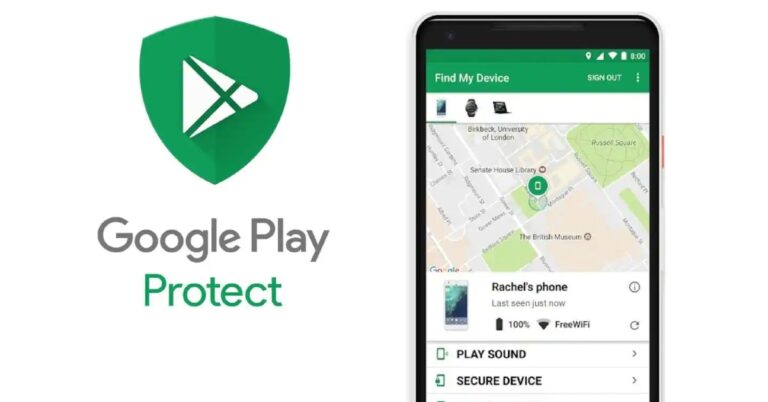
One of the easiest ways to find your device is to use this feature. All you want is a device with an active internet connection and Google Chrome that should be logged in from the same account, which was on your lost Android phone. After this, all you have to do is follow these steps. Step 1 – Open Google Chrome browser(one can use any other browser as well but it’s easier with Google Chrome) Step 2 – Just type find my device on the search bar and click on the first option by Google  Step 3 –  Select the lost device  Select lost device Step 4 – Now one can either ring the phone or secure the device remotely, which will require account sign in. The location of the phone will be shown on the map.  Read Also: How to track your lost or stolen iPhone
  • Using Google Maps Timeline

What if your device has been shut down? This feature will come in handy in such cases. Though this feature can seem creepy as you can see a complete tracking timeline of where your smartphone went along with you, it is useful in such cases. Here is how to use it. Step 1 – Open maps on your signed-in browser. Step 2 – Click on the burger icon on the left top corner. Using google maps timeline Step 3 – Tap on the “Your Timeline” option. Step 4 – Now according to filter search you can see where your smartphone has been. Time line With these options, it’s easy to retrieve your phone back if you do not have a third-party tracking application on your Android smartphone. With the help of Google’s Find My Phone features searching for your lost phone becomes as easy as a Google Search. For the latest gadget and tech news, and gadget reviews, follow us on TwitterFacebook and Instagram. For newest tech & gadget videos subscribe to our YouTube Channel. You can also stay up to date using the Gadget Bridge Android App. You can find the latest car and bike news here.