
In This Article
Home Screen Icons
These are all the icons and symbols you will find on WhatsApp’s home screen.Camera, Search, and Ellipses (three dots)
 As soon as you launch WhatsApp, you will notice the camera, search, and ellipses icons at the top right corner of the screen. Tapping a camera icon is a quick way to take a picture or record a video to send to a contact or upload as your status. You can even send saved media from your gallery. The search icon lets you do a quick search across WhatsApp. You can search contacts, messages, media, links, and docs using this function. Simply type what you’re looking for and WhatsApp will perform an intensive search for you.
Finally, the ellipses (three dots) provide you with further options like creating a new group, new broadcast, linked devices, starred messages, payments, and settings. There is also a WhatsApp community icon on the left side of the screen. This is a new feature introduced by WhatsApp that allows you to manage several different groups in one place. You can more about it here.
As soon as you launch WhatsApp, you will notice the camera, search, and ellipses icons at the top right corner of the screen. Tapping a camera icon is a quick way to take a picture or record a video to send to a contact or upload as your status. You can even send saved media from your gallery. The search icon lets you do a quick search across WhatsApp. You can search contacts, messages, media, links, and docs using this function. Simply type what you’re looking for and WhatsApp will perform an intensive search for you.
Finally, the ellipses (three dots) provide you with further options like creating a new group, new broadcast, linked devices, starred messages, payments, and settings. There is also a WhatsApp community icon on the left side of the screen. This is a new feature introduced by WhatsApp that allows you to manage several different groups in one place. You can more about it here.
Message Icon
 The floating message icon at the bottom left corner of the screen gives you quick access to your contacts and groups in order to start a conversation. You can also create a new group or community and add a new contact to your phone from this window.
Status and Call tab icons
These are all the icons and symbols you will find when you swipe to the status and call tabs on WhatsApp.Pencil and Camera icons
 The pencil icon can be used to create a new text status. Once you click the pencil icon, a text editor will open up on your screen. You can further tap the emoji, font, and colour icons to customise your status update. The camera icon below the pencil icon can be used to upload a picture or video as your status. You can either take a picture or video from your camera or choose one from your gallery.
Link and Call icons
 The link icon in the call tab lets you create a group call that people with the call link can join. You can share the link with contacts on WhatsApp or on any other platform. The call icon at the bottom right corner of the screen lets you call any of your contacts or groups. You can also create a new call link from this window.
Chat icons and symbols
These are all the chat-related icons and symbols you need to know about on WhatsApp.Pin, Bin, Loudpseaker, and Folder icons
 Once you long-press a conversation on the home screen, you will see a set of icons pop up at the top right corner of the screen. The pin icon ‘pins’ the selected conversation to the top of the chat tab. You can pin multiple conversations at the top of the chat tab. The bin icon deletes your selected conversation. You can even choose to delete all the media within that conversation. The loudspeaker icon can be used to mute a conversation while the folder icon can be used to archive the selected conversation.
Camera, Phone, and Ellipses icons
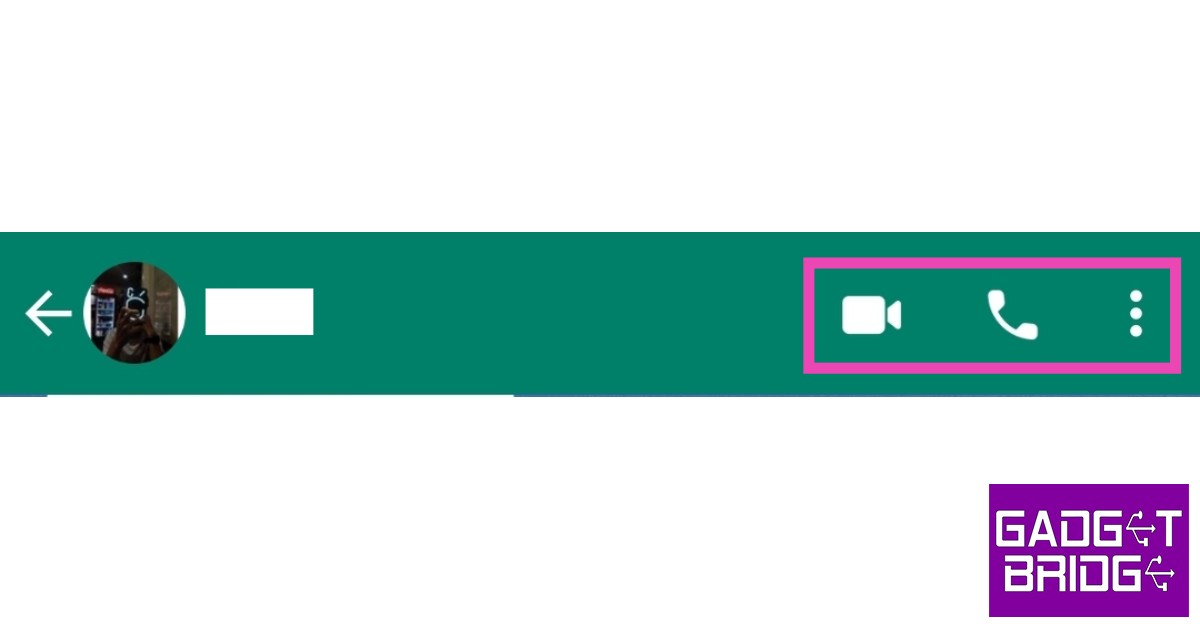 Once you open a chat thread, you’ll notice a bunch of symbols at the top right corner of the screen. The camera icon connects you and the recipient on a video call while the phone icon can be used to initiate an audio call. The ellipses (three dots) provide more options like disappearing messages, accessing media/links/docs, searching, wallpaper, and more.
Smiley, Paperclip, Camera, and Microphone icons
 You will find these icons at the bottom of your screen, alongside the message box. The smiley icon can be used to access and send emojis in the chat. The paperclip icons can be used to attach and send docs, pictures, videos, locations, audio, and payments. It can even be used to conduct a poll in the chat. Use the microphone icon to record and send a voice note in the chat.










 Step 3:
 Step 4:
 Step 5:
 Step 3:
 Step 4:
 Step 3:
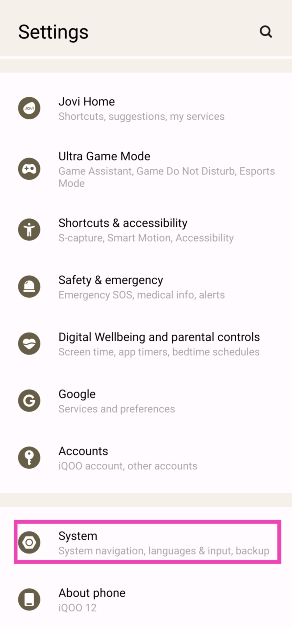 Step 2: Tap on Reset options.
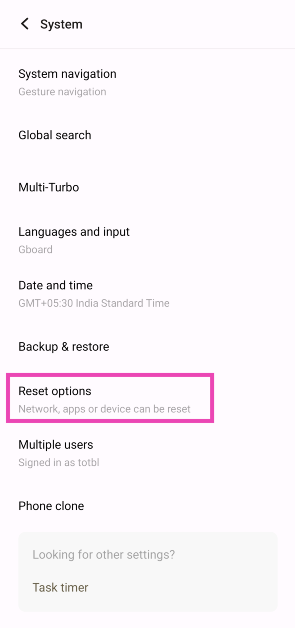 Step 3: Hit Erase all data (factory reset).
 Step 4: Tap on Erase all data.
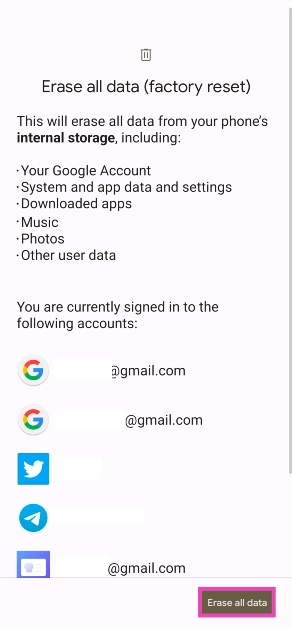 Step 5: Enter the PIN.





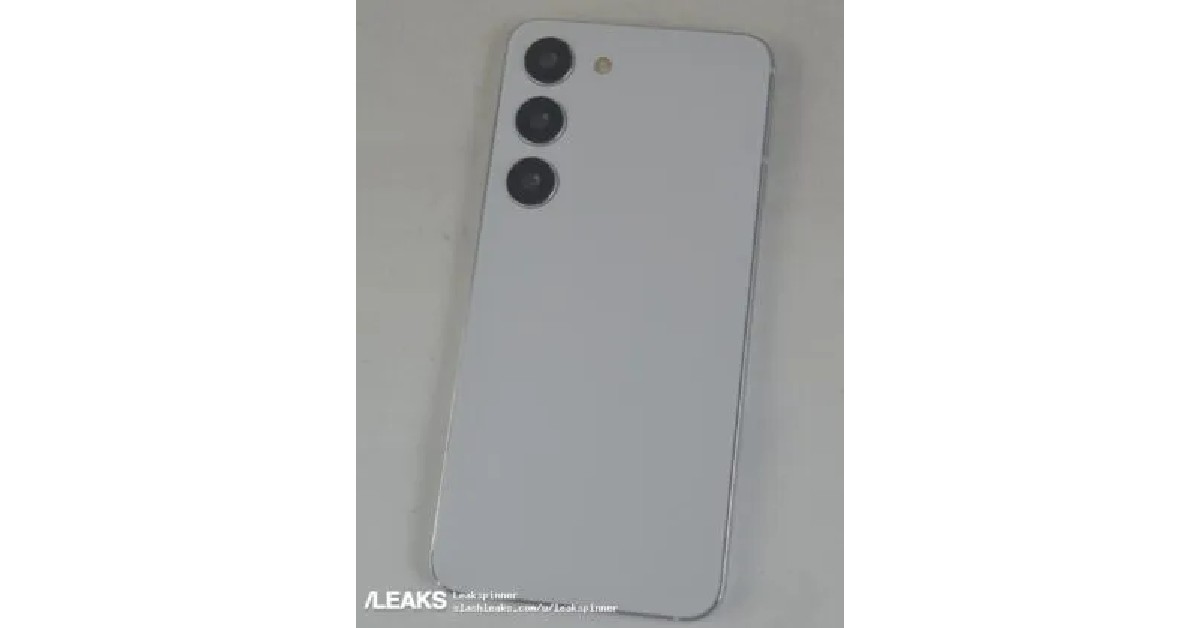











 Step 2:
 Step 3:
 Step 4:

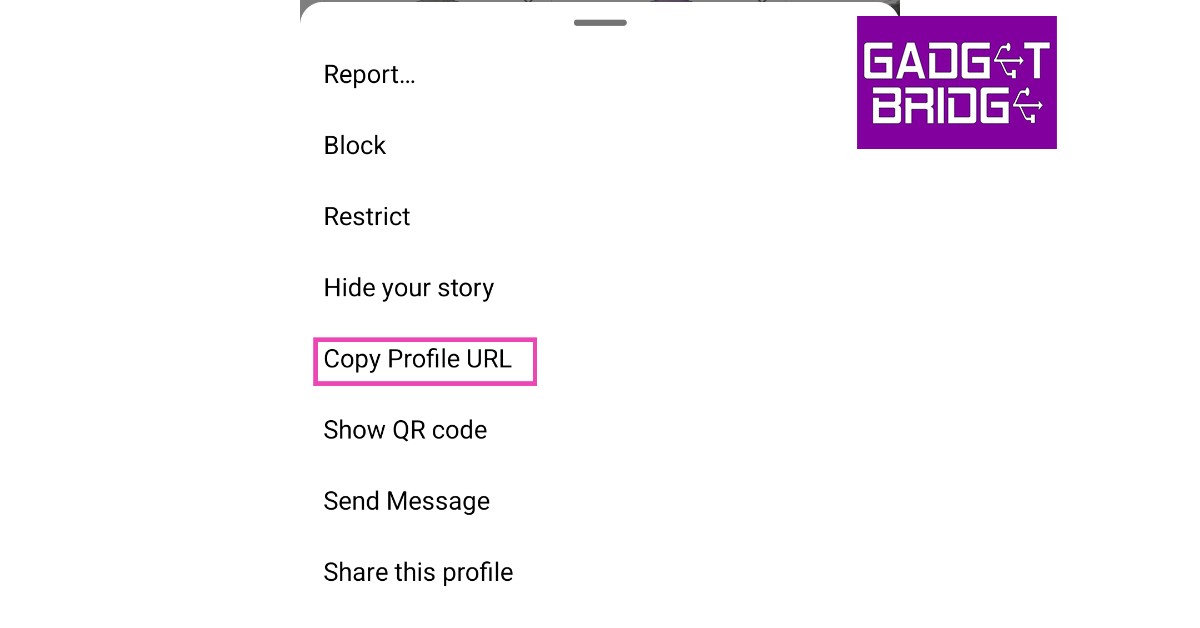
 Step 3:
 Step 4:
 Step 3:

 Step 3:
 Step 4:
 Step 5:
 Step 6:
 Step 9:
  Step 2:
 Step 3:
 Step 4:
 Step 5:
 Step 6: