

In This Article
Asus Zenbook 14X Space Edition laptop review: Design and Display
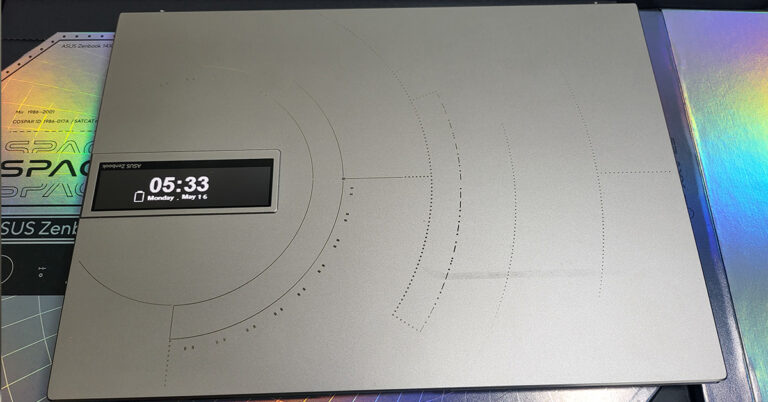
Everything from the packaging to the laptop itself spells out unique and fresh. Packed inside a dark black box you get a silver hard box containing this marvel of a laptop, we had a lot of fun unboxing it and going over its exclusive features. As soon as you unbox the device you are greeted by a titanium silver laptop in the form of Asus Zenbook 14X Space Edition. On its lid you will find a lot of things including a fresh space derived design, Morse Code: Ad Astra Per Aspera and the unique to its class – a 3.5-inch single colour OLED display.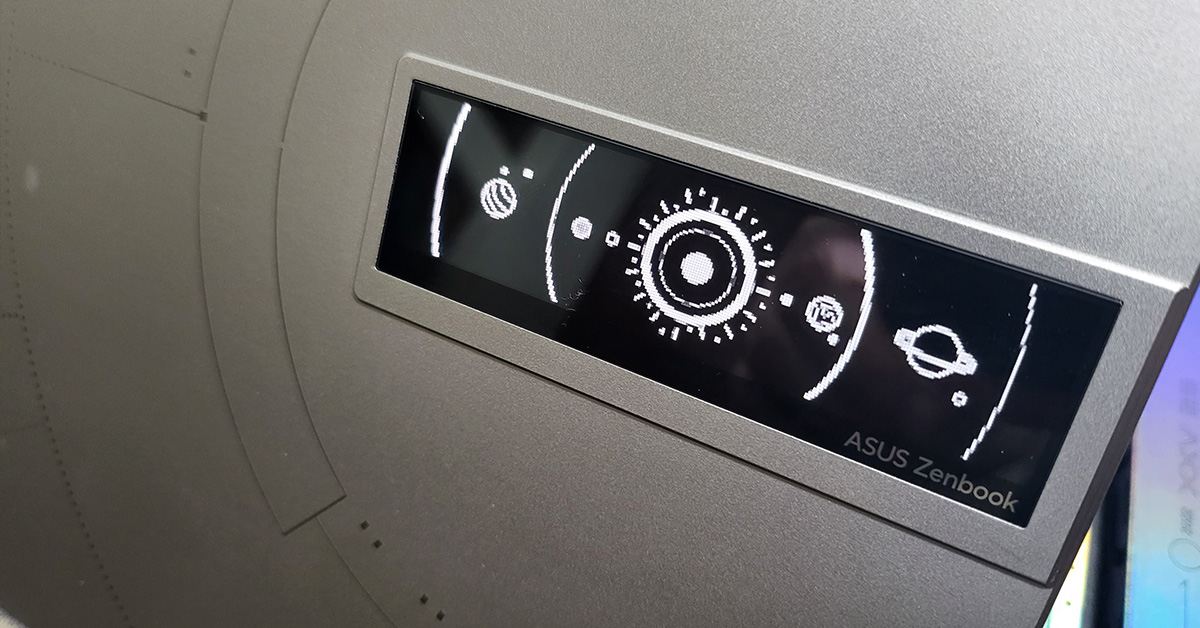 This display can be managed via the MyAsus App that comes pre-loaded on the laptop and can play many pre-put apps, or one can load their own identity as well in the form of text or animation. Yes, in case any of you are wondering, you can turn off this screen also to save battery. We liked the idea of having a second screen on the LID as that can run advertisements we want the people on the other side to see. Think of it this way, it is a free billboard advertisement for people to see when you are sitting at the airport waiting for your plane. Also, the brightness of this second display can be controlled to up to 3 levels.
 Moving on, inside you get a 14-inch OLED touchscreen that has a resolution of FHD+ (2,880×1,800 pixels) with a 16:10 aspect ratio. The display is excellent and you get to see vivid colours and super deep blacks on it. We loved our experience with the touch display of the Asus Zenbook 14X Space Edition laptop. It responds well to the lightest of taps and one can watch and enjoy just about anything on it. The only thing that we were not in awe of was the glossiness, but since it is a touchscreen it has to be glossy.
Moreover, the screen is not a fingerprint magnet, it does get a few smudges here and there, but a quick wipe gets rid of them easily. We played a lot of YouTube videos, Netflix Shows and Prime Movies on this laptop and it kept impressing us.
Moving on, inside you get a 14-inch OLED touchscreen that has a resolution of FHD+ (2,880×1,800 pixels) with a 16:10 aspect ratio. The display is excellent and you get to see vivid colours and super deep blacks on it. We loved our experience with the touch display of the Asus Zenbook 14X Space Edition laptop. It responds well to the lightest of taps and one can watch and enjoy just about anything on it. The only thing that we were not in awe of was the glossiness, but since it is a touchscreen it has to be glossy.
Moreover, the screen is not a fingerprint magnet, it does get a few smudges here and there, but a quick wipe gets rid of them easily. We played a lot of YouTube videos, Netflix Shows and Prime Movies on this laptop and it kept impressing us.
 Talking more about the design, the Asus Zenbook 14X Space Edition laptop comes with a fairly large dish-type backlit keyboard. This has a fully functional multimedia setup on top and the power button is dressed in space red. The power button also doubles up as the fingerprint reader, which works well on most counts. A hint of the same red can be found on the space key too, after all, it is the “Space Edition”.
Read Also: Asus Vivobook Pro 14x review: The new workhorse in town for
Talking more about the design, the Asus Zenbook 14X Space Edition laptop comes with a fairly large dish-type backlit keyboard. This has a fully functional multimedia setup on top and the power button is dressed in space red. The power button also doubles up as the fingerprint reader, which works well on most counts. A hint of the same red can be found on the space key too, after all, it is the “Space Edition”.
Read Also: Asus Vivobook Pro 14x review: The new workhorse in town for
 Under the keyboard is a large touchpad that also doubles up as the Numpad, similar to as seen on many other Zenbooks before this laptop. The same space design can be seen on the inside panels too. There is an HD webcam embedded within the Asus Zenbook 14X Space Edition laptop. A feature that is attached to this webcam is that is an advanced privacy shield that comes in electronically. Press the F10 button on the laptop and the orange shield will hide the web camera.
 The Asus Zenbook 14X Space Edition laptop comes with a few ports, too. You get USB, Audio ports along with a microSD card reader on the right. And on the left, you will find the HDMI and twin thunderbolt USB/Type-C ports. The overall weight of the Asus Zenbook 14X Space Edition laptop is under 1.4Kg and is 15.9mm slim. All in all, Asus get up and take a bow, you have designed a marvel.


Asus Zenbook 14X Space Edition laptop review: Performance
Stepping into the arena of performance, the Asus Zenbook 14X Space Edition laptop has a lot to offer. Some of its great features we have already spoken about in the Design section, now let’s further take a look at its configuration. The one we tinkered with had an Intel Core i9 (12th gen, 12900H) CPU that has a clock speed of 2.5GHz normal and 5GHz (boosted) and has a whopping 14 cores. With it, 32GB of LPDDR5 4,800MHz RAM is available. For storage, a 1TB of PCIe SSD has been put in that has a read speed of 6,500+ MB/sec. The only thing missing in the configuration is the kitchen sync. Asus does end up giving you the absolute best in this notebook. Oh wait, we forgot about the GPU. What you get are integrated Intel Graphics in the form of Iris X. Why Asus, Why? If only a dedicated graphic card was put in, this would have been the perfect laptop of 2022. Nonetheless, the graphics by Intel are not too shabby. For most users these are sufficient and the list includes graphic designers and video editors. Games like DOTA 2 and CS: Go can be played at the highest settings. But games like PUBG can only cope up at medium settings with few frame drops here and there.
But, this laptop is not made for gaming. It is made for entertainment and professional use. For that, users also get a very loud set of speakers that are tuned by Harman Kardon. The OS on board is Windows 11 Home edition, which is ok, but we would have preferred the Pro version. Also, another good thing is that you do not get a lot of bloatware software on the Asus Zenbook 14X Space Edition laptop. Just a few packaged apps owned by Asus, which are essential for the daily working or updation and support requirements of the notebook.
Read Also: Asus ZenBook 13, ZenBook 14, ZenBook 15 ultra-books launche
The ergonomic hinge also comes in the Asus Zenbook 14X Space Edition laptop, which raises the machine a few centimetres for a more ergonomical typing experience. This also dissipates heat. Other feature of the laptop includes WiFi 6E, ambient noise cancelling MIC (which works well) and a charging cable/charger box that can be used as a laptop stand too. Yes, do not throw that box away, instead, you can use it as a laptop stand.
Finally, let’s talk about its battery life. The Asus Zenbook 14X Space Edition laptop sports a 63Whrs 3-cell Li-ion battery that can be charged using the supplied 100W charger. For us, under nominal use, the laptop lasted for a little under 6 hours (with the second screen turned off) and the backlit keyboard at mid brightness. With the rear screen turned on, we lost half an hour of work time.
Oh wait, we forgot about the GPU. What you get are integrated Intel Graphics in the form of Iris X. Why Asus, Why? If only a dedicated graphic card was put in, this would have been the perfect laptop of 2022. Nonetheless, the graphics by Intel are not too shabby. For most users these are sufficient and the list includes graphic designers and video editors. Games like DOTA 2 and CS: Go can be played at the highest settings. But games like PUBG can only cope up at medium settings with few frame drops here and there.
But, this laptop is not made for gaming. It is made for entertainment and professional use. For that, users also get a very loud set of speakers that are tuned by Harman Kardon. The OS on board is Windows 11 Home edition, which is ok, but we would have preferred the Pro version. Also, another good thing is that you do not get a lot of bloatware software on the Asus Zenbook 14X Space Edition laptop. Just a few packaged apps owned by Asus, which are essential for the daily working or updation and support requirements of the notebook.
Read Also: Asus ZenBook 13, ZenBook 14, ZenBook 15 ultra-books launche
The ergonomic hinge also comes in the Asus Zenbook 14X Space Edition laptop, which raises the machine a few centimetres for a more ergonomical typing experience. This also dissipates heat. Other feature of the laptop includes WiFi 6E, ambient noise cancelling MIC (which works well) and a charging cable/charger box that can be used as a laptop stand too. Yes, do not throw that box away, instead, you can use it as a laptop stand.
Finally, let’s talk about its battery life. The Asus Zenbook 14X Space Edition laptop sports a 63Whrs 3-cell Li-ion battery that can be charged using the supplied 100W charger. For us, under nominal use, the laptop lasted for a little under 6 hours (with the second screen turned off) and the backlit keyboard at mid brightness. With the rear screen turned on, we lost half an hour of work time.






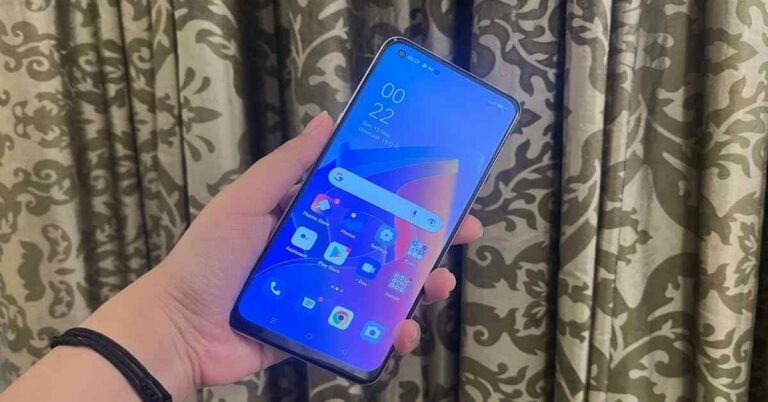
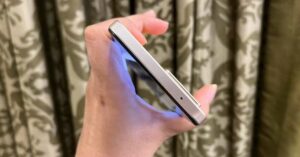
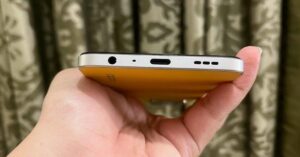
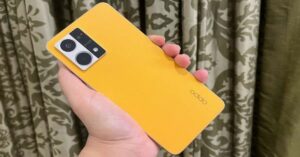 While the right edge of Oppo F21 Pro houses the Power button, the left one has the Volume Rocker keys and the SIM tray sandwiched on it. The Type-C port, speaker grill, 3.5mm headphone jack, and the microphone are placed on the bottom, and the top edge has the secondary microphone.
Flip over and you will see the front panel of the device dominated by the 6.4-inch screen outlined by thin bezels and a rather thick chin. The screen has the fingerprint scanner embedded in it and also houses a punch-hole selfie
While the right edge of Oppo F21 Pro houses the Power button, the left one has the Volume Rocker keys and the SIM tray sandwiched on it. The Type-C port, speaker grill, 3.5mm headphone jack, and the microphone are placed on the bottom, and the top edge has the secondary microphone.
Flip over and you will see the front panel of the device dominated by the 6.4-inch screen outlined by thin bezels and a rather thick chin. The screen has the fingerprint scanner embedded in it and also houses a punch-hole selfie 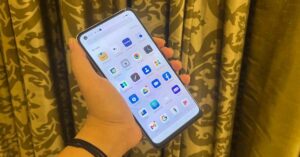 Moving on, the smartphone sports a 6.4-inch FHD+ AMOLED display that has a refresh rate of 90Hz. It also has WideVine L1 certification and can support HDR10 content. The colours showcased on the screen were vibrant and they stayed consistent at different viewing angles. Even the brightness was apt and the sunlight readability was decent. The images projected were also sharp and clear at all times and we really enjoyed watching video content on
  Oppo F21 Pro runs
  The battery of the handset was among its best features and whatever we did with our device, we easily got more than a day with the 4,500mAh cell. What makes it even better is that the battery goes from 0 to full while charging in just 90mins.
Oppo F21 Pro comes with a triple rear camera setup, as we had mentioned earlier. The primary 64MP lens gave us some good shots during the day and in well-lit settings. There was sharpness in the images, but there were times when the colours appeared to be a little too saturated. If you like your photos to be very vibrant, you may not mind it. You can also try clicking pictures with the ExtraHD mode enabled, which would basically scale the image to 108MP resolution, according to the company.
The battery of the handset was among its best features and whatever we did with our device, we easily got more than a day with the 4,500mAh cell. What makes it even better is that the battery goes from 0 to full while charging in just 90mins.
Oppo F21 Pro comes with a triple rear camera setup, as we had mentioned earlier. The primary 64MP lens gave us some good shots during the day and in well-lit settings. There was sharpness in the images, but there were times when the colours appeared to be a little too saturated. If you like your photos to be very vibrant, you may not mind it. You can also try clicking pictures with the ExtraHD mode enabled, which would basically scale the image to 108MP resolution, according to the company.
 With the microlens, you can zoom in to the smallest of objects around you and click some amazing shots of them, provided you can keep your hands stable. Using the ring light does make the picture better, but not phenomenally. There is also a monochrome sensor on the device, in case you are fond of B&W pictures.



 Step 2:
  Step 3:
  Step 4:
 Step 2:
 Step 2:
  Step 3:
  Step 4:

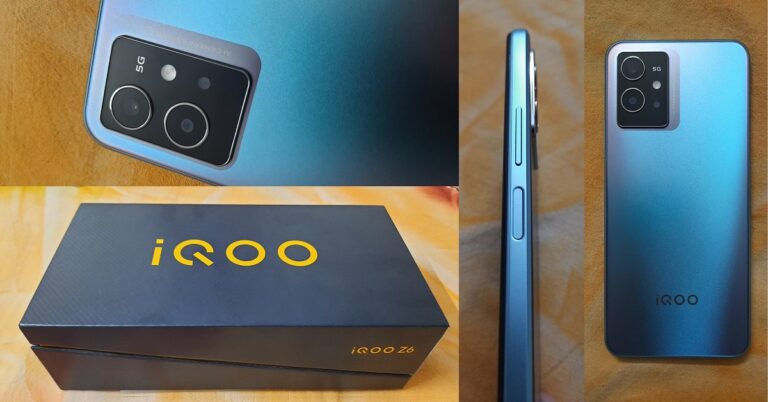




 iQOO Z6 5G: Rear Camera Photo Mode Vs Portrait Mode



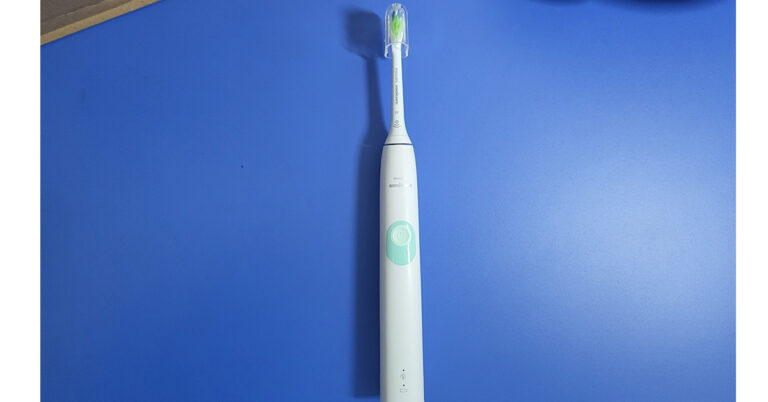
 An LED indicator is also there on the stem with a charging port. A mettle connector attaches the brush to the stem. There is only one brush attachment given in the box and for more, you would need to pay extra. A charging dock is also given in the box and the battery life is said to be 14 days and we got just about that. The device is dressed in white with a hint of blue as the power button.
 The company claims that the Philips Sonicare 4300 will not just clean your teeth but make them whiter too. In our short period with it, we did not see a drastic change, but our teeth and gums did feel refreshed and better than before. The brush is able to reach hard to reach areas of the mouth easily and clean it with decent to good precision. Over that, there is a smart brush replacement indicator on it too, which will tell the users when they need to replace the brush head.
Read Also:
The company claims that the Philips Sonicare 4300 will not just clean your teeth but make them whiter too. In our short period with it, we did not see a drastic change, but our teeth and gums did feel refreshed and better than before. The brush is able to reach hard to reach areas of the mouth easily and clean it with decent to good precision. Over that, there is a smart brush replacement indicator on it too, which will tell the users when they need to replace the brush head.
Read Also: 











 A lot of people don’t know this, but you can find out the source IP address of the sender using the email they sent you. Simply click the ellipses on the email and select ‘Show Original’. Look for the ‘Received’ section on the following page to find the IP address of the sender. Copy this IP address into an online IP locator tool to find the location of the sender. You can also copy the entire email header and use
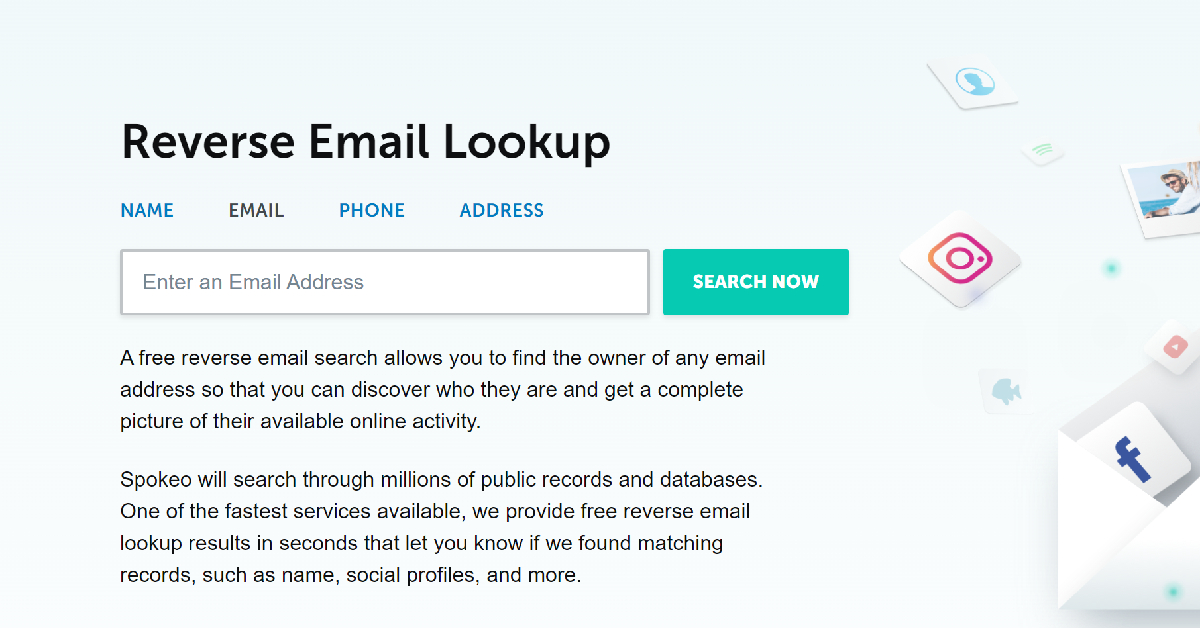 Websites like