In This Article
Remove your Phone Number from Instagram using the mobile app
Before you begin, make sure you’ve disabled Two Factor Authentication using text messages and added an email address to your Instagram profile. Step 1: Launch the Instagram app on your smartphone and go to your profile. Step 2: Select ‘Edit Profile’. Step 3: Select ‘Personal information settings’.
 Step 4: Tap the cross icon next to your number to delete it.
Step 5: Hit ‘Next’ to save your changes.
Step 4: Tap the cross icon next to your number to delete it.
Step 5: Hit ‘Next’ to save your changes.
Remove your Phone Number from Instagram using the desktop website
Step 1: Open Instagram on your PC’s web browser and go to your profile. Step 2: Click on ‘Edit Profile’ or professional account.
 Step 3: Go to the phone number box and click on ‘Remove the number’.
Step 4: Click on Submit to save the changes.
Step 3: Go to the phone number box and click on ‘Remove the number’.
Step 4: Click on Submit to save the changes.
Disable contact syncing on Instagram
If you do not want Instagram to access your contacts, disable contact syncing. Here’s how. Step 1: Launch the Instagram app on your phone and go to your profile. Step 2: Tap on the hamburger menu. Step 3: Select ‘Settings and privacy’.
 Step 4: Tap on ‘Accounts Centre’.
 Step 5: Tap on ‘Your information and permissions’.
 Step 6: Select ‘Upload Contacts’.
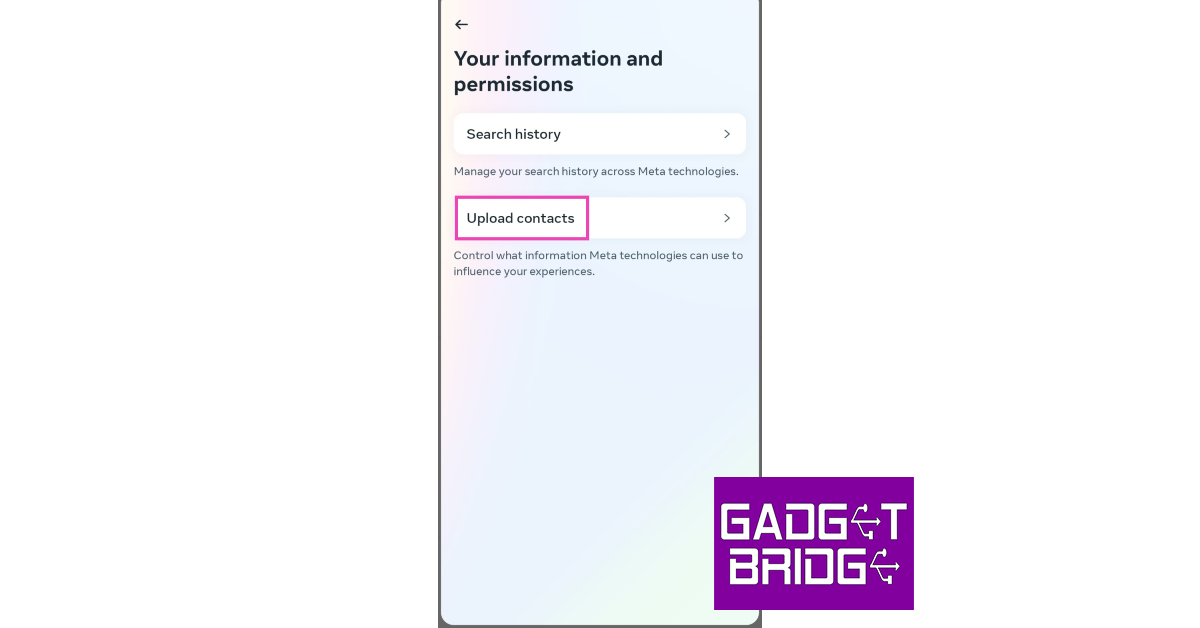 Step 7: Turn off the toggle bar for ‘Connect Contacts’.




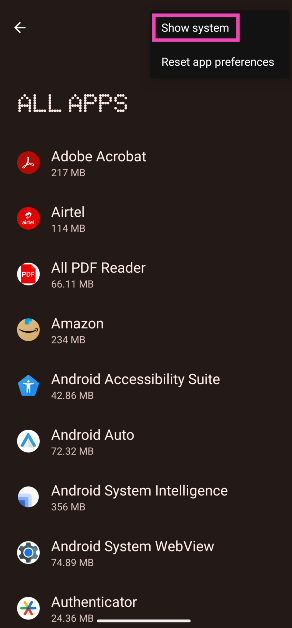
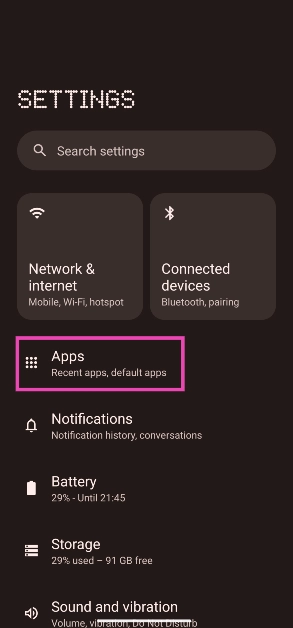 Step 2: Tap the ellipses at the top right corner of the screen and select System apps.
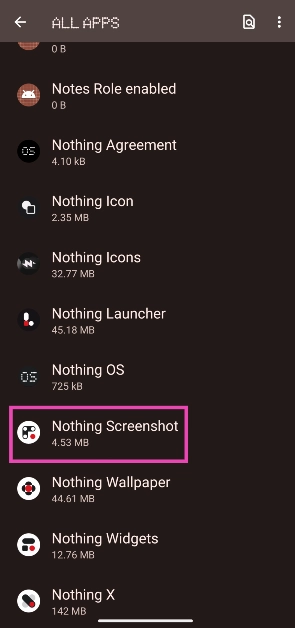
 Step 3: Scroll down and select the screenshots app.
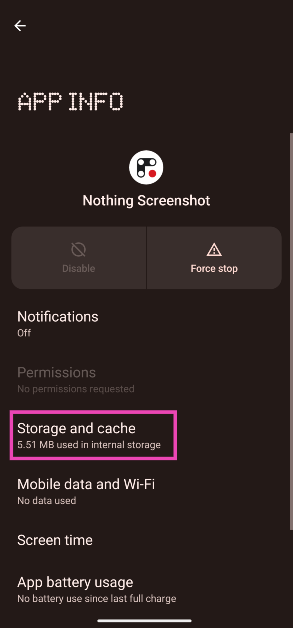
 Step 4: Tap on Storage and cache.
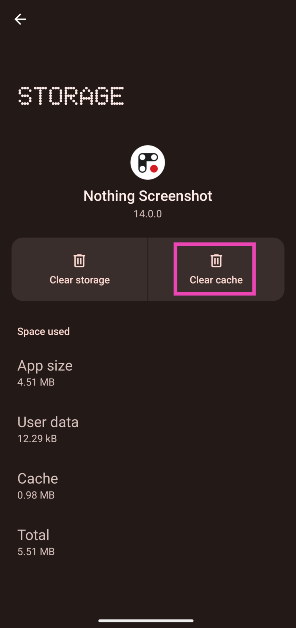
 Step 5: Hit Clear cache.



 Step 2:
 Step 3:
 Step 4:
















 Step 3:
 Step 4:







 Step 2:
 Step 3:
 Step 4:
 Step 5:

 Step 2:
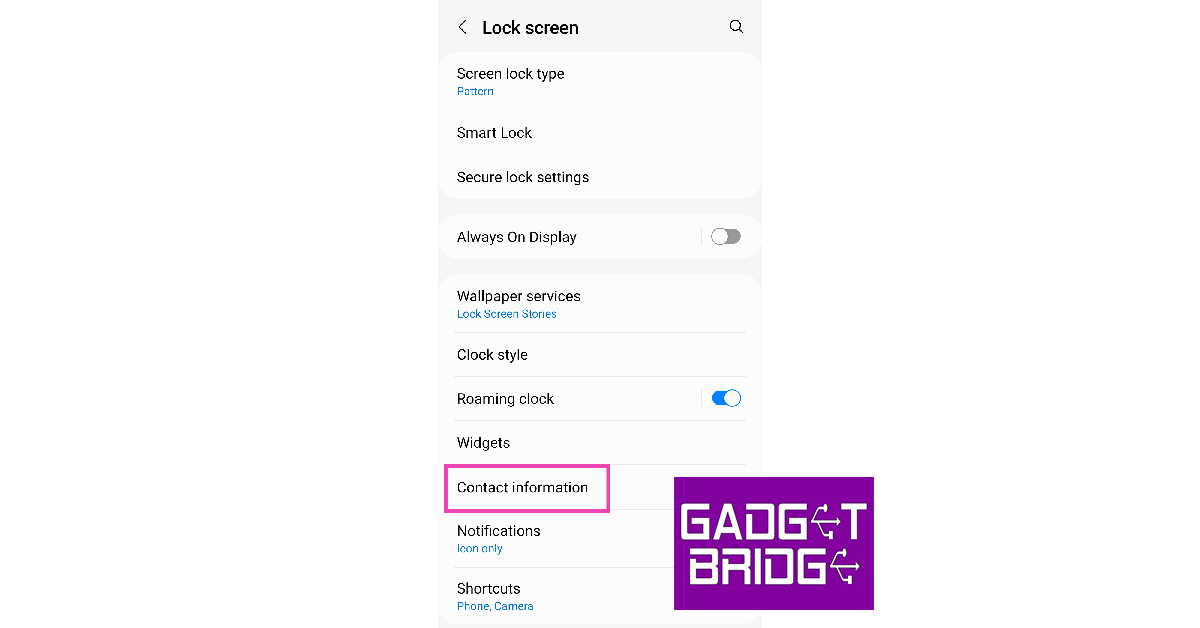 Step 3:
 Step 4:
 Step 3:
 Step 4:
 Step 6: