

In This Article
Restore data from a local backup
If you keep your personal data backed up locally, you will not have any trouble restoring it after a factory reset of your Android phone. Local backups can be created on a memory card, a pen drive, an external hard drive, or even on your PC. Creating a local backup is recommended for personal data like photos, videos, and documents like your IDs, books, and more. Stuff like chat history, contacts, and apps are more suited for an online backup. Here’s how you recover your data using a local backup after performing a factory reset on your Android smartphone. Step 1: Connect your Android phone to your PC or laptop using a USB cable. If you have created a local backup of your data on a pen drive or an external hard disk, make sure you copy it on your PC first. If the backup was created on a memory card, insert it on your smartphone and skip this step. Step 2: On your Android smartphone, go to Settings>Accounts and backup, and select ‘External storage transfer’. Step 3: Locate the backup on your computer or memory card and click on ‘Restore’.
Restore data from an online backup
 Cloud storage services like Google Drive and Dropbox come in extremely handy to create an online backup of your data at a very nominal cost. Google Drive offers the first 15GB of storage free of cost. For a lot of users, 15GB is enough to back up all the important stuff from their phone. Creating an online backup has its own advantages. Firstly, you can automatically sync your data and update the backup, without needing to check on it every other week. Secondly, creating an online backup gets rid of the hassle of always plugging in an external storage device and backing data up manually. Here’s how you can recover your data from an online backup.
Step 1: Launch your phone after performing a factory reset.
Step 2: Login using the Google Account in which you backed up all your data.
Step 3: While setting up your device, tap on the ‘Restore backup’ option.
Step 4: Tap on ‘Automatic restore’ to recover your backed-up data from Google Drive.
If you skipped the restore option while setting up your device, go to Settings>Accounts and backup and select ‘Restore data’.
Cloud storage services like Google Drive and Dropbox come in extremely handy to create an online backup of your data at a very nominal cost. Google Drive offers the first 15GB of storage free of cost. For a lot of users, 15GB is enough to back up all the important stuff from their phone. Creating an online backup has its own advantages. Firstly, you can automatically sync your data and update the backup, without needing to check on it every other week. Secondly, creating an online backup gets rid of the hassle of always plugging in an external storage device and backing data up manually. Here’s how you can recover your data from an online backup.
Step 1: Launch your phone after performing a factory reset.
Step 2: Login using the Google Account in which you backed up all your data.
Step 3: While setting up your device, tap on the ‘Restore backup’ option.
Step 4: Tap on ‘Automatic restore’ to recover your backed-up data from Google Drive.
If you skipped the restore option while setting up your device, go to Settings>Accounts and backup and select ‘Restore data’.
Recover data from your device using DroidKit
If you do not have an updated backup for your data, there is still a way to recover it after performing a reset on your Android phone. Android tools like DroidKit have special functions that let you recover lost data on your device. Follow these steps to restore data on your phone using DroidKit. Step 1: Download and install DroidKit on your PC from here. Step 2: Click on ‘Quick recovery from device’ under the ‘Data Recovery’ section. Step 3: Select the kind of data you want to recover.
 Step 4: Connect your Android smartphone to your PC using a USB cable. Make sure USB debugging is enabled on your phone. You can read how to enable it here.
Step 5: Let DroidKit deep scan your device for deleted data.
Step 4: Connect your Android smartphone to your PC using a USB cable. Make sure USB debugging is enabled on your phone. You can read how to enable it here.
Step 5: Let DroidKit deep scan your device for deleted data.
 Step 6: Go through the selected data and select the files you want to keep. You can choose to keep the files on your PC or on the phone.
 Step 7: Unplug your phone after data has been recovered.
Recover data using Dr.Fone
Dr.Fone is another great tool to recover data after performing a factory reset on your Android phone. Here’s how you can use it. Step 1: Download and install Dr.Fone on your PC from here. Step 2: Launch Dr.Fone and select ‘Data Recovery’.


 Step 4:
 Step 5:
 Step 2:
 Step 4:
 Step 5:



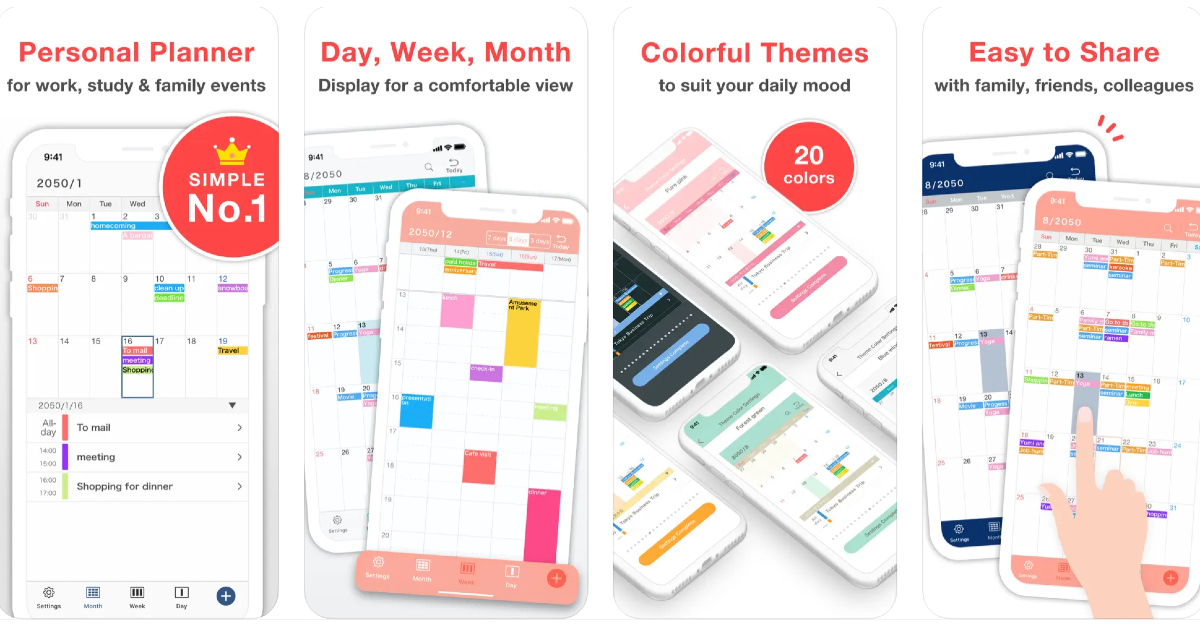 As the name suggests,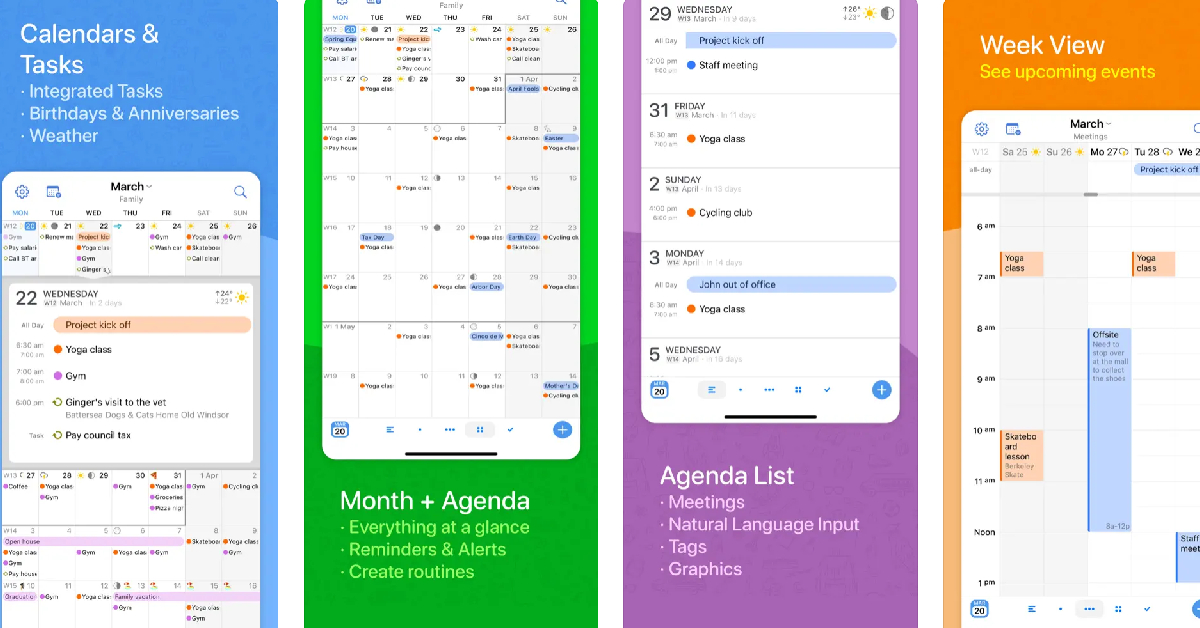
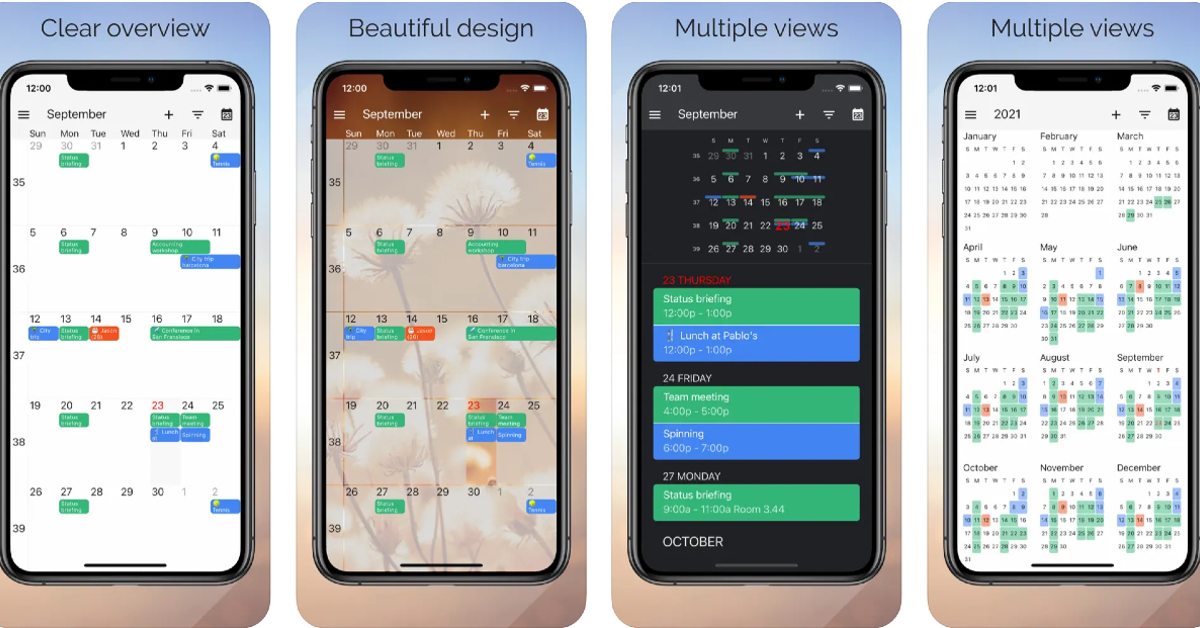 If you use multiple calendar apps on your iPhone,



 Step 3:
 Step 4:
 Step 5:
 Step 6:
 Step 7:
 Step 8:
 Step 9:



 Step 3:
  Step 4:






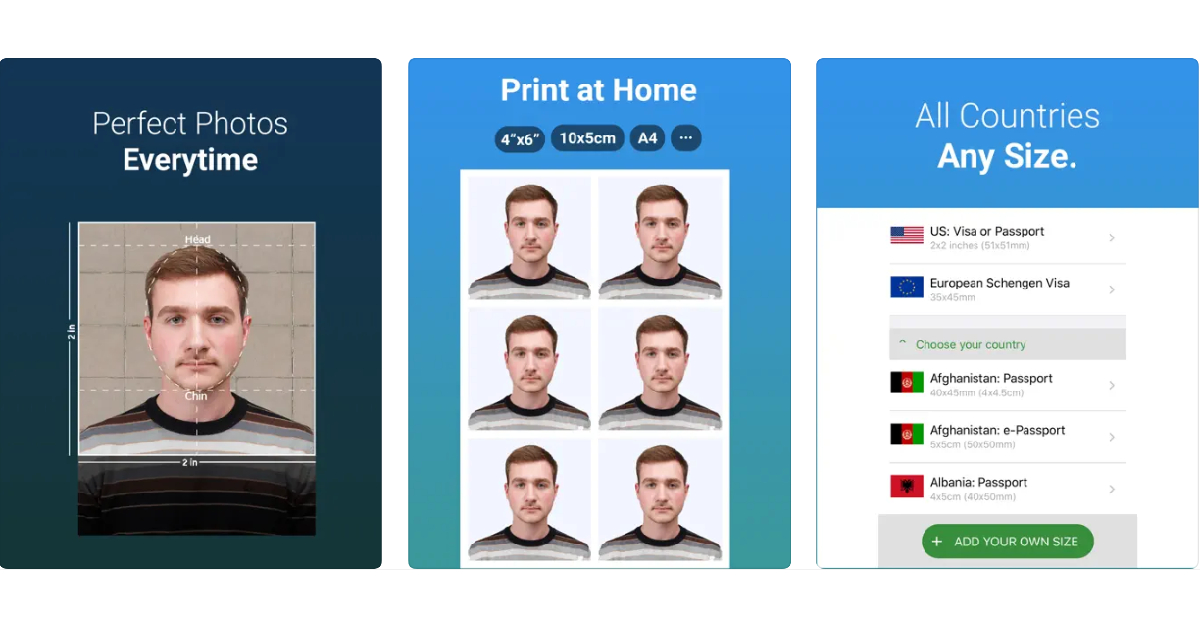


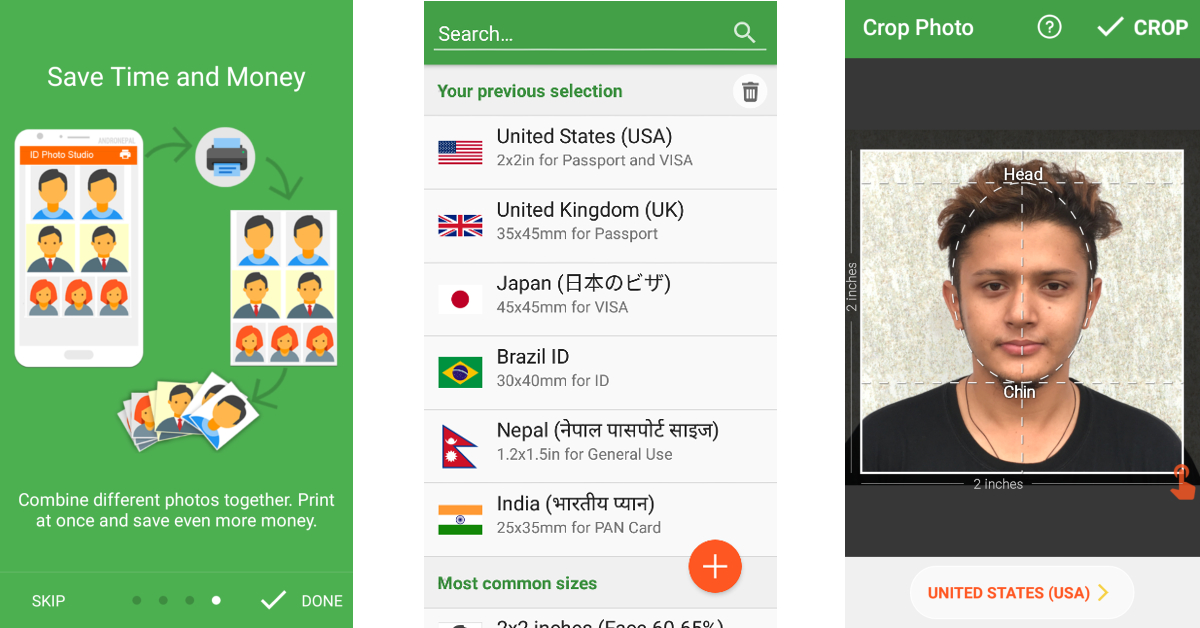 With over 10 million downloads on Google Play Store alone, Passport Photo Maker is one of the most popular passport photo apps around. What makes this app a fan favourite is its phenomenal range of editing tools. You can juxtapose several copies of a passport photo on an A4 size sheet of paper and save it to get it printed out later. This app is also capable of creating official photo sizes for IDs, passports, and VISA of different counties like Brazil, Spain, India, USA, and more.
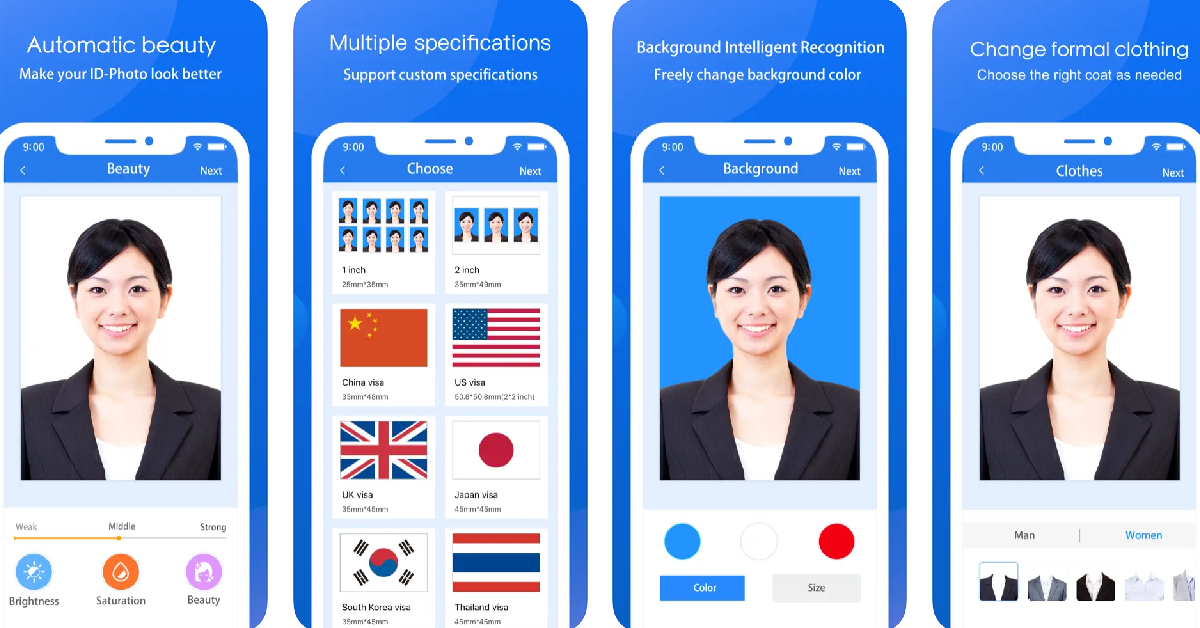 The ID Photo app lets you edit the passport-size photo to make it look more brightened and legible. You can also choose to edit the background and your clothes. This app can be used to edit photos for passports, IDs, VISA, green cards, naturalisation certificates, school documents, corporate identification, firearms permits, and more. It has dimensional presets for multiple countries, so you don’t have to look up the size of the photo for the VISA of the country you are about to visit.
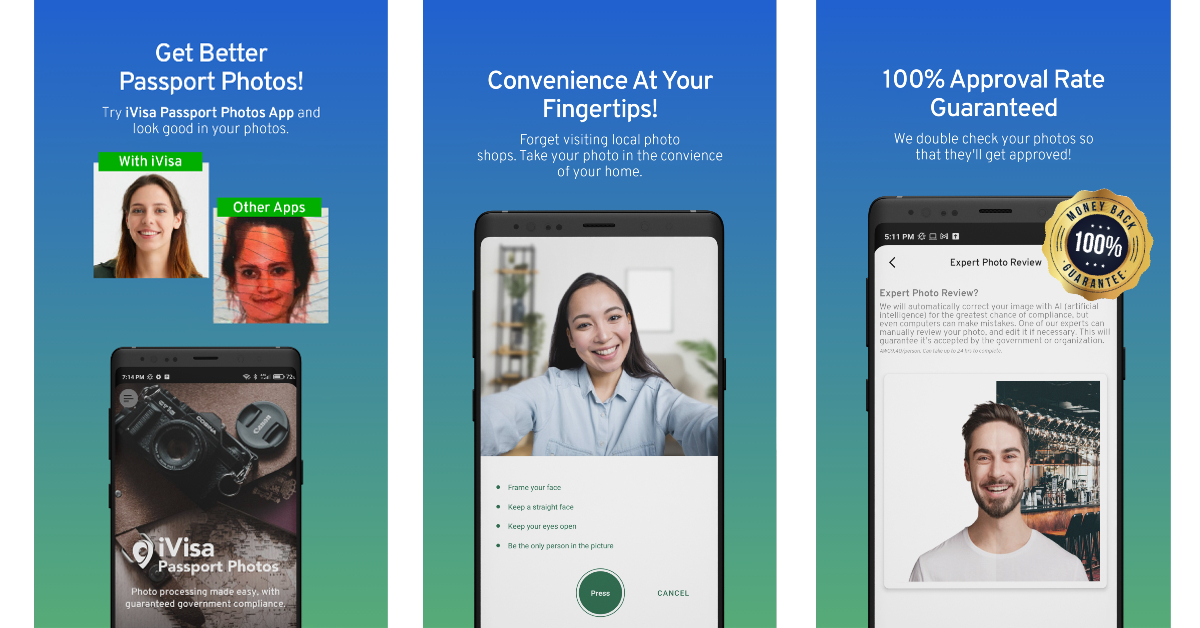 The Passport and VISA photos app simplifies the process of taking a passport-sized photo at home. This app guides you through the process of taking the perfect passport-sized picture. Once you’ve shot an image, the app will review whether it fits the perfect dimensions for the official document. It also offers to deliver printed photos directly to your doorstep.
















 Step 3: