

In This Article
Check if background notifications are enabled
Disabling background notifications for an app prevents it from sending alerts to your phone. Here’s how you can check if WhatsApp’s background notifications are disabled. Step 1: Go to Settings and select Apps. Step 2: Scroll down and select WhatsApp.
 Step 3: Tap on Notifications.
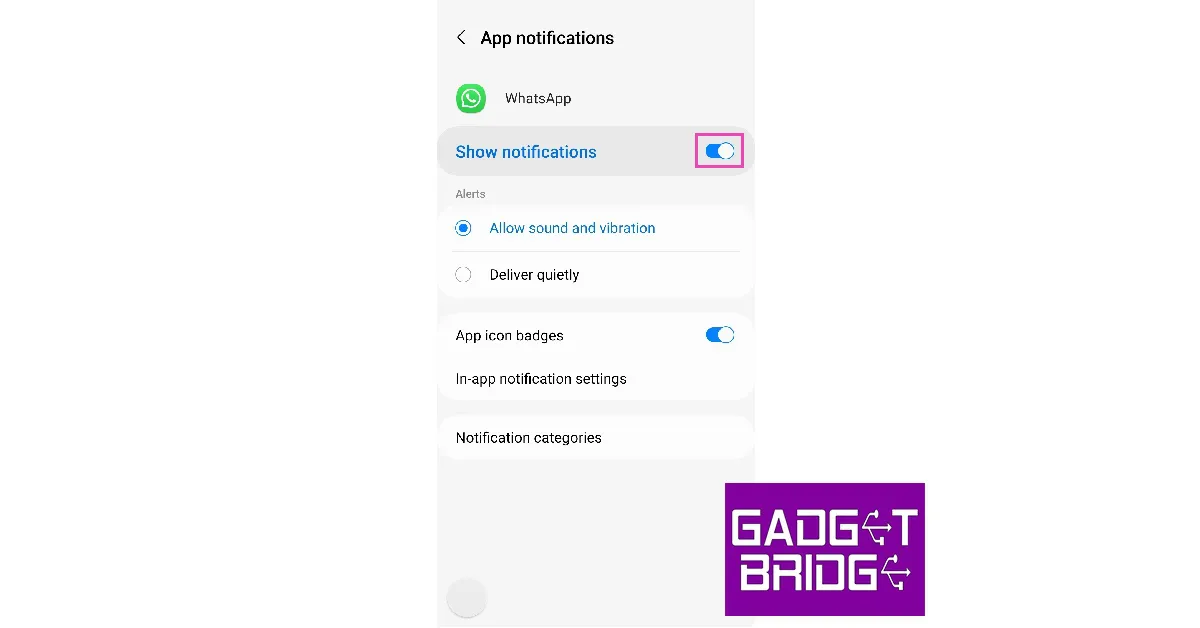
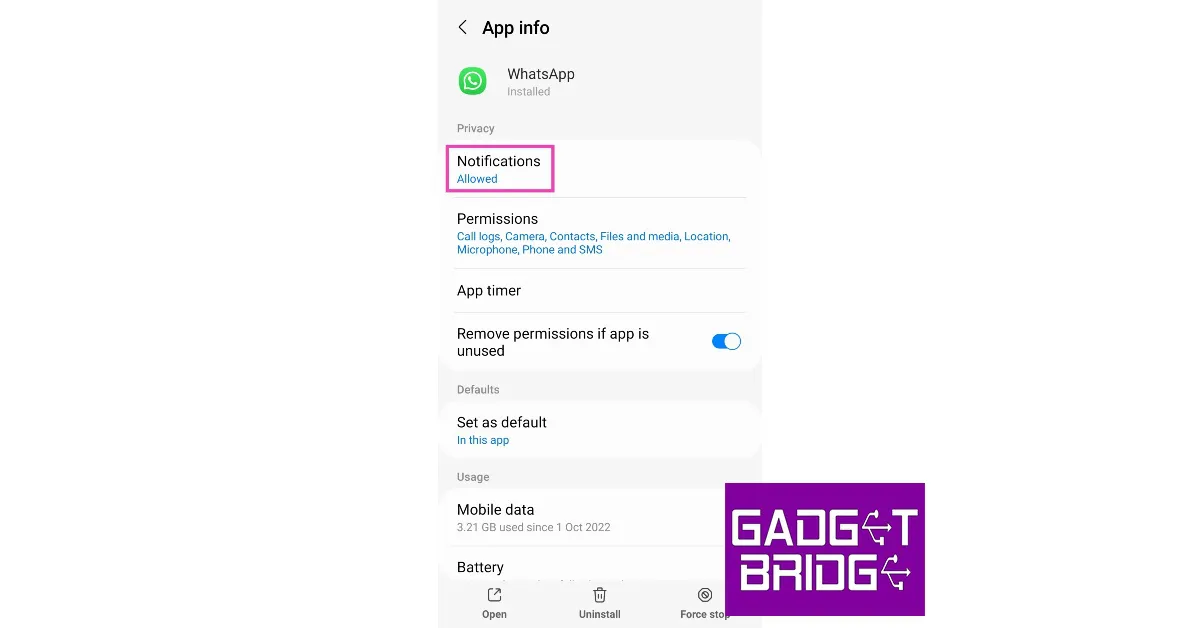 Step 4: Make sure that the toggle bar to Show notifications is turned on. Additionally, make sure you have selected Allow sound and vibration under Alerts instead of Deliver quietly.
Make sure Do Not Disturb is turned off
 Do Not Disturb does what it implies. Once you turn it on, you will not be ‘disturbed’ by text notifications or call alerts. If someone is calling you on WhatsApp, it won’t show up on your screen. If your WhatsApp calls are not ringing, it is possible that you may have turned on DND but forgotten to turn it off. In order to disable Do Not Disturb, simply drag the drop-down menu and tap on the DND icon.
Check your internet connection
 If you’re connected to a weak network, WhatsApp won’t notify you of incoming calls. Instead, you will receive a notification when the caller hangs up. Perform a quick internet speed test to confirm whether the fault lies with your network. Load other web pages to see if the network is acting sluggish on your device. Switch to a stronger network to receive WhatsApp calls again.
Restart your device
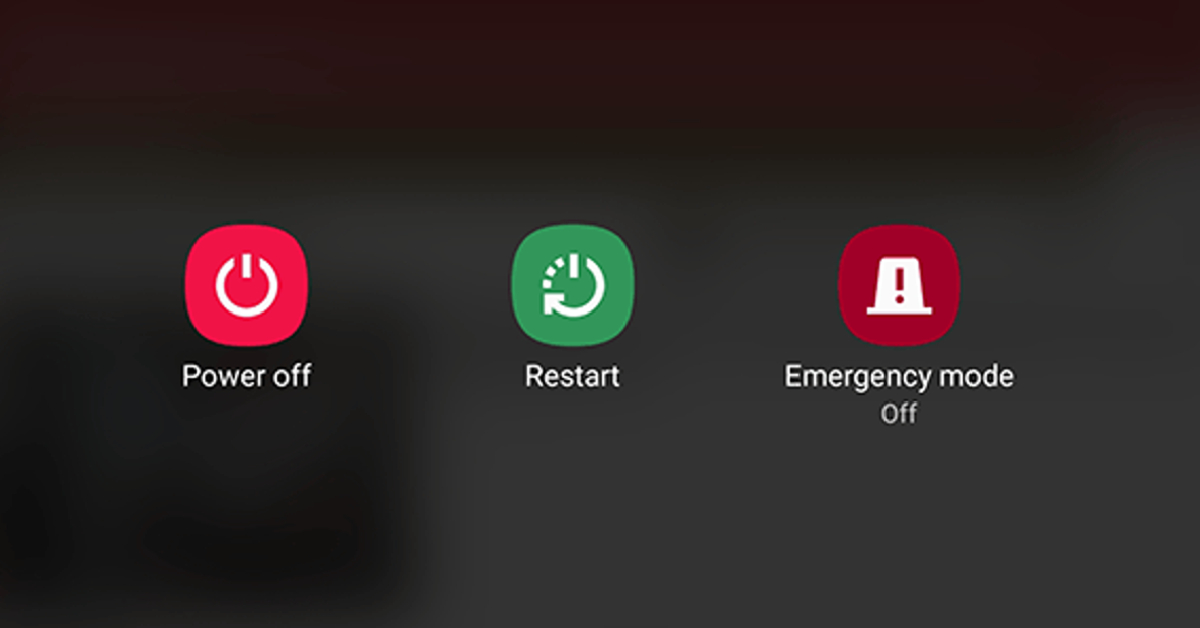 Restarting your device refreshes the network and resolves any background glitches that may be causing WhatsApp to malfunction. Long-press the side key and select ‘Restart’ from the power menu. If long-pressing the side key triggers the voice assistant, press it along with the volume-up button to open the power menu.
Clear app cache
Corrupted files in the cache memory can keep an app from carrying out its most basic functions. Here’s how you can clear WhatsApp’s app cache. Step 1: Go to Settings. Step 2: Select Apps.
Step 3: Select WhatsApp.
Step 4: Tap on Storage.
 Step 5: Select Clear Cache.

Make sure background data is turned on for WhatsApp
When your phone is locked, WhatsApp still keeps working in the background to notify you of any incoming calls or messages. If WhatsApp calls aren’t ringing when your phone is locked, it may be because the app does not have access to background data. Here’s how you can ensure that background mobile data for WhatsApp is turned on. Step 1: Go to Settings and select Apps.
Step 2: Scroll down and select WhatsApp.
Step 3: Tap on Mobile Data under Usage.
 Step 4: Turn the toggle bar on for Allow background data usage and Allow data usage while Data saver is on.

Update WhatsApp
Sometimes an older version of WhatsApp may encounter an issue that is fixed in later updates. This is why it is essential you keep the app updated. In order to update WhatsApp, simply go to the Google Play Store and search for WhatsApp. Open the app page and select ‘Update’.Reinstall WhatsApp
If you’re using the latest version of WhatsApp, uninstall it from your device and reinstall it from the Google Play Store. Tap and hold the icon for WhatsApp from the app drawer on your device. In the pop-up menu, select Uninstall. Now, go to the Google Play Store, search for WhatsApp, and hit Install.Force Stop WhatsApp
Step 1: Go to Settings and select Apps.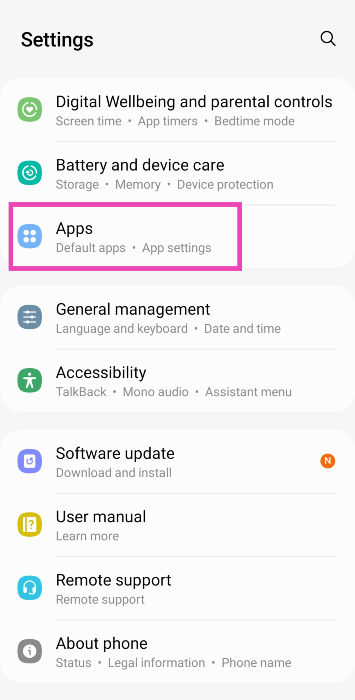 Step 2: Select WhatsApp.
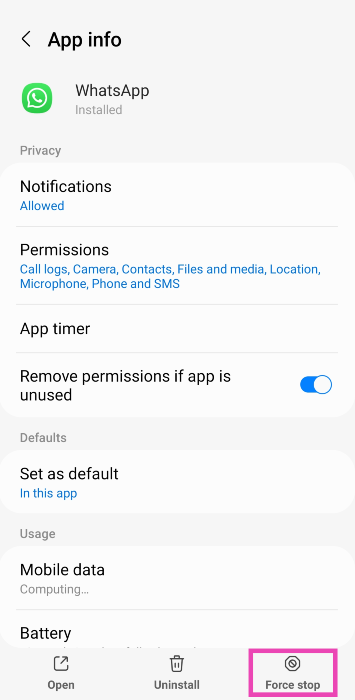
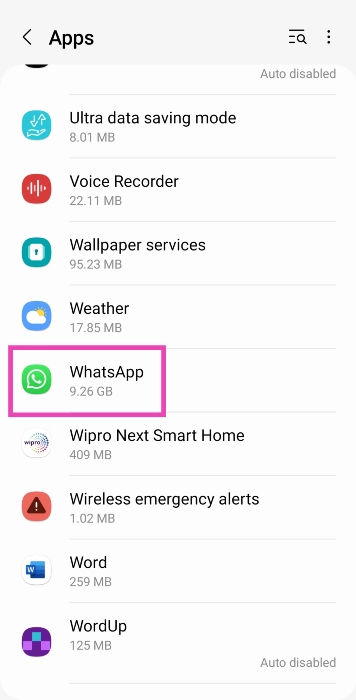 Step 3: Hit Force Stop at the bottom of the screen.
Give WhatsApp the necessary permissions
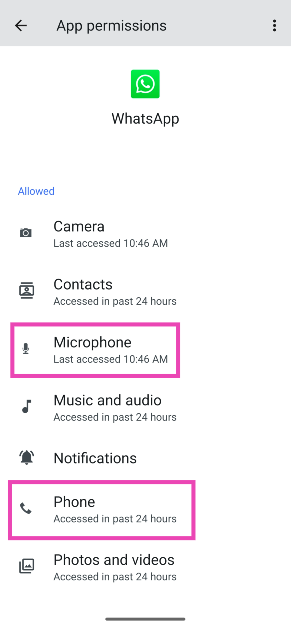
If the incoming WhatsApp calls on your Android phone aren’t ringing, check the app’s permissions. Make sure it has access to Phone and Microphone. Step 1: Go to Settings and select Apps.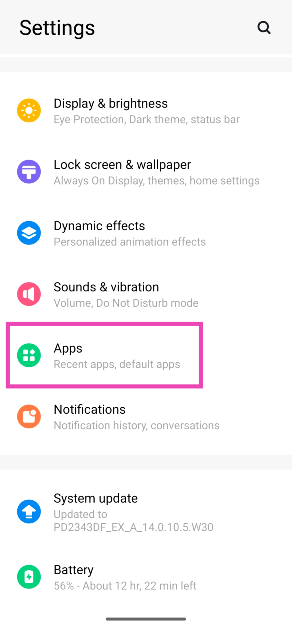 Step 2: Select WhatsApp.
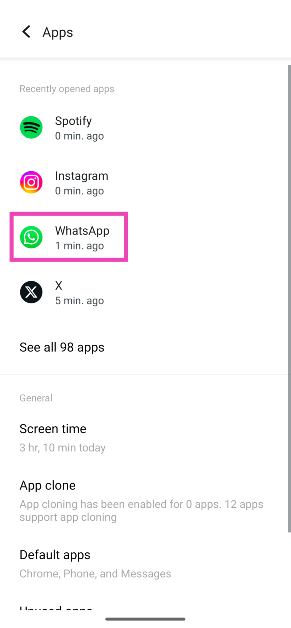 Step 3: Tap on Permissions.
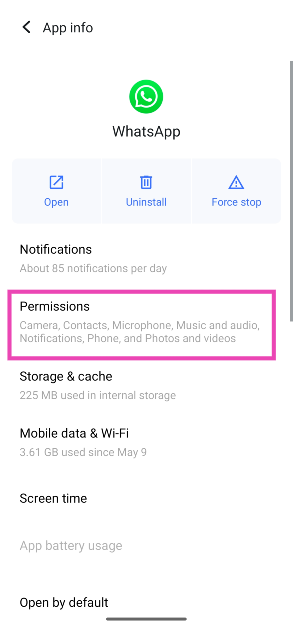 Step 4: Make sure WhatsApp has access to Phone and Microphone.
Update your phone’s OS
Step 1: Go to Settings and hit Software update.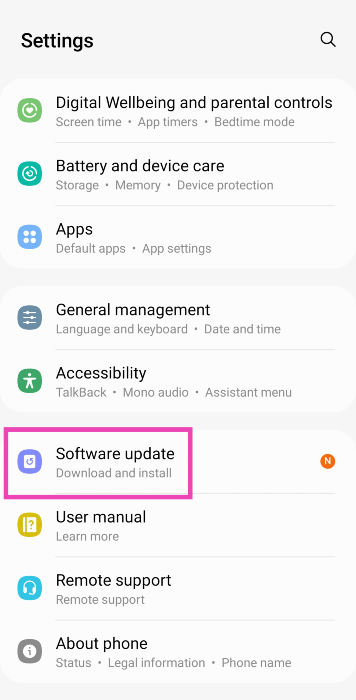 Step 2: Tap on Download and Install.
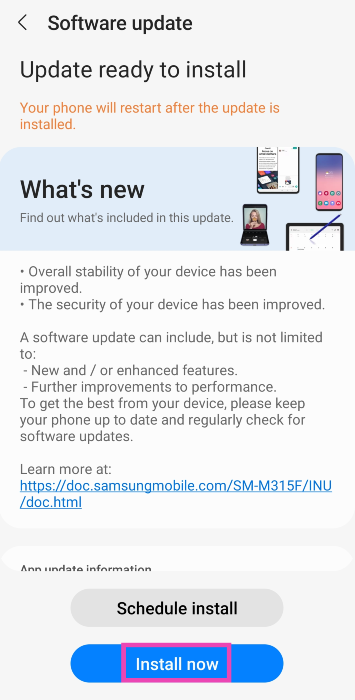
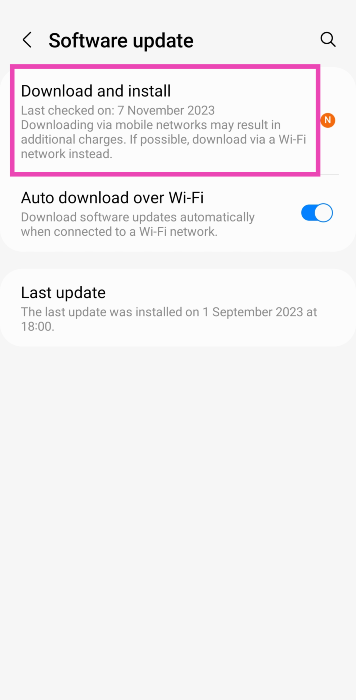 Step 3: Once the update has been downloaded, tap on Install Now.
Turn off battery saver mode
 When your smartphone’s battery drops below a certain threshold, it automatically turns on the battery-saver mode. When enabled, the battery-saver mode kills a lot of background activity for most of the apps on your phone to preserve the battery. This may be the reason why you are not receiving WhatsApp calls on your phone. You can disable the battery saver mode by simply opening the drop-down menu and deselecting ‘Power Saver’. You can also disable it by going to Settings>Battery and device care>Battery>Power saver.


 Also Read:











 Step 2:
 Step 3:
 Step 4: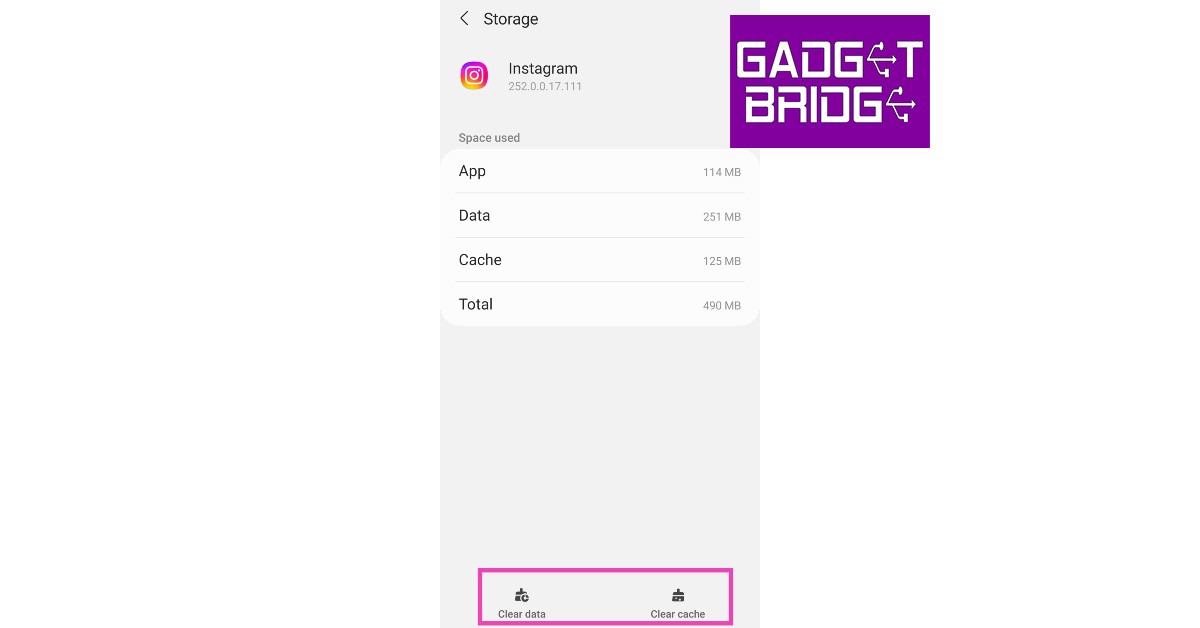

 Sometimes, installation issues can cause an app to malfunction on your phone. If you just installed the Instagram app and can’t get it to work, uninstall and reinstall it again on your device. You can use the Google Play Store or your OEM’s exclusive app marketplace for this task.

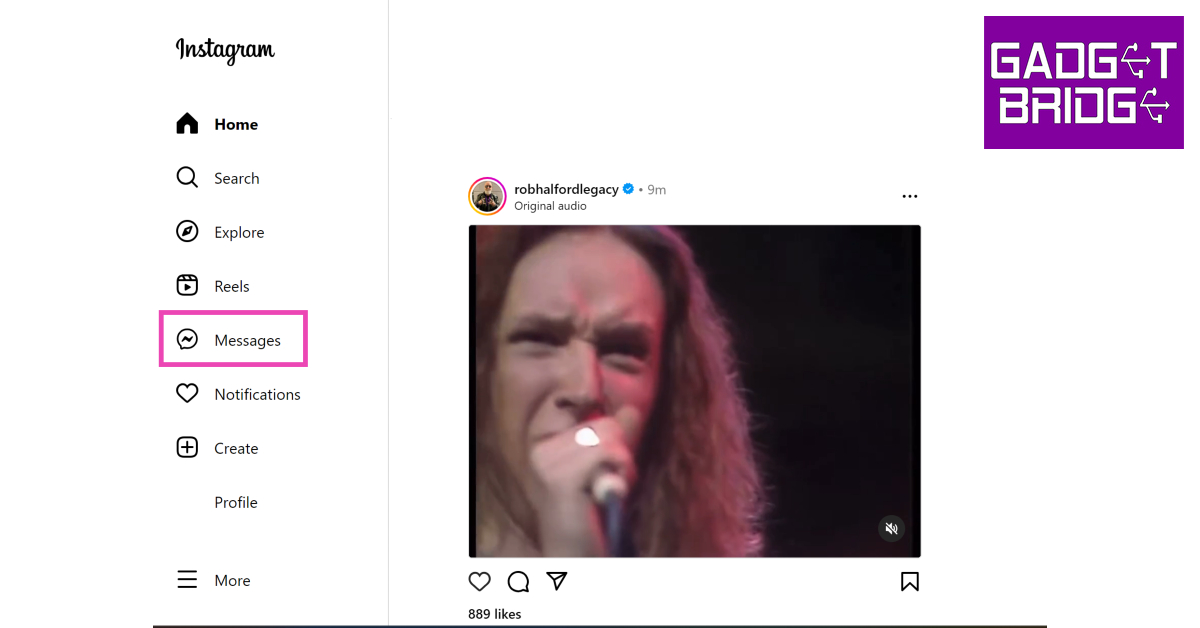 It is possible that the problem may lie with Instagram’s mobile app and not the DM service itself. In this case,
  If you’re not a fan of Instagram Web, use the Instagram Lite app instead. This lightweight app uses less data and loads faster than the regular Instagram app. The issues plaguing the regular app may not persist on the Lite version. If your Instagram DMs are not working, the Lite app is worth giving a shot.
 Step 2:
 Step 3:
 Step 4:
 Step 4:
 Step 3:
 Step 4:
 Step 5:
 Step 6:
 Step 7:
 Step 6:
 Step 6:
 Step 7:


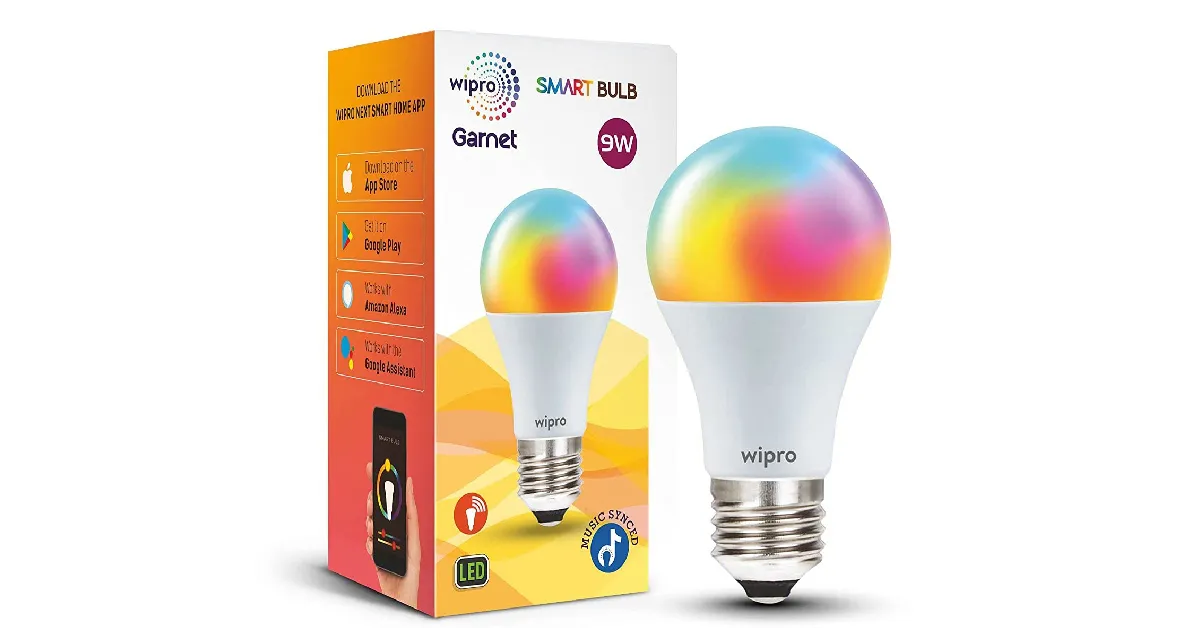

 Below is a list of every key feature that was included in the New State Mobile January Update.




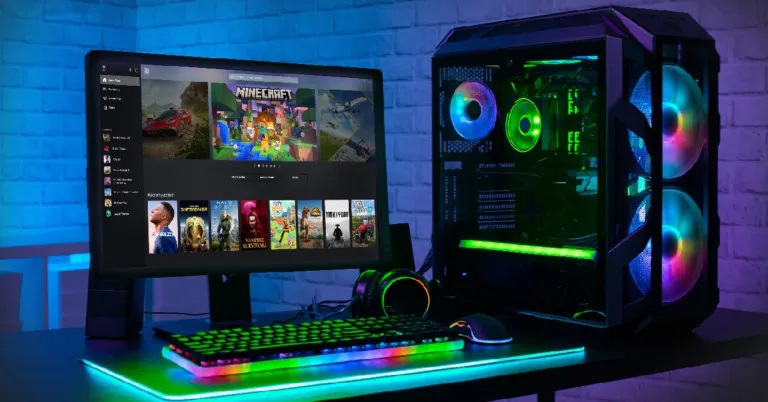

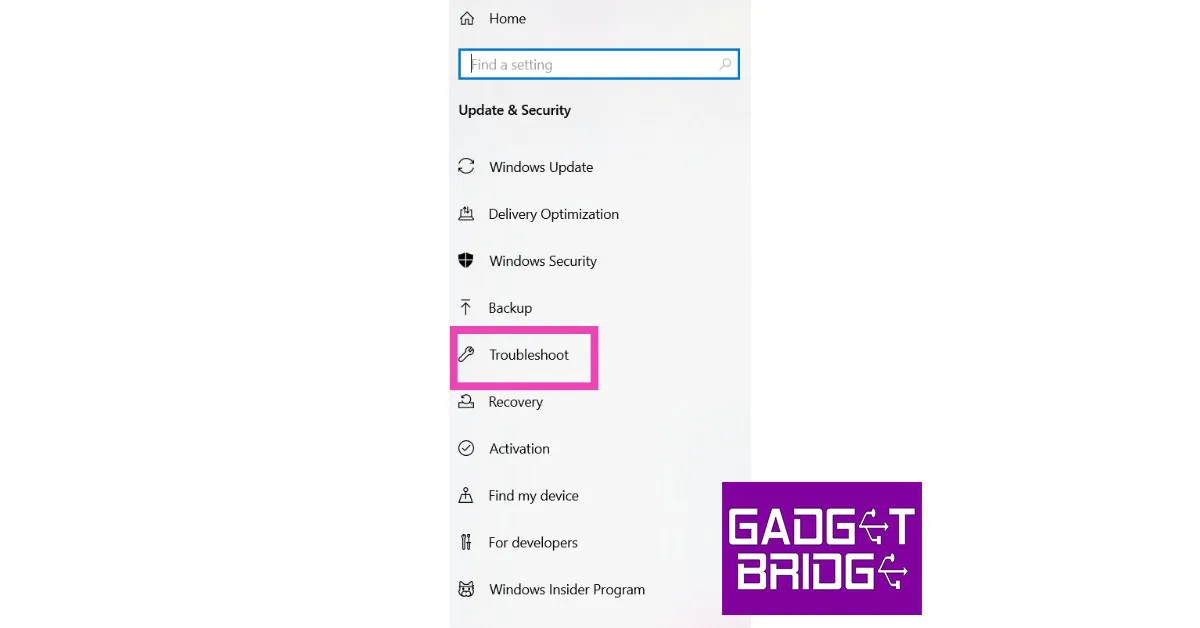


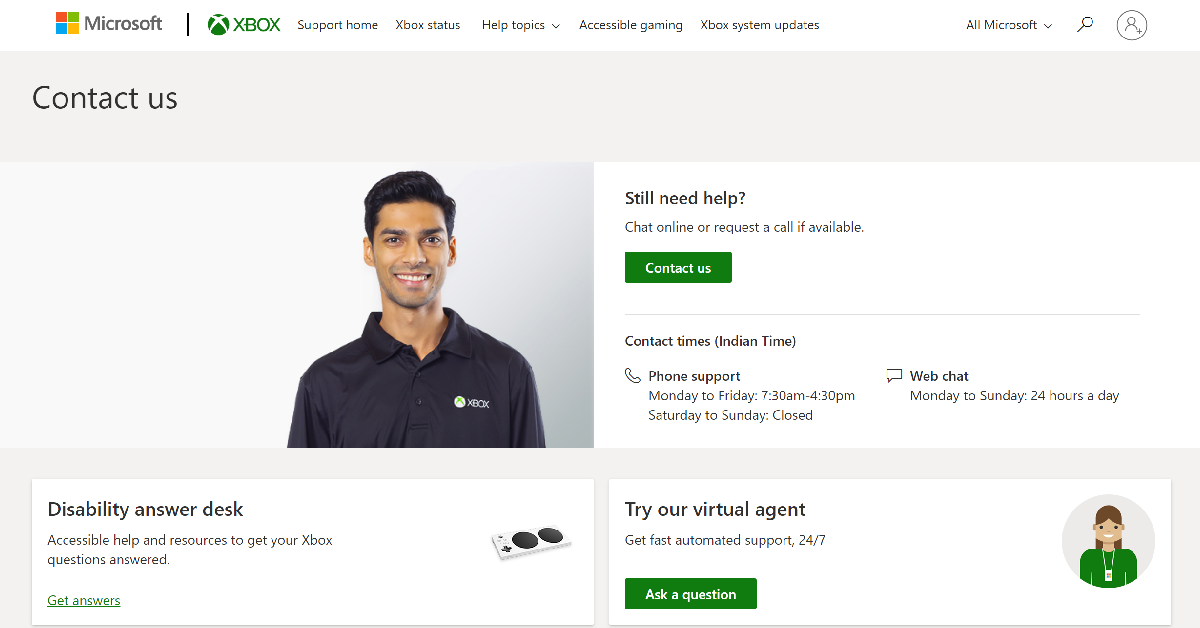 If the fixes mentioned above did not work out for you, try contacting Xbox support. Go to the Xbox Support Page, sign into your account, and select Contact Us. You can choose to call the support staff or have a chat over the Internet.

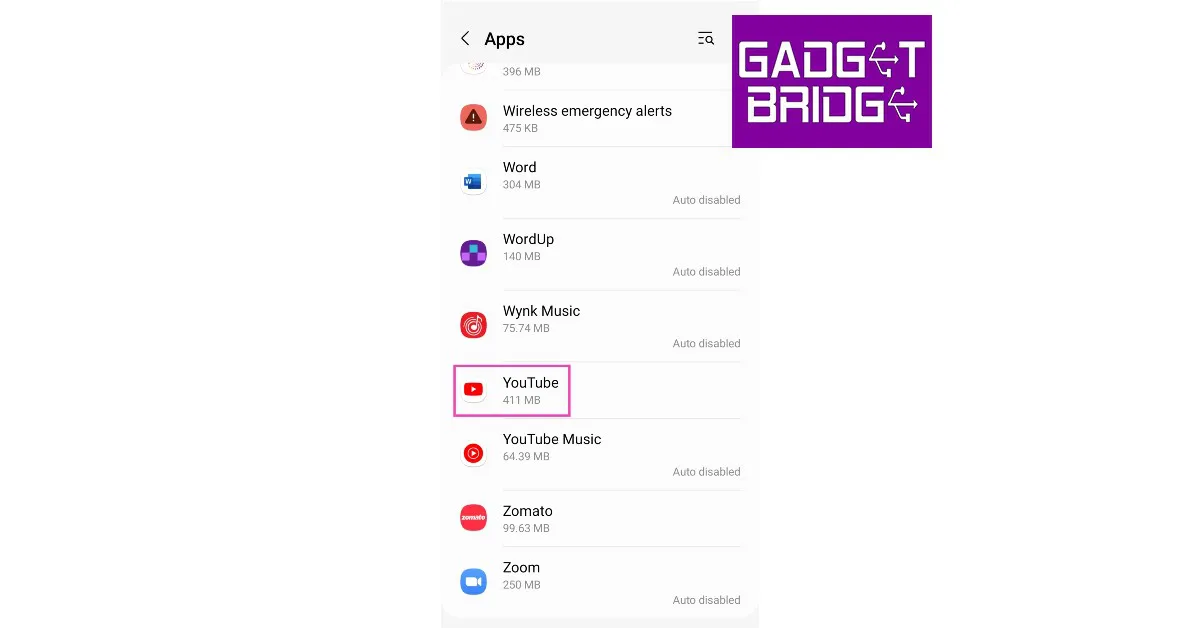 Step 3:
 Step 4:


 Sometimes an update can install improperly on your device, causing the app to malfunction. Uninstall the app and then reinstall it from the Play Store (or any other app marketplace) to fix this issue. Most OEMs have their independent app stores which can be used to install YouTube if you don’t want to rely on the Google Play Store. Third-party app marketplaces like APKMirror and APKPure will also do the trick.

 Also Read:







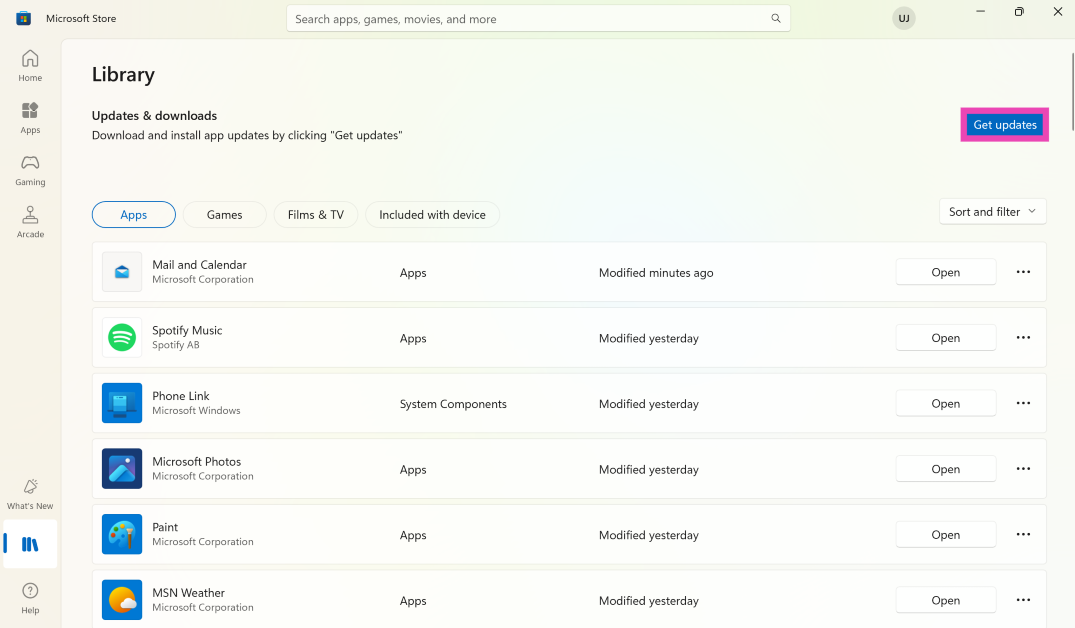
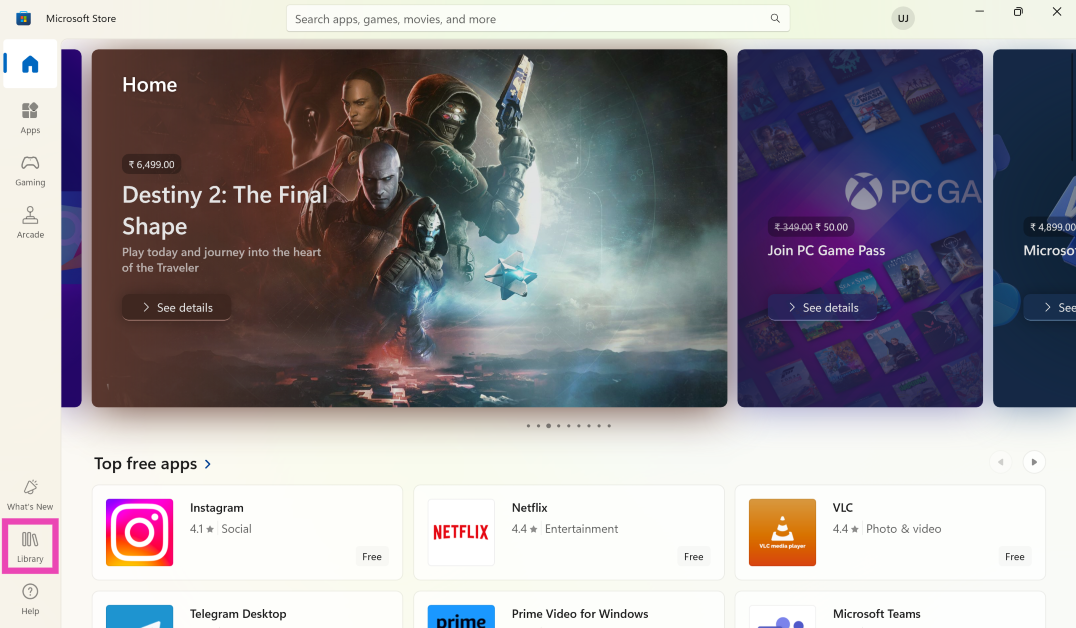 Step 3: Click on Get Updates. This is where you’ll find pending updates for the apps as well as the Microsoft Store.
 Step 2:
 Step 3: