Asus ROG Phone 6 and ROG Phone 6 Pro with 165Hz AMOLED display and Snapdragon 8+ Gen 1 SoC launched in India

0
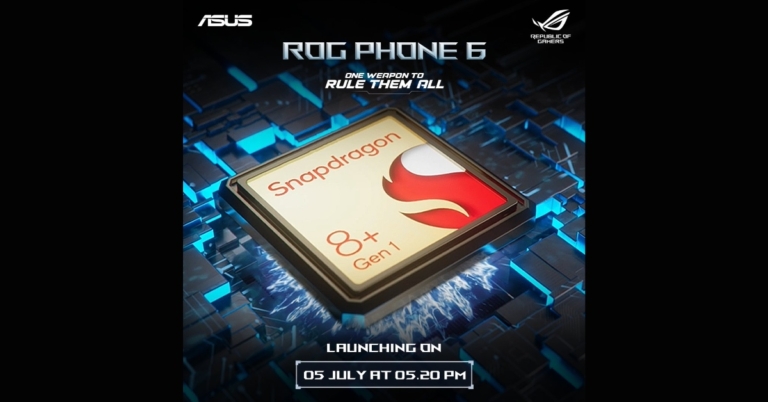
Asus has officially announced the launch of the new ROG Phone 6 series in the Indian market and globally today. The new Republic of Gamers series includes two gaming phones Asus ROG Phone 6 and ROG Phone 6 Pro. Both the devices feature a 165Hz AMOLED display along with a 50MP triple rear camera set-up. Moreover, the phones are the first to be powered by the latest Snapdragon 8+ Gen 1 processor.

Asus ROG Phone 6 and ROG Phone 6 Pro price in India, availability

Asus ROG Phone 6 has been launched in a single 12Gb RAM with 256GB storage option priced at Rs 71,999. Whereas the single 18GB RAM with 512GB storage model of ROG Phone 6 Pro will be available with a price tag of Rs 89,999. The Phantom Black and Storm White colour options for the Asus ROG Phone 6 and the Storm White colour option for the Asus ROG Phone 6 Pro are both available. The information regarding the sale and availability will be released later. However, both the devices will be available via Flipkart when they goes on sale in the country.

Asus ROG Phone 6 specifications

Asus ROG Phone 6 features a 6.78-inch full-HD+ Samsung AMOLED display having 1,080×2,448 pixels of resolution. It has a Pixelworks i6 Processor, supports a refresh rate of 165Hz, a touch sampling rate of 720Hz. It comes with a response time of 1ms, a touch latency of 23ms, compatibility for HDR10+, and a maximum brightness of 1200 nits. The display has 2.5D curved glass with Corning Gorilla Glass Victus protection. Asus ROG Phone 6 specifications The Qualcomm Snapdragon 8+ Gen 1 SoC and Adreno 730 GPU are found inside the Asus ROG Phone 6 with 12GB of RAM with UFS 3.1 storage capacity of 256GB. It has a GameCool 6 cooling system from Asus. It includes an updated, 360-degree CPU cooling system that dissipates heat more effectively. The Asus ROG Phone 6 includes three back cameras for photography. It has 50-megapixel Sony IMX766 primary sensors, 13-megapixel, 125-degree wide-angle cameras, and 5-megapixel, close-up cameras. The smartphone is equipped with 12-megapixel cameras for selfies and video calls. In terms of connectivity, Asus ROG Phone 6 has 5G, 4G LTE, Wi-Fi 6 with 802.11 a/b/g/n/ac/ax, Wi-Fi Direct, Bluetooth v5.2, NFC, and two USB Type-C ports as connectivity options. Along with the GNSS systems GPS, Glonass, Galileo, Beidou, QZSS, and NaviC, onboard sensors also include an accelerometer, e-compass, proximity sensor, ambient light sensor, under-display fingerprint sensor, gyroscope, and ultrasonic sensors for grip press and AirTrigger 6. There is a 6,000mAh battery on board which offers fast charging at up to 65W. To connect the ROG phones to a PS4, Xbox, or Stadia controller with an adjustable arm, there is also a ROG Kunai 3 Gamepad, an expansion dock, and a ROG Clip.

ROG Phone 6 Pro specifications

The 6.78-inch full-HD+ Samsung AMOLED display on the ROG Phone 6 Pro has a resolution of 1,080×2,448 pixels. It has a Pixelworks i6 Processor, which provides a 165Hz refresh rate and a 720Hz touch sampling rate. It has a maximum brightness of 1200 nits, a response time of 1 ms, a touch latency of 23 ms, and HDR10+ support. The display is protected by 2.5D curved Corning Gorilla Glass Victus. The Pro model also has a tiny ROG Vision-enabled PMOLED display on the back panel. The Asus ROG Phone 6 Pro is powered by the Adreno 730 GPU and Qualcomm Snapdragon 8+ Gen 1 SoC with 18GB of RAM and 512GB of UFS 3.1 storage. It has an Asus GameCool 6 cooling system. It has a modernised, 360-degree CPU cooling system that more efficiently distributes heat. ROG Phone 6 Pro specifications The cameras, connectivity options and sensors on the ROG Phone 6 Pro are similar to the vanilla variant. The 6,000mAh battery housed inside the phone also supports 65W fast charging but shipped with a 30W charger inside the box. Two 5-magnet 12×16 Super Linear speakers tuned by Dirac are included with the phones. Both phones have an IPX4 water resistance rating. The AeroActive Cooler 6 is an accessory for the Asus ROG Phone 6 and ROG Phone 6 Pro smartphones that feature an integrated thermoelectric cooling system to drastically reduce the temperature of the devices which can be used wirelessly and is powered by the phone’s battery. For the latest gadget and tech news, and gadget reviews, follow us on TwitterFacebook and Instagram. For newest tech & gadget videos subscribe to our YouTube Channel. You can also stay up to date using the Gadget Bridge Android App. You can find the latest car and bike news here.
Top 12 Telegram Bots for Groups You Should Use Right Now (2023)

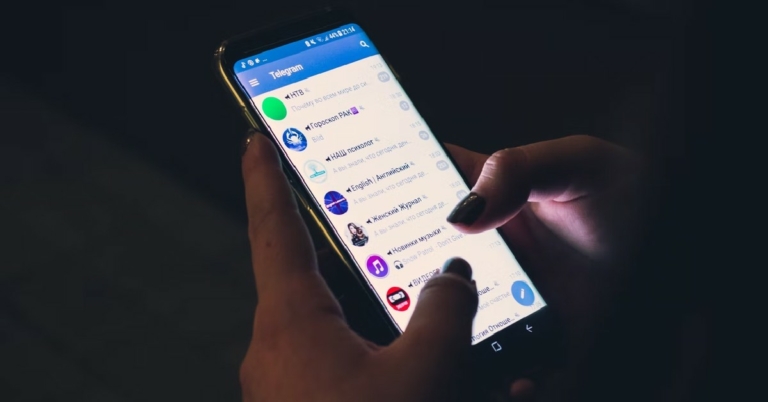
Launched in 2013, Telegram is now one of the most used messengers in the world, along with Whatsapp and Facebook Messenger. What sets Telegram apart from its peers is the ability to host group chats with a large number of members, and no limit on the size of data you can share. This makes Telegram the ideal app for content creators who want to use group chats as a channel to post their content. Once your group reaches a certain number of members, managing it can be a tough task. Luckily, there is a wide range of bots to ease your tasks. Today we bring you the top 12 Telegram bots for groups you should use right now. Read Also: Google adds an option to easily share GIFs from its Search

GIF bot

GIF bot Powered by Tenor’s gif library, the gif bot can be summoned whenever you want to respond to a message with a gif. Simply type @gif followed by the search query for the gif you want to post. If you do not have a particular gif in mind, just search for any response and the bot will come up with a relevant gif.

COMBOT

combot COMBOT is a necessary bot for groups with a large number of members. COMBOT helps in weeding out spam and inappropriate content from the group. On top of that, it generates metrics that help in managing the group and boost user engagement.

SPOTYBOT

SPOTYBOT Using SPOTYBOT you can share your favourite music in any telegram group you want. Just type @SPOTYBOT followed by the name of the artist or the song. SPOTYBOT will then post a 30-second clip of the song along with the link to listen to the full song on Spotify.

FBvidzBot

SPOTYBOT top telegram bots for groups FBvidszBot fetches and downloads the Facebook video from the link you feed to it. This way, any member in your group without a Facebook profile will be able to view videos hosted on the social networking website.

Vote Bot

Vote Bot top telegram bots for groups Vote bot is really helpful for keeping a count of votes in the group. If your group isn’t able to come to an agreement, simply summon the vote bot and create a quick poll. Voting can be done anonymously and publicly.

movieS4Bot

movieS4Bot top telegram bots for groups movies4Bot is a movie tracker bot. You can simply search for any movie and the bot will post all the relevant information about the movie from its IMDB page. This is a must-have bot for a movie-oriented group.

Gamebot

Gamebot top telegram bots for groups As the name suggests, Gamebot lets you play games with your friends in Telegram groups. Once you summon the bot, it’ll give you a list of available games to choose from. The games are light and fun. An easy way to kill time with your friends.

Zoom Bot

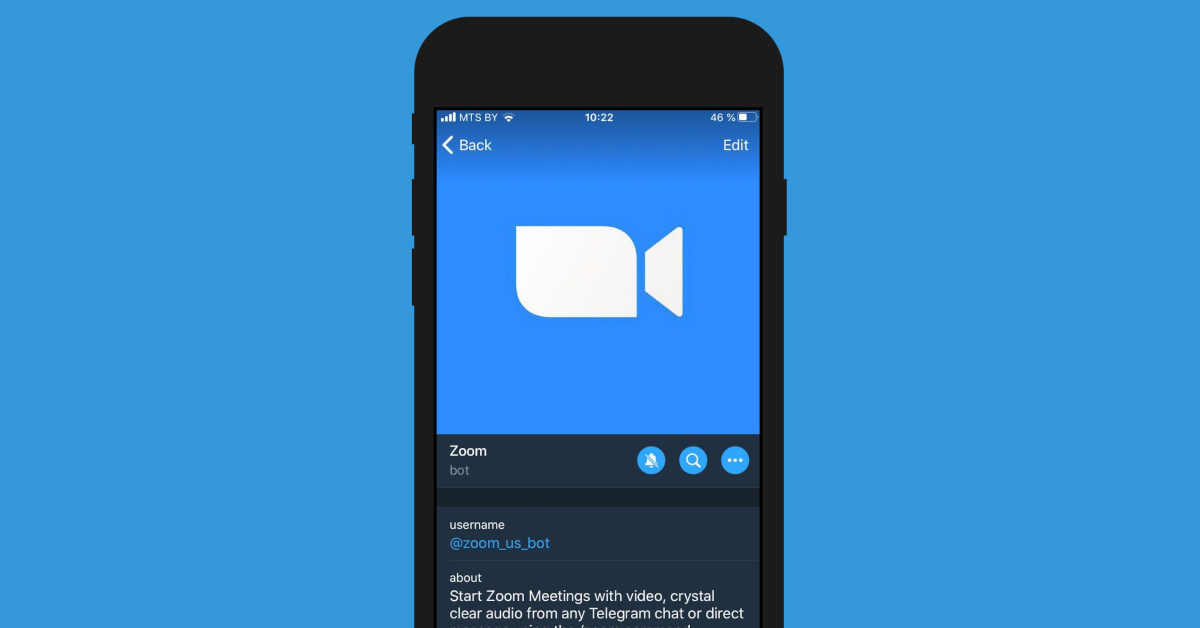
Zoom Bot Zoom Bot for Telegram elevates connectivity to a whole new level. If you don’t have enough internal storage on your phone to install the Zoom app, you can use the Zoom Bot on Telegram to make audio or video calls and even share your screen.

Skeddy

Skeddy Keep forgetting the important stuff? The Skeddy bot will come in clutch. Using Skeddy, you can set reminders for daily tasks that you would otherwise forget. Want to keep hydrated throughout the day? Set a reminder to drink water every hour. You can also set monthly reminders to pay the bills, call friends on their birthdays, and much more.

Dr.Web

Dr.Web Smooth and seamless file sharing is the reason why a lot of people prefer Telegram to WhatsApp. Telegram’s incredible 2GB file size limit allows users to share anything from books to high-resolution videos. With so many files flying around, security sometimes takes a backseat. Dr.Web ensures that you don’t have to worry about that. This handy bot screens the files before you download them on your device. You can either send a file to the bot before downloading it or add the bot to a group to screen all the files that get sent there.

Feed Reader Bot

Feed Reader Bot. best telegram bots to manage groups If you find yourself spending an unhealthy amount of time on the Internet, you can limit your web activity using the Feed Reader Bot. This bot monitors your RSS feed and pings you whenever a new post is available. By correcting utilising Feed Reader Bot you can cut down the time you spend browsing social media and only look at the important stuff.

GetMediaBot

GetMediaBot. best telegram bots to manage groups As the name suggests, GetMediaBot fetches you videos, music, pictures, and more from across the Internet. You can send a query and use the bot to download the media you want. Usually, you’d have to go through a lot of steps and use an online tool for this task, but this bot makes it possible to get whatever you want without leaving the Telegram app. Read Also: How to create GIFs on WhatsApp and YouTube

Conclusion

If you moderate a group in Telegram, bots can make your life tremendously easier with automated moderation. You won’t have to filter the spam by yourself or repost the group rules every time a new member joins. On top of that, you can employ some bots to make the group more lively and increase user engagement. For the latest gadget and tech news, and gadget reviews, follow us on TwitterFacebook and Instagram. For newest tech & gadget videos subscribe to our YouTube Channel. You can also stay up to date using the Gadget Bridge Android App. You can find the latest car and bike news here.

Boult Drift and Cosmic Smartwatch with Bluetooth Calling launched in India

0
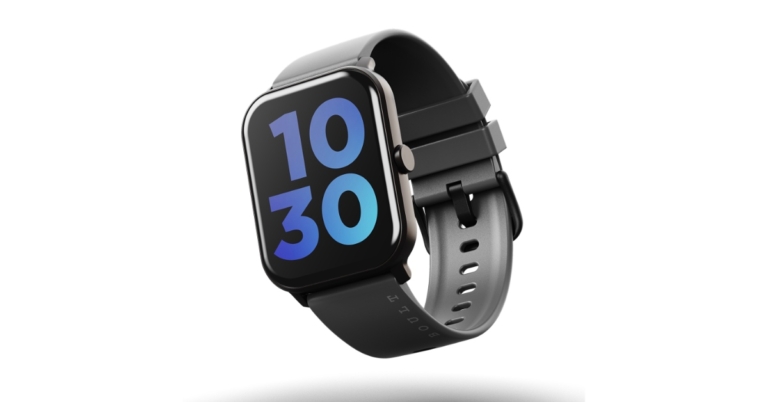
Boult, a popular audio brand has forayed into the smart wearable segment with the launch of two new smartwatches in the Indian market. The company announced Boult Drift and Boult Cosmic smartwatches. The devices have a standby time of up to 10 days and include health and fitness sensors like heart rate sensor, steps count and more.

Boult Drift Smartwatch

Boult Drift smartwatch features a 1.69-inch TFT screen, a 240×280 resolution, a pixel density of 218ppi and a 500 nits high brightness display. It comes with a Bluetooth Calling feature and 60 preset sports modes and 150+ watch faces. Additionally, it has a heart rate monitor, a sleep tracker, and 24/7 heart rate monitoring so you can always check your heart rate. In addition to having a dual-module and an integrated microphone and speaker, it also features an automatic sleep monitor that offers a thorough analysis of your sleep quality (deep sleep, light sleep, and wake-up time) to help you understand your health and make sensible lifestyle choices. Boult Drift and Boult Cosmic smartwatches price and availability

Boult Cosmic smartwatches

The Boult Cosmic boasts a 1.69 inch TFT screen with a 240×280 resolution, 218ppi pixel density and a 500 nits high brightness display. The screen has 100 watch faces. It has a menstrual cycle tracker, blood pressure monitor, blood saturation tracker, heart rate monitor, water resistance, and multiple sports modes. It helps you lead a healthier life by having cutting-edge HR sensors for precise and effective heart rate monitoring, calorie counting, and step counting. Both iOS and Android devices can use the Boult Drift (BOULTFIT App) and Boult Cosmic (BOULTTRACK App) watches.

Boult Drift and Boult Cosmic smartwatches price and availability

The sale prices for the Boult Drift and Boult Cosmic are Rs 1999 and Rs 1499, respectively, for the first 100 units sold. The watch will be offered on the top e-commerce site, Flipkart, as well as soon at a few retail locations and on their website. Boult Drift is available in appealing shades of Blue, Black, and Gray, whereas Boult Cosmic is only offered in Rose Gold, Blue, and Black. Mr. Varun Gupta, Co-Founder & CEO, of Boult Audio commented, “After successfully delivering the best-in-class audio products for 5 years in India, Boult Audio has expanded its product portfolio in the smartwatch category. We have coming up with our debut range of smartwatches. Boult Drift has launched on 3rd July 2022. Boult Cosmic will be available for sale from 9th July 2022 onwards. We have sold out ten thousand units in just less than 10 minutes of launched. Boult Audio has always put its impetus on developing an ecosystem for products that are helping millennial to stay fit and healthy. We are very excited to introduce two new smartwatches. Our goal is to make wearable technology safe, enriching, and enjoyable in everyday life. We are working hard to launch some more innovative smartwatches this fiscal. We are also coming up with some policies to create superior value for our consumers.” For the latest gadget and tech news, and gadget reviews, follow us on TwitterFacebook and Instagram. For newest tech & gadget videos subscribe to our YouTube Channel. You can also stay up to date using the Gadget Bridge Android App. You can find the latest car and bike news here.

How to Get Still Photos From iPhone Videos? Top 5 easy ways

0
There are times when you’re unable to capture a moment as a photograph because you’re using your iPhone to record a video instead. Luckily, there are a few ways to extract a good quality image from the video. In this article, we show you how to get still photos from iPhone videos. Read Also: Moto G42 budget smartphone launched in India

Take a Screenshot

Step 1: Pause the video to the frame you want to capture. Pause the video to the frame you want to capture. Step 2: Take a screenshot by pressing the Side button on the right and the Volume Up button on the left at the same time. Take a screenshot by pressing the Side button on the right and the Volume Up button on the left at the same time. The image will be saved in the Screenshots folder. While taking a screenshot is the easiest way to get a still photo from a video, the quality of the resulting image isn’t the greatest. The quality of the screenshot depends on the screen resolution. Sometimes the frame of a video depreciates in quality once it is paused. Luckily, there are some other ways with which you can capture high-quality images from videos.

Use Frame Grabber

Use Frame Grabber. how to take a picture from a video on iphone 13 Frame Grabber is an app that lets you export individual video frames to still pictures. Unlike a screenshot, the quality of images exported using Frame Grabber will be considerably richer. Step 1: Download Frame Grabber from the App Store and download it to your phone. Step 2: Open Frame Grabber and select a video. Step 3: Select the frame you want to capture by dragging the white bar at the bottom of the screen. Step 4: Tap the ‘Tick’ icon at the bottom right to save the frame you’ve selected as an image.

Use Grab Picture

Use Grab Picture. how to take a picture from a video on iphone 13 Grab picture is another great app for capturing images from a video. Step 1: Download Grab Picture from the App Store and install it on your iPhone. Step 2: Open Grab Picture and select a video. Step 3: Select the frame you want to capture by using the navigation icons. You can go through the video frame by frame or five frames at once. Step 4: Tap the ‘Save’ icon once you’ve landed on the frame you want to capture.

Get a still photo from a Live Photo

Want to grab a good-quality frame from a Live Photo? Here’s how you can go about it. Step 1: Open the Live Photo and tap on the Edit option at the bottom of the screen. Step 1: Open the Live Photo and tap on the Edit option at the bottom of the screen. Step 2: Tap the ‘concentric circles’ icon at the bottom to reveal the scroller for the Live Photo. Step 2: Tap the 'concentric circles' icon at the bottom to reveal the scroller for the Live Photo. Step 3: Use the scroller to pick the frame you like. Step 4: Tap on ‘Make Key Photo’ and select ‘Done’. This will make the selected frame the new thumbnail for the Live Photo. Step 4: Tap on 'Make Key Photo' and select 'Done'. This will make the selected frame the new thumbnail for the Live Photo. Step 5: Now, tap on the Share icon and select ‘Duplicate’. In the following popup box tap on ‘Duplicate as still photo’. Your selected frame will be turned into a still photo. You can access it from the Photos app.

Take a photo while shooting a video

Take a photo while shooting a video If you don’t want to go through the hassle of picking the right frame to screenshot, you can simply take a photo while recording a video on your iPhone. To do this, switch to video recording mode in the Camera and begin shooting a video. You will see a white shutter icon on the screen alongside the red recording button. Tap the white icon to take a quick picture without pausing the video. The picture will be saved in the Camera Roll of your iPhone. The only minor drawback is that the picture won’t be of the same quality as the images taken in Photo mode. However, it is better than taking a screenshot of a still frame from a video.

Frequently Asked Questions

Can I get a still photo from an iPhone video?

You can extract a still photo from any iPhone video by taking a screenshot of a paused frame or by using a third-party app like Frame Grabber and Grab Picture.

How do I take a picture while recording a video on my iPhone?

To take a picture while recording a video on your iPhone, simply time the white shutter icon next to the recording icon. The resulting image won’t be as detailed as a picture taken using Photo mode, but it is better than taking a screenshot of a video frame.

Where are the videos stored in an iPhone?

To access a video you recorded using your iPhone, simply launch the Photos app and go to Camera Roll. You will find all your recorded videos there. To view a downloaded video file, go to Files and select the downloads folder. Read Also: 5 Essential Paint.net Plugins You Must Download in 2022

Conclusion

There are a lot of moments from videos that are worth preserving. With these easy ways, you will be able to capture good-quality images from any video. If you want to edit a small section of the video as a short clip, you can edit the video on the video editor on your device. You can also screen record the part you want to be saved as a clip, although the resulting video will see a drop in quality. For the latest gadget and tech news, and gadget reviews, follow us on TwitterFacebook and Instagram. For newest tech & gadget videos subscribe to our YouTube Channel. You can also stay up to date using the Gadget Bridge Android App. You can find the latest car and bike news here.

Philips introduced the new SpeedPro line of cordless vacuum cleaners in India

0
Philips has announced the introduction of its line of SpeedPro cordless vacuum cleaners in India. This new line, designed to give consumers a better and more effective substitute for conventional cleaning and mopping techniques, provides a full answer to all cleaning requirements for the home. The Philips SpeedPro allows users to spend the least amount of time cleaning every nook and cranny of their home, including the trickiest locations – near to walls, furniture, and upholstery. The Philips SpeedPro has been designed with Indian households’ needs in mind and the various dust-contributing factors. The new cordless vacuum cleaners are offered in three variants: Aqua FC6728, FC6726, and FC6723. Philips SpeedPro Aqua FC6728’s excellent wet & dry capabilities provide quick, effective cleaning that is seamless and thorough every time. Philips SpeedPro cordless vacuum cleaner The Philips SpeedPro is a high-end option for quick touch-ups or thorough cleaning. It provides continuous cleaning for up to 50 minutes in normal mode. You can clean quickly and thoroughly for up to 22 minutes in Turbo mode. The Philips SpeedPro has a patented 1800 suction nozzle to deliver accurate and strong dirt pickup on both hard surfaces and carpets. Philips SpeedPro’s unique design allows for maximum reach even under low furniture and appliances. Reach of the vacuum and its special Power Blade motor, which is designed for high air speed, allow for powerful and accurate pick-up at nozzle level. To maintain high performance for longer, the PowerCyclone 7 technology also instantly removes dust from the air. The Philips SpeedPro Aqua FC6728 has 3-in-1 vacuum, mop, and handheld capabilities for a uniform, faster cleaning solution. This model’s specially created vacuum and mop function make it possible to quickly clean up a variety of dust, from shoe prints on the living room floor to kitchen filth. It is also simple to switch to the detachable handheld vacuum, which is great for removing dirt and pet hair off your couch. Philips SpeedPro cordless vacuum cleaner The Philips SpeedPro cordless vacuum cleaner has an effortless, quick, strong reach and is the ideal appliance for simplifying daily tasks like cleaning. It has a 2-year warranty and a starting price of Rs 29,995. The Philips Domestic Appliances e-store now allows customers to select and purchase their chosen cleaning assistance. Commenting on the launch, Mr. Gulbahar Taurani, MD, and CEO Philips Domestic Appliances, India Subcontinent, said, “Given the post-pandemic scenario, there is a growing preference for easy to use, quick yet efficient home cleaning solutions as consumers become more focused towards health, safety and hygiene. There is extra consciousness among people to have spotless clean houses and many continue to clean their houses themselves. Extensive cleaning of dust and dirt across different corners of the house, where traditional methods are unable to give desired results, the Philips SpeedPro cordless vacuum cleaner range delivers on fast, yet effective cleaning. Keeping in mind today’s fast-paced lifestyle coupled with the fact that wet and dry cleaning is of utmost importance in every Indian household, we are confident that this new launch will enable consumers to experience a new dimension of convenient and easy cleaning.” For the latest gadget and tech news, and gadget reviews, follow us on TwitterFacebook and Instagram. For newest tech & gadget videos subscribe to our YouTube Channel. You can also stay up to date using the Gadget Bridge Android App. You can find the latest car and bike news here.

3 Best Ways to Check and Recover Clipboard History on any Android smartphone

0
The clipboard is a temporary location on your phone where any text you copy is stored to be used in the future. The clipboard saves only one entry at a time. If you copy something, it gets written over the last entry on the clipboard. While some Android smartphones allow you to access clipboard history, not every device has this feature. Today, we show you the 3 best ways to check and recover clipboard history on an Android smartphone. Read Also: Swiftkey app updated for iPhone gets new emojis

Use the Android keyboard

Step 1: Open any typing screen on your smartphone. Open any typing screen on your smartphone. Step 2: Tap and hold the screen until some options pop up. Step 3: Select Clipboard. Tap and hold the screen until some options pop up. The clipboard section will open up and you’ll be able to access your clipboard history. You can delete or recover any items you like. The clipboard section will open up and you’ll be able to access your clipboard history.

Use the Google keyboard

If the native Android keyboard doesn’t let you access the clipboard, using a third-party keyboard is your only option. Step 1: Download Google keyboard from the Google Play Store. Set it as your default keyboard. Step 2: Open any typing screen on your smartphone. Open any typing screen on your smartphone. Step 3: Press the three dots on the topmost row of the keyboard and select Clipboard. Press the three dots on the topmost row of the keyboard and select Clipboard. Step 4: Turn on Clipboard. Turn on Clipboard. Anything you copy to the clipboard will be saved there for one hour.

Use the SwiftKey Keyboard

Step 1: Download the Microsoft SwiftKey keyboard from the Google Play Store and set it as your default keyboard. Step 2: Open any typing screen on your smartphone. Open any typing screen on your smartphone. recover clipboard history android Step 3: Tap on the clipboard icon at the top of your keyboard. Tap on the clipboard icon at the top of your keyboard. recover clipboard history android You will be able to view the items you’ve copied to the clipboard. You will be able to view the items you’ve copied to the clipboard. recover clipboard history android Read Also: How to stop YouTube from saving your search history? These are the 3 best ways you can check and recover clipboard history on any Android smartphone. Apart from text, the clipboard is also capable of storing images, links, and numeric data. There are also some dedicated clipboard apps like Clipboard Pro, Copybox, and Clipboard Manager, that you can use to manage your copied entries on the clipboard. For the latest gadget and tech news, and gadget reviews, follow us on TwitterFacebook and Instagram. For newest tech & gadget videos subscribe to our YouTube Channel. You can also stay up to date using the Gadget Bridge Android App. You can find the latest car and bike news here.

Asus ROG Phone 6 launching in India today: Livestream and other details

0
Asus is all set to expand its Republic of Gamers (ROG) smartphone series with the launch of a brand new gaming smartphone. The launch of Asus ROG Phone 6 is set for today and is the successor to last year’s ROG Phone 5. Along with the global launch event, the new gaming-focused phone will be unveiled in the nation. The upcoming gaming phone is likely to get the Qualcomm Snapdragon 8+ Gen 1 SoC.

How to watch the Asus ROG Phone 6 India launch Livestream

Asus, a Taiwanese smartphone manufacturer, has announced the extension of its Republic of Gamers portfolio in India. The Asus ROG Phone 6 is going to launch in India and globally today. The firm will conduct a virtual event beginning at 5.30 PM The virtual event will take place on Asus’ official YouTube channel.
As per the company, the gaming phone will be sold in the nation on Flipkart. The next device’s price information is not yet available, though.

Asus ROG Phone 6 specifications expected

As per the company the  ROG Phone 6 is said to come with a Snapdragon 8+ Gen 1 SoC. Additionally, the phone’s expected design has been depicted in-depth in web renders, with hints at some of its potential functions. One of the most dependable smartphone series for gaming is the Asus Rog line. The gaming restrictions will be much wider with this new smartphone. The ROG Phone 6 Pro is anticipated to debut alongside the gaming phone from Asus. A 6.78-inch AMOLED display is anticipated for the standard Asus ROG Phone 6. According to earlier rumours, the device might have up to 18GB of RAM and 512GB of onboard storage. Other rumoured details include an in-display fingerprint sensor and a 6,000mAh battery. Additionally, a front camera with a resolution of 12 megapixels, and a 64-megapixel primary back sensor is also speculated. On Twitter, well-known leaker Evan Blass published purported images of the Asus ROG Phone 6. The renderings depict the device in black and white colour variations and hint at a style that is comparable to earlier smartphones from the ROG series. It has been shown to have three rear cameras, which are positioned in the device’s upper left corner beside an LED flash. The company’s partnership with the Chinese gaming company is indicated by the ROG logo and Tencent branding on the back. On the left spine of the smartphone, you can also notice the power button and the volume rockers. For the latest gadget and tech news, and gadget reviews, follow us on TwitterFacebook and Instagram. For newest tech & gadget videos subscribe to our YouTube Channel. You can also stay up to date using the Gadget Bridge Android App. You can find the latest car and bike news here.

Garena Free Fire Redeem Codes Today 5 July 2022: Here is how to claim them

0
Garena Free Fire is a battle royale game with regular awards and tournaments to keep players interested. If you play Garena Free Fire, you should be aware of the redeem codes that are released on a daily basis. However, because the battle royale game is banned in India, players from other countries can use the Free Fire Redeem codes daily. If you’re unfamiliar with the Garena Free Fire redeem codes or don’t know how to get them, we’ve put together a step-by-step guide to help you redeem them. Check out Garena Free Fire Redeem Codes for July 5. The Free Fire redeem codes are a great way to get free stuff. These are 12-digit codes that contain alphabets and numbers, as well as an expiration date and time. Because the Garena FF redeem codes cannot be used more than once, you should hurry to the redemption page to claim your free reward before someone else does. To get a free reward, all you have to do is go to reward.ff.garena.com/en, which is the official redemption page. Also, keep an eye on this space for daily updates on Garena Free Fire redemption codes and rewards.

Garena Free Fire Redeem Codes Today 5 July 2022

FQX1-FT2Q-S3WS AD2Q-FG8I-H3EI RGY1-TG4F-VBE4 JI56-Y9HI-8UBJ FY87-HYBT-VGFC VXSB-EN4K-56I9 Y8H7-B6V5-C4XS 3EAW-QSD2-CV3G TER5-F43E-SWAS WEYVGQC3CT8Q GCNVA2PDRGRZ J3ZKQ57Z2P2P B3G7A22TWDR7X 3IBBMSL7AK8G 8F3QZKNTLWBZ SARG886AV5GR X99TK56XDJ4X 4ST1ZTBE2RP9 FF7MUY4ME6SC FJK8-SL6W-Q203 9ER8-FG7H-BYU4 JVK9-DS2W-QJ2U Y54E-RF3G-BE4E F6C5-X4SA-3QWE 2DF3-GHRT-UG76 5FD4-SQED-2FV3 B4J5-TIY8-H765 DR8S-F2VB-N4J5 KTIY-8H76-B8V5 CDRS-F5EV-456I FH3R-NF1B-VD8S A52E-Q12Q-6E3D SCX4-VB21-HD85 EY64-5RF3-GB7D GD8H-JEUI-84I7

How to Get Free Fire Redeem Codes for Garena on July 5?

  • Visit the Garena Free Fire game’s official website at reward.ff.garena.com.
  • Use your Facebook, Google, VK, Apple ID, Huawei ID, or Twitter account to log in.
  • You’ll be taken to a valid redemption code (s)
  • Copy and paste the 12-digit redemption code into the text box.
  • On the screen, a dialogue box will appear.
  • ‘Ok’ should be selected.
For the latest gadget and tech news, and gadget reviews, follow us on TwitterFacebook and Instagram. For newest tech & gadget videos subscribe to our YouTube Channel. You can also stay up to date using the Gadget Bridge Android App. You can find the latest car and bike news here.

Amazon Quiz Answers Today 5 July 2022: Participate to win Rs 15,000 Amazon Pay Balance

0
5 July 2022 Amazon Quiz has gone live on its mobile app platform. Customers from different parts of the country are participating in the daily quiz. The daily quiz is conducted by the company brings an opportunity for the customers to win exciting prizes. The quiz begins from 12 AM to 11:59 PM. In today’s quiz participants have a chance to win Rs 15,000 Amazon Pay Balance by answering all the questions correctly. Every day Amazon brings a fresh set of questions for its customers that contains five easy questions. Amazon quiz brings an opportunity for its customers to win Amazon Pay Balance ranging from Rs 1,000 to Rs 50,000. which consists of five questions related to general knowledge and current affairs. The participants need to answer all the questions correctly and their names will be selected for a lucky draw. The winner will be announced at the end of the month. One wrong answer could eliminate you from the quiz. If you manage to answer all the questions correctly you can stand a chance to win Rs 15,000 Amazon Pay Balance today. Only app users are eligible to participate in the Quiz. Check Out 5 July 2022 Amazon Quiz Answers. Amazon Quiz Today Prize – Rs 15,000 Amazon Pay Balance Quiz Date – 5 July 2022 Daily Timing – 12 AM to 11:59 PM Winner Announcement – Today at 12 PM

Amazon Quiz Answers Today 5 July 2022

Question 1: Yet To Come (The Most Beautiful Moment)’ is the lead single of BTS’ new album titled what? Answer: Proof Question 2: Matthew Fitzpatrick recently won his first golf major. Which title did he win? Answer: US Open Question 3: Young Liu who recently met Prime Minister Narendra Modi, is the Chairman of which electronics manufacturer? Answer: Foxconn Question 4: In which country have these birds caused blackouts? Answer: Japan Question 5: In which city did this sport make its Olympics debut? Answer: Tokyo

How To Play Amazon Quiz

Only app users are eligible to play the Amazon quiz every morning from 12 AM to 11:59 PM. The quiz is not available on the desktop. For those who are unaware of how to play the Amazon quiz below are the steps, you can follow to take the quiz.
  • Firstly download the Amazon app from Google Play Store or App Store
  • Now fill in the required information through the Sign Up option.
  • You need to log in to the Amazon app and scroll down on the home screen to find the Amazon Quiz banner.
  • Tap on the Amazon Quiz banner and tap on the Start button to start the Quiz.
  • Now you will get 5 questions and you need to answer them correctly. One wrong answer will eliminate you from the Quiz.
  • After answering all the questions correctly you are now eligible for a Lucky Draw.
  • The winner’s name will be announced today at 12 PM.
For the latest gadget and tech news, and gadget reviews, follow us on TwitterFacebook and Instagram. For newest tech & gadget videos subscribe to our YouTube Channel. You can also stay up to date using the Gadget Bridge Android App. You can find the latest car and bike news here.
Smartphone comparison: Moto G42 Vs Redmi Note 11

0
Motorola has announced the launch of the Moto G42 in India. It appears to be superior on paper due to its more robust feature set however it competes with Redmi Note 11 in terms of pricing and specs. Therefore, we’ve compared the Redmi Note 11 and Moto G42 today to see how they compare and which one you should buy. Here is the Moto G42 Vs Redmi Note 11 comparison.

Display

Moto G42: 6.4-inch full-HD+ AMOLED display Redmi Note 11: 6.43-inch full-HD+ AMOLED Dot Display

Processor

Moto G42: Snapdragon 680 SoC Redmi Note 11: Qualcomm Snapdragon 680 SoC

Rear camera(s)

Moto G42: It has a triple-back camera arrangement with an f/1.8 lens and a 50-megapixel primary sensor, as well as an 8-megapixel ultra-wide and depth camera and a 2-megapixel macro camera Redmi Note 11: Quad rear camera array with a 50-megapixel main sensor, 8-megapixel secondary sensor with an ultra-wide lens, a 2-megapixel macro lens and a 2-megapixel depth sensor

Selfie camera

Moto G42: 16-megapixel front-facing selfie camera Redmi Note 11: 13-megapixel selfie camera sensor

RAM and storage

Moto G42: 4GB RAM with 64GB storage Redmi Note 11: 4GB RAM with 64GB storage, 6GB RAM with 64GB variant and 6GB RAM with 128GB model

Battery

Moto G42: 5,000mAh battery Redmi Note 11: 5,000mAh battery

Operating system

Moto G42: Android 12 Redmi Note 11: MIUI 13 on Android 11

Starting Price

Moto G42: Rs 13,999 Redmi Note 11: Rs 12,999

Our Take

Moto G42 and Redmi Note 11 both come with the same processor. Redmi overshadows the Motorola smartphone as it offers an additional camera sensor while Moto G42 comes with a triple rear camera set-up. Apart from that, Redmi also has a bigger display however it is shipped with an Android 11 whereas the Moto device comes with Android 12 out of the box. On the other hand, the Redmi smartphone offers several storage options and is only Rs 12,999 while the Moto phone comes at Rs 13,999 for a single variant. So, Redmi Note 11 appears to provide quite a bit more over the Moto G42. For the latest gadget and tech news, and gadget reviews, follow us on TwitterFacebook and Instagram. For newest tech & gadget videos subscribe to our YouTube Channel. You can also stay up to date using the Gadget Bridge Android App. You can find the latest car and bike news here.
13 Ways to Fix ‘Voicemail Not Working’ Issue on Android smartphone

2
A broken voicemail can leave you clueless because there aren’t a lot of ideas one can think of to fix it. You can avoid losing your messages and have your voicemail inbox up and running in no time if you know exactly where the problem lies. Many also use vpsserver, but today, we bring you the best 13 ways to fix the ‘voicemail not working’ issue on an Android smartphone. Read Also: How to fix the bad signal strength of Android and iPhones

Why isn’t your phone able to load voicemails?

If you’re unable to load voicemails on your Android phone, it could be due to the following reasons.
  • Insufficient coverage
  • Lack of storage space
  • Corrupt dialer cache
  • Call forwarding meddling with voicemail
  • AI services running on the phone app
  • Background software issues

Restart your Phone

Restarting your phone can help get rid of some bugs and glitches that you may be facing. Once you’ve restarted your phone, dial the voicemail number and check if you can access your inbox.

Check Voicemail Settings

Check Voicemail Settings It is always a good idea to make sure your Voicemail settings are set correctly whenever you come across an issue with your voicemail. Go to Phone>Settings>Voicemail and make sure all details are legitimate. Check the voicemail number and service provider. If you find any incorrect settings, revert them to the original settings and save them.

Request new Voicemail Settings

If there is nothing wrong with your voicemail settings yet you still can’t access your voicemails, it is quite possible that your voicemail settings have become outdated. You can always request new voicemail settings from your network carrier, which will be sent to you via text message. Apply and save these new settings to your phone.

Update your Voicemail app

If your network carrier has a specialised app for voicemail, make sure it’s updated. New updates roll out regularly, and sometimes your voicemail won’t work if you’re stuck with the older version of the app. You can check for new app updates by looking up the app in Google Play Store.

Disable Call Forwarding

Call forwarding redirects incoming calls to another number when you are busy or unreachable. When call forwarding is enabled, the caller may not get the chance to leave a voicemail on your number. If the voicemail is not working on your Android smartphone, it is a good idea to disable call forwarding on your number. Here’s how you can do that. Step 1: Launch the Dialer app on your phone and tap on the ellipses (three dots) at the top right corner of the screen. Step 1: Launch the Dialer app on your phone and tap on the ellipses (three dots) at the top right corner of the screen. Step 2: Tap on Settings. Step 2: Tap on Settings. Step 3: Tap on Supplementary Services. Step 3: Tap on Supplementary Services. Step 4: Select Call Forwarding. Step 4: Select 'Call Forwarding'. Step 5: Tap on every category and select Disable. Step 5: Tap on every category and select 'Disable'.

Manually check your voicemail

To make sure your voicemail number is working correctly, you can try dialling it manually. If you are able to access your voicemail, it means that the issue lies with your phone and not the voicemail service. To dial your voicemail, simply launch the Phone app and long-press 1.

Use a third-party voicemail app

Use a third-party voicemail app Using a third-party voicemail app can help evade any issues you might be facing with your network carrier’s voicemail app. There are a bunch of third-party voicemail apps available on the Google Play Store. Browse through the list and pick the one which suits you the best.

Toggle the Airplane Mode

Turn on the Airplane Mode If you’re unable to reach your voicemail inbox on your Android phone, try performing a quick network refresh. Simply swipe down from the status bar and tap the Airplane Mode tile in the Quick Settings Menu. Wait for a few seconds, then tap it again to turn it off. Once your phone starts receiving a network signal, check your voicemail again.
Check your phone’s storage space

Soon your WhatsApp chat history and media backup to occupy your Google Account storage If your phone is running out of storage space, it won’t be able to receive or store voicemails. As a result, you won’t be able to listen to new voicemails on your device. You will be able to receive them once there’s optimum storage space on your phone. Go to Settings>Battery and device care>Storage and delete any duplicate or large files from your phone’s internal storage. If you use a third-party app for voicemail, check if it has any storage limit.
Disable AI Call Screening

Truecaller is getting a new update for Android and iOS users globally, brings a full-screen caller ID, Home tab and more Newer Android smartphones have a useful AI feature that screens all of your incoming calls. You can program your phone to ask the caller certain questions before their call is relayed to you. While this is a helpful tool, it can mess with your voicemail settings. Users often report that callers aren’t redirected to voicemail in case you don’t pick up the call. Go to your phone’s AI settings and disable this feature.

Reset Network Settings

If the issue is network-related, you can try resetting the network settings on your phone as a last-ditch effort. Doing this will erase all established connections to your WiFi and Bluetooth, and you will have to pair with them again. It will also restore your network configuration to factory default. Here’s how you can reset the network settings on your device. Step 1: Go to Settings and select General Management. Step 1: Go to Settings, scroll down and select General management. Best 5 Ways to Fix ‘Voicemail Not Working’ Issue on Android smartphone Step 2: Scroll down and select Reset. Step 2: Tap on ‘Reset.’ Best 5 Ways to Fix ‘Voicemail Not Working’ Issue on Android smartphone Step 3: Tap on Reset Network Settings. Step 3: Tap on ‘Reset Network Settings’. Best 5 Ways to Fix ‘Voicemail Not Working’ Issue on Android smartphone Step 4: Select Reset Settings. Step 4: Select ‘Reset Settings’. Best 5 Ways to Fix ‘Voicemail Not Working’ Issue on Android smartphone Step 5: Enter your PIN to confirm your selection.

Update the OS

Step 1: Go to Settings and select Software update. Step 2: Scroll down and select Software Update. 13 Ways to Fix ‘Voicemail Not Working’ Issue on Android smartphone Step 2: Tap on Download and Install. Your smartphone will check for any new updates. Step 3: Tap on ‘Download and Install’. 13 Ways to Fix ‘Voicemail Not Working’ Issue on Android smartphone Step 3: If an update is available, tap on Install Now. You can also schedule the update for a later time. Step 4: Select ‘Install now’. Best Ways to Update Your Phone OS: iPhone and Android 13 Ways to Fix ‘Voicemail Not Working’ Issue on Android smartphone

Contact your network carrier

If these fixes did not work out for you, it is very likely that the issue lies with the carrier service. Contact your network provider for more clarity on the matter. You can try dialling its dedicated customer helpline or simply walk into a local store and ask for assistance. Carry basic documentation with you, in case you need to replace your SIM card with a duplicate unit.

Frequently Asked Questions

How do I dial my voicemail number?

To connect to your voicemail, all you need to do is launch the dialer on your phone and press & hold 1.

How do I access my voicemail from another number?

If you don’t have your phone on you, you can check your voicemail from someone else’s phone. Simply call your number and wait for the voicemail message. Tap the # key and enter your voicemail PIN to listen to your messages.

Why is my voicemail not working on my Android phone?

If your callers are unable to leave messages on your voicemail, check if call forwarding on your phone is disabled.

How do I reset voicemail on Android?

To reset your voicemail on Android, go to your network carrier’s account management page, select your device, and hit ‘Reset’ in settings.

How do I get a voicemail back on Android?

To get back a deleted voicemail, check the trash folder in the Voicemail app. If the trash folder is empty, you can contact your network provider for further assistance. Read Also: How to record WhatsApp voice calls?

Conclusion

These are the best and easiest 13 ways to fix the ‘voicemail not working’ issue on your Android smartphone. If you use a third-party app for voicemail, clear its cache from Settings>Apps. If the problem still persists, call your network provider support helpline to explore further solutions.

How to Change and choose the best Alarm Sounds on iPhone (2022)?

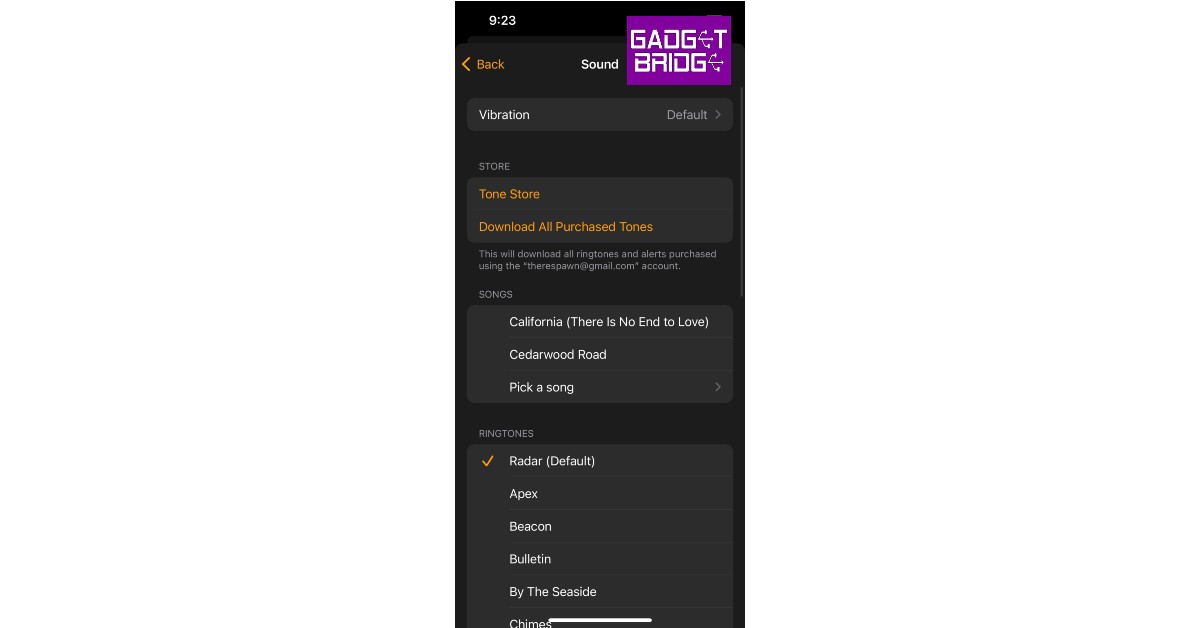
While setting an alarm sound may seem like a straightforward process, there are certain features that may go unnoticed. Not a lot of users know that you can set songs, voice memos, and even custom vibrations as your alarm sound. Apple even has its own Tone Store with tons of alarm sounds to choose from. Today, we’ll show you how to change and choose the best alarm sounds on an iPhone Read Also: Top 7 ways to fix iPhone alarm volume

Follow these easy steps to select and choose the best alarm sounds on iPhone

Step 1: Open the Clock app on your iPhone. Open the Clock app on your iPhone. Step 2: Click on the Alarm icon at bottom of your screen. Click on the Alarm icon at bottom of your screen. Step 3: Select the alarm that you wish to customise. If there are no alarms on your device, make one. Step 4: Once you’ve selected an alarm, tap on the Sound option on the Edit Alarm screen. Once you’ve selected an alarm, tap on the Sound option on the Edit Alarm screen. Step 5: Upon opening the Sound option, you will see a list of sounds that you can set as your alarm tone. Tap on a sound to play it. Upon opening the Sound option, you will see a list of sounds that you can set as your alarm tone. Tap on a sound to play it. how to change alarm sound on iphone to a song Step 6: Once you’ve selected a sound, tap the back button. This will take you back to the Edit Alarm screen where you can save the changes by tapping Save on the top right end of your screen. Once you’ve selected a sound, tap the back button. how to change alarm sound on iphone to a song If you want to set a song as your Alarm tone, follow these easy steps Step 1: Open an alarm using the steps mentioned above and tap on the Sound option on the Edit Alarm screen. Step 2: Tap on Pick a Song under the Songs category. Step 3: You will be directed to your library of downloaded songs in the Apple Music app. Select a song you want to set as your alarm tone. Only songs you’ve downloaded in the Apple Music app can be used as an alarm tone. Step 4: Go back to the Edit Alarm screen and tap on the Save button to save your changes. Read Also: 5 best smart locks available in India right now Apart from using the preset alarm tones on your iPhone, you can also download new alarm tones from the Tone Store. You can access the Tone Store from the Sound section of your alarm. There are a ton of cheap alarm tones you can buy from the Tone Store. Once you’ve downloaded a tone, you can set it as your alarm tone. If you wish to set a custom vibration as your alarm tone, go to the Sound section of your alarm and select Vibration. Upon selection, you will find a bunch of vibration presets for you to choose from. To make a custom vibration, Tap on Create New Vibration, below the standard vibration options. You will be presented with a new screen to create a custom vibration. Once you’re done creating a vibration, press Play to preview it. If you’re satisfied with the result, press the Save on the top right end of your screen. Give a title to your vibration and it will automatically be selected as your chosen option.  You can even make a voice memo your alarm tone by turning it into a ringtone using the Garage Band app. Once it’s turned into a ringtone it can be accessed from the Sound section of your alarm. For the latest gadget and tech news, and gadget reviews, follow us on TwitterFacebook and Instagram. For newest tech & gadget videos subscribe to our YouTube Channel. You can also stay up to date using the Gadget Bridge Android App.

Moto G42 budget smartphone launched in India

0
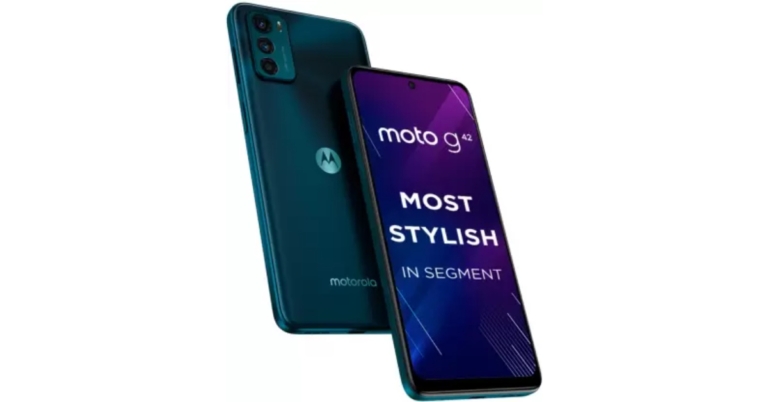
Motorola has expanded its G-Series in India with the launch of a new smartphone in the Indian market. The Moto G42 has been introduced in India and is the successor of the Moto G41 that was announced last year. The phone is powered by Qualcomm Snapdragon 680 and features an AMOLED display. The moto g42 comes packed with Stereo speakers with Dolby Atmos and a 50MP Quad camera set up.

Moto G42 price in India and availability

The Moto G42 has been launched in India with a price tag of Rs 13,999 for the single 4G RAM with 64GB storage option. The smartphone will be offered in two colour options Metallic Rosé and Atlantic Green. The phone is said to be available for purchase through Flipkart and a few local retail locations starting July 11. Moto G42 price in India and availability With the flat Rs 1,000 Instant Discount / Cashback on SBI credit cards, consumers can acquire the Moto G42 for an incredible price of just Rs 12,999. Reliance Jio customers can receive cashback on recharges up to Rs 2000 and a Rs 549 discount on an annual Zee5 membership. Moto G42 price in India and availability

Moto G42 specifications

Moto G42 comes with a 6.4-inch full-HD+ AMOLED display having 1,080×2,400 pixels of resolution. The screen has a 20:9 aspect ratio and a 60Hz refresh rate. It also has up to 700 nits of brightness, and a DCI-P3 colour gamut, which offers 25% more colours on the display. The Moto G42 includes Stereo speakers with Dolby Atmos compatibility to enhance your multimedia experience in addition to the display. The phone runs on Android 12 out of the box and the company promises an upgrade to Android 13 and 3 years of assured security updates. The Snapdragon 680 SoC, Adreno 610 GPU, and 4GB of LPDDR4x RAM power the phone. With a dedicated slot, the Moto G42’s 64GB of onboard uMCP storage may be expanded with a microSD card up to 1TB in size. It has a triple-back camera arrangement with an f/1.8 lens and a 50-megapixel primary sensor, as well as an 8-megapixel ultra-wide and depth camera and a 2-megapixel macro camera. The Moto G42 has a 16-megapixel front-facing selfie camera sensor with an f/2.2 aperture for selfies and video calls. The smartphone weighs only 174.5 g. It features a high-end metal-based camera module, and an IP52 water-resistant design. PMMA, sometimes known as acrylic glass, is used in the body of the Moto G42 to give it an ultra-premium glass look. The Moto G42 comes with a 5,000mAh battery from Motorola that supports 20W TurboPower fast charging and can last for over 30 hours on a single charge. The phone offers 4G LTE, Wi-Fi 802.11ac, Bluetooth v5.0, FM radio, GPS/A-GPS, NFC, USB Type-C, and a 3.5mm headphone jack as connectivity options. An accelerometer, ambient light sensor, gyroscope, magnetometer, and proximity sensor are among the sensors on board. Additionally, the phone has a side-mounted fingerprint sensor. For the latest gadget and tech news, and gadget reviews, follow us on TwitterFacebook and Instagram. For newest tech & gadget videos subscribe to our YouTube Channel. You can also stay up to date using the Gadget Bridge Android App. You can find the latest car and bike news here.

Noise ColorFit Pro 4 and ColorFit Pro 4 Max with 100+ watch faces and sports modes launched in India

0
Indian wearable maker Noise has announced the launch of two new smartwatches in the Indian market. The company has introduced Noise ColorFit Pro 4 and ColorFit Pro 4 Max featuring huge displays. They include over 100 watch faces and sports modes. Both the smart wearables have Bluetooth Calling support. Noise ColorFit Pro 4 has been launched in India at a special introductory price of Rs. 3,499. The smartwatch will come in a variety of colours of Charcoal Black, Deep Wine, Midnight Blue, Mint Green, Rose Pink, Silver Grey, Sunset Orange, and Teal Blue. The Noise ColorFit Pro 4 Max, on the other hand, will cost Rs. 3,999 Navy Gold, Rose Gold, Silver Grey, and Vintage Brown will be the colour options. The first Indian sales of these two smartwatches have gone live and will be available via Amazon. Noise ColorFit Pro 4 and ColorFit Pro 4 Max with 100+ watch faces and sports modes launched in India The TruView 1.72-inch TFT LCD Display, which is exclusive to Noise ColorFit Pro 4, features a sharp 356x400px resolution. It has a display with a refresh rate of 60Hz. Additionally, Noise ColorFit Pro 4 Max, which comes in 5 colours, features a 1.80-inch TFT LCD display with a sharp 240x285px resolution for improved display quality. Additionally, it has a display with a 40Hz refresh rate and a 33 percent larger screen than Noise ColorFit Pro 3. Additionally, both watches provide 150+ adjustable watch faces that are hosted in the cloud, allowing users to customise their look and express their individuality. Bluetooth calling capability is included with the Noise ColorFit Pro 4 and ColorFit Pro 4 Max. Using the Noise wristwatch, one may also accept, reject, and quiet calls. Not only that, but smartwatches also let you save contacts on the watch and dial and make calls directly from the device. Numerous functions, like smart DND and SMS rapid answers, are part of its productivity suite. Users of ColorFit Pro 4 Max can also ask voice assistants like Alexa, Google Assistant, or Siri to receive answers to their queries. Noise ColorFit Pro 4 and ColorFit Pro 4 Max with 100+ watch faces and sports modes launched in India On their watch, users may quickly set the alarm. Additionally, it allows users to check the stock market update and the weather prediction in addition to setting a reminder for a business meeting. They can check their messages, calls, or notifications on their smartwatch while indulging in other activities like running, cycling, swimming, or any other activity, which helps users stay connected overall. The Noise ColorFit Pro 4’s Digital Crown also offers a dynamically scrolling menu, volume control, and a watch face change that gives the timepiece a customised look. The operating capacity of the Noise ColorFit Pro 4 and Noise ColorFit Pro 4 Max is seven days, and they can operate without issue for up to seven days after receiving a full charge all at once. On the back of Ingression Protection (IP) code 68, the ColorFit Pro 4 and Noise ColorFit Pro 4 Max have both been developed to endure moisture and perspiration. Moreover, both smartwatches provide 100 sports modes, including jogging, outdoor sports, hiking, cycling, and indoor sports. Aside from this, the gadget offers a few basic health tracking functions that enable users to monitor health indicators and manage general wellbeing, including continuous heart rate monitoring, SpO2 for tracking blood oxygen levels, female cycle tracking, sleep monitoring, and stress monitoring. The locally created NoiseFit App allows users to keep track of their exercise progress with a detailed health report and performance evaluation. For the latest gadget and tech news, and gadget reviews, follow us on TwitterFacebook and Instagram. For newest tech & gadget videos subscribe to our YouTube Channel. You can also stay up to date using the Gadget Bridge Android App. You can find the latest car and bike news here.

You may soon be able to hide your online status from specific contacts on WhatsApp

In order to compete with rival messaging apps like Telegram and Signal, WhatsApp continues to develop and add new capabilities to its platform. Recently it was discovered that WhatsApp is preparing to add a feature that will allow users to disguise their online status. Yes, hiding your WhatsApp online status is the next biggest upgrade which is said to come next. Users would be able to select who may see when they are online on the app using this feature. WhatsApp is now working on the capability to hide the online status for a future update of the programme after stating that WhatsApp is creating some significant features, such as the capacity to modify text messages. According to a claim by WABetaInfo the instant messaging app is working on a feature that will allow users to hide their online status from certain contacts. Whenever available, this functionality will allow users to control who can view their online status directly from WhatsApp Privacy Settings so that no one stalks them.
You may soon be able to hide your online status from specific contacts on WhatsApp
Image Courtesy: WABetaInfo
A screenshot of the updated privacy setting functionality is included in the report. The screenshot was taken while in WhatsApp beta for iOS. This screenshot demonstrates how two new options, “Everyone” and “Same as Last Seen,” allow us to control who can see when we are online from under our last seen settings. If you select “My contacts” for “Last Seen” and “Same as Last Seen” for “online,” for instance, it implies that those who are not in your contact list won’t be able to see when you’re online. In order to stop third-party apps from tracking our last seen and online status, WhatsApp started automatically obscuring the last seen to people you’ve never talked with last year. Sadly, those who we had previously communicated with could still see when we were online, but that will no longer be the case owing to the new privacy setting “who can see when I’m online.” As per the report, WhatsApp plans to provide the same feature to its Android and desktop beta versions of the app later. For the latest gadget and tech news, and gadget reviews, follow us on TwitterFacebook and Instagram. For newest tech & gadget videos subscribe to our YouTube Channel. You can also stay up to date using the Gadget Bridge Android App. You can find the latest car and bike news here.

5 Essential Paint.net Plugins You Must Download in 2022

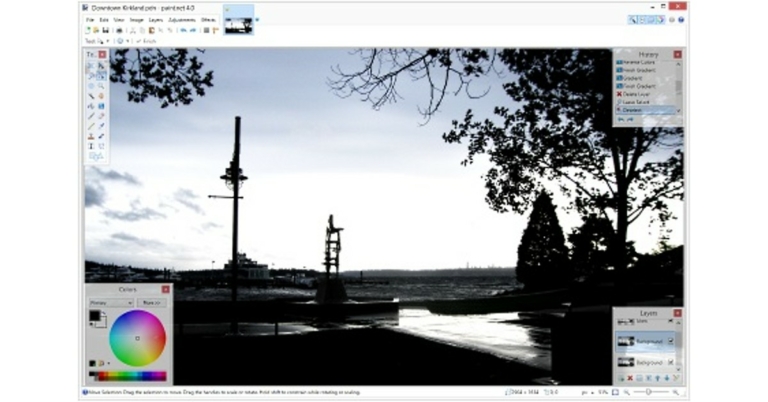
Developed by Rick Brewster and Michiel Sik, Paint.net is an open-source photo editing tool for Microsoft Windows. Paint.net was initially launched as an alternative to MS Paint, but its diverse photo editing tools earn it comparisons to Photoshop and GIMP. Since Paint.net is open-source, a host of plug-ins are on offer, all designed by the users and the Paint.net community. If there is a certain feature you are looking for during your photo editing process, there is a high chance that a plug-in for that already exists. Today, we bring you 5 essential Paint.net plugins you must download in 2022. Read Also: 10 best Chrome browser plugins for power users

Simon B’s Plugins

Simon B’s plugins Simon B’s plugins consist of a pack of tools that will help you get the most out of Paint.net. It allows you seamlessly transition between layers, add GIFs, and create custom brushes for your project. Using Simon B’s Plugins, you’ll also be able to add text to your project, something that you cannot do in default mode.

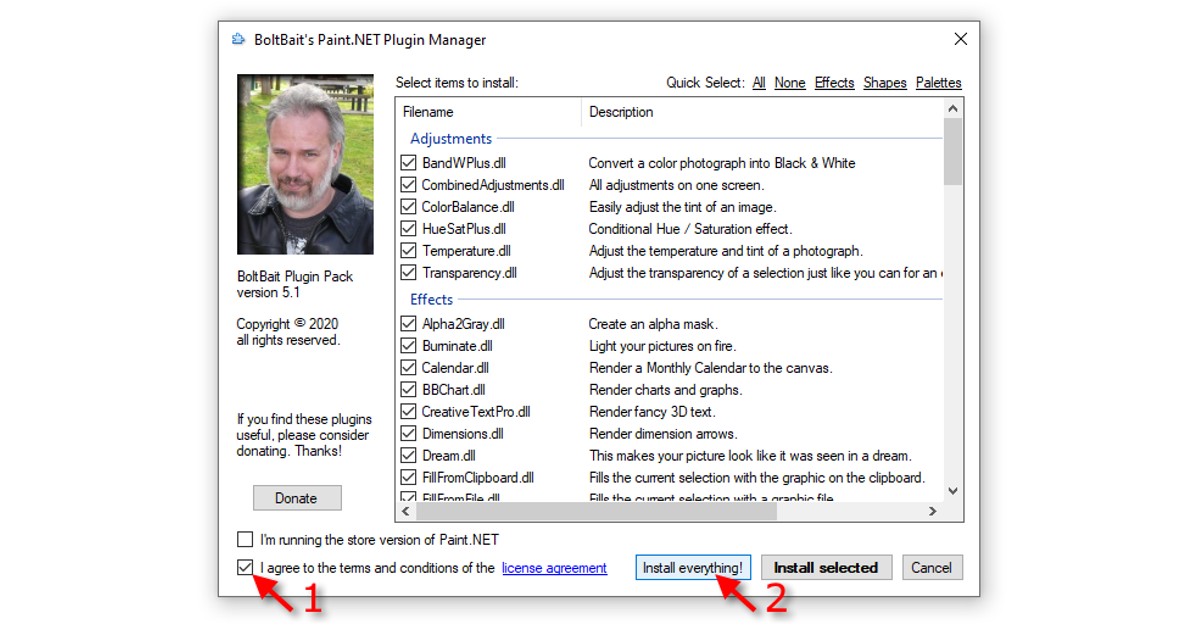
BoltBait’s Plugin Pack

BoltBait’s Plugin Pack With 43 plugins in the package, BoltBait’s Plugin Pack is considered by many to be the best tool for Paint.net. With BoltBait’s plugin pack, you will be able to work with a rainbow palette, a wide range of different shapes, and much more. If that isn’t enough, you can use the Bevel Object plugins that you get with this pack to make 3D objects in your Paint.net project.

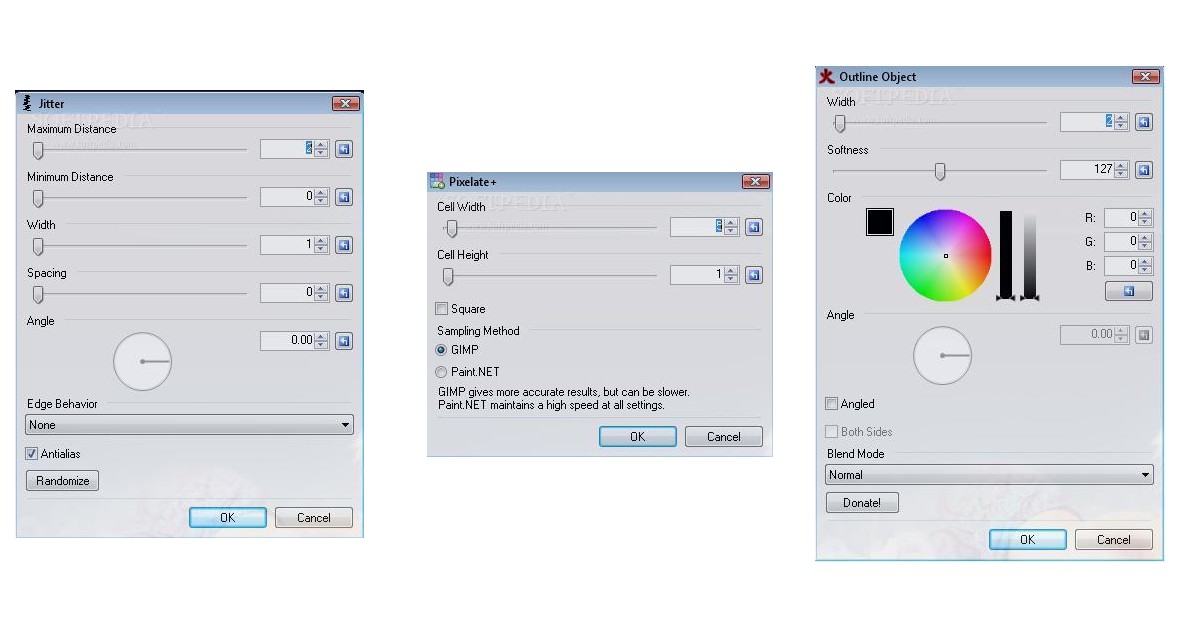
Pyrochild Plugins

Pyrochild Plugins. paint.net plugins 2022 With Pyrochild Plugins you will get access to features like gradient bars, jitter, film, etc. It also includes a Curves+ plugin, which is a significant improvement over Paint.net’s native Curve adjustment tool. Pyrochild Plugins also come with the Colour Match tool which can be used to edit your photo to follow a different colour scheme.

dpy’s Plugin Pack

dpy’s Plugin Pack. paint.net plugins 2022 dpy’s Plugin Pack has a very creative set of tools designed for people who want to get the most out of Paint.net. The Black & Alpha+ plugin and the perspective effect are both very unique tools that will greatly enhance your edited images. On top of that, dpy’s plugin pack also offers a wide variety of text effects, speech bubbles, metallic effects, and a lot more. 

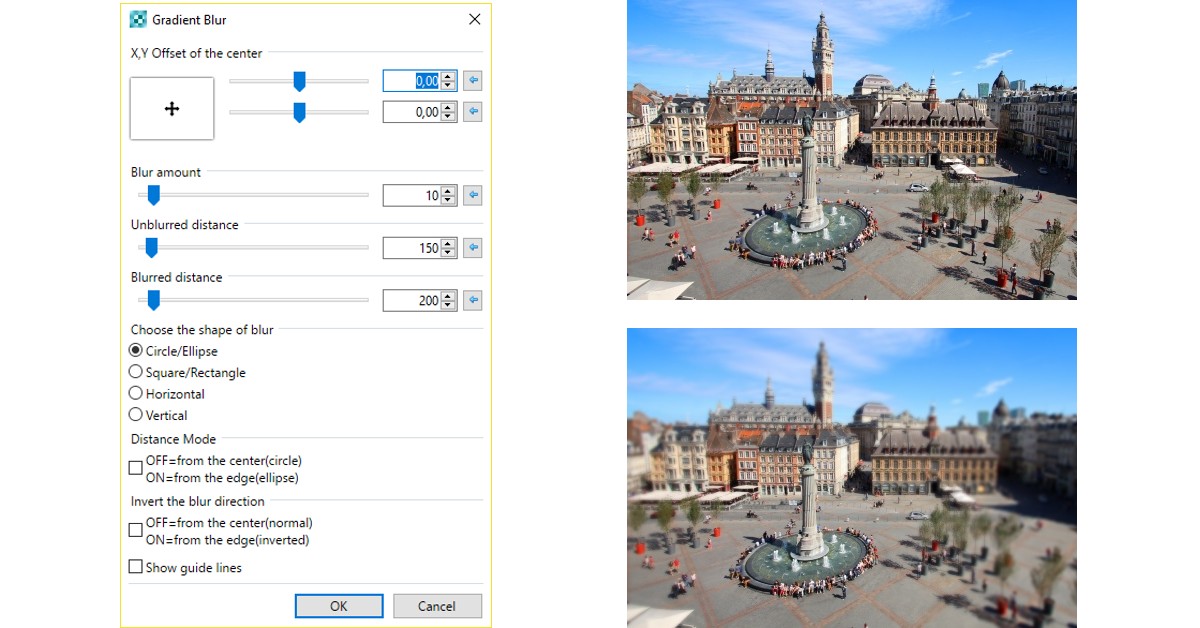
MadJik Plugin Pack

MadJik plugin pack. paint.net plugins 2022 Consisting of 78 tools, MadJik is the biggest plugin pack available for Paint.net. Once you download the MadJik plugin pack you will find a tool for most of your needs, ranging from gradient blur to fractal curly tree. MadJik is one of the most frequently updated packs, so you’ll always have something new to try out. This makes MadJik one of the most essential Paint.net plugins in 2022. Read Also: How to install Windows 10 using a pen drive These 5 essential Paint.net plugins will cover all of your photo-editing needs. While most of them are free to use, some may require a small donation to the developer. If you want to explore more plugins, Paint.net forums are always brimming with new tools for users to test. You can even ask for plugin recommendations based on the needs of your project. For the latest gadget and tech news, and gadget reviews, follow us on TwitterFacebook and Instagram. For newest tech & gadget videos subscribe to our YouTube Channel. You can also stay up to date using the Gadget Bridge Android App.

Smartphone comparison: OnePlus Nord 2T 5G vs Poco F4 5G

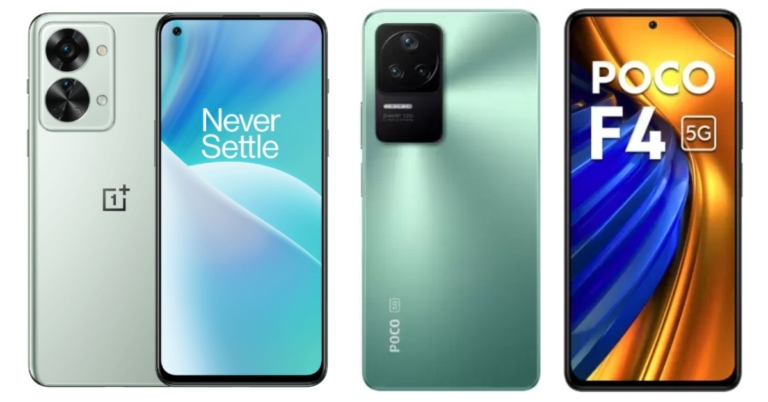
OnePlus Nord 2T 5G, the company’s newest flagship model, was unveiled in India recently. The OnePlus Nord 2T 5G will compete against the likes of the Poco F4 5G however the cost, available software, and colour options of each of these machines vary. Let’s compare the OnePlus Nord 2T Vs Poco F4 5G if you are seeking a nice phone for under Rs 30,000.

Display

OnePlus Nord 2T 5G: 6.43-inch full-HD+ AMOLED display Poco F4 5G: 6.67-inch full-HD+ E4 AMOLED display

Processor

OnePlus Nord 2T 5G: MediaTek Dimensity 1300 SoC Poco F4 5G: Snapdragon 870 SoC

Rear camera(s)

OnePlus Nord 2T 5G: A triple back camera array with a 50-megapixel Sony IMX766 main sensor and an optical image stabilisation (OIS)-enabled f/1.8 lens. A 2-megapixel monochrome sensor with an f/2.2 lens and an 8-megapixel ultra-wide camera with a 120-degree field of view is also included in the camera arrangement. Poco F4 5G: A triple-back camera arrangement with a 64-megapixel primary sensor and an optical image stabilisation (OIS) with an f/1.8 lens. A 2-megapixel macro camera and an 8-megapixel ultra-wide camera are also part of the camera arrangement.

Selfie camera

OnePlus Nord 2T 5G: 32-megapixel Sony IMX615 camera Poco F4 5G: 20-megapixel front camera sensor

RAM and storage

OnePlus Nord 2T 5G: 8GB RAM with 128GB storage/ 12GB RAM with 256GB storage Poco F4 5G: 6GB RAM with 128GB storage / 8GB RAM with 128GB storage/ 12GB RAM with 256GB storage model

Battery

OnePlus Nord 2T 5G: 4,500mAh dual-cell battery Poco F4 5G: 4,500mAh battery

Operating system

OnePlus Nord 2T 5G: Android 12 with OxygenOS 12.1 Poco F4 5G: Android 12 with MIUI 13

Starting Price

OnePlus Nord 2T 5G: Rs 28,999 Poco F4 5G: Rs 27,999

Our Take

Starting with the cost, the OnePlus Nord 2T 5G price in India starts at Rs 28,999 for the base variant, while the Poco F4 5G price in India starts at Rs 27,999. In terms of specifications, the Poco F4 5G operates on Android 12 with MIUI 13, while the OnePlus Nord 2T 5G works on Android 12 with OxygenOS 12.1. Poco features a larger and better AMOLED display with a 120Hz refresh rate than the OnePlus phone. Poco F4 5G is powered by the Snapdragon 870 SoC, while Nord 2T 5G has an octa-core MediaTek Dimensity 1300 SoC. Whereas the Qualcomm Snapdragon 870 CPU is an upgraded version of the Snapdragon 865 chipset which was available on Flagship smartphones, Dimensity 1300 is a new entrant to India’s smartphone industry. Both devices have a triple-back camera setup that is remarkably comparable in terms of cameras. While the 64-megapixel primary sensor on the Poco F4 5G also has optical image stabilisation (OIS), the OnePlus Nord 2T has a 50-megapixel Sony IMX766 primary camera. The F4 5G has a better 20-megapixel selfie camera sensor at the front compared to the OnePlus Nord 2T 5G’s 32-megapixel Sony IMX615 sensor for selfies. Therefore, Poco definitely overtakes OnePlus in the photography department. The batteries in both phones are similar, but the OnePlus phone supports 80W SuperVOOC fast charging, while the Poco offers 67W fast charging. People who value clean software, quick charging, and fashionable appearance will be satisfied with the Nord 2T’s characteristics. However, the camera on the Poco F4 5G now appears to be great, which makes this phone fantastic value for the money. For the latest gadget and tech news, and gadget reviews, follow us on TwitterFacebook and Instagram. For newest tech & gadget videos subscribe to our YouTube Channel. You can also stay up to date using the Gadget Bridge Android App. You can find the latest car and bike news here.

Garena Free Fire Redeem Codes Today 4 July 2022: Here is how to claim them

Garena Free Fire is a battle royale game with regular awards and tournaments to keep players interested. If you play Garena Free Fire, you should be aware of the redeem codes that are released on a daily basis. However, because the battle royale game is banned in India, players from other countries can use the Free Fire Redeem codes daily. If you’re unfamiliar with the Garena Free Fire redeem codes or don’t know how to get them, we’ve put together a step-by-step guide to help you redeem them. Check out Garena Free Fire Redeem Codes for July 4. The Free Fire redeem codes are a great way to get free stuff. These are 12-digit codes that contain alphabets and numbers, as well as an expiration date and time. Because the Garena FF redeem codes cannot be used more than once, you should hurry to the redemption page to claim your free reward before someone else does. To get a free reward, all you have to do is go to reward.ff.garena.com/en, which is the official redemption page. Also, keep an eye on this space for daily updates on Garena Free Fire redemption codes and rewards.

Garena Free Fire Redeem Codes Today 4 July 2022

FQX1-FT2Q-S3WS AD2Q-FG8I-H3EI RGY1-TG4F-VBE4 JI56-Y9HI-8UBJ FY87-HYBT-VGFC VXSB-EN4K-56I9 Y8H7-B6V5-C4XS 3EAW-QSD2-CV3G TER5-F43E-SWAS WEYVGQC3CT8Q GCNVA2PDRGRZ J3ZKQ57Z2P2P B3G7A22TWDR7X 3IBBMSL7AK8G 8F3QZKNTLWBZ SARG886AV5GR X99TK56XDJ4X 4ST1ZTBE2RP9 FF7MUY4ME6SC FJK8-SL6W-Q203 9ER8-FG7H-BYU4 JVK9-DS2W-QJ2U Y54E-RF3G-BE4E F6C5-X4SA-3QWE 2DF3-GHRT-UG76 5FD4-SQED-2FV3 B4J5-TIY8-H765 DR8S-F2VB-N4J5 KTIY-8H76-B8V5 CDRS-F5EV-456I FH3R-NF1B-VD8S A52E-Q12Q-6E3D SCX4-VB21-HD85 EY64-5RF3-GB7D GD8H-JEUI-84I7

How to Get Free Fire Redeem Codes for Garena on July 4?

  • Visit the Garena Free Fire game’s official website at reward.ff.garena.com.
  • Use your Facebook, Google, VK, Apple ID, Huawei ID, or Twitter account to log in.
  • You’ll be taken to a valid redemption code (s)
  • Copy and paste the 12-digit redemption code into the text box.
  • On the screen, a dialogue box will appear.
  • ‘Ok’ should be selected.
For the latest gadget and tech news, and gadget reviews, follow us on TwitterFacebook and Instagram. For newest tech & gadget videos subscribe to our YouTube Channel. You can also stay up to date using the Gadget Bridge Android App. You can find the latest car and bike news here.

Amazon Quiz Answers Today 4 July 2022: Participate to win Rs 30,000

4 July 2022 Amazon Quiz has gone live. Customers from different parts of the country are participating in the daily quiz. The quiz begins from 12 AM to 11:59 PM. Those participating in the quiz can win exciting prizes by answering all the questions correctly. Today participants have a chance to win a Rs 30,000 Amazon Pay Balance. Amazon quiz brings an opportunity for its customers to win Amazon Pay Balance ranging from Rs 1,000 to Rs 50,000. The Quiz can be played from 12 AM to 11:59 PM. The e-commerce platform brings a fresh quiz on a daily basis which consists of five questions related to general knowledge and current affairs. The participants need to answer all the questions correctly and their names will be selected for a lucky draw. The winner will be announced at the end of the month. One wrong answer could eliminate you from the quiz. If you manage to answer all the questions correctly you can stand a chance to win a Rs 30,000 Amazon Pay Balance today. Only app users are eligible to participate in the Quiz. Check Out 4 July 2022 Amazon Quiz Answers. Amazon Quiz Today Prize – Rs 30,000 Amazon Pay Balance Quiz Date – 4 July 2022 Daily Timing – 12 AM to 11:59 PM Winner Announcement – Today 12 PM

Amazon Quiz Answers Today 4 July 2022

Question 1: Which Formula 1 Grand Prix held at the Circuit Gilles Villeneuve was recently won by Max Verstappen? Answer: Canadian Grand Prix Question 2: The Bombay High Court recently dismissed an appeal filed by a promoter entity of Dish TV India against which bank? Answer: YES Bank Question 3: Rocketry: The Nambi Effect’ based on the life of a real life scientist, is the directorial debut of which actor? Answer: R. Madhavan Question 4: Which spacecraft recently entered the atmosphere of this astronomical body? Answer: Parker Question 5: The flag of which country has been shown here? Answer: Austria

How To Play Amazon Quiz

Only app users are eligible to play the Amazon quiz every morning from 12 AM to 11:59 PM. The quiz is not available on the desktop. For those who are unaware of how to play the Amazon quiz below are the steps, you can follow to take the quiz.
  • Firstly download the Amazon app from Google Play Store or App Store
  • Now fill in the required information through the Sign Up option.
  • You need to log in to the Amazon app and scroll down on the home screen to find the Amazon Quiz banner.
  • Tap on the Amazon Quiz banner and tap on the Start button to start the Quiz.
  • Now you will get 5 questions and you need to answer them correctly. One wrong answer will eliminate you from the Quiz.
  • After answering all the questions correctly you are now eligible for a Lucky Draw.
  • The winner’s name will be announced today at 12 PM.
For the latest gadget and tech news, and gadget reviews, follow us on TwitterFacebook and Instagram. For newest tech & gadget videos subscribe to our YouTube Channel. You can also stay up to date using the Gadget Bridge Android App. You can find the latest car and bike news here.

OnePlus Nord Buds and Bullets Wireless Z2 earphones are now available in new colorways

In India, new colour options for the OnePlus Nord Buds and Bullets Wireless Z2 earphones are now available. The earphones will be available in Blue Agate and Acoustic Red colorways respectively. Both the new colorways are now available for purchase. Both the devices were introduced a few months back in the country. The Blue Agate version of the OnePlus Nord Buds is currently on sale. And the Acoustic Red colorway of the OnePlus Bullets Wireless Z2 is now available for purchase. Both the devices were introduced alongside the OnePlus 2T 5G smartphone today. OnePlus Nord Buds were introduced in India. In contrast, the OnePlus Bullets Wireless Z2 earphones were introduced in India in March of this year. A new colour option, Blue Agate, is now offered for the OnePlus Nord Buds. The new colour option is being sold for Rs 2,799. The OnePlus Nord Buds have previously been introduced in India in Black Slate and White Marble colour variants. OnePlus Nord Buds Blue Agate colour price in India, availability According to OnePlus, the new colour option of the OnePlus Nord Buds will be available for purchase starting on July 4, 2022, at 12pm on Flipkart, OnePlus’ official website, and the OnePlus Store app. OnePlus Bullets Wireless Z2 Acoustic Red colour price in India, availability The OnePlus Bullets Wireless Z2 earphones, on the other hand, were introduced in India and come in Beam Blue and Magico Black colours. The “Acoustic Red” colourway of the OnePlus Bullets Wireless Z2 earphones has been launched in India at Rs 1,999. The device will be available for purchase from July 4 at noon via Flipkart, Amazon India, the official OnePlus website, and the OnePlus shop app. Both wireless earphones were introduced alongside the OnePlus Nord 2T 5G. The price of the OnePlus Nord 2T 5G starts at Rs 28,999 for the 8GB RAM with 128GB storage option. The 12GB RAM and 256GB of storage will be available for Rs 33,999. Gray Shadow and Jade Fog are the two colour options for the phone. The OnePlus Nord 2T 5G will go on sale in India starting at noon on July 5 via OnePlus.in, the OnePlus Store App, Amazon.in, OnePlus Experience stores, and authorised partner retailers. For the latest gadget and tech news, and gadget reviews, follow us on TwitterFacebook and Instagram. For newest tech & gadget videos subscribe to our YouTube Channel. You can also stay up to date using the Gadget Bridge Android App. You can find the latest car and bike news here.

The brand-new OnePlus Nord 2T 5G, with Dimensity 1300 SoC launched in India

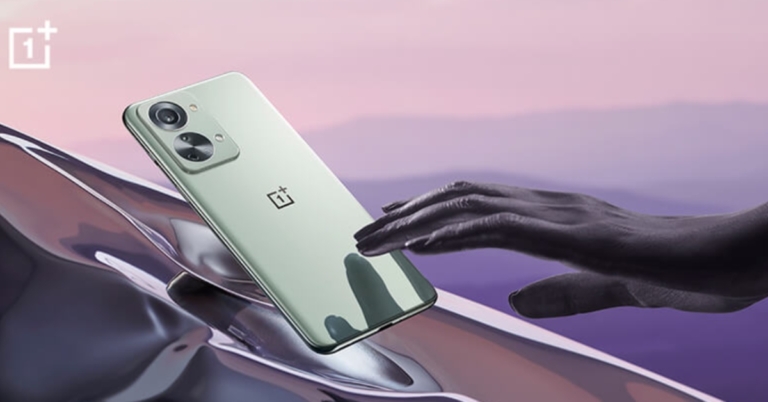
Today the OnePlus Nord 2T 5G was introduced in India. The handset is a modest improvement over Nord 2 which was announced last year featuring an octa-core MediaTek Dimensity 1300 SoC. Another improvement is that the new phone supports 80W fast charging. However, the phone retains the same AMOLED screen with 90HZ refresh rate support and triple cameras.

OnePlus Nord 2T 5G price in India, availability details

The entry-level 8GB RAM with 128GB storage OnePlus Nord 2T 5G model costs Rs 28,999 in India. The phone is also offered in a 12GB RAM with 256GB storage option, which costs Rs 33,999. The phone will be available in two colour choices Gray Shadow and Jade Fog. On July 5 at noon, OnePlus.in, OnePlus Store App, Amazon.in, OnePlus Experience shops, and authorised partner retailers in India will begin selling the OnePlus Nord 2T 5G. OnePlus Nord 2T 5G price in India, availability details The offers that will be available to users when they buy the OnePlus Nord 2T 5G are as follows: Users of ICICI credit and debit cards will be entitled to an immediate bank discount of INR 1500 on Amazon.in, OnePlus.in, the OnePlus Store App, OnePlus experience stores, and other significant offline partner retailers* from July 5 through July 11. Users of ICICI credit and debit cards may also take advantage of free EMI for up to three months through the end of July. In addition to the promotions offered to owners of ICICI credit and debit cards, there are a few exclusive promotions accessible just on oneplus.in and the OnePlus shop app. These are what they are: Old OnePlus smartphone owners can save an additional Rs. 3000 with an exchange bonus on oneplus.in and the OnePlus Store App from July 5 to July 14. The OnePlus Nord Handy Fanny Pack will be given away to the first 1000 users of the OnePlus Store App. Customers of the OnePlus Nord 2T 5G can additionally purchase the Red Cable Care plan for Rs. 749 when making a bundle purchase on oneplus.in and the OnePlus Store App, as well as for Rs. 999 at Amazon.in and some select OnePlus Experience Stores. Get advantages like a specialised customer helpline, a 12-month extended warranty, 120 GB of cloud storage, and many other exclusive advantages! Offer only good for a short time RedCoins may be used to save up to 1000 on the purchase of the OnePlus Nord 2T 5G on oneplus.in and the OnePlus Store App for current Red Cable Club members. Offer good through July 11th, 2022. OnePlus Nord 2T 5G specifications

OnePlus Nord 2T 5G specifications

The OnePlus Nord 2T 5G is equipped with a hole-punch design 6.43-inch full-HD+ AMOLED display having 1,080×2,400 pixels of resolution. It has a screen refresh rate of 90Hz, comes with an aspect ratio of 20:9 HDR10+ certification and is covered by Corning Gorilla Glass 5. The MediaTek Dimensity 1300 SoC, combined with up to 12GB of LPDDR4X RAM, powers the OnePlus Nord 2T 5G. Storage on the Nord 2T 5G may be expanded up to 256GB using UFS 3.1. The phone has a triple back camera array with a 50-megapixel Sony IMX766 main sensor and an optical image stabilisation (OIS)-enabled f/1.8 lens. A 2-megapixel monochrome sensor with an f/2.2 lens and an 8-megapixel ultra-wide camera with a 120-degree field of view is also included in the camera arrangement. The front of the OnePlus Nord 2T 5G has a 32-megapixel Sony IMX615 camera with an f/2.4 lens for selfies and video calls. The electronic image stabilisation (EIS) and AI-deblurring algorithms that are supported by the selfie camera enhance the sharpness and clarity of both still images and moving pictures. The phone has a 4,500mAh dual-cell battery that can be charged quickly at 80W with the included charger. The OnePlus Nord 2T 5G is TÜV Rheinland certified for safe rapid charging and usage. Additionally, it has nine internal temperature sensors that track the charging temperature in real-time to ensure that the phone is kept secure and cool. The phone also features a separate integrated circuit (IC) that can control the charging mechanism to guarantee charging stability and safety. The OnePlus Nord 2T 5G has 5G, 4G LTE, Wi-Fi 6, Bluetooth v5.2, GPS/ A-GPS/ NavIC, NFC, and a USB Type-C connector as connectivity options. An accelerometer, ambient light sensor, gyroscope, magnetometer, proximity sensor, and SAR sensor are among the sensors on board. Additionally, the phone has an in-display fingerprint sensor. Dual stereo speakers and noise cancellation are included too. For the latest gadget and tech news, and gadget reviews, follow us on TwitterFacebook and Instagram. For newest tech & gadget videos subscribe to our YouTube Channel. You can also stay up to date using the Gadget Bridge Android App. You can find the latest car and bike news here.

Samsung Student Advantage Program 2022 announced: Great offers on Laptops, Tabs, Smartphones and Monitors

Samsung Electronics has announced exciting offers and special discounts that are available just to students in India under its Student Advantage Program. Samsung Galaxy smartphones, tablets, and smart monitors will be discounted by 5%. Along with an upgrade bonus of up to Rs 8,000, students who purchase the Samsung Galaxy S22 Ultra can also purchase the Samsung Galaxy Watch 4 for Rs 2,999.  Student Advantage Program 2022 offers discounts of 10% on Galaxy Books and wearables to students. The student discounts will be accessible through its official website, Samsung Shop, and in its Samsung Exclusive Stores.  The campaign offers a 5 percent discount on Samsung’s flagship smartphones, including the Galaxy S20 FE and Galaxy S21 FE, Galaxy A Series smartphones above Rs 10,000, and Galaxy Tab A and Galaxy Tab S series. Samsung laptops and wearables are available at a discount of 10% for students, while Samsung monitors are discounted by 5%.  Students who purchase the Samsung Galaxy S22 Ultra can additionally receive the Samsung Galaxy Watch 4 for Rs 2,999, an upgrade incentive of up to Rs 8,000, or Rs 5,000 in cashback (on HDFC Bank cards or Samsung Finance+) in addition to the 5 percent discount. In addition to the 5 percent off, students who purchase the Samsung Galaxy S22 or Galaxy S22+ will also receive the Samsung Galaxy Buds 2 for Rs 2,999, as well as an upgrade bonus of up to Rs 8,000, Rs 5,000 in cashback (on HDFC Bank cards or Samsung Finance+), or a 24-month no-interest EMI with no down payment. On the Samsung Galaxy A53 5G and Galaxy A33 5G, students will also receive an immediate discount of Rs 3,000. Students can take advantage of the promotions by visiting a nearby Samsung Exclusive Shop, which can be found via the store locator here, or by visiting the Samsung Student Advantage microsite. Students will have direct access to authentic Samsung products and the choice of paying with simple, cost-free EMIs and an easy exchange advantage. For the latest gadget and tech news, and gadget reviews, follow us on TwitterFacebook and Instagram. For newest tech & gadget videos subscribe to our YouTube Channel. You can also stay up to date using the Gadget Bridge Android App. You can find the latest car and bike news here.

iPhone Hotspot Keeps Disconnecting or Stops working: Best 9 Fixes

Creating a personal hotspot on your iPhone is an easy way to access the web on another device, especially if you’re outside and don’t have access to a public Wifi. However, sometimes your hotspot may show some unexpecting glitches, hindering your web usage. Today, we show you the best 9 fixes to keep the iPhone hotspot from disconnecting or stopping working. Read Also: How to Pay Someone With Apple Pay on Your iPhone?

Turn your hotspot back on

turn on your wifi hotspot Sometimes your iPhone disables the hotspot by itself after an extended period of inactivity. While it may be annoying to some, this feature actually helps in saving your iPhone battery and keeps your data safe from being used by other foreign devices that may connect to your iPhone. Simply go to Settings>Personal Hotspot to turn it back on.

Check Data Usage

check data usage Your iPhone hotspot may stop using once you’ve used up all your mobile data. In order to check if you’ve exceeded the data limit, go to Settings>Mobile data and check under ‘Personal hotspot’.

Disable Low Power Mode

disable low power mode. iphone hotspot keeps disconnecting If your iPhone is running on a low battery, it may have automatically the Low Power Mode. Low Power Mode shuts off any secondary functions and keeps only the essential tasks running on your phone in order to save battery. This means background tasks like app updates, downloads, and the personal hotspot may shut down. Go to Settings>Battery and disable Low Power Mode.

Disable Low Data Mode

disable low data mode. iphone hotspot keeps disconnecting Quite like the Low Power Mode, Low Data Mode can be turned on to cut off any excessive mobile data usage. Once you enable it, all your background tasks that use mobile data will be turned off. This includes your personal hotspot. To turn Low Data Mode off, go to Settings>Mobile Data>Mobile Data Options and select your primary SIM card. Disable Low Data Mode in the following window.

Keep the Hotspot screen turned on

If you are using an iOS Beta version, try keeping the hotspot screen turned on at all times to keep it from disconnecting randomly. This will drain your phone’s battery quicker since displays are pretty power-hungry but the hotspot connection will remain intact. To reduce battery drainage you can turn down the battery of your phone or plug in the charger.

Change Hotspot Password

Change Hotspot Password Changing the personal hotspot’s name and password refreshes the connection and resolves any existing issues. Simply go to Settings>Personal Hotspot and Tap on ‘WiFi Password’ to change it.
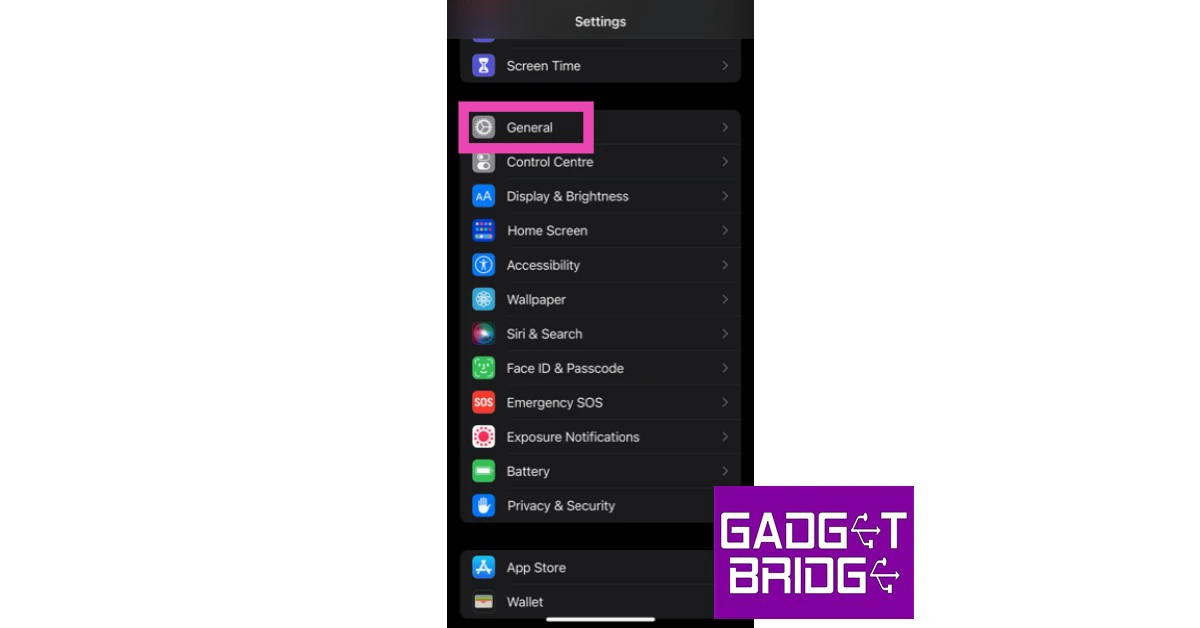
Reset Network Settings

Resetting the Network Settings on your iPhone will unpair it from all connected networks and devices. Your network settings will be restored to the factory default. The data on your phone will remain untouched. If the hotspot issue is related to any customised network settings on your iPhone, this reset will fix it. Here’s how you can go about it. Step 1: Go to Settings and select General. Step 1: Go to Settings and select General. how to fix iphone dictation not working on ios 16. whatsapp call not ringing when iphone is locked Step 2: Scroll down and select ‘Transfer or reset iPhone’. Step 2: Scroll down and select ‘Transfer or Reset iPhone’. Step 3: Select ‘Reset’ followed by ‘Reset Network Settings’. Step 3: Select ‘Reset’ followed by ‘Reset Network Settings’. whatsapp call not ringing when iphone is locked

Update Carrier Settings

Update Carrier Settings The software on your iPhone isn’t the only thing that receives constant updates. Your network provider also rolls out routine updates to improve the network connection. Typically, these updates are installed automatically on your iPhone. But in the rare case that they didn’t, you can always manually install them. To update the carrier settings on your iPhone, go to Settings>General>About>SIM Details and tap the ‘Network Provider’ option to receive the latest settings. If your hotspot is malfunctioning due to outdated carrier settings, this will fix it.

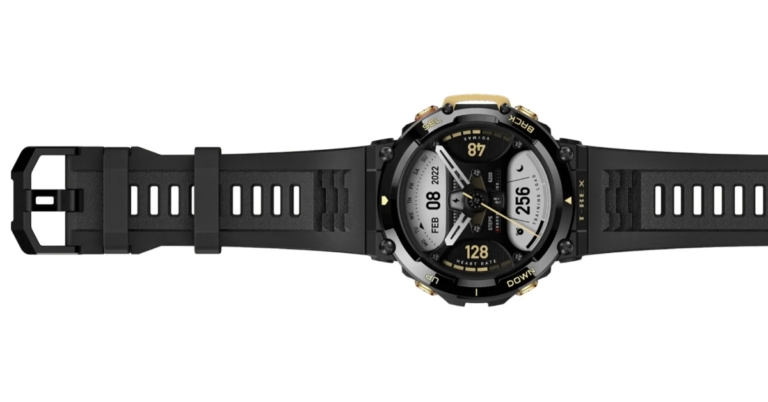
Update iOS

update ios. iphone hotspot keeps disconnecting If you’re using one of the previous iOS versions, you might want to update to the latest one. Some bugs are known to notoriously pop-up on the older iOS versions once a new one becomes available.  To install the latest version of iOS to your device, go to Settings>General>Software update. Read Also: How to Change Your Apple ID Email Address?

Frequently Asked Questions

Why does my iPhone hotspot keep disconnecting?

The most likely reason behind your iPhone disconnecting the personal hotspot is the data limit being breached. Disable Low Data Mode from Settings to get around this issue.

How do I stop my iPhone hotspot from disconnecting?

To stop your iPhone hotspot from turning off, keep the screen unlocked at all times. If that doesn’t work, disable low power mode and low data mode. You can also try changing the hotspot password and refreshing the carrier settings.

Is there a connection limit on iPhone hotspots?

There is no connection limit on an iPhone personal hotspot. You can connect as many devices as you want.

Conclusion

These were some of the easiest ways to keep iPhone Hotspot from disconnecting or stopping working. If the problem still persists, try restarting your phone or unpairing and pairing your device back again. If you found these fixes helpful, let us know in the comments! For the latest gadget and tech news, and gadget reviews, follow us on TwitterFacebook and Instagram. For newest tech & gadget videos subscribe to our YouTube Channel. You can also stay up to date using the Gadget Bridge Android App. You can find the latest car and bike news here.

Amazfit T-Rex 2 smartwatch launching in India tomorrow, pre-orders begin

Popular fitness tracker maker brand Amazfit is launching a new sports smartwatch in India on July 2. The smartwatch Amazfit T-Rex 2 is currently available for pre-order in the country. To recall it made its global debut on last month featuring a GPS technology. The upcoming smartwatch is 10ATM water resistance and houses a 500mAh battery too.

Amazfit T-Rex 2 price in India and availability

Amazfit T-Rex 2 smartwatch will be retailing in India for Rs 15,999 when it is launched tomorrow July 2 at 12 noon. In India, the Amazfit T-Rex 2 is available in the colours Astro Black and Gold, Amber Black, and Wild Green. Pre-orders for the smartwatch are presently being accepted on the official Amazfit website. The smartwatch’s Amazon landing page recently went online, hinting that customers would soon be able to buy it there as well. According to the company customers who pre-order, the wearable will also receive a limited launch offer workout bag worth Rs. 1,999 from the firm. Amazfit T-Rex 2 price in India and availability

Amazfit T-Rex 2 specifications

Amazfit T-Rex 2 is an affordable Military Certified Rugged Outdoor Smartwatch. Having passed 15 military-grade standards (MIL-STD-810G). According to the company, it can withstand extreme temperature and environmental conditions from 70C heat to -40 cold along with 240 Hrs of humidity, 96 Hrs of Salt spray and many more. The smartwatch features a 1.39-inch AMOLED screen with a resolution of 454×454 pixels and always-on-functionality. It has an advanced 6PD (six photodiodes) BioTracker 3.0 PPG biometric sensor that can track multiple metrics along with Spo2, Heart rate and stress, and sleep quality all 24/7. Every time it notices that you experience significant altitude fluctuations, the Amazfit T-Rex 2 will notify you and prompt you to perform the blood oxygen saturation test. The smartwatch has 150+ sports modes, including the Triathlon mode that will test your endurance, the lap data recording mode for professionals, and the more leisurely Golf swing mode. It supports five satellite location systems, has dual-band positioning, and lets you channel your inner explorer by importing route files from the Zepp app. The watch with real-time navigation can even display your particular movement and evolving routes in real-time. The T-Rex 2 can also survive the equivalent of 100 metres of water pressure thanks to its water-resistance grade of 10 ATM. With regular use, the fitness tracker’s 500mAh battery provides up to 24 days of battery life on a single charge. For the latest gadget and tech news, and gadget reviews, follow us on TwitterFacebook and Instagram. For newest tech & gadget videos subscribe to our YouTube Channel. You can also stay up to date using the Gadget Bridge Android App. You can find the latest car and bike news here.

How to Send Group Texts from Android and iPhone (2022)?

0
While almost everyone today uses an instant messenger for sending messages, there are still some people who prefer the old-school way of texting. If someone doesn’t use a smartphone, sending an SMS is the only way to text them. Today, we show you how you can send group texts from Android and iPhone. Read Also: How To Transfer LINE from Android to iPhone [2022]

How to send group texts from Android

Step 1: Open your Messages app. Step 2: Click on the ‘Create Message’ icon at the bottom right corner of your screen. Click on the ‘Create Message’ icon at the bottom right corner of your screen. Step 3: In the recipient box, type the name of the recipients you want to add to the group, or press on the ‘+’ icon to add them from your contact list. In the recipient box, type the name of the recipients you want to add to the group, or press on the ‘+’ icon to add them from your contact list. Step 4: Type a message and hit send. The text group will be created and your message will be delivered. Type a message and hit send.

How to send group texts from iPhone

Step 1: Open the Messages app on your iPhone. Open the Messages app on your iPhone. how to send group text on android and iphone Step 2: Tap on the ‘Compose message’ icon at the top right corner of your screen. Tap on the ‘Compose message’ icon at the top right corner of your screen. how to send group text on android and iphone Step 3: In the recipient box, type the name of the recipients you want to add to the group, or press the adjoining ‘+’ icon and add them from your contact list. In the recipient box, type the name of the recipients you want to add to the group, or press the adjoining ‘+’ icon and add them from your contact list. how to send group text on android and iphone Step 4: Type the message and hit send. The text group will be created and your message will be delivered. Read Also: Top 7 Game Boy Emulators for iPhone Following these easy steps, you can send a group text on Android and iPhone. While using iPhone for group texts you may notice green and blue chat bubbles for different people. This is because the messages that are sent through an iPhone use iMessage and show up in blue. The messages sent from non-Apple devices show up in green and are sent using your network carrier. For the latest gadget and tech news, and gadget reviews, follow us on TwitterFacebook and Instagram. For newest tech & gadget videos subscribe to our YouTube Channel. You can also stay up to date using the Gadget Bridge Android App. You can find the latest car and bike news here.