With the beginning of the festive season in India, Apple will be giving special festive offers on its iPhones. The deals will be offered from October 7 and will run till November 4 or till the stock lasts. With the purchase of the iPhone 12 and iPhone 12 Mini, the company will be giving AirPods for free to each buyer.
Apple festive offer on iPhone 12 and iPhone 12 Mini
The latest offer has already been listed on the company’s official online store in the country. Since the sale is scheduled to begin on October 7, the offer banner is not accessible. It should be noted that the price of Apple AirPods starts at Rs 14,000 in India when purchased separately. As a result, if you purchase an iPhone 12 or iPhone 12 Mini, you will be eligible for the deal that combines the iPhone 12 or iPhone 12 Mini with Apple AirPods.But here is the catch, both the Apple iPhone 12 and the iPhone 12 Mini will be sold at their original MRPs. Also, you are free to choose any of the models of AirPods, but in the end, the final decision on what offer will be applied to what model will be made by Apple only.The revised price of the Apple iPhone 12 starts at Rs 65,900, whereas the price of the iPhone 12 Mini begins at Rs 59,900. There will be no discounts on these devices. Instead, one can choose any of the AirPods models that include AirPods without a charging case, AirPods with a charging case, or AirPods Pro. The final value will be decided by Apple when you have decided what combination you will go for. More details will be revealed when the deal goes live in a few days time.The Apple AirPods with a charging case come at Rs 18,900, whereas without the charging case, the price is cut down to Rs 14,900. The AirPods Pro are originally priced at Rs 24,900. Like we mentioned above, Apple will decide the final value of the combination you choose. Similarly, it will decide how much of a discount will be applied to it at the time of check out. One can also ask for engraving to personalise their AirPods case, which is absolutely free.So now you must be wondering what the point of this offer is if Apple is not offering any discount on these products. The point is, if you choose to go with the first combination, which is the iPhone 12/iPhone 12 Mini with AirPods without the charging case, you will definitely save Rs 14,900. Likewise, when you combine your iPhone with AirPods with a charging case, it will let you save at least Rs 18,900, the same as the offer on the AirPods Pro. Also, the invoice value will decide whether the discount will be applied fully or partially. But if you are looking to buy only the iPhone, then we would suggest you look somewhere else. More deals and discounts will be available during the Amazon Great India Festival Sale and the Flipkart Big Billion Days Sale, which will begin on October 3. Here you might get extra discounts on various bank debit and credit cards.
For the latest gadget and tech news, and gadget reviews, follow us on Twitter, Facebook and Instagram. For newest tech & gadget videos subscribe to our YouTube Channel. You can also stay up to date using the Gadget Bridge Android App. You can find the latest car and bike news here.
There are times when you want to use paid apps on Android smartphones but want to try them out first before buying. There are many ways you can do that. You can use third-party app stores, which allow you to use these paid apps for free. We have mentioned some of the third-party app stores here, for your convenience along with some other methods that can help you.Read Also:How to block YouTube Ads on Android TV forever?
In This Article
Google Coupons
Occasionally, Google provides coupons to users regularly. You may also use these coupons to purchase the paid apps. Although the amount of the coupons is not too much, still you will be able to buy some cheaper paid apps using them. This is a good way to pick up apps for free, which otherwise could cost a bomb.
Google Opinion Rewards
Google Opinion Rewards is a rewards-based app that gives you money in the form of Google Play balance/credits for filling out surveys. The amount you get depends on the number of questions you answered in the survey. This is a method which many users around the world employ to buy apps for free.Once installed, the app will automatically notify you whenever a suitable survey is available for you. As you answer the surveys, you keep earning Google Play credits, which can be redeemed when buying paid apps on the Google Play Store. So yes, you can use this app to download paid apps and games for free on your Android smartphone.If you want to, you can keep earning small credits regularly. Soon, you’ll have enough credits to buy your favourite apps using the credits you accumulated over a period of time.
Google Play Points
Google Play Points is a great way to accumulate points that can later be redeemed to buy paid apps. If you make a lot of purchases on the Play Store or buy in-app items using Google Play, there is no reason why you should miss out on Google Play Points. These points are credited to your profile. Over a period of time, you can collect enough points to buy a paid app for free.
Download from: Google Opinion Rewards
Add apps to your Play Store wishlist
If you want someone else to buy you an app, simply put it on your wishlist and share it with them. If you have a lot of followers on social media, you can share your wishlist with them as well. To add a paid app to your wish list, go to its page in the Google Play Store, hit the ellipses at the top right corner of the screen, and select ‘Add to wishlist’.
Read also: PUBG Mobile Game: Search for Easter Eggs in the Blazing Treasure Event to get premium crate coupon for free
Aptoide App Store
Aptoide is a third-party app bazaar that competes directly with Google Play and other app stores. By using it, you may be able to install paid apps on your Android smartphones for free. All the user needs to do is to install the Aptoide app store and find the paid apps you want to use/try and install. There are plenty of apps that can be installed for free from the Aptoide app store.The apps uploaded on the Aptoide app store are safe and are checked by a couple of developers, these include some big-ticket antivirus companies too (for extra safety). This is also mentioned on their website – after which you can decide whether or not to download the apps.Download from: Aptoide
Blackmart Alpha
Blackmart Alpha is another third-party app store that offers paid apps on Android smartphones and devices for free. For this, you don’t need to pay any money. It has a simple UI and can be used for trying the paid apps before purchasing them.Additionally, you may categorise apps here as well. It sorts between the free and the paid apps. The best feature of this software store is that you may also access apps that are unavailable in your region. It was very popular amongst PUBG: Mobile players when the game was banned in India.Download from: Blackmart AlphaDisclaimer / Note: We at Gadget Bridge, don’t support piracy in any form/manner. Please use these listed app stores at your own risk.
App Sales
AppSales is not an app store, instead, it tells its users about the apps that are now available for free. But, you may use it to view and install newly released apps and games with a great discount on Google Play Store.Those who are watching for discounts on specific apps can add them to their watchlist to keep an eye on their prices. Overall, it’s also a great app to stay updated about the latest app discounts on the Google Play Store. Additionally, you might also see the app pricing history for comparison. Download from: AppSales
Frequently Asked Questions (FAQs)
How do I download paid apps for free on Android?
If you don’t want to download modded apps, you can accumulate Google Opinion Rewards and Play Points to purchase paid apps for free.
How do I add an app to my wishlist?
Go to the app’s page on the Play Store, hit the ellipses at the top right corner of the screen, and select ‘Add to wishlist’.
This is how you can get paid apps for free on Android. Accumulating Play Store credit can take a lot of time, especially if the app costs a lot. However, if you make a habit of taking surveys, it will prove to be quite lucrative in the long run.
Disclaimer: We do not recommend downloading cracked or modded APKs as it is illegal. Most cracked apps and games are altered and may contain suspicious malware or adware, which can attack your mobile after gaining access. They may even attack through viruses or send your private data to unknown servers without prior notice.
The company launched its new Oppo A55 today in India. The newly launched device is the successor of Oppo A54, which was launched by the company earlier this year. There are lots of updates in the new launch like a new 6.5-inch IPS LCD display that has HD+ resolution, top left corner punch hole camera, Mediatek G35 SoC, 50 MP triple camera setup. Other features include 6GB of RAM, a 5,000mAh battery and a 16MP selfie camera.
In This Article
Price and availability
The OPPO A55 4GB RAM + 64GB storage model is priced at Rs 15,490. On the other hand, the higher specced 6GB RAM model with 128GB of internal storage retails for Rs 17,490. The smartphone is listed on OPPO India’s website for pre-order. The device will go on sale in India via Amazon and OPPO website.Read Also: Oppo 5G smartphone with Snapdragon 855 processor
Specification and features
The Oppo A55 comes with a 6.5-inch IPS LCD display that has HD+ 720 x 1,600 pixels resolution. The screen has a standard 60Hz refresh rate, a 120Hz touch sampling rate, and the brightness goes up to 550 nits. Powering Oppo A55 is Mediatek Helio G35. The base variant of the device packs up to 4GB of RAM and 64GB of internal storage. The storage can further be expanded via a microSD card.A55 comes with ColorOS 11.1 out of the box, which is based on Android 11. In the optics department, the device features a triple camera setup that consists of a 50MP primary main camera, a 2MP depth sensor and a 2MP macro lens. The front of the smartphone sports a 16MP punch hole camera on the top left corner for selfies and video calls.Read Also: Oppo Watch review: For the everyday power userYou can expect a full day battery with a big 5000mAh battery that supports 18W fast charging. Further, the device supports a dual sim, Wi-Fi 802.11 b/g/n/ac, Bluetooth 5.0, GPS, a long lost 3.5mm headphone jack, and a USB Type-C port. Oppo has placed a side-mounted fingerprint sensor for security. With that one can also use the AI face unlock feature.
For the latest gadget and tech news, and gadget reviews, follow us on Twitter, Facebook and Instagram. For newest tech & gadget videos subscribe to our YouTube Channel. You can also stay up to date using the Gadget Bridge Android App. You can find the latest car and bike news here.
Google Docs is an important tool in the Google ecosystem that can be used for drafting and collaborating on documents. But, giving everyone an option to edit the document doesn’t always work out. The best solution to counter this problem is converting the file into PDF format. This will secure the privacy of data and prevent it from getting copied very easily. Converting the file to PDF will help you avoid high file size limits on email attachments as well. There are basically four methods using which you can convert or save your Google Docs file in PDF format.Read Also:Top 4 Ways to Format a USB Drive to FAT32 on Windows 10 and 11 (2024)
In This Article
Save a Google Docs file as a PDF
Step 1 – Open Google Docs on your browser.Step 2 – Open the document you want to convert into PDF.Step 3 – Go to Files.Step 4 – Hower over the Download option to discover multiple options.Step 5 – Select the PDF Document option from the list.Step 6 – The PDF file with its name will be downloaded to your system.Read Also: Google Drive offline mode is now available to access files
Use the Print command
Step 1 – Open Google docs on your browser.Step 2 – Open the document you want to convert into PDF.Step 3 – Go to Files.Step 4 – Select the Print option, one can press Ctrl+P directly as well.Step 5 – Select Save as PDF in the Destination column. If you want to save it at a different location select another location from the drop-down and save directly to any cloud service available.
Email the doc file as a PDF
Need to quickly share a Google Doc with someone as a PDF? Simply email it to them. Here’s how.
Step 1: Open the Doc and hit File.
Step 2: Go to Email>Email this file.
Step 3: Click on File type and select PDF.
Step 4: Enter the email address of the recipient in the ‘To‘ field.
Step 5: Hit Send. You can also choose to save yourself a copy.
Use a third-party tool
Step 1: Go to https://smallpdf.com/word-to-pdf and select Choose Files.
Step 2:Upload the docx file from your PC’s storage.
Step 3: The docx file will be converted to PDF. Hit Download to store it on your PC.
Frequently Asked Questions (FAQs)
How do I save a Google Doc as a PDF?
Open the doc, go to File>Download and select PDF Document.
How do I email a Google Doc to someone as a PDF?
Open the doc, select File>Email>Email this file, and select PDF in the file type section. Enter the recipient’s email address and hit ‘Send’.
By following these steps, one can easily download any file in PDF from Google Docs directly. Also if someone wants to do this on any iOS or Android device, following the second method will help on those platforms as well. Alternatively, select the Export option from the setting, which will also do the job.
Motorola Edge 20 Pro has officially launched in India today. The device is the company’s latest premium device to launch in the country that completes the Edge 20 Series. The lineup already includes the vanilla Edge 20 and Edge 20 Fusion. The device features a 144Hz AMOLED display. It is powered by Snapdragon 870 SoC and comes with triple rear cameras. Read on to know its price in India and availability details
In This Article
Motorola Edge 20 Pro price in India and availability details
Motorola Edge 20 Pro will be available in a single 8GB RAM with 128GB of storage option. The price of the smartphone has been set at Rs 36,000 that will go against the likes of devices being offered in a similar price range by Xiaomi, OnePlus and Samsung. Motorola Edge 20 Pro will go on pre-orders from October 3 onwards via Flipkart in the country. The buyers can pre-book the phone at an effective price of just Rs 35,499 using the additional Big Billion Days offer of 10% discount (up to Rs 1500) on AXIS & ICICI Bank Credit & Debit Cards.
Motorola Edge 20 Pro specs and features
Motorola Edge 20 Pro comes with a metal glass build. It features a 6.7-inch full HD+ Max Vision AMOLED display having 1080×2400 pixels of resolution and a 20:9 aspect ratio. The screen supports 144Hz of refresh rate and 576Hz touch latency, DCI-P3 colour, HDR10+. The display is protected with 2.5D Corning Gorilla Glass 5. The device runs on My UX on top of Android 11 and is powered by octa-core Qualcomm Snapdragon 870 SoC with Adreno 650 GPU for graphics. The phone will be offered with 8GB of LPDDR5 RAM and 128GB of UFS 3.1 storage. In terms of the camera department, Motorola Edge 20 Pro is highlighted with a triple rear camera set up that includes a 108MP primary sensor with an f/1.9 aperture. It further includes a 16MP ultra-wide-angle lens with a macro sensor and an 8MP periscope shaped telephoto lens with f/3.4 aperture offering 50x superzoom and 5x macro vision. The phone also includes a 32MP selfies camera with an f/2.25 aperture on the front. The Edge 20 Pro supports 11 5G network bands, WiFi 6, NFC, Carrier Aggregation and MIMO technology along with Bluetooth v5.1, GPS/A-GPS and USB type C port. The sensors on the phone include a side-mounted fingerprint sensor, accelerometer, ambient light, gyroscope, magnetometer and a proximity sensor.There is a 4,500mAh battery on board with 30W fast charging tech that is claimed to fill up 9 hours of power in just 10 minutes.
For the latest gadget and tech news, and gadget reviews, follow us on Twitter, Facebook and Instagram. For newest tech & gadget videos subscribe to our YouTube Channel. You can also stay up to date using the Gadget Bridge Android App. You can find the latest car and bike news here.
Is Apple student discount available in India? Yes, Apple’s ‘Back to School’ offer gives discounts and other benefits to high school and university students, their parents and teachers at registered institutions. The offer programme is available only for a limited time period every year by UNiDAYS Apple India. Today, we are bringing you how you can avail Apple student discount in India 2022.
Apple says that customers may add these offers to the ‘Higher Education’ institution as well. Currently, there is only one place that you may visit to avail these offers, Apple Store Online, in India (at the moment).
In This Article
List of products applicable for the offer
The Apple Student Discount is only available on MacBook Air, MacBook Pro, iMac, iMac Pro, Mac Pro, Mac Mini, Pro Display XDR, iPad Pro, iPad Air, iPad, and iPad Mini versions. You cannot claim the offer on other products like the iPhone, Apple Watch, AirPods, Apple TV, or any other accessories. The discounted price offered on the selected range of products is as follows:
MacBook Air – Starting at Rs 83,691
MacBook Pro – Starting at Rs 1,10,691
iMac – Starting at Rs 89,910
iMac Pro – Starting at Rs 4,18,410
Mac Pro – Starting at Rs 4,49,910
Mac Mini – Starting at Rs 67,410
Pro Display XDR – Starting at Rs 4,04,910
iPad Pro – Starting at Rs 68,305
iPad Air – Starting at Rs 50,783
iPad – Starting at Rs 28,106
iPad Mini – Starting at Rs 33,155
Read also: YouTube Premium and Music’s 3 months subscription is being given to students for free
How to avail the offer by students
Buyers must provide information like student ID and college or institution address for further verification. Parents or teachers shopping for Apple products for their wards and students too have to provide all the related details to Apple authorities.
The verification process can be completed through UNiDAYS after one enrols for the offer. If facing any problem, you can verify it through an acceptance letter issued from University. UNiDAYS is a free app that connects you with exclusive discounts from top brands – only for students.
The Process – how to avail Apple student discount in India:
Now follow the process by clicking continue. You will be asked to create an account after which you will be asked to add documents. When you are accepted by UNiDAYS apple India, you are eligible for student discounts.
Read also: Apple’s new AirPods earbuds likely to launch in May: Leak
After verification by UNiDAYS, Apple India will mark the account’s purchase eligible for the ‘Back to School’ programme, and then consumers can avail any of the discounts or get a free pair of AirPods, whichever they find more suitable.
The free AirPods being offered under this scheme come with wired charging. Buyers can upgrade to an AirPods with wireless charging by paying an extra amount of Rs 4,000, or to AirPods Pro for Rs 10,000. The original cost of AirPods, AirPods with Wireless Charging, and AirPods Pro are Rs 14,900, Rs 18,900, and Rs 24,900 respectively.
Other bundled offers
All products purchased via Apple Education Store India will come with a free one-year Apple TV+ subscription. Students can also avail the offer of Apple Music at a discounted monthly rate. The Apple Music Student Plan now includes free access to Apple TV+.
You can also avail Apple student discount in India 2022. The Apple Student Discount offer is a great way for students to save money while buying premium products like Mac and iPad. What do you think about Apple’s discounts for students? Can they be lowered? Do let us know in the comments section below.
For the latest gadget and tech news, and gadget reviews, follow us on Twitter, Facebook and Instagram. For newest tech & gadget videos subscribe to our YouTube Channel. You can also stay up to date using the Gadget Bridge Android App. You can find the latest car and bike news here.
As the festive season is approaching most of you would have already started preparing for it. It’s that time of the year when most of the companies offer their best deals and discounts on electronics products including Television. So here are our recommendations that you can consider if you are planning to replace your old television with brand new Smart TV.
In This Article
Redmi Smart TV Series
Xiaomi will be hosting Diwali with Mi from October 3 and will run till October 10. The company will be putting up most of its products including Smart TVs on sale during the period. Redmi Smart TV 32-inch (80 cm) & 43-inch (180 cm) will be getting huge discounts. On purchase of these televisions, customers will enjoy benefits worth Rs 1,500 on 32-inch and Rs 2,000 on 43-inch making the newly launched models available at a special price of Rs 14,499 and Rs 23,999, respectively. The early access to the sale will begin from October 2 via Mi.com, Mi Home, Amazon.in and across all Mi Stores.
Infinix X1 Android TV
Flipkart’s Big Billion Days Sale is starting from October 3 and will run till October 10. During the sale, Infinix will be offering up to Rs 4,000 discounts on its Android TVs. The 32-inch, 42-inch and 43-inch models of Infinix X1 Android TV will be available on Flipkart at an offer price of Rs 11,999, Rs 21,999 and Rs 18,999 respectively. The original selling price of these televisions is Rs 15,999, Rs 22,999 and Rs 24,999 respectively.
Blaupunkt Cybersound range
Blaupunkt is another brand that will be offering its Cybersound range of Smart TVs on discounts during Flipkart’s Big Billion Days Sale. The 32-inch model will be offered at its best buy price of Rs 12,999. The 42-inch Full-HD TV will be available at Rs 20,999 whereas the 43-inch Ultra-HD Smart TV will come at Rs 28,999. The 50-inch Ultra-HD from the Blaupunkt Cybersound range will be up for sale at Rs 34,499. The 55-inch Ultra-HD and 65-inch Ultra-HD Smart TVs will be offered for Rs 39,999 and Rs 55,999 in the country. Besides this, the buyers will get a 10% instant discount on Axis Bank and ICICI cards and No cost EMI on all major banks. There will be exchange discounts of up to Rs Rs 11,000, 5% cashback on Flipkart axis bank credit cards. In addition to this, the customers can get Google Nest Hub at just Rs 4,999 and Google Home Mini at just Rs 1,499 on the purchase of Blaupunkt TV.
For the latest gadget and tech news, and gadget reviews, follow us on Twitter, Facebook and Instagram. For newest tech & gadget videos subscribe to our YouTube Channel. You can also stay up to date using the Gadget Bridge Android App. You can find the latest car and bike news here.
The Lenovo owned company Motorola has re-entered the tablet segment in India with the announcement of its latest product. The company has officially launched Moto Tab G20 in India and this is the Company’s first tablet to come in a long time. The device runs on Android 11 and is powered by MediaTek Helio P22T SOC. The Motorola Tab features a dedicated Google space for Kids and Entertainment. In addition to this, it carries a 5,100mAH battery and includes Dolby Audio
Presenting the all-new #mototabg20 that packs remarkable features to help you experience #PureLearningPureFun at just ₹10,999. What’s more? Get an additional ₹1,000 off by exchanging your old device! Pre-order starts 2nd Oct, 12 PM on @Flipkart. https://t.co/0Qqq1DXdFR
Moto Tab G20 price in India has been set at Rs 10,999. The Tab is already listed on Flipkart and the pre-orders will begin from October 2 at 12 at midnight. The tab will be accessible for Flipkart Plus customers on October 2 and for all customers starting October 3. The Motorola Tablet will come in a single grey colour option. There will be an additional 1,000 off on Exchange and 10 percent discounts on ICICI Bank and Axis Bank Cardholders. As the tablet has been smartly priced it will compete against the likes of Apple and Samsung tablets that are quite popular in the market. Its affordable pricing makes it easier for those who cannot afford to buy a premium tablet-like of Samsung and Apple plus it is a good option for the parents who are looking for tabs for their kids but with limited features for their online classes.
Moto Tab G20 specifications and features
Moto Tab G20 offers ad-free, bloatware-free, Near-Stock Android 11. It features an 8-inch IPS LCD display with TDDI tech. The Motorola Tab is powered by octa-core MediaTek Helio P22T SOC with a 2.3 GHz clock speed. The device will come with 3GB of RAM and 32GB of in-built storage. The tab also offers an Entertainment Space from Google and curated content for kids with Google Kids Space. The tablet is apt for online classes, playing games, enjoying your favourite videos or even connecting with friends via social media. In terms of optics, Moto Tab G20 features a single 5-megapixel rear camera sensor. While on the front there is a 2-megapixel sensor for selfies and video calling. The audio has been enhanced by Dolby Atmos. The Tab is fuelled by a 5,100mAh battery along with a USB Type C port for charging.
For the latest gadget and tech news, and gadget reviews, follow us on Twitter, Facebook and Instagram. For newest tech & gadget videos subscribe to our YouTube Channel. You can also stay up to date using the Gadget Bridge Android App. You can find the latest car and bike news here.
Motorola Edge 20 Pro India launch is going to take place today. The device is the most premium of its other two siblings which debuted in the country last month. The series includes a vanilla Edge 20, Edge 20 Fusion and now the Pro model will join the family. The upcoming smartphone is powered by Snapdragon 870 SoC and features a 144Hz refresh rate display.
In This Article
Motorola Edge 20 Pro launch details, expected price
Motorola Edge 20 Pro will be launching in India today. The device will be announced at 12 noon in the country. The Lenovo Owned company will be making it available through Flipkart during the Big Billion Days Sale. The phone is already available for sale in Europe as it was launched globally last month. As of now, the company has not yet revealed the official pricing of the smartphone, the device is available in Europe at EUR 699.99 that translates to Rs 60,200 for the single 12GB RAM with 128GB storage options. The phone could also be available in Vegan Leather and Midnight Blue colour options. However, the device is listed to come in 8GB RAM with 128GB storage options which mean the phone is likely to be available in multiple variants.
Motorola Edge 20 Pro specs
Motorola Edge 20 Pro could come with a 6.7-inch OLED display with a 144Hz refresh rate and Amazon HDR support as well as 10-bit colour and DCI-P3 colour space coverage. It will run on My UX on top of Android 11 and is powered by a Qualcomm Snapdragon 870 SoC paired with 12GB of LPDDR5 RAM along with 256GB of UFS 3.1 storage. The phone will support 11 5G bands for connectivityFor imaging, Motorola Edge 20 Pro will include a triple camera setup on the back of Edge 20 Pro housing a 108-megapixel Samsung ISOCELL HM2 sensor, a 16-megapixel ultra-wide-angle sensor and a macro lens, and an 8-megapixel sensor with a 5x high-res optical zoom and 50X Super Zoom telephoto lens.The upcoming phone will boast a 4,500mAh battery on the support that also supports 30W TurboPower fast charging. For connectivity, there is 5G, LTE, Wi-Fi 6, GPS, and Bluetooth and more. The phone is IP52 rated for dust and water resistance.
For the latest gadget and tech news, and gadget reviews, follow us on Twitter, Facebook and Instagram. For newest tech & gadget videos subscribe to our YouTube Channel. You can also stay up to date using the Gadget Bridge Android App. You can find the latest car and bike news here.
Daily Amazon brings a fresh quiz for its customers with exciting rewards on its platform. The Amazon quiz can be played every day from 12 AM to 11:59. 1 October 2021 Amazon Quiz has gone live on its platform and the e-commerce platform Amazon is today giving you a chance to win Rs 25,000 Amazon Pay Balance. To participate all you need to do is log in to your Amazon app on your device and give answers. Daily a new set of questions are presented to the participants which give them a chance to win exciting prizes. The questionnaire consists of five easy questions that are usually based on general knowledge and current affair. You can submit the correct answers and can win an Amazon Pay Balance of up to Rs 50,000. It should be noted that the quiz is not accessible on the web platform instead you have to participate only through the dedicated app.After clearing the daily quiz the participants will be shortlisted for a lucky draw to select a winner. The results will be announced at the end of the month. To increase your chances of winning, Gadget Bridge updates all the answers so that you can win the reward. Check out today’s answers for Amazon Quiz to win Rs 25,000 Amazon Pay Balance.
In This Article
1 October 2021 Amazon Quiz Answers
Question 1: Raksha Bandhan was observed in India on which of these days in 2021?
Answer: August 22
Question 2: Lionel Messi, who has recently joined Paris St Germain, will wear which jersey number at his new club?
Answer: 30
Question 3: Yelena Belova, is an elite spy who received her training in the Red Room, the same organisation who trained which of these spies?
Answer: Natasha Romanoff
Question 4: What is the name of the daughter of this famous entrepreneur and Chrisann Brennan?
Answer: Lisa
Question 5: In 2021, Sarah- a member of these spies, completed a distance of 100 metres in how many seconds?
We love to click images on almost a daily basis with our smartphones. But many times our images come out shaky because of our unstable hands. For this problem, a tripod comes in handy. Some of the high-grade tripods offer you the ultimate stability, which is needed for ideal photographs, specifically in unleveled outside terrains. You are probably looking for a tripod for mobile phone.These days, tripods come with many modern features that are suitable for mounting your new-age smartphones. Some features, like the tilting heads and adjustable legs you have to examine before buying a tripod. Stressed? Worry not. We have found some high-quality tripods for you.
In This Article
Venganza Adjustable Aluminium Alloy tripod
Plate with 0.5-inch screw: It is quick and easy for setting up the smartphone mount and cameras onto and off the tripod.Bubble Level: Itensures level at all times.Excellent 3-way pan head: A horizontally tilting camera platform for switching to 90-degree portrait orientation, tilt motion pivots up to 180 degrees. 3 Sections Aluminum legs: It allows you to adjust the tripod to the desired height for shooting.Non-slippery Rubber Leg Bases: Itensures tripod stability.Price: Rs. 649Click here to buy: Venganza Adjustable Aluminium Alloy tripod
Venganza 13-inch Flexible tripod
Twist and swivel: It moves up to 360 degrees to capture your perfect shot. The adaptable legs allow you to take shots from all angles making this accessory a unique portable and lightweight flexible tripod.Large: This tripod is large and can hold up to 2Kg in weight making it near enough possible to hold any DSLR. ABS plastic: The durable material on the extra-large tripod makes it dependable in all conditions. The ABS plastic holds well and it is resistant to any chemicals.Base: The rubberized ring and foot grips provide enhanced stability on uneven terrain.Price: Rs 399Click here to buy: Venganza 13-inch Flexible tripodRead also: Top 5 professional tripods you can buy under Rs 3,000
BMC Mobile tripod
BMC Mobile Tripod Stand is another decent tripod on the list. It will serve your outside shooting needs well and you can take it with you on excursions as well.Material: Aluminum alloy & ABS Camera Mount: Universal 0.5-inch screw Folded Length: 2 feet. Maximum Length: 5 feet. Max Load Bearing: 3.5 Kg.Price: Rs 599Click here to buy: BMC Mobile Tripod Stand
Tygot Gorilla tripod
Heavy Duty: The Gorillapod mobile tripod is made of high-quality ABS. Making it a very heavy duty product and giving it an exponentially longer life, as compared to other plastic-based camera tripods. Ensuring that even with rough usage your mobile phone, and tripod stand will be safe. Rotating Sphere: An anodised finishing rotating sphere in tripods for mobile or gorilla tripod ensures that you get a great load-bearing capacity for your mobile tripod. Along with an accurate angle lock. Free Holder: A free mobile tripod with a holder ensures that you don’t have to purchase a separate accessory for your tripod. Portable & Lightweight: A portable design ensures that you can carry and use your mini tripods for mobile effortlessly throughout the day. ABS makes the mini tripod exceptionally lightweight and durable. It is perfect for a long day of tripod shooting. Clasp Lock: A clasp based lock comes with the tripod. It helps you lock in the exact angle you desire for your tripod for the mobile camera. Price: Rs 399Click here to buy: Tygot Gorilla tripodRead also:
Ionix Flexible Foldable tripod
Universal phone holder: This is a new tripod with excellent quality that comes with a phone bracket.Level tester: This tripod is equipped with a level bubble tester, which can detect and adjust the horizontal position.Shaft jacking system: Turn this button lightly to control the jacking system, when the button is loose, the centre shaft can move up or down easily.3-Way Head: The tripod’s 3-way head allows for ultimate versatility. The phone bracket is adjustable and lightweight, easy to use and can be connected with a standard tripod hole.Price: Rs 650Click here to buy: Ionix Flexible Foldable tripod
Marklif Mini Aluminum Alloy tripod
Tripod Holder: Marklif brings to you this adjustable tripod with a mobile holder, which is made from aluminium alloy and is silver in colour. It is suitable for cameras, smartphones with cameras etc for shooting your favourite images.4 Section Legs: It features 4 section legs to adjust the tripod and give it enough mobility to click your pictures or shoot videos with ease at different heights and angles.Light Weight:The tripod holder measures only 400 grams and can be lifted easily for mobility. It can be set up within minutes with a simple clip-on or off feature, which provides ease of use to the tripod stand for the phone.Price: Rs 699Click here to buy: Marklif Mini Aluminum Alloy tripodRead also: Apple has announced the price of all-new Watch Series 5 variants in India
PROSmart Aluminium Adjustable Portable and Foldable tripod
Material: Aluminium Alloy3-Way Head: The tripod’s three-way head allows for ultimate versatility. Users can easily change the orientation of the camera from portrait to landscape–and almost any angle in between with the handy tilt motion. Users can turn the knobs to secure them in one place.Level tester: This tripod is equipped with a bubble level tester, which can detect and adjust its horizontal position. When the ground is not levelled, you can recognise it immediately and adjust the tripod leg to keep it levelled.Special Features: It features a pan-tilt-swivel head with bubblehead, 3 Section Legs, extendable legsColour: Black, SilverUniversal Phone Holder: A phone bracket comes with it that can stretch a clip from 5.4-8.8 cm. The phone bracket is adjustable and lightweight, easy to use and carry.Price: Rs 529Click here to buy: PROSmart Aluminium Adjustable Portable and Foldable tripod
For the latest gadget and tech news, and gadget reviews, follow us on Twitter, Facebook and Instagram. For newest tech & gadget videos subscribe to our YouTube Channel. You can also stay up to date using the Gadget Bridge Android App. You can find the latest car and bike news here.
There are times when you don’t want to open a message, but still, have a curiosity to read it. While you can always read the messages in the notification panel. The complete information is not shown there. If you are wanting to read WhatsApp messages without opening the application, then read on. Also if someone has sent you two messages in one go, the notification panel won’t show the earlier one. There is a hidden trick that WhatsApp has provided to read WhatsApp messages without opening them. Yes, no need to install a third-party application for it. Follow the below method to know how to use it.Step 1 – Long press on the home screen to find widgets on the lower bottom. The process to find widget options may differ depending on the brand you are using).Also Read: Apple WWDC 2020: All the new features coming to your iPhoneStep 2 – Find WhatsApp widgets and choose the 4×1 one with the list on it.Step 3 – Drag and drop it to the desired screen.Also Read: Microsoft revamps Xbox Game Bar on Windows 10On the opened widget you can see all the unread messages and read them without opening them. If one is using Whatsapp web, he/she can hover the mouse over the message and the complete message will be displayed on the floating message window. But the only flaw with this method is that you cannot view all the messages, just can read the latest one only. If you know of any other way of how to read WhatsApp messages without opening the chat window, then do let us and other readers know in the below comments section.
For the latest gadget and tech news, and gadget reviews, follow us on Twitter, Facebook and Instagram. For newest tech & gadget videos subscribe to our YouTube Channel. You can also stay up to date using the Gadget Bridge Android App. You can find the latest car and bike news here.
Have you seen random faces of celebrities to important personalities singing songs or lip-syncing on either Instagram reels or TikTok? These videos are likely to trend a lot and you might have wondered how is it possible? There are apps to make your photos sing on Android and iPhone smartphonesIt’s easy there are applications available in the respective app stores of your smartphone, which can do this for you. They use strong AI technology to convert your photos into moving videos. Here is how you can do it.
In This Article
Wombo
Wombo is the most popular AI application that makes any face or picture into a lip-sync video. You can create viral videos with your selfies, upload them on social media and get popular. All you have to do is install the application and select from the song library, which has a lot of options. After selecting it click a selfie or upload any picture from the gallery. The rest of the work Wombo will do for you. Download: iOS, AndroidRead Also: 6 gadgets you didn’t know you need this summer
Mug Life
Mug Life works a little differently than Wombo as the application scans the selfie of a person and transforms it into a 3D animated character. Though the application does not give you an option to add songs, one can use it to create animations, videos or memes. The applications come with face-tracking technology which is accurate and the animation quality is superior to other applications. With being able to move each facial expression using highly processed AI power, there are endless possibilities. One can create quality content using Mug Life.Download: iOS, Android
Avatarify
Then the app was widely used to create trending videos and reels with animated faces and songs. Earlier in the starting stages, the application was a little buggy. But the company had major improvements over the AI processing power and User Interface. One can upload their photo to make it sing or use a unique feature, unlike any other application. It is called live animation mode, which helps to make a video of a still picture singing in real-time. The company recently introduced this application for Android as well. Download from the below link, make some videos of you and your friends, and go viral.Download: iOS, AndroidRead Also: Mi A3 launch teased by Xiaomi’s spokespersonThis was all about top apps to make your photos sing on Android and iPhone mobile. Try these apps to make some fun videos and spread happiness. Also, there are a few pictures with copyright in the app. Do not use those images without the owner’s permission to make videos, as it can cause you trouble if you upload them without proper rights.
For the latest gadget and tech news, and gadget reviews, follow us on Twitter, Facebook and Instagram. For newest tech & gadget videos subscribe to our YouTube Channel. You can also stay up to date using the Gadget Bridge Android App. You can find the latest car and bike news here.
Vivo has officially announced the launch of its most premium smartphones in the Indian market. The Vivo X70 Pro and Vivo X70 Pro+ have officially made their debut in the country. Both the devices are photography-focused flagships that were launched alongside the vanilla X70 which failed to arrive here; it could be launched later on. Both the devices feature Zeiss optics and a gimbal camera for stabilisation.
In This Article
Vivo X70 Pro and Vivo X70 Pro+ price in India and sale details
The price of the Vivo X70 Pro in India has been set at Rs 46,990 for the 8GB RAM with 128GB storage, 8GB RAM with 256GB storage and 12GB RAM with 256GB storage at Rs 49,990 and Rs 52,990 respectively. The device will come in two colour options of Aurora Dawn and Cosmic Black. The sale of the phone will begin on October 7.The top of the line Vivo X70 Pro+ has been introduced in a single 12GB RAM with a 512GB storage variant at Rs 79,990. This variant will be offered in a single Enigma Black colour option. The device will be available for purchase from October 12. Both the handsets will be sold through Vivo India E-Store, Flipkart and offline retailers in the country.
Launch offers
Vivo will be offering a flat 10 percent off on the purchase of the smartphone if the transaction is made through ICICI Bank, Citi Bank, Kotak Mahindra Bank and EMI transactions. The company will also offer one-time screen replacement along with 12 months of no-cost EMI options. In addition to this, those pre-booking the flagship phones are entitled to get 10 percent cashback along with Vivo upgrade offers to eligible banks.
Vivo X70 Pro specs
Vivo X70 Pro features a 6.56-inch full HD+ E5 AMOLED display with 1080×2376 pixels of resolution, a 120Hz refresh rate and a 240Hz touch response rate. The screen has a 19.8:9 aspect ratio and HDR support. The device runs on Funtouch OS 12 on top of Android 11 and is powered by an octa-core MediaTek Dimensity 1200 SoC paired with 12GB of RAM and 256GB of storage option.For the photos and videos, Vivo X70 Pro houses a quad rear camera set up with a 50MP primary sensor with Ultra Gimbal tech. Further assisted by a 12MP ultra wide-angle sensor, a 12-megapixel portrait sensor and an 8MP periscopic lens and OIS. For selfies, there will be a 32MP front-facing camera.It has a 4,450mAh battery with 44W Flash Charge fast charging support. In terms of connectivity, there is 5G, 4G LTE, Wifi 6, Bluetooth v5, GPS/ A-GPS/ NavIC. While the sensors on the phone include an accelerometer, ambient light, gyroscope and more.
Vivo X70 Pro+ specs
Vivo X70 Pro+ comes with a 6.78 ultra HD+ E5 AMOLED display and 120Hz refresh rate support and 1440×3200 pixels of resolution. Under the hood, there is the most powerful Qualcomm Snapdragon 888+ SoC paired with 12GB of RAM and 256GB of storage.The quad-camera set up on the X70 Pro+ will include a 48MP Sony IMX578 ultra-wide-angle sensor with gimbal support, a 50MP primary sensor, a 12MP portrait and an 8MP periscope lens and OIS. The selfie camera remains the sameThere is a 5,000mAh battery with 55W Flash Charge with 50W Wireless Flash Charge fast charging support. The connectivity options and sensors are the same as above.
For the latest gadget and tech news, and gadget reviews, follow us on Twitter, Facebook and Instagram. For newest tech & gadget videos subscribe to our YouTube Channel. You can also stay up to date using the Gadget Bridge Android App. You can find the latest car and bike news here.
Dealing with the “there was a problem with the server [400]“ or other similar errors while playing videos in the YouTube app? Well, don’t worry, we’ve got you protected. Here are some smooth ways to restore YouTube server connection errors on Android smartphones.Now all of these troubles have common troubleshooting methods. In case you receive any of these error messages on the YouTube app on your smartphone, please follow the steps below to fix YouTube server error on android.
In This Article
Reboot your smartphone
The primary way to fix YouTube server error on Android is to reboot. Rebooting your phone will solve technical glitches and network problems. People who have YouTube server errors can eliminate them with an easy reboot. Again this is the most used method to solve many problems.
Clear YouTube app info and cache
The alternative manner is to clean the YouTube app data and cache. To do the same: Step A: Go to Settings and select App Management b: Tap the App List and pick out “YouTube”.
Step B: Then click on ‘Storage‘ and press ‘Clear cache’. Step C: This may reset your default YouTube app and probably restore server error [400].Read also: Fortnite is getting Apex Legends’ best feature: Get details about it here
Uninstall YouTube app updates
Another way to fix YouTube server error on Android is this one. If clearing cache and data from the YouTube app doesn’t help, you may uninstall updates to restore its default version. All you have to do is: Step a: Go to Settings and then Apps Management. Step b: Tap on App List, choose “YouTube”.Step c: Press “Uninstall Updates”.Once you uninstall the app updates, the YouTube videos will begin normally. You can now update the app once more from the Google Play store in case you want to. However, if the error reappears, maintain an older version, till Google releases a new stable update.
Check your Network settings
If none of the above-mentioned steps works, you must check if the internet connection is fine. Check your network settings. Step a: Restart your WiF-i router or open your phone settings. Step b: Go to the cellular network and reset your APN(Access Point Name) settings.You may additionally try using another DNS(Domain Name System) to see if it fixes the issues. you’ll be able to use Cloudflare app 1.1.1.1, which may be downloaded from Google Play save right here. You can also try uninstalling and reinstalling the YouTube app on your Android smartphone, it also fixes error 400 youtube on android mobile.Read also: Contacts not appearing in Android smartphones? Best ways to fix the problem.So these were some easy suggestions that you can try if you are stuck with a ‘Youtube Server Connection error on Android’. Tell us in the comments section below, which mentioned method helped you fix error 400 youtube on mobile. Or did you try a new one, not on the list?
For the latest gadget and tech news, and gadget reviews, follow us on Twitter, Facebook and Instagram. For newest tech & gadget videos subscribe to our YouTube Channel. You can also stay up to date using the Gadget Bridge Android App. You can find the latest car and bike news here.
Occasionally your smartphone’s display doesn’t switch on while it receives an incoming call. The smartphone keeps ringing only but you can’t see who’s calling as the display doesn’t wake up. There are some methods to fix incoming calls not showing issues.This is a very common problem on Android and in order to check who’s calling, users need to open the phone app. If the display doesn’t even wake up for some seconds also, you can try the following ways/methods to fix incoming calls not showing issues.
In This Article
Reboot your smartphone
This is the first trick for any Android smartphone problem. As we’ve mentioned in most of the Android tips and tricks, Sometimes, a simple reboot of the device will do the trick. So restart your smartphone if your calls aren’t displaying on your screen, the problem will possibly go away after this.Read also: How to live with a smartphone with low internal storage
Check DND Mode
If the restart doesn’t fix the problem and you still can’t fix incoming calls not showing on Android smartphones, it can be the DND mode that is causing this problem. DND mode blocks all the notifications until you have allowed some apps to modify this. To check this:Step a: Open ‘Settings’ and select ‘Sound and Vibration’.Step b: Now tap on “Do not Disturb”, and if it is on, turn it off.Step c: However, if you want DND mode turned on for some reason, tap on “Calls” and allow calls from anyone in DND mode.
Enable Call Notification
Notifications are by default enabled for all incoming calls on all the smartphones and no one usually changes this setting. However, sometimes an update might change it. To enable the notification again, follow these steps:Step a: Open Settings and go to Apps management.Step b: Find the Phone app, tap on it.Step c: After that tap on ‘Manage Notifications’ and see if the toggle is on.Read also: Download these top Android apps to manage your finances
Clear Cache and Data
Clearing the cache on any app can be a solution to many issues. So, try this way to fix incoming calls not showing, on your smartphone. It is to be noted that it doesn’t delete your data. However, if this also doesn’t help, you can try clearing your data, to fix incoming calls on your Android smartphones.Step a: Open Settings and open Apps management.Stepb: Look for ‘App list’ and find the Phone App.Step c: Tap on it and then tap on Storage.Step d: On the next page, tap on the clear cache and clear data button. If the issue still persists, follow the same steps as above and this time tap Clear data.Note: Clearing data will also delete your call logs, use them accordingly and with caution.
Reset App Preferences
Step 1: Go to Settings and select Apps.
Step 2: Hit the ellipses at the top right corner of the screen.
Step 3: Select Reset app preferences and confirm your selection in the pop-up box.
Allow the Phone app special access
Step 1: Go to Settings and select Apps.
Step 2: Hit the ellipses at the top right corner of the screen.
Step 3: Tap on Special Access.
Step 4: Select Appear on Top.
Step 5: Scroll down and turn on the toggle switch for Call services.
Bonus Tip: Make incoming calls display in full screen when the phone is unlocked
Don’t want the pop-up notification for incoming calls while you’re using the phone? Here’s how you can make it full-screen.
Step 1: Launch the Phone app.
Step 2: Hit the ellipses and select Settings.
Step 3: Tap on Call display while using apps.
Step 4: Select Full screen.
Frequently Asked Questions (FAQs)
Why isn’t my Android phone displaying incoming calls on the screen?
If your phone is in DND mode, it will not display any incoming calls. This is also the case when the default Phone app’s notifications are muted.
Is there a way to answer my incoming calls automatically?
Go to the Phone app, select Settings, tap on ‘Answering and ending calls’, and turn on the toggle switch for ‘Answer automatically’.
How do I make sure that all incoming calls display in full screen all the time?
These are some of the methods to fix incoming calls not showing issues in the Android smartphone. Do tell us which above-mentioned method helped you, in the comments section below.
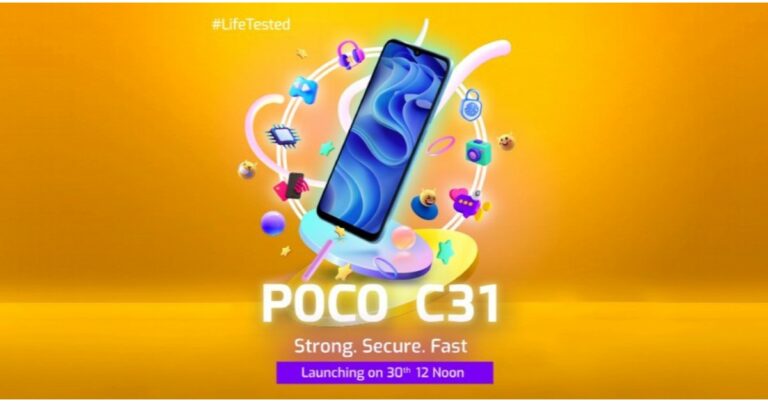
Poco C31 has officially launched in the Indian market today. The device is the company’s latest budget offering under Rs 10,000 price segment. The device comes with a slim build and features a triple rear camera set-up. The phone is powered by MediaTek Helios G35 SoC and includes a 5,000mAh battery. The feature-packed phone is also being offered at an affordable price range. Read on to know the Poco C31 price in India and other details.
In This Article
Poco C31 price in India and availability details
Poco C31 has been launched in India with a price tag of Rs 8,499 for the 3GB RAM with a 32GB storage option. Whereas the 4G RAM with 54GB storage option will be available at Rs 9,499. This budget smartphone will be available in two colour options of Royal Blue and Shadow Grey. As a part of the introductory offer, the firm will be offering Rs 500 off for a limited period of time, therefore, bringing its original price down to Rs 7,999 and Rs 8,999 respectively. In addition to this, there will be 10 perfect off to Axis Bank and ICICI bank debit and credit cardholders. The phone will go on sale via Flipkart from October 3 when the Big Billion Days sale begins.
Poco C31 specs
Poco C32 comes with a 6.53 inch HD+ LCD display with 720×1600 pixels of resolution. The screen comes with TUV Rheinland certification as well as a 20:9 aspect ratio. Under the hood, there is an Octa-core MediaTek Helio G35 SoC coupled with 4GB of RAM and 64GB of storage option. The internal storage can be expanded up to 512GB using a microSD card.For the optics, Poco C31 features a triple rear camera set up that houses a 13-megapixel primary sensor. In addition to this, there is a 2-megapixel depth sensor and a 2-megapixel macro sensor. Upfront there is a 5-megapixel sensor for taking selfies and video calling.In terms of connectivity, there is dual VoLTE and VoWifi, WiFI 802.11b/g/n, Bluetooth v5, micro USB port and a 3.5mm audio jack. The phone bears a 5,000mAh battery. This ensures the battery remains as good as new for almost 2.5 years (1000 charging cycles) compared to other batteries in the segment. In addition, Poco C31 is protected by P2i nano-coating to avoid damage from accidental water spills and gets added protection with corrosion-proof ports, rubberized seals, and 380V surge protection.
For the latest gadget and tech news, and gadget reviews, follow us on Twitter, Facebook and Instagram. For newest tech & gadget videos subscribe to our YouTube Channel. You can also stay up to date using the Gadget Bridge Android App. You can find the latest car and bike news here.
Are you looking to send images directly via SMS to someone who does not use a smartphone? Millennials would be aware of Multimedia Messaging Service (MMS). Before smartphones were a thing, MMS was used to send images, video clips, and audio files over a simple text. This service is still around and can be used to reach people who use a feature phone. If your Android phone won’t send MMS or picture messages, here are a few steps that will solve your problem. Before going through the list make sure you have sufficient balance as sending MMS costs more than SMS, so check the tariffs.
In This Article
Enable mobile data
Internet connectivity is required to send picture messages on Android devices. If the smartphone refuses to send a picture message, check from the drop-down menu if the mobile data is switched on. If you are using Wi-Fi, try temporarily disabling it and switching to cellular data. Service providers don’t allow you to send MMS over Wi-Fi so make sure you have an active data package or sufficient balance. Swipe down from the status bar and tap the blue WiFi tile in the Quick Settings Menu to turn it off. Tap the grey mobile data tile to turn it on.
Force stop messaging application
One can consider forcefully stopping the messaging application if it is refusing to send an MMS to someone. There may be some bug or issue causing this problem. It’s better to force-stop the application and give it a fresh start. It works exactly like restarting your smartphone when some issue occurs. Here’s how you can go about it.Step 1: Go to Settings and select Apps.
Step 2: Select the native messaging app.
Step 3: Tap on Force Stop at the bottom of the screen.
Read Also: How to reset your Android smartphone
Allow unrestricted data use
Android phones are smart and manage things on their own in the background. But sometimes they restrict a few applications unnecessarily as well. Make sure that the Messaging application has unrestricted foreground and background data usability. Here’s how.Step 1: Go to Settings and select Apps.
Step 2: Select the native messaging app.
Step 3: Tap on Mobile Data.
Step 4: Turn on the toggle switch for Allow background data usage.
Clear cache
While working around the application there are chances that your smartphone might have stored some bad cache data which is causing trouble. Users can clear the cache and check if the problem is resolved.Step 1: Go to Settings and select Apps.
Step 2: Select the native messaging app.
Step 3: Select Storage.
Step 4: Tap on Clear Cache.
Save MMS APN settings on your device
If your MMS APN settings are faulty or outdated, you won’t be able to send pictures or video clips as texts to your loved ones. To fix this, request MMS APN settings from your network provider. Dial the code for customer service and navigate your way to GPRS and MMS settings. Airtel users can visit the network provider’s official website and enter their number to receive the settings.
Reset Network Settings
Sending any type of multimedia requires the proper configuration of your network settings. If they aren’t configured properly it can cause more issues as well. This can be fixed by resetting the phone’s network setting. To do so one can follow these methods.Step 1: Go to Settings and select General Management.
Step 2: Scroll down and select Reset.
Step 3: Tap on Reset Network Settings.
Step 4: Select Reset Settings.
Step 5: Enter your PIN to confirm your selection.
Frequently Asked Questions (FAQs)
Why am I not able to send MMS from my Android phone?
Since MMS only works with your network provider’s mobile internet, you won’t be able to send it using a WiFi network. Switch to mobile data to send an MMS.
How do I get MMS APN settings on my phone?
Airtel users can get MMS APN settings by entering their phone number on the official Airtel website. Other users will need to contact their network provider to receive the settings.
These are some simple steps one can follow to solve the ‘Android won’t send picture messages or MMS’ problem. We also recommend checking for updates for both the application and the smartphone. Often pending updates cause issues. Try updating them and see if it works for you.
Due to the continuing tensions between India and China at the border, several people had been uninstalling Chinese apps from Android smartphones and trying to boycott Chinese apps and gadgets. While a whole lot of people have already uninstalled third-party apps like Xender, Shareit, TikTok and PUBG mobile, etc. They are unable to remove the system-default apps on their Chinese smartphones.Mobile manufacturers like Xiaomi, Oppo, Vivo and Realme tend to include some Chinese apps on their smartphones by default. Even if you don’t want to use them, they may still take some space on your smartphone and will also send you notifications. To counter this problem, and to remove Chinese apps you can follow the below-mentioned ways and check if it works for you.
In This Article
Disable/delete the apps from your Smartphone
To avoid that, you could uninstall a number of the default apps. However, some apps are integrated into the device itself through the OS, due to which, you might no longer have the access to delete them. So, you would want to disable them or close their notifications and other alerts.
Replace IT app is another Indian app that offers customers data about the origin country of any mobile app. The app allows customers to understand the Chinese apps set up on their devices by running a system scan. Further, it also recommends the user with similar apps they can install on their phones. Replace It was available on the Google Play store and had a user score of 4.9 stars. You can download it from the internet or the link provided below. It might not be functional with all devices.Download from:Replace IT
List All Apps & Uninstaller
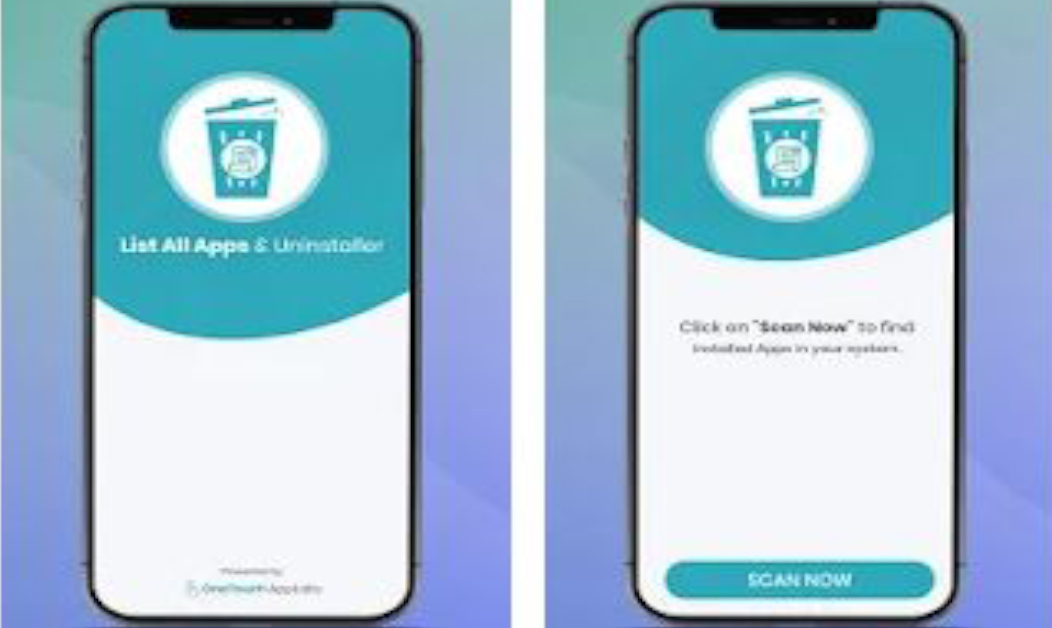
List All Apps & Uninstaller also comes from the house of ‘OneTouch AppLabs’- the developer of popular ‘Remove China Apps,’ which got suspended from Google Play Store for violation of rules(but, you can still download the APK and install it from the internet). The new app works quite differently so that it doesn’t get removed again. Once you scan for apps, it shows you the list of all installed apps alongside their country of origin. You can go through the list to see what apps come from China. They can be uninstalled using the delete button. But unfortunately, the app shows full-screen pop-up ads. Download from: List All Apps & UninstallerRead also: How to fix apps not updating on Android smartphone
Root your Android smartphone (for advanced users)
Additionally, you can also root your Android smartphone to get full access to your smartphone. this will now not most effectively allow you to uninstall these apps, however, may even give you a choice to dump the Chinese UI and install the stock Android. But, this is something we would not advise as this is an advanced way, so use with caution.All the above-mentioned methods can help you to get rid of remove Chinese apps from your smartphone (Android). Hope we helped you in fixing the problem, if you think we have missed any other way or you know of ways which you have tried that can be included in this list, please let us and the rest of the readers know in the comments section below.Read also: Top 5 ways to force uninstall programs in Windows 10
For the latest gadget and tech news, and gadget reviews, follow us on Twitter, Facebook and Instagram. For newest tech & gadget videos subscribe to our YouTube Channel. You can also stay up to date using the Gadget Bridge Android App. You can find the latest car and bike news here.
Poco C31 is all set to launch as the company’s latest offering in India today. The new Poco C-Series smartphone will debut as its latest budget smartphone. Ahead of the launch, the device was also listed on Flipkart and the sale is expected to kick off from the Big Billion Days Sale 2021.Not much has been revealed about the smartphone but teasers suggest a MediaTek Helio G35 SoC and a waterdrop style notch display.
In This Article
Poco C31 India launch details
Poco C31 launch in India will take place today. The company will be hosting an online launch event to present the phone. The launch event will kick start at 12 noon and will be Livestream through the company’s social media channels as well as on its YouTube channel.We have embedded the link below for your convenience so that you don’t miss out on today’s event:
Poco C31 price, sale details
As for the pricing, Poco C31 is expected to debut under the budget price segment. The price of the device is likely to start at Rs 10,000 in India however there is no official confirmation from the company. But Poco has already revealed that its upcoming smartphone will be available for purchase through Flipkart. This means the device could go on sale during the Big Billion Days Sale that will begin from October 3 that is on Sunday.
Poco C31 specs expected
According to the microsite and teasers, Poco C31 will be featuring a waterdrop notch on the display to house the selfie camera. It will have a slim build with slim bezels and a relatively thicker chin area. There will be a fingerprint sensor and a face unlock too. According to the company the print sensor has been tested over 600,000 times for protection and is claimed to remain as good as new after 2.5 years of daily usage as it will get you a 25% longer lifespan compared to its rival. There will be an octa-core MediaTek Helio G35 chipset paired with 4GB of RAM and will run on MIUI for Poco based on Android.
For the latest gadget and tech news, and gadget reviews, follow us on Twitter, Facebook and Instagram. For newest tech & gadget videos subscribe to our YouTube Channel. You can also stay up to date using the Gadget Bridge Android App. You can find the latest car and bike news here.
Vivo X70, Vivo X70 Pro and Vivo X70 Pro+ India launch is all set to take place today. The maker will take the covers off from its most premium smartphone series that earlier debuted in China ahead of the Indian launch. The company has not yet revealed how many devices from the lineup will hit the store in the country but the teasers definitely confirm the top of the line Pro+ model along with pro model might come to India. Read on to know the launch details and its expected pricing.Vivo X70 5G series is scheduled to launch in India today. The company has planned to host a virtual launch event that will begin at 12 noon. The India launch event can be watched live on the company’s official youtube channel as well as on its social media channels. You can also watch the event on our website as we have embedded the link below:
As for the pricing, the company has not yet revealed any details. Industry insiders say that the Vivo X70 Pro will be made available in two variants: 8GB RAM with 128GB storage at Rs 46,990 while the 12GB RAM with 256GB of storage is likely to be priced at Rs 54,990.On the other hand, Vivo X70 Pro+ is expected to come in a single 12GB RAM with 256GB of storage that will be priced at around Rs 69,990. The expected price of the vanilla variant is not yet revealed.
Vivo X70 Series specs and features
Starting with the vanilla X70, the phone features a 6.56-inch full HD AMOLED display with a 120Hz refresh rate and HDR support. It will run on OriginOS 1.0 on top of Android 11 and be powered by MediaTekDimensity 1200 SoC paired with ARM G77 GPU. For the cameras, it includes a triple rear camera set up that includes a 40MP primary sensor, a 12MP ultra wide-angle sensor and a 12-megapixel portrait sensor. For selfies, there will be a 32MP front-facing camera. The device will pack a 4,400mAh battery with 44W Flash Charge fast charging support.Vivo X70 Pro which has a similar display as the standard model but is powered byExynos 1080 SoC paired with ARM G78 GPU. There is a quad rear camera set up on the handset that includes a 50MP primary sensor. The 12MP sensors are the same as above along with an additional 8MP periscopic lens. The selfie camera sensor is also the same. It has a 4,450mAh battery with similar charging support. Vivo X70, Vivo X70 Pro and Vivo X70 Pro+Last but not least Vivo X70 Pro+ is the most premium of them all and will come with a 6.78 ultra HD AMOLED display and 120Hz refresh rate support. Under the hood, there is the most powerfulQualcomm Snapdragon 888+ SoC paired with an Adreno 660 GPU. The quad-camera set up on the X70 Pro+ will include a 48MP Sony IMX578 ultra-wide-angle sensor, a 50MP primary sensor, a 12MO portrait and an 8MP periscope lens. The selfie camera remains the same however there is a 5,000mAh battery with 55W Flash Charge with 50W Wireless Flash Charge fast charging support.
For the latest gadget and tech news, and gadget reviews, follow us on Twitter, Facebook and Instagram. For newest tech & gadget videos subscribe to our YouTube Channel. You can also stay up to date using the Gadget Bridge Android App. You can find the latest car and bike news here.
30 September 2021 Amazon Quiz has gone live on its platform and the e-commerce platform Amazon is today giving you a chance to win Rs 10,000 Amazon Pay Balance. The quiz can be played from 12 AM to 11:59 and million so people are trying their luck by participating in the daily quiz. To participate all you need to do is log in to your Amazon app on your device and give answers. Every day Amazon brings a fresh questionnaire that consists of five easy questions that are usually based on general knowledge and current affairs. You can submit the correct answers and can win an Amazon Pay Balance of up to Rs 50,000. It should be noted that the quiz is not accessible on the web platform instead you have to participate only through the dedicated app. After giving all the correct answers to the five questions the participants will be shortlisted for a lucky draw to select a winner. The results will be announced at the end of the month. Check out today’s answers for Amazon Quiz to win Rs 10,000 Amazon Pay Balance.
In This Article
30 September 2021 Amazon Quiz Answers
Question 1: In India, Akshat Urja Day is celebrated on 20th August to raise awareness about what?
Answer: Renewable resources of energy
Question 2: Nishad Kumar won a silver medal for India at the Tokyo Paralympics in which of these events?
Answer: Men’s high jump T47
Question 3: One of the upcoming Marvel movies to be released this year is ShangChi and the Legend of the ___ Rings. Fill in the blanks
Answer: Ten
Question 4: This is a famous tourist spot located in which European country?
Answer: Greece
Question 5: Which of these is a space exploration firm owned by this gentleman?
This is a very common problem, which many Android users across the globe have been facing in recent times. Buggy updates of the Google app might cause such issues. So, if you are also facing this problem, you are not alone. Don’t worry, we have found out 4 Ways to fix ‘Google Keeps Stopping’ Error on Your Android Phone. Read this guide to fix the problem right away and help others too.
Restart your Smartphone
You may find it funny but we keep using this method in most of our Android tips and tricks as despite being very basic, it is still one of the best ways to fix all kinds of issues on Android smartphones. Most of you already know how to restart your phone using the power button. If it doesn’t restart automatically, you may try a forced reboot option by long holding the power button. After doing a restart or a force reboot, try using the Google app again and check if it solves the issue. If still, the Google App keeps crashing try the next method.
Clean the cache and data of Google App
The next way you may use is to clean the cache and data of the Google App. You may know that cleaning the cache on Android can help you fix many troubles. Additionally, clearing app data can also fix the problem for you. The Google app ends up consuming data in GBs from the storage in your smartphone after constant utilisation, so it becomes important to clear it timely.
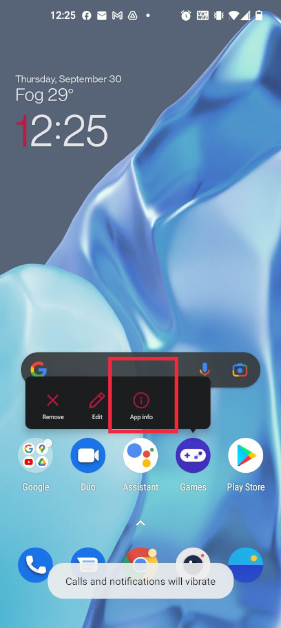
Look for the Google app on your phone and long-press on the app icon.
Now tap on the little “i” (info) button from the pop-up menu.
Tap on Storage and cache.
After that, press clear cache and then on clear storage
Another way to Fix the ‘Google Keeps Stopping’ Error is this one. You can additionally force prevent the Google app to restore the problem. As you know, forcing it to stop puts an end to all the background and foreground activities and can restore the crashing issue. Here’s how to force stop the app:
Open Settings in your Android smartphone.
Go to the Apps & notifications and tap “See all apps” or “App data”.
Here choose Google from the list.
On the app information page, tap force stop and OK at the pop-up.
That’s it. Now, try opening the Google app once more, and you may not see the ‘Google keeps stopping’ issue any longer. If still the Google App keeps crashing try the next method.
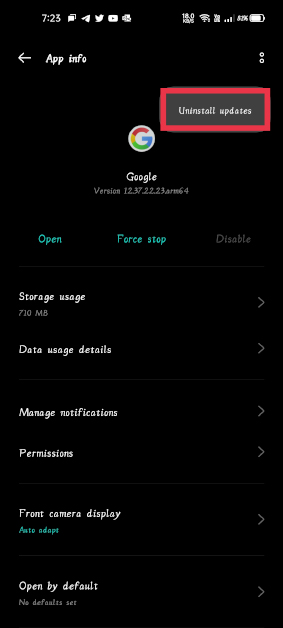
Uninstall Google App Updates
As this issue is a result of an update, you may also try to restore it by way of uninstalling the latest update. Alright, here’s how to uninstall the latest update:
Find the Google app within the app drawer and long-press the app icon.
Now, tap at the ‘i’ button (or App info) to go to the app info page of the Google app.
Tap on the 3 dots menu located at the top-right corner of the app info page.
Now, tap “Uninstall updates”, after which press “OK” to confirm.
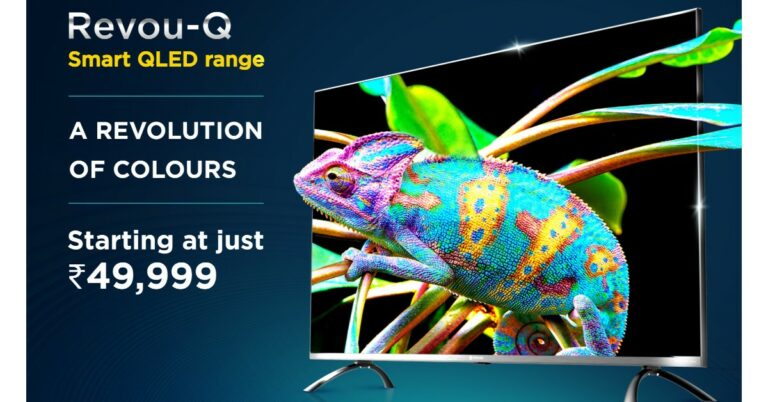
Flipkart today launched the Motorola branded QLED TV in India ahead of the Big Billion Days sale. The Motorola Revou-Q QLED Smart TV series is the latest to launch in the country. The new lineup includes Televisions in two different sizes 50 and 55 inches. The Motorola Revou-Q premium TV is equipped with a wireless gamepad that makes it the ideal choice for gamers. In addition to this, it supports Dolby vision and equips 60W speakers.
In This Article
Motorola Revou-Q QLED Smart TV series price in India and availability
Like we said before, the Motorola Revou-Q QLED Smart TV series offers you, two models. The Motorola Revou-50-inch QLED Smart TV will be available at Rs 49,999. Whereas the Motorola Revou-Q 55-inch QLED Smart TV will be selling at Rs 54,999. Both variants will go on sale from October 3 with the commencement of the Big Billion Days Sale on Flipkart.
Motorola Revou-Q QLED Smart TV series specs and features
Motorola Revou-Q QLED Smart TV series comes in 50 and 55-inch size models. The new Smart TV range features Dolby vision with HDR10 support powered by AutoTuneX technology that will optimize the brightness, colour scales and contrast to elevate visual content. There is Quantum dot technology with an Active quantum colour filter as well. The QLED series is powered by a Realtek Quad-core processor and Arm Mali-G31 MC2 GPU for graphics. It is offered with 2GB of RAM and 16GB of onboard storage. It operates on Android 11.0 with an intuitive UI that supports over 7000 apps, including Google Duo, for meetings and enables custom viewing recommendations based on your favourite content. The Motorola Revou-Q QLED Smart TV range also includes dual 60W speakers with 30W high octave tweeters fine-tuned by Dolby Atmos. In terms of connectivity, there is an HDMI 2.1 port, USB ports and WiFi. It also includes MEMC technology for a smoother visual experience and a wireless gamepad. Speaking about the launch, Hari G. Kumar, Vice President, Large Appliances at Flipkart, said, “As we approach the Big Billion Days, we want to ensure that our customers have access to industry-first and best offerings across various product portfolios. Towards this endeavour, we are excited to strengthen our collaboration with Motorola by introducing the world’s first QLED TV with a gamepad and provide consumers with enhanced value offerings ahead of the festive season. These products are crafted to suit the evolving requirements of Indian consumers and are built to provide them with an immersive home entertainment and gaming experience.”
For the latest gadget and tech news, and gadget reviews, follow us on Twitter, Facebook and Instagram. For newest tech & gadget videos subscribe to our YouTube Channel. You can also stay up to date using the Gadget Bridge Android App. You can find the latest car and bike news here.
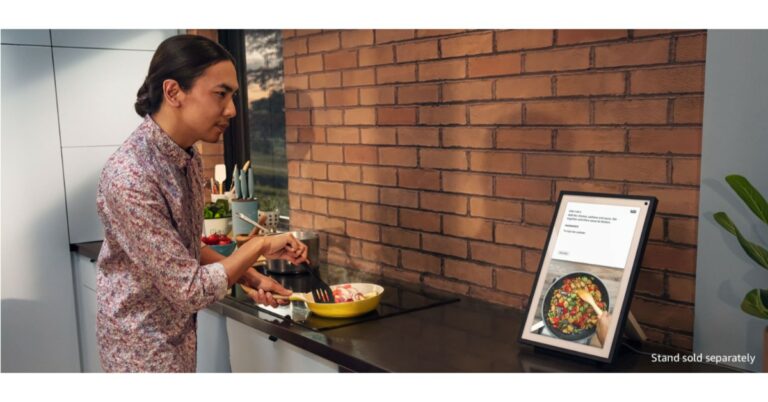
Amazon has upgraded its smart devices portfolio with the launch of Amazon Echo Show 15 and Amazon Glow. The former one is a regular smart screen with a bigger display and can be mounted on the Wall. Yes, it can be utilised as a digital frame or you can place it anywhere in your home as it can be position both vertically as well as horizontally. While the latter one is specifically designed for Kids.
In This Article
Amazon Echo Show 15 and Amazon Glow price and availability
Amazon Echo Show15 has been introduced at £239.99 that converts to Rs 23,500. The customers can sign up at www.amazon.co.uk/echoshow15 to be notified when the device is available. Countertop stands and under-cabinet mount accessories will be sold separately and will be available for purchase when Echo Show 15 is available.On the other hand, Amazon Glow is priced at $299 which translates to Rs 22,300. But the company will be offering it at an invitation-only special introductory price of $249 which is something around Rs 18,600. Indian price and availability details are yet to be announced by the company.
Amazon Echo Show 15 specs and features
As the name suggests the Amazon Echo Show 15 features a 15.6-inch full HD screen. The display comes with 1920×1080 pixels of resolution. It has dual 1.6-inch stereo speakers along with a 5-megapixel camera great for video calls, or to Drop-In on a loved one inside or outside of your house, using an Alexa-enabled device.The large screen supports 1080p video streaming which can be placed on your kitchen countertop or mounted on the wall anywhere in your home. Just ask Alexa to watch films and TV shows from Prime Video and Netflix. You can also catch up on the news from Sky, BBC and LBC; ask Alexa to play music or read your Audible book. It is also used as a home decor or a frame to showcase your moments by displaying full-screen pictures from Amazon Photos, Facebook Photos, or alternating visuals from pre-loaded art, nature, seasonal, or travel galleries.Amazon Echo Show 15 is powered by a quad-core Amazon AZ2 Neural Edge processor which is specially designed to enable computer vision (CV) algorithms that once required the computer power of the cloud letting it recognise a person enrolled in visual ID and will be able to process their images right on the device. One can also interact will Alexa using touch instead of voice, to see captions for Alexa’s responses on the device screen, and more.The smart device also gives you control over the microphone and camera so you can view and delete your voice recordings, and a built-in shutter to cover the camera. According to the company, the customers will be able to review requests associated with specific household members who have set up Voice ID in the Alexa app or by visiting Alexa Privacy Settings. This allows those members of your household to have control over how their individual voice history is managed. In addition to this, the users will also get reminders to review their privacy settings in the Alexa app 30 days after they’ve set up their device.The Amazon Echo Show 15 now comes with a new visual ID feature, Alexa will be able to recognise you and personalise the information on its screen. After enrolling in visual ID, if you walk in front of Echo Show 15, Alexa will recognise you and the screen will automatically update to show you a custom greeting, your reminders, calendar events, recently played music or notes from others in your home. The best part is when you enrol your child in visual ID for kids the home screen will shift to only show age-appropriate content when your child is recognised. One can also customise Alexa widgets by letting you add information that is useful to you and your family plus the widgets continually refresh to stay up to date, so you always have the latest information, and you can easily rearrange them to suit your needs and preferences. The sound detection features will immediately notify you when it detects a crying baby or any other noise.
Amazon Glow specs
Amazon Glow is specifically designed for kids and it comes with an 8-inch display. It let your child tear an e-book or make video calls to family members to communicate. The biggest USP of the Amazon Glow is that it has a built-in projector-camera with a built-in shutter. This functionally allows kids to create art and play games, solve puzzles over a video call. The buyers will get 1 year of Amazon Kids+ that gives access to thousands of books for kids and interactive games, with visual art activities and animated storybooks.
For the latest gadget and tech news, and gadget reviews, follow us on Twitter, Facebook and Instagram. For newest tech & gadget videos subscribe to our YouTube Channel. You can also stay up to date using the Gadget Bridge Android App. You can find the latest car and bike news here.


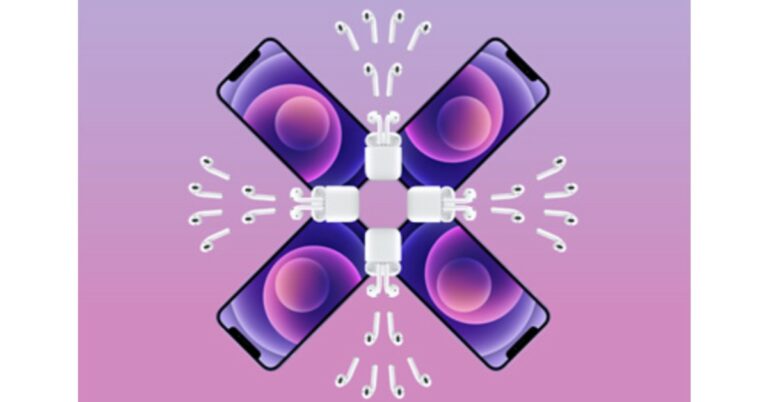
 But here is the catch, both the Apple iPhone 12 and the iPhone 12 Mini will be sold at their original MRPs. Also, you are free to choose any of the models of AirPods, but in the end, the final decision on what offer will be applied to what model will be made by Apple only.
The revised price of the Apple iPhone 12 starts at Rs 65,900, whereas the price of the iPhone 12 Mini begins at Rs 59,900. There will be no discounts on these devices. Instead, one can choose any of the AirPods models that include AirPods without a charging case, AirPods with a charging case, or AirPods Pro. The final value will be decided by Apple when you have decided what combination you will go for. More details will be revealed when the deal goes live in a few days time.
The Apple AirPods with a charging case come at Rs 18,900, whereas without the charging case, the price is cut down to Rs 14,900. The AirPods Pro are originally priced at Rs 24,900. Like we mentioned above, Apple will decide the final value of the combination you choose. Similarly, it will decide how much of a discount will be applied to it at the time of check out. One can also ask for engraving to personalise their AirPods case, which is absolutely free.
So now you must be wondering what the point of this offer is if Apple is not offering any discount on these products. The point is, if you choose to go with the first combination, which is the iPhone 12/iPhone 12 Mini with AirPods without the charging case, you will definitely save Rs 14,900.
Likewise, when you combine your iPhone with AirPods with a charging case, it will let you save at least Rs 18,900, the same as the offer on the AirPods Pro. Also, the invoice value will decide whether the discount will be applied fully or partially.
But if you are looking to buy only the iPhone, then we would suggest you look somewhere else. More deals and discounts will be available during the Amazon Great India Festival Sale and the Flipkart Big Billion Days Sale, which will begin on October 3. Here you might get extra discounts on various bank debit and credit cards.
For the latest gadget and tech news, and gadget reviews, follow us on Twitter, Facebook and Instagram. For newest tech & gadget videos subscribe to our YouTube Channel. You can also stay up to date using the Gadget Bridge Android App. You can find the latest car and bike news here.
But here is the catch, both the Apple iPhone 12 and the iPhone 12 Mini will be sold at their original MRPs. Also, you are free to choose any of the models of AirPods, but in the end, the final decision on what offer will be applied to what model will be made by Apple only.
The revised price of the Apple iPhone 12 starts at Rs 65,900, whereas the price of the iPhone 12 Mini begins at Rs 59,900. There will be no discounts on these devices. Instead, one can choose any of the AirPods models that include AirPods without a charging case, AirPods with a charging case, or AirPods Pro. The final value will be decided by Apple when you have decided what combination you will go for. More details will be revealed when the deal goes live in a few days time.
The Apple AirPods with a charging case come at Rs 18,900, whereas without the charging case, the price is cut down to Rs 14,900. The AirPods Pro are originally priced at Rs 24,900. Like we mentioned above, Apple will decide the final value of the combination you choose. Similarly, it will decide how much of a discount will be applied to it at the time of check out. One can also ask for engraving to personalise their AirPods case, which is absolutely free.
So now you must be wondering what the point of this offer is if Apple is not offering any discount on these products. The point is, if you choose to go with the first combination, which is the iPhone 12/iPhone 12 Mini with AirPods without the charging case, you will definitely save Rs 14,900.
Likewise, when you combine your iPhone with AirPods with a charging case, it will let you save at least Rs 18,900, the same as the offer on the AirPods Pro. Also, the invoice value will decide whether the discount will be applied fully or partially.
But if you are looking to buy only the iPhone, then we would suggest you look somewhere else. More deals and discounts will be available during the Amazon Great India Festival Sale and the Flipkart Big Billion Days Sale, which will begin on October 3. Here you might get extra discounts on various bank debit and credit cards.
For the latest gadget and tech news, and gadget reviews, follow us on Twitter, Facebook and Instagram. For newest tech & gadget videos subscribe to our YouTube Channel. You can also stay up to date using the Gadget Bridge Android App. You can find the latest car and bike news here. 

 Google Play Points is a great way to accumulate points that can later be redeemed to buy paid apps. If you make a lot of purchases on the Play Store or buy in-app items using Google Play, there is no reason why you should miss out on Google Play Points. These points are credited to your profile. Over a period of time, you can collect enough points to buy a paid app for free.
Download from
Google Play Points is a great way to accumulate points that can later be redeemed to buy paid apps. If you make a lot of purchases on the Play Store or buy in-app items using Google Play, there is no reason why you should miss out on Google Play Points. These points are credited to your profile. Over a period of time, you can collect enough points to buy a paid app for free.
Download from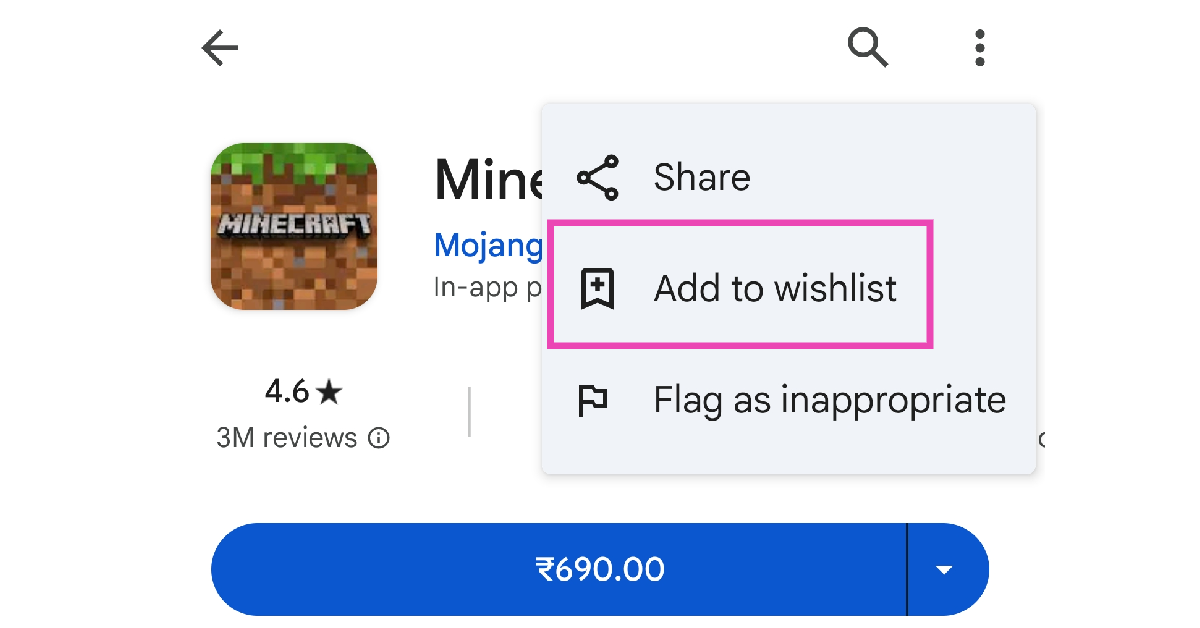 If you want someone else to buy you an app, simply put it on your wishlist and share it with them. If you have a lot of followers on social media, you can share your wishlist with them as well. To add a paid app to your wish list, go to its page in the Google Play Store, hit the ellipses at the top right corner of the screen, and select ‘Add to wishlist’.
Read also:
If you want someone else to buy you an app, simply put it on your wishlist and share it with them. If you have a lot of followers on social media, you can share your wishlist with them as well. To add a paid app to your wish list, go to its page in the Google Play Store, hit the ellipses at the top right corner of the screen, and select ‘Add to wishlist’.
Read also: 


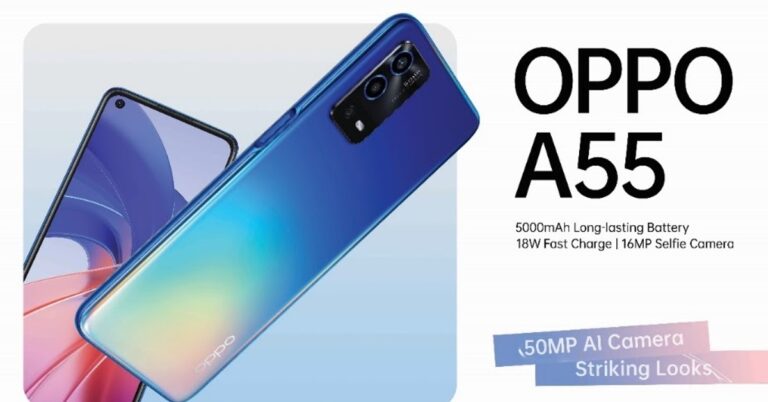

 Step 4 –
  Step 6 –
  Read Also:
  Step 5 –
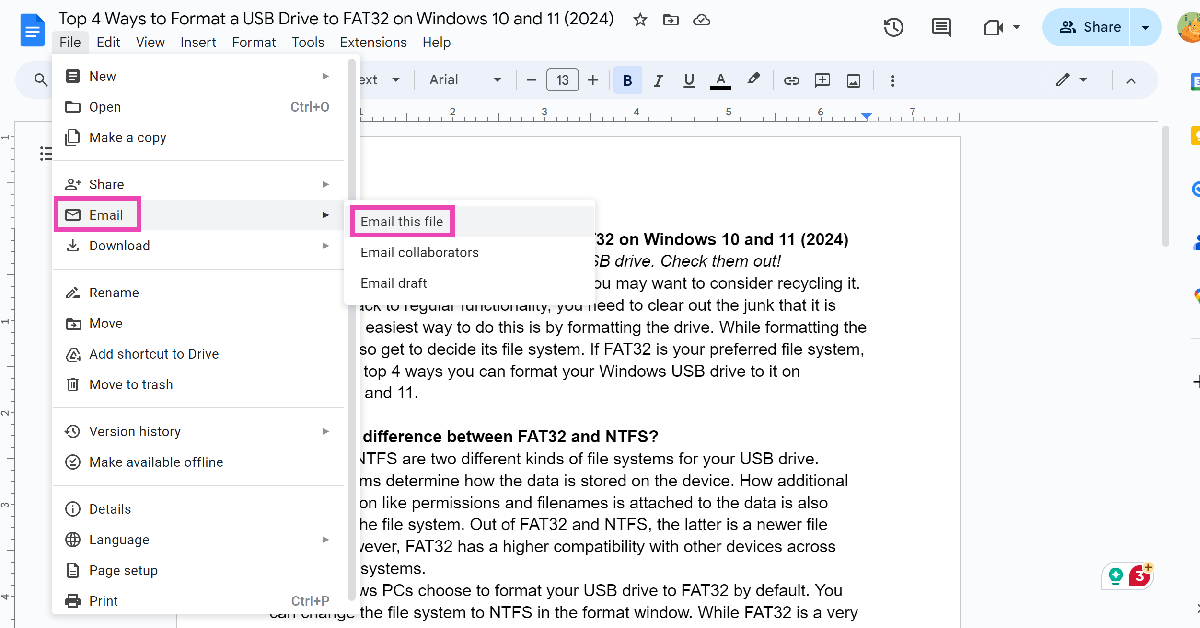 Step 3: Click on File type and select PDF.
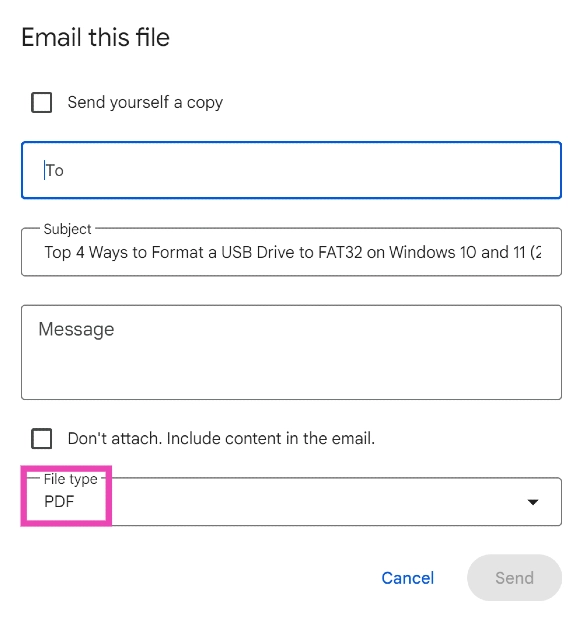 Step 4: Enter the email address of the recipient in the ‘To‘ field.
Step 5: Hit Send. You can also choose to save yourself a copy.
Step 4: Enter the email address of the recipient in the ‘To‘ field.
Step 5: Hit Send. You can also choose to save yourself a copy.
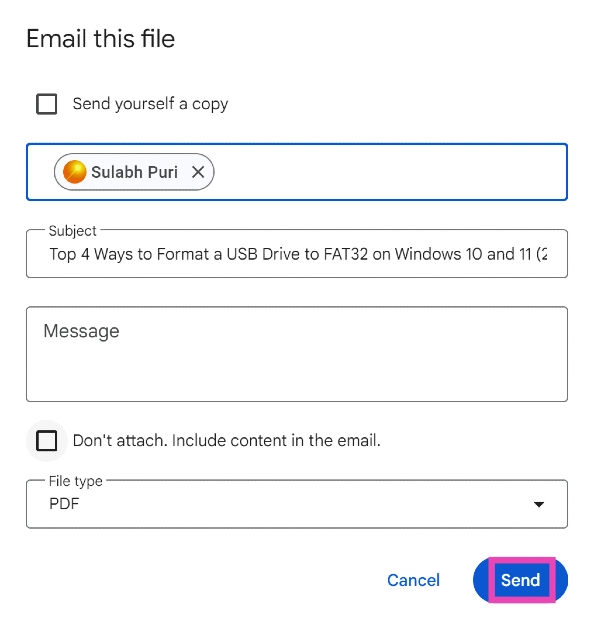
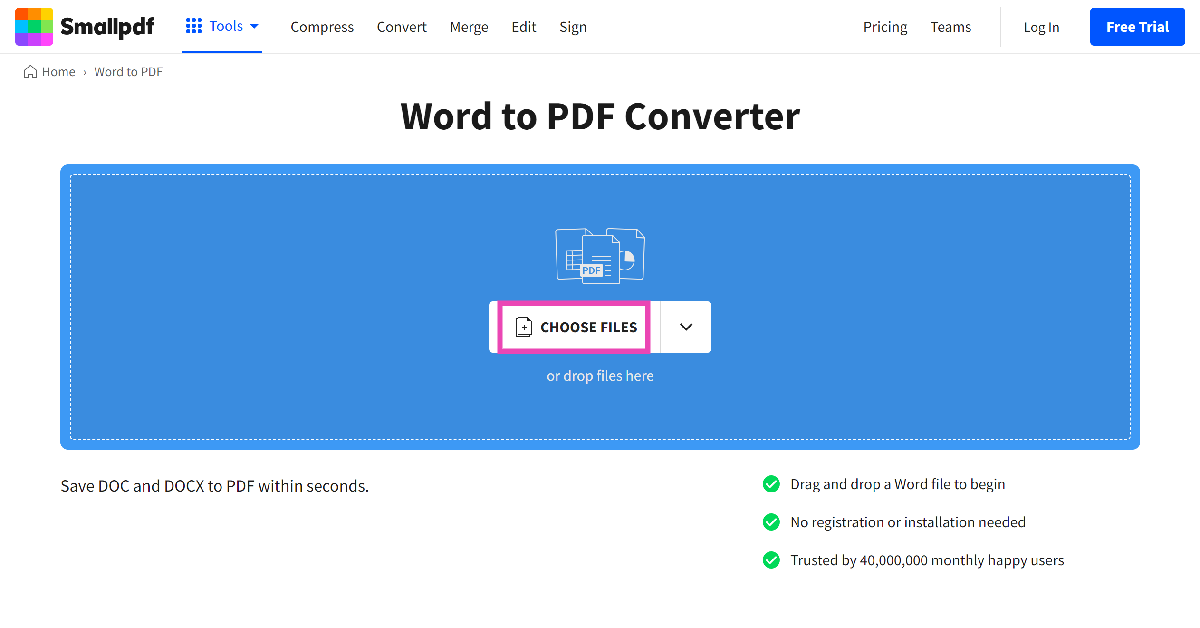 Step 2: Upload the docx file from your PC’s storage.
Step 3: The docx file will be converted to PDF. Hit Download to store it on your PC.
Step 2: Upload the docx file from your PC’s storage.
Step 3: The docx file will be converted to PDF. Hit Download to store it on your PC.
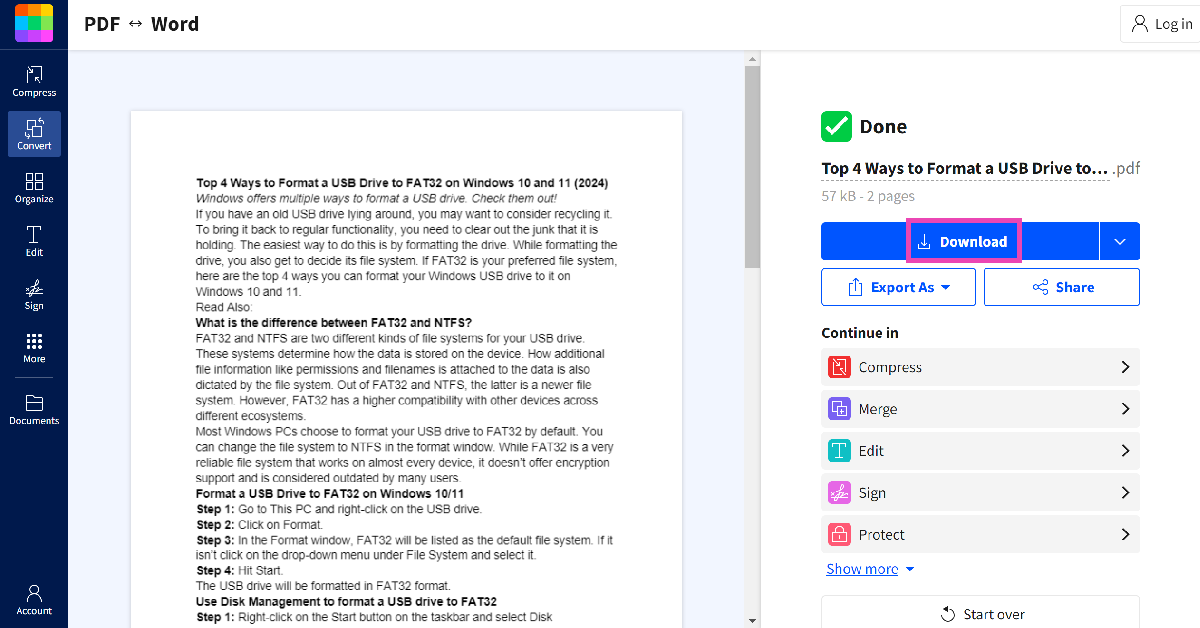
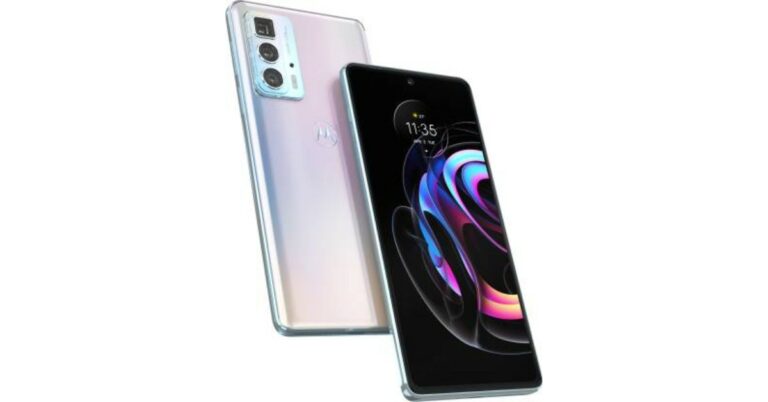



 The Apple Student Discount is only available on MacBook Air, MacBook Pro, iMac, iMac Pro, Mac Pro, Mac Mini, Pro Display XDR, iPad Pro, iPad Air, iPad, and iPad Mini versions. You cannot claim the offer on other products like the iPhone, Apple Watch, AirPods, Apple TV, or any other accessories. The discounted price offered on the selected range of products is as follows:
MacBook Air – Starting at Rs 83,691
MacBook Pro – Starting at Rs 1,10,691
iMac – Starting at Rs 89,910
iMac Pro – Starting at Rs 4,18,410
Mac Pro – Starting at Rs 4,49,910
Mac Mini – Starting at Rs 67,410
Pro Display XDR – Starting at Rs 4,04,910
iPad Pro – Starting at Rs 68,305
iPad Air – Starting at Rs 50,783
iPad – Starting at Rs 28,106
iPad Mini – Starting at Rs 33,155
Read also:
The Apple Student Discount is only available on MacBook Air, MacBook Pro, iMac, iMac Pro, Mac Pro, Mac Mini, Pro Display XDR, iPad Pro, iPad Air, iPad, and iPad Mini versions. You cannot claim the offer on other products like the iPhone, Apple Watch, AirPods, Apple TV, or any other accessories. The discounted price offered on the selected range of products is as follows:
MacBook Air – Starting at Rs 83,691
MacBook Pro – Starting at Rs 1,10,691
iMac – Starting at Rs 89,910
iMac Pro – Starting at Rs 4,18,410
Mac Pro – Starting at Rs 4,49,910
Mac Mini – Starting at Rs 67,410
Pro Display XDR – Starting at Rs 4,04,910
iPad Pro – Starting at Rs 68,305
iPad Air – Starting at Rs 50,783
iPad – Starting at Rs 28,106
iPad Mini – Starting at Rs 33,155
Read also:  Buyers must provide information like student ID and college or institution address for further verification. Parents or teachers shopping for
 Now follow the process by clicking continue. You will be asked to create an account after which you will be asked to add documents. When you are accepted by UNiDAYS apple India, you are eligible for student discounts.
Read also:
Now follow the process by clicking continue. You will be asked to create an account after which you will be asked to add documents. When you are accepted by UNiDAYS apple India, you are eligible for student discounts.
Read also: 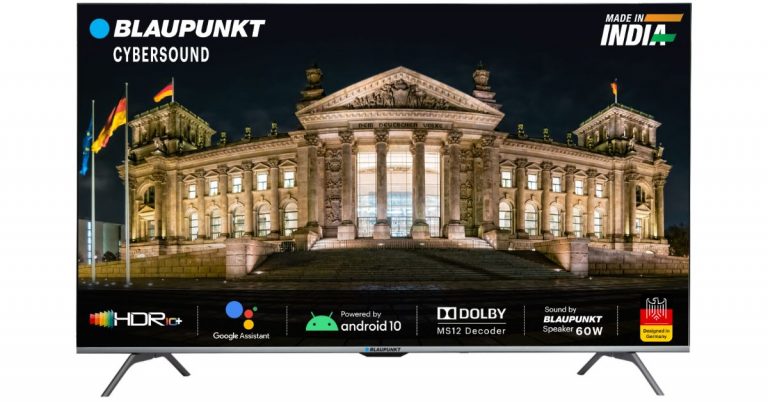
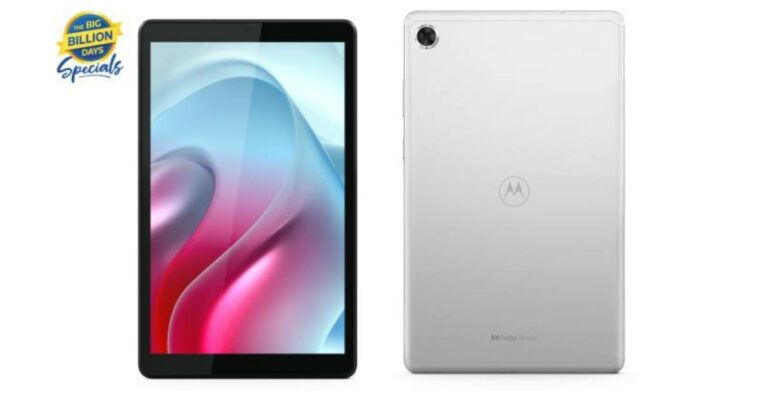

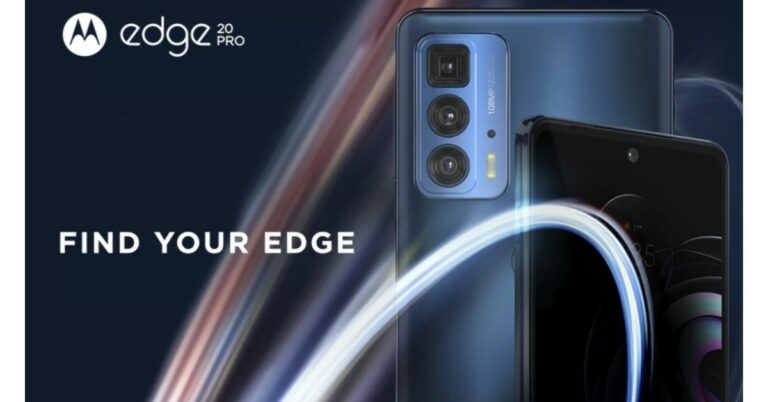

 Plate with 0.5-inch screw:
 Twist and swivel:
 Heavy Duty:
 Universal phone holder:
  Tripod Holder:
  Material:
 Also Read:
  Step 3 –
 Also Read:




![How to fix YouTube-server connection error [400] on Android smartphone](https://www.gadgetbridge.com/wp-content/uploads/2021/09/Untitled-2-2-768x402.jpg "How to fix YouTube-server connection error [400] on Android smartphone")
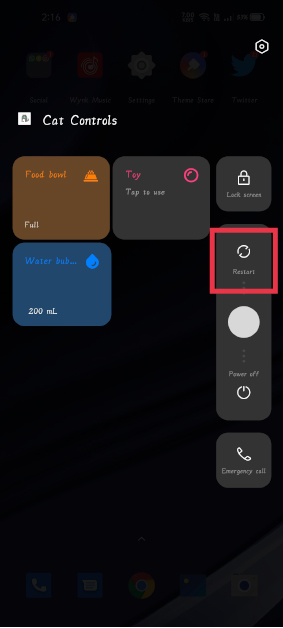




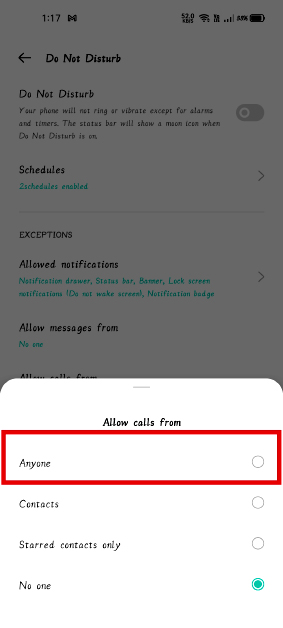

 Read also:
 Note:
Note: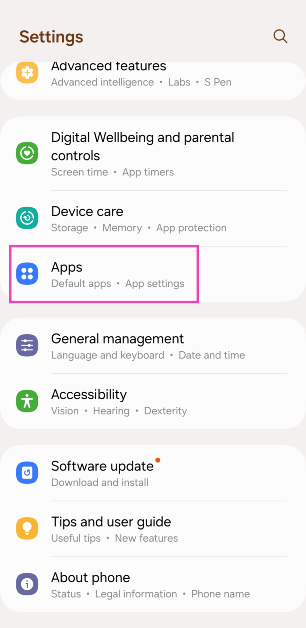 Step 2: Hit the ellipses at the top right corner of the screen.
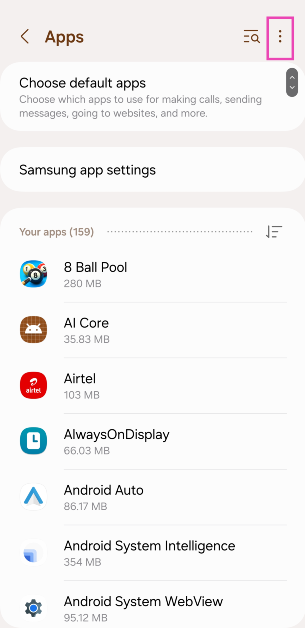 Step 3: Select Reset app preferences and confirm your selection in the pop-up box.
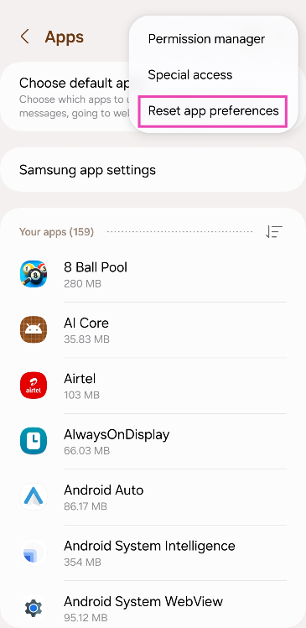
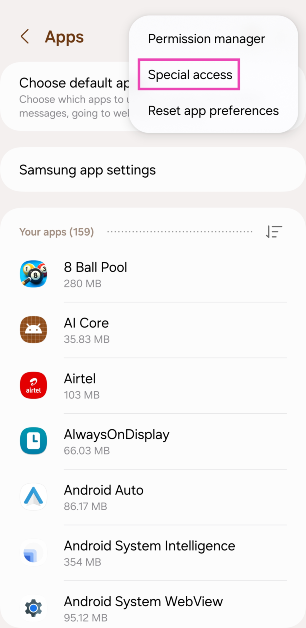 Step 4: Select Appear on Top.
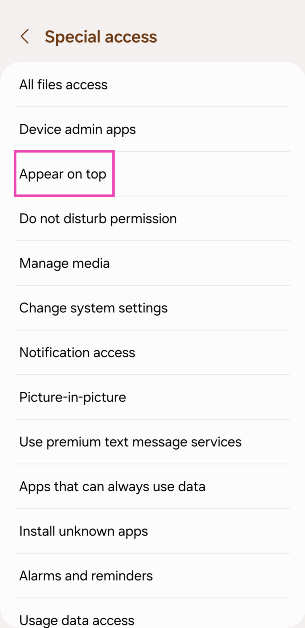 Step 5: Scroll down and turn on the toggle switch for Call services.
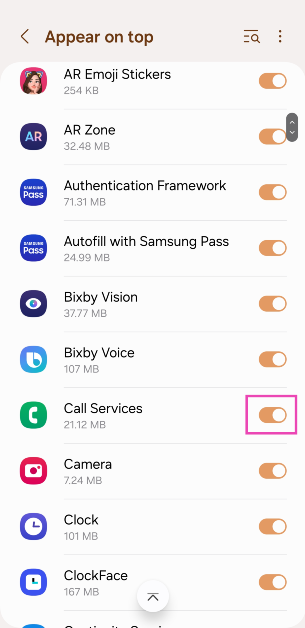
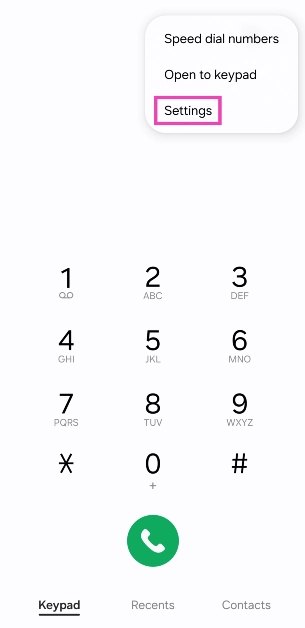 Step 3: Tap on Call display while using apps.
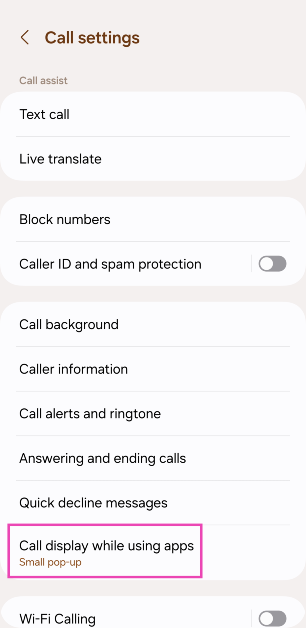 Step 4: Select Full screen.
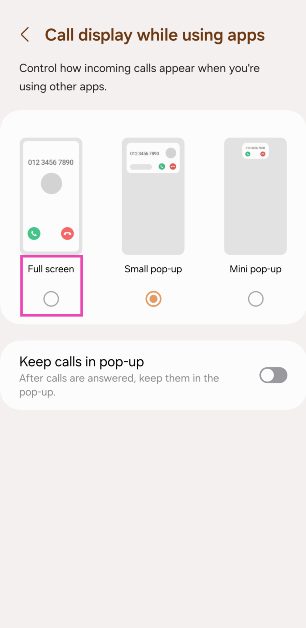
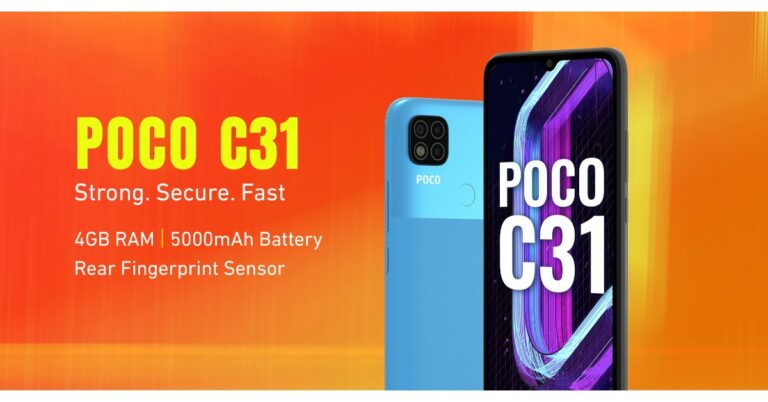

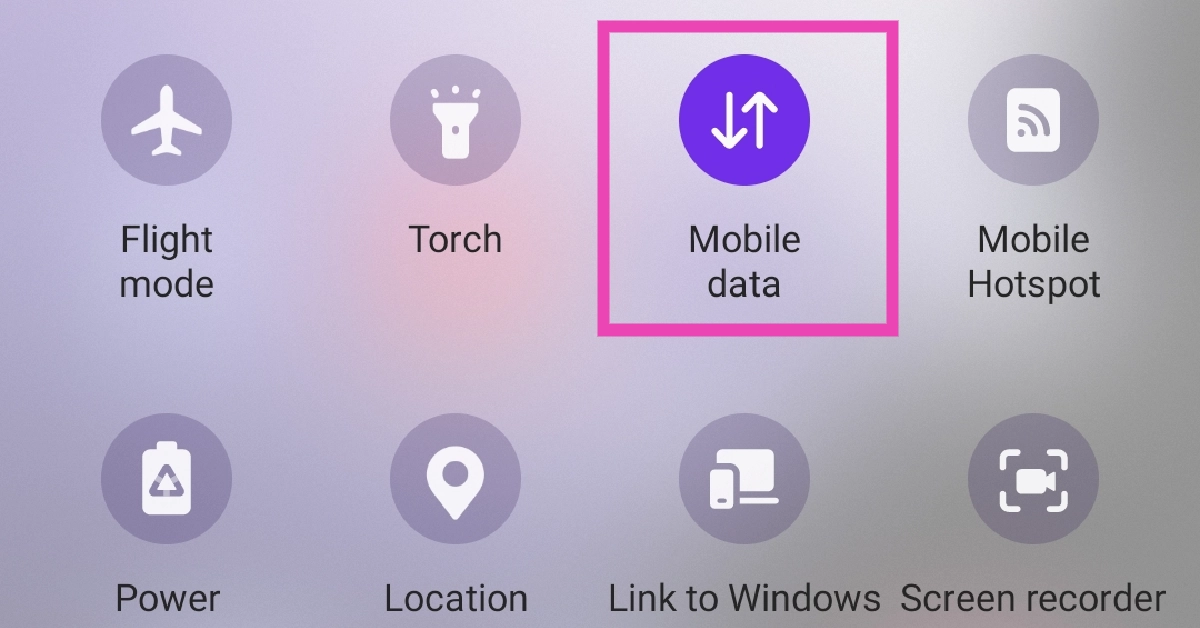
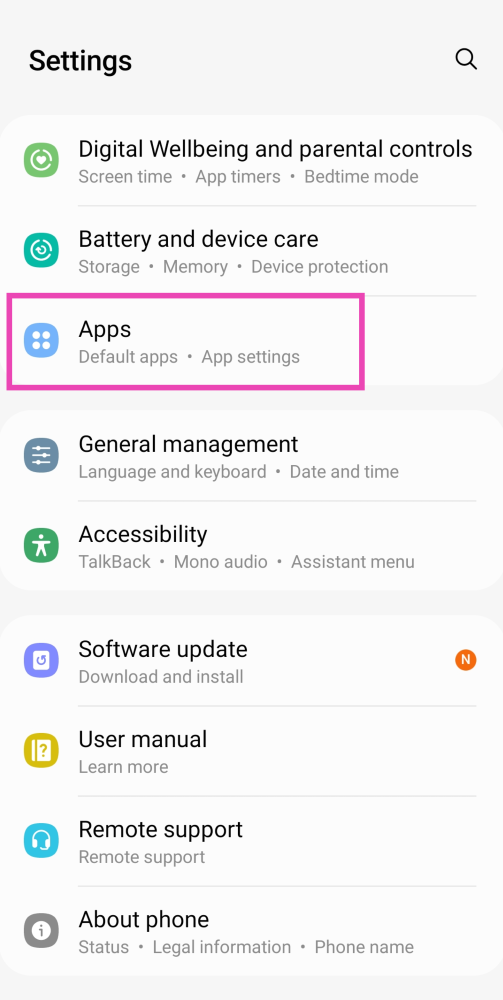 Step 2: Select the native messaging app.
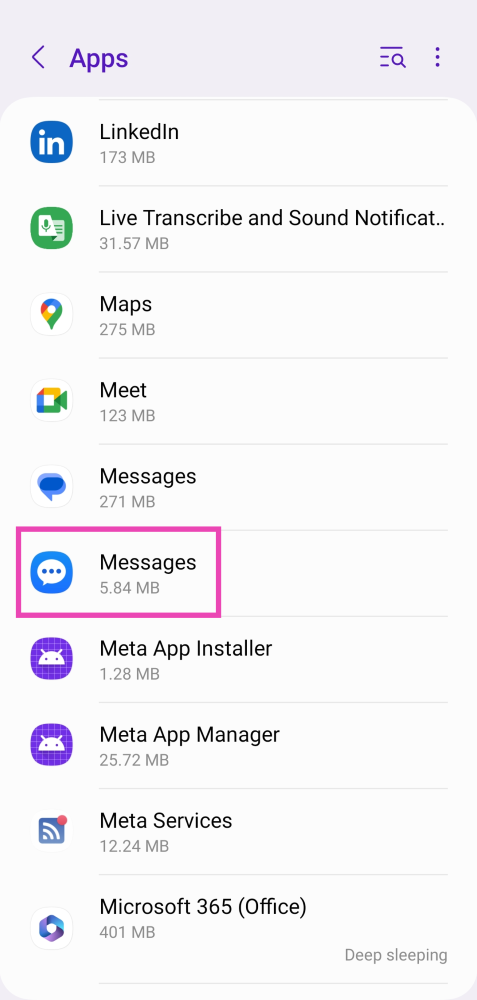 Step 3: Tap on Force Stop at the bottom of the screen.
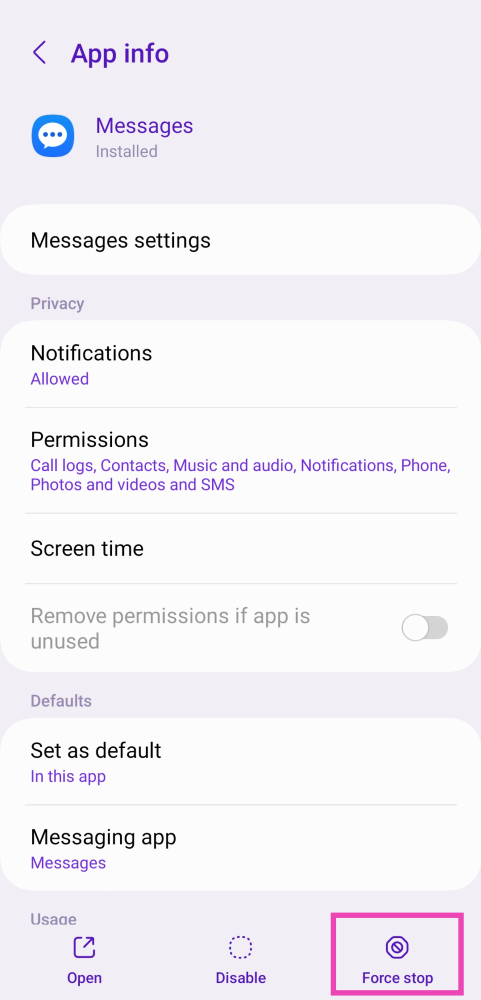 Read Also:
 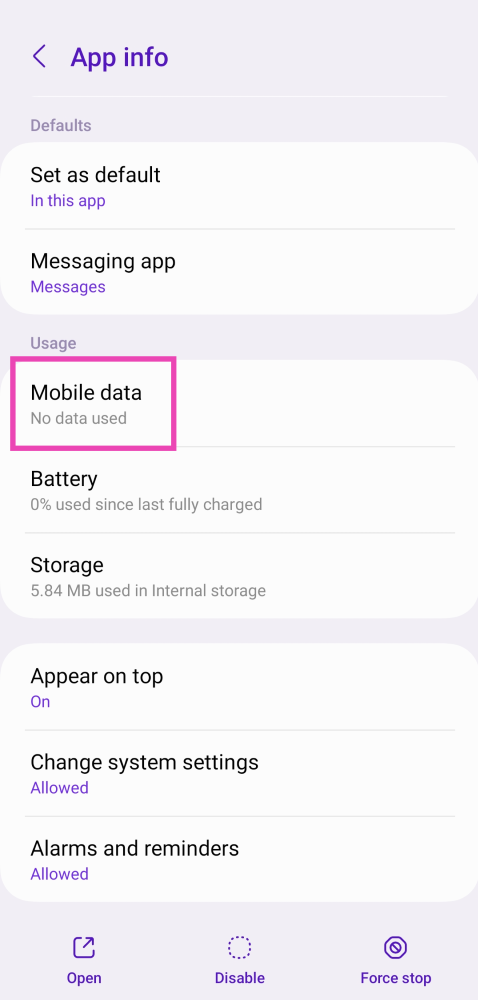 Step 4: Turn on the toggle switch for Allow background data usage.
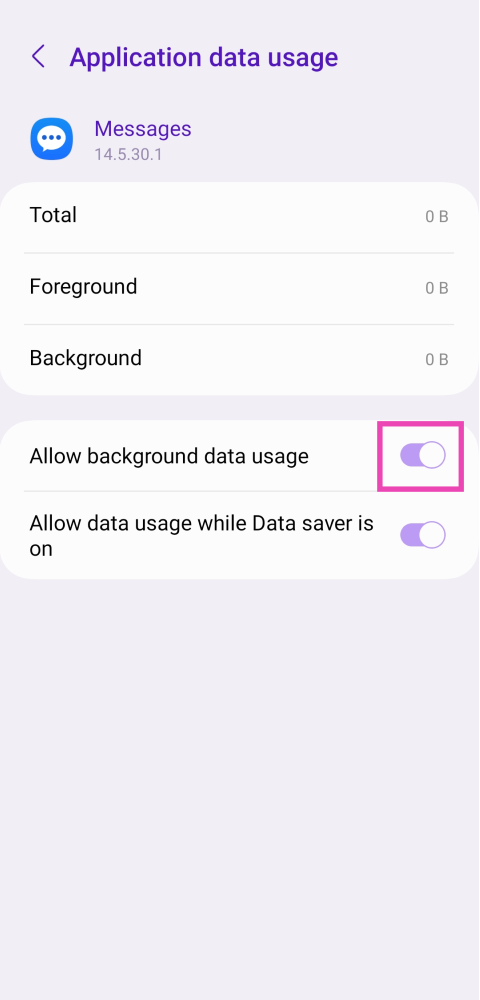
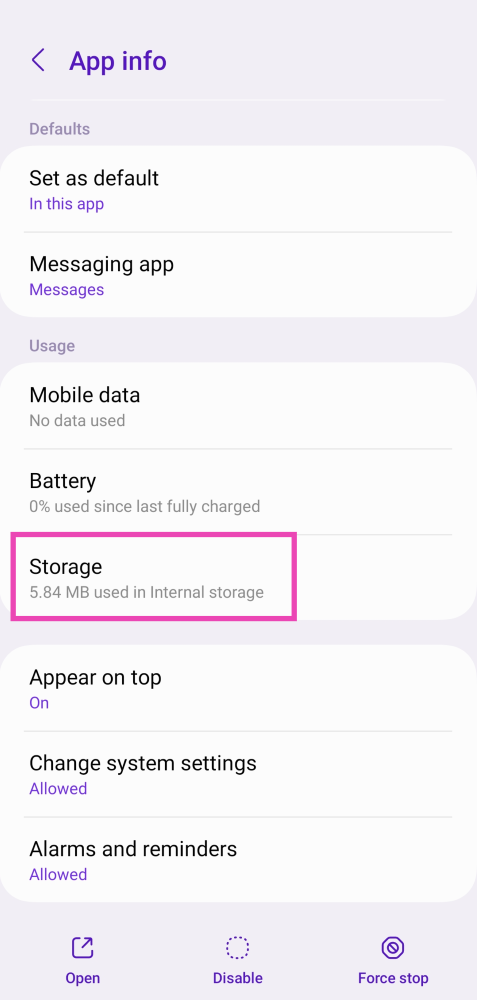 Step 4: Tap on Clear Cache.
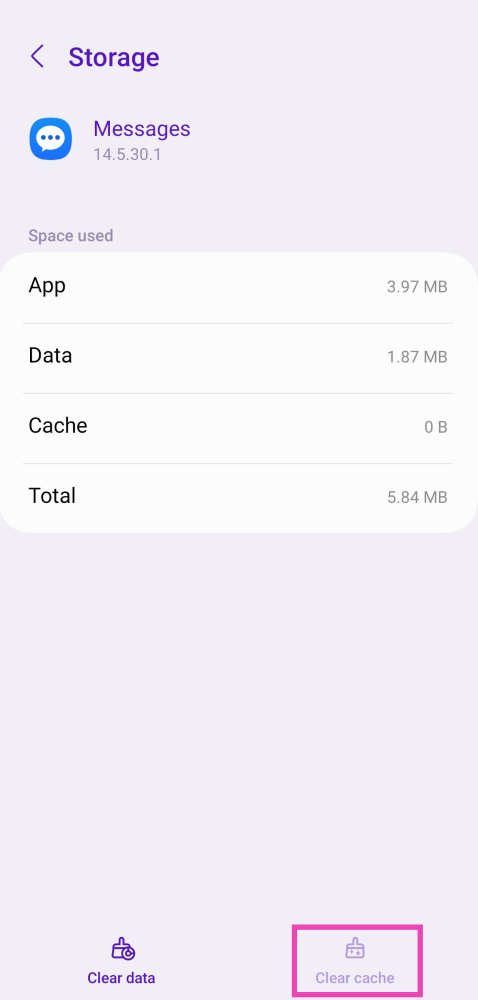
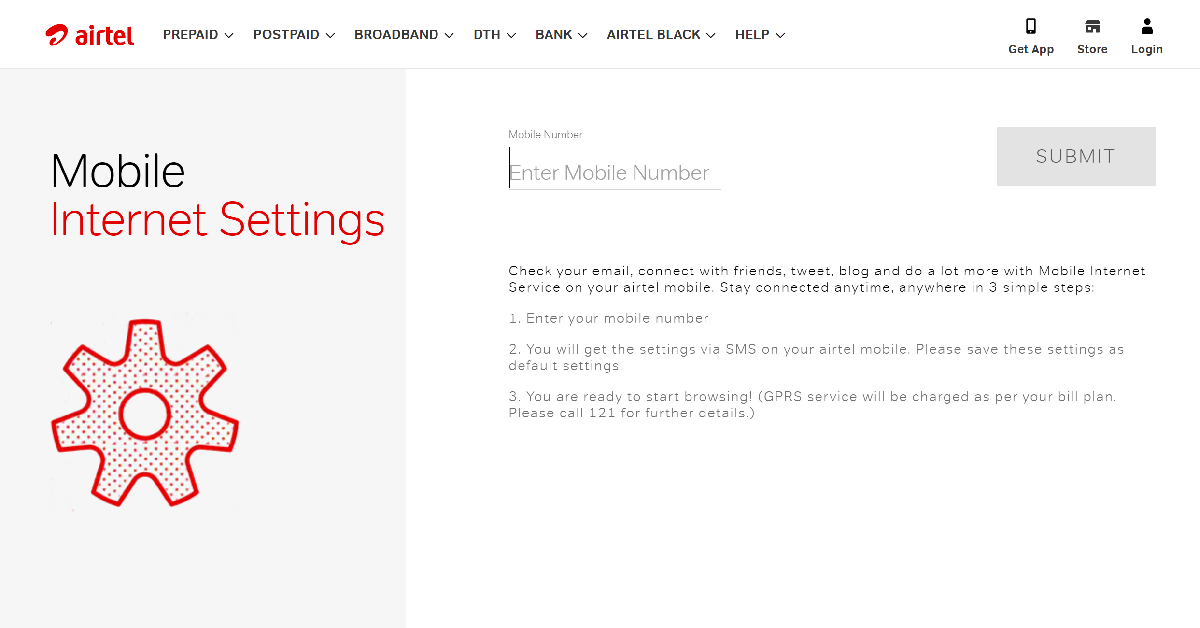 If your MMS APN settings are faulty or outdated, you won’t be able to send pictures or video clips as texts to your loved ones. To fix this, request MMS APN settings from your network provider. Dial the code for customer service and navigate your way to GPRS and MMS settings. Airtel users can visit the network provider’s official website and enter their number to receive the settings.
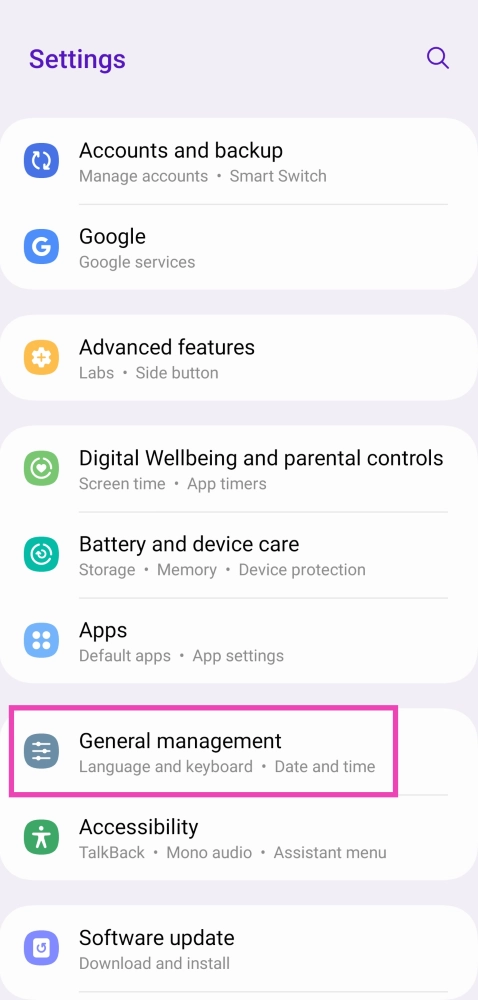 Step 2: Scroll down and select Reset.
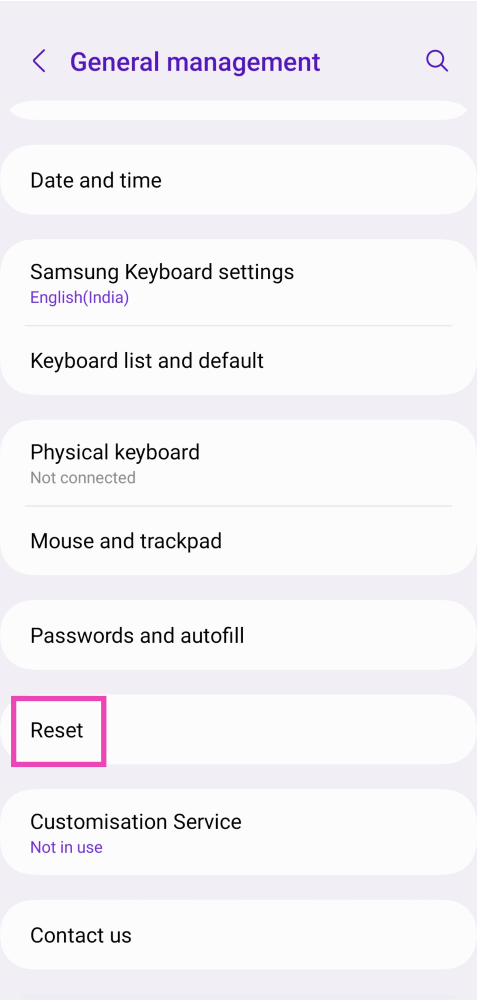 Step 3: Tap on Reset Network Settings.
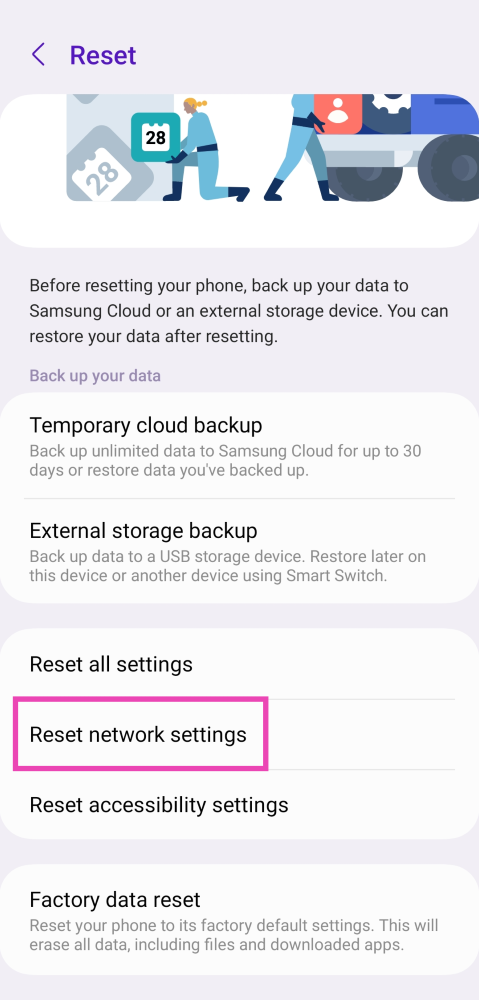 Step 4: Select Reset Settings.
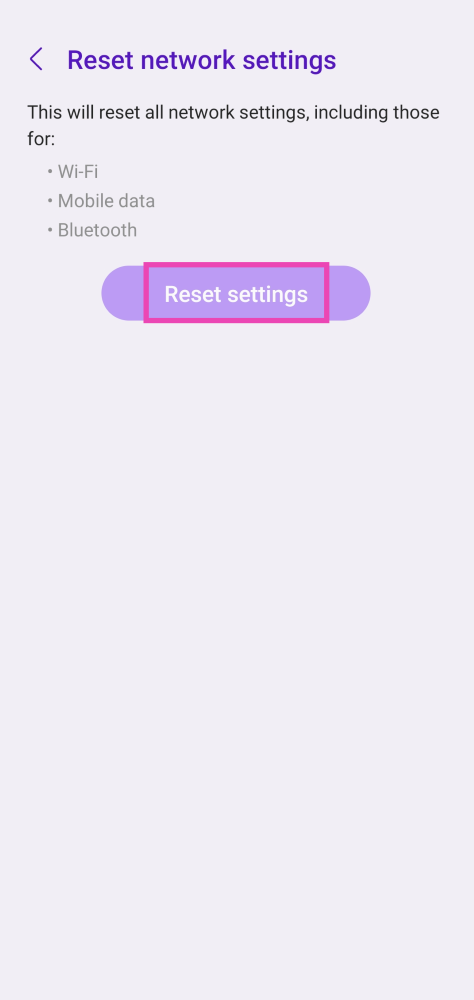 Step 5: Enter your PIN to confirm your selection.