In This Article
Restart your phone
A quick restart takes care of any background issues and glitches on your device. It should be the first step towards fixing any issue on your phone. If Facebook Messenger isn’t working or sending messages, restart your phone and see if the issue resolves itself. Press and hold the side key and select ‘Restart’ from the power options.Disable Data Saver
Step 1: Open Facebook Messenger and tap on your profile. Step 2: Tap on ‘Data Saver’.
 Step 3: Turn the toggle bar off to disable Data Saver.

Enable background data
Step 1: Go to Settings on your phone. Step 2: Select Apps. Step 3: Select Facebook Messenger.
Step 4: Select ‘Mobile Data’ under Usage.
Step 3: Select Facebook Messenger.
Step 4: Select ‘Mobile Data’ under Usage.
 Step 5: Turn the toggle bar on for ‘Allow background data usage’.

Force Stop and restart Facebook Messenger
Step 1: Go to Settings on your phone. Step 2: Select Apps.
Step 3: Select Facebook Messenger.
 Step 4: Tap on ‘Force Stop’ at the bottom of your screen.
 Restart the Messenger once you’ve force-stopped it.
Clear Messenger app cache
Step 1: Go to Settings and select Apps. Step 2: Scroll down and select Messenger.
Step 3: Tap on Storage.
Step 2: Scroll down and select Messenger.
Step 3: Tap on Storage.
 Step 4: Select ‘Clear Cache’ from the bottom menu.

Check Facebook Messenger server status
It is possible that Facebook Messenger servers may be down. In order to check the server status, go to Downdetector and search for Facebook Messenger. You will be able to view whether there have been any outages reported by other users.Update the Messenger app
Developers frequently roll out updates for apps that bring much-needed solutions to existing issues. These updates take care of any new bugs and glitches. If the Facebook Messenger is not working on your device, it is likely because you are using an older version of the app. To fix this, go to Google Play Store, search for Messenger, and hit ‘Update’.Use Messenger Lite
As the name suggests, the Messenger Lite app is a lightweight alternative to the bulky Messenger app. The Lite version of Messenger keeps all the essential features like texting, sending images and documents, muting and blocking contacts, but gets rid of the fancy features that aren’t used as often. The result is a fast, responsive app that doesn’t occupy too much space on your device. If you are having trouble sending messages on Facebook Messenger, you can try the Lite app and see if it works for you.Check if you’ve been blocked by the receiver
Facebook Messenger won’t send your messages if you’ve been blocked by the receiver. In order to check whether you’ve been blocked, try sending a message to multiple people in your messenger contacts. If your messages aren’t getting through to one person in particular, it is possible that you’ve been blocked or unfriended by them. Check their Facebook profile for proper confirmation.Turn on and turn off the airplane mode on your phone
In order to perform a partial network reset, drag down your notification menu and turn on the airplane mode on your smartphone. Turn it off after a few seconds and check if your messages are able to get through on Facebook Messenger.Reset Network Settings
Step 1: Go to Settings and select ‘General Management’. Step 2: Scroll down and select ‘Reset’.
 Step 3: Tap on ‘Reset Network Settings’.
 Step 4: Select ‘Reset Settings’.
 Step 5: Enter your PIN to confirm your selection.
 Step 2:
 Step 3:
 Step 4:
 Step 5:
 Step 3:



 Camera Specifications
Rear Camera:
Camera Specifications
Rear Camera: Camera Specifications
Rear Camera:
Camera Specifications
Rear Camera: Camera Specifications
Rear Camera:
Camera Specifications
Rear Camera: Camera Specifications
Rear Camera:
Camera Specifications
Rear Camera: Camera Specifications
Rear Camera:
Camera Specifications
Rear Camera: Camera Specifications
Rear Camera:
Camera Specifications
Rear Camera: Camera Specifications
Rear Camera:
Camera Specifications
Rear Camera: Camera Specifications
Rear Camera:
Camera Specifications
Rear Camera: Camera Specifications
Rear Camera:
Camera Specifications
Rear Camera:  Camera Specifications
Rear Camera:
Camera Specifications
Rear Camera:

 Read Also:
  Step 2:
 Step 3:
 Step 4:





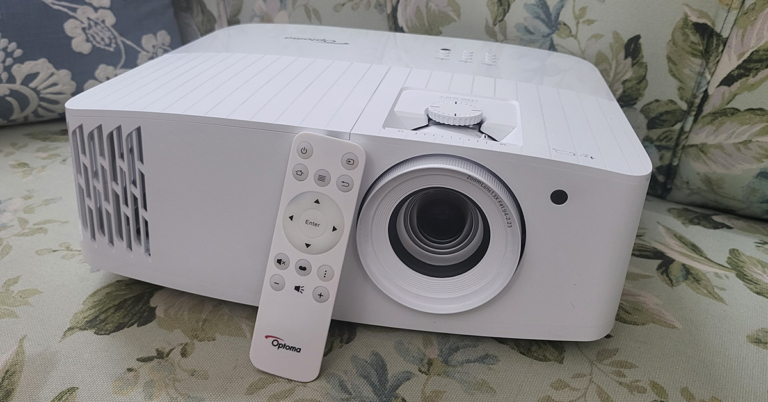
 You get the lens zoom, lens shift knobs on the top along with the power, keystone correction and other useful buttons. To raise the Optoma UHD55 projector a bit (when kept on flat surfaces) the company has put a raise stand below it. Up front, you will find the large lens along with an IR receiver.
 Turn it around and you will get to see a plethora of ports. These include a couple of HDMI, a few USB 2.0, Ethernet, VGA, audio in and audio out ports. The power-in port is also available here. A unique feature of the Optoma UHD55 projector is that the first USB port is a power OUT (5V) port, which can also be used to charge your gaming console’s gamepads. With that, a 10W speaker is also hidden behind the grille of this projector. More about this in the next section.
 A minimalistic-looking IR remote also comes with this projector with all the essential buttons and it works from as far as 50 feet, when we tested it out. All in all, the Optoma UHD55 projector is a very decent-looking device that can easily be placed on a flat surface or roof mounted.
 Setting it up was child’s play and we were up and running in 5 minutes. Up to 302-inch screen size is supported. We kept ours at 120-inch and oh boy! everything looks very good. The Optoma UHD55 projector comes with a 10W speaker also inside, which is decent for small rooms, but you will need extra speakers if you want to feast on the full power of this projector. The throw distance is also not very high, and the keystone correction works flawlessly. You can easily control it through the onboard button panel or with the supplied remote.
Read Also:
Setting it up was child’s play and we were up and running in 5 minutes. Up to 302-inch screen size is supported. We kept ours at 120-inch and oh boy! everything looks very good. The Optoma UHD55 projector comes with a 10W speaker also inside, which is decent for small rooms, but you will need extra speakers if you want to feast on the full power of this projector. The throw distance is also not very high, and the keystone correction works flawlessly. You can easily control it through the onboard button panel or with the supplied remote.
Read Also: 
 Step 3:
 Step 4:
 Step 2:


 Step 2:
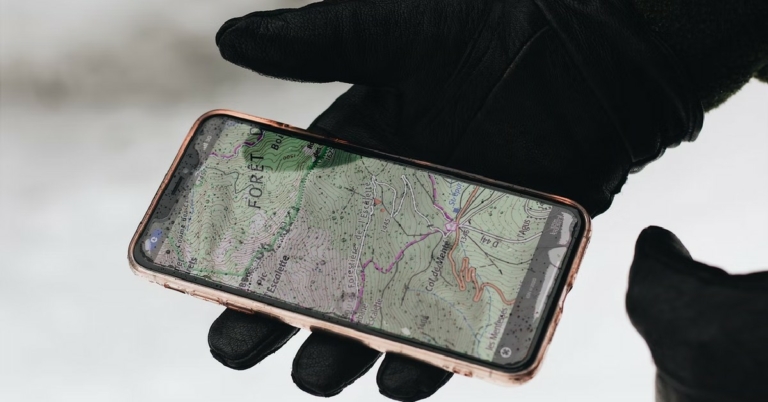


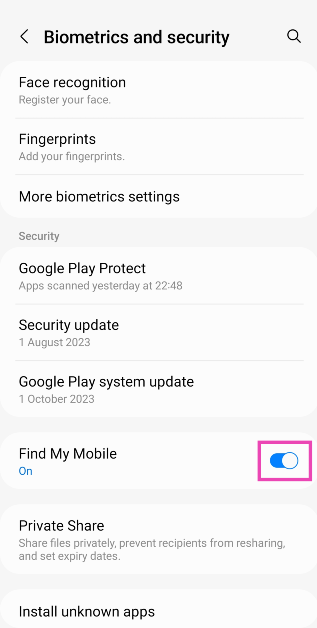
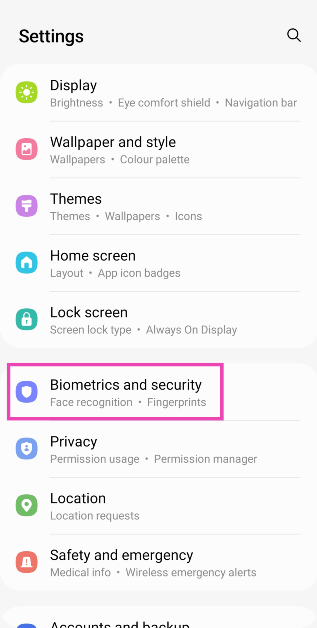 Step 2: Scroll down and turn on the toggle switch for Find My Mobile.
 On your PC
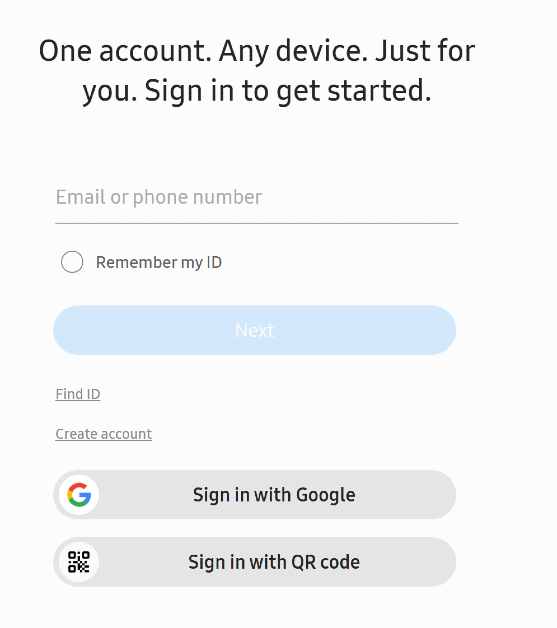
Step 1: Go to the SmartThings Find page and log in using your phone number or the registered email.
On your PC
Step 1: Go to the SmartThings Find page and log in using your phone number or the registered email.
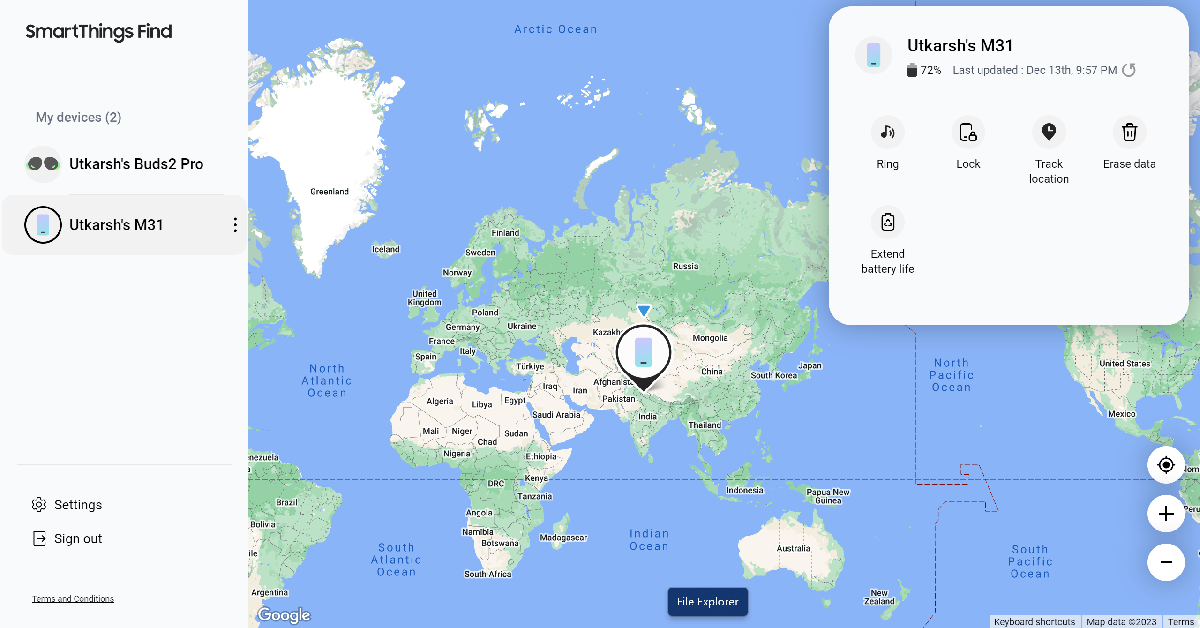
 Step 2: Your device’s location will be marked on the map.

 Step 3:
 Step 4:
 Step 5: