The Android 12 beta version has been recently rolled out by Google. It has many features available such as privacy and “hidden game mode” in the beta version. The all-new Android 12 will be available as an OTA update around September or October this year. Here is a handy guide to enable the hidden game mode when using Android 12 beta.
In This Article
Go to the setting menu on your mobile
This is the first thing you need to do before enabling the hidden game feature in Android 12 beta. Downloaded it and install it for those who have not, you need to install it. After successfully installing it go to the settings menu on your Android device to enjoy the features newly rolled out by Google.
Navigate to the Digital Wellbeing option
The next step to enable the hidden game mode is to navigate to the Digital wellbeing sub-menu. You can manually go to the option or you can use the search bar to search for it. The sub-menu is highlighted as Digital wellbeing and parental controls. So scroll down to Digital Wellbeing and follow the next step
Read more: Instagram rolling out Guides features for all the users
Select the Do not disturb
The next thing to do is tap on the Do not disturb menu. It is located in the reduce interruption sub- categorisation when you open the Digital Wellbeing menu. It is easily visible. Now you will find a list of options for apps and people that you can enable Do not disturb for. Next, scroll down to schedule
Next, when you open the Schedule menu. You have to make sure you click on the game mode Checkbox. This will enable a floating menu with a Game mode option available.
Game mode setting
When you are done with clicking the game mode checkbox. The next step is to click on the setting icon which is on the right of the screen. Now you can see six lists on the screen. Tap on it.
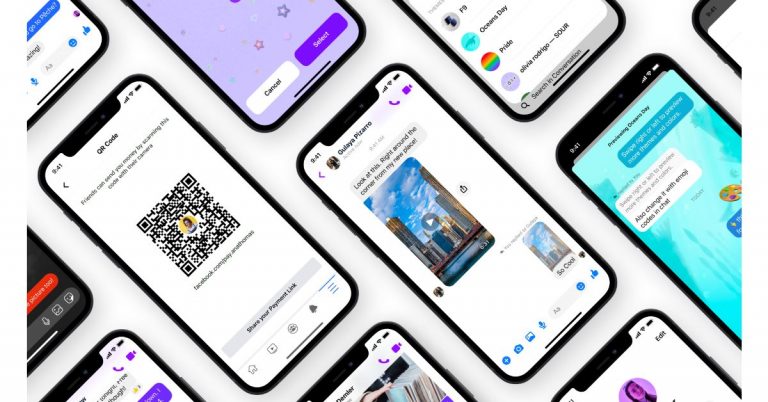
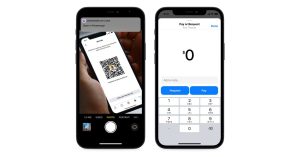
Facebook Messenger is now getting new messaging features that are said to bring a better user experience to its platform. The company has released new chat themes, a quick reply bar, QR codes and payments links.Facebook via its blog post announced the three new messaging features that will boost the Messenger experience. The three features: new chat themes, a quick reply bar, QR codes and payments links will be available on Instagram as well beside Messenger.The new Chat theme will allow the users to personalize and enhance their conversations. They will be able to change the background of their chat into a delightful and fun way to communicate with friends. The first theme is Olivia Rodrigo which has been brought to celebrate the launch of Olivia’s new album, Sour. Users will get a whimsical chat theme featuring Olivia’s signature face stickers that can be used to share their favourite song from the new album. Next on the list is World Oceans Day chat themes that will allow users to virtually explore the world’s oceans but also promote sustainability and the importance of keeping our oceans clean for future generations. Whereas the Fast & Furious 9 (F9) theme has been launched to celebrate its Fast Saga’s 20th anniversary. The users can try out a new chat theme on Messenger and Instagram, go to your chat settings, tap “Theme”.The quick reply bar in messenger will make it easier to respond to the content shared by your friends and family making it easier to have conversations sparked by a cool photo or video without needing to go back to your main chat thread. All you need is to tap on the photo or video and send a response through the quick reply bar at the bottom of the screen. Swipe up to exit the full-screen media viewer and head back to your main chat thread.Lastly QR codes and payment links in Messenger enable you to send and receive money from anyone, even if you’re not Facebook friends. This feature will be enabled for US Messenger users to leverage QR codes and payment links when they want to send or request money with Facebook Pay. To access the personal QR code and payment link, visit your Messenger settings and tap “Facebook Pay.” Simply share the payment link or allow your friends to scan your QR code to send or request money.
For the latest gadget and tech news, and gadget reviews, follow us on Twitter, Facebook and Instagram. For newest tech & gadget videos subscribe to our YouTube Channel. You can also stay up to date using the Gadget Bridge Android App.
The e-commerce website Flipkart is hosting Daily Trivia Quiz. Every day it brings a bunch of new questions for its users. By answering them correctly you can win exciting prizes. The questionnaire is based on questions related to general knowledge. Also, the users can win free vouchers and super coins, among other offers via the daily quiz. June 14 Flipkart Daily Trivia Quiz Answers has already gone live on its platform.
The participant should be at least 18 years old and should have a valid login ID. The Quiz is available on the mobile platform and not the web version. E-commerce conducts the quiz on daily basis and goes live at 12:00 AM IST and runs till 11:59 PM IST. The winners are announced within 15 days from the date of participation that can be viewed under the Gems/Rewards section in the app.
In This Article
How to participate in the Flipkart Daily Trivia Quiz
To participate download the Flipkart app on your phone. Then open the Flipkart app then head to Game Zone. Now click on the Daily Trivia Banner or search for Daily Trivia. Enter the game and answer all 5 questions with correct answers.
June 14 Flipkart Daily Trivia Quiz Answers
Question 1: Which is the world’s oldest national broadcasting organisation?
Answer: BBC
Question 2: Which country has the largest immigrant population in the world in absolute number?
Answer: USA
Question 3: Which deity in Hindu mythology maintains a register called Agra Sandhani?
Answer Chitragupta
Question 4: Which monument served as the final refuge for the Bahadur Shah Zafar during the 1867 Mutiny?
Answer: Humayun’s Tomb
Question 5: In which computer is the Rub’ al Khali, the largest uninterrupted sand desert in the world?
Answer: Saudi Arabia
Amazon Quiz has gone live now. The quiz can be played daily from 12 AM to 11:59 PM. Amazon gives the opportunity to millions of its customers to play and win free gadgets as well as Amazon Pay Balance. Today e-commerce gives you a chance to win Rs 25,000 Amazon Pay Balance.
Every day the e-commerce platform brings a new set of questionnaires to which the participants have to answer correctly. The quiz contains only five questions that are based on current affairs and general knowledge. Answering all the questions correctly will get your name selected for a lucky draw. Only one person will be selected as the winner and the results are announced at the end of every month. The lucky ones might win something by answering all the questions correctly, and the wrong answers will get you eliminated from the quiz. So to make sure you answer all the questions correctly Gadget Bridge everyday updates all the correct answers to all 5 questions. To win Rs 25,000 Amazon Pay Balance check out today’s answers for the Amazon Quiz.
June 14 Amazon Quiz Answers
Question 1: With which medicine company has India’s DRDO collaborated to develop the 2DG drug for the treatment of COVID-19?
The answer is- Dr Reddy’s
Question 2: What name was given to the most famous rock formation in the Galapagos Islands that has recently collapsed into the sea?
The answer is- Darwin’s Arch
Question 3: As of May 2021, Ole Gunnar Solskjaer, a former Norweigian player, is the current manager of which EPL club?
The answer is- Manchester United
Question 4: Called Hanboks, these are the traditional clothes worn by the people of which Asian county?
The answer is- South Korea
Question 5: Which legendary hero from Switzerland was made to shoot an arrow at this fruit balanced on his son’s head?
The answer is- William Tell
For the latest gadget and tech news, and gadget reviews, follow us on Twitter, Facebook and Instagram. For newest tech & gadget videos subscribe to our YouTube Channel. You can also stay up to date using the Gadget Bridge Android App.
The e-commerce website Flipkart is hosting Daily Trivia Quiz. Every day it brings a bunch of new questions for its users. By answering them correctly you can win exciting prizes. The questionnaire is based on questions related to general knowledge. Also, the users can win free vouchers and super coins, among other offers via the daily quiz. June 13 Flipkart Daily Trivia Quiz Answers has already gone live on its platform.
The participant should be at least 18 years old and should have a valid login ID. The Quiz is available on the mobile platform and not the web version. E-commerce conducts the quiz on daily basis and goes live at 12:00 AM IST and runs till 11:59 PM IST. The winners are announced within 15 days from the date of participation that can be viewed under the Gems/Rewards section in the app.
In This Article
How to participate in the Flipkart Daily Trivia Quiz
To participate download the Flipkart app on your phone. Then open the Flipkart app then head to Game Zone. Now click on the Daily Trivia Banner or search for Daily Trivia. Enter the game and answer all 5 questions with correct answers.
June 13 Flipkart Daily Trivia Quiz Answers
Question 1: To which country did famous boxer Muhammad Ali belong?
Answer: The USA
Question 2: Which country’s highest division of football is the La Liga?
Answer: Spain
Question 3: Who was the first cricketer to hit 400 sixes in international cricket?
Answer: Chris Gayle
Question 4: Who holds the record for scoring the fastest Ranji double century?
Answer: Ravi Shastri
Question 5:Which country was recently banned by WADA from global sports for 4 years over doping?
Answer: Russia
Get ready to answer a new set of questions as the June 13 Amazon Quiz is live on its platform. The e-commerce platform brings a daily quiz on its mobile platform, which every day gives chance to millions of people across the country to win exciting prizes. The quiz goes live at 8 AM and runs till 12 noon. Today’s Amazon Quiz prize is the Rs 20,000 Amazon Pay Balance.
By participating in Amazon Quiz every day you can stand a chance to win prizes such as iPhone X, iPhone Xs, Seagate HDD, GoPro Hero 8 Camera, LG Smartphones, Samsung Galaxy S20, Air Purifier, Oppo smartphones, Amazon Pay Balance among others. Every day Amazon brings a fresh new quiz on its app, here we would like to mention that the quiz is not available for desktop users, only app users can participate in the daily quiz.
The company puts 5 questions based on general knowledge and current affairs to which the contestants have to answer all the questions correctly. A wrong answer will eliminate you from the quiz. After giving correct answers to all the questions, your name will get further selected for a lucky draw. The results of the lucky draw will be announced at the end of the month. So today’s quiz winner’s name will be declared at the end of the month. We have updated today’s five questions with their correct answers below so that you can win Amazon Quiz and get Rs 20,000 Amazon Pay Balance
June 13 Amazon Quiz Answers
Question 1: If the first was ‘Inkheart’ and the second was ‘Inkspell’, then what is the third in the trilogy?
The answer is- Inkdeath
Question 2: Which of the following has been given the name ‘Tauktae’ by Myanmar, which means ‘gecko’?
The answer is- A cyclone
Question 3: Which artist’s painting titled “Painting for Saints” as a tribute to the NHS and healthcare workers, recently auctioned for £14.4m?
The answer is- Banksy
Question 4: This animal became famous across the world with the release of which animated film in 2005?
The answer is- Madagascar
Question 5: Identify the festival from this picture.
The answer is- Burning Man
Hunting down your most used app becomes exhausting when apps are scattered everywhere on your phone. There are a few smart ways you can arrange your apps on the screen. Check the guide below for a beautiful and organised screen. Here is the list below.
In This Article
Organise them in a folder
The first thing you can do is organise them in folders. The best way is to assign the folders according to the usage of the apps. Naming them or putting them in numbers is a great start. Organising them in accordance with their actions is the simplest. Then you can easily tap on the folder you need to open when you need an app. Organising the app in a folder can be done easily in your phone setting.
Alphabetical order
Putting the apps in alphabetical order is another option for arranging your apps. Alphabets are easier to remember and opening an app with it makes it easier. For example, when you want to open Instagram your reflexes will easily find the alphabet “I”. You can create this alphabetical order folder by going to settings. And then reset the home screen layout.
Using Emoji
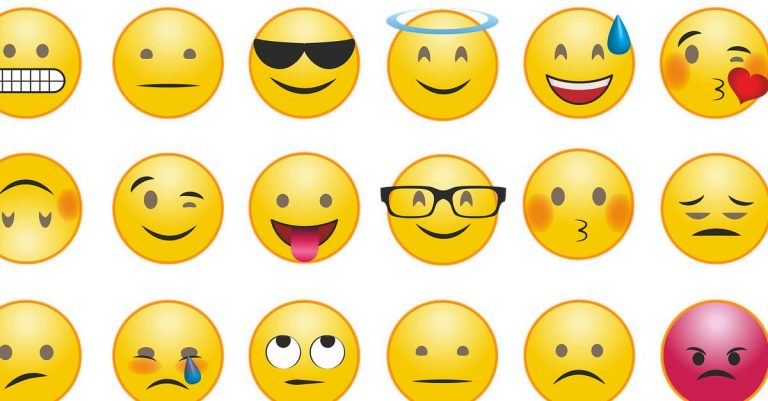
Emojis are usually used for expression. But using emoji for assigning the function of the app by using a folder is very creative. For example for music apps like Spotify, you can use the music emoji or the headphone emoji. It will not only look amazing. But it will refresh your screen and look more bright.
Read also: Google to roll out 25 new multi-skin toned handshake emojis by 2022
Delete the never use apps
This is not a trick to organise your apps. But this suggestion can contribute to making your phone look very organised. This will also create a lot of room on your screen. Making it easier to find your apps. Delete all those apps you rarely use. It is a very innovative way to arrange those daily apps. All those unused apps will drain your battery. It will only result in slowing down of apps you use regularly. Uninstall the apps you don’t use today and see the change in your screen and phone habits.
Read more: How to run Android apps on your PC without using an emulator?
Colour Coding
Some people excel at colour organisational skills. This option is on the list for those who find colour more attractive. For example, app developers always associate their app with a colour. Facebook is blue, Instagram is red/pink, Snapchat is yellow, WhatsApp is green, and so on. For all those colour lovers this is a way of organising the apps that will lighten up the phone. Try this today and let your screen look vibrant.
For the latest gadget and tech news, and gadget reviews, follow us on Twitter, Facebook and Instagram. For newest tech & gadget videos subscribe to our YouTube Channel. You can also stay up to date using the Gadget Bridge Android App.
You create a signature when you watermark your photos. It helps you to protect all your hard work and make it safe on the internet. Downloading on the internet has become easier and this is why you should start to apply a watermark to your images today. Here are top 5 ways you can watermark your photos. Follow the steps below. Read Also:Top 4 Ways to Turn On Your Android Phone’s Flashlight Without Waking Up The Screen
In This Article
Watermark in Photoshop
Photographers and painters put their signatures on the photo or a painting. This is to maintain the authenticity of their work. Similarly, your edited work and photos on the internet should be under copyright. Your work on a digital platform can be safer with the watermark you will be creating. It will give you the ownership claim as well. These are some steps on how you can watermark in Photoshop.
The website can watermark your images and protect them in a few easy steps. The best part of Watermarkly is that you can watermark it for free. It enables you to import it from computers, Google Drive, or dropbox. The website claims to watermark your images in 5 min. It is very easy. Follow the steps below.
Save the files in a folder or you can choose from drive or dropbox
Open the Watermarkly website
Choose the option watermark for free
The page: drag your file open up
Select image from the options given
Go to the next step on the top right corner
There are two option: add text and logo
Choose one: text or logo
Enter all the option you like: text, font, colour, size, etc
Now on the right top corner select watermark image
The app comes with many exciting features. You can watermark images offline also. The app has 260 fonts that you choose from. It is compatible with Windows or Mac. You can download the app from the website visualwatermark.com for free. To watermark your images from the app. It is fairly simple. Follow these simple steps to
Save the images to a folder on your computer
Open the app
Drag your photos here
Select image from the folder
Go to the next step on the top right corner
Now you see the page add text
Enter text, font, size, colour
Drag to where you put the watermarks
Go to next step: top right corner
Then again go to the next step
Choose output folder
Save it in a folder
Press watermark
Add a watermark to your images on your Android phone
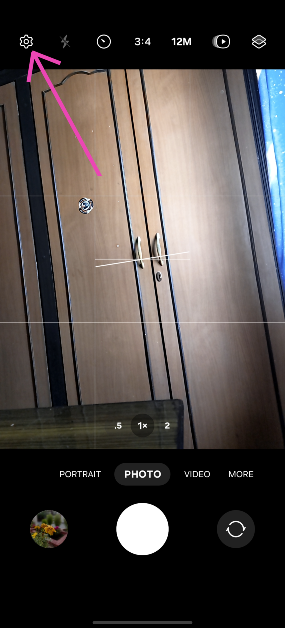
Launch the native Camera app on your smartphone.
Tap the gear icon for settings.
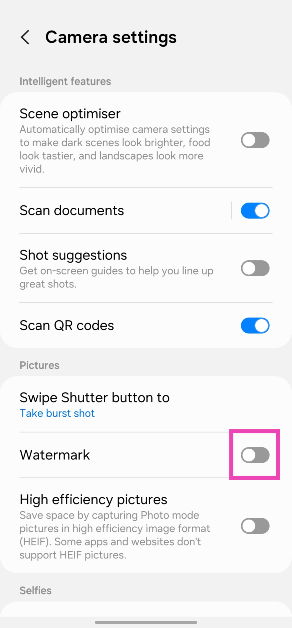
Turn on the toggle switch for Watermark and tap on it.
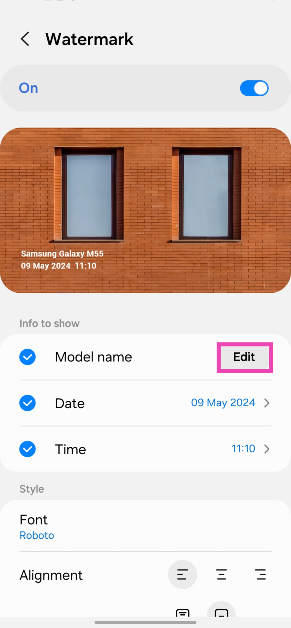
Hit Edit next to Model name.
Enter the text for your watermark and hit Save.
Any pictures you take will be watermarked with the text of your choice.
Watermark: Logo, Text on Photo
Download from the Google Play Store
The ‘Watermark: Logo, Text on Photo’ app is one of the best third-party tools you can use on your Android phone to add a watermark to your images. It has over 250 creative fonts and 1000+ stickers that can be utilised to create an eye-catching watermark. You can even create a signature for your images on this app. The app gives you the option to change the pen size and colour. Before posting your images on social media, you can use the ‘Logo, Text on Photo’ app to resize and edit them.
Frequently Asked Questions (FAQs)
How do I add a watermark to my images on an Android phone?
Go to Camera>Settings>Watermark, turn on its toggle switch, and add the text. Go back when you’re done. The pictures you take using your phone will now have the watermark.
How do I add a watermark to my images on a PC?
Install Visual Watermark on your PC. Open the app and drag your image in the box. Hit ‘Next’ and add text. Change its font and size and drag it along the picture to place it wherever you want. Hit ‘Next’ again and save the image in the target folder.
Which are some good apps to add watermarks to images?
These are the top 5 ways to put a watermark in your images on an Android phone or Windows PC. If you know any other ways to go about your task, let us know in the comments. While you’re here, read this article to learn how to watermark your Google Docs.
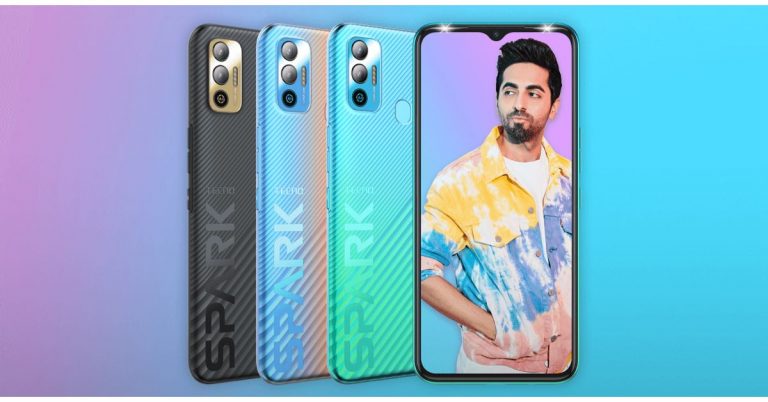
After launching Tecno Spark 7 and 7 Pro in India the Transsion holding smartphone brand today expanded the lineup. The company has introduced Spark 7T which is the third edition to the series. The device falls under the sub Rs 10,000 price segment. The phone features a 6,000mAh battery and a 48-megapixel dual rear camera set up. In addition to this, there is an HD display and it is powered by octa-core MediaTek Helio G35 SoC.Tecno Spark 7T pricing and availabilityTecno Spark 7T has been launched in India in a single configuration of 4GB RAM with 64GB storage priced at Rs 8,999. Tecno has also announced a consumer launch offer of flat Rs 1000 off on the first day of the Spark 7T sale so that consumers can buy the new smartphone at just Rs 7999 for that day. The device will be available for purchase starting June 15 at 12 noon via Amazon.
Tecno Spark 7T specifications
Coming to the specifications Tecno Spark 7T features a 6.52-inch HD+ Dot Notch IPS display having 720×1,600 pixels of resolution. It offers 480 nits peak brightness and a 20:9 aspect ratio. The phone runs HiOS v7.6 based on Android 11. There is an octa-core MediaTek Helio G35 SoC paired with 4GB of DDR4x RAM and 64GB of storage. The internal storage can be expanded up to 512GB using a microSD card.In terms of cameras, Tecno Spark 7T comes with a dual rear camera setup that consists of a 48-megapixel primary sensor with an ƒ/1.8 aperture and a secondary AI lens with four flashes. The rear camera features various modes that include AI Beauty, Smile Shot, 20 AI Scene Detection, Portrait Bokeh, HDR, 10X Zoom, AR Shot, AI Body Shaping, Burst Shot, Google Lens, Documents, Panorama, 2K time Lapse, Slow Motion, Short Video, Video Beauty, Video Bokeh and 2K Recording.On the front, the smartphone sports an 8-megapixel selfie camera with ƒ/2.0 aperture and dual camera. The front camera also features AI HDR, Time Lapse, Smile Shot, AI Portrait, AR Shot, Wide Selfie, Burst Shot, 7 AI Scene Detection, AI Beauty.Tecno Spark 7T also includes a 6,000mAh battery that is claimed to provide a standby time of up to 36 days, 41 hours calling time, 18 hours of web browsing, 193 hours of music playback, 18 hours of game playing and 29 hours of video playback. On the connectivity front, the device includes dual-band Wi-Fi, 4G, GPS, Bluetooth v5, OTG support, among others.
For the latest gadget and tech news, and gadget reviews, follow us on Twitter, Facebook and Instagram. For newest tech & gadget videos subscribe to our YouTube Channel. You can also stay up to date using the Gadget Bridge Android App.
Games are not always about fun. Some of you might like games that test your solving skills and test your logic ability. Such games give you the dual pleasure of enjoying the game as well as training your brain. Here is a list of the best games and apps you can download now on the Play Store to start playing.
In This Article
The list of games
Searching for the best games that test your brain can be confusing and energy draining. These games are designed to train your brain through various methods. It helps you in understanding how your brain’s ability works. It develops your cognitive skills, too. These games can be of many types: puzzle games, memory testing games, language skills games, and critical thinking games. Moreover, the games keep you active mentally. So check our list of the best games.
Read more: Creative Stage V2 soundbar launched, now available in India at a special price of Rs 9,999
Skillz
This is a skills test game that you can download on the Play Store for free. It is based on your logical skills and improves your cognitive ability. You can start playing with your friends or random people online. Start the game with 2 people and the maximum is 4. A few important features to make note of is it compares your performance with other players online and attends daily or weekly programs. Download here
Lumosity
It is an interactive puzzle game to test your skills. It develops accuracy, speed, and strategy. One of the advantages of the game is you can increase your reading skills and also your vocabulary. One of the important features is practice mode, it gives you a complete set of innovative ways to boost your skills. And it is not time-consuming; you can play it quickly. The best part of the game is, it is suitable for both adults and kids. Download here
Peak
Peak is designed to keep your mind active with brain games and puzzles. Peak will increase your memory, language skills, and critical thinking. Peak has more than 45 games just for you to play. This game allows you to play online and compete with others. The game contains 30 mini-games that will excite you non-stop. The important feature is that you can play the mobile game offline, too. The con of the game is if you want to update to Pro and enable many features it asks for a small subscription fee. Download it
The list of Apps
Every person comes with a different skill set, which they acquire in life. This list of apps below will help to improve your speaking skills, processing speed, memory, and math skills. Using an app that does not make you lose brain cells and improve your creativity is not an easy task to search. Use these apps and develop your concentration and organisational skills. These apps will help you focus at work or on education and increase your self-confidence.
Read also: Apple Store India introduces ‘Today at Apple’ virtual Photography and Music Sessions
Elevate
The app can be downloaded and installed for free. It has more than 40 games. The app runs on your math, writing, reading, and listening ability. It increases your vocabulary, grammar, and reading comprehension. The app takes help from AI technology to help with your exercise. The goals you set and the more you use will determine what level you need. You have the option to download for free and later upgrade to PRO with a minimum subscription.Download here
Duo lingo
This app is very popular among people who love to learn a new language. You can download the app for free. This app can make learning a language simple and easy. It will help you to read, write and speak the language you choose on the app. The app contains 32 different languages in the form of games and quizzes. The best feature is that it directly resumes where you left off (last time) making it very convenient. Want to learn a new language today. Here is an app. Download now
For the latest gadget and tech news, and gadget reviews, follow us on Twitter, Facebook and Instagram. For newest tech & gadget videos subscribe to our YouTube Channel. You can also stay up to date using the Gadget Bridge Android App.
If your professional work involves a lot of editing of photos it becomes time-consuming. Saving valuable time helps in productivity and also time management. With the list given below find out how you can bulk resize images easily. We have created some of the best ways in the list. Check them below.
In This Article
On Windows 10
You can bulk resize your images on Windows 10 manually. First, you need to turn on the Windows 10 explorer. Many do think there is no function that directly allows this. But there is a hack. Follow the steps
Read more: Samsung Galaxy Z Fold 2 price announced and pre-order details
Use the mail recipient hack
Using this function you can send, edit, and save the images in bulk. Here is how
First, save all the images in a folder
Press ctrl+A
Select right click and choose to send to
Now navigate Mail recipient
It will pop up attach files in the Windows
Now specify the image size you need (Smaller, small, medium, large, and original size)
With the chosen size it shows the Total estimated
In the last process click on Attach
Now Microsoft Outlook will come up and you access the resize attachment
Select the arrow on any attachment. It will allow a drop-down option.
Choose Select All
Click the arrow again and choose to Save as
Select the path where to save and tap Ok. Hack completed
On a Freeware tool
The Image Resizer has to be used for this tool. Download this tool to make use of it. You can download it for free and it is completely malware-free. Once you download you have to install it to start the process.
Photoshop allows you to resize images in bulk with the option of an image processing script. And lets you save the file in a few simple processes. Follow these steps.
Save all the images in a folder before starting the process
Now open the Photoshop app on your computer
Navigate it to the file option bar once you open Photoshop
Go to the script option
Select image processor
Now select the image that you want to resize which is saved in the folder
The e-commerce website Flipkart is hosting Daily Trivia Quiz. Every day it brings a bunch of new questions for its users. By answering them correctly you can win exciting prizes. The questionnaire is based on questions related to general knowledge. Also, the users can win free vouchers and super coins, among other offers via the daily quiz. June 12 Flipkart Daily Trivia Quiz Answers has already gone live on its platform.
The participant should be at least 18 years old and should have a valid login ID. The Quiz is available on the mobile platform and not the web version. E-commerce conducts the quiz on daily basis and goes live at 12:00 AM IST and runs till 11:59 PM IST. The winners are announced within 15 days from the date of participation that can be viewed under the Gems/Rewards section in the app.
In This Article
How to participate in the Flipkart Daily Trivia Quiz
To participate download the Flipkart app on your phone. Then open the Flipkart app then head to Game Zone. Now click on the Daily Trivia Banner or search for Daily Trivia. Enter the game and answer all 5 questions with correct answers.
June 12 Flipkart Daily Trivia Quiz Answers
Question 1: Which winner of the show Bigg Boss also was the winner of the MTV Roadies and Splitsvilla?
Answer: Prince Narula
Question 2: Which Character in Permanent Roommates is portrayed by Sumeet Vyas?
Answer: Mikesh Chaudhary
Question 3: Which film was the first in which Abhishek and Aishwarya worked together?
Answer: Dhaai Akshar Prem Ke
Question 4: Which FM Channel would you find at this frequency 105.6 MHz in Delhi?
Answer: Gyan Vani
Question 5: In which crime drama would you come across the restaurant: Los Pollos Hermannos ?
Answer: Breaking Bad
Get ready to answer a new set of questions as the June 12 Amazon Quiz is live on its platform. The e-commerce platform brings a daily quiz on its mobile platform, which every day gives chance to millions of people across the country to win exciting prizes. The quiz goes live from 12 AM to 11:59 PM. Today’s Amazon Quiz prize is Rs 15,000 Amazon Pay Balance.
By participating in Amazon Quiz every day you can stand a chance to win prizes such as iPhone X, iPhone Xs, Seagate HDD, GoPro Hero 8 Camera, LG Smartphones, Samsung Galaxy S20, Air Purifier, Oppo smartphones, Amazon Pay Balance among others. Every day Amazon brings a fresh new quiz on its app, here we would like to mention that the quiz is not available for desktop users, only app users can participate in the daily quiz.
The company puts 5 questions based on general knowledge and current affairs to which the contestants have to answer all the questions correctly. A wrong answer will eliminate you from the quiz. After giving correct answers to all the questions, your name will get further selected for a lucky draw. The results of the lucky draw will be announced at the end of the month. So today’s quiz winner’s name will be declared at the end of the month. We have updated today’s five questions with their correct answers below so that you can win Amazon Quiz and get Rs 15,000 Amazon Pay Balance.
June 12 Amazon Quiz Answers
Question 1: National Anti-Terrorism Day is observed every year on 21st May on whose death anniversary?
The answer is- Rajiv Gandhi
Question 2: Which auto major has launched Ioniq, its e-vehicle brand with the first model named ‘5’?
The answer is- Hyundai
Question 3: Which team was the first in IPL 2021 to have players testing positive, finally leading to the suspension of the season?
The answer is- KKR
Question 4: With which festival do we connect decorative chocolate eggs like these?
The answer is- Easter
Question 5: Which mythical country in South America was believed to be rich in this material?
The answer is- El Dorado
Fixing the problem of an external hard drive not shown on windows can be frustrating. Shops can also charge a lot. If you are facing a similar problem, here are 5 ways that you can fix an HDD not showing up in Windows 10. After these, the system will be able to read your external hard disk drive.
In This Article
Check your Drive management
There might be many reasons why an external Hard Drive is not working when you plug it in. It might be because of a partition issue, wrong file system, or wrong USB ports. Try doing these steps.
Press the Windows + X keys. Or you can do it manually by searching Disk Management on the search bar of your screen. Also, you can run dialogue with Windows +R and enter the keyword diskmgmt.msc
It will now take you to the disk management window. You can see your external drive under the primary and secondary disks. If it does not show it might because the disk is not a partition yet.
In section 4 create a new volume and put a drive letter and partition. So other devices can access
If it has not shown up still it is a hardware issue or maybe the drive is dead.
The USB port that your plugin might be the problem. And that is why it is unable to show the external HDD. Not all but a few of the USB hubs do not give enough power to read the external drive.
Troubleshoot Driver issue
You can always check the troubleshooter, which is at the device manager for any driver problem. Do this by using the shortcut by pressing Windows +X keys. Expand the Disk drivers and check if they show yellow exclamation next to the driver. If there is an issue you can right-click and go to properties and see the message for any solution.
Read also: Amazon Smart Plug launched in India for Rs 1,999
Change Driver Path
Anothermethod to fix the unrecognised external hard drive is to change the drive letter. For this, you need to go to Disk management with the keys mentioned above.
Right-click on the disk partition with no letter
Select change Drive letter and Path in the context menu
Click add button
Assign a drive letter ( for example E, G, D)
Format the drive
Remember formatting your external drive will result in erasing all your data in the drive. Make sure you have copied all important data on another device or any other source. Hope this basic process helps solve the problem with your external HDD. There might be many other reasons why the external drive is not recognising. There are also many other methods that you can try to fix the problem. For example, you can update/uninstall/rollback driver, reinstall USB controller, enable legacy USB support in BIOS, update system to the latest version available, disable USB selective suspend setting, update motherboard chipset drivers, fix the system built-in drivers, run an antivirus scan on the computer and external drive.
For the latest gadget and tech news, and gadget reviews, follow us on Twitter, Facebook and Instagram. For newest tech & gadget videos subscribe to our YouTube Channel. You can also stay up to date using the Gadget Bridge Android App.
Don’t you want to add all your best songs to your playlist and play it over and over? You would want your favourite music to be played continuously when working or reading. You can create a playlist including all your best songs of all time on the Spotify playlist. Follow these steps and create the playlist. Read Also:Apple discontinues iPad (9th gen); iPad (10th gen) gets a price cut
You can also remove a song from your playlist by clicking right click and remove
Download a song from the playlist
You can also download songs from your playlist with the toggle download
Share with friends
You can share your best songs with your loved ones
Secret or Public
Click the Triple-dot button and select make public or make secret.
On the Phone
Listening to music on the Spotify app is always fun. But it will be more fun if you listen to your favourite songs on a playlist. This way you don’t have to search for them, just select the playlist and start listening to your fav tunes.
Read also: Google releases hum to search feature, now hum a song to search on Google
Making a playlist
Open the Spotify app on your Android or iOS smartphone
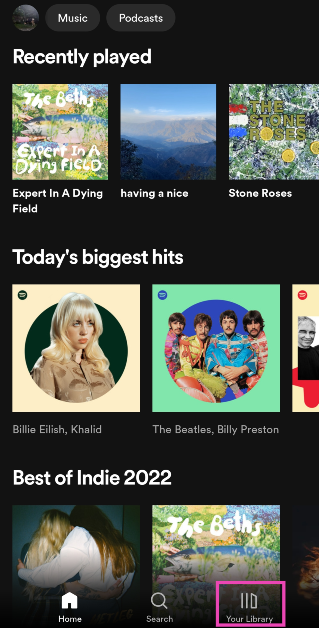
Go to Your Library that is at the bottom of your phone screen
Select Playlist
Press Create playlist
Name the Playlist
Adding songs to a playlist
Search music to add
Press three dots
Select add to playlist
Delete a song
You can also delete an added song from the playlist
Press three dots
Remove
Song Download to the Spotify app
Now you can download songs from the playlist
Use the toggle download
Share with friends/family
You can share your love songs with your loved ones and family by clicking the sharebutton
Make it secret or Public
Press the Triple-dot button
Select make public or make secret
Create an AI Playlist on Spotify
If you’re a Spotify Premium subscriber in the UK and Australia, you can use AI to create a playlist. Here’s how.
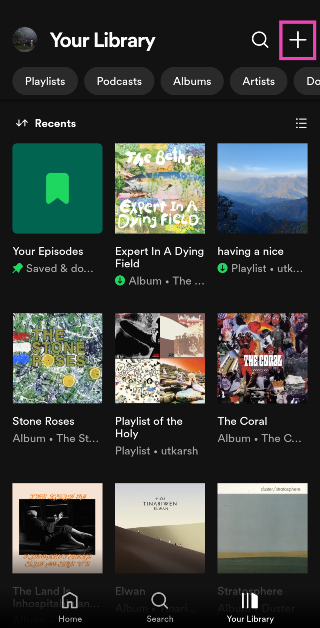
Launch the Spotify app on your smartphone and switch to the Library tab.
Tap the plus icon at the top right corner of the screen.
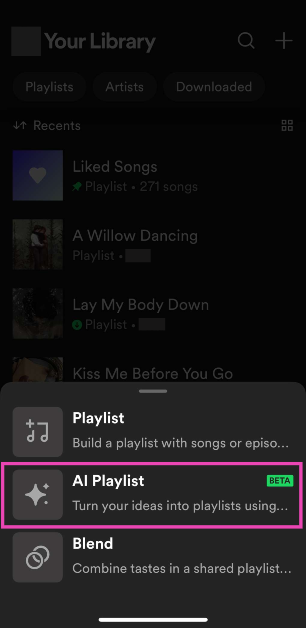
Select AI Playlist.
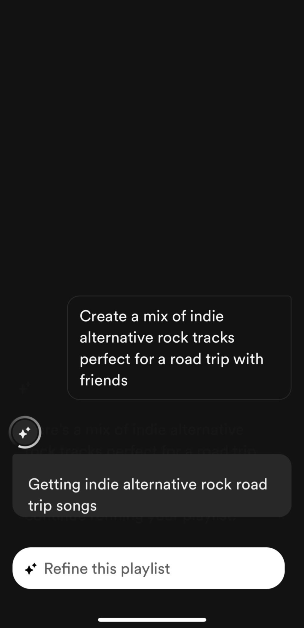
Enter a prompt. If you want a playlist that accurately represents your mood, be very specific with your prompts. Spotify also has preset prompts for you to choose from.
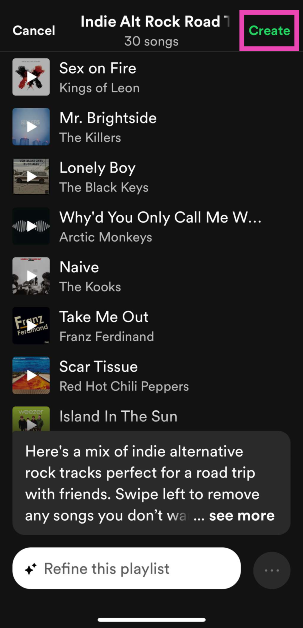
Spotify will produce a playlist based on the prompt. You can edit the songs in this playlist or refine it further by entering a follow-up prompt.
When you’re happy with the results, hit Create.
Turn your Daylist into a playlist
Your Spotify Daylist is a playlist that the platform curates specially for you by observing your past listening patterns. Daylists change throughout the and cannot be saved. However, if you want to save one as a playlist, follow these steps.
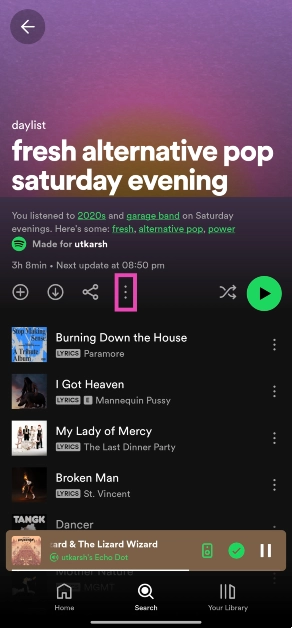
Launch the Spotify app and go to your daylist.
Hit the ellipses.
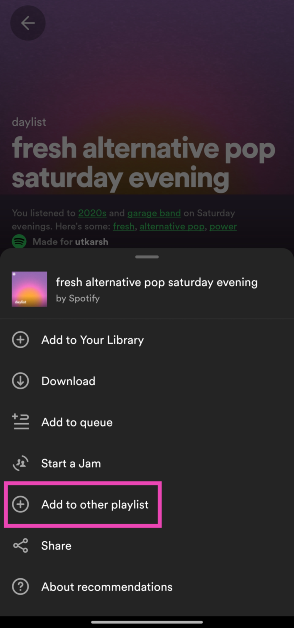
Select Add to other playlist.
Tap on New playlist.
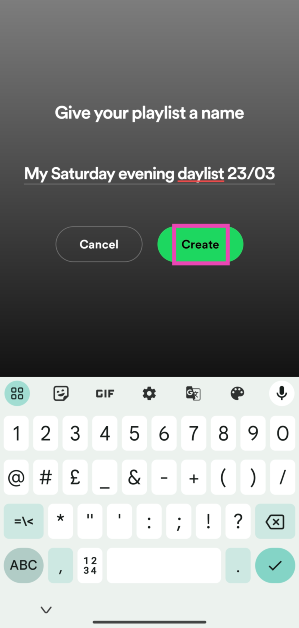
Give the playlist a name and hit Create.
Frequently Asked Questions (FAQs)
How do I create a playlist on Spotify?
Launch Spotify, go to the ‘Your Library’ tab, hit the plus icon, select Playlist, give the playlist a name, and hit ‘Create’. You can now add songs to the playlist.
How do I add a song to a playlist?
To add a song to a playlist, hit the ellipses next to it, select ‘Add to playlist’, and tap on the playlist you want to add it to.
These are the top 4 ways to create a playlist on Spotify. Read this article if you want to know how to transfer your playlist from Amazon Music to Spotify. Do share your created Spotify Playlist in the comments too, we would love to hear it.
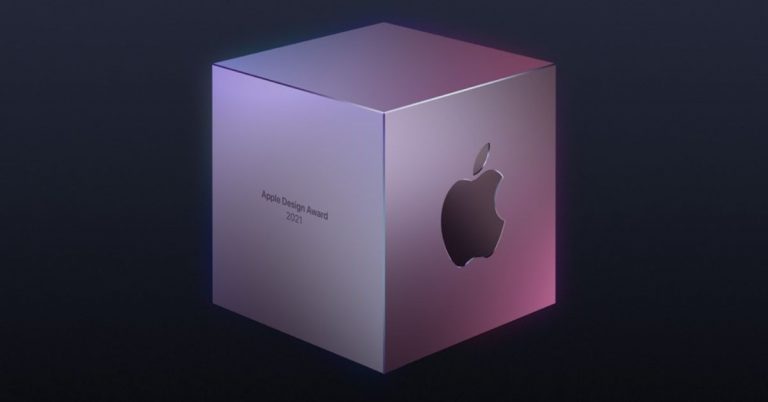
This year’s annual Worldwide Developers Conference (WWDC) comes to an end. The Cupertino-based company concludes the WWDC21 with the announcement of the Apple Design Awards. The ceremony is hosted by the company to motivate the creative artistry, craftsmanship, and technical achievement of Apple developers.The Apple Design Awards honours excellence in innovation, ingenuity, and technical achievement in the app and game design. While concluding the online tech event the company announced this year’s finalists- apps and games produced by some of the most talented developers in the world. Finalists were chosen across six categories for innovation, visual & graphics, interaction, delight and fun, inclusivity, as well as social impact.Susan Prescott, Apple’s vice president of Worldwide Developer Relations commented, “This year’s Apple Design Award winners have redefined what we’ve come to expect from a great app experience, and we congratulate them on a well-deserved win. The work of these developers embodies the essential role apps and games play in our everyday lives, and serve as perfect examples of our six new award categories.” Following are winners chosen across six categories:
In This Article
Inclusivity
The Apple Design Award for the category of Inclusivity in the app has been given to the applicationVoice Dream Reader. This is basically a text-to-speech app developed by Voice Dream LLC (United States). The application can read text aloud from just about any digital source such as PDF, webpage, or ebook, in more than two dozen languages. It comes with customisable settings letting users choose a voice with the perfect tone, timbre, accent, and speed for an optimal reading experience.Another one to receive the award in the game category is, HoloVista which is developed by Aconite (United States). This game supports a wide variety of accessibility features, including options for motion control, text sizes, text contrast, sound, and visual effect intensity.
Delight and Fun
Winners in this category arePok Pok Playroom andLittle Orpheus. Pok Pok Playroom is an animated app that captivates users with its thoughtful design and mesmerising interactions. It offers subtle haptics and spot-on sound effects, this app provides endless hours of fun for kids of all ages, while rewarding creativity and experimentation. Whereas Little Orpheus is another game with easy controls, excellent storytelling, and a console-like experience to a casual game.
Interaction
CARROT Weather andBird Alone are the winners under this category. Bird Alone’s explorative interactions combine gestures, haptics, parallax, and dynamic sound effects that imbue richness into its world. The game is brought to life through clever notification integration, graphics, and music that changes depending on the real-world weather, season, and time of day. On the other hand, CARROT Weather is known for its humorous forecasts and unique visuals. It also offers witty weather projections to a robust set of customisable widgets and a collection of useful watch faces.
Social Impact
Winners in this category areBe My Eyes developed by S/I Be My Eyes (Denmark) andAlba developed by ustwo games (United Kingdom). The Be My Eyes is an application for blind and low vision to identify objects by pairing them with volunteers from around the world using their camera. Whereas Alba is a game that saves local wildlife, repairs the bridge in the reserve, and cleans up trash around town. This game demonstrates the positivity that comes from respecting the environment while telling a story about family, community, activism, and kindness.
Visuals and Graphics
Application Loóna andGenshin Impact are winners of Apple Design Awards under the visuals and Graphics category. Loóna offers gracefully animated sleepscape sessions that combine relaxing activities, storytelling, and atmospheric sounds. On the contrary, Genshin Impact is a game offering motion blur, shadow quality, and frame rate that can be reconfigured on the fly whether players are obliterating slime monsters, summoning earthquakes, flinging lightning, or guiding the wind itself to supercharge flames and blizzards.
Innovation
Winners in this category provide a state-of-the-art experience through the novel use of Apple technologies that set them apart in their genre. ApplicationNaadSadhana by Sandeep Ranade (India) andLeague of Legends: Wild Rift by Riot Games (United States) are the winners of Apple Design Awards in this category. NaadSadhana is an all-in-one, studio-quality music app that helps musicians of all genres and any expertise perform and publish their music without boundaries. It supports seven different genres of music. Whereas “League of Legends: Wild Rift” takes a complex PC game and delivers its full experience on mobile. It offers polished touchscreen controls that have been designed specifically for mobile, and an auto-targeting system to help newcomers find their footing, mobile-exclusive camera settings, and much more.
For the latest gadget and tech news, and gadget reviews, follow us on Twitter, Facebook and Instagram. For newest tech & gadget videos subscribe to our YouTube Channel. You can also stay up to date using the Gadget Bridge Android App.
Privacy is of the most importance on social media networks. In the digital age of social media, staying private is the safest way to browse. If you are confused about how to stay incognito on Instagram, you can turn off the active status. Here are the steps you can follow to turn the active status off on Instagram.
In This Article
For Andriod
Our favourite photo-sharing app features the option to show all your uploaded photos if not kept private. Being fully aware of all your activity on the app is advised. Being private is always encouraged, though it is a social media network. The online status is shown on your DM (Direct message) for those who have DMed you. Unfollowers or followers who you haven’t DMed do not see you online. It shows a green icon that shows your followers on your DM list and can see you are online on Instagram. Turning it off will make you browse the Instagram app privately without any DM (direct message) intrusion.
Read more: How to prevent Amazon from collecting your private information including your Alexa voice commands
Step 1: Open the Instagram app: After login
Navigate to your profile
Click the profile icon
Click the three horizontal lines, on the top right corner: Options/settings
Step 2: Go to settings: at the bottom
Tap on Privacy
Click the “activity status”
Next on the screen, it shows the Activity status page
Turn off the activity status using the toggle
For IOS: iPhone
Here are the steps you can follow in case you are on an iOS device. The process is also similar to the Android smartphone system. You can follow these easy steps and can also hide your online status message so that you do not get any pesky messages, while you are busy.
Read also: How to verify if your PAN is linked to your Aadhaar Number?
step 1: Open Instagram on IOS
Go to the bottom right corner
Tap the profile icon
Go to the top right corner
Click on the three horizontal lines: Menu
Step 2: A screen pop up from the bottom
Go to settings
Click the privacy options with the lock icon
Under the interaction options: press activity status (Fourth option)
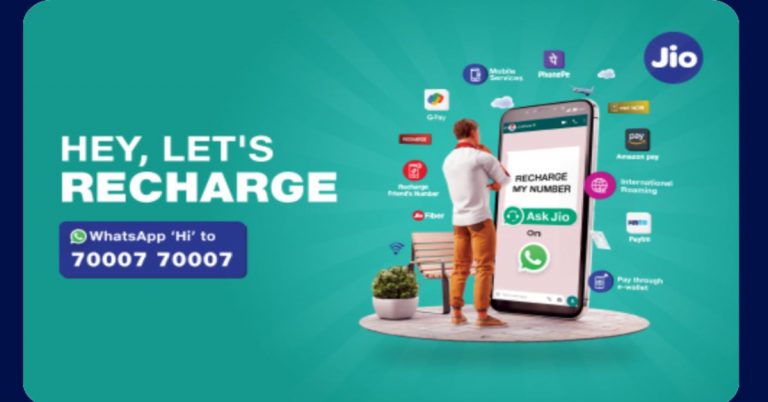
Indian Telecom company Reliance Jio has integrated with WhatsApp to allow its users to recharge mobile numbers, make payments and more. The users will get control of JioFiber, and JioMart accounts via Whatsapp. With the integration, it will be easier for the users to recharge their mobile number on WhatsApp by sending a ‘Hi’ message to the Jio care number.By simply sending Hi on the Jio care number (7000770007) the Reliance Jio users will be able to get their contact number recharged as well as enquire about other Jio services using the popular messaging app. In addition to this, the users can also get a new Jio SIM or Port-in (MNP). Those who want a new JioFiber connection, a query related to the broadband service international roaming, and JioMart all through WhatsApp. It should be noted that JioMart is also integrated within the chat application to place orders.
How to recharge Reliance Jio number using WhatsApp?
First thing first, save the Jio care number (7000770007) to your contact list. To initiate the process simply send a ‘Hi’ message on WhatsApp.
Then a support executive will duly respond to the query.
You will be provided with few options that include Jio SIM Recharge, Get new Jio SIM or Port-In (MNP), Support for Jio SIM, Support for JioFiber, Support for International Roaming and Support for JioMart.
Select the appropriate option like “Jio SIM Recharge” and you will be getting some prepaid plans.
Now select your desired prepaid recharge plan
You will be now directed to the company’s official site to initiate the payment. As of now, it offers various payment options that include, Google Pay (or, GPay), PhonePe, Paytm, Amazon Pay, e-Wallet, credit and debit cards.
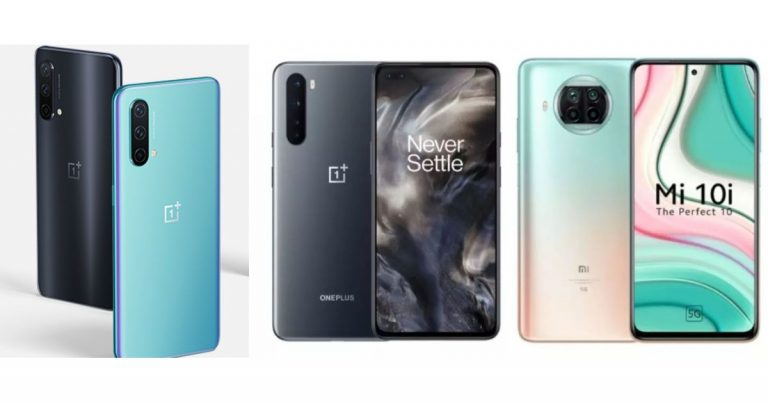
Yesterday, OnePlus introduced the OnePlus Nord CE 5G smartphone as its most affordable latest model to the Nord series in India. The device comes with some differences over the existing OnePlus Nord smartphone. To attract the masses the handset has been produced at a more affordable price range that will give tough competition to other smartphones like Xiaomi Mi 10i and the original Nord bringing powerful cameras with additional features. So we have put all three devices together to help you understand which one you should go for.
In This Article
Display
OnePlus Nord CE 5G: 6.43-inch 90Hz Fluid AMOLED displayOnePlus Nord: 6.44-inch full-HD+ Fluid AMOLED display Xiaomi Mi 10i: 6.67-inch full-HD+ waterdrop-style notch display
OnePlus Nord CE 5G: Triple rear camera set up on its back featuring a 64-megapixel primary camera sensor, an 8-megapixel ultra-wide camera with 119 degrees of FoV and a 2-megapixel depth sensor. OnePlus Nord: Sony IMX586 48-megapixel primary sensor with an f/1.75 aperture along with optical image stabilisation (OIS). In addition to this, there is a secondary 8-megapixel ultra-wide-angle lens with a field of view (FoV) of 119 degrees and an f/2.25 aperture. It also has a 2-megapixel and a 5-megapixel macro and a depth sensor with f/2.4 aperture respectively. Xiaomi Mi 10i:Quad rear camera setup that includes 108-megapixel primary sensor with f/1.75 aperture, an 8-megapixel ultra-wide-angle sensor, 2-megapixel macro lens and a 2-megapixel depth sensor
Selfie camera
OnePlus Nord CE 5G:16-megapixel selfie sensor OnePlus Nord: 32-megapixel and an 8-megapixel ultra-wide-angle cameraXiaomi Mi 10i: 16-megapixel selfie sensor with f/2.45 aperture
RAM and storage
OnePlus Nord CE 5G: 6GB RAM with 128GB/ 8GB RAM with 128GB/12GB RAM with 256GB OnePlus Nord: 6GB RAM with 64GB storageXiaomi Mi 10i: 6GB RAM with 64GB/ 128GB storage and 8GB RAM with 128GB storage
Battery
OnePlus Nord CE 5G: 4,500mAh batteryOnePlus Nord: 4,115mAh battery Xiaomi Mi 10i: 4,820mAh battery
Operating system
OnePlus Nord CE 5G: OxygenOS 11 on top of Android 11 OnePlus Nord: OxygenOS 10.5 based on top of Android 10Xiaomi Mi 10i: MIUI 12 OS based on Android 11
Price
OnePlus Nord CE 5G: Rs 22,999OnePlus Nord: Rs 24,999 Xiaomi Mi 10i: Rs 20,999
Verdict
Looking at the specification sheet there are some exceptional differences between the three smartphones. The OnePlus Nord comes with a glass rear and an alert slider like other OnePlus devices, the new OnePlus Nord CE 5G offers a plastic rear and also misses the alert slider. However, it includes a headphone jack which the original Nord does not offer. Xiaomi Mi 10i comes with a larger display than the Oneplus smartphones. The display supports a 120Hz refresh rate whereas the other two only come with a 90Hz refresh rate. In terms of hardware, OnePlus Nord runs on the Qualcomm Snapdragon 765G platform whereas OnePlus Nord CE 5G and Xiaomi Mi 10i runs on the Qualcomm Snapdragon 750G 5G. If we compare the mobile platforms, 750G is more efficient than 765G that can only be noticed during the day to day usage. Also, Xiaomi’s device offers a larger battery capacity than the Nords at 4,820mAh supported by 33W fast charging tech.Both the original Nord and the Mi 10i features a quad rear camera whereas the new Nord has been downgraded with a triple camera set up but has a primary camera with better resolution than its predecessor. This is where Xiaomi stands out with a 108-megapixel primary quad camera set up. Speaking of selfies, the older Nord offers a dual front camera consisting of a 32-megapixel main camera and an 8-megapixel ultra-wide-angle camera, therefore surpassing others. Comparing the pricing, Xiaomi Mi 10i will attract more attention and praise than the others as it is a more camera-focused phone at Rs 20,999. So for the selfie addicts, you can go for the Nord but we would suggest you go for Xiaomi as it provides a powerful rear camera set-up and other useful features as well as hardware.
For the latest gadget and tech news, and gadget reviews, follow us on Twitter, Facebook and Instagram. For newest tech & gadget videos subscribe to our YouTube Channel. You can also stay up to date using the Gadget Bridge Android App.
Moderating a room in the Clubhouse app is like handling your own Channel. The social networking application allows users to participate in the audio chat-based app. You can add your friends and family, even invite strangers and co-hosts. Now let’s get started with the steps on how to create your own room in the Clubhouse app.
In This Article
Step 1: Open the Clubhouse App:
You can search for the Clubhouse app from Playstore on your Android or AppStore on IOS smartphones and download it. After downloading you can now open the app and start creating your profile on the Clubhouse app for an audio-based social networking experience. The Clubhouse app is fairly new and comes with many interesting features. It can be used in many ways. Hosting a podcast is one of the cool new features. Voice chat functionality is the most attractive feature of the app.
You can schedule a room with the options given. There are a lot of plus points in scheduling a room. It provides you with a link to the event which you can share. As it shows up in the notification menu, it will notify your followers.
Click the calendar icon (+) on the top right corner
Choose event name (60 character maximum)
Option to add co-host: you can choose or leave blank
Schedule date and time
Add description (200 Characters)
Press the publish button
Step 3: Spontaneous spin a room: When you start a spontaneous spin room you lose the benefit of getting a link that you can share. But you don’t have to go through the lengthy part of filling up the descriptions. Besides, there are other interesting advantages. R
Press on Start a room
Choose open, social, or closed
You can add a topic
Tap the Open it up button
Choose private or public (Private recommended to begin with)
Start off with a formal introduction of yourself and the aims of the room. Highlight and establish the rules and regulations of the room. Next, briefly discuss the topic of the room. Make sure you control the dialogue, manage speakers, and lastly keep the discussion on track.
Tap on All Rooms: room rest (Periodically)
Tap on other profile: make them moderator (options)
Raise hand icon: Set on or off
How to end a Clubhouse room:Ending a Clubhouse voice chat is always the hardest part emotionally. Since we engage with them on a knowledge level where we instantly connect. End it by thanking everyone in the room. Like every good thing comes to an end, it is time to end the Clubhouse room chat too, till next time.
A television has always been an indispensable part of our everyday life and due to the COVID lockdown, this device has become one of the best media devices to kill time during our stay at home. Keeping this in mind Sony has expanded its Smart TV lineup with the introduction of the Bravia X90J Ultra-HD HDR LED TV in India. There are three size options to choose from that comes with the XR Cognitive Processor with Full-Array LED panel, XR Triluminos Pro and XR Contrast Booster for a natural and immersive experience.The company has introduced the new X90J series in three different sizes of 189 cm (75), 165 cm (65) and 140 cm (55) that are powered by Cognitive Processor XR that is said to use a completely new processing method that goes beyond conventional AI. It helps in maintaining focus on certain points which we unconsciously lose focus on. Cognitive intelligence knows where that focal point is by dividing the screen into numerous zones and detecting where the “focal point” is in the picture. There is support for HDR with the HLG, HDR10, and Dolby Vision formats. According to the company, this will make sure everything is synchronized and lifelike which conventional Artificial Intelligence (AI) cannot achieve as it can only detect and analyze picture elements like colour, contrast and detail individually. It also comes integrated with the XR 4K Upscaling technology that upscales 2K signals close to true 4K quality for real and detailed pictures.In addition to this, the Sony BRAVIA X90J series has multiple zones of LEDs that light up independently, allowing to adjust and create contrast by making light areas lighter and dark areas darker with greater depth, textures.The Full-Array LED panel creates ultra-realistic picture quality full of lifelike contrast. Whereas the XR Contrast Booster on the Smart TV will deliver vibrant colours and stunning contrast with deep blacks and intense brightness, therefore, eliminating shadows or blown-out highlights.The XR TRILUMINOS Pro helps in producing brighter colours by widening the colour spectrum with 3D colour algorithms. It also analyses and processes data in every image to make colours even more natural. With the XR Motion Clarity technology the new X90J series can achieve sports and fast action scenes smooth, bright and clear and brightness is boosted when needed.The audio department has been taken care of with XR Surround, 3D Surround upscaling and Acoustic Multi-Audio powered by Dolby Audio and Dolby Atmos. Additionally, there is a dedicated game mode with HDMI 2.1 compatibility, including 4K 120fps, Variable Refresh Rate (VRR), Auto Low Latency Mode (ALLM) and e-ARC for the ultra-smooth gaming experience. There is also access to Google Assistant and Alexa voice assistants to find what you want quickly or to play TV shows, movies, and more without using the TV remote. There is support for Google Chromecast built-in, Apple Home Kit and AirPlay to allow sharing content on the big screen or control your TV with this latest feature support.Pricing and AvailabilityAs of now, the company has only introduced the pricing of the 55-inch model whereas the price of the 75-inch and 65-inch will be announced later on. The price of the Sony Bravia XR-55X90J Ultra-HD HDR LED television has been set at Rs 1,39,990 in India. The QLED TV will be available for purchase across all Sony Centers, major electronic stores and e-commerce portals in the country.
For the latest gadget and tech news, and gadget reviews, follow us on Twitter, Facebook and Instagram. For newest tech & gadget videos subscribe to our YouTube Channel. You can also stay up to date using the Gadget Bridge Android App.
The e-commerce website Flipkart is hosting Daily Trivia Quiz. Every day it brings a bunch of new questions for its users. By answering them correctly you can win exciting prizes. The questionnaire is based on questions related to general knowledge. Also, the users can win free vouchers and super coins, among other offers via the daily quiz. June 11 Flipkart Daily Trivia Quiz Answers has already gone live on its platform.
The participant should be at least 18 years old and should have a valid login ID. The Quiz is available on the mobile platform and not the web version. E-commerce conducts the quiz on daily basis and goes live at 12:00 AM IST and runs till 11:59 PM IST. The winners are announced within 15 days from the date of participation that can be viewed under the Gems/Rewards section in the app.
In This Article
How to participate in the Flipkart Daily Trivia Quiz
To participate download the Flipkart app on your phone. Then open the Flipkart app then head to Game Zone. Now click on the Daily Trivia Banner or search for Daily Trivia. Enter the game and answer all 5 questions with correct answers.
June 11 Flipkart Daily Trivia Quiz Answers
Question 1: GST stands for Goods and Services Tax. In which year did it come into effect in India?
Answer:2017
Question 2:Which type of condiment comes from the Hindi word meaning “to crush”?
Answer: Chutney
Question 3: On April 23, whose birth is celebrated by the UN as English Language Day?
Answer: William Shakespeare
Question 4: What is the small muscular sac, situated under the liver, which stores bile called?
Answer: Gall bladder
Question 5:Which of these is caused by a sudden closure of the human glottis?
Answer: Hiccup
Amazon Quiz is getting more popular in the country as many people are participating in the quiz every day. The quiz can be played daily from 12 AM to 11:59 PM. The e-commerce platform brings an opportunity for all its customers to play and win free gadgets as well as Amazon Pay Balance. Today’s prize is Rs 10,000 Pay Balance.
In the Amazon daily quiz, you have to answer 5 questions that are based on general knowledge and current affairs. The participants have to answer each question correctly to get their names selected for the lucky draw. The result of the lucky draw will be announced at the end of every month. Every day we update all the quiz questions along with their correct answers on our website to help you to clear the quiz successfully. If you are lucky you might win something by answering all the questions correctly. Check out today’s answers for the Amazon quiz to win Rs 10,000 Pay Balance.
June 11 Amazon Quiz Answers
Question 1: National Anti-Terrorism Day is observed every year on 21st May on whose death anniversary?
The answer is- Rajiv Gandhi
Question 2: Which auto major has launched Ioniq, its e-vehicle brand with the first model named ‘5’?
The answer is- Hyundai
Question 3: Which team was the first in IPL 2021 to have players testing positive, finally leading to the suspension of the season?
The answer is- KKR
Question 4: With which festival do we connect decorative chocolate eggs like these?
The answer is- Easter
Question 5: Which mythical country in South America was believed to be rich in this material?
The answer is- El Dorado
For the latest gadget and tech news, and gadget reviews, follow us on Twitter, Facebook and Instagram. For newest tech & gadget videos subscribe to our YouTube Channel. You can also stay up to date using the Gadget Bridge Android App.
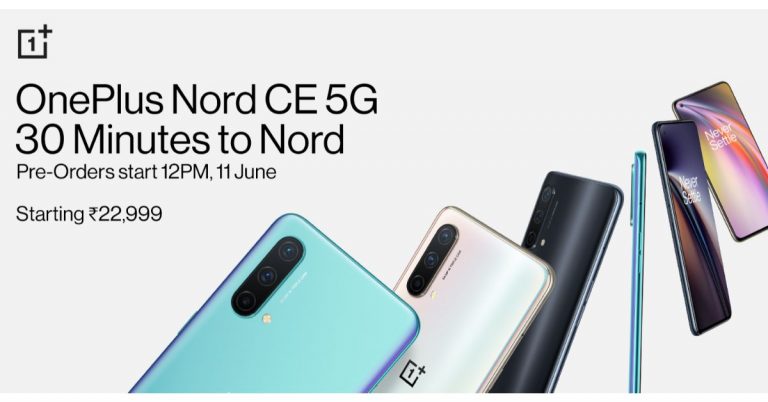
The all-new OnePlus Nord CE 5G is officially out in the open. The Chinese premium smartphone company today introduced this much-anticipated smartphone in the Indian market via an online launch event amid the coronavirus pandemic. The device is highlighted with a 64-megapixel primary sensor and offers 5G connectivity. Alongside, the company also launched the OnePlus TV U1S, which is the company’s new smart TV featuring Dynaudio speakers.OnePlus Nord CE 5G pricing and availabilityOnePlus Nord CE 5G is the company’s latest edition to its affordable range of Nord smartphone series in India. The device will be available in multiple configurations of 6GB RAM with 128GB storage priced at Rs 22,999. Whereas the price of the 8GB RAM with 128GB storage variant can be owned at Rs 24,999 and the 12GB RAM with 256GB at Rs 27,999. This smartphone will be available in three colour options of Blue Void, Silver ray and Charcoal Ink.On the other hand, the OnePlus TV U1S will come in three models: 50-inch, 55-inch, and 65-inch. Their prices will start at Rs 39,999, Rs 47,999, and Rs 62,999, respectively. In terms of availability, the smartphone will be available for purchase via Amazon and on its website. The pre-orders will be starting from June 11 and sales will open from June 16. On the other hand, the OnePlus Smart TVs will go on sale from tonight for members and will tomorrow, June 11 at 12 noon for others via Amazon, the OnePlus Store and Flipkart.OnePlus Nord CE 5G specificationThe OnePlus Nord CE 5G features a 6.43-inch 90Hz Fluid AMOLED display. It comes with a 90Hz refresh rate support. It runs on OxygenOS 11 on top of Android 11 with improved UI, Dark Mode AOD and Zen Mode. It is powered by a Qualcomm Snapdragon 750G processor paired with up to 12GB RAM with 256GB of storage. The internal storage can be expanded up to 1TB using a microSD card. It houses a 4,500mAh battery that is supported by Warp Charge 30T Plus. The charger is claimed to charge from 0% to 70% in 30 minutes.There is also a triple rear camera set up on its back featuring a 64-megapixel primary camera sensor, an 8-megapixel ultra-wide camera with 119 degrees of FoV and a 2-megapixel depth sensor. Upfront there is a 16-megapixel camera sensor for taking selfies and video calling. OnePlus TV U1S specs and featuresThe OnePlus TV U1S will be available in three models 50-inch, 55-inch, and 65-inch with 4KUHD resolution offering 8.3million pixels. The device is HDR 10 and HDR10+ certified with Gamma EngineThe Television features a bezel-less design on the front and a metal-back design on its rear. It is shipped with a metal stand. Also, there is support for MEMC for smoother and high-quality images.The device runs Android TV 10 out of the box. The users will get complete control over your data with Data Saver Plus Mode along with parental controls for kids. Over that this TV does have a camera which is great for large group calls with built-in far-field dual mics with noise reduction. You can fix the camera via a magnetic holder. In addition to this the OnePlus TV has a new Speak Now feature, that will let users control their TV from a distance as it is powered by the OnePlus Connect 2.0. This means it will support 16+ content providers and will get support for Sports Zone, News Zone and more. The company’s new smart TV also features Dynaudio speakers.
For the latest gadget and tech news, and gadget reviews, follow us on Twitter, Facebook and Instagram. For newest tech & gadget videos subscribe to our YouTube Channel. You can also stay up to date using the Gadget Bridge Android App.
Many people get lost when it comes to creating an email signature on Outlook, Gmail, or Yahoo mail. Without an email signature, the message sent always seems to be incomplete. The following steps will guide you on how to create email signatures. Follow the steps below.
In This Article
How to create an email signature in Gmail
For those who use Gmail very often, it is an easy step. And creating an email signature will make your email look more professional. Creating a unique email signature will help you add your profession, help find business, and communicate with others efficiently. The first thing to create the signature is opening Gmail and clicking on the settings icon. Now go to all settings and locate the signature tab. Enter the unique email signature, there is also an advanced option. Step 1: Log in to Gmail account
Press the setting icon
Click on all settings
Scroll to the “signature field”
Add your email signature
Step 2: Enter your information, contact information
Creating a signature on Yahoo mail will make it more professional, too. The signature will appear at the end of each email you send. The email signature is an opportunity to make a great first impression. It communicates with the email recipient about yourself without having to be told or enquired by them. The following steps are guides to create it. Step 1: Create an account and log in
Having an email signature is compared to handing a person your business card. Email signatures are extremely valuable tools and very simple to implement also. It creates legitimacy and professionalism, branding, brand recognition, and acts as a digital business card. The basics of email signature are name, position, phone number, email, website, and logo (if you have one). Here are the few steps required. Step 1: Create an account and log in
Login
Username and password
Step 2: Click setting
Scroll down
All outlook setting
Step 3: Select mail>Compose and reply
Go to the email signature option
Step 4: Under email signature
Type your signature
Enter all details (to what you need)
Change format
Choose options
On new message or forward message
Step 4: Save the setting changes (important)
Save all the setting
It will appear at the bottom of the message you sent.



 This is the first thing you need to do before enabling the hidden game feature in Android 12 beta. Downloaded it and install it for those who have not, you need to install it. After successfully installing it go to the settings menu on your Android device to enjoy the features newly rolled out by Google.
 After clicking on Schedule you see some options. Select the game mode checkbox. Now the game mode will be running when you turn on the Do not disturb.
Read also: Facebook and Instagram now enable the feature to hide like counts on their platform: How to enable the feature
After clicking on Schedule you see some options. Select the game mode checkbox. Now the game mode will be running when you turn on the Do not disturb.
Read also: Facebook and Instagram now enable the feature to hide like counts on their platform: How to enable the feature








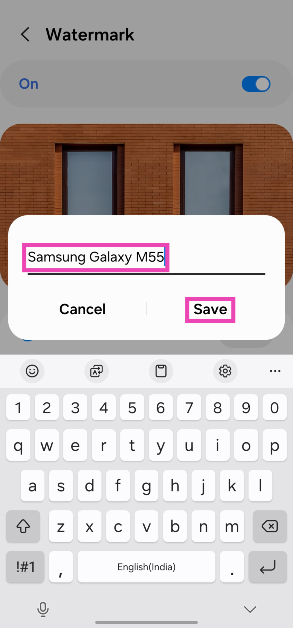 Any pictures you take will be watermarked with the text of your choice.
 The ‘Watermark: Logo, Text on Photo’ app is one of the best third-party tools you can use on your Android phone to add a watermark to your images. It has over 250 creative fonts and 1000+ stickers that can be utilised to create an eye-catching watermark. You can even create a signature for your images on this app. The app gives you the option to change the pen size and colour. Before posting your images on social media, you can use the ‘Logo, Text on Photo’ app to resize and edit them.