If you search your name on Twitter, chances are that it may not show up in the top results. If a lot of users share your name, it becomes difficult for others to look up your profile. This is why sharing your Twitter profile link is the quickest and most efficient way of sharing your profile and it takes the receiver directly to your page. In this article, we bring you the top 4 simple ways to copy and share a Twitter profile link on a smartphone or desktop.
Copy and share a Twitter profile link from the Android app
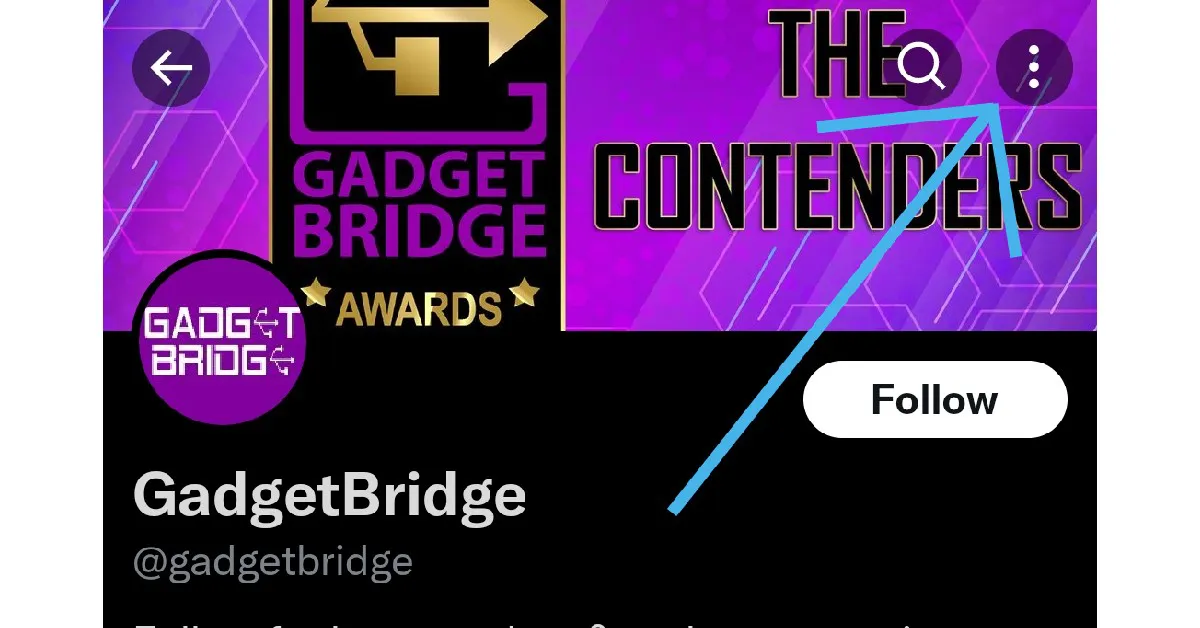
Step 1: Open the Twitter app for Android and visit the profile you want to share.
Step 2: Tap on the ellipses (three dots) at the top right corner of the screen.
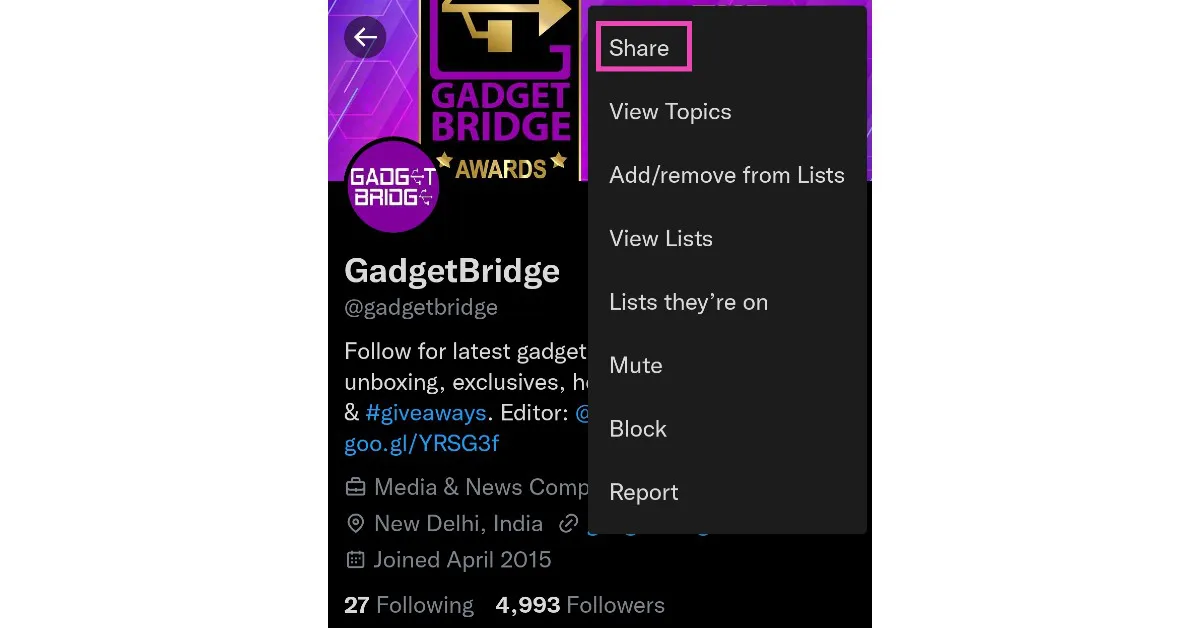
Step 3: Select ‘Share’.
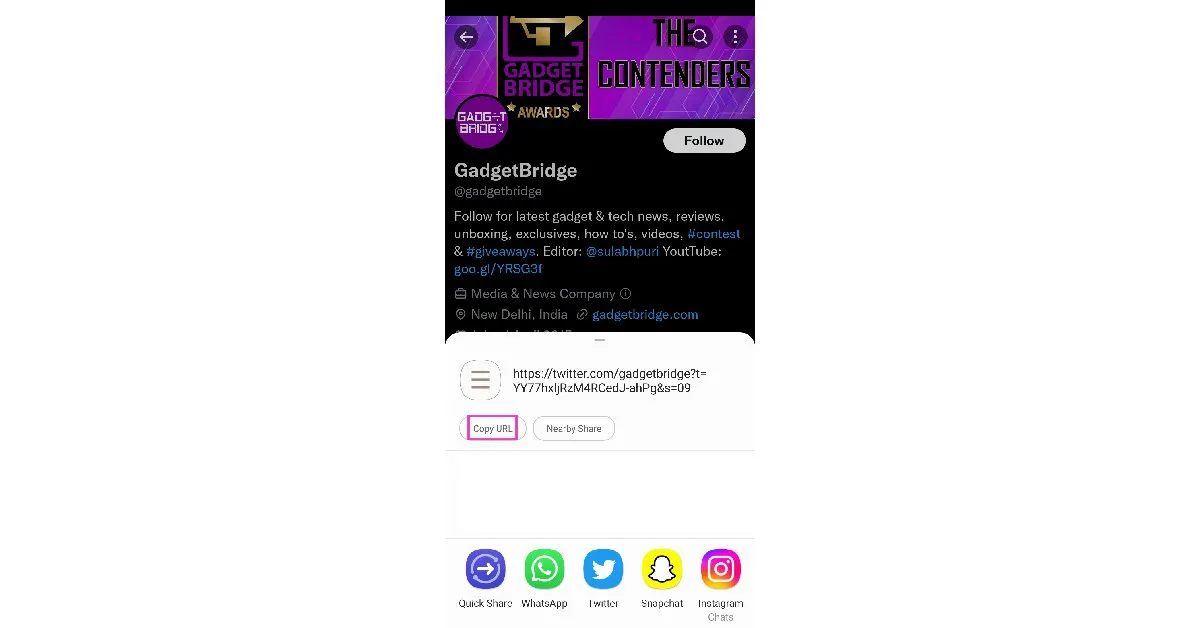
Step 4: Tap on ‘Copy URL’ to copy the profile link. You can also quickly share the profile link via any messaging app.
Copy a share a Twitter profile link on a web browser
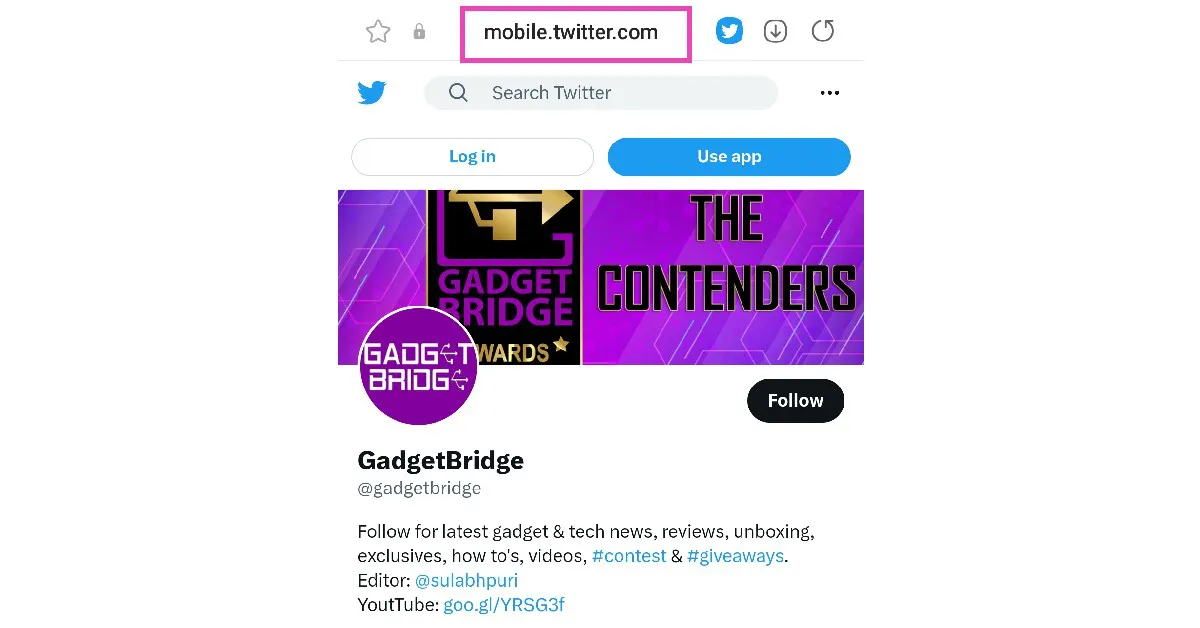
Step 1: Open the Twitter profile you want to share on a web browser.
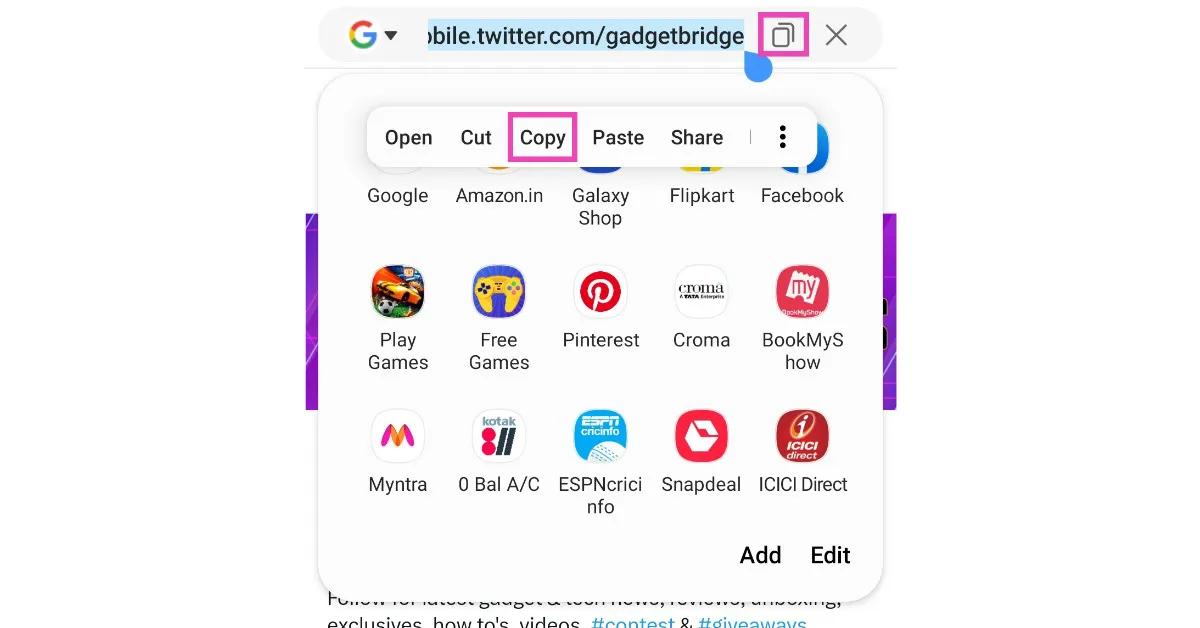
Step 2: Tap the address bar to highlight the link.
Step 3: Long press and select ‘Copy’. The profile link will be copied to the clipboard and can be shared by pasting on any text field. You can also tap on the clipboard icon next to the address bar to copy the profile link.
Copy and share a Twitter profile link on a desktop
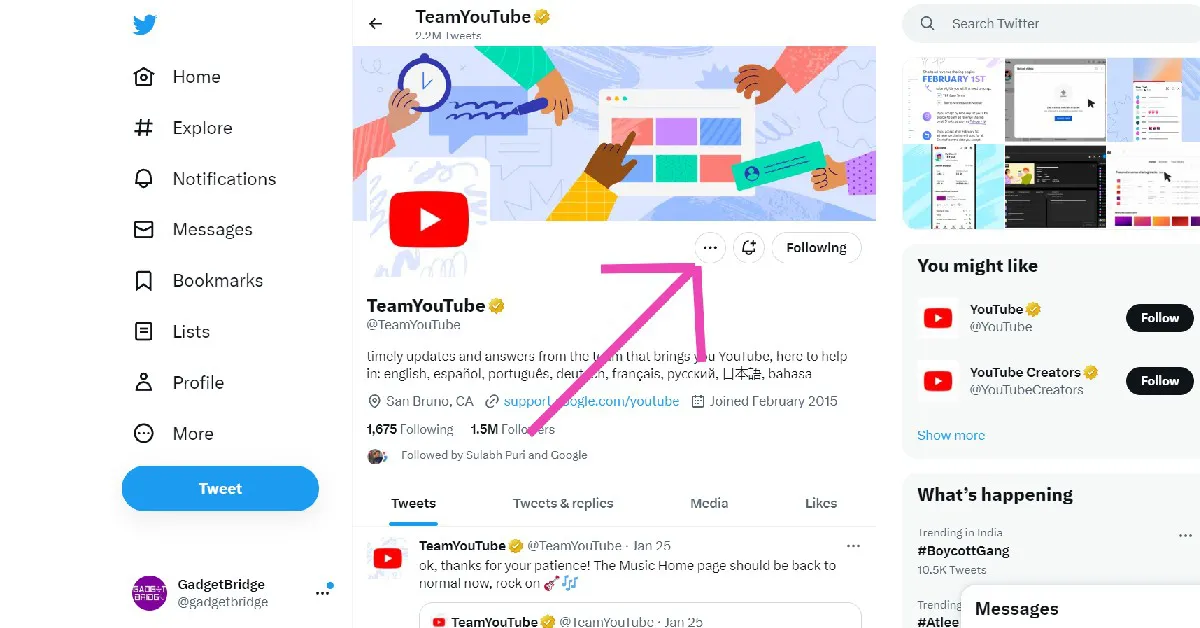
Step 1: Open the desired Twitter profile on your desktop’s web browser.
Step 2: Tap on the ellipses (three dots) on the profile page.
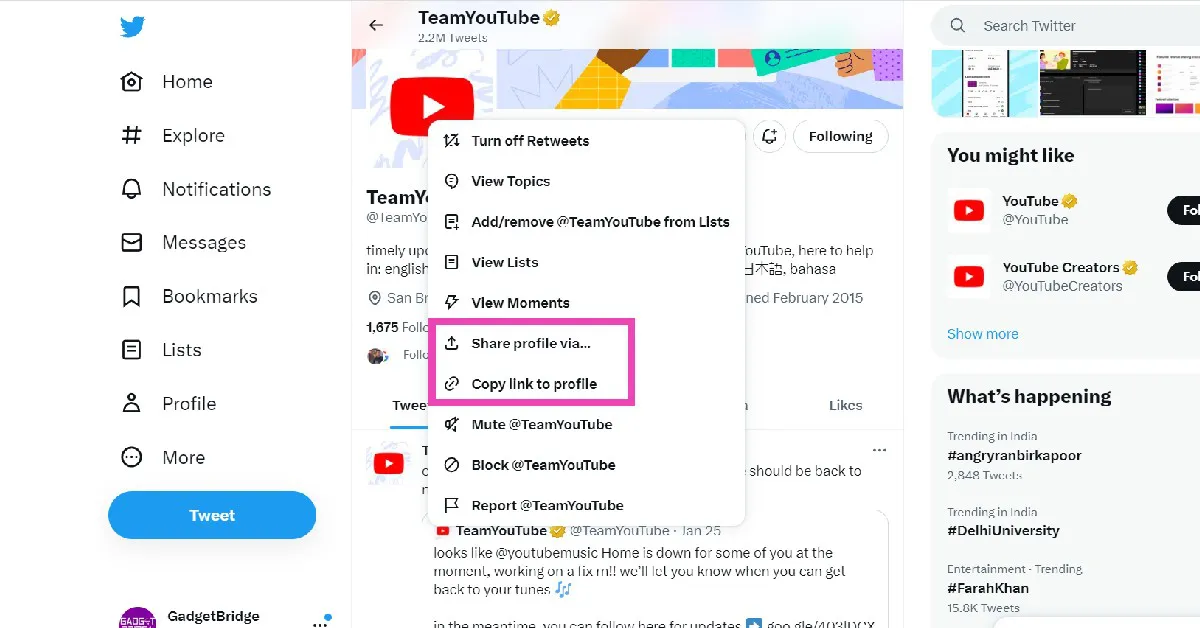
Step 3: To simply copy the link to the Twitter profile, click on ‘Copy link to profile’.
Step 4: To share the profile link, click on ‘Share profile via’.
Copy and share your own Twitter profile link
If you don’t feel like opening the Twitter app or webpage, you can still share your profile link quite easily. Your Twitter profile link is nothing but your handle added to the Twitter web address. To quickly share your Twitter profile link anywhere, simply type www.twitter.com/yourusername. In the above format, substitute ‘yourusername’ with your actual username. For example, if your Twitter handle is sports123, then your Twitter profile link becomes www.twitter.com/sports123.
These are the top 4 ways to copy and share a Twitter profile link. Always remember that if you change your Twitter handle, your profile link will change accordingly. Any previous links to your profile will not work as soon as you change your Twitter username. If you found this article helpful, let us know in the comments!
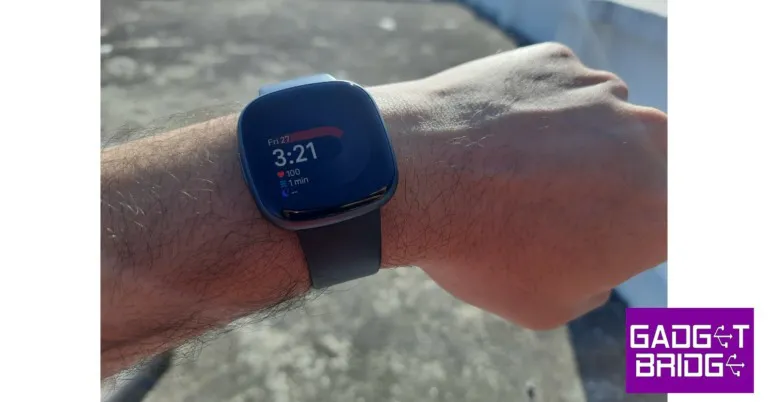
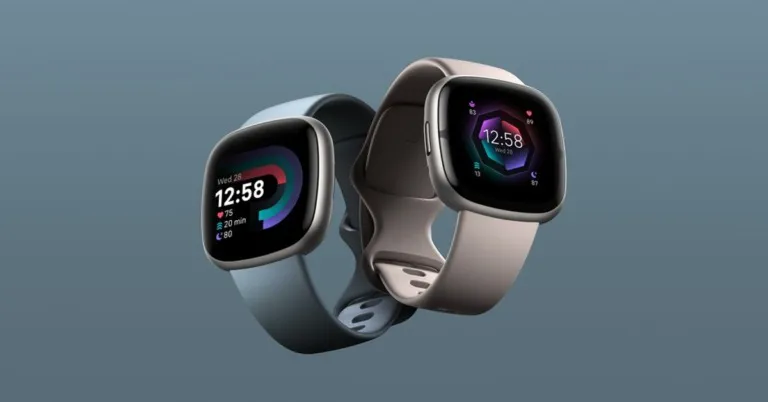
One of the early players in the ‘smart wearables’ category, Fitbit quickly gained a reputation for putting out the best fitness tracking gadgets to the point that the name ‘Fitbit’ became synonymous with a health tracking band. However, in the last few years, smartwatches have been on the ascendancy, offering ‘smarter’ features on top of health & fitness tracking. Brands like OnePlus, Noise, Oppo, and Xiaomi have also been successful in bringing smart wearables to the masses with their highly competitive pricing. In January 2021, Google acquired Fitbit for $2.1 billion, opening the door to a range of possibilities. We recently got our hands on the recently launched Fitbit Versa 4 and set out to test whether Fitbit still holds its own in a rapidly developing smartwatch category. After using the Fitbit Versa 4 for over a week, here is our review.
Opening the box, you’ll find the Fitbit device housed in the centre with the charger and additional strap on either side. The box also contains a quick start guide and a product information booklet. The Fitbit Versa 4 does not ship with a power adapter.
Fitbit has provided an additional 209mm strap with the Versa 4 which is longer than the default one (175mm) that the watch comes fitted with. The watch wraps snugly around the wrist, and the strap does not irritate the skin even after hours of use. The square AMOLED dial is bordered by thick bezels on all sides. Fitbit has reintroduced the physical button on the Versa 4 which was missing in its previous iteration.
At the bottom of the watch, you will find the charging point, optical heart rate sensor, red and infrared sensors for SpO2 monitoring, an altimeter, and more. The Versa 4 also houses a microphone, speaker, and vibration motor. Overall, Fitbit has kept things simple with the Versa 4. The design isn’t flashy but is practically suited to a fitness tracker. You can add also customised straps to the Versa 4.
The Fitbit Versa 4 is water resistant up to 50 metres, which means you can easily wear it while swimming. The watch remains unfazed during sweaty workouts as well. While Fitbit hasn’t mentioned the exact specifications for the watch display, it is bright enough to be legible in direct sunlight. Weighing around 40g (with the straps), you can easily wear the Versa 4 all day without feeling any discomfort.
Fitbit Versa 4 review: Performance
Pairing the Fitbit Versa 4 with your smartphone takes no time, irrespective of the platform you are using it with. All you need to do is install the Fitbit app on your smartphone and turn on Bluetooth to scan the watch. After exchanging the painting codes, you are good to go. While many were expecting Fitbit to incorporate Google’s Wear OS for its devices, the company is sticking with its own Fitbit OS.
While we were quite satisfied with Fitbit Versa 4’s design, there were certain aspects of the OS and the general functions that left a little more to be desired. Let’s begin with the good bits – health and fitness tracking.
Having been at the top of the game for fitness tracking, Fitbit wasn’t going to let us down on the Versa 4. This is Fitbit’s home territory, where it sets the benchmark performance for other fitness trackers and smartwatches to follow. The Fitbit Versa 4 follows through on the company’s reputation and delivers rock-solid performance.
The smartwatch can track up to 40 workout routines, covering all sorts of exercises like weightlifting, treadmill and CrossFit to sports like martial arts, tennis, and snowboarding. The automatic workout detection works smoothly as well. What we were impressed by was the altimeter, which was pretty accurate in its readings of the stairs climbed and elevation gained. The heart rate monitor works constantly in the background, providing readings in real-time during workouts and updating every five seconds in regular mode. The fact that Fitbit is able to achieve this without a significant drop in battery levels is quite impressive.
The Versa 4 has a built-in GPS which allows you to leave your phone at home when you go for a walk or a run. The step counter takes a little time to adapt but the readings are close to accurate. The watch also lets you know how many calories you burned during a workout, which is a stat that should be taken with a grain of salt – not just for Versa 4 but for every other smartwatch.
The sleep tracking function on the Fitbit Versa 4 is up there with some of the premium smartwatches in the market. After tracking your sleeping pattern, the Fitbit app assigns you a sleep score, determining the quality of your sleep. You also get access to a full breakdown of your sleep cycle with a chart that tracks REM sleep, light sleep, deep sleep, and the periods you were awake. Along with this, you also get a graph of your blood oxygen level during the sleep period.
For fitness-oriented users, the Fitbit app provides detailed health metrics along with all the fitness data that the Versa 4 tracks over the course of a day. Through ‘Active Zone Minutes’ the app lets you know how much time you spent in a heart-pumping activity. These metrics are compared to the ideal benchmarks set by WHO and American Heart Association. For more detailed metrics, you will need to subscribe to Fitbit Premium. The Versa 4 comes with a free 6-month Fitbit Premium package, after which you will be charged Rs 999/year or Rs 99/month.
Moving on to the not-so-impressive parts, we feel that Fitbit needs to step up its software and ‘smart’ functionalities if it wants to go against other smartwatches in this category. Firstly, Fitbit Versa 4 offers no support for third-party apps. This means the only apps you can use with this smartwatch are the native ones like Alarms, Find My Phone, Weather, and a handful of Fitbit’s fitness apps. There is no music player support on the Versa 4, something that every other smartwatch in this budget is equipped with.
While the OS is pretty clean, it feels very limiting in certain scenarios. For example, you cannot view the detailed breakdown of your activities from the watch itself. You will need to switch to the Fitbit app on your phone to go through all the tracked data. Need to change the watch face? You will need to access the app again, as the watch does not let you long press and swap through the available watch faces. And while the Fitbit Versa 4 comes with Alexa support, it lacks Google’s very own voice assistant.
These drawbacks seriously hinder Versa 4’s ‘smart’ capabilities. The experience is much better when it is paired with a smartphone via Bluetooth connection. You can receive calls on the Versa 4 and the call quality is quite satisfactory. You can also go through the notifications and respond to incoming messages by using speech-to-text for replies or choosing from a list of preset auto replies and emojis.
Ending on a positive note, the battery life of the Fitbit Versa 4 is impeccable. The smartwatch easily lasts just over 4 days with moderate to heavy use. Even with ‘Always On Display’ turned on, we got almost two and a half days of battery life. A quick 15-minute charge can last you an entire day and a full charge takes just under 2 hours. Quick charging time and extensive battery life allow you to keep the watch on for a longer period of time, resulting in a better quality of data.
The Fitbit Versa 4 is currently available at a price of Rs 16,999. When it comes to fitness tracking and data evaluation, there aren’t many smartwatches better than the Versa 4. But the OS experience and limited ‘smart’ functions is where the Fitbit Versa 4 falls a step behind its competition in this price category. We’d suggest the Versa 4 to fitness-oriented users that are looking for a comprehensive fitness tracker and don’t mind giving up a few fancier functions.
There’s nothing more annoying than missing an important call because WhatsApp didn’t send you a ringing alert. This is one of the more common issues that people face with WhatsApp, and there isn’t one final fix for it. It can arise due to several network or app-related issues. Sometimes, it may be your iPhone’s accessibility settings that are at fault. Luckily, there are a few fixes that will take care of this situation. In this article, we bring you 12 easy ways to fix the ‘WhatsApp call not ringing when iPhone is locked’ issue.
When enabled, Do Not Disturb prevents calls, texts, or notifications from delivering to your iPhone. This includes any calls you receive on WhatsApp. If the WhatsApp calls aren’t ringing on your iPhone, it may be because you accidentally enabled DND from the Control Centre or turned it on earlier and forgot to turn it off. Here’s how you can disable Do Not Disturb on your iPhone.
Step 1: Scroll down the status bar to access the Control Centre.
Step 2: Tap on ‘Focus’ and disable DND.
Check if WhatsApp notifications are turned on
You may have disabled WhatsApp’s notifications and forgotten to turn them on. Here’s how you can enable the instant messenger’s notifications on your iPhone.
Step 1: Go to Settings, scroll down and select WhatsApp.
Step 2: Tap on Notifications.
Step 3: Ensure the toggle bar for Allow Notifications is turned on.
Step 4: Ensure that the lock screen, notification centre, and banner alerts are turned on. Additionally, make sure that the toggle bar for Sounds is turned on as well.
Reset Notification Settings
If turning on notifications didn’t work, you can try resetting them instead. Here’s how.
Step 1: Go to Settings, scroll down and select WhatsApp.
Step 2: Tap on Notifications.
Step 3: Select WhatsApp Notification Settings.
Step 4: Tap on Reset Notification Settings.
Step 5: Confirm your selection in the popup box.
Turn on Background App Refresh
To make sure WhatsApp is running on your iPhone at all times, make sure that Background App Refresh is turned on. If it isn’t turned on, WhatsApp will not refresh when it is minimised, leading to missed messages and calls. You will only be able to catch up on the messages and calls when you launch the app. Go to Settings>General>Background App Refresh and turn it on. Also, make sure that the toggle bar for WhatsApp is switched on.
Turn off Silent Mode
If your iPhone is in silent mode, it will not make a ringing sound every time you receive a call. To disable silent mode, switch the ringer key on the top-left side of your iPhone. If you can see the orange colour on the switch, it means your iPhone is in silent mode. Flick it the other way to switch to a Loud profile.
Turn off Noise Cancellation
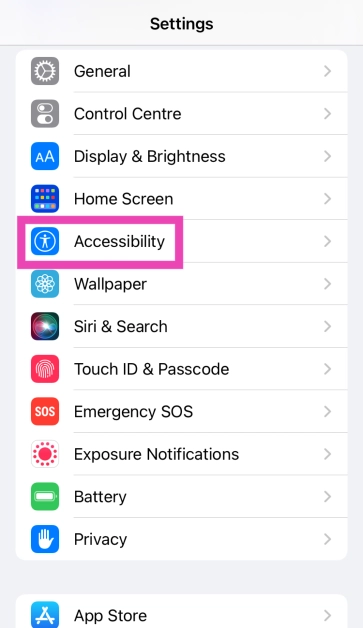
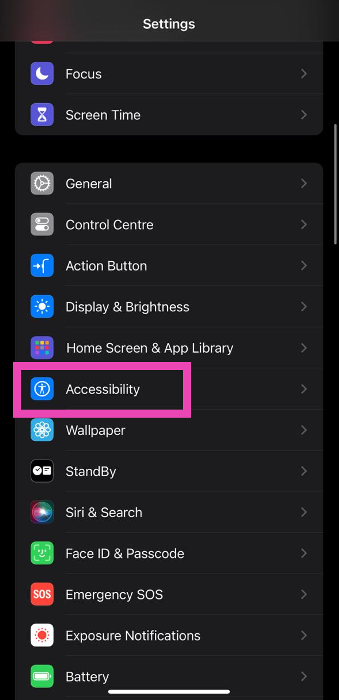
Step 1: Go to Settings and select Accessibility.
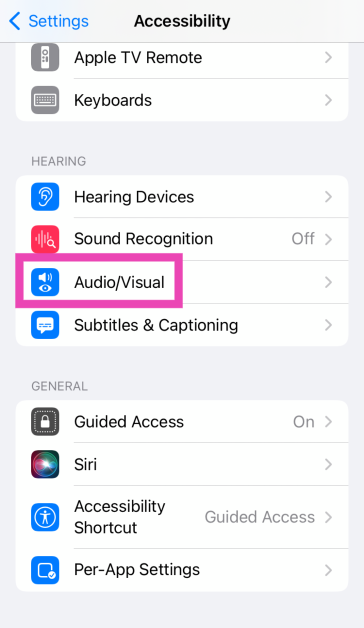
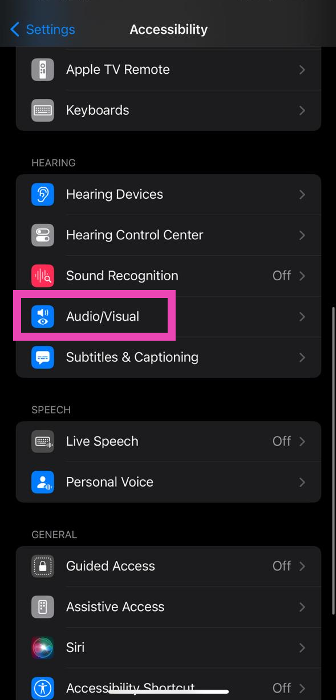
Step 2: Scroll down and tap on Audio/Visual.
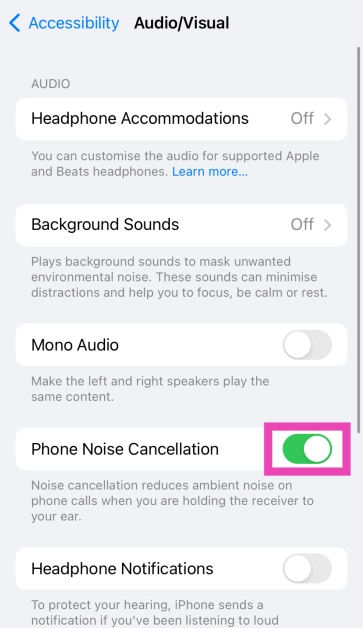
Step 3: Turn off the toggle switch for Phone Noise Cancellation.
Turn off Low Power Mode
Once your iPhone goes into Low Power Mode, it cuts down on power consumption by sticking to its essential functions. You may not receive WhatsApp notifications once your iPhone switches to Low Power Mode. To turn it off, go to Settings>Battery and switch off the toggle bar for Low Power Mode.
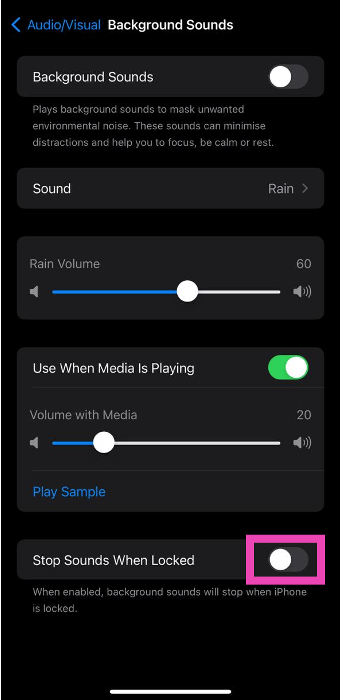
Enable Background Sounds
Step 1: Go to Settings and select Accessibility.
Step 2: Select Audio/Visual.
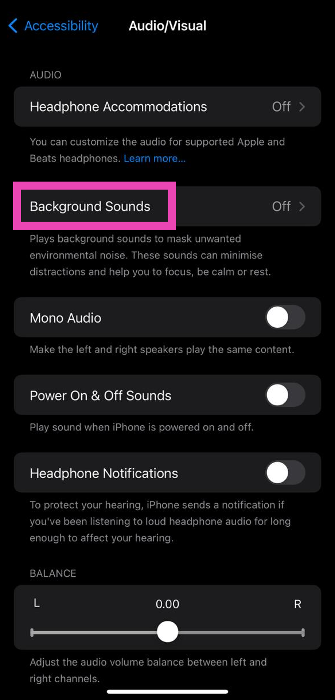
Step 3: Tap on Background Sounds.
Step 4: Turn off the toggle switch for Stop Sounds When Locked.
Turn off Silence Unknown Callers
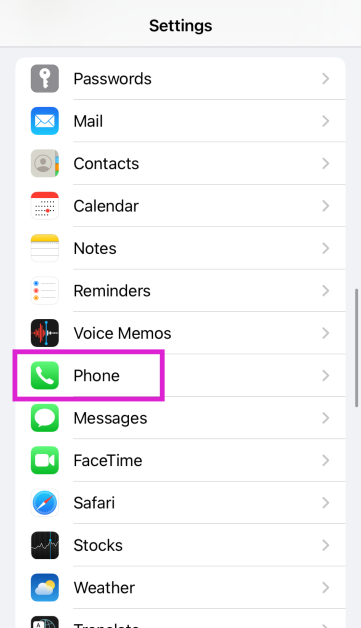
Step 1: Go to Settings and select Phone.
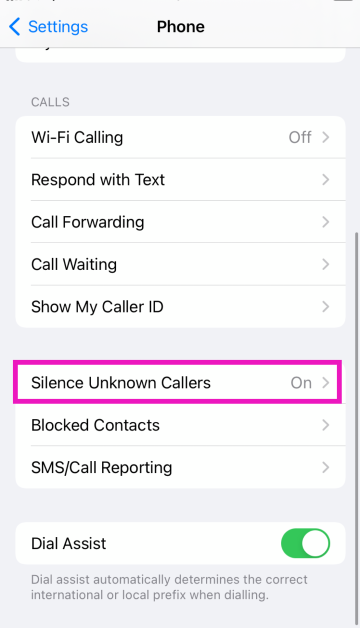
Step 2: Scroll down and tap on Silence Unknown Callers.
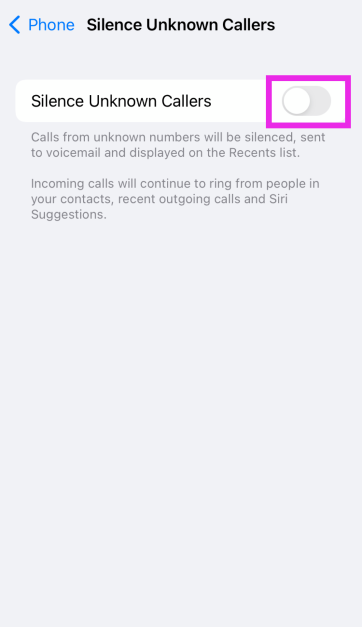
Step 3: Turn off the toggle switch.
Update WhatsApp
If the issue is bug-related, WhatsApp may have patched it with an update. In order to update WhatsApp, go to the app store and search for WhatsApp. From the app page, select ‘Update’. Whenever any bug pops up on the app, the developers quickly fix it with an update. This is why it is essential to keep your apps updated at all times.
Update iOS
An older version of iOS may have a software bug that’s keeping certain apps from pushing their notifications. These bugs are quickly resolved by a software update. If your iPhone is running an older version of iOS, go to Settings>General>Software Update to install the latest version.
Reset Network Settings
It is possible that the issue lies with your iPhone’s network reception and not the WhatsApp app itself. To fix this, reset the network settings on your phone. Here’s how.
Step 1: Go to Settings and select General.
Step 2: Scroll down and select Transfer or reset iPhone.
Step 3: Select Reset followed by Reset Network Settings.
Frequently Asked Questions (FAQs)
Why can’t I view WhatsApp calls on my iPhone?
A faulty internet connection is the most likely reason behind your iPhone not notifying you of WhatsApp calls. You may also have accidentally turned on the silent mode or DND on your iPhone.
How do I fix the ‘WhatsApp calls not ringing’ issue on my iPhone?
Check if there’s a pending update for WhatsApp and install it on your phone. Also make sure that Background App Refresh is turned on for WhatsApp.
If I mute someone on WhatsApp does it mute their calls as well?
No, muting someone on WhatsApp does not mute their calls.
These are the top 12 ways to fix the ‘WhatsApp calls not ringing when iPhone is locked’ issue. If none of these methods worked for you, you can try performing a factory settings reset on your iPhone as a last-ditch effort. Before resetting the iPhone to factory settings, make sure you’ve backed up all your data as it will be erased in the process. If you found this article helpful, let us know in the comments!
‘Smart Downloads’ is one of the underrated features of YouTube Premium. While a Premium subscription to YouTube allows you to download unlimited videos and music at the highest quality possible, ‘Smart Download’ automatically saves your most played songs to your device. It also saves new videos from your most watched content creators to your device. In this article, we show you how to enable or disable Smart Downloads on YouTube and YouTube Music.
How to Enable or Disable Smart Downloads on YouTube
Step 1: Open the YouTube app and tap on your profile icon at the top right corner of the screen.
Step 2: Scroll down and select Settings.
Step 3: Select ‘Background and downloads’.
Step 4: This is where you’ll find the ‘Smart downloads’ option. Turn the toggle bar on enable smart downloads for YouTube and turn it off to disable it.
You can also select the resolution you want to save the videos in by tapping on ‘Download quality’. To save mobile data you can choose to download videos only when your phone is connected to a WiFi network.
How to Enable or Disable Smart Downloads on YouTube Music
Step 1: Open the YouTube Music app and tap on the profile icon at the top right corner of the screen.
Step 2: Scroll down and select Settings.
Step 3: Tap on ‘Library and downloads’.
Step 4: This is where you’ll find the ‘Smart downloads’ option. Turn the toggle bar on enable smart downloads for YouTube Music and turn it off to disable it.
You can even decide how many songs you want the YouTube Musicapp to download automatically for you. The limit is set to 100 songs by default but you can expand it to 500 songs.
How to access and remove Smart Downloads?
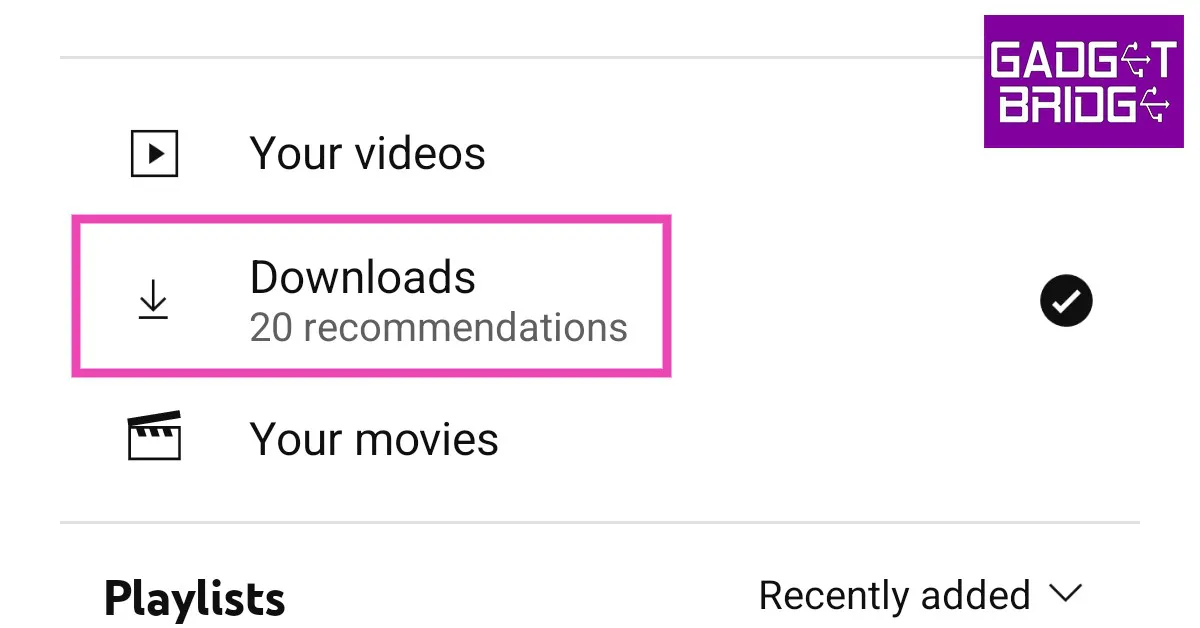
The YouTube app opens the downloads folder when it is not connected to the internet. However, if you are connected to the internet, you can access your Smart Downloads by tapping on the ‘Library’ option at the bottom right corner of the screen and selecting ‘Downloads’. To remove a video, simply tap on the ellipses next to it and select ‘Delete from downloads’.
To access your downloaded songs in the YouTube Music app, tap on the ‘Library’ icon at the bottom right corner of the screen and select the Downloads folder. To remove any download, simply tap on the ellipses next to the song and select ‘Remove download’.
This is how you can enable or disable Smart Downloads on YouTube and YouTube Music. Smart Download is a feature that is exclusive to YouTube Premium. Regular YouTube users can download YouTube videos manually but with the video quality capped at 360p. If you found this article helpful, let us know in the comments!
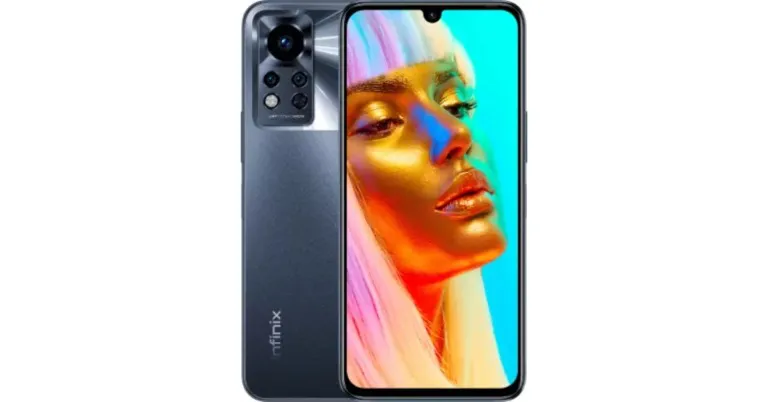
Infinix has expanded its Note lineup with the launch of Infinix Note 12i in India. The smartphone has a MediaTek Helio G85 SoC under its hood. It comes packed with a 5,000mAh battery with 33W fast charging support. In addition to this, the device also features a 50MO ultra night camera and an FHD+ AMOLED display.
In This Article
Infinix Note 12i price in India and sale details
Infinix Note 12i has been launched in a single 4GB RAM with 64GB storage priced at Rs 9,999. The device will be available in three colour options of Force Black, Metaverse Blue, and Alpine White. Beginning on January 30, the smartphone will be offered for purchase on Flipkart.
Additionally, users can benefit from the Jio Exclusive Program to receive Rs 1000 cashback on Note 12i within 30 days from the date of purchase.
Infinix Note 12i specifications
The 6.7-inch full-HD+ AMOLED display on the Infinix Note 12i has a resolution of 1,080×2,400 pixels. The screen boasts 100 percent coverage of the DCI:P3 colour gamut and has a peak brightness of 1,000 nits. It also has a 180Hz touch sampling rate. Gorilla Glass 3 is installed as protection for the display. The screen also supports Widevine L1 certification. With 4GB of RAM and a MediaTek Helio G85 SoC, the handset is powered. The smartphone’s 64GB of internal storage can be increased to 512GB by using a MicroSD card slot. The device comes pre-installed with the company’s XOS 12.0 skin over Android 12.
It has a 5,000mAh battery and 33W fast charging is supported. The triple camera system on the Infinix Note 12i consists of a 50-megapixel primary sensor with an f/1.6 aperture, a 2-megapixel depth sensor, and a QVGA camera. For selfies and video calls, the Infinix Note 12i’s front-facing 8-megapixel camera has a dual-LED flash.
A USB Type-C port, 4G, Wi-Fi, Bluetooth 5.0, GPS, and other connectivity options are available on the smartphone. In addition, a fingerprint sensor is included for biometric verification, along with an ambient light sensor, g-sensor, proximity sensor, gyroscope, magnetometer, and other sensors.
The pictures shot using your iPhone’s camera capture an incredible amount of detail. This also means they carry a decent amount of file size. Sometimes users run into a problem when they need to upload an image to an official document, and the image exceeds the stipulated file size. Luckily, there are several ways you can compress an image and bring its size down to a desirable limit. In this article, we bring you the top 9 methods to reduce the photo file size on an iPhone. Using these methods, you can easily compress any photo on your iPhone.
The easiest way to reduce the file size of a photo is by cropping it ever so slightly in the Photos app on your iPhone. This will alter the image resolution by a tiny amount, but the size of your image will be reduced significantly. To crop an image, open it in the Photos app and select the Edit option at the bottom of the screen. Tap on Crop/Rotate and use the frame to slightly crop the image.
Change the image format in the iPhone Camera settings
Changing the image format from JPEG to HEIF (High-Efficiency Image Format) will help reduce the file size of the resulting image. The JPEG format stores a lot of information, which can lead to a bloated file size. On the other hand, the HEIF format offers a lower file size without compromising the quality of the image. Here’s how you can switch to the HEIF format.
Step 1: Open Settings on your iPhone and select Camera.
Step 2: Tap on Formats.
Step 3: Select ‘High Efficiency’.
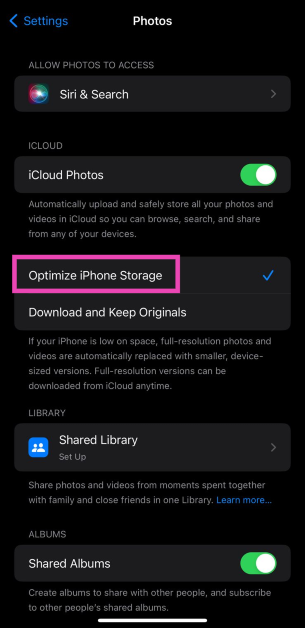
Optimise iPhone Storage
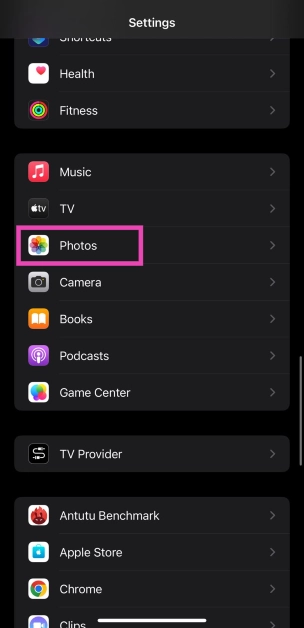
Step 1: Go to Settings and select Photos.
Step 2: Tap on Optimize iPhone Storage.
The images on your iPhone will be compressed to save storage space. The optimised images occupy less space and are perfect to be viewed on your iPhone. You won’t notice much difference. If you want to access the full-resolution images, you can download them from iCloud.
Compress a photo using the Files app
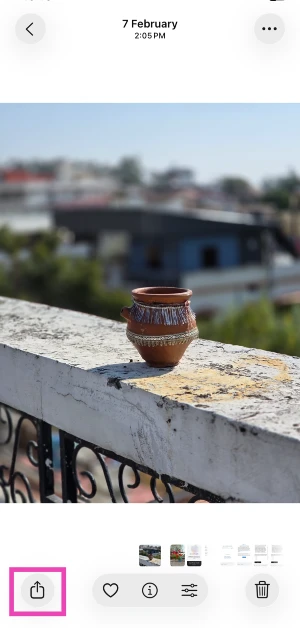
Step 1: Go to the Photos app on your iPhone and open the image you want to compress.
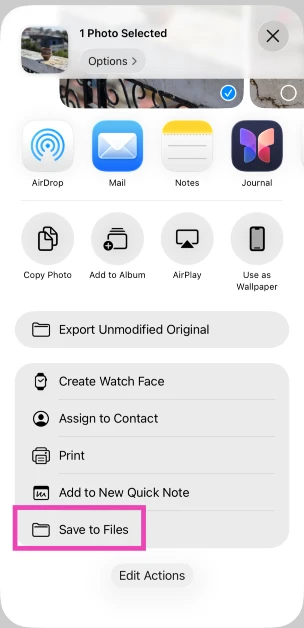
Step 2: Hit the Share icon in the bottom left corner of the screen.
Step 3: Select Save to Files.
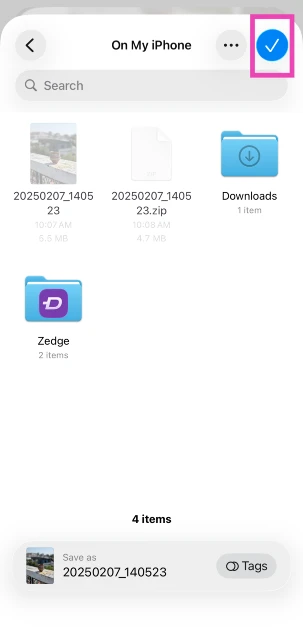
Step 4: Choose the destination and hit the tick icon.
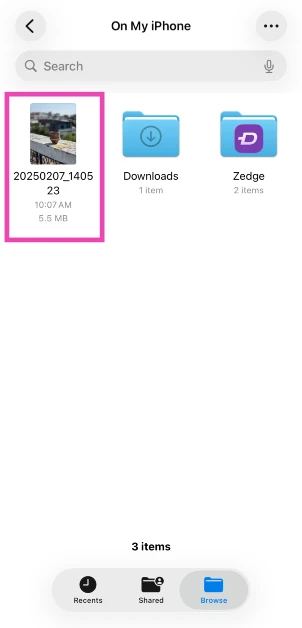
Step 5: Launch the Files app and go to the image.
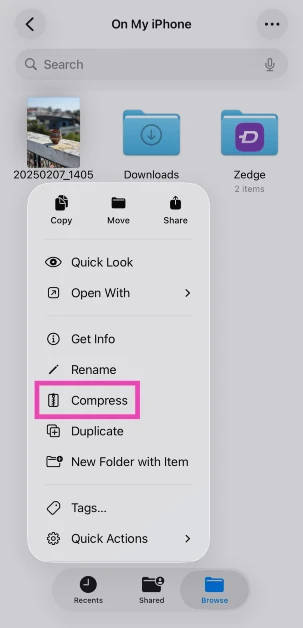
Step 6: Long-press the image icon and select Compressed.
Step 7: A compressedversion of the image will appear next to it.
Use a third-party app
There are several third-party apps on the App Store that will help you resize your images. ‘Image Size’ is one of the highly rated apps for this purpose. Once you’ve installed the app on your iPhone, open it and load the image you want to resize. Now you can resize the image by pixels, inches, mm, cm, or any other metric. Save the image once you’re happy with the result. The saved image will have a significantly smaller file size than the original image.
Send the image to yourself on WhatsApp
Instant Messengers like WhatsApp automatically downsize the images you send on the platform. This is done to increase the speed and reduce the storage space. While some may see it as a flaw, it can come in handy if you want to reduce the file size of an image. WhatsApp also recently launched the ‘Message Yourself’ feature. You can use this function to send yourself the images you want to downsize. Simply select your name from the contacts and attach and send the images you want.
Use Apple Mail to compress images
While you may not have a say in downsizing the images when sending them through an instant messenger, Apple Mail lets you choose a particular file size before you attach the image to your mail. This is helpful because it gives you three options for the file size: Small, Medium, and Large. You can mail the image to yourself via the Photo app. All you need to do is tap on the share icon and select ‘Mail’. Once the mail has been sent you can download the resized image from the Mail app.
Use a Shortcut
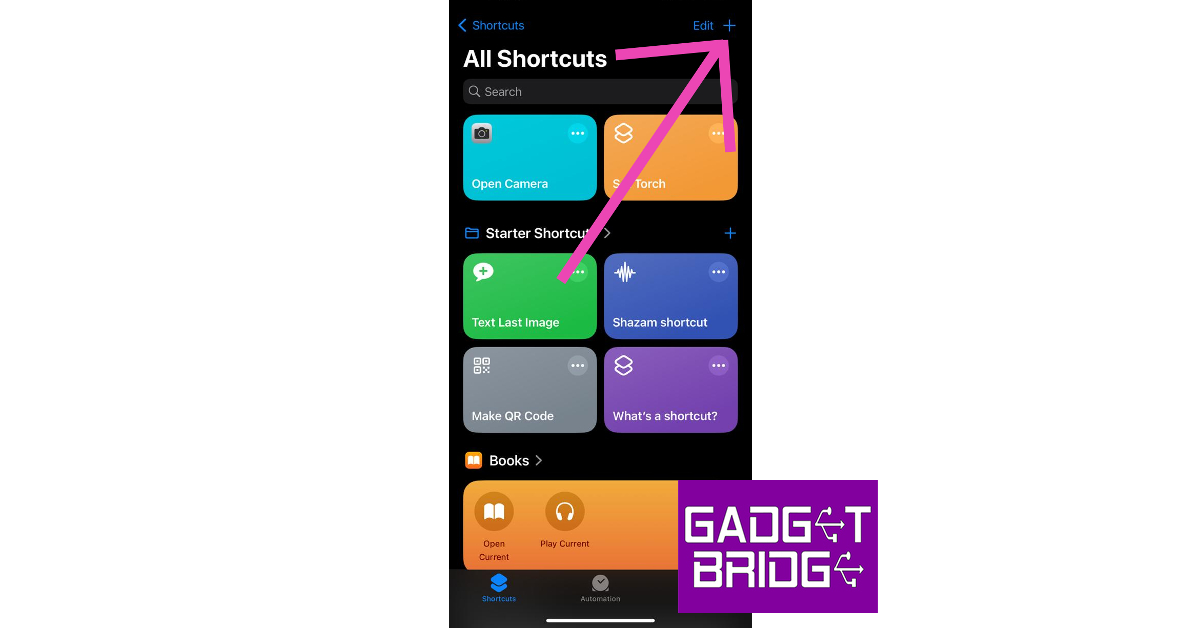
Step 1:Launch the Shortcuts app on your iPhone and hit the Plus icon.
Step 2: Give your shortcut a name.
Step 3: Select Add Action.
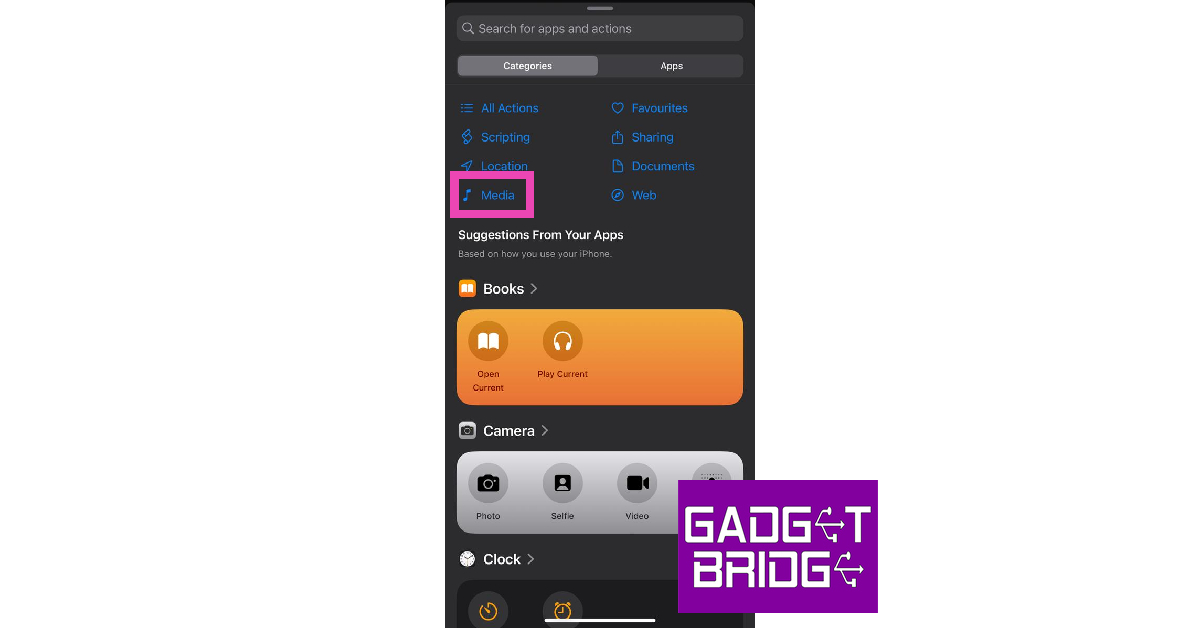
Step 4: Go to Categories and select Media.
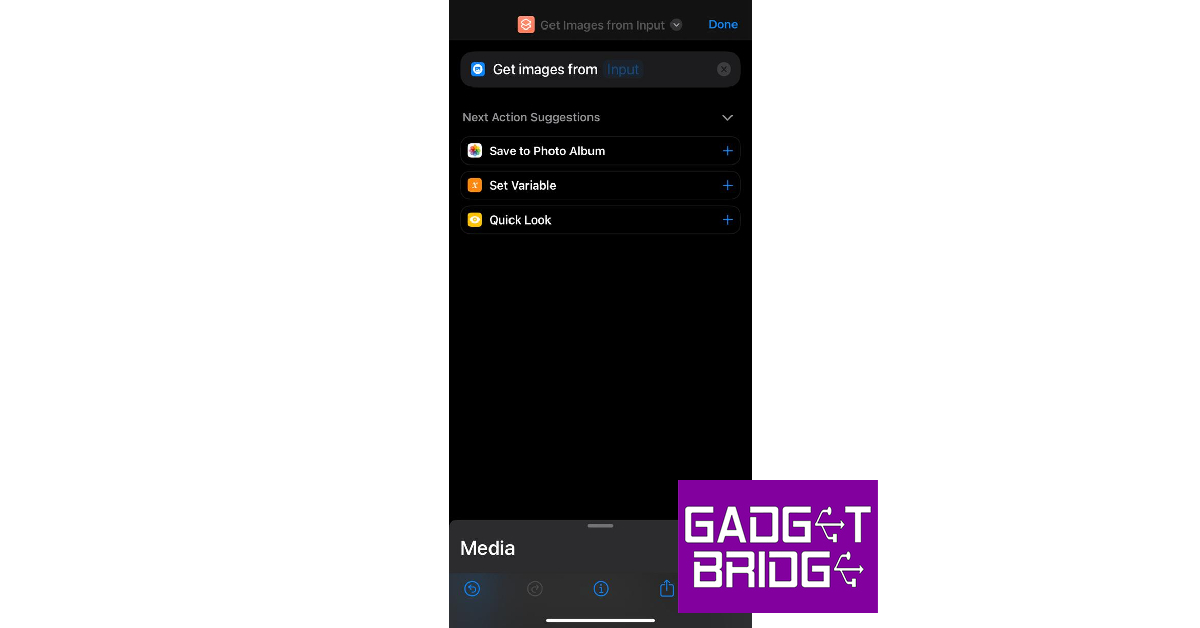
Step 5: Under the Images category, select Get Images from Input.
Step 6: Hit the blue icon at the top right corner of the screen and turn on the toggle switch for Show in Share Sheet.
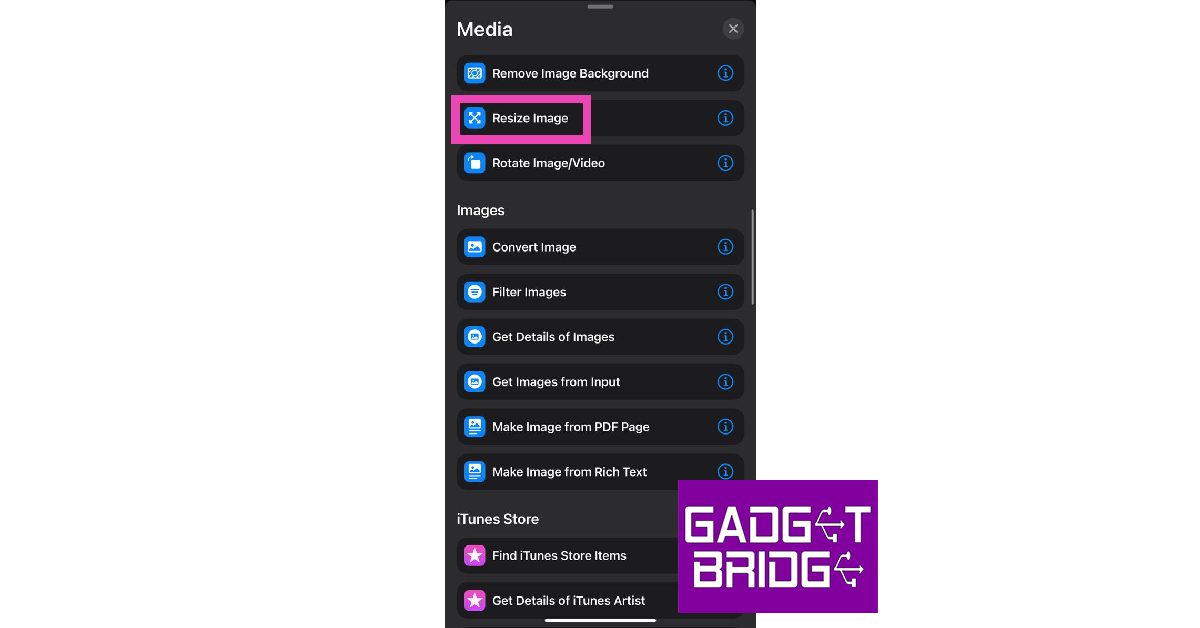
Step 7: Drag the Media page and select Resize Image.
Step 8: Tap on size to set the default metrics or select Ask Each Time.
Step 9: Hit Done.
Step 10: Select the Media page again and tap on Convert Image.
Step 11: Choose the file format for the resized images.
Step 12: Drag the Media page again and tap on Save to Photo Album.
Step 13: Select a destination album for the resized images.
Step 14: Hit the cross icon.
Step 15: To resize an image, open it in the Photos app, hit the Share icon, and select the shortcut from the list.
Use an online tool
There are several online tools you can use to reduce the file size of any image. Img2Go is one of the most popular online compression tools. Here’s how you can use it.
Step 3: Tap on ‘Choose file’ to select the image you want to resize. This image will be uploaded to the website’s servers. Apart from your iPhone’s local storage, you can also choose an image from Google Drive or Dropbox.
Step 4: Choose the image quality you want for the resulting image. If you want to compress the image to the lowest possible size, there will be some loss in quality.
Step 5: Select ‘Start’.
Step 6: Tap on ‘Download’ to save the resized image.
Why should you compress the images on your iPhone?
If you own an entry-level storage variant of the iPhone, you should be all over photo compression. Not only does it help you save precious storage space, but it also makes the images faster to post on social media or send to your friends. After compression, the images do lose some detail, but the differences are negligible if you’re viewing them on a smartphone. And let’s be honest, most of our social media consumption happens on a mobile device.
If you still want to preserve the full-resolution images, optimising your iPhone’s storage is the ideal way to go about it. Using this method, you will be able to access the original images from iCloud while storing the compressed versions on your iPhone. This makes it easier to manage the storage on your device. If you like to take a lot of photos but don’t want to buy additional iCloud storage, we would suggest creating a hard backup of all your images on an external storage device.
Frequently Asked Questions (FAQs)
How do I reduce the file size of a photo on my iPhone without downloading an app?
There are a few native ways to reduce a photo’s file size on your iPhone. You can slightly crop the image to bring down its size. Changing the image format from JPEG to HEIF also brings down the file size of the images you click. Lastly, you can use any instant messaging app to compress the image by simply sending it to yourself.
Does WhatsApp compress my pictures before sending them?
Yes, WhatsApp compresses pictures before sending them. You can choose to send images in HD, but some compression will still take place. To bypass this compression, you can send a picture as a document.
How do I compress a photo on my iPhone to a file in zip format?
Go to the photo, hit the ‘Share’ icon, and save it to the Files app. Launch the Files app, long-press the saved photo, and hit ‘Compress’. The compressed version of the image will appear next to it in zip format. Tapping it will uncompress the file.
What are some good apps to compress a photo on an iPhone?
Compress Photos 7 Pictures, Photo Compress – Shrink Pics, and Image Size are some of the best apps you can use to bring down the file size of any image on your iPhone.
What are the benefits of image compression?
Reducing the file size of an image makes it easier to share on social media and messaging apps while also freeing up some much-needed space on your phone’s internal memory.
These are the 9 simple ways you can reduce photo file size on an iPhone. While some methods may lower the image quality, the changes won’t be significantly noticeable. If you are resizing an image to upload to an official document, any of these methods will work just fine. Do you have a go-to method when it comes to compressing the images on your phone? Let us know in the comments!
OnePlus 11, Buds Pro 2, Keyboard and OnePlus TV 65 Q2 Pro are scheduled to launch in India on February 7. All of these products will make their public premiere at the company’s Cloud 11 launch event in Delhi, but there are still more devices scheduled to launch on February 7. The company has now confirmed that the OnePlus 11R 5G will also get released on the same day. Recently the price of the just-confirmed phone was also tipped. Previously the smartphone was also spotted listed on the BIS certification site indicating the India launch.
Fast just got fastR. It's time to get ready for a new way to experience the #ShapeofPower with the all-new #OnePlus11R 5G.
The OnePlus 11R 5G will be introduced in India on February 7 during the Cloud 11 event. The event will be hosted in New Delhi at 7:30 PM. As of now the company has only confirmed the impending launch, other details of the upcoming smartphone are yet to be made public. The event will introduce the OnePlus 11 5G, OnePlus Buds Pro 2, OnePlus Keyboard, and the OnePlus TV 65 Q2 Pro.
Mukul Sharma, a tipster for @stufflistings, has already revealed the anticipated price and storage options for the OnePlus 11R in India. A device with 8GB RAM and 128GB of storage space, according to his estimation, may cost between Rs 35,000 and Rs 40,000 in the country. It is also expected to include 16GB of RAM and 512GB of storage, and it would probably cost around Rs 45,000.
The smartphone would sport a 6.7-inch full-HD+ AMOLED screen with a resolution of 1,080 x 2,412 pixels and a refresh rate of 120Hz, according to the source. Up to 16GB of RAM and a Qualcomm Snapdragon 8+ Gen 1 SoC are expected to power the upcoming gadget. The OnePlus 11R has two RAM (8GB and 16GB) and two storage (128GB and 256GB) configurations, according to rumours. An alleged 5000mAh battery from OnePlus will reportedly support 100W SuperVOOC charging. A 50-megapixel primary sensor, an 8-megapixel super-wide-angle sensor, and a 2-megapixel macro lens are among the three cameras that the phone is anticipated to include on the back. At the front, there might be a 16-megapixel selfie camera for taking pictures of oneself.
At the OnePlus Cloud 11 Event On February 7 the Chinese tech firm is going to present a couple of products including the OnePlus 11 5G, Buds Pro 2 and the OnePlus Keyboard. The company is also planning to expand its Smart TV portfolio with the launch of its premium TV called the OnePlus TV 65 Q2 Pro at the same event.
The company via its announcement said, “The new OnePlus TV serves as an extension of the premium Q Series portfolio which debuted in 2019, with the launch of the OnePlus TV Q1 and Q1 Pro. The product is set to be unveiled along with OnePlus 11 and OnePlus Buds Pro 2 on 7th February 2023 at the Cloud 11 launch event in Delhi.” OnePlus further added, “The OnePlus TV Q series symbolises the brand’s efforts to bring industry-leading technology with premium visual and sound features to users in India. The OnePlus TV 65 Q2 Pro is expected to make a significant leap towards these efforts.”
The new OnePlus TV 65 Q2 Pro is planned to offer a number of superior hardware and software features and act as the centre of a more upscale, smarter connected ecosystem, according to the firm. The Television is expected to be available for purchase via Amazon in the country.
To recall, OnePlus forayed into the TV industry with the launch of OnePlus TV Q1 Pro and OnePlus TV Q1 in India in 2019. Both TVs offer a 55-inch 4K display with a QLED panel. The televisions have Dolby Atmos, Dolby Vision, and HDR10+ capabilities. It is important to note that the OnePlus TV Q1 Pro includes a motorised soundbar that extends from the unit downward. The TV’s soundbar includes 8 speakers with a 50W total sound output. Four of the speakers are facing forward, while two are facing back. The devices have built-in casting and a very plain-looking remote control with a limited number of buttons that comes with them. However, it contains dedicated buttons for frequently used services like Google Assistant, Amazon Prime Video, and others.
One of the advantages of owning an Apple Watch is the greater level of customisation options that come with it. With only a little effort, you can create a Watch Face that is unique to your device. On top of that, you can find several third-party apps that offer a plethora of paid and free Apple Watch Faces. In this article, we show you how to create a custom Apple Watch Face.
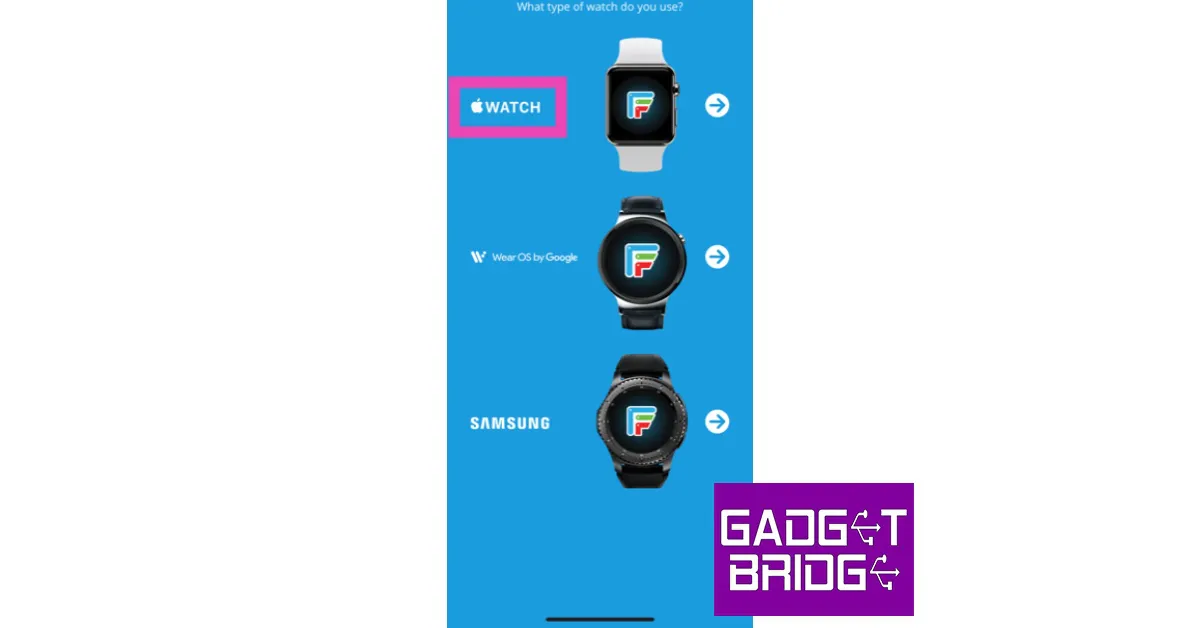
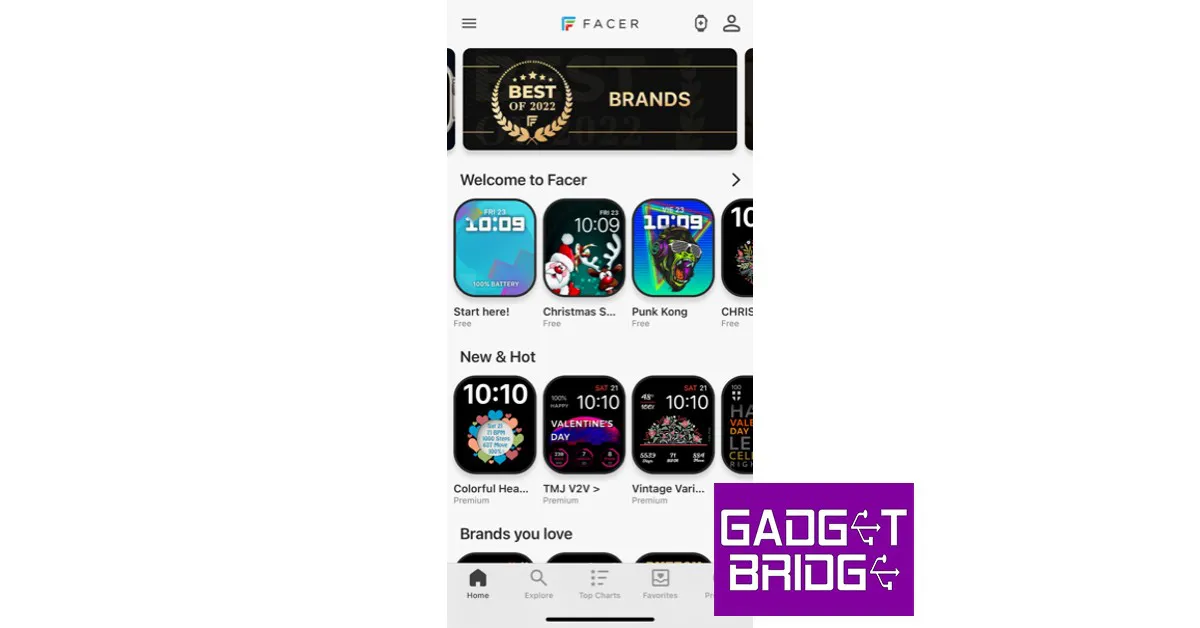
The Facer app for iPhone has a range of watch faces for your Apple Watch and provides a bunch of customisation options as well. Here’s how you can use the Facer app to create a custom Apple Watch face.
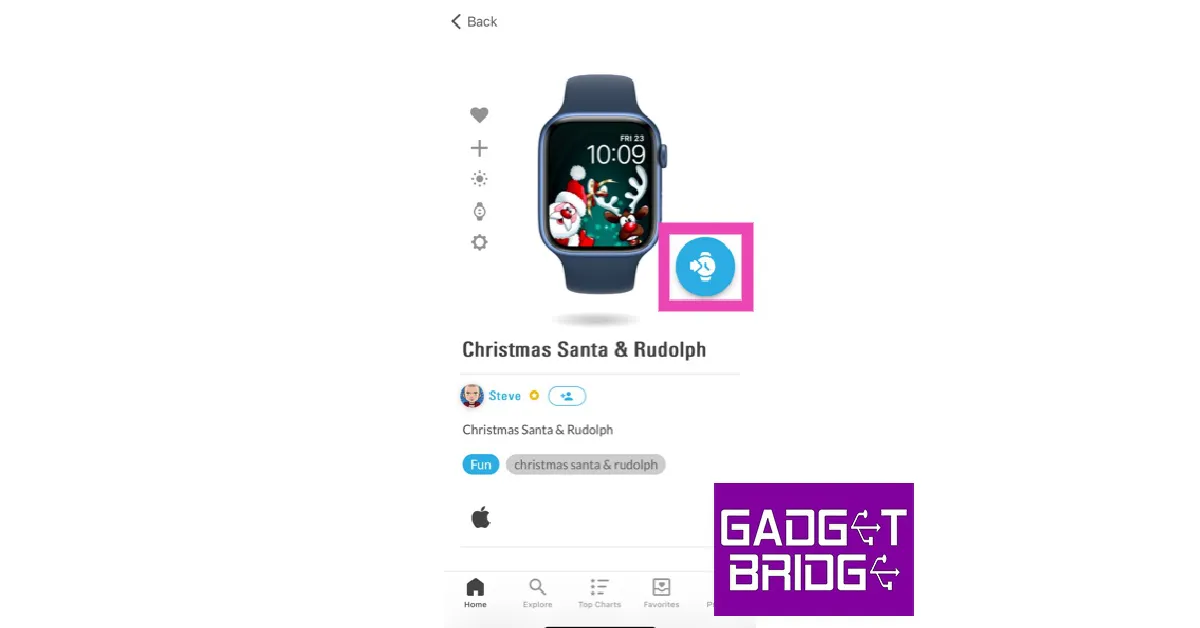
Step 4: Tap the ‘Watch’ icon to load the watch face on the Apple Watch app.
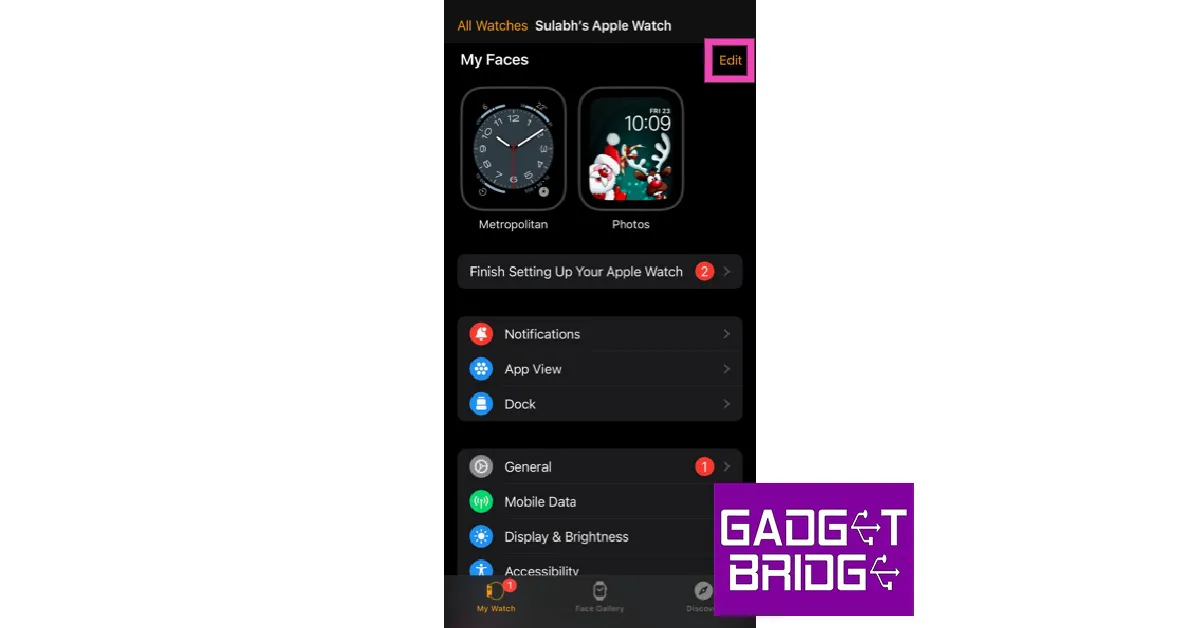
Step 5: Select the watch face from ‘My Faces’.
Step 6: This is where you can customise the watch face. You can choose the base colour from a range of shades.
Step 7: Tap on options to add widgets (Complications) like blood oxygen level, activity insights, and more to the watch face.
Step 8: Save all the changes once you’re done customising the watch face.
Use a Photo to create a custom Apple Watch Face
There’s nothing more unique than setting a picture you took as the customised watch face on your Apple Watch. You can easily do this from the Photos app itself. Here’s how.
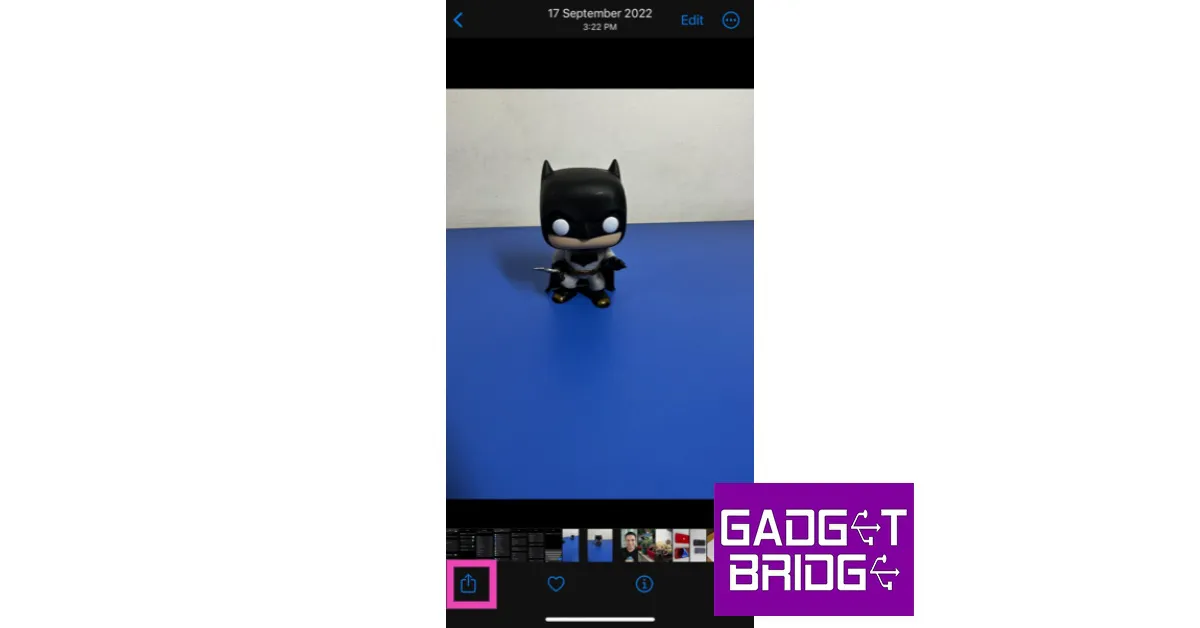
Step 1: Open the Photos app on your iPhone and select the photo you want to set as your Watch Face.
Step 2: Tap on the Share icon.
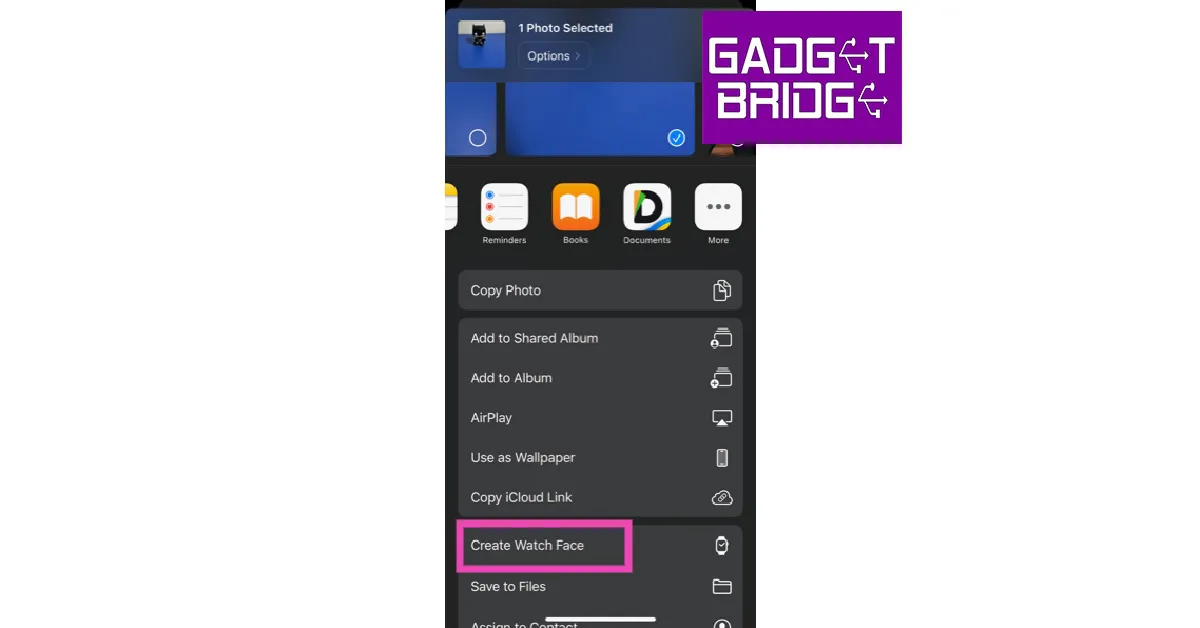
Step 3: Select ‘Create Watch Face’.
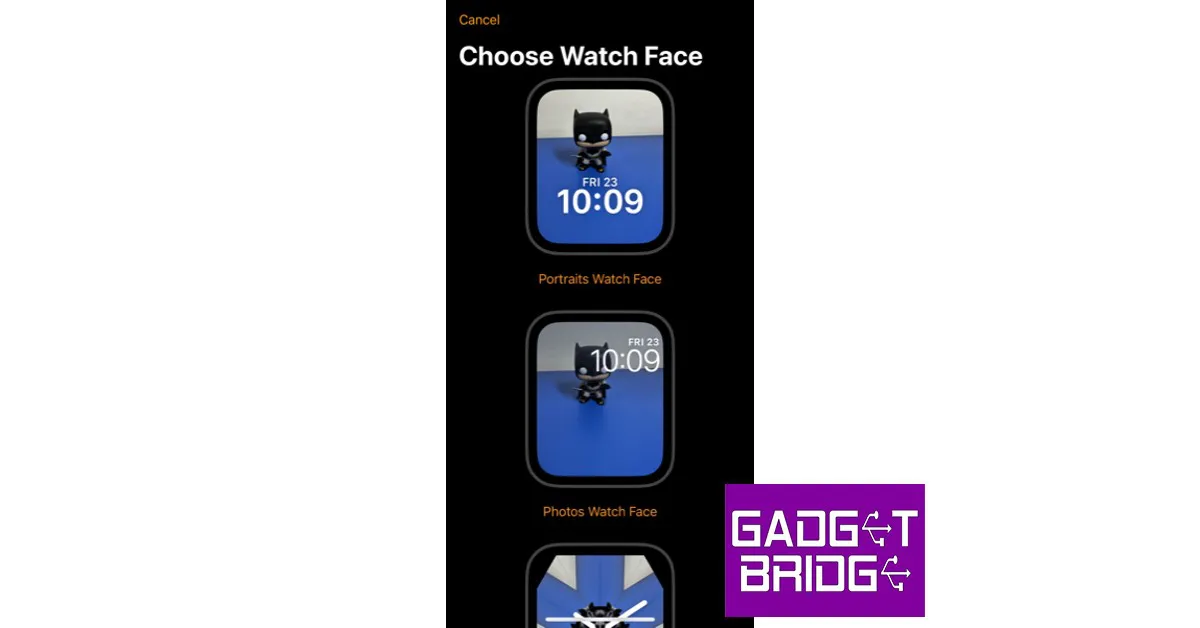
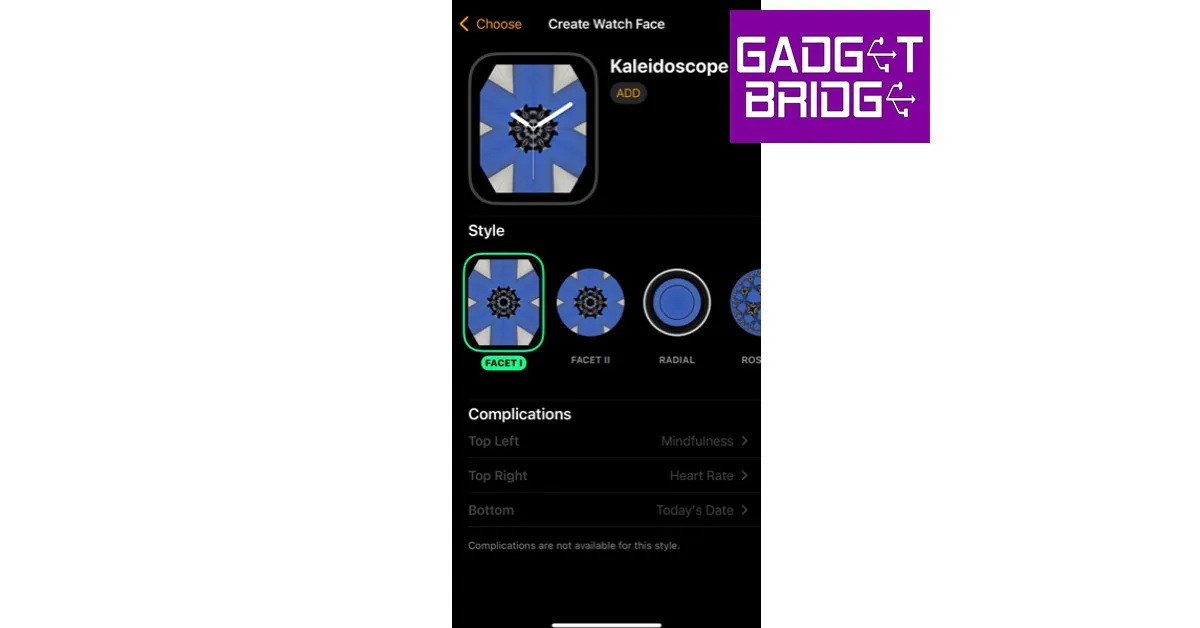
Step 4: You can either use the photo as it is or apply a Kaleidoscope effect to it. Make your choice before proceeding further.
Step 5: Add your desired Complications to the watch face. You can also alter the position of the clock.
Step 6: Tap on ‘Add’ once you’re done. Your new Apple Watch Face will be saved.
Create a customised watch face from the Apple Watch itself
Once you have a bunch of saved watch faces in the Apple Watch app, you can easily customise them from your Apple Watch itself. Here’s how.
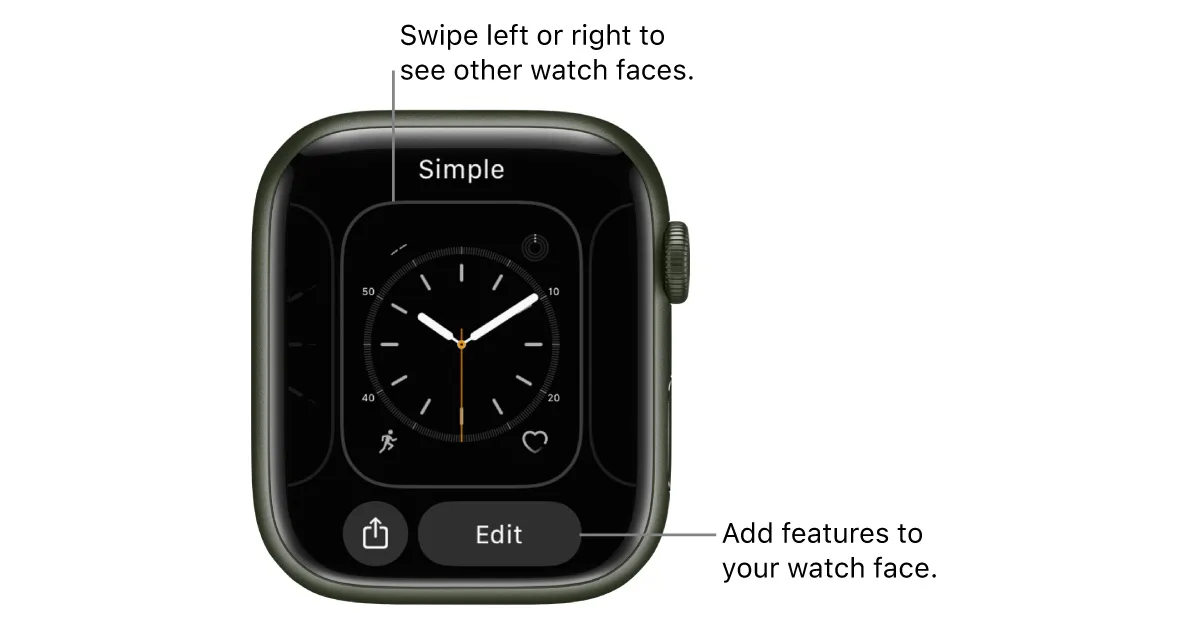
Step 1: To view all the watch faces in your collection, press and hold the watch face and swipe through your options. Tap on the one your want to set as the watch face.
Step 2: Customise the watch face by adding your desired Complications. To do this touch and hold the display and select Edit.
Step 3: Swipe left until you reach the end. This is where the complications will show up.
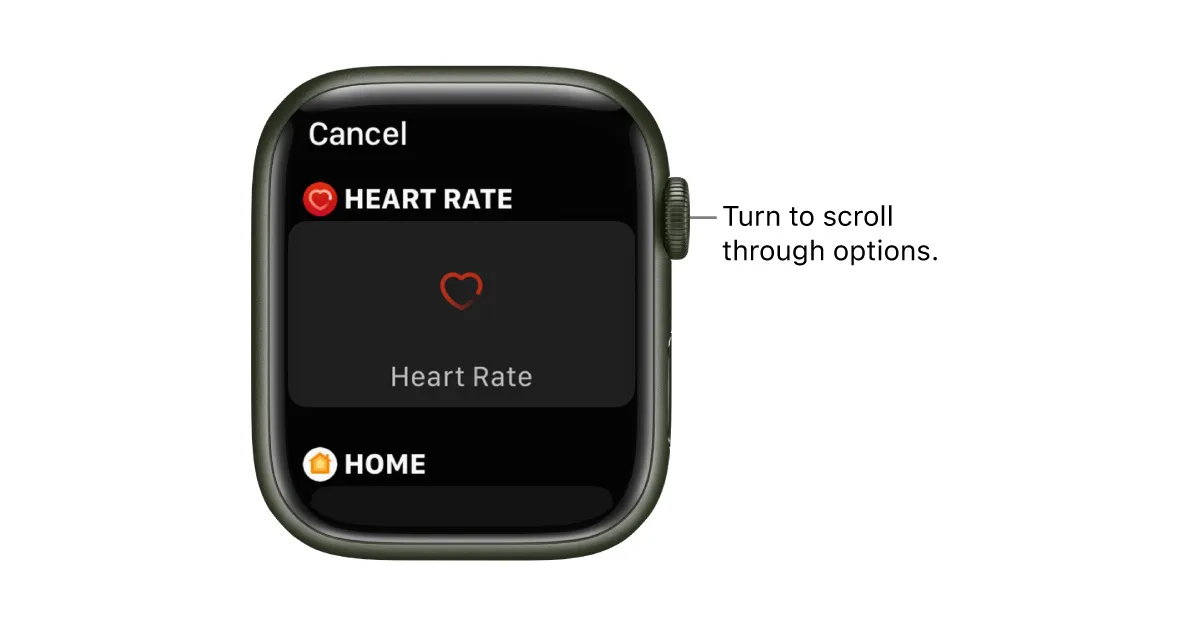
Step 4: Tap the Complication to add it to the watch face. Turn the crown to browse through the compilations.
Step 5: Once you’re done, press the crown to save all changes.
This is how you can create a custom Apple Watch Face. You can also use Shortcuts to change the watch face based on the time. All you need to do is select ‘Time of day’ from the Automation section and add the action to set a particular watch face. If you found this article helpful, let us know in the comments!
iOS 16.3 and iPadOS 16.3 updates for compatible iPhone and iPad models have started to arrive. The new OS update brings Security Keys for Apple ID, enhancements, bug fixes, and security updates for iPhones and iPads.
Here is everything that you are getting with the iOS 16.3 and iPadOS 16.3 updates
In This Article
iOS 16.3 update
The iOS 16.3 update brings Security Keys for Apple ID, a new Unity wallpaper honouring Black history and culture in observance of Black History Month, as well as additional improvements, bug fixes, and security upgrades for your iPhone.
Also included are Security Keys for Apple ID, which let users increase the security of their account by requiring a physical security key as part of the two-factor authentication sign-in process on new devices. Support for HomePod (2nd generation) has also been added.
With iOS 16.3, the Emergency SOS call mechanism has also been updated in order to avoid accidental emergency calls. The emergency SOS calls now require holding the side button with the up or down volume button and then releasing it.
The new iOS update also fixes a problem in Freeform where some sketching strokes made with your finger or an Apple Pencil might not show up on shared boards. A problem where the wallpaper can appear black on the lock screen is fixed.
A bug that could cause a temporary appearance of horizontal lines while starting up the iPhone 14 Pro Max has also been removed. Fixes a problem where the Home Lock Screen widget misrepresents the status of the Home app. A problem where Siri might not respond appropriately to music requests is fixed.
Fixes issues wherein CarPlay’s Siri requests might not have been properly understood.
Along with other improvements, bug fixes, and security updates for your iPad, the iPadOS 16.3 update introduces Security Keys for Apple ID as well.
Support for the new HomePod (2nd Gen) is included in this version, making it simple to pair iPhone devices with the Apple HomePod (2nd Gen) and share music between them.
Additionally, the iPadOS 16.3 update resolves a problem in Freeform where some drawing strokes made with an Apple Pencil or your finger might not show up on shared boards. An issue where Siri may not respond properly to music requests has also been addressed.
Every WhatsApp user knows that the app sometimes does not show the ringing alert for an incoming call. Instead, you get notifications for a bunch of missed calls instead. Sometimes, you may miss an important call because of this issue. Luckily, there are a few ways you can take care of this problem. In this article, we bring you 12 easy methods to fix the ‘WhatsApp calls not ringing when Android phone is locked’ issue on your smartphone.
Disabling background notifications for an app prevents it from sending alerts to your phone. Here’s how you can check if WhatsApp’s background notifications are disabled.
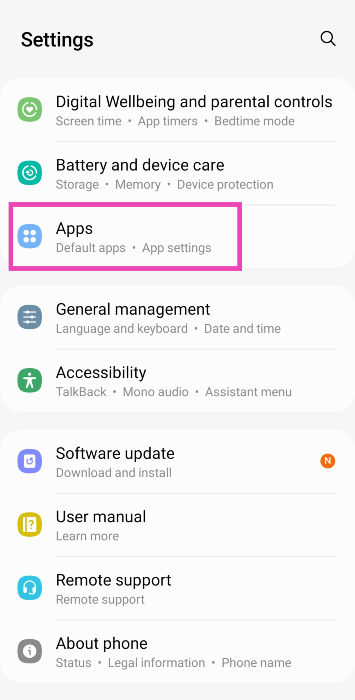
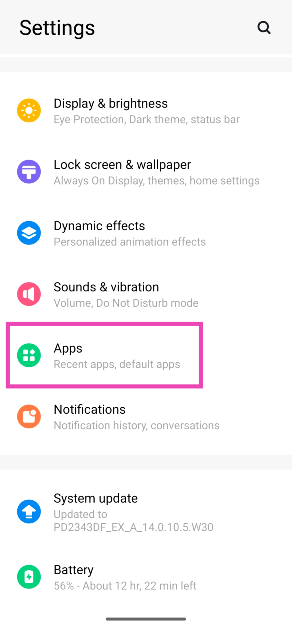
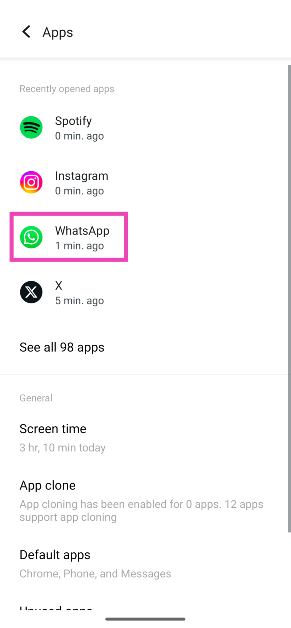
Step 1: Go to Settings and select Apps.
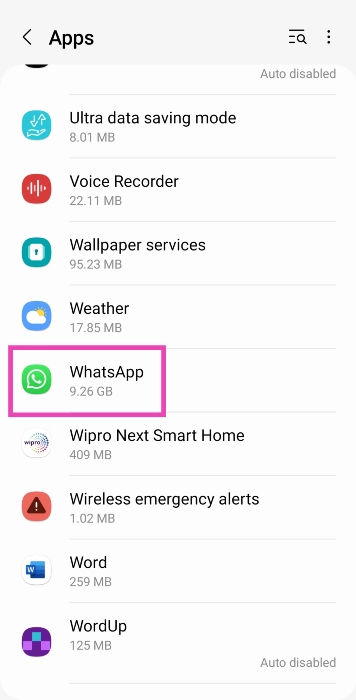
Step 2: Scroll down and select WhatsApp.
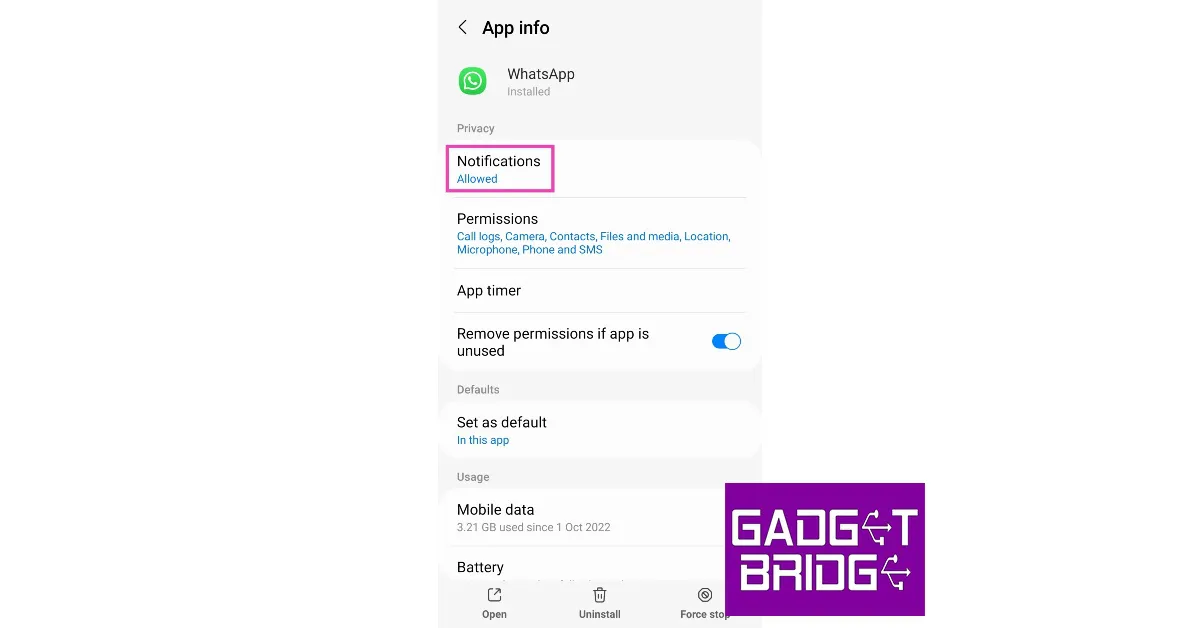
Step 3: Tap on Notifications.
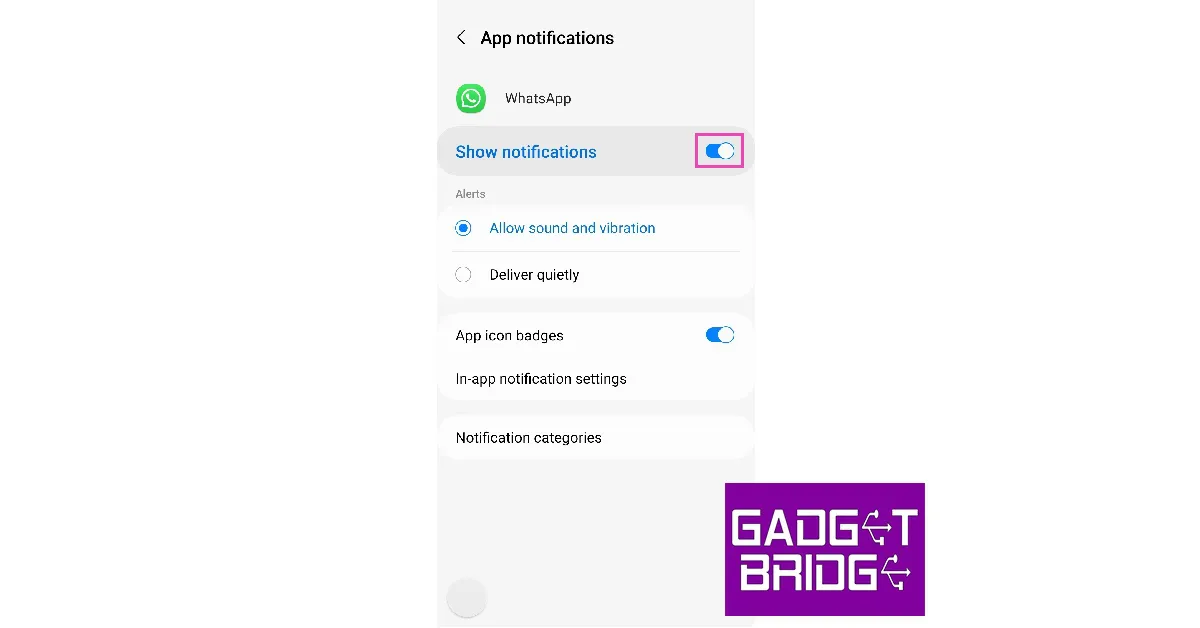
Step 4: Make sure that the toggle bar to Show notifications is turned on. Additionally, make sure you have selected Allow sound and vibration under Alerts instead of Deliver quietly.
Make sure Do Not Disturb is turned off
Do Not Disturb does what it implies. Once you turn it on, you will not be ‘disturbed’ by text notifications or call alerts. If someone is calling you on WhatsApp, it won’t show up on your screen. If your WhatsApp calls are not ringing, it is possible that you may have turned on DND but forgotten to turn it off. In order to disable Do Not Disturb, simply drag the drop-down menu and tap on the DND icon.
Check your internet connection
If you’re connected to a weak network, WhatsApp won’t notify you of incoming calls. Instead, you will receive a notification when the caller hangs up. Perform a quick internet speed test to confirm whether the fault lies with your network. Load other web pages to see if the network is acting sluggish on your device. Switch to a stronger network to receive WhatsApp calls again.
Restart your device
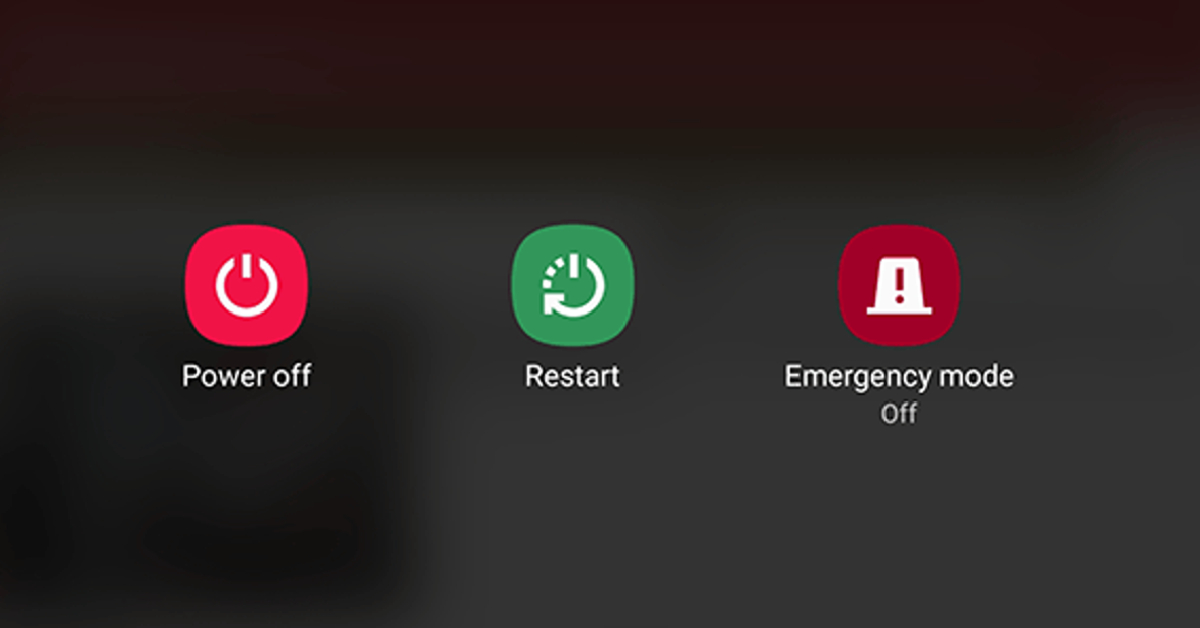
Restarting your device refreshes the network and resolves any background glitches that may be causing WhatsApp to malfunction. Long-press the side key and select ‘Restart’ from the power menu. If long-pressing the side key triggers the voice assistant, press it along with the volume-up button to open the power menu.
Clear app cache
Corrupted files in the cache memory can keep an app from carrying out its most basic functions. Here’s how you can clear WhatsApp’s app cache.
Step 1: Go to Settings.
Step 2: Select Apps.
Step 3: Select WhatsApp.
Step 4: Tap on Storage.
Step 5: Select Clear Cache.
Make sure background data is turned on for WhatsApp
When your phone is locked, WhatsApp still keeps working in the background to notify you of any incoming calls or messages. If WhatsApp calls aren’t ringing when your phone is locked, it may be because the app does not have access to background data. Here’s how you can ensure that background mobile data for WhatsApp is turned on.
Step 1: Go to Settings and select Apps.
Step 2: Scroll down and select WhatsApp.
Step 3: Tap on Mobile Data under Usage.
Step 4: Turn the toggle bar on for Allow background data usage and Allow data usage while Data saver is on.
Update WhatsApp
Sometimes an older version of WhatsApp may encounter an issue that is fixed in later updates. This is why it is essential you keep the app updated. In order to update WhatsApp, simply go to the Google Play Store and search for WhatsApp. Open the app page and select ‘Update’.
Reinstall WhatsApp
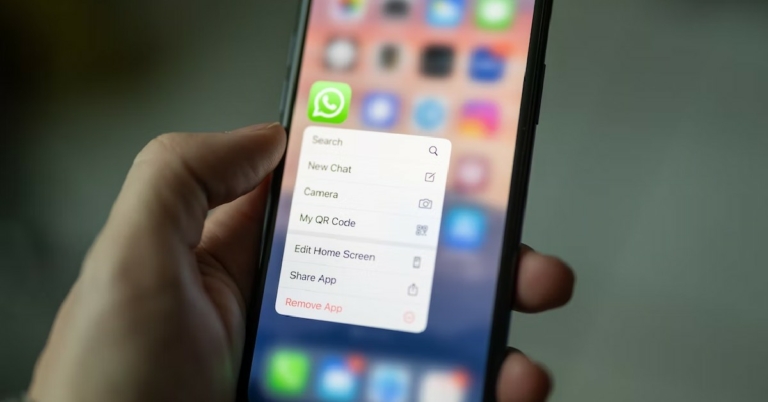
If you’re using the latest version of WhatsApp, uninstall it from your device and reinstall it from the Google Play Store. Tap and hold the icon for WhatsApp from the app drawer on your device. In the pop-up menu, select Uninstall. Now, go to the Google Play Store, search for WhatsApp, and hit Install.
Force Stop WhatsApp
Step 1: Go to Settings and select Apps.
Step 2: Select WhatsApp.
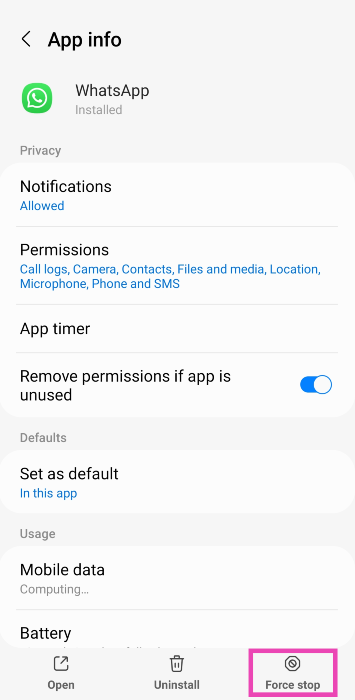
Step 3: Hit Force Stop at the bottom of the screen.
Give WhatsApp the necessary permissions
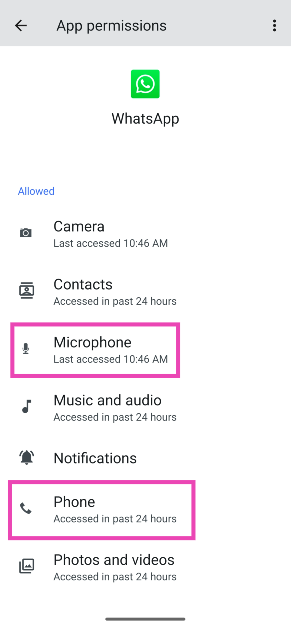
If the incoming WhatsApp calls on your Android phone aren’t ringing, check the app’s permissions. Make sure it has access to Phone and Microphone.
Step 1: Go to Settings and select Apps.
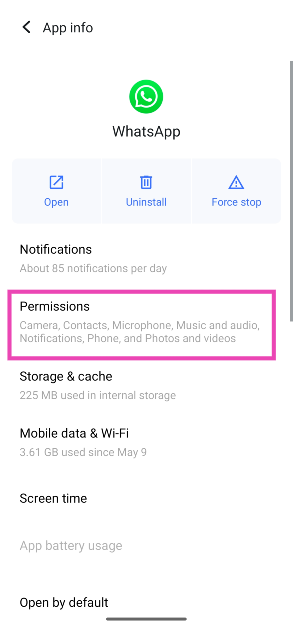
Step 2: Select WhatsApp.
Step 3: Tap on Permissions.
Step 4: Make sure WhatsApp has access to Phone and Microphone.
Update your phone’s OS
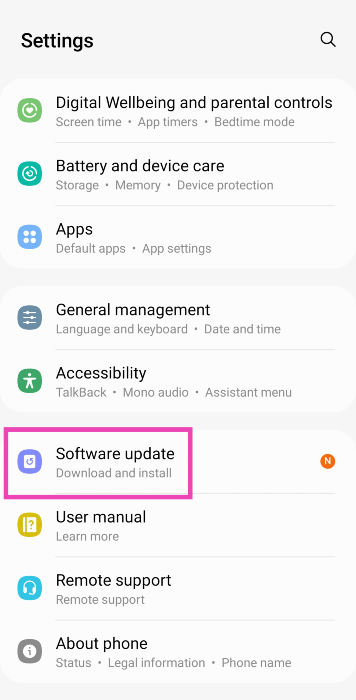
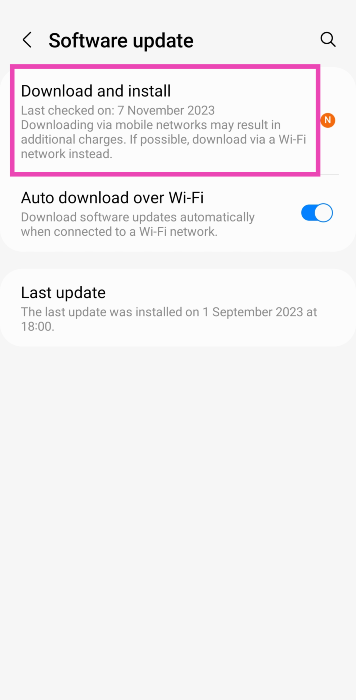
Step 1: Go to Settings and hit Software update.
Step 2: Tap on Download and Install.
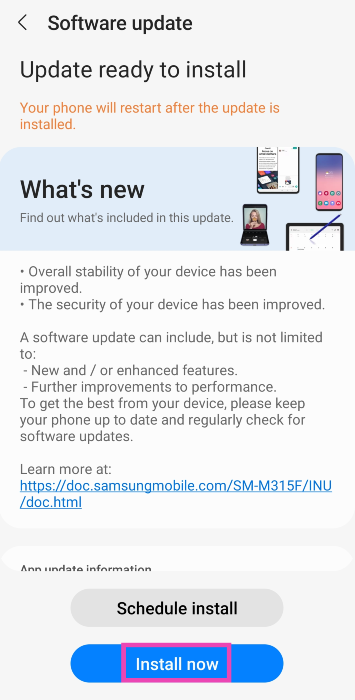
Step 3: Once the update has been downloaded, tap on Install Now.
Turn off battery saver mode
When your smartphone’s battery drops below a certain threshold, it automatically turns on the battery-saver mode. When enabled, the battery-saver mode kills a lot of background activity for most of the apps on your phone to preserve the battery. This may be the reason why you are not receiving WhatsApp calls on your phone. You can disable the battery saver mode by simply opening the drop-down menu and deselecting ‘Power Saver’. You can also disable it by going to Settings>Battery and device care>Battery>Power saver.
Frequently Asked Questions (FAQs)
How much data do WhatsApp calls use?
Voice calls on WhatsApp use up to 500 kB – 750 kB per minute. If you’re using a strong network connection, the quality of the call will improve significantly, leading to more data usage.
Do I need to keep my phone unlocked to receive WhatsApp calls?
No, you can receive WhatsApp calls even when your phone is locked.
Is it safe to use WhatsApp?
WhatsApp provides end-to-end encryption for texts and calls, making it one of the safest instant messengers in the world.
These are the top 12 ways to fix the ‘WhatsApp calls not ringing when Android phone is locked’ issue on your smartphone. If the methods mentioned in this article do not work for you, try performing a complete factory reset of your device as a last-ditch measure. If you found this article helpful, let us know in the comments!
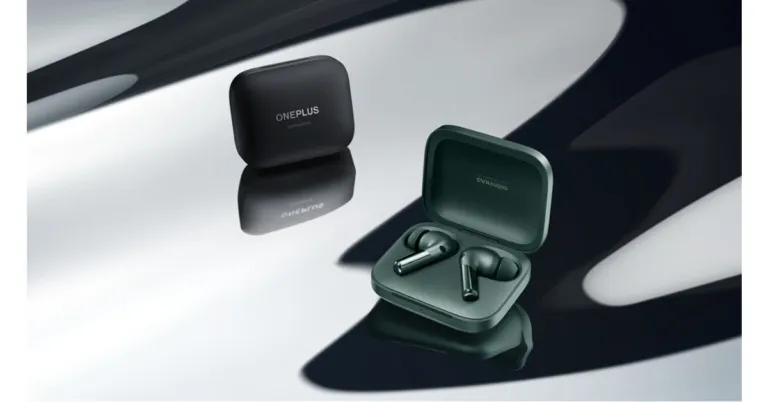
Ahead of the official launch, OnePlus has disclosed some of the features of its upcoming TWS in India. According to the firm, the OnePlus Buds Pro 2 truly wireless earbuds will be the first wireless earbuds to include Google’s Spatial Audio technology created for Android 13. In addition to this, the device will instantly pair with other Android devices with just a single tap thanks to support for Android’s Fast Pair function.
On February 7, the OnePlus Cloud 11 event will introduce the TWS earphones to the world along with the OnePlus 11 and other products from the brand. According to the company with the OnePlus Buds Pro 2 launch, it will establish a new benchmark for spatial audio stability and compatibility with exciting new capabilities for Android users.
The OnePlus Buds Pro 2 are the first TWS earbuds to incorporate Google’s renowned spatial audio capability developed for Android 13. This produces a multi-dimensional experience inside a pair of tiny earbuds. Because of this, the sound always emanates from a set location regardless of movement and has the same 3D audio quality as in a movie theatre.
The company has further revealed that the OnePlus Buds Pro 2’s spatial audio has been enhanced by them in collaboration with Google to replicate the immersive, multi-dimensional experience enjoyed in cinemas. The OnePlus Buds Pro 2 elevates the spatial audio capability by utilising OnePlus’ spatial rendering algorithm and IMU sensor, adding stability, compatibility with app expansions, and opening up its technology to other applications.
The Android Fast Pair feature, which enables you to swiftly connect to neighbouring Android devices in one tap, helps the Buds Pro 2 in its pursuit of establishing seamless connections by increasing its effectiveness. The Buds Pro 2 can connect to two Android smartphones at once and seamlessly switch the audio between them based on your actions, all without having to fuss with Bluetooth settings thanks to Android’s audio switching feature.
Furthermore, OnePlus created a bespoke stereo up-mixing algorithm to produce multi-dimensional sound from popular music and video apps, taking into account the compatibility of the majority of audio sources on the market.
The OnePlus Buds Pro 2 has already been introduced in China on January 4. It comes with an 11mm woofer and a 6mm tweeter. The TWS also supports the MelodyBoost twin driver system that was jointly developed with Dynaudio. It also comes with three Dynaudio-co-tuned equaliser choices Bold, Serenade, and Bass.
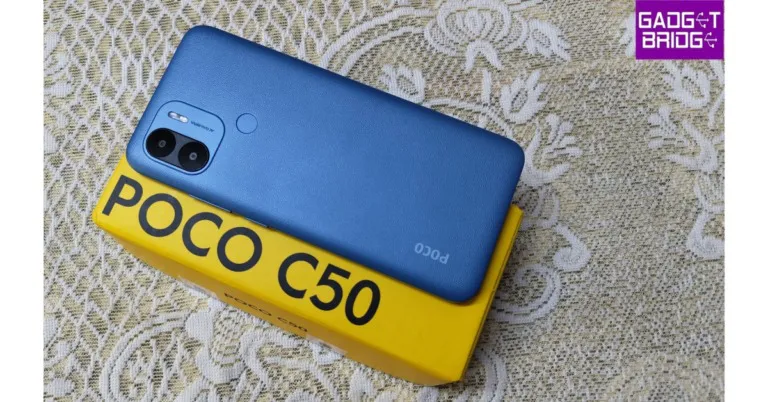
The Poco C50 has an initial retail price of Rs 6,499, making it an amazing smartphone for people who are upgrading to a budget 5G mobile. It would be exorbitant to ask for too much of a phone in this price range. However, it should at least be capable of handling all of your regular chores, such as watching movies, sending emails, and using WhatsApp, while also sporing a long battery life. So let’s put everything we just said to the test in this Poco C50 review and decide whether or not this phone is worth purchasing.
In This Article
Poco C50 Review: Design and Display
The smartphone is quite lightweight and comfortable to hold in your hand. The Poco C50 has a very simple design. The material used for its back, polycarbonate, has a matte appearance that resembles leather. The nicest element is that it is resistant to fingerprints and smudges, and it has a pleasant texture. Additionally, there is a fingerprint sensor on the back panel. Although it is an outdated technology, it unlocks the device really quickly and works quite well.
Another plastic component is the side frames. A dedicated micro SD card (up to 512 GB) and a SIM tray slot, which can hold two nano SIM cards each, are located on the left side of the device, while the volume rocker and power buttons are located on the right. A speaker grille and a micro USB port for charging are located on the top and bottom frame, respectively.
A selfie camera is located in a teardrop-shaped notch on the front. The Poco C50 has a 6.52-inch HD+ display with a 1,600 x 700-pixel resolution. The touch sampling rate on the screen is 120 Hz. Although the phone’s glass is protected by Panda Glass, it is still highly advised that you put a cover on it to shield the front and rear.
The text and graphics are incredibly sharp and clear even though the quality is not full HD. Impressive colour reproduction is another feature. Watching movies and videos is wonderful. The YouTube videos’ maximum resolution is FHD, yet some 60 frames per second films lag. We experienced minor frame drops while watching FHD 30 fps videos. Because the phone doesn’t support Widevine L1, OTT apps like Netflix and others will only support a maximum resolution of 540p. Not surprising; it is a budget phone, but the content is still crisp and very watchable.
Reels scrolling on Instagram and Facebook feeds is very fluid, too. You won’t be disappointed by this display, for sure.
The Poco C50 has a single top-firing speaker, therefore the audio quality is above average. On the plus side, the speaker is not obscured when holding the phone. On the other hand, holding the phone in landscape mode runs the risk of accidentally covering the speaker. The sound actually sounds extremely amazing and is clear and loud.
Poco C50 Review: Performance and Cameras
The Poco C50 is powered by a MediaTek Helio A22 SoC with eight cores and up to 3GB of LPDDR4X RAM. The model we now have has 32 GB of storage, 22 GB of which are usable, and 3 GB of RAM. Which, in our opinion, is adequate to install all necessary programmes. Although this smartphone’s app launch speed is not the fastest, it is remarkably reliable.
The phone’s overall performance is really good considering the price it is being sold for. It only supports one band of WiFi (2.4 GHz), which is more than sufficient to stream videos and use all of your social media apps. However, due to the 32GB of capacity, there is a lengthy wait when downloading large apps and games.
In terms of the operating system, the Poco C50 runs Android 12 Go Edition, which is a toned-down version of the original Android OS. Absolutely no bloatware is present. Even while it isn’t the smoothest, it is often extremely responsive.
Now, we’re assuming that the majority of your daily duties will be accomplished on this phone if you decide to purchase it. In fact, you can even engage in the majority of the basic games, such as Subway Surfer. However, we advise you to search elsewhere if you intend to play graphically intensive games like COD Mobile.
The device also includes an FM radio. Use your wired earphones to listen to music while travelling. But keep in mind that in order for the radio to function, the earphone cable must be plugged in.
The Poco C50’s dual rear camera system, which features an 8-megapixel primary sensor, adds AI capability. The front of the gadget has a 5-megapixel sensor for selfies and video calls.
Regular daylight shot
Although the camera’s performance is somewhat basic, HDR, it manages to take some fairly decent shots. Also favourable is the dynamic range. Since you get to see real colours, you really can’t complain. However, selfies with and without portraits perform brilliantly in well-lit settings.
Portrait shot
Additionally, you can capture Full HD videos, which while not the best, nevertheless serve their purpose.
The battery is really powerful. A very effective 5,000 mAh battery is included with the device, which works well with the processor. With moderate usage, the battery lasts for roughly two days. The main drawback is the slow (10W) charger, which needs more than three hours to fully charge. The manufacturer might have included this smartphone with an 18-watt charger and a USB Type-C port.
Verdict
Okay, final remarks. The price is perhaps really important, and you can get a really excellent display for roughly Rs 6,499. Additionally, it provides a pure Android experience. Also cool are the design and the back panel that looks like leather. Moreover excellent are the 5,000 mAh battery and general performance.
Although we are aware that this is a low-cost smartphone, a Micro USB port and a 10W charger are so antique in 2023. Definitely, Poco ought to have improved this. We should have expected a minimum of a USB Type C port and an 18W charger from every phone in 2023. Basically, it’s the perfect phone for newbies, the elderly, and even your young teenagers that you want to stay in touch with.
Garena Free Fire is a battle royale game with regular awards and tournaments to keep players interested. If you play Garena Free Fire, you should be aware of the redeem codes that are released on a daily basis. However, because the battle royale game is banned in India, players from other countries can use the Free Fire Redeem codes daily. If you’re unfamiliar with the Garena Free Fire redeem codes or don’t know how to get them, we’ve put together a step-by-step guide to help you redeem them. Check out Garena Free Fire Redeem Codes for 25 January 2023.
The Free Fire redeem codes are a great way to get free stuff. These are 12-digit codes that contain alphabets and numbers, as well as an expiration date and time. Because the Garena FF redeem codes cannot be used more than once, you should hurry to the redemption page to claim your free reward before someone else does. To get a free reward, all you have to do is go to reward.ff.garena.com/en, which is the official redemption page. Also, keep an eye on this space for daily updates on Garena Free Fire redemption codes and rewards.
In This Article
Garena Free Fire Redeem Codes Today 25 January 2023
FFAC2YXE6RF2
PCNF5CQBAJLK
FFCMCPSBN9CU
FFBBCVQZ4MWA
FFCMCPSJ99S3
MCPW3D28VZD6
ZZZ76NT3PDSH
XZJZE25WEFJJ
B3G7A22TWDR7X
6KWMFJVMQQYG
FFCMCPSUYUY7E
UVX9PYZV54AC
BR43FMAPYEZZ
FF7MUY4ME6SC
8F3QZKNTLWBZ
WEYVGQC3CT8Q
NPYFATT3HGSQ
FFCMCPSGC9XZ
MCPW2D2WKWF2
How to Get Free Fire Redeem Codes for Garena on 25 January 2023?
25 January 2023 Amazon Quiz has gone live on its platform. The quiz timings are 12 AM to 11:59 PM. The Amazon App users can participate in the quiz daily and all they have to do is submit correct answers to the questions asked on the e-commerce platform. Today’s participants can get a chance to win Rs 500 Amazon Pay Balance.
By participating in the Amazon Quiz the participants can win Amazon Pay Balance ranging from Rs 1,000 to Rs 50,000 every day while sitting at home. To win the participants must answer five questions correctly that are based on current events and general knowledge. One wrong answer can eliminate you from the quiz. The results will be announced at the end of the month. Today’s question will let you win Rs 500 Amazon Pay Balance. Check below for today’s Amazon quiz answers.
Question 1: Which science fiction movie is about the human colonization of a distant moon called Pandora?
Answer: Avatar
Question 2: Which is this largest living animal?
Answer: Blue whale
Question 3: The 36th edition of the National Games of India took place in which state?
Answer: Gujarat
Question 4: What animal is this?
Answer: Sloth Bear
Question 5: This is the jersey of which cricket team?
Answer: England
How To Play Amazon Quiz
Only app users are eligible to play the Amazon quiz every morning from 12 AM to 11:59 PM. The quiz is not available on the desktop. For those who are unaware of how to play the Amazon quiz below are the steps, you can follow to take the quiz.
Firstly download the Amazon app from Google Play Store or App Store
Now fill in the required information through the Sign Up option.
You need to log in to the Amazon app and scroll down on the home screen to find the Amazon Quiz banner.
Tap on the Amazon Quiz banner and tap on the Start button to start the Quiz.
Now you will get 5 questions and you need to answer them correctly. One wrong answer will eliminate you from the Quiz.
After answering all the questions correctly you are now eligible for a Lucky Draw.
The winner’s name will be announced today at 12 PM.
Online casinos have made many gamblers play various games in their comfort. Choosing the best casino may be challenging because you must consider essential things and see if that particular casino has them.
With the rise of the best online casinos worldwide, most people choose a casino with many issues, such as fraud, which is frustrating and ruins the playing experience. This guide will teach you seven ways to choose the best online casino.
So, keep reading as we explore!
In This Article
1. License And Registration
Before you choose an online casino, it is crucial to know if that casino has a license and registration. A casino with a right will guarantee that its functions are legal.
In addition, registration enables online casinos to adhere to the rules and regulations of gambling. You’ll not have to worry about your data being exposed and fraud issues.
Most online casinos provide their license and registration at the bottom of the casino site. You can also see when that casino got the permit and the registration date.
If a casino needs the right and registration, go to another with the request. Some popular licenses are the Malta Gaming Authority, Curacao Gaming Authority, and the UK Gambling Commission.
2. Check For Gifts and Bonuses
The rise of online casinos has led to high competition. Therefore, most casinos provide gifts and bonuses to their players. However, these gifts depend on the casino because some come with terms and conditions for using them. For instance, a casino may require you to pay a certain fee to get gifts and bonuses.
Keep an eye on the various types of bonuses, such as welcome bonuses, no-deposit bonuses, loyalty bonuses, free spins, and others.
The advantages and rewards save you money as you get to enjoy playing and betting without the need to deposit your money. It also helps you refund your money if you lose a bet.
3. Check The Payment Options
When choosing an online casino, looking at their payment options is significant as you’ll not want issues with your deposit and withdrawals. In addition, the best online casino should have a wide variety of payment options that you can choose from them.
Ensure you know the maximum and the minimum amount you can withdraw or deposit. Some standard payment options are credit cards, debit cards, cryptocurrency, e-Wallet, and prepaid cards.
The more banking options a casino has, the better. Most casinos have a list of payment options on their website.
4. Customer Support
It is essential to check customer support as it is possible for problems to occur when playing. Therefore, you’ll need customer support that is readily available and reliable.
To check whether a casino’s customer support has good services, you can ask them queries and see how they respond and if you are comfortable with their answer.
The best online casino should offer support 24/7 and communicate with customers using different platforms such as phone, emails, and live chats.
5. The Casino’s Reputation
Apart from customer support, it is also significant to know the reputation of an online casino as it will reveal more about what to expect from it. You can learn the importance of a particular casino by reading the reviews to see what different players say about that casino.
Moreover, try to see if any news article has featured that casino.
6. Variety Of Games Available
Before you select an online casino, it’s crucial to see its various games. Most online casinos offer a wide selection of games, such as roulette, baccarat, blackjack, poker, slot machines, and craps. Some casinos have a list of games on their website to help players browse through them.
7. Device Compatibility
It is crucial to consider the device compatibility that a particular casino supports because some casinos support only a few devices. Whether you like playing games on a smartphone, laptop, or tablet, ensure the casino site supports it. Also, check the device operating system to learn the requirements of having games installed for easy playing.
Verdict
How you choose an online casino will determine your experience when playing your games. Therefore, do proper research to make the selection process a breeze.
The OnePlus Cloud event is scheduled to take place in India next month where the company will release a couple of products. The firm has already confirmed that on Feb 7 it will be introducing the OnePlus 11 5G and OnePlus Buds Pro 2 alongside the company is also rumoured to launch its first OnePlus Keyboard. Besides this, leaks and reports have been doing the rounds about the upcoming phone, the TWS earphones keyboard. Lately, the price of all the upcoming devices have been tipped ahead of the upcoming event.
OnePlus 11 5G, OnePlus Buds Pro 2 and OnePlus Keyboard price in India expected
According to a report the OnePlus 11 5G is likely to be available in three different configurations of 12GB RAM with 256GB storage, 16GB RAM with 256GB storage, and 16GB RAM with 512GB storage. The device is expected to be priced at Rs 54,999, Rs 59,999 and Rs 66,999 respectively.
Lately, it has been reported that OnePlus Buds Pro 2 and OnePlus Keyboard are anticipated to be priced at Rs 11,999 and Rs 9,999 respectively.
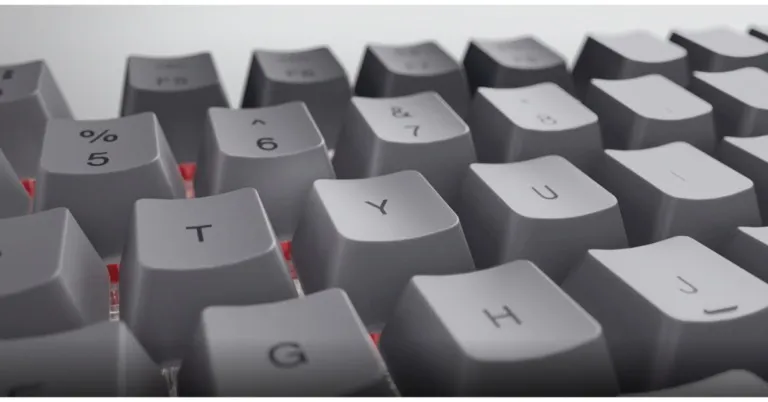
The OnePlus Keyboard, is the brand’s first mechanical keyboard that can be customised. Reportedly the device will launch in India on Feb 7 alongside OnePlus 11 5G and OnePlus Buds Pro 2. Reportedly the Keyboard was spotted in a white colour option and has a gasket design that ensures a precisely timed but gentler motion with a pleasing sound. OnePlus has revealed that the keyboard works with Mac, Windows, and even Linux.
The keyboard will feature Keychron technology, which has a double gasket design and will prevent loud typing sounds, the business previously said. To make the keyboard portable and lightweight, it will be constructed of aluminium. The OnePlus Keyboard will offer customizable options, as was already revealed. One of them allows users to replace switches for distinctive personalization through hot-swappable functionality. The addition of open-source firmware from companies like QMK and VIA is another feature. Additionally, it will work with Mac, Windows, and Linux. Although it may also be used with Microsoft Windows, the layout will be identical to that of a MacBook.
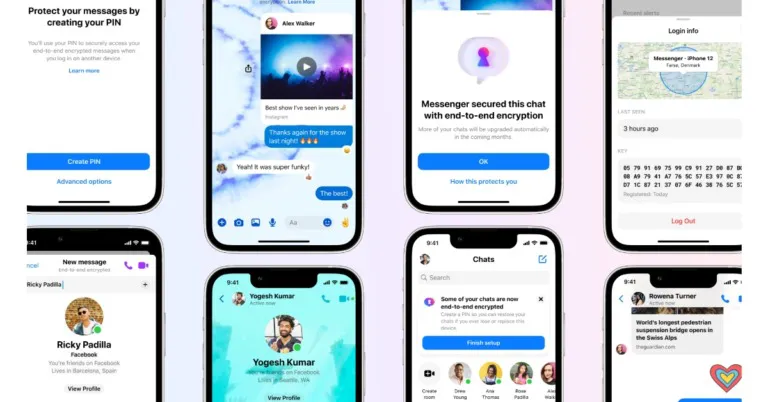
End-to-end encryption for Facebook Messenger has been announced by Meta, the parent company of Facebook, as a security and privacy improvement. Additionally, the firm has added a number of new features, including link previews, custom emoji, themes, and more.
The newest update was revealed by Mark Zuckerberg. He said, “Launching more features for end-to-end encrypted chats for Messenger today – link previews, custom emojis, themes, etc. We’re ramping up testing default end-to-end encryption for more people in Messenger too.”
The testing of Facebook Messenger’s default end-to-end encryption has begun at Meta and is being gradually expanded. More users will gradually begin to notice over the coming months that some of their chats now offer an additional layer of security thanks to end-to-end encryption.
“We will notify people in these individual chat threads as they are upgraded. We know people will have questions about how we select and upgrade individual threads, so we wanted to make clear that this is a random process. It’s designed to be random so that there isn’t a negative impact on our infrastructure and people’s chat experience. This also ensures our new end-to-end encrypted threads continue to give people the fast, reliable and rich experience on Messenger,” the company added.
Additionally, Meta has updated Facebook Messenger with a new set of features.
Group profile photos: When chatting with friends or coworkers, pick a group profile picture.
Chat themes: To help you personalise and improve your conversations in end-to-end encrypted chats, Messenger has included chat themes. For end-to-end encrypted chats, you may now specify themes, including static colour and gradient themes.
Custom chat emojis and reactions: To make your response more personalised In end-to-end encrypted chats, you can access the complete selection of emoji reactions and personalise the quick reaction tray.
Link previews: Links in end-to-end encrypted chats now contain link previews, allowing you to see where they will take you before clicking on them.
Active Status: Let people know when you’re online so they can decide when to call. If you wish to increase your privacy, you can also decide to disable this option.
Bubbles on Android: While using other apps, you can read and react to messages using bubbles (a circle with your friend’s photo in it). When activated, a bubble will show up whenever a new message arrives.
The world’s biggest photo-sharing platform, Instagram, is also preferred by many as their primary Instant Messaging app. While it may not be as popular as IM heavyweights like WhatsApp and Facebook Messenger, Instagram still enjoys massive popularity among its audience. Instagram DMs are also routinely updated to add new features like ‘Vanish Mode’ and ‘Quiet Mode’, in order to offer something more than its peers. Even with all the cutting-edge features, it is not uncommon for the app to face certain issues from time to time. In this article, we bring you the 11 best working methods to fix the ‘Instagram direct messages not working’ issue on your smartphone.
The most likely reason your messages aren’t getting through on Instagram is a faulty connection. Make sure you are connected to an active Wi-Fi network. If not, turn on your mobile data to ensure internet connectivity. Open a web page on Chrome to ensure your internet is working. To further test the signal strength, run a speed test on your phone. If there are no connection issues on your end, the problem likely lies with the app or Instagram servers.
Clear the app cache
Once the cache memory builds up, the temporary files stored in it may get corrupted. This can lead to certain malfunctions within the app. In order to fix this issue, quickly clear the Instagram app cache from your phone’s settings. Here’s how.
Step 1: Go to Settings and select Apps.
Step 2: Scroll down and select Instagram.
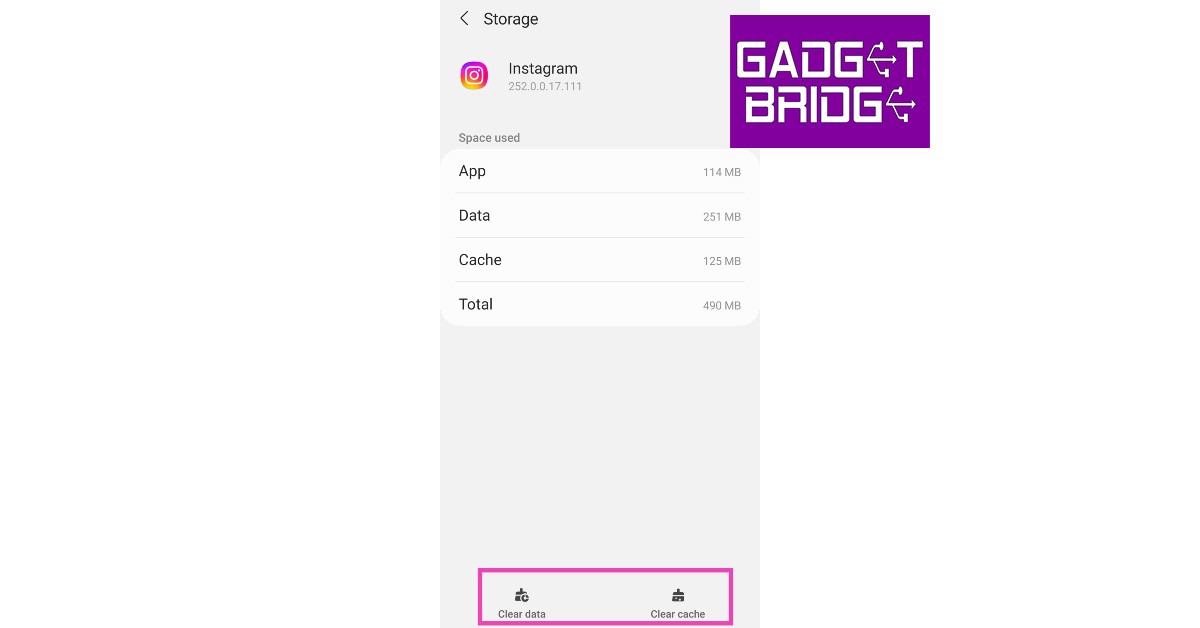
Step 3: Tap on Storage.
Step 4: Select ‘Clear Cache’ from the bottom of the screen.
Force stop the app
If clearing the app cache doesn’t work, try forcefully stopping the app. This will suspend any background activity and shut down the app entirely. A forced stop helps in performing a complete reboot of the app. Once you’ve force stopped the Instagram app, tap on its icon in the app drawer to relaunch it. Here’s how you can force-stop Instagram on your smartphone.
Step 1: Go to Settings and select Apps.
Step 2: Scroll down and select Instagram.
Step 3: Select ‘Force Stop’ from the bottom of the screen and confirm your selection in the following popup box.
Update the Instagram app
Instagram rolls out frequent updates to fix any recent bugs and glitches. If your DMs aren’t getting through because of a bug, you will need to update the app to fix it. If you are using a very old version of the Instagram app, chances are that it has been phased out. You will have to update the app in this case as well. In order to update the app, simply go to Google Play Store, search for Instagram, go to the app page and tap on ‘Update’.
Uninstall and reinstall the app
Sometimes, installation issues can cause an app to malfunction on your phone. If you just installed the Instagram app and can’t get it to work, uninstall and reinstall it again on your device. You can use the Google Play Store or your OEM’s exclusive app marketplace for this task.
Sign out and sign back in
It is also possible that the problem may be specifically related to your account. To reset any account-related glitches, sign out of the Instagram app and sign back in. To sign out of Instagram, go to your profile, tap on the hamburger menu, select Settings, scroll down and select ‘log out’. Once you’re logged out, enter your login credentials (Instagram username and password) to sign back in.
Use Instagram Web
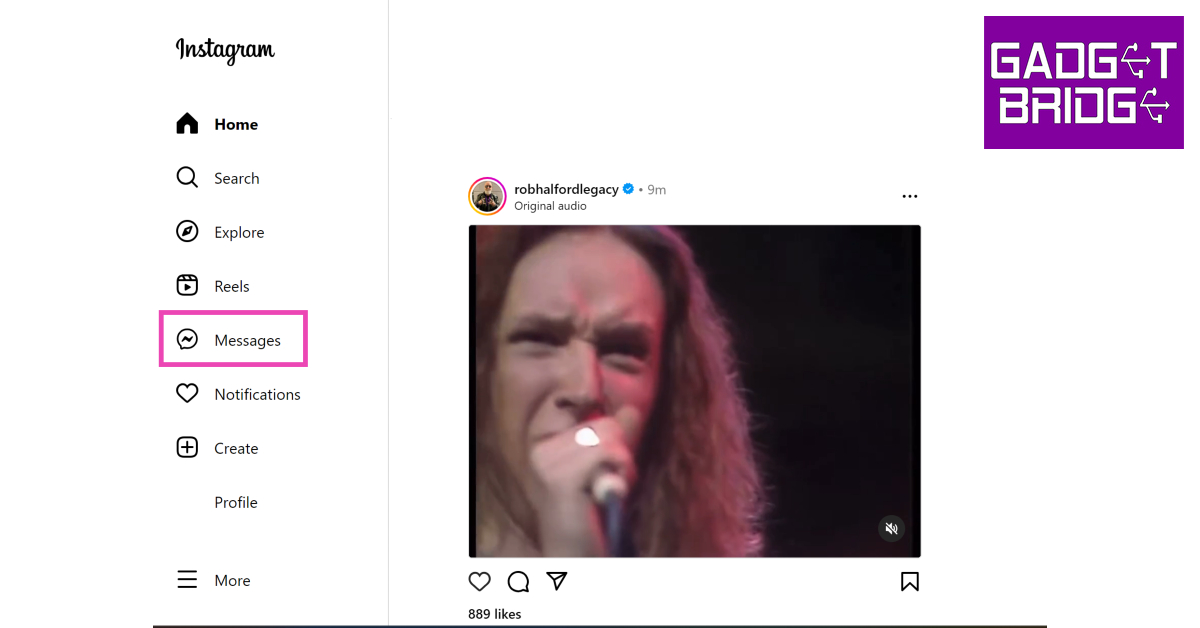
It is possible that the problem may lie with Instagram’s mobile app and not the DM service itself. In this case, Instagram’s Web Interface should work just fine. Go to Instagram’s official website and log in using your username and password. Select ‘Messages’ from the side menu to access Instagram DMs.
Use Instagram Lite
If you’re not a fan of Instagram Web, use the Instagram Lite app instead. This lightweight app uses less data and loads faster than the regular Instagram app. The issues plaguing the regular app may not persist on the Lite version. If your Instagram DMs are not working, the Lite app is worth giving a shot.
Your Instagram account may be restricted
Instagram can impose restrictions on your account if you violate the Terms of Service. This includes posting objectionable content or spamming messages to different users. If you sent a huge volume of messages to multiple users in a short duration of time, Instagram may have flagged your account as a bot and restricted your ability to send DMs. You can report this issue to Instagram and wait until the ban is reverted.
Check if the user has deactivated their account
If your Instagram direct messages aren’t working for one contact in particular, it is likely because they have deactivated their Instagram account. Your conversation with them still shows up in your DMs after they have deactivated their account. You may be able to view their profile for a while before Instagram finally takes it down. Once the profile has been deactivated, the username says ‘Instagram Account’. Instagram allows you to send DMs to a deactivated account, they just won’t go through.
Check if Instagram’s servers are down
It is not uncommon for Instagram’s servers to experience an outage. When the servers are down, all app activity is ceased until the servers are back up and running. You have no other option than to wait it out. To check if Instagram’s servers are down, visit the DownDetector website and search for Instagram.
Frequently Asked Questions (FAQs)
Why are my Instagram Direct Messages not working?
Your Instagram DMs may not be working due to a poor internet connection, an Instagram server outage, or because your account has been restricted.
What is the fix for Instagram Direct Messages not working?
To fix your Instagram Direct Messages try updating the app and clearing its cache. If this doesn’t work, try using Instagram Web.
Why does the Instagram profile in my DMs say ‘Instagram User’?
When someone deactivates their Instagram account, their profile name in your DMs is changed to ‘Instagram User’.
These are the 11 best working methods to fix the ‘Instagram direct messages not working issue’ on your smartphone. For further assistance, you can contact Instagram Help. If the issue is account-specific (like a temporary ban), only Instagram can take the appropriate measures to fix it. If you found this article helpful, let us know in the comments!
Every TWS user will tell you that their biggest pet peeve is how often their wireless headset gets misplaced. Since they are not attached to a wire, TWS earbuds have a tendency to slide under places where it can get pretty hard to replace them. When you’re outdoors, the earbuds can also slip out of your ear and fall down and you may not realise it right away. Luckily, most manufacturers are aware of this issue and equip their TWS products with the necessary tracking features. In this article, we show you how to easily find your lost Samsung Galaxy Buds.
Use the ‘Find my Earbuds’ feature from the Galaxy Wearable app
As we mentioned earlier, earbuds have a tendency to slip into places where you cannot see them. The ‘Find my Earbuds’ feature provided by Samsung rings the earbuds in order to help you locate them. This method can only be used when your Galaxy Buds are connected to your smartphone.
Step 1: Open the Galaxy Wearable app on your smartphone.
Step 2: Select ‘Find my Earbuds’.
Step 3: Tap on the search icon to locate your earbuds. Once your press this icon, your earbuds will start beeping.
Step 4: Locate the source of the beeps. Once you’ve found your earbuds, tap on the ‘Stop’ icon to halt the ringing.
You can also mute one of the earbuds once you find it and keep the other one ringing until you locate it.
How to find the location of your Samsung Galaxy Buds
If your Galaxy Buds are out of Bluetooth pairing range, you can still trace their last paired location. Here’s how.
Step 1: Open the Galaxy Wearable app on your smartphone.
Step 2: Select ‘Find my Earbuds’.
Step 3: Tap on ‘Navigate’. You will be guided to the last paired location using Google Maps.
Step 4: Once you reach the destination where your Galaxy Buds were last paired to your device, select ‘Search nearby’. The Galaxy Wearable app will scan for the Buds and notify you if it finds them.
These are the 2 quick ways you can find your lost Samsung Galaxy Buds. To add an extra layer of security, you can use the Galaxy Wearable app to notify you every time you leave a location with your Galaxy Buds left behind. Certain locations where you commonly leave your earbuds behind, like your home or workplace, can be added to the ‘safe places’ list so as to not receive redundant notifications.
Fitbit was one of the first players to create a solid reputation in the ‘smart wearables’ category, which eventually lead to them being bought out by Google. Fitbit continues to put out excellent fitness-tracking wearables and smartwatches like the Luxe, Sense, Versa, and more. A lot of the appeal of a smartwatch lies in customising it according to your liking and using eye-catching watch faces for the dial. In this article, we show you how to create a custom watch face for Fitbit.
There is a range of Fitbit Watch Faces that you can install on your Fitbit device and customise according to your liking. Here’s how you can choose a new watch face for your Fitbit.
Step 1: Open the Fitbit app on your smartphone.
Step 2: Tap the profile icon on the top right corner of the screen.
Step 3: Select your Fitbit device from the menu.
Step 4: Tap on ‘Gallery’.
Step 5: Select a watch face from the ‘My Clocks’ section. In order to install a new watch face, tap the plus icon.
Step 6: You can choose from a range of paid and free watch faces across categories like ‘Digital’, ‘Stats Heavy’, ‘Analog’, and more.
Step 7: Choose a watch face you like and tap on ‘Install’.
The watch face will be installed and synced with your device.
Add new apps
Your Fitbit device does more than just track your fitness activity. You can add several apps to access a range of functions. Here’s how.
Step 1: Open the Fitbit app on your smartphone.
Step 2: Tap the profile icon on the top right corner of the screen.
Step 3: Select your Fitbit device from the menu.
Step 4: Tap on ‘Gallery’.
Step 5: Tap on the ‘Apps’ tab.
Step 6: Select the app you want on your Fitbit device and hit ‘Install’.
The app will be synced with your Fitbit device.
Use tiles to keep up with fitness goals
Since Fitbit is primarily a fitness tracker, it offers a wide range of tiles to keep you updated about your essential health functions and fitness goals. There are other utility tiles like ‘Timer’ and ‘Weather’ that you can install from the Fitbit app as well. Here’s how.
Step 1: Open the Fitbit app on your smartphone.
Step 2: Tap the profile icon on the top right corner of the screen.
Step 3: Select your Fitbit device from the menu.
Step 4: Tap on ‘Gallery’.
Step 5: Tap on the ‘Tiles’ tab.
Step 6: Choose from a range of fitness and utility tiles like ‘Core Stats’, ‘Heart Rate’, ‘Timers’ and more.
Step 7: Select the Tile you want to see on your Fitbit device and hit ‘Install’.
This is how you can create a custom watch face on Fitbit and add tiles and apps to your device. Some watch faces require access to your health and fitness functions and tiles in order to display the essential info on the device’s home screen itself. If you found this article helpful, let us know in the comments!
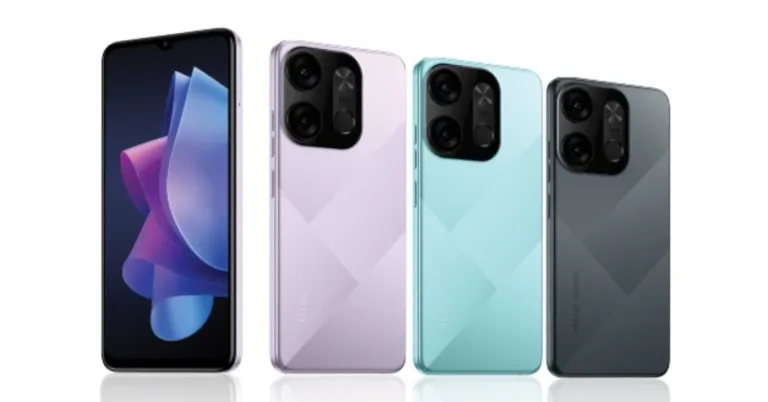
Tecno Spark Go 2023 has been launched in India. The entry-level smartphone offers the first Type-C charger and 5000 mAh battery in the sub-7K price range. The smartphone also has a 13MP primary camera and is powered by MediaTek Helio A22 SoC.
In This Article
Tecno Spark Go 2023 price in India and availability details
The Tecno Spark Go 2023’s 3GB RAM with 32GB storage edition is priced at Rs 6,999 in India. The device is also available in 3GB RAM with 64GB storage and 4GB RAM with 64GB storage options. The price of these variants has not yet been disclosed. The budget smartphone is available at all retail touchpoints in three vibrant colours: Nebula Purple, Endless Black, and Uyuni Blue.
Tecno Spark Go 2023 specifications
Tecno Spark Go 2023 has a 6.56-inch HD+ IPS screen with a resolution of 720×1,612 pixels. It has a screen-to-body ratio of 90%, a 120Hz touch sampling rate, and a peak brightness of 480 nits. The aspect ratio of the screen is 20:9. The phone’s construction is splash-resistant to IPX2 standards. It has up to 4GB of RAM and is driven by a quad-core MediaTek Helio A22 SoC.
Additionally, the phone has a Memory Fusion virtual RAM capability that boosts the RAM by 3GB, giving it a total of 7GB. Up to 64GB of onboard storage is available, and a separate microSD card slot allows for up to 256GB of additional storage. The entry-level phone has HiOS 12.0 on top of Android 12.
The Spark Go 2023 from Tecno comes with a 10W charger and a 5,000mAh battery. According to the company, the users get 12 hours of gameplay, video playback 25 hours and up to 124 hours of music playback.
The Tecno Spark Go 2023 sports two rear cameras, one with a 13-megapixel primary sensor and an f/1.85 lens, the other with an AI lens. A 5-megapixel selfie camera sensor and a front-facing LED flash are located at the front of the device for selfies and video chat. Multiple AI modes like Portrait, HDR, Time-lapse, and AI Scene Detection are also included
Tecno Spark Go 2023 Connectivity
On the Tecno Spark Go 2023, connectivity choices include dual-SIM 4G VoLTE, Wi-Fi 2.4GHz, Bluetooth 5.0, OTG, and USB Type-C. A fingerprint sensor, proximity sensor, e-compass, ambient light sensor, and accelerometer are among the sensors on board.
As home WiFi networks become more commonplace, Smart LED bulbs are also very quickly becoming the norm. A smart LED bulb offers a lot of convenience with its remote functionality, and the ability to set up wake-up and sleep schedules. To add to that, you can even choose from different colour shades. In this article, we bring you our picks for the best colour-changing Smart LED bulbs you can buy right now in 2023.
The Philips Wiz 9W Smart LED Bulb offers a range of 16 million colours with a lot of customisation options. You also get the preset ‘warm’ and ‘light’ colours that you can easily switch between using the WIz app. The Wiz app also allows you to operate the light bulb remotely when you are out. The Philips Wiz comes with Alexa support. You can easily pair the bulb with your Echo device and use voice controls to operate it. Google Assistant and IFTTT support has also been made available. The only requirement for the Philip Smart LED bulb to work is a secured 2.4 GHz WiFi network connection.
Syska SMW-9W-5C Smart LED
Price: Rs 549
The Syska Smart LED is one of the more affordable colour-changing Smart LED bulbs out there, and also comes with a 2-year warranty. This LED bulb also has 16 million colour shades on offer. Users can easily connect the LED bulb to the Syska Smart Home app and use it to control the ambience, choose the colour warmth, and customise the colour shade. The Syska Smart LED also works with Alexa and Google Assistant. A 2.4 GHz WiFi connection is required to access the ‘smart’ functions of the LED bulb.
TP-Link Tapo Smart Bulb
Price: Rs 849
This 60W LED bulb by TP-Link comes with all the essential features of a smart bulb. The Tapo Smart Bulb is pretty easy to use with its plug n play functionality. All you need is a home WiFi connection. Once connected, the Tapo Smart Bulb lets you choose from over 16 million colour shades, letting you save your favourite. It produces up to 806 lumens of white brightness with dimming options from 1-100%. With smartphone connectivity, you can set schedules for auto on/off and even set the bulb to automatically switch to different colour shades at different times of the day. The Sunrise and Sunset modes automatically activate the light bulb according to your time zone. The TP-Link Tapo Smart Bulb also works with Alexa and Google Assistant.
Bajaj 9W WiFi Smart LED
Price: Rs 625
The Bajaj LED Smart Bulb comes with 4 ‘Wellness Centric’ modes – wake up, energize, concentrate, and relax. On top of that, it also has 12 different ambient light presets. Users can also customise different shades with over 16 million colour options to choose from. The smart bulb comes with Alexa and Google Assistant support and has a claimed life of over 15,000 hours.
Wipro 9W E27 WiFi Smart LED
Price: Rs 736
Apart from all the usual features like smartphone connectivity and 16 million colour shades, the Wipro E27 WiFi Smart LED bulb also has an exclusive music sync function to offer. Using Wipro’s Smart Home app, you can sync the bulb to the music playing on your phone. The colours recognise the rhythm of the music and change accordingly. The Wipro Smart LED bulb also allows you to tune the light to different shades of White from warm (2700K) to cool (6500K).
These are our picks for the best colour-changing Smart LED bulbs you can buy right now (2023). All of the LED bulbs mentioned above offer a wide range of at least 16 million colour shades that can be customised from their dedicated smart home apps. Think there’s a worthy entry that we missed out on? Let us know in the comments!
The January Update for New State Mobile is now available on Android and iOS. Players can now get Survivor Pass, a new shooting gallery and siege patterns, and Team Deathmatch Mode on the Arena map. According to the developer the game’s meta is intended to be altered by this month’s update, which includes several balancing adjustments to a number of weapons, vehicles, and the Drone Store.
The popular battle royale game on iOS and Android, New State Mobile, has received its January Update from Krafton. The January update also adds Team Deathmatch Mode (TDM) to the Arena map, new patterns for the Shooting Gallery and Siege Mode, a new Survivor Pass, and other things in addition to the balancing adjustments.
Below is a list of every key feature that was included in the New State Mobile January Update.
To provide players with a more dynamic experience, balancing adjustments have been made to weapons and vehicles in response to player feedback. First, to make previously unpopular weapons more accessible, long-range damage for SMGs, ARs, and LMGs has been reduced. Second, modifications have been made to cars to better reflect their features. The durability of vehicles like the Vrion, Electron, and UAZ has improved, while the speed of cars has grown and the stability of motorcycles has improved for smoother handling. Finally, the cooldown of the Drone Store has been lowered, the delivery speed has risen, and the item prices have been drastically changed. According to Krafton with these efforts, players should be able to engage in a variety of situational confrontations with a greater arsenal and enjoy their matches more.
Moreover, Arena, which previously only permitted Round Deathmatch Mode, now allows players to play TDM (RDM). In TDM, the match is won by the team that reaches 30 eliminations first. Players that are eliminated will respawn at a random spot near their base. However, keep in mind that in TDM, care package goods won’t show up in the map’s centre.
The Shooting Gallery has been changed, and the additional points for SR have been decreased from 800 to 500 in the January Update for New State Mobile. With the update from last month, NEW STATE Labs included a new mode called Siege, which has since undergone significant pattern and difficulty modifications as well as a ranking reset.
The keeper from the Dream Runner faction debuts in Survivor Pass Vol. 15! From the story quests in the Pass, players can learn about Keeper’s origin story. Players will get Keeper’s facial appearance after completing all missions.
Garena Free Fire is a battle royale game with regular awards and tournaments to keep players interested. If you play Garena Free Fire, you should be aware of the redeem codes that are released on a daily basis. However, because the battle royale game is banned in India, players from other countries can use the Free Fire Redeem codes daily. If you’re unfamiliar with the Garena Free Fire redeem codes or don’t know how to get them, we’ve put together a step-by-step guide to help you redeem them. Check out Garena Free Fire Redeem Codes for 24 January 2023.
The Free Fire redeem codes are a great way to get free stuff. These are 12-digit codes that contain alphabets and numbers, as well as an expiration date and time. Because the Garena FF redeem codes cannot be used more than once, you should hurry to the redemption page to claim your free reward before someone else does. To get a free reward, all you have to do is go to reward.ff.garena.com/en, which is the official redemption page. Also, keep an eye on this space for daily updates on Garena Free Fire redemption codes and rewards.
In This Article
Garena Free Fire Redeem Codes Today 24 January 2023
Updating soon
How to Get Free Fire Redeem Codes for Garena on 24 January 2023?