April 30 Amazon Quiz- Answer these five questions and you could win Rs 20,000
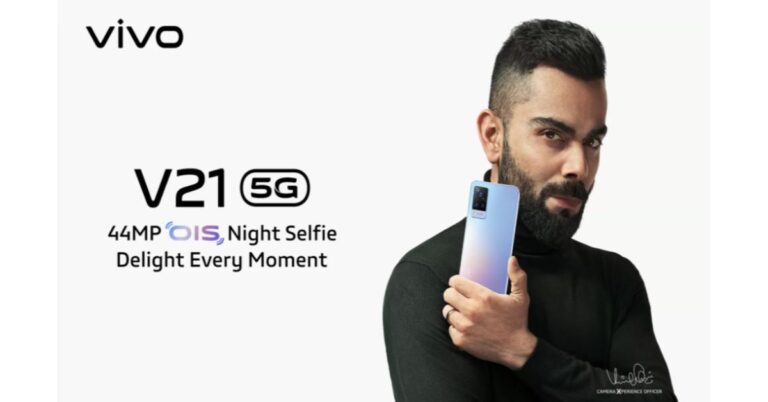
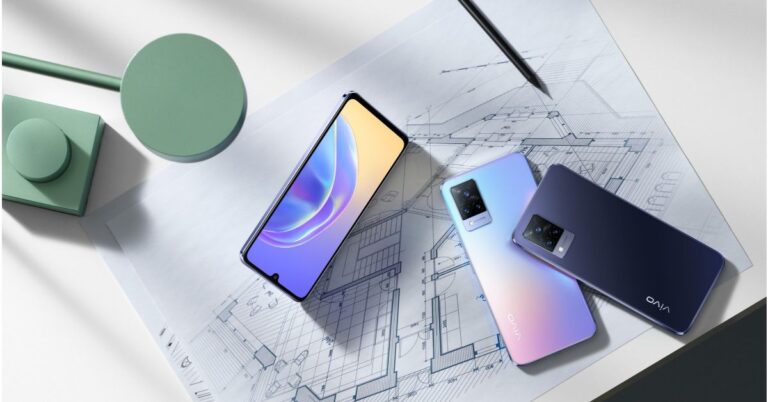
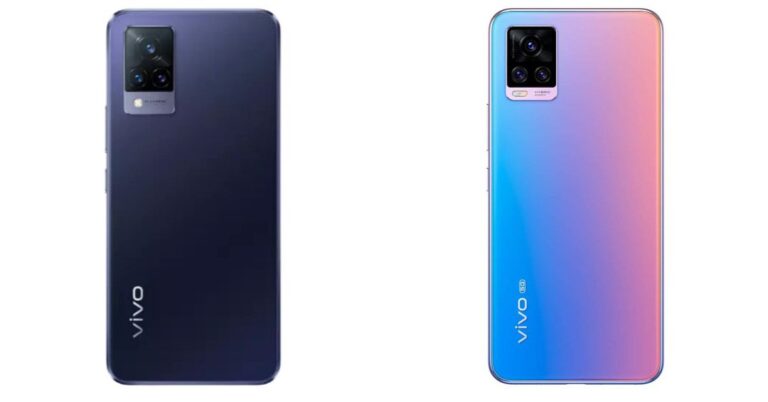
Specifications compared: Vivo V21 5G VS Vivo V20 Pro
In This Article
Display
Vivo V21 5G: 6.44-inch full-HD+ AMOLED display Vivo V20 Pro: 6.44-inch full-HD+ AMOLED displayProcessor
Vivo V21 5G: MediaTek Dimensity 800U SoC Vivo V20 Pro: Qualcomm Snapdragon 765G SoCRear camera(s)
Vivo V21 5G: 64-megapixel primary sensor with an f/1.79 aperture. Further assisted by an 8-megapixel wide-angle sensor with an f/2.2 aperture and a 2-megapixel macro lens Vivo V20 Pro: 64-megapixel Samsung ISOCELL GW1 sensor with an f/1.89 aperture. Further assisted by an 8-megapixel ultra-wide-angle lens with f/2.2 aperture, a 2-megapixel monochrome sensor with an f/2.4 aperture.Selfie camera
Vivo V21 5G: 44-megapixel selfie sensor Vivo V20 Pro: Dual selfie camera setup on the phone houses a 44-megapixel primary sensor with an f/2.0 aperture and an 8-megapixel ultra-wide-angle with a field of view (FoV) of 105 degrees and f/2.28 apertureRAM and storage
Vivo V21 5G: 8GB RAM with 128GB of storage and the 8GB RAM with 256GB of storage Vivo V20 Pro: 8GB RAM with a 128GB storageBattery
Vivo V21 5G: 4,000mAh battery Vivo V20 Pro: 4,000mAh batteryOperating system
Vivo V21 5G: Funtouch OS 11.1 on top of Android 11 Vivo V20 Pro: Funtouch OS 11 based on Android 10Price
Vivo V21 5G: Rs 29,999 Vivo V20 Pro: Rs 29,990Verdict
Vivo V21 comes with bigger storage than its predecessor, which means you have more space to download more applications to store and also makes the device run faster. Moreover, the phone comes with an Extended RAM feature that is said to allow it to use up to 3GB of storage as virtual RAM. The newly launched phone also offers a dedicated microSD card slot to expand storage. Apart from the Vivo V20 Pro offers you a dual selfie camera set up whereas V21 comes with a single 44-megapixel sensor on the front. Both these phones have 5G support for connectivity. So considering the spec as well as the pricing both the handsets have almost the same features so the choice of the phone depends on the usage and requirement of the users, which is subjective. For the latest gadget and tech news, and gadget reviews, follow us on Twitter, Facebook and Instagram. For newest tech & gadget videos subscribe to our YouTube Channel. You can also stay up to date using the Gadget Bridge Android App.How can you use your Apple Watch to unlock your iPhone while wearing a face mask?
In This Article
What are the pre-requisites to unlock your iPhone using the Apple Watch?
There are three pre-requisites to unlock your iPhone using the Apple Watch. They are as follows.- You should be wearing your Apple Watch.
- Your Apple Watch must be unlocked.
- Your Apple Watch must have the passcode enabled.
- You must be wearing a face mask.
- Your iPhone must be running the latest iOS 14.5 version. If your iPhone is running an older version of iOS, you may update it to the latest version in the following steps.
- Launch the Settings application.
- Go to General > Software Update
- If your device is already up to date, you will get the message with the iOS version e.g. “iOS 14.5: iOS is up to date”.
- If your device needs an update, you will be prompted with the message. Just tap Download and install.
- Your Apple Watch must be running the latest watchOS 7.4 version. To install watchOS 7.4 using your Apple Watch, follow these steps.
- It should be noted that your Apple Watch needs to be on a charger or at least have 50% of battery backup to install the update otherwise the update will not begin.
- Open the Settings application on your Apple Watch
- Go to General > Software Update > Install.
- Tap OK.
- Now launch the Apple Watch application on your iPhone and Agree to the Terms & Conditions.
- Tap Download & Install on your Apple Watch

How can you unlock your iPhone using the Apple Watch?
To unlock your iPhone using the Apple Watch, follow these steps.- Launch the Settings app on your iPhone.
- Go to Scroll down and select Face Id & Passcode.
- You will be asked to enter the passcode.
- Scroll down and toggle the Unlock with the Apple Watch option on.
Simplest guide to clean your headphones or earphones
In This Article
How can you clean your earphones?
To clean your earphones, you will require the following things. Before you start cleaning your headphones, you will require the following things.- An old toothbrush
- A small container with water
- A small quantity of soap or detergent
- 3-4 tissue paper or pieces of cloth

- Hold the back case of your earphones firmly and pluck the silicone earcaps.
- Prepare a mixture of soap and warm water in a small dish.
- Soak the removed silicone earcaps in the dish for about five minutes.
- After you take them out, wipe both earcaps with a dry cloth to remove the remaining dirt. The earcaps remain inside your ear as long as you are using the earphones. Cleaning them thoroughly will remove dirt as well as kill germs.
- Leave the silicone earcaps to dry.
- Hold the earphones with the mesh portion facing down.
- Use an old toothbrush to gently rub the mesh portion. This process will remove the dirt collected in the mesh.
- Gently tap the back case of the earphones to get rid of the remaining dirt.
- Wipe the mesh portion of the earphones with a dry cloth to remove the dirt stuck on the mesh portion.
- Soak a piece of cloth in an antiseptic liquid or a hand sanitiser and wipe it over the mesh portion to kill germs.
- Re-attach the silicone earcaps to the earphones.
How to clean your headphones?
Before you start cleaning your headphones, you will require the following things.- A small container with water
- A small quantity of soap or detergent
- 3-4 tissue paper or pieces of cloth

- Prepare a mixture of soap and warm water in a small dish.
- Hold the headphones firmly and remove the earpads. The process to remove the earpads may vary differently from brands of headphones.
- Wipe the outer portion of the headphone using a cloth dampened with the soap solution.
- Once clean, wipe the headphone surface with a dry cloth or tissue paper. Doing this will prevent water from entering the speakers.
- Soak a piece of cloth in an antiseptic liquid or a hand sanitiser and wipe it over the outer portion of each earpad. The exterior remains in touch with your skin and hence needs to be cleaned properly.
- Wipe the mesh with a cloth or tissue paper soaked in the antiseptic liquid. This process will not only make them look clean but also kill germs.
- Wait for the earpads and the mesh to dry.
- Re-attach the earpads to your headphones.
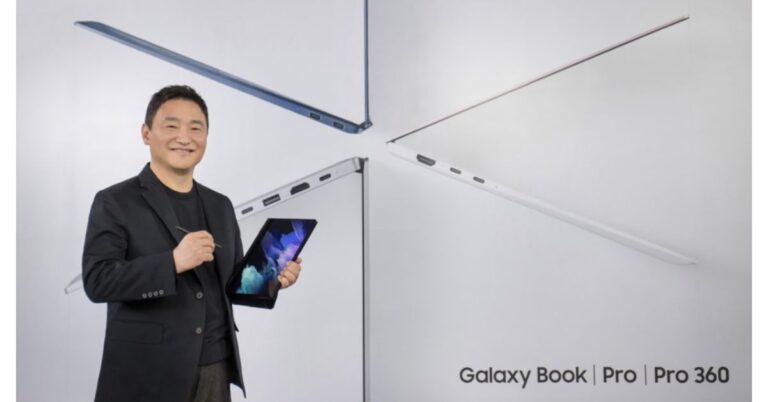
Samsung Galaxy Book, Galaxy Book Pro, Galaxy Book Pro 360 and Galaxy Book Odyssey announced officially: Everything you need to know


How can people over 18 years of age register for COVID-19 vaccination using UMANG app?
In This Article
How is the COVID-19 vaccination programme going on in India?
The COVID-19 vaccination programme was launched on January 16, 2021. The healthcare workers were the first to get vaccinated followed by the frontline workers who got their first dose starting February 2, 2021. On March 1, 2021, people above 60 years and people above 45 years with specified co-morbidity began to be vaccinated. Now, the government has announced the vaccination drive for people above 18 years starting May 1, 2021. According to the Ministry of Health and Family Welfare, Government of India, “In another significant development, India has now become the fastest country in the world to cross the landmark of 14 crore COVID-19 vaccine doses. India achieved this feat in just 99 days”.How can you register for the COVID-19 vaccination using the UMANG application?
To register for the COVID-19 vaccination using the UMANG application- Launch the UMANG application on your smartphone.
- Scroll down and tap the Co-WIN icon under the “What’s new” heading.

- You’ll get two options as follows.
- Register or Login for Vaccination
- Download Vaccination Certificate
- Tap the Register or Login for Vaccination option.

- Enter your mobile number for registration/login and tap the Submit button.
- Enter the OTP to get your mobile number verified.

- Enter your Photo ID Proof along with the unique number. You’ll get five options, namely, Aadhaar Card, Driving License, PAN Card, Passport, and Pension Passbook. It must be noted that your registered Photo Id will be verified at the time of your vaccination appointment.
- Enter your Name, Gender, and Year of Birth. Tap the Register button.
- Once you’re registered on the portal, you may more members of your family for vaccination who are above 18 years. To add a member click the +Add Member button.
- You’ll be required to enter the identification details for each new member added individually.
- Once you have added the members who are eligible for vaccination, you may set the schedule for the vaccination appointment.
- Tap the Schedule Appointment button and then click the Schedule Now button located at the bottom.

- Search for your Pin code and then choose the date and vaccine.
- Tap the View time slots option to choose the desired time slot.
- After you tap Confirm, you will receive a confirmation message on your registered mobile number.
Google’s Q&A will cease to exist on April 30, 2021: How can you download your contributions?
Google has announced that the Q&A on Google feature of Google Search will cease to exist on April 30, 2021. As a result, the questions and answers posted by the users will not be visible on any search page. Moreover, the contributions made by Google users in the Q&A on Google section will be permanently deleted on June 30.
What is the significance of the Q&A on Google?
The Q&A on Google provides a supplementary medium to share knowledge. The Google Search engine is highly optimised to present apt results to the queries searched by the users. To moderate a query, Google lists the most relevant websites as well as those pertaining to the questions asked by the Google community.
The questions posed by the users help the Google engine identify the most sought queries. These queries appear as a list at the top of the search page with the relevant web pages addressing the query. The feature is essentially useful for recent topics like a new technology or a new international convention. The latest topics generally lack a sufficient number of web pages. The Q&A section provides a reliable means to discuss them.

How can you download the questions and answers?
Google has stated that the question and answers posted by users on the Google Search platform will be removed on June 30. Until then users can download the questions and answers using the Google Takeout service.
Google Takeout enables users to save the data linked to their Google account across all Google services like Chrome, Drive, Photos, and Hangouts. The Takeout service exports the entire data or selected option into an archive file that you can download and keep on your device.
To download your questions and answers using the Google Takeout service, follow these steps.
- Launch a web browser on your device.
- Go to the Google Takeout website (https://takeout.google.com/).
- Sign in using your Google Account.
- Click the Deselect all option given at the beginning of the list. It must be noted that you may keep all the options selected but for the sake of example, we’ll choose to save only the questions and answers.
- Scroll down until you see the Search Contributions option.

- Check the box given in front of the Search Contributions heading.
- Click Next Step located at the bottom of the page.
- Here you can choose the method you follow to save your data. You may choose another cloud storage service like OneDrive and Dropbox to transfer your data to. You may also choose to receive a link to download your data via email.
- Choose the Export once option and select the format of the archive file you want to download.
- Click Create export to begin exporting your Google data. The time to export your Google data will depend on its size.
For the latest gadget and tech news, and gadget reviews, follow us on Twitter, Facebook and Instagram. For newest tech & gadget videos subscribe to our YouTube Channel. You can also stay up to date with the Gadget Bridge Android App.
Upcoming MacBook to have M2 chip: Apple may announce the chip next month at WWDC
After the superb outcomes of the famous M1 chip in terms of performance and acceptance, Apple is planning to bring the next member of the M1-series chips. The successor of the M1 chip is expected to be named the Apple M2 chip and may come as early as July 2021.
Why does Apple want to come up with the M2 chip?
Apple’s M1 chip is renowned as one of the most efficient processors. Apple’s silicon chip comes with an integrated CPU, an integrated GPU, and an integrated Neural Engine. Due to the absence of separate segments, there is a high degree of resonance. This results in much faster throughput as compared to the previous generations of Apple hardware. Since the CPU and the GPU reside in a single chip, the overall size is significantly reduced. Moreover, the machine produces hardly any noise while functioning.
Although the M1 chip gives a tough competition to other best-performing chips in the market, it’s still the base model in the M-series Apple chips. Presumably, the upcoming Apple chips will be enhancements of the M1 chip. Users owning an Apple device with the M1 chip will play the role of beta users for the base model chip. The performance limitations and compatibility issues, if any, will be taken care of in the upcoming Apple M-series chips. However, the company is already taken that step and is planning to bring the new M2 chip.
Which Apple products will get the upcoming M2 chip?
Apple’s M1 chip was introduced with the Macbook Pro 2020 and the MacBook Air 2020 models. However, at the Apple Spring Loaded Event 2021, the company announced a series of new products that will also run the M1 chip. These include the new iMac and the new iPad Pro.

Apple has not revealed which products will house the M2 chip. As of now, only the upcoming MacBook Pro models are expected to be powered by the M2 chip. The upcoming MacBook Pro models may arrive in 14-inch and 14-inch form factor. The M2 chip installed on them will deliver better processing and graphics capabilities as compared to the current Intel and M1 based Macbook Pro models.
How will the upcoming Apple M2 chip different from the M1 chip?
Apple has not revealed the architecture of the upcoming M2 chip. However, the chip will reportedly be manufactured by TSMC (Taiwan Semiconductor Manufacturing Co.). The same company manufactures Apple’s M1 chip. The chip is expected to be implemented on a 5-nanometer plus process to deliver an enhanced performance and more integration with the Apple software. How soon can Apple announce the M2 chip?The Apple Worldwide Developers Conference (WWDC) 2021 is around the corner. It is expected to take place between Jun 6, 2021, and Jun 10, 2021. Apple had announced the M1 chip at WWDC 2020 followed by its official launch in November 2020. Thus, the company is expected to reveal the upcoming M2 chip and its specifications during the event.
For the latest gadget and tech news, and gadget reviews, follow us on Twitter, Facebook and Instagram. For newest tech & gadget videos subscribe to our YouTube Channel. You can also stay up to date with the Gadget Bridge Android App.
Vivo V21 5G with 44-megapixel selfie camera and triple rear cameras launched in India: Here are all the details
Sensors on the Vivo V21 5G include an in-display fingerprint sensor, accelerometer, ambient light, gyroscope, magnetometer, and a proximity sensor. In terms of connectivity, there is 5G, 4G LTE, Wi-Fi, Bluetooth v5.1, GPS/ A-GPS, and a USB Type-C port. The smartphone is fuelled by a 4,000mAh battery with 33W FlashCharge fast charging support.
Vivo V21 5G Pricing and availability details
Vivo V21 5G has been introduced in India in two variants. The price of the 8GB RAM with 128GB of storage has been set at Rs 29,999 and the 8GB RAM with 256 of storage option at Rs 32,990.
The device will be available in Arctic White, Dusk Blue, and Sunset Dazzle colour options. It will be up for pre-orders from today onwards and the sale starting from May 6 via e-commerce website Flipkart and Vivo online store as well as multiple offline retailers in the country.
The launch offers by the online partners include V-Shield mobile protection, no-cost EMI options and an exchange discount of Rs 1,500. Other offers that will be offered are a 10 percent cashback to HDFC Bank, Kotak Mahindra cardholders and up to 10 percent cashback on Bajaj Finserve.
For the latest gadget and tech news, and gadget reviews, follow us on Twitter, Facebook and Instagram. For newest tech & gadget videos subscribe to our YouTube Channel. You can also stay up to date using the Gadget Bridge Android App. Garena Free Fire rolls out circus-themed Elite Pass – Theatre of Torment
Truecaller launched COVID-19 Healthcare Directory for Android users to quickly find hospitals
In This Article
Why did Truecaller announce the COVID-19 Healthcare Directory?
The rapid growth of the COVID-19 cases in India has posed immense pressure on the health infrastructure. The number of patients that reach hospitals is more than what hospitals can accommodate. Most hospitals are functioning beyond their capacities. Due to an enormous amount of calls, some hospitals have stopped admitting new patients. As a result, several patients lose their lives even before getting admitted to a hospital. The COVID-19 Healthcare Directory announced by Trucaller will help the COVID-19 patients find the nearest hospitals. This will save them from searching for available medical assistance from one hospital to another. This shall also save their time, money, and energy that could be utilised in the patient recovery.How will the COVID-19 Healthcare Directory of Truecaller work?
Truecaller’s COVID-19 Healthcare Directory will consist of a search button using which users will be able to find the nearest hospitals throughout the country. The company claims that the data stored in the Healthcare Directory will be sourced from the official website of the government of India. Thus, patients can rely on the information provided by the directory.
When will Truecaller release the COVID-19 Healthcare Directory?
The COVID-19 Healthcare Directory is already available in the beta version of the Truecaller app and the users can access it anytime. It must be noted that the feature is currently available only for Android devices. We can expect to appear on the iOS version of the app as well soon. According to Truecaller, “We will be updating it every day and making sure that as many hospital phone numbers from as many areas in India are available”.Which other companies have come up to provide assistance during the ongoing COVID-19 pandemic?
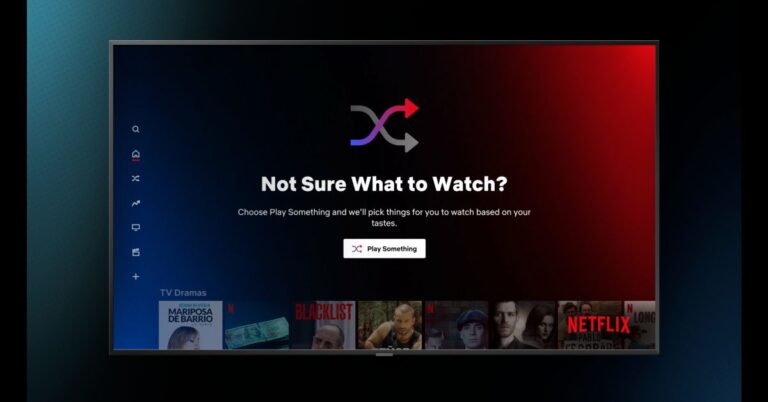
Twitter has added the Advanced Search feature to its platform that will enable the users to use filters to find tweets and hashtags related to the resource they are seeking. For instance, if a user is looking for a vacant bed in a hospital. He can use the advanced search option to find the tweets related to the vacant beds during a specific period and related hashtags. According to Twitter, “Advanced Search https://twitter.com/search-advanced can help you filter for fields like a specific hashtag, time period, or Tweets from a particular account”. For the latest gadget and tech news, and gadget reviews, follow us on Twitter, Facebook and Instagram. For newest tech & gadget videos subscribe to our YouTube Channel. You can also stay up to date with the Gadget Bridge Android App.Netflix rolls out the Play Something button globally for its TV app, will recommend content to watch
The Play Something button can be easily accessed from, underneath your profile name, in the tenth row on your Netflix homepage and navigation menu on the left of the screen.
Also, for those members that use screen-readers, Play Something fully supports Text-to-Speech (TTS). In order to search for your next favourite film or show with Play Something using TTS, visit our Accessibility help center for more information on how to enable this feature through your TV device settings.
For the latest gadget and tech news, and gadget reviews, follow us on Twitter, Facebook and Instagram. For newest tech & gadget videos subscribe to our YouTube Channel. You can also stay up to date using the Gadget Bridge Android App. Vivo V21 Series set to launch in India today: Here is what to expect and how to watch it live

In This Article
Vivo V21 how to watch the Livestream and expected pricing
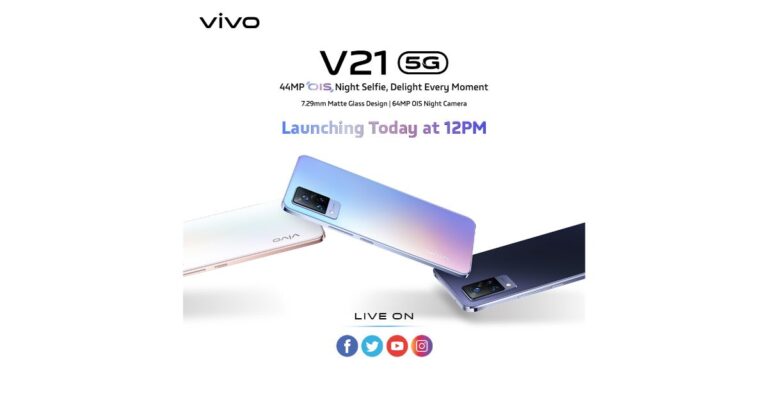
Today the company will be hosting a virtual launch event to announce the arrival of its new phone Vivo V21 5G in India. The launch will kick start today at 12 noon and will be live-streamed via the company’s official YouTube Channel and across all its social media channels including Facebook and Twitter. You can also watch it here on our website as we have embedded the link below. Ahead of the launch the device also got listed on Flipkart to reveal its online availability. The pricing of the smartphone has been kept confidential but the mobile phone is expected to be pricier than its predecessor.Vivo V21 5G specification
As the upcoming smartphone has already been launched in the Malaysian market so we are well aware of its specifications. The Vivo V21 5G will ship Funtouch OS 11.1 on top of Android 11 out of the box. This smartphone has a 6.44-inch full-HD+ AMOLED display with 1,080×2,404 pixels of resolution and a 90Hz refresh rate. Under the hood, there will be an octa-core MediaTek Dimensity 800U SoC. For the optics, it will sport a triple rear camera setup that includes a 64-megapixel primary sensor with an f/1.79 aperture. In addition to this, there is an 8-megapixel wide-angle lens and a 2-megapixel macro sensor. For taking selfies, the device will house a 44-megapixel front-facing camera with a dual-LED flash. The Vivo V21 5G will packs a 4,000mAh battery with 33W FlashCharge fast charging support. The connectivity options on the phone include 5G 4G LTE, Wi-Fi, Bluetooth v5.1, GPS/ A-GPS, and a USB Type-C port. The sensors onboard include an in-display fingerprint sensor, accelerometer, ambient light, gyroscope, magnetometer, and a proximity sensor. For the latest gadget and tech news, and gadget reviews, follow us on Twitter, Facebook and Instagram. For newest tech & gadget videos subscribe to our YouTube Channel. You can also stay up to date using the Gadget Bridge Android AppApril 29 Flipkart Daily Trivia Quiz Answers: Answer to win exciting prizes
In This Article
How to participate in the Flipkart Daily Trivia Quiz
To participate download the Flipkart app on your phone. Then open the Flipkart app then head to Game Zone. Now click on the Daily Trivia Banner or search for Daily Trivia. Enter the game and answer all 5 questions with correct answers.April 29 Flipkart Daily Trivia Quiz Answers
Question 1: Complete the name of this 2019 Netflix documentary. Cricket Fever: _____. Answer: Mumbai Indians Question 2:Identify this Australian player who recently pulled out of the IPL due to personal reasons. Answer: Adam Zampa Question 3:Who is the only player to have scored more than 900 runs in a single IPL season?April 29 Flipkart Daily Trivia Quiz Answers: Answer to win LG Washing Machine
Samsung Galaxy M42 5G Vs OnePlus Nord: What’s the difference?
In This Article
Display
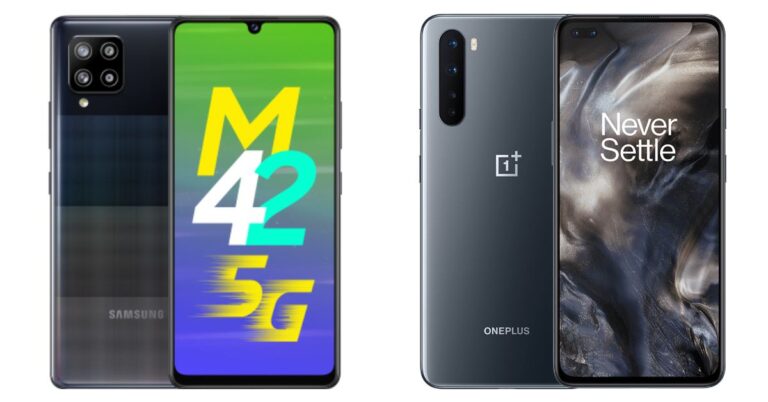
Samsung Galaxy M42 5G: 6.6-inch HD+ Super AMOLED Infinity-U display (720×1600) OnePlus Nord: 6.44-inch full-HD+ Fluid AMOLED display (1080×2400)Processor
Samsung Galaxy M42 5G: Qualcomm Snapdragon 750G SoC OnePlus Nord: Qualcomm Snapdragon 765GRear camera(s)
Samsung Galaxy M42 5G: 48-megapixel GM2 primary sensor. In addition to this, there is a secondary 8-megapixel ultra-wide-angle lens, a 5-megapixel macro sensor, and a 5-megapixel depth sensor. OnePlus Nord: Sony IMX586 48-megapixel primary sensor with an f/1.75 aperture along with optical image stabilisation (OIS). In addition to this, there is a secondary 8-megapixel ultra-wide-angle lens with a field of view (FoV) of 119 degrees and f/2.25 aperture. It also has a 2-megapixel and a 5-megapixel macro and a depth sensor with f/2.4 apertureSelfie camera
Samsung Galaxy M42 5G: 20-megapixel selfie camera OnePlus Nord: 32-megapixel selfie camera sensor and an 8-megapixel secondary sensorRAM and storage
Samsung Galaxy M42 5G: 6GB RAM with 128GB of storage and 8GB RAM with 128GB storage OnePlus Nord: 6GB RAM with 64GB storageBattery
Samsung Galaxy M42 5G: 5,000mAh battery OnePlus Nord: 4,115mAh batteryOperating system
Samsung Galaxy M42 5G: One UI 3.1 based on the top of Android 11 OnePlus Nord: OxygenOS 10.5 based on top of Android 10Price
Samsung Galaxy M42 5G: Rs 21,999 OnePlus Nord: Rs 24,999Verdict
We have compared all the specs of both smartphones. Firstly, the more storage capacity you have the more you will be able to use it to store pictures, apps, videos etc which OnePlus Nord does not offer. It comes in a single storage option only, whereas M42 offers 128GB of inbuilt storage with expansion options. The OnePlus smartphone has no external memory card support compared with Samsung. In addition to this Galaxy M42 5G comes with a bigger battery capacity than its challenger. On the flipside, Nord offers a sharper and crisper screen as it has 1,080×2,400 pixels of resolution whereas its opponent comes with 720×1600 pixels of resolution. Although both of these phones have a similar rear camera set up, OnePlus Nord offers dual front cameras for selfies. So in the end what matters the most is which phone out of the two offers the best features at the best pricing and in this case Samsung Galaxy M42 5G sweeps the board as it is priced less than OnePlus Nord. And most importantly Samsung is right now offering it an introductory price of Rs 19,999. So, that is our pick out of the two. For the latest gadget and tech news, and gadget reviews, follow us on Twitter, Facebook and Instagram. For newest tech & gadget videos subscribe to our YouTube Channel. You can also stay up to date using the Gadget Bridge Android App.How can you block websites from asking to send notifications on Chrome, Firefox, and Edge?
In This Article
How can you block websites asking for notifications on Chrome?
To block websites from asking for notifications on Chrome, follow these steps.- Launch the Chrome browser on your PC or smartphone.
- Click the three vertical dots located at the top-right corner and then click Settings.
- In the side menu, click Privacy and security.

- Go to Site settings > Notifications.

- Here you can handpick which sites you want to prevent from sending notifications.
- To block all sites from sending notification toggle off the option that says, “Sites can ask to send notifications”.

- To block a website from sending notifications, click Add button in the Block section and paste the link to the desired website.
- To allow a website for sending notifications, click Add button in the Allow section and paste the link to the desired website.
How can you block websites asking for notifications on Firefox?
To block websites from asking for notifications on Firefox, follow these steps.- Launch the Firefox browser on your PC or smartphone.
- Click the hamburger icon located at the top-right corner and then click Options.
- In the side menu, click Privacy and security.
- Scroll down to reach the Permissions section.
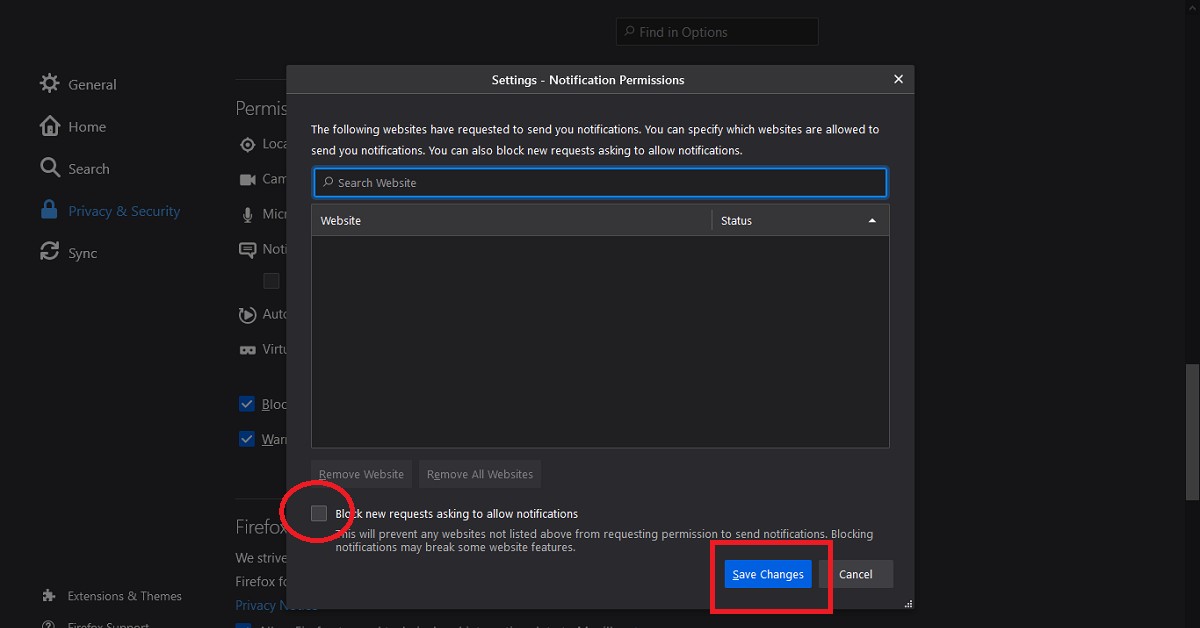
- Click the Settings button corresponding to the Notifications option.

- Click the checkbox that says, “Block new requests asking to allow notifications”.

- Click the Save Changes button.
How can you block websites asking for notifications on Edge?
To block websites from asking for notifications on Edge, follow these steps.- Launch the Edge browser on your PC or smartphone.
- Click the three horizontal dots located at the top-right corner and then click Settings.
- In the side menu, click Cookies and site permissions.
- Scroll down and click the Notifications option.

- Here you can handpick which sites you want to prevent from sending notifications to you.
- Toggle off the option that says, “Ask before sending (recommended)”.

Covid-19 vaccination for 18+ citizens begins May 1, 2021: How can you get registered on the Co-WIN portal?
In This Article
How has India performed in the COVID-19 vaccination till now?
The COVID-19 vaccination programme in India has been carried out at a pace faster than anywhere else in the world. The country has managed to get a significant number of people vaccinated in a short time. According to estimates, 92,90,528 healthcare workers, 1,19,50,251 frontline workers have been given the first dose. According to the Ministry of Health and Family Welfare, Government of India, “In another significant development, India has now become the fastest country in the world to cross the landmark of 14 crore COVID-19 vaccine doses. India achieved this feat in just 99 days,” the Ministry highlighted. The COVID-19 vaccination programme was launched on January 16, 2021. The healthcare workers were the first to get vaccinated followed by the frontline workers who got their first dose starting February 2, 2021. On March 1, 2021, people above 60 years and people above 45 years with specified co-morbidity began to be vaccinated. Now, the government has announced the vaccination drive for people above 18 years starting May 1, 2021.How can people above 18 years register for vaccination?
The citizens above 18 years of age can register for the vaccination appointment in the following steps.- Launch a web browser on your smartphone or a PC.
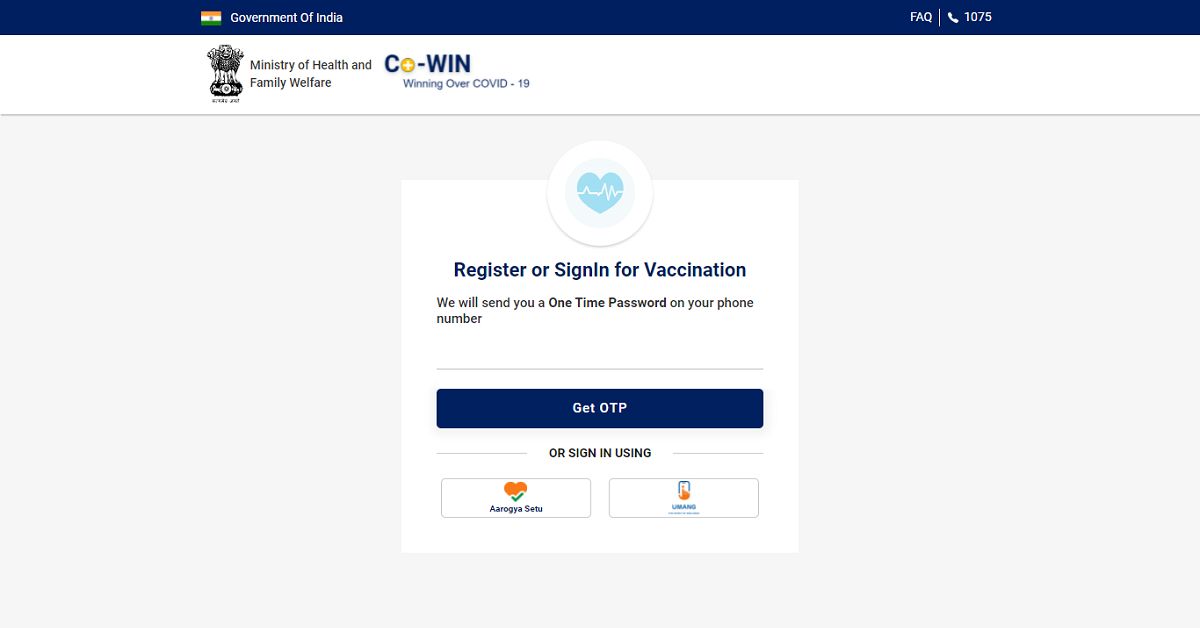
- Go to the official Co-WIN portal (https://www.cowin.gov.in/home).
- Click the Register/ Sign in yourself button located at the top.

- Enter your mobile number for verification via OTP.

- Once your mobile number is verified, you’ll be greeted by the registration page. Click the Register Member button.

- Enter your Photo ID Proof along with the unique number. You’ll get five options, namely, Aadhaar Card, Driving License, PAN Card, Passport, and Pension Passbook. It must be noted that your registered Photo Id will be verified at the time of your vaccination appointment.

- Enter your Name, Gender, and Year of Birth.
- Click the Register button.
- Once you’re registered on the portal, you may more members of your family for vaccination who are above 18 years. To add a member click the +Add Member button.

- You’ll be required to enter the identification details for each new member added individually.
- Once you have added the members who are eligible for vaccination, you may set the schedule for the vaccination appointment.
- Click the Schedule button and then click the Schedule Now button located at the bottom.

Vivo V21 5G, Vivo V21, and Vivo V21e with triple rear cameras launched
In This Article
Vivo V21 series pricing and availability
Though Vivo V21 5G has been introduced in Malaysia but the company has not revealed its pricing. On the other side, Vivo V21 and V21e have been launched with a price tag of MYR 1,599 and MYR 1,299 that translates to Rs 29,000 and Rs 23,000 respectively. Both the phones will go on their first sale starting May 4 but these are up for pre-orders now. The Vivo V21 5G and the standard model will come in three colour options of Arctic White, Dusk Blue, and Sunset Dazzle. On the other hand, V21e will be offered in two different shades of Diamond Flare and Roman Black.Specifications
Starting with the Vivo V21 5G and V21. It should be noted that the specifications of both of these devices remain the same apart from 5G support. The smartphones feature a 6.44-inch full-HD+ AMOLED display with 1,080×2,404 pixels of resolution and a 90Hz refresh rate. The phones run Funtouch OS 11.1 on top of Android 11 out of the box and are powered by octa-core MediaTek Dimensity 800U SoC. On the imaging front Vivo V21 5G and V21 comes with a triple rear camera setup that includes a 64-megapixel primary sensor with an f/1.79 aperture. In addition to this, there is an 8-megapixel wide-angle lens and a 2-megapixel macro sensor. For the selfies, these smartphones house a 44-megapixel front-facing camera with dual-LED flash.
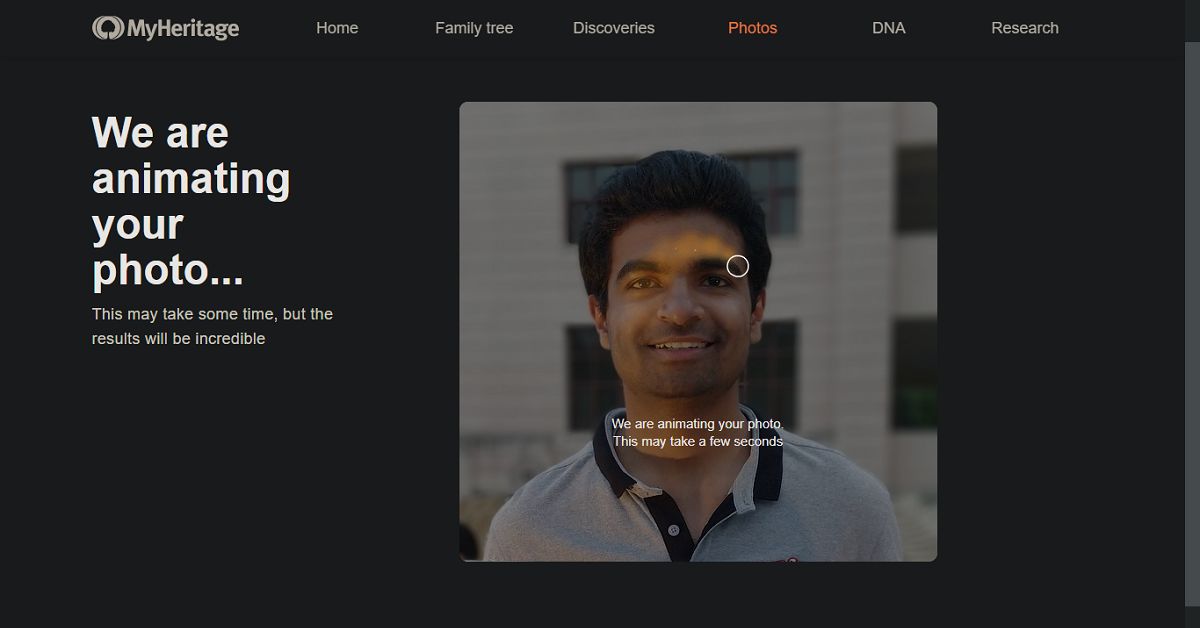
How to animate old pictures using the Deep Nostalgia feature of MyHeritage?
In This Article
Why is unique about the Deep Nostalgia feature of MyHeritage?
The Deep Nostalgia feature got famous when animated pictures of famous personalities from the 19th and 20th century began to float on different social media platforms like Instagram, Snapchat, and Twitter. Mostly, people chose to animate the pictures of personalities from the 19th and 20th century including Mahatma Gandhi, Bhagat Singh, Abraham Lincoln, and Marie Curie. Watching animated pictures of these personalities is itself an amazing experience. It instils the curiosity to visualise famous people of the past centuries in motion. The Deep Nostalgia feature brings old pictures to life. Gradually, people started posting animated pictures of their family tree.How does the Deep Nostalgia feature of the MyHeritage app work?
The Deep Nostalgia feature of the MyHeritage app utilises deep learning algorithms to animate the pictures. It implements several drivers with each driver focussing on a fixed sequence of movement and facial gesture. Once the drivers are applied to a picture. They can guide the movement of different facial features producing realistic movements. These movements appear as blinks, smile, and head-turning.How can you animate pictures using Deep Nostalgia on the MyHeritage app?
To animate pictures using Deep Nostalgia on the MyHeritage app, follow these steps. Go to the Play Store (https://play.google.com/store/apps/details?id=air.com.myheritage.mobile&hl=en_IN&gl=US) or the App Store (https://apps.apple.com/il/app/myheritage/id477971748) and install the MyHeritage app.- Launch the MyHeritage Application.
- Register on the app or sign in using your credentials if you already have an account.
- Click the Photos button given at the bottom.

- Add a picture that you wish to animate by clicking the Plus (+) button located at the bottom right corner.

- Click the picture to bring it to the canvas.
- Click the icon depicting a ball in motion located at the top.

- Wait for the app to produce the animation of the image.
- You may download the animation by clicking the download icon located at the top-right.
- The animation will be saved as a video in MP4 format so that you can easily share it on social media.
How can you animate pictures using Deep Nostalgia on the MyHeritage website?
To animate pictures using Deep Nostalgia on the MyHeritage website, follow these steps.- Launch a web browser on your PC and go to the Deep Nostalgia page on the MyHeritage website (https://www.myheritage.com/deep-nostalgia).
- Click the Upload photo button.

- Choose the image file that you wish to animate.
- Wait for the website to produce the animation of the image.

- You may download the animation by clicking the Download video button.
- The animation will be saved as a video in MP4 format so that you can easily share it on social media.
Telegram update brings Payments 2.0, scheduled voice chats, and new web version: Everything you need to know
In This Article
What is the new Payments 2.0 feature of Telegram?
The new Payments 2.0 feature is the most significant feature added to the new update of the Telegram application. The feature will enable the users to transfer money to contacts, groups, and channels using the app. The feature will be applicable in more than 200 countries including India. The payment information will remain secured with the user and shall not be taken by the company.What are other platforms that have started providing integrated methods of payment?
Online platforms that have recently started supporting built-in payment feature are as follows.Clubhouse
Clubhouse, an invitation-only audio-chat service, announced a similar feature in its application. According to the company, the new ‘Clubhouse Payments’ feature will enable content creators to monetise their content. Earlier, the service only provided an environment to promote their content but not monetise them.
What are other features offered by the Telegram update?
The other features brought by the new update of the Telegram app are as follows.Scheduled voice chats
The Voice Chats 2.0 has got an update by which the users can schedule the voice chats This will allow them to send messages at the desired time. The Voice Chats 2.0 will essentially be useful for formal Telegram groups in which information is being delegated on a regular basis.
Voice chat reminders
Now users can add voice chat reminders so that they can join them on time. Moreover, the app offers mini-profiles that you can refer to while chatting with a person. This shall not only help you know about the other person but also build a rapport.New web versions
The Telegram update comes with two new web versions, namely, Telegram Web K and Telegram Web Z. Both versions will offer several features including animated stickers, dark mode, and chat folders. For the latest gadget and tech news, and gadget reviews, follow us on Twitter, Facebook and Instagram. For newest tech & gadget videos subscribe to our YouTube Channel. You can also stay up to date with the Gadget Bridge Android App.Xiaomi announced to launch the K40 Game Enhanced Edition: Features and Price
In This Article
How much will the Redmi K40 Game Enhanced Edition cost?
The Redmi K40 Game Enhanced Edition will be available in five storage variants. The smartphone will initially be available in China starting April 30, 2021. The expected price of each variant is as follows.- 6GB of RAM and 128GB of storage: ₹ 23,000
- 8GB of RAM and 128GB of storage: ₹ 25,000
- 8GB of RAM and 256GB of storage: ₹ 27,000
- 12GB of RAM and 128GB of storage: ₹ 27,514
- 12GB of RAM and 256GB of storage: ₹ 31,000
What are the features of the new Redmi K40 Game Enhanced Edition?
The features of the new Redmi K40 Game Enhanced Edition are as follows.Design
The Redmi K40 Game Enhanced Edition is known as the first gaming lightweight smartphone by Redmi. The smartphone features pop-up shoulder buttons that resemble gaming triggers. These gaming triggers will not only improve the gameplay experience, but also the performance. The pulsating ambient light at the rear can switch colours notifying calls and messages.Display & Color
The Redmi K40 Game Enhanced Edition is only 8.3mm thick and will be available in three colour variants, namely, Black, Silver, and White. The smartphone will also be available in a Bruce Lee Special Edition. The device features a 6.67-inch Full HD+ OLED HDR10+ display with a refresh rate of 120Hz and a touch sampling rate of 480Hz.Performance
The Redmi K40 Game Enhanced Edition runs the powerful MediaTek Dimensity 1200 chip. The chip was launched recently and features an octa-core architecture. The chipset comprises an Arm Mali-G77 MC9 GPU to deliver high graphic performance while gaming or video-streaming. The smartphone will come in storage variants. It houses a massive 5,065mAh battery supported by 67W fast charging. The device runs the MIUI 12.5 based on Android 11.
Camera
The Redmi K40 Game Enhanced Edition features a triple camera setup comprising a 64MP primary lens, an 8MP ultra-wide sensor, and a 2MP macro lens. There is also a 16MP front camera for video chats and clicking selfies. The smartphone is loaded with smart camera features to get outstanding pictures and video capturing. These include Portrait mode, Night mode, AI capabilities, and Beauty mode.Connectivity and Miscellaneous features
The Redmi K40 Game Enhanced Edition comes with the latest connectivity features like 5G support and Wi-Fi 6. These connectivity features will ensure fast-paced online gaming and streaming. With Bluetooth version 5.1, you can seamlessly connect smart devices like speakers and voice assistants. You get a USB Type-C port for fast data transfer. The dual stereo speakers supported by Dolby Atmos will render an immersive listening experience. Other features include IP53 dust and water resistance, Game Turbo 5.0, X-axis linear motor, and aerospace heat dissipation system. For the latest gadget and tech news, and gadget reviews, follow us on Twitter, Facebook and Instagram. For newest tech & gadget videos subscribe to our YouTube Channel. You can also stay up to date with the Gadget Bridge Android App.Samsung Galaxy M42 5G with 5,000mAh battery launched in India: Price, tech specs and more
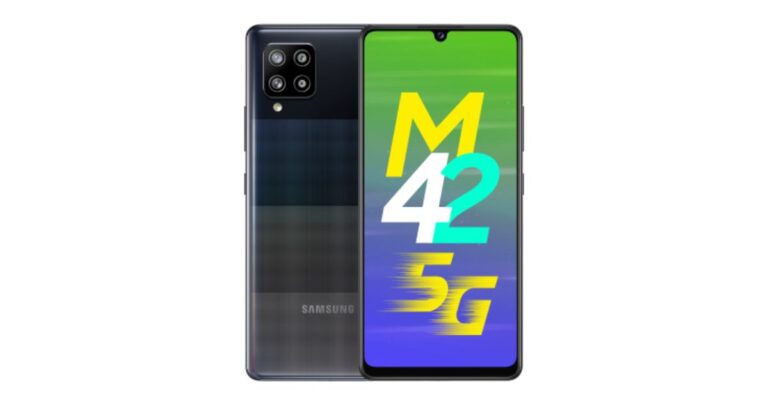
Samsung Galaxy M42 5G technical specifications
Samsung Galaxy M42 5G features a 6.6-inch HD+ Super AMOLED Infinity-U display. The smartphone runs on One UI 3.1 based on the top of Android 11 out of the box. Inside, there is a Qualcomm Snapdragon 750G SoC paired with up to 8GB of RAM and 128GB storage. The internal memory can be expanded up to 1TB via a microSD card.
In terms of camera, Samsung Galaxy M42 5G comes with a quad rear camera setup consisting of a 48-megapixel GM2 primary sensor. In addition to this, there is a secondary 8-megapixel ultra-wide-angle lens, a 5-megapixel macro sensor, and a 5-megapixel depth sensor.
Upfront there is a 20-megapixel selfie camera. In addition to this, there are a plethora of features that include Single Take that gives you multiple photo and video outputs with a single click, Night Mode, Hyperlapse, Super-Slow motion, Scene Optimiser and Flaw Detection.
The newly launched smartphone is backed by a 5,000mAh battery with 15W fast charger support. The phone is claimed to deliver 36 hours of talk time, 22 hours of internet browsing and 34 hours of video play on a single charge. In addition to this, the Galaxy M42 5G also equips Knox Security and Samsung Pay.
For the latest gadget and tech news, and gadget reviews, follow us on Twitter, Facebook and Instagram. For newest tech & gadget videos subscribe to our YouTube Channel. You can also stay up to date using the Gadget Bridge Android App. Itel Vision 2 with 4,000mAh battery and triple rear cameras launched in India: Pricing and specification details
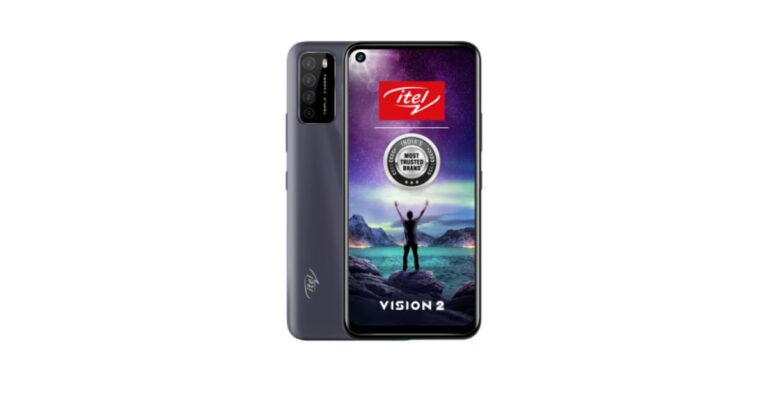
Itel Vision 2 technical specifications
Itel Vision 2 is highlighted with a 6.6-inch HD+ notched display that offers 720×1,600 pixels of resolution and a 20:9 aspect ratio. The display comes with a 90 percent screen-to-body ratio and 450 nits peak brightness. The phone runs on Android 10 (Go edition) and under the hood, there is an octa-core SoC clocked at 1.6GHz paired with 2GB of RAM and 32GB of storage.
On the camera front, Itel Vision 2 comes with a triple rear camera setup that includes a 13-megapixel primary sensor. It further includes a 2-megapixel macro and a 2-megapixel depth sensor. For taking selfies and video calling the smartphone features an 8-megapixel front-facing camera.
The device packs a 4,000mAh battery that is claimed to deliver up to 35 hours of music playback, 7 hours of video playback and 26 hours of calling time. In terms of connectivity, there is VoWi-Fi, Dual Active 4G VoLTE, GPS, Bluetooth, and so on. In addition to this, there is a rear-mounted fingerprint scanner, ambient light sensor, proximity sensor, accelerometer and more as sensors on board.
For the latest gadget and tech news, and gadget reviews, follow us on Twitter, Facebook and Instagram. For newest tech & gadget videos subscribe to our YouTube Channel. You can also stay up to date using the Gadget Bridge Android App. How can you change Siri’s voice on iOS 14.5 and on macOS Big Sur 11.3?

In This Article
What are the prerequisites for switching to the new Siri voices?
Siri’s new voices are available on the iOS 14.5 version. Thus, you must ensure that your device is running the latest iOS version. To check the iOS version on your device, follow these steps.- Launch the Settings application.
- Go to General > About.
- Against the Software Version heading, you’ll find your iOS version.
- Launch the Settings application.
- Go to General > Software Update
- If your device is already up to date, you will get the message with the iOS version e.g. “iOS 14.5: iOS is up to date”.
- If your device needs an update, you will be prompted with the message. Just tap Download and install.
How can you change Siri’s voice on iOS?
To change Siri’s voice on iOS, follow these steps.- Launch the Settings application on your iOS device.
- Scroll down and tap Siri & Search.
-
Scroll down and tap Siri & Search. - Tap Siri Voice. Here you will find a list of voices. Siri offers several language accents like Indian, American, Australian, British, Irish, and South African.

- You may preview each voice by tapping them.

- Once you tap a voice, it will be downloaded to switch anytime.
How can you change Siri’s voice on Mac?
You may also switch to the new voice of Siri on macOS Big Sur 11.3. To change Siri’s voice on a Mac device, follow these steps.- Open the Apple menu located on the top-left corner.
- Launch System Preferences.
- Select Siri and choose the desired voice.