How to Find Hidden Cameras In Hotel Rooms Using Your Mobile Phone?

The rise of homestay rental services like Airbnb has also led to an increase in malicious practices that property owners might use on their guests. It is best to be precautionary and take basic safety measures, especially when you’re unsure of the safety of your hotel room. You can never be too sure when you are out on a third-party property with your family. These ill sources can be found everywhere. So precaution is always better than cure. In this article, we will show you how you can find any hidden cameras in hotel rooms using your mobile phone. Read Also: Oyo is now valued at $10 billion: Here are the details

How to find a hidden camera using your mobile phone camera

Step 1: Turn off all the lights in the room. Draw the curtains and turn off all sources of light, including TV, laptop screen, etc. Make sure the room is pitch dark. Turn off all the lights in the room. how to find a camera. Step 2: Turn on the camera on your smartphone and point it towards suspicious places where you think a camera might be hidden. This includes clocks, vases, bookshelves, mirrors, showerheads, or any object or location where a camera can be discreetly hidden. Turn on the camera on your smartphone. how to find hidden camera Step 3: Look out for any flashes of light on your phone screen. Hidden cameras emanate Infrared light, which can be detected by your camera lens leading to small flares of light.  Step 4: If you notice a light on your screen, do a close inspection of the area and look for any hidden cameras.

How to find a hidden camera using your mobile phone flashlight

Step 1: Turn off all lights in the room and ensure it is pitch dark. Step 2: Turn on the flashlight on your smartphone and point it toward any suspicious objects. turn on flashlight. how to find hidden camera. Step 3: Look for any light reflections. The hidden camera has a lens that reflects light at a certain angle. Make sure you keep changing the angle at which you’re pointing your flashlight in order to be thorough. Step 4: If you notice a reflection, do a close physical inspection for any hidden cameras. Read Also: Online dating app Tinder now launches an in-app Safety Center in India You can also use apps like Detectify and Radarbot to find any hidden devices. If you want to go the extra mile you can also purchase a Radio Frequency (RF) detector. An RF detector will scan the room for any radio waves. Usually, a hidden camera transmits its feed to another device, which can be picked up by an RF detector. If you find a hidden camera, immediately report it to the police. Finding any recording device on such premises is incriminating evidence. For the latest gadget and tech news, and gadget reviews, follow us on TwitterFacebook and Instagram. For newest tech & gadget videos subscribe to our YouTube Channel. You can also stay up to date using the Gadget Bridge Android App. You can find the latest car and bike news here.

Samsung Galaxy F13 with 6,000mAh battery launched in India

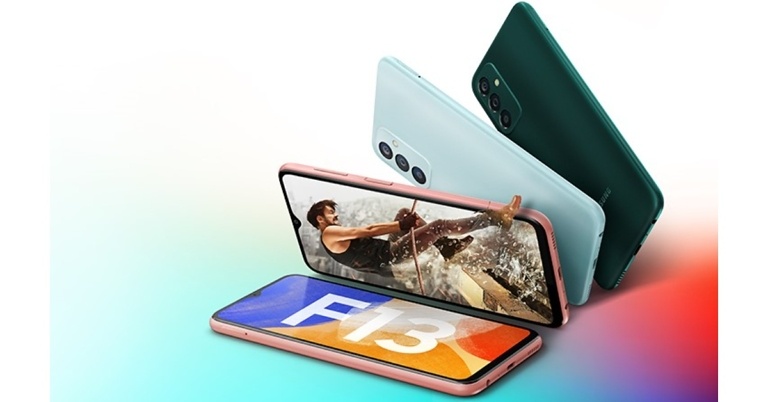
Samsung has upgraded with F-Series with the launch of a new smartphone in the Indian market. The company has announced Samsung Galaxy F13 featuring a 6,000mAh battery and triple rear cameras. The handset is powered by an octa-core Exynos 850 SoC.

Samsung Galaxy F13 price in India, availability

The starting pricing for the 4GB RAM with 64GB storage edition of the Samsung Galaxy F13 in India is set at Rs 11,999. The phone is also offered in a 4GB with 128GB option, which costs Rs 12,999. It comes in the colours Nightsky Green, Sunrise Copper, and Waterfall Blue. Starting on June 29, it will be available for purchase on Flipkart, Samsung.com, and in a few physical stores. Samsung Galaxy F13 price in India, availability Customers who have an HDFC Bank card can take advantage of Rs 1,000 instant bank discount as part of the Samsung Galaxy F13’s launch promotions. Along with the discounted prices on the new Samsung phone, Flipkart is also offering the Google Nest Mini and Nest Hub.

Samsung Galaxy F13 specifications

The 6.6-inch full-HD+ display with 1,080×2,408 pixels of resolution. The new budget smartphone operates on Android 12. Together with 4GB of RAM, the Exynos 850 SoC powers the phone. Additionally, the RAM Plus feature allows you to use the built-in storage to virtually enlarge the memory. It has internal storage that can hold up to 128GB and can be expanded with a microSD card up to 1TB via a specific slot. The triple rear camera system on the Samsung Galaxy F13 includes a 50-megapixel primary sensor, a 5-megapixel ultra-wide camera, and a 2-megapixel depth sensor. The device has an 8-megapixel camera sensor up front for selfies and video calls. The 6,000mAh battery on the Samsung Galaxy F13 supports 15W fast charging. For optimised performance, Galaxy F13 supports adaptive power-saving and AI Power Management that puts apps unused for three days in Sleep mode and apps unused for one month in Deep Sleep mode. The Samsung Galaxy F13 offers 4G LTE, Wi-Fi 802.11ac, Bluetooth v5.0, GPS/A-GPS, USB Type-C, and a 3.5mm headphone port as connectivity options. An accelerometer, ambient light sensor, magnetometer, and proximity sensor are among the sensors on board. A side-mounted fingerprint sensor is also included with the phone. There is an Auto Data Switching feature for seamless connectivity. The segment-first feature helps users stay connected with their loved ones even when the primary SIM is in a no-network area through the data of the secondary SIM.  For the latest gadget and tech news, and gadget reviews, follow us on TwitterFacebook and Instagram. For newest tech & gadget videos subscribe to our YouTube Channel. You can also stay up to date using the Gadget Bridge Android App. You can find the latest car and bike news here.

Top 4 Apps That Help You Save Income Tax (2022)

Those amongst you who belong to the category of taxpayers of the country know how tedious and cumbersome the entire tax filing process is. But the real struggle is to find various means and ways and understand different financial policies so that you can save a few bucks from income tax. There are millions of apps available on the Google Play Store today. So how can there not be some for managing your budget and income tax? We have handpicked for you, the top 4 apps that can help you save income tax in 2022. These apps make the entire process of financial planning, investment and tax filing, extremely hassle-free.     

Money Manager Expense & Budget

Money-Manager Expense & Budget The first on our list of the top 4 apps that help you save income tax is the Money Manager expense and budgeting application for Android. It helps you with financial planning and review, expense tracking and personal asset management, all through a single platform. It simplifies the management of your personal or business finances by recording your transactions, generating spend reports, and offering a budget planner. You can review your assets on a daily, weekly or monthly basis. It even provides you with credit or debit card management services and allows the transfer of assets efficiently.  Download Money Manager. Read also: Apps That Save Time: Top 10 Android Apps That Help You Get Your Work Done Faster

Income Tax Filing By TaxBuddy

Income Tax Filing By TaxBuddy TaxBuddy is an income tax filing application which covers all your tax-related requirements. It is suitable for all individuals including salaried professionals, business people as well as SMEs. The GST and Income Tax Return (ITR) filing services provided by the platform are claimed to be guided by Chartered Accountants. It provides end-to-end tax advisory services and even provides live tax expert advice whenever needed. The platform offers AI-based tax planning services and guarantees tax savings of up to 26%.  Download TaxBuddy.

Black By ClearTax 

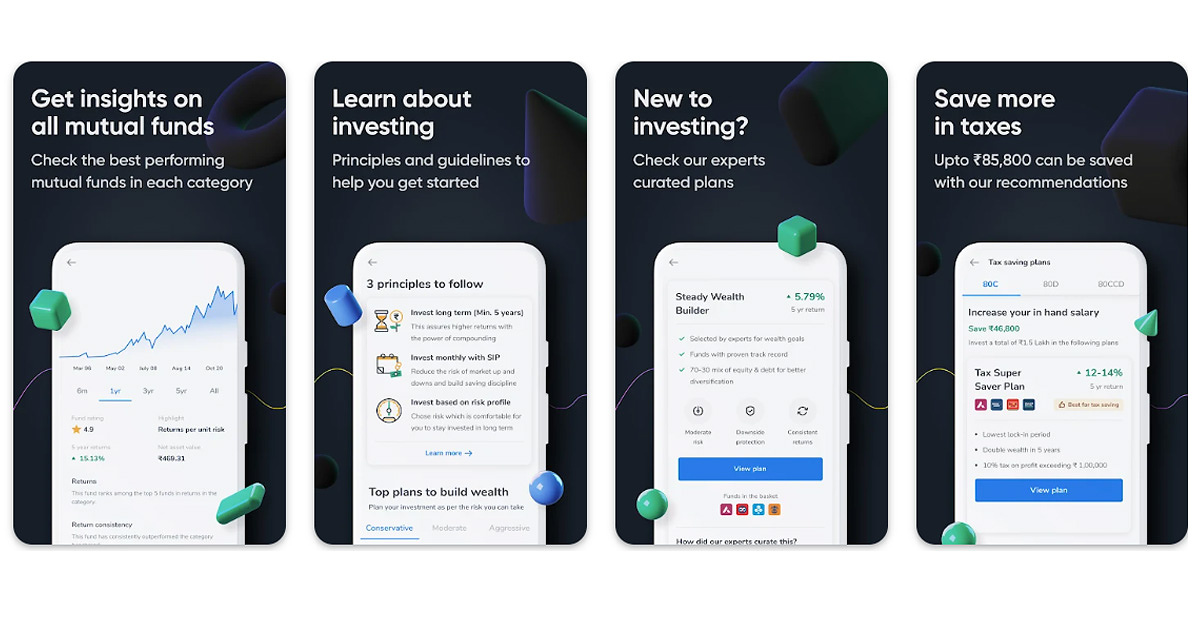
Black By ClearTax- Top 4 Income Tax Saving Applications 2022 Next on our list of the 4 best apps that help you save income tax in 2022 is the Black app by ClearTax. It serves the dual purpose of making financial investments in the form of Mutual Funds as well as filing Income Tax Returns (ITR). It offers various tax-saving investment options like ELSS mutual funds that help you save income tax. You can get tax-saving recommendations and detailed insights about each mutual fund plan to make a well-informed investment decision.  Download ClearTax Black. Read also: Top 15 Best Android TV Apps You Should be Using In 2022

MyTax: Tax Calculator India 2022 

MyTax-India 2022 Our final recommendation for the best tax-saving applications to use in 2022 is MyTax. It is one of the highest-rated tax apps on the Play Store and provides you with an easy-to-use interface for efficient tax calculation and planning. It puts forward the old and the new tax regimes so that a user can understand income tax calculation and tax-saving opportunities, and choose the one that best fits them.  Download MyTax. So those were our top picks for the best 4 income tax saving apps that you can use in 2022. We would love to hear about your experience with these applications. We would also be delighted to get more recommendations from your side, for apps that help in saving income tax. Do write to us in the comments section below.  For the latest gadget and tech news and gadget reviews, follow us on Twitter, Facebook and Instagram. For newest tech & gadget videos subscribe to our YouTube Channel. You can also stay up to date using the Gadget Bridge Android App. You can find the latest car and bike news here.

How Could iPads Become Better with Augmented Reality?

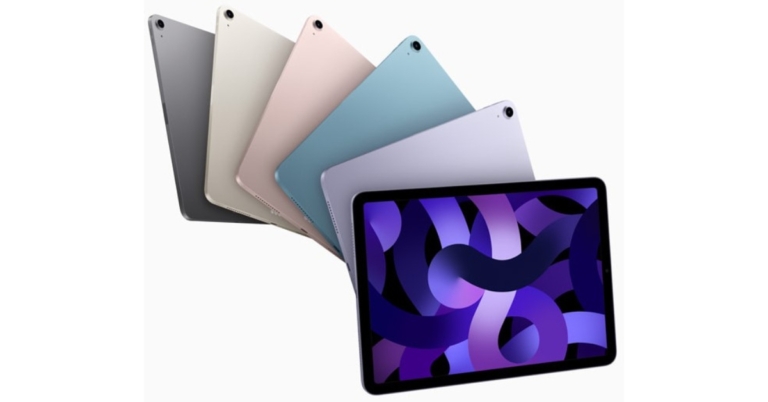
Apple’s iPads are continuing to improve every year, but they are still way behind smartphones, in terms of popularity. Apparently, there are around 81 million iPad users in the USA, compared to more than 113 million iPhone owners. However, it’s common knowledge that one of the primary uses of the iPad is gaming and so, with this in mind, developers could surely improve the quality of game offerings to boost future sales of the iPad. In particular, if iPads were more compatible and inclusive of augmented reality-powered games, there’d be massive potential to entice new players. Indeed, if the burgeoning AR technology enters the mainstream, as it is forecasted to, iPads could act as a portal to allow multiple users to play games together. The result of this would be a significant boost in iPad users and worthy competition for other AR-offering contenders on the market.

iPads Have Always Been Popular for Gaming

One of the primary reasons that iPads came about was to cater to the growing mobile gaming audience that emerged with the smartphone boom in the early 2010s. The gaming industry on portable devices was worth more than $116 million in 2021, and a lot of this revenue is thanks to iPad users. With a sleek larger screen, but all the same functionality as Apple smartphones (apps, OSs, and more), the iPad has become a convenient on-the-go device for playing video games in style. Undoubtedly, certain offshoots of mobile gaming have helped to drive it forward, with developers considering the iPad and tablet audience carefully when they make their games. Casino games, for instance, have played a huge part in boosting the mobile gaming industry. There are now so many online casino game-touting websites that online directories play a huge part in helping players differentiate between the good, the bad, and the outright ugly from all the options on the market. Reputable brands such as CasinoSmash compile comprehensive lists that break down the promotions offered, customer reviews, and the range of games available for each of their ranked online casinos. This independent directory reassures players who are looking for the best quality products and the best bang for their buck. A prime example of this is their list of ranked casino apps: each name in this selection of the best online slot sites has been tested for both iOS and Android mobile devices because that’s where people want to play them, making it an important factor for those browsing new games. These independent reviews are invaluable as they help players to navigate the overwhelming number of options online.

Augmented Reality Could be Integrated with iPads

While some games have found great success on iPads, there are certainly developments that could make the devices even better. Right now, there’s not much difference between smartphone and tablet gaming. The larger screen size is obviously a factor, but smartphone developers are working on solving that problem with foldable phones. If iPad app developers can work out exciting ways to integrate AR, it could set the devices apart from smartphones. There have already been some cool uses of AR on the devices, such as allowing storybooks to come to life. However, there is so much more potential for the future. AR glasses are expected to come into fashion in the next few years, and these will allow solo users to see things in front of them. There hasn’t yet been any talk about communal AR experiences, however. This is a concept that is likely to be explored, but the main question is to do with how developers will go about it. One idea could be for the iPad to transmit signals that two AR headset wearers can both view at the same time. For example, two users could sit opposite each other with an iPad in the middle, using it to play a fantasy card game or a 3D version of chess. It’s a cool concept that has been touted before as the next step for board games.
With Apple reportedly working on its AR glasses and set to release them in 2023 or 2024, it will be looking at ways to integrate its other devices with groundbreaking technology. This could lead to a new wave of AR iPad games designed to appeal to multiple players. For the latest gadget and tech news, and gadget reviews, follow us on TwitterFacebook and Instagram. For newest tech & gadget videos subscribe to our YouTube Channel. You can also stay up to date using the Gadget Bridge Android App. You can find the latest car and bike news here.

Garena Free Fire Redeem Codes Today 22 June 2022: Here is how to claim them

Garena Free Fire is a battle royale game with regular awards and tournaments to keep players interested. If you play Garena Free Fire, you should be aware of the redeem codes that are released on a daily basis. However, because the battle royale game is banned in India, players from other countries can use the Free Fire Redeem codes daily. If you’re unfamiliar with the Garena Free Fire redeem codes or don’t know how to get them, we’ve put together a step-by-step guide to help you redeem them. Check out Garena Free Fire Redeem Codes for June 22. The Free Fire redeem codes are a great way to get free stuff. These are 12-digit codes that contain alphabets and numbers, as well as an expiration date and time. Because the Garena FF redeem codes cannot be used more than once, you should hurry to the redemption page to claim your free reward before someone else does. To get a free reward, all you have to do is go to reward.ff.garena.com/en, which is the official redemption page. Also, keep an eye on this space for daily updates on Garena Free Fire redemption codes and rewards.

Garena Free Fire Redeem Codes Today 22 June 2022

  • Z2FBHASU3VXS
  • 4UBYXPTWERES
  • FXDSTSWYQTJ9
  • BKSKECCMJZEB
  • L8LNF5WK2YPN
  • TPNAMS84ZE8E
  • 26JT3G6RQVAV
  • A46NU6UFQ2JP
  • 6LU69JJZJ7S8
  • FAG4LHKD92GZ
  • RHUVSWWVN9G4
  • FBJ9MTXB9XAP
  • 5R9SAGS5MCK5
  • 2K5AWHD3FKWB
  • XKVJM65ANPUQ
  • AMCT7DU2K2U2
  • LQ6Q2A95G29F
  • HDQKXDFJ7D4H
  • QA97CXS2JOFO
  • W73D61AWNGL2
  • UK2PZ3NFGV5U
  • NLCB6S92K2DE

How to Get Free Fire Redeem Codes for Garena on June 22?

  • Visit the Garena Free Fire game’s official website at reward.ff.garena.com.
  • Use your Facebook, Google, VK, Apple ID, Huawei ID, or Twitter account to log in.
  • You’ll be taken to a valid redemption code (s)
  • Copy and paste the 12-digit redemption code into the text box.
  • On the screen, a dialogue box will appear.
  • ‘Ok’ should be selected.
For the latest gadget and tech news, and gadget reviews, follow us on TwitterFacebook and Instagram. For newest tech & gadget videos subscribe to our YouTube Channel. You can also stay up to date using the Gadget Bridge Android App. You can find the latest car and bike news here.
Tunez E10, E20, and E30 truly wireless earbuds (TWS) launched in India

Tunez, a brand of lifestyle consumer electronics goods, has announced three new E10, E20, and E30 truly wireless earbuds (TWS) in the Indian market. The TWS series are sweatproof and have Bluetooth V5.0+EDR, making them the ideal option for summer and particularly for exercise sessions. The earbuds have a battery capacity of 300mAh to 320mAh.

Pricing and availability

In more than 200 stores spread throughout five states in the south, the Elements E10, E20, and E30 earphones will be offered. Soon, Tunez will expand to other regions of India. Additionally, it will be for sale on www.flipkart.com and www.amazon.in. Prices for the earbuds range from Rs 1,399 to Rs 2500. Tunez E10, E20, and E30 truly wireless earbuds (TWS) launched in India

Tunez E10 truly wireless earbuds (TWS)

A 300mAh battery powers the Tunez E10 truly wireless earphones, providing up to 5 hours of gameplay and 100 hours of standby. With 1-2 hours of charging time, it has a talk duration of up to 8 hours. It works with both iOS and Android. The earphones support HSP/HFP/A2DP/AVRCP and have a working range of 10-15 metres. Its USPs are comfort and CE & RoSH certification. Smart touch controls that fit comfortably, anti-scratch material, voice assistance support, and a charging case that prevents hand perspiration are some of the features of Tunez E10 truly wireless earbuds.

Tunez E20 truly wireless earbuds (TWS)

On the other hand a 320mAh polymer lithium battery powers the Tunez E20 truly wireless earbuds, providing up to 10 hours of playback at 60% volume and 200 hours of standby time. The earphones support HSP/HFP/A2DP/AVRCP and have a working range of 10-15 metres. With 50 minutes for the earphones and 1.5 hours for charging, it offers a talk time of up to 8 hours. It works with both iOS and Android. It is available in Black and White. The earbuds are CE & RoSh certified and its USPs are Ergonomic comfort fit with Voice Assistance. These come with IPX4 Water and Sweatproof rating, Smart touch controls, Volume control with touch options on the earbuds, and a long-lasting battery. Tunez E10, E20, and E30 truly wireless earbuds (TWS) launched in India

Tunez E20 truly wireless earbuds

Lastly, a 380mAh polymer lithium battery powers the Tunez E20 truly wireless earbuds, providing up to 22 hours of music playback at 60 percent volume and 200 hours of standby time. The earbuds support HSP, HFP, A2DP, and AVRCP and have a working range of 10-15 metres. With a promising conversation duration of up to 24 hours after charging the case for 1.5 hours and the earbuds for 50 minutes. It works with both iOS and Android. It is available in Black and White. Its USPs include Built for Hustle, IPX 5 Sweat & Water Resistant, 35gs lightweight, and 10mm Dynamic drive speaker for Crystal Clear Sound. It is CE & RoSh certified. For the latest gadget and tech news, and gadget reviews, follow us on TwitterFacebook and Instagram. For newest tech & gadget videos subscribe to our YouTube Channel. You can also stay up to date using the Gadget Bridge Android App. You can find the latest car and bike news here.
Noise i1 smart eyewear launched in India

Indian wearable brand Noise Labs has announced the launch of its first pair of smart eyewear, the ‘i1’ With this release the company aims to provide consumers with a smart, innovative, and fashion-forward digital experience. The new Noise i1 smart eyewear comes with high-quality speakers. Noise i1 smart eyewear price in India and availability

Noise i1 smart eyewear price in India and availability

The new Noise i1 smart eyewear has been launched in India with a price tag of Rs 5,999. According to the company, the affordable smart glasses will be limited edition and can be purchased through gonoise.com. Noise i1 smart eyewear price in India and availability

Noise i1 smart eyewear specifications and features

The Motion Estimation, Motion Compensation (MEMS) Mic for calling, magnetic Charging, and hands-free voice control capabilities of the Made in India smart eyewear i1 provide design, comfort, and a unique audio experience. Noise i1 features a guided audio design that ensures the music reaches your ears. Furthermore, it isolates you from outside sounds, allowing you to enjoy a truly immersive audio experience. On a single charge, the device provides over 9 hours of gameplay. It also features the most up-to-date Bluetooth 5.1 connectivity, which ensures that your eyewear connects to your phone as soon as the temples are opened, avoiding the need to unlock your phone and providing exceptional sound quality up to 10 metres away. On a 15-minute charge, it can provide 120 minutes of fun. Noise i1 smart eyewear specifications and features Users may accept and reject calls, regulate music, and activate the voice assistant with the smart eyewear’s multi-functional touch controls. It’s a comprehensive solution, with UVA/B 99 percent UV protection in sunglasses lenses and changeable blue light filtering transparent lenses for reducing eye strain and giving clear vision when using laptops, computers, and other electronic devices. The cutting-edge smart eyewear has an ingress protection rating of IPX4, making it water-resistant. This feature is ideal for those who live an active, outdoor lifestyle because it can be carried without the danger of getting wet. Siri and Google Assistant are built-in voice assistants. The beautiful style is ideal for a variety of activities such as hiking, driving, golfing, and so on. For the latest gadget and tech news, and gadget reviews, follow us on TwitterFacebook and Instagram. For newest tech & gadget videos subscribe to our YouTube Channel. You can also stay up to date using the Gadget Bridge Android App. You can find the latest car and bike news here.

Amazon Quiz Answers Today 22 June 2022: Participate to win Rs 30,000

Amazon Quiz for 22 June 2022 has gone live on the company’s mobile platform. The daily quiz contest brings an opportunity for Amazon users to win exciting prizes. In today’s Amazon Quiz the participants have the chance to win Rs 30,000 Amazon Pay Balance. All they have to do is answer all the questions correctly. A fresh question is posted on the Amazon app daily which consists of five simple questions based on general knowledge and current events. The quiz can be played on the Amazon App from 12 AM to 11:59 PM. You have to answer all the questions correctly. Then the participants will be shortlisted for a lucky draw. The result of the lucky draw will be announced at the end of the month. The participants can win Amazon Pay Balance to up to Rs 50,000. Check out the 22 June 2022 Amazon Quiz question and their answers to win Rs 30,000 Amazon Pay Balance. Amazon Quiz Today Prize – Rs 30,000 Amazon Pay Balance Quiz Date – 22 June 2022 Daily Timing – 12 AM to 11:59 PM Winner Announcement – Today 12 PM

Amazon Quiz Answers Today 22 June 2022

Question 1: The rap group founded by Oleh Psiuk that won the 2022 Eurovision Song Contest are from which country? Answer- Ukraine Question 2: Which team beat New Zealand in a playoff game, to seal the last spot for the 2022 FIFA World Cup? Answer- Costa Rica Question 3: In the news for introducing several reforms, Mohammed bin Salman is the crown prince of which country? Answer- Saudi Arabia Question 4: This famous bridge is located in which city? Answer- New York Question 5: In which country is this famous Buddhist monastery located in? Answer- Thailand

How To Play Amazon Quiz

Only app users are eligible to play the Amazon quiz every morning from 12 AM to 11:59 PM. The quiz is not available on the desktop. For those who are unaware of how to play the Amazon quiz below are the steps, you can follow to take the quiz.
  • Firstly download the Amazon app from Google Play Store or App Store
  • Now fill in the required information through the Sign Up option.
  • You need to log in to the Amazon app and scroll down on the home screen to find the Amazon Quiz banner.
  • Tap on the Amazon Quiz banner and tap on the Start button to start the Quiz.
  • Now you will get 5 questions and you need to answer them correctly. One wrong answer will eliminate you from the Quiz.
  • After answering all the questions correctly you are now eligible for a Lucky Draw.
  • The winner’s name will be announced today at 12 PM.
For the latest gadget and tech news, and gadget reviews, follow us on TwitterFacebook and Instagram. For newest tech & gadget videos subscribe to our YouTube Channel. You can also stay up to date using the Gadget Bridge Android App. You can find the latest car and bike news here.

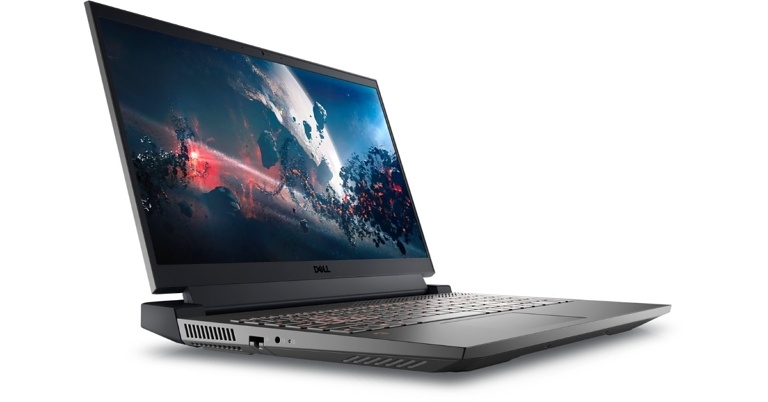
Dell G15 AMD edition (5525) laptops with NVIDIA GeForce RTXTM GPUs launched in India

Dell has announced the launch of the new G15 AMD edition (5525) laptops in the Indian market today. The new laptops are powered by AMD’s next-generation Ryzen 6000 H processors with and newest NVIDIA GeForce RTXTM GPUs and come in five different configurations. The new range has all the essential I/O connections, sophisticated thermal systems, Dolby Audio and Game Shift technology for a better gaming experience.

Dell G15 AMD edition (5525) laptops specifications

Most of the specifications and design of all the 5 G15 AMD edition (5525) laptops are the same except for the processors and graphics. The laptop has a 15.6-inch Full-HD (1080×1920 pixels) LCD display with a refresh rate of up to 165Hz and a peak brightness of 250 nits. Gamers can enjoy a powerful and consistent high-end performance during every gaming session with next-gen AMD Ryzen CPUs up to 6800H R7 and customised settings. The G15 AMD version, like its siblings, features an Alienware-inspired thermal design with excellent cooling owing to dual air intakes, ultra-thin fan blades, copper pipes, and four strategically positioned vents. Dell G15 AMD edition (5525) AMD edition laptops Users experience seamless, continuous gameplay and beautiful visuals with discrete graphics up to NVIDIA GeForce RTXTM 3060 and a new optional FHD 165Hz display panel with a 2-sided low bezel. Players can also choose dedicated RAM of up to 6GB GDDR6, which results in faster loading times and a quieter system. The Dell G15 AMD laptops’ Game Shift capability may be accessed by pressing FN + Game Shift (F9), which launches a dynamic performance mode. As a result, the Alienware Command Center increases the speed of the fans to keep the system cool as the CPUs work harder. Not only can one customise the hardware for each game with the Alienware Command Center on Dell G Series, but they can also personalise the area and set up to make the software look and feel exactly how they want it. The user-friendly interface connects numerous system settings with a gaming library, making it easy to obtain game data. The command centre allows you to quickly access games and fine-tunes settings for each one. Dell G15 AMD edition (5525) AMD edition laptops Additional features like Dolby Audio for Gamers and an orange backlit keyboard with WASD are designed to make every gaming experience more enjoyable. Windows 11 is installed on the device. Up to 16GB of RAM and 512GB of SSD storage are available. Three Type-A ports, one Type-C port, an HDMI 2.1 slot, and a 3.5mm audio jack are included in the I/O.

Dell G15 AMD edition (5525) laptops Pricing and Availability

The new Dell G15 AMD variant will cost Rs 83,990 when it goes on sale. The most expensive option, with 6GB RTX 3060, would set you back Rs 1,27,990. Dark Shadow Grey and Phantom Grey with speckles will be the two colour options for the laptops. Dell.com, Dell Exclusive Stores (DES), big format retail, and multi-brand outlets all have the new Dell G15 available for purchase. Please see the table below for the complete cost of the laptop series.
Configurations Price (Inc. taxes)
15.6″ FHD Narrow 120Hz 250 nits 45% / AMD Rembrandt R5 / 8GB, 1x8GB, DDR5, 4800MHz / 512GB CL35 M.2 Gen 4 SSD / NVIDIA RTX 3050 4GB GDDR6 (GN20-P0) / Win 11 / MSO / 1Yr Premium / Orange Backlit / Gaming / INR 83,990/-
15.6″ FHD Narrow 120Hz 250 nits 45% / AMD Rembrandt R5 / 16GB, 2x8GB, DDR5, 4800MHz / 512GB CL35 M.2 Gen 4 SSD / NVIDIA RTX 3050 4GB GDDR6 (GN20-P0) / Win 11 / MSO / 1Yr Premium / Orange Backlit / Gaming / INR 89,990/-
15.6″ FHD Narrow 120Hz 250 nits 45% / AMD Rembrandt R7 / 16GB, 2x8GB, DDR5, 4800MHz / 512GB CL35 M.2 Gen 4 SSD / NVIDIA RTX 3050 4GB GDDR6 (GN20-P0) / Win 11 / MSO / 1Yr Premium / Orange Backlit / Gaming / INR 1,02,990/-
15.6″ FHD Narrow 120Hz 250 nits 45% / AMD Rembrandt R7 / 16GB, 2x8GB, DDR5, 4800MHz / 512GB CL35 M.2 Gen 4 SSD / NVIDIA RTX 3050 Ti 4GB GDDR6 (GN20-P1) / Win 11 / MSO / 1Yr Premium / Orange Backlit / Gaming / INR 1,07,990/-
15.6″ FHD Narrow 120Hz 250 nits 45% / AMD Rembrandt R7 / 16GB, 2x8GB, DDR5, 4800MHz / 512GB CL35 M.2 Gen 4 SSD / NVIDIA RTX 3060 6GB GDDR6 (GN20-E3) / Win 11 / MSO / 1Yr Premium / Orange Backlit / Gaming / INR 1,27,990/-
  For the latest gadget and tech news, and gadget reviews, follow us on TwitterFacebook and Instagram. For newest tech & gadget videos subscribe to our YouTube Channel. You can also stay up to date using the Gadget Bridge Android App. You can find the latest car and bike news here.

Samsung introduced a new lineup of Q series and S Series Soundbars in India

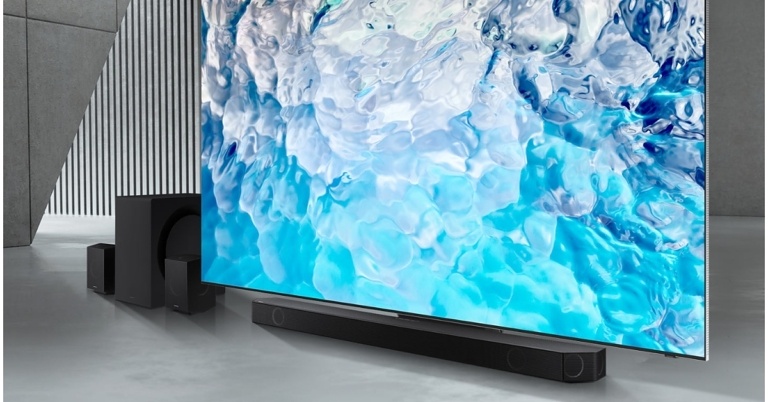
Samsung introduced its 2022 Soundbar collection, which includes Q-Symphony, dtsX, SpaceFit Sound Advance, and the world’s slimmest soundbar, as well as the world’s first built-in Wireless Dolby Atmos for a seamless Samsung TV-to-soundbar connection. The new line, which includes the Samsung Q series and the lifestyle S series comes with an elegant metal mesh appearance, the 2022 series is designed to add a premium touch to your living areas. From June 21, 2022, the current range of flagship Q series will be available via Samsung’s main online store – Samsung Shop, all Samsung retail stores, prominent consumer electronics stores, and online platforms, including Amazon and Flipkart. At a starting price of Rs 31,990, the Q series Soundbars will be available in Q990B, Q930B, Q800B, Q700B, and Q600B versions. The S series Soundbars will be offered in two models: S801B and S61B, with prices starting at Rs 24,990. The Samsung Q series soundbars, which are the ideal partner for Samsung Neo QLED and QLED TVs, feature the world’s first built-in Wireless Samsung TV-to-Soundbar Dolby Atmos connection, allowing you to enjoy immersive sound while using a Wi-Fi connection.  Its improved Q-Symphony technology allows the soundbar to function in conjunction with the speakers of a compatible Samsung television for a wireless Dolby Atmos experience, and it executes audio in sync with the TV, optimising the 3D sound effect on screen. Space Fit Sound Advance adjusts the sound to the size of the room for a more personalised sound experience. The Q990B model will provide consumers with tremendous sound quality, thanks to its updated design and improved bass with the 11.1.4 channel. The Q990B features an 11.1.4ch surround sound system with one subwoofer channel, four up-firing channels, and two wireless rear speakers for an immersive Dolby Atmos and dtsX experience that creates a rich, room-filling sound environment. The Q930B model features a stunning metal design, back speakers, and a 9.1.4 channel to give customers an amazing surround sound experience. Side speakers with an updated design and a 5.1.2 channel surround sound system will be added to the Q800B variant. With its 3.1.2 channel surround sound system and Alexa and Google integration, the all-new model Q700B will include up-firing top speakers that create an immersive overhead sound. The Q600B will feature a sophisticated design and will offer HDMI eARC connectivity, as well as Q – symphony Gen II audio. The 2022 model will also include acoustic beam technology, which blends and transmits sound so that it appears to come from exactly where the action is on screen, making it ideal for watching movies and games. Whereas the world’s slimmest soundbar, the S801B, is included in the lifestyle S series and is 60 percent slimmer than normal soundbars. It serves as a fashion statement as well as a conversation starter. Another exquisite new model in the line is the S61B, which merges easily into any environment thanks to its tiny design.  The series has an ultra-premium appearance and better sound calibration, which improves the whole TV viewing experience. Consumers can listen to their favourite mobile playlist using features such as Alexa Voice Assist, Tap View, or Airplay. By combining passive radiator technology with its subwoofer and real top-firing speaker channels, these soundbars deliver tremendous bass in a small size, producing natural, room-filling Dolby Atmos sound. The S801B model will be offered in an ultra-slim form with built-in Alexa and 3.1.2 channel surround sound with built-in Wireless Dolby Atmos and DTS Virtual: X in the S-series line. It can be used as a stand-alone speaker or underneath the TV. With correct top-firing speaker channels that provide authentic, room-filling Dolby Atmos sound, it delivers a powerful bass in its tiny shape. The all-new S61B, on the other hand, will have a 5.0 channel surround sound system with wireless Dolby Atmos/DTS virtual X Second-generation Q – symphony for a realistic sound experience, as well as built-in Alexa and Airplay 2. For the latest gadget and tech news, and gadget reviews, follow us on TwitterFacebook and Instagram. For newest tech & gadget videos subscribe to our YouTube Channel. You can also stay up to date using the Gadget Bridge Android App. You can find the latest car and bike news here.
How to Access And Delete Google ‘My Activity’ feature?

3
If you’ve ever forgotten a particular search item or a YouTube video you watched and can’t remember, you can access My Activity on Google to see what you searched for. Google keeps a record of all activities on your Google account, from Web and App activity to Youtube history. Google also keeps a record of your location if you ever need to track your device. Today, we’ll show you how to access Google ‘My Activity’ on Android. Read Also: Google Photos integration is coming to the ChromeOS Gallery app for quick editing

Here’s how you can access Google ‘My Activity’ on Android

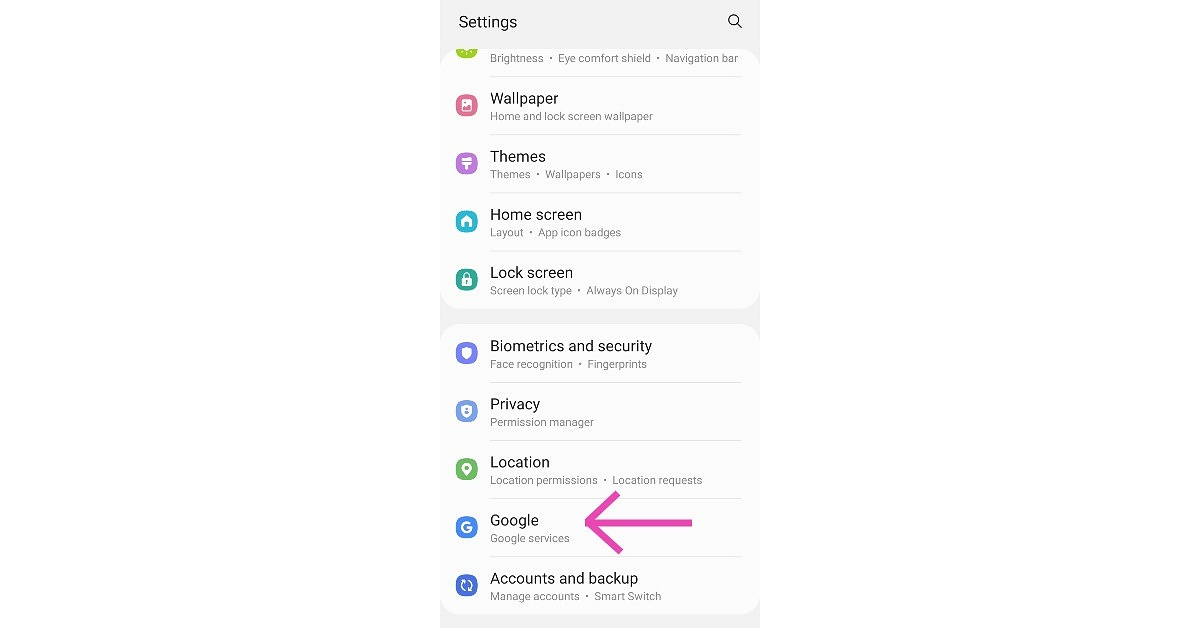
Step 1: Go to Settings. Go to Settings. Access Google ‘My Activity’ on Android Step 2: Go to Google>Manage your Google Account. Go to Google>Manage your Google Account. Access Google ‘My Activity’ on Android Step 3: Click on Data & Privacy. Click on Data & Privacy. Access Google ‘My Activity’ on Android Step 4: Scroll to History Settings and click on My Activity. Scroll to History Settings and click on My Activity. Access Google ‘My Activity’ on Android Step 5: Scroll down and you’ll be able to view the recorded activity on your Google Account. Scroll down and you’ll be able to view the recorded activity on your Google Account. Access Google ‘My Activity’ on Android Read Also: How To Scan QR Codes With Google (2022)? You can click on any item to view further details. Google also gives you the option to delete any activity you don’t want to keep a record of. You can also set up the option for automatic deletion of old activity. You can also set up a verification process to view your activity on google, to keep it from being accessed by anyone else. You can also stop Google from collecting your activity by selecting ‘Pause Activity’. For the latest gadget and tech news, and gadget reviews, follow us on TwitterFacebook and Instagram. For newest tech & gadget videos subscribe to our YouTube Channel. You can also stay up to date using the Gadget Bridge Android App. You can find the latest car and bike news here.

How can you Change Touch Screen Sensitivity on Android and iPhone?

1
Your smartphone comes with a default touch sensitivity which is set at an optimum level of use. This level is the perfect touch sensitivity for most users. However, you may sometimes need to change the touchscreen sensitivity of your device. Before doing so, it’s important to be aware of all the symptoms of a problem with the screen. One of the situations, when you may need to do so, is when you get a touch screen protector for your phone. The covering may delay the touch reaction on your screen. In this case, it is advised to increase the touch screen sensitivity on your phone for a smooth experience. Today, we will show you how you can change touch screen sensitivity on Android and iPhone. Read Also: Why Should You Clear Your Android Phone’s Cache and Cookies?

How to change Touch Screen Sensitivity on Android

Step 1: Go to Settings. Go to Settings. change touch screen sensitivity on android Step 2: Select Languages and Input. Step 3: Select Pointer Speed under the Mouse/Trackpad header. Select Pointer Speed under the Mouse/Trackpad header. change touch screen sensitivity on android Step 4: Drag the slider that appears on the screen towards the right to increase Touch Screen Sensitivity. Drag it to the left if you wish to reduce the Touch Screen Sensitivity. Drag the slider that appears on the screen towards the right to increase Touch Screen Sensitivity. change touch screen sensitivity on android Step 5: Press OK once you’re satisfied with the Touch Screen Sensitivity on your device. Your changes will be saved. Read Also: How to record phone calls and conversations on iPhone in 2022

How to change Touch Screen Sensitivity on an iPhone

Step 1: Go to Settings. Step 2: Scroll down and select Accessibility. Step 3: Select the Touch option under the ‘Physical and Motor’ heading. Select the Touch option under the ‘Physical and Motor’ heading Step 4: Select Haptic Touch. Select Haptic Touch Step 5: You will be given two options: Fast and Slow. Use the ‘Touch Duration Test’ below the options to see which one you like. Select accordingly. You will be given two options: Fast and Slow. how to increase touch sensitivity ios Step 6: Your changes will be saved. Read Also: How To Turn On AirDrop On iPhone (2022)? While Android offers you to set a custom touch screen sensitivity level suitable to your liking, iPhone only provides you with two options. Some hit-and-trial may be required to set the perfect level of sensitivity. If you’re still experiencing some lag on your phone, you may want to get it checked by a professional. For the latest gadget and tech news, and gadget reviews, follow us on TwitterFacebook and Instagram. For newest tech & gadget videos subscribe to our YouTube Channel. You can also stay up to date using the Gadget Bridge Android App. You can find the latest car and bike news here.
Get Monsoon Ready – How To Keep Your Gadgets Safe From Water

Monsoons are here, and so are humidity and moisture in the air. Although water damage can happen to any device in any season, the chances of the same increase by manifolds during rainy weather. Imagine this. It is a sunny day and you are out for work with your essential gadgets in your backpack. But suddenly you see dark clouds gather over the city’s head in the sky, which reminds you that you’re not prepared for a downpour. And the mere thought of the big hole that water damage to any of your gadgets is going to create in your pocket automatically paves way for the panic. Hence, we are here to share some clever ways with you how to keep your gadgets safe from the water this monsoon. 

Use Ziplock Pouches

Ziplock pouches for smartphones- how to keep your gadgets safe from water The first and the best way to keep your gadgets safe from water during monsoons is by keeping them in an airtight ziplock pouch or a waterproof bag. Waterproof ziplock pouches are available in all sizes, for storing smartphones, wristbands, tablets, etc. These are ideal for protecting your valuable gadgets from the monsoon rains or water seepage into your backpacks. Moreover, these are even touch-friendly and are easily available at reasonable rates.   Buy from here. Read also: Summer Vacation: Top 10 Gadgets To Carry With You On A Road Trip

Use Waterproof Laptop And Tablet Covers

Waterproof-Laptop-bags and Tablet Covers- how to keep your gadgets safe from water There are waterproof covers or bags available for tablets, laptops and other large-sized gadgets as well. Some of these are dust-resistant and even shockproof. They are available in a variety of shapes, sizes and colours, and may differ in the material that they are constructed with. You can get a slim professional laptop cover made with waterproof canvas fabric or you can opt for a multi-layered polyester fabric sleeve bag. There are even waterproof laptop backpacks available with shoulder straps that are easily carriable anywhere.  Buy from here. 

Use Waterproof Wrist Band Covers

Waterproof-wrist-bands Most smartwatches are already water and dust-resistant. However, it is still better to take precautions from our side. Amongst the various smartwatch accessories available in the market are waterproof wristbands or wristband covers. You can use these to keep your smartwatches safe from any water damage during monsoons. These are generally made of silicone and are lightweight, comfortable, and durable. You can even pick multiple colours and wear a different one each day. Waterproof wristbands are available at reasonable rates.  Buy from here.  Read also: 10 Best Camera Phones Under Rs 35,000 With 64MP Or Higher Sensors

Seal All The Ports For Protection

smartphone-port-seal cover The easiest way for water to trickle into your smartphone is via the different openings on its body, such as USB ports, headphone jacks, etc. For avoiding any water damage to your device, it is better if you seal all the ports when not in use. You can do this by using duct tape to create an additional layer of protection or you can buy a customized waterproof cover for your smartphone which has a sealed full-body shell or provides watertight port seals.  Buy from here. In this way, you can keep your precious gadgets safe from water this monsoon. If you know of any other hacks for the same, we would be delighted to hear them. Do share with the rest of us in the comments section below.  For the latest gadget and tech news and gadget reviews, follow us on Twitter, Facebook and Instagram. For newest tech & gadget videos subscribe to our YouTube Channel. You can also stay up to date using the Gadget Bridge Android App. You can find the latest car and bike news here.

How to Change Your Apple ID Email Address?

0
If you no longer wish to use an email address that’s linked to your Apple ID, there is an easy way to change it. You will not lose any data when you change your email. But you need to make sure your data is backed up on iCloud before you begin this process. You will be able to use all Apple services once you’ve updated your email. Read Also: How to reset your Apple ID password?

Here’s how you can change your Apple ID email address

Step 1: Open appleid.apple.com on your web browser and sign in. Open appleid.apple.com on your web browser and sign in. change your apple id email address Step 2: Go to Sign-In and Security section and select Apple ID. Go to Sign-In and Security section and select Apple ID Step 3: In the box that pops up, enter the new email address that you wish to register. In the box that pops up, enter the new email address that you wish to register Step 4: Visit your email inbox for the verification code. Copy and paste it into the designated box. Step 5: Your Apple ID email has been successfully changed. Login again to all the Apple devices and services that you use. Read Also: How can you remove Apple ID from your iPhone and iPad? If you’re trying to change your Apple ID to an @icloud.com address, make sure the email is over 30 days old. This is the minimum time period required to register for Apple ID. If the email address you want to register is already in use, check if a family member is using that email and remove it from their Apple ID before registering it to yours. If your Apple ID is an email, it cannot be changed to your number. For the latest gadget and tech news, and gadget reviews, follow us on TwitterFacebook and Instagram. For newest tech & gadget videos subscribe to our YouTube Channel. You can also stay up to date using the Gadget Bridge Android App. You can find the latest car and bike news here.
Top 5 Ways to Play YouTube Video With Screen Off on Android

2
While watching content on YouTube, a lot of users feel the need to play the video in the background or with the screen off. This need may arise when you want to respond to a quick text while watching a video, or if you wish to play music with the screen off. With a lot of audio podcasts available on YouTube, you may not want to keep the screen on for the entire time. Today, we bring you the 5 best ways to play YouTube videos with the screen off on your Android device. Read Also: Bharti Airtel launches Wynk Tube Music streaming app, claims it has more than 40 lakhs songs

Play YouTube videos with screen off without using any app or trick on Xiaomi and Redmi phones

If you own a Xiaomi or Redmi smartphone, you don’t need to download a third-party app to play YouTube videos with your phone’s screen locked. The MIUI OS may have its shortcomings but it offers a very handy video toolbar that allows you to turn off the screen without pausing video playback. Here’s how you can use it. Step 1: Launch the YouTube app and play the video you want. Step 2: Swipe right on the sidebar on the left edge of the screen. This will reveal a bunch of options. Step 2: Swipe right on the sidebar on the left edge of the screen. This will reveal a bunch of options. how to listen to youtube with screen off 2023 Step 3: Tap on the ear icon named ‘Play sound with screen off’. Step 3: Tap on the ear icon named 'Play sound with screen off'. how to listen to youtube with screen off 2023 The YouTube video will continue playing with the screen locked. If you don’t see the sidebar on the screen go to Settings>Additional Settings>Floating Windows>Sidebar and enable the toggle bar for ‘Show while playing videos’.

Use your web browser to play a YouTube video with the screen off

Step 1: Open YouTube on Google Chrome using your phone. Step 2: Click on the ellipses next to the address bar on Chrome. Click on the ellipses next to the address bar on Chrome Step 3: On the menu that appears, click on ‘Desktop Site’. On the menu that appears, click on ‘Desktop Site’ Step 4: Chrome will reload YouTube as a desktop site. Search for the video you wish to see and play it. Chrome will reload YouTube as a desktop site. Search for the video you wish to see and play it Step 5: Minimise Google Chrome. Step 6: If the video paused while minimizing the Chrome app, resume playing it from the notification bar. If the video paused while minimizing the Chrome app, resume playing it from the notification bar Step 7: You can lock your screen and the video will keep playing. 

Subscribe to YouTube Premium

subscribe to youtube premium If you don’t mind paying for an added service, subscribe to YouTube Premium. YouTube Premium allows you to minimize the YouTube app and play videos in the background. It also offers an ad-free YouTube experience, with access to original content on YouTube and YouTube Music streaming service.

Use NewPipe app to play YouTube Videos with screen off

If accessing Youtube Music and original content is not your priority and you only want to play YouTube videos in the background, subscribing to YouTube Premium may not be the best option for you. There are a lot of third-party apps that let you play YouTube videos in the background. One such app is NewPipe, which can be downloaded from the F-droid marketplace. NewPipe is an open-source app that lets you play and download YouTube videos. Here’s how you can play YouTube videos with the screen off on your Android device using NewPipe. Step 1: Install and open NewPipe on your phone. Step 2: Open the video you wish to watch. Open the video you wish to watch Step 3: In the video options you’ll see the options to play the video in the background or in a pop-up window. In the video options you’ll see the options to play the video in the background or in a pop-up window. Step 4: Select the option to view the window in a pop-up window. The video will resume playing in a small window on your home screen. You can lock your phone if you wish to play the video in the background. Select the option to view the window in a pop-up window

Use the Float Tube app

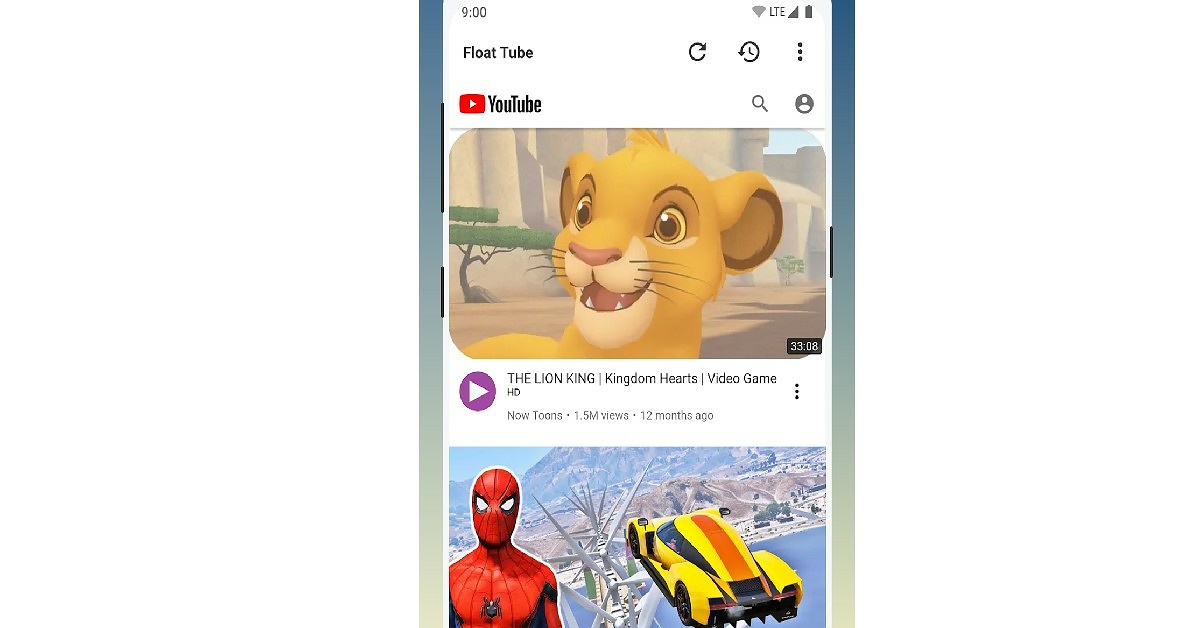
If you do not wish to subscribe to YouTube Premium or download an app from a third-party store, you can use Float Tube, which is available to download from Google Play Store. As the name suggests, Float Tube plays YouTube videos on a floating screen. Step 1: Install Float Tube from the Google Play Store. Step 2: Open Float Tube and choose a video to play. Open Float Tube and choose a video to play Step 3: The video will play on a floating screen on your homepage. You can turn your screen off and the video will keep playing. The video will play on a floating screen on your homepage Once you’ve downloaded the Float Tube app, you can use the official YouTube app to play videos on the floating screen as well. Just follow these easy steps. Step 1: Open the desired YouTube video and click on share. Open the desired YouTube video and click on share. how to listen to youtube with screen off 2023 Step 2: From the pop-up window select Play by Float Tube. From the pop-up window select Play by Float Tube. play youtube with screen off android. how to listen to youtube with screen off 2023 Step 3: The YouTube video will begin playing on the floating window. You can go to your homepage or lock your screen without stopping the YouTube video. The YouTube video will begin playing on the floating window. play youtube with screen off android

Bonus Tip: Play YouTube videos in Picture-in-Picture mode on your PC

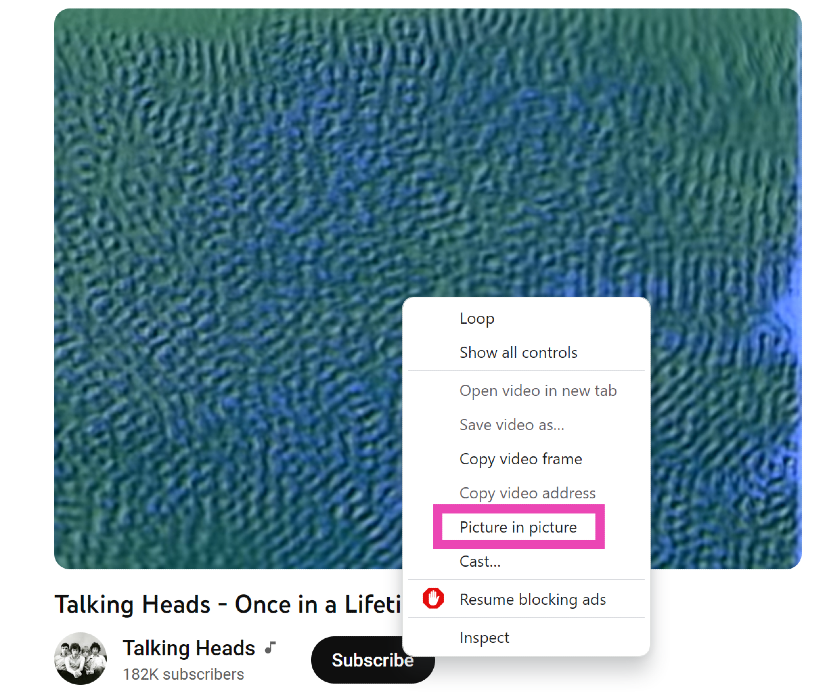
Bonus Tip: Play YouTube videos in Picture-in-Picture mode on your PC If you ever need to watch a quick YouTube video on your PC while also handling another task, you should know how to play it in Picture-in-Picture mode. For those who don’t know, P-i-P mode allows you to watch a YouTube video in a small window when you switch to other tabs. To achieve this, simply open the video, right-click on it, right-click again, and select ‘Picture in Picture’.

Frequently Asked Questions (FAQs)

How to play YouTube videos in the background?

If you have a YouTube Premium subscription, you can play a YouTube video in the background simply by minimising the app. If you don’t have a YouTube Premium subscription, use a third-party app like Float Tube and NewPipe or turn on the ‘desktop site’ option on Chrome while playing the video on YouTube.

How do I keep playing music on YouTube with the phone screen off?

Use a third-party app like NewPipe or play the video using YouTube’s desktop site on Chrome mobile. If you own a Xiaomi/Redmi phone, tap on the ear icon in the video toolbar to continue video playback with the screen off. You can also subscribe to YouTube Premium to use the YouTube Music app.

Is there a native way on Android to play YouTube videos with the screen off?

Apart from buying a YouTube Premium subscription, the only native way to play YouTube videos with the screen off is offered by MIUI OS in Xiaomi and Redmi smartphones. To make use of this feature, swipe on the sidebar while playing a YouTube video and tap on the ear emoji in the Video toolbar. Read Also: 12 useful WhatsApp features you should know about

Conclusion

It should be mentioned that third-party apps carry a risk of their own. Be mindful of the risks when you download them to your phone. The safest way to play YouTube videos with the screen off on your Android device is either by playing the video on the desktop site on Chrome or subscribing to YouTube Premium. We hope you find this article helpful.

Best 6 Ways to Read Instagram Direct Messages without being seen

0
Unlike other Instant Messaging services, Instagram does not allow you to read your DMs without sending a ‘read receipt’ to the sender. While it may not be an issue for most, some users might want to remain incognito while going through their messages. Luckily, there are a few ways using which you can read Instagram direct messages without being seen. Today, we bring you some of the easiest workarounds. Read Also: 3 brilliant methods to view someone’s WhatsApp status without letting them know

Read Instagram Direct Messages without being seen by turning off your mobile data/WiFi

If you turn off the internet on your phone, you can read your Instagram DMs without the read receipt being sent to the message sender. However, the receipt will be sent as soon as you turn on the internet, and the sender will be able to see that you’ve read the message. Step 1: Pull the notification bar on your phone screen and disable mobile data/turn off WiFi. Pull the notification bar on your phone screen and disable mobile data/turn off WiFi Step 2: Open the Instagram app and open the DMs section.  Step 3: Open any DM that you wish to read. Step 4: Close the Instagram app.  The sender will not get a read receipt as long as you stay offline.

How To Read Messages In Someone Else’s Instagram Direct Without Being Seen

Did you know not all Instagram spy apps are created equal? Many of them claim to let you read their Instagram but offer nothing more than the ability to see their posts. You don’t need an Instagram monitoring app to access their profile. Just follow them and you’ll have access to their pics and videos. But if you want to read their private Instagram chats, there’s one app that can help you do just that. It’s called mSpy and it’s one of the most powerful Instagram spy apps on the market. Once you install mSpy on their phone, you’ll have direct access to their private Instagram messages. Whether they’re chatting with friends or engaging with strangers — whether they’re sending innocent cat pics or having R-rated chat that you definitely would not approve of — mSpy shows it all.  To get started with spying on Instagram, go to mSpy.com, pick your plan, pay for it, and then install mSpy on their phone using the instructions provided. Then, whenever you want to read their messages, log in to your private mSpy account. It’s all there.

Read Instagram DMs by disabling the internet and logging out

This trick will let you read your DMs offline, without the sender knowing you’ve seen them as soon as you come online. By logging out of the Instagram app, it won’t be able to send the read receipt when you connect to the internet. Instead of logging out, you can also clear Instagram app data from your phone, which will accomplish a similar result. After you’ve disabled the internet on your phone and read the DM, follow these steps. Step 1: Go to your Instagram profile page and click on the three bars at the top right corner of the screen. Go to your Instagram profile page and click on the three bars at the top right corner of the screen Step 2: From the pop-up menu, click on Settings.  Step 3: Scroll down and click on ‘Log out’. Scroll down and click on ‘Log out’

Read Instagram Direct Messages by ‘Restricting’ the sender

In order to curb bullying, harassment, and spam on their platform, Instagram allows you to ‘restrict’ a user. Restricting a user makes their comments invisible to other viewers that view your posts. It also moves their DMs to the ‘message requests’ folder, where you can view them without being seen.  Step 1: Go to the user’s profile. Step 2: Click on the ellipses (three dots) at the top right corner of the profile. Click on the ellipses (three dots) at the top right corner of the profile Best 6 Ways to Read Instagram Direct Messages without being seen 2023 Step 3: On the menu that pops up, click on ‘Restrict’. On the menu that pops up, click on ‘Restrict’ Best 6 Ways to Read Instagram Direct Messages without being seen 2023 Step 4: The user’s DM’s will be moved to the ‘Requests’ folder which can be accessed from the DM section. The user’s DM’s will be moved to the ‘Requests’ folder which can be accessed from the DM section Best 6 Ways to Read Instagram Direct Messages without being seen 2023

Using a third-party app to read your Instagram DMs without being seen

aigrow Best 6 Ways to Read Instagram Direct Messages without being seen 2023 There are a bunch of third-party apps on the marketplace that you can use to manage your Instagram account. These apps provide tools using which you can boost engagement numbers on your profile and even increase your follower count in an organic way. AiGrow is one such app. AiGrow also allows you to read your Instagram DMs without being seen. Step 1: Sign up on the AiGrow app or website. Step 2: Add your Instagram account to the AiGrow dashboard. Step 3: Click on ‘Manage Account’. Step 4: Open your Inbox. Step 5: Select any conversation you wish to read. Any message you open will not send a read receipt back to the sender. Using a third-party app for your social media account can always be a risky affair. The app may store your personal data, putting your privacy in jeopardy. Always be mindful of the risks while using any third-party app.

Use your email

Best 6 Ways to Read Instagram Direct Messages without being seen 2023 AiGrow also offers users to access their Instagram DMs from their email accounts. Once your Instagram DMs are forwarded to your email, you will be able to read and respond to them without being seen. Here’s how you can do that. Step 1: On the AiGrow dashboard, click on the DM to Email option. Step 2: Add your email. Step 3: Open your email inbox and verify your email.  Step 4: Your email will be linked to AiGrow. You can now access your Insta DMs in your email inbox.

Bonus Tip: A new feature to hide read receipts on Instagram is coming soon

Instagram is currently beta-testing the feature to hide the read receipts for DMs. Meta CEO, Mark Zuckerberg and Head of Instagram, Adam Mosseiri recently announced on their respective Instagram broadcast channels that users will soon be able to hide read receipts for their DMs. Once this feature goes live, users will be able to turn it from Privacy and Safety settings.

Frequently Asked Questions (FAQs)

Is there an option on Instagram to hide read receipts for messages on Instagram?

At the time of writing this article, there is no option on the Instagram app to hide read receipts for DMs. However, Mark Zuckerberg and Adam Mosseiri have announced that users will soon be able to have that option.

How do I read a message on Instagram without being seen?

If you disconnect your phone from the Internet and read an Instagram DM, the app will not be able to send a read receipt to the sender. If you log out of the app and log back in after connecting to the Internet, the sender will not get a read receipt at all.

Does Instagram send receipts to a Restricted account?

No, accounts that have been restricted by you do not receive read receipts on Instagram. Read Also: How to report posts, accounts, Stories and DMs on Instagram

Conclusion

Using any of these 6 steps, you can read your Instagram messages without being seen. We must also mention that reading the message notification will also not send a read receipt to the message sender. If the message is too long for the notification, you can long-press the notification icon and expand it to view the entire message. This may not work for multiple messages sent together. This is when you can refer to any of the tricks mentioned above.

Price Dropped: Redmi Note 10S is now Rs 2,000 cheaper in India

The pricing of the Redmi Note 10S has been reduced by Rs 2,000. The gadget was released in May of last year and is the cheapest edition of Redmi’s previous Note series. The smartphone has a quad-camera configuration on the back, an AMOLED display, and a 5,000mAh battery with fast charging support of 33 percent. The MediaTek Helio G95 SoC powers it.

Redmi Note 10S new price and availability

The pricing of the Redmi Note 10S in India has been reduced by up to Rs 2,000. The Redmi cellphone is now being offered at a discounted pricing of Rs 12,999 for the 6GB RAM with 64GB inbuilt storage model. The 6GB RAM with 128GB internal storage option has a new price of Rs 14,999. Lastly, the device’s 8GB RAM with 128GB internal storage edition is presently available for Rs 16,499 at a discount. Redmi Note 10S new price and availability To recall, the 4GB variant of the Redmi Note 10S was first announced with a price tag of Rs 14,999 whereas the 128GB storage model was priced at Rs 15,999. The 8GB RAM with 128GB storage was introduced later on at Rs 17,499.

Redmi Note 10S tech specs

The Redmi Note 10S has a 6.43-inch full-HD+ display with a resolution of 1,0802,400 pixels. It also has a contrast ratio of 4,500,000:1, brightness of up to 1,100 nits, and SGS low blue light certification. Corning Gorilla Glass 3 is used to protect the screen. The phone is powered by a MediaTek Helio G95 SoC with a Mali-G76 MC4 GPU for graphics, up to 8GB of LPDDR4X RAM, and up to 128GB of UFS 2.2 storage, and runs MIUI 12.5 on top of Android 11. A quad rear camera system with a 64-megapixel primary sensor with f/1.79 aperture, an 8-megapixel ultra-wide-angle lens with f/2.2 aperture, two 2-megapixel macro and a depth sensor with f/2.4 aperture are used for images and movies. It has a 13-megapixel front-facing camera with an aperture of f/2.45 for selfies. The Redmi Note 10S has a 5,000mAh battery that supports 33W rapid charging. The Redmi Note 10S is also IP53 rated and comes with twin speakers and Hi-Res Audio certification. 4G, Wi-Fi, GPS, Bluetooth, IR Blaster, NFC, 3.5mm audio jack, and a USB Type-C connection for charging are all included in the connectivity package.  A proximity sensor, accelerometer, and a side-mounted fingerprint scanner are among the phone’s sensors. The device also includes Hyperengine game technology for enhanced gameplay. For the latest gadget and tech news, and gadget reviews, follow us on TwitterFacebook and Instagram. For newest tech & gadget videos subscribe to our YouTube Channel. You can also stay up to date using the Gadget Bridge Android App. You can find the latest car and bike news here.

Telegram Premium has been launched, includes 4GB uploads and other benefits

Telegram, a messaging app, has officially launched its paid membership service and is now available to all users. With over 700 million monthly active users, the encrypted messaging network has lately risen to one of the top five most downloaded apps in the world in 2022. To commemorate this achievement, the social networking site has launched a subscription service that includes a slew of new features. Users that upgrade to the premium tier gain access to 4GB file uploads, faster downloads, and the ability to convert voice messages to text. Telegram has announced a series of upgrades for all users on the platform, including those who are not paying for the premium tier, in conjunction with the debut of the paid membership. The company recently stated that it now has over 700 million monthly active users. “As Telegram keeps growing at rocket speed, many users have expressed their will to support our team. Today we’re launching Premium Telegram Premium – a subscription that lets you support Telegram’s continued development and gives you access to exclusive additional features. This will allow us to offer all the resource-heavy features users have asked for over the years, while preserving free access to the most powerful messenger on the planet,” the company in its announcement said. Telegram Premium is available on the iPhone in India at Rs. 469 per month. On Android, the price of the premium subscription has yet to be announced. In addition, Telegram Premium customers who pay a monthly membership get double the file upload size limit, which is now 4GB, up from the previous 2GB restriction. Telegram Premium subscribers gain access to doubled restrictions, 4 GB file uploads, faster downloads, special stickers and reactions, better chat management, and much more. Simultaneously, all existing features that consumers have come to anticipate and rely on for nearly a decade are still available for free. Non-paid users will also be able to take advantage of some Premium features, such as downloading extra-large documents and viewing stickers provided by premium users, as well as tapping to boost counters on premium reactions that have already been added to a message. Users can upload huge files and media up to 2 GB in size and get free limitless storage in the Telegram Cloud. Subscribers of Telegram Premium will now be able to send files up to 4 GB in size, which is enough space for 4 hours of 1080p video or 18 days of high-quality audio. Premium users have access to greater limits on practically all aspects of the software. You can follow up to 1000 channels, create up to 20 chat folders with up to 200 talks each, add a fourth account to any Telegram app, bookmark up to 10 chats in the main list, and save up to 10 favourite stickers with Premium. Users can also add a link to their bio and write a longer bio. Premium also allows you to add additional characters to your media captions. With up to 400 favourite GIFs, finding the right way to answer each message will be a breeze. Finally, Premium members can reserve up to 20 public t.me links, allowing you to stand out with a short and succinct link in every group or channel you create. When you don’t want to listen to a voice message but want to see what it says, you can convert it to text. You can give transcriptions a rating to help them improve. Hundreds of stickers now feature full-screen animations that Premium users may send in any chat to add extra emotion and expressive effects that are visible to everyone. Telegram artists will update this premium sticker collection on a monthly basis. Premium customers get access to over 10 additional emojis, as well as more methods to respond to messages. Telegram Premium adds new features to help you organise your conversation list, such as the ability to change your default chat folder so that the programme always opens to a certain folder, such as Unread instead of All Chats. To change your default folder, press and hold a folder in your chat list > Reorder > and drag your preferred folder to the first space. Subscribers can also use a feature in Privacy and Security to archive and silence new talks automatically, which will assist in organising even the busiest chat lists. Premium members’ profile videos will be animated for everyone in the app, including in chats and in the chat list. Premium customers can now upload new icons to their Home Screen to better complement their personality or wallpaper. A luxury star, a night sky, or a turbo-plane are all options. Sponsored Messages or Ads will no longer appear for subscribers of Telegram Premium. Verification badges are awarded to public figures and organisations who verify their group, channel, or bot. Users can utilise the Verification Check feature to ensure that communications are originating from a trusted source. These badges now appear at the top of the conversation, alongside profiles, search results, and the chat list. You can now designate a chat as read, mute it, pin it, or remove it using new buttons. The option to store media to Gallery automatically has been reintroduced, with the ability to enable and disable it separately for discussions with users, groups, and channels. Users can effortlessly exchange huge media items from other apps directly to Telegram on any mobile platform, thanks to the ability to upload files up to 2 GB (or 4 GB). This saves both time and storage space because the file is not saved before being sent to Telegram. Users on macOS can now create a personalised profile photo quickly by selecting any sticker or animated emoji as the focal point and adding a colourful gradient background. You may use it as a profile photo, a group photo, or a channel photo, making it simple to create a themed symbol for chats without having to go for stock photos. For the latest gadget and tech news, and gadget reviews, follow us on TwitterFacebook and Instagram. For newest tech & gadget videos subscribe to our YouTube Channel. You can also stay up to date using the Gadget Bridge Android App. You can find the latest car and bike news here.

8 Most Useful Tips for New PC Gamers 2022

PC Gaming offers more exposure and enhances your in-game experience. You can enjoy better graphics and functionalities from your software, hardware, and other accessories. So, starting the journey right now is the best decision you made. But then, you must do the right things to make the most out of PC gaming. Your setup and accessories plus gaming platforms should all be the right ones. As we progress in this article, we will share some right things you must do to play better on PC. Also, visit battlelog.co to grab more tools necessary for the journey.

PC Gaming Tips for Beginners

1.    Get your tools ready and working

The kind of PC you use can make or mar your experience. Will you buy the expensive gaming-specific PC, or will you build one yourself? The former option is faster and more efficient, but the latter means more customization. If you want to build your rig, focus on the CPU and Motherboard. Get the right casing and then buy a minimum of 500 GB for the OS. Get an SSD instead of an HDD. Even though the latter is cheaper, the former offers more performance. For the monitor, at least 1080P and above is best. The RAM size should be a minimum of 8 GB, and 16 GB is even better.

2.    Don’t compromise on peripherals

For the best PC gaming experience, don’t manage or rely on low-budget peripherals. The first important one is a mechanical keyboard. This is to ensure low actuation and responsive keys as you play. For the mouse, get the brand with programmable buttons and for that fast response to every click, get a DPI mouse you can adjust easily. Don’t forget that your chair must allow you to adjust its height. Also, it must come with 4D armrests and a tilt function.

3.    Set up your audio rightly

For an immersive gaming experience, build a good audio system. All you need is a good headset or microphone setup. While the former is efficient for in-game sounds and communication, a game streamer should consider going for the latter. To fix everything rightly, experts use boom arm, external speak, pop filter, and even Stream Deck. All these accessories will make a difference in your gaming.

4.    Get an uninterrupted network

This is compulsory if you’re into online gaming because you must communicate in real-time with your team. So your router must offer Wi-Fi 6 and your network card must match the router. But if you can’t achieve great Wi-Fi connectivity, consider using the Ethernet connection. But make sure you achieve a 5GHz connection to achieve a smooth ride.

5.    Go to the right platform

There are many platforms out there to get all your PC games easily. We have Ubisoft Connect, Epic Store, Steam, GOG Galaxy, etc. But many people love Steam because there isn’t any game you can’t find on that platform. You can build relationships on the platform easily. Another amazing thing is the refunds you get when the game you bought there didn’t work. But for other communities, Reddit is also a great place to be.

6.    Don’t forget the software

The main software you shouldn’t forget is the monitoring app for that powerful PC. Why do you need one? You need to keep the PC up to par and ensure that it works anytime you want to play games. The app will tell you when it is overheating or when it is slow due to a virus or anything else.

7.    Keep dirt away from your devices

All your accessories need cleaning from time to time. If the hardware and software are left alone, they’ll malfunction. So, always install the latest updates and clean the hardware always. For instance, your keyboard must be free from dust and the PC itself must be dusted at least once a month.

8.    Health matters while gaming

PC gaming can be so exciting you forget your health. Make sure you’re always hydrated by keeping water and drinking it while playing. Also, stand up once in a while and walk around. Don’t sit for too long on your chair, and don’t play until your head seems to pound. Take things gradually and take care of your health too.

Conclusion

The 8 tips above will help you to enjoy the new world of PC gaming. If you are confused about where to start, first get the tools ready and proceed to other things. If you have money, grab the best gears. But if you don’t, upgrade the ones you have already. But note, that good gaming gear also affects your performance. For the latest gadget and tech news, and gadget reviews, follow us on TwitterFacebook and Instagram. For newest tech & gadget videos subscribe to our YouTube Channel. You can also stay up to date using the Gadget Bridge Android App. You can find the latest car and bike news here.

Garena Free Fire Redeem Codes Today 21 June 2022: Here is how to claim them

Garena Free Fire is a battle royale game with regular awards and tournaments to keep players interested. If you play Garena Free Fire, you should be aware of the redeem codes that are released on a daily basis. However, because the battle royale game is banned in India, players from other countries can use the Free Fire Redeem codes daily. If you’re unfamiliar with the Garena Free Fire redeem codes or don’t know how to get them, we’ve put together a step-by-step guide to help you redeem them. Check out Garena Free Fire Redeem Codes for June 21. The Free Fire redeem codes are a great way to get free stuff. These are 12-digit codes that contain alphabets and numbers, as well as an expiration date and time. Because the Garena FF redeem codes cannot be used more than once, you should hurry to the redemption page to claim your free reward before someone else does. To get a free reward, all you have to do is go to reward.ff.garena.com/en, which is the official redemption page. Also, keep an eye on this space for daily updates on Garena Free Fire redemption codes and rewards.

Garena Free Fire Redeem Codes Today 21 June 2022

  • FB4N-SWI8-76YH
  • TH7H-KO9U-IK0O
  • KM4I-T8G7-YTD7
  • GF3V-Y6WS-54ET
  • FV6B-W2N3-KI4R
  • 87G6-VT6G-DBE4
  • 56IY-HV5S-RF7C
  • 24WS-W7SX-DA9V
  • WB34-U5I8-6Y7H
  • BYVH-DNEM-45O9

How to Get Free Fire Redeem Codes for Garena on June 21?

  • Visit the Garena Free Fire game’s official website at reward.ff.garena.com.
  • Use your Facebook, Google, VK, Apple ID, Huawei ID, or Twitter account to log in.
  • You’ll be taken to a valid redemption code (s)
  • Copy and paste the 12-digit redemption code into the text box.
  • On the screen, a dialogue box will appear.
  • ‘Ok’ should be selected.
For the latest gadget and tech news, and gadget reviews, follow us on TwitterFacebook and Instagram. For newest tech & gadget videos subscribe to our YouTube Channel. You can also stay up to date using the Gadget Bridge Android App. You can find the latest car and bike news here.

Amazon Quiz Answers Today 21 June 2022: Participate to win Rs 30,000

21 June 2022 Amazon Quiz has gone live on its mobile app platform. The quiz can be played from 12 AM to 11:59. All you need to do is just answer five easy questions that the e-commerce website puts before you. Today you can stand a chance to win Rs 30,000 Amazon Pay Balance. Every day Amazon posts a new questionnaire that consists of five simple questions about general knowledge and current events. To enter a lucky draw, participants must correctly answer the questions. One incorrect answer will result in your elimination from the quiz. Each month, only one person will be declared the winner and the results will be announced at the end of the month. Amazon customers who submit correct answers can win an Amazon Pay Balance worth up to Rs 50,000. To ensure that you answer all five questions correctly, Gadget Bridge updates all of the correct answers on a daily basis. Take a look at today’s answers: Amazon Quiz Today Prize – Rs 30,000 Amazon Pay Balance Quiz Date – 21 June 2022 Daily Timing – 12 AM to 11:59 PM Winner Announcement – Today 12 PM

Amazon Quiz Answers Today 21 June 2022

Question 1: Which team did India defeat in the final to win the 2022 Thomas Cup in badminton?

Answer: Indonesia

Question 2: The Centre’s recent recruitment scheme for Indian youth to serve in the armed forces, shares its name with which movie?

Answer: Agnipath

Question 3: At the 2022 Skytrax World Airport Awards, an airport in which city bagged the best regional airport in India and South Asia award?

Answer: Bengaluru

Question 4: In which European country is this location located?

Answer: Switzerland

Question 5: What is the profession of this famous comic book character?

Answer: Reporter

How To Play Amazon Quiz

Only app users are eligible to play the Amazon quiz every morning from 12 AM to 11:59 PM. The quiz is not available on the desktop. For those who are unaware of how to play the Amazon quiz below are the steps, you can follow to take the quiz.
  • Firstly download the Amazon app from Google Play Store or App Store
  • Now fill in the required information through the Sign Up option.
  • You need to log in to the Amazon app and scroll down on the home screen to find the Amazon Quiz banner.
  • Tap on the Amazon Quiz banner and tap on the Start button to start the Quiz.
  • Now you will get 5 questions and you need to answer them correctly. One wrong answer will eliminate you from the Quiz.
  • After answering all the questions correctly you are now eligible for a Lucky Draw.
  • The winner’s name will be announced today at 12 PM.
For the latest gadget and tech news, and gadget reviews, follow us on TwitterFacebook and Instagram. For newest tech & gadget videos subscribe to our YouTube Channel. You can also stay up to date using the Gadget Bridge Android App. You can find the latest car and bike news here.

Top 2 Ways to Sign Out of Netflix on Your Smart TV (2024)

0
Once you sign in to your Netflix on your Smart TV, it remembers your login credentials so you don’t have to sign in every time you use the app. Since you don’t always sign out of Netflix on your Smart TV, it can be tricky to figure out how to do it. The need to sign out of your Netflix account may arise when someone else wants to use their account, or when you don’t want anyone else to use your account. Today, we’ll show you 2 ways to sign out of Netflix on your Smart TV. Read Also: Netflix users can now remove series or movies from the “Continue Watching” list

Here’s how you can sign out of Netflix on your Smart TV

sign out of netflix on TV Step 1: Launch the Netflix app on your Smart TV using the app menu or the dedicated Netflix button on your Smart TV remote. Step 2: Press the left arrow button on your Smart TV remote to access the Netflix side menu. Step 3: Keep pressing the down arrow button until the Get Help option is highlighted. Step 4: Press Enter on your Smart TV remote to select the Get Help option. If your remote does not have the Enter button, press the round button at the centre of the navigation buttons. Step 5: Keep pressing the down arrow until the Sign Out option is highlighted. Step 6: Press the Enter button to select the ‘Sign Out’ option. Step 7: Netflix will ask you if you want to Sign Out of your device. Use the navigation buttons to highlight the Yes option. Step 8: Press the Enter button to select the Yes option. You will be signed out of your Netflix account on your Smart TV.

Remotely sign out of Netflix on your Smart TV

Step 1: Sign into Netflix on your PC’s web browser. Step 2: Hover the cursor on your profile picture at the top right corner of the screen and select Account. Step 2: Hover the cursor on your profile picture at the top right corner of the screen and select Account. Step 2: Hover the cursor on your profile picture at the top right corner of the screen and select Account. Step 3: Scroll down and select Manage access and devices. Step 3: Scroll down and select Manage access and devices. Step 4: Hit Sign Out next to your Smart TV. Step 4: Hit Sign Out next to your Smart TV.

Frequently Asked Questions (FAQs)

How do I sign out of Netflix on all my devices at once?

Open Netflix on your PC’s browser and go to Account>Manage access and devices. Scroll down and select ‘Sign Out of All Devices’

How do I sign out of Netflix on my Smart TV?

Launch Netflix on your Smart TV, hit the left arrow icon on the remote to access the side panel, then scroll down and select ‘Get help’. Hit ‘Sign Out’ and confirm your selection.

How do I install Netflix on my Macbook?

Since the Netflix app isn’t available for Macbooks, you are left with the option of creating a ‘web app’. Open Netflix in Chrome, hit the ellipses, and select ‘Create Shortcut’. Read Also: How to block YouTube channels from appearing on your Smart TV?

Conclusion

Following the methods mentioned above, you will be able to sign out of Netflix on your Smart TV. It is important to not select the ‘Exit Netflix’ option on the side menu. It will only exit you from the app and not sign out from your Netflix account. If you need to sign back in, open Netflix on your Smart TV and select Sign In.

Samsung Galaxy M53 5G Review: Impressive Cameras And Performance

The all-new Samsung Galaxy M53 5G smartphone is here and we are very excited to share our review of the device with all of you. It is offered with 6GB/8GB RAM, which is extendable up to 16GB, as claimed by the brand. This is coupled with a 128GB/256GB internal memory. The smartphone comes with a 120Hz FHD+ Super AMOLED display and a 5,000mAh battery capacity. One of the highlights of this model is its 108MP quad-camera system, which is paired with a 32MP front camera. Here is a complete review of the Samsung Galaxy M53 5G so you can check out whether it is the right investment for you or not. 

Samsung Galaxy M53 5G Review: Design and Display

The Galaxy M53 5G smartphone comes riding a thin rectangular box. Along with the phone comes a USB to Type-C cable, a SIM ejector tool and a quick start guide within the package. As the brand tries to go green, it does not offer you an adapter with it.  The smartphone’s 6.7-inch shiny black display stares at you as soon as you unbox the package. Picking up the smartphone in your hands, you’ll feel it to be lightweight for its size. The 120Hz Super AMOLED Infinity-O display has a screen-to-body ratio of about 85%. It comes with a Gorilla Glass 5 protection. The screen resolution is 1,080×2,408 pixels, the aspect ratio is 20:9 and the pixel density is 394ppi.  Smartphone Mystique Green Back Flip the phone over and you’ll meet its sleek and glossy plastic back cover in its body colour. The Galaxy M53 is offered in three colours, Blue, Green and Emerald Brown. We were able to get our hands on its Green coloured model. The back has been given an elegant minimalistic look. It doesn’t seem fingerprint-resistant. The rear quad camera system is placed neatly and symmetrically on a mount. Just below the mount lies the flashlight of the device. At the bottom in the centre is the Samsung brand engraving, which completes the look of the smartphone. M53-5G-Frame The model comes with a body-coloured metallic frame. On its left side lies the SIM card tray while on its right lies the volume button and the power button with an integrated fingerprint sensor. At the bottom of the frame lies the Type-C USB port along with the mono speaker.  Display-Lock-Screen Bringing the phone to life, its bright and colourful FHD+ AMOLED display immediately appeals to the eyes. One gets to enjoy the features of the latest Android 12-based One UI 4.1 OS. The look and feel of its interface is that of a standard Samsung device. The screen colours appear to be well-lit and even the default theme has great contrast.  The icons within the home screen and the app drawer are square-shaped with rounded corners, as seen in a typical Samsung model. The touch of the smartphone feels quite soft and fluid. Overall, the display looks pretty and is easy to get accustomed to.  Streaming videos on Youtube is very life-like. The quality of the videos can be enhanced up to 2160p at a rate of 60fps. Watching movies and TV series on Netflix also provides a seamless experience. The picture quality delivered is super fine and the colours are vibrant. The Galaxy M53 5G comes with a mono-audio system. The mono-speaker works decently in terms of loudness and crispness of the sound. However, one still does miss stereo-audio output in the device. Gaming-on-Samsung-Smartphone The gaming experience on the device was tested by playing high-end games like Asphalt 9 Legends. The graphics offered are commendable and the response to the touch commands is also swift. Movements and actions are smooth. Together with the audio, gaming on the smartphone is quite enjoyable. A stereo sound output would have surely taken the experience to the next level though.  Overall, the design of the Samsung Galaxy M53 5G is graceful and has a sophisticated character to it. The display of the smartphone is also pretty amazing and works flawlessly.  Read also: Smartphone Comparison: Motorola Edge 30 Vs Samsung Galaxy M53

Samsung Galaxy M53 5G Review: Performance and Cameras

Elaborating further on the Galaxy M53 5G specifications, it gets offered with 6GB/8GB RAM options in combination with 128GB/256GB internal storage. The device supports nano dual-SIM and the microSD card slot shares its space with the SIM slot. It comes equipped with a MediaTek MT6877 Dimensity 900 (6 nm) Octa-core processor It also offers Bluetooth 5.2, Wi-Fi and 5G connectivity. The model comes with a Li-ion 5,000mAh battery which supports 25W fast charging as well as reverse charging. The battery life of the smartphone is also good. Upon heavy usage (including continuous binge-watching, gaming and camera use), it can last up to an entire day. After mild to moderate usage, it can last for more than a day. The hours may vary by the different applications in use.  M53-5G-Home-Screen-and-App-Drawer The device comes pre-installed with Android 12-based One UI 4.1 OS. The home screen and app drawer have a traditional Samsung interface. The device comes downloaded with some additional applications as well, which may or may not be useful. There was no app crash observed while using multiple applications simultaneously. Switching between apps was also quite hassle-free. The device also doesn’t seem to get heated easily upon usage for prolonged periods. M53-5G-Cameras Coming to the Samsung Galaxy M53 5G camera review, it comes with a superb 108MP+8MP+2MP+2MP quad rear camera system, along with a 32MP front camera. It has 5 zoom modes, 0.5x, 1x, 2x, 4x and 10x. The picture quality degrades significantly as we go up the zoom scale after 2x. The 5 zoom modes are available for use from the rear camera in the standard Photo mode and Video mode.  The Night mode offers 2 zoom modes for the rear camera, 0.5x and 1x. Two zoom modes (a normal and a wide-angle) are offered for the front selfie camera Portrait mode, Photo mode and Night mode whereas no zoom options are offered for video captures from the front camera. Videos can be captured in UHD resolution with up to a 30fps frame rate from both front and back. 
M53-5G-Photo-Mode
Samsung Galaxy M53 5G: Photo Mode
The rear camera’s Photo mode works great in capturing the fine details within the frame. The colour scheme is full of contrast and looks close to reality. Under suitable external conditions, the camera enhances each colour within the frame, making the images instantly pleasing to the eyes. The shots taken appear quite vivid in daylight. 
M53-5G-Portrait Mode
Samsung Galaxy M53 5G: Portrait Mode
The smartphone’s rear camera Portrait mode can very well be defined as one of its most significant highlights. Not only does it provide a superior picture quality, but the colours in the frame are captured extremely well. The overall result has a nice pop element to it. The blacks in the image are increased subtly while the saturation of each colour is tuned up a notch, producing astounding captures. You will fall in love with the camera’s capabilities in no time. 
M53-5G-Night-Mode
Samsung Galaxy M53 5G: Night Mode
The rear camera’s Night mode also works pretty appreciably. Although the 0.5x zoom mode produces slightly blurry results, shots taken from the 1x zoom do not compromise in capturing the details at all. The surrounding lights captured by the camera help brighten up the image. Speaking of the front camera, it takes selfies quite decently.  The details are captured nicely while the skin tones appear close to reality. The Fun mode embeds all the Snapchat filters directly into the smartphone’s built-in camera, thereby providing ease of access. Apart from the above, the camera also offers various other modes like Food, Macro, Pro, Single Take, and many more. Overall, the quality of the camera package offered with the Samsung Galaxy M53 5G is pretty impressive and makes you happy. Read also: Samsung Galaxy A53 5G Review: Should You Pick It Up In This Price Range?

Verdict

M53-5G-Geekbench-Scores To sum up, the Samsung Galaxy M53 5G seems to be a great smartphone choice. It offers a sophisticated design along with commendable display quality. The performance of the device is also up to the mark while the clicks from its premium quality cameras appear quite striking. Geekbench 5 CPU benchmarking gives it a single-core score of 506 and a multi-core score of 1989. The price of the smartphone may seem to incline toward the higher end for some people. However, if that’s not an issue, we would gladly give you a go-ahead for buying this device. It is a delight to use.  The Samsung Galaxy M53 5G is priced at Rs 28,499 onwards.

Samsung Galaxy M53 5G Pros

  • Elegant Design
  • Good Display
  • Great Camera 

Samsung Galaxy M53 5G Cons

  • No Stereo Audio
For the latest gadget and tech news, and gadget reviews, follow us on TwitterFacebook and Instagram. For newest tech & gadget videos subscribe to our YouTube Channel. You can also stay up to date using the Gadget Bridge Android App. You can find the latest car and bike news here.

How to Start and Stop Screen Recordings on a Windows Device? (2022)

If you’re looking to make a tutorial video or need to broadcast a great moment from a game you just played, you will need to figure out how to record your device screen. There are an array of software and tools available online for this particular task. Navigating them and finding the best tool for your needs can be tricky and confusing. To help ease your task, we bring you the 3 best ways to screen record on your Windows Device. Following these steps, you will be able to start and stop screen recording any time you please. Read Also: Microsoft revamps Xbox Game Bar on Windows 10: Here’s everything that’s new

Here are the 3 best ways to start and stop screen recordings on a Windows 10 and 11 device

Xbox Game Bar

A lot of people may not know this but Windows 10 and 11 have native screen recording software that comes built-in with the OS. It is called the Xbox Game Bar and is primarily designed for gamers to record their gaming screen and capture vital gameplay moments. But it can still be used as an excellent screen record software since it can record any app or browser screen. You do not need to have an Xbox console to use this tool. It comes pre-installed on the Windows device for everyone to use. The Xbox Game Bar has one drawback – it is unable to record the desktop and the file explorer screens. Step 1: Open the screen you wish to record on your Windows device. Step 2: Search for Xbox Game Bar on your Windows Game Tab. Step 3: The Xbox Game Bar overlay will open on top of your current screen. On the top left corner, you will see the ‘Capture’ window with several options within it. Hit the record button. The capture window also has the option to take a screenshot. Hit the record button. Start Stop Screen Recordings Windows Step 4: The Game Bar will start recording your screen. A small pop-up bar will open up on the right side of your screen, giving you the option to end the recording. Click anywhere on the screen to hide the Xbox Game Bar overlay, so you can continue carrying out the task on your screen that you wish to record. mall pop-up bar will open up on the right side of your screen, giving you the option to end the recording Click anywhere on the screen to hide the Xbox Game Bar overlay Step 5: When you’ve recorded the desired footage, hit the stop button on the pop-up window. A blue notification window will appear on the right side of your screen, alerting you that your recording has been saved. A blue notification window will appear on the right side of your screen Step 6: Click on the blue window that just appeared and it’ll take you to the folder where your recording is saved. Click on the blue window that just appeared

OBS Studio

obs studio Open Broadcast Software, more commonly known as OBS is one of the widely used tools for screen recording and sharing. Since the Xbox Game Bar cannot record the desktop and windows file explorer screen, users often flock to OBS for their broadcasting needs. OBS is available for free on the OBS Project website. To record your Windows screen using OBS follow these easy steps. Step 1: Install and launch OBS. Step 2: Click the Plus button in the Sources window to add a new source. Step 3: Click on ‘Display Capture’. Step 4: A box will pop up which will allow you to name the source being recorded. You may give your source a name and hit OK after you’re done. Step 5: Choose a display and hit OK. OBS allows you to link from different display sources, in case you’re using multiple monitors. Choose the monitor of your choice and hit OK. If you’re using only one monitor, simply click OK. Step 6: Click on the ‘Start Recording’ option. Click on the ‘Start Recording’ option. Start Stop Screen Recordings Windows Step 7: Minimise OBS on your screen and go to the screen you wish to record. Step 8: Click ‘Stop Recording’ once you’re finished. OBS will save your recording in the Videos folder on your Windows device.

Microsoft Stream

microsoft stream. Start Stop Screen Recordings Windows If you use Microsoft Stream in your workplace or organization, you can use it to record your screen as well. Just follow these easy steps. Step 1: Launch Microsoft Stream. Step 2: Select Create>Record Screen. Step 3: A window will pop up, asking you to allow Microsoft Streams access to the microphone and camera. Click on Allow. Step 4: Click on the Record button to begin your recording. If you want to record your system audio as well, click on Share audio. Step 5: A countdown will pop up on your screen. Wait for the recording to begin. A countdown will pop up on your screen. Wait for the recording to begin. Step 6: If you wish to pause or finish your recording, come back to the Microsoft Streams tab and hit Next or Pause. Microsoft Stream allows you to record up to 15 minutes of screen footage. Read Also: How To Save Money On Your Microsoft Office 365 Subscription? The three tools mentioned above will help you start and stop screen recording on Windows. All three of these tools allow you to record your system audio as well as external voiceovers. In order to record a voiceover, you will need to plug in an external microphone. If there is another tool or software you find easy to record your Windows screen with, mention it in the comments! For the latest gadget and tech news, and gadget reviews, follow us on TwitterFacebook and Instagram. For newest tech & gadget videos subscribe to our YouTube Channel. You can also stay up to date using the Gadget Bridge Android App. You can find the latest car and bike news here.  

Tecno Pova 3 featuring a 7,000mAh battery launched in India

Transsion Holdings smartphone brand Tecno Mobile, today announced the launch of Tecno Pova 3 in the Indian market. The handset features a 90Hz HD display. This gaming handset houses a whopping 7,000mAh battery which is claimed to provide 14 hours of gaming time. it also comes with a 33W fast charger. Moreover, it is powered by MediaTek Helio G88 SoC with a Mali G52 GPU. This smartphone has a Z-axis linear motor that generates 4D vibrations for an immersive gaming experience.

Tecno Pova 3 price in India, sale details

The Tecno Pova 3 is available for Rs. 11,499. It comes with two different configurations: 4GB RAM with 64GB storage and 6GB RAM with 128GB storage option. The Tecno phone will be available in two colours: Eco Black and Tech Silver. It will go on sale in India on June 27. It can be purchased through the Amazon India website.

Tecno Pova 3 specifications

A 6.9-inch full-HD+ Dot-in display with 1,080×2,460 pixels of resolution is included on Tecno Pova 3. The device runs on Android. The smartphone is powered by a MediaTek Helio G88 processor and a Mali G52 GPU. It comes with up to 6GB of RAM, which can be upgraded to 11GB thanks to Memory Fusion technology.  This smartphone features a Z-axis linear motor that generates 4D vibrations for a more immersive gaming experience. Panther Engine 2.0 is built inside the smartphone, allowing for lag-free gameplay and lower power consumption. A graphite cooling system is standard on the Tecno Pova 3. For photos and videos, Tecno Pova 3 comes with a 50-megapixel triple-back camera configuration with quad flash. There’s also an 8-megapixel selfie camera hidden behind a hole-punch cutout in the centre. In addition to this, DTS technology enhances the twin stereo speakers. In terms of endurance, the smartphone has a 7,000mAh battery that can last up to 14 hours of gaming time. With a 40-minute charge, the bundled 33W flash charger is touted to provide up to 50 percent backup. For the latest gadget and tech news, and gadget reviews, follow us on TwitterFacebook and Instagram. For newest tech & gadget videos subscribe to our YouTube Channel. You can also stay up to date using the Gadget Bridge Android App. You can find the latest car and bike news here.