In This Article
How to tell if someone monitors your phone
Spike in battery usage
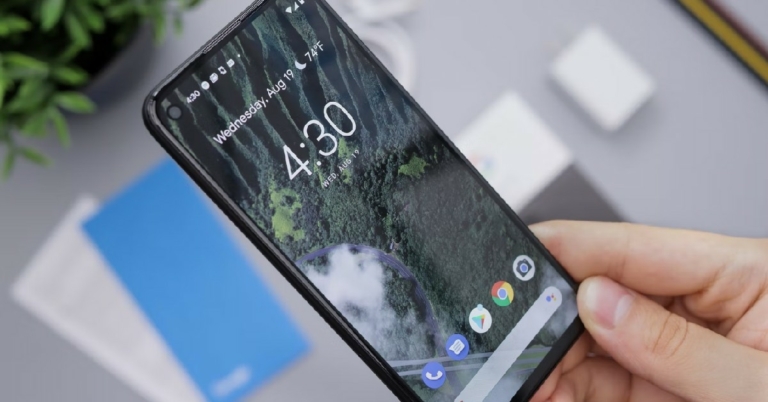
 Spyware installed on your phone can cause a sudden decline in battery life. Since the spyware apps run in the background, your smartphone’s battery is constantly being utilised to keep them active. Any decline in battery life that seems out of the ordinary should be further inspected. In order to check the battery usage of specific apps go to Settings>Battery>Battery Usage and check if any app is using excessive battery power. Also, look for any unknown apps. If no app shows any excessive usage, there may be some hidden spyware installed on your phone.
Check the data usage
 Any spyware needs to send data back to the source that installed it. In order to do this, the spyware will need to use your phone’s internet data. If you notice that you’re running out of data quickly without using the internet that often, check the data usage of your phone. Go to Settings>Connections>Data Usage and check the data usage for the different apps on your phone. If the data usage seems consistent with your activity, there is nothing to worry about. However, if there is unaccounted data utilised by your smartphone, it warrants further inspection.
Phone overheating
One of the more visible signs of spyware installed on your phone is your smartphone overheating even when you’re not using it. As we mentioned earlier, spyware constantly runs in the background and sends data back to the source. It also monitors your location, so your GPS is turned on at all times. This would certainly have an effect on your phone and it might overheat even when you’re not actively using it.Disturbance during phone calls
If you notice any weird background noise or echo during your phone calls, it is possible they are being monitored. It is a cause for alarm if it happens even when your phone receives good network reception.Drop in phone performance
If the level of your smartphone’s performance drops off abruptly, it is a secondary sign of some malicious spyware. While it may not confirm that your phone is being spied on, it certainly warrants further inspection.How to safeguard your phone from being spied on?
If you notice your smartphone showing multiple signs listed above, it is better to be on the side of caution and safeguard your phone from being spied on. Here are some techniques you can use:- Try to find the spyware app manually: Go to the file explorer on your phone and look through the installed files. Be on the lookout for any strange names or duplicates. Sometimes a spying app can be disguised with an inconspicuous name like ‘Calculator’ or ‘Gallery’. Always be mindful of any unusual activity.
- Perform a factory reset: Performing a factory reset will delete all data from your phone, including any hidden spyware. This is the quickest way to secure your phone, but you will lose your personal data.
- Install an antivirus app: There are several antivirus apps on the Play Store that are equipped to detect any malicious files or spyware on your phone. Once you install an antivirus app, schedule routine checks for your phone.
 Camera Specifications
Rear Camera:
Camera Specifications
Rear Camera: Camera Specifications
Rear Camera:
Camera Specifications
Rear Camera: Camera Specifications
Rear Camera:
Camera Specifications
Rear Camera: Camera Specifications
Rear Camera:
Camera Specifications
Rear Camera: Camera Specifications
Rear Camera:
Camera Specifications
Rear Camera: Camera Specifications
Rear Camera:
Camera Specifications
Rear Camera: Camera Specifications
Rear Camera:
Camera Specifications
Rear Camera: Camera Specifications
Rear Camera:
Camera Specifications
Rear Camera: Camera Specifications
Rear Camera:
Camera Specifications
Rear Camera:  Camera Specifications
Rear Camera:
Camera Specifications
Rear Camera:

 Read Also:
  Step 2:
 Step 3:
 Step 4:






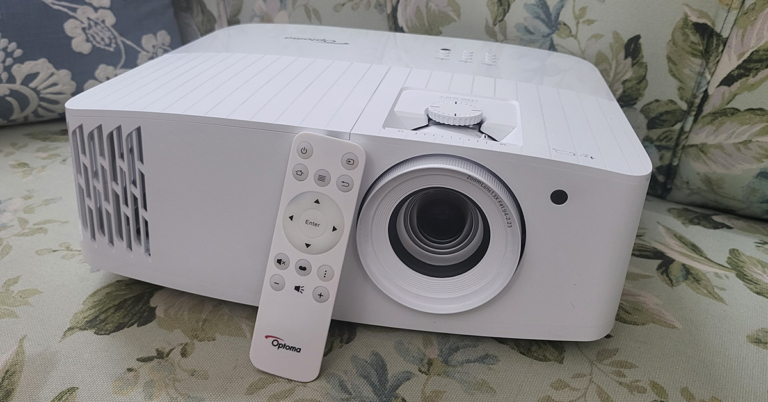
 You get the lens zoom, lens shift knobs on the top along with the power, keystone correction and other useful buttons. To raise the Optoma UHD55 projector a bit (when kept on flat surfaces) the company has put a raise stand below it. Up front, you will find the large lens along with an IR receiver.
 Turn it around and you will get to see a plethora of ports. These include a couple of HDMI, a few USB 2.0, Ethernet, VGA, audio in and audio out ports. The power-in port is also available here. A unique feature of the Optoma UHD55 projector is that the first USB port is a power OUT (5V) port, which can also be used to charge your gaming console’s gamepads. With that, a 10W speaker is also hidden behind the grille of this projector. More about this in the next section.
 A minimalistic-looking IR remote also comes with this projector with all the essential buttons and it works from as far as 50 feet, when we tested it out. All in all, the Optoma UHD55 projector is a very decent-looking device that can easily be placed on a flat surface or roof mounted.
 Setting it up was child’s play and we were up and running in 5 minutes. Up to 302-inch screen size is supported. We kept ours at 120-inch and oh boy! everything looks very good. The Optoma UHD55 projector comes with a 10W speaker also inside, which is decent for small rooms, but you will need extra speakers if you want to feast on the full power of this projector. The throw distance is also not very high, and the keystone correction works flawlessly. You can easily control it through the onboard button panel or with the supplied remote.
Read Also:
Setting it up was child’s play and we were up and running in 5 minutes. Up to 302-inch screen size is supported. We kept ours at 120-inch and oh boy! everything looks very good. The Optoma UHD55 projector comes with a 10W speaker also inside, which is decent for small rooms, but you will need extra speakers if you want to feast on the full power of this projector. The throw distance is also not very high, and the keystone correction works flawlessly. You can easily control it through the onboard button panel or with the supplied remote.
Read Also: 
 Step 3:
 Step 4:
 Step 2:




 Step 2:


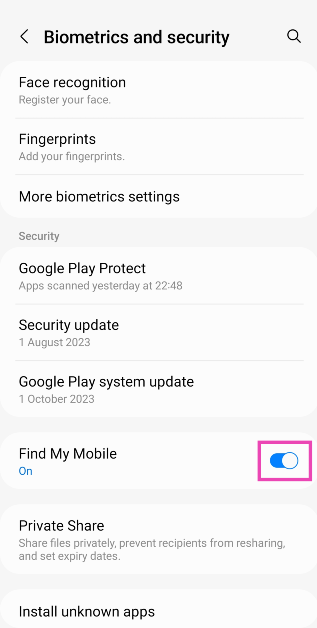
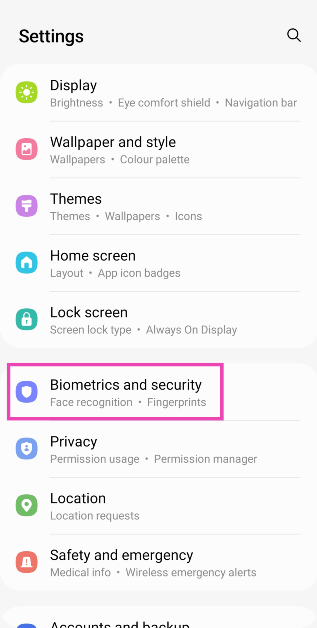 Step 2: Scroll down and turn on the toggle switch for Find My Mobile.
 On your PC
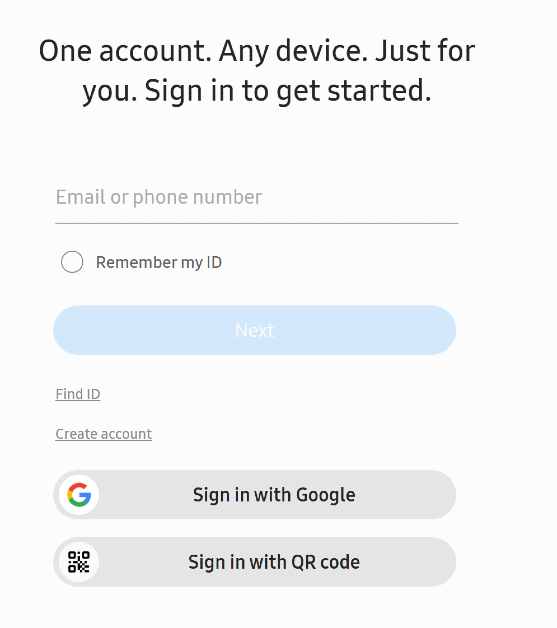
Step 1: Go to the SmartThings Find page and log in using your phone number or the registered email.
On your PC
Step 1: Go to the SmartThings Find page and log in using your phone number or the registered email.
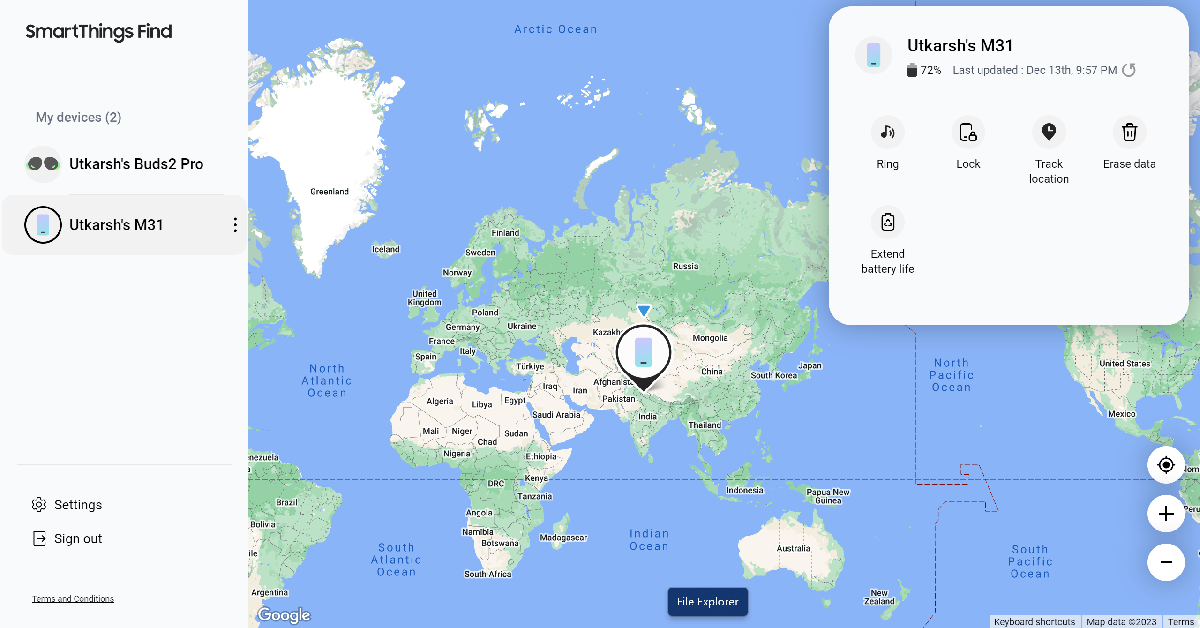
 Step 2: Your device’s location will be marked on the map.


 Step 3:
 Step 4:
 Step 5:
 Specifications
Display:
Specifications
Display: Specifications
Display:
Specifications
Display: Specifications
Display:
Specifications
Display: Specifications
Display:
Specifications
Display: Specifications
Display:
Specifications
Display:


 Step 2:
 Step 3:
 Step 2:
 Step 3:
 Step 4: