

OnePlus announces Community Sale to celebrate its 9th Anniversary
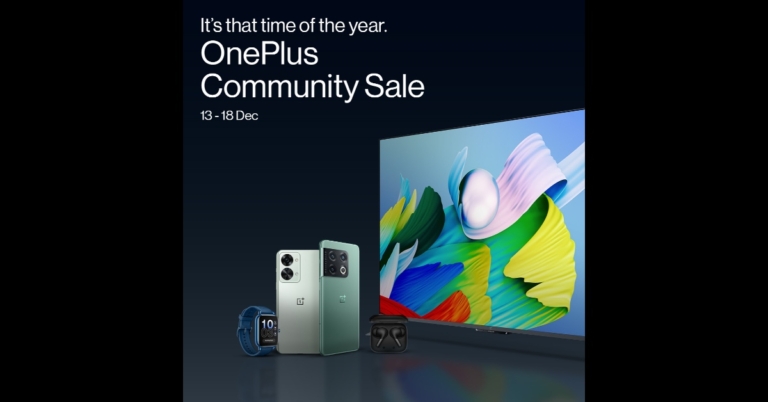
OnePlus has announced amazing deals across its line of 5G-ready Smartphones, Smart TVs, Audio, Wearables, and a newly introduced series of Monitors to commemorate its 9th anniversary. The OnePlus Community Sale is already live and users will be able to take advantage of a variety of discounts across all categories and channels.
Customers can take advantage of attractive deals on the OnePlus 10 Series, OnePlus Nord Series, Smart TVs, and other ecosystem items. The is now live and will be accessible till December 25 in the country.
Users may get an Rs 5000 discount on the OnePlus 10 Pro 5G via OnePlus.in, OnePlus Store App, OnePlus Experience Stores, Amazon.in, and Partner Stores. Customers can get an instant bank discount of up to Rs 5,000 on the OnePlus 10T 5G, up to Rs 6,000 on the OnePlus 10 Pro 5G, and up to Rs 5,000 on the OnePlus 10R 5G via ICICI Cards purchases on OnePlus.in, OnePlus Store App, OnePlus partner stores, OnePlus Experience stores, and Amazon.in.
OnePlus and iOS users can also exchange their previous devices for an Rs 10,000 discount on both the OnePlus 10 Pro 5G and the OnePlus 10T 5G via OnePlus.in, OnePlus Store App, OnePlus Experience Stores, Amazon.in, and Partner Stores. Users can take advantage of the exchange offer between December 13th and December 20th, 2022.
Customers using ICICI Cards and EMI transactions on OnePlus.in, OnePlus Store App, OnePlus Experience Stores, Amazon.in, and Partner Stores can get an instant bank discount of Rs 3,000 on the OnePlus Nord 2T 5G and Rs 1,500 on the OnePlus Nord CE2 Lite 5G. This promotion is valid till December 18.
Customers can get an instant bank discount of Rs 2,000 on the OnePlus Nord 2T 5G via ICICI Cards and EMI transactions on OnePlus.in, OnePlus Store App, OnePlus Experience Stores, Amazon.in, and Partner Stores from the 19th to the 25th of December.
ICICI cardholders can now enjoy an extra Rs 1,000 off the OnePlus Nord 2T using net banking on OnePlus.in. This promotion is valid from December 13th through December 18th.
From the 19th to the 25th of December, ICICI cardholders can save Rs 700 on the OnePlus Nord 2T by making a net banking transaction on OnePlus.in.
ICICI cardholders can get No Cost EMI for up to 3 months on OnePlus Nord 2T and OnePlus Nord CE2 Lite from December 13th to December 25th.
The OnePlus Bullets Wireless Z2, OnePlus Nord Buds, OnePlus Nord Buds Z2, OnePlus Buds Pro, OnePlus Nord Buds CE, OnePlus Nord Wired Headphones, and OnePlus Nord Watch will be available for Rs 1699, Rs 2499, Rs 4499, Rs 8990, Rs 1899, Rs 599, and Rs 4499, respectively. Customers who use ICICI Cards can also get an Instant Bank Discount of Rs 1000, Rs 300, and Rs 150 on the OnePlus Buds Pro, OnePlus Buds Z2, and OnePlus Bullet Wireless Z2, respectively.
Customers using ICICI Cards can get an Instant Bank discount of Rs 2,000, Rs 3,000, and Rs 2,000 on the OnePlus TV 32Y1, OnePlus TV 43Y1, and OnePlus TV 40Y1, respectively. Customers who purchase the OnePlus TV 43Y1S PRO, OnePlus 55Q1, or OnePlus 55Q1 PRO with ICICI Cards will receive an instant bank discount of Rs 1,000, Rs 4,000, or Rs 8,000, respectively. Furthermore, ICICI Cardholders can get an instant bank discount of Rs 3,000, Rs 3,000, and Rs 4,000 on the OnePlus TV 50 U1S, OnePlus TV 55 U1S, and OnePlus TV 65 U1S, respectively.
For ICICI Card holders, the recently announced OnePlus Monitor X 27 will be available at a discount of Rs 1000.
For the latest gadget and tech news, and gadget reviews, follow us on Twitter, Facebook and Instagram. For newest tech & gadget videos subscribe to our YouTube Channel. You can also stay up to date using the Gadget Bridge Android App. You can find the latest car and bike news here.
How to perform a Hard reset or Factory reset on Samsung smartphones?
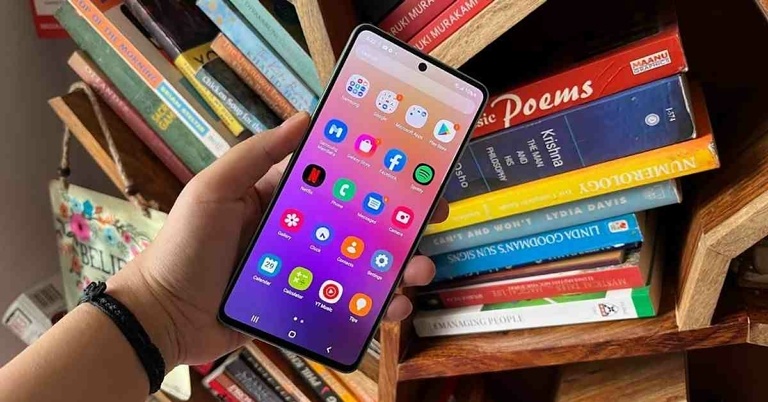
Performing a factory reset (also known as a hard reset) on your smartphone restores it to its ‘factory settings.’ Every customisation and setting gets reset to its default state and all your personal data is erased from the device. In other words, a factory reset turns your phone back to how it was when you pulled it out of the box. So, when should you perform a factory reset? Most users tend to utilise this option when they need to quickly erase all data from their device. If you’re selling your smartphone, a factory reset will remove all the pictures, files, login information, apps, and every other kind of personal data from your device. A factory reset also comes in handy when your phone is experiencing some issues but you cannot diagnose the problem. In this article, we show you how to perform a factory reset or a hard reset on a Samsung smartphone.
Read Also: Best ways to block an Airtel SIM easily?
 Step 2: Tap on ‘Reset.’
Step 3: Select ‘Factory data reset.’
Step 4: Scroll down and tap on ‘Reset.’
Step 3: Click on ‘Erase’ in the popup dialogue box.
Step 4: After the factory reset is complete, the lock screen will appear on your screen. Select ‘Use my Google Account instead’ to log in to your device.
Step 3: Enter the code sent to your smartphone to verify your identity. After you’ve entered the code, the factory reset process will begin.
Read Also: How to Easily Download YouTube Shorts on any Smartphone – Android or iPhone
Step 2: Tap on ‘Reset.’
Step 3: Select ‘Factory data reset.’
Step 4: Scroll down and tap on ‘Reset.’
Step 3: Click on ‘Erase’ in the popup dialogue box.
Step 4: After the factory reset is complete, the lock screen will appear on your screen. Select ‘Use my Google Account instead’ to log in to your device.
Step 3: Enter the code sent to your smartphone to verify your identity. After you’ve entered the code, the factory reset process will begin.
Read Also: How to Easily Download YouTube Shorts on any Smartphone – Android or iPhone
How to factory reset your Samsung smartphone from Settings
Before you perform a factory reset on your smartphone, make sure you back up all your data either on an external storage device or on an online data backup service. Once the factory reset is completed, all data will be erased from your smartphone. Step 1: Go to Settings, scroll down and select General management. Step 2: Tap on ‘Reset.’
 Step 3: Select ‘Factory data reset.’
 Step 4: Scroll down and tap on ‘Reset.’

How to factory reset your Samsung smartphone using Find My Device
Google’s ‘Find My Device’ service helps you find your smartphone in case you lose it or it gets stolen. If you are logged in to your Google Account on your smartphone, you will be able to locate it even if it is switched off. One of the better features of ‘Find My Device’ is that it lets you remotely wipe out all the data from your device so it doesn’t fall into malicious hands. Here’s how you can do it. Step 1: Go to the ‘Find My Device’ webpage and log in using your Google Account. Step 2: Click on ‘Set up Secure and Erase.’ Step 3: Click on ‘Erase’ in the popup dialogue box.
 Step 4: After the factory reset is complete, the lock screen will appear on your screen. Select ‘Use my Google Account instead’ to log in to your device.

How to factory reset your Samsung smartphone using ‘Find my Mobile’
Samsung’s very own ‘Find my Mobile’ service can also help you remotely erase all the data on your smartphone. Follow these steps to find out how. Step 1: Go to https://findmymobile.samsung.com/ and sign in using your Samsung account. Step 2: Select ‘Erase data’ from the menu on the right side of the screen. Step 3: Enter the code sent to your smartphone to verify your identity. After you’ve entered the code, the factory reset process will begin.
Read Also: How to Easily Download YouTube Shorts on any Smartphone – Android or iPhone
Step 3: Enter the code sent to your smartphone to verify your identity. After you’ve entered the code, the factory reset process will begin.
Read Also: How to Easily Download YouTube Shorts on any Smartphone – Android or iPhone
Conclusion
This is how you can perform a hard reset or factory reset on your Samsung smartphone. While performing a factory reset is the easiest way to restore your smartphone to factory settings, you don’t need to use it all the time. It is usually reserved for rare occurrences when you can’t diagnose the problem with your phone. If you are experiencing a network issue with your smartphone, you can try performing a network reset. Experiencing issues with the onscreen keyboard? Try resetting accessibility settings. Unlike a factory reset, these fixes will not erase your data. For the latest gadget and tech news, and gadget reviews, follow us on Twitter, Facebook and Instagram. For newest tech & gadget videos subscribe to our YouTube Channel. You can also stay up to date using the Gadget Bridge Android App. You can find the latest car and bike news here.JellyCar Worlds makes its Apple Arcade debut

Apple Arcade released a new vintage driving game called JellyCar Worlds. According to Apple, the game features classic and unusual soft body mechanics and gameplay in the present era. It provides an ad-free gaming experience on supported iPhones, iPads, and Macs. Players must journey across several jelly-made worlds in a jelly-made automobile. Moreover, Sneaky Sasquatch, is also getting a major content update.
Apple has added the all-new JellyCar Worlds to Arcade. The new edition is an updated version of the popular JellyCar Worlds game.
JellyCar Worlds, from Walaber Entertainment, brings the iconic iOS game — with its nostalgic and characteristic soft body mechanics and gameplay — into the modern day. The idea is simple enough: you play as a jelly automobile, and deliciously gelatinous hijinks occur.
JellyCar Worlds is an all-new modern take on the JellyCar game, with the same unusual soft body mechanics and gameplay. Travel across different jelly-made worlds on a jelly-made automobile. Players will use the gelatinous nature of the vehicle and environment to navigate levels, overcome obstacles, and find the exit. Players can even develop their own car designs and record their own sound effects.
As previously stated, Sneaky Sasquatch is getting a huge content update. Sasquatch is running for mayor in this significant new update. Sasquatch’s home is once again in jeopardy, and only a successful election campaign to become mayor can rescue it. Players will be tasked with erecting signs, advertising on billboards, shaking hands with locals, befriending as many people as possible, and other tasks.
Apple Arcade also added new holiday-themed content to Bloons TD 6+, including a new tower, a new Boss Bloon (Dreadbloon), and more. Whereas in Fruit Ninja Classic+, players can acquire the new Christmas Tree Blade during the Christmas Event, which runs from December 9 to December 27. This patch also introduces three new Blade abilities: Bamboo Shoot, Pixel Love, and Golden Ember Blade.
SongPop Party now features a new Chat feature that enables participants to send messages and emotes to other players. Players may also check out five new festive playlists for SongPop Party’s in-game Christmas event, which runs from December 15 to December 25, as well as five new playlists for the game’s New Year event, which runs from December 26 to January 2.
For the latest gadget and tech news, and gadget reviews, follow us on Twitter, Facebook and Instagram. For newest tech & gadget videos subscribe to our YouTube Channel. You can also stay up to date using the Gadget Bridge Android App. You can find the latest car and bike news here.
Garena Free Fire Redeem Codes Today 14 December 2022: Here is how to claim them

Garena Free Fire is a battle royale game with regular awards and tournaments to keep players interested. If you play Garena Free Fire, you should be aware of the redeem codes that are released on a daily basis. However, because the battle royale game is banned in India, players from other countries can use the Free Fire Redeem codes daily. If you’re unfamiliar with the Garena Free Fire redeem codes or don’t know how to get them, we’ve put together a step-by-step guide to help you redeem them. Check out Garena Free Fire Redeem Codes for December 14.
The Free Fire redeem codes are a great way to get free stuff. These are 12-digit codes that contain alphabets and numbers, as well as an expiration date and time. Because the Garena FF redeem codes cannot be used more than once, you should hurry to the redemption page to claim your free reward before someone else does. To get a free reward, all you have to do is go to reward.ff.garena.com/en, which is the official redemption page. Also, keep an eye on this space for daily updates on Garena Free Fire redemption codes and rewards.
Garena Free Fire Redeem Codes Today 14 December 2022
8F3QZKNTLWBZ W0JJAFV3TU5E WLSGJXS5KFYR FF1164XNJZ2V X99TK56XDJ4X FF119MB3PFA5 FF10617KGUF9 FF11DAKX4WHV FF11NJN5YS3E FF11WFNPP956 MCPTFNXZF4TA B6IYCTNH4PV3 ZRJAPH294KV5 SARG886AV5GR YXY3EGTLHGJX ZZATXB24QES8 FFIC33NTEUKA VNY3MQWNKEGU E2F86ZREMK49 V44ZZ5YY7CBSHow to Get Free Fire Redeem Codes for Garena on December 14?
- Visit the Garena Free Fire game’s official website at reward.ff.garena.com.
- Use your Facebook, Google, VK, Apple ID, Huawei ID, or Twitter account to log in.
- You’ll be taken to a valid redemption code (s)
- Copy and paste the 12-digit redemption code into the text box.
- On the screen, a dialogue box will appear.
- ‘Ok’ should be selected.
Amazon Quiz Answers Today 14 December 2022: Participate to win Rs 1,000 Amazon Pay Balance

14 December 2022 Amazon Quiz has gone live on its mobile app platform. Customers from different parts of the country are participating in the daily quiz. The daily quiz is conducted by the company brings an opportunity for the customers to win exciting prizes. The quiz begins from 12 AM to 11:59 PM. In today’s quiz participants have a chance to win Rs 1,000 Amazon Pay Balance by answering all the questions correctly.
Every day Amazon brings a fresh set of questions for its customers that contains five easy questions. Amazon quiz brings an opportunity for its customers to win Amazon Pay Balance ranging from Rs 1,000 to Rs 50,000. which consists of five questions related to general knowledge and current affairs.
The participants need to answer all the questions correctly and their names will be selected for a lucky draw. The winner will be announced at the end of the month. One wrong answer could eliminate you from the quiz. If you manage to answer all the questions correctly you can stand a chance to win Rs 1,000 Amazon Pay Balance today. Only app users are eligible to participate in the Quiz. Check Out 14 December 2022 Amazon Quiz Answers.
Amazon Quiz Today Prize – Rs 1,000 Amazon Pay Balance
Quiz Date – 14 December 2022
Daily Timing – 12 AM to 11:59 PM
Winner Announcement – Today at 12 PM
Amazon Quiz Answers Today 14 December 2022
Question 1: In which country have 24 well-preserved bronze statues, dating back 2300 years, been excavated from a spa? Answer: Italy Question 2: After Elon Musk’s acquisition of Twitter, many users have jumped to which open-source alternative social app that started in 2016? Answer: Mastodon Question 3: Which science fiction movie is about the human colonization of a distant moon called Pandora? Answer: Avatar Question 4: In which US state did this movement start from? Answer: Florida Question 5: Which sultan began the construction of this fortress? Answer: SaladinHow To Play Amazon Quiz
Only app users are eligible to play the Amazon quiz every morning from 12 AM to 11:59 PM. The quiz is not available on the desktop. For those who are unaware of how to play the Amazon quiz below are the steps, you can follow to take the quiz.- Firstly download the Amazon app from Google Play Store or App Store
- Now fill in the required information through the Sign Up option.
- You need to log in to the Amazon app and scroll down on the home screen to find the Amazon Quiz banner.
- Tap on the Amazon Quiz banner and tap on the Start button to start the Quiz.
- Now you will get 5 questions and you need to answer them correctly. One wrong answer will eliminate you from the Quiz.
- After answering all the questions correctly you are now eligible for a Lucky Draw.
- The winner’s name will be announced today at 12 PM.
Why Mobile Devices Are Better than PCs for Gaming Online

Nowadays, smartphones are on their way to replacing personal computers. You can do much more on the phone, and it’s easier to carry around than a laptop or desktop.
But did you know that there is one area where your smartphone has an even better advantage over traditional PCs?
Gambling halls of all kinds must provide great & handy gaming experience in order to get loyal players. Most gamblers prefer playing online slots on phones, without wasting their precious time on bulk PCs. There are even casino game developers who don’t create games for laptops anymore! A bit crazy, but it’s 2022, darling.
If you want to know why let’s look at some of the features and advantages of mobile gambling:
More Flexible than a PC
The main advantage of playing in an online casino from a smartphone is that you can do it anywhere. From your phone, you can play online slots, roulette, blackjack, and even make sports predictions. All this is from the app or the mobile version of the casino. Besides, mobiles are way too easy to carry around, more compact, and lighter.Immersive Experience
Touch screens are more accessible and intuitive than your regular keyboard or mouse. This technology is also more responsive since it can adapt the website’s graphics and formats to your screen’s size, making it more immersive. There are many types of smartphone screens. However, OLED technology is recommended if you want to play in an online casino. These screens are brighter, have better colour saturation, and have less power consumption. This way, you can enjoy your casino games with a better resolution.Fast Games Response
When you play in an online casino, especially at a live dealer table, you need that the game works lightly but fast. The Snapdragon processor is the best option to play in an online casino, offering up to 4K graphics at 60 FPS. The latest Snapdragon processor, the 8 Gen 1, allows fast game response and avoids lag. The best features of this processor are:- Low latency engine.
- An anti-ageing engine.
- A smart memory engine to improve system fluidity, prevent ageing, and allow more applications to remain active in the background.
Better Wi-Fi Compatibility
When playing at an online casino, it’s essential to have a good internet connection to enjoy the whole experience. Many factors can make your phone’s internet faster than your PC—for example, WI-FI standards. If you have a computer with limited resources, your PC won’t have enough internet speed to support games. On the other hand, if your smartphone is WI-FI 6 standard, the connection will be much faster. It also matters the WiFi bands. Modern devices can now connect to the 2.4 GHz and 5 GHz bands. The first band has the widest coverage, although the speed is more limited. On the other hand, the second band has a higher speed, but only if you are close to the router. Your computer may not be dual-band and work on the 2.4 GHz band. This makes it slower than smartphones that connect to the 5 GHz band.
Cheaper Than a PC
You don’t have a high-end PC to play casino games. Yet, having a fast PC that can handle long blackjack matches, online slots, or poker opened in multiple tabs while doing work or anything else can be costly. Instead, a high-end smartphone can be more affordable, offering a more flexible gaming experience.Playing Casino Games with Your Smartphone
After knowing all the advantages of playing at an online casino with your smartphone, you should try one. Playing casino games with your smartphone can offer you a fun and rewarding experience while using a comfortable device in your hands. For the latest gadget and tech news, and gadget reviews, follow us on Twitter, Facebook and Instagram. For newest tech & gadget videos subscribe to our YouTube Channel. You can also stay up to date using the Gadget Bridge Android App. You can find the latest car and bike news here.OnePlus Monitor X27 and OnePlus Monitor E24 launched in India

With the release of the OnePlus Monitors, the OnePlus has entered the monitor market. The two monitors, the OnePlus Monitor X27 and the OnePlus Monitor E24 have been introduced in 27-inch and 24-inch sizes, respectively.
OnePlus Monitor X27
The OnePlus Monitor X27 offers a fast and smooth gaming experience with a 165Hz refresh rate and an amazingly fast 1ms reaction time, providing ultra-clear visuals with minimal lags and blurring. Users may experience professional-level gaming with AMD Freesync Premium, which provides smooth visuals free of screen tearing and jittering, as well as variable frame rates tuned to each specific game. With clear 2K QHD visual resolution, users may enjoy their favourite games, stream material, and much more. The OnePlus Monitor X27 also provides an excellent viewing experience, with its brilliant HDR 400 colour and broad 178° IPS panel providing exceptional views from all angles. With vibrant 10-bit colour and a wide DCI-P3 95% colour gamut that adds life-like colours and details, the OnePlus Monitor X27 immerses users in an immersive visual experience. With vibrant 10-bit colour and a wide DCI-P3 95% colour gamut that adds life-like colours and details, the OnePlus Monitor X27 immerses users in an immersive visual experience. The OnePlus Monitor X27 easily adapts to user activities because of its efficient rotatable viewing angle. The monitor’s effective tilt, rotation, and pivot angles are -5° to 21°, -20° to 20°, and -90° to 90°, respectively. Furthermore, the monitor’s height may be adjusted from 0-130mm. The OnePlus Monitor X27 features a unique type-C connector that can charge users’ laptops with up to 65W rapid charging while also transmitting their display feed. The OnePlus Monitor X27’s Type-C connection allows power delivery of up to 65W via the USB PD standard (5V-3A, 9V-3A, 12V-3A,15V-3A,20V-3.25A). Users can also share content by displaying their phone or tablet screen. Users must utilise the Type-C cable included in the package to communicate display feed with their device, and their device must support DisplayPort Alt Mode. Users can tailor their viewing experience with five different modes: Standard, Movie, Picture, Web, and Game, which function flawlessly whether users are working, gaming, or browsing the web. The Game mode also includes four optimised sub-modes with beautiful visuals: MOBA mode, FPS mode, RTS mode, and RPG mode. The dual PbP and PiP split-screen modes allow users to multitask effectively in a clutter-free environment without the need for extra displays. Users can see papers from two separate devices side by side on the OnePlus Monitor X27, as well as stream any video from their phone in the upper right corner of their monitor screen, while finishing up that important work document.OnePlus Monitor E24
The OnePlus Monitor E24 provides an excellent visual experience with a Full HD display, 16.7 million life-like colours, and a wide 178° IPS panel, providing customers with top-notch imaging in its price range. A 75 Hz refresh rate and Adaptive Sync technology, which offers dynamic frame rate management, allow users to see their favourite material with less lag and greater clarity. The OnePlus Monitor E24, like the OnePlus Monitor X27, offers a healthy viewing experience thanks to TUV Rheinland certification, with reduced blue light and flicker-free graphics. It also includes a robust metal stand to keep it stable on its feet. The device features a superior three-sided bezel-less design and a remarkable adjustable stand angle (-5° to 15°) with effective tilt and rotation. The OnePlus Monitor E24, like the OnePlus Monitor X27, includes a built-in wire management feature to keep customers’ desks clutter-free. Furthermore, like the OnePlus Monitor X27, the OnePlus Monitor E24 features type-C port connectivity.Availability and Offers
The OnePlus Monitor X27 will cost INR 27,999 and will be available for purchase on OnePlus.in beginning December 15th. Pricing and availability for the OnePlus Monitor E24 will be announced soon. Additionally, when purchasing the OnePlus Monitor X27 on OnePlus.in, consumers may receive an attractive instant bank discount worth INR 1000 with ICICI Bank Credit Card/Debit EMI and Net Banking transactions. Customers can also get a free EMI for up to 6 months when they buy the OnePlus Monitor X27. For the latest gadget and tech news, and gadget reviews, follow us on Twitter, Facebook and Instagram. For newest tech & gadget videos subscribe to our YouTube Channel. You can also stay up to date using the Gadget Bridge Android App. You can find the latest car and bike news here.How to Simply Find and See All the Comments You’ve Made on Instagram?

Did you know that you can see all the comments you’ve ever posted on Instagram? Instagram’s profile activity feature allows users to view their comments, likes, story replies, and reviews on the app. Accessing ‘your activity’ on Instagram is pretty simple and won’t take any time. In this article, we show you how to find and see all the comments you’ve made on Instagram in case you want to revisit or delete/amend them.
Read Also: Gadget Bridge Awards 2022: The biggest consumer technology and gadget awards nominations
Step 3: Select ‘Your activity.’
Step 4: Tap on ‘Interactions’ and select ‘Comments.’
Step 5: This is where you can see all the comments you have made on Instagram posts. You can sort your comments by oldest to newest if you want to see them in chronological order. You can even see your comments from a particular time period by entering the start and end dates.
Step 6: You can easily remove comments by tapping on them and selecting ‘Delete.’ You can also remove multiple comments by tapping on ‘Select’ at the top right corner of the screen and then tapping on ‘Delete.’
Step 3: Select ‘Your Activity.’
Step 4: Scroll down and go to ‘Download Your Information.’
Step 5: In the following window, enter your email address and your Instagram password.
Step 6: Instagram will send you your data in the email you provided earlier.
Step 7: Download the data file and look for your comments in the ‘Comments’ folder.
Step 3: ‘Your activity.’
Step 4: Tap on ‘Interactions’ and select ‘Likes.’
You will be able to view all the posts that you’ve liked on Instagram. You can sort the posts by time, date, and author.
Read Also: POCO Announces Year-End Offers During Flipkart Big Saving Days
Check your Instagram Activity
Step 1: Open the Instagram app and go to your Profile. Step 2: Tap the hamburger menu icon at the top right corner of the screen. Step 3: Select ‘Your activity.’
 Step 4: Tap on ‘Interactions’ and select ‘Comments.’
 Step 5: This is where you can see all the comments you have made on Instagram posts. You can sort your comments by oldest to newest if you want to see them in chronological order. You can even see your comments from a particular time period by entering the start and end dates.
 Step 6: You can easily remove comments by tapping on them and selecting ‘Delete.’ You can also remove multiple comments by tapping on ‘Select’ at the top right corner of the screen and then tapping on ‘Delete.’
Download your Instagram data
Instagram maintains a folder of your personal data that contains all your activity on the platform since the day you joined. This includes comments, messages, posts, settings, and more. You can request Instagram to provide you with your compiled data and use it to view all your comments. Here’s how you can do that. Step 1: Open the Instagram app and go to your Profile. Step 2: Tap on the hamburger menu.
Step 3: Select ‘Your Activity.’
Step 4: Scroll down and go to ‘Download Your Information.’
 Step 5: In the following window, enter your email address and your Instagram password.
 Step 6: Instagram will send you your data in the email you provided earlier.
Step 7: Download the data file and look for your comments in the ‘Comments’ folder.
Step 6: Instagram will send you your data in the email you provided earlier.
Step 7: Download the data file and look for your comments in the ‘Comments’ folder.
Bonus Tip
How to find all the posts you’ve liked on Instagram
Step 1: Open the Instagram app and go to your Profile. Step 2: Tap the hamburger menu icon at the top right corner of the screen.
Step 3: ‘Your activity.’
Step 4: Tap on ‘Interactions’ and select ‘Likes.’
 You will be able to view all the posts that you’ve liked on Instagram. You can sort the posts by time, date, and author.
Read Also: POCO Announces Year-End Offers During Flipkart Big Saving Days
You will be able to view all the posts that you’ve liked on Instagram. You can sort the posts by time, date, and author.
Read Also: POCO Announces Year-End Offers During Flipkart Big Saving Days
Conclusion
This is how you can find and see all the comments you’ve made on Instagram. If you are not able to find a particular comment you are looking for, it may be because the user either deleted the post or blocked your account. It is also possible that the user set their profile to private and you are not following them. If you found this article helpful, let us know in the comments! For the latest gadget and tech news, and gadget reviews, follow us on Twitter, Facebook and Instagram. For newest tech & gadget videos subscribe to our YouTube Channel. You can also stay up to date using the Gadget Bridge Android App. You can find the latest car and bike news here.Redmi Note 12 Pro+ 5G India debut to take place on January 5 next year
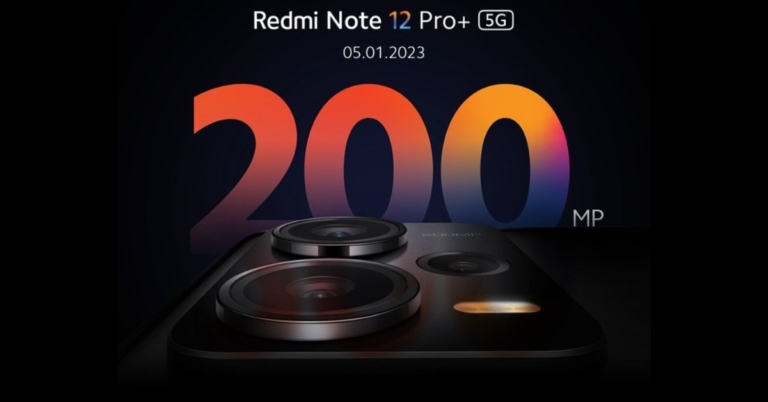
Recently Xiaomi teased the Redmi Note 12 5G series debut in India, indicating the smartphone’s forthcoming arrival in the nation. The company has officially made the announcement that Redmi Note 12 Pro+ 5G will be launching in India on January 5.
Redmi has announced that the Redmi Note 12 Pro+ will be launching in India on January 5. To recall, the launch of the device took place in China in October. Its range includes the Redmi Note 12, Note 12 Pro, and Note 12 Pro Plus. Xiaomi teased the Redmi Note 12 5G series debut in India just a few days back and also invited interested consumers to sign up for further device updates.
Based on Xiaomi’s promo, the smartphones are likely to have a similar appearance in India with promotional images showing a triple back camera configuration. It’s said to have a 200-megapixel triple back camera set.
Previously, it was thought that the Redmi Note 12 Pro+ would be rebranded as the Xiaomi 12i HyperCharge in India. However, the latest teaser now reveals that the Note 12 Pro+ will keep its current branding in India.
Redmi Note 12 Pro+ specifications
The 6.67-inch full-HD OLED display on the Redmi Note 12 Pro+ boasts a refresh rate of up to 120Hz. The screen has a maximum brightness of 900 nits and a touch sampling rate of 240Hz. The monitor supports HDR10+ and Dolby Vision. The Note 12 Pro+ features an octa-core 6nm MediaTek Dimensity 1080 SoC, up to 12GB LPDDR4X RAM, and a Mali-G68 GPU. It comes with MIUI 13 pre-installed, which runs on Android 12. The Note 12 Pro+’s triple rear cameras have a 200-megapixel main sensor with OIS. A 2-megapixel macro lens and an 8-megapixel ultra wide-angle camera are also included. The phone sports a 16-megapixel front-facing camera sensor for selfies. The new Redmi Pro+ smartphone is backed by a 5,000mAh battery with 120W rapid charging capability.Redmi Note 12 Pro+ price
The Redmi Note 12 Pro+ is available in China for CNY 2,099 (about Rs 23,000) for the 8GB RAM with 256GB storage option, and CNY 2,299 (approximately Rs 26,000) for the 12GB RAM with 256GB storage option. For the latest gadget and tech news, and gadget reviews, follow us on Twitter, Facebook and Instagram. For newest tech & gadget videos subscribe to our YouTube Channel. You can also stay up to date using the Gadget Bridge Android App. You can find the latest car and bike news here.How to Easily Download YouTube Shorts on any Smartphone – Android or iPhone

After the success of short video platforms like TikTok and Instagram Reels, YouTube introduced its own category of vertical short-form videos aptly named ‘Shorts.’ Users can upload short-form videos of up to 60 seconds on YouTube Shorts. While there was a lack of original content on YouTube Shorts when it first started, more creators are quickly switching to the platform and creating exclusive content for Shorts. In this article, we bring you 2 easy ways to download YouTube Shorts on any smartphone.
Read Also: POCO Announces Year-End Offers During Flipkart Big Saving Days
Step 3: Open your smartphone’s web browser and open https://shortsnoob.com/.
Step 4: Paste the Short’s link in the URL box on the homepage and hit ‘Search.’
Step 5: Shortsnoob will process the video and open it in the same window.
Step 6: Tap the ellipses (three dots) on the video player.
Step 7: Select ‘Download.’
The Short will be saved to your device and can be accessed from the Downloads folder on your smartphone.
PasteDownload is one of the most used video downloaders on the Internet, letting users save videos from platforms like YouTube, Facebook, Twitter, Vimeo and more on their devices. To download a YouTube Short on your device, you need to copy the link of the Short and open https://pastedownload.com/27/ on your smartphone’s web browser. Paste the Short’s link in the URL box on the website and hit ‘Download.’ PasteDownload will save the video on your device.
Read Also: Gadget Bridge Awards 2022: The biggest consumer technology and gadget awards nominations
Use Shortsnoob
Shortsnoob is a website that is dedicated to downloading YouTube Shorts. This website works smoothly on a smartphone browser, and the process is pretty easy to follow. Here’s how you can download YouTube Shorts using Shortsnoob. Step 1: Open the YouTube app and select the Short your want to download. Step 2: Tap the Share button and copy the video link. Step 3: Open your smartphone’s web browser and open https://shortsnoob.com/.
Step 4: Paste the Short’s link in the URL box on the homepage and hit ‘Search.’
Step 3: Open your smartphone’s web browser and open https://shortsnoob.com/.
Step 4: Paste the Short’s link in the URL box on the homepage and hit ‘Search.’
 Step 5: Shortsnoob will process the video and open it in the same window.
Step 6: Tap the ellipses (three dots) on the video player.
Step 5: Shortsnoob will process the video and open it in the same window.
Step 6: Tap the ellipses (three dots) on the video player.
 Step 7: Select ‘Download.’
 The Short will be saved to your device and can be accessed from the Downloads folder on your smartphone.
Use PasteDownload
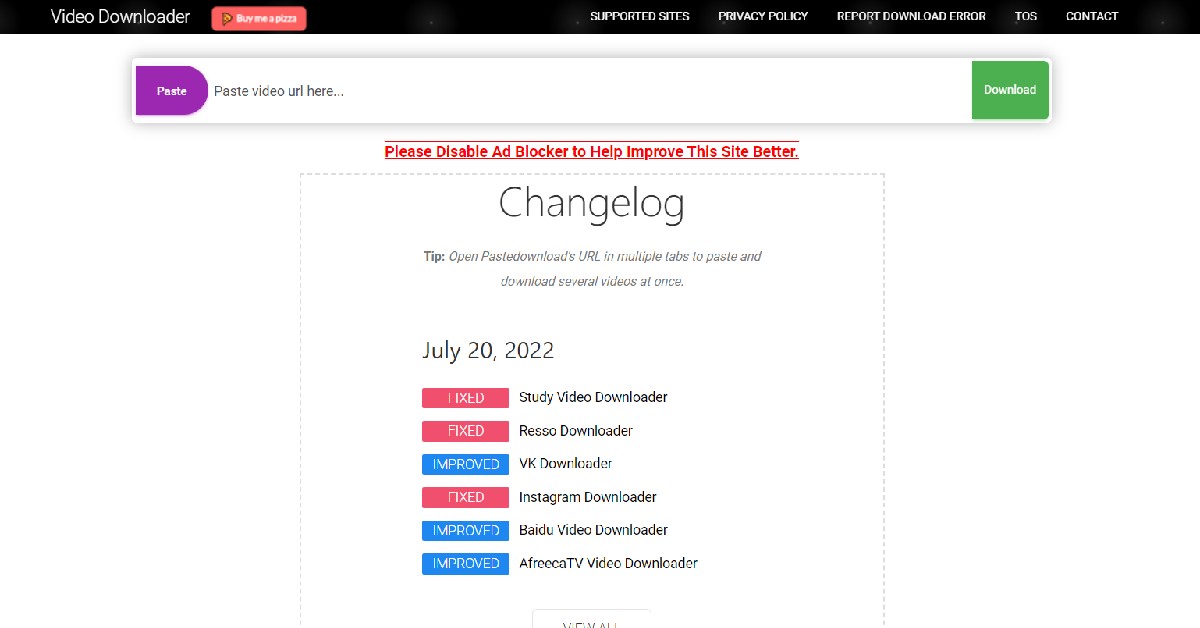 PasteDownload is one of the most used video downloaders on the Internet, letting users save videos from platforms like YouTube, Facebook, Twitter, Vimeo and more on their devices. To download a YouTube Short on your device, you need to copy the link of the Short and open https://pastedownload.com/27/ on your smartphone’s web browser. Paste the Short’s link in the URL box on the website and hit ‘Download.’ PasteDownload will save the video on your device.
Read Also: Gadget Bridge Awards 2022: The biggest consumer technology and gadget awards nominations
PasteDownload is one of the most used video downloaders on the Internet, letting users save videos from platforms like YouTube, Facebook, Twitter, Vimeo and more on their devices. To download a YouTube Short on your device, you need to copy the link of the Short and open https://pastedownload.com/27/ on your smartphone’s web browser. Paste the Short’s link in the URL box on the website and hit ‘Download.’ PasteDownload will save the video on your device.
Read Also: Gadget Bridge Awards 2022: The biggest consumer technology and gadget awards nominations
Conclusion
This is how you can download a YouTube Shorts video on any smartphone. Both the tools mentioned in this video are free to use and do not require any additional software to download a video. They will work on Android as well as iOS platforms. You can also use other websites like KeepVid, Free Video Downloader, Snaptube, and Video Grabber to download YouTube Shorts to your device. For the latest gadget and tech news, and gadget reviews, follow us on Twitter, Facebook and Instagram. For newest tech & gadget videos subscribe to our YouTube Channel. You can also stay up to date using the Gadget Bridge Android App. You can find the latest car and bike news here.Best ways to block an Airtel SIM easily?
Blocking your SIM card is one of the first things you should do if your phone gets lost or stolen. Your SIM card can provide someone access to your bank accounts, social media login credentials, contacts, and other data. It can even be used to carry out malicious and illegal activities in your name since your SIM card is tied to your identity. Fortunately, blocking a SIM card does not take a long time. In this article, we show you how to block an Airtel SIM card or number easily.
Read Also: Gadget Bridge Awards 2022: The biggest consumer technology and gadget awards nominations
Step 2: Select the ‘Chat with us’ option and follow the onscreen instructions to block your SIM card.
You can also try emailing your request to 121@in.airtel.com.
Step 2: Speak to a customer care executive and make a request to block your Airtel number.
Step 3: The customer care executive will ask you for certain details to verify that you are the owner of the SIM card you wish to block. Once you establish your identity, your Airtel number will be blocked.
Block an Airtel SIM using the Airtel thanks app
Step 1: Open the Airtel thanks app and go to the ‘Help’ section at the bottom right corner of the screen. Step 2: Select the ‘Chat with us’ option and follow the onscreen instructions to block your SIM card.
 You can also try emailing your request to 121@in.airtel.com.
Block an Airtel SIM using Customer Care
Step 1: Connect to the Airtel Customer Care helpline by calling 198 or 121 using an Airtel number. If you don’t have an Airtel number, call 9849098490 or 1800 103 4444 to reach Airtel Customer Care. Step 2: Speak to a customer care executive and make a request to block your Airtel number.
Step 3: The customer care executive will ask you for certain details to verify that you are the owner of the SIM card you wish to block. Once you establish your identity, your Airtel number will be blocked.
Step 2: Speak to a customer care executive and make a request to block your Airtel number.
Step 3: The customer care executive will ask you for certain details to verify that you are the owner of the SIM card you wish to block. Once you establish your identity, your Airtel number will be blocked.
Block an Airtel SIM from an Airtel Store
Step 1: Go to your nearest Airtel Store and contact an agent about your query. Step 2: Verify your SIM card number and present additional details like the last recharge amount, FNF number, Date of Birth, address and ID proof, etc. Step 3: Once all details are verified, the agent will begin the process of blocking your Airtel number. Read Also: How to check whether your smartphone is original or not?Conclusion
This is how you can block an Airtel SIM card. You can get a new SIM card from the Airtel Store or any local vendor. SIM activation takes negligible time, so you will be able to use your new Airtel number right away. If you find your lost SIM card that you blocked, you can easily unblock it by connecting to an Airtel customer executive using the customer care helpline or by visiting a nearby Airtel Store. For the latest gadget and tech news, and gadget reviews, follow us on Twitter, Facebook and Instagram. For newest tech & gadget videos subscribe to our YouTube Channel. You can also stay up to date using the Gadget Bridge Android App. You can find the latest car and bike news here.Sony HT-A5000 and HT-A3000 soundbars with 360 Spatial Sound Mapping launched in India
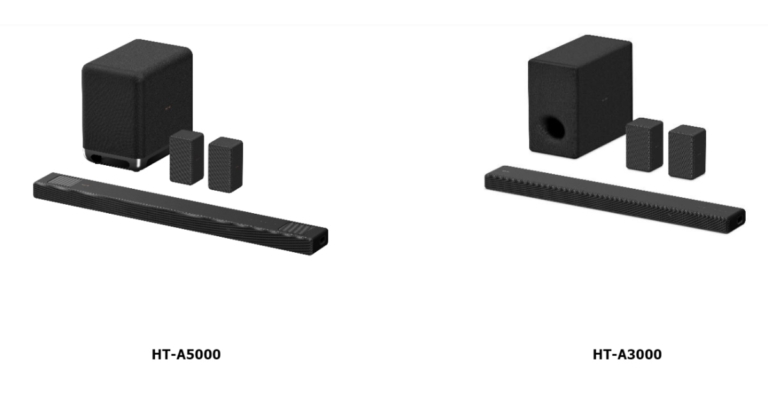
Sony India today unveiled its latest A-Series Home Theatre Systems, including the HT-A5000 and HT-A3000 soundbars. These provide a multi-dimensional sound experience with Dolby Atmos and DTS:X. The soundbar works well with devices that support Google Assistant or Amazon Alexa. It comes with 360-degree Spatial Sound Mapping and Sound Field Optimization Technology.
The new HT-A5000 and HT-A3000 home theatre systems will be available on Amazon.in on December 12th, 2022, and in all Sony Centers, www.shopatsc.com, and major electronics retailers across India on December 14.
In terms of design minimalist Omnidirectional Block design of the Sony HT-A5000 features beautiful rounded edges. The Omnidirectional Block concept is also used in the design of the HT-A3000 and optional speakers. The HDMI eARC, optical-in, and USB ports make installation of the soundbars a breeze.
Both soundbars include Sound Field Optimization, which cleverly measures the relative height and position of the soundbar and rear speakers to provide an even more personalised and immersive sound experience. It then synthesises sound waves to produce several phantom speakers based on the positional information.
The HT-A5000 also has S-Force PRO Front Surround, which creates a broader horizontal sound field. When connected to Sony’s wireless rear speakers SA-RS5 and SA-RS3S, the HT-A5000 and HT-A3000 provide access to Sony’s breakthrough 360 Spatial Sound Mapping technology.
The HT-A5000 5.1.2 channel soundbar has a dual subwoofer built in for deep bass and two up-firing speakers that reflect sound off the ceiling for immersive overhead music. The HT-A3000 has 3.1 channels, three front speakers, one of which is dedicated to clear conversation, and a built-in dual subwoofer for deep bass. It also has two side beam tweeters, which bounce sound off the side walls and augment surround sound to provide an immersive experience.
Sony’s X-Balanced Speaker Unit is used in the up-firing speakers, built-in dual subwoofer, and front speakers. The HT-A5000 and HT-A3000 are equipped with Sony’s Vertical Surround Sound Engine technology, which allows viewers a theatre like experience at home by supporting audio formats such as Dolby Atmos and DTS:X.
The front speakers and up-firing speakers, together with Sony’s proprietary signal processing, generate “vertical” music, allowing the soundbar to position sound vertically. Now you can enjoy realistic, multi-dimensional sound without the need for in-ceiling speakers.
360 Reality Audio is available on Amazon Music HD, Deezer, nugs.net, and TIDAL. DSEE Extreme use Edge-AI to upscale compressed digital files in real-time, restoring lost high-frequency sound for a richer, more compelling listening experience. When used in conjunction with compatible BRAVIA TVs, it enhances the immersive audio-visual experience. The soundbar and TV become one with the BRAVIA Acoustic Center sync. The TV becomes the centre speaker in the home theatre system, ensuring that action and sound are perfectly matched for complete immersion. Furthermore, BRAVIA Acoustic Center Sync collaborates with the 360 Spatial Sound Mapping setup to give a more immersive viewing experience and clearer speech.
The HT-A5000 supports Spotify Connect, Chromecast built-in, Apple Airplay 2, Bluetooth, and Wi-Fi, making it simple to listen to music. You get all the connections you need to enjoy a breathtaking surround sound experience, with USB, optical in, HDMI out (eARC), and S-CENTER OUT for compatible BRAVIA TVs. The soundbar is compatible with voice assistants, such as Google Assistant with built-in Chromecast or Amazon Alexa-enabled devices. Simply connect the soundbar to the speaker group using the Google Home app to begin playing music, changing the volume, or doing a variety of other tasks with your voice.
For the latest gadget and tech news, and gadget reviews, follow us on Twitter, Facebook and Instagram. For newest tech & gadget videos subscribe to our YouTube Channel. You can also stay up to date using the Gadget Bridge Android App. You can find the latest car and bike news here.
Garena Free Fire Redeem Codes Today 13 December 2022: Here is how to claim them

Garena Free Fire is a battle royale game with regular awards and tournaments to keep players interested. If you play Garena Free Fire, you should be aware of the redeem codes that are released on a daily basis. However, because the battle royale game is banned in India, players from other countries can use the Free Fire Redeem codes daily. If you’re unfamiliar with the Garena Free Fire redeem codes or don’t know how to get them, we’ve put together a step-by-step guide to help you redeem them. Check out Garena Free Fire Redeem Codes for December 13.
The Free Fire redeem codes are a great way to get free stuff. These are 12-digit codes that contain alphabets and numbers, as well as an expiration date and time. Because the Garena FF redeem codes cannot be used more than once, you should hurry to the redemption page to claim your free reward before someone else does. To get a free reward, all you have to do is go to reward.ff.garena.com/en, which is the official redemption page. Also, keep an eye on this space for daily updates on Garena Free Fire redemption codes and rewards.
Garena Free Fire Redeem Codes Today 13 December 2022
Updating SoonHow to Get Free Fire Redeem Codes for Garena on December 13?
- Visit the Garena Free Fire game’s official website at reward.ff.garena.com.
- Use your Facebook, Google, VK, Apple ID, Huawei ID, or Twitter account to log in.
- You’ll be taken to a valid redemption code (s)
- Copy and paste the 12-digit redemption code into the text box.
- On the screen, a dialogue box will appear.
- ‘Ok’ should be selected.
Amazon Quiz Answers Today 13 December 2022: Participate to win Rs 500

13 December 2022 Amazon Quiz has gone live. Customers from different parts of the country are participating in the daily quiz. The quiz begins from 12 AM to 11:59 PM. Those participating in the quiz can win exciting prizes by answering all the questions correctly. Today participants have a chance to win a Rs 500 Amazon Pay Balance.
Amazon quiz brings an opportunity for its customers to win Amazon Pay Balance ranging from Rs 1,000 to Rs 50,000. The Quiz can be played from 12 AM to 11:59 PM. The e-commerce platform brings a fresh quiz on a daily basis which consists of five questions related to general knowledge and current affairs. The participants need to answer all the questions correctly and their names will be selected for a lucky draw. The winner will be announced at the end of the month.
One wrong answer could eliminate you from the quiz. If you manage to answer all the questions correctly you can stand a chance to win a Rs 500 Amazon Pay Balance today. Only app users are eligible to participate in the Quiz. Check Out 13 December 2022 Amazon Quiz Answers.
Amazon Quiz Today Prize – Rs 500 Amazon Pay Balance
Quiz Date – 13 December 2022
Daily Timing – 12 AM to 11:59 PM
Winner Announcement – Today 12 PM
Amazon Quiz Answers Today 13 December 2022
Question 1: A drop in the water level in which river has led to the discovery of German warships from the World War 2 era? Answer: Danube Question 2: Naomi Biden is the first presidential granddaughter to wed at the what exclusive venue? Answers: White House Question 3: Which planet made its closest approach to Earth since 1963? Answer: Jupiter Question 4: Which is the main hub airport of this airways? Answer: Heathrow Question 5: In which German city was this famous composer born? Answer: BonnHow To Play Amazon Quiz
Only app users are eligible to play the Amazon quiz every morning from 12 AM to 11:59 PM. The quiz is not available on the desktop. For those who are unaware of how to play the Amazon quiz below are the steps, you can follow to take the quiz.- Firstly download the Amazon app from Google Play Store or App Store
- Now fill in the required information through the Sign Up option.
- You need to log in to the Amazon app and scroll down on the home screen to find the Amazon Quiz banner.
- Tap on the Amazon Quiz banner and tap on the Start button to start the Quiz.
- Now you will get 5 questions and you need to answer them correctly. One wrong answer will eliminate you from the Quiz.
- After answering all the questions correctly you are now eligible for a Lucky Draw.
- The winner’s name will be announced today at 12 PM.
POCO Announces Year-End Offers During Flipkart Big Saving Days
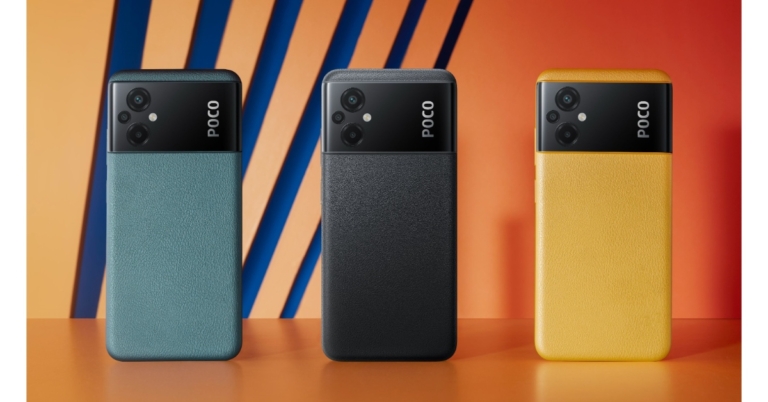
Consumer tech brand Poco has announced exciting year-end offers as the Flipkart Big Savings Days kicks off today. Buyers can avail of discount offers on several Poco smartphones throughout the Big Savings Days. Poco is offering discounts on Poco F4 5G, POCO X4 Pro 5G, POCO M4 5G, POCO M4 Pro AMOLED, POCO C31, and POCO M4 Pro 5G.
Read Also: WhatsApp Vs Telegram: Which one should you use? Pros and Cons
The POCO F4 5G is powered by the Snapdragon 870 flagship chipset and features a 6.67-inch E4 AMOLED screen and 2.76mm dot display. It is also equipped with Dolby Vision and Dolby Atmos, making it an ideal smartphone to watch content on. The F4 5G also gets a 4,500mAh battery along with 67W Sonic charging.
Powered by Snapdragon 695, the POCO X4 Pro 5G also flaunts a 120Hz Super AMOLED screen with a 360Hz touch sampling rate. The X4 Pro 5G also gets a 5,000mAh battery and 67W MMT Sonic charging. The rear camera unit comprises a 64MP primary camera, an 8MP Ultrawide sensor and a 2MP macro sensor.
POCO M4 5G comes with a 90Hz FHD+ Smart display and is powered by MediaTek Dimensity 700 processor. The smartphone also gets a 50MP primary camera and a 5,000mAh battery. The swirl design on the back panel also adds to the premium look of the phone.
 The POCO M4 Pro AMOLED gets a 90Hz Super AMOLED display, the first in an M-series smartphone by POCO. The 64MP primary lens is the star of the triple camera setup, and a 16MP selfie sensor finds its way to the front. The smartphone is powered by MediaTek Helio G96 and gets a 5,000mAh battery along with 33W MMT fast charging.
POCO’s budget smartphone, C31, is powered by the MediaTek Helio G35 processor and features a triple camera setup with a 13MP lens as the primary sensor. It also gets a 5,000mAh battery, which is quite impressive for the price. The smartphone is available in two shades – Royal Blue and Shadow Grey.
Powered by the MediaTek Dimensity 810 processor, the POCO M4 Pro 5G features a 90Hz 6.6-inch FHD+ display with a touch sampling rate of 240Hz. The dual camera setup consists of a 50MP primary lens and an 8MP ultrawide lens. The smartphone is equipped with a 5,000mAh battery and a 33W fast charger.
For the latest gadget and tech news, and gadget reviews, follow us on Twitter, Facebook and Instagram. For newest tech & gadget videos subscribe to our YouTube Channel. You can also stay up to date using the Gadget Bridge Android App. You can find the latest car and bike news here.
The POCO M4 Pro AMOLED gets a 90Hz Super AMOLED display, the first in an M-series smartphone by POCO. The 64MP primary lens is the star of the triple camera setup, and a 16MP selfie sensor finds its way to the front. The smartphone is powered by MediaTek Helio G96 and gets a 5,000mAh battery along with 33W MMT fast charging.
POCO’s budget smartphone, C31, is powered by the MediaTek Helio G35 processor and features a triple camera setup with a 13MP lens as the primary sensor. It also gets a 5,000mAh battery, which is quite impressive for the price. The smartphone is available in two shades – Royal Blue and Shadow Grey.
Powered by the MediaTek Dimensity 810 processor, the POCO M4 Pro 5G features a 90Hz 6.6-inch FHD+ display with a touch sampling rate of 240Hz. The dual camera setup consists of a 50MP primary lens and an 8MP ultrawide lens. The smartphone is equipped with a 5,000mAh battery and a 33W fast charger.
For the latest gadget and tech news, and gadget reviews, follow us on Twitter, Facebook and Instagram. For newest tech & gadget videos subscribe to our YouTube Channel. You can also stay up to date using the Gadget Bridge Android App. You can find the latest car and bike news here.
Here are all the discounts you can avail on Poco’s smartphones during Flipkart’s Big Savings Days
| Smartphone | Variant | Launch Price | Bigs Savings Day Discount | Big Savings Day Price | Bank Offers |
| POCO F4 5G | 6GB + 128GB | Rs 27,999 | Rs 5,000 | Rs 22,999 | Including 2000 off on SBI Debit and Credit cards |
| POCO F4 5G | 8GB + 128GB | Rs 29,999 | Rs 5,000 | Rs 24,999 | Including 2000 off on SBI Debit and Credit cards |
| POCO F4 5G | 12GB + 256GB | Rs 33,999 | Rs 5,000 | Rs 28,999 | Including 2000 off on SBI Debit and Credit cards |
| POCO X4 Pro 5G | 6GB + 64GB | Rs 17,999 | Rs 3,500 | Rs 14,499 | Including upto 1500 off on SBI Debit and Credit cards |
| POCO X4 Pro 5G | 6GB + 128GB | Rs 18,999 | Rs 3,000 | Rs 15,999 | Including upto 1500 off on SBI Debit and Credit cards |
| POCO X4 Pro 5G | 8GB + 128GB | Rs 20,999 | Rs 3,500 | Rs 17,499 | Including upto 1500 off on SBI Debit and Credit cards |
| POCO M4 5G | 4GB+64GB | Rs 12,999 | Rs 2,750 | Rs 10,249 | Including 750 off on Kotak Credit card |
| POCO M4 5G | 4GB+64GB | Rs 14,999 | Rs 2,750 | Rs 10,249 | Including 750 off on Kotak Credit card |
| POCO M4 Pro AMOLED | 6GB+64GB | Rs 14,999 | Rs 5,000 | Rs 9,999 | Including 1000 off on Kotak Credit card |
| POCO M4 Pro AMOLED | 6GB+128GB | Rs 16,499 | Rs 5,500 | Rs 10,999 | Including 1000 off on Kotak Credit card |
| POCO M4 Pro AMOLED | 8GB+128GB | Rs 17,999 | Rs 5,000 | Rs 12,999 | Including 1000 off on Kotak Credit card |
| POCO C31 | 3GB+32GB | Rs 8,499 | Rs 2,000 | Rs 6,499 | Additional 250 off on Supercoins |
| POCO C31 | 4GB+64GB | Rs 9,499 | Rs 2,000 | Rs 7,499 | Additional 250 off on Supercoins |
| POCO M4 Pro 5G | 4GB+64GB | Rs 14,999 | Rs 2,750 | Rs 12,249 | Including 750 off on Kotak Credit card |
| POCO M4 Pro 5G | 6GB+128GB | Rs 16,999 | Rs 2,750 | Rs 14,249 | Including 750 off on Kotak Credit card |
| POCO M4 Pro 5G | 8GB + 128GB | Rs 18,999 | Rs 2,750 | Rs 16,249 | Including 750 off on Kotak Credit card |
POCO F4 5G
 The POCO F4 5G is powered by the Snapdragon 870 flagship chipset and features a 6.67-inch E4 AMOLED screen and 2.76mm dot display. It is also equipped with Dolby Vision and Dolby Atmos, making it an ideal smartphone to watch content on. The F4 5G also gets a 4,500mAh battery along with 67W Sonic charging.
POCO X4 Pro 5G
 Powered by Snapdragon 695, the POCO X4 Pro 5G also flaunts a 120Hz Super AMOLED screen with a 360Hz touch sampling rate. The X4 Pro 5G also gets a 5,000mAh battery and 67W MMT Sonic charging. The rear camera unit comprises a 64MP primary camera, an 8MP Ultrawide sensor and a 2MP macro sensor.
POCO M4 5G
 POCO M4 5G comes with a 90Hz FHD+ Smart display and is powered by MediaTek Dimensity 700 processor. The smartphone also gets a 50MP primary camera and a 5,000mAh battery. The swirl design on the back panel also adds to the premium look of the phone.
POCO M4 Pro AMOLED
 The POCO M4 Pro AMOLED gets a 90Hz Super AMOLED display, the first in an M-series smartphone by POCO. The 64MP primary lens is the star of the triple camera setup, and a 16MP selfie sensor finds its way to the front. The smartphone is powered by MediaTek Helio G96 and gets a 5,000mAh battery along with 33W MMT fast charging.
POCO C31
 POCO’s budget smartphone, C31, is powered by the MediaTek Helio G35 processor and features a triple camera setup with a 13MP lens as the primary sensor. It also gets a 5,000mAh battery, which is quite impressive for the price. The smartphone is available in two shades – Royal Blue and Shadow Grey.
POCO M4 Pro 5G
 Powered by the MediaTek Dimensity 810 processor, the POCO M4 Pro 5G features a 90Hz 6.6-inch FHD+ display with a touch sampling rate of 240Hz. The dual camera setup consists of a 50MP primary lens and an 8MP ultrawide lens. The smartphone is equipped with a 5,000mAh battery and a 33W fast charger.
For the latest gadget and tech news, and gadget reviews, follow us on Twitter, Facebook and Instagram. For newest tech & gadget videos subscribe to our YouTube Channel. You can also stay up to date using the Gadget Bridge Android App. You can find the latest car and bike news here.
Powered by the MediaTek Dimensity 810 processor, the POCO M4 Pro 5G features a 90Hz 6.6-inch FHD+ display with a touch sampling rate of 240Hz. The dual camera setup consists of a 50MP primary lens and an 8MP ultrawide lens. The smartphone is equipped with a 5,000mAh battery and a 33W fast charger.
For the latest gadget and tech news, and gadget reviews, follow us on Twitter, Facebook and Instagram. For newest tech & gadget videos subscribe to our YouTube Channel. You can also stay up to date using the Gadget Bridge Android App. You can find the latest car and bike news here. Gadget Bridge Awards 2022: The biggest consumer technology and gadget awards nominations
We have come a long way! We conducted our first consumer tech and gadgets awards in 2019, and we were overwhelmed by the positive response. As I stated back then, I always intended to establish Gadgets and Tech Awards to recognise the best of the best, and I am incredibly honoured by the promoters and the industry as we enter our fourth year. The team and I will continue the tradition in 2022 with the 4.0 edition of the Gadget Bridge Awards.
This year, as the world finally emerges from the pandemic and businesses thrive, we saw several unique devices and technology emerge from the different factories. We all pushed through and welcomed the year 2022 with much-needed optimism. You, our readers, watchers, listeners, and well-wishers, have been an unwavering source of support for us. We appreciate each and every one of you.
We are delighted to vaunt that we are the largest Consumer Tech Awards not just in Asia but on the planet. We’ll be bringing over 41 award categories from the world of consumer technology. Despite the unusualness in the air, several outstanding devices were released in 2022. So, my team and I sat down and took inspiration from last year to create even more categories for 2022. As there is so much more in the field of technology that we would like to recognise, we created over 41 categories where the deserving compete for the top honours.
We have a number of wonderful award categories this year, as well as three special sections of awards where we will require your help to pick the winners. Yes, Gadget Bridge readers, watchers, and listeners will be required to vote in the Gadget Bridge People’s Choice Awards 2022. The voting is now open (you may vote here) on GagdetBridge.com as well as on our Twitter page on three different posts, which can be found here, here, and here. Finally, the total number of votes cast on Gadget Bridge Twitter and on Gadget Bridge Web/Mobile/App will be totalled, and the winners of these categories will be declared. Remember that voting ends on December 14, 2022, at midnight IST.
So, without further ado, here are the 42 categories, including three where people can vote, which are the #GadgetBridgeAwards22 people’s choice honours.
 Xiaomi 12 Pro
Samsung Galaxy Z Fold 4
Apple iPhone 14 Pro
OnePlus 10 Pro
Google Pixel 7 Pro
Xiaomi 12 Pro
Samsung Galaxy Z Fold 4
Apple iPhone 14 Pro
OnePlus 10 Pro
Google Pixel 7 Pro
 Nokia C01 Plus
Samsung Galaxy M13
Poco M4 Pro 5G
Redmi A1
Motorola G31
Poco M4 Pro
Oppo K10
Nokia G21
Motorola E32s
Redmi Note 11
Vivo V25 Pro
Samsung Galaxy A33
Xiaomi 11T Pro
OnePlus 10R 5G
Nothing Phone 1
Samsung Galaxy S22 Ultra
Google Pixel 7 Pro
OnePlus 10 Pro
Apple iPhone 14 Pro
Vivo X80 Pro
POCO M4 Pro 5G
Vivo T1 5G
Oppo K10 5G
Samsung M13 5G
Redmi 11 Prime 5G
OnePlus 10R 5G
Poco F4 5G
iQOO Neo 6
Apple iPhone SE 2022
Redmi K50i
iQOO 9T
Asus ROG Phone 5s
Apple iPhone 14 Pro
Samsung S22 Ultra
Xiaomi 12 Pro
Motorola Edge 30
Redmi Note 11 Pro+ 5G
Nothing Phone 1
Samsung Galaxy S21 FE
Oppo Reno 8 Pro
Vivo X80 Pro
OnePlus 10 Pro
Apple iPhone 14 Plus
Samsung S22 Ultra
Motorola Edge 30 Ultra
Samsung S22 Ultra
Apple iPhone 14 Pro
Xiaomi 12 Pro
OnePlus 10 Pro
Motorola Edge 30 Ultra
Mediatek Helio G99
Snapdragon 4 Gen 1
MediaTek Dimensity 8100
Google Tensor G2
Snapdragon 6 Gen 1
Apple A16 Bionic
Qualcomm Snapdragon 8+ Gen 1
MediaTek Dimensity 9200
Exynos 2200
Nokia C01 Plus
Samsung Galaxy M13
Poco M4 Pro 5G
Redmi A1
Motorola G31
Poco M4 Pro
Oppo K10
Nokia G21
Motorola E32s
Redmi Note 11
Vivo V25 Pro
Samsung Galaxy A33
Xiaomi 11T Pro
OnePlus 10R 5G
Nothing Phone 1
Samsung Galaxy S22 Ultra
Google Pixel 7 Pro
OnePlus 10 Pro
Apple iPhone 14 Pro
Vivo X80 Pro
POCO M4 Pro 5G
Vivo T1 5G
Oppo K10 5G
Samsung M13 5G
Redmi 11 Prime 5G
OnePlus 10R 5G
Poco F4 5G
iQOO Neo 6
Apple iPhone SE 2022
Redmi K50i
iQOO 9T
Asus ROG Phone 5s
Apple iPhone 14 Pro
Samsung S22 Ultra
Xiaomi 12 Pro
Motorola Edge 30
Redmi Note 11 Pro+ 5G
Nothing Phone 1
Samsung Galaxy S21 FE
Oppo Reno 8 Pro
Vivo X80 Pro
OnePlus 10 Pro
Apple iPhone 14 Plus
Samsung S22 Ultra
Motorola Edge 30 Ultra
Samsung S22 Ultra
Apple iPhone 14 Pro
Xiaomi 12 Pro
OnePlus 10 Pro
Motorola Edge 30 Ultra
Mediatek Helio G99
Snapdragon 4 Gen 1
MediaTek Dimensity 8100
Google Tensor G2
Snapdragon 6 Gen 1
Apple A16 Bionic
Qualcomm Snapdragon 8+ Gen 1
MediaTek Dimensity 9200
Exynos 2200
15) People’s Choice Smartphone Of The Year 2022
Samsung Galaxy Z Fold 4
Sony 1000XM5
Apple iPhone 14 Pro
Philips Air Fryer XL Connected
ViewSonic M2e Portable Projector
Samsung Galaxy Z Flip 4
Nothing Phone 1
Asus Zenbook 14X Space Edition
Truke BTG Alpha
Sony LinkBuds WF-L900
Philips OneBlade Pro QP6550
Apple iPhone 14 Pro
QUBO Car Air Purfier
Philips Sneaker Cleaner
ViewSonic TD1655 Touch Portable Monitor
Acer Aspire 3
Lenovo IdeaPad Gaming 3i
Samsung Galaxy Book2
Xiaomi Notebook Pro 120G
Asus VivoBook S15
Asus Zenbook 14X Space Edition
Samsung Galaxy Book 2 Pro 360
Xiaomi Notebook Pro 120G
Acer Swift 5
HP Spectre X360
Acer Travelmate P6
Dell Latitude 7430
HP Pavilion Plus 14
Lenovo ThinkBook 14 Gen 4
Asus ZenBook 17 Fold
Asus ROG Zephyrus G14 2022
Acer Predator Helios 300 2022
HP Victus 16 2022
Lenovo Legion 5i 2022 Pro
Asus ROG Strix Scar 17SE
Samsung Tab S8 Ultra
Xiaomi Pad 5
Lenovo Tab P12 Pro
Oppo Pad Air
26) Best Value-For-Money Smart TV Of The Year 2022
Redmi Smart TV X43
Acer I Series 32-inch
Kodak QLED TV
Vu 50GloLED
Blaupunkt Smart Google TV 55-inch
Acer H Series 50-inch
Redmi TV X50
Xiaomi OLED Vision TV
Thomson Google TV 55-inch
LG OLED EVO G2
Sony Bravia A95K
Optoma UHD55
ViewSonic X1000-4K+ SB
ViewSonic M2e Portable Projector
Optoma D2 CinemaX Projection TV
HP Deskjet Ink Advantage Ultra 4826
HP LaserJet Tank 1005w
Ricoh P502
Dyson V12 Detect Slim
Philips Speed Pro Aqua
Philips OneBlade Pro QP6550
EZVIZ C1C-B
Xiaomi Wireless Camera 2i
Redmi Watch 2 Lite
Oppo Watch free
OnePlus Nord Watch
Noise ColorFit Pro 4
FireBoltt Visionary
Samsung Galaxy Watch 5 Pro
Apple Watch Series 8
Garmin Fenix 7X Solar
Fitbit Sense 2
Redmi Smart Band Pro
Fitbit Versa 4
Garmin Vivosmart 5
Amazfit GTR 4
Audio Technica ATH-M20xBT
Sony 1000XM5
Blaupunkt bh51
Sennheiser Momentum 4
Sony INZONE H9
Logitech G435
Audio-Technica ATH-GDL3
Apple Airpods Pro 2
Sennheiser Momentum True Wireless 3
Sony LinkBuds S
LG FP9W
Samsung Galaxy Buds 2 Pro
Mivi Fort S24
Sony SRS XE 300
Philips TAS2505
Xiaomi Smart Speaker
Sony HT-A7000
Sony XV900
LG XBOOM 360 RP4G
Mivi Fort S200 Soundbar
Netflix
Disney+Hotstar
Apple TV+
Prime Video
Jio Saavn
Spotify
Amazon Music
Apple Music
WD Blue SN570 NVMe SSD
Logitech MX Mechanical Wireless Keyboard
Logitech Master3S
Viewsonic XG2431 Gaming Monitor
ASUS Marshmallow mouse
For the latest gadget and tech news, and gadget reviews, follow us on Twitter, Facebook and Instagram. For newest tech & gadget videos subscribe to our YouTube Channel. You can also stay up to date using the Gadget Bridge Android App. You can find the latest car and bike news here.
Gadget Bridge Awards 2021: Biggest Tech and Gadget Awards Categories & Nominees
1) Best Smartphone Of The Year 2022
 Xiaomi 12 Pro
Samsung Galaxy Z Fold 4
Apple iPhone 14 Pro
OnePlus 10 Pro
Google Pixel 7 Pro
Xiaomi 12 Pro
Samsung Galaxy Z Fold 4
Apple iPhone 14 Pro
OnePlus 10 Pro
Google Pixel 7 Pro
2) Best Budget Smartphone Of The Year 2022
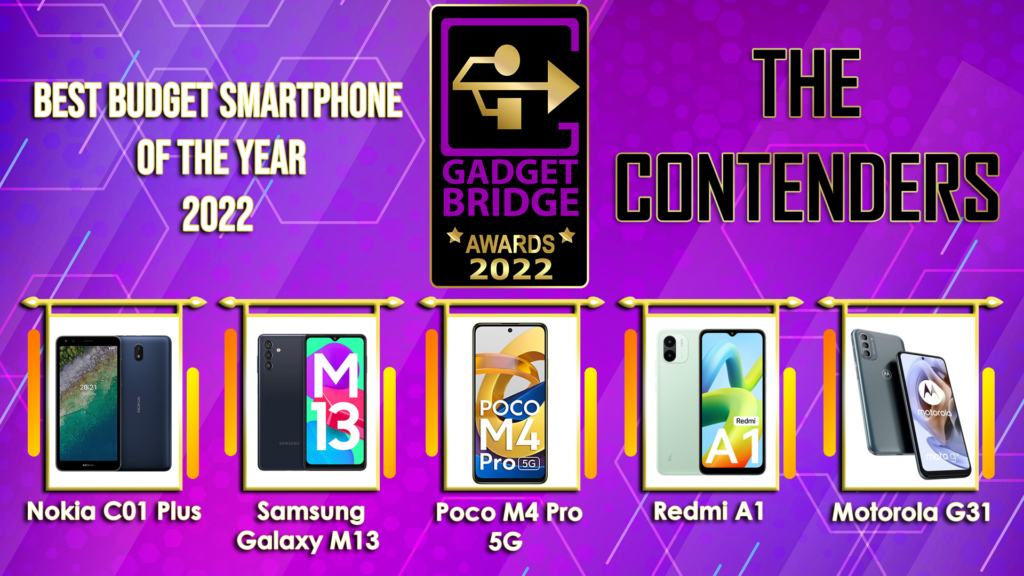 Nokia C01 Plus
Samsung Galaxy M13
Poco M4 Pro 5G
Redmi A1
Motorola G31
Nokia C01 Plus
Samsung Galaxy M13
Poco M4 Pro 5G
Redmi A1
Motorola G31
3) Best Budget Camera Phone Of The Year 2022
 Poco M4 Pro
Oppo K10
Nokia G21
Motorola E32s
Redmi Note 11
Poco M4 Pro
Oppo K10
Nokia G21
Motorola E32s
Redmi Note 11
4) Best Mid-range Camera Phone Of The Year 2022
 Vivo V25 Pro
Samsung Galaxy A33
Xiaomi 11T Pro
OnePlus 10R 5G
Nothing Phone 1
Vivo V25 Pro
Samsung Galaxy A33
Xiaomi 11T Pro
OnePlus 10R 5G
Nothing Phone 1
5) Best Camera Phone Of The Year 2022
 Samsung Galaxy S22 Ultra
Google Pixel 7 Pro
OnePlus 10 Pro
Apple iPhone 14 Pro
Vivo X80 Pro
Samsung Galaxy S22 Ultra
Google Pixel 7 Pro
OnePlus 10 Pro
Apple iPhone 14 Pro
Vivo X80 Pro
6) Best Inexpensive 5G Smartphone Of The Year 2022
 POCO M4 Pro 5G
Vivo T1 5G
Oppo K10 5G
Samsung M13 5G
Redmi 11 Prime 5G
POCO M4 Pro 5G
Vivo T1 5G
Oppo K10 5G
Samsung M13 5G
Redmi 11 Prime 5G
7) Best Mid-Range Gaming Smartphone Of The Year 2022
 OnePlus 10R 5G
Poco F4 5G
iQOO Neo 6
Apple iPhone SE 2022
Redmi K50i
OnePlus 10R 5G
Poco F4 5G
iQOO Neo 6
Apple iPhone SE 2022
Redmi K50i
8) Best Gaming Smartphone Of The Year 2022
 iQOO 9T
Asus ROG Phone 5s
Apple iPhone 14 Pro
Samsung S22 Ultra
Xiaomi 12 Pro
iQOO 9T
Asus ROG Phone 5s
Apple iPhone 14 Pro
Samsung S22 Ultra
Xiaomi 12 Pro
9) Best Mid-Range Smartphone Of The Year 2022
 Motorola Edge 30
Redmi Note 11 Pro+ 5G
Nothing Phone 1
Samsung Galaxy S21 FE
Oppo Reno 8 Pro
Motorola Edge 30
Redmi Note 11 Pro+ 5G
Nothing Phone 1
Samsung Galaxy S21 FE
Oppo Reno 8 Pro
10) Best Selfie Smartphone Of Year 2022
 Vivo X80 Pro
OnePlus 10 Pro
Apple iPhone 14 Plus
Samsung S22 Ultra
Motorola Edge 30 Ultra
Vivo X80 Pro
OnePlus 10 Pro
Apple iPhone 14 Plus
Samsung S22 Ultra
Motorola Edge 30 Ultra
11) Best Vlogging Smartphone Of The Year 2022
 Samsung S22 Ultra
Apple iPhone 14 Pro
Xiaomi 12 Pro
OnePlus 10 Pro
Motorola Edge 30 Ultra
Samsung S22 Ultra
Apple iPhone 14 Pro
Xiaomi 12 Pro
OnePlus 10 Pro
Motorola Edge 30 Ultra
12) Best Budget Smartphone Chipset Of The Year 2022
 Mediatek Helio G99
Snapdragon 4 Gen 1
Mediatek Helio G99
Snapdragon 4 Gen 1
13) Best Mid-range Smartphone Chipset Of The Year 2022
 MediaTek Dimensity 8100
Google Tensor G2
Snapdragon 6 Gen 1
MediaTek Dimensity 8100
Google Tensor G2
Snapdragon 6 Gen 1
14) Best Premium Smartphone Chipset Of The Year 2022
 Apple A16 Bionic
Qualcomm Snapdragon 8+ Gen 1
MediaTek Dimensity 9200
Exynos 2200
Apple A16 Bionic
Qualcomm Snapdragon 8+ Gen 1
MediaTek Dimensity 9200
Exynos 2200
15) People’s Choice Smartphone Of The Year 2022
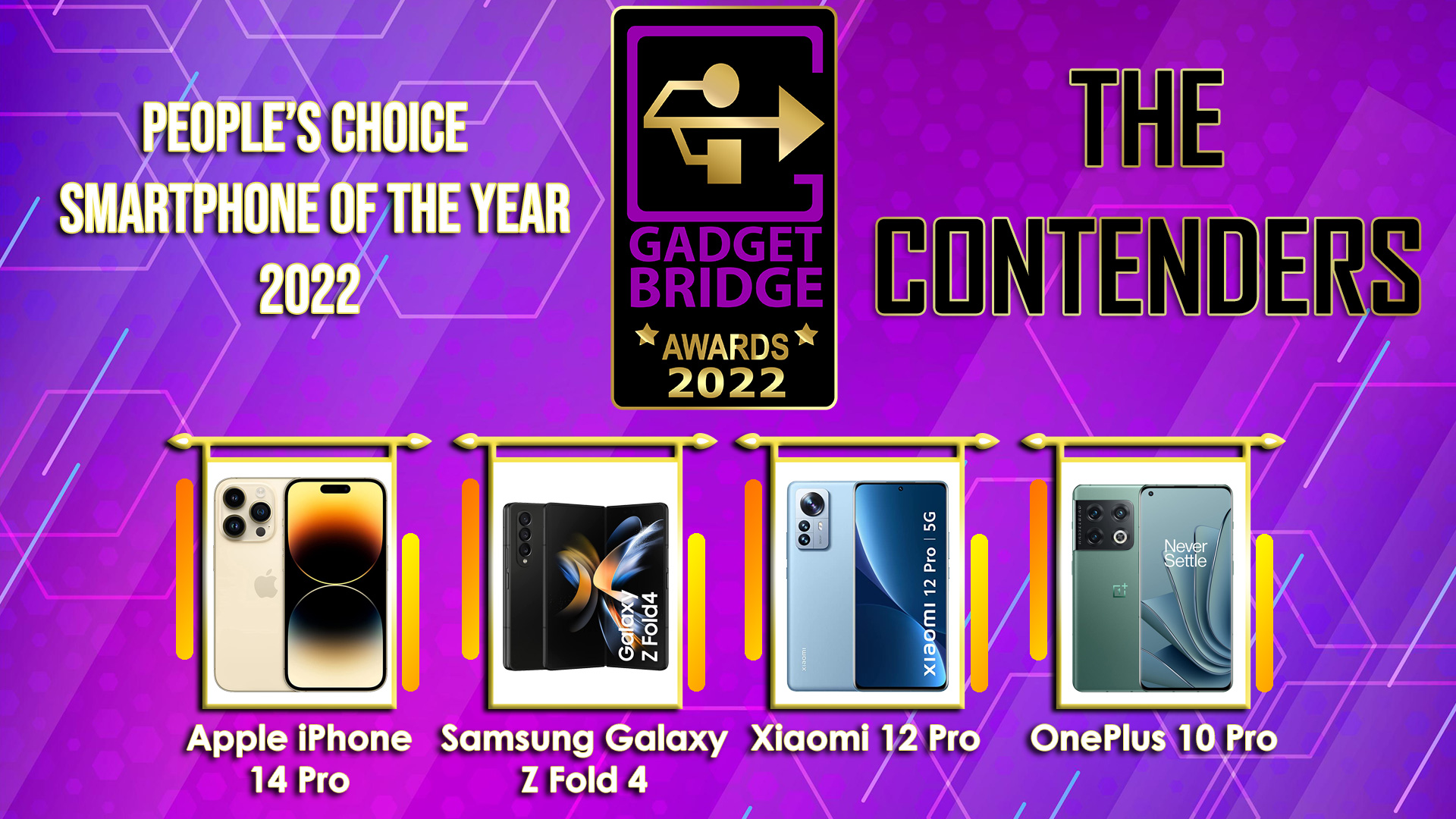
Apple iPhone 14 Pro Samsung Z Fold 4 Xiaomi 12 Pro OnePlus 10 ProVoting is live! #GadgetBridge – People’s Choice Smartphone Of The Year 2022 #GadgetBridgeAwards22. Where your vote counts!
— GadgetBridge (@gadgetbridge) December 12, 2022
Feel free 2 retweet & spread!
Which 1 do you think is the best?#Apple #iPhone #Samsung #Xiaomi #OnePlus @Apple @SamsungIndia @XiaomiIndia @OnePlus_IN
16) People’s Choice Gadget Of The Year 2022

Xiaomi OLED Vision TV Samsung TAB S8 Ultra Sony 1000XM5 Apple AirPods Pro 2Voting is live! #GadgetBridge – People’s Choice Gadget Of The Year 2022 #GadgetBridgeAwards22. Where Your vote counts!
— GadgetBridge (@gadgetbridge) December 12, 2022
Feel free 2 retweet & spread!
Which 1 do you think is the best?#Apple #iPhone #Samsung #Xiaomi #SonY @Apple @SamsungIndia @XiaomiIndia @sony_india
17) People’s Choice Brand Of The Year 2022

Apple Samsung Xiaomi SonyVoting is live! #GadgetBridge – People’s Choice Brand Of The Year 2022 #GadgetBridgeAwards22. Where Your vote counts!
— GadgetBridge (@gadgetbridge) December 12, 2022
Feel free 2 retweet & spread!
Which 1 do you think is the best?#Apple #Samsung #Xiaomi #Sony@Apple @SamsungIndia @XiaomiIndia @sony_india
18) Best Gadget Of The Year 2022
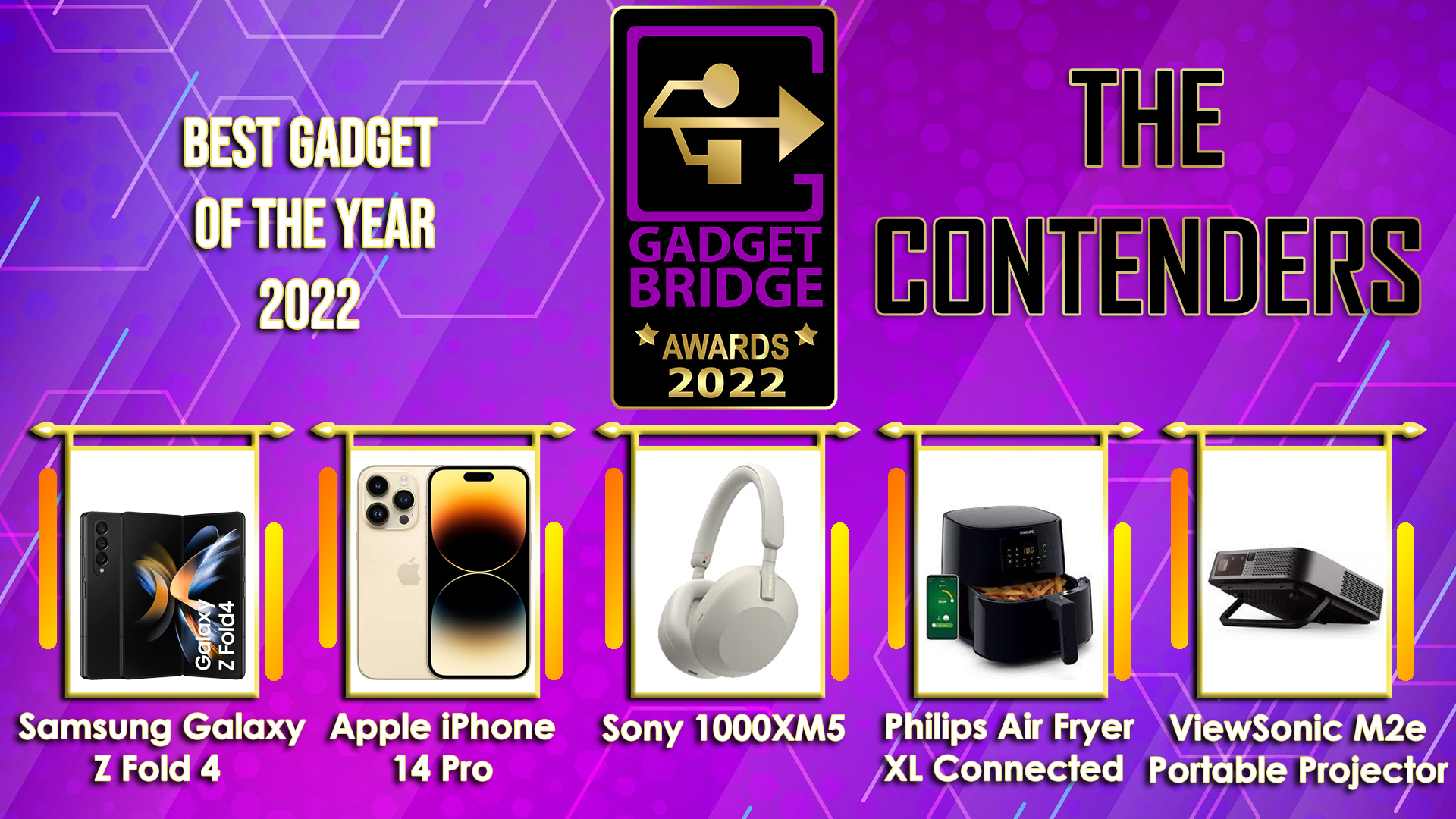 Samsung Galaxy Z Fold 4
Sony 1000XM5
Apple iPhone 14 Pro
Philips Air Fryer XL Connected
ViewSonic M2e Portable Projector
Samsung Galaxy Z Fold 4
Sony 1000XM5
Apple iPhone 14 Pro
Philips Air Fryer XL Connected
ViewSonic M2e Portable Projector
19) Hatke Gadget Of The Year (Design) 2022
 Samsung Galaxy Z Flip 4
Nothing Phone 1
Asus Zenbook 14X Space Edition
Truke BTG Alpha
Sony LinkBuds WF-L900
Samsung Galaxy Z Flip 4
Nothing Phone 1
Asus Zenbook 14X Space Edition
Truke BTG Alpha
Sony LinkBuds WF-L900
20) Hatke Gadget Of The Year (Performance & Utility) 2022
 Philips OneBlade Pro QP6550
Apple iPhone 14 Pro
QUBO Car Air Purfier
Philips Sneaker Cleaner
ViewSonic TD1655 Touch Portable Monitor
Philips OneBlade Pro QP6550
Apple iPhone 14 Pro
QUBO Car Air Purfier
Philips Sneaker Cleaner
ViewSonic TD1655 Touch Portable Monitor
21) Best Value-For-Money laptop Of The Year 2022
 Acer Aspire 3
Lenovo IdeaPad Gaming 3i
Samsung Galaxy Book2
Xiaomi Notebook Pro 120G
Asus VivoBook S15
Acer Aspire 3
Lenovo IdeaPad Gaming 3i
Samsung Galaxy Book2
Xiaomi Notebook Pro 120G
Asus VivoBook S15
22) Best Laptop Of The Year 2022
 Asus Zenbook 14X Space Edition
Samsung Galaxy Book 2 Pro 360
Xiaomi Notebook Pro 120G
Acer Swift 5
HP Spectre X360
Asus Zenbook 14X Space Edition
Samsung Galaxy Book 2 Pro 360
Xiaomi Notebook Pro 120G
Acer Swift 5
HP Spectre X360
23) Best Business Laptop Of The Year 2022
 Acer Travelmate P6
Dell Latitude 7430
HP Pavilion Plus 14
Lenovo ThinkBook 14 Gen 4
Asus ZenBook 17 Fold
Acer Travelmate P6
Dell Latitude 7430
HP Pavilion Plus 14
Lenovo ThinkBook 14 Gen 4
Asus ZenBook 17 Fold
24) Best Gaming Laptop Of The Year 2022
 Asus ROG Zephyrus G14 2022
Acer Predator Helios 300 2022
HP Victus 16 2022
Lenovo Legion 5i 2022 Pro
Asus ROG Strix Scar 17SE
Asus ROG Zephyrus G14 2022
Acer Predator Helios 300 2022
HP Victus 16 2022
Lenovo Legion 5i 2022 Pro
Asus ROG Strix Scar 17SE
25) Best Tablet Of The Year 2022
 Samsung Tab S8 Ultra
Xiaomi Pad 5
Lenovo Tab P12 Pro
Oppo Pad Air
Samsung Tab S8 Ultra
Xiaomi Pad 5
Lenovo Tab P12 Pro
Oppo Pad Air
26) Best Value-For-Money Smart TV Of The Year 2022
Redmi Smart TV X43
Acer I Series 32-inch
Kodak QLED TV
Vu 50GloLED

27) Best Mid-Range Smart TV Of The Year 2022
 Blaupunkt Smart Google TV 55-inch
Acer H Series 50-inch
Redmi TV X50
Blaupunkt Smart Google TV 55-inch
Acer H Series 50-inch
Redmi TV X50
28) Best TV Of The Year 2022
 Xiaomi OLED Vision TV
Thomson Google TV 55-inch
LG OLED EVO G2
Sony Bravia A95K
Xiaomi OLED Vision TV
Thomson Google TV 55-inch
LG OLED EVO G2
Sony Bravia A95K
29) Best Projector Of The Year 2022
 Optoma UHD55
ViewSonic X1000-4K+ SB
ViewSonic M2e Portable Projector
Optoma D2 CinemaX Projection TV
Optoma UHD55
ViewSonic X1000-4K+ SB
ViewSonic M2e Portable Projector
Optoma D2 CinemaX Projection TV
30) Best Home Printer Of The Year 2022
 HP Deskjet Ink Advantage Ultra 4826
HP LaserJet Tank 1005w
Ricoh P502
HP Deskjet Ink Advantage Ultra 4826
HP LaserJet Tank 1005w
Ricoh P502
31) Best Home Improvement Device Of The Year 2022
 Dyson V12 Detect Slim
Philips Speed Pro Aqua
Philips OneBlade Pro QP6550
EZVIZ C1C-B
Xiaomi Wireless Camera 2i
Dyson V12 Detect Slim
Philips Speed Pro Aqua
Philips OneBlade Pro QP6550
EZVIZ C1C-B
Xiaomi Wireless Camera 2i
32) Best Budget Smartwatch Of The Year 2022
 Redmi Watch 2 Lite
Oppo Watch free
OnePlus Nord Watch
Noise ColorFit Pro 4
FireBoltt Visionary
Redmi Watch 2 Lite
Oppo Watch free
OnePlus Nord Watch
Noise ColorFit Pro 4
FireBoltt Visionary
33) Best Premium Smartwatch Of The Year 2022
 Samsung Galaxy Watch 5 Pro
Apple Watch Series 8
Garmin Fenix 7X Solar
Fitbit Sense 2
Samsung Galaxy Watch 5 Pro
Apple Watch Series 8
Garmin Fenix 7X Solar
Fitbit Sense 2
34) Best Fitness Wearable Of The Year 2022
 Redmi Smart Band Pro
Fitbit Versa 4
Garmin Vivosmart 5
Amazfit GTR 4
Redmi Smart Band Pro
Fitbit Versa 4
Garmin Vivosmart 5
Amazfit GTR 4
35) Best Headphones Of The Year 2022
 Audio Technica ATH-M20xBT
Sony 1000XM5
Blaupunkt bh51
Sennheiser Momentum 4
Audio Technica ATH-M20xBT
Sony 1000XM5
Blaupunkt bh51
Sennheiser Momentum 4
36) Best Gaming Headphones Of The Year 2022
 Sony INZONE H9
Logitech G435
Audio-Technica ATH-GDL3
Sony INZONE H9
Logitech G435
Audio-Technica ATH-GDL3
37) Best Wireless Earphones Of The Year 2022
 Apple Airpods Pro 2
Sennheiser Momentum True Wireless 3
Sony LinkBuds S
LG FP9W
Samsung Galaxy Buds 2 Pro
Apple Airpods Pro 2
Sennheiser Momentum True Wireless 3
Sony LinkBuds S
LG FP9W
Samsung Galaxy Buds 2 Pro
38) Best Bluetooth Speaker Of The Year 2022
 Mivi Fort S24
Sony SRS XE 300
Philips TAS2505
Xiaomi Smart Speaker
Mivi Fort S24
Sony SRS XE 300
Philips TAS2505
Xiaomi Smart Speaker
39) Best Soundbar/Entertainment Speakers Of The Year 2022
 Sony HT-A7000
Sony XV900
LG XBOOM 360 RP4G
Mivi Fort S200 Soundbar
Sony HT-A7000
Sony XV900
LG XBOOM 360 RP4G
Mivi Fort S200 Soundbar
40) Best Streaming Service Of The Year 2022
 Netflix
Disney+Hotstar
Apple TV+
Prime Video
Netflix
Disney+Hotstar
Apple TV+
Prime Video
41) Best Music App Of The Year 2022
 Jio Saavn
Spotify
Amazon Music
Apple Music
Jio Saavn
Spotify
Amazon Music
Apple Music
42) Best PC/Laptop accessory Of The Year 2022
 WD Blue SN570 NVMe SSD
Logitech MX Mechanical Wireless Keyboard
Logitech Master3S
Viewsonic XG2431 Gaming Monitor
ASUS Marshmallow mouse
For the latest gadget and tech news, and gadget reviews, follow us on Twitter, Facebook and Instagram. For newest tech & gadget videos subscribe to our YouTube Channel. You can also stay up to date using the Gadget Bridge Android App. You can find the latest car and bike news here.
WD Blue SN570 NVMe SSD
Logitech MX Mechanical Wireless Keyboard
Logitech Master3S
Viewsonic XG2431 Gaming Monitor
ASUS Marshmallow mouse
For the latest gadget and tech news, and gadget reviews, follow us on Twitter, Facebook and Instagram. For newest tech & gadget videos subscribe to our YouTube Channel. You can also stay up to date using the Gadget Bridge Android App. You can find the latest car and bike news here. How to check whether your smartphone is original or not?
While most e-commerce websites have a strict set of regulations to weed out disreputable vendors from their platforms, it is not uncommon for buyers to receive counterfeit or refurbished products, especially when it comes to electronic goods. If you notice something off about a smartphone you recently bought, there are a couple of ways you can check whether the product you received is authentic. These methods are also applicable when you’re buying a used smartphone and want to ensure that you are not being sold a fake product. In this article, we show you how to check whether your smartphone is original or not.
Read Also: How to create a ringtone for iPhone? The best simple ways
Step 2: Go to imei.info and enter your phone’s IMEI number.
Step 3: Your phone’s information will be displayed on the screen. If the information does not corroborate with your unit, your phone is likely fake. You can also see if your device has been blacklisted. Stolen units are usually the ones that get blacklisted through their IMEI number.
Step 2: Go to Apple’s warranty coverage page and enter the serial number of your iPhone. If the webpage says your IMEI number is invalid, you probably have a fake iPhone.
Step 3: To check if your iPhone is refurbished, check the model number by going to Settings>General>About>Model Number. The first alphabet of the model number signifies the device status. If it starts with M, it means your iPhone is new. The model number of refurbished units starts with ‘F’. If you got a replacement unit from Apple, the model number will start with ‘N’.
Read Also: iQOO Quest Days Sale goes live on Amazon
Check if your Android smartphone is original or not
Step 1: Dial *#066# USSD code on your smartphone to reveal the IMEI code of your device. You can also use these 7 methods to find the IMEI code of your Android smartphone. Step 2: Go to imei.info and enter your phone’s IMEI number.
 Step 3: Your phone’s information will be displayed on the screen. If the information does not corroborate with your unit, your phone is likely fake. You can also see if your device has been blacklisted. Stolen units are usually the ones that get blacklisted through their IMEI number.
Check if your iPhone is original or not
Step 1: Dial *#066# USSD code on your iPhone dialer to reveal the IMEI code and the serial number of your device. You can also use one of these methods to find the IMEI code and the serial number of your iPhone. Step 2: Go to Apple’s warranty coverage page and enter the serial number of your iPhone. If the webpage says your IMEI number is invalid, you probably have a fake iPhone.
 Step 3: To check if your iPhone is refurbished, check the model number by going to Settings>General>About>Model Number. The first alphabet of the model number signifies the device status. If it starts with M, it means your iPhone is new. The model number of refurbished units starts with ‘F’. If you got a replacement unit from Apple, the model number will start with ‘N’.
Read Also: iQOO Quest Days Sale goes live on Amazon
Step 3: To check if your iPhone is refurbished, check the model number by going to Settings>General>About>Model Number. The first alphabet of the model number signifies the device status. If it starts with M, it means your iPhone is new. The model number of refurbished units starts with ‘F’. If you got a replacement unit from Apple, the model number will start with ‘N’.
Read Also: iQOO Quest Days Sale goes live on Amazon
Conclusion
This is how you can check whether your smartphone is original or not. You can also visit your smartphone manufacturer’s official website and enter the IMEI code on the warranty page to check whether your device is original. In order to limit the possibility of being sold counterfeit products, only buy from verified vendors on e-commerce websites like Amazon and Flipkart. For the latest gadget and tech news, and gadget reviews, follow us on Twitter, Facebook and Instagram. For newest tech & gadget videos subscribe to our YouTube Channel. You can also stay up to date using the Gadget Bridge Android App. You can find the latest car and bike news here.Which are the Best Apple CarPlay Apps for iPhone?
Similar to Android Auto, CarPlay is Apple’s interface for your car’s infotainment system. Apps designed for Apple CarPlay are meant to reduce any distractions while driving and make use of Siri to carry out most of the tasks through voice commands. Almost every major navigation and music app is now compatible with your car’s infotainment system. So, which are the best Apple CarPlay apps for iPhone? Here is our list.
Read Also: iQOO Quest Days Sale goes live on Amazon
While there are a lot of navigation apps you can use on Apple CarPlay, Google Maps is unanimously agreed to be the best out of the lot, even surpassing Apple’s own Maps app. A good navigation app is the first thing drivers look for after connecting their phone to the car. Google Maps checks all boxes for the ideal navigation app. One of the better features of Google Maps is that it offers voice navigation while driving, so you don’t have to look at the screen to follow the directions.
Once you’ve selected a navigation app, you will need a music app to make your drive more fun. With millions of artists on its app, Spotify is one of the biggest music platforms in the world. The Spotify app works smoothly with Apple CarPlay and offers accessible controls that you can easily use while driving. You can even use Siri to play your preferred song, playlist, or podcast on Spotify.
Don’t have a Spotify subscription? Use Apple Music. The Apple Music app is native to your iPhone. In terms of functionality, it is pretty evenly matched with Spotify, offering a similar range of artists. You can use Siri to control Apple Music as well. Since Spotify and Apple Music do not have much separating them, all it comes down to is your personal preference.
Stitcher has been the go-to app for podcast listeners for over a decade now. With over 100,000 podcasts, you are bound to find your favourite show on this app. Some of the popular podcasts on Stitcher are NPR, This American Life, Radiolab, and more. Listening to a podcast before getting into your car? With just a few taps on Apple CarPlay, you can resume from where you left off. Stitcher also has a premium subscription service that offers advanced features.
WhatsApp
Any infotainment system is incomplete if it does not let you access messages on WhatsApp. Luckily, WhatsApp is compatible with Apple CarPlay and lets you access your messages while driving. The best part of using WhatsApp on CarPlay is that you don’t have to look at the screen while reading and responding to your messages. Siri reads out all your pending messages and even sends replies when you dictate them to it.
If you own an electric car, PlugShare is an essential app that you need to download right now. Using the PlugShare you can find public charging stations for your EV near you. Community contribution is a big part of PlugShare. You will find detailed reviews of most charging stations on the app itself. You can even filter the charging station map by plug type and charging speed. You can even pay for your EV’s charging using the PlugShare app itself.
Waze is an excellent alternative to Google Maps and Apple Maps for Apple CarPlay. Waze is a crowdsourced app so it lets you know if users have reported any recent accidents or other events on the path you’re on. Apart from that, Waze also gives you additional information about your route like the gas stations on the way, police checks, and traffic status.
 With over 100,000 AM and FM stations, TuneIn takes care of all things radio. TuneIn has been one of the most popular internet radio apps ever since radio apps started rolling out. The stations offered on TuneIn range from music, news, sport, and talk radio. You can even listen to the major podcasts on this app.
Live in a crowded city where it’s near-impossible to find parking space? SpotHero is the app you’re looking for. Using SpotHero you can easily find parking space even during rush hours. The app works best in major US cities. You can even enter the time and date in advance and reserve your spot in the parking garage. Using SpotHero you can save up to 50% on the parking fee.
The largest audiobook library app, Audible, is also available for Apple CarPlay. Now you don’t have to miss out on precious reading time while driving. Simply open the Audible app on CarPlay and you can pick up where you left off. While this app is extremely beneficial to the driver, passengers who suffer from motion sickness while reading will enjoy it just as much. Apart from audiobooks, Audible also offers an impressive collection of podcasts.
Read Also: Top 4 Simple Methods to Reverse Image Search on iPhone or iPad (2023)
With over 100,000 AM and FM stations, TuneIn takes care of all things radio. TuneIn has been one of the most popular internet radio apps ever since radio apps started rolling out. The stations offered on TuneIn range from music, news, sport, and talk radio. You can even listen to the major podcasts on this app.
Live in a crowded city where it’s near-impossible to find parking space? SpotHero is the app you’re looking for. Using SpotHero you can easily find parking space even during rush hours. The app works best in major US cities. You can even enter the time and date in advance and reserve your spot in the parking garage. Using SpotHero you can save up to 50% on the parking fee.
The largest audiobook library app, Audible, is also available for Apple CarPlay. Now you don’t have to miss out on precious reading time while driving. Simply open the Audible app on CarPlay and you can pick up where you left off. While this app is extremely beneficial to the driver, passengers who suffer from motion sickness while reading will enjoy it just as much. Apart from audiobooks, Audible also offers an impressive collection of podcasts.
Read Also: Top 4 Simple Methods to Reverse Image Search on iPhone or iPad (2023)
Google Maps
 While there are a lot of navigation apps you can use on Apple CarPlay, Google Maps is unanimously agreed to be the best out of the lot, even surpassing Apple’s own Maps app. A good navigation app is the first thing drivers look for after connecting their phone to the car. Google Maps checks all boxes for the ideal navigation app. One of the better features of Google Maps is that it offers voice navigation while driving, so you don’t have to look at the screen to follow the directions.
Spotify
 Once you’ve selected a navigation app, you will need a music app to make your drive more fun. With millions of artists on its app, Spotify is one of the biggest music platforms in the world. The Spotify app works smoothly with Apple CarPlay and offers accessible controls that you can easily use while driving. You can even use Siri to play your preferred song, playlist, or podcast on Spotify.
Apple Music
 Don’t have a Spotify subscription? Use Apple Music. The Apple Music app is native to your iPhone. In terms of functionality, it is pretty evenly matched with Spotify, offering a similar range of artists. You can use Siri to control Apple Music as well. Since Spotify and Apple Music do not have much separating them, all it comes down to is your personal preference.
Stitcher
 Stitcher has been the go-to app for podcast listeners for over a decade now. With over 100,000 podcasts, you are bound to find your favourite show on this app. Some of the popular podcasts on Stitcher are NPR, This American Life, Radiolab, and more. Listening to a podcast before getting into your car? With just a few taps on Apple CarPlay, you can resume from where you left off. Stitcher also has a premium subscription service that offers advanced features.
 Any infotainment system is incomplete if it does not let you access messages on WhatsApp. Luckily, WhatsApp is compatible with Apple CarPlay and lets you access your messages while driving. The best part of using WhatsApp on CarPlay is that you don’t have to look at the screen while reading and responding to your messages. Siri reads out all your pending messages and even sends replies when you dictate them to it.
PlugShare
 If you own an electric car, PlugShare is an essential app that you need to download right now. Using the PlugShare you can find public charging stations for your EV near you. Community contribution is a big part of PlugShare. You will find detailed reviews of most charging stations on the app itself. You can even filter the charging station map by plug type and charging speed. You can even pay for your EV’s charging using the PlugShare app itself.
Waze
 Waze is an excellent alternative to Google Maps and Apple Maps for Apple CarPlay. Waze is a crowdsourced app so it lets you know if users have reported any recent accidents or other events on the path you’re on. Apart from that, Waze also gives you additional information about your route like the gas stations on the way, police checks, and traffic status.
TuneIn
 With over 100,000 AM and FM stations, TuneIn takes care of all things radio. TuneIn has been one of the most popular internet radio apps ever since radio apps started rolling out. The stations offered on TuneIn range from music, news, sport, and talk radio. You can even listen to the major podcasts on this app.
SpotHero
 Live in a crowded city where it’s near-impossible to find parking space? SpotHero is the app you’re looking for. Using SpotHero you can easily find parking space even during rush hours. The app works best in major US cities. You can even enter the time and date in advance and reserve your spot in the parking garage. Using SpotHero you can save up to 50% on the parking fee.
Audible
 The largest audiobook library app, Audible, is also available for Apple CarPlay. Now you don’t have to miss out on precious reading time while driving. Simply open the Audible app on CarPlay and you can pick up where you left off. While this app is extremely beneficial to the driver, passengers who suffer from motion sickness while reading will enjoy it just as much. Apart from audiobooks, Audible also offers an impressive collection of podcasts.
Read Also: Top 4 Simple Methods to Reverse Image Search on iPhone or iPad (2023)
The largest audiobook library app, Audible, is also available for Apple CarPlay. Now you don’t have to miss out on precious reading time while driving. Simply open the Audible app on CarPlay and you can pick up where you left off. While this app is extremely beneficial to the driver, passengers who suffer from motion sickness while reading will enjoy it just as much. Apart from audiobooks, Audible also offers an impressive collection of podcasts.
Read Also: Top 4 Simple Methods to Reverse Image Search on iPhone or iPad (2023)
Conclusion
This is our list of the 10 best Apple CarPlay apps for iPhone. This list has been specially curated to include navigation, music, radio, and messaging apps. Which is your favourite Apple CarPlay app? Let us know in the comments! For the latest gadget and tech news, and gadget reviews, follow us on Twitter, Facebook and Instagram. For newest tech & gadget videos subscribe to our YouTube Channel. You can also stay up to date using the Gadget Bridge Android App. You can find the latest car and bike news here.How to Download Windows 10 ISO Legally?

Downloading a Windows ISO image is essential to upgrading and repairing your PC, or creating a Windows bootable drive. Microsoft allows users to download the ISO image legally for free from its website. However, there’s one small catch. If you are a Windows user, you cannot directly download Windows 10 ISO from the Windows website. Microsoft makes you download its media creation tool in order to get the Windows 10 ISO file. Luckily, there is a quick workaround you can use if you do not want to download the media creation tool. In this article, we show you how to download Windows 10 ISO legally for free without downloading the media creation tool first.
Read Also: Top 4 Simple Methods to Reverse Image Search on iPhone or iPad (2023)
Step 3: Now click on the ellipses on the Developer Tools panel, scroll down to More Tools, and select Network Conditions.
Step 4: Go to the User Agent section and untick the ‘Select Automatically’ box. In the selection box below, choose a non-Windows OS.
Step 5: Now, refresh the download page on Microsoft’s website. You will be able to download the Windows 10 ISO directly.
Step 7: Select the Windows edition you want from the drop-down box and confirm your choice.
Step 8: Choose your desired product language and confirm your selection.
Step 9: Choose whether you want to download the 32-bit or 64-bit version of the Windows 10 ISO file.
Step 10: Save the ISO file to your desktop.
Read Also: Lenovo introduces the ‘Custom To Order’ feature for desktops in India
Here’s how you can download the Windows 10 ISO file
As we mentioned earlier, Microsoft makes you download the media creation tool if you are a Windows user. The trick to accessing the Windows 10 ISO file directly is by changing your browser’s user agent so the Microsoft website does not know you are using a Windows OS. Here’s how you can do this. Step 1: Open Microsoft’s Windows 10 ISO download page on Google Chrome. Click here to get directed to the page. Step 2: Now, click on the ellipses (three dots) at the top right corner of your web browser, scroll down to More Tools, and select Developer Tools. You can also use the Ctrl+Shift+I shortcut to open Developer Tools directly. Step 3: Now click on the ellipses on the Developer Tools panel, scroll down to More Tools, and select Network Conditions.
 Step 4: Go to the User Agent section and untick the ‘Select Automatically’ box. In the selection box below, choose a non-Windows OS.
 Step 5: Now, refresh the download page on Microsoft’s website. You will be able to download the Windows 10 ISO directly.
Step 7: Select the Windows edition you want from the drop-down box and confirm your choice.
Step 5: Now, refresh the download page on Microsoft’s website. You will be able to download the Windows 10 ISO directly.
Step 7: Select the Windows edition you want from the drop-down box and confirm your choice.
 Step 8: Choose your desired product language and confirm your selection.
 Step 9: Choose whether you want to download the 32-bit or 64-bit version of the Windows 10 ISO file.
 Step 10: Save the ISO file to your desktop.
Read Also: Lenovo introduces the ‘Custom To Order’ feature for desktops in India
Step 10: Save the ISO file to your desktop.
Read Also: Lenovo introduces the ‘Custom To Order’ feature for desktops in India
Conclusion
This is how you can download a Windows 10 ISO file legally and for free without downloading the media creation tool. You can use this ISO image to install Windows on your computer. You can also use it to run Windows on a virtual machine or on a Mac. If you wish to create a Windows 10 bootable USB drive, you will need to download the media creation tool first. For the latest gadget and tech news, and gadget reviews, follow us on Twitter, Facebook and Instagram. For newest tech & gadget videos subscribe to our YouTube Channel. You can also stay up to date using the Gadget Bridge Android App. You can find the latest car and bike news here.WhatsApp Vs Telegram: Which one should you use? Pros and Cons
While there is certainly no dearth of Instant Messaging apps for smartphones, there are only two apps that enjoy massive popularity among the masses – WhatsApp and Telegram. When it comes down to features and basic functionality, both apps are almost alike. However, there are certain aspects that set them apart. For example, if you want to establish a community or an online club, Telegram would be the more ideal app due to its larger group size and the option to not make your phone number public to everyone. WhatsApp, on the other hand, is more suited for communicating with people you know closely. In this article, we draw a comparison between WhatsApp and Telegram so you can decide which one is the ideal app for you.
Read Also: Lenovo introduces the ‘Custom To Order’ feature for desktops in India
The most important factor when deciding on which instant messenger to use is its popularity. No matter how great an IM is, it won’t be of much use if you don’t have any contacts on it. With over 2 billion monthly active users, WhatsApp dwarfs every other instant messaging app in terms of popularity. With over a billion downloads and 500 million monthly active users, Telegram is still pretty popular but is easily beaten by WhatsApp.
In terms of privacy, both apps are pretty evenly matched with Telegram nearly edging out WhatsApp by a slim margin. Both apps provide end-to-end encryption for messages. Recently, WhatsApp also introduced end-to-end encryption for status updates. Telegram also offers a ‘secret chat’ feature, where the messages are encrypted and can be set to self-destruct after a certain period of time. Users are not allowed to forward or take screenshots of messages sent in a secret chat. While WhatsApp also offers self-disappearing messages, Telegram offers more timer options. Finally, Telegram gives the user an option to keep their phone number private. You can set up a username and let other people add you through it. Making your phone number public is not necessary, although it is required to sign up for Telegram. This makes group chats more secure for users who are not comfortable with their phone numbers being displayed to everyone in the chat.
For the longest time, WhatsApp was trailing behind Telegram when it came to the file sharing limit. Earlier this year, WhatsApp announced that users can share files up to 2GB in size, matching Telegram’s limit. However, if you’re a Telegram Premium subscriber, you can share files up to 4GB in size. Telegram users also get free cloud storage.
WhatsApp also recently increased the group limit to 1,024 members. In comparison, Telegram allows 200,000 members to be a part of a group. This is what makes Telegram a great platform to host communities and online clubs. Many online personalities use Telegram as a platform to directly communicate with their community. Since you have the option to make your phone number private, group chats on Telegram work really well. You can even use several bots to moderate the groups.
Popularity
 The most important factor when deciding on which instant messenger to use is its popularity. No matter how great an IM is, it won’t be of much use if you don’t have any contacts on it. With over 2 billion monthly active users, WhatsApp dwarfs every other instant messaging app in terms of popularity. With over a billion downloads and 500 million monthly active users, Telegram is still pretty popular but is easily beaten by WhatsApp.
Privacy
 In terms of privacy, both apps are pretty evenly matched with Telegram nearly edging out WhatsApp by a slim margin. Both apps provide end-to-end encryption for messages. Recently, WhatsApp also introduced end-to-end encryption for status updates. Telegram also offers a ‘secret chat’ feature, where the messages are encrypted and can be set to self-destruct after a certain period of time. Users are not allowed to forward or take screenshots of messages sent in a secret chat. While WhatsApp also offers self-disappearing messages, Telegram offers more timer options. Finally, Telegram gives the user an option to keep their phone number private. You can set up a username and let other people add you through it. Making your phone number public is not necessary, although it is required to sign up for Telegram. This makes group chats more secure for users who are not comfortable with their phone numbers being displayed to everyone in the chat.
File Sharing and Groups
 For the longest time, WhatsApp was trailing behind Telegram when it came to the file sharing limit. Earlier this year, WhatsApp announced that users can share files up to 2GB in size, matching Telegram’s limit. However, if you’re a Telegram Premium subscriber, you can share files up to 4GB in size. Telegram users also get free cloud storage.
WhatsApp also recently increased the group limit to 1,024 members. In comparison, Telegram allows 200,000 members to be a part of a group. This is what makes Telegram a great platform to host communities and online clubs. Many online personalities use Telegram as a platform to directly communicate with their community. Since you have the option to make your phone number private, group chats on Telegram work really well. You can even use several bots to moderate the groups.
For the longest time, WhatsApp was trailing behind Telegram when it came to the file sharing limit. Earlier this year, WhatsApp announced that users can share files up to 2GB in size, matching Telegram’s limit. However, if you’re a Telegram Premium subscriber, you can share files up to 4GB in size. Telegram users also get free cloud storage.
WhatsApp also recently increased the group limit to 1,024 members. In comparison, Telegram allows 200,000 members to be a part of a group. This is what makes Telegram a great platform to host communities and online clubs. Many online personalities use Telegram as a platform to directly communicate with their community. Since you have the option to make your phone number private, group chats on Telegram work really well. You can even use several bots to moderate the groups.
Other Features
Both apps offer some exclusive features that may appeal to different users. To start with, Telegram lets users upload more than one profile picture. While WhatsApp may not have this feature, it makes up for it by letting users post images and videos as status updates. WhatsApp is also quickly becoming a platform for businesses to directly get in contact with consumers. You can use the platform to order products, book tickets, and even get in touch with customer support. With WhatsApp rolling out its own payment portal recently, it has gotten incredibly easy for users to utilise the e-commerce services on the platform. Telegram does not have anything to match up with WhatsApp in this regard. Telegram lets users access one account on multiple devices. WhatsApp will be offering multi-device connectivity in the future, but as of now, you can only use one account on one smartphone. However, you can access your account on a web browser using WhatsApp’s web portal. Read Also: Top 5 Gaming mice under Rs 15,000 for the gamer in you (2022)Conclusion
These are the major points of difference between WhatsApp and Telegram. While Telegram offers a wider range of features, WhatsApp’s popularity works massively in its favour. If you want an app to communicate with your family and friends, there is no better alternative to WhatsApp. However, if you want an app to host a community on, Telegram is the way to go. For the latest gadget and tech news, and gadget reviews, follow us on Twitter, Facebook and Instagram. For newest tech & gadget videos subscribe to our YouTube Channel. You can also stay up to date using the Gadget Bridge Android App. You can find the latest car and bike news here.Simple methods to Uninstall and Remove McAfee LiveSafe on Windows
McAfee’s suite of antivirus products comes pre-installed in most Windows PCs these days. One of these products is McAfee LiveSafe. With its antivirus, privacy, and identity tools, LiveSafe helps in protecting your PC against viruses and ransomware. Even though it is a useful product, it is still bloatware. If you want to download another antivirus on your PC, you can easily remove McAfee’s products. In this article, we bring you two simple methods to uninstall and remove McAfee LiveSafe on a Windows PC.
Read Also: Top 5 Gaming mice under Rs 15,000 for the gamer in you (2022)
Step 3: Select McAfee Livsafe and give the app permission to make changes to your system.
Step 4: Click on the McAfee LivSafe box in the uninstaller and then select ‘Remove.’
Step 5: The Uninstaller will remove McAfee LivSafe from your PC. Restart your PC to finish the uninstallation process.
Step 4: Type the CAPTCHA at the Security Validation window and click Next.
Step 5: The uninstalling process will begin and McAfee products will be removed from your PC. Restart your PC to finish the process.
Read Also: Google Pixel 7 review: Is this an all-rounder phone?
Use ‘Add/Remove Programs’ in the Control Panel
Step 1: Open Control Panel on your PC. Step 2: Select ‘Programs.’ Step 3: Select McAfee Livsafe and give the app permission to make changes to your system.
 Step 4: Click on the McAfee LivSafe box in the uninstaller and then select ‘Remove.’
 Step 5: The Uninstaller will remove McAfee LivSafe from your PC. Restart your PC to finish the uninstallation process.
Use the McAfee Consumer Product Removal Tool (MCPR)
Oftentimes, users report that Windows uninstaller is not able to remove the McAfee LivSafe software from their PC. If you get an error at the end of uninstallation and are unable to remove LivSafe for your PC, try using the McAfee Consumer Product Removal Tool (MCPR). Here’s how. Step 1: Download a new copy of MCPR from here. Make sure you download a new copy every time you want to remove McAfee software. This ensures you have the latest version of the tool. Step 2: Install the tool on your PC. Step 3: Run the MCPR on your PC and accept the End User License Agreement. Step 4: Type the CAPTCHA at the Security Validation window and click Next.
 Step 5: The uninstalling process will begin and McAfee products will be removed from your PC. Restart your PC to finish the process.
 Read Also: Google Pixel 7 review: Is this an all-rounder phone?
Conclusion
These are the two simple ways to uninstall and remove McAfee LiveSafe from your Windows PC. If the standard removal process does not work, use the MCPR tool to carry out the uninstallation process. Always restart your PC after uninstalling the software to finish the process. You can also use other uninstallers like Revo to remove McAfee LivSafe from your PC. For the latest gadget and tech news, and gadget reviews, follow us on Twitter, Facebook and Instagram. For newest tech & gadget videos subscribe to our YouTube Channel. You can also stay up to date using the Gadget Bridge Android App. You can find the latest car and bike news here.How to create a ringtone for iPhone? The best simple ways
If you’re tired of the default and preset ringtones on your iPhone’s tone gallery, you can create a fresh ringtone all for yourself. Sampling a song or other kinds of audio is a pretty simple process but it can take some time. If you want to get really creative, you can also create a new ringtone from scratch using Garage Band! In this article, we show you how to create a ringtone for your iPhone using iTunes and Garage Band.
Read Also: Communities in Microsoft Teams launched in India
Step 1: Open iTunes on your desktop and select the song you want to set as the ringtone.
Step 2: Right-click on the song and select ‘Song info’ from the list of options. Go to the ‘Options’ tab.
Step 3: Apple allows you to create 30-second ringtones for iPhone. If you leave your phone ringing for more than 30 seconds, the 30-second clip of the song will play in a loop. In the options tab, you need to specify which 30-second part of the song you want as your ringtone. You can do this by filling in the exact time in the ‘start’ and ‘stop’ fields.
Step 4: Now that you’ve decided on the part of the song you want as your ringtone, go to File>Convert and select ‘Create AAC Version.’ iTunes will create an audio file of the 30-second clip you just selected.
Step 5: Right-click on the audio file and select ‘Show in Finder.’ Change the file’s format from ‘m4a’ to ‘m4r’. m4r is Apple’s preferred format for ringtones.
Step 6: Plug your iPhone into your desktop. iTunes will show the device name in the left sidebar. Drag the ringtone you just created to the ‘Tones’ folder under your iPhone.
Step 7: Unlock your iPhone and go to Settings. Select ‘Sounds & Haptics.’
Step 8: Scroll down and select ‘Ringtone.’ Choose the ringtone you just created.
Step 3: Now, select the loop icon on the top-right side of the screen.
Step 4: In the following window, select the ‘Music’ tab and go to ‘Songs.’
Step 5: Find the song you wish you set as your ringtone. Tapping on the song will simply play it. In order to edit the song you need to long-press it and then drag it to the track editor. Make sure you place the song in the second track, as the first track belongs to the instrument you picked after opening the Garage Band app.
Step 6: Use the sliders on the track to select the 30-second segment of the song you want as your ringtone. Since Garage Band does not have a timer, you will need to guess the length of the edit. You can play the selected part and time it using a secondary watch.
Step 7: Once you’re satisfied with the result, tap the arrow at the top-left corner of the screen and select ‘My Songs.’
Step 8: Long press on the song file and select ‘Share.’
Step 9: Select the ‘Ringtone’ format.
Step 10: Name your ringtone and hit ‘Export’ at the top right corner of the screen.
Step 11: In the following pop-up box select ‘Use Sound As…’ followed by ‘Standard Ringtone.’
To create a ringtone from scratch, use the keyboard, guitar, and other percussive instruments on different tracks to create a 30-second tune, and then export it to your phone as a ringtone.
Read Also: MediaTek Dimensity 8200 SoC for 5G smartphones announced
Create a ringtone using iTunes
 Step 1: Open iTunes on your desktop and select the song you want to set as the ringtone.
Step 2: Right-click on the song and select ‘Song info’ from the list of options. Go to the ‘Options’ tab.
Step 3: Apple allows you to create 30-second ringtones for iPhone. If you leave your phone ringing for more than 30 seconds, the 30-second clip of the song will play in a loop. In the options tab, you need to specify which 30-second part of the song you want as your ringtone. You can do this by filling in the exact time in the ‘start’ and ‘stop’ fields.
Step 4: Now that you’ve decided on the part of the song you want as your ringtone, go to File>Convert and select ‘Create AAC Version.’ iTunes will create an audio file of the 30-second clip you just selected.
Step 5: Right-click on the audio file and select ‘Show in Finder.’ Change the file’s format from ‘m4a’ to ‘m4r’. m4r is Apple’s preferred format for ringtones.
Step 6: Plug your iPhone into your desktop. iTunes will show the device name in the left sidebar. Drag the ringtone you just created to the ‘Tones’ folder under your iPhone.
Step 7: Unlock your iPhone and go to Settings. Select ‘Sounds & Haptics.’
Step 8: Scroll down and select ‘Ringtone.’ Choose the ringtone you just created.
Step 1: Open iTunes on your desktop and select the song you want to set as the ringtone.
Step 2: Right-click on the song and select ‘Song info’ from the list of options. Go to the ‘Options’ tab.
Step 3: Apple allows you to create 30-second ringtones for iPhone. If you leave your phone ringing for more than 30 seconds, the 30-second clip of the song will play in a loop. In the options tab, you need to specify which 30-second part of the song you want as your ringtone. You can do this by filling in the exact time in the ‘start’ and ‘stop’ fields.
Step 4: Now that you’ve decided on the part of the song you want as your ringtone, go to File>Convert and select ‘Create AAC Version.’ iTunes will create an audio file of the 30-second clip you just selected.
Step 5: Right-click on the audio file and select ‘Show in Finder.’ Change the file’s format from ‘m4a’ to ‘m4r’. m4r is Apple’s preferred format for ringtones.
Step 6: Plug your iPhone into your desktop. iTunes will show the device name in the left sidebar. Drag the ringtone you just created to the ‘Tones’ folder under your iPhone.
Step 7: Unlock your iPhone and go to Settings. Select ‘Sounds & Haptics.’
Step 8: Scroll down and select ‘Ringtone.’ Choose the ringtone you just created.
Create a ringtone using Garage Band
If you don’t want to go through the hassle of editing a song on your desktop, you can easily do the same on your iPhone. All you need is the Garage Band app. Using the Garage Band app, you can either clip a 30-second segment of a song and use it as a ringtone or create a new ringtone from scratch. Here’s how. Step 1: Install the Garage Band app from the App Store on your iPhone. Open the app. Step 2: Select an instrument and tap on the track editor option at the top left corner of the screen. You will find this icon to the left of the equaliser.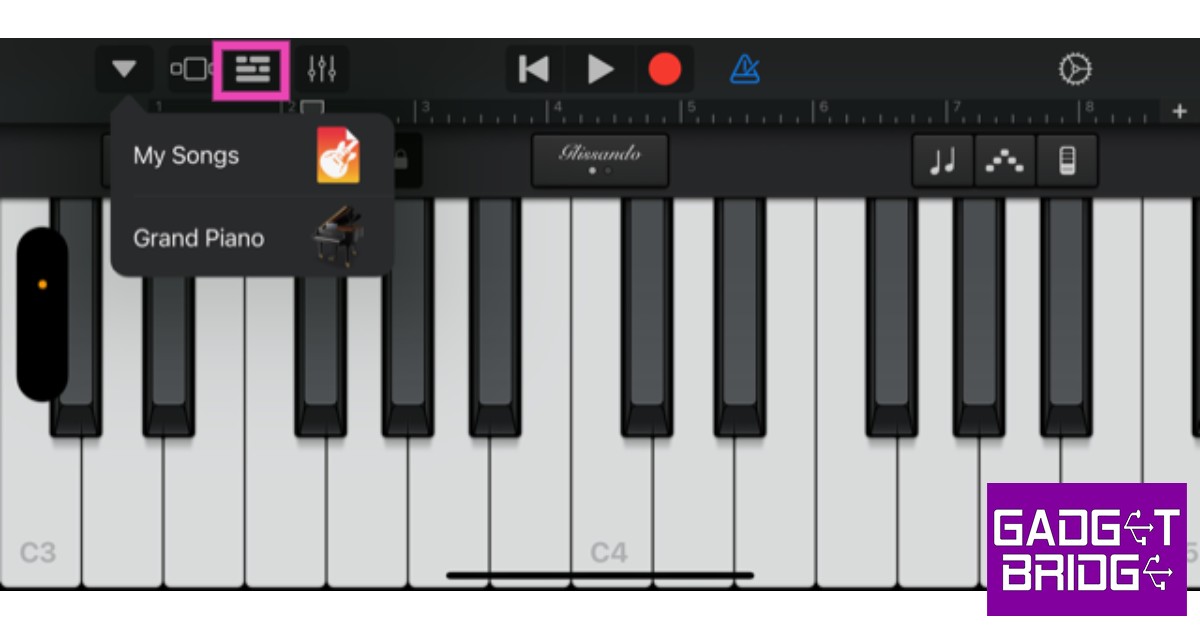 Step 3: Now, select the loop icon on the top-right side of the screen.
 Step 4: In the following window, select the ‘Music’ tab and go to ‘Songs.’
Step 5: Find the song you wish you set as your ringtone. Tapping on the song will simply play it. In order to edit the song you need to long-press it and then drag it to the track editor. Make sure you place the song in the second track, as the first track belongs to the instrument you picked after opening the Garage Band app.
Step 6: Use the sliders on the track to select the 30-second segment of the song you want as your ringtone. Since Garage Band does not have a timer, you will need to guess the length of the edit. You can play the selected part and time it using a secondary watch.
Step 7: Once you’re satisfied with the result, tap the arrow at the top-left corner of the screen and select ‘My Songs.’
Step 8: Long press on the song file and select ‘Share.’
Step 4: In the following window, select the ‘Music’ tab and go to ‘Songs.’
Step 5: Find the song you wish you set as your ringtone. Tapping on the song will simply play it. In order to edit the song you need to long-press it and then drag it to the track editor. Make sure you place the song in the second track, as the first track belongs to the instrument you picked after opening the Garage Band app.
Step 6: Use the sliders on the track to select the 30-second segment of the song you want as your ringtone. Since Garage Band does not have a timer, you will need to guess the length of the edit. You can play the selected part and time it using a secondary watch.
Step 7: Once you’re satisfied with the result, tap the arrow at the top-left corner of the screen and select ‘My Songs.’
Step 8: Long press on the song file and select ‘Share.’
 Step 9: Select the ‘Ringtone’ format.
 Step 10: Name your ringtone and hit ‘Export’ at the top right corner of the screen.
 Step 11: In the following pop-up box select ‘Use Sound As…’ followed by ‘Standard Ringtone.’
To create a ringtone from scratch, use the keyboard, guitar, and other percussive instruments on different tracks to create a 30-second tune, and then export it to your phone as a ringtone.
Read Also: MediaTek Dimensity 8200 SoC for 5G smartphones announced
Step 11: In the following pop-up box select ‘Use Sound As…’ followed by ‘Standard Ringtone.’
To create a ringtone from scratch, use the keyboard, guitar, and other percussive instruments on different tracks to create a 30-second tune, and then export it to your phone as a ringtone.
Read Also: MediaTek Dimensity 8200 SoC for 5G smartphones announced
Conclusion
This is how you can create a ringtone for your iPhone using iTunes or Garage Band. Want to change your Alarm tone as well? Read our article here to find out how. Let us know in the comments if you found this article helpful! For the latest car and bike news, car reviews/bike reviews, and auto features follow us on Twitter and Facebook. You can find the latest gadget and tech news, and gadget reviews here.iQOO Quest Days Sale goes live on Amazon
The iQOO Quest Days have been announced on Amazon. The sale has already begun and will run until December 12. During the iQOO Quest Days, shoppers may take advantage of substantial price drops as well as enticing bank offers from SBI and HDFC on the iQOO 9 series, Neo 6 series, and Z6 series smartphones.
iQOO today unveiled iQOO Quest Days on Amazon.in. During the sale time, the price of iQOO smartphones will be reduced. In addition, Amazon will provide card offers and discounts on a variety of iQOO gadgets. The Neo 6, Z6, and iQOO 9 series smartphones are currently eligible for the iQOO Quest Days offer. Let’s have a look at the offer that will be available during the iQOO Quest Days sale.
Because of partnerships with ICICI Bank, Citi Bank, and Axis Bank, Amazon is offering additional discounts on iQOO devices.
During the deal, the iQOO 9 Pro 5G, which normally starts at Rs 64,990, can be acquired for an effective price of Rs 49990. This includes a Rs 7,000 price cut and bank card discounts. The iQOO 9T 5G is now available for Rs 45,999, a discount from its original price of Rs 49,999 on Amazon.
The iQOO 9 SE is priced at Rs 33,990 at launch, but iQOO is offering a Rs 4,000 immediate discount. ICICI, Citi, and Axis bank cardholders will receive a Rs 2,000 discount.
The base model of the iQOO Neo 6 5G, which is normally offered for Rs 29,999, is available for Rs 26,999 during the iQOO Quest Days promotion. This promotion includes an additional Rs 2,000 in bank card discounts.
The iQOO Z6 5G is now available for Rs 14,499, a discount from the usual starting price of Rs 15,499 on Amazon.
Customers can take advantage of the following deals during ‘iQOO Quest Day.
 For the latest gadget and tech news, and gadget reviews, follow us on Twitter, Facebook and Instagram. For newest tech & gadget videos subscribe to our YouTube Channel. You can also stay up to date using the Gadget Bridge Android App. You can find the latest car and bike news here.
 For the latest gadget and tech news, and gadget reviews, follow us on Twitter, Facebook and Instagram. For newest tech & gadget videos subscribe to our YouTube Channel. You can also stay up to date using the Gadget Bridge Android App. You can find the latest car and bike news here.
 Top 4 Simple Methods to Reverse Image Search on iPhone or iPad (2023)

Reverse image search is a handy function that comes in use quite often. Can’t find the artist of an artwork you came across online? Reverse image search for the art and you will be able to track down the person who created it. A simple reverse image search is also helpful in finding products and identifying unknown objects. All you need to do is click a picture and search for it. In this article, we bring you the top 4 simple methods to reverse image search on iPhone and iPad.
Read Also: Ways To Save Your Battery While Playing Mobile Games
Step 3: Tap the camera icon.
Step 4: Tap on ‘Upload an image’ and select the image you want to search from your phone’s gallery.
Step 5: Google will present the relevant results for the source of the image.
Step 2: Select ‘Take Photo’ and click on the gallery icon to upload the image you want to search for. If you want to search for an object or a product, you can take a live picture and upload it.
Bing will present the relevant results for the source of the image.
Download the Google app on your iPhone or iPad and tap the camera icon to search by image using Google Lens. You can take an image of any object in your surroundings or upload an image from your device’s gallery. Google will come up with relevant results about the source of the image or details about the object in the image. You can download the Google app for your iPhone or iPad here.
Don’t want to use Google Lens? The Reverse Image Search is a great alternative. All you need to do is upload an image from your phone’s gallery and the Reverse Image Search app will look for relevant results across Google, Bing, Tineye and Yandex. The in-app editor also allows you to crop the image before you upload it. You can also directly search images from your Gallery, Camera, Clipboard, and Files using this app’s handy extension. You can download the Reverse Image Search app here.
Read Also: Communities in Microsoft Teams launched in India
Reverse Image Search using Google Chrome
Step 1: Go to https://images.google.com on the Chrome web browser. Step 2: Tap the ellipses (three dots) at the top right corner of the screen. Select ‘desktop site.’ Step 3: Tap the camera icon.
Step 4: Tap on ‘Upload an image’ and select the image you want to search from your phone’s gallery.
Step 3: Tap the camera icon.
Step 4: Tap on ‘Upload an image’ and select the image you want to search from your phone’s gallery.
 Step 5: Google will present the relevant results for the source of the image.
Reverse Image Search on iPhone or iPad using Bing
Step 1: Open the Safari browser on your iPhone and go to Bing Visual Search. Step 2: Select ‘Take Photo’ and click on the gallery icon to upload the image you want to search for. If you want to search for an object or a product, you can take a live picture and upload it.
 Bing will present the relevant results for the source of the image.
Use Google Lens
 Download the Google app on your iPhone or iPad and tap the camera icon to search by image using Google Lens. You can take an image of any object in your surroundings or upload an image from your device’s gallery. Google will come up with relevant results about the source of the image or details about the object in the image. You can download the Google app for your iPhone or iPad here.
Use the Reverse Image Search app
 Don’t want to use Google Lens? The Reverse Image Search is a great alternative. All you need to do is upload an image from your phone’s gallery and the Reverse Image Search app will look for relevant results across Google, Bing, Tineye and Yandex. The in-app editor also allows you to crop the image before you upload it. You can also directly search images from your Gallery, Camera, Clipboard, and Files using this app’s handy extension. You can download the Reverse Image Search app here.
Read Also: Communities in Microsoft Teams launched in India
Don’t want to use Google Lens? The Reverse Image Search is a great alternative. All you need to do is upload an image from your phone’s gallery and the Reverse Image Search app will look for relevant results across Google, Bing, Tineye and Yandex. The in-app editor also allows you to crop the image before you upload it. You can also directly search images from your Gallery, Camera, Clipboard, and Files using this app’s handy extension. You can download the Reverse Image Search app here.
Read Also: Communities in Microsoft Teams launched in India
Conclusion
These are the top 4 simple methods to reverse image search on an iPhone or iPad. Non-Apple users can read our guide to using Google’s reverse image search function here. Apart from the methods mentioned above, you can also find several third-party apps on the App Store to perform a reverse image search. You can also use websites like Berify and Tineye to reverse search for videos. For the latest gadget and tech news, and gadget reviews, follow us on Twitter, Facebook and Instagram. For newest tech & gadget videos subscribe to our YouTube Channel. You can also stay up to date using the Gadget Bridge Android App. You can find the latest car and bike news here.Lenovo introduces the ‘Custom To Order’ feature for desktops in India
Lenovo has announced the expansion of its unique ‘custom to order’ (CTO) functionality to PCs in India. The Legion 5i Tower desktop now has a customization option previously reserved for IdeaPad, Legion, and Yoga laptops.
Hiral Somaiya, Head – Category Management, Consumer Business, Lenovo India, said “At Lenovo, we are extremely focused on our customers’ requirements, and we recognize that each person uses the PC for a different purpose. With our ‘custom to order’ purchase option, gamers and creators will have the liberty to build their desktops according to their gameplay, preferences and budget.
 The Legion 5i Tower is the country’s first desktop that allows buyers to upgrade their base model setup to a high-performance battle station with a more immersive experience.
As per the company, customers can get end-to-end customisation with the CTO option, which includes upgrading the CPU, graphics card, RAM, hard disc drive, screen type, keyboard, and operating system (OS) type at the time of purchase. Customers will receive their personalised device within 4-6 weeks of purchase. All Legion laptops, including the Legion 5, Legion 5 Pro, Legion 7, and Legion Slim 7, can be similarly configured during the purchase process.
It has a 12th Generation Intel Core i5-12400F processor and Nvidia GeForce GTX 1650 Super 4 GB GDDR6 graphics card. There is 8 GB of UDIMM DDR5 4800 MHz RAM and a 256 GB SSD M.2 2280 PCIe Gen4 TLC.
Lenovo has provided amazing promotions to entice users to try its CTO desktops. Customers can save Rs 15000 by upgrading to the Nvidia RTX 3070 8GB from the Nvidia RTX 3060 Ti. They can also get a three-year extended warranty for Rs 99 until December 15.
The Legion 5i tower desktop’s base model costs Rs 81,225. The desktop is equipped with an Intel Core i5-124005 processor. Moreover, the PC also includes RTX 1650 Super GPU, 8GB DDR5 RAM, a 256GB SSD and B660 motherboard. The desktop PC might cost as much as Rs 1,85,155. For an extra Rs 9000, Lenovo would update consumers’ operating systems from Windows 11 Home Single Language 64 to Windows 11 Pro 64.
For the latest gadget and tech news, and gadget reviews, follow us on Twitter, Facebook and Instagram. For newest tech & gadget videos subscribe to our YouTube Channel. You can also stay up to date using the Gadget Bridge Android App. You can find the latest car and bike news here.
The Legion 5i Tower is the country’s first desktop that allows buyers to upgrade their base model setup to a high-performance battle station with a more immersive experience.
As per the company, customers can get end-to-end customisation with the CTO option, which includes upgrading the CPU, graphics card, RAM, hard disc drive, screen type, keyboard, and operating system (OS) type at the time of purchase. Customers will receive their personalised device within 4-6 weeks of purchase. All Legion laptops, including the Legion 5, Legion 5 Pro, Legion 7, and Legion Slim 7, can be similarly configured during the purchase process.
It has a 12th Generation Intel Core i5-12400F processor and Nvidia GeForce GTX 1650 Super 4 GB GDDR6 graphics card. There is 8 GB of UDIMM DDR5 4800 MHz RAM and a 256 GB SSD M.2 2280 PCIe Gen4 TLC.
Lenovo has provided amazing promotions to entice users to try its CTO desktops. Customers can save Rs 15000 by upgrading to the Nvidia RTX 3070 8GB from the Nvidia RTX 3060 Ti. They can also get a three-year extended warranty for Rs 99 until December 15.
The Legion 5i tower desktop’s base model costs Rs 81,225. The desktop is equipped with an Intel Core i5-124005 processor. Moreover, the PC also includes RTX 1650 Super GPU, 8GB DDR5 RAM, a 256GB SSD and B660 motherboard. The desktop PC might cost as much as Rs 1,85,155. For an extra Rs 9000, Lenovo would update consumers’ operating systems from Windows 11 Home Single Language 64 to Windows 11 Pro 64.
For the latest gadget and tech news, and gadget reviews, follow us on Twitter, Facebook and Instagram. For newest tech & gadget videos subscribe to our YouTube Channel. You can also stay up to date using the Gadget Bridge Android App. You can find the latest car and bike news here.
 The Legion 5i Tower is the country’s first desktop that allows buyers to upgrade their base model setup to a high-performance battle station with a more immersive experience.
As per the company, customers can get end-to-end customisation with the CTO option, which includes upgrading the CPU, graphics card, RAM, hard disc drive, screen type, keyboard, and operating system (OS) type at the time of purchase. Customers will receive their personalised device within 4-6 weeks of purchase. All Legion laptops, including the Legion 5, Legion 5 Pro, Legion 7, and Legion Slim 7, can be similarly configured during the purchase process.
It has a 12th Generation Intel Core i5-12400F processor and Nvidia GeForce GTX 1650 Super 4 GB GDDR6 graphics card. There is 8 GB of UDIMM DDR5 4800 MHz RAM and a 256 GB SSD M.2 2280 PCIe Gen4 TLC.
Lenovo has provided amazing promotions to entice users to try its CTO desktops. Customers can save Rs 15000 by upgrading to the Nvidia RTX 3070 8GB from the Nvidia RTX 3060 Ti. They can also get a three-year extended warranty for Rs 99 until December 15.
The Legion 5i tower desktop’s base model costs Rs 81,225. The desktop is equipped with an Intel Core i5-124005 processor. Moreover, the PC also includes RTX 1650 Super GPU, 8GB DDR5 RAM, a 256GB SSD and B660 motherboard. The desktop PC might cost as much as Rs 1,85,155. For an extra Rs 9000, Lenovo would update consumers’ operating systems from Windows 11 Home Single Language 64 to Windows 11 Pro 64.
For the latest gadget and tech news, and gadget reviews, follow us on Twitter, Facebook and Instagram. For newest tech & gadget videos subscribe to our YouTube Channel. You can also stay up to date using the Gadget Bridge Android App. You can find the latest car and bike news here.
The Legion 5i Tower is the country’s first desktop that allows buyers to upgrade their base model setup to a high-performance battle station with a more immersive experience.
As per the company, customers can get end-to-end customisation with the CTO option, which includes upgrading the CPU, graphics card, RAM, hard disc drive, screen type, keyboard, and operating system (OS) type at the time of purchase. Customers will receive their personalised device within 4-6 weeks of purchase. All Legion laptops, including the Legion 5, Legion 5 Pro, Legion 7, and Legion Slim 7, can be similarly configured during the purchase process.
It has a 12th Generation Intel Core i5-12400F processor and Nvidia GeForce GTX 1650 Super 4 GB GDDR6 graphics card. There is 8 GB of UDIMM DDR5 4800 MHz RAM and a 256 GB SSD M.2 2280 PCIe Gen4 TLC.
Lenovo has provided amazing promotions to entice users to try its CTO desktops. Customers can save Rs 15000 by upgrading to the Nvidia RTX 3070 8GB from the Nvidia RTX 3060 Ti. They can also get a three-year extended warranty for Rs 99 until December 15.
The Legion 5i tower desktop’s base model costs Rs 81,225. The desktop is equipped with an Intel Core i5-124005 processor. Moreover, the PC also includes RTX 1650 Super GPU, 8GB DDR5 RAM, a 256GB SSD and B660 motherboard. The desktop PC might cost as much as Rs 1,85,155. For an extra Rs 9000, Lenovo would update consumers’ operating systems from Windows 11 Home Single Language 64 to Windows 11 Pro 64.
For the latest gadget and tech news, and gadget reviews, follow us on Twitter, Facebook and Instagram. For newest tech & gadget videos subscribe to our YouTube Channel. You can also stay up to date using the Gadget Bridge Android App. You can find the latest car and bike news here.