In This Article
Use ‘Personalised Recommendations’ to customise your viewing experience
Netflix uses your ‘Watch history’ to compile titles you may enjoy. In order to make the recommendations more effective, rate every title you watch on Netflix. Netflix uses your ratings to suggest similar movies and TV shows that you may enjoy. Using this feature, you will be able to discover titles that you may not have usually watched otherwise.Check ‘More like this’
 Every title listed on Netflix has a ‘More like this’ section under it, which contains other movies and TV shows that are similar to the selected title. You will find more movies and TV shows from similar genres, and other titles that Netflix users watched along with the one you’ve selected.
Use the ‘Surprise Me’ feature
 Can’t decide what to watch? Let Netflix pick a title for you based on your watch history. Simply select the ‘Surprise Me’ option and Netflix will start playing a movie or TV show for you. Don’t like what’s playing? Simply press’ Play Something Else’ to move on to the next title.
Browse ‘New and Hot’ to explore upcoming titles and what other Netflix users are watching
 You may have noticed the ‘New and Hot’ option in the middle of the bottom menu on your Netflix smartphone app. Select the ‘New and Hot’ option to see what titles are coming to Netflix in the coming days. You can also find what’s popular among other Netflix users by scrolling to ‘Everyone’s Watching’ and ‘Top 10’.
Find what’s popular using Netflix’s Top 10
 Go to Netflix’s Global Top 10 webpage to find out what’s popular this week. You can select the global charts by country and filter content by English and non-English. You can even specify whether you’re looking for movies or TV shows.
Discover hidden movies and TV shows using secret categories
 Netflix hosts thousands of titles that are categorised into a handful of genres. It is natural for most of these titles to not get discovered by users since they get buried beneath heaps of popular content. In order to unlock these titles, you can access specific genre categories using certain codes. These categories include specific genres like ‘Slapstick Comedies’, ‘Historical Documentaries’, ‘Showbiz Dramas’. ‘Slasher and Serial Killer movies’, and many more classifications that bring up content which would otherwise only come up if you specifically searched for them. This makes discovering new titles more interesting and fun. Simply open netflix-codes.com on your web browser and copy your desired genre code. Then type netflix.com/browse/genre/[code here] and paste the code in the placeholder.
Read Also: Netflix users can now remove series or movies from the “Continue Watching” list
These were some of the best tips and tricks to discover the best movies and TV shows on Netflix. Netflix’s library keeps getting updated frequently so you’ll always find something new and fresh to watch every time you use these tips. You can also check our periodic lists of what to watch on Netflix if you’re out of recommendations.
For the latest gadget and tech news, and gadget reviews, follow us on Twitter, Facebook and Instagram. For newest tech & gadget videos subscribe to our YouTube Channel. You can also stay up to date using the Gadget Bridge Android App. You can find the latest car and bike news here.
Netflix hosts thousands of titles that are categorised into a handful of genres. It is natural for most of these titles to not get discovered by users since they get buried beneath heaps of popular content. In order to unlock these titles, you can access specific genre categories using certain codes. These categories include specific genres like ‘Slapstick Comedies’, ‘Historical Documentaries’, ‘Showbiz Dramas’. ‘Slasher and Serial Killer movies’, and many more classifications that bring up content which would otherwise only come up if you specifically searched for them. This makes discovering new titles more interesting and fun. Simply open netflix-codes.com on your web browser and copy your desired genre code. Then type netflix.com/browse/genre/[code here] and paste the code in the placeholder.
Read Also: Netflix users can now remove series or movies from the “Continue Watching” list
These were some of the best tips and tricks to discover the best movies and TV shows on Netflix. Netflix’s library keeps getting updated frequently so you’ll always find something new and fresh to watch every time you use these tips. You can also check our periodic lists of what to watch on Netflix if you’re out of recommendations.
For the latest gadget and tech news, and gadget reviews, follow us on Twitter, Facebook and Instagram. For newest tech & gadget videos subscribe to our YouTube Channel. You can also stay up to date using the Gadget Bridge Android App. You can find the latest car and bike news here. 


 Step 2:
 Step 3:
 Step 3:
 Step 5:
 Step 4:
 Step 2: Scroll down and select Messenger.
 Step 4: Select ‘Clear Cache’ from the bottom menu.

 Step 2: Scroll down and select ‘Reset’.
 Step 3: Tap on ‘Reset Network Settings’.
 Step 4: Select ‘Reset Settings’.
 Step 5: Enter your PIN to confirm your selection.

 Step 2:
 Step 3:
 Step 4:
 Step 5:
 Step 3:

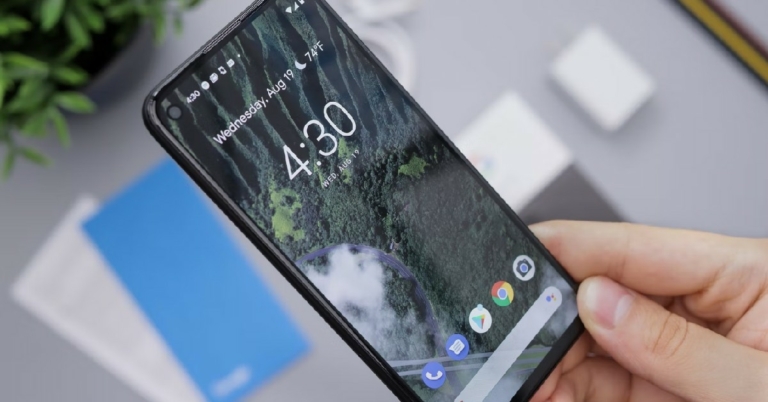



 Camera Specifications
Rear Camera:
Camera Specifications
Rear Camera: Camera Specifications
Rear Camera:
Camera Specifications
Rear Camera: Camera Specifications
Rear Camera:
Camera Specifications
Rear Camera: Camera Specifications
Rear Camera:
Camera Specifications
Rear Camera: Camera Specifications
Rear Camera:
Camera Specifications
Rear Camera: Camera Specifications
Rear Camera:
Camera Specifications
Rear Camera: Camera Specifications
Rear Camera:
Camera Specifications
Rear Camera: Camera Specifications
Rear Camera:
Camera Specifications
Rear Camera: Camera Specifications
Rear Camera:
Camera Specifications
Rear Camera:  Camera Specifications
Rear Camera:
Camera Specifications
Rear Camera:

 Read Also:
  Step 2:
 Step 3:
 Step 4:






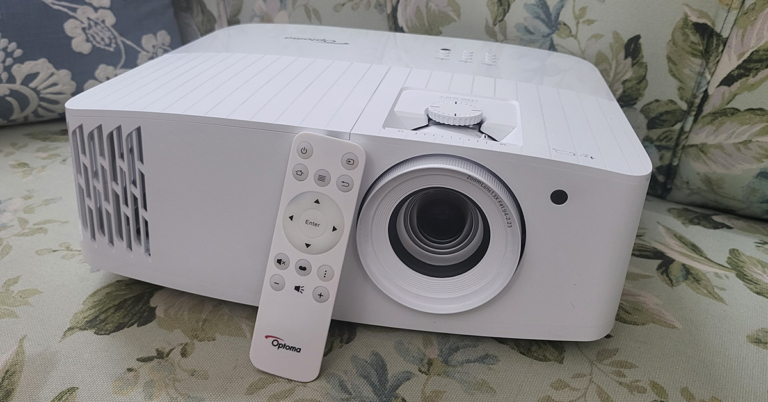
 You get the lens zoom, lens shift knobs on the top along with the power, keystone correction and other useful buttons. To raise the Optoma UHD55 projector a bit (when kept on flat surfaces) the company has put a raise stand below it. Up front, you will find the large lens along with an IR receiver.
 Turn it around and you will get to see a plethora of ports. These include a couple of HDMI, a few USB 2.0, Ethernet, VGA, audio in and audio out ports. The power-in port is also available here. A unique feature of the Optoma UHD55 projector is that the first USB port is a power OUT (5V) port, which can also be used to charge your gaming console’s gamepads. With that, a 10W speaker is also hidden behind the grille of this projector. More about this in the next section.
 A minimalistic-looking IR remote also comes with this projector with all the essential buttons and it works from as far as 50 feet, when we tested it out. All in all, the Optoma UHD55 projector is a very decent-looking device that can easily be placed on a flat surface or roof mounted.
 Setting it up was child’s play and we were up and running in 5 minutes. Up to 302-inch screen size is supported. We kept ours at 120-inch and oh boy! everything looks very good. The Optoma UHD55 projector comes with a 10W speaker also inside, which is decent for small rooms, but you will need extra speakers if you want to feast on the full power of this projector. The throw distance is also not very high, and the keystone correction works flawlessly. You can easily control it through the onboard button panel or with the supplied remote.
Read Also:
Setting it up was child’s play and we were up and running in 5 minutes. Up to 302-inch screen size is supported. We kept ours at 120-inch and oh boy! everything looks very good. The Optoma UHD55 projector comes with a 10W speaker also inside, which is decent for small rooms, but you will need extra speakers if you want to feast on the full power of this projector. The throw distance is also not very high, and the keystone correction works flawlessly. You can easily control it through the onboard button panel or with the supplied remote.
Read Also: 
 Step 3:
 Step 4:
 Step 2:



 Step 2:


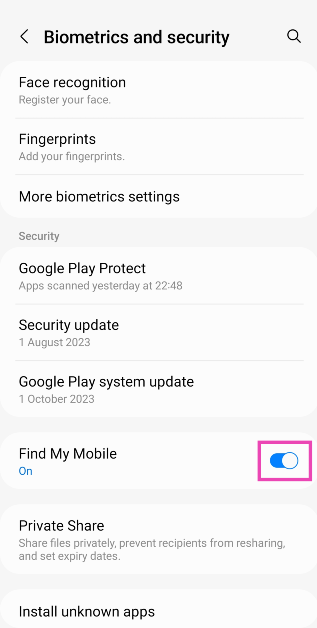
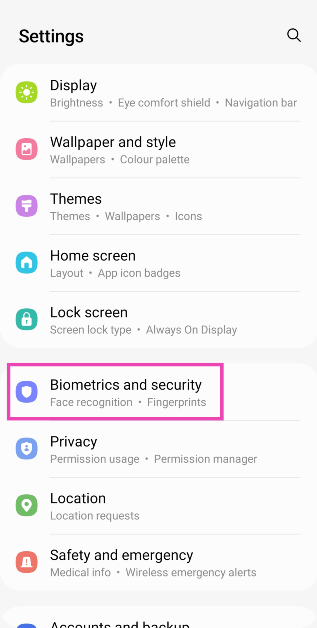 Step 2: Scroll down and turn on the toggle switch for Find My Mobile.
 On your PC
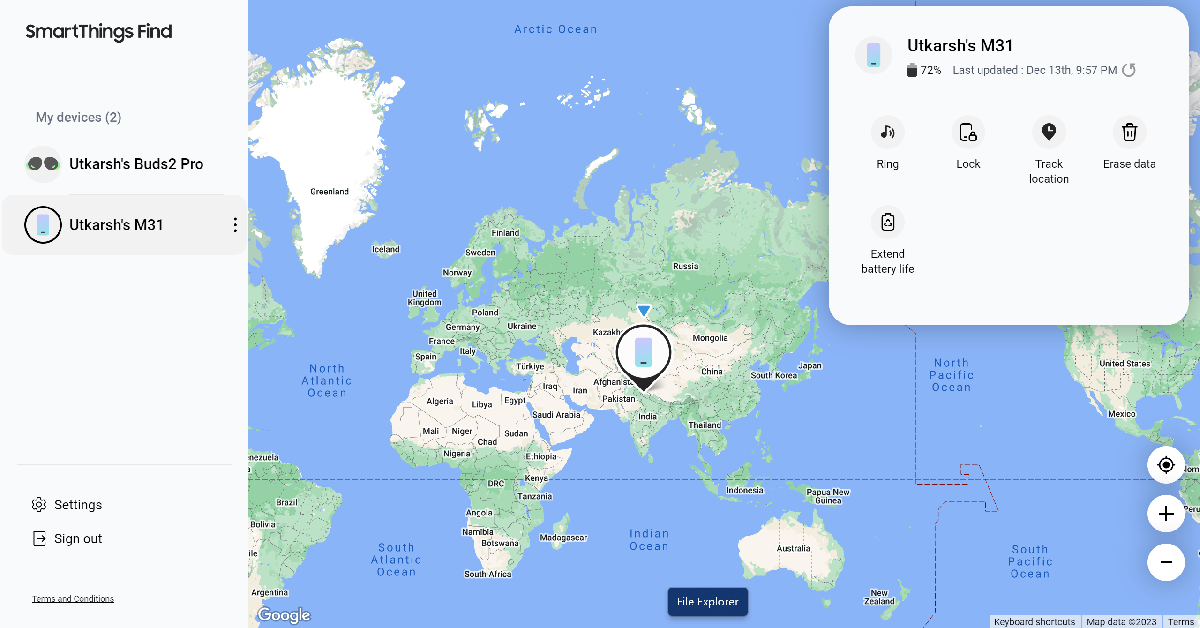
Step 1: Go to the SmartThings Find page and log in using your phone number or the registered email.
On your PC
Step 1: Go to the SmartThings Find page and log in using your phone number or the registered email.
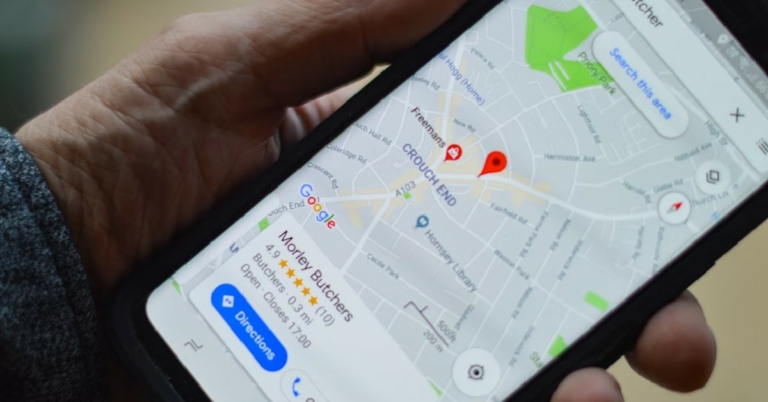
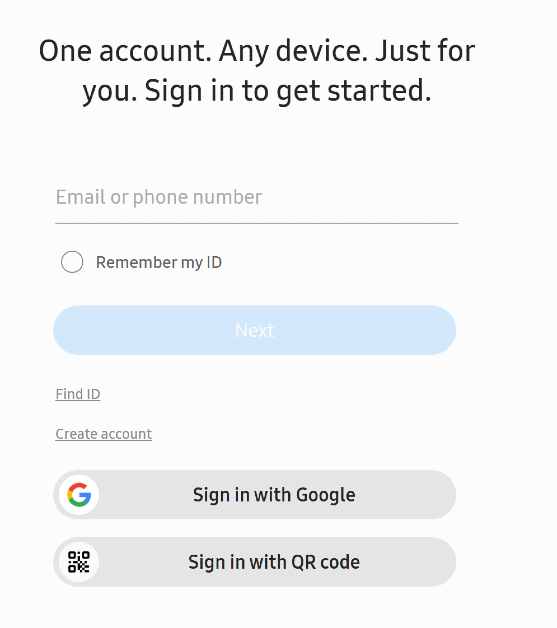 Step 2: Your device’s location will be marked on the map.