In This Article
Why is my iPhone not ringing for text message notifications?
If the text message alerts aren’t audible on your iPhone, it could be due to one of the following reasons:- DND is enabled
- Your iPhone is in silent mode
- Text message notifications are turned off
- Text alerts are muted for a particular contact or group
- The Messages app is malfunctioning
- Your iPhone is connected to a TWS
- The notifications are getting delivered to your Apple Watch
- Software issues
- Turn off DND
Turn off Silent Mode
Make sure your phone is set to a loud profile by flicking the ringer switch on the top left side of your iPhone. If you can see an orange colour on the switch, it means your iPhone is in silent mode. Simply flick the ringer the other way to turn off silent mode on your iPhone. This will ensure you receive every sound alert.Check if Message notifications are turned on
Step 1: Go to Settings, scroll down and select Messages.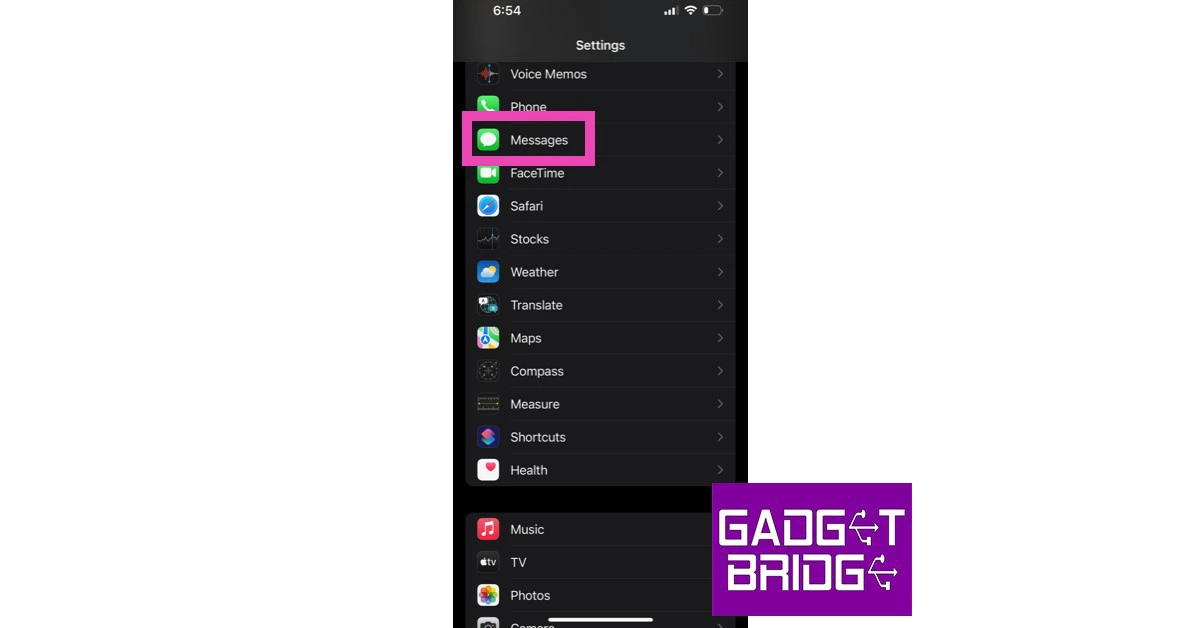 Step 2: Tap on Notifications.
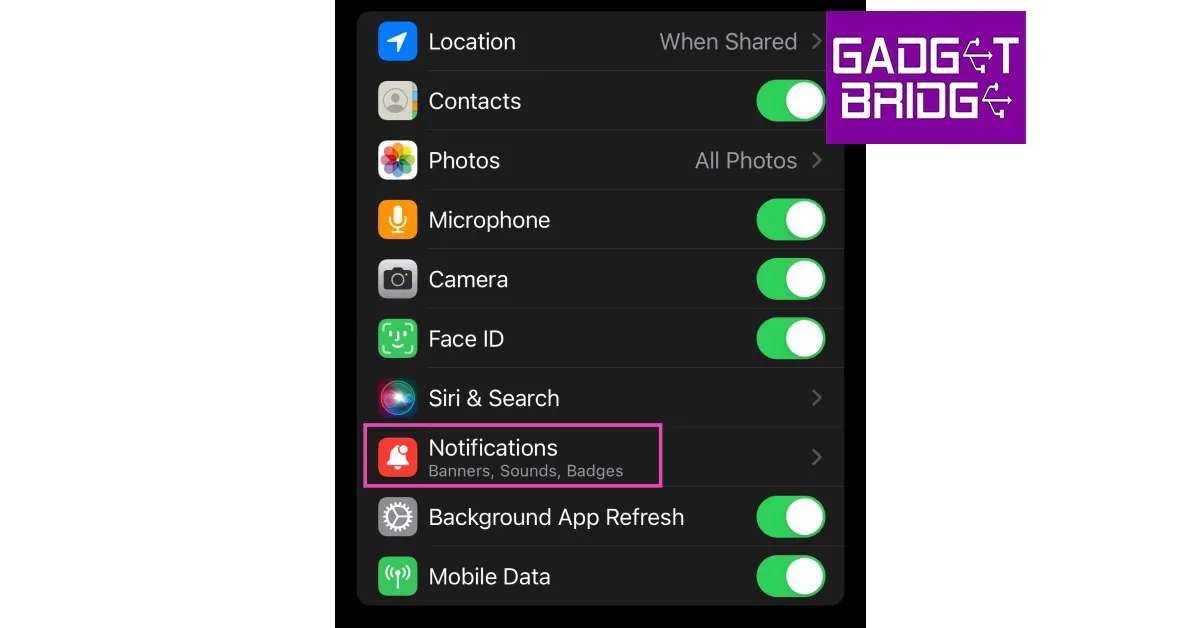 Step 3: Ensure the toggle bar for Allow Notifications is turned on.
 Step 4: Ensure that the lock screen, notification centre, and banner alerts are turned on. Additionally, make sure that the toggle bar for Sounds is turned on as well.
Reset Notification Settings for Messages
Step 1: Go to Settings, scroll down and select Messages.
Step 2: Tap on Notifications.
Step 3: Select Notification Settings.
Step 4: Tap on Reset Notification Settings.
 Step 5: Confirm your selection in the popup box.

Check if the sender is muted
If you aren’t receiving text message notification sounds for just one sender, it is likely because you accidentally muted them. A muted conversation will have a grey bell icon with a line running through it. To unmute a conversation, simply swipe left on it and press the bell icon. Once unmuted, you will receive sound alerts and pop-up notifications for the sender’s messages. Read Also: Top 5 Ways to Reverse Image Search on Mobile (2024)Check the custom tone for the contact
You can assign different alert tones to different contacts on your iPhone. If you’re not receiving sound alerts for a particular contact, make sure their custom tone isn’t set to ‘None’. Step 1: Select the contact. Step 2: Tap on Text Tone.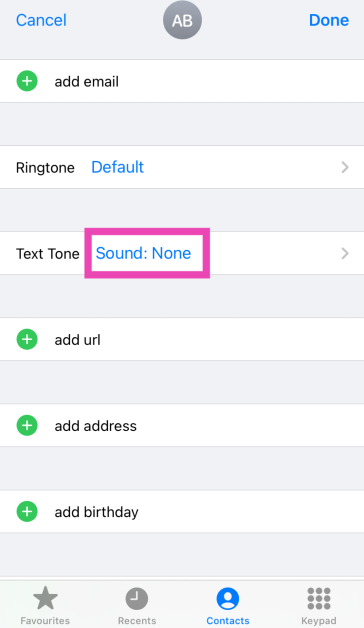 Step 3: Assign the contact a tone.
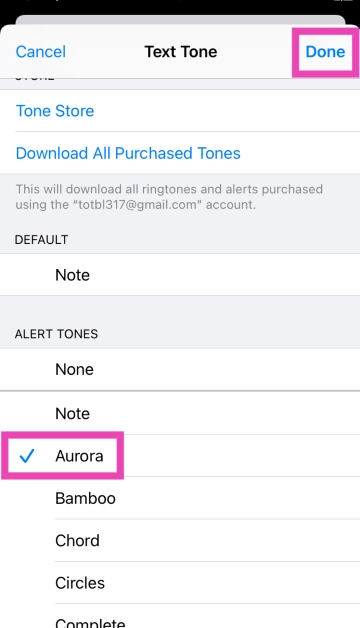 Step 4: Hit Done.
Turn off message filtering
If you aren’t receiving messages from unknown senders, it may be because their messages are getting filtered. Here’s how you can fix this. Step 1: Go to Settings and select Messages.
Step 2: Tap on Unknown & Spam in the Message Filtering section.
 Step 3: Turn the toggle bar off for Filter Unknown Senders.

Disable text message forwarding
Step 1: Go to Settings and select Messages.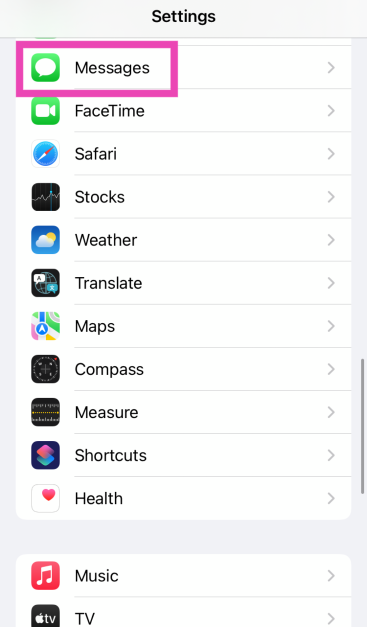 Step 2: Tap on Text Message Forwarding and turn off its toggle switch for all devices.
Disable and re-enable iMessage
Toggling iMessage on and off gives it a quick refresh. This can resolve the notification issue. Step 1: Go to Settings and select Messages.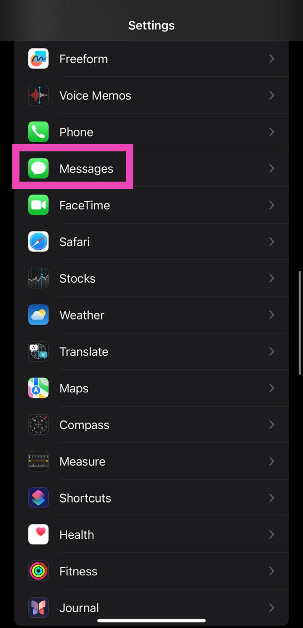 Step 2: Turn off the toggle switch next to iMessage.
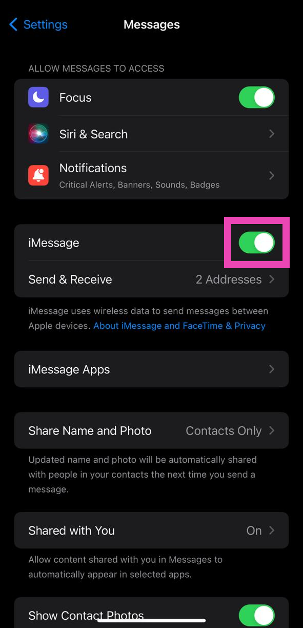 Step 3: Turn the toggle switch back on.
Turn off Hide Alerts
If you hid the notification alerts for a particular conversation. Make sure to unhide them to receive the notification sound. Step 1: Open the conversation in Messages. Step 2: Tap on the sender’s name. Step 3: Turn off the toggle switch for Hide Alerts.Force-stop the Messages app and relaunch it
Sometimes, a minor background issue can cause a particular app to malfunction and prevent it from carrying out the most basic tasks. If the text message notification sound is not working on your iPhone, you should try force-stopping the Messages app and then launching it again. You can do this by swiping up and holding from the middle of the screen, and then swiping up on the Messages app in the App Switcher.Restart your iPhone
 A simple restart takes care of any temporary bugs and fixes any background glitches that your iPhone may be experiencing. To restart your iPhone, simply press and hold one of the volume buttons and the side button until the power-off slider appears on the screen. Drag the slider to turn off your phone. Then, press the side key to turn it back on.
Ensure your iPhone isn’t connected to a Bluetooth device
 If you forgot to disconnect your iPhone from your AirPods or any other Bluetooth audio device, you will not be able to hear any notifications or alerts on your phone as long as it is connected to the device. Always make sure there are no active audio devices connected to your iPhone. To disconnect a device, use the Bluetooth tile from the Control Centre.
Turn off text notifications on Apple Watch
 One of the best functions of the Apple Watch is that it notifies you of any incoming messages and lets you view them on your wrist. However, sometimes a software glitch can cause this function to mute the notifications on your iPhone. Until this glitch is fixed, it is a good idea to disable text notifications on your Apple Watch. Launch the Watch app on your iPhone, tap on Notifications in the My Watch tab and disable them for the Apple Watch.
Update iOS
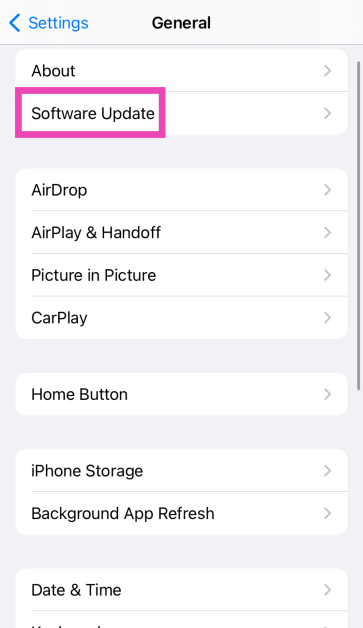
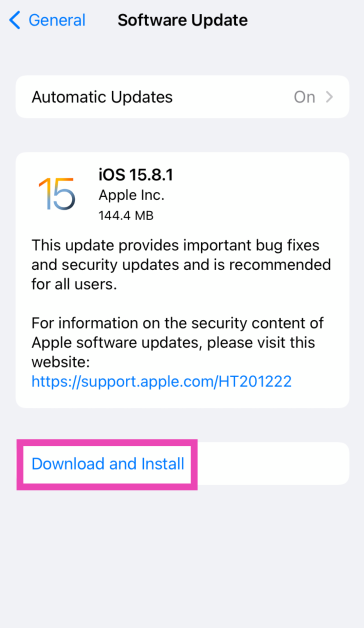
 If you’re using an older version of iOS, it is possible that the bug in the software that is causing this issue has now been resolved. Update your phone’s OS to the latest version in order to fix this issue. Go to Settings>General>Software Update to install the latest version of iOS.




 Step 1:
 Step 3:
 Step 5:
 Read Also:
 Step 3:
 Step 3:
 Step 3:
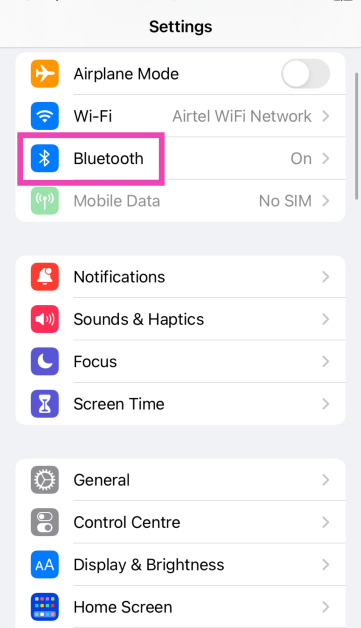 Step 2: Turn on the toggle switch for Bluetooth.
Step 3: Your iPhone will search for nearby devices.
Step 4: Select your Echo device from the list.
Step 2: Turn on the toggle switch for Bluetooth.
Step 3: Your iPhone will search for nearby devices.
Step 4: Select your Echo device from the list.
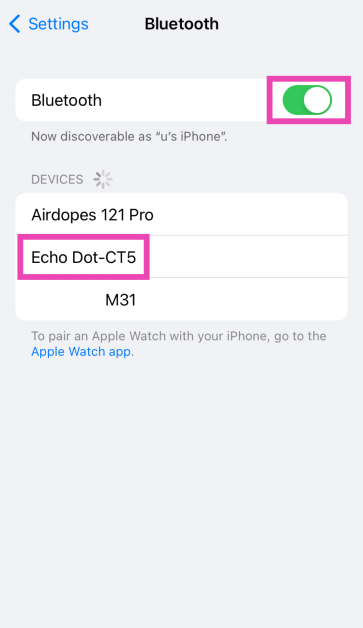 Step 5: Once the two devices are connected, go to the YouTube Music app on your iPhone and play the song you want.
 Step 3:
 Step 4:
 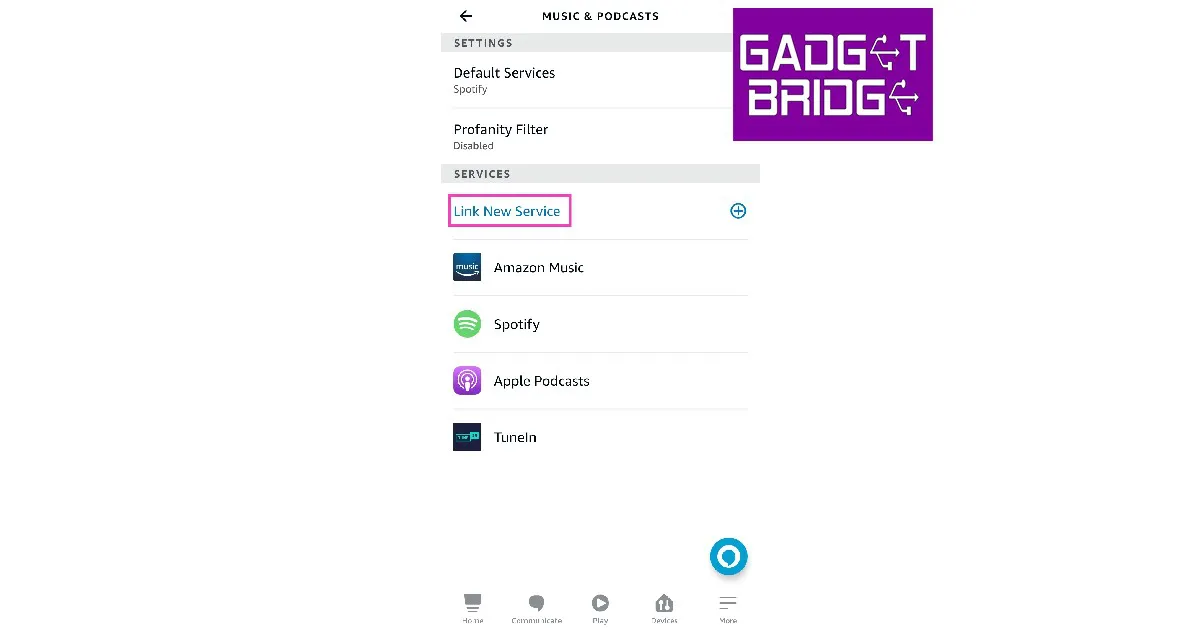 Step 5: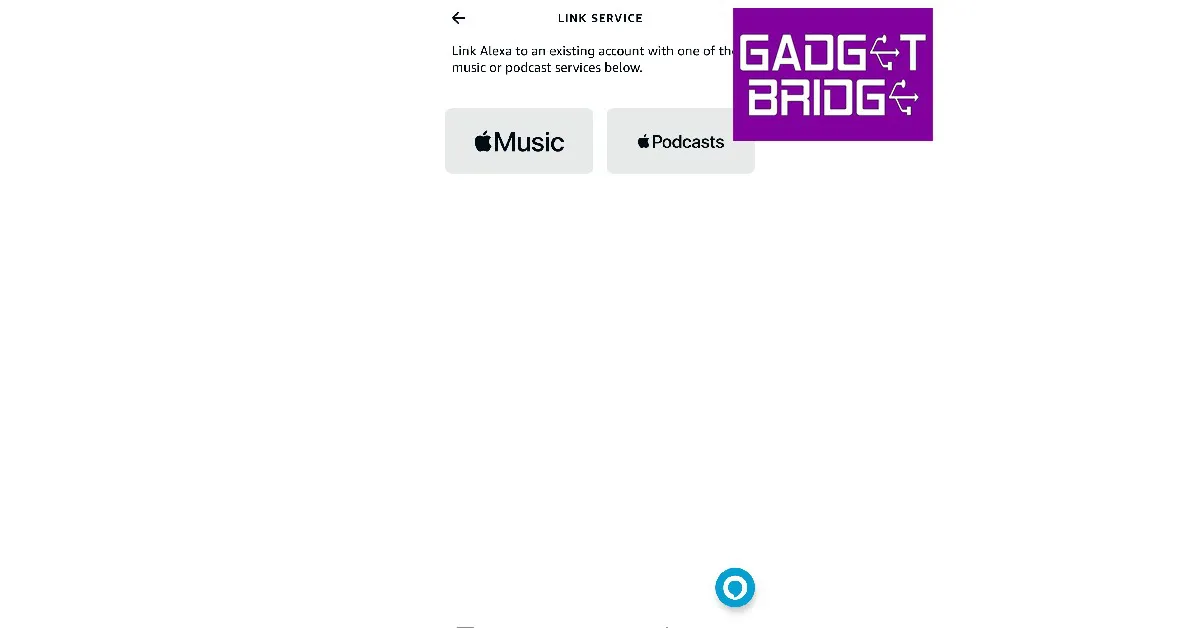
 Step 2:
 Step 3: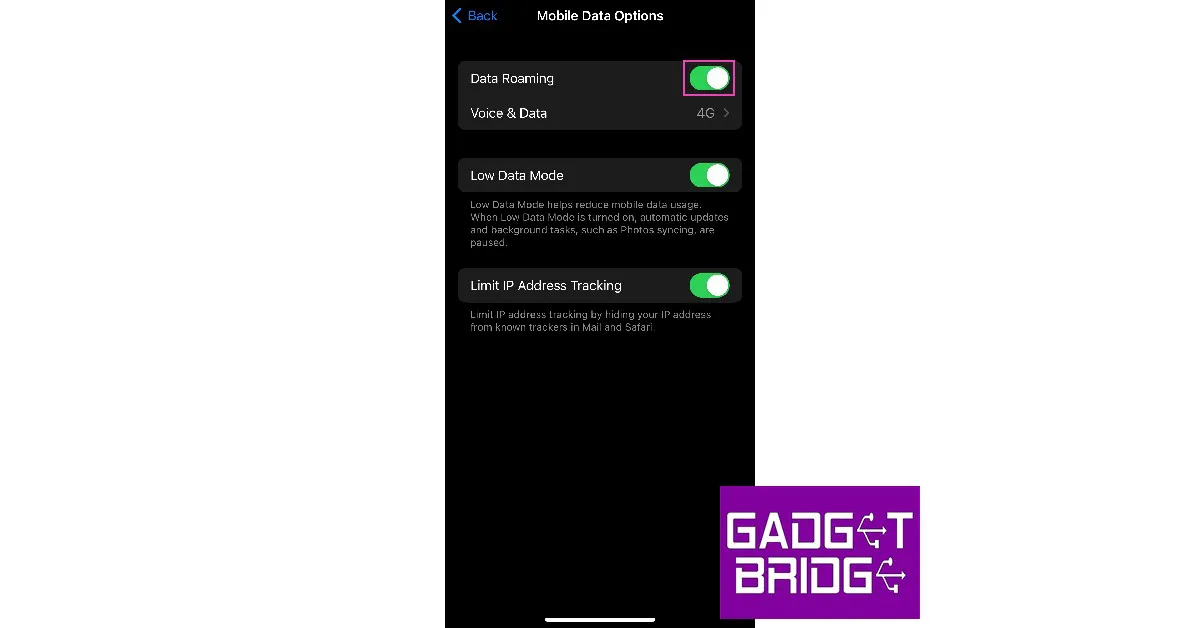
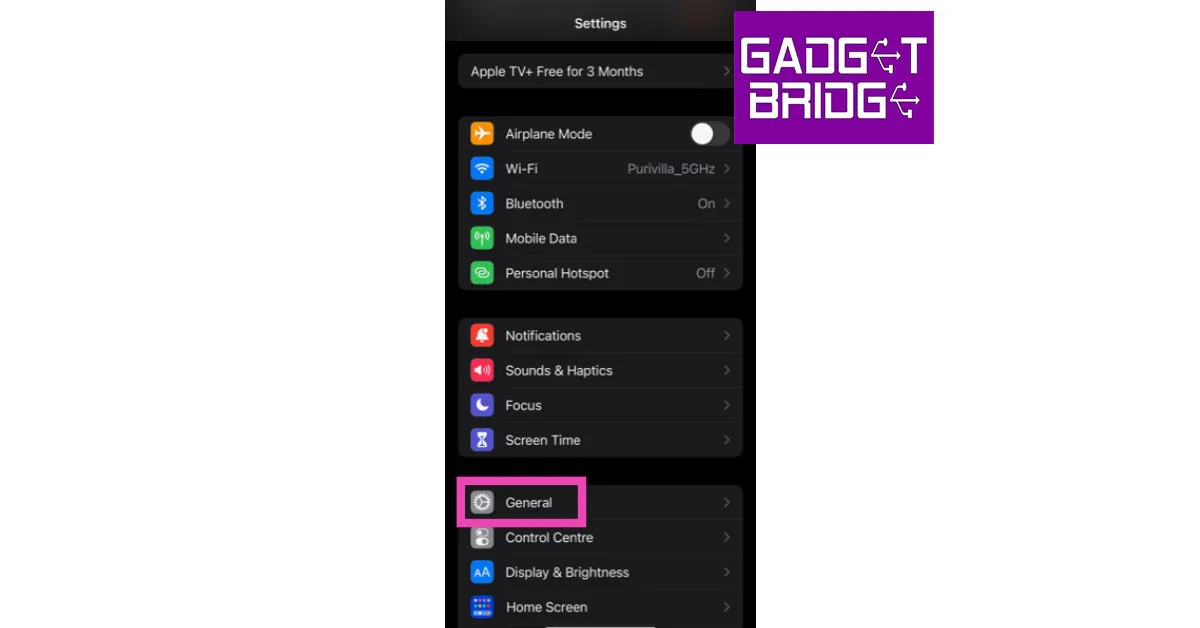 Step 2: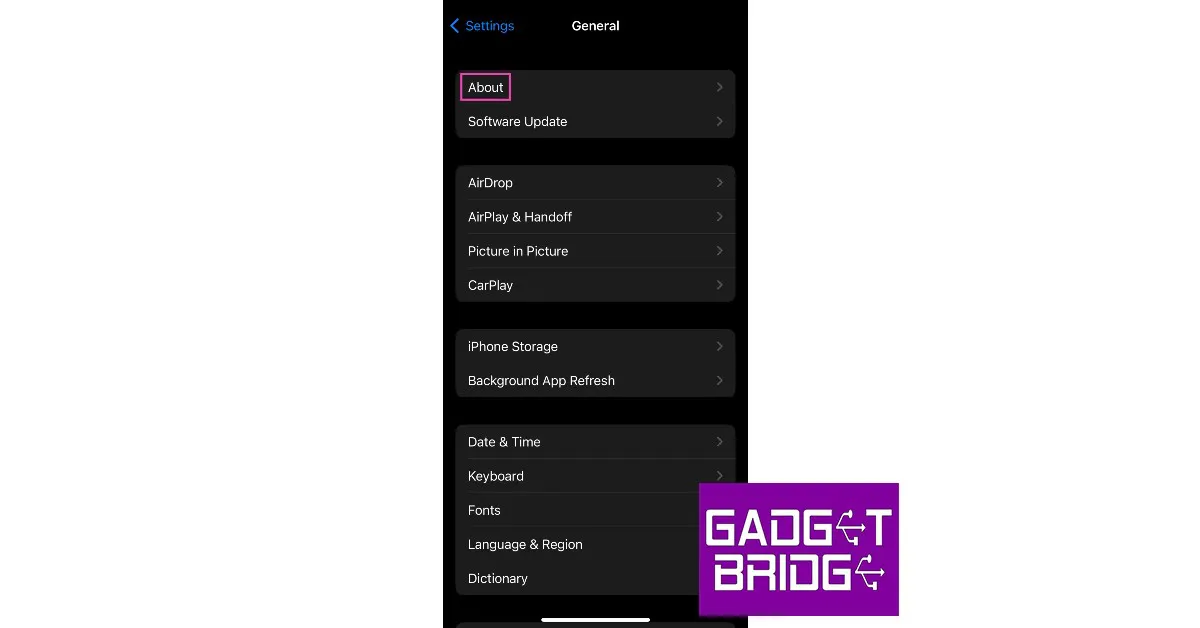
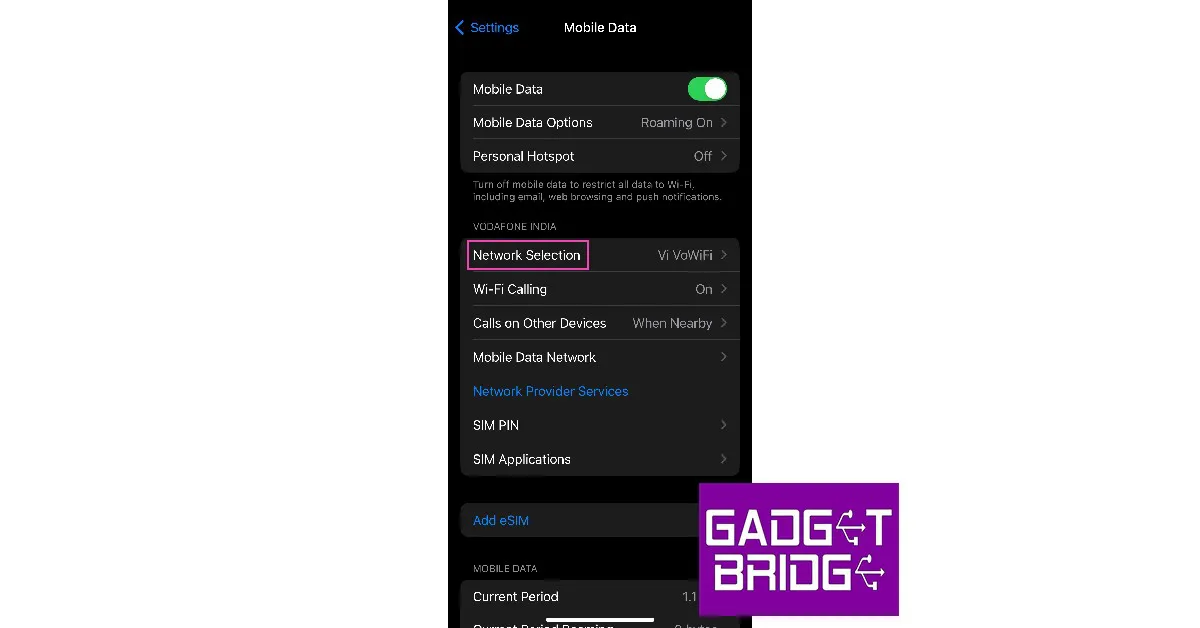 Step 3: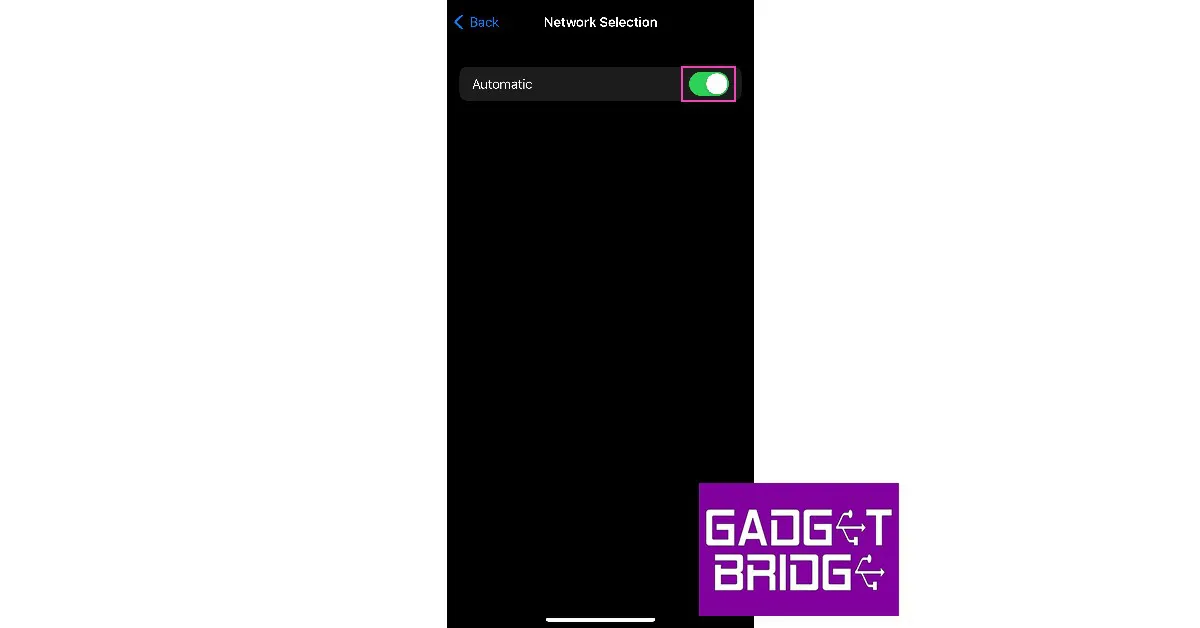
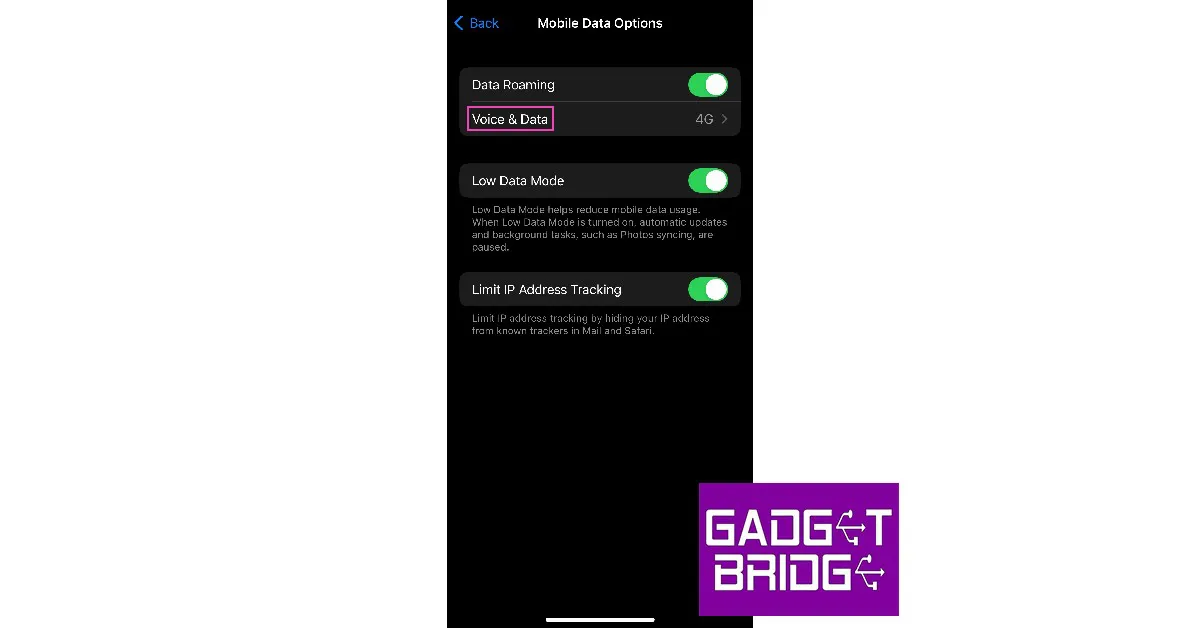 Step 4: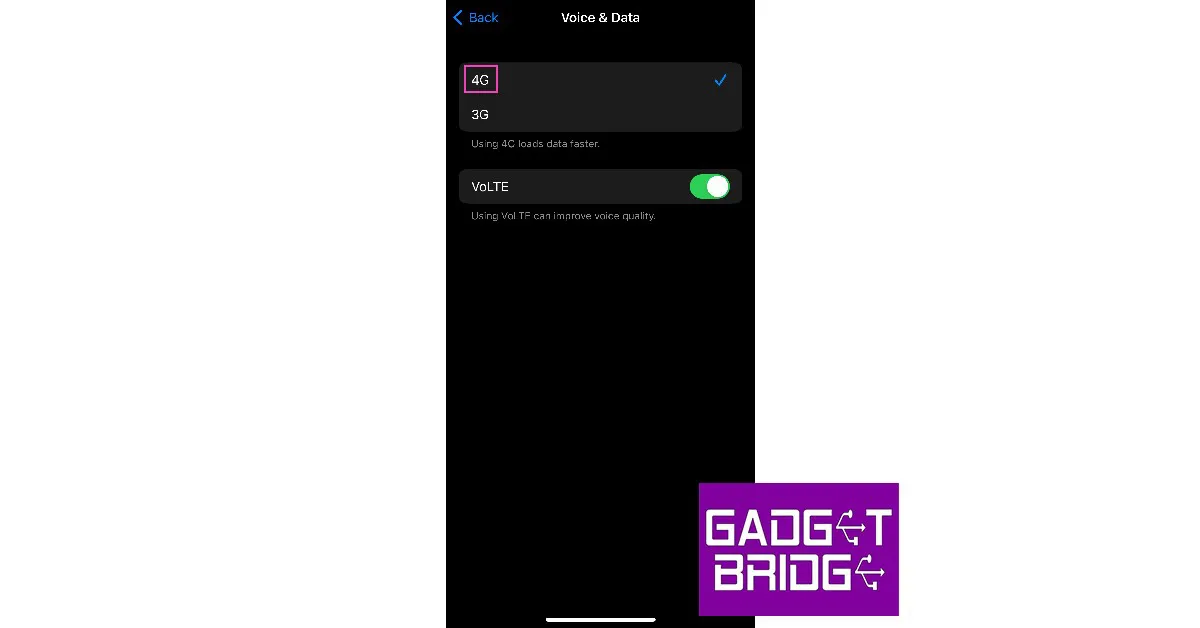
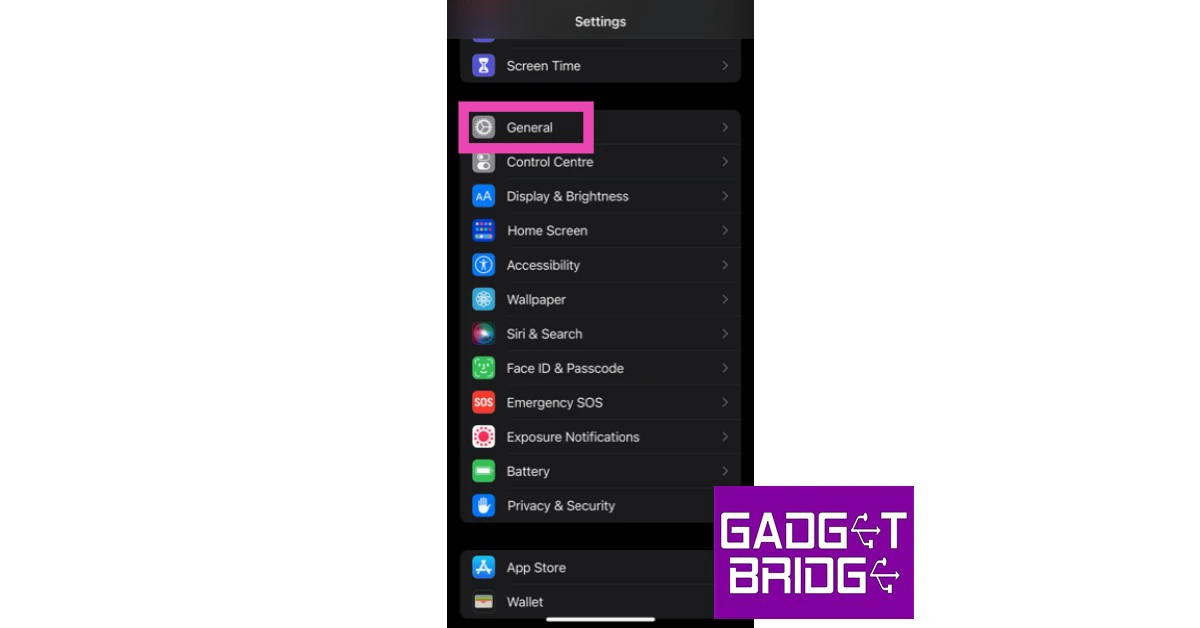 Step 2: Scroll down and select ‘Transfer or reset iPhone’.
 Step 3: Select ‘Reset’ followed by ‘Reset Network Settings’.

 Reinserting the SIM card on your iPhone is a good way to manually reset the network. If the methods mentioned above do not work for you, this could be worth giving a try. Sometimes a SIM card may shift its position when your iPhone absorbs an impact. This fix will take care of it. Once you take out the SIM card, inspect it for any physical defects and then reinsert it into your iPhone. SIM cards rarely ever develop any physical issues, but sometimes network providers phase out SIM cards that are decades old. If this is the case, your network provider will issue you a new SIM card with the same phone number. Skip this step if you are using an eSIM on your iPhone.





 Step 3:
 Step 5:
 Step 2:
 Step 3:

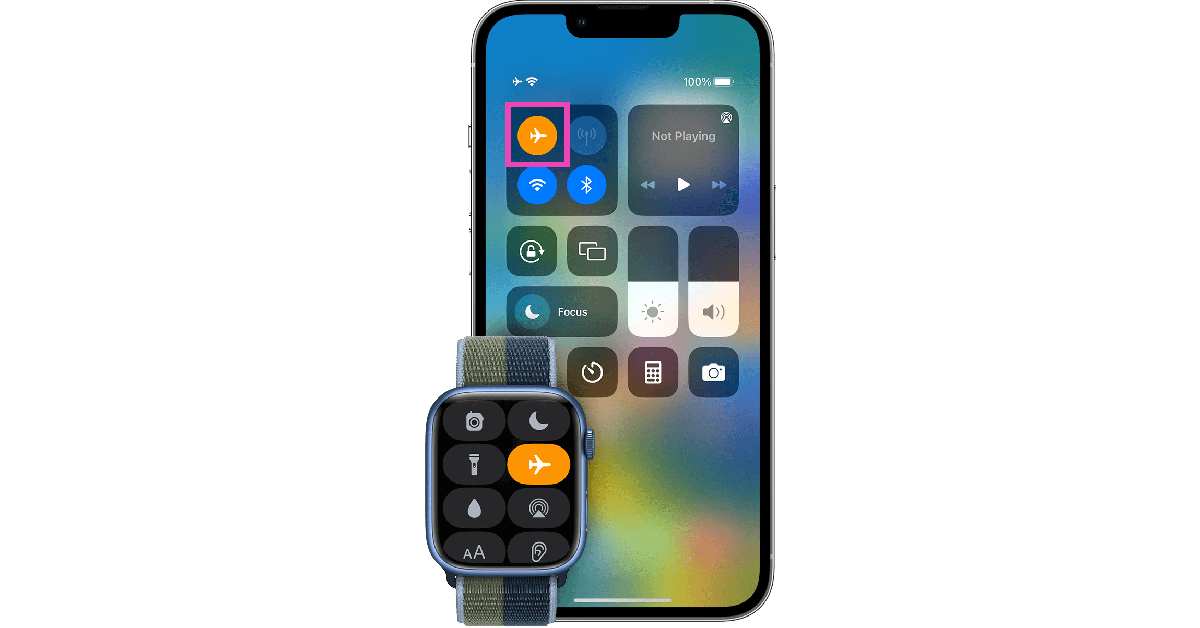 If you don’t want to switch off your iPhone while charging, the next best thing you can do is turn on the Airplane Mode. Receiving a cellular network all the time consumes a lot of power on your device. The power consumption increases when you use the 5G network for streaming videos or just browsing the internet. Turning on Airplane Mode ensures that you don’t use the battery faster than it is being charged.
 Turning on Low Power Mode on your iPhone cuts down the battery drain by limiting certain tasks. Once it is turned on, the display brightness, refresh rate, and some visual effects will be dialled down. Features like Auto Lock, background app refresh, and automatic downloads will also be disabled. This ensures that your iPhone doesn’t consume power faster than the incoming charge. When the Low Power Mode is turned on, the battery bar turns yellow.

 Sometimes, the external case covering your iPhone can cause its temperature to rise. This is more likely to happen when the surrounding temperature is high. Taking off the case lets your iPhone cool down faster. While charging, the battery inside your iPhone can get warmer, leading to a simultaneous loss of charge. Take off the case to keep the iPhone’s temperature in check and boost its charging speed.

 Step 3: Select Software Update.
 Step 4: Tap on Download and Install.

 Step 2:
 Step 3:
 Step 4:
 Step 3:
 Step 4:
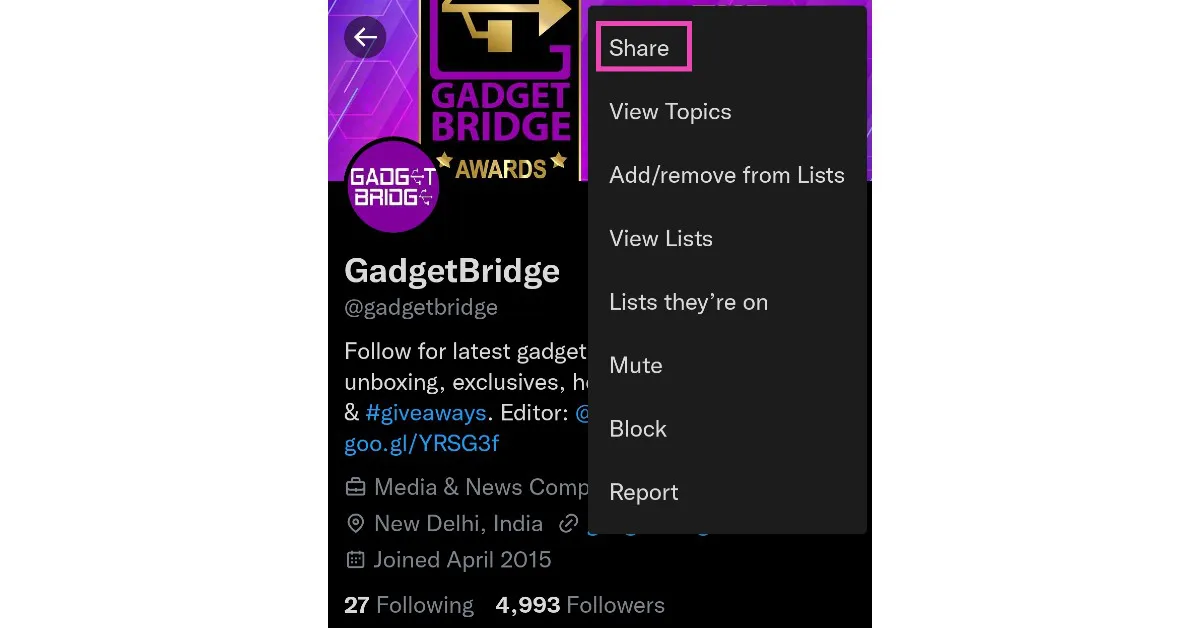
 Step 3:
 Step 4: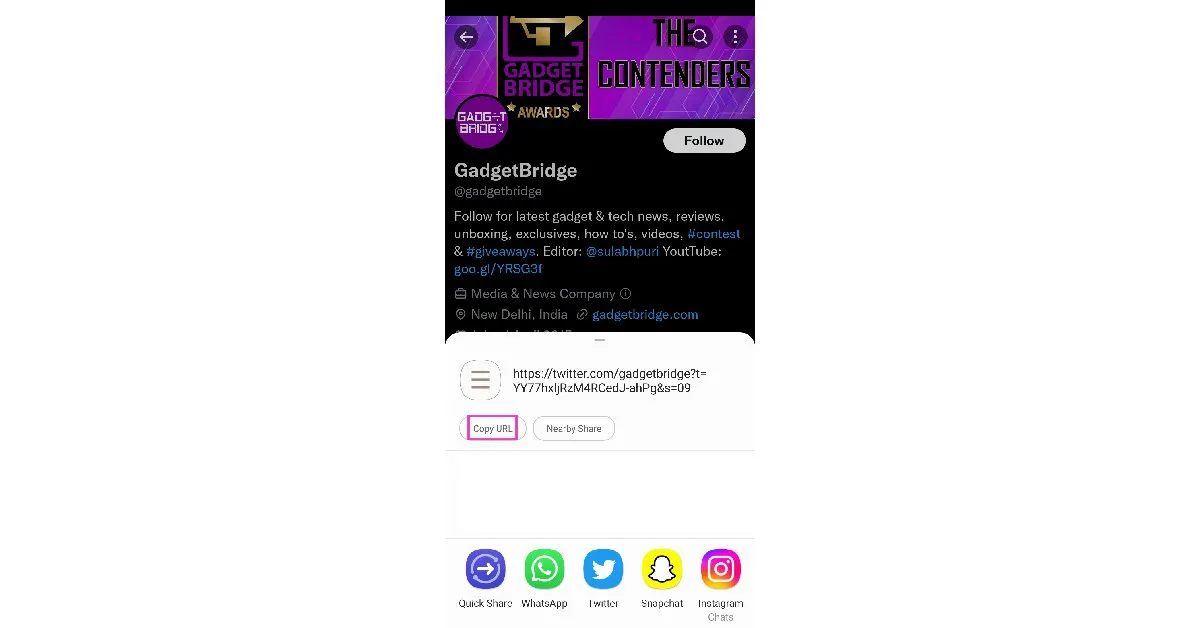
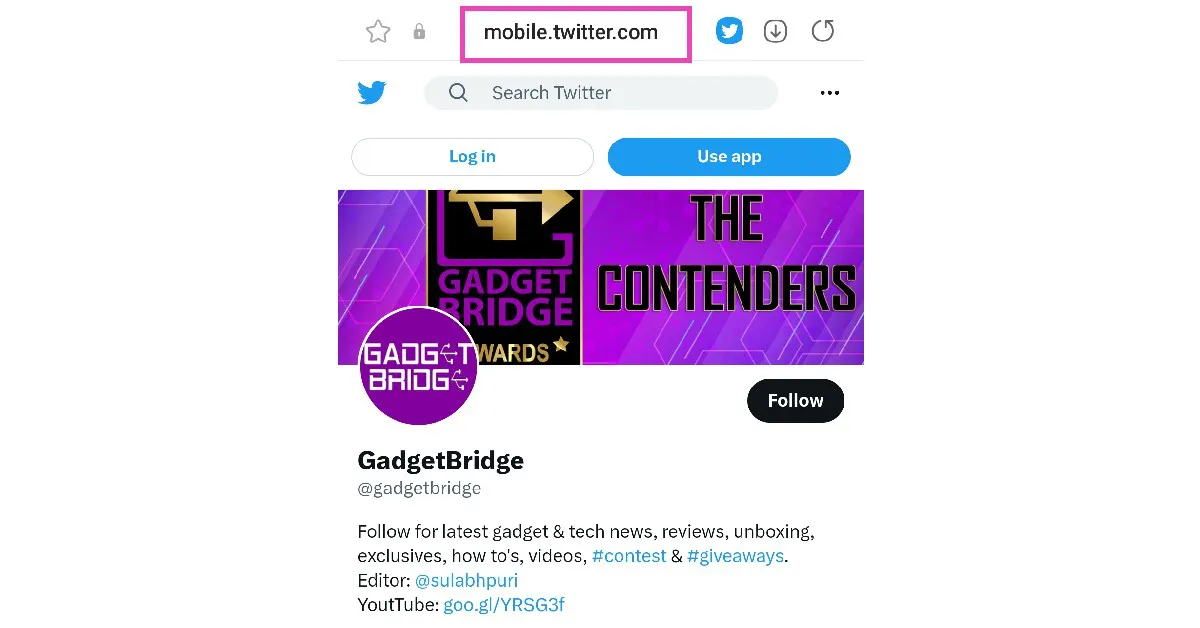 Step 3:
 Step 3:
 Step 4:


 Step 2:
 Step 3:
 Step 4:
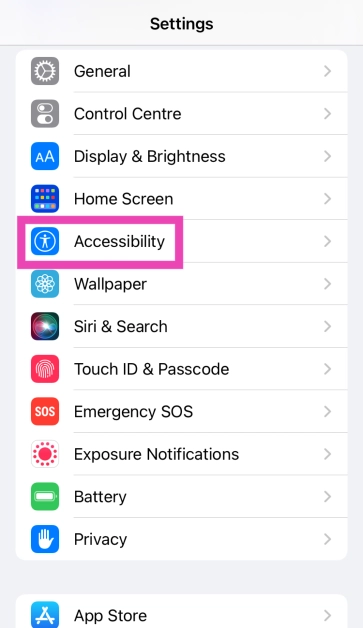 Step 2: Scroll down and tap on Audio/Visual.
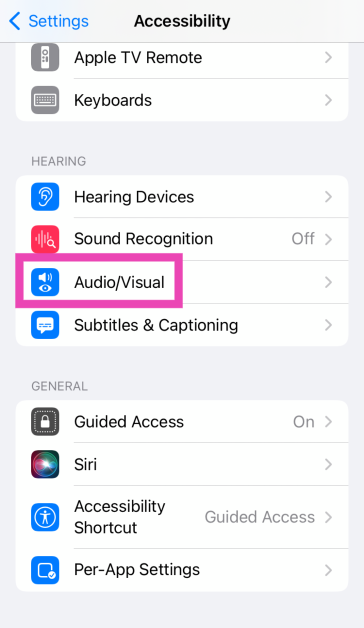 Step 3: Turn off the toggle switch for Phone Noise Cancellation.
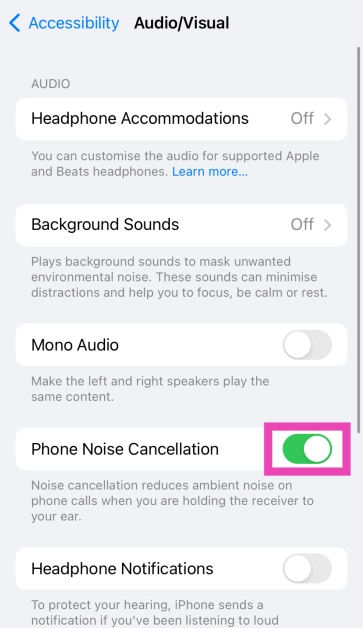
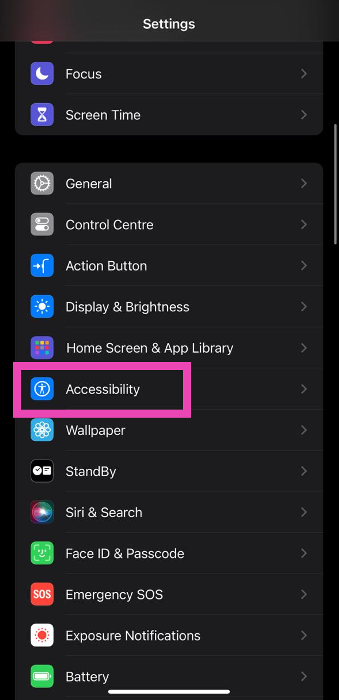 Step 2: Select Audio/Visual.
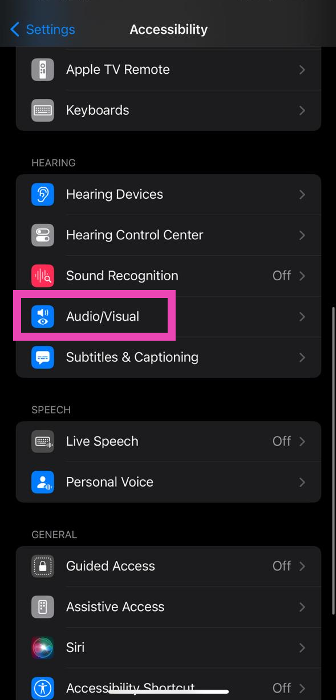 Step 3: Tap on Background Sounds.
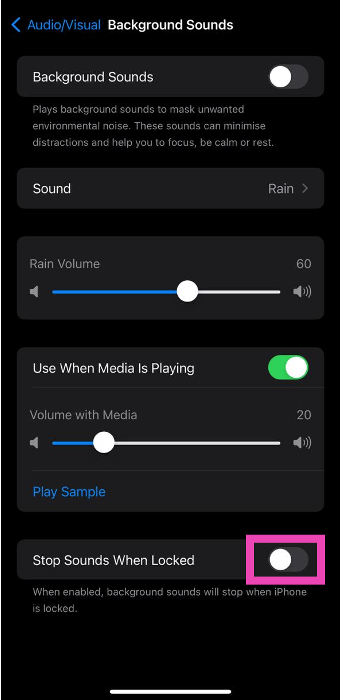
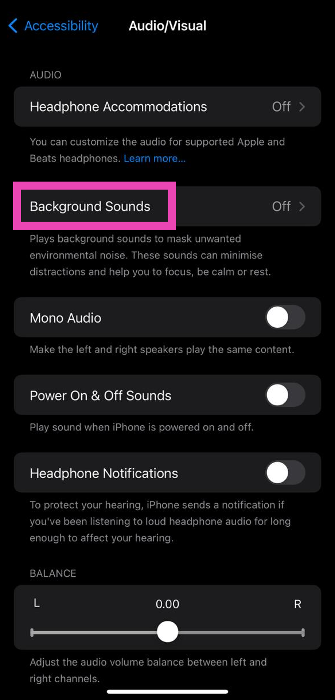 Step 4: Turn off the toggle switch for Stop Sounds When Locked.
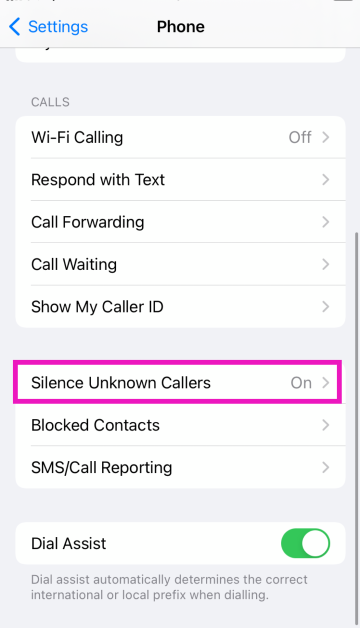
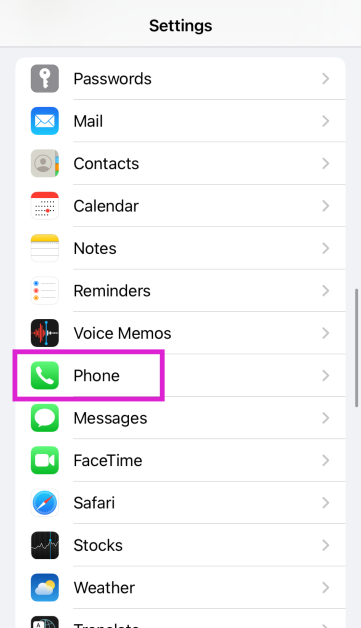 Step 2: Scroll down and tap on Silence Unknown Callers.
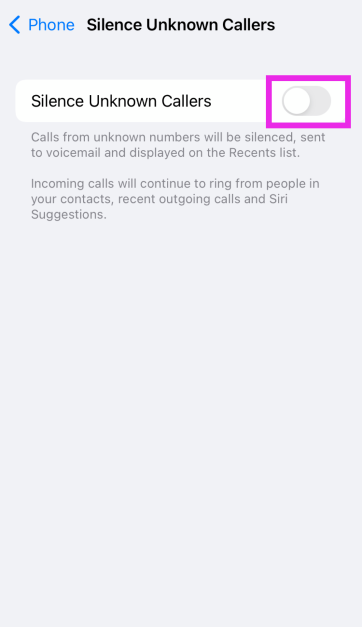
 Step 3: Turn off the toggle switch.

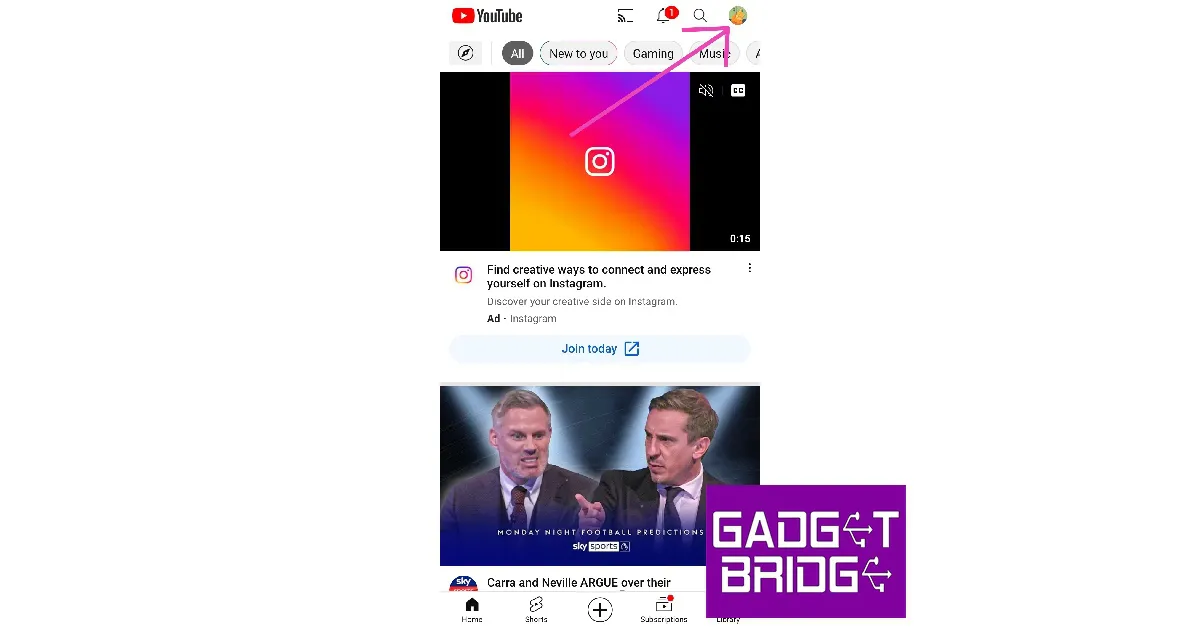 Step 2:
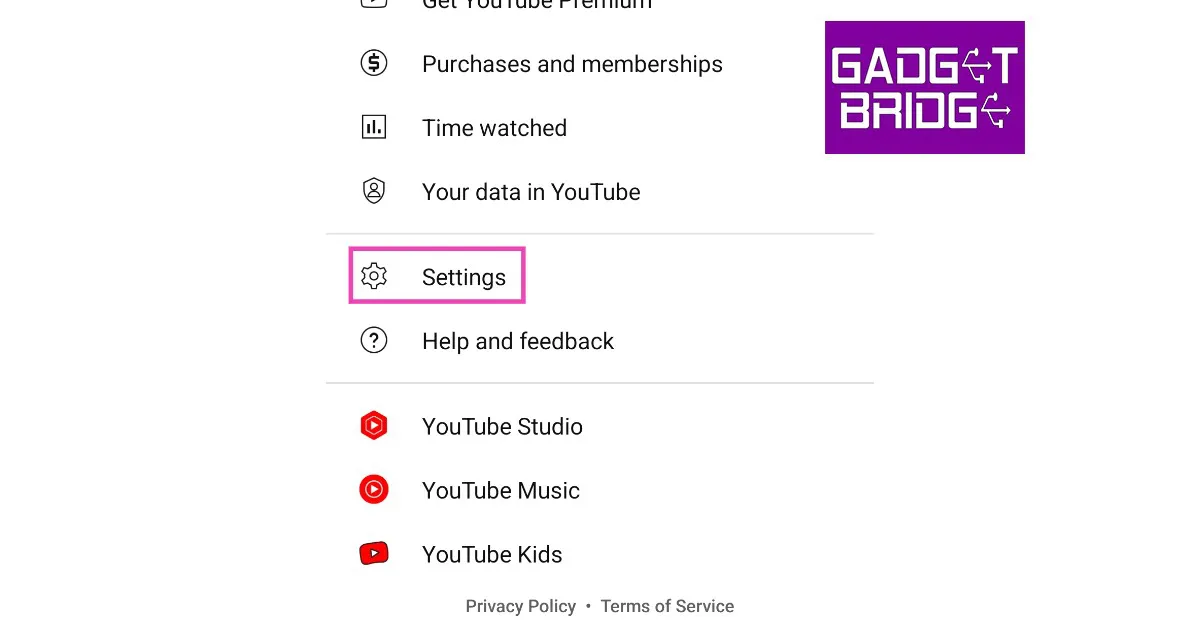 Step 3: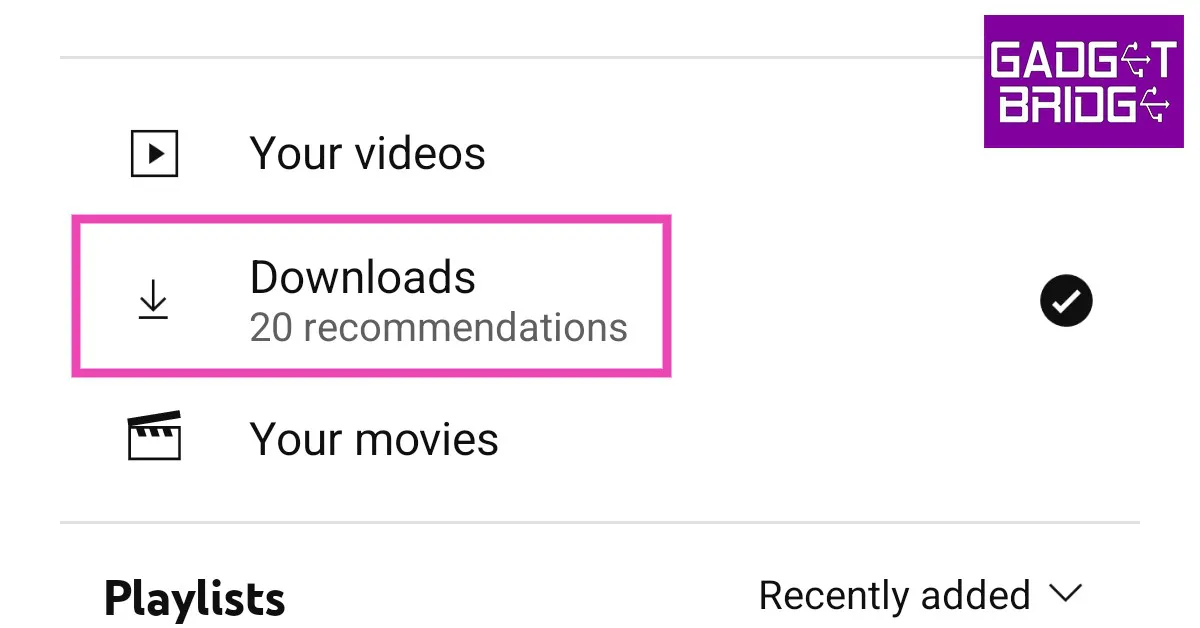
 Step 2:
 Step 3:
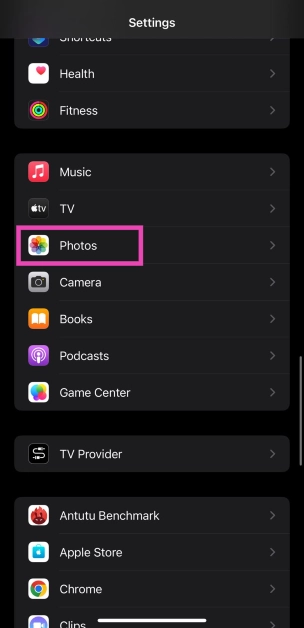 Step 2: Tap on Optimize iPhone Storage.
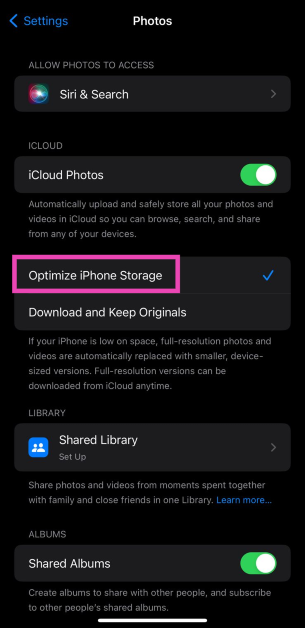 The images on your iPhone will be compressed to save storage space. The optimised images occupy less space and are perfect to be viewed on your iPhone. You won’t notice much difference. If you want to access the full-resolution images, you can download them from iCloud.
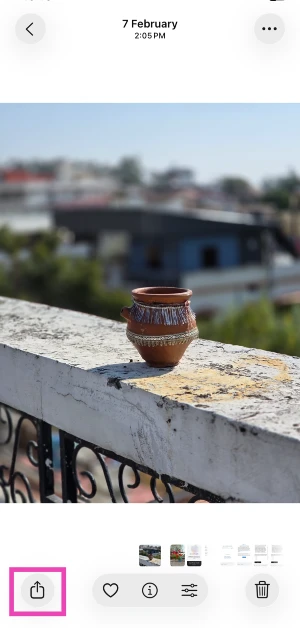 Step 3: Select Save to Files.
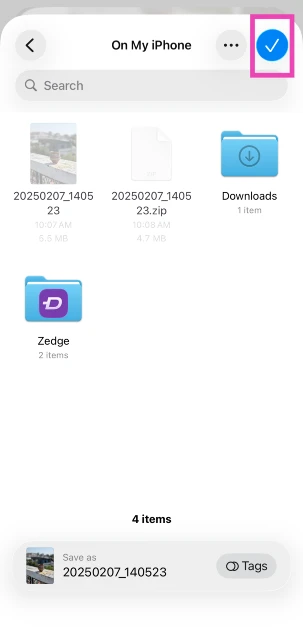
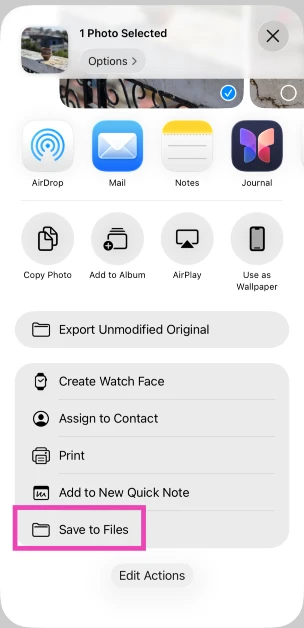 Step 4: Choose the destination and hit the tick icon.
 Step 5: Launch the Files app and go to the image.
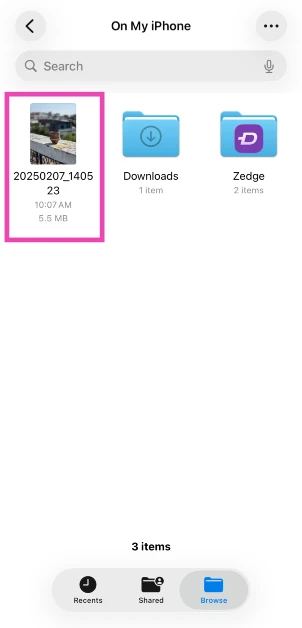 Step 6: Long-press the image icon and select Compressed.
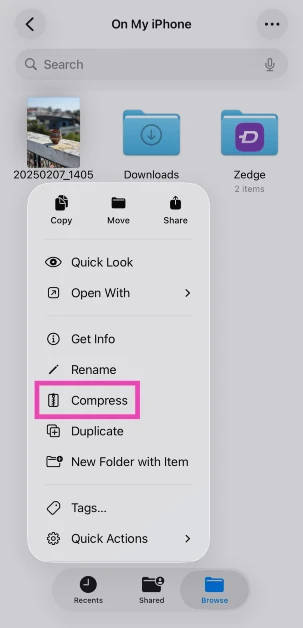 Step 7: A compressed version of the image will appear next to it.


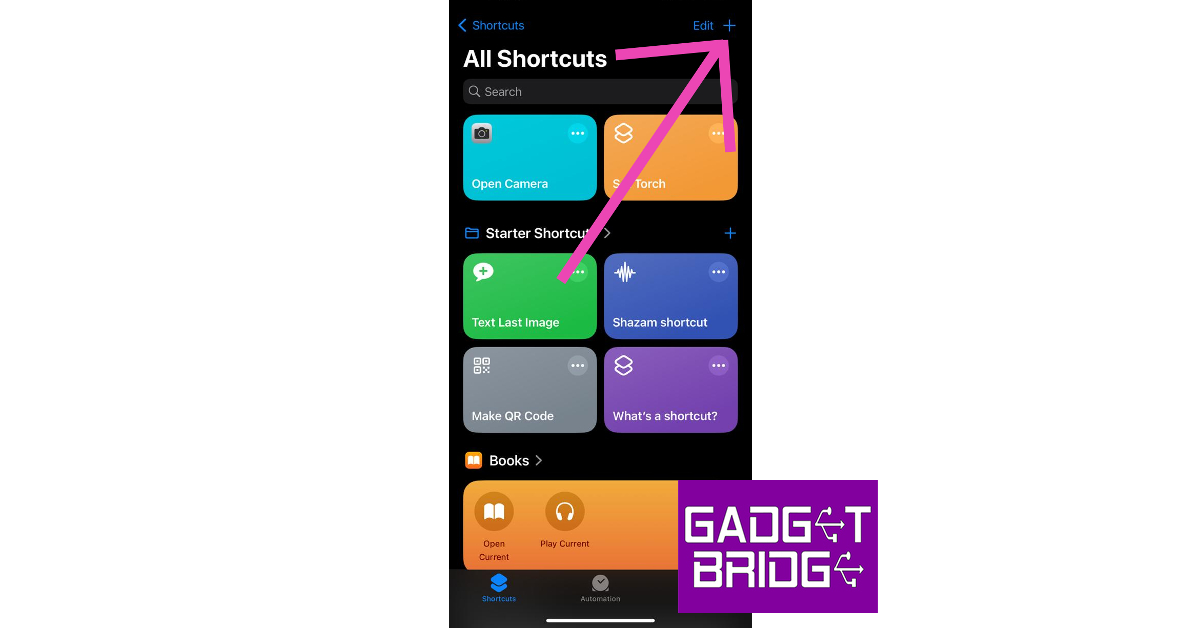 Step 2: Give your shortcut a name.
Step 3: Select Add Action.
Step 2: Give your shortcut a name.
Step 3: Select Add Action.
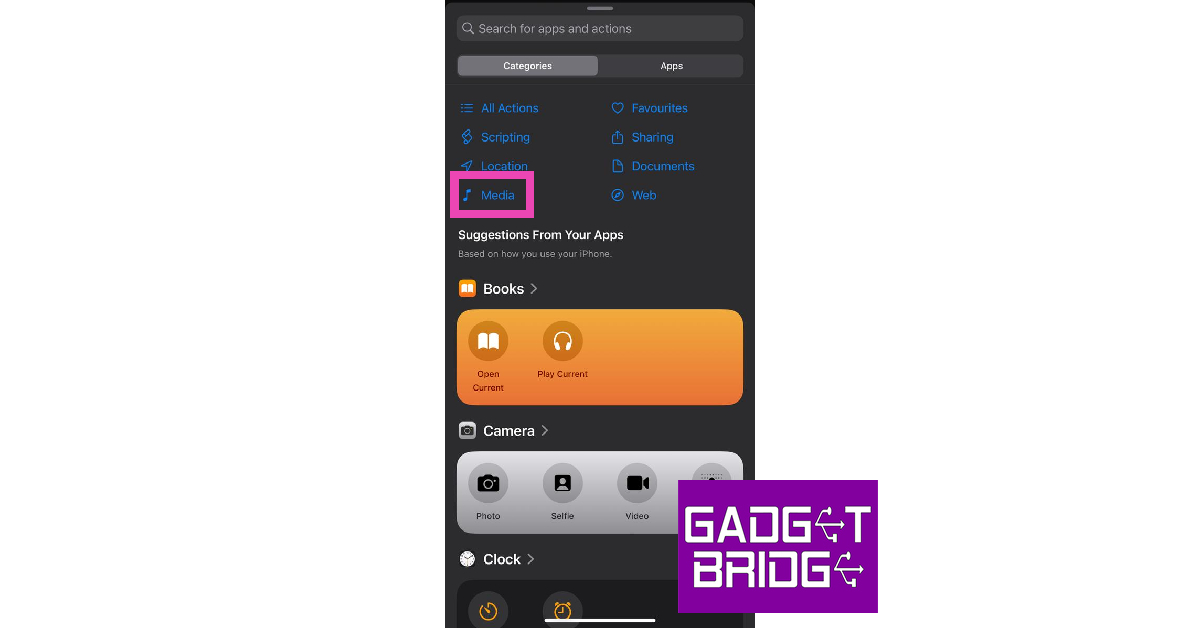
 Step 4: Go to Categories and select Media.
 Step 5: Under the Images category, select Get Images from Input.
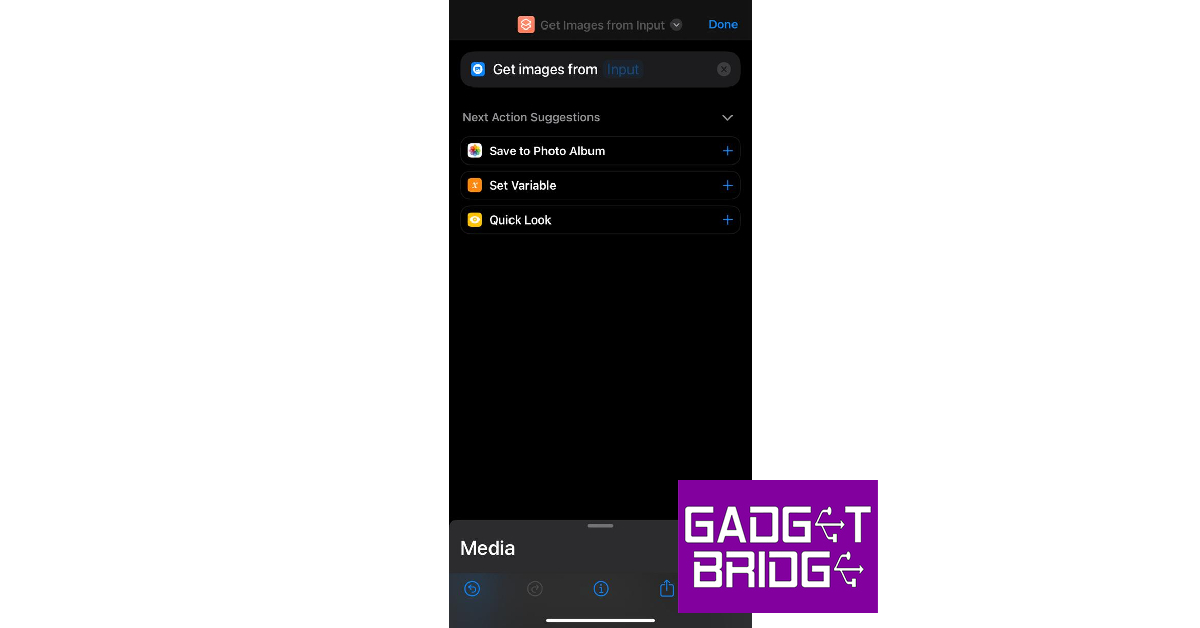 Step 6: Hit the blue icon at the top right corner of the screen and turn on the toggle switch for Show in Share Sheet.
Step 7: Drag the Media page and select Resize Image.
Step 6: Hit the blue icon at the top right corner of the screen and turn on the toggle switch for Show in Share Sheet.
Step 7: Drag the Media page and select Resize Image.
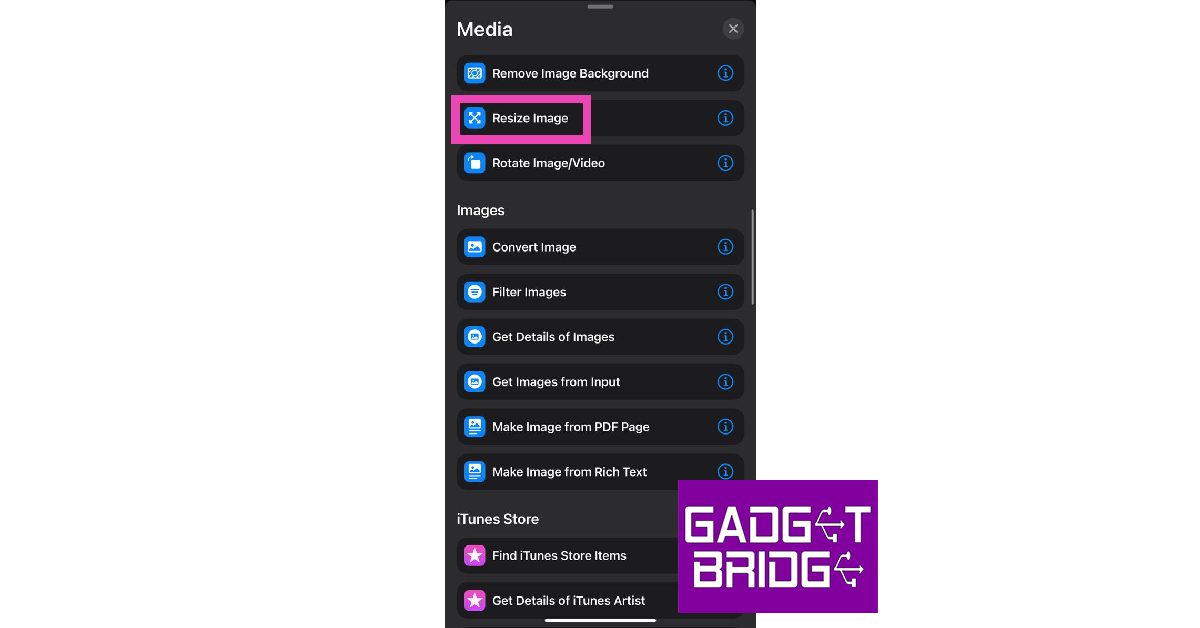 Step 8: Tap on size to set the default metrics or select Ask Each Time.
Step 9: Hit Done.
Step 10: Select the Media page again and tap on Convert Image.
Step 11: Choose the file format for the resized images.
Step 12: Drag the Media page again and tap on Save to Photo Album.
Step 13: Select a destination album for the resized images.
Step 14: Hit the cross icon.
Step 15: To resize an image, open it in the Photos app, hit the Share icon, and select the shortcut from the list.
Step 8: Tap on size to set the default metrics or select Ask Each Time.
Step 9: Hit Done.
Step 10: Select the Media page again and tap on Convert Image.
Step 11: Choose the file format for the resized images.
Step 12: Drag the Media page again and tap on Save to Photo Album.
Step 13: Select a destination album for the resized images.
Step 14: Hit the cross icon.
Step 15: To resize an image, open it in the Photos app, hit the Share icon, and select the shortcut from the list.
 Step 3:
 Step 4:
 Step 5: